Faculty of Engineering Science & Technology(FEST)
Hamdard Institute of Engineering Technology(HIET)
HAMDARD UNIVERSITY
Instructor
ABDUL HASEEB
HANDS-ON WORKSHOP ON PYTHON
PROGRAMMING LANGUAGE
Faculty Development Program (Session-10)
Python Arduino Interfacing
Arduino and MS Excel Interface
with Python
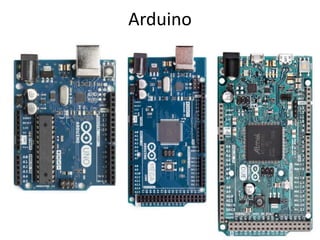
Arduino
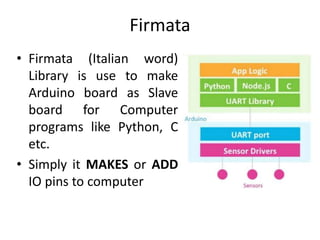
Firmata
• Firmata (Italian word)
Library is use to make
Arduino board as Slave
board for Computer
programs like Python, C
etc.
• Simply it MAKES or ADD
IO pins to computer
Process of Interfacing Arduino
• Configure Arduino with Standard Firmata
Program
• Interface Arduino through PC or Laptop via
PyFirmata package
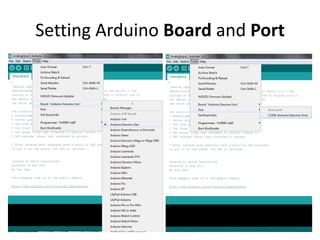
Setting Arduino Board and Port
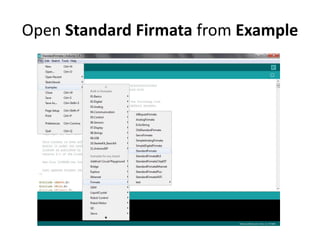
Open Standard Firmata from Example
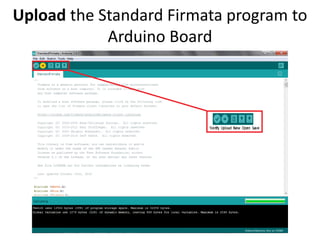
Upload the Standard Firmata program to
Arduino Board
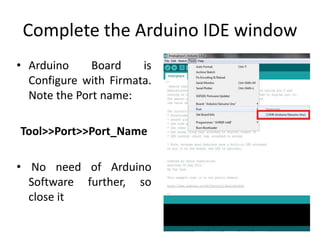
Complete the Arduino IDE window
• Arduino Board is
Configure with Firmata.
Note the Port name:
Tool>>Port>>Port_Name
• No need of Arduino
Software further, so
close it
Working on PyFirmata
• PyFirmata is not a build-in package for Python
IDLE, so first install PyFirmata
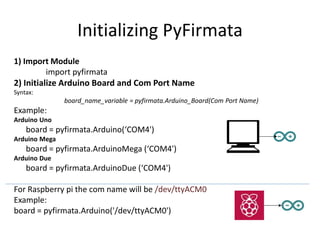
Initializing PyFirmata
1) Import Module
import pyfirmata
2) Initialize Arduino Board and Com Port Name
Syntax:
board_name_variable = pyfirmata.Arduino_Board(Com Port Name)
Example:
Arduino Uno
board = pyfirmata.Arduino(‘COM4')
Arduino Mega
board = pyfirmata.ArduinoMega (‘COM4')
Arduino Due
board = pyfirmata.ArduinoDue (‘COM4')
For Raspberry pi the com name will be /dev/ttyACM0
Example:
board = pyfirmata.Arduino('/dev/ttyACM0')
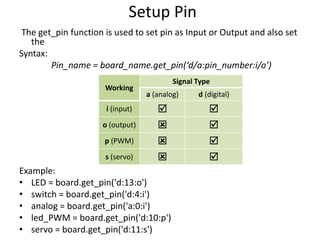
Setup Pin
The get_pin function is used to set pin as Input or Output and also set
the
Syntax:
Pin_name = board_name.get_pin(‘d/a:pin_number:i/o’)
Example:
• LED = board.get_pin('d:13:o')
• switch = board.get_pin('d:4:i')
• analog = board.get_pin('a:0:i')
• led_PWM = board.get_pin('d:10:p')
• servo = board.get_pin('d:11:s')
Working
Signal Type
a (analog) d (digital)
i (input)  
o (output)  
p (PWM)  
s (servo)  
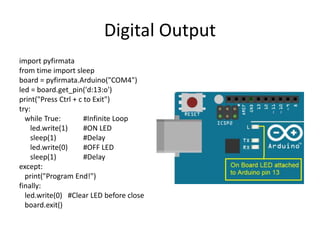
Digital Output
import pyfirmata
from time import sleep
board = pyfirmata.Arduino("COM4")
led = board.get_pin('d:13:o')
print("Press Ctrl + c to Exit")
try:
while True: #Infinite Loop
led.write(1) #ON LED
sleep(1) #Delay
led.write(0) #OFF LED
sleep(1) #Delay
except:
print("Program End!")
finally:
led.write(0) #Clear LED before close
board.exit()
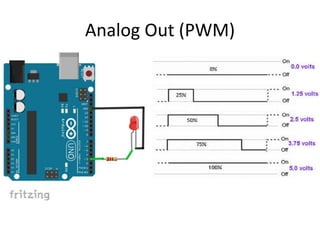
Analog Out (PWM)
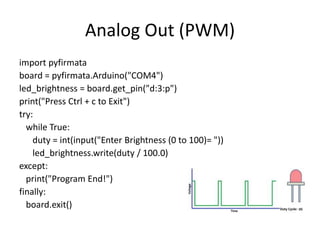
Analog Out (PWM)
import pyfirmata
board = pyfirmata.Arduino("COM4")
led_brightness = board.get_pin("d:3:p")
print("Press Ctrl + c to Exit")
try:
while True:
duty = int(input("Enter Brightness (0 to 100)= "))
led_brightness.write(duty / 100.0)
except:
print("Program End!")
finally:
board.exit()
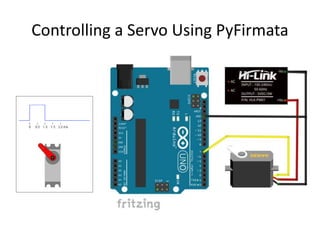
Controlling a Servo Using PyFirmata
import pyfirmata
board = pyfirmata.Arduino("COM4")
servo_pin = board.get_pin("d:7:s")
print("Press Ctrl + c to Exit")
try:
while True:
angle = int(input("Enter Angle (0 to 180):"))
servo_pin.write(angle)
except:
print("Program End!")
finally:
board.exit()
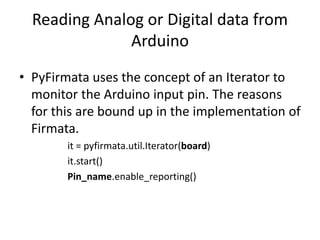
Reading Analog or Digital data from
Arduino
• PyFirmata uses the concept of an Iterator to
monitor the Arduino input pin. The reasons
for this are bound up in the implementation of
Firmata.
it = pyfirmata.util.Iterator(board)
it.start()
Pin_name.enable_reporting()
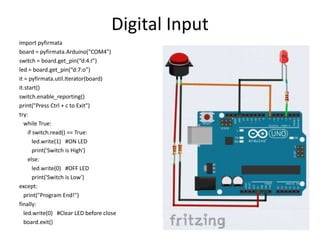
Digital Input
import pyfirmata
board = pyfirmata.Arduino("COM4")
switch = board.get_pin(“d:4:I”)
led = board.get_pin(“d:7:o”)
it = pyfirmata.util.Iterator(board)
it.start()
switch.enable_reporting()
print("Press Ctrl + c to Exit")
try:
while True:
if switch.read() == True:
led.write(1) #ON LED
print('Switch is High')
else:
led.write(0) #OFF LED
print('Switch is Low')
except:
print("Program End!")
finally:
led.write(0) #Clear LED before close
board.exit()
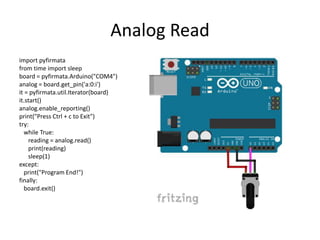
Analog Read
import pyfirmata
from time import sleep
board = pyfirmata.Arduino("COM4")
analog = board.get_pin('a:0:i')
it = pyfirmata.util.Iterator(board)
it.start()
analog.enable_reporting()
print("Press Ctrl + c to Exit")
try:
while True:
reading = analog.read()
print(reading)
sleep(1)
except:
print("Program End!")
finally:
board.exit()
Python Interface MS Excel
About MS Excel
For today`s Workshop participant must know
the following about MS Excel
• Workbook
• Worksheet
• Cell
• Rows address
• Column address
• Charts
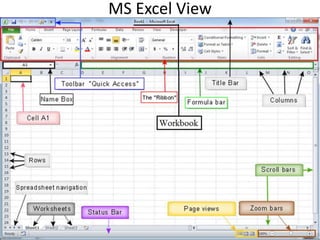
MS Excel View
Writing data in MS Excel through Python
import openpyxl
from openpyxl import Workbook
wb = Workbook()
ws = wb.active
ws1 = wb.create_sheet()
ws.title = "Workshop Sheet"
ws['A1'] = "Integer"
ws['B1'] = "Float"
ws['C1'] = "String"
ws['A2'] = 1000
ws['B2'] = 50.50
ws['C2'] = "Hamdard"
wb.save(r"C:.........workshop.xlsx")
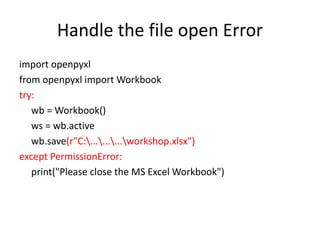
Handle the file open Error
import openpyxl
from openpyxl import Workbook
try:
wb = Workbook()
ws = wb.active
wb.save(r"C:.........workshop.xlsx")
except PermissionError:
print("Please close the MS Excel Workbook")
Add Image and Merge Cell
import openpyxl
from openpyxl import Workbook
from openpyxl.drawing.image import Image
try:
wb = Workbook()
ws = wb.active
ws.merge_cells('A1:B1') #Merge Cell
ws['A1'] = "Pakistan Zindabad"
Pak_Flag = Image(r"C:.........Pakistan.PNG")
ws.add_image(Pak_Flag, 'A2')
wb.save(r"C:.........workshop.xlsx")
except PermissionError:
print("Please close the MS Excel Workbook")
Add Sheet to Workbook
import openpyxl
from openpyxl import Workbook
try:
wb = Workbook()
ws = wb.active #First Sheet
ws.title = "First"
ws['A25'] = "First Sheet"
ws2 = wb.create_sheet() #New Sheet
ws2['A25'] = "Second Sheet"
ws2.title = "Second"
ws3 = wb.create_sheet() #New Sheet
ws3['A25'] = "Third Sheet"
ws3.title = "Third"
wb.save(r"C:.........workshop.xlsx")
except PermissionError:
print("Please close the MS Excel Workbook")
Accessing Multiple cell
import openpyxl
from openpyxl import Workbook
try:
wb = Workbook()
ws = wb.active
ws['A1'] = "Number"
ws['B1'] = "Square"
for i in range(10):
ws.cell(row = i+2 , column = 1 , value = i)
ws.cell(row = i+2 , column = 2 , value = i*i)
wb.save(r"C:.........workshop.xlsx")
except PermissionError:
print("Please close the MS Excel Workbook")
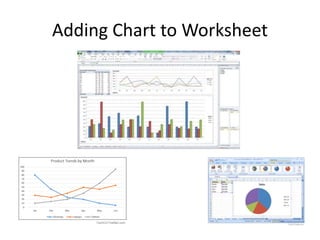
Adding Chart to Worksheet
import openpyxl
from openpyxl import Workbook
from openpyxl.chart import
BarChart,Reference,Series
try:
wb = Workbook()
ws = wb.active
ws['A1'] = "Number"
ws['B1'] = "Square"
for i in range(1,11):
ws.cell(row = i+1 , column = 1 , value = i)
ws.cell(row = i+1 , column = 2 , value = i*i)
#Working for Chart
chart = BarChart()
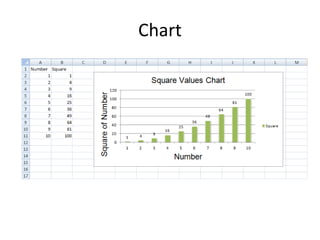
chart.title = "Square Values Chart"
chart.style = 13
chart.x_axis.title = 'Number'
chart.y_axis.title = 'Square of Number'
x_axis = Reference(ws, min_col=1, min_row=2,
max_row=i+1)
y_axis = Reference(ws, min_col=2, min_row=1,
max_col=2, max_row=i+1)
chart.add_data(y_axis, titles_from_data=True)
chart.set_categories(x_axis)
ws.add_chart(chart, "D2")
#Save Workbook
wb.save(r"C:UsersHomeDesktopworkshop.xlsx")
except PermissionError:
print("Please close the MS Excel Workbook")
Chart
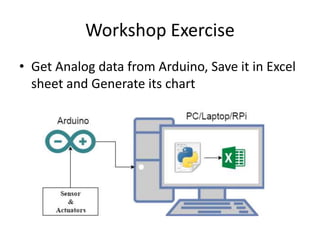
Workshop Exercise
• Get Analog data from Arduino, Save it in Excel
sheet and Generate its chart

Python workshop session 6

  • 1.
    Faculty of EngineeringScience & Technology(FEST) Hamdard Institute of Engineering Technology(HIET) HAMDARD UNIVERSITY Instructor ABDUL HASEEB HANDS-ON WORKSHOP ON PYTHON PROGRAMMING LANGUAGE Faculty Development Program (Session-10) Python Arduino Interfacing
  • 2.
    Arduino and MSExcel Interface with Python
  • 3.
  • 4.
    Firmata • Firmata (Italianword) Library is use to make Arduino board as Slave board for Computer programs like Python, C etc. • Simply it MAKES or ADD IO pins to computer
  • 5.
    Process of InterfacingArduino • Configure Arduino with Standard Firmata Program • Interface Arduino through PC or Laptop via PyFirmata package
  • 6.
  • 7.
  • 8.
    Upload the StandardFirmata program to Arduino Board
  • 9.
    Complete the ArduinoIDE window • Arduino Board is Configure with Firmata. Note the Port name: Tool>>Port>>Port_Name • No need of Arduino Software further, so close it
  • 10.
    Working on PyFirmata •PyFirmata is not a build-in package for Python IDLE, so first install PyFirmata
  • 11.
    Initializing PyFirmata 1) ImportModule import pyfirmata 2) Initialize Arduino Board and Com Port Name Syntax: board_name_variable = pyfirmata.Arduino_Board(Com Port Name) Example: Arduino Uno board = pyfirmata.Arduino(‘COM4') Arduino Mega board = pyfirmata.ArduinoMega (‘COM4') Arduino Due board = pyfirmata.ArduinoDue (‘COM4') For Raspberry pi the com name will be /dev/ttyACM0 Example: board = pyfirmata.Arduino('/dev/ttyACM0')
  • 12.
    Setup Pin The get_pinfunction is used to set pin as Input or Output and also set the Syntax: Pin_name = board_name.get_pin(‘d/a:pin_number:i/o’) Example: • LED = board.get_pin('d:13:o') • switch = board.get_pin('d:4:i') • analog = board.get_pin('a:0:i') • led_PWM = board.get_pin('d:10:p') • servo = board.get_pin('d:11:s') Working Signal Type a (analog) d (digital) i (input)   o (output)   p (PWM)   s (servo)  
  • 13.
    Digital Output import pyfirmata fromtime import sleep board = pyfirmata.Arduino("COM4") led = board.get_pin('d:13:o') print("Press Ctrl + c to Exit") try: while True: #Infinite Loop led.write(1) #ON LED sleep(1) #Delay led.write(0) #OFF LED sleep(1) #Delay except: print("Program End!") finally: led.write(0) #Clear LED before close board.exit()
  • 14.
  • 15.
    Analog Out (PWM) importpyfirmata board = pyfirmata.Arduino("COM4") led_brightness = board.get_pin("d:3:p") print("Press Ctrl + c to Exit") try: while True: duty = int(input("Enter Brightness (0 to 100)= ")) led_brightness.write(duty / 100.0) except: print("Program End!") finally: board.exit()
  • 16.
    Controlling a ServoUsing PyFirmata
  • 17.
    Controlling a ServoUsing PyFirmata import pyfirmata board = pyfirmata.Arduino("COM4") servo_pin = board.get_pin("d:7:s") print("Press Ctrl + c to Exit") try: while True: angle = int(input("Enter Angle (0 to 180):")) servo_pin.write(angle) except: print("Program End!") finally: board.exit()
  • 18.
    Reading Analog orDigital data from Arduino • PyFirmata uses the concept of an Iterator to monitor the Arduino input pin. The reasons for this are bound up in the implementation of Firmata. it = pyfirmata.util.Iterator(board) it.start() Pin_name.enable_reporting()
  • 19.
    Digital Input import pyfirmata board= pyfirmata.Arduino("COM4") switch = board.get_pin(“d:4:I”) led = board.get_pin(“d:7:o”) it = pyfirmata.util.Iterator(board) it.start() switch.enable_reporting() print("Press Ctrl + c to Exit") try: while True: if switch.read() == True: led.write(1) #ON LED print('Switch is High') else: led.write(0) #OFF LED print('Switch is Low') except: print("Program End!") finally: led.write(0) #Clear LED before close board.exit()
  • 20.
    Analog Read import pyfirmata fromtime import sleep board = pyfirmata.Arduino("COM4") analog = board.get_pin('a:0:i') it = pyfirmata.util.Iterator(board) it.start() analog.enable_reporting() print("Press Ctrl + c to Exit") try: while True: reading = analog.read() print(reading) sleep(1) except: print("Program End!") finally: board.exit()
  • 21.
  • 22.
    About MS Excel Fortoday`s Workshop participant must know the following about MS Excel • Workbook • Worksheet • Cell • Rows address • Column address • Charts
  • 23.
  • 24.
    Writing data inMS Excel through Python import openpyxl from openpyxl import Workbook wb = Workbook() ws = wb.active ws1 = wb.create_sheet() ws.title = "Workshop Sheet" ws['A1'] = "Integer" ws['B1'] = "Float" ws['C1'] = "String" ws['A2'] = 1000 ws['B2'] = 50.50 ws['C2'] = "Hamdard" wb.save(r"C:.........workshop.xlsx")
  • 25.
    Handle the fileopen Error import openpyxl from openpyxl import Workbook try: wb = Workbook() ws = wb.active wb.save(r"C:.........workshop.xlsx") except PermissionError: print("Please close the MS Excel Workbook")
  • 26.
    Add Image andMerge Cell import openpyxl from openpyxl import Workbook from openpyxl.drawing.image import Image try: wb = Workbook() ws = wb.active ws.merge_cells('A1:B1') #Merge Cell ws['A1'] = "Pakistan Zindabad" Pak_Flag = Image(r"C:.........Pakistan.PNG") ws.add_image(Pak_Flag, 'A2') wb.save(r"C:.........workshop.xlsx") except PermissionError: print("Please close the MS Excel Workbook")
  • 27.
    Add Sheet toWorkbook import openpyxl from openpyxl import Workbook try: wb = Workbook() ws = wb.active #First Sheet ws.title = "First" ws['A25'] = "First Sheet" ws2 = wb.create_sheet() #New Sheet ws2['A25'] = "Second Sheet" ws2.title = "Second" ws3 = wb.create_sheet() #New Sheet ws3['A25'] = "Third Sheet" ws3.title = "Third" wb.save(r"C:.........workshop.xlsx") except PermissionError: print("Please close the MS Excel Workbook")
  • 28.
    Accessing Multiple cell importopenpyxl from openpyxl import Workbook try: wb = Workbook() ws = wb.active ws['A1'] = "Number" ws['B1'] = "Square" for i in range(10): ws.cell(row = i+2 , column = 1 , value = i) ws.cell(row = i+2 , column = 2 , value = i*i) wb.save(r"C:.........workshop.xlsx") except PermissionError: print("Please close the MS Excel Workbook")
  • 29.
    Adding Chart toWorksheet
  • 30.
    Adding Chart toWorksheet import openpyxl from openpyxl import Workbook from openpyxl.chart import BarChart,Reference,Series try: wb = Workbook() ws = wb.active ws['A1'] = "Number" ws['B1'] = "Square" for i in range(1,11): ws.cell(row = i+1 , column = 1 , value = i) ws.cell(row = i+1 , column = 2 , value = i*i) #Working for Chart chart = BarChart() chart.title = "Square Values Chart" chart.style = 13 chart.x_axis.title = 'Number' chart.y_axis.title = 'Square of Number' x_axis = Reference(ws, min_col=1, min_row=2, max_row=i+1) y_axis = Reference(ws, min_col=2, min_row=1, max_col=2, max_row=i+1) chart.add_data(y_axis, titles_from_data=True) chart.set_categories(x_axis) ws.add_chart(chart, "D2") #Save Workbook wb.save(r"C:UsersHomeDesktopworkshop.xlsx") except PermissionError: print("Please close the MS Excel Workbook")
  • 31.
  • 32.
    Workshop Exercise • GetAnalog data from Arduino, Save it in Excel sheet and Generate its chart