Table of Contents
Export a narrated PowerPoint .........................................................................................................................2
Upload a narrated PowerPoint to YouTube ................................................................................................3
Link the YouTube video in Blackboard .........................................................................................................4
Publishing Narrated Presentations
UploadingPresentationstoYouTubeonPC
Created By:
ACCC-ITL GUIDE
Publishing Narrated Presentations 2 OF 6
Export a narrated PowerPoint
Narrated presentations can be made in PowerPoint. Please see the“Creating Narrated Presentations”quick guide for
more information. To export a video:
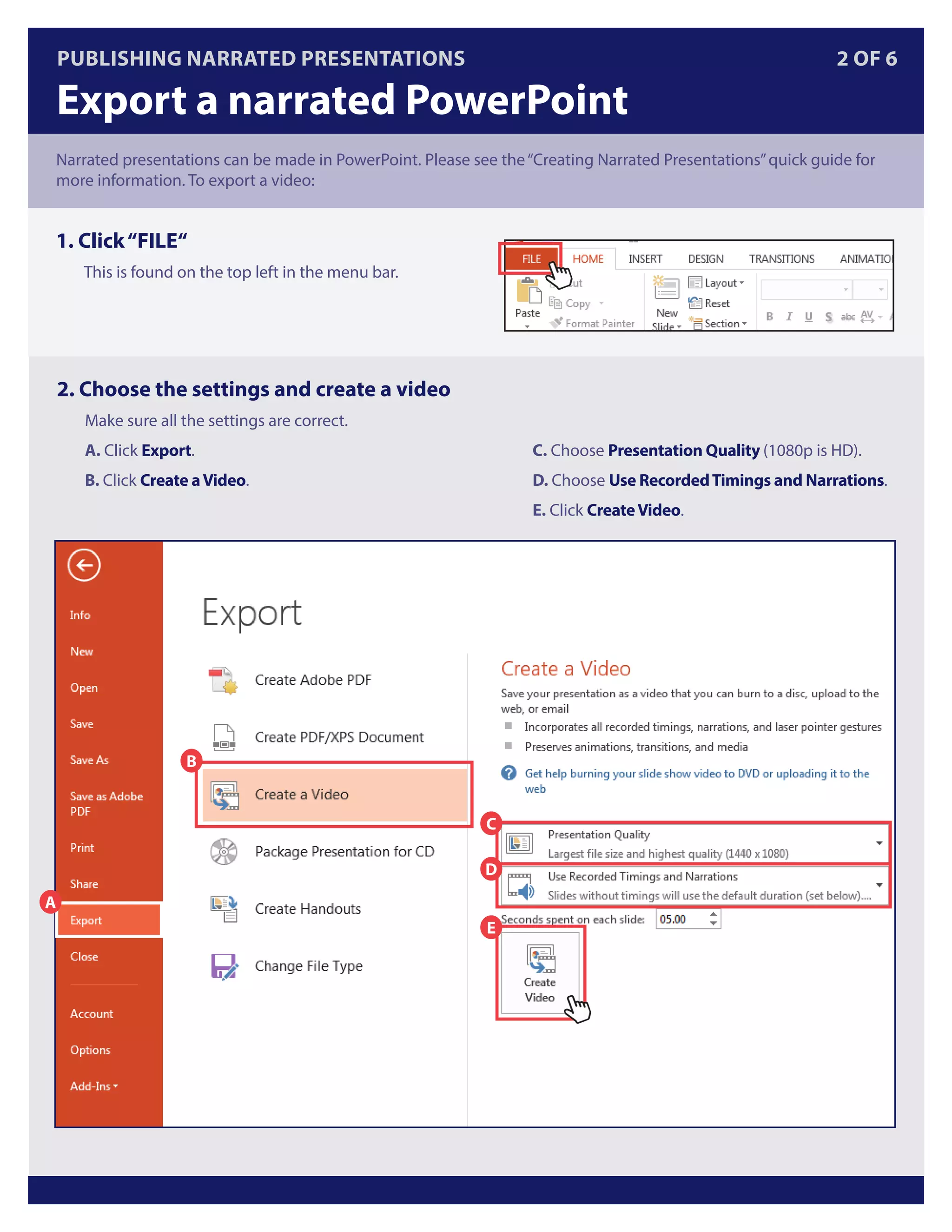
1. Click“FILE“
This is found on the top left in the menu bar.
2. Choose the settings and create a video
Make sure all the settings are correct.
A. Click Export.
B. Click Create aVideo.
C. Choose Presentation Quality (1080p is HD).
D. Choose Use RecordedTimings and Narrations.
E. Click CreateVideo.
A
B
C
D
E
Publishing Narrated Presentations 3 OF 6
Upload a narrated PowerPoint to YouTube
2. Upload the video
Click the icon or drag and drop the video file to this
area to upload the video.
1. Access YouTube and click “Upload“
Access YouTube (https://www.youtube.com/).
Click Upload on the top right corner.
UIC’s video streaming platform is YouTube. To create your UIC YouTube account, please see“YouTube Username
Registration.”Logging intoYouTube with your UIC credentials will ensure that your information is in compliance
with university privacy policies and that your videos remain secure. Once you have registered, please follow the
steps to upload the video to YouTube:
Changing the privacy of your content will have the
following implications:
A. PUBLIC allows all ofYouTube to view your content.
B. UNLISTED hides the content from search and only
allows access to anyone with a direct link.
C. PRIVATE restricts access to only you and specific
users you choose by inputting their email address.
NOTE: In order to view a private video, user must be
logged in with UIC credentials.
3. Edit and publish
A. This bar shows the Upload Status.
B. Give the video a Title.
C. Add Description if necessary.
D. Select and Set aThumbnail.
E. Choose a Privacy setting.
F. When you’re done, click Publish.
C
B
E
A F
C
B
A
D
Example Video Title
Publishing Narrated Presentations 4 OF 6
Link the YouTube video in Blackboard
PUBLIC  UNLISTED VIDEOS:
1. Copy embed code from YouTube
Open the narrated PowerPoint you uploaded to
YouTube, click Share, then Embed. Copy the link.
2. Add an item to a content folder
In Blackboard, click Item under Build Content in
the desired content folder.
3. Access the HTML code view
Name the video under Name and click the HTML
button under Text. A new window will pop up.
To share your video with students, place the link to the video in Blackboard by using the Content Editor. You are able
to share any video (public, unlisted, and private) with your students. Public and unlisted videos can be embedded and
watched within your course. Private videos can be linked in your course and watched on YouTube by students and
faculty logged intoYouTube with their UIC account.
4. Paste the embed code
Paste the embed code copied from YouTube to the
HTML code view and click Update.
5. Publish the item
Click Submit.
ISPRING 5 of 4LINK THE YOUTUBE VIDEO IN BLACKBOARD 5 OF 6
PRIVATE VIDEOS:
1. Click“EDIT”in the Video Manager
Access the Video Manager from the left-hand menu. Then click Edit next to the private video you wish to share.
Note: Notice the blue icons signifying the different privacy settings of each video: a lock icon for private, a chained
link icon for unlisted, and a globe icon for public.
2. Make Video Shareable to UIC
Choose to share this link with YouTube viewers
who are signed in with a uic.edu email address.
•	Click edit in the bottom right-hand corner
•	Check the box that reads:
“Let everyone at uic.edu view”
•	Click OK to save these settings
Note: You may enter other email addresses that you
wish to share the video with as well.
itl@uic.edu
312.996.9824
accc.uic.edu/service/itl
LINK THE YOUTUBE VIDEO IN BLACKBOARD 6 OF 6
3. Copy the Private Video Link
Locate the Video URL on the right-hand menu in
the edit page, and copy this link by highlighting
and typing [Ctrl+C].
Examples Linked in Blackboard
This is how the different videos will look inside
Blackboard based on their privacy setting:
•	Public and Unlisted videos can be embedded
into your course. This means students can watch
the video in Blackboard without having
to navigate to YouTube.
•	Private videos cannot be embedded. Instead a
link will send them to YouTube to ensure that the
person viewing has UIC credentials.
Private videos created using the steps in this
quick guide will only be viewable to you and UIC
students and faculty.
4. Create a Web Link
Publish the link in Blackboard by creating a
WebLink in any content area.
•	In the Content Area, click Web Link under Build
Content
•	Paste the Video URL by typing [Ctrl+V]
•	Enter a Description
•	Click Submit

Publishing Narrated Presentations to YouTube

  • 1.
    Table of Contents Exporta narrated PowerPoint .........................................................................................................................2 Upload a narrated PowerPoint to YouTube ................................................................................................3 Link the YouTube video in Blackboard .........................................................................................................4 Publishing Narrated Presentations UploadingPresentationstoYouTubeonPC Created By: ACCC-ITL GUIDE
  • 2.
    Publishing Narrated Presentations2 OF 6 Export a narrated PowerPoint Narrated presentations can be made in PowerPoint. Please see the“Creating Narrated Presentations”quick guide for more information. To export a video: 1. Click“FILE“ This is found on the top left in the menu bar. 2. Choose the settings and create a video Make sure all the settings are correct. A. Click Export. B. Click Create aVideo. C. Choose Presentation Quality (1080p is HD). D. Choose Use RecordedTimings and Narrations. E. Click CreateVideo. A B C D E
  • 3.
    Publishing Narrated Presentations3 OF 6 Upload a narrated PowerPoint to YouTube 2. Upload the video Click the icon or drag and drop the video file to this area to upload the video. 1. Access YouTube and click “Upload“ Access YouTube (https://www.youtube.com/). Click Upload on the top right corner. UIC’s video streaming platform is YouTube. To create your UIC YouTube account, please see“YouTube Username Registration.”Logging intoYouTube with your UIC credentials will ensure that your information is in compliance with university privacy policies and that your videos remain secure. Once you have registered, please follow the steps to upload the video to YouTube: Changing the privacy of your content will have the following implications: A. PUBLIC allows all ofYouTube to view your content. B. UNLISTED hides the content from search and only allows access to anyone with a direct link. C. PRIVATE restricts access to only you and specific users you choose by inputting their email address. NOTE: In order to view a private video, user must be logged in with UIC credentials. 3. Edit and publish A. This bar shows the Upload Status. B. Give the video a Title. C. Add Description if necessary. D. Select and Set aThumbnail. E. Choose a Privacy setting. F. When you’re done, click Publish. C B E A F C B A D Example Video Title
  • 4.
    Publishing Narrated Presentations4 OF 6 Link the YouTube video in Blackboard PUBLIC UNLISTED VIDEOS: 1. Copy embed code from YouTube Open the narrated PowerPoint you uploaded to YouTube, click Share, then Embed. Copy the link. 2. Add an item to a content folder In Blackboard, click Item under Build Content in the desired content folder. 3. Access the HTML code view Name the video under Name and click the HTML button under Text. A new window will pop up. To share your video with students, place the link to the video in Blackboard by using the Content Editor. You are able to share any video (public, unlisted, and private) with your students. Public and unlisted videos can be embedded and watched within your course. Private videos can be linked in your course and watched on YouTube by students and faculty logged intoYouTube with their UIC account. 4. Paste the embed code Paste the embed code copied from YouTube to the HTML code view and click Update. 5. Publish the item Click Submit.
  • 5.
    ISPRING 5 of4LINK THE YOUTUBE VIDEO IN BLACKBOARD 5 OF 6 PRIVATE VIDEOS: 1. Click“EDIT”in the Video Manager Access the Video Manager from the left-hand menu. Then click Edit next to the private video you wish to share. Note: Notice the blue icons signifying the different privacy settings of each video: a lock icon for private, a chained link icon for unlisted, and a globe icon for public. 2. Make Video Shareable to UIC Choose to share this link with YouTube viewers who are signed in with a uic.edu email address. • Click edit in the bottom right-hand corner • Check the box that reads: “Let everyone at uic.edu view” • Click OK to save these settings Note: You may enter other email addresses that you wish to share the video with as well.
  • 6.
    itl@uic.edu 312.996.9824 accc.uic.edu/service/itl LINK THE YOUTUBEVIDEO IN BLACKBOARD 6 OF 6 3. Copy the Private Video Link Locate the Video URL on the right-hand menu in the edit page, and copy this link by highlighting and typing [Ctrl+C]. Examples Linked in Blackboard This is how the different videos will look inside Blackboard based on their privacy setting: • Public and Unlisted videos can be embedded into your course. This means students can watch the video in Blackboard without having to navigate to YouTube. • Private videos cannot be embedded. Instead a link will send them to YouTube to ensure that the person viewing has UIC credentials. Private videos created using the steps in this quick guide will only be viewable to you and UIC students and faculty. 4. Create a Web Link Publish the link in Blackboard by creating a WebLink in any content area. • In the Content Area, click Web Link under Build Content • Paste the Video URL by typing [Ctrl+V] • Enter a Description • Click Submit