i
Integrating the ProxySG and
ProxyAV Appliances
For SGOS 6.5 and later and AVOS 3.5 and later
ii
Contact Information
Americas:
Blue Coat Systems Inc.
410 North Mary Ave
Sunnyvale, CA 94085-4121
Rest of the World:
Blue Coat Systems International SARL
3a Route des Arsenaux
1700 Fribourg, Switzerland
http://www.bluecoat.com/support/contactsupport
http://www.bluecoat.com
For concerns or feedback about the documentation:
documentation@bluecoat.com
© 2013 Blue Coat Systems, Inc. All rights reserved. BLUE COAT, PROXYSG, PACKETSHAPER,
CACHEFLOW, INTELLIGENCECENTER, CACHEOS, CACHEPULSE, CROSSBEAM, K9,
DRTR, MACH5, PACKETWISE, POLICYCENTER, PROXYAV, PROXYCLIENT, SGOS,
WEBPULSE, SOLERA NETWORKS, DEEPSEE, DS APPLIANCE, SEE EVERYTHING. KNOW
EVERYTHING., SECURITY EMPOWERS BUSINESS, BLUETOUCH, the Blue Coat shield, K9,
and Solera Networks logos and other Blue Coat logos are registered trademarks or trademarks
of Blue Coat Systems, Inc. or its affiliates in the U.S. and certain other countries. This list may not
be complete, and the absence of a trademark from this list does not mean it is not a trademark of
Blue Coat or that Blue Coat has stopped using the trademark. All other trademarks mentioned
in this document owned by third parties are the property of their respective owners. This
document is for informational purposes only.
BLUE COAT MAKES NO WARRANTIES, EXPRESS, IMPLIED, OR STATUTORY, AS TO THE
INFORMATION IN THIS DOCUMENT. BLUE COAT PRODUCTS, TECHNICAL SERVICES,
AND ANY OTHER TECHNICAL DATA REFERENCED IN THIS DOCUMENT ARE SUBJECT
TO U.S. EXPORT CONTROL AND SANCTIONS LAWS, REGULATIONS AND
REQUIREMENTS, AND MAY BE SUBJECT TO EXPORT OR IMPORT REGULATIONS IN
OTHER COUNTRIES. YOU AGREE TO COMPLY STRICTLY WITH THESE LAWS,
REGULATIONS AND REQUIREMENTS, AND ACKNOWLEDGE THAT YOU HAVE THE
RESPONSIBILITY TO OBTAIN ANY LICENSES, PERMITS OR OTHER APPROVALS THAT
MAY BE REQUIRED IN ORDER TO EXPORT, RE-EXPORT, TRANSFER IN COUNTRY OR
IMPORT AFTER DELIVERY TO YOU.
Americas: Rest of the World:
Blue Coat Systems, Inc. Blue Coat Systems International
SARL
420 N. Mary Ave. 3a Route des Arsenaux
Sunnyvale, CA 94085 1700 Fribourg, Switzerland
Document Number: 231-03086
Document Revision: 12/2013
Integrating the ProxySG and ProxyAV Appliances iii
Table of Contents
Table of Contents
Introduction. . . . . . . . . . . . . . . . . . . . . . . . . . . . . . . . . . . . . . . . . . . . . . . . . . 1-1
Stated Purpose. . . . . . . . . . . . . . . . . . . . . . . . . . . . . . . . . . . . . . . . . . . . . . . . . . . . . . . . . . . . . . . . . . . . 1-1
Audience . . . . . . . . . . . . . . . . . . . . . . . . . . . . . . . . . . . . . . . . . . . . . . . . . . . . . . . . . . . . . . . . . . . . . . . . 1-1
Supported Blue Coat Devices and Operating Systems . . . . . . . . . . . . . . . . . . . . . . . . . . . . . . . . . . . . . 1-1
Hardware Platforms . . . . . . . . . . . . . . . . . . . . . . . . . . . . . . . . . . . . . . . . . . . . . . . . . . . . . . . . . . . . 1-1
Software Versions . . . . . . . . . . . . . . . . . . . . . . . . . . . . . . . . . . . . . . . . . . . . . . . . . . . . . . . . . . . . . 1-2
Chapter Reference. . . . . . . . . . . . . . . . . . . . . . . . . . . . . . . . . . . . . . . . . . . . . . . . . . . . . . . . . . . . . . . . . 1-2
Benefits of Integrating the ProxySG and the ProxyAV. . . . . . . . . . . . . . . . . 2-3
About Web Malware . . . . . . . . . . . . . . . . . . . . . . . . . . . . . . . . . . . . . . . . . . . . . . . . . . . . . . . . . . . . . . . 2-4
Types of Malware . . . . . . . . . . . . . . . . . . . . . . . . . . . . . . . . . . . . . . . . . . . . . . . . . . . . . . . . . . . . . 2-4
The Blue Coat Threat Protection Solution . . . . . . . . . . . . . . . . . . . . . . . . . . . . . . . . . . . . . . . . . . . . . . 2-5
Supported Malware Scanning Engines . . . . . . . . . . . . . . . . . . . . . . . . . . . . . . . . . . . . . . . . . . . . . 2-7
Communication Between the ProxySG and the ProxyAV . . . . . . . . . . . . . . . . . . . . . . . . . . . . . . 2-7
Deployment . . . . . . . . . . . . . . . . . . . . . . . . . . . . . . . . . . . . . . . . . . . . . . . . . 3-9
ProxySG/ProxyAV With Direct Internet Access . . . . . . . . . . . . . . . . . . . . . . . . . . . . . . . . . . . . . . . . 3-10
ProxySG/ProxyAV in a Closed Network . . . . . . . . . . . . . . . . . . . . . . . . . . . . . . . . . . . . . . . . . . . . . . 3-11
Deployment Guidelines. . . . . . . . . . . . . . . . . . . . . . . . . . . . . . . . . . . . . . . . . . . . . . . . . . . . . . . . . . . . 3-12
One ProxySG to One ProxyAV . . . . . . . . . . . . . . . . . . . . . . . . . . . . . . . . . . . . . . . . . . . . . . . . . . . . . 3-13
Redundant Appliance Topologies . . . . . . . . . . . . . . . . . . . . . . . . . . . . . . . . . . . . . . . . . . . . . . . . . . . . 3-14
Deployment Workflow . . . . . . . . . . . . . . . . . . . . . . . . . . . . . . . . . . . . . . . . . . . . . . . . . . . . . . . . . . . . 3-16
Configuring and Installing the ProxySG . . . . . . . . . . . . . . . . . . . . . . . . . . . . . . . . . . . . . . . . . . . 3-16
Configuring and Installing the ProxyAV. . . . . . . . . . . . . . . . . . . . . . . . . . . . . . . . . . . . . . . . . . . 3-18
Configuring the ProxySG and ProxyAV Appliances. . . . . . . . . . . . . . . . . . 4-21
Task 1: (Optional) Prepare the Appliances for Secure ICAP . . . . . . . . . . . . . . . . . . . . . . . . . . . . . . . 4-22
Task 2: Add the ProxyAV for In-Path Threat Detection . . . . . . . . . . . . . . . . . . . . . . . . . . . . . . . . . . 4-25
Task 3: Enable Malware Scanning . . . . . . . . . . . . . . . . . . . . . . . . . . . . . . . . . . . . . . . . . . . . . . . . . . . 4-27
Task 4: Configure ProxyAV Scan Settings and Policies . . . . . . . . . . . . . . . . . . . . . . . . . . . . . . . . . . 4-28
Task 5: Test the Threat Protection Policy . . . . . . . . . . . . . . . . . . . . . . . . . . . . . . . . . . . . . . . . . . . . . . 4-31
Monitoring ICAP Scanning . . . . . . . . . . . . . . . . . . . . . . . . . . . . . . . . . . . . . 5-33
Displaying ICAP Graphs and Statistics on the ProxySG . . . . . . . . . . . . . . . . . . . . . . . . . . . . . . . . . . 5-34
Displaying ICAP Graphs on the ProxySG. . . . . . . . . . . . . . . . . . . . . . . . . . . . . . . . . . . . . . . . . . 5-34
Displaying ICAP Statistical Data. . . . . . . . . . . . . . . . . . . . . . . . . . . . . . . . . . . . . . . . . . . . . . . . . 5-36
Monitoring ICAP-Enabled Sessions on the ProxySG. . . . . . . . . . . . . . . . . . . . . . . . . . . . . . . . . . . . . 5-37
Displaying Active ICAP-Enabled Sessions . . . . . . . . . . . . . . . . . . . . . . . . . . . . . . . . . . . . . . . . . 5-37
Viewing Statistics on the ProxyAV . . . . . . . . . . . . . . . . . . . . . . . . . . . . . . . . . . . . . . . . . . . . . . . . . . 5-40
iv Integrating the ProxySG and ProxyAV Appliances
Table of Contents
Creating Anti-Malware Reports in Blue Coat Reporter . . . . . . . . . . . . . . . . . . . . . . . . . . . . . . . . . . .5-42
Fine-Tuning the Configuration. . . . . . . . . . . . . . . . . . . . . . . . . . . . . . . . . . .6-43
Improving the User Experience. . . . . . . . . . . . . . . . . . . . . . . . . . . . . . . . . . . . . . . . . . . . . . . . . . . . . .6-44
About Patience Pages . . . . . . . . . . . . . . . . . . . . . . . . . . . . . . . . . . . . . . . . . . . . . . . . . . . . . . . . . .6-44
About Data Trickling . . . . . . . . . . . . . . . . . . . . . . . . . . . . . . . . . . . . . . . . . . . . . . . . . . . . . . . . . .6-44
About Deferred Scanning. . . . . . . . . . . . . . . . . . . . . . . . . . . . . . . . . . . . . . . . . . . . . . . . . . . . . . .6-45
Configuring ICAP Feedback . . . . . . . . . . . . . . . . . . . . . . . . . . . . . . . . . . . . . . . . . . . . . . . . . . . .6-47
Enabling Deferred Scanning. . . . . . . . . . . . . . . . . . . . . . . . . . . . . . . . . . . . . . . . . . . . . . . . . . . . .6-48
Configuring Alerts. . . . . . . . . . . . . . . . . . . . . . . . . . . . . . . . . . . . . . . . . . . . . . . . . . . . . . . . . . . . . . . .6-49
Selecting Alert Types . . . . . . . . . . . . . . . . . . . . . . . . . . . . . . . . . . . . . . . . . . . . . . . . . . . . . . . . . .6-49
Configuring E-mail Notification . . . . . . . . . . . . . . . . . . . . . . . . . . . . . . . . . . . . . . . . . . . . . . . . .6-51
Modifying the ICAP Service . . . . . . . . . . . . . . . . . . . . . . . . . . . . . . . . . . . . . . . . . . . . . . . . . . . . . . . .6-53
Fine-Tuning the Malware Scanning Policy. . . . . . . . . . . . . . . . . . . . . . . . . . . . . . . . . . . . . . . . . . . . .6-57
Creating User-Based ICAP Policy. . . . . . . . . . . . . . . . . . . . . . . . . . . . . . . . . . . . . . . . . . . . . . . . . . . .6-59
Creating the ICAP Response Service. . . . . . . . . . . . . . . . . . . . . . . . . . . . . . . . . . . . . . . . . . . . . .6-59
Enabling Web Authentication . . . . . . . . . . . . . . . . . . . . . . . . . . . . . . . . . . . . . . . . . . . . . . . . . . .6-60
Creating Authorization Rules. . . . . . . . . . . . . . . . . . . . . . . . . . . . . . . . . . . . . . . . . . . . . . . . . . . .6-60
Implementing a Request Modification ICAP Service . . . . . . . . . . . . . . . . . . . . . . . . . . . . . . . . . . . . .6-64
Creating an ICAP Request Service. . . . . . . . . . . . . . . . . . . . . . . . . . . . . . . . . . . . . . . . . . . . . . . .6-64
Creating an ICAP Request Policy - Forward Proxy/DLP . . . . . . . . . . . . . . . . . . . . . . . . . . . . . .6-65
Load Balancing Between Multiple ProxyAV Appliances . . . . . . . . . . . . . . .7-67
About ICAP Service Groups . . . . . . . . . . . . . . . . . . . . . . . . . . . . . . . . . . . . . . . . . . . . . . . . . . . . . . . .7-68
Weighting . . . . . . . . . . . . . . . . . . . . . . . . . . . . . . . . . . . . . . . . . . . . . . . . . . . . . . . . . . . . . . . . . . .7-69
Load Balancing. . . . . . . . . . . . . . . . . . . . . . . . . . . . . . . . . . . . . . . . . . . . . . . . . . . . . . . . . . . . . . .7-69
Specifying Weight within an ICAP Service Group. . . . . . . . . . . . . . . . . . . . . . . . . . . . . . . . . . . . . . .7-71
Creating Load Balancing Policy . . . . . . . . . . . . . . . . . . . . . . . . . . . . . . . . . . . . . . . . . . . . . . . . . . . . .7-72
About ProxyAV Failover. . . . . . . . . . . . . . . . . . . . . . . . . . . . . . . . . . . . . . . . . . . . . . . . . . . . . . . . . . .8-76
Creating ProxyAV Failover Policy . . . . . . . . . . . . . . . . . . . . . . . . . . . . . . . . . . . . . . . . . . . . . . . . . . .8-77
Configuration Best Practices. . . . . . . . . . . . . . . . . . . . . . . . . . . . . . . . . . . .9-79
Conserving Scanning Resources . . . . . . . . . . . . . . . . . . . . . . . . . . . . . . . . . . . . . . . . . . . . . . . . . . . . .9-80
Solution A: No-Scan Policy . . . . . . . . . . . . . . . . . . . . . . . . . . . . . . . . . . . . . . . . . . . . . . . . . . . . .9-80
Solution B: Scan-Until-Error Policy . . . . . . . . . . . . . . . . . . . . . . . . . . . . . . . . . . . . . . . . . . . . . .9-82
Solution C: Scan-And-Serve Policy . . . . . . . . . . . . . . . . . . . . . . . . . . . . . . . . . . . . . . . . . . . . . . .9-83
Best Practices for PDF Documents . . . . . . . . . . . . . . . . . . . . . . . . . . . . . . . . . . . . . . . . . . . . . . . . . . .9-86
Avoiding Processing of Cancelled Connections . . . . . . . . . . . . . . . . . . . . . . . . . . . . . . . . . . . . . . . . .9-86
Troubleshooting . . . . . . . . . . . . . . . . . . . . . . . . . . . . . . . . . . . . . . . . . . . .10-87
The ProxyAV is not Scanning Web Traffic . . . . . . . . . . . . . . . . . . . . . . . . . . . . . . . . . . . . . . . . . . .10-88
Users Cannot Access Any Web Sites . . . . . . . . . . . . . . . . . . . . . . . . . . . . . . . . . . . . . . . . . . . . . . . .10-89
ProxySG Runs Out of Memory During Heavy Traffic Load . . . . . . . . . . . . . . . . . . . . . . . . . . . . . .10-91
Scans are Taking Too Long. . . . . . . . . . . . . . . . . . . . . . . . . . . . . . . . . . . . . . . . . . . . . . . . . . . . . . . .10-91
My ProxyAV is Not Getting Virus Updates . . . . . . . . . . . . . . . . . . . . . . . . . . . . . . . . . . . . . . . . . . .10-92
Integrating the ProxySG and ProxyAV Appliances 1 - 1
Introduction
1 Introduction
Stated Purpose
The Blue Coat ProxyAV and ProxySG appliances work in conjunction to provide a cohesive threat
protection solution. This document provides conceptual information about malware threats, deployment
guidelines and configuration steps for getting the ProxyAV and ProxySG to communicate with each
another. It also includes best practices to consider when deploying this integrated solution.
This integration guide supplements existing product-specific guides. For details and instructions on each
product, use the context-sensitive online help or refer to the following guides:
• Blue Coat ProxyAV Configuration and Management Guide (version 3.5.1.x or later)
• Blue Coat SGOS Administration Guide (version 6.5 or later)
• The product’s installation or quick start guide
You can download these manuals from BlueTouch Online at:
https://support.bluecoat.com/documentation
Audience
The intended audience for this document is current and potential customers seeking to understand Blue
Coat’s threat protection solution; it provides configuration information to help integrate the ProxySG an
ProxyAV in your network.
This document assumes you are knowledgeable with basic network concepts and terminology. Basic
familiarity with Blue Coat products is also recommended but not a prerequisite.
Supported Blue Coat Devices and Operating Systems
As of the production of this document, the integration guide covers the following Blue Coat products and
software releases.
Hardware Platforms
ProxySG models: SG300, SG600, SG900, SG9000
ProxyAV models: AV510, AV1200, AV1400, AV2400
1 - 2 Integrating the ProxySG and ProxyAV Appliances
Introduction
Software Versions
This guide assumes that the software versions installed on the ProxySG is SGOS 6.5 and later and ProxyAV
is AVOS 3.5 and later versions. Some of the features such as ICAP monitoring and using the built-in threat
protection and ICAP mirroring policy on the ProxySG are not available in earlier versions. If you are
consulting this document and your software is more current than the ones listed above, review the release
notes for that release to learn about any new features not yet implemented in this document.
If a concept or feature is not compatible with a specific AVOS or SGOS release, it is so noted in the
document.
Chapter Reference
This document is structured to be read in its entirety before implementing the AV solution. Deployments
not requiring redundancy can skip chapters 7 and 8.
This document contains the following chapters:
Chapter 1: Introduction
Chapter 2: Benefits of the Blue Coat Anti-Malware Solution
Chapter 3: Deployment Topologies
Chapter 4: Configuring the ProxySG and ProxyAV Appliances
Chapter 5: Monitoring ICAP Scanning
Chapter 6: Additional Configuration
Chapter 7: Load Balancing Between Multiple ProxyAV Appliances
Chapter 8: Configuring ProxyAV Failover
Chapter 9: Configuration Best Practices
Chapter 10: Troubleshooting
Integrating the ProxySG and ProxyAV Appliances 2 - 3
Benefits of Integrating the ProxySG and the ProxyAV
2 Benefits of Integrating the ProxySG
and the ProxyAV
This chapter includes conceptual information about malware and describes benefits of using the integrated
Blue Coat threat protection solution. The following topics are included:
p About Web Malware—on page 2-4
p The Blue Coat Threat Protection Solution—on page 2-5
2 - 4 Integrating the ProxySG and ProxyAV Appliances
About Web Malware Benefits of Integrating the ProxySG and the ProxyAV
About Web Malware
Although the AV in ProxyAV is an acronym for anti-virus, the ProxyAV does a lot more than scan for
viruses. These appliances offer advanced malware detection at the gateway. By detecting and blocking
viruses, worms, trojans, and spyware, the ProxyAV secures rogue channels that threaten the enterprise
network. The majority of malware comes from two vectors: hidden downloads in popular and trusted Web
sites, and malware distribution through social networking, peer-to-peer (P2P), and Web mail. When the
ProxyAV is integrated with the ProxySG, the Blue Coat solution provides a layered malware defense. You
have the ProxyAV with its malware threat detection and the ProxySG with its extensive Web content
controls. In addition, you have two appliances that have been designed, tested, and manufactured for
compatibility.
How big of a problem is malware? In 2011 alone, malware has increased fivefold, with 90 percent coming
from trusted sites. A recent Google study on the prevalence of Web-based malware found 10 percent of the
URLs examined successfully launched automatic installation of malware binaries. Hackers are constantly
creating new attacks. These nefarious techniques use Web and secure Web access because they are typically
permitted for legitimate business purposes. Malicious Web outbreaks cost enterprises millions of dollars
per year in terms of repairing networks and lost productivity.
Types of Malware
Malware is defined as software designed to infiltrate or damage a computer system without the owner's
informed consent. It can be downloaded from Web pages without a user’s knowledge, often piggybacking
on a user’s trust of a known domain.
The following table lists common types of malware.
Malware Description
Adware Software that automatically displays advertisements on a computer
Backdoor A method of bypassing normal authentication, securing remote access to a
computer, obtaining access to plaintext, and so on, while attempting to remain
undetected
Downloader A program that downloads and installs malicious software
MMC Mobile malicious code. Software obtained from remote systems, transferred
across a network, and then downloaded and executed on a local system without
the user’s explicit installation. It can be delivered via visits to a Web site, Web
e-mail, or e-mail with attachments. Examples of MMC include: Scripts, Java
applets, ActiveX, flash animations, Shockwave movies, and macros embedded
within Microsoft Office documents.
Ransomware Software that encrypts data in an unreadable format and then demands payment
in exchange for the decryption key (the ransom)
Rootkit A program designed to take fundamental control of a computer system, without
authorization of the system’s owners and legitimate managers.
Root comes from the UNIX term “root” access, which is equivalent to
administrator access in Windows.
Integrating the ProxySG and ProxyAV Appliances 2 - 5
Benefits of Integrating the ProxySG and the ProxyAV About Web Malware
The Blue Coat Threat Protection Solution
The Blue Coat threat protection solution provides the intelligence and control required to manage Web
traffic, inbound (response) and outbound (request) communications, in your network. The solution uses an
enhanced ICAP+ version that offers improved performance, reliability, and integrated error/exception
handling and reporting.
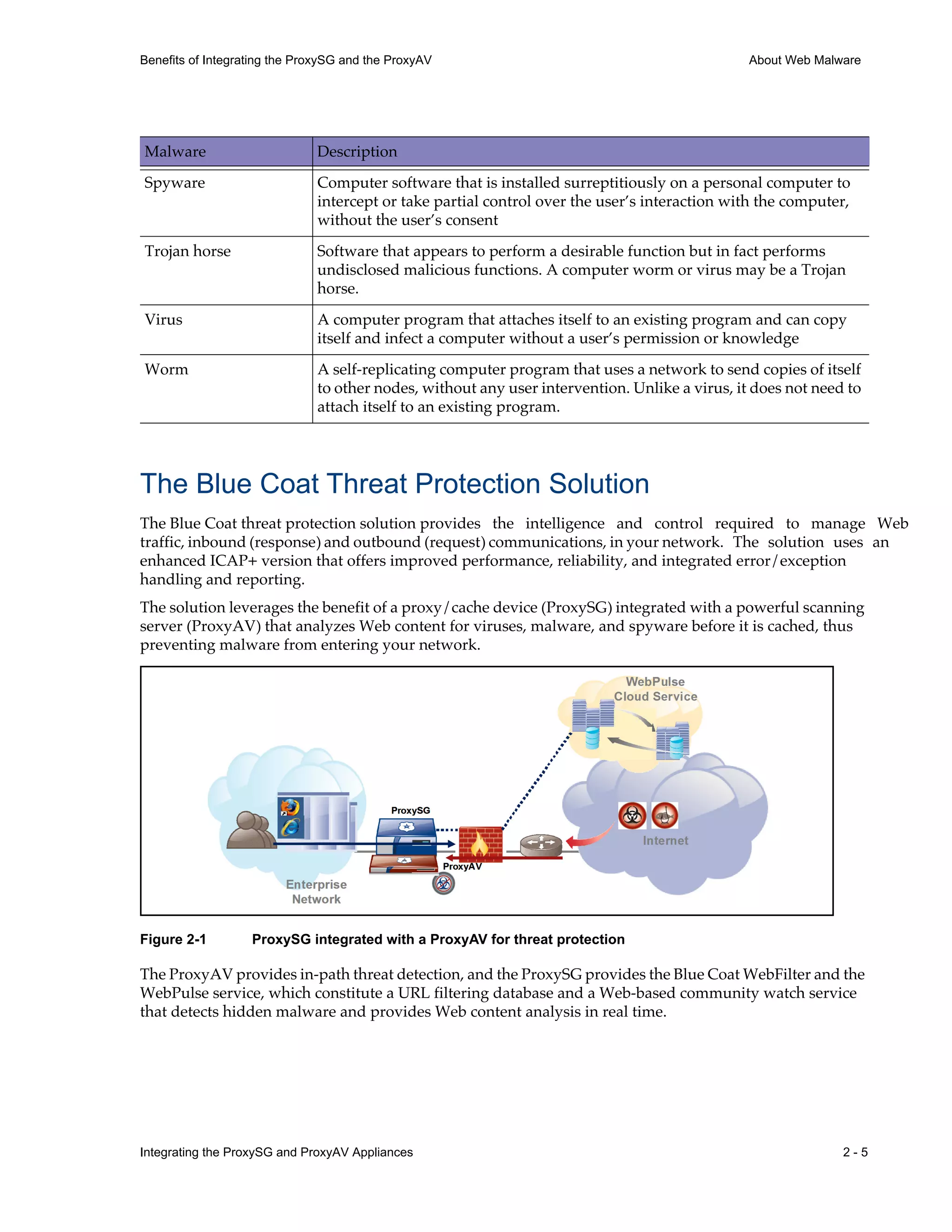
The solution leverages the benefit of a proxy/cache device (ProxySG) integrated with a powerful scanning
server (ProxyAV) that analyzes Web content for viruses, malware, and spyware before it is cached, thus
preventing malware from entering your network.
Figure 2-1 ProxySG integrated with a ProxyAV for threat protection
The ProxyAV provides in-path threat detection, and the ProxySG provides the Blue Coat WebFilter and the
WebPulse service, which constitute a URL filtering database and a Web-based community watch service
that detects hidden malware and provides Web content analysis in real time.
Spyware Computer software that is installed surreptitiously on a personal computer to
intercept or take partial control over the user’s interaction with the computer,
without the user’s consent
Trojan horse Software that appears to perform a desirable function but in fact performs
undisclosed malicious functions. A computer worm or virus may be a Trojan
horse.
Virus A computer program that attaches itself to an existing program and can copy
itself and infect a computer without a user’s permission or knowledge
Worm A self-replicating computer program that uses a network to send copies of itself
to other nodes, without any user intervention. Unlike a virus, it does not need to
attach itself to an existing program.
Malware Description
2 - 6 Integrating the ProxySG and ProxyAV Appliances
About Web Malware Benefits of Integrating the ProxySG and the ProxyAV
With the integrated appliances, your network is also protected from emerging malware threats. Because the
ProxyAV is designed to work with the ProxySG architecture, the ProxySG monitors the results of a ProxyAV
scan and proactively notifies the WebPulse service when a new virus or malware is detected. This
notification triggers an update to the Blue Coat WebFilter database and helps protect your enterprise and
all members in the cloud from the emerging threat.
Furthermore, the ProxySG provides a built-in malware scanning policy that offers immediate,
out-of-the-box protection. This policy is invoked when you integrate the appliances and enable malware
scanning. If you prefer to supplement or implement custom policy rules to enforce compliance to the
security policies relevant to your enterprise, you can use the policy engine on the ProxySG to create
granular policy to control content, users, applications and protocols in your network.
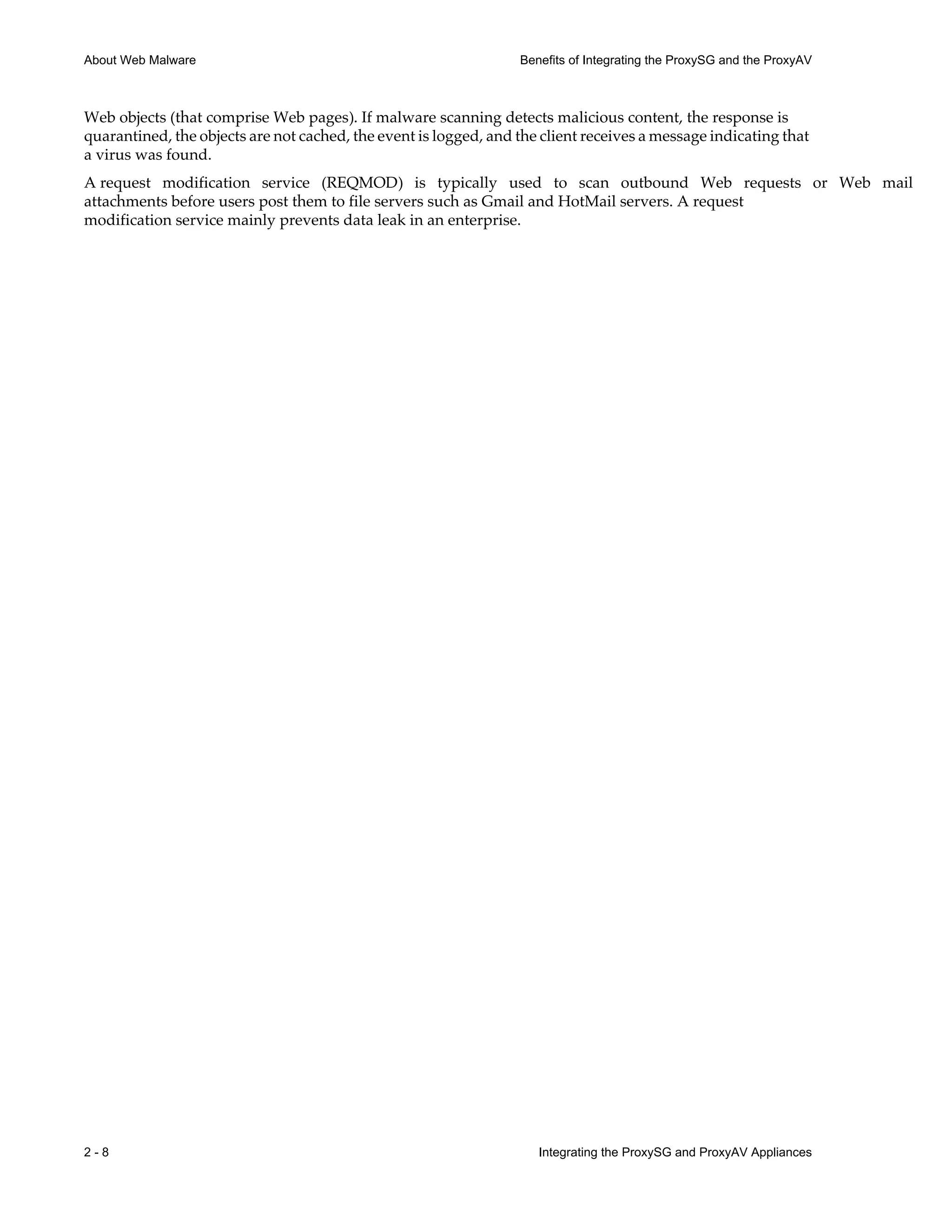
The following diagram illustrates, at a high level, the data flow in the Blue Coat solution.
Figure 2-2 Data flow and content delivery process for inbound Web traffic
Integrating the ProxySG and ProxyAV Appliances 2 - 7
Benefits of Integrating the ProxySG and the ProxyAV About Web Malware
Supported Malware Scanning Engines
You can select one of the following malware scanning engines supported on the ProxyAV:
• Kaspersky
• McAfee
• Sophos
• Symantec (introduced in AVOS 3.4.1.1)
• Trend Micro (introduced in AVOS 3.3.1.1)
• Panda
When your vendor engine license is about to expire, Blue Coat provides the option to renew it or obtain an
engine license from a different vendor.
Communication Between the ProxySG and the ProxyAV
Blue Coat’s ProxySG and ProxyAV appliances communicate using Internet Content Adaptation Protocol
(ICAP). ICAP is an open standard protocol that allows content engines to send HTTP based content to an
ICAP server for performing value-added services such as virus scanning.
The ProxySG is the ICAP client, and the ProxyAV is the ICAP server. The ProxySG forwards Web conten
that needs to be scanned to the ProxyAV. The ProxyAV filters and adapts the content and returns it to the
ProxySG. The scanned content is then served to the user who requested the content and cached on the
ProxySG.
Once an object is cached, it is not scanned again until either the object contents change or the AV database
changes. The AV database is a pattern file that allows anti-virus software to identify viruses. Whenever the
database changes, the ProxyAV needs to rescan any requested objects that are in the cache, because the new
database might contain updates on emerging malware threats.
For a non-cacheable object, the ProxyAV scans the object and creates a fingerprint — a secure hash of the
file’s contents. The ProxyAV compares the file’s fingerprint against a database of fingerprints that is
constructed as a result of scanning objects. The object will not be scanned again unless either its fingerprint
changes (indicating the content has changed) or the AV database changes.
For frequently accessed Web content, this integrated solution eliminates network threats and reduces
bandwidth usage and latency by serving objects from the cache.
About Content Scanning Modes
The ProxyAV can scan content in two modes: response modification and request modification.
Most Web malware deployments involve the use of a response modification service (RESPMOD). A
response modification service analyzes inbound client requests. That is, the response that is fetched from
the origin content server is scanned for malicious content before it is delivered to the user who requested
the content. If the content is verified as clean (and also allowable by corporate policy), the client receives the
2 - 8 Integrating the ProxySG and ProxyAV Appliances
About Web Malware Benefits of Integrating the ProxySG and the ProxyAV
Web objects (that comprise Web pages). If malware scanning detects malicious content, the response is
quarantined, the objects are not cached, the event is logged, and the client receives a message indicating that
a virus was found.
A request modification service (REQMOD) is typically used to scan outbound Web requests or Web mail
attachments before users post them to file servers such as Gmail and HotMail servers. A request
modification service mainly prevents data leak in an enterprise.
Integrating the ProxySG and ProxyAV Appliances 3 - 9
Deployment
3 Deployment
This chapter illustrates several deployment topologies for incorporating one or more ProxySG and
ProxyAV appliances in your network.
Note: The ProxySG can be deployed in explicit or transparent mode. In explicit mode, each client Web
browser is explicitly configured to use the ProxySG as a proxy server. In transparent mode, the client Web
browser does not know the traffic is being processed by a machine other than the origin content server.
Transparent proxy requires that you use a bridge, a Layer-4 switch, or Web Cache Communication Protocol
(WCCP) to redirect traffic to the ProxySG.
Also included in this chapter are high-level guidelines and workflows for physically installing the
appliances into your network, and it includes the following topics:
p ProxySG/ProxyAV With Direct Internet Access—on page 3-10
p ProxySG/ProxyAV in a Closed Network—on page 3-11
p Deployment Guidelines—on page 3-12
p Redundant Appliance Topologies—on page 3-14
p Deployment Workflow—on page 3-16
3 - 10 Integrating the ProxySG and ProxyAV Appliances
ProxySG/ProxyAV With Direct Internet Access Deployment
ProxySG/ProxyAV With Direct Internet Access
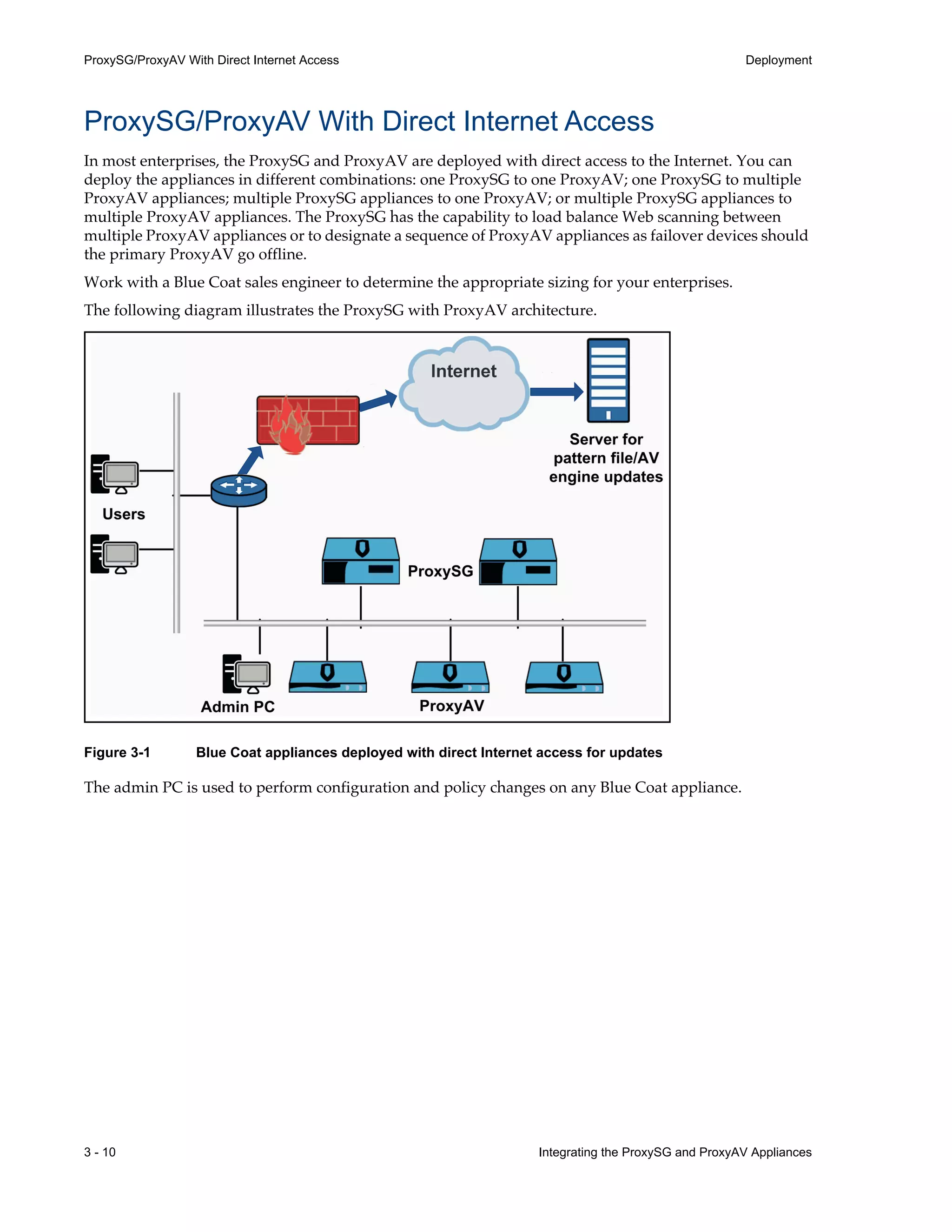
In most enterprises, the ProxySG and ProxyAV are deployed with direct access to the Internet. You can
deploy the appliances in different combinations: one ProxySG to one ProxyAV; one ProxySG to multiple
ProxyAV appliances; multiple ProxySG appliances to one ProxyAV; or multiple ProxySG appliances to
multiple ProxyAV appliances. The ProxySG has the capability to load balance Web scanning between
multiple ProxyAV appliances or to designate a sequence of ProxyAV appliances as failover devices should
the primary ProxyAV go offline.
Work with a Blue Coat sales engineer to determine the appropriate sizing for your enterprises.
The following diagram illustrates the ProxySG with ProxyAV architecture.
Figure 3-1 Blue Coat appliances deployed with direct Internet access for updates
The admin PC is used to perform configuration and policy changes on any Blue Coat appliance.
Integrating the ProxySG and ProxyAV Appliances 3 - 11
Deployment ProxySG/ProxyAV in a Closed Network
ProxySG/ProxyAV in a Closed Network
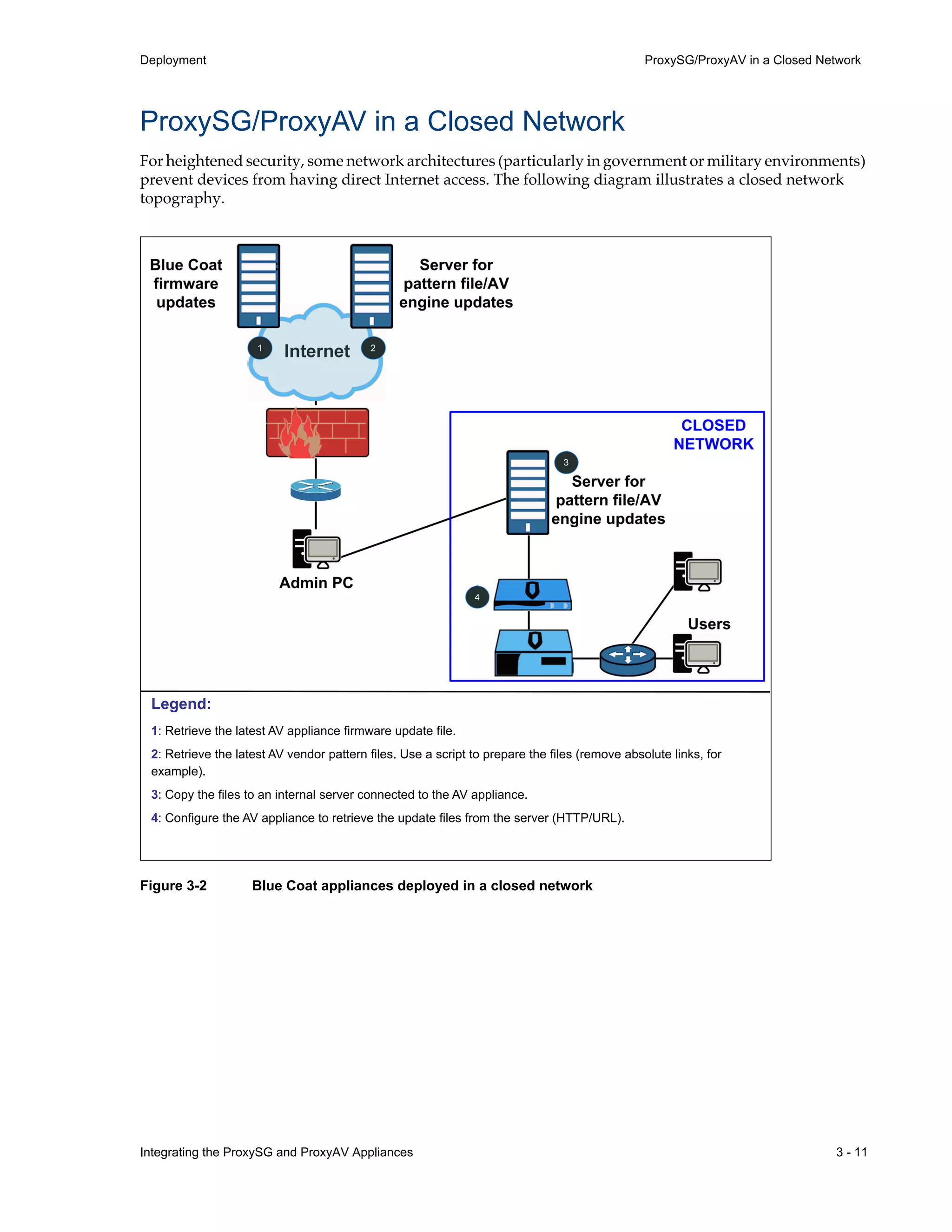
For heightened security, some network architectures (particularly in government or military environments)
prevent devices from having direct Internet access. The following diagram illustrates a closed network
topography.
:
Legend:
1: Retrieve the latest AV appliance firmware update file.
2: Retrieve the latest AV vendor pattern files. Use a script to prepare the files (remove absolute links, for
example).
3: Copy the files to an internal server connected to the AV appliance.
4: Configure the AV appliance to retrieve the update files from the server (HTTP/URL).
Figure 3-2 Blue Coat appliances deployed in a closed network
3 - 12 Integrating the ProxySG and ProxyAV Appliances
Deployment Guidelines Deployment
Deployment Guidelines
When planning the installation of your Blue Coat appliances, consider the following deployment
guidelines:
• Blue Coat recommends that all ProxySG appliances reside on the same subnet as the ProxyAV
appliances, even in cases where multiple ProxySG appliances are load balanced with multiple ProxyAV
appliances. Although you can put the ProxyAV in California and the ProxySG in New York,
performance will suffer. For optimal performance, the ProxyAV and the ProxySG must be physically
and logically close to each other; Blue Coat recommends that the ProxyAV be on the next-hop VLAN.
• Before installing the ProxyAV, install the ProxySG in your network and verify that it is intercepting
traffic in your network.
• The ProxyAV must have access to the Internet for system and pattern file updates. In a closed network,
you’ll need to download these files from a system that has Internet access and then copy these files to
an internal server connected to the AV appliance; the ProxyAV must be configured to retrieve the
update files from this server. For the closed network topography, see “ProxySG/ProxyAV in a Closed
Network” on page¬3-11.
If a closed network, the ProxyAV can use the ProxySG for downloading pattern file and firmware
updates. To use the ProxySG as a proxy for downloading pattern file and firmware updates, make sure
to add the IP address of the ProxySG is added to the Network > Proxy Servers for Updates link on the
ProxyAV Management Console.
Integrating the ProxySG and ProxyAV Appliances 3 - 13
Deployment One ProxySG to One ProxyAV
One ProxySG to One ProxyAV
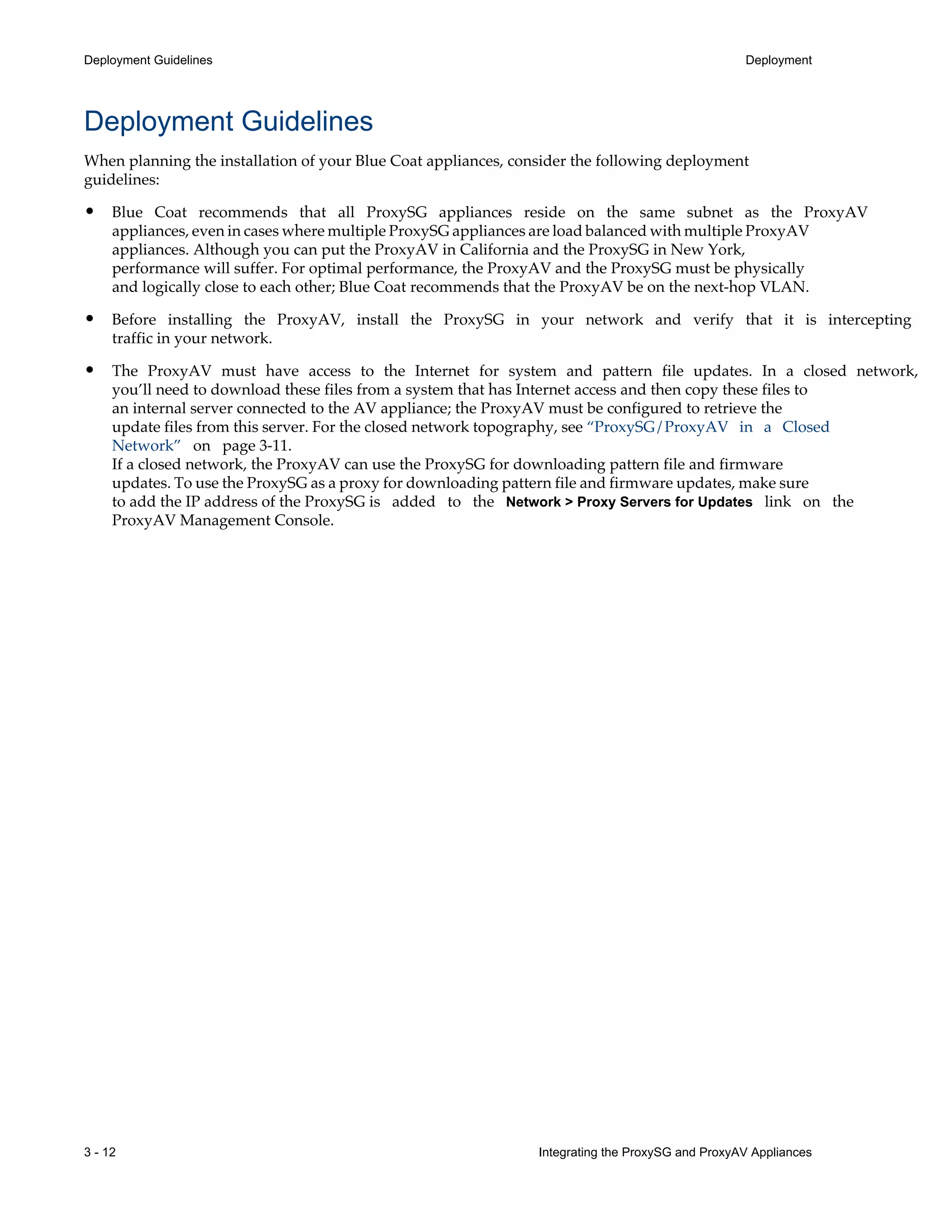
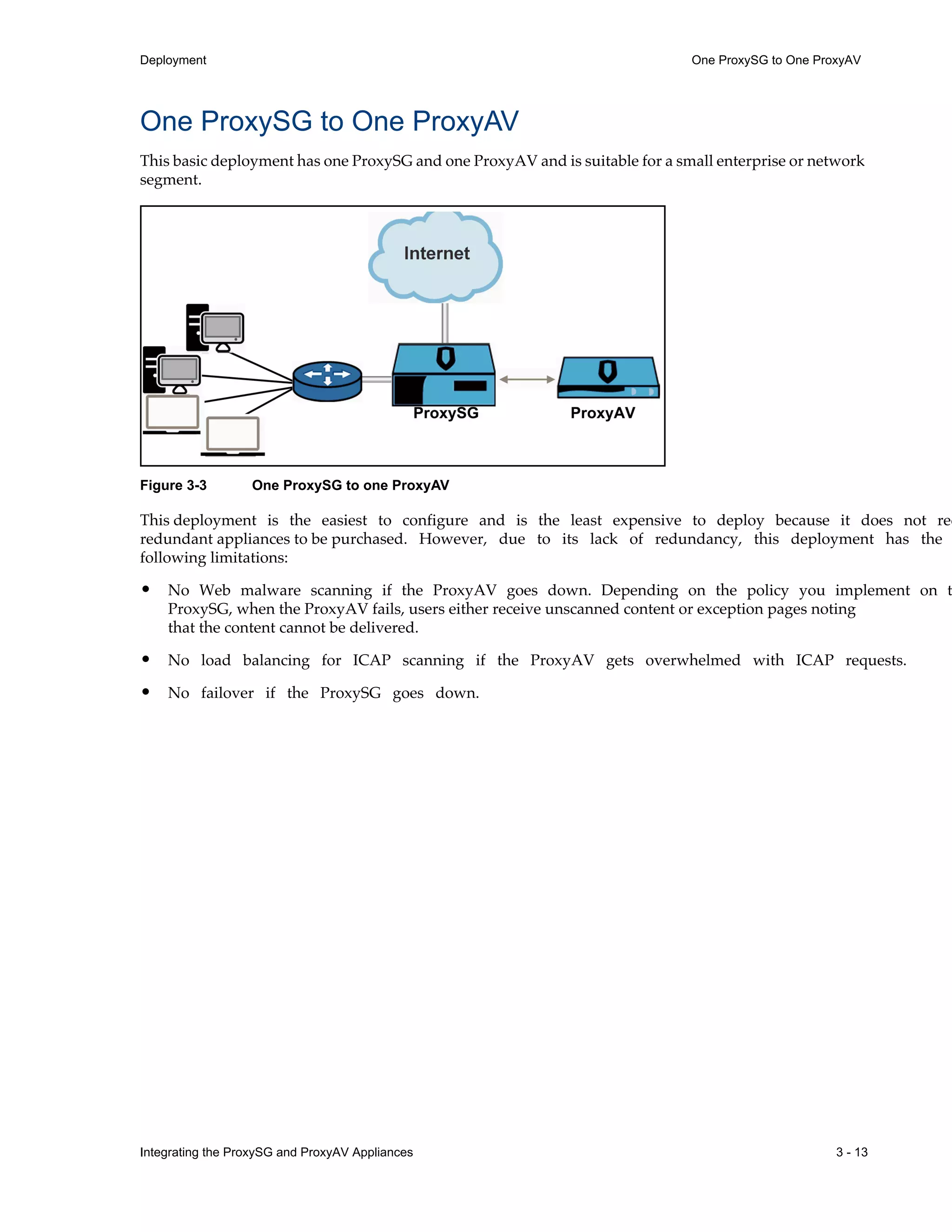
This basic deployment has one ProxySG and one ProxyAV and is suitable for a small enterprise or network
segment.
Figure 3-3 One ProxySG to one ProxyAV
This deployment is the easiest to configure and is the least expensive to deploy because it does not req
redundant appliances to be purchased. However, due to its lack of redundancy, this deployment has the
following limitations:
• No Web malware scanning if the ProxyAV goes down. Depending on the policy you implement on t
ProxySG, when the ProxyAV fails, users either receive unscanned content or exception pages noting
that the content cannot be delivered.
• No load balancing for ICAP scanning if the ProxyAV gets overwhelmed with ICAP requests.
• No failover if the ProxySG goes down.
3 - 14 Integrating the ProxySG and ProxyAV Appliances
Redundant Appliance Topologies Deployment
Redundant Appliance Topologies
Larger enterprises may require redundancy in the network: multiple ProxySG and/or multiple ProxyAV
appliances. Redundant appliances address the limitations of the single-ProxyAV/single-ProxySG
deployment. The ProxySG can load balance Web scanning between multiple ProxyAV appliances or
designate a sequence of ProxyAV appliances as failover devices should the primary ProxyAV go offline.
Similarly, secondary ProxySG appliances can be configured as failover devices should the primary ProxySG
go down or can provide further proxy support in the network.
The options for redundant topologies are:
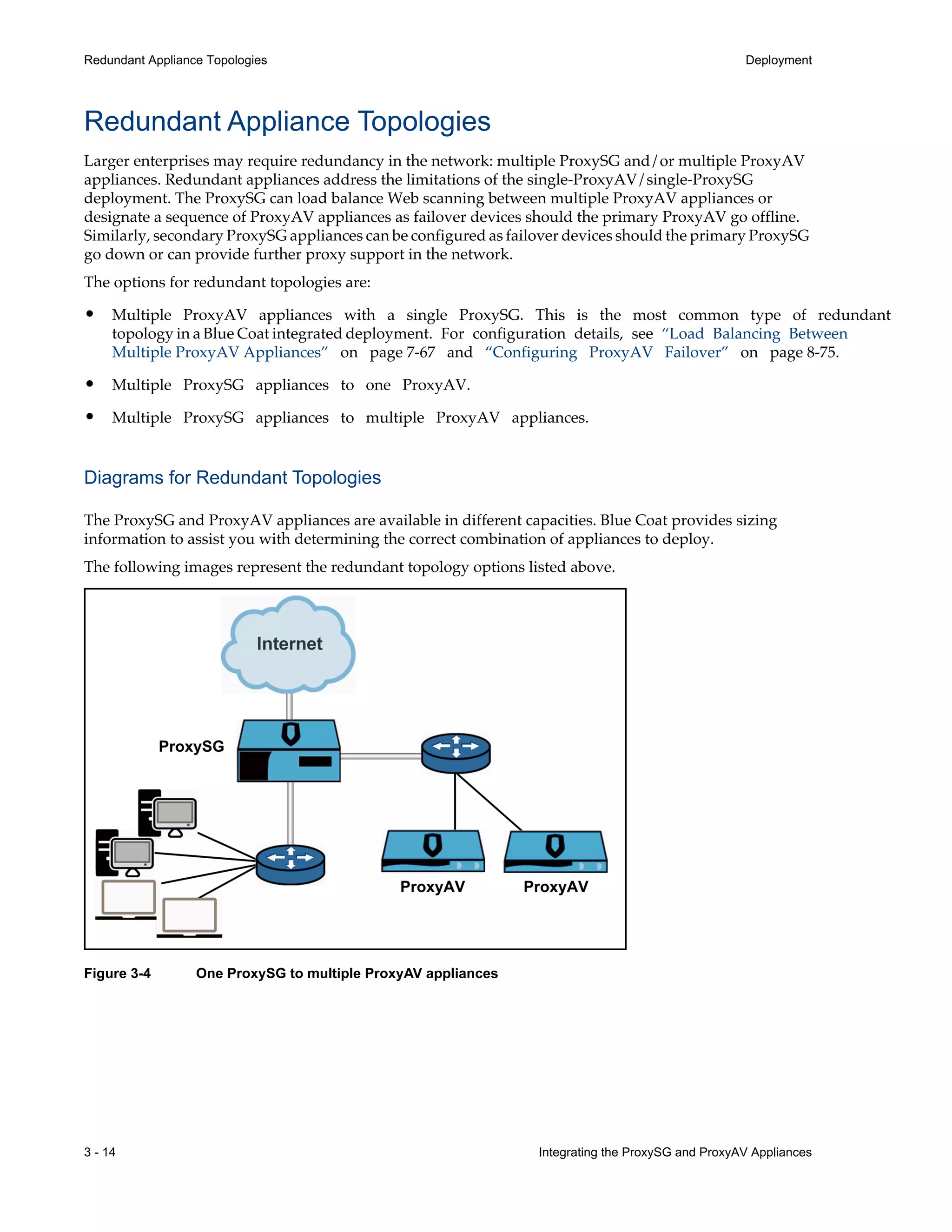
• Multiple ProxyAV appliances with a single ProxySG. This is the most common type of redundant
topology in a Blue Coat integrated deployment. For configuration details, see “Load Balancing Between
Multiple ProxyAV Appliances” on page¬7-67 and “Configuring ProxyAV Failover” on page¬8-75.
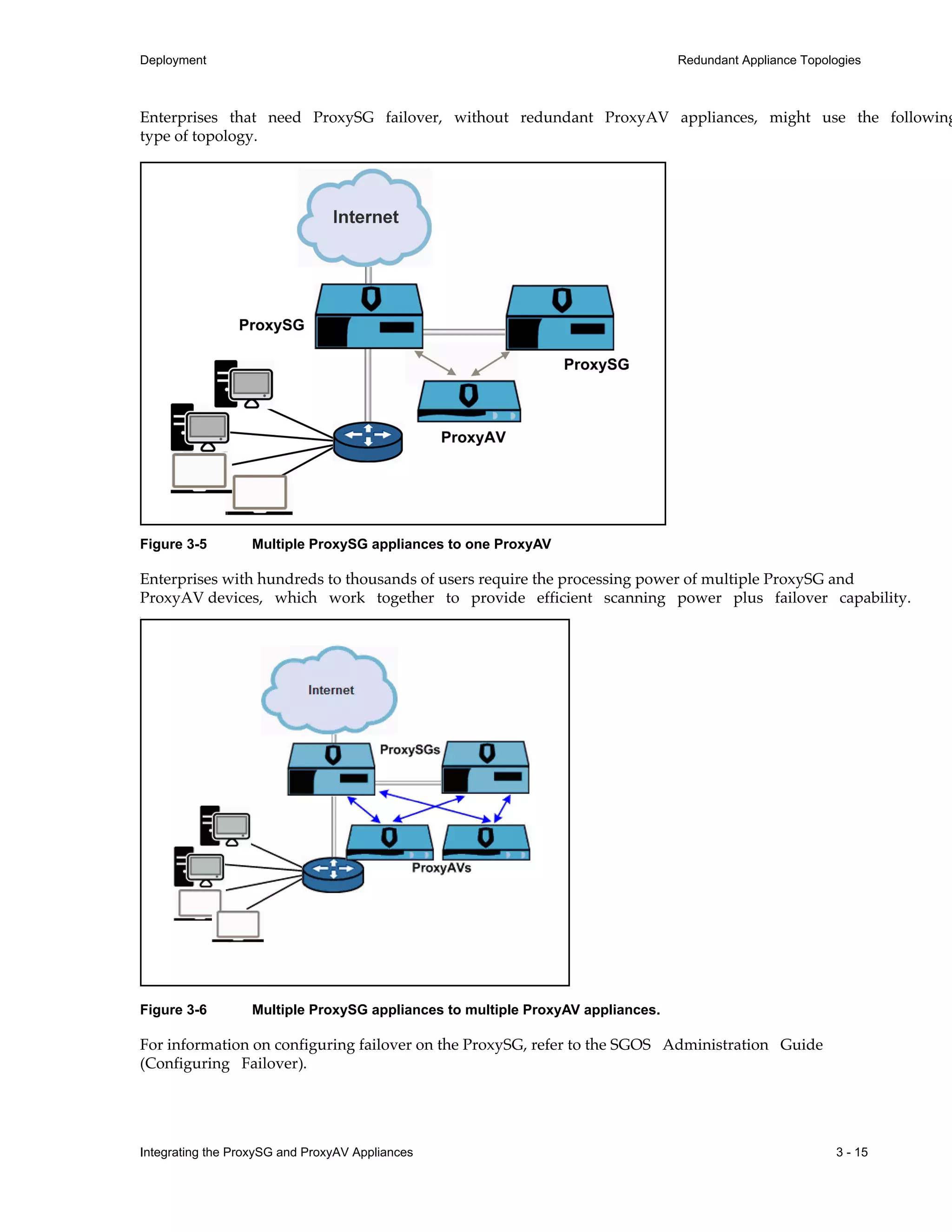
• Multiple ProxySG appliances to one ProxyAV.
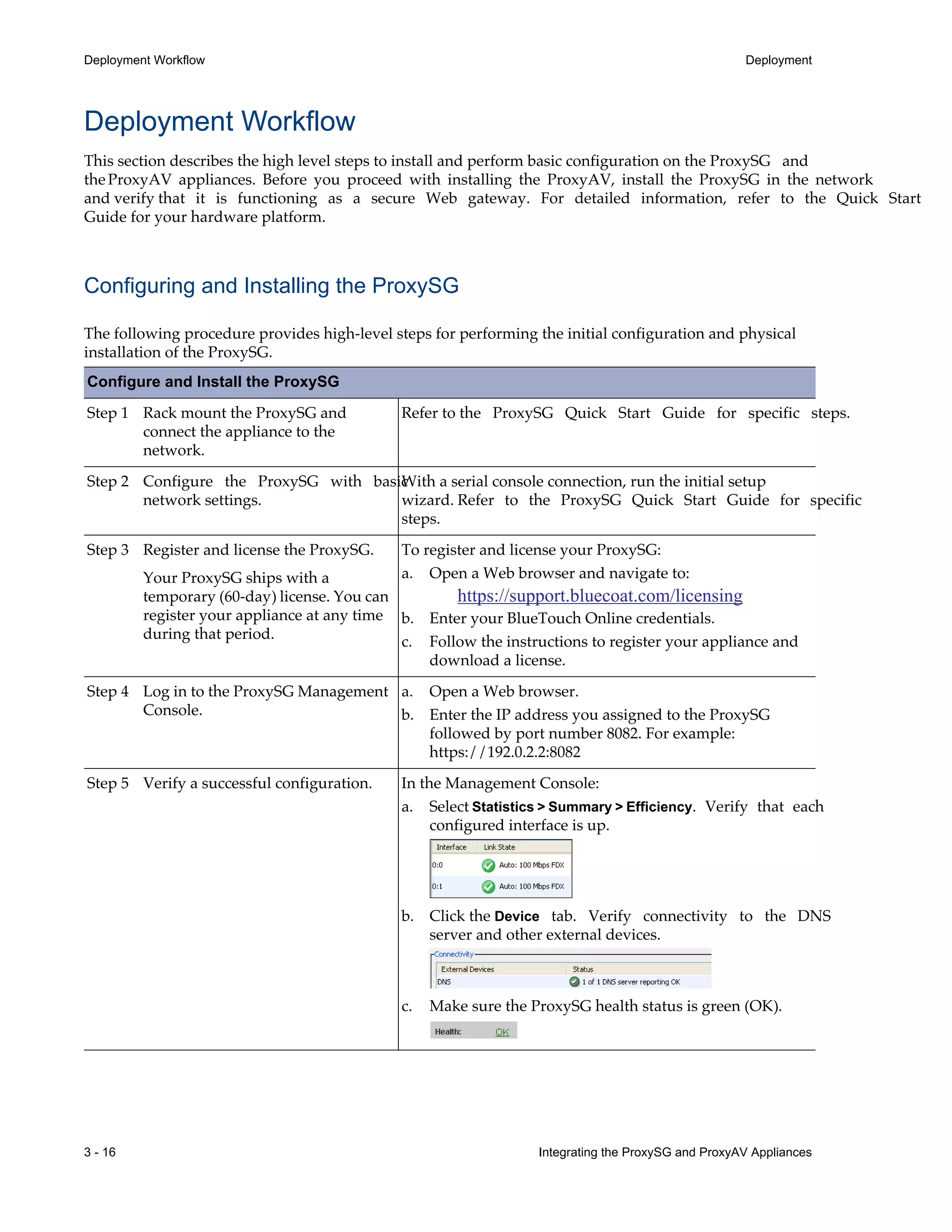
• Multiple ProxySG appliances to multiple ProxyAV appliances.
Diagrams for Redundant Topologies
The ProxySG and ProxyAV appliances are available in different capacities. Blue Coat provides sizing
information to assist you with determining the correct combination of appliances to deploy.
The following images represent the redundant topology options listed above.
Figure 3-4 One ProxySG to multiple ProxyAV appliances
Integrating the ProxySG and ProxyAV Appliances 3 - 15
Deployment Redundant Appliance Topologies
Enterprises that need ProxySG failover, without redundant ProxyAV appliances, might use the following
type of topology.
Figure 3-5 Multiple ProxySG appliances to one ProxyAV
Enterprises with hundreds to thousands of users require the processing power of multiple ProxySG and
ProxyAV devices, which work together to provide efficient scanning power plus failover capability.
.
Figure 3-6 Multiple ProxySG appliances to multiple ProxyAV appliances.
For information on configuring failover on the ProxySG, refer to the SGOS Administration Guide
(Configuring Failover).
3 - 16 Integrating the ProxySG and ProxyAV Appliances
Deployment Workflow Deployment
Deployment Workflow
This section describes the high level steps to install and perform basic configuration on the ProxySG and
theProxyAV appliances. Before you proceed with installing the ProxyAV, install the ProxySG in the network
and verify that it is functioning as a secure Web gateway. For detailed information, refer to the Quick Start
Guide for your hardware platform.
Configuring and Installing the ProxySG
The following procedure provides high-level steps for performing the initial configuration and physical
installation of the ProxySG.
Configure and Install the ProxySG
Step 1 Rack mount the ProxySG and
connect the appliance to the
network.
Refer to the ProxySG Quick Start Guide for specific steps.
Step 2 Configure the ProxySG with basic
network settings.
With a serial console connection, run the initial setup
wizard. Refer to the ProxySG Quick Start Guide for specific
steps.
Step 3 Register and license the ProxySG.
Your ProxySG ships with a
temporary (60-day) license. You can
register your appliance at any time
during that period.
To register and license your ProxySG:
a. Open a Web browser and navigate to:
https://support.bluecoat.com/licensing
b. Enter your BlueTouch Online credentials.
c. Follow the instructions to register your appliance and
download a license.
Step 4 Log in to the ProxySG Management
Console.
a. Open a Web browser.
b. Enter the IP address you assigned to the ProxySG
followed by port number 8082. For example:
https://192.0.2.2:8082
Step 5 Verify a successful configuration. In the Management Console:
a. Select Statistics > Summary > Efficiency. Verify that each
configured interface is up.
b. Click the Device tab. Verify connectivity to the DNS
server and other external devices.
c. Make sure the ProxySG health status is green (OK).
Integrating the ProxySG and ProxyAV Appliances 3 - 17
Deployment Deployment Workflow
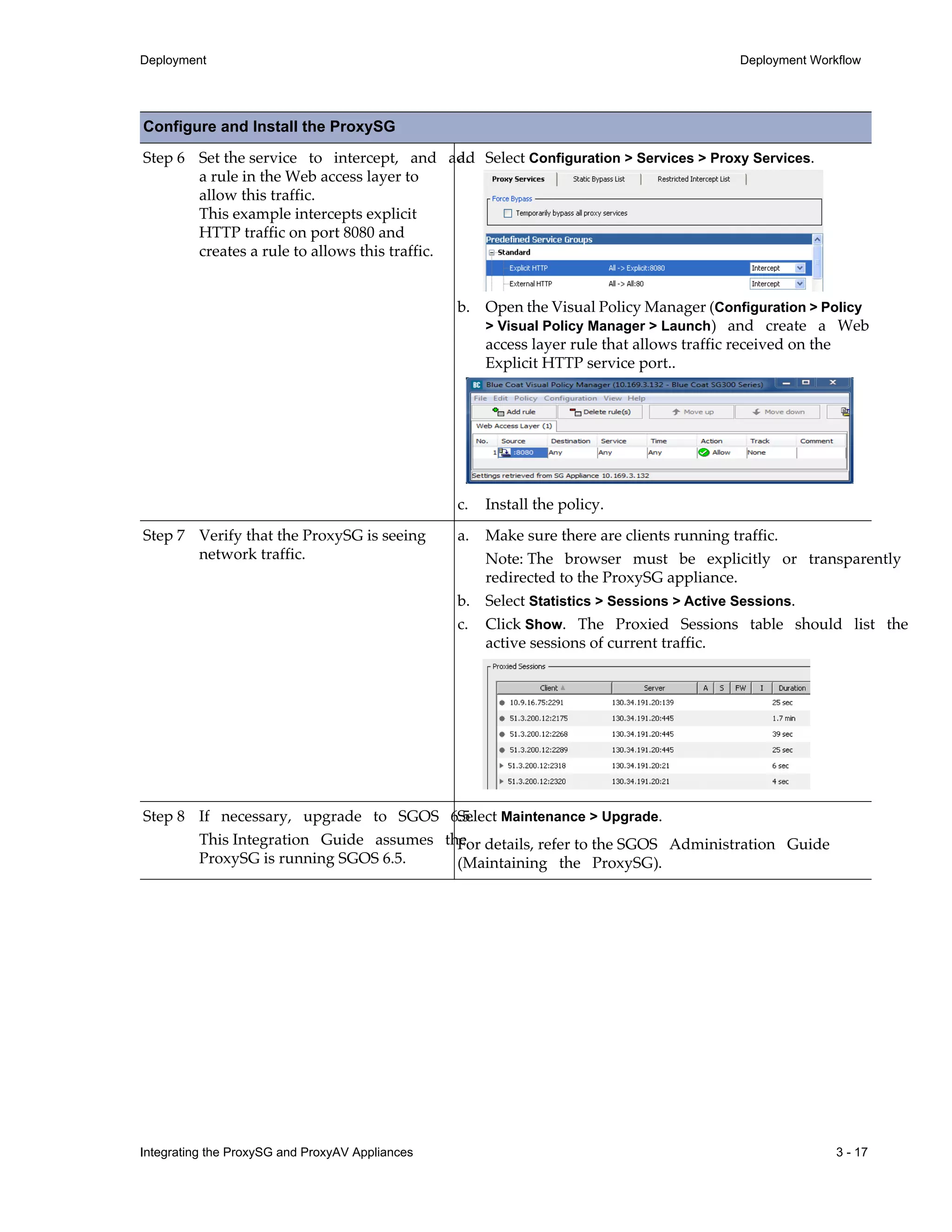
Step 6 Set the service to intercept, and add
a rule in the Web access layer to
allow this traffic.
This example intercepts explicit
HTTP traffic on port 8080 and
creates a rule to allows this traffic.
a. Select Configuration > Services > Proxy Services.
b. Open the Visual Policy Manager (Configuration > Policy
> Visual Policy Manager > Launch) and create a Web
access layer rule that allows traffic received on the
Explicit HTTP service port..
c. Install the policy.
Step 7 Verify that the ProxySG is seeing
network traffic.
a. Make sure there are clients running traffic.
Note: The browser must be explicitly or transparently
redirected to the ProxySG appliance.
b. Select Statistics > Sessions > Active Sessions.
c. Click Show. The Proxied Sessions table should list the
active sessions of current traffic.
Step 8 If necessary, upgrade to SGOS 6.5.
This Integration Guide assumes the
ProxySG is running SGOS 6.5.
Select Maintenance > Upgrade.
For details, refer to the SGOS Administration Guide
(Maintaining the ProxySG).
Configure and Install the ProxySG
3 - 18 Integrating the ProxySG and ProxyAV Appliances
Deployment Workflow Deployment
Configuring and Installing the ProxyAV
The following procedure provides high-level steps for performing the initial configuration and physical
installation of the ProxyAV. The ProxyAV installation should be done after the ProxySG installation.
Configure and Install the ProxyAV
Step 1 Rack mount the ProxyAV, insert the
disk drive(s) if applicable for your
model, connect the appliance to the
network,andpowerontheProxyAV.
Refer to the ProxyAV Quick Start Guide for specific steps.
Step 2 Configure the ProxyAV with basic
network settings.
Use a serial console connection or the buttons on the
ProxyAV front panel. Refer to the ProxyAV Quick Start
Guide for specific steps.
Note Ensure that the ProxySG and the ProxyAV are
installed on the same subnet.
Step 3 Log in to the ProxyAV Management
Console.
a. Open a Web browser.
b. Enter the IP address you assigned to the ProxyAV
followed by port number 8082. For example:
https://192.0.2.3:8082
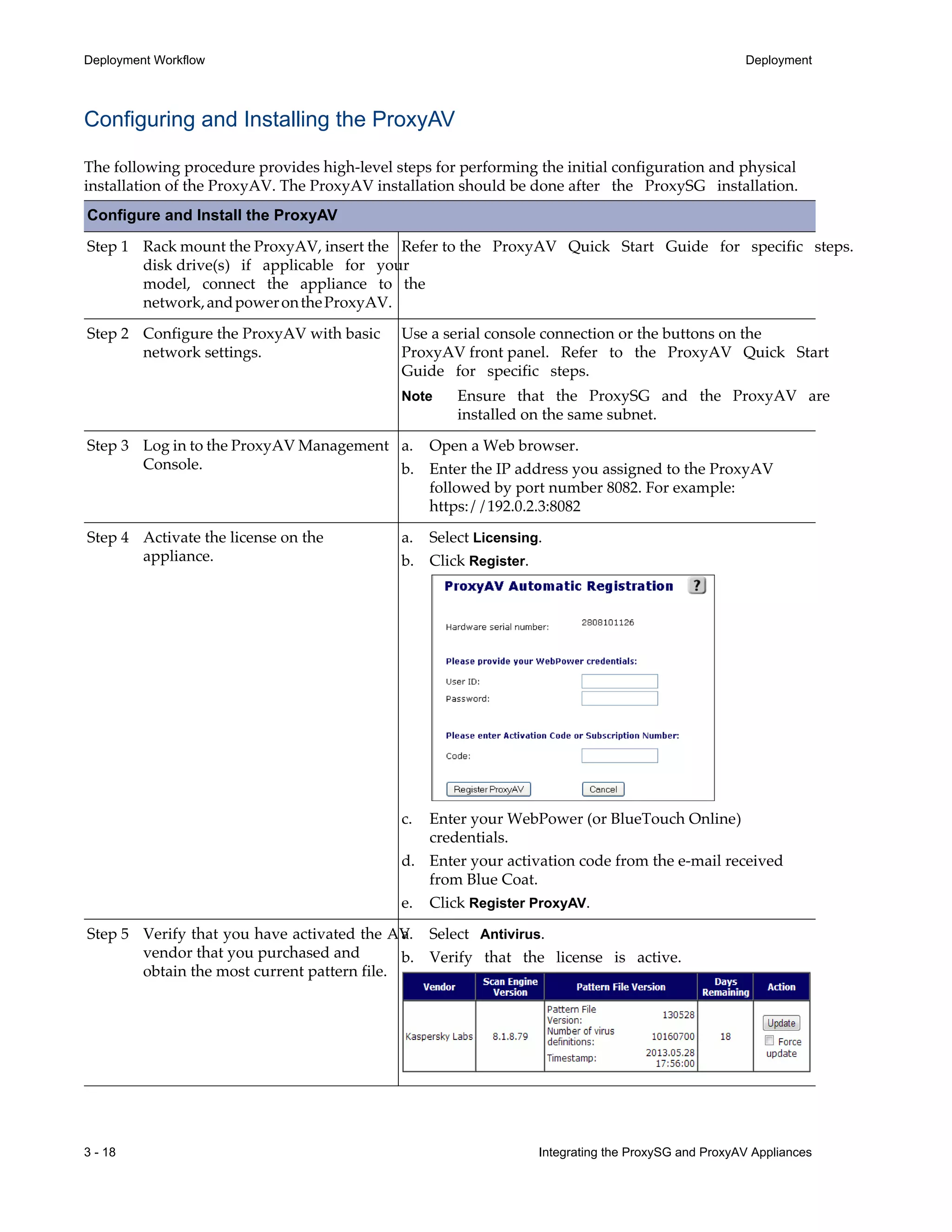
Step 4 Activate the license on the
appliance.
a. Select Licensing.
b. Click Register.
c. Enter your WebPower (or BlueTouch Online)
credentials.
d. Enter your activation code from the e-mail received
from Blue Coat.
e. Click Register ProxyAV.
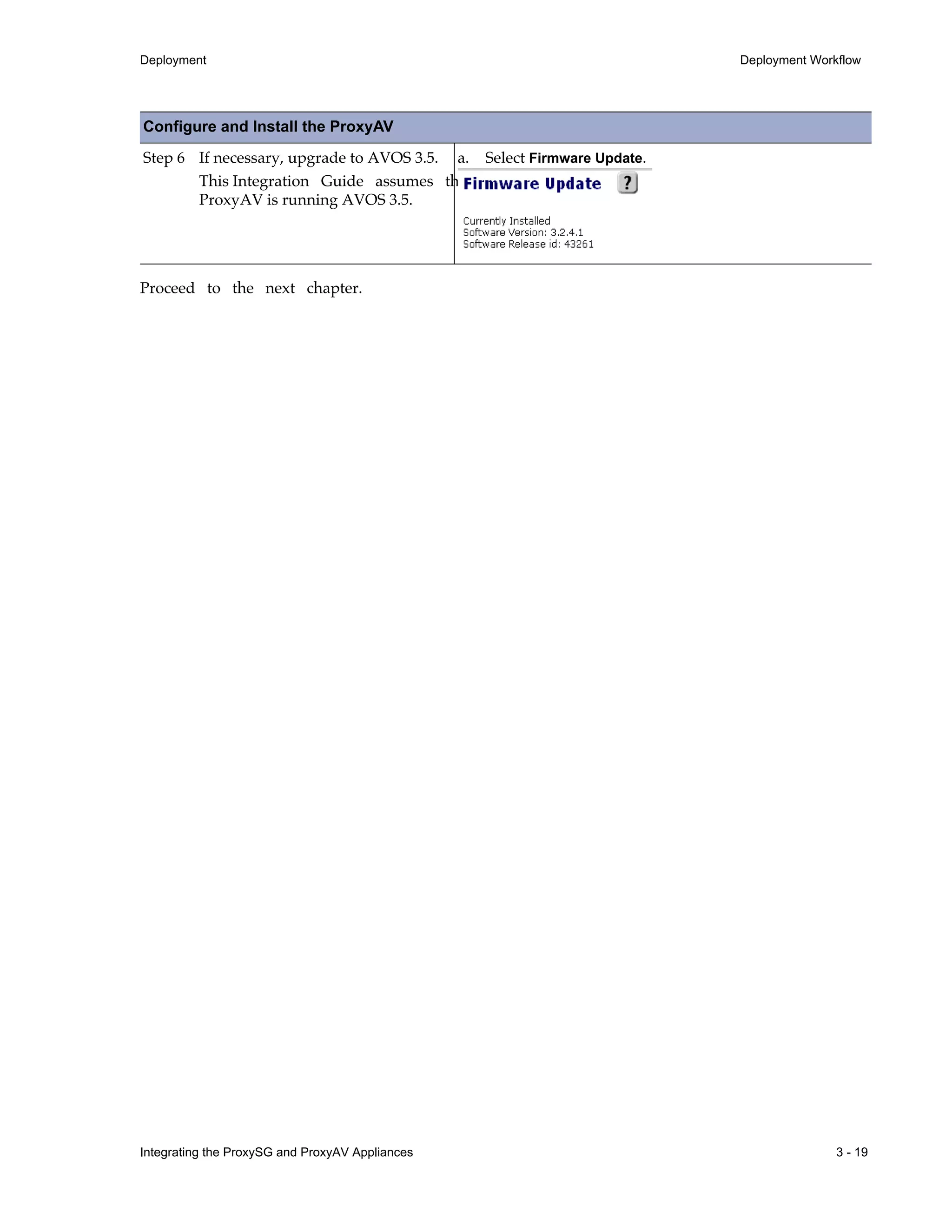
Step 5 Verify that you have activated the AV
vendor that you purchased and
obtain the most current pattern file.
a. Select Antivirus.
b. Verify that the license is active.
Integrating the ProxySG and ProxyAV Appliances 3 - 19
Deployment Deployment Workflow
Proceed to the next chapter.
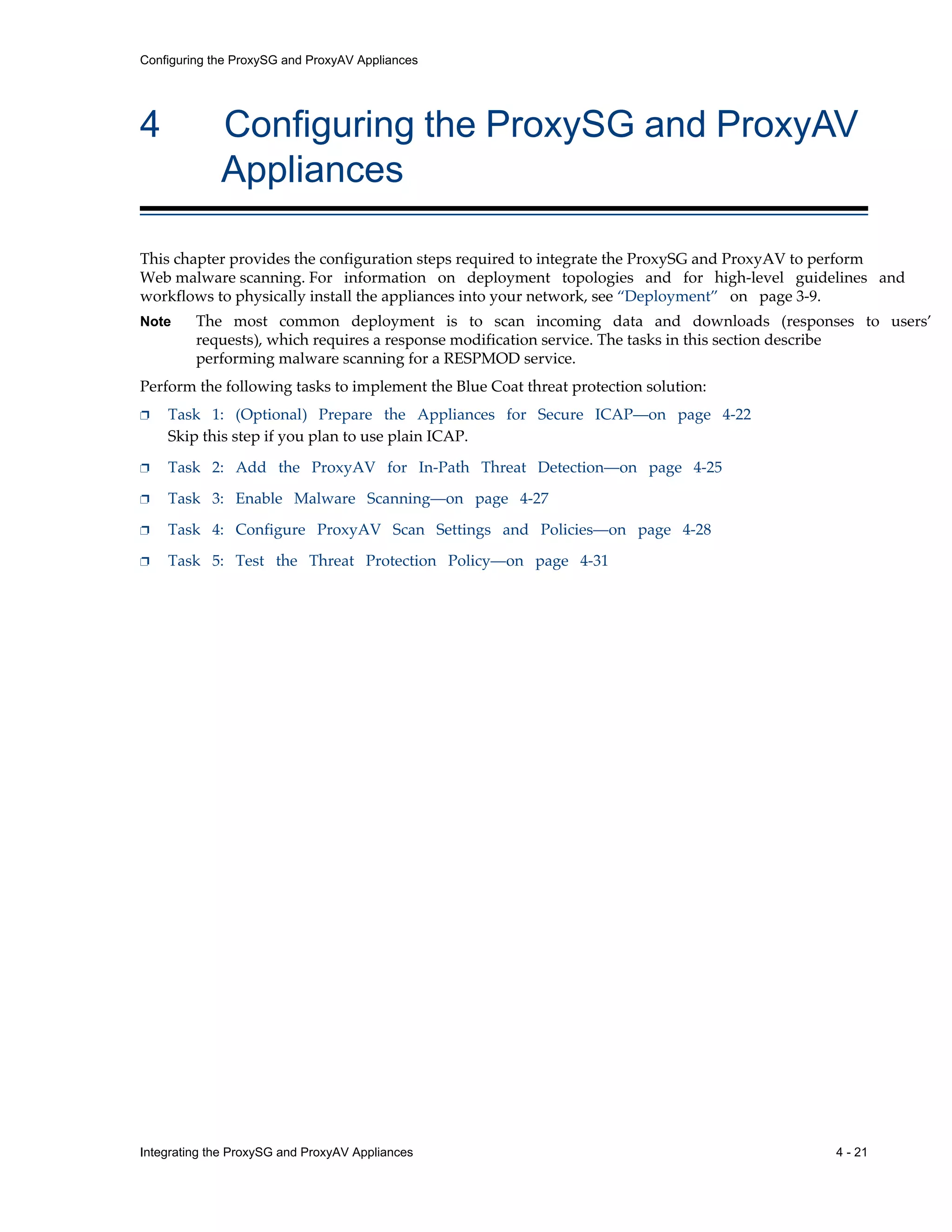
Step 6 If necessary, upgrade to AVOS 3.5.
This Integration Guide assumes the
ProxyAV is running AVOS 3.5.
a. Select Firmware Update.
Configure and Install the ProxyAV
3 - 20 Integrating the ProxySG and ProxyAV Appliances
Deployment Workflow Deployment
Integrating the ProxySG and ProxyAV Appliances 4 - 21
Configuring the ProxySG and ProxyAV Appliances
4 Configuring the ProxySG and ProxyAV
Appliances
This chapter provides the configuration steps required to integrate the ProxySG and ProxyAV to perform
Web malware scanning. For information on deployment topologies and for high-level guidelines and
workflows to physically install the appliances into your network, see “Deployment” on page 3-9.
Note The most common deployment is to scan incoming data and downloads (responses to users’
requests), which requires a response modification service. The tasks in this section describe
performing malware scanning for a RESPMOD service.
Perform the following tasks to implement the Blue Coat threat protection solution:
p Task 1: (Optional) Prepare the Appliances for Secure ICAP—on page 4-22
Skip this step if you plan to use plain ICAP.
p Task 2: Add the ProxyAV for In-Path Threat Detection—on page 4-25
p Task 3: Enable Malware Scanning—on page 4-27
p Task 4: Configure ProxyAV Scan Settings and Policies—on page 4-28
p Task 5: Test the Threat Protection Policy—on page 4-31
4 - 22 Integrating the ProxySG and ProxyAV Appliances
Task 1: (Optional) Prepare the Appliances for Secure ICAP Configuring the ProxySG and ProxyAV Appliances
Task 1: (Optional) Prepare the Appliances for Secure ICAP
Blue Coat recommends using secure ICAP if you are scanning sensitive or confidential data. Secure ICAP
is SSL encrypted ICAP and requires an SSL license on the ProxySG. Enabling a secure ICAP connection
between the ProxyAV and the ProxySG is a two-step process that requires configuration on both the
ProxySG and the ProxyAV.
For secure ICAP, you must select an SSL device profile on the ProxySG. An SSL device profile contains the
information required for device authentication, including the name of the keyring with the private key and
certificate.
On the ProxyAV, you must use a keyring that contains the keypair and the associated appliance certificate.
The ProxyAV ships with a default keyring that contains a self-signed certificate and an
automatically-generated key pair. You can either use the default keyring for secure ICAP or import a keyring
signed by a well-known Certificate Signing Authority (CSA).
To perform secure ICAP communication between the ProxySG and the ProxyAV, you must complete the
following tasks:
• On the ProxyAV, copy the ProxyAV appliance certificate.
• On the ProxySG:
– Import the ProxyAV appliance certificate as a Certificate Authority (CA) certificate on the ProxySG.
– Create a new CA Certificate List (CCL) for secure ICAP and add the newly created ProxyAV CA
certificate to it.
– Create a new SSL Device Profile for secure ICAP and select the default keyring and the CCL created
for secure ICAP.
– Configure the ICAP service to use the SSL device profile created above.
The following instructions take you through the tasks listed above.
Prepare the Appliances for Secure ICAP
Step 1 Log in to the ProxyAV Management
Console.
a. Open a Web browser.
b. Enter the IP address you assigned to the ProxyAV
followed by port number 8082. For example:
https://192.0.2.3:8082
Step 2 Assign a port and an SSL keyring for
the secure ICAP connection between
the ProxyAV and the ProxySG.
Note: To use secure ICAP, you must
also select secure ICAP on the
ProxySG. See Task 2: Add the
ProxyAV for In-Path Threat
Detection.
On the ProxyAV:
a. Select ICAP Settings.
b. In the ICAP Server Ports area, select secure.
In most deployments, the default port (11344) is
acceptable. If you change the port, you must specify the
same port when configuring the ProxySG for ICAP
scanning.
c. Select an available keyring from the drop-down list. The
ProxyAV includes a default keyring. If you choose the
default keyring on the ProxyAV, proceed to Step 3.
Note: If you prefer to create or import a custom keyring,
go to Advanced > SSL Keyrings on the ProxyAV.
d. Click Save Changes.
Integrating the ProxySG and ProxyAV Appliances 4 - 23
Configuring the ProxySG and ProxyAV Appliances Task 1: (Optional) Prepare the Appliances for Secure ICAP
Step 3 Enable trust between the ProxyAV
and the ProxySG.
If you used the default SSL device profile, you must copy the
default SSL certificate from the ProxyAV on to the ProxySG.
On the ProxyAV:
a. Select Advanced > SSL Certificates
b. Copy the contents of the default certificate.
Begin with. --- BEGIN CERTIFICATE and end at
--- END CERTIFICATE---.
On the ProxySG:
a. Select Configuration > SSL > CA Certificates > CA
Certificates.
b. Click Import. The Import CA Certificate dialog displays.
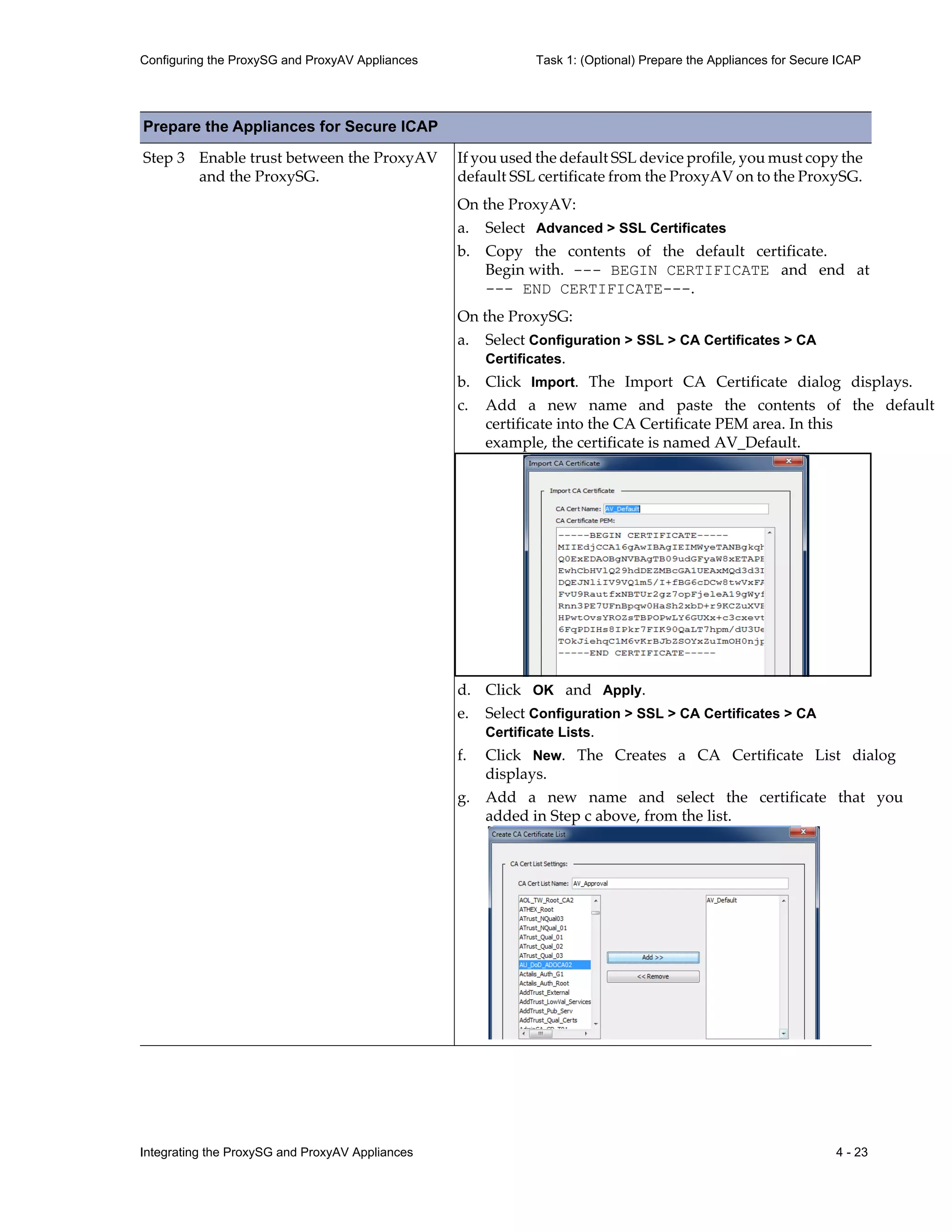
c. Add a new name and paste the contents of the default
certificate into the CA Certificate PEM area. In this
example, the certificate is named AV_Default.
d. Click OK and Apply.
e. Select Configuration > SSL > CA Certificates > CA
Certificate Lists.
f. Click New. The Creates a CA Certificate List dialog
displays.
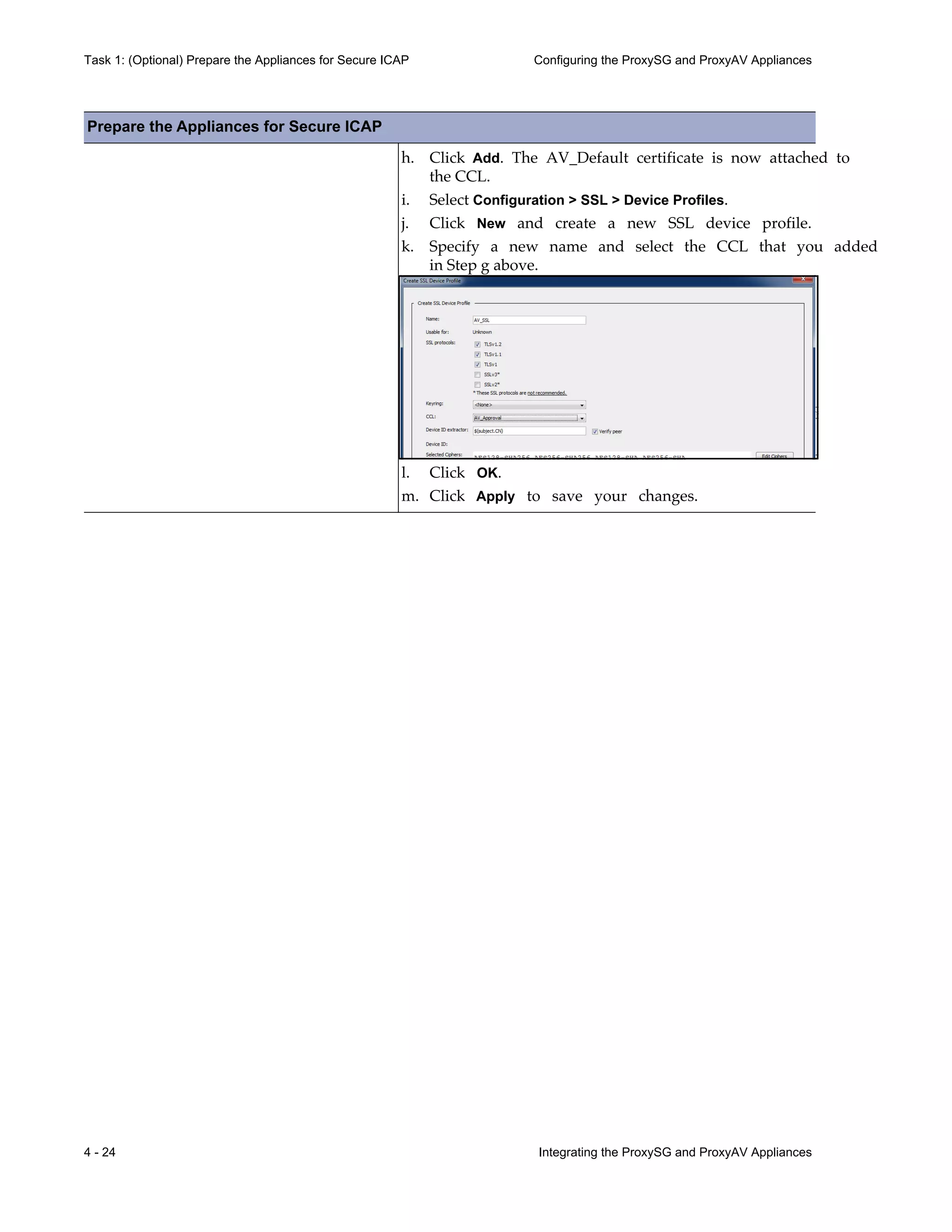
g. Add a new name and select the certificate that you
added in Step c above, from the list.
Prepare the Appliances for Secure ICAP
4 - 24 Integrating the ProxySG and ProxyAV Appliances
Task 1: (Optional) Prepare the Appliances for Secure ICAP Configuring the ProxySG and ProxyAV Appliances
h. Click Add. The AV_Default certificate is now attached to
the CCL.
i. Select Configuration > SSL > Device Profiles.
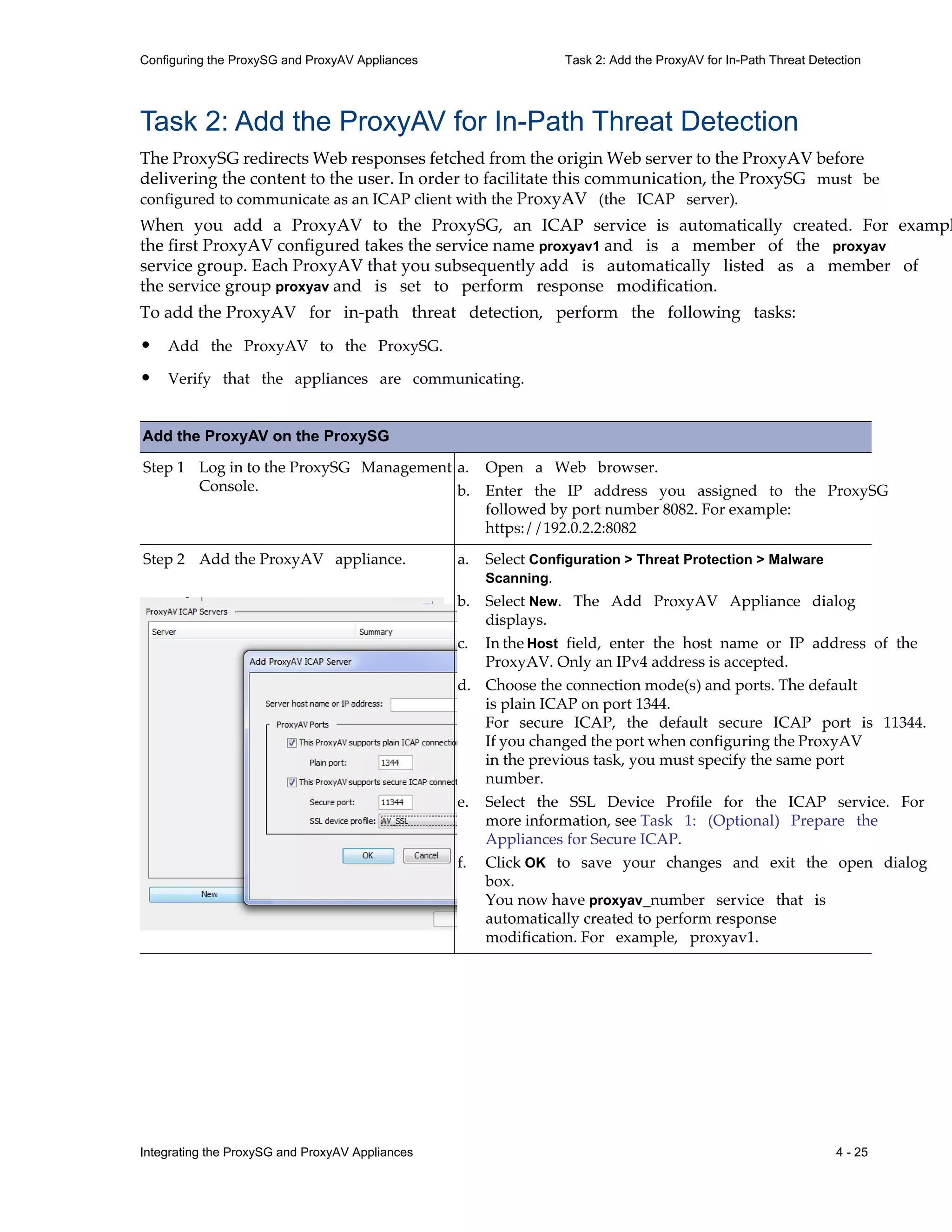
j. Click New and create a new SSL device profile.
k. Specify a new name and select the CCL that you added
in Step g above.
l. Click OK.
m. Click Apply to save your changes.
Prepare the Appliances for Secure ICAP
Integrating the ProxySG and ProxyAV Appliances 4 - 25
Configuring the ProxySG and ProxyAV Appliances Task 2: Add the ProxyAV for In-Path Threat Detection
Task 2: Add the ProxyAV for In-Path Threat Detection
The ProxySG redirects Web responses fetched from the origin Web server to the ProxyAV before
delivering the content to the user. In order to facilitate this communication, the ProxySG must be
configured to communicate as an ICAP client with the ProxyAV (the ICAP server).
When you add a ProxyAV to the ProxySG, an ICAP service is automatically created. For exampl
the first ProxyAV configured takes the service name proxyav1 and is a member of the proxyav
service group. Each ProxyAV that you subsequently add is automatically listed as a member of
the service group proxyav and is set to perform response modification.
To add the ProxyAV for in-path threat detection, perform the following tasks:
• Add the ProxyAV to the ProxySG.
• Verify that the appliances are communicating.
Add the ProxyAV on the ProxySG
Step 1 Log in to the ProxySG Management
Console.
a. Open a Web browser.
b. Enter the IP address you assigned to the ProxySG
followed by port number 8082. For example:
https://192.0.2.2:8082
Step 2 Add the ProxyAV appliance. a. Select Configuration > Threat Protection > Malware
Scanning.
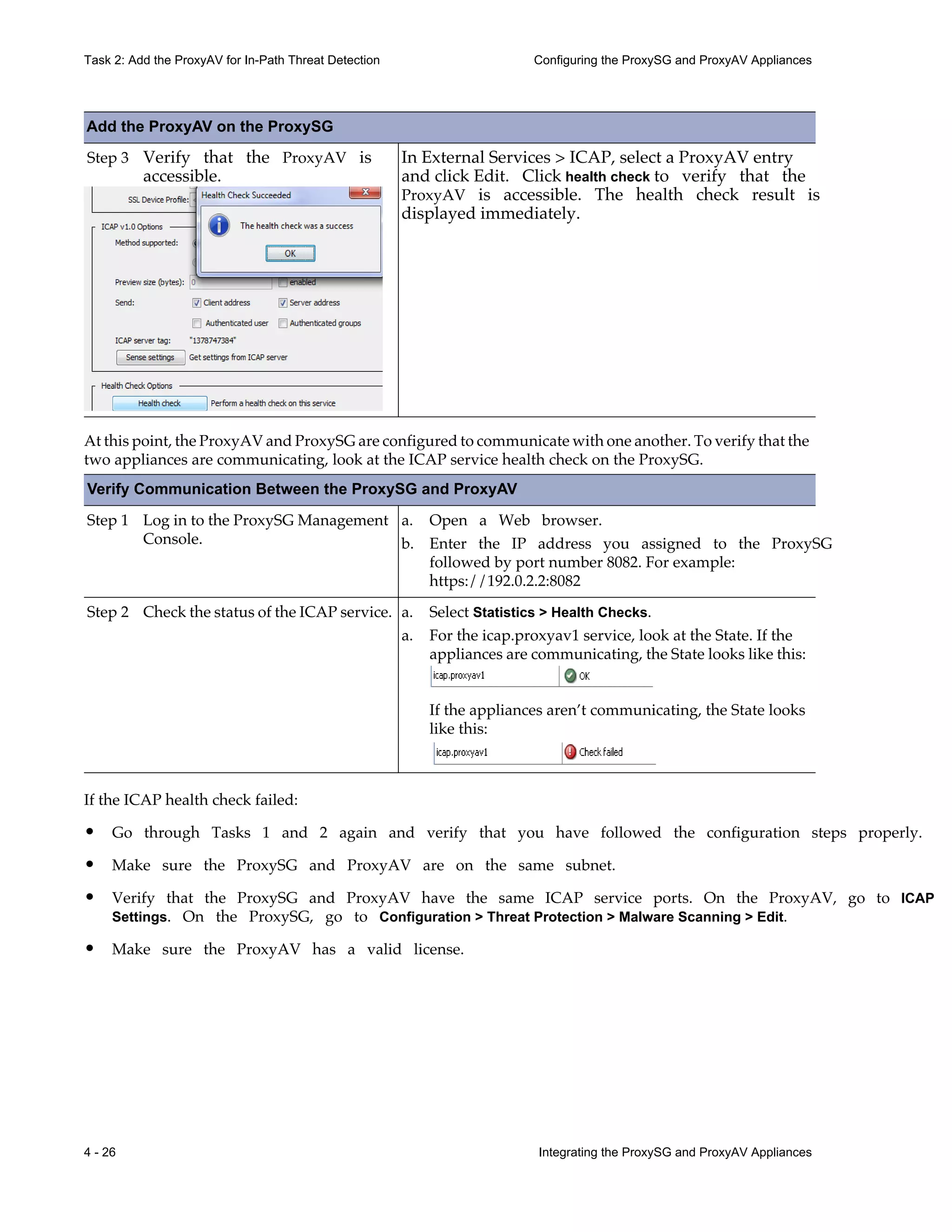
b. Select New. The Add ProxyAV Appliance dialog
displays.
c. In the Host field, enter the host name or IP address of the
ProxyAV. Only an IPv4 address is accepted.
d. Choose the connection mode(s) and ports. The default
is plain ICAP on port 1344.
For secure ICAP, the default secure ICAP port is 11344.
If you changed the port when configuring the ProxyAV
in the previous task, you must specify the same port
number.
e. Select the SSL Device Profile for the ICAP service. For
more information, see Task 1: (Optional) Prepare the
Appliances for Secure ICAP.
f. Click OK to save your changes and exit the open dialog
box.
You now have proxyav_number service that is
automatically created to perform response
modification. For example, proxyav1.
4 - 26 Integrating the ProxySG and ProxyAV Appliances
Task 2: Add the ProxyAV for In-Path Threat Detection Configuring the ProxySG and ProxyAV Appliances
At this point, the ProxyAV and ProxySG are configured to communicate with one another. To verify that the
two appliances are communicating, look at the ICAP service health check on the ProxySG.
Verify Communication Between the ProxySG and ProxyAV
Step 1 Log in to the ProxySG Management
Console.
Step 2 Check the status of the ICAP service.
If the ICAP health check failed:
• Go through Tasks 1 and 2 again and verify that you have followed the configuration steps properly.
• Make sure the ProxySG and ProxyAV are on the same subnet.
• Verify that the ProxySG and ProxyAV have the same ICAP service ports. On the ProxyAV, go to ICAP
Settings. On the ProxySG, go to Configuration > Threat Protection > Malware Scanning > Edit.
• Make sure the ProxyAV has a valid license.
Step 3 Verify that the ProxyAV is
accessible.
In External Services > ICAP, select a ProxyAV entry
and click Edit. Click health check to verify that the
ProxyAV is accessible. The health check result is
displayed immediately.
a. Open a Web browser.
b. Enter the IP address you assigned to the ProxySG
followed by port number 8082. For example:
https://192.0.2.2:8082
a. Select Statistics > Health Checks.
a. For the icap.proxyav1 service, look at the State. If the
appliances are communicating, the State looks like this:
If the appliances aren’t communicating, the State looks
like this:
Add the ProxyAV on the ProxySG
Integrating the ProxySG and ProxyAV Appliances 4 - 27
Configuring the ProxySG and ProxyAV Appliances Task 3: Enable Malware Scanning
Task 3: Enable Malware Scanning
To begin content scanning after adding the ProxyAV to the ProxySG, Blue Coat provides a
built-in threat protection policy with a set of predefined rules. These rules protect your network
from malicious content while supporting your network performance or network protection
needs.
Enabling malware scanning implements the threat protection policy on the ProxySG. The threat
protection policy offers two levels for scanning ICAP responses — high performance and
maximum security. While the ProxyAV scans all Web responses when set to maximum security, it
selectively scans Web responses when set to high performance bypassing content that has a low
risk of malware infection.
The high performance option is designed to ensure network safety while maintaining quick
response times for enterprise users. For example, file types that are deemed to be low risk, such
as certain image types, are not scanned when set to high performance. To view the content that is
not scanned with the high performance option, in configuration mode of the CLI enter show
sources policy threat-protection.
The threat protection policy implements the network performance rules or the network
protection rules based on your preferences in the malware scanning configuration (Configuration >
Threat Protection > Malware Scanning). That is, while the threat-protection policy itself does not
change, only conditions that match your configuration settings are implemented from the threat
protection policy file. And, when you change configuration, the compiled policy is automatically
updated to reflect the configuration changes.
You cannot edit the built-in threat protection policy. If you would like to supplement or overr
the configuration in this policy, see “Fine-Tuning the Malware Scanning Policy” on page 6-57.
Enable Malware Scanning Between the ProxySG and ProxyAV
Step 1 Log in to the ProxySG Management
Console.
Step 2 Invoke the threat protection policy.
Step 3 (Optional, but recommended)
Enable deferred scanning.
For information on deferred
scanning, see “About Deferred
Scanning” on page 6-45
See “Enabling Deferred Scanning” on page 6-48.
a. Select Configuration > Threat Protection > Malware
Scanning.
b. Verify that one or more ProxyAV appliances have
been added for content scanning.
c. Select the Enable malware scanning checkbox.
By default, when you enable malware scanning,
the pre-selected options in the malware scanning
configuration support high performance scanning
using a secure ICAP connection between the
ProxyAV and the ProxySG, if available, and the user
is denied access to the requested content if the scan
cannot be completed for any reason.
4 - 28 Integrating the ProxySG and ProxyAV Appliances
Task 4: Configure ProxyAV Scan Settings and Policies Configuring the ProxySG and ProxyAV Appliances
Task 4: Configure ProxyAV Scan Settings and Policies
The ProxyAV Management Console provides several options that allow you to set scanning thresholds and
determine what happens when an exception—or event outside a normal scan process—occurs.
Perform the following tasks to configure scan settings and policies:
• Configure the scan settings on the ProxyAV
• (Optional) Configure scan policies by file extensions
Configure Scan Settings on the ProxyAV
Step 1 Log in to the ProxyAV Management
Console.
Step 2 Display the Scanning Behavior page. a. Select Antivirus.
b. Click the Scanning Behavior link.
Step 3 Verify that the Heuristic Parameters
option is enabled.
Because of the benefits it offers, Blue Coat recommends that
you leave Heuristic Parameters at its default setting
(enabled).
When the Heuristic Parameters option is enabled, the AV
appliance learns about traffic patterns on your network and
adjusts accordingly to increase performance. After an initial
learning period, the ProxyAV should be able to accelerate
about 15 to 30 percent of the network’s traffic. The learning
process restarts whenever a new virus pattern file or an
updated scanning engine is downloaded.
Step 4 Verify that the Extended options
associated with detecting
spyware/malware are enabled.
The option names in the Extended options section vary
according the AV vendor engine you are using. Regardless
of the option name, the behavior is as follows:
Enabled: Scanning stops after the first instance of a virus or
spyware. For Kaspersky, Detect Adware is enabled by
default. It can be deselected, but it cannot be selected
without selecting Detect Spyware.
Disabled: Scanning stops only after the first instance of a
virus is detected (spyware is disregarded).
Integrating the ProxySG and ProxyAV Appliances 4 - 29
Configuring the ProxySG and ProxyAV Appliances Task 4: Configure ProxyAV Scan Settings and Policies
Configure Policies by File Extensions (Optional)
To accelerate the scanning process, you can specify scanning behavior on the ProxyAV based on the file
name extension. For example, you can block certain file extensions that are notorious for containing viruses.
Blue Coat recommends configuring policy on the ProxySG for files that need not be scanned. This allows
you to conserve resources because the ProxySG will not send these files to the ProxyAV.
Use the following procedure to configure scanning behavior based on file extensions. For instructions o
configuring file extension policy on the ProxySG, see Chapter 9, “Configuration Best Practices.”
Step 5 Define how the ProxyAV behaves
when a timeout or other scanning
error occurs.
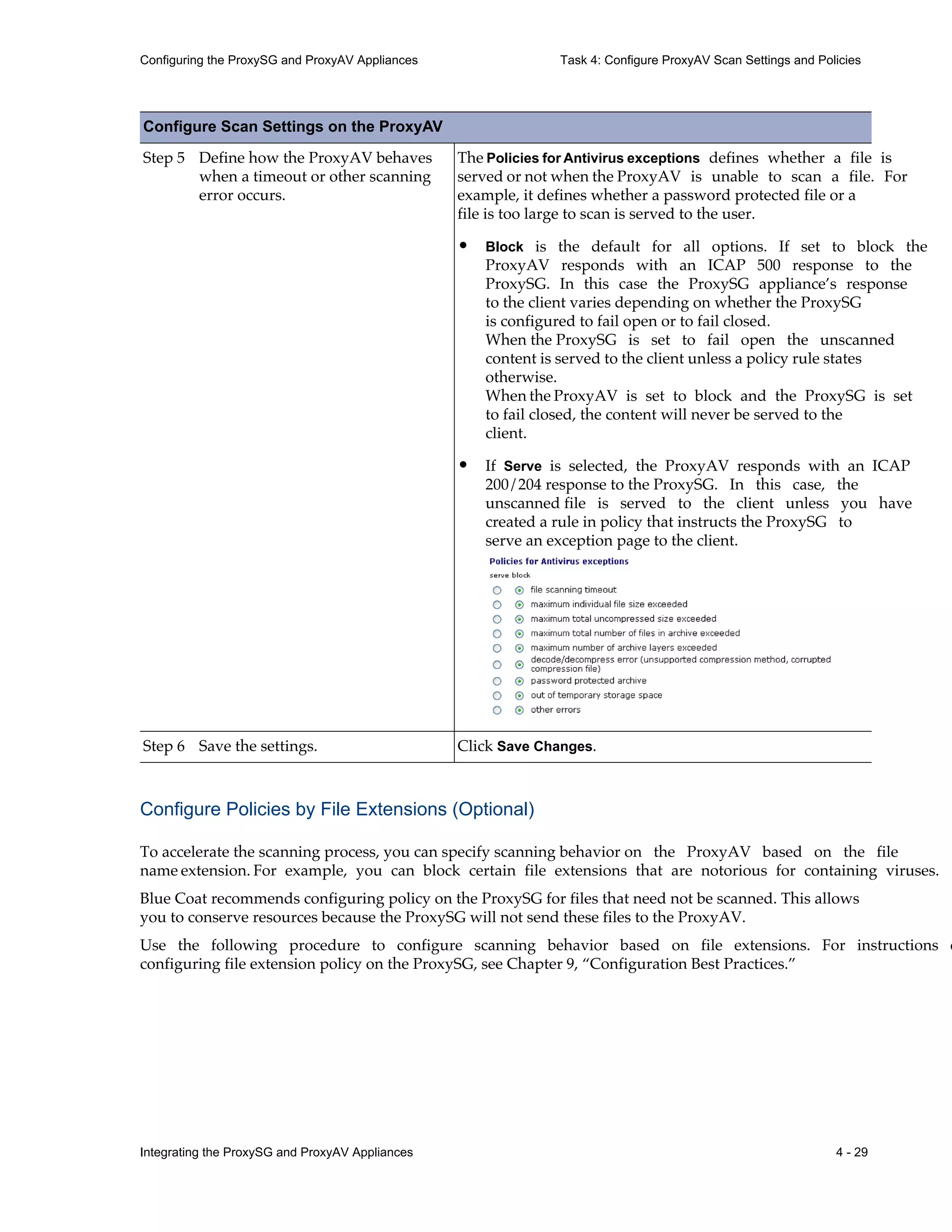
The Policies for Antivirus exceptions defines whether a file is
served or not when the ProxyAV is unable to scan a file. For
example, it defines whether a password protected file or a
file is too large to scan is served to the user.
• Block is the default for all options. If set to block the
ProxyAV responds with an ICAP 500 response to the
ProxySG. In this case the ProxySG appliance’s response
to the client varies depending on whether the ProxySG
is configured to fail open or to fail closed.
When the ProxySG is set to fail open the unscanned
content is served to the client unless a policy rule states
otherwise.
When the ProxyAV is set to block and the ProxySG is set
to fail closed, the content will never be served to the
client.
• If Serve is selected, the ProxyAV responds with an ICAP
200/204 response to the ProxySG. In this case, the
unscanned file is served to the client unless you have
created a rule in policy that instructs the ProxySG to
serve an exception page to the client.
Step 6 Save the settings. Click Save Changes.
Configure Scan Settings on the ProxyAV
Configuring Scanning Behavior Based on File Extensions
Step 1 Indicate which file extensions to
block and not serve to the client.
Step 2 Indicate which file extensions need
not be scanned because they are
unlikely to contain viruses; these file
types will be served to the client
without any attempt at scanning.
In the Don’t scan files having extensions field, enter each file
extension that you don’t want to be scanned, separated by
semi-colons. For example:
Note While not scanning files by extension can increase
performance, it might present a security risk. This
is because when a file is exempted for scanning by
the file extension, the contents of the file are not
inspected. So an EXE virus that is disguised as an
innocuous TIF or GIF file extension, might not be
scanned.
Step 3 Save the settings. Click Save Changes.
4 - 30 Integrating the ProxySG and ProxyAV Appliances
Task 4: Configure ProxyAV Scan Settings and Policies Configuring the ProxySG and ProxyAV Appliances
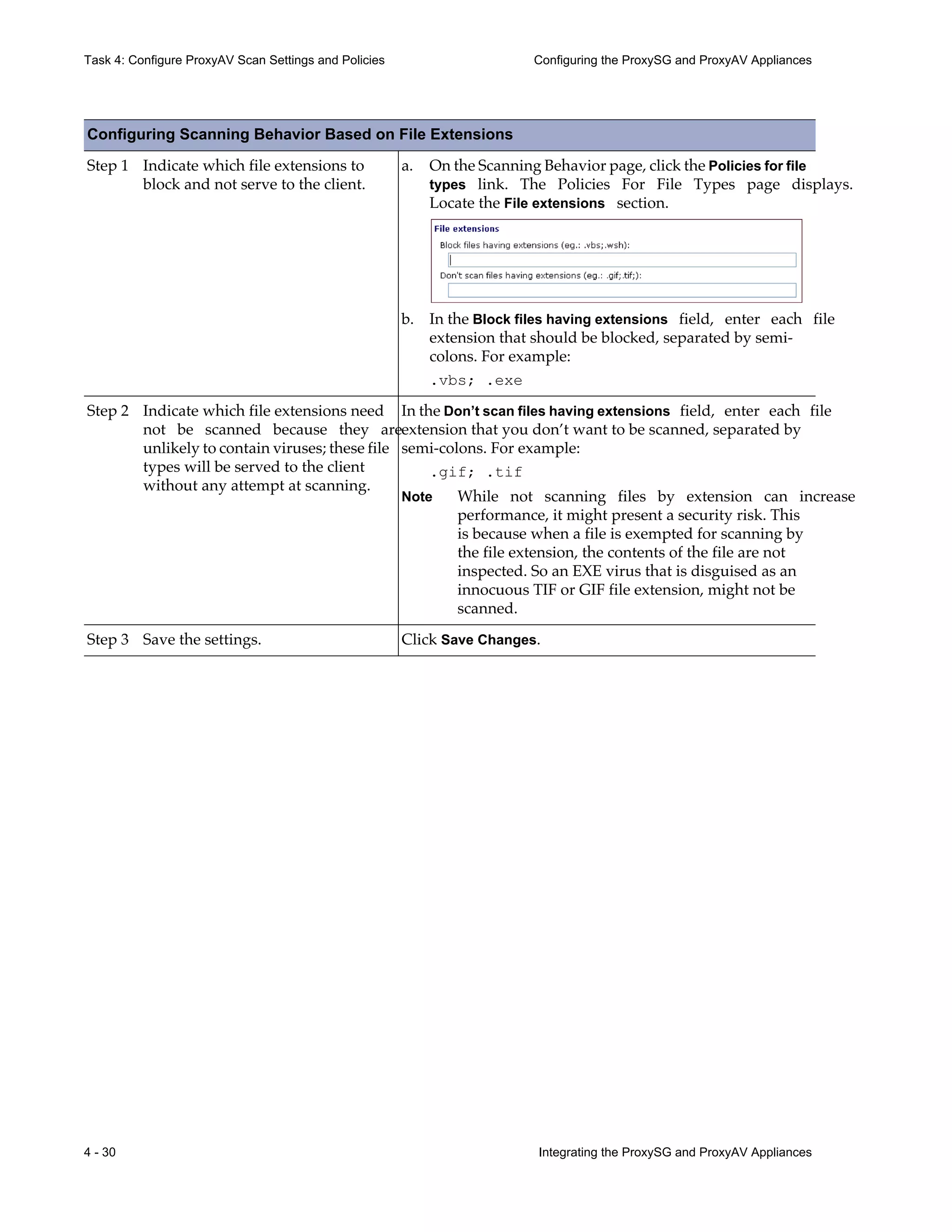
a. On the Scanning Behavior page, click the Policies for file
types link. The Policies For File Types page displays.
Locate the File extensions section.
b. In the Block files having extensions field, enter each file
extension that should be blocked, separated by semi-
colons. For example:
.vbs; .exe
.gif; .tif
Integrating the ProxySG and ProxyAV Appliances 4 - 31
Configuring the ProxySG and ProxyAV Appliances Task 5: Test the Threat Protection Policy
Task 5: Test the Threat Protection Policy
Before proceeding with further configuration, test the basic deployment to verify the ProxyAV is scanning
content and detecting malware based on your selections in configuration.
Test the Policies
Step 1 Log in to the ProxyAV Management
Console.
Step 2 The ProxyAV home page displays
statistics about the number of files
scanned and number of viruses
caught.
If the home page is not already displayed, click Home.
Step 3 Confirm that the ProxyAV is
scanning files.
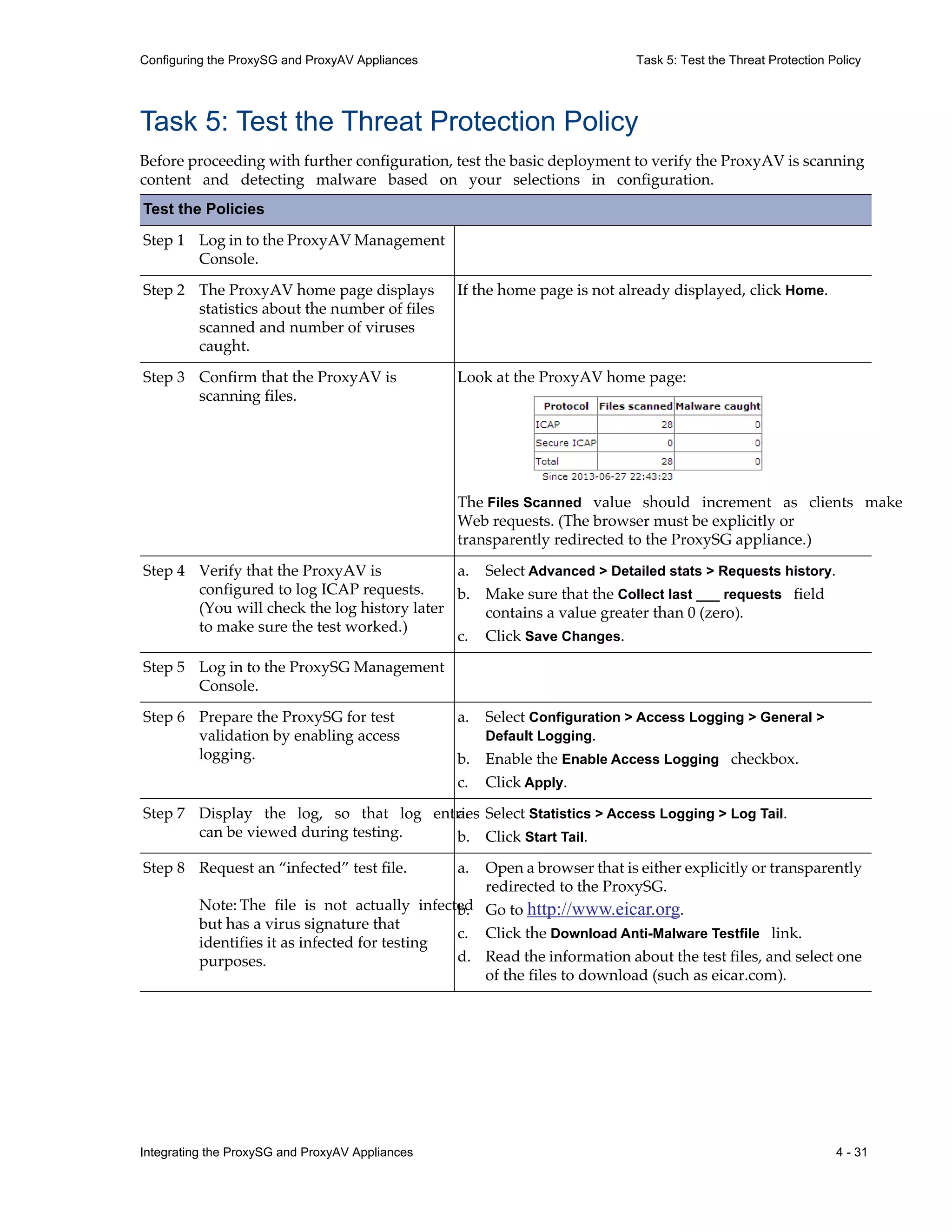
Look at the ProxyAV home page:
The Files Scanned value should increment as clients make
Web requests. (The browser must be explicitly or
transparently redirected to the ProxySG appliance.)
Step 4 Verify that the ProxyAV is
configured to log ICAP requests.
(You will check the log history later
to make sure the test worked.)
a. Select Advanced > Detailed stats > Requests history.
b. Make sure that the Collect last ___ requests field
contains a value greater than 0 (zero).
c. Click Save Changes.
Step 5 Log in to the ProxySG Management
Console.
Step 6 Prepare the ProxySG for test
validation by enabling access
logging.
a. Select Configuration > Access Logging > General >
Default Logging.
b. Enable the Enable Access Logging checkbox.
c. Click Apply.
Step 7 Display the log, so that log entries
can be viewed during testing.
a. Select Statistics > Access Logging > Log Tail.
b. Click Start Tail.
Step 8 Request an “infected” test file.
Note: The file is not actually infected
but has a virus signature that
identifies it as infected for testing
purposes.
a. Open a browser that is either explicitly or transparently
redirected to the ProxySG.
b. Go to http://www.eicar.org.
c. Click the Download Anti-Malware Testfile link.
d. Read the information about the test files, and select one
of the files to download (such as eicar.com).
4 - 32 Integrating the ProxySG and ProxyAV Appliances
Task 5: Test the Threat Protection Policy Configuring the ProxySG and ProxyAV Appliances
Step 9 Confirm that you were not provided
with the “infected” file.
A page should display indicating that the ProxyAV has
detected a virus in the file, and that the file has been
dropped.
Step 10 Check the ProxySG access log. a. Go to the ProxySG’s Access Log Tail window.
b. Verify that the access log entry for the eicar file contains
an entry for virus detection.
2009-03-12 17:39:51 382 10.9.16.75 - - virus_detected PROXIED "none"
http://www.eicar.org/anti_virus_test_file.htm 200 TCP_DENIED GET
text/html;%20charset=%220%22 http www.eicar.org 80
/download/eicar.com.txt - txt "Mozilla/4.0 (compatible; MSIE 6.0;
Windows NT 5.1; SV1; .NET CLR 2.0.50727)" 10.9.16.76 1000 383 "EICAR
test file"
Step 11 Check the ProxyAV ICAP request
history.
a. Go to the ProxyAV browser window.
b. Select Advanced > Detailed statistics > Requests history.
c. Click Refresh Now.
d. Locate the request for the eicar file.
e. Verify that the Result field contains VIRUS.
Step 12 Request the same “infected” test file
and verify that ProxySG does not
send a previously-scanned object to
the ProxyAV since the response for
the object is now in the ProxySG’s
cache.
a. Request the same “infected” test file.
b. Go to the ProxyAV Requests History window.
c. Click Refresh Now and verify that there is NOT a second
request for the eicar file. (Since the response for the
object was served from the ProxySG cache, it should not
have been sent to the ProxyAV for scanning.)
Test the Policies
Integrating the ProxySG and ProxyAV Appliances 5 - 33
Monitoring ICAP Scanning
5 Monitoring ICAP Scanning
This chapter describes different ways to monitor ICAP scanning — on the ProxySG, on the ProxyAV, and in
Blue Coat Reporter. It includes the following topics:
p Displaying ICAP Graphs and Statistics on the ProxySG—on page 5-34
p Monitoring ICAP-Enabled Sessions on the ProxySG—on page 5-37
p Viewing Statistics on the ProxyAV—on page 5-40
p Creating Anti-Malware Reports in Blue Coat Reporter—on page 5-42
5 - 34 Integrating the ProxySG and ProxyAV Appliances
Displaying ICAP Graphs and Statistics on the ProxySG Monitoring ICAP Scanning
Displaying ICAP Graphs and Statistics on the ProxySG
On the ProxySG, you can display a variety of ICAP statistics in bar chart form as well as in a statistical table.
Table 5-1 defines the ICAP statistics that the ProxySG tracks for each ICAP service and service group.
Note ICAP monitoring on the ProxySG requires SGOS 5.4 or higher.
Table 5-1 ICAP Statistics
Statistic Definition
Plain Requests ICAP scanning transactions that are not encrypted
Secure Requests ICAP scanning transactions that are encrypted and tunneled over SSL
Deferred Requests ICAP scanning transactions that have been deferred until the full object has been
received
Queued Requests ICAP scanning transactions that are waiting until a connection is available
Successful Requests ICAP scanning transactions that completed successfully
Failed Requests ICAP scanning transactions that failed because of a scanning timeout,
connection failure, server error, or a variety of other situations
Bytes Sent Bytes of ICAP data sent to the ICAP service or service group
Note: Bytes Sent does not include secure ICAP traffic.
Bytes Received Bytes of data received from the ICAP service or service group
Plain Connections Number of connections between the ProxySG and the ProxyAV across which
plain ICAP scanning requests are sent
Note: This statistic is not tracked for service groups.
Secure Connections Number of connections between the ProxySG and the ProxyAV across which
encrypted ICAP scanning requests are sent
Note: This statistic is not tracked for service groups.
Displaying ICAP Graphs on the ProxySG
ICAP graphs can be used as diagnostic and troubleshooting tools. For instance, if the Active Requests graph
shows excessive queued ICAP requests on a regular basis, this may indicate the need for a higher capacity
ProxyAV.
Display ICAP Graphs on the ProxySG
Step 1 Log in to the ProxySG Management
Console.
Integrating the ProxySG and ProxyAV Appliances 5 - 35
Monitoring ICAP Scanning Displaying ICAP Graphs and Statistics on the ProxySG
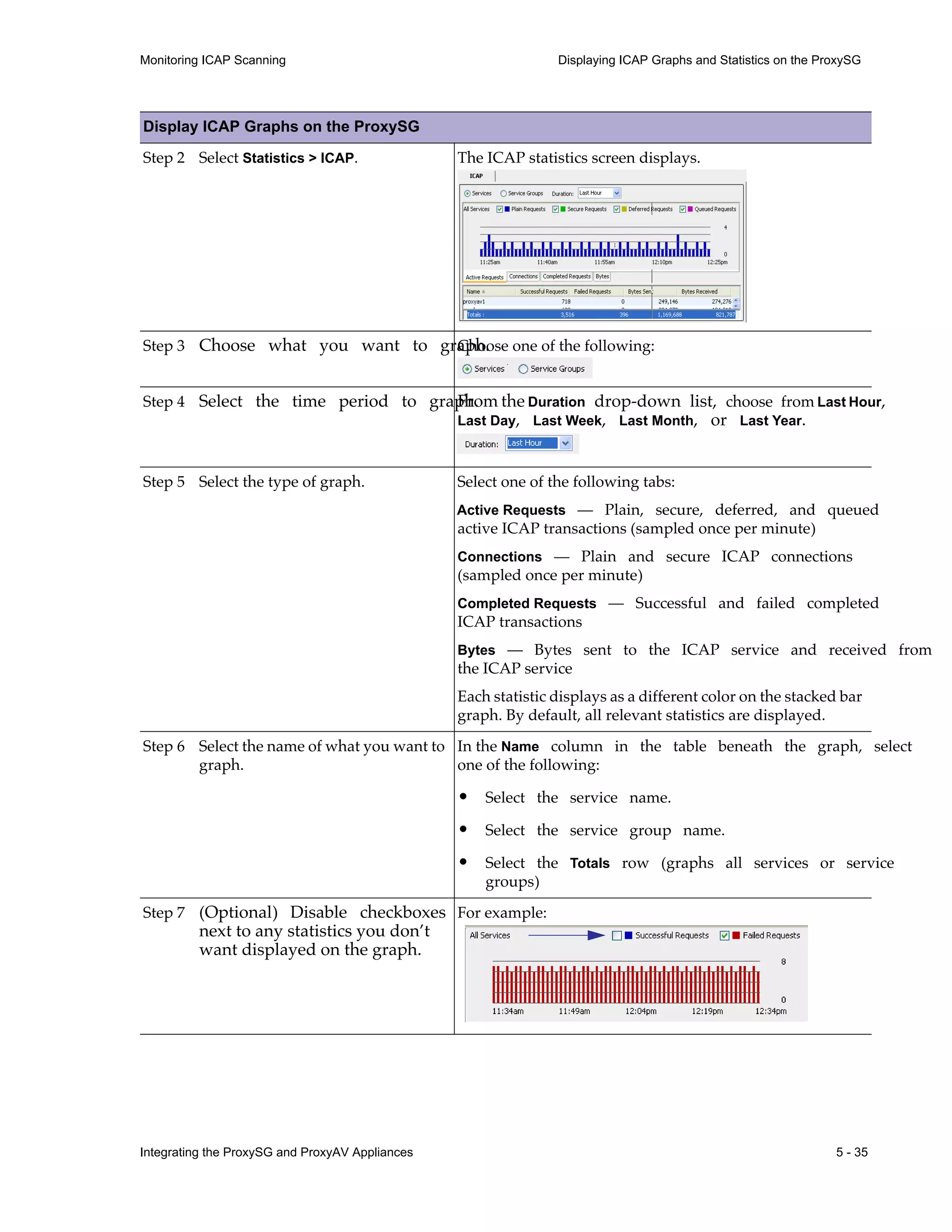
Step 2 Select Statistics > ICAP. The ICAP statistics screen displays.
Step 3 Choose what you want to graph.
Choose one of the following:
Step 4 Select the time period to graph.
From the Duration drop-down list, choose from Last Hour,
Last Day, Last Week, Last Month, or Last Year.
Step 5 Select the type of graph. Select one of the following tabs:
Active Requests — Plain, secure, deferred, and queued
active ICAP transactions (sampled once per minute)
Connections — Plain and secure ICAP connections
(sampled once per minute)
Completed Requests — Successful and failed completed
ICAP transactions
Bytes — Bytes sent to the ICAP service and received from
the ICAP service
Each statistic displays as a different color on the stacked bar
graph. By default, all relevant statistics are displayed.
Step 6 Select the name of what you want to
graph.
In the Name column in the table beneath the graph, select
one of the following:
• Select the service name.
• Select the service group name.
• Select the Totals row (graphs all services or service
groups)
Step 7 (Optional) Disable checkboxes
next to any statistics you don’t
want displayed on the graph.
For example:
Display ICAP Graphs on the ProxySG
5 - 36 Integrating the ProxySG and ProxyAV Appliances
Displaying ICAP Graphs and Statistics on the ProxySG Monitoring ICAP Scanning
Additional Information
• While the ICAP statistics screen is displayed, you can view new graphs by selecting different services,
service groups, time periods, or graph types.
• Graphs automatically refresh every minute. This may be noticeable only on graphs with the Last Hour
duration.
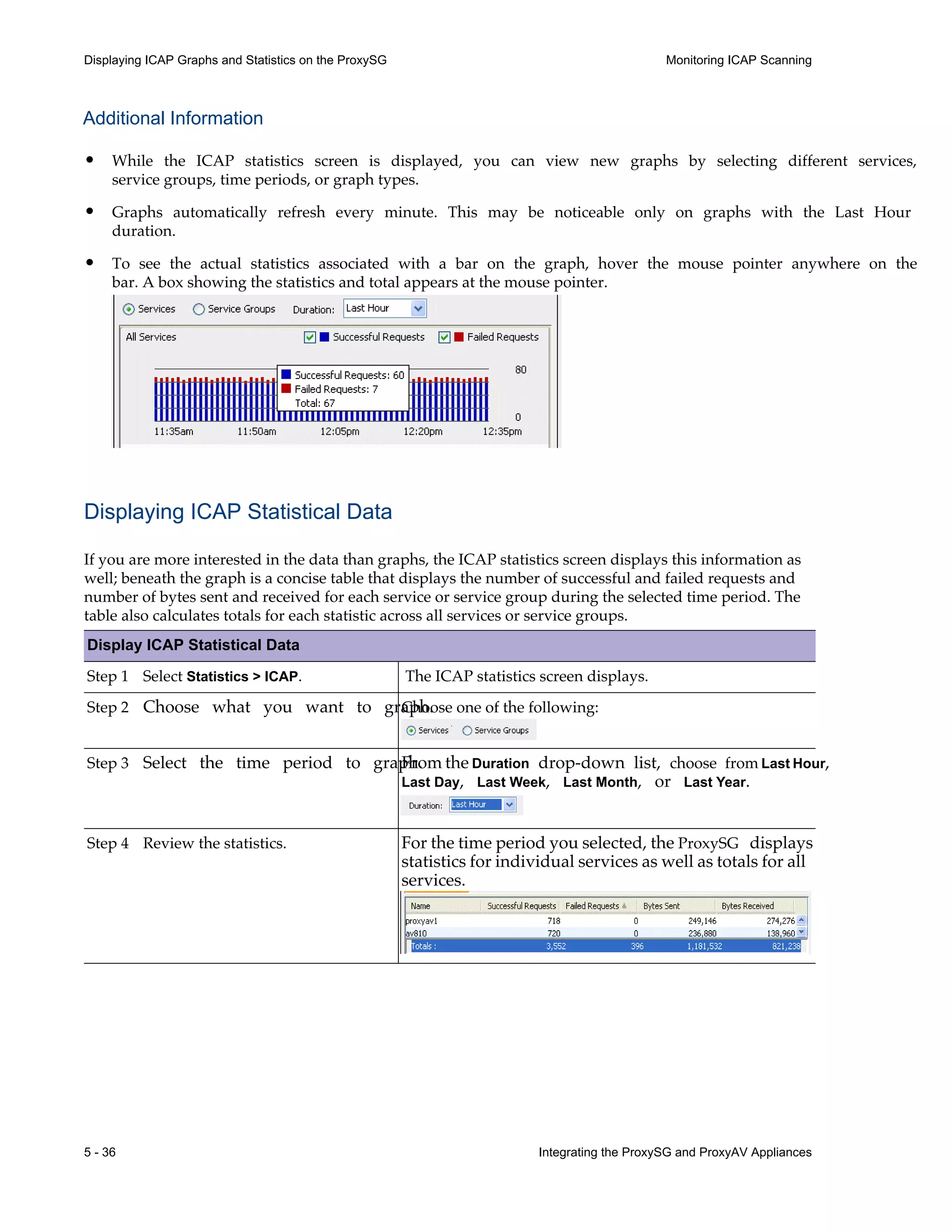
• To see the actual statistics associated with a bar on the graph, hover the mouse pointer anywhere on the
bar. A box showing the statistics and total appears at the mouse pointer.
Displaying ICAP Statistical Data
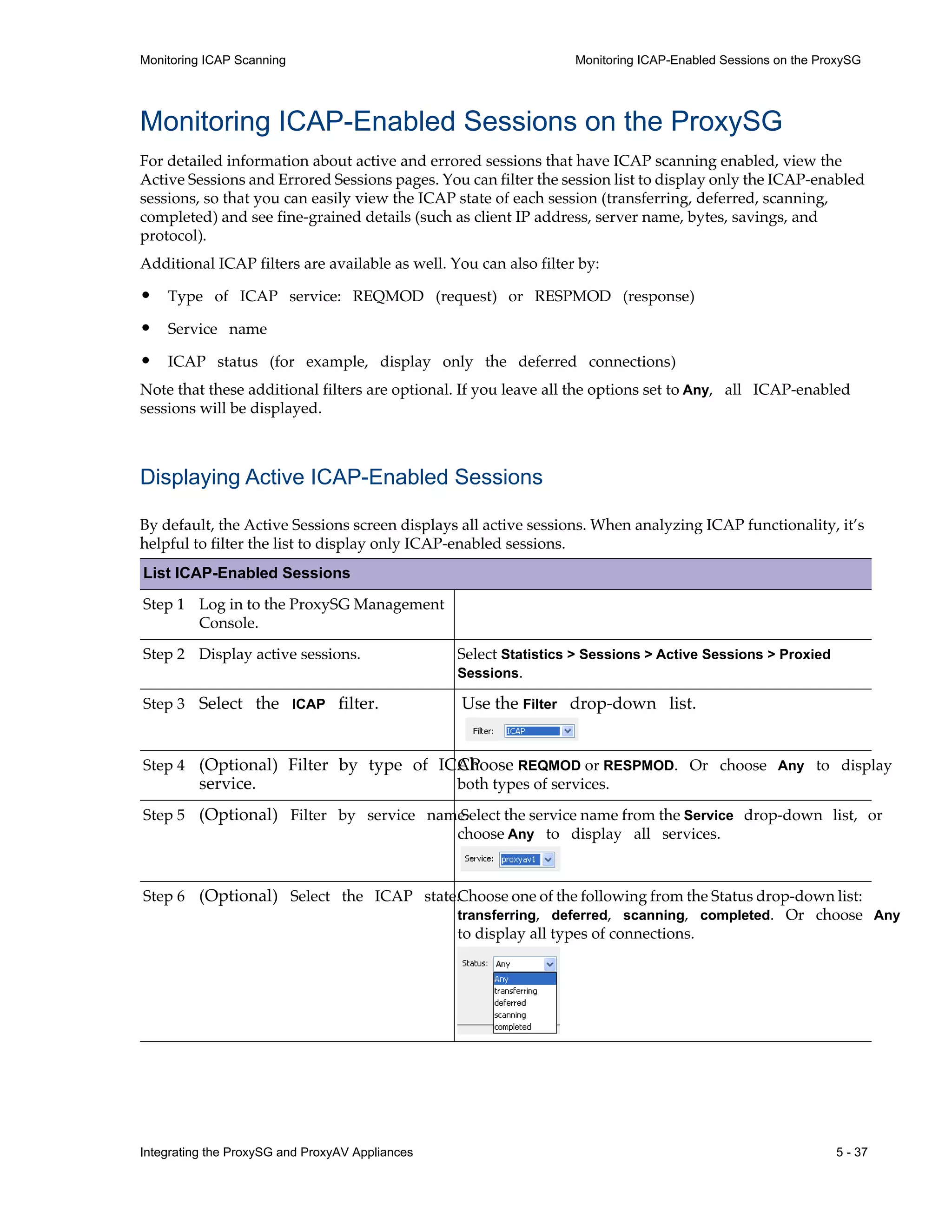
If you are more interested in the data than graphs, the ICAP statistics screen displays this information as
well; beneath the graph is a concise table that displays the number of successful and failed requests and
number of bytes sent and received for each service or service group during the selected time period. The
table also calculates totals for each statistic across all services or service groups.
Display ICAP Statistical Data
Step 1 Select Statistics > ICAP. The ICAP statistics screen displays.
Step 2 Choose what you want to graph.
Choose one of the following:
Step 3 Select the time period to graph.
From the Duration drop-down list, choose from Last Hour,
Last Day, Last Week, Last Month, or Last Year.
Step 4 Review the statistics. For the time period you selected, the ProxySG displays
statistics for individual services as well as totals for all
services.
Integrating the ProxySG and ProxyAV Appliances 5 - 37
Monitoring ICAP Scanning Monitoring ICAP-Enabled Sessions on the ProxySG
Monitoring ICAP-Enabled Sessions on the ProxySG
For detailed information about active and errored sessions that have ICAP scanning enabled, view the
Active Sessions and Errored Sessions pages. You can filter the session list to display only the ICAP-enabled
sessions, so that you can easily view the ICAP state of each session (transferring, deferred, scanning,
completed) and see fine-grained details (such as client IP address, server name, bytes, savings, and
protocol).
Additional ICAP filters are available as well. You can also filter by:
• Type of ICAP service: REQMOD (request) or RESPMOD (response)
• Service name
• ICAP status (for example, display only the deferred connections)
Note that these additional filters are optional. If you leave all the options set to Any, all ICAP-enabled
sessions will be displayed.
Displaying Active ICAP-Enabled Sessions
By default, the Active Sessions screen displays all active sessions. When analyzing ICAP functionality, it’s
helpful to filter the list to display only ICAP-enabled sessions.
List ICAP-Enabled Sessions
Step 1 Log in to the ProxySG Management
Console.
Step 2 Display active sessions. Select Statistics > Sessions > Active Sessions > Proxied
Sessions.
Step 3 Select the ICAP filter. Use the Filter drop-down list.
Step 4 (Optional) Filter by type of ICAP
service.
Choose REQMOD or RESPMOD. Or choose Any to display
both types of services.
Step 5 (Optional) Filter by service name.
Select the service name from the Service drop-down list, or
choose Any to display all services.
Step 6 (Optional) Select the ICAP state.Choose one of the following from the Status drop-down list:
transferring, deferred, scanning, completed. Or choose Any
to display all types of connections.
5 - 38 Integrating the ProxySG and ProxyAV Appliances
Monitoring ICAP-Enabled Sessions on the ProxySG Monitoring ICAP Scanning
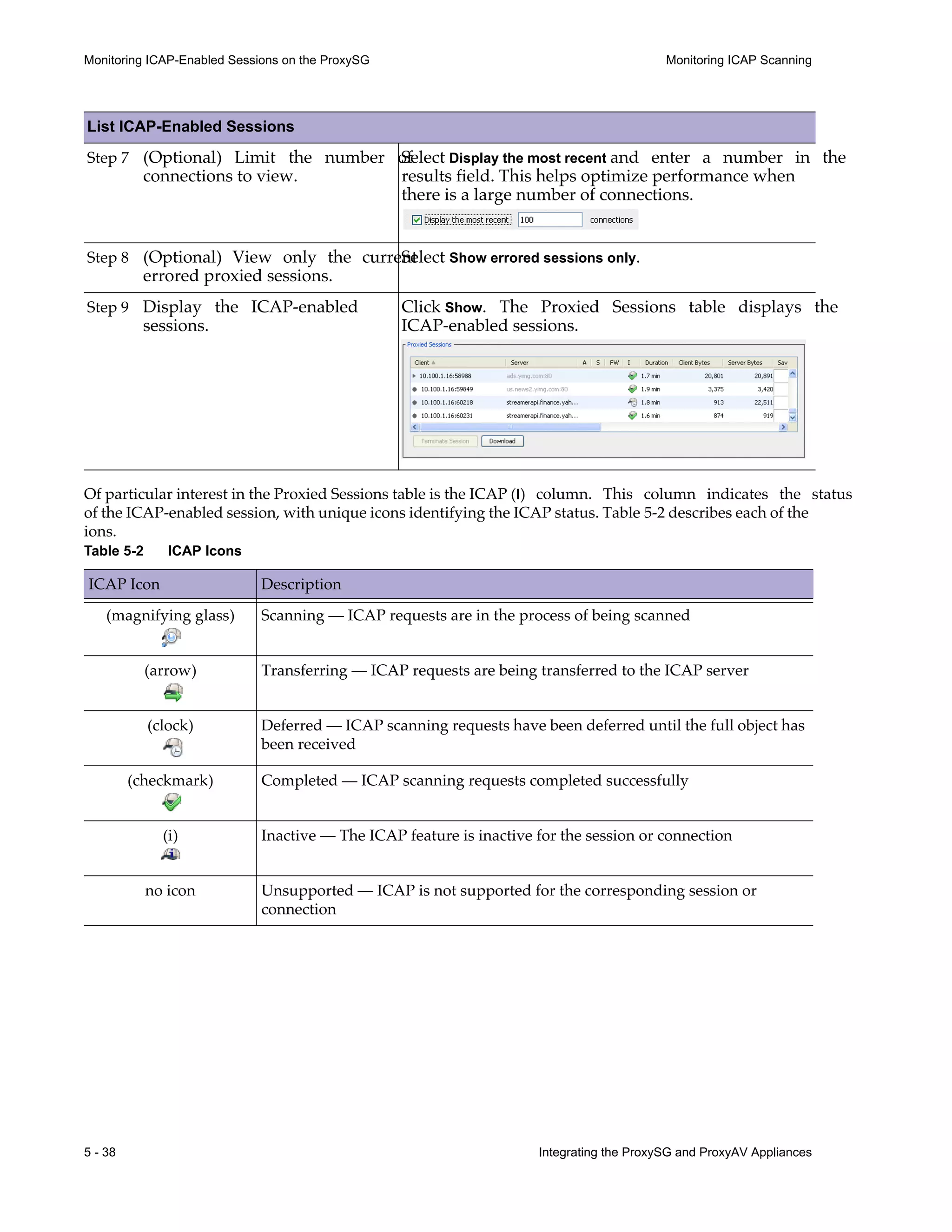
Of particular interest in the Proxied Sessions table is the ICAP (I) column. This column indicates the status
of the ICAP-enabled session, with unique icons identifying the ICAP status. Table 5-2 describes each of the
ions.
Table 5-2 ICAP Icons
ICAP Icon Description
(magnifying glass) Scanning — ICAP requests are in the process of being scanned
(arrow)
(clock) Deferred — ICAP scanning requests have been deferred until the full object has
been received
(checkmark) Completed — ICAP scanning requests completed successfully
(i) Inactive — The ICAP feature is inactive for the session or connection
no icon Unsupported — ICAP is not supported for the corresponding session or
connection
Step 7 (Optional) Limit the number of
connections to view.
Select Display the most recent and enter a number in the
results field. This helps optimize performance when
there is a large number of connections.
Step 8 (Optional) View only the current
errored proxied sessions.
Select Show errored sessions only.
Step 9 Display the ICAP-enabled
sessions.
Click Show. The Proxied Sessions table displays the
ICAP-enabled sessions.
Transferring — ICAP requests are being transferred to the ICAP server
List ICAP-Enabled Sessions
Integrating the ProxySG and ProxyAV Appliances 5 - 39
Monitoring ICAP Scanning Monitoring ICAP-Enabled Sessions on the ProxySG
Additional Information
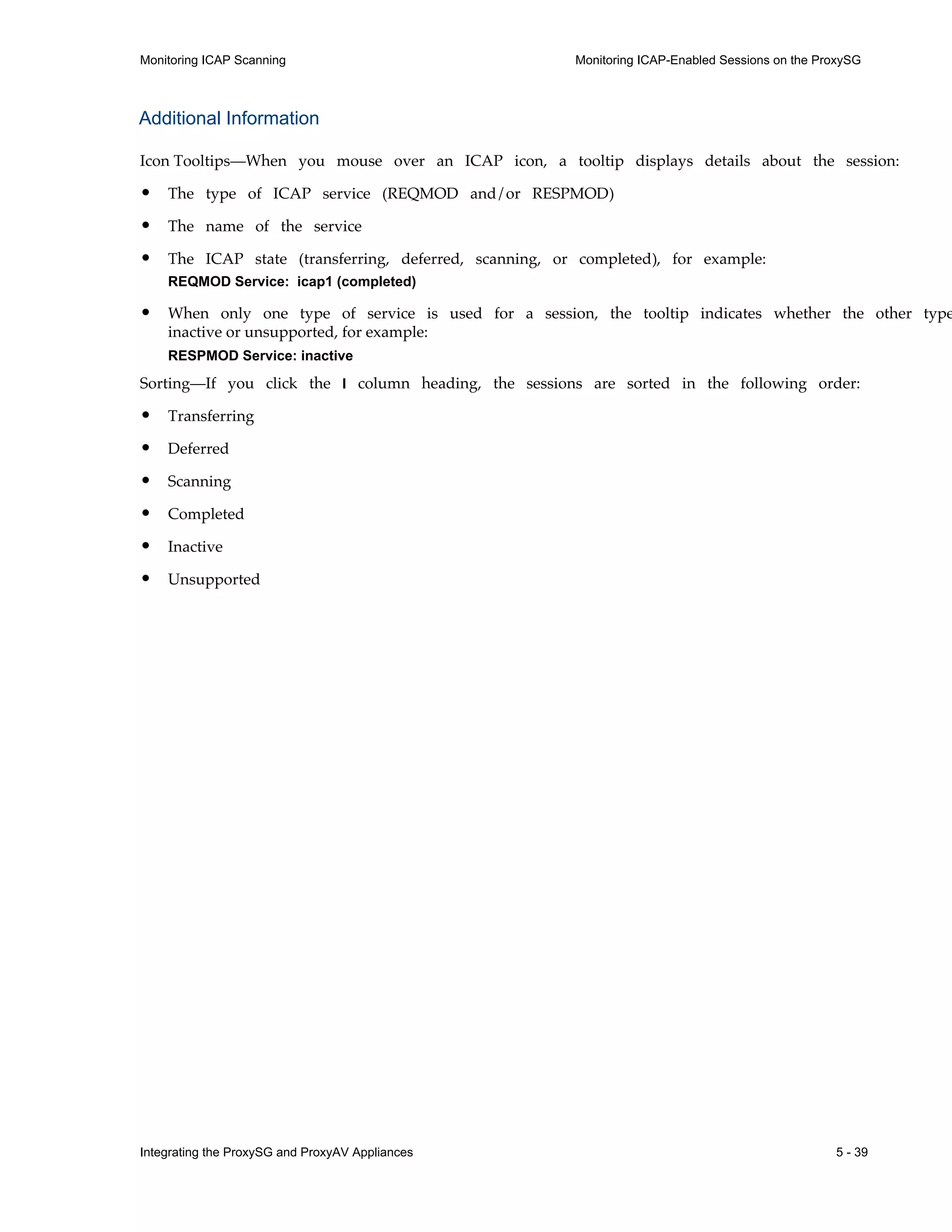
Icon Tooltips—When you mouse over an ICAP icon, a tooltip displays details about the session:
• The type of ICAP service (REQMOD and/or RESPMOD)
• The name of the service
• The ICAP state (transferring, deferred, scanning, or completed), for example:
REQMOD Service: icap1 (completed)
• When only one type of service is used for a session, the tooltip indicates whether the other type
inactive or unsupported, for example:
RESPMOD Service: inactive
Sorting—If you click the I column heading, the sessions are sorted in the following order:
• Transferring
• Deferred
• Scanning
• Completed
• Inactive
• Unsupported
5 - 40 Integrating the ProxySG and ProxyAV Appliances
Viewing Statistics on the ProxyAV Monitoring ICAP Scanning
Viewing Statistics on the ProxyAV
The ProxyAV tracks historical and current statistics on scanned objects and found viruses.
View Statistics on the ProxyAV
Step 1 Log in to the ProxyAV Management
Console.
Step 2 The ProxyAV home page displays
statistics about the number of files
scanned and number of viruses
caught. These statistics are
accumulated since the last reboot of
the appliance or the last reset of
counters.
If the home page is not already displayed, click Home.
Step 3 View the statistics about number of
files scanned and number of viruses
caught.
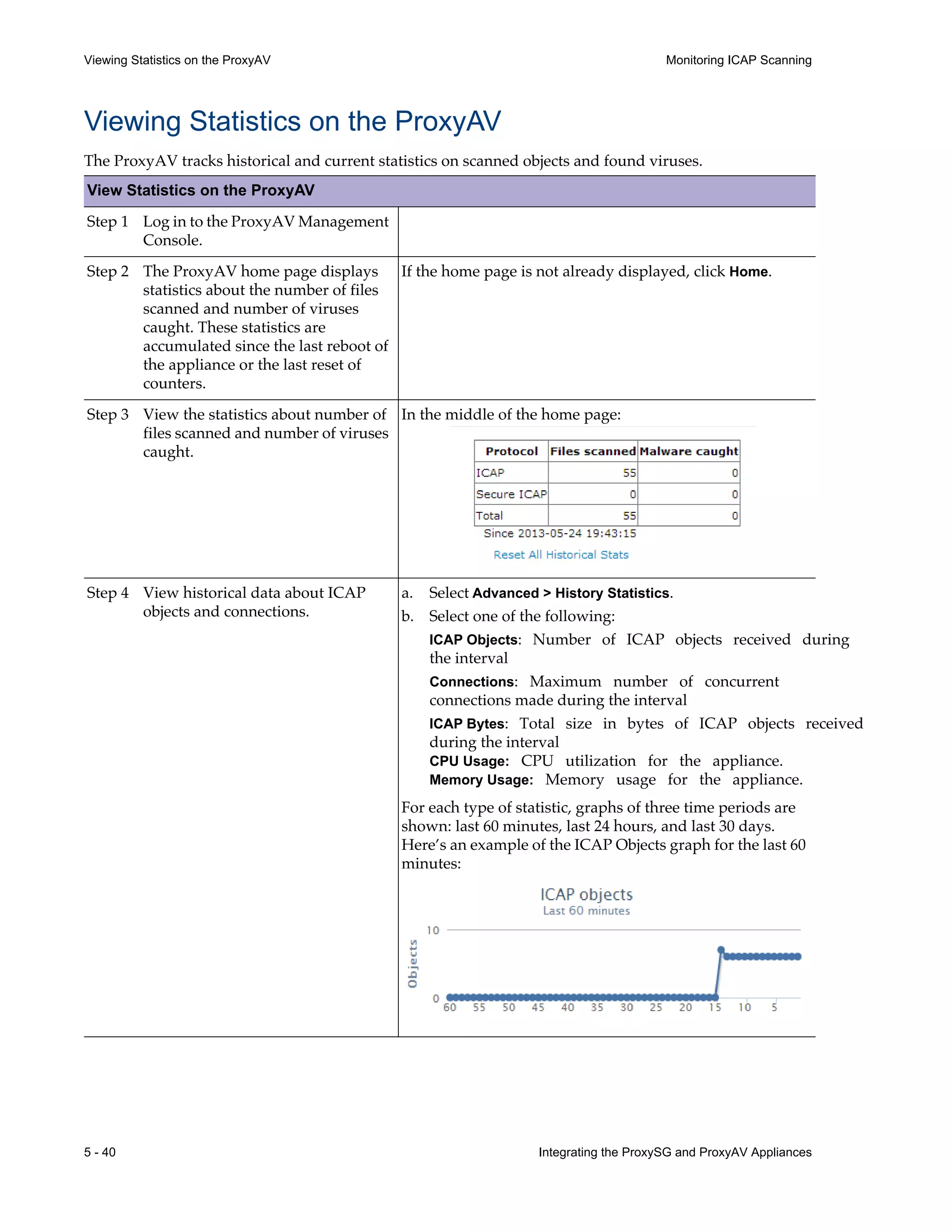
In the middle of the home page:
Step 4 View historical data about ICAP
objects and connections.
a. Select Advanced > History Statistics.
b. Select one of the following:
ICAP Objects: Number of ICAP objects received during
the interval
Connections: Maximum number of concurrent
connections made during the interval
ICAP Bytes: Total size in bytes of ICAP objects received
during the interval
CPU Usage: CPU utilization for the appliance.
Memory Usage: Memory usage for the appliance.
For each type of statistic, graphs of three time periods are
shown: last 60 minutes, last 24 hours, and last 30 days.
Here’s an example of the ICAP Objects graph for the last 60
minutes:
Integrating the ProxySG and ProxyAV Appliances 5 - 41
Monitoring ICAP Scanning Viewing Statistics on the ProxyAV
Step 5 Display details on the objects the
ProxyAV is currently scanning.
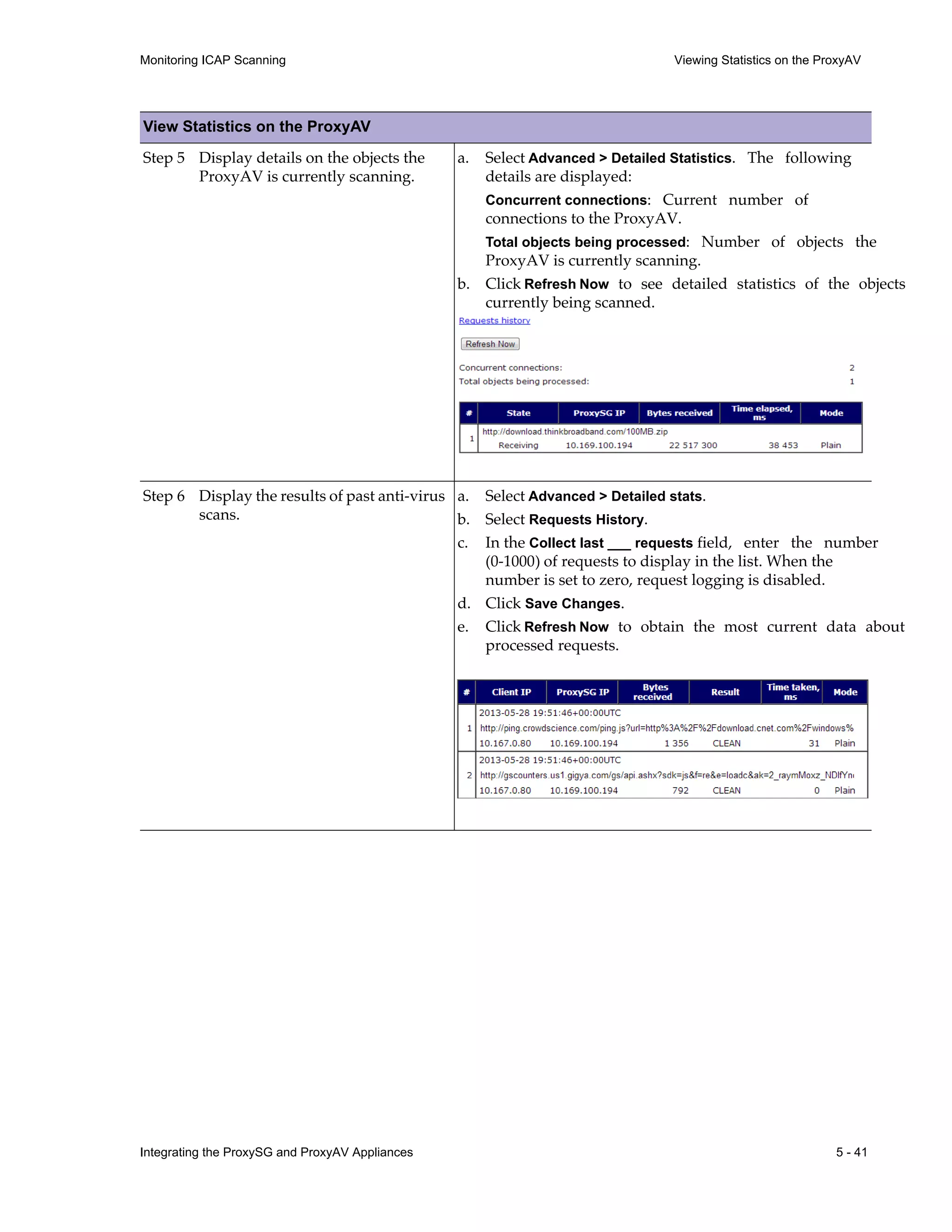
a. Select Advanced > Detailed Statistics. The following
details are displayed:
Concurrent connections: Current number of
connections to the ProxyAV.
Total objects being processed: Number of objects the
ProxyAV is currently scanning.
b. Click Refresh Now to see detailed statistics of the objects
currently being scanned.
Step 6 Display the results of past anti-virus
scans.
a. Select Advanced > Detailed stats.
b. Select Requests History.
c. In the Collect last ___ requests field, enter the number
(0-1000) of requests to display in the list. When the
number is set to zero, request logging is disabled.
d. Click Save Changes.
e. Click Refresh Now to obtain the most current data about
processed requests.
View Statistics on the ProxyAV
5 - 42 Integrating the ProxySG and ProxyAV Appliances
Creating Anti-Malware Reports in Blue Coat Reporter Monitoring ICAP Scanning
Creating Anti-Malware Reports in Blue Coat Reporter
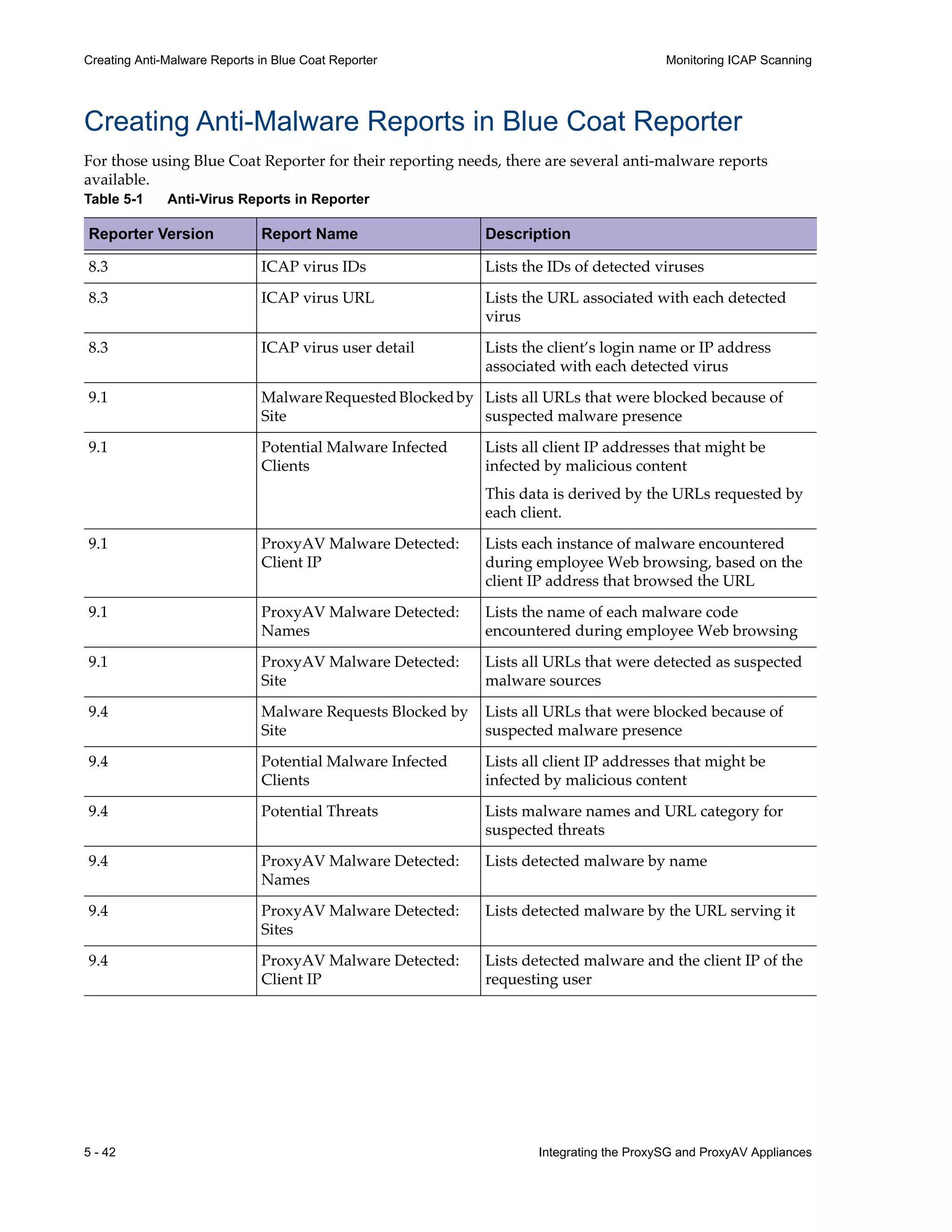
For those using Blue Coat Reporter for their reporting needs, there are several anti-malware reports
available.
Table 5-1 Anti-Virus Reports in Reporter
Reporter Version Report Name Description
8.3 ICAP virus IDs Lists the IDs of detected viruses
8.3 ICAP virus URL Lists the URL associated with each detected
virus
8.3 ICAP virus user detail Lists the client’s login name or IP address
associated with each detected virus
9.1 MalwareRequestedBlockedby
Site
Lists all URLs that were blocked because of
suspected malware presence
9.1 Potential Malware Infected
Clients
Lists all client IP addresses that might be
infected by malicious content
This data is derived by the URLs requested by
each client.
9.1 ProxyAV Malware Detected:
Client IP
Lists each instance of malware encountered
during employee Web browsing, based on the
client IP address that browsed the URL
9.1 ProxyAV Malware Detected:
Names
Lists the name of each malware code
encountered during employee Web browsing
9.1 ProxyAV Malware Detected:
Site
Lists all URLs that were detected as suspected
malware sources
9.4 Malware Requests Blocked by
Site
Lists all URLs that were blocked because of
suspected malware presence
9.4 Potential Malware Infected
Clients
Lists all client IP addresses that might be
infected by malicious content
9.4 Potential Threats Lists malware names and URL category for
suspected threats
9.4 ProxyAV Malware Detected:
Names
Lists detected malware by name
9.4 ProxyAV Malware Detected:
Sites
Lists detected malware by the URL serving it
9.4 ProxyAV Malware Detected:
Client IP
Lists detected malware and the client IP of the
requesting user
Integrating the ProxySG and ProxyAV Appliances 6 - 43
Fine-Tuning the Configuration
6 Fine-Tuning the Configuration
This chapter describes techniques for improving the user experience during ICAP scanning (via patience
pages or data trickling), ways to notify administrators about detected viruses, and several additional ICAP
policies that you can implement. It also describes editing the automatically created ICAP response
modification service and fine tuning the threat protection policy to meet your specific needs. It includes the
following topics:
p Improving the User Experience—on page 6-44
p Configuring Alerts—on page 6-49
p Modifying the ICAP Service—on page 6-53
p Fine-Tuning the Malware Scanning Policy—on page 6-57
p Creating User-Based ICAP Policy—on page 6-59
p Implementing a Request Modification ICAP Service—on page 6-64
6 - 44 Integrating the ProxySG and ProxyAV Appliances
Improving the User Experience Fine-Tuning the Configuration
Improving the User Experience
To avoid having users abort and reinitiate their Web requests due to scanning delays, you may want to
provide feedback to let users know that scanning is in progress. This feedback can take the form of a
patience page, or you can use data trickling and deferred scanning to mitigate scanning delays. All three of
these techniques are discussed below.
About Patience Pages
Patience pages are HTML pages displayed to the user if an ICAP content scan exceeds the specified
duration. For example, the HTML page can display an informative message, such as
The content of the page you requested is currently being scanned. Please be patient...
You can configure the content of these pages to include a custom message and a help link. Patience pages
refresh every five seconds and disappear when object scanning is complete.
Patience pages are not compatible with infinite stream connections—or live content streamed over HTTP—
such as a webcam or video feed. ICAP scanning cannot begin until the object download completes. Because
this never occurs with this type of content, the ProxySG continues downloading until the maximum ICAP
file size limit is breached. At that point, the ProxySG either returns an error or attempts to serve the content
to the client (depending on fail open/closed policy). However, even when configured to fail open and serve
the content, the delay added to downloading this large amount of data is often enough to cause the user to
give up before reaching that point. See Chapter 9: Configuration Best Practices for some alternate solutions.
About Data Trickling
Patience pages provide a solution to appease users during relatively short delays in object scans. However,
scanning relatively large objects, scanning objects over a smaller bandwidth pipe, or high loads on servers
might disrupt the user experience because connection timeouts occur. To prevent such time-outs, you can
allow data trickling to occur. Depending on the trickling mode you enable, the ProxySG either trickles—or
allows at a very slow rate—bytes to the client at the beginning of the scan or near the very end.
The ProxySG begins serving server content without waiting for the ICAP scan result. However, to maintain
security, the full object is not delivered until the results of the content scan are complete (and the object is
determined to not be infected).
Note This feature is supported for HTTP/HTTPS connections only; data trickling for FTP connections
is not supported.
Trickling Data From the Start
In trickle from start mode, the ProxySG buffers a small amount of the beginning of the response body. As
the ProxyAV continues to scan the response, the ProxySG allows one byte per second to the client.
After the ProxyAV completes its scan:
• If the object is deemed to be clean (no response modification is required), the ProxySG sends the rest of
the object bytes to the client at the best speed allowed by the connection.
Integrating the ProxySG and ProxyAV Appliances 6 - 45
Fine-Tuning the Configuration Improving the User Experience
• If the object is deemed to be malicious, the ProxySG terminates the connection and the remainder of t
response object bytes are not sent to the client.
This method is the more secure option because the client receives only a small amount of data pending the
outcome of the virus scan. However, the drawback is that users might become impatient, especially if they
notice the browser display of bytes received. They might assume the connection is poor or the server is busy,
close the client, and restart a connection.
Trickling Data at the End
In trickle at end mode, the ProxySG sends the response to the client at the best speed allowed by th
connection, except for the last 16 KB of data. As the ProxyAV performs the content scan, the ProxySG allows
one byte per second to the client.
After the ProxyAV completes its scan, the behavior is the same as described in “Trickling Data From the
Start” on page¬6-44.
Blue Coat recommends this method for media content, such as Flash objects. This method is more
user-friendly than trickle at start because users tend to be more patient when they notice that 99 percent of
the object is downloaded. Therefore, they are less likely to perform a connection restart. However, network
administrators might perceive this method as the less secure method, as a majority of the object is delivered
before the results of the ICAP scan.
Deciding Between Data Trickling and Patience Pages
Depending upon the type of traffic, the ProxySG configuration options plus policy allow you to provide
different ICAP feedback actions:
• For interactive traffic, that is a request involving a Web browser, you can use either data trickling
patience page.
• For Non-interactive traffic, that is a request that originates from a non-browser based application, such
as automatic software download or update client, patience pages are incompatible; You can choose to
use data trickling or to provide no feedback to the user.
• Trickling is not supported with native FTP traffic. However, when trickling is enabled globally in
ICAP service configuration, patience pages are supported with the proceeding policy:
<Proxy>
service.name=FTP response.icap_feedback.interactive(patience_page, 5)
Based on whether your enterprise places a higher value on security or availability, the ProxySG allows you
to choose between patience pages and data trickling.
About Deferred Scanning
The deferred scanning feature helps to avoid network outages due to infinite streaming.
6 - 46 Integrating the ProxySG and ProxyAV Appliances
Improving the User Experience Fine-Tuning the Configuration
Infinite streams are connections such as webcams or Flash media—traffic over an HTTP connection—that
conceivably have no end. Characteristics of infinite streams may include no content length, slow data rate
and long response time. Because the object cannot be fully downloaded, the ICAP content scan cannot start;
however, the connection between the ProxySG and the ProxyAV remains open, causing a wastage of finite
connection resources.
With deferred scanning, ICAP requests that are unnecessarily holding up ICAP connections are detected
and deferred until the full object has been received.
How Deferred Scanning Works
When the number of ICAP resources in use has reached a certain threshold, the ProxySG starts deferring
scanning of the oldest outstanding ICAP requests. Once the defer threshold has been reached, for every new
ICAP request, the ProxySG defers the oldest ICAP connection that has not yet received a full object.
The defer threshold is specified by the administrator as a percentage. For example, if the defer threshold is
set to 70 percent and the maximum connections are set to 100, then up to 70 connections are allowed before
the ProxySG begins to defer connections that have not finished downloading a complete object.
When an ICAP connection is deferred, the connection to the ProxyAV is closed. The application response
continues to be received; when the download is complete, the ICAP request is restarted. The new ICAP
request may still be queued if there are no available ICAP connections. Once a request is deferred, the
ProxySG waits to receive the full object before restarting the request. If there is a queue when a deferred
action has received a complete object, that action is queued behind other deferred actions that have
finished. However, it will be queued before other new requests.
Deferred Scanning and Setting the Feedback Options
Depending on how you configure the ICAP feedback option (patience page or data trickling) and the size
of the object, deferred scanning may cause a delay in ICAP response because the entire response must be
sent to the ProxyAV at once.
If a patience page is configured, the browser continues to receive a patience page until the object is fully
received and the outstanding ICAP actions have completed.
If the data trickle options are configured, the object continues to trickle during deferred scanning. However,
due to the trickle buffer requirement, there may be a delay, with or without deferred scanning, before the
ProxySG starts sending a response.
Integrating the ProxySG and ProxyAV Appliances 6 - 47
Fine-Tuning the Configuration Improving the User Experience
Configuring ICAP Feedback
Use the following steps to configure the global feedback settings.To define additional feedback policy that
applies to specific user and conditional subsets, you must use the Return ICAP Feedback object in the Web
Access Layer of the Visual Policy Manager.
Configure ICAP Feedback for Interactive and Non-Interactive Traffic
Step 1 Log in to the ProxySG Management
Console.
Step 2 Specify the amount of time to wait
before notifying a Web-browser
client that an ICAP scan is occurring.
Step 3 Select the feedback method for
interactive (browser-based) traffic.
Choose one of the following:
• Return patience page (HTTP and FTP patience pages are
available)
• Trickle object data from start (more secure form of
trickling)
• Trickle object data at end (this form of trickling provides
a better user experience)
Step 4 For non-interactive traffic, specify
the amount of time to wait before
notifying a client than an ICAP scan
is occurring.
Step 5 Select the feedback for
non-interactive traffic.
Choose one of the following:
• Trickle object data from start
• Trickle object data at end
Step 6 Save the settings. Click Apply.
To customize the text on HTTP and FTP patience pages, select Configuration > External Services > ICAP >
ICAP Patience Page. Note: for FTP transactions to be able to use a patience page, policy using the ges
response.icap_feedback.interactive(patience_page, 5) is required.
a. Select Configuration > External Services > ICAP > ICAP
Feedback.
b. Locate the ICAP Feedback for Interactive Traffic section.
c. Enter a value in the Provide feedback after ___ seconds
field.
a. Locate the ICAP Feedback for Non-Interactive Traffic
section.
b. Enter a value in the Provide feedback after ___ seconds
field.
6 - 48 Integrating the ProxySG and ProxyAV Appliances
Improving the User Experience Fine-Tuning the Configuration
Enabling Deferred Scanning
The steps for enabling scanning deferral and setting its threshold appear below.
Enable Scanning Deferral for an ICAP Service
Step 1 Log in to the ProxySG Management
Console.
Step 2 Edit the ICAP service.
Step 3 Enable scanning deferral.
Step 4 Save the settings.
To continue with integrating the ProxyAV and the ProxySG , go to “Task 4: Configure ProxyAV Scan
Settings and Policies” on page¬4-28.
To continue with fine-tuning the configuration, go to the next section.
a. Select Configuration > External Services > ICAP > ICAP
Services.
b. Select the ICAP service.
c. Click Edit. The Edit ICAP Service window appears.
a. Select Defer scanning at threshold to enable the defer
scanning feature.
b. Enter a value (0-100) to set the threshold at which the
ProxySG defers the oldest ICAP connection that has not
yet received a full object.
a. Click OK to close the Edit ICAP Service window.
b. Click Apply.
Integrating the ProxySG and ProxyAV Appliances 6 - 49
Fine-Tuning the Configuration Configuring Alerts
Configuring Alerts
The ProxySG and the ProxyAV can notify network administrators about detected viruses. Because the
ProxyAV has options for notifying administrators about blocked and unscanned files, in addition to
detected viruses, this section focuses on configuring notification on the ProxyAV.
In addition to or as an alternative to e-mail notification, you can enable logging on the ProxyAV. When
logging is enabled, each configured alert is recorded in an alert log that you can view at any time.
The ProxyAV allows you to enable notification for the following alerts:
– Virus is found: A virus was found in an ICAP session.
– File was passed through without being scanned: Several settings on the Antivirus page enable the
administrator to allow files to pass through ProxyAV unscanned. For example, there is an antivirus
file scanning timeout.
– File was blocked (exclude virus case): A file is blocked for any reason other than a virus infection.
For example, the administrator decides to block password protected compressed files.
– Subscription Expiring: Your license to use the antivirus software on the ProxyAV requires annual
renewals. The ProxyAV reminds you when the end of the subscription period is approaching.
– Firmware update failed: The firmware update failed due to an error in retrieving or installing the
latest image.
– Firmware update succeeded: A new version of the ProxyAV firmware has been installed.
– License update failed: An attempt to update the antivirus engine license failed.
– License update succeeded: A new license has been installed. Information about the vendor and
validity of the license will be logged or sent to the e-mail address configured, if alerts are enabled.
– Antivirus update failed: The antivirus pattern file update failed. Enable alerts to receive
information on the reason for the failure.
– Antivirus update succeeded: The antivirus pattern file has been updated.
– On Board Diagnostics: If the state of a monitored ProxyAV appliance metric changes, and that
metric is selected to trigger an alert or SNMP trap, an alert or SNMP trap is sent.
– Intelligent Connection Traffic Monitoring (ICTM): If the maximum specified concurrent slow
connection warning or critical thresholds are reached, an alert is sent.
To configure alerts, perform the following tasks:
• Select the types of alerts that you want to be notified about.
• Configure e-mail notification.
Selecting Alert Types
Select the types of alerts for which you want notification and/or alert log entries.
Select Alert Types
Step 1 Log in to the ProxyAV Management
Console.
6 - 50 Integrating the ProxySG and ProxyAV Appliances
Configuring Alerts Fine-Tuning the Configuration
Step 2 Select which alerts you want e-mail
notification and/or alert log entries
created.
a. Select Alerts. The Alerts table appears. By default, all
alerts are enabled for e-mail and logging.
b. Enable/disable alerts as desired. The first three pertain
to scanning results:
Virus is found
File was passed through without being scanned
File was blocked
Step 3 Save the settings. Click Save Changes.
Select Alert Types
Integrating the ProxySG and ProxyAV Appliances 6 - 51
Fine-Tuning the Configuration Configuring Alerts
Configuring E-mail Notification
Use the following instructions to configure e-mail notification.
Step 4 If you enabled logging, you can
verify that alerts are being recorded
in the AlertLogFile.log.
To view the alert log on the ProxyAV:
a. Select Log Files.
b. In the Log Files table, select View log file in browser for
the AlertLogFile.log.
In the AlertLogfile.log, a log entry for a blocked file displays
as:
ATEXT=Cause: Maximum file size exceeded (engine error code:
0x00000000)
File has been dropped.
2013-05-28 20:18:02+00:00UTC
Hardware serial number: 1612105013
ProxyAV (Version 3.5.1.1(111017)) - http://www.BlueCoat.com/
Antivirus Vendor: Kaspersky Labs
Scan Engine Version: 8.1.8.79
Pattern File Version: 130528.185900.10161366 (Timestamp:
2013.05.28 18:59:00)
Machine name: ProxyAV
Machine IP address: 10.169.100.195
Server: 80.249.99.148
Client: 10.167.0.80
Protocol: ICAP
URL: http://download.thinkbroadband.com/1GB.zip
Configure Notification Settings on the ProxyAV
Step 1 Log in to the ProxyAV Management
Console.
Select Alert Types
6 - 52 Integrating the ProxySG and ProxyAV Appliances
Configuring Alerts Fine-Tuning the Configuration
Step 2 Specify e-mail addresses. a. Select Alerts > Alert Settings.
b. In the Sender e-mail address field, enter the source mail
address to use for alert e-mails. (This address will
appear in the From field of the e-mail.) For example:
proxyav123@company.com
c. In the Recipient e-mail address field, enter the addresses
of the people who should receive the alert e-mails, with
each address separated by a comma. For example:
user1@company.com,user2@company.com,
consultant@another.com
d. In the SMTP server address field, enter your
organization’s SMTP server address.
e. If your server requires that POP authentication be used,
select SMTP Authorization (POP-Before-SMTP) Enabled,
and then enter the authentication information.
Step 3 Enter the SYSLOG server settings. a. In the Syslog server address field, enter the IP address
for your organization’s Syslog server.
b. The port can be changed in the Syslog port field. The
default port for Syslog, (514) is already entered for you.
c. If your Syslog server supports secure connections,
enable them under TLS Settings.
Step 4 Save the settings. Click Save Changes.
Configure Notification Settings on the ProxyAV
Integrating the ProxySG and ProxyAV Appliances 6 - 53
Fine-Tuning the Configuration Modifying the ICAP Service
Modifying the ICAP Service
When you add a ProxyAV, a response modification ICAP service is automatically created for you. If you
would like to edit the defaults for this RESPMOD service, use the instructions provided in this section.
Modify a ProxySG ICAP Service
Step 1 Log in to the ProxySG Management
Console.
Step 2 Edit the ICAP service. a. Select Configuration > External Services > ICAP > ICAP
Services.
b. Select the ICAP service name, for example, proxyav1.
c. Click Edit. The Edit ICAP Service dialog displays.
6 - 54 Integrating the ProxySG and ProxyAV Appliances
Modifying the ICAP Service Fine-Tuning the Configuration
Step 3 Configure the service
communication options.
a. In the Service URL field, enter the URL of the ProxyAV.
The URL includes the scheme, the ProxyAV’s hostname
or IP address, and the ICAP service name. For example:
icap://10.10.10.10/avscan
b. Maximum number of connections specifies the
maximum possible connections at any given time that
can occur between the ProxySG and the ProxyAV. Do
not change this value—use the Sense settings button to
auto-detect the correct value that your platform
supports.
c. In the Connection timeout field, enter the number of
secondstheProxySGwaitsforrepliesfromtheProxyAV.
The default timeout is 70 seconds, but you will likely
want it set to a higher value because large (several
hundred MB) archives can easily take more than 70
seconds. If the ProxyAV gets a large file that takes more
then the configured timeout to scan, the ProxySG will
close the connection and the user will not get the file.
The value you enter for the timeout is related to the
maximum file size configured on the ProxyAV; larger
file sizes require longer to scan so the connection
timeout should be higher. If you allow only 100 MB file
sizes, 70 seconds would be a sufficient timeout value.
But if you allow 2 GB files, a timeout value of 70 would
be too low. The range is 1 to 65535.
d. Select Defer scanning at threshold to set the threshold at
which the ProxySG defers the oldest ICAP connection
that has not yet received a full object. By default, the
deferred scanning threshold is disabled when an ICAP
service is created. When enabled, the defer threshold
scanning defaults to 80 percent. For more information
aboutscanningdeferral,seeAvoiding Network Outages
due to Infinite Streaming Issues.
e. Select Notify administrator when virus detected to send
an e-mail to the administrator if the ICAP scan detects a
virus. The notification is also sent to the Event Log and
the Event Log e-mail list. Note that the ProxyAV also has
settings for notifying administrators when a virus is
detected; this configuration is explained in Getting
Notified about Detected Viruses.
f. Select Use vendor’s “virus found” page to display the
default vendor error exception page to the client instead
of the ProxySG exception page.
Modify a ProxySG ICAP Service
Integrating the ProxySG and ProxyAV Appliances 6 - 55
Fine-Tuning the Configuration Modifying the ICAP Service
Step 4 Configure service ports for plain
ICAP and/or secure ICAP.
For more information on
configuring secure ICAP, see Task 1:
(Optional) Prepare the Appliances
for Secure ICAP.
You can enable one or both types of ICAP connections at the
same time.
For plain ICAP:
a. Select This service supports plain ICAP connections. Use
plain ICAP when you are scanning plain data (HTTP).
In this case, if the HTTPS proxy is enabled on the
ProxySG, the data is decrypted first on the ProxySG and
then sent to the ICAP server.
b. Enter a port number in the Plain ICAP port field. The
default port is 1344.
For secure ICAP:
a. Select This service supports secure ICAP connections to
use secure ICAP.
b. Enter a port number in the Secure ICAP port field. The
default port is 11344.
c. Select a valid SSL profile for secure ICAP in the SSL
Device Profile field. This associates an SSL device profile
with the secure ICAP service.
Step 5 Determine whether you need to use
the preview feature.
• If you are using file scanning policies based on file
extensions on the ProxyAV, enter 0 in the Preview size
(bytes) field, and select enabled. With a 0 bytes preview
size, only response headers are sent to the ProxyAV; more
object data is only sent if requested by the ProxyAV.
or
• If you have enabled the Kaspersky Apparent Data Types
feature on the ProxyAV, enter a value (512 is
recommended) in the Preview size (bytes) field, and select
enabled. The ProxyAV reads the object up to the specified
byte total, and then either continues with the transaction
(that is, receives the remainder of the object for scanning)
or opts out of the transaction.
or
• Unselect enabled if the above two situations don’t apply to
you; do not use the preview option.
Modify a ProxySG ICAP Service
6 - 56 Integrating the ProxySG and ProxyAV Appliances
Modifying the ICAP Service Fine-Tuning the Configuration
Step 6 Determine the maximum number of
connections that your
ProxySG/ProxyAV can support.
a. Click Sense settings.
b. Click OK to confirm.
c. Click OK to confirm your changes. If the Sense settings
command was able to retrieve the settings from the
ProxyAV, you will see the following message:
d. Click OK.
Step 7 Refresh your browser to see the
maximum number of connections
that were “sensed.”
a. Click your browser’s refresh button.
b. Edit the response service you created and look at the
value that was entered for Maximum number of
connections.
Step 8 Save your modifications. Click OK.
Modify a ProxySG ICAP Service
Integrating the ProxySG and ProxyAV Appliances 6 - 57
Fine-Tuning the Configuration Fine-Tuning the Malware Scanning Policy
Fine-Tuning the Malware Scanning Policy
When malware scanning is enabled, the threat protection policy is invoked. The rules
implemented in the threat protection policy either use the defaults or the selections that you
configured in the malware scanning options in Configuration > Threat Protection > Malware Scanning.
Unlike other policy files, the threat protection policy file is not displayed in the Policy Evaluation
Order list in Policy > Policy Options > Policy Options and the threat protection policy file cannot be
edited or modified. However, you can create rules in the local policy file or in VPM policy to
supplement or override the configured defaults. The rules created in local or VPM policy
supersede the configuration in the threat protection policy because of the evaluation order of
policy files. By default on the ProxySG, policy files are evaluated in the following order — Threat
protection, VPM, Local, Central, and Forward.
The threat protection policy is evaluated before the VPM, Local, Central, or Forward policy to
provide you with the flexibility to adapt this policy to meet your business needs. For example,
even if the malware scanning mode is configured at maximum protection through configuration,
you can create rules in VPM to allow all traffic from internal hosts/subnets to be scanned using
the high performance mode. Alternatively, if the default malware scanning mode is high
performance, you can add rules in VPM to invoke maximum protection mode for sites that
belong to select content filtering categories such as software downloads or spyware sources.
The following example demonstrates how to create rules in VPM to complement the malware
scanning options that are set in configuration. The setting in configuration, in the example
below, uses maximum security. The VPM rule allows internal traffic to be scanned using the high
performance rules that are defined in the threat protection policy.
Fine-Tune the Malware Scanning Policy
Step 1 Log in to the ProxySG Management
Console.
Step 2 Verify that malware scanning is
enabled and is set to Maximum
protection.
a. Select Configuration > Threat protection > Malware
Scanning.
b. Verify that the Enable malware scanning checkbox is
selected.
c. Verify that the Protection level is set to Maximum
protection. This setting is global for all ICAP
scanning between the ProxySG and the ProxyAV.
6 - 58 Integrating the ProxySG and ProxyAV Appliances
Fine-Tuning the Malware Scanning Policy Fine-Tuning the Configuration
Step 3 Create policy to scan all traffic
from an internal host using the
high performance mode.
This example uses the 10.0.0.0/8
subnet.
a. Select Configuration > Policy > Visual Policy Manager.
b. Click Launch. The Visual Policy Manager displays
in a new window.
c. Select Policy > Add Web Content Layer.
d. In the Action column, right click and select Set. The
Set Action Object dialog box displays.
e. Click New > Set Malware Scanning, in the Set Action
Object dialog box. The Add Malware Scanning Object
dialog displays.
f. Select Perform high performance malware scan.
g. Click OK to save your changes and exit all open dialogs.
h. In the Destination column, right click and select Set. The
Set Destination Object dialog box displays.
i. Select Destination IP Address/Subnet. The Set
Destination IP/Subnet Object dialog displays.
j. Add the IP address and subnet for the internal host and
click Close.
k. Click OK to save your changes and exit all open dialogs.
l. Click Apply to install the policy.
After this policy is installed, all traffic from the internal
subnet 10.0.0.0/8 will be scanned using the high
performance mode.
The completed rule is shown below.
Fine-Tune the Malware Scanning Policy
Integrating the ProxySG and ProxyAV Appliances 6 - 59
Fine-Tuning the Configuration Creating User-Based ICAP Policy
Creating User-Based ICAP Policy
An ICAP service defines the parameters for setting up the transaction between the ProxySG and the
ProxyAV. And ICAP policy allows you to specify an action for a specified service or service group; these
are granular rules that can be based on individual users, user groups, protocol or other attributes and can
make exceptions to the general rule. For example, you may want to allow administrators to download
certain file types (such as EXE files) that are blocked for other users.
To set up user-based ICAP policies, you must complete the following tasks:
1. Add a ProxyAV; an ICAP response service is automatically created. If you have already added a
ProxyAV, verify that an ICAP response service is available.
2. Enable malware scanning and verify that the Action on unsuccessful scan is set to Deny the client
request.
3. Create a Web authentication layer that prompts for user credentials when a Web browser is opened.
4. Create a Web access layer with authorization rules that allow certain users access to blocked files and
deny access to other users.
Note These steps assume you have already configured users and groups for authentication (using
RADIUS, LDAP, Microsoft Active Directory, or other authentication servers) and created a realm on
the ProxySG to connect to these servers.
Creating the ICAP Response Service
The first task is to create the ICAP response service; you may already have created one earlier.
Create the ICAP Response Service
Step 1 Log in to the ProxySG Management
Console.
Step 2 Create an ICAP response service. Refer to “Task 2: Add the ProxyAV for In-Path Threat
Detection” on page¬4-25.
Step 3 Enable Malware scanning. Refer to “Task 3: Enable Malware Scanning” on page¬4-27.
Make sure that the action on an unsuccessful ICAP scan is
set to deny the client request, that is the request is not
allowed if the scan cannot be completed.
You will now create policy to specify exceptions to the
default rule.
6 - 60 Integrating the ProxySG and ProxyAV Appliances
Creating User-Based ICAP Policy Fine-Tuning the Configuration
Enabling Web Authentication
To have users prompted for user name and password when they open a Web browser, you need to create a
Web authentication layer.
Create a Rule that Prompts for Web Authentication
Step 1 The Visual Policy Manager should
still be open.
Step 2 Create a Web authentication layer.
Step 3 Configure an authentication action.
Step 4 Specify the realm name for
authentication.
Creating Authorization Rules
Create a rule that designates which users/groups are allowed access to blocked file types and which
users/groups are denied access.
a. Select Policy > Web Authentication Layer.
b. Accept the proposed name or assign a descriptive name
to the layer.
c. Click OK.
a. Right-click the Action column; select Set. The Set Action
Object dialog displays.
b. Click New.
c. SelectAuthenticate. The Add Authenticate Object dialog
displays.
a. In the Name field, accept the proposed name or type a
descriptive name for the object.
b. In the Realm drop-down list, select the name of the
previously-configured realm.
c. Click OK; click OK again to add the object.
Create Rules for Allowing/Denying Access to Blocked File Types
Step 1 The Visual Policy Manager should
still be open.
Step 2 Create a Web access layer. a. Select Policy > Web Access Layer.
b. Accept the proposed name or assign a descriptive name
to the layer.
c. Click OK.
Integrating the ProxySG and ProxyAV Appliances 6 - 61
Fine-Tuning the Configuration Creating User-Based ICAP Policy
Step 3 Create a user object for the user you
want to allow access to blocked file
type.
Note: If you have created user
groups and want to create rules
based on groups instead of
individual users, you can create a
group object instead of a user object.
Follow the steps to the right, except
specify group information.
a. Right-click the Source column; select Set. The Set Source
Object dialog displays.
b. Click New.
c. Select User. The Add Apparent Data Type displays.
d. In the User field, type the user name.
Note: Case is significant for local realms.
e. In the Authentication Realm drop-down list, select the
name of the previously-configured realm.
f. Click OK; click OK again to add the object.
Step 4 In SGOS 6.5, the destination policy
object, Set Apparent Data Type can
be used to identify the types of files
contained within an archive, after
scanning that data for malware.
Based on the rest of the policy, this
can be used to control the types of
files the users and groups you
configured in step 3 can download,
even if those files are contained
within an archive, (such as zip, gz or
rar archive types).
a. Right-click the Destination column; select Set. The Set
Service Object dialog displays.
b. Click New.
c. Select Add Apparent Data Type. The Add Apparent Data
Type Object dialog displays.
d. Choose the file types you wish to permit for this set of
users from the list
e. Select Enable ICAP Scanning at the bottom of the dialog
box.
f. In the Name field, change the name to Restricted file types.
g. Click OK; click OK again to add the object.
Create Rules for Allowing/Denying Access to Blocked File Types
6 - 62 Integrating the ProxySG and ProxyAV Appliances
Creating User-Based ICAP Policy Fine-Tuning the Configuration
Step 5 Indicate that this user should be
allowed access to blocked file types.
a. Right-click the Action column; select Allow. The Set
Service Object dialog displays. The rule should look
similar to the following:
Step 6 In the same Web access layer, create
a rule for another user/group. This
rule will deny access to the
user/group.
a. Click Add Rule. A new rule row displays.
b. Right-click the source field, click Set. Select User or
Group and browse for the user or group that will not be
permitted to download the restricted file types
identified in step 5. Click OK to save this user or group
as the source for the rule.
c. Right-click the destination column; select Set. The Set
Service Object dialog displays.
d. From the existing service objects, select Restricted File
Types
e. Click OK to add the object. The rule should look similar
to the following:
Note that the default action is Deny, so it is already correctly
set.
Step 7 Create other users/groups to whom
you want to allow or deny access.
Follow the above steps to create appropriate rules in the
Web access layer.
Step 8 Install the policy (all layers). a. Click Install Policy.
b. Click OK.
c. Close the VPM window.
Create Rules for Allowing/Denying Access to Blocked File Types
Integrating the ProxySG and ProxyAV Appliances 6 - 63
Fine-Tuning the Configuration Creating User-Based ICAP Policy
Step 9 Test the policy. Users who have an Allow rule will be able to access URLs
that point to blocked file types or have archive files
containing a blocked file type (for instance, a ZIP file that
contains an EXE file).
Users who have a Deny rule will see a screen similar to the
following when attempting to access a blocked file type:
Create Rules for Allowing/Denying Access to Blocked File Types
6 - 64 Integrating the ProxySG and ProxyAV Appliances
Implementing a Request Modification ICAP Service Fine-Tuning the Configuration
Implementing a Request Modification ICAP Service
ICAP response modifications for incoming traffic are used for virus protection; ICAP request
modifications for outgoing traffic are used for data leak protection (DLP) in Forward Proxy deployments
and for AV and Malware scanning in Reverse Proxy deployments.
1. Create an ICAP service on the ProxySG for request modification.
2. Create a policy for the ICAP Request service for data leak protection on outbound traffic.
3. Test the policy.
Note The same client request can have request modification applied before it is forwarded to the
origin-content server and response modification applied as the object data returns.
Creating an ICAP Request Service
Follow these general steps for creating an ICAP request modification service.
Create the ICAP Request Modification Service
Step 1 Log in to the ProxySG Management
Console.
Step 2 Create a new ICAP service.
Step 3 Edit the new service.
a. Select Configuration > External Services > ICAP > ICAP
Services.
b. Click New.
c. Assign a descriptive name to the service. For example,
DLP or ReverseProxyAV.
d. Click OK. The new ICAP object displays in the services
list.
a. Select the newly added service and click Edit, to edit the
service.
b. For the Service URL, enter the URL of the ProxyAV.
The URL includes the scheme, the ProxyAV’s hostname
or IP address, and the ICAP service name. For example:
icap://10.10.10.10/avscan
c. Select request modification for the ICAP method.
d. Change other settings as required. For details on
configuring the options on the service, see “Modifying
the ICAP Service” on page¬6-53.
e. Click Sense settings to auto detect the maximum
number of ICAP connections that are supported by the
ProxyAV.
Integrating the ProxySG and ProxyAV Appliances 6 - 65
Fine-Tuning the Configuration Implementing a Request Modification ICAP Service
Creating an ICAP Request Policy - Forward Proxy/DLP
Configure the policy for ICAP requests. The ICAP request mode is used to scan an outgoing request for
Forward Proxies where internal user requests can be subjected to URL filtering, anti-virus scanning or data
leak prevention. In the following example, the ICAP request will scan all outbound HTTP, HTTPS, FTP
connections and will prevent you from uploading a virus to a public FTP server.
Configure the ICAP Request Policy
Step 1 Create a Web access layer. a. Select Policy > Web Access Layer.
b. Assign a descriptive name to the layer (for example,
DLP).
c. Click OK.
Step 2 Create an HTTP/HTTPS service
object for the request policy.
a. Right-click the Service column; select Set. The Set
Service Object dialog displays.
b. Click New.
c. Select Protocol Methods. The Add Methods Object
dialog displays.
d. Name the protocol method HTTP and select
HTTP/HTTPS from the Protocol list.
e. In the Common methods section, select the POST and PUT
checkboxes, and click OK.
Step 3 Create an FTP service object. a. In the Set Action Object dialog, click New.
b. Select Protocol Methods. The Add Methods dialog
displays.
c. Name the protocol method FTP and select FTP from the
Protocol list.
d. In the Commands that modify data section, select the STOR
checkbox, and click OK.
6 - 66 Integrating the ProxySG and ProxyAV Appliances
Implementing a Request Modification ICAP Service Fine-Tuning the Configuration
Step 4 Create a combined (HTTP and FTP)
service object.
a. In the Set Action Object dialog, click New.
b. Select the HTTP object and click Add.
c. Select the FTP object and click Add.
d. Click OK.
e. Click OK again to set the Combined Service object as the
Web Access Layer service.
Step 5 Set the action for the Request policy. a. Right-click the Action column and select Set.
b. Click New and select Set ICAP Request Service. The Add
ICAP Request Service Object dialog appears.
c. Select the DLP ICAP Request service and click Add.
d. Click OK.
e. Click OK again.
Step 6 Install the policy (all layers). a. Click Install Policy.
b. Click OK.
c. Close the VPM window.
Configure the ICAP Request Policy
Integrating the ProxySG and ProxyAV Appliances 7 - 67
Load Balancing Between Multiple ProxyAV Appliances
7 Load Balancing Between Multiple
ProxyAV Appliances
This chapter describes how to set up load balancing of scanning requests when your deployment includes
multiple ProxyAV appliances. It includes the following topics:
p About ICAP Service Groups—on page 7-68
p Specifying Weight within an ICAP Service Group—on page 7-71
p Creating Load Balancing Policy—on page 7-72
7 - 68 Integrating the ProxySG and ProxyAV Appliances
About ICAP Service Groups Load Balancing Between Multiple ProxyAV Appliances
About ICAP Service Groups
A ProxySG ICAP service is a named entity that identifies the ProxyAV, the ICAP method, and the supported
number of connections. A service group is a named set of ICAP services. You will need to create service
groups when you are using multiple ProxyAV appliances to process a large volume of scanning requests
(load balancing).
Figure 7-1 ICAP service group of three ProxyAV ICAP servers.
Your deployment can have multiple ProxySG appliances, each using an identical ICAP service group of
multiple ProxyAV appliances.
To help distribute and balance the load of scanning requests when the ProxySG is forwarding requests to
multiple services within a service group, the ProxySG uses an intelligent load balancing algorithm. When
deciding which service in the service group to send a scanning request, this algorithm takes into
consideration the following factors:
• Number of requests that are in a “waiting” state on each service (a request is in this state when it ha
been sent to the service but the response hasn’t been received)
• Number of unused connections available on each service (calculated by subtracting the number of
active transactions from the connection maximum on the server)
• The user-assigned weight given to each server (see "Weighting" below)
Legend:
A: AV1; a ProxyAV with 10 maximum connections and a specified weight of 1.
B: AV2; a ProxyAV with 10 maximum connections and a specified weight of 1.
C: AV3, a ProxyAV with 25 maximum connections and a specified weight of 3.
D: A ProxySG with a Service Group named AV_Reponse that contains AV1, AV2, and
AV3.
Integrating the ProxySG and ProxyAV Appliances 7 - 69
Load Balancing Between Multiple ProxyAV Appliances About ICAP Service Groups
Weighting
Weighting determines what proportion of the load one ProxyAV bears relative to the others. If all ProxyAV
servers have either the default weight (1) or the same weight, each share an equal proportion of the load. If
one server has weight 25 and all other servers have weight 50, the 25-weight server processes half as much
as any other server.
Before configuring weights, consider the capacity of each server. Factors that could affect assigned weight
of a ProxyAV include the following:
• The processing capacity of one ProxyAV in relationship to other ProxyAV appliances (for example, the
number and performance of CPUs or the number of network interface cards).
• The maximum number of connections configured for the service. The maximum connections setting
pertains to how many simultaneous scans can be performed on the server, while weighting applies to
throughput in the integration. While these settings are not directly related, consider both when
configuring weighted load balancing.
Note External services (ICAP, Websense off-box) have a reserved connection for health checks. This
means that as the load goes up and the number of connections to the external service reaches the
maximum, with additional requests being queued up and waiting, the maximum simultaneous
connections is actually one less than the limit.
Having appropriate weights assigned to your services is critical when all ProxyAV servers in a service
group become overloaded. As servers reach their capacity, proper weighting is important because requests
are queued according to weight.
One technique for determining weight assignments is to start out by setting equal weights to each service
in a group; then, after several thousand requests, make note of how many requests were handled by each
service. For example, suppose there are two services in a group: Service A handled 1212 requests, Service
B handled 2323. These numbers imply that the second service is twice as powerful as the first. So, the
weights would be 1 for Service A and 2 for Service B.
Setting the weight value to 0 (zero) disables weighted load balancing for the ICAP service. Therefore, if one
ProxyAV of a two-server group has a weight value of 1 and the second a weight value of 0, should the first
ProxyAV go down, a communication error results because the second ProxyAV cannot process the request.
Load Balancing
When load balancing between services, how does the ProxySG decide which ICAP service to send a
scanning request to? For each service, it calculates an index by dividing the number of waiting transactions
by the server weight (think of this as wait/weight). The ICAP service with the lowest index value will
handle the new ICAP action, assuming that the service has an available connection to use. If it does not, it
will send the request to the service with the next lowest index value that has a free connection.
Load will be distributed among services proportionally according to their configured weights until the
maximum connection limit is reached on all services.
Example 1
Service A and B are in the same service group.
7 - 70 Integrating the ProxySG and ProxyAV Appliances
About ICAP Service Groups Load Balancing Between Multiple ProxyAV Appliances
• Service A can handle up to 50 connections, is assigned a weight of 1, has 17 active transactions, with 5
transactions in the waiting state. The index is calculated by dividing the wait by the weight: 5/1 = 5.
• Service B can handle up to 100 connections, is assigned a weight of 2, has 17 active connections, with
15 waiting transactions. The index is 15/2 = 7.5.
Which service will the ProxySG assign the next ICAP action? Service A because it has a lower index.
Example 2
Service C and D are in the same service group.
• Service C can handle up to 5 connections, is assigned a weight of 1, has 5 active transactions, with 1
transaction in the waiting state. The index is 1/1=1.
• Service D can handle up to 10 connections, is assigned a weight of 1, has 7 active transactions, with 5
waiting transactions. The index is 5/1=5.
To which service will the ProxySG assign the next ICAP action? Although Service C has a lower index than
Service D, it does not have any available connections; therefore, the ProxySG will assign the next ICAP
action to Service D which has several free connections.
Integrating the ProxySG and ProxyAV Appliances 7 - 71
Load Balancing Between Multiple ProxyAV Appliances Specifying Weight within an ICAP Service Group
Specifying Weight within an ICAP Service Group
An ICAP service group is automatically created when you add one or more ProxyAV appliances to the
ProxySG. For example, the proxyav service group includes all response modification services configured
on the ProxySG.
To load balance, each service in the service group must be assigned a weight. This weight value specified
determines the number of requests that will be directed to each ProxyAVin the service group.
Assigning Weights to an ICAP Service Group
Step 1 Log in to the ProxySG Management
Console.
Step 2 Edit the service group to assign a
weight to each service on the group.
a. Select Configuration > External Services > Service
Groups.
b. Select the service group and click Edit; the Edit Service
Group dialog displays.
c. Select a service and click Edit; the Edit Service Group
Member dialog appears.
d. In the Entry Weight field, assign a weight value. The
valid range is 0-255.
e. Repeat steps a and b for each service in the group.
f. Click OK to close the dialog.
g. Click OK again to close the Edit Service Group Entry
dialog.
h. Click Apply.
7 - 72 Integrating the ProxySG and ProxyAV Appliances
Creating Load Balancing Policy Load Balancing Between Multiple ProxyAV Appliances
Creating Load Balancing Policy
An ICAP response load balancing policy is essentially the same as a standard ICAP response policy; the
only difference is that you specify the service group as the response service object instead of the service.
Using the ICAP load balancing policy, the ProxySG sends ICAP response modification requests to
ProxyAV appliances in the service group. The load carried by each ProxyAV in the group is
determined by the weight values that you assigned in the previous task.
Configure Load Balancing Policy
Step 1 Log in to the ProxySG Management
Console.
Step 2 Launch the VPM.
Step 3 Create a Web content layer.
Step 4 Create an action for the rule.
Step 5 Configure the response service
group object.
Step 6 Install the policy.
a. Select Configuration > Policy > Visual Policy Manager.
b. Click Launch.
a. Select Policy > Web Content Layer.
b. Assign a descriptive name to the layer (for example,
avcluster).
c. Click OK.
a. Right-click the Action column; select Set. The Set Action
Object dialog displays.
b. Click New.
c. Select Set ICAP Response Service. The Add ICAP
Response Service Object dialog displays.
a. Select If avaliable use secure ICAP connections for the
secure ICAP mode.
b. In the Available services list, select the response service
group and click Add.
c. In the Error Handling section, select Deny the client
request.
d. Click OK; click OK again to add the object.
a. Click Install Policy.
b. Click OK.
c. Close the VPM window.
Integrating the ProxySG and ProxyAV Appliances 7 - 73
Load Balancing Between Multiple ProxyAV Appliances Creating Load Balancing Policy
7 - 74 Integrating the ProxySG and ProxyAV Appliances
Creating Load Balancing Policy Load Balancing Between Multiple ProxyAV Appliances
Integrating the ProxySG and ProxyAV Appliances 8 - 75
8 Configuring ProxyAV Failover
This chapter describes how to use two ProxyAV appliances to provide redundancy in case the primary
ProxyAV fails. It includes the following topics:
p About ProxyAV Failover—on page 8-76
p Creating ProxyAV Failover Policy—on page 8-77
8 - 76 Integrating the ProxySG and ProxyAV Appliances
About ProxyAV Failover
Failover is the capability to switch over automatically to a redundant or secondary appliance when the
primary appliance fails. To ensure that your network is always protected from malware threats, you can
deploy two ProxyAV appliances on the same subnet and configure ICAP processing to fail over to the
second appliance if the primary ProxyAV goes down.
When creating an ICAP policy, you specify a list of ICAP services to use, in order of preference. If the first
service in the list does not pass the health checks, the ProxySG uses the next healthy service on the list to
perform the scanning. This alternate ProxyAV is called the standby server.
The primary ProxyAV resumes ICAP processing when the next health check is successful; the standby
ProxyAV does not retain the primary responsibility.
Notes
• Failover is configured as part of the ICAP policy definition.
• You cannot configure failover policy until ICAP services are configured on the ProxySG.
• To avoid errors, ICAP service names cannot be named fail_open or fail_closed (the CLI commands
prevent these names from being created).
Integrating the ProxySG and ProxyAV Appliances 8 - 77
Creating ProxyAV Failover Policy
A ProxyAV failover policy is similar to a standard ICAP response policy, except that you add two services
to the policy (one for each ProxyAV). The order in which you select the services determines which ProxyAV
is considered the primary server and which is considered the standby server: the primary should be
selected first. The ICAP failover policy tells the ProxySG to use the primary ProxyAV for all ICAP scanning.
If the primary server fails, the ProxySG will the use the standby ProxyAV for scanning until the primary
server is healthy again.
The following procedure assumes that you have already created an ICAP service for each ProxyAV. (See
"Task 2: Add the ProxyAV for In-Path Threat Detection" on page 4-25.) Note that the services must be of the
same type (for instance, response modification).
Configure the ProxyAV Failover Policy
Step 1 Log in to the ProxySG Management
Console.
Step 2 Launch the VPM.
Step 3 Create a Web content layer.
Step 4 Create an action for the rule.
Step 5 Configure the response service
group object.
Step 6 Install the policy.
a. Select Configuration > Policy > Visual Policy Manager.
b. Click Launch.
a. Select Policy > Web Content Layer.
b. Assign a descriptive name to the layer (for example,
avfailover).
c. Click OK.
a. Right-click the Action column; select Set. The Set Action
Object dialog displays.
b. Click New.
c. Select Set ICAP Response Service. The Add ICAP
Response Service Object dialog displays.
a. Select Use ICAP response service.
b. In the Available services list, select the primary ProxyAV
service and click Add.
c. In the Available services list, select the secondary
(standby) ProxyAV service and click Add.
d. Select Deny the client request.
e. Click OK; click OK again to add the object.
a. Click Install Policy.
b. Click OK.
c. Close the VPM window.
8 - 78 Integrating the ProxySG and ProxyAV Appliances
Creating ProxyAV Failover Policy
Integrating the ProxySG and ProxyAV Appliances 9 - 79
Configuration Best Practices
9 Configuration Best Practices
This chapter describes strategies for improving scanning performance. It includes the following topics:
p Conserving Scanning Resources—on page 9-80
– Solution A: No-Scan Policy—on page 9-80 (Required only if deferred scanning is not enabled)
– Solution B: Scan-Until-Error Policy—on page 9-82
p Best Practices for PDF Documents—on page 9-86
p Avoiding Processing of Cancelled Connections—on page 9-86
9 - 80 Integrating the ProxySG and ProxyAV Appliances
Conserving Scanning Resources Configuration Best Practices
Conserving Scanning Resources
HTTP Web objects range from very small to very large in size, and for each scanned object, a scanning
resource (connection) is used on the ProxyAV. Some objects, referred to as infinite streams or slow
downloads, do not have finite object ends. For example, a stock ticker is an infinite data stream that is
transmitted over HTTP using a Web browser.
Since the ProxyAV has a finite number of ICAP connections available at any given time, attempting to scan
this type of data can potentially consume significant time and ProxyAV resources (potentially slowing
other scans)—until an error is returned. If allowed to continue, these transfers fail with one of the following
ICAP error codes:
• Maximum file size exceeded
• Scan timeout
The default configuration of the ProxyAV triggers such errors after the file size exceeds 100MB or after 800
seconds of scanning. While these settings are appropriate for other types of Web objects, they don’t work
for infinite streams such as Web cams and stock tickers. To conserve system resources and prevent scanning
of infinite streams, select solution A, B or C listed below. Each solution offers a different approach and
should not be used concurrently.
Solution A: No-Scan Policy
ToenhanceusersatisfactionandachievemaximumperformancefromtheProxyAV,somecustomerschoose
not to scan data streams that are known to cause issues. One benefit of this policy is reduced load on the
ProxyAV. The risk is that the exemption could potentially allow malicious content to slip viruses through
unscanned.
Note If you have enabled deferred scanning as recommended in “Task 3: Enable Malware Scanning” on
page 4-27, this policy is not required. The deferred scanning capability on the ProxyAV prevents
scanning of excessively large or slow downloads.
This policy is based on request/response patterns that indicate an overly large or slow download. This
policy assumes that the ICAP response rule is already defined; the actions in the policy will reset it back to
(no) upon an attempt to scan a streaming object or an object that shouldn’t be scanned. The policy looks for
very long content or objects in which no content length is provided; these are signs that this object may tie
up ProxyAV resources. The policy also looks for common infinite streaming media types as well as user
agents that are known to cause scanning problems. In addition, the policy defines URL domains that
shouldn’t be scanned (such as finance.google.com and youtube.com) because they are known to contain
infinite streams.
Integrating the ProxySG and ProxyAV Appliances 9 - 81
Configuration Best Practices Conserving Scanning Resources
Blue Coat has written the Content Policy Language (CPL) for this policy and you can download the file,
customize it for your own needs, and install it on your ProxySG.
Install a No Scan Policy for Slow Downloads
Step 1 Download the CPL text file.
Step 2 Log in to the ProxySG Management
Console.
Step 3 Install the policy file.
CPL for No-Scan Policy
;--------------START ICAP Best Practices CPL as of 6JUN13
;ICAP Best Practices CPL is designed to be placed in local policy
;which, by default, is evaluated after other policy files (such as VPM).
;This CPL assumes there is a preceeding "response.icap_service(icap_service_name)"
;rule, already parsed in a prior policy file. The following
;policy negates the "response.icap_service" rule, based on the following conditions
<Cache>
delete_on_abandonment(yes)
<Proxy>
request.header.User-Agent="ProxyAV" response.icap_feedback.interactive(no)
<Cache>
condition=NOICAP url.scheme=http response.icap_service(no)
define condition MisBehaving_Old_UserAgents
request.header.User-Agent="Winamp"
request.header.User-Agent="NSPlayer"
request.header.User-Agent="RMA"
request.header.User-Agent="ultravox"
request.header.User-Agent="itunes"
request.header.User-Agent="forest"
request.header.User-Agent="Scottrader"
a. Go to:
http://appliance.bluecoat.com/techlabs/policy/icap_noscan.txt
or refer to the text after this procedure.
b. Save the file to your desktop or other convenient
location.
c. Modify the policy to meet your requirements. For
example, you can add URL domains that you know
contain infinite streams.
a. Select Configuration > Policy > Policy Files.
b. From the Install Local File from drop-down list, select
Text Editor.
c. Click Install. A browser window displays the Edit and
Install the Local Policy File page.
d. Open your CPL file and copy the text.
e. Return to the Edit and Install the Local Policy File page,
and paste the contents of the file at the end of the local
policy file on your ProxySG.
f. Click Install. A dialog displays, informing you whether
the installation was successful. If necessary, correct any
errors in the file and reinstall it.
9 - 82 Integrating the ProxySG and ProxyAV Appliances
Conserving Scanning Resources Configuration Best Practices
request.header.User-Agent="SVN"
end condition MisBehaving_Old_UserAgents
define condition HTTPv0.9_UserAgents
http.response.version=0.9 condition=MisBehaving_Old_UserAgents
end condition HTTPv0.9_UserAgents
define condition NO_or_LARGE_CONTENT_LENGTH
;note- the following line is correct- do NOT add .* between quotes
response.header.Content-Length=!"" ;true if Content-Length header is not present
response.header.Content-Length=!"^[0-9]{1,8}$" ;>99,999,999
end condition NO_or_LARGE_CONTENT_LENGTH
define condition Bad_response_for_ICAP
condition=NO_or_LARGE_CONTENT_LENGTH
condition=HTTPv0.9_UserAgents
url.domain=//streamerapi.finance.yahoo.com ; Yahoos stock ticker problem -15sep06
end condition Bad_response_for_ICAP
define condition Not_ICAP_response
;note- the following line is correct- do NOT add .* between quotes
response.x_header.X-Virus-ID=!"" ;true if X-Virus-ID header is not present
end condition Not_ICAP_response
define condition NOICAP
;Negate ICAP service only if the OCS response is undesirable
condition=Bad_response_for_ICAP condition=Not_ICAP_response
end condition NOICAP
;--------------END ICAP Best Practices CPL
Solution B: Scan-Until-Error Policy
Some administrators choose to wait for one of the symptomatic errors (Maximum file size exceeded or Scan
timeout) to occur and then serve the data stream unscanned. This approach ensures that all data is still sent
to the ProxyAV—thus, the maximum amount of scanning can occur.
The downside to this approach is that all requests for infinite data streams must reach the maximum file
size or scan timeout configured on the ProxyAV. If a sufficient number of concurrent requests for such data
streams occur, the request queue will slow or delay other traffic.
This policy example serves the data stream if the error is Maximum file size exceeded or Scan timeout; other
errors are denied. Blue Coat has written the CPL for this policy and you can download the file, customize
it for your own needs, and install it on your ProxySG.
Install a Scan-Until-Error Policy
Step 1 Download the CPL text file. a. Go to:
http://appliance.bluecoat.com/techlabs/policy/icap_scan.txt
or refer to the text after this procedure.
b. Save the file to your desktop or other convenient
location.
c. Replace <resp_service> with the name of your ICAP
response service name.
d. Modify the policy to meet your requirements.
Step 2 Log in to the ProxySG Management
Console.
Integrating the ProxySG and ProxyAV Appliances 9 - 83
Configuration Best Practices Conserving Scanning Resources
Code for Scan-Until-Error Policy
; edit the <resp_service> below to be the name of your ICAP respmod service name
<cache>
response.icap_service(<resp_service>, fail_open)
<proxy>
condition=!maxfilesizeexceeded_or_scantimeout_errors exception(icap_error)
define condition maxfilesizeexceeded_or_scantimeout_errors_or_none
icap_error_code=max_file_size_exceeded
icap_error_code=scan_timeout
icap_error_code=none
end condition maxfilesizeexceeded_or_scantimeout_errors_or_none
Solution C: Scan-And-Serve Policy
This solution uses ICAP Mirroring. This policy action allows you to serve content for known, difficult-to-handle data
types (such as stock tickers or media streams without end, also known as “infinite streams”) directly to users, without
needing to have them wait for the ProxyAV to scan portion or the complete stream before it is served to their browser.
When invoked, this policy action opens two connections - one to serve the file to the requesting user and another to
one to the ICAP server to be scanned.
The target for this solution is ProxySG/ProxyAV deployments that require all data to be scanned for
company or governmental regulations. All data will be scanned, but with no delay for the user. If a threat is
detected during scanning while the user is still accessing the data, the user’s connection will be terminated.
Step 3 Install the policy file. a. Select Configuration > Policy > Policy Files.
b. From the Install Local File from drop-down list, select
Text Editor.
c. Click Install. A browser window displays the Edit and
Install the Local Policy File page.
d. Open your CPL file and copy the text.
e. Return to the Edit and Install the Local Policy File page,
and paste the contents of the file at the end of the local
policy file on your ProxySG.
f. Click Install. A dialog displays, informing you whether
the installation was successful. If necessary, correct any
errors in the file and re-install it.
Install a Scan-Until-Error Policy
Install a Scan and Serve Policy for Slow Downloads
Step 1 Download the CPL text file.
Step 2 Log in to the ProxySG Management
Console.
Step 3 Install the policy file.
9 - 84 Integrating the ProxySG and ProxyAV Appliances
Conserving Scanning Resources Configuration Best Practices
Similar to the “No Scan” policy, the Scan-and-Serve policy ensures that all data is sent to the ICAP server
Code for Scan-and-Serve Policy
;--------------START ICAP Best Practices Scan and Serve CPL as of 6Jun13
;ICAP Best Practices - Scan and Serve Policy is designed to be placed in local policy
;which, by default, is evaluated after other policy files (such as VPM).
;This policy requires that the ProxySG appliance is running SGOS 6.5 or higher.
;Customize the policy with known infinite stream URLs under the
“Bad_response_for_ICAP" section.
<Cache>
delete_on_abandonment(yes)
<Proxy>
request.header.User-Agent="ProxyAV" response.icap_feedback.interactive(no)
<Proxy>
condition=ICAP_Mirror url.scheme=http response.icap_mirror(yes)
define condition MisBehaving_Old_UserAgents
request.header.User-Agent="Winamp"
request.header.User-Agent="NSPlayer"
a. Go to:
http://appliance.bluecoat.com/techlabs/policy/icap_scan_and_serve
.txt
or refer to the text after this procedure.
b. Save the file to your desktop or other convenient
location.
c. Modify the policy to meet your requirements.
a. Select Configuration > Policy > Policy Files.
b. From the Install Local File from drop-down list, select
Text Editor.
c. Click Install. A browser window displays the Edit and
Install the Local Policy File page.
d. Open your CPL file and copy the text.
e. Return to the Edit and Install the Local Policy File page,
and paste the contents of the file at the end of the local
policy file on your ProxySG.
f. Click Install. A dialog displays, informing you whether
the installation was successful. If necessary, correct any
errors in the file and re-install it.
Integrating the ProxySG and ProxyAV Appliances 9 - 85
Configuration Best Practices Conserving Scanning Resources
request.header.User-Agent="RMA"
request.header.User-Agent="ultravox"
request.header.User-Agent="itunes"
request.header.User-Agent="forest"
request.header.User-Agent="Scottrader"
request.header.User-Agent="SVN"
end condition MisBehaving_Old_UserAgents
define condition HTTPv0.9_UserAgents
http.response.version=0.9 condition=MisBehaving_Old_UserAgents
end condition HTTPv0.9_UserAgents
define condition NO_or_LARGE_CONTENT_LENGTH
;note- the following line is correct- do NOT add .* between quotes
response.header.Content-Length=!"" ;true if Content-Length header is not present
response.header.Content-Length=!"^[0-9]{1,8}$" ;>99,999,999
end condition NO_or_LARGE_CONTENT_LENGTH
define condition Bad_response_for_ICAP
condition=NO_or_LARGE_CONTENT_LENGTH
condition=HTTPv0.9_UserAgents
url.domain=//streamerapi.finance.yahoo.com ;
end condition Bad_response_for_ICAP
define condition Not_ICAP_response
;note- the following line is correct- do NOT add .* between quotes
response.x_header.X-Virus-ID=!"" ;true if X-Virus-ID header is not present
end condition Not_ICAP_response
define condition ICAP_Mirror
;Negate ICAP service only if the OCS response is undesirable
condition=Bad_response_for_ICAP condition=Not_ICAP_response
end condition ICAP_Mirror
;--------------END ICAP Best Practices CPL
9 - 86 Integrating the ProxySG and ProxyAV Appliances
Best Practices for PDF Documents Configuration Best Practices
Best Practices for PDF Documents
Some versions of the Adobe Acrobat browser plug-ins, when interacting with certain PDF documents,
make requests with very large numbers of byte-range groupings. The HTTP byte-range request is a method
of requesting only a portion of the data within an object. A single HTTP request can specify multiple byte
ranges in a list using start and stop byte offsets.
The ProxyAV supports up to 70 byte ranges per request. For requests with fewer than 70 byte ranges, the
object data is retrieved from the origin server and scanned normally. If the entire object is already in the
cache, each byte range is extracted and served from the cached data. However, if a request has more than
70 byte ranges, the ProxySG is unable to serve the data from the cache and instead must retrieve the data
from the origin server and rescan it.
Some Acrobat plug-ins fail to handle the patience-page behavior of the ProxySG during these 70+
byte-range retrievals and, instead, display a blank screen. Such Acrobat plug-ins operate correctly for all
other requests, even with regard to patience-page operation.
Normally, this issue can be resolved by upgrading the Acrobat plug-in. However, if an upgrade is not
possible, or the particular PDF files continue to trigger this behavior, you can use a different type of ICAP
feedback instead of patience pages: data trickling. You needn’t change the default ICAP feedback; you can
specify data trickling for PDF objects from a specific domain. The following example policy enables data
trickling for PDF objects from Blue Coat sites:
<proxy>
url.domain=bluecoat.com url.extension=(pdf) response.icap_feedback.interactive(trickle_start,5)
Use trickle_end if you want the data trickling to occur at the end of the download.
Avoiding Processing of Cancelled Connections
Note The following policy is included with "Solution A: No-Scan Policy" on page 80 and "Solution C:
Scan-And-Serve Policy" on page 83. If you have installed either of these policies, skip this
procedure.
When an HTTP request appears cacheable, the ProxySG completes the download, even if the requesting
client has abandoned the connection. This allows the ProxySG to store a cached version of the object for
future requests. However, for slow downloads, this behavior can result in each client request queuing a
separate instance for scanning.
To avoid the continued processing of a request after the client application has disconnected, you can enable
the CPL property delete_on_abandonment for certain client applications.
Note Delete_on_abandonment does not work when patience pages are enabled; It can be used only with
data trickling or with no ICAP feedback.
The following example policy prevents queuing of duplicate requests for a known aggressive client:
<cache>
request.header.User-Agent="Winamp" delete_on_abandonment(yes)
Alternatively, you can enable delete_on_abandonment for all clients, using the following code:
<proxy>
delete_on_abandonment(yes)
Integrating the ProxySG and ProxyAV Appliances 10 - 87
Troubleshooting
10 Troubleshooting
This chapter provides solutions to problems you may have when integrating the ProxySG and the ProxyAV.
It includes the following topics:
p The ProxyAV is not Scanning Web Traffic—on page 10-88
p Users Cannot Access Any Web Sites—on page 10-89
p ProxySG Runs Out of Memory During Heavy Traffic Load—on page 10-91
p Scans are Taking Too Long—on page 10-91
p My ProxyAV is Not Getting Virus Updates—on page 10-92
10 - 88 Integrating the ProxySG and ProxyAV Appliances
The ProxyAV is not Scanning Web Traffic Troubleshooting
The ProxyAV is not Scanning Web Traffic
Symptoms: The ProxyAV’s Home page does not show any files being scanned. The Advanced> History Stats
page does not display any ICAP objects, connections, or bytes for the last hour (or other recent time period).
The ProxySG’s Statistics > ICAP page does not display any requests, connections, or bytes for the last hour
(or other recent time period).
Solutions: If the ProxyAV is not scanning Web traffic, there is likely a configuration error that is preventing
the ProxySG from sending traffic to the ProxyAV. Here are a few things to double-check:
• Did you create an ICAP service on the ProxySG? (See "Task 2: Add the ProxyAV for In-Path Threat
Detection" on page 4-25.)
• Does the ICAP service have the correct URL of the ProxyAV? Does the URL include the same antivirus
service name specified on the ProxyAV? If you changed the antivirus service name from its default
(avscan), you must make sure to include this same name as part of the Service URL for the ICAP service
on the ProxySG. The Service URL should look something like this:
• Did you create a policy for the ICAP service? (See "Task 3: Enable Malware Scanning" on page 4-27.)
Integrating the ProxySG and ProxyAV Appliances 10 - 89
Troubleshooting Users Cannot Access Any Web Sites
Users Cannot Access Any Web Sites
Symptoms: All users get a denied message in their Web browsers when trying to go to any Web si
Solution 1: If the ProxyAV is down and your ICAP policy is set to Deny the client request if an error o
during ICAP processing, users will not be able to browse the Internet — all requests will be denied. Thus,
if you have created your ICAP policy on the ProxySG before setting up the ProxyAV, users will not have Web
access. Therefore, it’s important to have the ProxyAV up and running before you install the ICAP policy.
To avoid the inevitable support calls that result from lack of Web access when the ProxyAV is down, you
may want to consider changing the ICAP policy to Continue without further ICAP response processing. With
this setting, users will be able to browse the Internet when the ProxyAV is down. However, this opens up
the network to potential viruses being downloaded during the ProxyAV downtime. (Although desktop
virus scanners might provide some protection from malware.)
Solution 2: This problem can also be caused by inconsistent secure ICAP settings for the ICAP service
ProxyAV, and ICAP policy. If you want to use secure ICAP for HTTPS, you need to enable it in all three
places. The following series of screenshots show the proper settings that should be in place to allow users
to browse secure Web sites (scanned with secure ICAP) and non-secure Web sites (scanned with plain
ICAP).
Figure 10-1 Secure ICAP enabled on the ProxyAV
10 - 90 Integrating the ProxySG and ProxyAV Appliances
Users Cannot Access Any Web Sites Troubleshooting
Figure 10-2 Secure ICAP enabled on the ICAP service (configured on the ProxySG)
Figure 10-3 Secure ICAP enabled in the policy for the ICAP response service (configured in the VPM)
Solution 3: This problem can be caused by incorrect SSL configuration for secure ICAP. Make sure you have
followed the steps below:
1. Copy the ProxyAV appliance certificate (Advanced > SSL Certificates).
2. Import the ProxyAV appliance certificate as a CA certificate on the ProxySG (Configuration > SSL > CA
Certificates > Import).
3. Create a new CA certificate list specifically for secure ICAP and add the ProxyAV CA certificate created
in step 2 (Configuration > SSL > CA Certificates > CA Certificate Lists > New).
4. Create a new SSL device profile for secure ICAP. Select the default keyring and the CCL you created in
step 3 (Configuration > SSL > Device Profiles > New).
5. Configure the ICAP service to use the SSL device profile created in step 4 (Configuration > External
Services > ICAP > Edit).
Solution 4: The anti-virus license could be invalid or expired. To check the status of the anti-virus license
on the ProxyAV, click Antivirus.
Integrating the ProxySG and ProxyAV Appliances 10 - 91
Troubleshooting ProxySG Runs Out of Memory During Heavy Traffic Load
ProxySG Runs Out of Memory During Heavy Traffic Load
Symptoms: The ProxySG becomes unresponsive and needs to be restarted.
Solution: The most common cause of this problem is setting too high of a value for the Maximum numbe
connections for the ICAP service. With too high of a value, ICAP connections start queuing up, and
eventually the ProxySG will run out of memory and need to be restarted. When editing the ICAP service,
you should use the Sense settings button to have the ProxySG retrieve the appropriate setting from the
ProxyAV. Blue Coat recommends that you not modify the Maximum number of connections value manually;
let the Sense settings feature determine the appropriate value.
If you have two ProxySGs sending ICAP requests to a single ProxyAV, you also need to be careful about not
setting too high of a value for Maximum number of connections. If the Sense settings button determines that
the maximum number of connections is 10, you should divide this value by two, and enter this setting on
each of the ProxySGs.
Scans are Taking Too Long
Symptoms: Users complain about delays in Web browsing.
Solution: Slow scanning is most likely caused by the ProxyAV attempting to virus scan infinite streams. T
avoid this problem, Blue Coat recommends that customers implement one of the policies described in the
Best Practices chapter. See "Conserving Scanning Resources" on page 9-80 for additional details.
10 - 92 Integrating the ProxySG and ProxyAV Appliances
My ProxyAV is Not Getting Virus Updates Troubleshooting
My ProxyAV is Not Getting Virus Updates
Symptoms: The network administrator gets an e-mail notification that the anti-virus update failed.
Solution 1: It’s possible that the DNS server was temporarily down or some other network problem
interfered with the virus update. Try forcing the update:
Solution 2: Each anti-virus vendor provides pattern file updates that necessarily contain portions (or
descriptions) of viruses. Generally, these virus segments are encoded and are too small to be mistaken as a
true virus by other AV vendors. But occasional false positives occur. These can be prevented by exempting
virus pattern update locations from scanning, as the following example policy illustrates (place this policy
after all other ICAP policies on the ProxySG):
<cache>
url.host=download.bluecoat.com response.icap_service(no)
url.host=av-download.bluecoat.com response.icap_service(no)

ProxySG_ProxyAV_Integration_Guide.pdf

  • 1.
    i Integrating the ProxySGand ProxyAV Appliances For SGOS 6.5 and later and AVOS 3.5 and later
  • 2.
    ii Contact Information Americas: Blue CoatSystems Inc. 410 North Mary Ave Sunnyvale, CA 94085-4121 Rest of the World: Blue Coat Systems International SARL 3a Route des Arsenaux 1700 Fribourg, Switzerland http://www.bluecoat.com/support/contactsupport http://www.bluecoat.com For concerns or feedback about the documentation: documentation@bluecoat.com © 2013 Blue Coat Systems, Inc. All rights reserved. BLUE COAT, PROXYSG, PACKETSHAPER, CACHEFLOW, INTELLIGENCECENTER, CACHEOS, CACHEPULSE, CROSSBEAM, K9, DRTR, MACH5, PACKETWISE, POLICYCENTER, PROXYAV, PROXYCLIENT, SGOS, WEBPULSE, SOLERA NETWORKS, DEEPSEE, DS APPLIANCE, SEE EVERYTHING. KNOW EVERYTHING., SECURITY EMPOWERS BUSINESS, BLUETOUCH, the Blue Coat shield, K9, and Solera Networks logos and other Blue Coat logos are registered trademarks or trademarks of Blue Coat Systems, Inc. or its affiliates in the U.S. and certain other countries. This list may not be complete, and the absence of a trademark from this list does not mean it is not a trademark of Blue Coat or that Blue Coat has stopped using the trademark. All other trademarks mentioned in this document owned by third parties are the property of their respective owners. This document is for informational purposes only. BLUE COAT MAKES NO WARRANTIES, EXPRESS, IMPLIED, OR STATUTORY, AS TO THE INFORMATION IN THIS DOCUMENT. BLUE COAT PRODUCTS, TECHNICAL SERVICES, AND ANY OTHER TECHNICAL DATA REFERENCED IN THIS DOCUMENT ARE SUBJECT TO U.S. EXPORT CONTROL AND SANCTIONS LAWS, REGULATIONS AND REQUIREMENTS, AND MAY BE SUBJECT TO EXPORT OR IMPORT REGULATIONS IN OTHER COUNTRIES. YOU AGREE TO COMPLY STRICTLY WITH THESE LAWS, REGULATIONS AND REQUIREMENTS, AND ACKNOWLEDGE THAT YOU HAVE THE RESPONSIBILITY TO OBTAIN ANY LICENSES, PERMITS OR OTHER APPROVALS THAT MAY BE REQUIRED IN ORDER TO EXPORT, RE-EXPORT, TRANSFER IN COUNTRY OR IMPORT AFTER DELIVERY TO YOU. Americas: Rest of the World: Blue Coat Systems, Inc. Blue Coat Systems International SARL 420 N. Mary Ave. 3a Route des Arsenaux Sunnyvale, CA 94085 1700 Fribourg, Switzerland Document Number: 231-03086 Document Revision: 12/2013
  • 3.
    Integrating the ProxySGand ProxyAV Appliances iii Table of Contents Table of Contents Introduction. . . . . . . . . . . . . . . . . . . . . . . . . . . . . . . . . . . . . . . . . . . . . . . . . . 1-1 Stated Purpose. . . . . . . . . . . . . . . . . . . . . . . . . . . . . . . . . . . . . . . . . . . . . . . . . . . . . . . . . . . . . . . . . . . . 1-1 Audience . . . . . . . . . . . . . . . . . . . . . . . . . . . . . . . . . . . . . . . . . . . . . . . . . . . . . . . . . . . . . . . . . . . . . . . . 1-1 Supported Blue Coat Devices and Operating Systems . . . . . . . . . . . . . . . . . . . . . . . . . . . . . . . . . . . . . 1-1 Hardware Platforms . . . . . . . . . . . . . . . . . . . . . . . . . . . . . . . . . . . . . . . . . . . . . . . . . . . . . . . . . . . . 1-1 Software Versions . . . . . . . . . . . . . . . . . . . . . . . . . . . . . . . . . . . . . . . . . . . . . . . . . . . . . . . . . . . . . 1-2 Chapter Reference. . . . . . . . . . . . . . . . . . . . . . . . . . . . . . . . . . . . . . . . . . . . . . . . . . . . . . . . . . . . . . . . . 1-2 Benefits of Integrating the ProxySG and the ProxyAV. . . . . . . . . . . . . . . . . 2-3 About Web Malware . . . . . . . . . . . . . . . . . . . . . . . . . . . . . . . . . . . . . . . . . . . . . . . . . . . . . . . . . . . . . . . 2-4 Types of Malware . . . . . . . . . . . . . . . . . . . . . . . . . . . . . . . . . . . . . . . . . . . . . . . . . . . . . . . . . . . . . 2-4 The Blue Coat Threat Protection Solution . . . . . . . . . . . . . . . . . . . . . . . . . . . . . . . . . . . . . . . . . . . . . . 2-5 Supported Malware Scanning Engines . . . . . . . . . . . . . . . . . . . . . . . . . . . . . . . . . . . . . . . . . . . . . 2-7 Communication Between the ProxySG and the ProxyAV . . . . . . . . . . . . . . . . . . . . . . . . . . . . . . 2-7 Deployment . . . . . . . . . . . . . . . . . . . . . . . . . . . . . . . . . . . . . . . . . . . . . . . . . 3-9 ProxySG/ProxyAV With Direct Internet Access . . . . . . . . . . . . . . . . . . . . . . . . . . . . . . . . . . . . . . . . 3-10 ProxySG/ProxyAV in a Closed Network . . . . . . . . . . . . . . . . . . . . . . . . . . . . . . . . . . . . . . . . . . . . . . 3-11 Deployment Guidelines. . . . . . . . . . . . . . . . . . . . . . . . . . . . . . . . . . . . . . . . . . . . . . . . . . . . . . . . . . . . 3-12 One ProxySG to One ProxyAV . . . . . . . . . . . . . . . . . . . . . . . . . . . . . . . . . . . . . . . . . . . . . . . . . . . . . 3-13 Redundant Appliance Topologies . . . . . . . . . . . . . . . . . . . . . . . . . . . . . . . . . . . . . . . . . . . . . . . . . . . . 3-14 Deployment Workflow . . . . . . . . . . . . . . . . . . . . . . . . . . . . . . . . . . . . . . . . . . . . . . . . . . . . . . . . . . . . 3-16 Configuring and Installing the ProxySG . . . . . . . . . . . . . . . . . . . . . . . . . . . . . . . . . . . . . . . . . . . 3-16 Configuring and Installing the ProxyAV. . . . . . . . . . . . . . . . . . . . . . . . . . . . . . . . . . . . . . . . . . . 3-18 Configuring the ProxySG and ProxyAV Appliances. . . . . . . . . . . . . . . . . . 4-21 Task 1: (Optional) Prepare the Appliances for Secure ICAP . . . . . . . . . . . . . . . . . . . . . . . . . . . . . . . 4-22 Task 2: Add the ProxyAV for In-Path Threat Detection . . . . . . . . . . . . . . . . . . . . . . . . . . . . . . . . . . 4-25 Task 3: Enable Malware Scanning . . . . . . . . . . . . . . . . . . . . . . . . . . . . . . . . . . . . . . . . . . . . . . . . . . . 4-27 Task 4: Configure ProxyAV Scan Settings and Policies . . . . . . . . . . . . . . . . . . . . . . . . . . . . . . . . . . 4-28 Task 5: Test the Threat Protection Policy . . . . . . . . . . . . . . . . . . . . . . . . . . . . . . . . . . . . . . . . . . . . . . 4-31 Monitoring ICAP Scanning . . . . . . . . . . . . . . . . . . . . . . . . . . . . . . . . . . . . . 5-33 Displaying ICAP Graphs and Statistics on the ProxySG . . . . . . . . . . . . . . . . . . . . . . . . . . . . . . . . . . 5-34 Displaying ICAP Graphs on the ProxySG. . . . . . . . . . . . . . . . . . . . . . . . . . . . . . . . . . . . . . . . . . 5-34 Displaying ICAP Statistical Data. . . . . . . . . . . . . . . . . . . . . . . . . . . . . . . . . . . . . . . . . . . . . . . . . 5-36 Monitoring ICAP-Enabled Sessions on the ProxySG. . . . . . . . . . . . . . . . . . . . . . . . . . . . . . . . . . . . . 5-37 Displaying Active ICAP-Enabled Sessions . . . . . . . . . . . . . . . . . . . . . . . . . . . . . . . . . . . . . . . . . 5-37 Viewing Statistics on the ProxyAV . . . . . . . . . . . . . . . . . . . . . . . . . . . . . . . . . . . . . . . . . . . . . . . . . . 5-40
  • 4.
    iv Integrating theProxySG and ProxyAV Appliances Table of Contents Creating Anti-Malware Reports in Blue Coat Reporter . . . . . . . . . . . . . . . . . . . . . . . . . . . . . . . . . . .5-42 Fine-Tuning the Configuration. . . . . . . . . . . . . . . . . . . . . . . . . . . . . . . . . . .6-43 Improving the User Experience. . . . . . . . . . . . . . . . . . . . . . . . . . . . . . . . . . . . . . . . . . . . . . . . . . . . . .6-44 About Patience Pages . . . . . . . . . . . . . . . . . . . . . . . . . . . . . . . . . . . . . . . . . . . . . . . . . . . . . . . . . .6-44 About Data Trickling . . . . . . . . . . . . . . . . . . . . . . . . . . . . . . . . . . . . . . . . . . . . . . . . . . . . . . . . . .6-44 About Deferred Scanning. . . . . . . . . . . . . . . . . . . . . . . . . . . . . . . . . . . . . . . . . . . . . . . . . . . . . . .6-45 Configuring ICAP Feedback . . . . . . . . . . . . . . . . . . . . . . . . . . . . . . . . . . . . . . . . . . . . . . . . . . . .6-47 Enabling Deferred Scanning. . . . . . . . . . . . . . . . . . . . . . . . . . . . . . . . . . . . . . . . . . . . . . . . . . . . .6-48 Configuring Alerts. . . . . . . . . . . . . . . . . . . . . . . . . . . . . . . . . . . . . . . . . . . . . . . . . . . . . . . . . . . . . . . .6-49 Selecting Alert Types . . . . . . . . . . . . . . . . . . . . . . . . . . . . . . . . . . . . . . . . . . . . . . . . . . . . . . . . . .6-49 Configuring E-mail Notification . . . . . . . . . . . . . . . . . . . . . . . . . . . . . . . . . . . . . . . . . . . . . . . . .6-51 Modifying the ICAP Service . . . . . . . . . . . . . . . . . . . . . . . . . . . . . . . . . . . . . . . . . . . . . . . . . . . . . . . .6-53 Fine-Tuning the Malware Scanning Policy. . . . . . . . . . . . . . . . . . . . . . . . . . . . . . . . . . . . . . . . . . . . .6-57 Creating User-Based ICAP Policy. . . . . . . . . . . . . . . . . . . . . . . . . . . . . . . . . . . . . . . . . . . . . . . . . . . .6-59 Creating the ICAP Response Service. . . . . . . . . . . . . . . . . . . . . . . . . . . . . . . . . . . . . . . . . . . . . .6-59 Enabling Web Authentication . . . . . . . . . . . . . . . . . . . . . . . . . . . . . . . . . . . . . . . . . . . . . . . . . . .6-60 Creating Authorization Rules. . . . . . . . . . . . . . . . . . . . . . . . . . . . . . . . . . . . . . . . . . . . . . . . . . . .6-60 Implementing a Request Modification ICAP Service . . . . . . . . . . . . . . . . . . . . . . . . . . . . . . . . . . . . .6-64 Creating an ICAP Request Service. . . . . . . . . . . . . . . . . . . . . . . . . . . . . . . . . . . . . . . . . . . . . . . .6-64 Creating an ICAP Request Policy - Forward Proxy/DLP . . . . . . . . . . . . . . . . . . . . . . . . . . . . . .6-65 Load Balancing Between Multiple ProxyAV Appliances . . . . . . . . . . . . . . .7-67 About ICAP Service Groups . . . . . . . . . . . . . . . . . . . . . . . . . . . . . . . . . . . . . . . . . . . . . . . . . . . . . . . .7-68 Weighting . . . . . . . . . . . . . . . . . . . . . . . . . . . . . . . . . . . . . . . . . . . . . . . . . . . . . . . . . . . . . . . . . . .7-69 Load Balancing. . . . . . . . . . . . . . . . . . . . . . . . . . . . . . . . . . . . . . . . . . . . . . . . . . . . . . . . . . . . . . .7-69 Specifying Weight within an ICAP Service Group. . . . . . . . . . . . . . . . . . . . . . . . . . . . . . . . . . . . . . .7-71 Creating Load Balancing Policy . . . . . . . . . . . . . . . . . . . . . . . . . . . . . . . . . . . . . . . . . . . . . . . . . . . . .7-72 About ProxyAV Failover. . . . . . . . . . . . . . . . . . . . . . . . . . . . . . . . . . . . . . . . . . . . . . . . . . . . . . . . . . .8-76 Creating ProxyAV Failover Policy . . . . . . . . . . . . . . . . . . . . . . . . . . . . . . . . . . . . . . . . . . . . . . . . . . .8-77 Configuration Best Practices. . . . . . . . . . . . . . . . . . . . . . . . . . . . . . . . . . . .9-79 Conserving Scanning Resources . . . . . . . . . . . . . . . . . . . . . . . . . . . . . . . . . . . . . . . . . . . . . . . . . . . . .9-80 Solution A: No-Scan Policy . . . . . . . . . . . . . . . . . . . . . . . . . . . . . . . . . . . . . . . . . . . . . . . . . . . . .9-80 Solution B: Scan-Until-Error Policy . . . . . . . . . . . . . . . . . . . . . . . . . . . . . . . . . . . . . . . . . . . . . .9-82 Solution C: Scan-And-Serve Policy . . . . . . . . . . . . . . . . . . . . . . . . . . . . . . . . . . . . . . . . . . . . . . .9-83 Best Practices for PDF Documents . . . . . . . . . . . . . . . . . . . . . . . . . . . . . . . . . . . . . . . . . . . . . . . . . . .9-86 Avoiding Processing of Cancelled Connections . . . . . . . . . . . . . . . . . . . . . . . . . . . . . . . . . . . . . . . . .9-86 Troubleshooting . . . . . . . . . . . . . . . . . . . . . . . . . . . . . . . . . . . . . . . . . . . .10-87 The ProxyAV is not Scanning Web Traffic . . . . . . . . . . . . . . . . . . . . . . . . . . . . . . . . . . . . . . . . . . .10-88 Users Cannot Access Any Web Sites . . . . . . . . . . . . . . . . . . . . . . . . . . . . . . . . . . . . . . . . . . . . . . . .10-89 ProxySG Runs Out of Memory During Heavy Traffic Load . . . . . . . . . . . . . . . . . . . . . . . . . . . . . .10-91 Scans are Taking Too Long. . . . . . . . . . . . . . . . . . . . . . . . . . . . . . . . . . . . . . . . . . . . . . . . . . . . . . . .10-91 My ProxyAV is Not Getting Virus Updates . . . . . . . . . . . . . . . . . . . . . . . . . . . . . . . . . . . . . . . . . . .10-92
  • 5.
    Integrating the ProxySGand ProxyAV Appliances 1 - 1 Introduction 1 Introduction Stated Purpose The Blue Coat ProxyAV and ProxySG appliances work in conjunction to provide a cohesive threat protection solution. This document provides conceptual information about malware threats, deployment guidelines and configuration steps for getting the ProxyAV and ProxySG to communicate with each another. It also includes best practices to consider when deploying this integrated solution. This integration guide supplements existing product-specific guides. For details and instructions on each product, use the context-sensitive online help or refer to the following guides: • Blue Coat ProxyAV Configuration and Management Guide (version 3.5.1.x or later) • Blue Coat SGOS Administration Guide (version 6.5 or later) • The product’s installation or quick start guide You can download these manuals from BlueTouch Online at: https://support.bluecoat.com/documentation Audience The intended audience for this document is current and potential customers seeking to understand Blue Coat’s threat protection solution; it provides configuration information to help integrate the ProxySG an ProxyAV in your network. This document assumes you are knowledgeable with basic network concepts and terminology. Basic familiarity with Blue Coat products is also recommended but not a prerequisite. Supported Blue Coat Devices and Operating Systems As of the production of this document, the integration guide covers the following Blue Coat products and software releases. Hardware Platforms ProxySG models: SG300, SG600, SG900, SG9000 ProxyAV models: AV510, AV1200, AV1400, AV2400
  • 6.
    1 - 2Integrating the ProxySG and ProxyAV Appliances Introduction Software Versions This guide assumes that the software versions installed on the ProxySG is SGOS 6.5 and later and ProxyAV is AVOS 3.5 and later versions. Some of the features such as ICAP monitoring and using the built-in threat protection and ICAP mirroring policy on the ProxySG are not available in earlier versions. If you are consulting this document and your software is more current than the ones listed above, review the release notes for that release to learn about any new features not yet implemented in this document. If a concept or feature is not compatible with a specific AVOS or SGOS release, it is so noted in the document. Chapter Reference This document is structured to be read in its entirety before implementing the AV solution. Deployments not requiring redundancy can skip chapters 7 and 8. This document contains the following chapters: Chapter 1: Introduction Chapter 2: Benefits of the Blue Coat Anti-Malware Solution Chapter 3: Deployment Topologies Chapter 4: Configuring the ProxySG and ProxyAV Appliances Chapter 5: Monitoring ICAP Scanning Chapter 6: Additional Configuration Chapter 7: Load Balancing Between Multiple ProxyAV Appliances Chapter 8: Configuring ProxyAV Failover Chapter 9: Configuration Best Practices Chapter 10: Troubleshooting
  • 7.
    Integrating the ProxySGand ProxyAV Appliances 2 - 3 Benefits of Integrating the ProxySG and the ProxyAV 2 Benefits of Integrating the ProxySG and the ProxyAV This chapter includes conceptual information about malware and describes benefits of using the integrated Blue Coat threat protection solution. The following topics are included: p About Web Malware—on page 2-4 p The Blue Coat Threat Protection Solution—on page 2-5
  • 8.
    2 - 4Integrating the ProxySG and ProxyAV Appliances About Web Malware Benefits of Integrating the ProxySG and the ProxyAV About Web Malware Although the AV in ProxyAV is an acronym for anti-virus, the ProxyAV does a lot more than scan for viruses. These appliances offer advanced malware detection at the gateway. By detecting and blocking viruses, worms, trojans, and spyware, the ProxyAV secures rogue channels that threaten the enterprise network. The majority of malware comes from two vectors: hidden downloads in popular and trusted Web sites, and malware distribution through social networking, peer-to-peer (P2P), and Web mail. When the ProxyAV is integrated with the ProxySG, the Blue Coat solution provides a layered malware defense. You have the ProxyAV with its malware threat detection and the ProxySG with its extensive Web content controls. In addition, you have two appliances that have been designed, tested, and manufactured for compatibility. How big of a problem is malware? In 2011 alone, malware has increased fivefold, with 90 percent coming from trusted sites. A recent Google study on the prevalence of Web-based malware found 10 percent of the URLs examined successfully launched automatic installation of malware binaries. Hackers are constantly creating new attacks. These nefarious techniques use Web and secure Web access because they are typically permitted for legitimate business purposes. Malicious Web outbreaks cost enterprises millions of dollars per year in terms of repairing networks and lost productivity. Types of Malware Malware is defined as software designed to infiltrate or damage a computer system without the owner's informed consent. It can be downloaded from Web pages without a user’s knowledge, often piggybacking on a user’s trust of a known domain. The following table lists common types of malware. Malware Description Adware Software that automatically displays advertisements on a computer Backdoor A method of bypassing normal authentication, securing remote access to a computer, obtaining access to plaintext, and so on, while attempting to remain undetected Downloader A program that downloads and installs malicious software MMC Mobile malicious code. Software obtained from remote systems, transferred across a network, and then downloaded and executed on a local system without the user’s explicit installation. It can be delivered via visits to a Web site, Web e-mail, or e-mail with attachments. Examples of MMC include: Scripts, Java applets, ActiveX, flash animations, Shockwave movies, and macros embedded within Microsoft Office documents. Ransomware Software that encrypts data in an unreadable format and then demands payment in exchange for the decryption key (the ransom) Rootkit A program designed to take fundamental control of a computer system, without authorization of the system’s owners and legitimate managers. Root comes from the UNIX term “root” access, which is equivalent to administrator access in Windows.
  • 9.
    Integrating the ProxySGand ProxyAV Appliances 2 - 5 Benefits of Integrating the ProxySG and the ProxyAV About Web Malware The Blue Coat Threat Protection Solution The Blue Coat threat protection solution provides the intelligence and control required to manage Web traffic, inbound (response) and outbound (request) communications, in your network. The solution uses an enhanced ICAP+ version that offers improved performance, reliability, and integrated error/exception handling and reporting. The solution leverages the benefit of a proxy/cache device (ProxySG) integrated with a powerful scanning server (ProxyAV) that analyzes Web content for viruses, malware, and spyware before it is cached, thus preventing malware from entering your network. Figure 2-1 ProxySG integrated with a ProxyAV for threat protection The ProxyAV provides in-path threat detection, and the ProxySG provides the Blue Coat WebFilter and the WebPulse service, which constitute a URL filtering database and a Web-based community watch service that detects hidden malware and provides Web content analysis in real time. Spyware Computer software that is installed surreptitiously on a personal computer to intercept or take partial control over the user’s interaction with the computer, without the user’s consent Trojan horse Software that appears to perform a desirable function but in fact performs undisclosed malicious functions. A computer worm or virus may be a Trojan horse. Virus A computer program that attaches itself to an existing program and can copy itself and infect a computer without a user’s permission or knowledge Worm A self-replicating computer program that uses a network to send copies of itself to other nodes, without any user intervention. Unlike a virus, it does not need to attach itself to an existing program. Malware Description
  • 10.
    2 - 6Integrating the ProxySG and ProxyAV Appliances About Web Malware Benefits of Integrating the ProxySG and the ProxyAV With the integrated appliances, your network is also protected from emerging malware threats. Because the ProxyAV is designed to work with the ProxySG architecture, the ProxySG monitors the results of a ProxyAV scan and proactively notifies the WebPulse service when a new virus or malware is detected. This notification triggers an update to the Blue Coat WebFilter database and helps protect your enterprise and all members in the cloud from the emerging threat. Furthermore, the ProxySG provides a built-in malware scanning policy that offers immediate, out-of-the-box protection. This policy is invoked when you integrate the appliances and enable malware scanning. If you prefer to supplement or implement custom policy rules to enforce compliance to the security policies relevant to your enterprise, you can use the policy engine on the ProxySG to create granular policy to control content, users, applications and protocols in your network. The following diagram illustrates, at a high level, the data flow in the Blue Coat solution. Figure 2-2 Data flow and content delivery process for inbound Web traffic
  • 11.
    Integrating the ProxySGand ProxyAV Appliances 2 - 7 Benefits of Integrating the ProxySG and the ProxyAV About Web Malware Supported Malware Scanning Engines You can select one of the following malware scanning engines supported on the ProxyAV: • Kaspersky • McAfee • Sophos • Symantec (introduced in AVOS 3.4.1.1) • Trend Micro (introduced in AVOS 3.3.1.1) • Panda When your vendor engine license is about to expire, Blue Coat provides the option to renew it or obtain an engine license from a different vendor. Communication Between the ProxySG and the ProxyAV Blue Coat’s ProxySG and ProxyAV appliances communicate using Internet Content Adaptation Protocol (ICAP). ICAP is an open standard protocol that allows content engines to send HTTP based content to an ICAP server for performing value-added services such as virus scanning. The ProxySG is the ICAP client, and the ProxyAV is the ICAP server. The ProxySG forwards Web conten that needs to be scanned to the ProxyAV. The ProxyAV filters and adapts the content and returns it to the ProxySG. The scanned content is then served to the user who requested the content and cached on the ProxySG. Once an object is cached, it is not scanned again until either the object contents change or the AV database changes. The AV database is a pattern file that allows anti-virus software to identify viruses. Whenever the database changes, the ProxyAV needs to rescan any requested objects that are in the cache, because the new database might contain updates on emerging malware threats. For a non-cacheable object, the ProxyAV scans the object and creates a fingerprint — a secure hash of the file’s contents. The ProxyAV compares the file’s fingerprint against a database of fingerprints that is constructed as a result of scanning objects. The object will not be scanned again unless either its fingerprint changes (indicating the content has changed) or the AV database changes. For frequently accessed Web content, this integrated solution eliminates network threats and reduces bandwidth usage and latency by serving objects from the cache. About Content Scanning Modes The ProxyAV can scan content in two modes: response modification and request modification. Most Web malware deployments involve the use of a response modification service (RESPMOD). A response modification service analyzes inbound client requests. That is, the response that is fetched from the origin content server is scanned for malicious content before it is delivered to the user who requested the content. If the content is verified as clean (and also allowable by corporate policy), the client receives the
  • 12.
    2 - 8Integrating the ProxySG and ProxyAV Appliances About Web Malware Benefits of Integrating the ProxySG and the ProxyAV Web objects (that comprise Web pages). If malware scanning detects malicious content, the response is quarantined, the objects are not cached, the event is logged, and the client receives a message indicating that a virus was found. A request modification service (REQMOD) is typically used to scan outbound Web requests or Web mail attachments before users post them to file servers such as Gmail and HotMail servers. A request modification service mainly prevents data leak in an enterprise.
  • 13.
    Integrating the ProxySGand ProxyAV Appliances 3 - 9 Deployment 3 Deployment This chapter illustrates several deployment topologies for incorporating one or more ProxySG and ProxyAV appliances in your network. Note: The ProxySG can be deployed in explicit or transparent mode. In explicit mode, each client Web browser is explicitly configured to use the ProxySG as a proxy server. In transparent mode, the client Web browser does not know the traffic is being processed by a machine other than the origin content server. Transparent proxy requires that you use a bridge, a Layer-4 switch, or Web Cache Communication Protocol (WCCP) to redirect traffic to the ProxySG. Also included in this chapter are high-level guidelines and workflows for physically installing the appliances into your network, and it includes the following topics: p ProxySG/ProxyAV With Direct Internet Access—on page 3-10 p ProxySG/ProxyAV in a Closed Network—on page 3-11 p Deployment Guidelines—on page 3-12 p Redundant Appliance Topologies—on page 3-14 p Deployment Workflow—on page 3-16
  • 14.
    3 - 10Integrating the ProxySG and ProxyAV Appliances ProxySG/ProxyAV With Direct Internet Access Deployment ProxySG/ProxyAV With Direct Internet Access In most enterprises, the ProxySG and ProxyAV are deployed with direct access to the Internet. You can deploy the appliances in different combinations: one ProxySG to one ProxyAV; one ProxySG to multiple ProxyAV appliances; multiple ProxySG appliances to one ProxyAV; or multiple ProxySG appliances to multiple ProxyAV appliances. The ProxySG has the capability to load balance Web scanning between multiple ProxyAV appliances or to designate a sequence of ProxyAV appliances as failover devices should the primary ProxyAV go offline. Work with a Blue Coat sales engineer to determine the appropriate sizing for your enterprises. The following diagram illustrates the ProxySG with ProxyAV architecture. Figure 3-1 Blue Coat appliances deployed with direct Internet access for updates The admin PC is used to perform configuration and policy changes on any Blue Coat appliance.
  • 15.
    Integrating the ProxySGand ProxyAV Appliances 3 - 11 Deployment ProxySG/ProxyAV in a Closed Network ProxySG/ProxyAV in a Closed Network For heightened security, some network architectures (particularly in government or military environments) prevent devices from having direct Internet access. The following diagram illustrates a closed network topography. : Legend: 1: Retrieve the latest AV appliance firmware update file. 2: Retrieve the latest AV vendor pattern files. Use a script to prepare the files (remove absolute links, for example). 3: Copy the files to an internal server connected to the AV appliance. 4: Configure the AV appliance to retrieve the update files from the server (HTTP/URL). Figure 3-2 Blue Coat appliances deployed in a closed network
  • 16.
    3 - 12Integrating the ProxySG and ProxyAV Appliances Deployment Guidelines Deployment Deployment Guidelines When planning the installation of your Blue Coat appliances, consider the following deployment guidelines: • Blue Coat recommends that all ProxySG appliances reside on the same subnet as the ProxyAV appliances, even in cases where multiple ProxySG appliances are load balanced with multiple ProxyAV appliances. Although you can put the ProxyAV in California and the ProxySG in New York, performance will suffer. For optimal performance, the ProxyAV and the ProxySG must be physically and logically close to each other; Blue Coat recommends that the ProxyAV be on the next-hop VLAN. • Before installing the ProxyAV, install the ProxySG in your network and verify that it is intercepting traffic in your network. • The ProxyAV must have access to the Internet for system and pattern file updates. In a closed network, you’ll need to download these files from a system that has Internet access and then copy these files to an internal server connected to the AV appliance; the ProxyAV must be configured to retrieve the update files from this server. For the closed network topography, see “ProxySG/ProxyAV in a Closed Network” on page¬3-11. If a closed network, the ProxyAV can use the ProxySG for downloading pattern file and firmware updates. To use the ProxySG as a proxy for downloading pattern file and firmware updates, make sure to add the IP address of the ProxySG is added to the Network > Proxy Servers for Updates link on the ProxyAV Management Console.
  • 17.
    Integrating the ProxySGand ProxyAV Appliances 3 - 13 Deployment One ProxySG to One ProxyAV One ProxySG to One ProxyAV This basic deployment has one ProxySG and one ProxyAV and is suitable for a small enterprise or network segment. Figure 3-3 One ProxySG to one ProxyAV This deployment is the easiest to configure and is the least expensive to deploy because it does not req redundant appliances to be purchased. However, due to its lack of redundancy, this deployment has the following limitations: • No Web malware scanning if the ProxyAV goes down. Depending on the policy you implement on t ProxySG, when the ProxyAV fails, users either receive unscanned content or exception pages noting that the content cannot be delivered. • No load balancing for ICAP scanning if the ProxyAV gets overwhelmed with ICAP requests. • No failover if the ProxySG goes down.
  • 18.
    3 - 14Integrating the ProxySG and ProxyAV Appliances Redundant Appliance Topologies Deployment Redundant Appliance Topologies Larger enterprises may require redundancy in the network: multiple ProxySG and/or multiple ProxyAV appliances. Redundant appliances address the limitations of the single-ProxyAV/single-ProxySG deployment. The ProxySG can load balance Web scanning between multiple ProxyAV appliances or designate a sequence of ProxyAV appliances as failover devices should the primary ProxyAV go offline. Similarly, secondary ProxySG appliances can be configured as failover devices should the primary ProxySG go down or can provide further proxy support in the network. The options for redundant topologies are: • Multiple ProxyAV appliances with a single ProxySG. This is the most common type of redundant topology in a Blue Coat integrated deployment. For configuration details, see “Load Balancing Between Multiple ProxyAV Appliances” on page¬7-67 and “Configuring ProxyAV Failover” on page¬8-75. • Multiple ProxySG appliances to one ProxyAV. • Multiple ProxySG appliances to multiple ProxyAV appliances. Diagrams for Redundant Topologies The ProxySG and ProxyAV appliances are available in different capacities. Blue Coat provides sizing information to assist you with determining the correct combination of appliances to deploy. The following images represent the redundant topology options listed above. Figure 3-4 One ProxySG to multiple ProxyAV appliances
  • 19.
    Integrating the ProxySGand ProxyAV Appliances 3 - 15 Deployment Redundant Appliance Topologies Enterprises that need ProxySG failover, without redundant ProxyAV appliances, might use the following type of topology. Figure 3-5 Multiple ProxySG appliances to one ProxyAV Enterprises with hundreds to thousands of users require the processing power of multiple ProxySG and ProxyAV devices, which work together to provide efficient scanning power plus failover capability. . Figure 3-6 Multiple ProxySG appliances to multiple ProxyAV appliances. For information on configuring failover on the ProxySG, refer to the SGOS Administration Guide (Configuring Failover).
  • 20.
    3 - 16Integrating the ProxySG and ProxyAV Appliances Deployment Workflow Deployment Deployment Workflow This section describes the high level steps to install and perform basic configuration on the ProxySG and theProxyAV appliances. Before you proceed with installing the ProxyAV, install the ProxySG in the network and verify that it is functioning as a secure Web gateway. For detailed information, refer to the Quick Start Guide for your hardware platform. Configuring and Installing the ProxySG The following procedure provides high-level steps for performing the initial configuration and physical installation of the ProxySG. Configure and Install the ProxySG Step 1 Rack mount the ProxySG and connect the appliance to the network. Refer to the ProxySG Quick Start Guide for specific steps. Step 2 Configure the ProxySG with basic network settings. With a serial console connection, run the initial setup wizard. Refer to the ProxySG Quick Start Guide for specific steps. Step 3 Register and license the ProxySG. Your ProxySG ships with a temporary (60-day) license. You can register your appliance at any time during that period. To register and license your ProxySG: a. Open a Web browser and navigate to: https://support.bluecoat.com/licensing b. Enter your BlueTouch Online credentials. c. Follow the instructions to register your appliance and download a license. Step 4 Log in to the ProxySG Management Console. a. Open a Web browser. b. Enter the IP address you assigned to the ProxySG followed by port number 8082. For example: https://192.0.2.2:8082 Step 5 Verify a successful configuration. In the Management Console: a. Select Statistics > Summary > Efficiency. Verify that each configured interface is up. b. Click the Device tab. Verify connectivity to the DNS server and other external devices. c. Make sure the ProxySG health status is green (OK).
  • 21.
    Integrating the ProxySGand ProxyAV Appliances 3 - 17 Deployment Deployment Workflow Step 6 Set the service to intercept, and add a rule in the Web access layer to allow this traffic. This example intercepts explicit HTTP traffic on port 8080 and creates a rule to allows this traffic. a. Select Configuration > Services > Proxy Services. b. Open the Visual Policy Manager (Configuration > Policy > Visual Policy Manager > Launch) and create a Web access layer rule that allows traffic received on the Explicit HTTP service port.. c. Install the policy. Step 7 Verify that the ProxySG is seeing network traffic. a. Make sure there are clients running traffic. Note: The browser must be explicitly or transparently redirected to the ProxySG appliance. b. Select Statistics > Sessions > Active Sessions. c. Click Show. The Proxied Sessions table should list the active sessions of current traffic. Step 8 If necessary, upgrade to SGOS 6.5. This Integration Guide assumes the ProxySG is running SGOS 6.5. Select Maintenance > Upgrade. For details, refer to the SGOS Administration Guide (Maintaining the ProxySG). Configure and Install the ProxySG
  • 22.
    3 - 18Integrating the ProxySG and ProxyAV Appliances Deployment Workflow Deployment Configuring and Installing the ProxyAV The following procedure provides high-level steps for performing the initial configuration and physical installation of the ProxyAV. The ProxyAV installation should be done after the ProxySG installation. Configure and Install the ProxyAV Step 1 Rack mount the ProxyAV, insert the disk drive(s) if applicable for your model, connect the appliance to the network,andpowerontheProxyAV. Refer to the ProxyAV Quick Start Guide for specific steps. Step 2 Configure the ProxyAV with basic network settings. Use a serial console connection or the buttons on the ProxyAV front panel. Refer to the ProxyAV Quick Start Guide for specific steps. Note Ensure that the ProxySG and the ProxyAV are installed on the same subnet. Step 3 Log in to the ProxyAV Management Console. a. Open a Web browser. b. Enter the IP address you assigned to the ProxyAV followed by port number 8082. For example: https://192.0.2.3:8082 Step 4 Activate the license on the appliance. a. Select Licensing. b. Click Register. c. Enter your WebPower (or BlueTouch Online) credentials. d. Enter your activation code from the e-mail received from Blue Coat. e. Click Register ProxyAV. Step 5 Verify that you have activated the AV vendor that you purchased and obtain the most current pattern file. a. Select Antivirus. b. Verify that the license is active.
  • 23.
    Integrating the ProxySGand ProxyAV Appliances 3 - 19 Deployment Deployment Workflow Proceed to the next chapter. Step 6 If necessary, upgrade to AVOS 3.5. This Integration Guide assumes the ProxyAV is running AVOS 3.5. a. Select Firmware Update. Configure and Install the ProxyAV
  • 24.
    3 - 20Integrating the ProxySG and ProxyAV Appliances Deployment Workflow Deployment
  • 25.
    Integrating the ProxySGand ProxyAV Appliances 4 - 21 Configuring the ProxySG and ProxyAV Appliances 4 Configuring the ProxySG and ProxyAV Appliances This chapter provides the configuration steps required to integrate the ProxySG and ProxyAV to perform Web malware scanning. For information on deployment topologies and for high-level guidelines and workflows to physically install the appliances into your network, see “Deployment” on page 3-9. Note The most common deployment is to scan incoming data and downloads (responses to users’ requests), which requires a response modification service. The tasks in this section describe performing malware scanning for a RESPMOD service. Perform the following tasks to implement the Blue Coat threat protection solution: p Task 1: (Optional) Prepare the Appliances for Secure ICAP—on page 4-22 Skip this step if you plan to use plain ICAP. p Task 2: Add the ProxyAV for In-Path Threat Detection—on page 4-25 p Task 3: Enable Malware Scanning—on page 4-27 p Task 4: Configure ProxyAV Scan Settings and Policies—on page 4-28 p Task 5: Test the Threat Protection Policy—on page 4-31
  • 26.
    4 - 22Integrating the ProxySG and ProxyAV Appliances Task 1: (Optional) Prepare the Appliances for Secure ICAP Configuring the ProxySG and ProxyAV Appliances Task 1: (Optional) Prepare the Appliances for Secure ICAP Blue Coat recommends using secure ICAP if you are scanning sensitive or confidential data. Secure ICAP is SSL encrypted ICAP and requires an SSL license on the ProxySG. Enabling a secure ICAP connection between the ProxyAV and the ProxySG is a two-step process that requires configuration on both the ProxySG and the ProxyAV. For secure ICAP, you must select an SSL device profile on the ProxySG. An SSL device profile contains the information required for device authentication, including the name of the keyring with the private key and certificate. On the ProxyAV, you must use a keyring that contains the keypair and the associated appliance certificate. The ProxyAV ships with a default keyring that contains a self-signed certificate and an automatically-generated key pair. You can either use the default keyring for secure ICAP or import a keyring signed by a well-known Certificate Signing Authority (CSA). To perform secure ICAP communication between the ProxySG and the ProxyAV, you must complete the following tasks: • On the ProxyAV, copy the ProxyAV appliance certificate. • On the ProxySG: – Import the ProxyAV appliance certificate as a Certificate Authority (CA) certificate on the ProxySG. – Create a new CA Certificate List (CCL) for secure ICAP and add the newly created ProxyAV CA certificate to it. – Create a new SSL Device Profile for secure ICAP and select the default keyring and the CCL created for secure ICAP. – Configure the ICAP service to use the SSL device profile created above. The following instructions take you through the tasks listed above. Prepare the Appliances for Secure ICAP Step 1 Log in to the ProxyAV Management Console. a. Open a Web browser. b. Enter the IP address you assigned to the ProxyAV followed by port number 8082. For example: https://192.0.2.3:8082 Step 2 Assign a port and an SSL keyring for the secure ICAP connection between the ProxyAV and the ProxySG. Note: To use secure ICAP, you must also select secure ICAP on the ProxySG. See Task 2: Add the ProxyAV for In-Path Threat Detection. On the ProxyAV: a. Select ICAP Settings. b. In the ICAP Server Ports area, select secure. In most deployments, the default port (11344) is acceptable. If you change the port, you must specify the same port when configuring the ProxySG for ICAP scanning. c. Select an available keyring from the drop-down list. The ProxyAV includes a default keyring. If you choose the default keyring on the ProxyAV, proceed to Step 3. Note: If you prefer to create or import a custom keyring, go to Advanced > SSL Keyrings on the ProxyAV. d. Click Save Changes.
  • 27.
    Integrating the ProxySGand ProxyAV Appliances 4 - 23 Configuring the ProxySG and ProxyAV Appliances Task 1: (Optional) Prepare the Appliances for Secure ICAP Step 3 Enable trust between the ProxyAV and the ProxySG. If you used the default SSL device profile, you must copy the default SSL certificate from the ProxyAV on to the ProxySG. On the ProxyAV: a. Select Advanced > SSL Certificates b. Copy the contents of the default certificate. Begin with. --- BEGIN CERTIFICATE and end at --- END CERTIFICATE---. On the ProxySG: a. Select Configuration > SSL > CA Certificates > CA Certificates. b. Click Import. The Import CA Certificate dialog displays. c. Add a new name and paste the contents of the default certificate into the CA Certificate PEM area. In this example, the certificate is named AV_Default. d. Click OK and Apply. e. Select Configuration > SSL > CA Certificates > CA Certificate Lists. f. Click New. The Creates a CA Certificate List dialog displays. g. Add a new name and select the certificate that you added in Step c above, from the list. Prepare the Appliances for Secure ICAP
  • 28.
    4 - 24Integrating the ProxySG and ProxyAV Appliances Task 1: (Optional) Prepare the Appliances for Secure ICAP Configuring the ProxySG and ProxyAV Appliances h. Click Add. The AV_Default certificate is now attached to the CCL. i. Select Configuration > SSL > Device Profiles. j. Click New and create a new SSL device profile. k. Specify a new name and select the CCL that you added in Step g above. l. Click OK. m. Click Apply to save your changes. Prepare the Appliances for Secure ICAP
  • 29.
    Integrating the ProxySGand ProxyAV Appliances 4 - 25 Configuring the ProxySG and ProxyAV Appliances Task 2: Add the ProxyAV for In-Path Threat Detection Task 2: Add the ProxyAV for In-Path Threat Detection The ProxySG redirects Web responses fetched from the origin Web server to the ProxyAV before delivering the content to the user. In order to facilitate this communication, the ProxySG must be configured to communicate as an ICAP client with the ProxyAV (the ICAP server). When you add a ProxyAV to the ProxySG, an ICAP service is automatically created. For exampl the first ProxyAV configured takes the service name proxyav1 and is a member of the proxyav service group. Each ProxyAV that you subsequently add is automatically listed as a member of the service group proxyav and is set to perform response modification. To add the ProxyAV for in-path threat detection, perform the following tasks: • Add the ProxyAV to the ProxySG. • Verify that the appliances are communicating. Add the ProxyAV on the ProxySG Step 1 Log in to the ProxySG Management Console. a. Open a Web browser. b. Enter the IP address you assigned to the ProxySG followed by port number 8082. For example: https://192.0.2.2:8082 Step 2 Add the ProxyAV appliance. a. Select Configuration > Threat Protection > Malware Scanning. b. Select New. The Add ProxyAV Appliance dialog displays. c. In the Host field, enter the host name or IP address of the ProxyAV. Only an IPv4 address is accepted. d. Choose the connection mode(s) and ports. The default is plain ICAP on port 1344. For secure ICAP, the default secure ICAP port is 11344. If you changed the port when configuring the ProxyAV in the previous task, you must specify the same port number. e. Select the SSL Device Profile for the ICAP service. For more information, see Task 1: (Optional) Prepare the Appliances for Secure ICAP. f. Click OK to save your changes and exit the open dialog box. You now have proxyav_number service that is automatically created to perform response modification. For example, proxyav1.
  • 30.
    4 - 26Integrating the ProxySG and ProxyAV Appliances Task 2: Add the ProxyAV for In-Path Threat Detection Configuring the ProxySG and ProxyAV Appliances At this point, the ProxyAV and ProxySG are configured to communicate with one another. To verify that the two appliances are communicating, look at the ICAP service health check on the ProxySG. Verify Communication Between the ProxySG and ProxyAV Step 1 Log in to the ProxySG Management Console. Step 2 Check the status of the ICAP service. If the ICAP health check failed: • Go through Tasks 1 and 2 again and verify that you have followed the configuration steps properly. • Make sure the ProxySG and ProxyAV are on the same subnet. • Verify that the ProxySG and ProxyAV have the same ICAP service ports. On the ProxyAV, go to ICAP Settings. On the ProxySG, go to Configuration > Threat Protection > Malware Scanning > Edit. • Make sure the ProxyAV has a valid license. Step 3 Verify that the ProxyAV is accessible. In External Services > ICAP, select a ProxyAV entry and click Edit. Click health check to verify that the ProxyAV is accessible. The health check result is displayed immediately. a. Open a Web browser. b. Enter the IP address you assigned to the ProxySG followed by port number 8082. For example: https://192.0.2.2:8082 a. Select Statistics > Health Checks. a. For the icap.proxyav1 service, look at the State. If the appliances are communicating, the State looks like this: If the appliances aren’t communicating, the State looks like this: Add the ProxyAV on the ProxySG
  • 31.
    Integrating the ProxySGand ProxyAV Appliances 4 - 27 Configuring the ProxySG and ProxyAV Appliances Task 3: Enable Malware Scanning Task 3: Enable Malware Scanning To begin content scanning after adding the ProxyAV to the ProxySG, Blue Coat provides a built-in threat protection policy with a set of predefined rules. These rules protect your network from malicious content while supporting your network performance or network protection needs. Enabling malware scanning implements the threat protection policy on the ProxySG. The threat protection policy offers two levels for scanning ICAP responses — high performance and maximum security. While the ProxyAV scans all Web responses when set to maximum security, it selectively scans Web responses when set to high performance bypassing content that has a low risk of malware infection. The high performance option is designed to ensure network safety while maintaining quick response times for enterprise users. For example, file types that are deemed to be low risk, such as certain image types, are not scanned when set to high performance. To view the content that is not scanned with the high performance option, in configuration mode of the CLI enter show sources policy threat-protection. The threat protection policy implements the network performance rules or the network protection rules based on your preferences in the malware scanning configuration (Configuration > Threat Protection > Malware Scanning). That is, while the threat-protection policy itself does not change, only conditions that match your configuration settings are implemented from the threat protection policy file. And, when you change configuration, the compiled policy is automatically updated to reflect the configuration changes. You cannot edit the built-in threat protection policy. If you would like to supplement or overr the configuration in this policy, see “Fine-Tuning the Malware Scanning Policy” on page 6-57. Enable Malware Scanning Between the ProxySG and ProxyAV Step 1 Log in to the ProxySG Management Console. Step 2 Invoke the threat protection policy. Step 3 (Optional, but recommended) Enable deferred scanning. For information on deferred scanning, see “About Deferred Scanning” on page 6-45 See “Enabling Deferred Scanning” on page 6-48. a. Select Configuration > Threat Protection > Malware Scanning. b. Verify that one or more ProxyAV appliances have been added for content scanning. c. Select the Enable malware scanning checkbox. By default, when you enable malware scanning, the pre-selected options in the malware scanning configuration support high performance scanning using a secure ICAP connection between the ProxyAV and the ProxySG, if available, and the user is denied access to the requested content if the scan cannot be completed for any reason.
  • 32.
    4 - 28Integrating the ProxySG and ProxyAV Appliances Task 4: Configure ProxyAV Scan Settings and Policies Configuring the ProxySG and ProxyAV Appliances Task 4: Configure ProxyAV Scan Settings and Policies The ProxyAV Management Console provides several options that allow you to set scanning thresholds and determine what happens when an exception—or event outside a normal scan process—occurs. Perform the following tasks to configure scan settings and policies: • Configure the scan settings on the ProxyAV • (Optional) Configure scan policies by file extensions Configure Scan Settings on the ProxyAV Step 1 Log in to the ProxyAV Management Console. Step 2 Display the Scanning Behavior page. a. Select Antivirus. b. Click the Scanning Behavior link. Step 3 Verify that the Heuristic Parameters option is enabled. Because of the benefits it offers, Blue Coat recommends that you leave Heuristic Parameters at its default setting (enabled). When the Heuristic Parameters option is enabled, the AV appliance learns about traffic patterns on your network and adjusts accordingly to increase performance. After an initial learning period, the ProxyAV should be able to accelerate about 15 to 30 percent of the network’s traffic. The learning process restarts whenever a new virus pattern file or an updated scanning engine is downloaded. Step 4 Verify that the Extended options associated with detecting spyware/malware are enabled. The option names in the Extended options section vary according the AV vendor engine you are using. Regardless of the option name, the behavior is as follows: Enabled: Scanning stops after the first instance of a virus or spyware. For Kaspersky, Detect Adware is enabled by default. It can be deselected, but it cannot be selected without selecting Detect Spyware. Disabled: Scanning stops only after the first instance of a virus is detected (spyware is disregarded).
  • 33.
    Integrating the ProxySGand ProxyAV Appliances 4 - 29 Configuring the ProxySG and ProxyAV Appliances Task 4: Configure ProxyAV Scan Settings and Policies Configure Policies by File Extensions (Optional) To accelerate the scanning process, you can specify scanning behavior on the ProxyAV based on the file name extension. For example, you can block certain file extensions that are notorious for containing viruses. Blue Coat recommends configuring policy on the ProxySG for files that need not be scanned. This allows you to conserve resources because the ProxySG will not send these files to the ProxyAV. Use the following procedure to configure scanning behavior based on file extensions. For instructions o configuring file extension policy on the ProxySG, see Chapter 9, “Configuration Best Practices.” Step 5 Define how the ProxyAV behaves when a timeout or other scanning error occurs. The Policies for Antivirus exceptions defines whether a file is served or not when the ProxyAV is unable to scan a file. For example, it defines whether a password protected file or a file is too large to scan is served to the user. • Block is the default for all options. If set to block the ProxyAV responds with an ICAP 500 response to the ProxySG. In this case the ProxySG appliance’s response to the client varies depending on whether the ProxySG is configured to fail open or to fail closed. When the ProxySG is set to fail open the unscanned content is served to the client unless a policy rule states otherwise. When the ProxyAV is set to block and the ProxySG is set to fail closed, the content will never be served to the client. • If Serve is selected, the ProxyAV responds with an ICAP 200/204 response to the ProxySG. In this case, the unscanned file is served to the client unless you have created a rule in policy that instructs the ProxySG to serve an exception page to the client. Step 6 Save the settings. Click Save Changes. Configure Scan Settings on the ProxyAV
  • 34.
    Configuring Scanning BehaviorBased on File Extensions Step 1 Indicate which file extensions to block and not serve to the client. Step 2 Indicate which file extensions need not be scanned because they are unlikely to contain viruses; these file types will be served to the client without any attempt at scanning. In the Don’t scan files having extensions field, enter each file extension that you don’t want to be scanned, separated by semi-colons. For example: Note While not scanning files by extension can increase performance, it might present a security risk. This is because when a file is exempted for scanning by the file extension, the contents of the file are not inspected. So an EXE virus that is disguised as an innocuous TIF or GIF file extension, might not be scanned. Step 3 Save the settings. Click Save Changes. 4 - 30 Integrating the ProxySG and ProxyAV Appliances Task 4: Configure ProxyAV Scan Settings and Policies Configuring the ProxySG and ProxyAV Appliances a. On the Scanning Behavior page, click the Policies for file types link. The Policies For File Types page displays. Locate the File extensions section. b. In the Block files having extensions field, enter each file extension that should be blocked, separated by semi- colons. For example: .vbs; .exe .gif; .tif
  • 35.
    Integrating the ProxySGand ProxyAV Appliances 4 - 31 Configuring the ProxySG and ProxyAV Appliances Task 5: Test the Threat Protection Policy Task 5: Test the Threat Protection Policy Before proceeding with further configuration, test the basic deployment to verify the ProxyAV is scanning content and detecting malware based on your selections in configuration. Test the Policies Step 1 Log in to the ProxyAV Management Console. Step 2 The ProxyAV home page displays statistics about the number of files scanned and number of viruses caught. If the home page is not already displayed, click Home. Step 3 Confirm that the ProxyAV is scanning files. Look at the ProxyAV home page: The Files Scanned value should increment as clients make Web requests. (The browser must be explicitly or transparently redirected to the ProxySG appliance.) Step 4 Verify that the ProxyAV is configured to log ICAP requests. (You will check the log history later to make sure the test worked.) a. Select Advanced > Detailed stats > Requests history. b. Make sure that the Collect last ___ requests field contains a value greater than 0 (zero). c. Click Save Changes. Step 5 Log in to the ProxySG Management Console. Step 6 Prepare the ProxySG for test validation by enabling access logging. a. Select Configuration > Access Logging > General > Default Logging. b. Enable the Enable Access Logging checkbox. c. Click Apply. Step 7 Display the log, so that log entries can be viewed during testing. a. Select Statistics > Access Logging > Log Tail. b. Click Start Tail. Step 8 Request an “infected” test file. Note: The file is not actually infected but has a virus signature that identifies it as infected for testing purposes. a. Open a browser that is either explicitly or transparently redirected to the ProxySG. b. Go to http://www.eicar.org. c. Click the Download Anti-Malware Testfile link. d. Read the information about the test files, and select one of the files to download (such as eicar.com).
  • 36.
    4 - 32Integrating the ProxySG and ProxyAV Appliances Task 5: Test the Threat Protection Policy Configuring the ProxySG and ProxyAV Appliances Step 9 Confirm that you were not provided with the “infected” file. A page should display indicating that the ProxyAV has detected a virus in the file, and that the file has been dropped. Step 10 Check the ProxySG access log. a. Go to the ProxySG’s Access Log Tail window. b. Verify that the access log entry for the eicar file contains an entry for virus detection. 2009-03-12 17:39:51 382 10.9.16.75 - - virus_detected PROXIED "none" http://www.eicar.org/anti_virus_test_file.htm 200 TCP_DENIED GET text/html;%20charset=%220%22 http www.eicar.org 80 /download/eicar.com.txt - txt "Mozilla/4.0 (compatible; MSIE 6.0; Windows NT 5.1; SV1; .NET CLR 2.0.50727)" 10.9.16.76 1000 383 "EICAR test file" Step 11 Check the ProxyAV ICAP request history. a. Go to the ProxyAV browser window. b. Select Advanced > Detailed statistics > Requests history. c. Click Refresh Now. d. Locate the request for the eicar file. e. Verify that the Result field contains VIRUS. Step 12 Request the same “infected” test file and verify that ProxySG does not send a previously-scanned object to the ProxyAV since the response for the object is now in the ProxySG’s cache. a. Request the same “infected” test file. b. Go to the ProxyAV Requests History window. c. Click Refresh Now and verify that there is NOT a second request for the eicar file. (Since the response for the object was served from the ProxySG cache, it should not have been sent to the ProxyAV for scanning.) Test the Policies
  • 37.
    Integrating the ProxySGand ProxyAV Appliances 5 - 33 Monitoring ICAP Scanning 5 Monitoring ICAP Scanning This chapter describes different ways to monitor ICAP scanning — on the ProxySG, on the ProxyAV, and in Blue Coat Reporter. It includes the following topics: p Displaying ICAP Graphs and Statistics on the ProxySG—on page 5-34 p Monitoring ICAP-Enabled Sessions on the ProxySG—on page 5-37 p Viewing Statistics on the ProxyAV—on page 5-40 p Creating Anti-Malware Reports in Blue Coat Reporter—on page 5-42
  • 38.
    5 - 34Integrating the ProxySG and ProxyAV Appliances Displaying ICAP Graphs and Statistics on the ProxySG Monitoring ICAP Scanning Displaying ICAP Graphs and Statistics on the ProxySG On the ProxySG, you can display a variety of ICAP statistics in bar chart form as well as in a statistical table. Table 5-1 defines the ICAP statistics that the ProxySG tracks for each ICAP service and service group. Note ICAP monitoring on the ProxySG requires SGOS 5.4 or higher. Table 5-1 ICAP Statistics Statistic Definition Plain Requests ICAP scanning transactions that are not encrypted Secure Requests ICAP scanning transactions that are encrypted and tunneled over SSL Deferred Requests ICAP scanning transactions that have been deferred until the full object has been received Queued Requests ICAP scanning transactions that are waiting until a connection is available Successful Requests ICAP scanning transactions that completed successfully Failed Requests ICAP scanning transactions that failed because of a scanning timeout, connection failure, server error, or a variety of other situations Bytes Sent Bytes of ICAP data sent to the ICAP service or service group Note: Bytes Sent does not include secure ICAP traffic. Bytes Received Bytes of data received from the ICAP service or service group Plain Connections Number of connections between the ProxySG and the ProxyAV across which plain ICAP scanning requests are sent Note: This statistic is not tracked for service groups. Secure Connections Number of connections between the ProxySG and the ProxyAV across which encrypted ICAP scanning requests are sent Note: This statistic is not tracked for service groups. Displaying ICAP Graphs on the ProxySG ICAP graphs can be used as diagnostic and troubleshooting tools. For instance, if the Active Requests graph shows excessive queued ICAP requests on a regular basis, this may indicate the need for a higher capacity ProxyAV. Display ICAP Graphs on the ProxySG Step 1 Log in to the ProxySG Management Console.
  • 39.
    Integrating the ProxySGand ProxyAV Appliances 5 - 35 Monitoring ICAP Scanning Displaying ICAP Graphs and Statistics on the ProxySG Step 2 Select Statistics > ICAP. The ICAP statistics screen displays. Step 3 Choose what you want to graph. Choose one of the following: Step 4 Select the time period to graph. From the Duration drop-down list, choose from Last Hour, Last Day, Last Week, Last Month, or Last Year. Step 5 Select the type of graph. Select one of the following tabs: Active Requests — Plain, secure, deferred, and queued active ICAP transactions (sampled once per minute) Connections — Plain and secure ICAP connections (sampled once per minute) Completed Requests — Successful and failed completed ICAP transactions Bytes — Bytes sent to the ICAP service and received from the ICAP service Each statistic displays as a different color on the stacked bar graph. By default, all relevant statistics are displayed. Step 6 Select the name of what you want to graph. In the Name column in the table beneath the graph, select one of the following: • Select the service name. • Select the service group name. • Select the Totals row (graphs all services or service groups) Step 7 (Optional) Disable checkboxes next to any statistics you don’t want displayed on the graph. For example: Display ICAP Graphs on the ProxySG
  • 40.
    5 - 36Integrating the ProxySG and ProxyAV Appliances Displaying ICAP Graphs and Statistics on the ProxySG Monitoring ICAP Scanning Additional Information • While the ICAP statistics screen is displayed, you can view new graphs by selecting different services, service groups, time periods, or graph types. • Graphs automatically refresh every minute. This may be noticeable only on graphs with the Last Hour duration. • To see the actual statistics associated with a bar on the graph, hover the mouse pointer anywhere on the bar. A box showing the statistics and total appears at the mouse pointer. Displaying ICAP Statistical Data If you are more interested in the data than graphs, the ICAP statistics screen displays this information as well; beneath the graph is a concise table that displays the number of successful and failed requests and number of bytes sent and received for each service or service group during the selected time period. The table also calculates totals for each statistic across all services or service groups. Display ICAP Statistical Data Step 1 Select Statistics > ICAP. The ICAP statistics screen displays. Step 2 Choose what you want to graph. Choose one of the following: Step 3 Select the time period to graph. From the Duration drop-down list, choose from Last Hour, Last Day, Last Week, Last Month, or Last Year. Step 4 Review the statistics. For the time period you selected, the ProxySG displays statistics for individual services as well as totals for all services.
  • 41.
    Integrating the ProxySGand ProxyAV Appliances 5 - 37 Monitoring ICAP Scanning Monitoring ICAP-Enabled Sessions on the ProxySG Monitoring ICAP-Enabled Sessions on the ProxySG For detailed information about active and errored sessions that have ICAP scanning enabled, view the Active Sessions and Errored Sessions pages. You can filter the session list to display only the ICAP-enabled sessions, so that you can easily view the ICAP state of each session (transferring, deferred, scanning, completed) and see fine-grained details (such as client IP address, server name, bytes, savings, and protocol). Additional ICAP filters are available as well. You can also filter by: • Type of ICAP service: REQMOD (request) or RESPMOD (response) • Service name • ICAP status (for example, display only the deferred connections) Note that these additional filters are optional. If you leave all the options set to Any, all ICAP-enabled sessions will be displayed. Displaying Active ICAP-Enabled Sessions By default, the Active Sessions screen displays all active sessions. When analyzing ICAP functionality, it’s helpful to filter the list to display only ICAP-enabled sessions. List ICAP-Enabled Sessions Step 1 Log in to the ProxySG Management Console. Step 2 Display active sessions. Select Statistics > Sessions > Active Sessions > Proxied Sessions. Step 3 Select the ICAP filter. Use the Filter drop-down list. Step 4 (Optional) Filter by type of ICAP service. Choose REQMOD or RESPMOD. Or choose Any to display both types of services. Step 5 (Optional) Filter by service name. Select the service name from the Service drop-down list, or choose Any to display all services. Step 6 (Optional) Select the ICAP state.Choose one of the following from the Status drop-down list: transferring, deferred, scanning, completed. Or choose Any to display all types of connections.
  • 42.
    5 - 38Integrating the ProxySG and ProxyAV Appliances Monitoring ICAP-Enabled Sessions on the ProxySG Monitoring ICAP Scanning Of particular interest in the Proxied Sessions table is the ICAP (I) column. This column indicates the status of the ICAP-enabled session, with unique icons identifying the ICAP status. Table 5-2 describes each of the ions. Table 5-2 ICAP Icons ICAP Icon Description (magnifying glass) Scanning — ICAP requests are in the process of being scanned (arrow) (clock) Deferred — ICAP scanning requests have been deferred until the full object has been received (checkmark) Completed — ICAP scanning requests completed successfully (i) Inactive — The ICAP feature is inactive for the session or connection no icon Unsupported — ICAP is not supported for the corresponding session or connection Step 7 (Optional) Limit the number of connections to view. Select Display the most recent and enter a number in the results field. This helps optimize performance when there is a large number of connections. Step 8 (Optional) View only the current errored proxied sessions. Select Show errored sessions only. Step 9 Display the ICAP-enabled sessions. Click Show. The Proxied Sessions table displays the ICAP-enabled sessions. Transferring — ICAP requests are being transferred to the ICAP server List ICAP-Enabled Sessions
  • 43.
    Integrating the ProxySGand ProxyAV Appliances 5 - 39 Monitoring ICAP Scanning Monitoring ICAP-Enabled Sessions on the ProxySG Additional Information Icon Tooltips—When you mouse over an ICAP icon, a tooltip displays details about the session: • The type of ICAP service (REQMOD and/or RESPMOD) • The name of the service • The ICAP state (transferring, deferred, scanning, or completed), for example: REQMOD Service: icap1 (completed) • When only one type of service is used for a session, the tooltip indicates whether the other type inactive or unsupported, for example: RESPMOD Service: inactive Sorting—If you click the I column heading, the sessions are sorted in the following order: • Transferring • Deferred • Scanning • Completed • Inactive • Unsupported
  • 44.
    5 - 40Integrating the ProxySG and ProxyAV Appliances Viewing Statistics on the ProxyAV Monitoring ICAP Scanning Viewing Statistics on the ProxyAV The ProxyAV tracks historical and current statistics on scanned objects and found viruses. View Statistics on the ProxyAV Step 1 Log in to the ProxyAV Management Console. Step 2 The ProxyAV home page displays statistics about the number of files scanned and number of viruses caught. These statistics are accumulated since the last reboot of the appliance or the last reset of counters. If the home page is not already displayed, click Home. Step 3 View the statistics about number of files scanned and number of viruses caught. In the middle of the home page: Step 4 View historical data about ICAP objects and connections. a. Select Advanced > History Statistics. b. Select one of the following: ICAP Objects: Number of ICAP objects received during the interval Connections: Maximum number of concurrent connections made during the interval ICAP Bytes: Total size in bytes of ICAP objects received during the interval CPU Usage: CPU utilization for the appliance. Memory Usage: Memory usage for the appliance. For each type of statistic, graphs of three time periods are shown: last 60 minutes, last 24 hours, and last 30 days. Here’s an example of the ICAP Objects graph for the last 60 minutes:
  • 45.
    Integrating the ProxySGand ProxyAV Appliances 5 - 41 Monitoring ICAP Scanning Viewing Statistics on the ProxyAV Step 5 Display details on the objects the ProxyAV is currently scanning. a. Select Advanced > Detailed Statistics. The following details are displayed: Concurrent connections: Current number of connections to the ProxyAV. Total objects being processed: Number of objects the ProxyAV is currently scanning. b. Click Refresh Now to see detailed statistics of the objects currently being scanned. Step 6 Display the results of past anti-virus scans. a. Select Advanced > Detailed stats. b. Select Requests History. c. In the Collect last ___ requests field, enter the number (0-1000) of requests to display in the list. When the number is set to zero, request logging is disabled. d. Click Save Changes. e. Click Refresh Now to obtain the most current data about processed requests. View Statistics on the ProxyAV
  • 46.
    5 - 42Integrating the ProxySG and ProxyAV Appliances Creating Anti-Malware Reports in Blue Coat Reporter Monitoring ICAP Scanning Creating Anti-Malware Reports in Blue Coat Reporter For those using Blue Coat Reporter for their reporting needs, there are several anti-malware reports available. Table 5-1 Anti-Virus Reports in Reporter Reporter Version Report Name Description 8.3 ICAP virus IDs Lists the IDs of detected viruses 8.3 ICAP virus URL Lists the URL associated with each detected virus 8.3 ICAP virus user detail Lists the client’s login name or IP address associated with each detected virus 9.1 MalwareRequestedBlockedby Site Lists all URLs that were blocked because of suspected malware presence 9.1 Potential Malware Infected Clients Lists all client IP addresses that might be infected by malicious content This data is derived by the URLs requested by each client. 9.1 ProxyAV Malware Detected: Client IP Lists each instance of malware encountered during employee Web browsing, based on the client IP address that browsed the URL 9.1 ProxyAV Malware Detected: Names Lists the name of each malware code encountered during employee Web browsing 9.1 ProxyAV Malware Detected: Site Lists all URLs that were detected as suspected malware sources 9.4 Malware Requests Blocked by Site Lists all URLs that were blocked because of suspected malware presence 9.4 Potential Malware Infected Clients Lists all client IP addresses that might be infected by malicious content 9.4 Potential Threats Lists malware names and URL category for suspected threats 9.4 ProxyAV Malware Detected: Names Lists detected malware by name 9.4 ProxyAV Malware Detected: Sites Lists detected malware by the URL serving it 9.4 ProxyAV Malware Detected: Client IP Lists detected malware and the client IP of the requesting user
  • 47.
    Integrating the ProxySGand ProxyAV Appliances 6 - 43 Fine-Tuning the Configuration 6 Fine-Tuning the Configuration This chapter describes techniques for improving the user experience during ICAP scanning (via patience pages or data trickling), ways to notify administrators about detected viruses, and several additional ICAP policies that you can implement. It also describes editing the automatically created ICAP response modification service and fine tuning the threat protection policy to meet your specific needs. It includes the following topics: p Improving the User Experience—on page 6-44 p Configuring Alerts—on page 6-49 p Modifying the ICAP Service—on page 6-53 p Fine-Tuning the Malware Scanning Policy—on page 6-57 p Creating User-Based ICAP Policy—on page 6-59 p Implementing a Request Modification ICAP Service—on page 6-64
  • 48.
    6 - 44Integrating the ProxySG and ProxyAV Appliances Improving the User Experience Fine-Tuning the Configuration Improving the User Experience To avoid having users abort and reinitiate their Web requests due to scanning delays, you may want to provide feedback to let users know that scanning is in progress. This feedback can take the form of a patience page, or you can use data trickling and deferred scanning to mitigate scanning delays. All three of these techniques are discussed below. About Patience Pages Patience pages are HTML pages displayed to the user if an ICAP content scan exceeds the specified duration. For example, the HTML page can display an informative message, such as The content of the page you requested is currently being scanned. Please be patient... You can configure the content of these pages to include a custom message and a help link. Patience pages refresh every five seconds and disappear when object scanning is complete. Patience pages are not compatible with infinite stream connections—or live content streamed over HTTP— such as a webcam or video feed. ICAP scanning cannot begin until the object download completes. Because this never occurs with this type of content, the ProxySG continues downloading until the maximum ICAP file size limit is breached. At that point, the ProxySG either returns an error or attempts to serve the content to the client (depending on fail open/closed policy). However, even when configured to fail open and serve the content, the delay added to downloading this large amount of data is often enough to cause the user to give up before reaching that point. See Chapter 9: Configuration Best Practices for some alternate solutions. About Data Trickling Patience pages provide a solution to appease users during relatively short delays in object scans. However, scanning relatively large objects, scanning objects over a smaller bandwidth pipe, or high loads on servers might disrupt the user experience because connection timeouts occur. To prevent such time-outs, you can allow data trickling to occur. Depending on the trickling mode you enable, the ProxySG either trickles—or allows at a very slow rate—bytes to the client at the beginning of the scan or near the very end. The ProxySG begins serving server content without waiting for the ICAP scan result. However, to maintain security, the full object is not delivered until the results of the content scan are complete (and the object is determined to not be infected). Note This feature is supported for HTTP/HTTPS connections only; data trickling for FTP connections is not supported. Trickling Data From the Start In trickle from start mode, the ProxySG buffers a small amount of the beginning of the response body. As the ProxyAV continues to scan the response, the ProxySG allows one byte per second to the client. After the ProxyAV completes its scan: • If the object is deemed to be clean (no response modification is required), the ProxySG sends the rest of the object bytes to the client at the best speed allowed by the connection.
  • 49.
    Integrating the ProxySGand ProxyAV Appliances 6 - 45 Fine-Tuning the Configuration Improving the User Experience • If the object is deemed to be malicious, the ProxySG terminates the connection and the remainder of t response object bytes are not sent to the client. This method is the more secure option because the client receives only a small amount of data pending the outcome of the virus scan. However, the drawback is that users might become impatient, especially if they notice the browser display of bytes received. They might assume the connection is poor or the server is busy, close the client, and restart a connection. Trickling Data at the End In trickle at end mode, the ProxySG sends the response to the client at the best speed allowed by th connection, except for the last 16 KB of data. As the ProxyAV performs the content scan, the ProxySG allows one byte per second to the client. After the ProxyAV completes its scan, the behavior is the same as described in “Trickling Data From the Start” on page¬6-44. Blue Coat recommends this method for media content, such as Flash objects. This method is more user-friendly than trickle at start because users tend to be more patient when they notice that 99 percent of the object is downloaded. Therefore, they are less likely to perform a connection restart. However, network administrators might perceive this method as the less secure method, as a majority of the object is delivered before the results of the ICAP scan. Deciding Between Data Trickling and Patience Pages Depending upon the type of traffic, the ProxySG configuration options plus policy allow you to provide different ICAP feedback actions: • For interactive traffic, that is a request involving a Web browser, you can use either data trickling patience page. • For Non-interactive traffic, that is a request that originates from a non-browser based application, such as automatic software download or update client, patience pages are incompatible; You can choose to use data trickling or to provide no feedback to the user. • Trickling is not supported with native FTP traffic. However, when trickling is enabled globally in ICAP service configuration, patience pages are supported with the proceeding policy: <Proxy> service.name=FTP response.icap_feedback.interactive(patience_page, 5) Based on whether your enterprise places a higher value on security or availability, the ProxySG allows you to choose between patience pages and data trickling. About Deferred Scanning The deferred scanning feature helps to avoid network outages due to infinite streaming.
  • 50.
    6 - 46Integrating the ProxySG and ProxyAV Appliances Improving the User Experience Fine-Tuning the Configuration Infinite streams are connections such as webcams or Flash media—traffic over an HTTP connection—that conceivably have no end. Characteristics of infinite streams may include no content length, slow data rate and long response time. Because the object cannot be fully downloaded, the ICAP content scan cannot start; however, the connection between the ProxySG and the ProxyAV remains open, causing a wastage of finite connection resources. With deferred scanning, ICAP requests that are unnecessarily holding up ICAP connections are detected and deferred until the full object has been received. How Deferred Scanning Works When the number of ICAP resources in use has reached a certain threshold, the ProxySG starts deferring scanning of the oldest outstanding ICAP requests. Once the defer threshold has been reached, for every new ICAP request, the ProxySG defers the oldest ICAP connection that has not yet received a full object. The defer threshold is specified by the administrator as a percentage. For example, if the defer threshold is set to 70 percent and the maximum connections are set to 100, then up to 70 connections are allowed before the ProxySG begins to defer connections that have not finished downloading a complete object. When an ICAP connection is deferred, the connection to the ProxyAV is closed. The application response continues to be received; when the download is complete, the ICAP request is restarted. The new ICAP request may still be queued if there are no available ICAP connections. Once a request is deferred, the ProxySG waits to receive the full object before restarting the request. If there is a queue when a deferred action has received a complete object, that action is queued behind other deferred actions that have finished. However, it will be queued before other new requests. Deferred Scanning and Setting the Feedback Options Depending on how you configure the ICAP feedback option (patience page or data trickling) and the size of the object, deferred scanning may cause a delay in ICAP response because the entire response must be sent to the ProxyAV at once. If a patience page is configured, the browser continues to receive a patience page until the object is fully received and the outstanding ICAP actions have completed. If the data trickle options are configured, the object continues to trickle during deferred scanning. However, due to the trickle buffer requirement, there may be a delay, with or without deferred scanning, before the ProxySG starts sending a response.
  • 51.
    Integrating the ProxySGand ProxyAV Appliances 6 - 47 Fine-Tuning the Configuration Improving the User Experience Configuring ICAP Feedback Use the following steps to configure the global feedback settings.To define additional feedback policy that applies to specific user and conditional subsets, you must use the Return ICAP Feedback object in the Web Access Layer of the Visual Policy Manager. Configure ICAP Feedback for Interactive and Non-Interactive Traffic Step 1 Log in to the ProxySG Management Console. Step 2 Specify the amount of time to wait before notifying a Web-browser client that an ICAP scan is occurring. Step 3 Select the feedback method for interactive (browser-based) traffic. Choose one of the following: • Return patience page (HTTP and FTP patience pages are available) • Trickle object data from start (more secure form of trickling) • Trickle object data at end (this form of trickling provides a better user experience) Step 4 For non-interactive traffic, specify the amount of time to wait before notifying a client than an ICAP scan is occurring. Step 5 Select the feedback for non-interactive traffic. Choose one of the following: • Trickle object data from start • Trickle object data at end Step 6 Save the settings. Click Apply. To customize the text on HTTP and FTP patience pages, select Configuration > External Services > ICAP > ICAP Patience Page. Note: for FTP transactions to be able to use a patience page, policy using the ges response.icap_feedback.interactive(patience_page, 5) is required. a. Select Configuration > External Services > ICAP > ICAP Feedback. b. Locate the ICAP Feedback for Interactive Traffic section. c. Enter a value in the Provide feedback after ___ seconds field. a. Locate the ICAP Feedback for Non-Interactive Traffic section. b. Enter a value in the Provide feedback after ___ seconds field.
  • 52.
    6 - 48Integrating the ProxySG and ProxyAV Appliances Improving the User Experience Fine-Tuning the Configuration Enabling Deferred Scanning The steps for enabling scanning deferral and setting its threshold appear below. Enable Scanning Deferral for an ICAP Service Step 1 Log in to the ProxySG Management Console. Step 2 Edit the ICAP service. Step 3 Enable scanning deferral. Step 4 Save the settings. To continue with integrating the ProxyAV and the ProxySG , go to “Task 4: Configure ProxyAV Scan Settings and Policies” on page¬4-28. To continue with fine-tuning the configuration, go to the next section. a. Select Configuration > External Services > ICAP > ICAP Services. b. Select the ICAP service. c. Click Edit. The Edit ICAP Service window appears. a. Select Defer scanning at threshold to enable the defer scanning feature. b. Enter a value (0-100) to set the threshold at which the ProxySG defers the oldest ICAP connection that has not yet received a full object. a. Click OK to close the Edit ICAP Service window. b. Click Apply.
  • 53.
    Integrating the ProxySGand ProxyAV Appliances 6 - 49 Fine-Tuning the Configuration Configuring Alerts Configuring Alerts The ProxySG and the ProxyAV can notify network administrators about detected viruses. Because the ProxyAV has options for notifying administrators about blocked and unscanned files, in addition to detected viruses, this section focuses on configuring notification on the ProxyAV. In addition to or as an alternative to e-mail notification, you can enable logging on the ProxyAV. When logging is enabled, each configured alert is recorded in an alert log that you can view at any time. The ProxyAV allows you to enable notification for the following alerts: – Virus is found: A virus was found in an ICAP session. – File was passed through without being scanned: Several settings on the Antivirus page enable the administrator to allow files to pass through ProxyAV unscanned. For example, there is an antivirus file scanning timeout. – File was blocked (exclude virus case): A file is blocked for any reason other than a virus infection. For example, the administrator decides to block password protected compressed files. – Subscription Expiring: Your license to use the antivirus software on the ProxyAV requires annual renewals. The ProxyAV reminds you when the end of the subscription period is approaching. – Firmware update failed: The firmware update failed due to an error in retrieving or installing the latest image. – Firmware update succeeded: A new version of the ProxyAV firmware has been installed. – License update failed: An attempt to update the antivirus engine license failed. – License update succeeded: A new license has been installed. Information about the vendor and validity of the license will be logged or sent to the e-mail address configured, if alerts are enabled. – Antivirus update failed: The antivirus pattern file update failed. Enable alerts to receive information on the reason for the failure. – Antivirus update succeeded: The antivirus pattern file has been updated. – On Board Diagnostics: If the state of a monitored ProxyAV appliance metric changes, and that metric is selected to trigger an alert or SNMP trap, an alert or SNMP trap is sent. – Intelligent Connection Traffic Monitoring (ICTM): If the maximum specified concurrent slow connection warning or critical thresholds are reached, an alert is sent. To configure alerts, perform the following tasks: • Select the types of alerts that you want to be notified about. • Configure e-mail notification. Selecting Alert Types Select the types of alerts for which you want notification and/or alert log entries. Select Alert Types Step 1 Log in to the ProxyAV Management Console.
  • 54.
    6 - 50Integrating the ProxySG and ProxyAV Appliances Configuring Alerts Fine-Tuning the Configuration Step 2 Select which alerts you want e-mail notification and/or alert log entries created. a. Select Alerts. The Alerts table appears. By default, all alerts are enabled for e-mail and logging. b. Enable/disable alerts as desired. The first three pertain to scanning results: Virus is found File was passed through without being scanned File was blocked Step 3 Save the settings. Click Save Changes. Select Alert Types
  • 55.
    Integrating the ProxySGand ProxyAV Appliances 6 - 51 Fine-Tuning the Configuration Configuring Alerts Configuring E-mail Notification Use the following instructions to configure e-mail notification. Step 4 If you enabled logging, you can verify that alerts are being recorded in the AlertLogFile.log. To view the alert log on the ProxyAV: a. Select Log Files. b. In the Log Files table, select View log file in browser for the AlertLogFile.log. In the AlertLogfile.log, a log entry for a blocked file displays as: ATEXT=Cause: Maximum file size exceeded (engine error code: 0x00000000) File has been dropped. 2013-05-28 20:18:02+00:00UTC Hardware serial number: 1612105013 ProxyAV (Version 3.5.1.1(111017)) - http://www.BlueCoat.com/ Antivirus Vendor: Kaspersky Labs Scan Engine Version: 8.1.8.79 Pattern File Version: 130528.185900.10161366 (Timestamp: 2013.05.28 18:59:00) Machine name: ProxyAV Machine IP address: 10.169.100.195 Server: 80.249.99.148 Client: 10.167.0.80 Protocol: ICAP URL: http://download.thinkbroadband.com/1GB.zip Configure Notification Settings on the ProxyAV Step 1 Log in to the ProxyAV Management Console. Select Alert Types
  • 56.
    6 - 52Integrating the ProxySG and ProxyAV Appliances Configuring Alerts Fine-Tuning the Configuration Step 2 Specify e-mail addresses. a. Select Alerts > Alert Settings. b. In the Sender e-mail address field, enter the source mail address to use for alert e-mails. (This address will appear in the From field of the e-mail.) For example: proxyav123@company.com c. In the Recipient e-mail address field, enter the addresses of the people who should receive the alert e-mails, with each address separated by a comma. For example: user1@company.com,user2@company.com, consultant@another.com d. In the SMTP server address field, enter your organization’s SMTP server address. e. If your server requires that POP authentication be used, select SMTP Authorization (POP-Before-SMTP) Enabled, and then enter the authentication information. Step 3 Enter the SYSLOG server settings. a. In the Syslog server address field, enter the IP address for your organization’s Syslog server. b. The port can be changed in the Syslog port field. The default port for Syslog, (514) is already entered for you. c. If your Syslog server supports secure connections, enable them under TLS Settings. Step 4 Save the settings. Click Save Changes. Configure Notification Settings on the ProxyAV
  • 57.
    Integrating the ProxySGand ProxyAV Appliances 6 - 53 Fine-Tuning the Configuration Modifying the ICAP Service Modifying the ICAP Service When you add a ProxyAV, a response modification ICAP service is automatically created for you. If you would like to edit the defaults for this RESPMOD service, use the instructions provided in this section. Modify a ProxySG ICAP Service Step 1 Log in to the ProxySG Management Console. Step 2 Edit the ICAP service. a. Select Configuration > External Services > ICAP > ICAP Services. b. Select the ICAP service name, for example, proxyav1. c. Click Edit. The Edit ICAP Service dialog displays.
  • 58.
    6 - 54Integrating the ProxySG and ProxyAV Appliances Modifying the ICAP Service Fine-Tuning the Configuration Step 3 Configure the service communication options. a. In the Service URL field, enter the URL of the ProxyAV. The URL includes the scheme, the ProxyAV’s hostname or IP address, and the ICAP service name. For example: icap://10.10.10.10/avscan b. Maximum number of connections specifies the maximum possible connections at any given time that can occur between the ProxySG and the ProxyAV. Do not change this value—use the Sense settings button to auto-detect the correct value that your platform supports. c. In the Connection timeout field, enter the number of secondstheProxySGwaitsforrepliesfromtheProxyAV. The default timeout is 70 seconds, but you will likely want it set to a higher value because large (several hundred MB) archives can easily take more than 70 seconds. If the ProxyAV gets a large file that takes more then the configured timeout to scan, the ProxySG will close the connection and the user will not get the file. The value you enter for the timeout is related to the maximum file size configured on the ProxyAV; larger file sizes require longer to scan so the connection timeout should be higher. If you allow only 100 MB file sizes, 70 seconds would be a sufficient timeout value. But if you allow 2 GB files, a timeout value of 70 would be too low. The range is 1 to 65535. d. Select Defer scanning at threshold to set the threshold at which the ProxySG defers the oldest ICAP connection that has not yet received a full object. By default, the deferred scanning threshold is disabled when an ICAP service is created. When enabled, the defer threshold scanning defaults to 80 percent. For more information aboutscanningdeferral,seeAvoiding Network Outages due to Infinite Streaming Issues. e. Select Notify administrator when virus detected to send an e-mail to the administrator if the ICAP scan detects a virus. The notification is also sent to the Event Log and the Event Log e-mail list. Note that the ProxyAV also has settings for notifying administrators when a virus is detected; this configuration is explained in Getting Notified about Detected Viruses. f. Select Use vendor’s “virus found” page to display the default vendor error exception page to the client instead of the ProxySG exception page. Modify a ProxySG ICAP Service
  • 59.
    Integrating the ProxySGand ProxyAV Appliances 6 - 55 Fine-Tuning the Configuration Modifying the ICAP Service Step 4 Configure service ports for plain ICAP and/or secure ICAP. For more information on configuring secure ICAP, see Task 1: (Optional) Prepare the Appliances for Secure ICAP. You can enable one or both types of ICAP connections at the same time. For plain ICAP: a. Select This service supports plain ICAP connections. Use plain ICAP when you are scanning plain data (HTTP). In this case, if the HTTPS proxy is enabled on the ProxySG, the data is decrypted first on the ProxySG and then sent to the ICAP server. b. Enter a port number in the Plain ICAP port field. The default port is 1344. For secure ICAP: a. Select This service supports secure ICAP connections to use secure ICAP. b. Enter a port number in the Secure ICAP port field. The default port is 11344. c. Select a valid SSL profile for secure ICAP in the SSL Device Profile field. This associates an SSL device profile with the secure ICAP service. Step 5 Determine whether you need to use the preview feature. • If you are using file scanning policies based on file extensions on the ProxyAV, enter 0 in the Preview size (bytes) field, and select enabled. With a 0 bytes preview size, only response headers are sent to the ProxyAV; more object data is only sent if requested by the ProxyAV. or • If you have enabled the Kaspersky Apparent Data Types feature on the ProxyAV, enter a value (512 is recommended) in the Preview size (bytes) field, and select enabled. The ProxyAV reads the object up to the specified byte total, and then either continues with the transaction (that is, receives the remainder of the object for scanning) or opts out of the transaction. or • Unselect enabled if the above two situations don’t apply to you; do not use the preview option. Modify a ProxySG ICAP Service
  • 60.
    6 - 56Integrating the ProxySG and ProxyAV Appliances Modifying the ICAP Service Fine-Tuning the Configuration Step 6 Determine the maximum number of connections that your ProxySG/ProxyAV can support. a. Click Sense settings. b. Click OK to confirm. c. Click OK to confirm your changes. If the Sense settings command was able to retrieve the settings from the ProxyAV, you will see the following message: d. Click OK. Step 7 Refresh your browser to see the maximum number of connections that were “sensed.” a. Click your browser’s refresh button. b. Edit the response service you created and look at the value that was entered for Maximum number of connections. Step 8 Save your modifications. Click OK. Modify a ProxySG ICAP Service
  • 61.
    Integrating the ProxySGand ProxyAV Appliances 6 - 57 Fine-Tuning the Configuration Fine-Tuning the Malware Scanning Policy Fine-Tuning the Malware Scanning Policy When malware scanning is enabled, the threat protection policy is invoked. The rules implemented in the threat protection policy either use the defaults or the selections that you configured in the malware scanning options in Configuration > Threat Protection > Malware Scanning. Unlike other policy files, the threat protection policy file is not displayed in the Policy Evaluation Order list in Policy > Policy Options > Policy Options and the threat protection policy file cannot be edited or modified. However, you can create rules in the local policy file or in VPM policy to supplement or override the configured defaults. The rules created in local or VPM policy supersede the configuration in the threat protection policy because of the evaluation order of policy files. By default on the ProxySG, policy files are evaluated in the following order — Threat protection, VPM, Local, Central, and Forward. The threat protection policy is evaluated before the VPM, Local, Central, or Forward policy to provide you with the flexibility to adapt this policy to meet your business needs. For example, even if the malware scanning mode is configured at maximum protection through configuration, you can create rules in VPM to allow all traffic from internal hosts/subnets to be scanned using the high performance mode. Alternatively, if the default malware scanning mode is high performance, you can add rules in VPM to invoke maximum protection mode for sites that belong to select content filtering categories such as software downloads or spyware sources. The following example demonstrates how to create rules in VPM to complement the malware scanning options that are set in configuration. The setting in configuration, in the example below, uses maximum security. The VPM rule allows internal traffic to be scanned using the high performance rules that are defined in the threat protection policy. Fine-Tune the Malware Scanning Policy Step 1 Log in to the ProxySG Management Console. Step 2 Verify that malware scanning is enabled and is set to Maximum protection. a. Select Configuration > Threat protection > Malware Scanning. b. Verify that the Enable malware scanning checkbox is selected. c. Verify that the Protection level is set to Maximum protection. This setting is global for all ICAP scanning between the ProxySG and the ProxyAV.
  • 62.
    6 - 58Integrating the ProxySG and ProxyAV Appliances Fine-Tuning the Malware Scanning Policy Fine-Tuning the Configuration Step 3 Create policy to scan all traffic from an internal host using the high performance mode. This example uses the 10.0.0.0/8 subnet. a. Select Configuration > Policy > Visual Policy Manager. b. Click Launch. The Visual Policy Manager displays in a new window. c. Select Policy > Add Web Content Layer. d. In the Action column, right click and select Set. The Set Action Object dialog box displays. e. Click New > Set Malware Scanning, in the Set Action Object dialog box. The Add Malware Scanning Object dialog displays. f. Select Perform high performance malware scan. g. Click OK to save your changes and exit all open dialogs. h. In the Destination column, right click and select Set. The Set Destination Object dialog box displays. i. Select Destination IP Address/Subnet. The Set Destination IP/Subnet Object dialog displays. j. Add the IP address and subnet for the internal host and click Close. k. Click OK to save your changes and exit all open dialogs. l. Click Apply to install the policy. After this policy is installed, all traffic from the internal subnet 10.0.0.0/8 will be scanned using the high performance mode. The completed rule is shown below. Fine-Tune the Malware Scanning Policy
  • 63.
    Integrating the ProxySGand ProxyAV Appliances 6 - 59 Fine-Tuning the Configuration Creating User-Based ICAP Policy Creating User-Based ICAP Policy An ICAP service defines the parameters for setting up the transaction between the ProxySG and the ProxyAV. And ICAP policy allows you to specify an action for a specified service or service group; these are granular rules that can be based on individual users, user groups, protocol or other attributes and can make exceptions to the general rule. For example, you may want to allow administrators to download certain file types (such as EXE files) that are blocked for other users. To set up user-based ICAP policies, you must complete the following tasks: 1. Add a ProxyAV; an ICAP response service is automatically created. If you have already added a ProxyAV, verify that an ICAP response service is available. 2. Enable malware scanning and verify that the Action on unsuccessful scan is set to Deny the client request. 3. Create a Web authentication layer that prompts for user credentials when a Web browser is opened. 4. Create a Web access layer with authorization rules that allow certain users access to blocked files and deny access to other users. Note These steps assume you have already configured users and groups for authentication (using RADIUS, LDAP, Microsoft Active Directory, or other authentication servers) and created a realm on the ProxySG to connect to these servers. Creating the ICAP Response Service The first task is to create the ICAP response service; you may already have created one earlier. Create the ICAP Response Service Step 1 Log in to the ProxySG Management Console. Step 2 Create an ICAP response service. Refer to “Task 2: Add the ProxyAV for In-Path Threat Detection” on page¬4-25. Step 3 Enable Malware scanning. Refer to “Task 3: Enable Malware Scanning” on page¬4-27. Make sure that the action on an unsuccessful ICAP scan is set to deny the client request, that is the request is not allowed if the scan cannot be completed. You will now create policy to specify exceptions to the default rule.
  • 64.
    6 - 60Integrating the ProxySG and ProxyAV Appliances Creating User-Based ICAP Policy Fine-Tuning the Configuration Enabling Web Authentication To have users prompted for user name and password when they open a Web browser, you need to create a Web authentication layer. Create a Rule that Prompts for Web Authentication Step 1 The Visual Policy Manager should still be open. Step 2 Create a Web authentication layer. Step 3 Configure an authentication action. Step 4 Specify the realm name for authentication. Creating Authorization Rules Create a rule that designates which users/groups are allowed access to blocked file types and which users/groups are denied access. a. Select Policy > Web Authentication Layer. b. Accept the proposed name or assign a descriptive name to the layer. c. Click OK. a. Right-click the Action column; select Set. The Set Action Object dialog displays. b. Click New. c. SelectAuthenticate. The Add Authenticate Object dialog displays. a. In the Name field, accept the proposed name or type a descriptive name for the object. b. In the Realm drop-down list, select the name of the previously-configured realm. c. Click OK; click OK again to add the object. Create Rules for Allowing/Denying Access to Blocked File Types Step 1 The Visual Policy Manager should still be open. Step 2 Create a Web access layer. a. Select Policy > Web Access Layer. b. Accept the proposed name or assign a descriptive name to the layer. c. Click OK.
  • 65.
    Integrating the ProxySGand ProxyAV Appliances 6 - 61 Fine-Tuning the Configuration Creating User-Based ICAP Policy Step 3 Create a user object for the user you want to allow access to blocked file type. Note: If you have created user groups and want to create rules based on groups instead of individual users, you can create a group object instead of a user object. Follow the steps to the right, except specify group information. a. Right-click the Source column; select Set. The Set Source Object dialog displays. b. Click New. c. Select User. The Add Apparent Data Type displays. d. In the User field, type the user name. Note: Case is significant for local realms. e. In the Authentication Realm drop-down list, select the name of the previously-configured realm. f. Click OK; click OK again to add the object. Step 4 In SGOS 6.5, the destination policy object, Set Apparent Data Type can be used to identify the types of files contained within an archive, after scanning that data for malware. Based on the rest of the policy, this can be used to control the types of files the users and groups you configured in step 3 can download, even if those files are contained within an archive, (such as zip, gz or rar archive types). a. Right-click the Destination column; select Set. The Set Service Object dialog displays. b. Click New. c. Select Add Apparent Data Type. The Add Apparent Data Type Object dialog displays. d. Choose the file types you wish to permit for this set of users from the list e. Select Enable ICAP Scanning at the bottom of the dialog box. f. In the Name field, change the name to Restricted file types. g. Click OK; click OK again to add the object. Create Rules for Allowing/Denying Access to Blocked File Types
  • 66.
    6 - 62Integrating the ProxySG and ProxyAV Appliances Creating User-Based ICAP Policy Fine-Tuning the Configuration Step 5 Indicate that this user should be allowed access to blocked file types. a. Right-click the Action column; select Allow. The Set Service Object dialog displays. The rule should look similar to the following: Step 6 In the same Web access layer, create a rule for another user/group. This rule will deny access to the user/group. a. Click Add Rule. A new rule row displays. b. Right-click the source field, click Set. Select User or Group and browse for the user or group that will not be permitted to download the restricted file types identified in step 5. Click OK to save this user or group as the source for the rule. c. Right-click the destination column; select Set. The Set Service Object dialog displays. d. From the existing service objects, select Restricted File Types e. Click OK to add the object. The rule should look similar to the following: Note that the default action is Deny, so it is already correctly set. Step 7 Create other users/groups to whom you want to allow or deny access. Follow the above steps to create appropriate rules in the Web access layer. Step 8 Install the policy (all layers). a. Click Install Policy. b. Click OK. c. Close the VPM window. Create Rules for Allowing/Denying Access to Blocked File Types
  • 67.
    Integrating the ProxySGand ProxyAV Appliances 6 - 63 Fine-Tuning the Configuration Creating User-Based ICAP Policy Step 9 Test the policy. Users who have an Allow rule will be able to access URLs that point to blocked file types or have archive files containing a blocked file type (for instance, a ZIP file that contains an EXE file). Users who have a Deny rule will see a screen similar to the following when attempting to access a blocked file type: Create Rules for Allowing/Denying Access to Blocked File Types
  • 68.
    6 - 64Integrating the ProxySG and ProxyAV Appliances Implementing a Request Modification ICAP Service Fine-Tuning the Configuration Implementing a Request Modification ICAP Service ICAP response modifications for incoming traffic are used for virus protection; ICAP request modifications for outgoing traffic are used for data leak protection (DLP) in Forward Proxy deployments and for AV and Malware scanning in Reverse Proxy deployments. 1. Create an ICAP service on the ProxySG for request modification. 2. Create a policy for the ICAP Request service for data leak protection on outbound traffic. 3. Test the policy. Note The same client request can have request modification applied before it is forwarded to the origin-content server and response modification applied as the object data returns. Creating an ICAP Request Service Follow these general steps for creating an ICAP request modification service. Create the ICAP Request Modification Service Step 1 Log in to the ProxySG Management Console. Step 2 Create a new ICAP service. Step 3 Edit the new service. a. Select Configuration > External Services > ICAP > ICAP Services. b. Click New. c. Assign a descriptive name to the service. For example, DLP or ReverseProxyAV. d. Click OK. The new ICAP object displays in the services list. a. Select the newly added service and click Edit, to edit the service. b. For the Service URL, enter the URL of the ProxyAV. The URL includes the scheme, the ProxyAV’s hostname or IP address, and the ICAP service name. For example: icap://10.10.10.10/avscan c. Select request modification for the ICAP method. d. Change other settings as required. For details on configuring the options on the service, see “Modifying the ICAP Service” on page¬6-53. e. Click Sense settings to auto detect the maximum number of ICAP connections that are supported by the ProxyAV.
  • 69.
    Integrating the ProxySGand ProxyAV Appliances 6 - 65 Fine-Tuning the Configuration Implementing a Request Modification ICAP Service Creating an ICAP Request Policy - Forward Proxy/DLP Configure the policy for ICAP requests. The ICAP request mode is used to scan an outgoing request for Forward Proxies where internal user requests can be subjected to URL filtering, anti-virus scanning or data leak prevention. In the following example, the ICAP request will scan all outbound HTTP, HTTPS, FTP connections and will prevent you from uploading a virus to a public FTP server. Configure the ICAP Request Policy Step 1 Create a Web access layer. a. Select Policy > Web Access Layer. b. Assign a descriptive name to the layer (for example, DLP). c. Click OK. Step 2 Create an HTTP/HTTPS service object for the request policy. a. Right-click the Service column; select Set. The Set Service Object dialog displays. b. Click New. c. Select Protocol Methods. The Add Methods Object dialog displays. d. Name the protocol method HTTP and select HTTP/HTTPS from the Protocol list. e. In the Common methods section, select the POST and PUT checkboxes, and click OK. Step 3 Create an FTP service object. a. In the Set Action Object dialog, click New. b. Select Protocol Methods. The Add Methods dialog displays. c. Name the protocol method FTP and select FTP from the Protocol list. d. In the Commands that modify data section, select the STOR checkbox, and click OK.
  • 70.
    6 - 66Integrating the ProxySG and ProxyAV Appliances Implementing a Request Modification ICAP Service Fine-Tuning the Configuration Step 4 Create a combined (HTTP and FTP) service object. a. In the Set Action Object dialog, click New. b. Select the HTTP object and click Add. c. Select the FTP object and click Add. d. Click OK. e. Click OK again to set the Combined Service object as the Web Access Layer service. Step 5 Set the action for the Request policy. a. Right-click the Action column and select Set. b. Click New and select Set ICAP Request Service. The Add ICAP Request Service Object dialog appears. c. Select the DLP ICAP Request service and click Add. d. Click OK. e. Click OK again. Step 6 Install the policy (all layers). a. Click Install Policy. b. Click OK. c. Close the VPM window. Configure the ICAP Request Policy
  • 71.
    Integrating the ProxySGand ProxyAV Appliances 7 - 67 Load Balancing Between Multiple ProxyAV Appliances 7 Load Balancing Between Multiple ProxyAV Appliances This chapter describes how to set up load balancing of scanning requests when your deployment includes multiple ProxyAV appliances. It includes the following topics: p About ICAP Service Groups—on page 7-68 p Specifying Weight within an ICAP Service Group—on page 7-71 p Creating Load Balancing Policy—on page 7-72
  • 72.
    7 - 68Integrating the ProxySG and ProxyAV Appliances About ICAP Service Groups Load Balancing Between Multiple ProxyAV Appliances About ICAP Service Groups A ProxySG ICAP service is a named entity that identifies the ProxyAV, the ICAP method, and the supported number of connections. A service group is a named set of ICAP services. You will need to create service groups when you are using multiple ProxyAV appliances to process a large volume of scanning requests (load balancing). Figure 7-1 ICAP service group of three ProxyAV ICAP servers. Your deployment can have multiple ProxySG appliances, each using an identical ICAP service group of multiple ProxyAV appliances. To help distribute and balance the load of scanning requests when the ProxySG is forwarding requests to multiple services within a service group, the ProxySG uses an intelligent load balancing algorithm. When deciding which service in the service group to send a scanning request, this algorithm takes into consideration the following factors: • Number of requests that are in a “waiting” state on each service (a request is in this state when it ha been sent to the service but the response hasn’t been received) • Number of unused connections available on each service (calculated by subtracting the number of active transactions from the connection maximum on the server) • The user-assigned weight given to each server (see "Weighting" below) Legend: A: AV1; a ProxyAV with 10 maximum connections and a specified weight of 1. B: AV2; a ProxyAV with 10 maximum connections and a specified weight of 1. C: AV3, a ProxyAV with 25 maximum connections and a specified weight of 3. D: A ProxySG with a Service Group named AV_Reponse that contains AV1, AV2, and AV3.
  • 73.
    Integrating the ProxySGand ProxyAV Appliances 7 - 69 Load Balancing Between Multiple ProxyAV Appliances About ICAP Service Groups Weighting Weighting determines what proportion of the load one ProxyAV bears relative to the others. If all ProxyAV servers have either the default weight (1) or the same weight, each share an equal proportion of the load. If one server has weight 25 and all other servers have weight 50, the 25-weight server processes half as much as any other server. Before configuring weights, consider the capacity of each server. Factors that could affect assigned weight of a ProxyAV include the following: • The processing capacity of one ProxyAV in relationship to other ProxyAV appliances (for example, the number and performance of CPUs or the number of network interface cards). • The maximum number of connections configured for the service. The maximum connections setting pertains to how many simultaneous scans can be performed on the server, while weighting applies to throughput in the integration. While these settings are not directly related, consider both when configuring weighted load balancing. Note External services (ICAP, Websense off-box) have a reserved connection for health checks. This means that as the load goes up and the number of connections to the external service reaches the maximum, with additional requests being queued up and waiting, the maximum simultaneous connections is actually one less than the limit. Having appropriate weights assigned to your services is critical when all ProxyAV servers in a service group become overloaded. As servers reach their capacity, proper weighting is important because requests are queued according to weight. One technique for determining weight assignments is to start out by setting equal weights to each service in a group; then, after several thousand requests, make note of how many requests were handled by each service. For example, suppose there are two services in a group: Service A handled 1212 requests, Service B handled 2323. These numbers imply that the second service is twice as powerful as the first. So, the weights would be 1 for Service A and 2 for Service B. Setting the weight value to 0 (zero) disables weighted load balancing for the ICAP service. Therefore, if one ProxyAV of a two-server group has a weight value of 1 and the second a weight value of 0, should the first ProxyAV go down, a communication error results because the second ProxyAV cannot process the request. Load Balancing When load balancing between services, how does the ProxySG decide which ICAP service to send a scanning request to? For each service, it calculates an index by dividing the number of waiting transactions by the server weight (think of this as wait/weight). The ICAP service with the lowest index value will handle the new ICAP action, assuming that the service has an available connection to use. If it does not, it will send the request to the service with the next lowest index value that has a free connection. Load will be distributed among services proportionally according to their configured weights until the maximum connection limit is reached on all services. Example 1 Service A and B are in the same service group.
  • 74.
    7 - 70Integrating the ProxySG and ProxyAV Appliances About ICAP Service Groups Load Balancing Between Multiple ProxyAV Appliances • Service A can handle up to 50 connections, is assigned a weight of 1, has 17 active transactions, with 5 transactions in the waiting state. The index is calculated by dividing the wait by the weight: 5/1 = 5. • Service B can handle up to 100 connections, is assigned a weight of 2, has 17 active connections, with 15 waiting transactions. The index is 15/2 = 7.5. Which service will the ProxySG assign the next ICAP action? Service A because it has a lower index. Example 2 Service C and D are in the same service group. • Service C can handle up to 5 connections, is assigned a weight of 1, has 5 active transactions, with 1 transaction in the waiting state. The index is 1/1=1. • Service D can handle up to 10 connections, is assigned a weight of 1, has 7 active transactions, with 5 waiting transactions. The index is 5/1=5. To which service will the ProxySG assign the next ICAP action? Although Service C has a lower index than Service D, it does not have any available connections; therefore, the ProxySG will assign the next ICAP action to Service D which has several free connections.
  • 75.
    Integrating the ProxySGand ProxyAV Appliances 7 - 71 Load Balancing Between Multiple ProxyAV Appliances Specifying Weight within an ICAP Service Group Specifying Weight within an ICAP Service Group An ICAP service group is automatically created when you add one or more ProxyAV appliances to the ProxySG. For example, the proxyav service group includes all response modification services configured on the ProxySG. To load balance, each service in the service group must be assigned a weight. This weight value specified determines the number of requests that will be directed to each ProxyAVin the service group. Assigning Weights to an ICAP Service Group Step 1 Log in to the ProxySG Management Console. Step 2 Edit the service group to assign a weight to each service on the group. a. Select Configuration > External Services > Service Groups. b. Select the service group and click Edit; the Edit Service Group dialog displays. c. Select a service and click Edit; the Edit Service Group Member dialog appears. d. In the Entry Weight field, assign a weight value. The valid range is 0-255. e. Repeat steps a and b for each service in the group. f. Click OK to close the dialog. g. Click OK again to close the Edit Service Group Entry dialog. h. Click Apply.
  • 76.
    7 - 72Integrating the ProxySG and ProxyAV Appliances Creating Load Balancing Policy Load Balancing Between Multiple ProxyAV Appliances Creating Load Balancing Policy An ICAP response load balancing policy is essentially the same as a standard ICAP response policy; the only difference is that you specify the service group as the response service object instead of the service. Using the ICAP load balancing policy, the ProxySG sends ICAP response modification requests to ProxyAV appliances in the service group. The load carried by each ProxyAV in the group is determined by the weight values that you assigned in the previous task. Configure Load Balancing Policy Step 1 Log in to the ProxySG Management Console. Step 2 Launch the VPM. Step 3 Create a Web content layer. Step 4 Create an action for the rule. Step 5 Configure the response service group object. Step 6 Install the policy. a. Select Configuration > Policy > Visual Policy Manager. b. Click Launch. a. Select Policy > Web Content Layer. b. Assign a descriptive name to the layer (for example, avcluster). c. Click OK. a. Right-click the Action column; select Set. The Set Action Object dialog displays. b. Click New. c. Select Set ICAP Response Service. The Add ICAP Response Service Object dialog displays. a. Select If avaliable use secure ICAP connections for the secure ICAP mode. b. In the Available services list, select the response service group and click Add. c. In the Error Handling section, select Deny the client request. d. Click OK; click OK again to add the object. a. Click Install Policy. b. Click OK. c. Close the VPM window.
  • 77.
    Integrating the ProxySGand ProxyAV Appliances 7 - 73 Load Balancing Between Multiple ProxyAV Appliances Creating Load Balancing Policy
  • 78.
    7 - 74Integrating the ProxySG and ProxyAV Appliances Creating Load Balancing Policy Load Balancing Between Multiple ProxyAV Appliances
  • 79.
    Integrating the ProxySGand ProxyAV Appliances 8 - 75 8 Configuring ProxyAV Failover This chapter describes how to use two ProxyAV appliances to provide redundancy in case the primary ProxyAV fails. It includes the following topics: p About ProxyAV Failover—on page 8-76 p Creating ProxyAV Failover Policy—on page 8-77
  • 80.
    8 - 76Integrating the ProxySG and ProxyAV Appliances About ProxyAV Failover About ProxyAV Failover Failover is the capability to switch over automatically to a redundant or secondary appliance when the primary appliance fails. To ensure that your network is always protected from malware threats, you can deploy two ProxyAV appliances on the same subnet and configure ICAP processing to fail over to the second appliance if the primary ProxyAV goes down. When creating an ICAP policy, you specify a list of ICAP services to use, in order of preference. If the first service in the list does not pass the health checks, the ProxySG uses the next healthy service on the list to perform the scanning. This alternate ProxyAV is called the standby server. The primary ProxyAV resumes ICAP processing when the next health check is successful; the standby ProxyAV does not retain the primary responsibility. Notes • Failover is configured as part of the ICAP policy definition. • You cannot configure failover policy until ICAP services are configured on the ProxySG. • To avoid errors, ICAP service names cannot be named fail_open or fail_closed (the CLI commands prevent these names from being created).
  • 81.
    Integrating the ProxySGand ProxyAV Appliances 8 - 77 Creating ProxyAV Failover Policy Creating ProxyAV Failover Policy A ProxyAV failover policy is similar to a standard ICAP response policy, except that you add two services to the policy (one for each ProxyAV). The order in which you select the services determines which ProxyAV is considered the primary server and which is considered the standby server: the primary should be selected first. The ICAP failover policy tells the ProxySG to use the primary ProxyAV for all ICAP scanning. If the primary server fails, the ProxySG will the use the standby ProxyAV for scanning until the primary server is healthy again. The following procedure assumes that you have already created an ICAP service for each ProxyAV. (See "Task 2: Add the ProxyAV for In-Path Threat Detection" on page 4-25.) Note that the services must be of the same type (for instance, response modification). Configure the ProxyAV Failover Policy Step 1 Log in to the ProxySG Management Console. Step 2 Launch the VPM. Step 3 Create a Web content layer. Step 4 Create an action for the rule. Step 5 Configure the response service group object. Step 6 Install the policy. a. Select Configuration > Policy > Visual Policy Manager. b. Click Launch. a. Select Policy > Web Content Layer. b. Assign a descriptive name to the layer (for example, avfailover). c. Click OK. a. Right-click the Action column; select Set. The Set Action Object dialog displays. b. Click New. c. Select Set ICAP Response Service. The Add ICAP Response Service Object dialog displays. a. Select Use ICAP response service. b. In the Available services list, select the primary ProxyAV service and click Add. c. In the Available services list, select the secondary (standby) ProxyAV service and click Add. d. Select Deny the client request. e. Click OK; click OK again to add the object. a. Click Install Policy. b. Click OK. c. Close the VPM window.
  • 82.
    8 - 78Integrating the ProxySG and ProxyAV Appliances Creating ProxyAV Failover Policy
  • 83.
    Integrating the ProxySGand ProxyAV Appliances 9 - 79 Configuration Best Practices 9 Configuration Best Practices This chapter describes strategies for improving scanning performance. It includes the following topics: p Conserving Scanning Resources—on page 9-80 – Solution A: No-Scan Policy—on page 9-80 (Required only if deferred scanning is not enabled) – Solution B: Scan-Until-Error Policy—on page 9-82 p Best Practices for PDF Documents—on page 9-86 p Avoiding Processing of Cancelled Connections—on page 9-86
  • 84.
    9 - 80Integrating the ProxySG and ProxyAV Appliances Conserving Scanning Resources Configuration Best Practices Conserving Scanning Resources HTTP Web objects range from very small to very large in size, and for each scanned object, a scanning resource (connection) is used on the ProxyAV. Some objects, referred to as infinite streams or slow downloads, do not have finite object ends. For example, a stock ticker is an infinite data stream that is transmitted over HTTP using a Web browser. Since the ProxyAV has a finite number of ICAP connections available at any given time, attempting to scan this type of data can potentially consume significant time and ProxyAV resources (potentially slowing other scans)—until an error is returned. If allowed to continue, these transfers fail with one of the following ICAP error codes: • Maximum file size exceeded • Scan timeout The default configuration of the ProxyAV triggers such errors after the file size exceeds 100MB or after 800 seconds of scanning. While these settings are appropriate for other types of Web objects, they don’t work for infinite streams such as Web cams and stock tickers. To conserve system resources and prevent scanning of infinite streams, select solution A, B or C listed below. Each solution offers a different approach and should not be used concurrently. Solution A: No-Scan Policy ToenhanceusersatisfactionandachievemaximumperformancefromtheProxyAV,somecustomerschoose not to scan data streams that are known to cause issues. One benefit of this policy is reduced load on the ProxyAV. The risk is that the exemption could potentially allow malicious content to slip viruses through unscanned. Note If you have enabled deferred scanning as recommended in “Task 3: Enable Malware Scanning” on page 4-27, this policy is not required. The deferred scanning capability on the ProxyAV prevents scanning of excessively large or slow downloads. This policy is based on request/response patterns that indicate an overly large or slow download. This policy assumes that the ICAP response rule is already defined; the actions in the policy will reset it back to (no) upon an attempt to scan a streaming object or an object that shouldn’t be scanned. The policy looks for very long content or objects in which no content length is provided; these are signs that this object may tie up ProxyAV resources. The policy also looks for common infinite streaming media types as well as user agents that are known to cause scanning problems. In addition, the policy defines URL domains that shouldn’t be scanned (such as finance.google.com and youtube.com) because they are known to contain infinite streams.
  • 85.
    Integrating the ProxySGand ProxyAV Appliances 9 - 81 Configuration Best Practices Conserving Scanning Resources Blue Coat has written the Content Policy Language (CPL) for this policy and you can download the file, customize it for your own needs, and install it on your ProxySG. Install a No Scan Policy for Slow Downloads Step 1 Download the CPL text file. Step 2 Log in to the ProxySG Management Console. Step 3 Install the policy file. CPL for No-Scan Policy ;--------------START ICAP Best Practices CPL as of 6JUN13 ;ICAP Best Practices CPL is designed to be placed in local policy ;which, by default, is evaluated after other policy files (such as VPM). ;This CPL assumes there is a preceeding "response.icap_service(icap_service_name)" ;rule, already parsed in a prior policy file. The following ;policy negates the "response.icap_service" rule, based on the following conditions <Cache> delete_on_abandonment(yes) <Proxy> request.header.User-Agent="ProxyAV" response.icap_feedback.interactive(no) <Cache> condition=NOICAP url.scheme=http response.icap_service(no) define condition MisBehaving_Old_UserAgents request.header.User-Agent="Winamp" request.header.User-Agent="NSPlayer" request.header.User-Agent="RMA" request.header.User-Agent="ultravox" request.header.User-Agent="itunes" request.header.User-Agent="forest" request.header.User-Agent="Scottrader" a. Go to: http://appliance.bluecoat.com/techlabs/policy/icap_noscan.txt or refer to the text after this procedure. b. Save the file to your desktop or other convenient location. c. Modify the policy to meet your requirements. For example, you can add URL domains that you know contain infinite streams. a. Select Configuration > Policy > Policy Files. b. From the Install Local File from drop-down list, select Text Editor. c. Click Install. A browser window displays the Edit and Install the Local Policy File page. d. Open your CPL file and copy the text. e. Return to the Edit and Install the Local Policy File page, and paste the contents of the file at the end of the local policy file on your ProxySG. f. Click Install. A dialog displays, informing you whether the installation was successful. If necessary, correct any errors in the file and reinstall it.
  • 86.
    9 - 82Integrating the ProxySG and ProxyAV Appliances Conserving Scanning Resources Configuration Best Practices request.header.User-Agent="SVN" end condition MisBehaving_Old_UserAgents define condition HTTPv0.9_UserAgents http.response.version=0.9 condition=MisBehaving_Old_UserAgents end condition HTTPv0.9_UserAgents define condition NO_or_LARGE_CONTENT_LENGTH ;note- the following line is correct- do NOT add .* between quotes response.header.Content-Length=!"" ;true if Content-Length header is not present response.header.Content-Length=!"^[0-9]{1,8}$" ;>99,999,999 end condition NO_or_LARGE_CONTENT_LENGTH define condition Bad_response_for_ICAP condition=NO_or_LARGE_CONTENT_LENGTH condition=HTTPv0.9_UserAgents url.domain=//streamerapi.finance.yahoo.com ; Yahoos stock ticker problem -15sep06 end condition Bad_response_for_ICAP define condition Not_ICAP_response ;note- the following line is correct- do NOT add .* between quotes response.x_header.X-Virus-ID=!"" ;true if X-Virus-ID header is not present end condition Not_ICAP_response define condition NOICAP ;Negate ICAP service only if the OCS response is undesirable condition=Bad_response_for_ICAP condition=Not_ICAP_response end condition NOICAP ;--------------END ICAP Best Practices CPL Solution B: Scan-Until-Error Policy Some administrators choose to wait for one of the symptomatic errors (Maximum file size exceeded or Scan timeout) to occur and then serve the data stream unscanned. This approach ensures that all data is still sent to the ProxyAV—thus, the maximum amount of scanning can occur. The downside to this approach is that all requests for infinite data streams must reach the maximum file size or scan timeout configured on the ProxyAV. If a sufficient number of concurrent requests for such data streams occur, the request queue will slow or delay other traffic. This policy example serves the data stream if the error is Maximum file size exceeded or Scan timeout; other errors are denied. Blue Coat has written the CPL for this policy and you can download the file, customize it for your own needs, and install it on your ProxySG. Install a Scan-Until-Error Policy Step 1 Download the CPL text file. a. Go to: http://appliance.bluecoat.com/techlabs/policy/icap_scan.txt or refer to the text after this procedure. b. Save the file to your desktop or other convenient location. c. Replace <resp_service> with the name of your ICAP response service name. d. Modify the policy to meet your requirements. Step 2 Log in to the ProxySG Management Console.
  • 87.
    Integrating the ProxySGand ProxyAV Appliances 9 - 83 Configuration Best Practices Conserving Scanning Resources Code for Scan-Until-Error Policy ; edit the <resp_service> below to be the name of your ICAP respmod service name <cache> response.icap_service(<resp_service>, fail_open) <proxy> condition=!maxfilesizeexceeded_or_scantimeout_errors exception(icap_error) define condition maxfilesizeexceeded_or_scantimeout_errors_or_none icap_error_code=max_file_size_exceeded icap_error_code=scan_timeout icap_error_code=none end condition maxfilesizeexceeded_or_scantimeout_errors_or_none Solution C: Scan-And-Serve Policy This solution uses ICAP Mirroring. This policy action allows you to serve content for known, difficult-to-handle data types (such as stock tickers or media streams without end, also known as “infinite streams”) directly to users, without needing to have them wait for the ProxyAV to scan portion or the complete stream before it is served to their browser. When invoked, this policy action opens two connections - one to serve the file to the requesting user and another to one to the ICAP server to be scanned. The target for this solution is ProxySG/ProxyAV deployments that require all data to be scanned for company or governmental regulations. All data will be scanned, but with no delay for the user. If a threat is detected during scanning while the user is still accessing the data, the user’s connection will be terminated. Step 3 Install the policy file. a. Select Configuration > Policy > Policy Files. b. From the Install Local File from drop-down list, select Text Editor. c. Click Install. A browser window displays the Edit and Install the Local Policy File page. d. Open your CPL file and copy the text. e. Return to the Edit and Install the Local Policy File page, and paste the contents of the file at the end of the local policy file on your ProxySG. f. Click Install. A dialog displays, informing you whether the installation was successful. If necessary, correct any errors in the file and re-install it. Install a Scan-Until-Error Policy
  • 88.
    Install a Scanand Serve Policy for Slow Downloads Step 1 Download the CPL text file. Step 2 Log in to the ProxySG Management Console. Step 3 Install the policy file. 9 - 84 Integrating the ProxySG and ProxyAV Appliances Conserving Scanning Resources Configuration Best Practices Similar to the “No Scan” policy, the Scan-and-Serve policy ensures that all data is sent to the ICAP server Code for Scan-and-Serve Policy ;--------------START ICAP Best Practices Scan and Serve CPL as of 6Jun13 ;ICAP Best Practices - Scan and Serve Policy is designed to be placed in local policy ;which, by default, is evaluated after other policy files (such as VPM). ;This policy requires that the ProxySG appliance is running SGOS 6.5 or higher. ;Customize the policy with known infinite stream URLs under the “Bad_response_for_ICAP" section. <Cache> delete_on_abandonment(yes) <Proxy> request.header.User-Agent="ProxyAV" response.icap_feedback.interactive(no) <Proxy> condition=ICAP_Mirror url.scheme=http response.icap_mirror(yes) define condition MisBehaving_Old_UserAgents request.header.User-Agent="Winamp" request.header.User-Agent="NSPlayer" a. Go to: http://appliance.bluecoat.com/techlabs/policy/icap_scan_and_serve .txt or refer to the text after this procedure. b. Save the file to your desktop or other convenient location. c. Modify the policy to meet your requirements. a. Select Configuration > Policy > Policy Files. b. From the Install Local File from drop-down list, select Text Editor. c. Click Install. A browser window displays the Edit and Install the Local Policy File page. d. Open your CPL file and copy the text. e. Return to the Edit and Install the Local Policy File page, and paste the contents of the file at the end of the local policy file on your ProxySG. f. Click Install. A dialog displays, informing you whether the installation was successful. If necessary, correct any errors in the file and re-install it.
  • 89.
    Integrating the ProxySGand ProxyAV Appliances 9 - 85 Configuration Best Practices Conserving Scanning Resources request.header.User-Agent="RMA" request.header.User-Agent="ultravox" request.header.User-Agent="itunes" request.header.User-Agent="forest" request.header.User-Agent="Scottrader" request.header.User-Agent="SVN" end condition MisBehaving_Old_UserAgents define condition HTTPv0.9_UserAgents http.response.version=0.9 condition=MisBehaving_Old_UserAgents end condition HTTPv0.9_UserAgents define condition NO_or_LARGE_CONTENT_LENGTH ;note- the following line is correct- do NOT add .* between quotes response.header.Content-Length=!"" ;true if Content-Length header is not present response.header.Content-Length=!"^[0-9]{1,8}$" ;>99,999,999 end condition NO_or_LARGE_CONTENT_LENGTH define condition Bad_response_for_ICAP condition=NO_or_LARGE_CONTENT_LENGTH condition=HTTPv0.9_UserAgents url.domain=//streamerapi.finance.yahoo.com ; end condition Bad_response_for_ICAP define condition Not_ICAP_response ;note- the following line is correct- do NOT add .* between quotes response.x_header.X-Virus-ID=!"" ;true if X-Virus-ID header is not present end condition Not_ICAP_response define condition ICAP_Mirror ;Negate ICAP service only if the OCS response is undesirable condition=Bad_response_for_ICAP condition=Not_ICAP_response end condition ICAP_Mirror ;--------------END ICAP Best Practices CPL
  • 90.
    9 - 86Integrating the ProxySG and ProxyAV Appliances Best Practices for PDF Documents Configuration Best Practices Best Practices for PDF Documents Some versions of the Adobe Acrobat browser plug-ins, when interacting with certain PDF documents, make requests with very large numbers of byte-range groupings. The HTTP byte-range request is a method of requesting only a portion of the data within an object. A single HTTP request can specify multiple byte ranges in a list using start and stop byte offsets. The ProxyAV supports up to 70 byte ranges per request. For requests with fewer than 70 byte ranges, the object data is retrieved from the origin server and scanned normally. If the entire object is already in the cache, each byte range is extracted and served from the cached data. However, if a request has more than 70 byte ranges, the ProxySG is unable to serve the data from the cache and instead must retrieve the data from the origin server and rescan it. Some Acrobat plug-ins fail to handle the patience-page behavior of the ProxySG during these 70+ byte-range retrievals and, instead, display a blank screen. Such Acrobat plug-ins operate correctly for all other requests, even with regard to patience-page operation. Normally, this issue can be resolved by upgrading the Acrobat plug-in. However, if an upgrade is not possible, or the particular PDF files continue to trigger this behavior, you can use a different type of ICAP feedback instead of patience pages: data trickling. You needn’t change the default ICAP feedback; you can specify data trickling for PDF objects from a specific domain. The following example policy enables data trickling for PDF objects from Blue Coat sites: <proxy> url.domain=bluecoat.com url.extension=(pdf) response.icap_feedback.interactive(trickle_start,5) Use trickle_end if you want the data trickling to occur at the end of the download. Avoiding Processing of Cancelled Connections Note The following policy is included with "Solution A: No-Scan Policy" on page 80 and "Solution C: Scan-And-Serve Policy" on page 83. If you have installed either of these policies, skip this procedure. When an HTTP request appears cacheable, the ProxySG completes the download, even if the requesting client has abandoned the connection. This allows the ProxySG to store a cached version of the object for future requests. However, for slow downloads, this behavior can result in each client request queuing a separate instance for scanning. To avoid the continued processing of a request after the client application has disconnected, you can enable the CPL property delete_on_abandonment for certain client applications. Note Delete_on_abandonment does not work when patience pages are enabled; It can be used only with data trickling or with no ICAP feedback. The following example policy prevents queuing of duplicate requests for a known aggressive client: <cache> request.header.User-Agent="Winamp" delete_on_abandonment(yes) Alternatively, you can enable delete_on_abandonment for all clients, using the following code: <proxy> delete_on_abandonment(yes)
  • 91.
    Integrating the ProxySGand ProxyAV Appliances 10 - 87 Troubleshooting 10 Troubleshooting This chapter provides solutions to problems you may have when integrating the ProxySG and the ProxyAV. It includes the following topics: p The ProxyAV is not Scanning Web Traffic—on page 10-88 p Users Cannot Access Any Web Sites—on page 10-89 p ProxySG Runs Out of Memory During Heavy Traffic Load—on page 10-91 p Scans are Taking Too Long—on page 10-91 p My ProxyAV is Not Getting Virus Updates—on page 10-92
  • 92.
    10 - 88Integrating the ProxySG and ProxyAV Appliances The ProxyAV is not Scanning Web Traffic Troubleshooting The ProxyAV is not Scanning Web Traffic Symptoms: The ProxyAV’s Home page does not show any files being scanned. The Advanced> History Stats page does not display any ICAP objects, connections, or bytes for the last hour (or other recent time period). The ProxySG’s Statistics > ICAP page does not display any requests, connections, or bytes for the last hour (or other recent time period). Solutions: If the ProxyAV is not scanning Web traffic, there is likely a configuration error that is preventing the ProxySG from sending traffic to the ProxyAV. Here are a few things to double-check: • Did you create an ICAP service on the ProxySG? (See "Task 2: Add the ProxyAV for In-Path Threat Detection" on page 4-25.) • Does the ICAP service have the correct URL of the ProxyAV? Does the URL include the same antivirus service name specified on the ProxyAV? If you changed the antivirus service name from its default (avscan), you must make sure to include this same name as part of the Service URL for the ICAP service on the ProxySG. The Service URL should look something like this: • Did you create a policy for the ICAP service? (See "Task 3: Enable Malware Scanning" on page 4-27.)
  • 93.
    Integrating the ProxySGand ProxyAV Appliances 10 - 89 Troubleshooting Users Cannot Access Any Web Sites Users Cannot Access Any Web Sites Symptoms: All users get a denied message in their Web browsers when trying to go to any Web si Solution 1: If the ProxyAV is down and your ICAP policy is set to Deny the client request if an error o during ICAP processing, users will not be able to browse the Internet — all requests will be denied. Thus, if you have created your ICAP policy on the ProxySG before setting up the ProxyAV, users will not have Web access. Therefore, it’s important to have the ProxyAV up and running before you install the ICAP policy. To avoid the inevitable support calls that result from lack of Web access when the ProxyAV is down, you may want to consider changing the ICAP policy to Continue without further ICAP response processing. With this setting, users will be able to browse the Internet when the ProxyAV is down. However, this opens up the network to potential viruses being downloaded during the ProxyAV downtime. (Although desktop virus scanners might provide some protection from malware.) Solution 2: This problem can also be caused by inconsistent secure ICAP settings for the ICAP service ProxyAV, and ICAP policy. If you want to use secure ICAP for HTTPS, you need to enable it in all three places. The following series of screenshots show the proper settings that should be in place to allow users to browse secure Web sites (scanned with secure ICAP) and non-secure Web sites (scanned with plain ICAP). Figure 10-1 Secure ICAP enabled on the ProxyAV
  • 94.
    10 - 90Integrating the ProxySG and ProxyAV Appliances Users Cannot Access Any Web Sites Troubleshooting Figure 10-2 Secure ICAP enabled on the ICAP service (configured on the ProxySG) Figure 10-3 Secure ICAP enabled in the policy for the ICAP response service (configured in the VPM) Solution 3: This problem can be caused by incorrect SSL configuration for secure ICAP. Make sure you have followed the steps below: 1. Copy the ProxyAV appliance certificate (Advanced > SSL Certificates). 2. Import the ProxyAV appliance certificate as a CA certificate on the ProxySG (Configuration > SSL > CA Certificates > Import). 3. Create a new CA certificate list specifically for secure ICAP and add the ProxyAV CA certificate created in step 2 (Configuration > SSL > CA Certificates > CA Certificate Lists > New). 4. Create a new SSL device profile for secure ICAP. Select the default keyring and the CCL you created in step 3 (Configuration > SSL > Device Profiles > New). 5. Configure the ICAP service to use the SSL device profile created in step 4 (Configuration > External Services > ICAP > Edit). Solution 4: The anti-virus license could be invalid or expired. To check the status of the anti-virus license on the ProxyAV, click Antivirus.
  • 95.
    Integrating the ProxySGand ProxyAV Appliances 10 - 91 Troubleshooting ProxySG Runs Out of Memory During Heavy Traffic Load ProxySG Runs Out of Memory During Heavy Traffic Load Symptoms: The ProxySG becomes unresponsive and needs to be restarted. Solution: The most common cause of this problem is setting too high of a value for the Maximum numbe connections for the ICAP service. With too high of a value, ICAP connections start queuing up, and eventually the ProxySG will run out of memory and need to be restarted. When editing the ICAP service, you should use the Sense settings button to have the ProxySG retrieve the appropriate setting from the ProxyAV. Blue Coat recommends that you not modify the Maximum number of connections value manually; let the Sense settings feature determine the appropriate value. If you have two ProxySGs sending ICAP requests to a single ProxyAV, you also need to be careful about not setting too high of a value for Maximum number of connections. If the Sense settings button determines that the maximum number of connections is 10, you should divide this value by two, and enter this setting on each of the ProxySGs. Scans are Taking Too Long Symptoms: Users complain about delays in Web browsing. Solution: Slow scanning is most likely caused by the ProxyAV attempting to virus scan infinite streams. T avoid this problem, Blue Coat recommends that customers implement one of the policies described in the Best Practices chapter. See "Conserving Scanning Resources" on page 9-80 for additional details.
  • 96.
    10 - 92Integrating the ProxySG and ProxyAV Appliances My ProxyAV is Not Getting Virus Updates Troubleshooting My ProxyAV is Not Getting Virus Updates Symptoms: The network administrator gets an e-mail notification that the anti-virus update failed. Solution 1: It’s possible that the DNS server was temporarily down or some other network problem interfered with the virus update. Try forcing the update: Solution 2: Each anti-virus vendor provides pattern file updates that necessarily contain portions (or descriptions) of viruses. Generally, these virus segments are encoded and are too small to be mistaken as a true virus by other AV vendors. But occasional false positives occur. These can be prevented by exempting virus pattern update locations from scanning, as the following example policy illustrates (place this policy after all other ICAP policies on the ProxySG): <cache> url.host=download.bluecoat.com response.icap_service(no) url.host=av-download.bluecoat.com response.icap_service(no)