MY JOURNEY THROUGH
OFFICE APPLICATIONS
By Bailey Tarvin
THE BEFORE ME
 Prior to taking Office Applications I used the note
pad program & penning things down, leaving me very
unorganized.

 I felt overwhelmed opening Microsoft Word &
PowerPoint because of all the features they offer. I
actually don’t have them on my computer because I
didn’t think I’d ever learn to use them.
MY EXPERIENCE WITH
MICROSOFT WORD
 Over the course of this class I learned how to navigate Microsoft
word. I learned how to use many, if not all of the features such as:
•
•
•
•
•
•
•
•

Headers & Footers
Hyperlinks
WordArt, ClipArt & SmartArt
Changing the layout of pages
Endnotes & Footnotes & their differences
Inserting or creating a table of contents
Creating mailing labels
Spelling & grammar checking, word count, & many other
things.
TABLE OF CONTENTS
 The best thing I learned from the Word portion of the class was inserting the
Table of Contents. Here’s how it’s done.
•

Open a new document or one you’ve already began & click the references tab. click
the Table Of Contents & choose a table that automatically updates or a manual table.
• Manual Table- for a manual table click the table of contents icon. Scroll down to
manual & click it. This sets up a template you can write chapters or sections on.
• Automatic Table- follow steps for the manual table but instead of choosing manual
select an automatic. Automatics update themselves if you format the headings of your
sections with a 1-3 format, or click the Update Table icon next to the table of
contents icon.
ERMAHGERD INSERTS!!
Inserts for Microsoft Word
 Pages- Cover pages, Blank Pages, & page breaks!
 Tables- Information tables, Calendars, double tables, Matrixes, &
Tabular lists!
 Illustrations- SmartArt, ClipArt, Shapes & photos!
 Links- Hyperlinks, bookmarks & cross-references!
 Headers, footers & page numbers!
 Symbols & equations!
 Text- WordArt, Texts Boxes, Signature Lines, & the date & time!
2/10/2014

THE SKINNY ON INSERTS
Here’s the how to on two insert able things.

 Calendars- click the insert tab & find the section
labeled tables. Click it. Then click Quick Tables. Scroll
down & choose a calendar. You can click the file tab
& select new & search for more templates on
office.com.
 Time & Date- on the insert tab find the Text
section. Click the Time & Date icon & select the
format you like. Click Update automatically if you’d

rather not go in & change it manually.
SAVING YOUR WORK
I would have never known about all the different options for saving. Now that I do
I can protect my work. Remember to save OFTEN!
 Save As- to first save a new document, go to the file tab & click save
as & give it a name. After that you can click the plain save button.
 Save & Send- on the file tab find save & send. Save & Send files via
E-mail, attachments, PDFs, & Internet faxes (fax service provider) with
this. Or save it to the Web for your blog.
 Info Button- This tells you about your work & lets you change
things. You can change permissions to make it hard for people to edit, or
copy. You can look for issues so you can share, & manage the versions
of your document.
MICROSOFT PUBLISHER
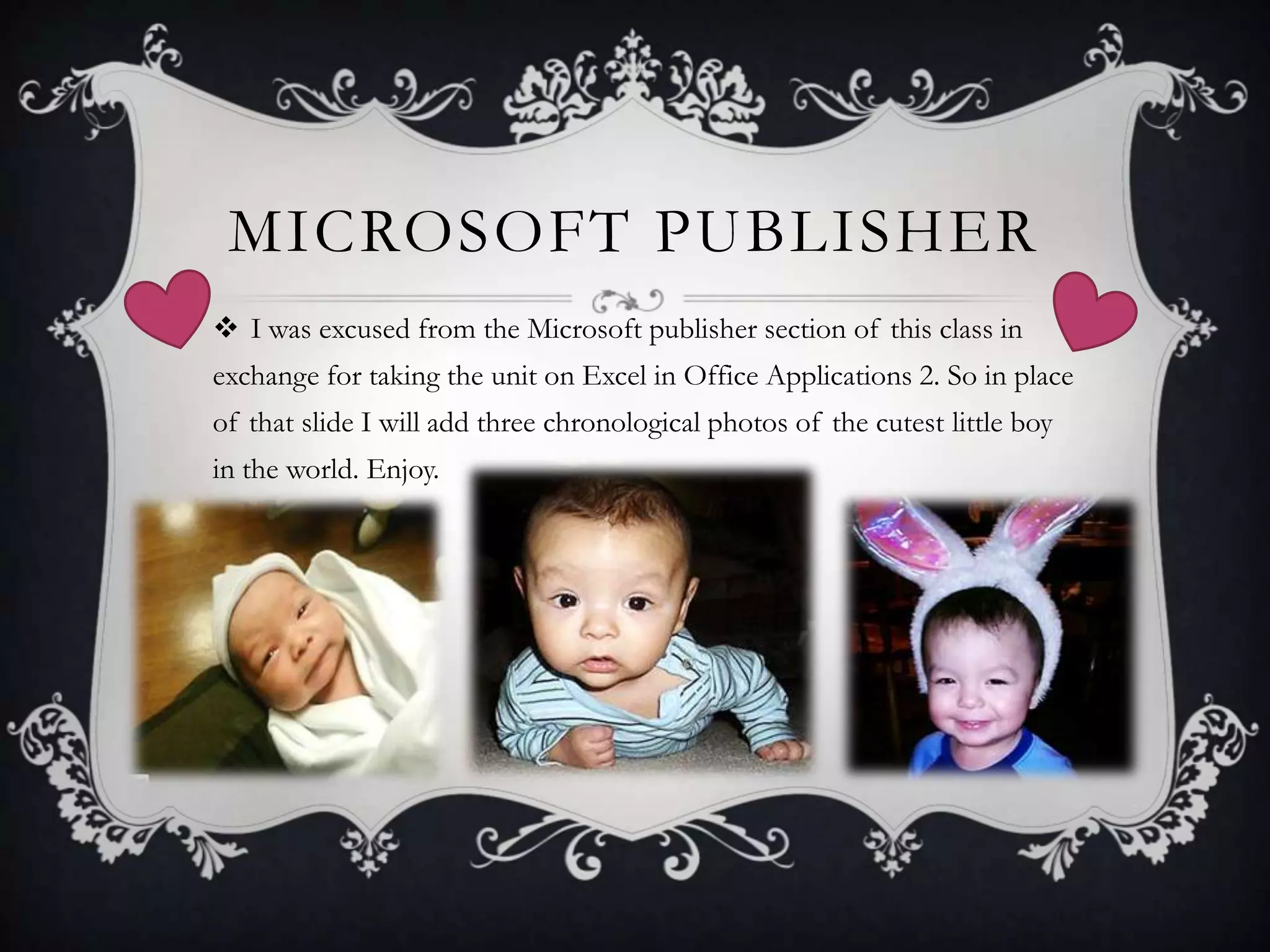
 I was excused from the Microsoft publisher section of this class in
exchange for taking the unit on Excel in Office Applications 2. So in place
of that slide I will add three chronological photos of the cutest little boy
in the world. Enjoy.
MY FEELINGS ABOUT
MICROSOFT POWERPOINT
 Even after taking this class I still have issues using
PowerPoint. Setting up the timing of the transitions &

animations is very easily forgotten. I’m sure with practice it
will become easier.
 The best thing about doing this unit is being able to get
creative with the designs & selecting the animations &

transitions of the slides.
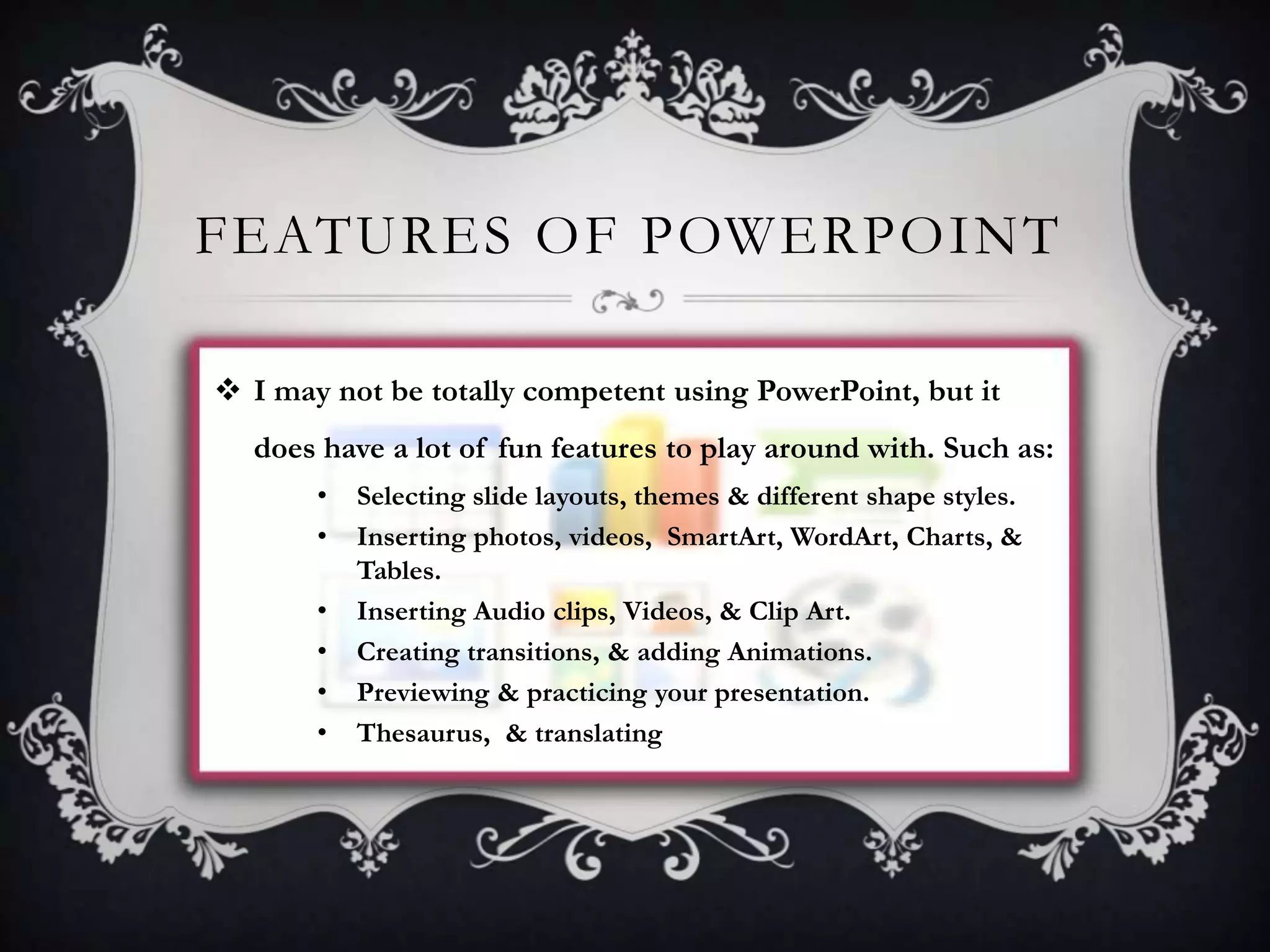
FEATURES OF POWERPOINT
 I may not be totally competent using PowerPoint, but it
does have a lot of fun features to play around with. Such as:
•
•
•
•
•
•

Selecting slide layouts, themes & different shape styles.
Inserting photos, videos, SmartArt, WordArt, Charts, &
Tables.
Inserting Audio clips, Videos, & Clip Art.
Creating transitions, & adding Animations.
Previewing & practicing your presentation.
Thesaurus, & translating
ANIMATIONS & TRANSITIONS
I loved giving life to my work. Here’s how to add animation & transitions.
Animations

Transitions

 Select something to animate.

 A transition is the effect you

Under the animations tab click

get when going from one slide to

animation styles or add animation.

another. Open up a slide & go to

Pick an animation & click it. You can

the design tab & pick a theme.

have one type of each animation.

Now go to the transitions tab &

Select the animation pane icon. A box

select a transition for each slide

will appear on the right. Click play &

or apply one transition to all

watch the animations. Right click an

slides. To adjust the time before

animation & select timing. Delay the

the slide changes check the After

animation so it starts after the

box & put in the amount of time

previous one ends or start it with on

you’ll need to present the slide

click. Insert a time & hit play.

plus a few seconds.
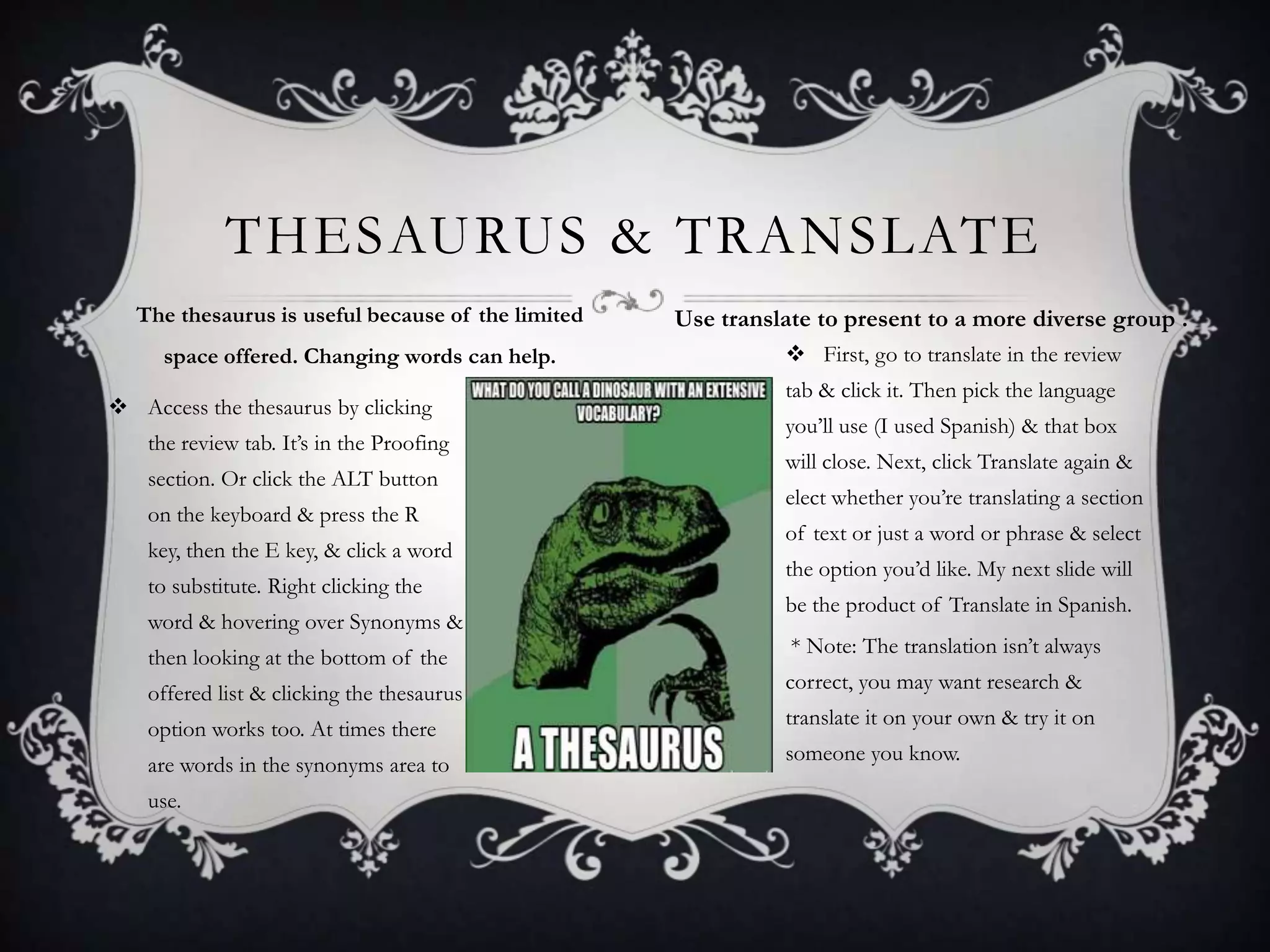
THESAURUS & TRANSLATE
The thesaurus is useful because of the limited
space offered. Changing words can help.
 Access the thesaurus by clicking
the review tab. It’s in the Proofing
section. Or click the ALT button
on the keyboard & press the R

key, then the E key, & click a word
to substitute. Right clicking the
word & hovering over Synonyms &
then looking at the bottom of the
offered list & clicking the thesaurus
option works too. At times there

are words in the synonyms area to
use.

Use translate to present to a more diverse group .
 First, go to translate in the review
tab & click it. Then pick the language
you’ll use (I used Spanish) & that box
will close. Next, click Translate again &
elect whether you’re translating a section
of text or just a word or phrase & select
the option you’d like. My next slide will
be the product of Translate in Spanish.
* Note: The translation isn’t always
correct, you may want research &
translate it on your own & try it on
someone you know.
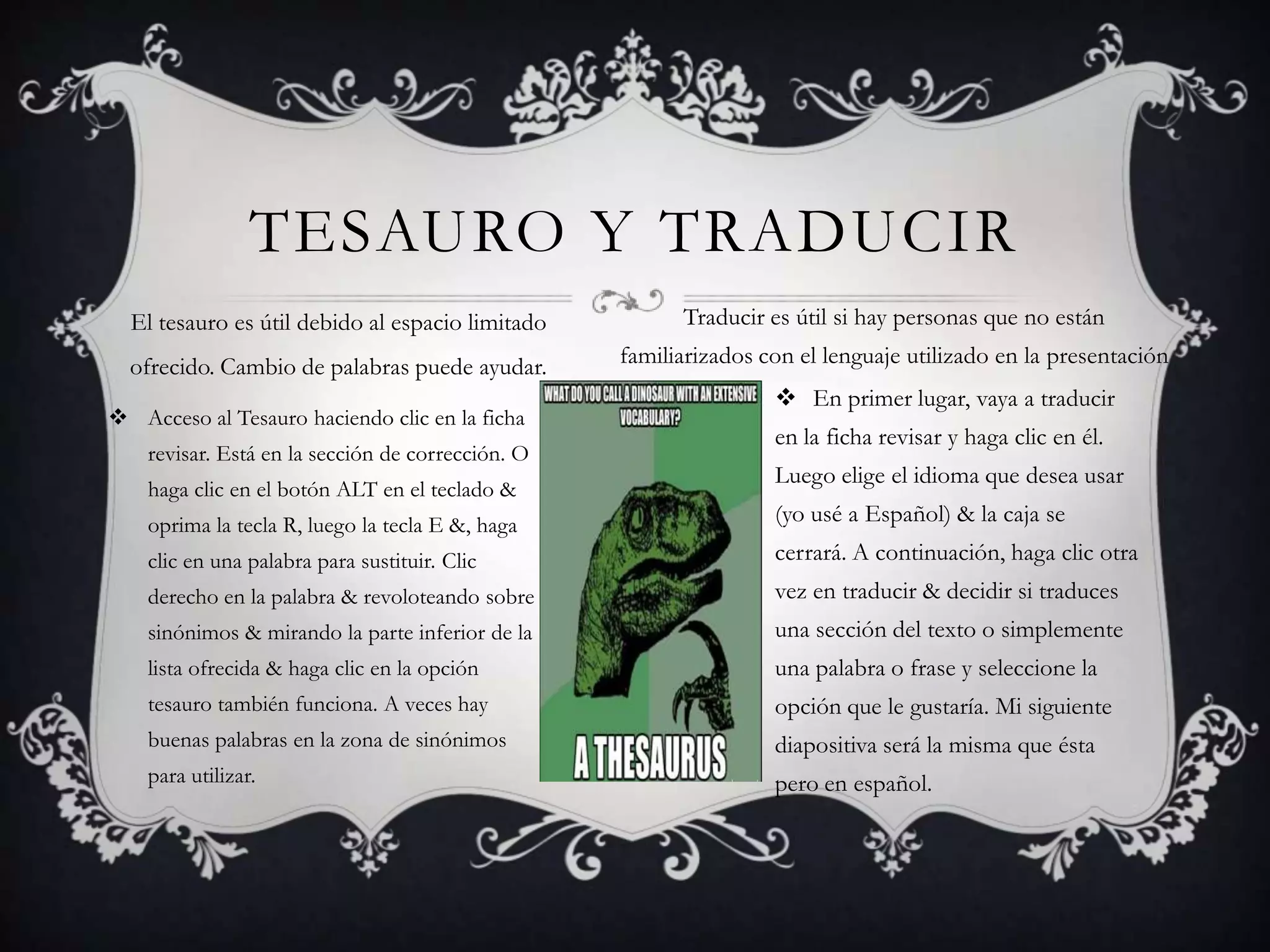
TESAURO Y TRADUCIR
El tesauro es útil debido al espacio limitado

Traducir es útil si hay personas que no están

ofrecido. Cambio de palabras puede ayudar.

familiarizados con el lenguaje utilizado en la presentación

 Acceso al Tesauro haciendo clic en la ficha
revisar. Está en la sección de corrección. O
haga clic en el botón ALT en el teclado &

 En primer lugar, vaya a traducir
en la ficha revisar y haga clic en él.
Luego elige el idioma que desea usar

oprima la tecla R, luego la tecla E &, haga

(yo usé a Español) & la caja se

clic en una palabra para sustituir. Clic

cerrará. A continuación, haga clic otra

derecho en la palabra & revoloteando sobre

vez en traducir & decidir si traduces

sinónimos & mirando la parte inferior de la

una sección del texto o simplemente

lista ofrecida & haga clic en la opción

una palabra o frase y seleccione la

tesauro también funciona. A veces hay

opción que le gustaría. Mi siguiente

buenas palabras en la zona de sinónimos

diapositiva será la misma que ésta

para utilizar.

pero en español.
14

RANDOM FEATURES
 Inserts:
•
•
•
•
•
•
•

Tables
Pictures, Clip Art & Screenshots
Shapes, SmartArt, & Charts
Hyperlinks, & Actions
Headers & Footers, Text
Boxes, WordArt, Date & Time, Slide
Numbers, & Embedded Objects
Video & Audio
Equations & Symbols

 All of these Inserts can be found on the inserts
tab & are used the same way they are used in
Microsoft Word except the embedding a video
from YouTube feature. They removed it.

Adding Notes!
 Notes are used to help you recall key points.
You can make print outs of the notes or use
them on the computer while presenting. Add
notes by typing them at the bottom of a slide
where it says click to add notes.

Themes!
 Themes are how a slides background will look. To
add or change them go to design tab & browse for
one, click it. Next to the themes, you’ll find
Colors, Fonts & Effects. Colors changes the colors on

the theme. Fonts change the script, & Effects change
your inserts & fonts.

1/27/2014
CLOSING STATEMENT
I’ve learned a lot throughout this course. Just because
there are many options doesn’t mean its hard to learn &
use. Both programs have very similar & useful features.
Inserts, for example, make your presentation more
interesting & memorable. The Word Count feature can
help you manage the length of an essay. The ability to
review & practice presentations on PowerPoint assists
with making sure you & your audience have sufficient
time on each slide. Make sure to give yourself more time
if you plan to talk over slides. Overall, I became
proficient at navigating both programs & utilizing them
to make more affective, creative & personalized
presentations.

PROJECT: DESIGN AND CREATE A PRESENTATION

  • 1.
    MY JOURNEY THROUGH OFFICEAPPLICATIONS By Bailey Tarvin
  • 2.
    THE BEFORE ME Prior to taking Office Applications I used the note pad program & penning things down, leaving me very unorganized.  I felt overwhelmed opening Microsoft Word & PowerPoint because of all the features they offer. I actually don’t have them on my computer because I didn’t think I’d ever learn to use them.
  • 3.
    MY EXPERIENCE WITH MICROSOFTWORD  Over the course of this class I learned how to navigate Microsoft word. I learned how to use many, if not all of the features such as: • • • • • • • • Headers & Footers Hyperlinks WordArt, ClipArt & SmartArt Changing the layout of pages Endnotes & Footnotes & their differences Inserting or creating a table of contents Creating mailing labels Spelling & grammar checking, word count, & many other things.
  • 4.
    TABLE OF CONTENTS The best thing I learned from the Word portion of the class was inserting the Table of Contents. Here’s how it’s done. • Open a new document or one you’ve already began & click the references tab. click the Table Of Contents & choose a table that automatically updates or a manual table. • Manual Table- for a manual table click the table of contents icon. Scroll down to manual & click it. This sets up a template you can write chapters or sections on. • Automatic Table- follow steps for the manual table but instead of choosing manual select an automatic. Automatics update themselves if you format the headings of your sections with a 1-3 format, or click the Update Table icon next to the table of contents icon.
  • 5.
    ERMAHGERD INSERTS!! Inserts forMicrosoft Word  Pages- Cover pages, Blank Pages, & page breaks!  Tables- Information tables, Calendars, double tables, Matrixes, & Tabular lists!  Illustrations- SmartArt, ClipArt, Shapes & photos!  Links- Hyperlinks, bookmarks & cross-references!  Headers, footers & page numbers!  Symbols & equations!  Text- WordArt, Texts Boxes, Signature Lines, & the date & time!
  • 6.
    2/10/2014 THE SKINNY ONINSERTS Here’s the how to on two insert able things.  Calendars- click the insert tab & find the section labeled tables. Click it. Then click Quick Tables. Scroll down & choose a calendar. You can click the file tab & select new & search for more templates on office.com.  Time & Date- on the insert tab find the Text section. Click the Time & Date icon & select the format you like. Click Update automatically if you’d rather not go in & change it manually.
  • 7.
    SAVING YOUR WORK Iwould have never known about all the different options for saving. Now that I do I can protect my work. Remember to save OFTEN!  Save As- to first save a new document, go to the file tab & click save as & give it a name. After that you can click the plain save button.  Save & Send- on the file tab find save & send. Save & Send files via E-mail, attachments, PDFs, & Internet faxes (fax service provider) with this. Or save it to the Web for your blog.  Info Button- This tells you about your work & lets you change things. You can change permissions to make it hard for people to edit, or copy. You can look for issues so you can share, & manage the versions of your document.
  • 8.
    MICROSOFT PUBLISHER  Iwas excused from the Microsoft publisher section of this class in exchange for taking the unit on Excel in Office Applications 2. So in place of that slide I will add three chronological photos of the cutest little boy in the world. Enjoy.
  • 9.
    MY FEELINGS ABOUT MICROSOFTPOWERPOINT  Even after taking this class I still have issues using PowerPoint. Setting up the timing of the transitions & animations is very easily forgotten. I’m sure with practice it will become easier.  The best thing about doing this unit is being able to get creative with the designs & selecting the animations & transitions of the slides.
  • 10.
    FEATURES OF POWERPOINT I may not be totally competent using PowerPoint, but it does have a lot of fun features to play around with. Such as: • • • • • • Selecting slide layouts, themes & different shape styles. Inserting photos, videos, SmartArt, WordArt, Charts, & Tables. Inserting Audio clips, Videos, & Clip Art. Creating transitions, & adding Animations. Previewing & practicing your presentation. Thesaurus, & translating
  • 11.
    ANIMATIONS & TRANSITIONS Iloved giving life to my work. Here’s how to add animation & transitions. Animations Transitions  Select something to animate.  A transition is the effect you Under the animations tab click get when going from one slide to animation styles or add animation. another. Open up a slide & go to Pick an animation & click it. You can the design tab & pick a theme. have one type of each animation. Now go to the transitions tab & Select the animation pane icon. A box select a transition for each slide will appear on the right. Click play & or apply one transition to all watch the animations. Right click an slides. To adjust the time before animation & select timing. Delay the the slide changes check the After animation so it starts after the box & put in the amount of time previous one ends or start it with on you’ll need to present the slide click. Insert a time & hit play. plus a few seconds.
  • 12.
    THESAURUS & TRANSLATE Thethesaurus is useful because of the limited space offered. Changing words can help.  Access the thesaurus by clicking the review tab. It’s in the Proofing section. Or click the ALT button on the keyboard & press the R key, then the E key, & click a word to substitute. Right clicking the word & hovering over Synonyms & then looking at the bottom of the offered list & clicking the thesaurus option works too. At times there are words in the synonyms area to use. Use translate to present to a more diverse group .  First, go to translate in the review tab & click it. Then pick the language you’ll use (I used Spanish) & that box will close. Next, click Translate again & elect whether you’re translating a section of text or just a word or phrase & select the option you’d like. My next slide will be the product of Translate in Spanish. * Note: The translation isn’t always correct, you may want research & translate it on your own & try it on someone you know.
  • 13.
    TESAURO Y TRADUCIR Eltesauro es útil debido al espacio limitado Traducir es útil si hay personas que no están ofrecido. Cambio de palabras puede ayudar. familiarizados con el lenguaje utilizado en la presentación  Acceso al Tesauro haciendo clic en la ficha revisar. Está en la sección de corrección. O haga clic en el botón ALT en el teclado &  En primer lugar, vaya a traducir en la ficha revisar y haga clic en él. Luego elige el idioma que desea usar oprima la tecla R, luego la tecla E &, haga (yo usé a Español) & la caja se clic en una palabra para sustituir. Clic cerrará. A continuación, haga clic otra derecho en la palabra & revoloteando sobre vez en traducir & decidir si traduces sinónimos & mirando la parte inferior de la una sección del texto o simplemente lista ofrecida & haga clic en la opción una palabra o frase y seleccione la tesauro también funciona. A veces hay opción que le gustaría. Mi siguiente buenas palabras en la zona de sinónimos diapositiva será la misma que ésta para utilizar. pero en español.
  • 14.
    14 RANDOM FEATURES  Inserts: • • • • • • • Tables Pictures,Clip Art & Screenshots Shapes, SmartArt, & Charts Hyperlinks, & Actions Headers & Footers, Text Boxes, WordArt, Date & Time, Slide Numbers, & Embedded Objects Video & Audio Equations & Symbols  All of these Inserts can be found on the inserts tab & are used the same way they are used in Microsoft Word except the embedding a video from YouTube feature. They removed it. Adding Notes!  Notes are used to help you recall key points. You can make print outs of the notes or use them on the computer while presenting. Add notes by typing them at the bottom of a slide where it says click to add notes. Themes!  Themes are how a slides background will look. To add or change them go to design tab & browse for one, click it. Next to the themes, you’ll find Colors, Fonts & Effects. Colors changes the colors on the theme. Fonts change the script, & Effects change your inserts & fonts. 1/27/2014
  • 15.
    CLOSING STATEMENT I’ve learneda lot throughout this course. Just because there are many options doesn’t mean its hard to learn & use. Both programs have very similar & useful features. Inserts, for example, make your presentation more interesting & memorable. The Word Count feature can help you manage the length of an essay. The ability to review & practice presentations on PowerPoint assists with making sure you & your audience have sufficient time on each slide. Make sure to give yourself more time if you plan to talk over slides. Overall, I became proficient at navigating both programs & utilizing them to make more affective, creative & personalized presentations.

Editor's Notes

  • #15 This is the place where you can add in notes! 