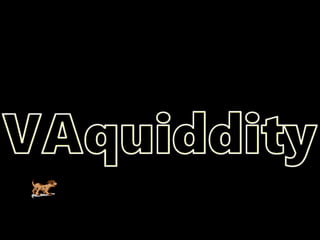
#2 Motion Text Effects
Make Mask
Add [rectangle] Shape, then right click and add text (heavy bold), resize. Outline text with [white], change line weight to 3 pt to make it more visible. Use [yellow] fill. Make Shape Fill, same colour as the background, and take out Shape Outline
Cut, and past as picture. Go to Format, colour, Set Transparent Colour
Choose Background
Embed a video
Add a picture
Add an effect, ie shine:
Step 3 – Add Effect
Video – Insert, Movie, Movie From File.
Go to Animation, set to Start With Previous, then remove that trigger by moving the animation in the list to the top of the Custom Animation list.
#3 Motion Text Effects
Make Mask
Add [rectangle] Shape, then right click and add text (heavy bold), resize. Outline text with [white], change line weight to 3 pt to make it more visible. Use [yellow] fill. Make Shape Fill, same colour as the background, and take out Shape Outline
Cut, and past as picture. Go to Format, colour, Set Transparent Colour
Choose Background
Embed a video
Add a picture
Add an effect, ie shine:
Step 3 – Add Effect
Video – Insert, Movie, Movie From File.
Go to Animation, set to Start With Previous, then remove that trigger by moving the animation in the list to the top of the Custom Animation list. May need to delay advance slide – go to Animations, Advance Slide and select Automatically After, say .05,
Add sound. To apply to all slides, go to Animation, Transition Slides, and click down button and select “Loop until Next Sound” at the bottom of the list. Check each slide shows “No Sound” otherwise the music will restart again.
#4 Motion Text Effects
Make Mask
Add [rectangle] Shape, then right click and add text (heavy bold), resize. Outline text with [white], change line weight to 3 pt to make it more visible. Use [yellow] fill. Make Shape Fill, same colour as the background, and take out Shape Outline
Cut, and past as picture. Go to Format, colour, Set Transparent Colour
Choose Background
Embed a video
Add a picture
Add an effect, ie shine:
#5 Shine
Start with rectangle. Add Gradient. Make sure its set at Linear. Set Colour stops to 0, 49, 100, Colour two sides (Colour Stop 1 and 3) white, with 100% transparency; use white at Colour Stop 2, but leave at 0% transparency.
Remove shape outline and tilt slightly. Add motion path line to right. Move shape to the left and adjust path as necessary.