POST IT NOTES – Style 2


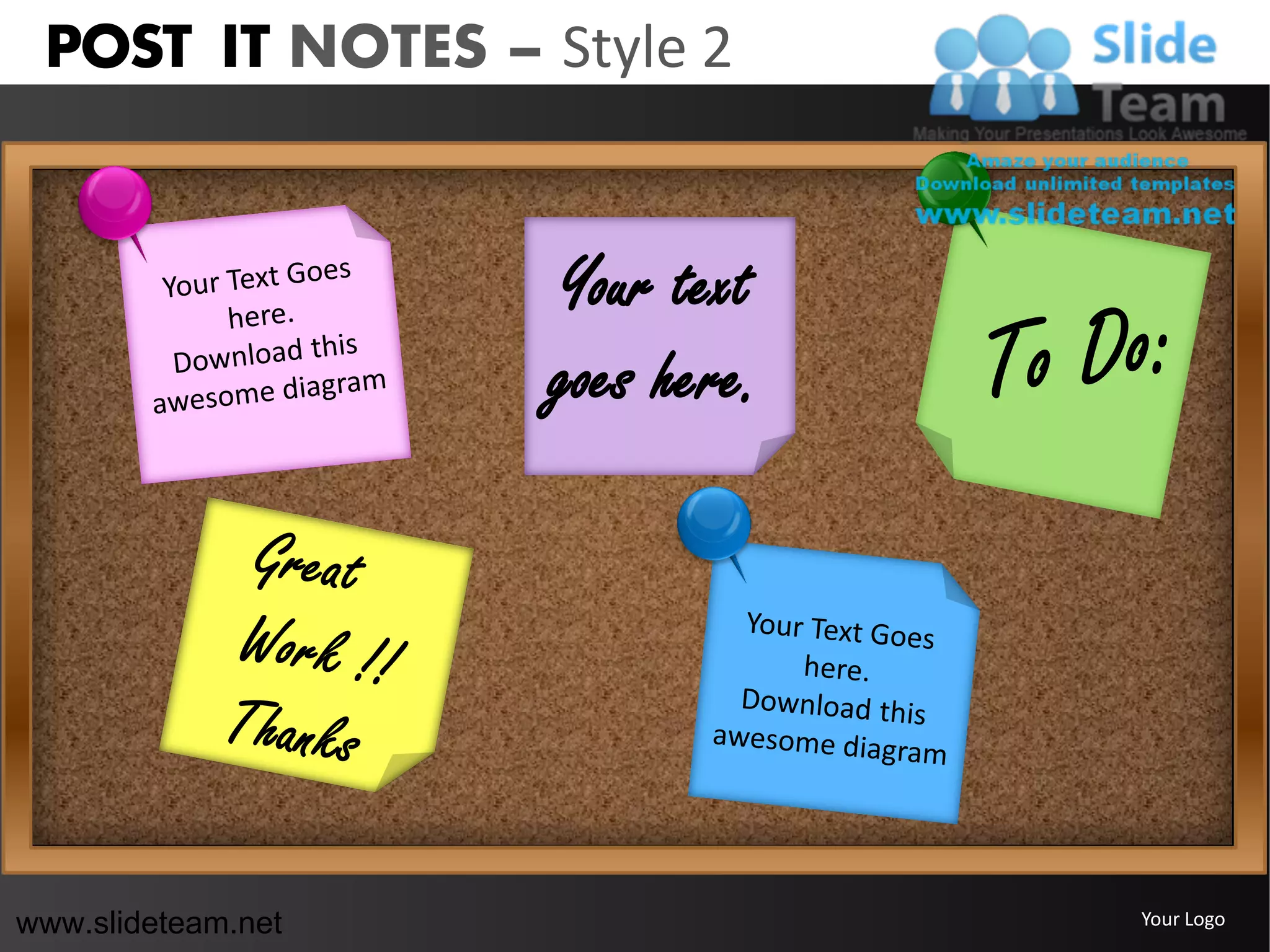
                    Your text
                    goes here.


www.slideteam.net                Your Logo
POST IT NOTES – Style 2


                                    Example
                Example               text
                  text
                          Example
                            text
                                       Example
                                         text

www.slideteam.net                                Your Logo
POST IT NOTES – Style 2


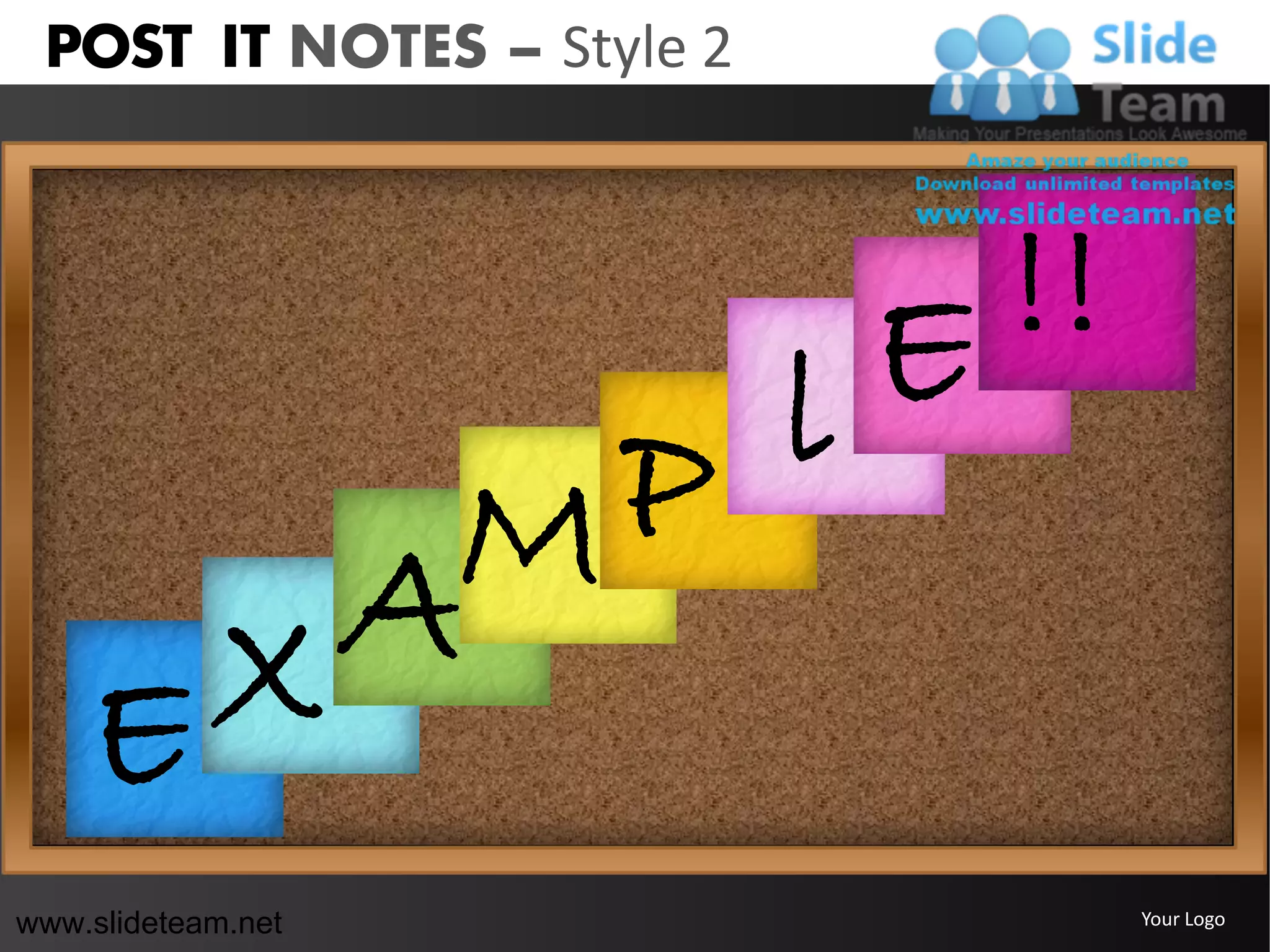
                           E !!
                 P l
              AM
    E       X
www.slideteam.net                 Your Logo
POST IT NOTES – Style 2


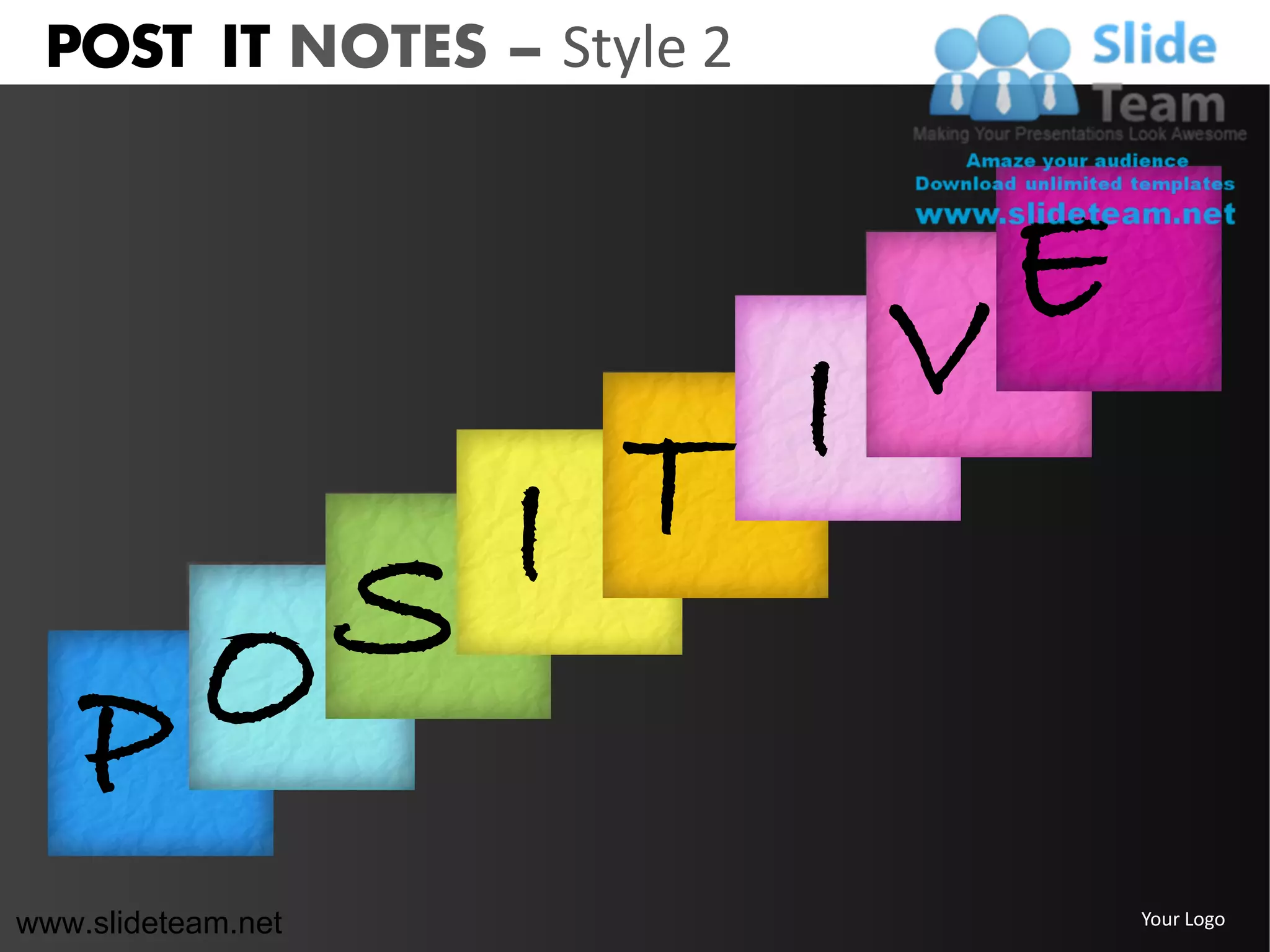
                           V E
            T I
        S I
    P O
www.slideteam.net                Your Logo
POST IT NOTES – Style 2

                              V E
                            I
                      I T
                    S             E
            P O               U D
                        I T
                      T
                A T
www.slideteam.net                     Your Logo
POST IT NOTES – Style 2


                          Example
                            text

                                      V E
                                    I
                            I T
                          S
                    P O
www.slideteam.net                           Your Logo
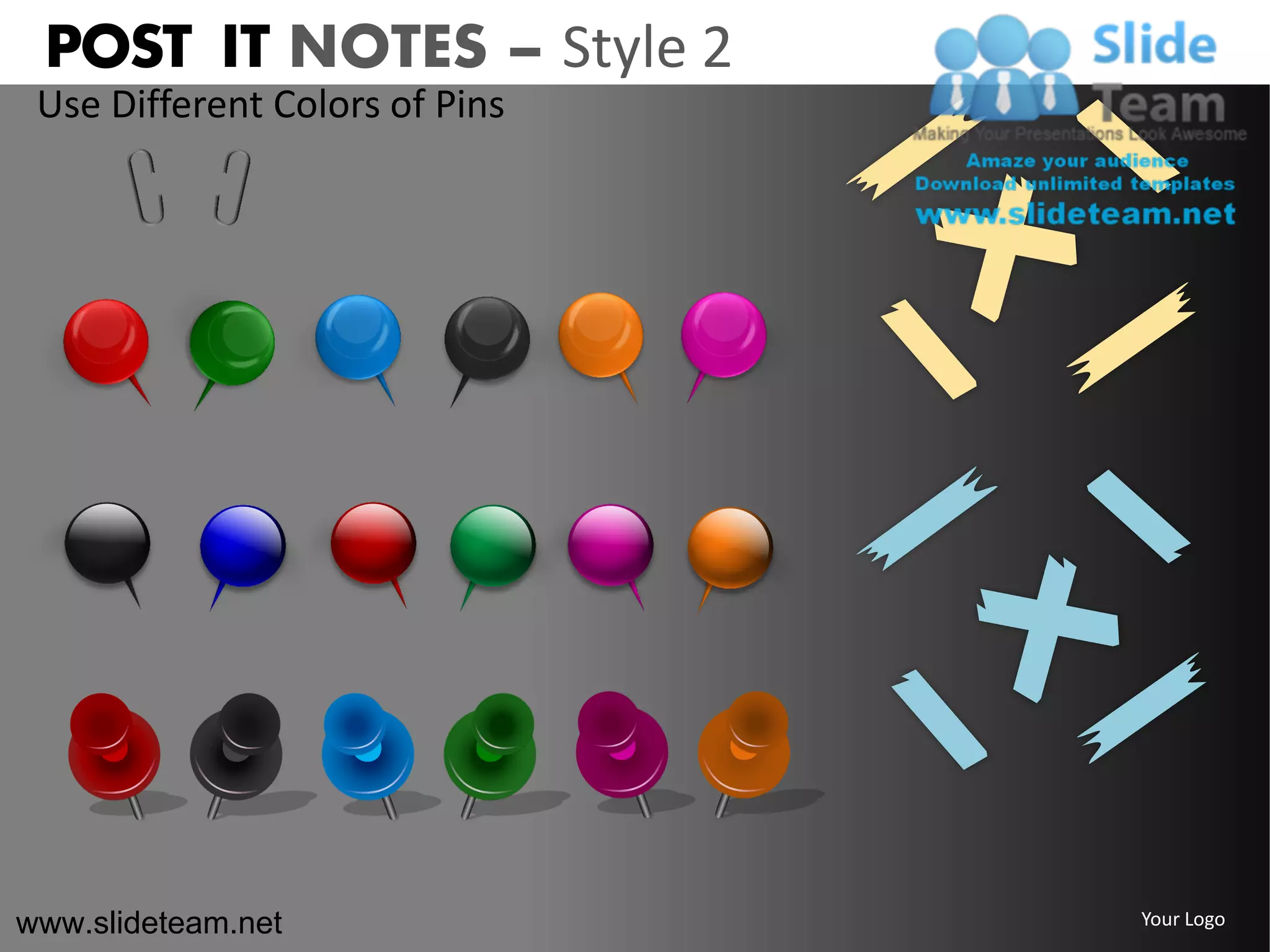
POST IT NOTES – Style 2
 Use Different Colors of Pins


www.slideteam.net               Your Logo
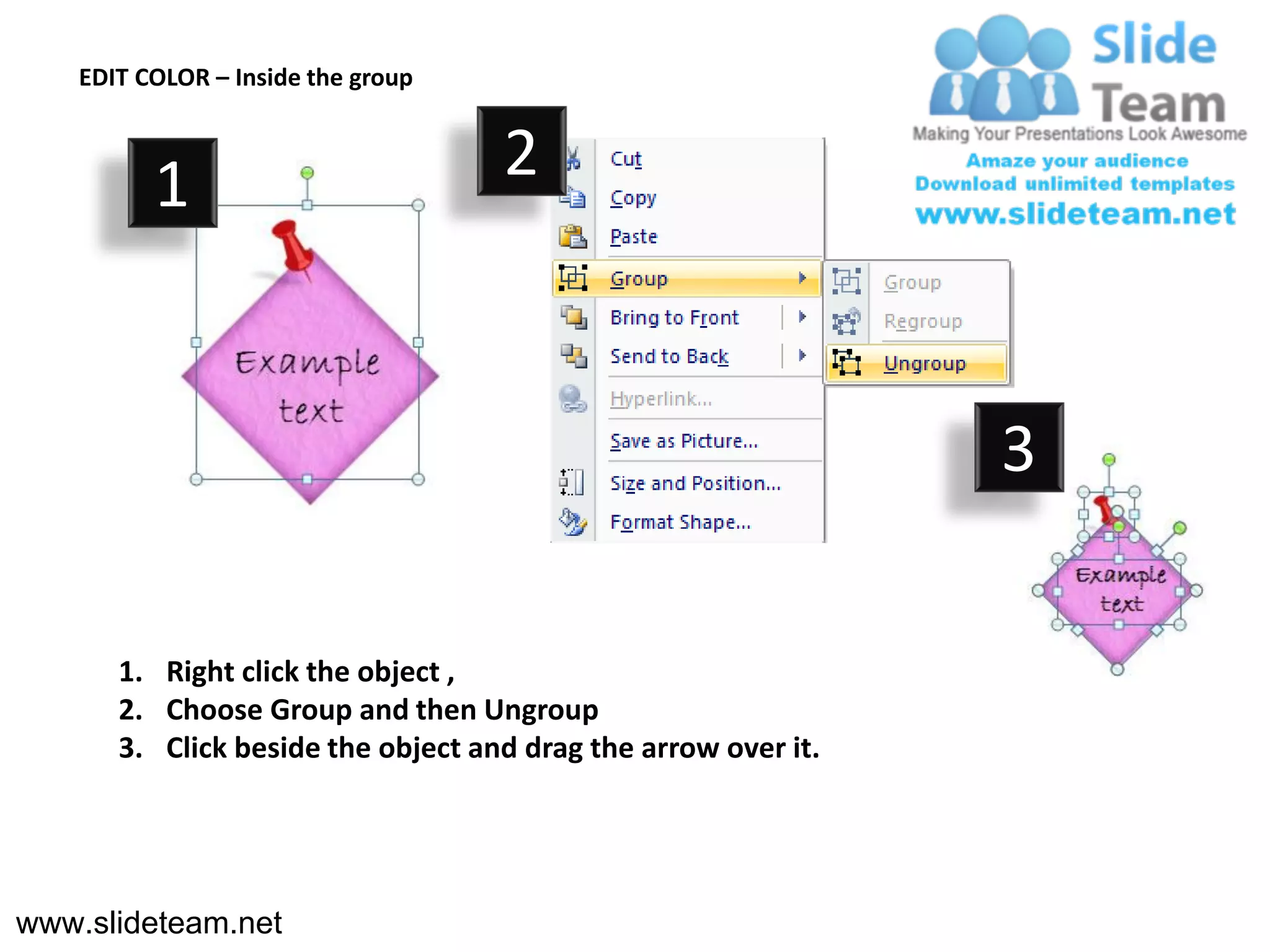
EDIT COLOR – Inside the group


          1                         2


                                                                3

       1. Right click the object ,
       2. Choose Group and then Ungroup
       3. Click beside the object and drag the arrow over it.


www.slideteam.net
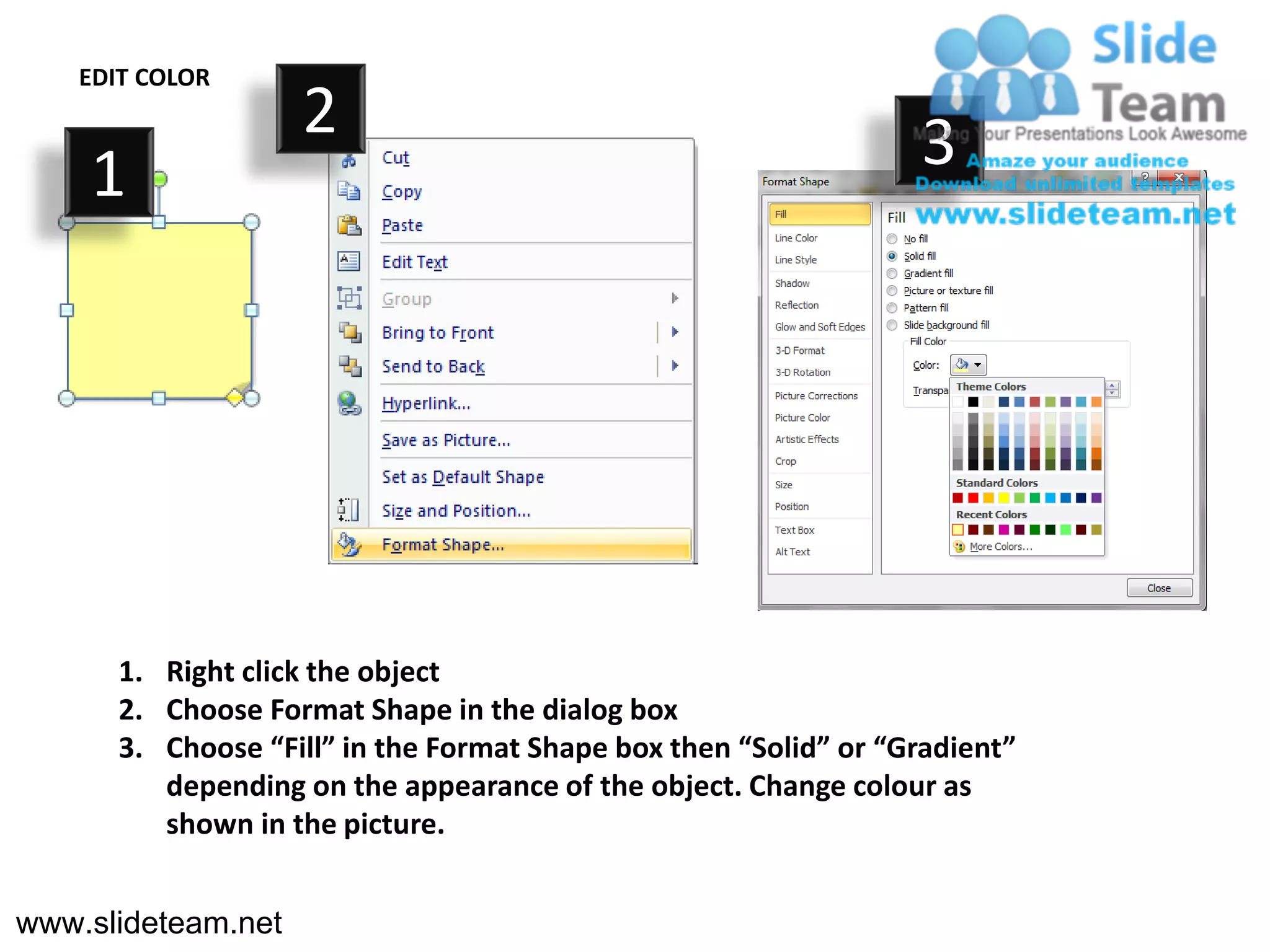
EDIT COLOR
                    2                                             3
    1


       1. Right click the object
       2. Choose Format Shape in the dialog box
       3. Choose “Fill” in the Format Shape box then “Solid” or “Gradient”
          depending on the appearance of the object. Change colour as
          shown in the picture.


www.slideteam.net

Post it notes pinned on board design 2 powerpoint ppt templates.

  • 1.
    POST IT NOTES– Style 2 Your text goes here. www.slideteam.net Your Logo
  • 2.
    POST IT NOTES– Style 2 Example Example text text Example text Example text www.slideteam.net Your Logo
  • 3.
    POST IT NOTES– Style 2 E !! P l AM E X www.slideteam.net Your Logo
  • 4.
    POST IT NOTES– Style 2 V E T I S I P O www.slideteam.net Your Logo
  • 5.
    POST IT NOTES– Style 2 V E I I T S E P O U D I T T A T www.slideteam.net Your Logo
  • 6.
    POST IT NOTES– Style 2 Example text V E I I T S P O www.slideteam.net Your Logo
  • 7.
    POST IT NOTES– Style 2 Use Different Colors of Pins www.slideteam.net Your Logo
  • 8.
    EDIT COLOR –Inside the group 1 2 3 1. Right click the object , 2. Choose Group and then Ungroup 3. Click beside the object and drag the arrow over it. www.slideteam.net
  • 9.
    EDIT COLOR 2 3 1 1. Right click the object 2. Choose Format Shape in the dialog box 3. Choose “Fill” in the Format Shape box then “Solid” or “Gradient” depending on the appearance of the object. Change colour as shown in the picture. www.slideteam.net