Fernando Romeu Esquerré
Escola Oficial d’Idiomes De Tortosa
PLAY
LEARN
www.elteaching.com
1. Kahoot types
2. Creating a quiz
3. Question types
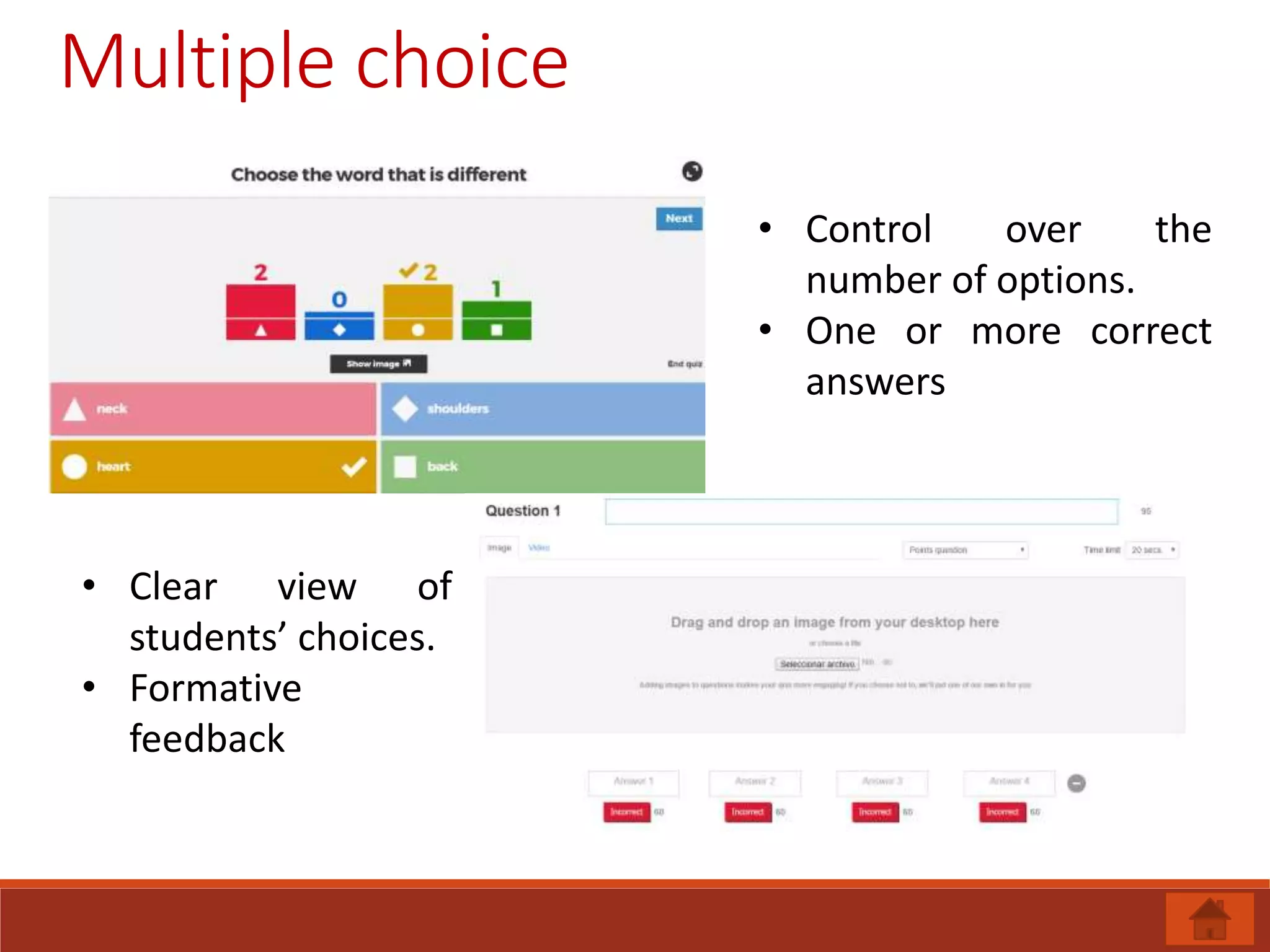
a) Multiple choice
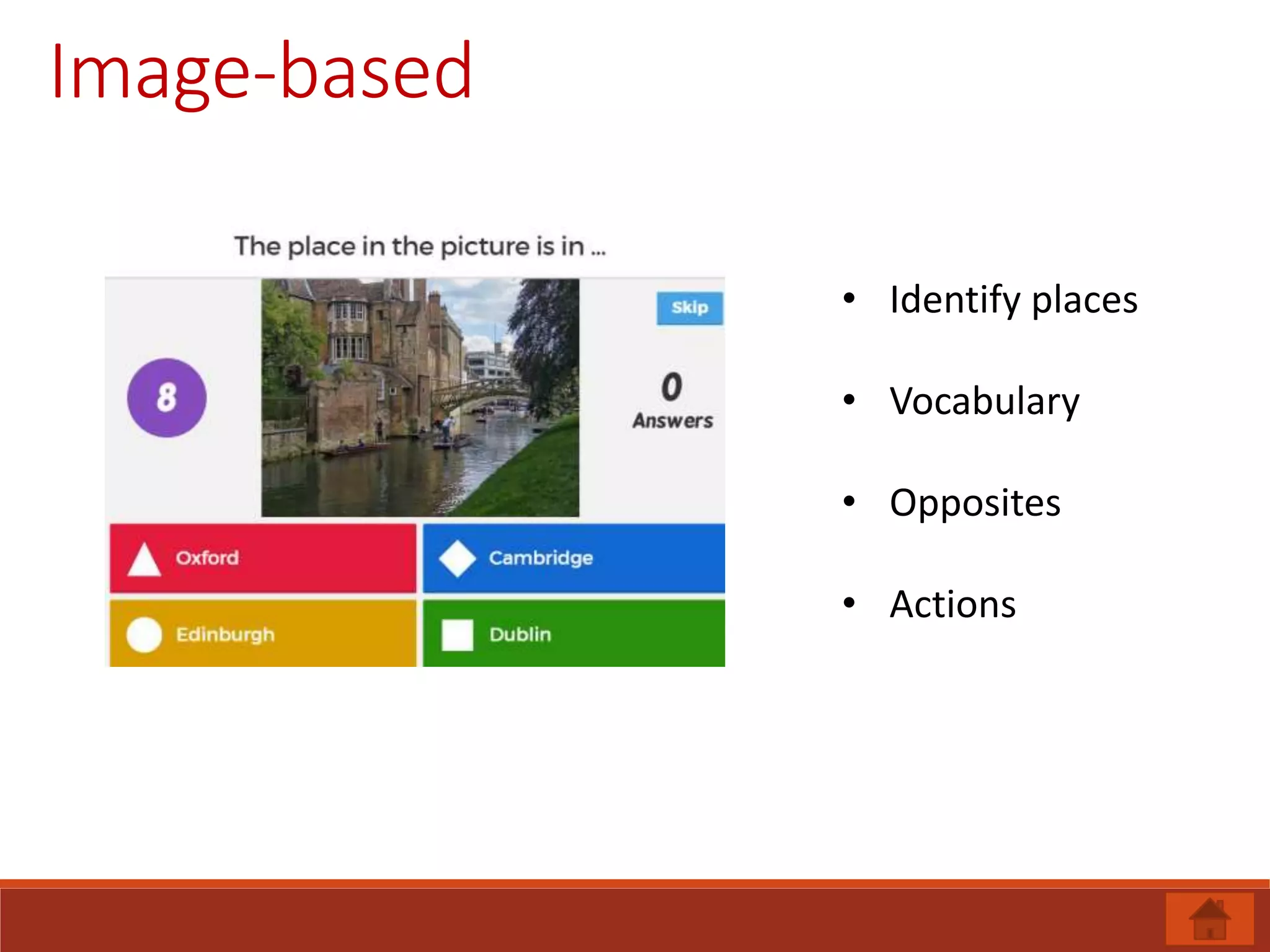
b) Image-based
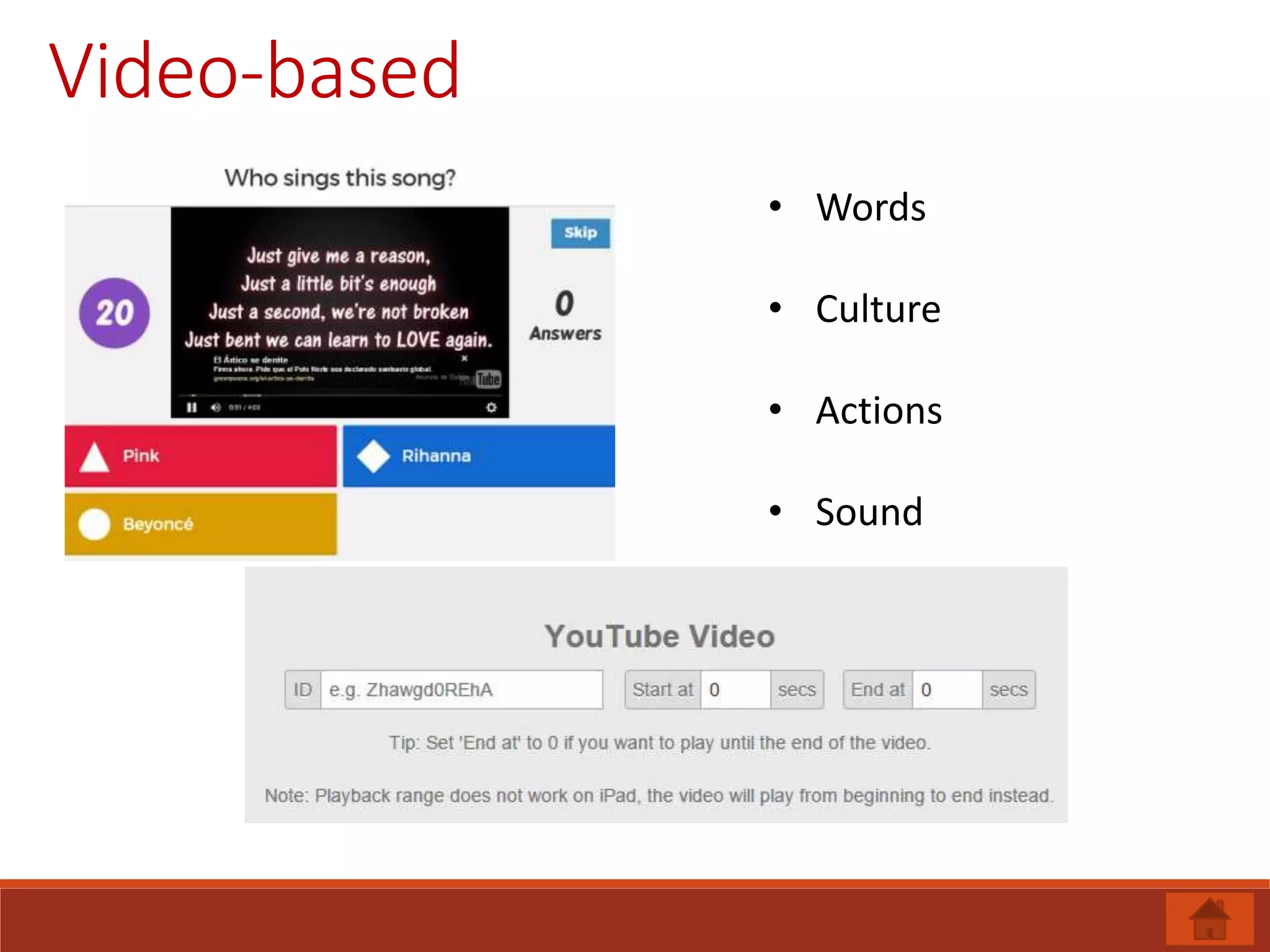
c) Video-based
4. Word count limit, timing, points
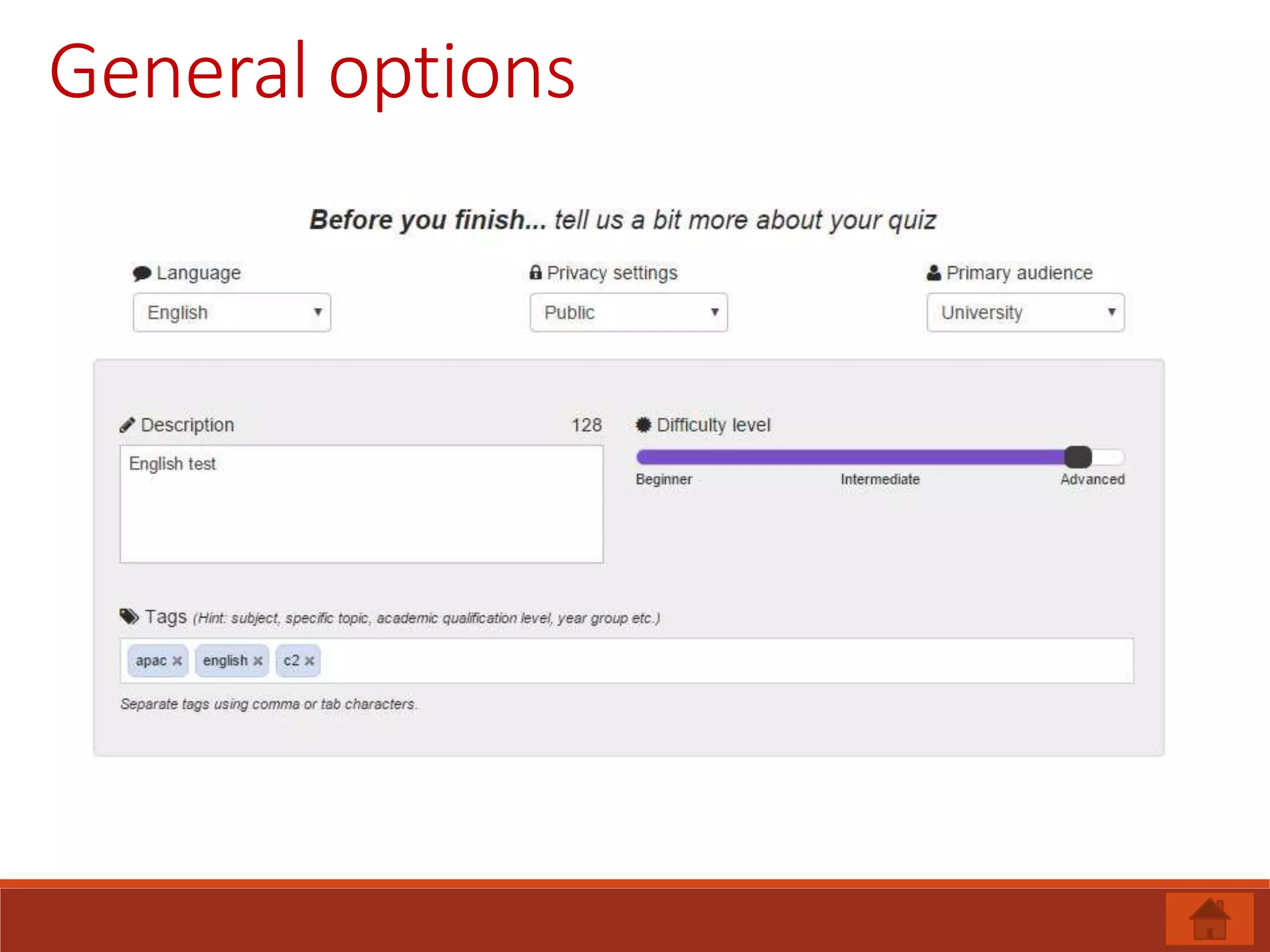
5. General options for the quiz
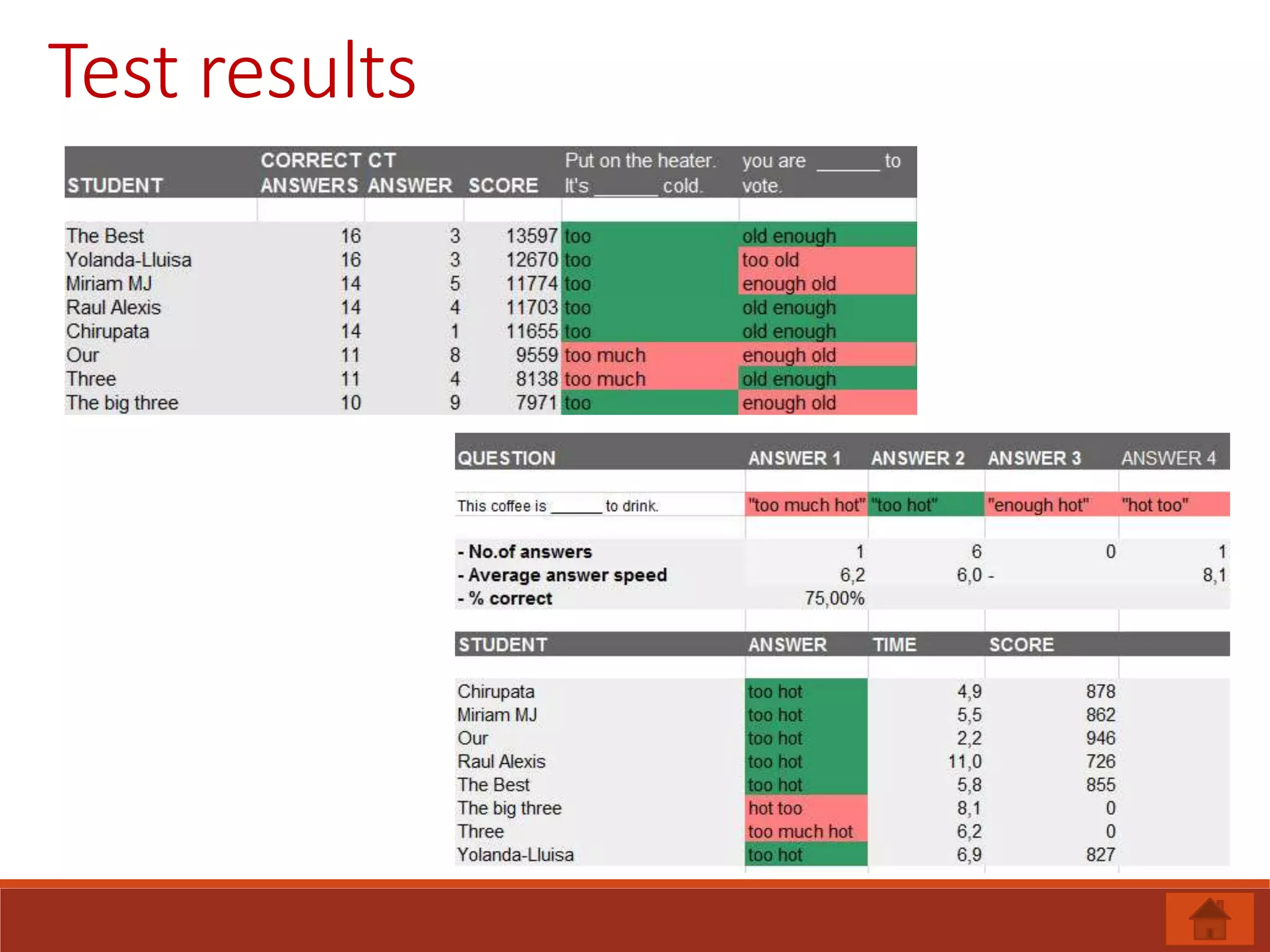
6. Test results
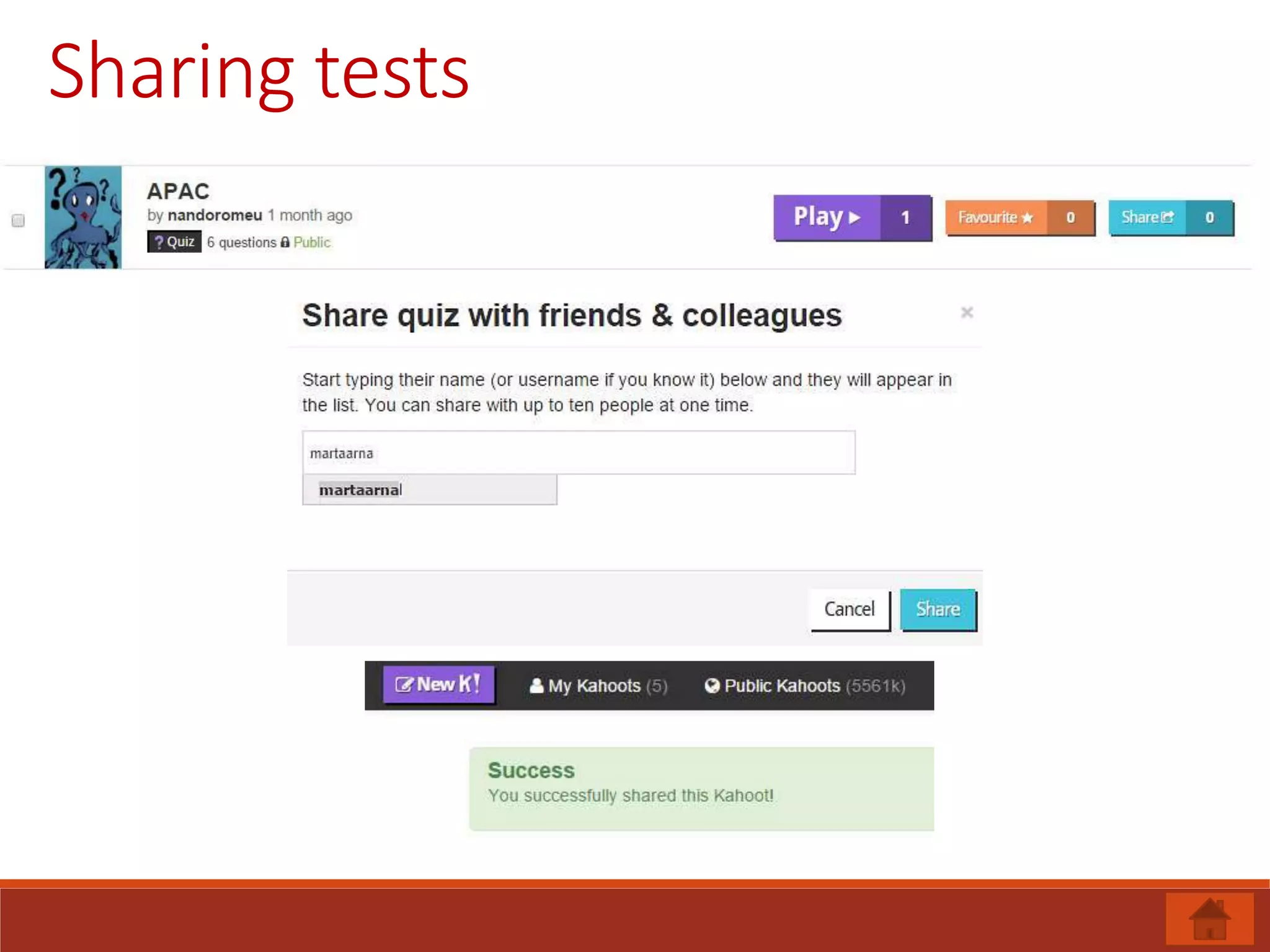
7. Sharing tests
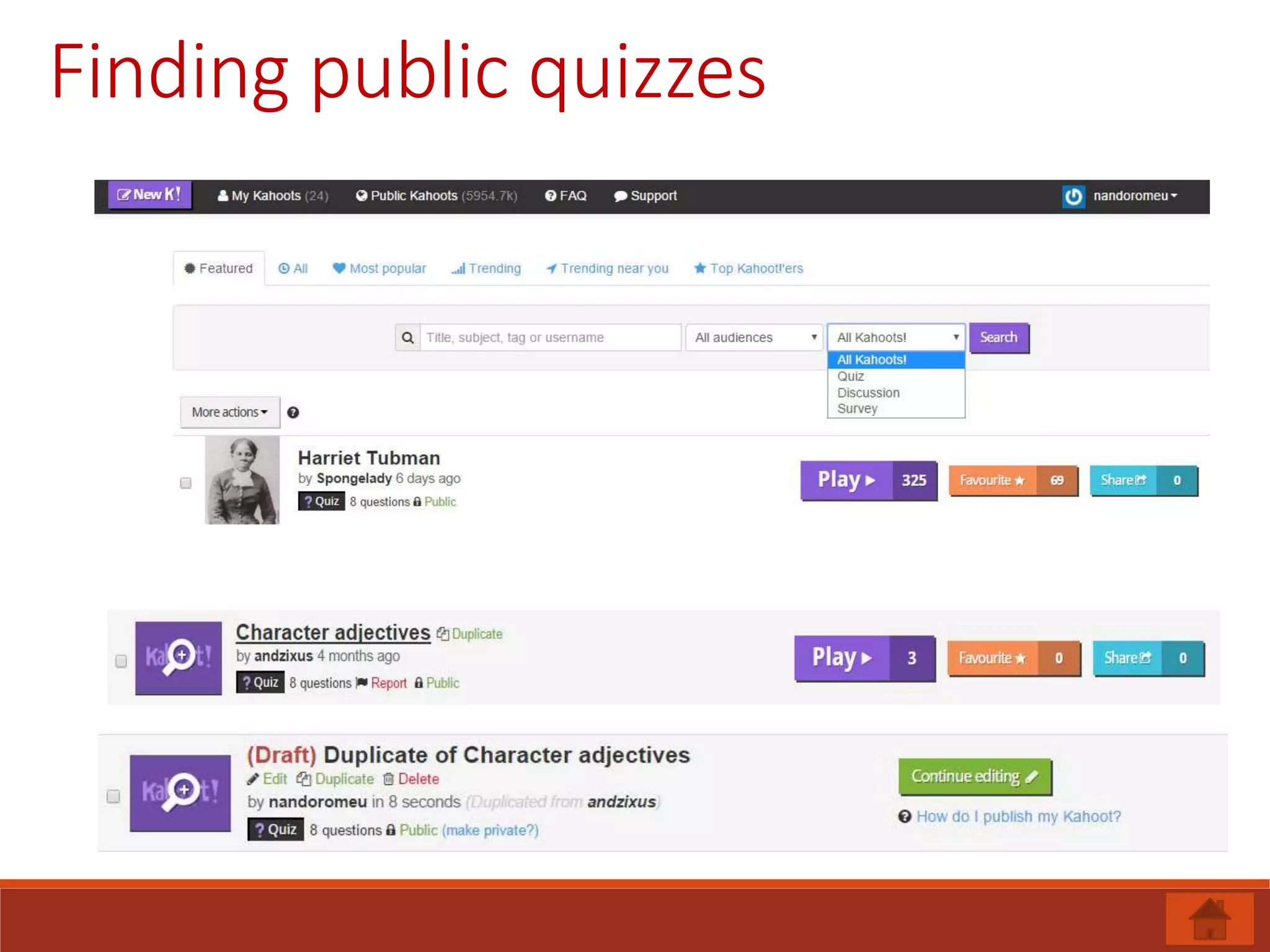
8. Finding public quizzes
9. Kahoot, students and teachers.
Kahoot types
The Quiz is the most commonly used format, it includes timed
responses and a points system creating a competitive
atmosphere.
The survey is similar but does not use points. This means it can
be used for feedback or finding out what a class knows without
the competition.
A Discussion is a single question, without the competitive
elements. This can be used to ignite discussion, at the beginning
of a session. For example, you could ask a question such as 'I
believe that women are biologically more suited to looking after
children'. The responses will then appear at the front, which
could ignite debate.
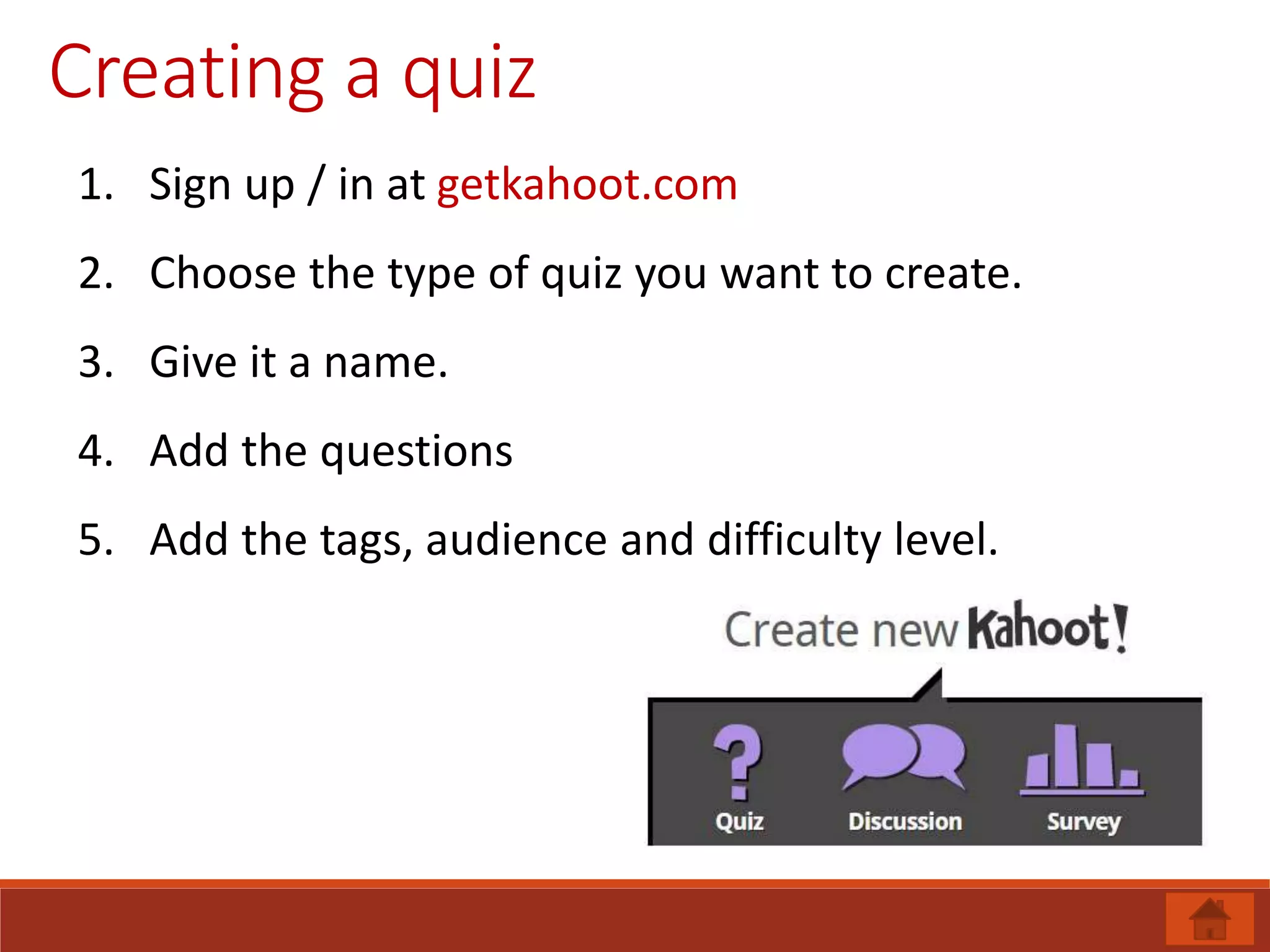
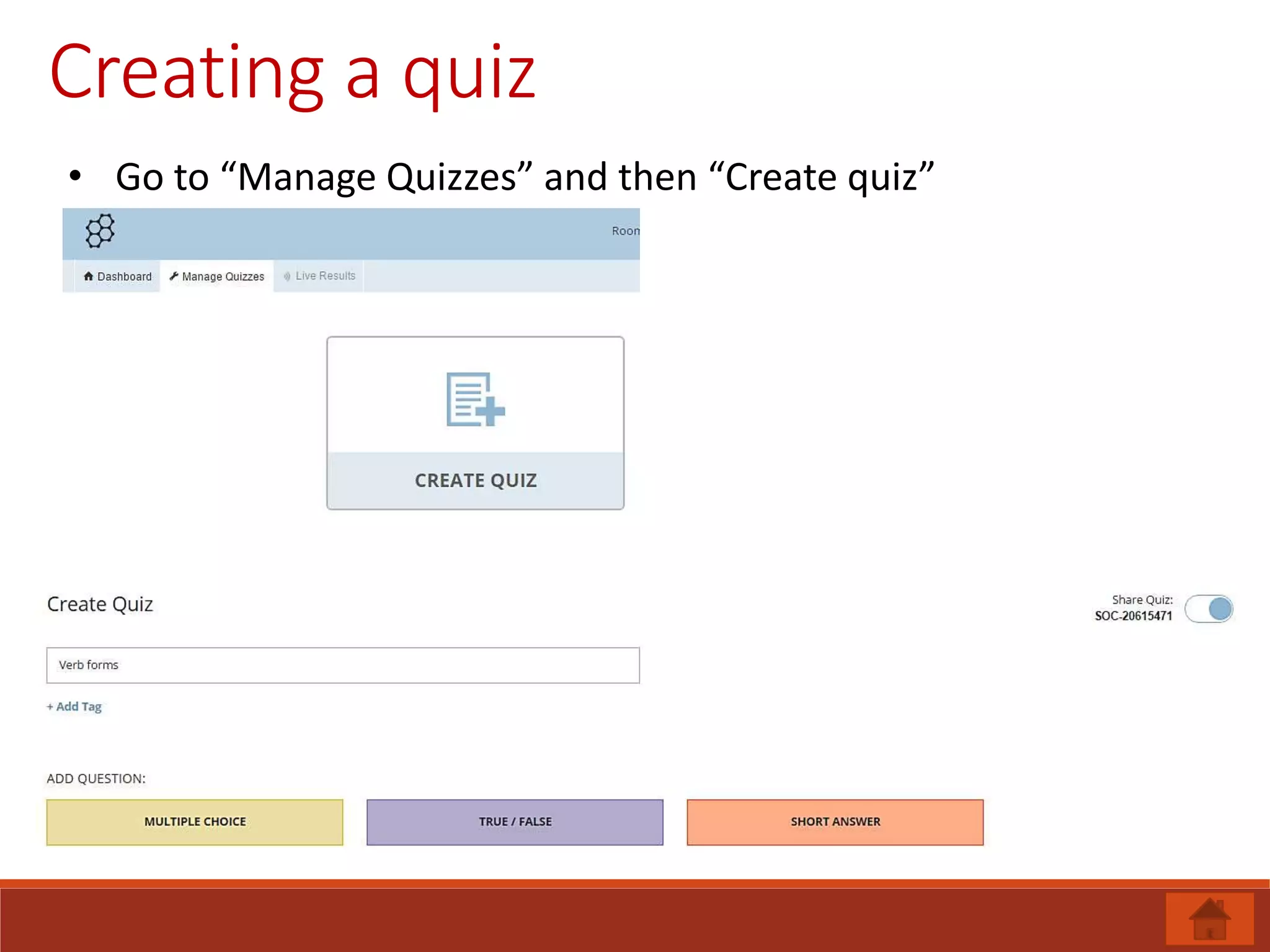
Creating a quiz
1. Sign up / in at getkahoot.com
2. Choose the type of quiz you want to create.
3. Give it a name.
4. Add the questions
5. Add the tags, audience and difficulty level.
Multiple choice
• Control over the
number of options.
• One or more correct
answers
• Clear view of
students’ choices.
• Formative
feedback
Image-based
• Identify places
• Vocabulary
• Opposites
• Actions
Video-based
• Words
• Culture
• Actions
• Sound
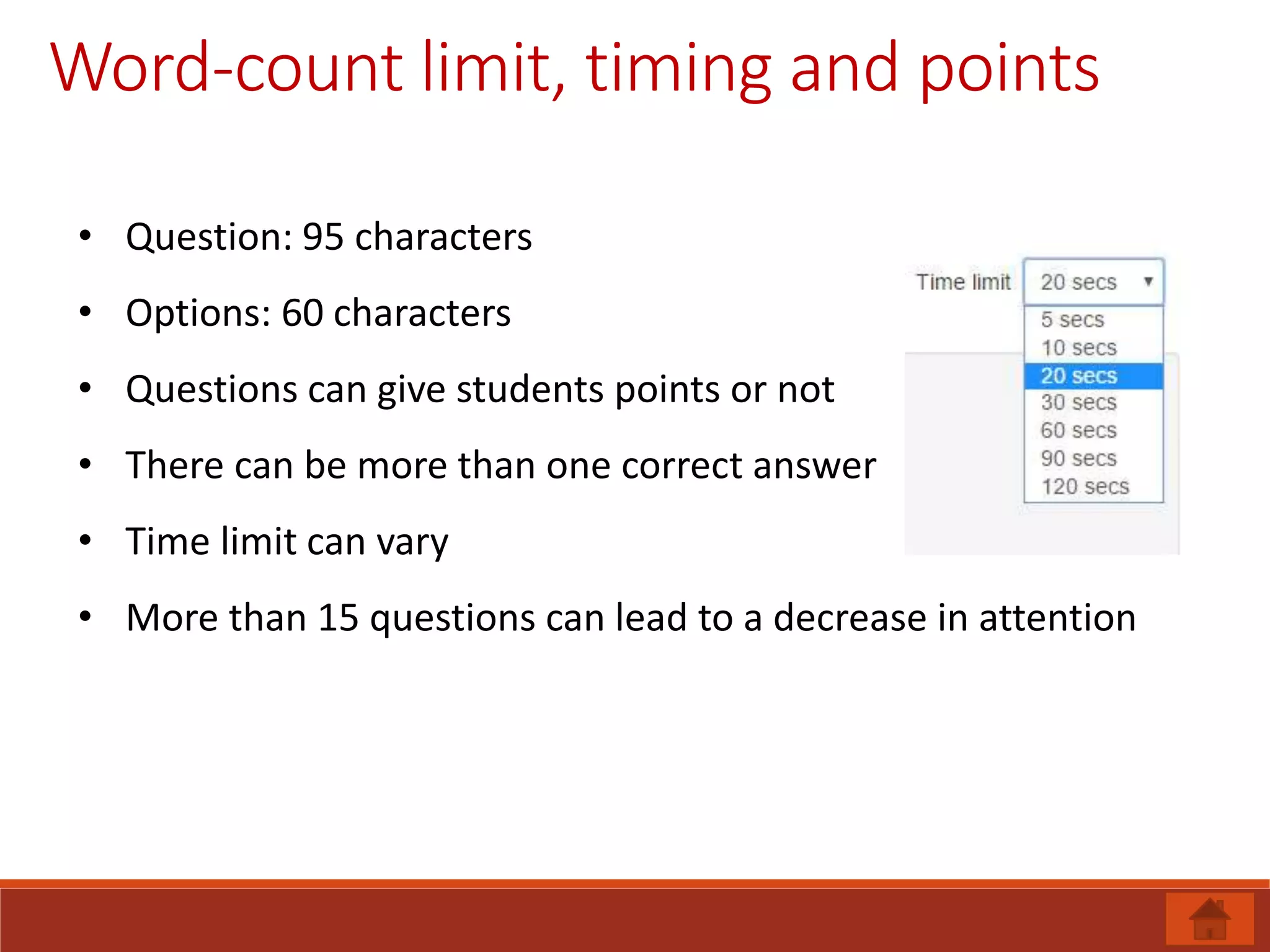
Word-count limit, timing and points
• Question: 95 characters
• Options: 60 characters
• Questions can give students points or not
• There can be more than one correct answer
• Time limit can vary
• More than 15 questions can lead to a decrease in attention
General options
Test results
Sharing tests
Finding public quizzes
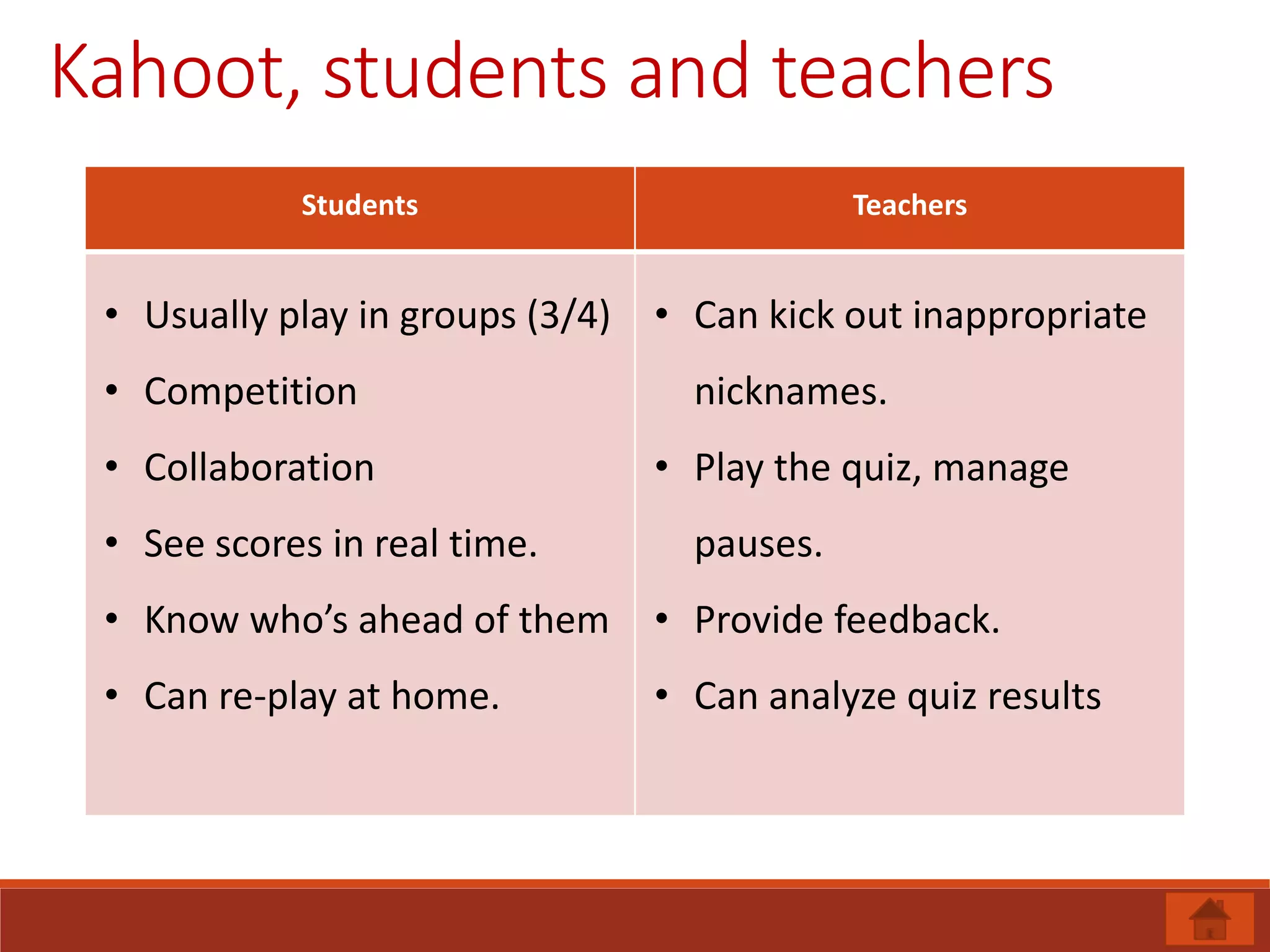
Kahoot, students and teachers
Students Teachers
• Usually play in groups (3/4)
• Competition
• Collaboration
• See scores in real time.
• Know who’s ahead of them
• Can re-play at home.
• Can kick out inappropriate
nicknames.
• Play the quiz, manage
pauses.
• Provide feedback.
• Can analyze quiz results
1. Visualizing student understanding
2. Room code
3. Creating a quiz
4. Editing questions
5. Question types.
6. Media and format
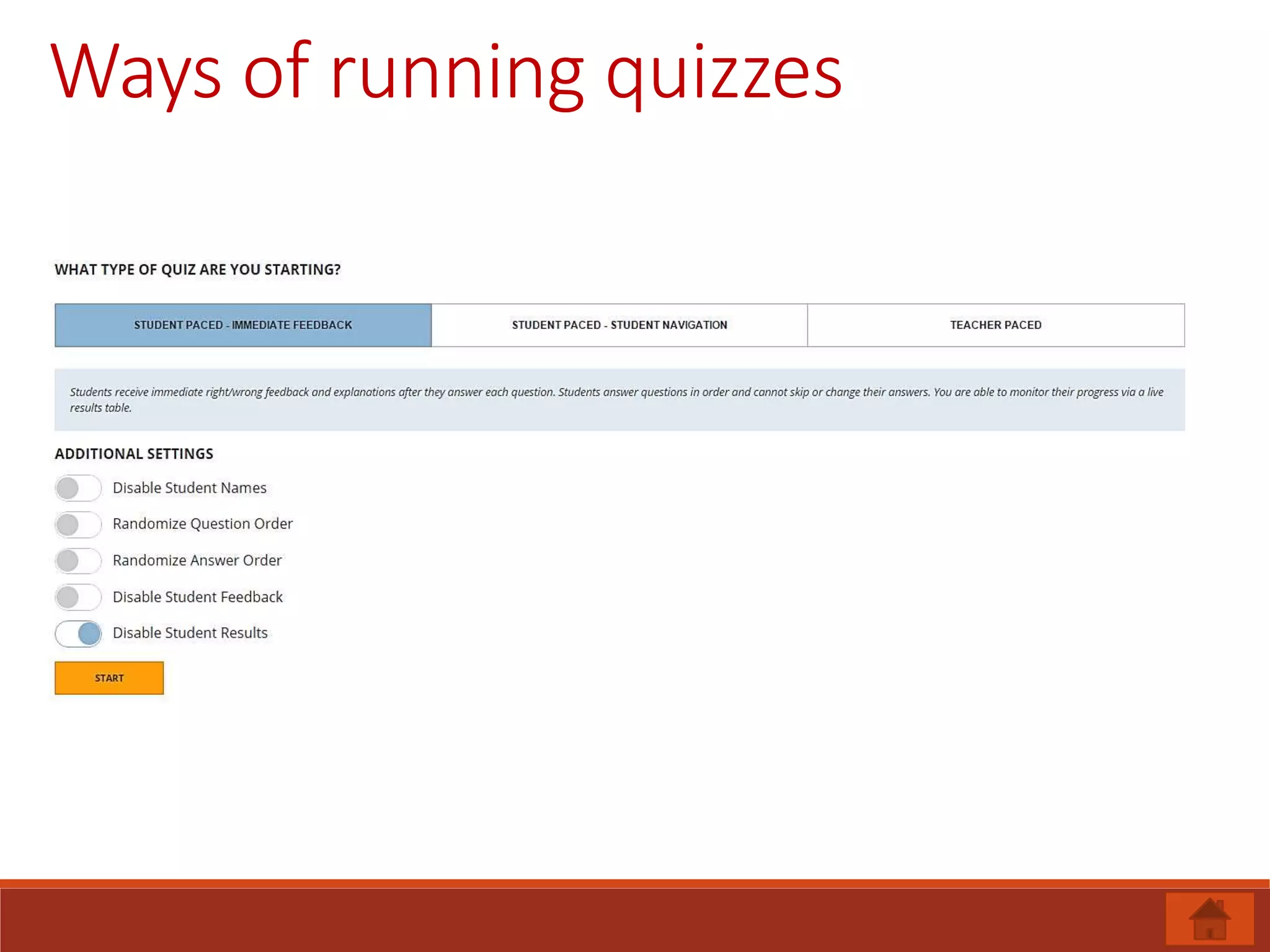
7. Ways of running quizzes.
8. Space race & exit ticket
9. Results
10. Sharing
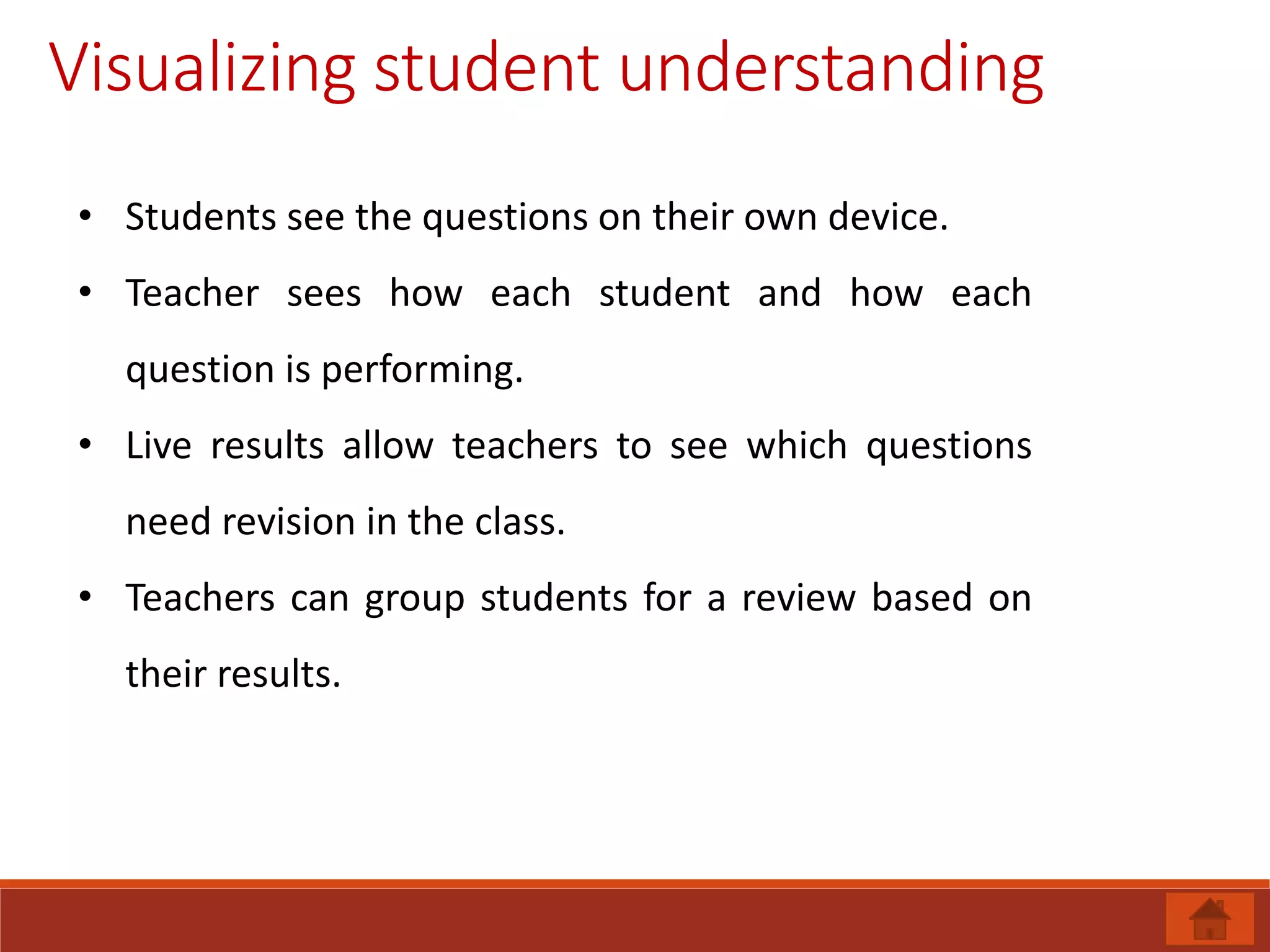
Visualizing student understanding
• Students see the questions on their own device.
• Teacher sees how each student and how each
question is performing.
• Live results allow teachers to see which questions
need revision in the class.
• Teachers can group students for a review based on
their results.
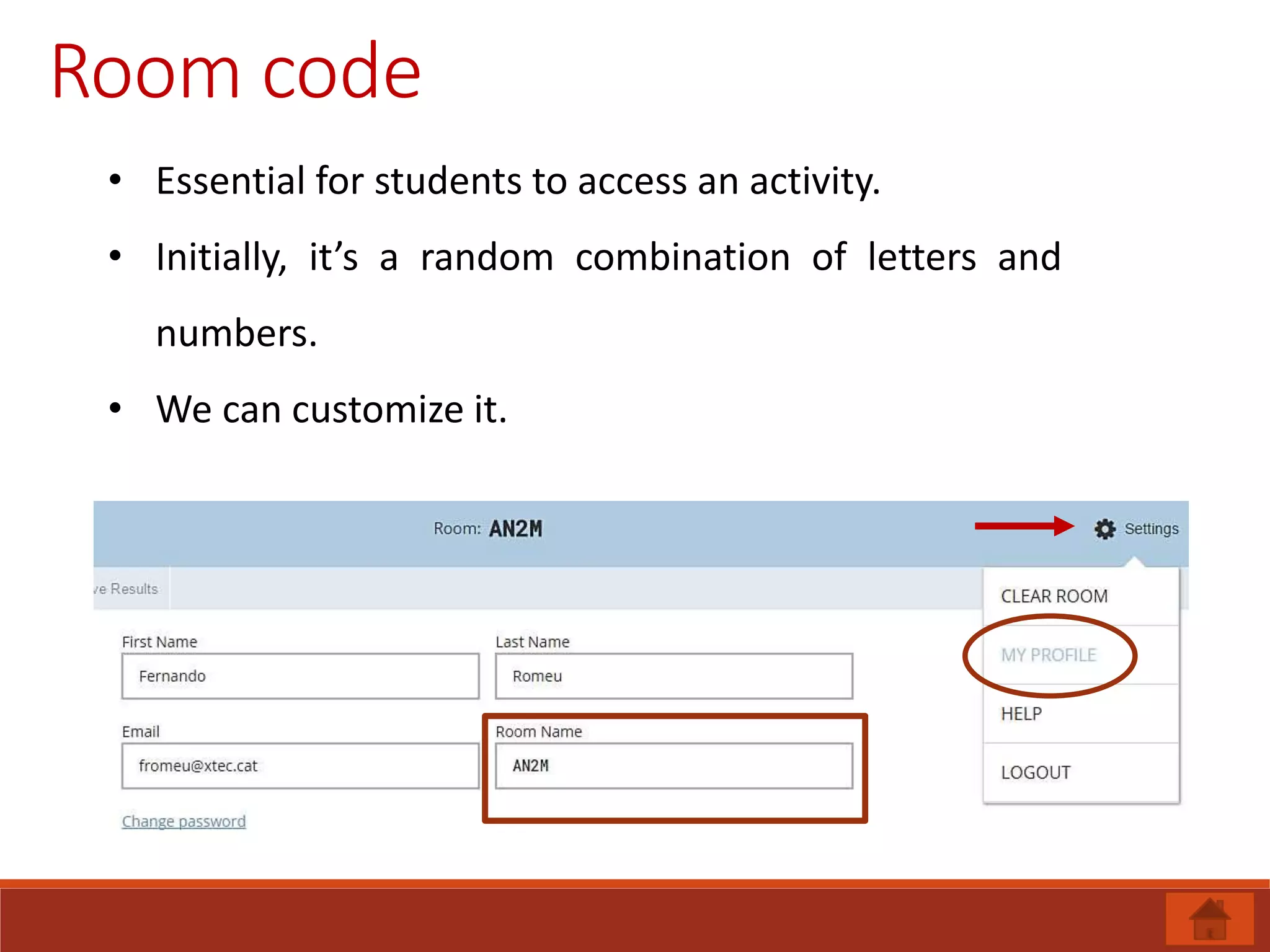
Room code
• Essential for students to access an activity.
• Initially, it’s a random combination of letters and
numbers.
• We can customize it.
Creating a quiz
• Go to “Manage Quizzes” and then “Create quiz”
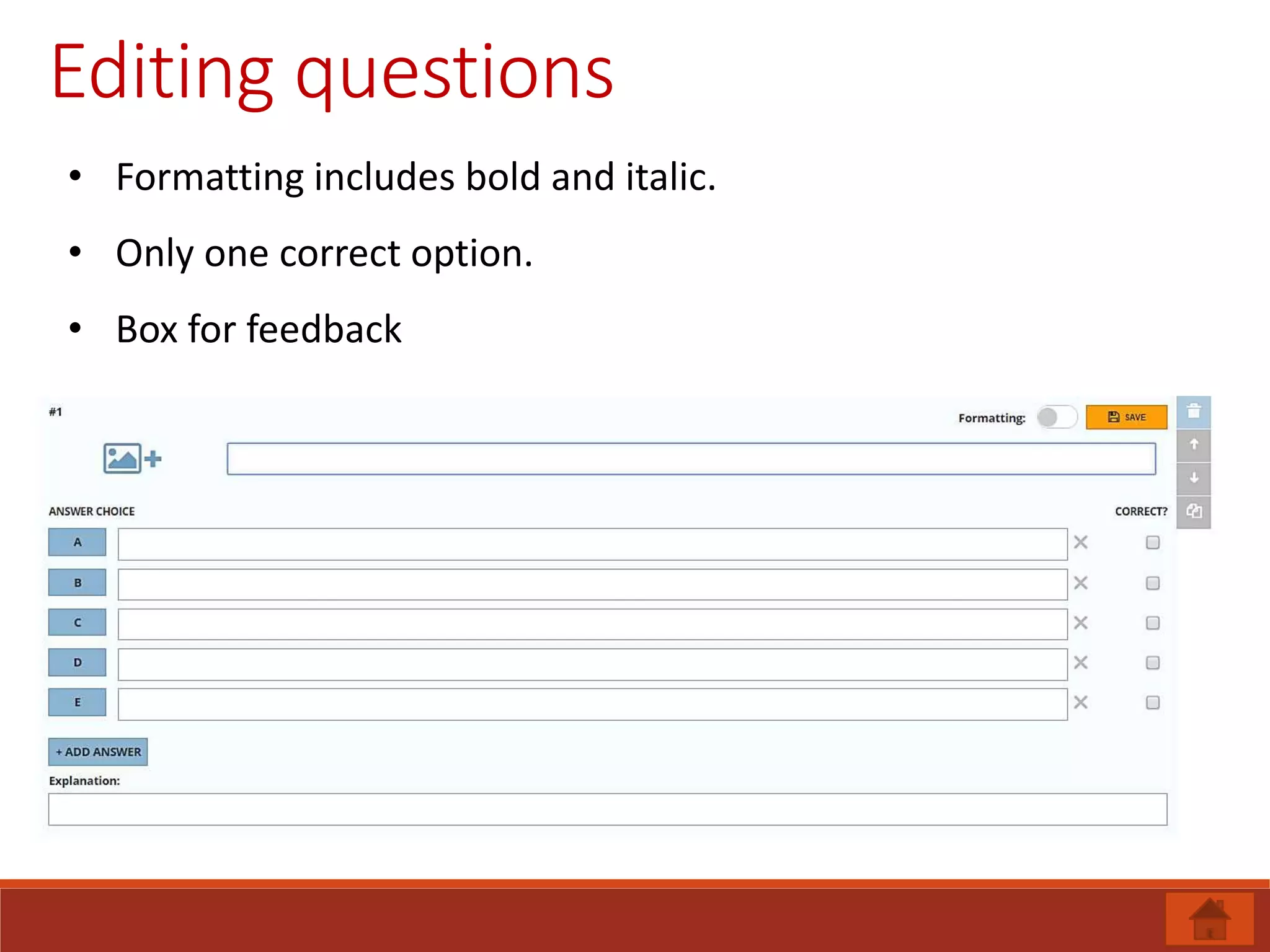
Editing questions
• Formatting includes bold and italic.
• Only one correct option.
• Box for feedback
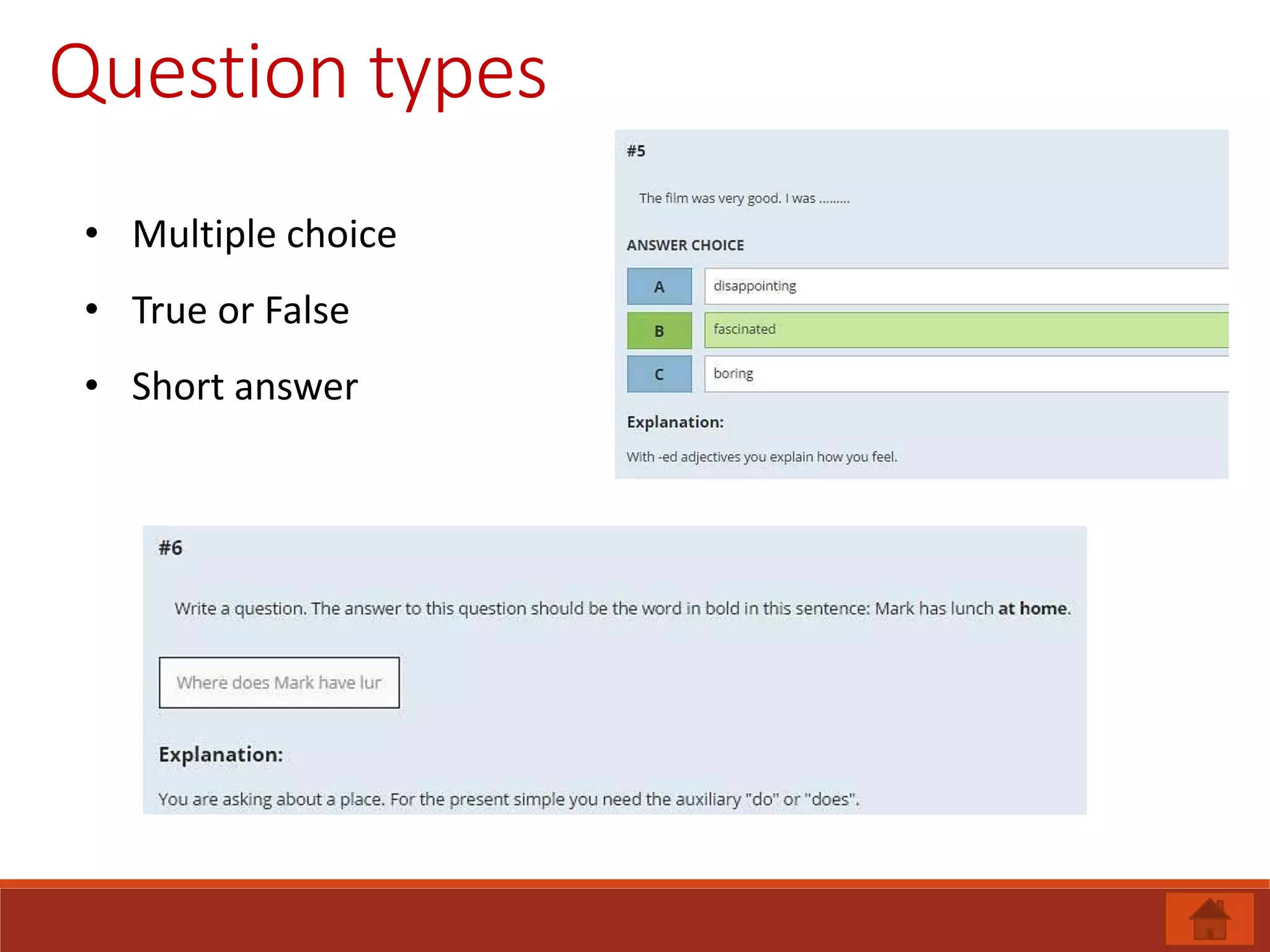
Question types
• Multiple choice
• True or False
• Short answer
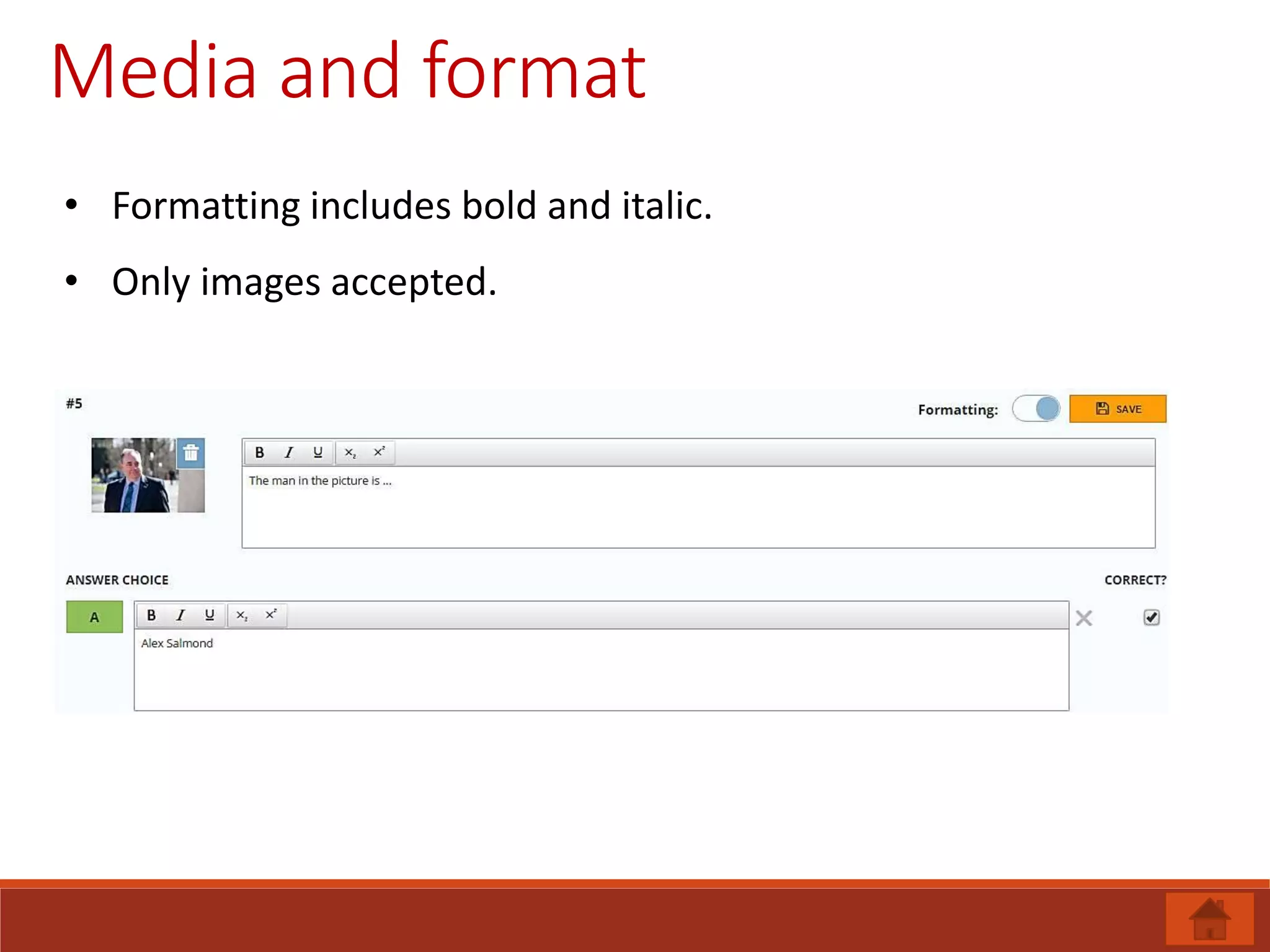
Media and format
• Formatting includes bold and italic.
• Only images accepted.
Ways of running quizzes
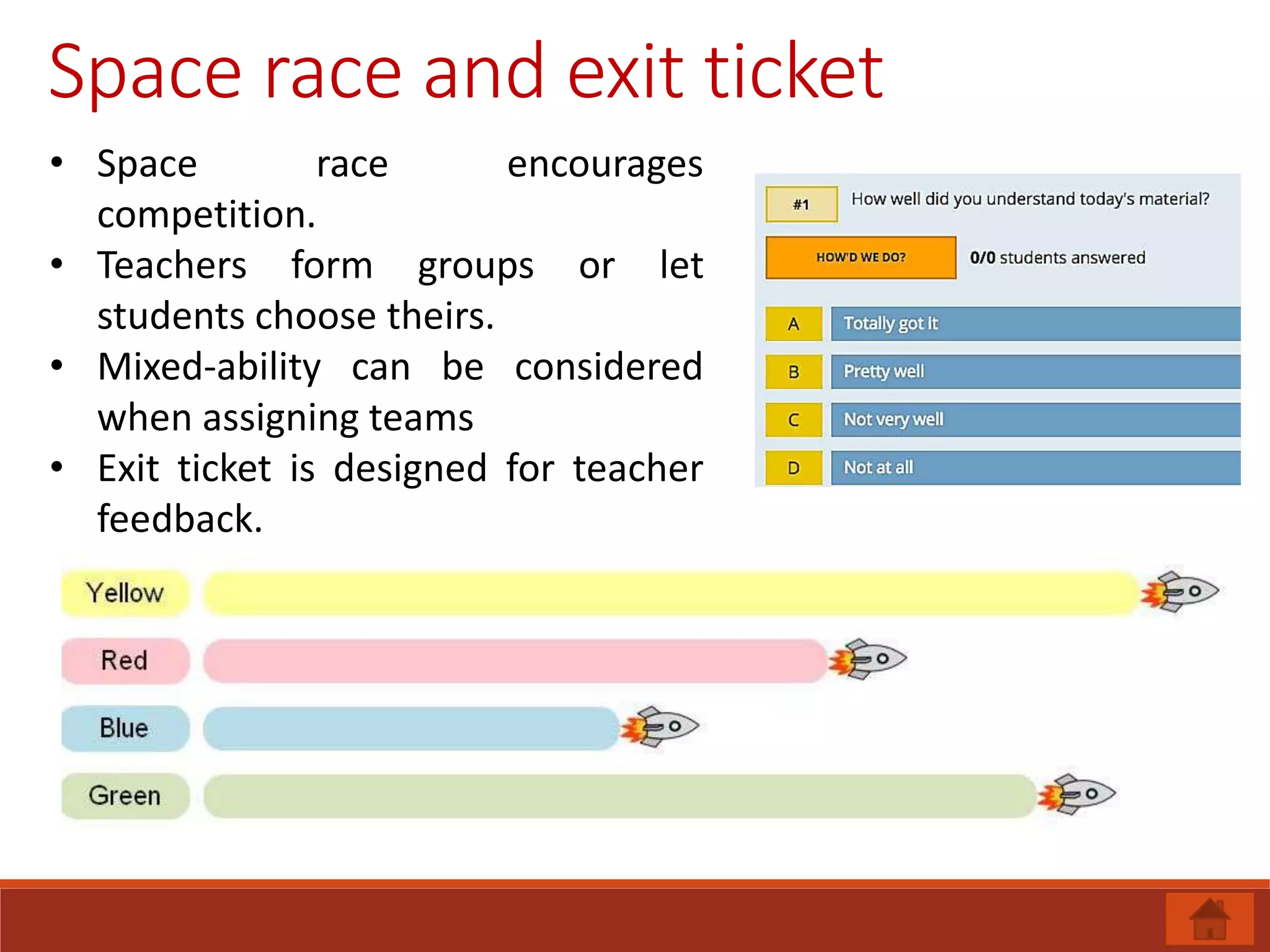
Space race and exit ticket
• Space race encourages
competition.
• Teachers form groups or let
students choose theirs.
• Mixed-ability can be considered
when assigning teams
• Exit ticket is designed for teacher
feedback.
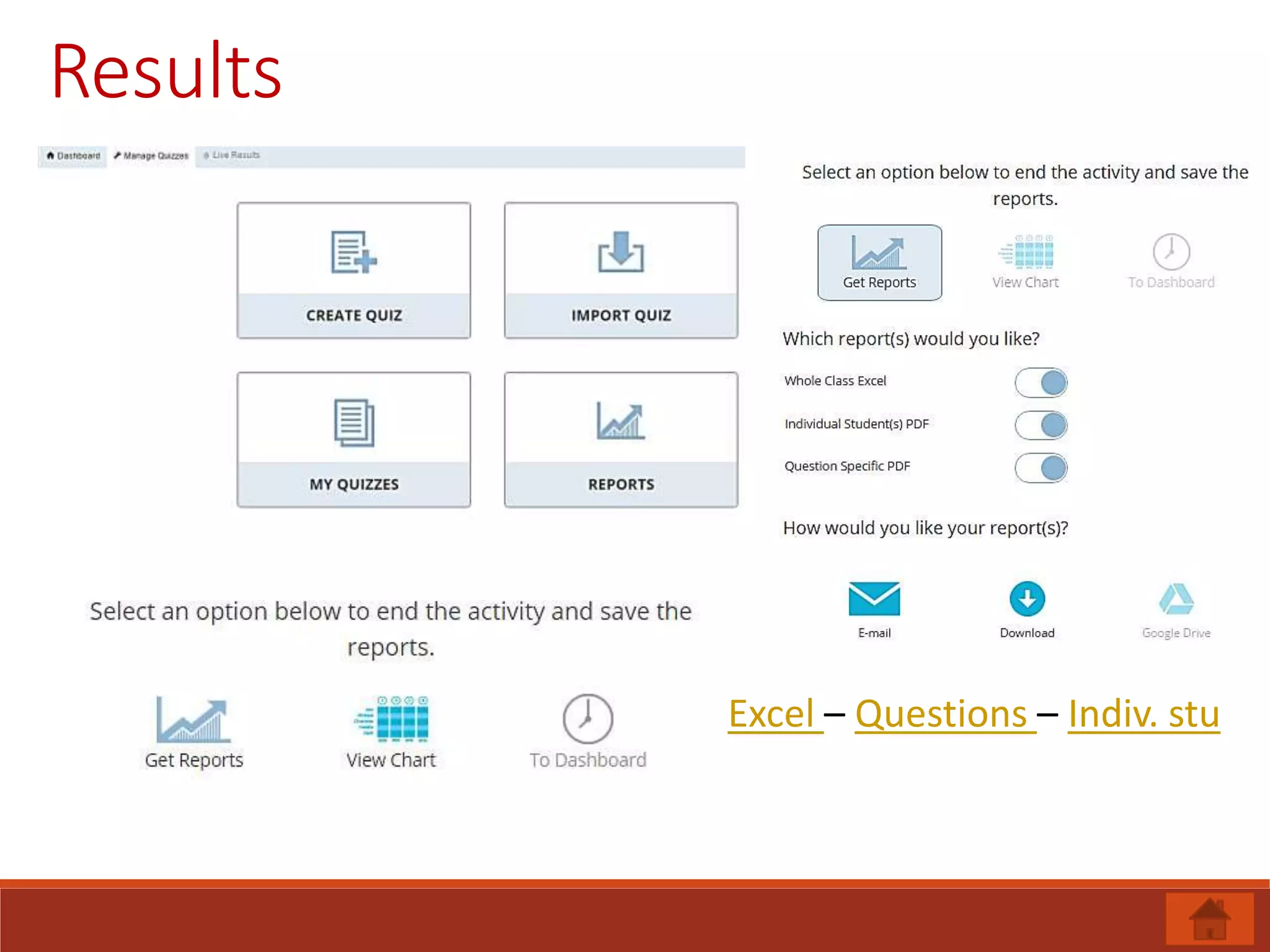
Results
Excel – Questions – Indiv. stu
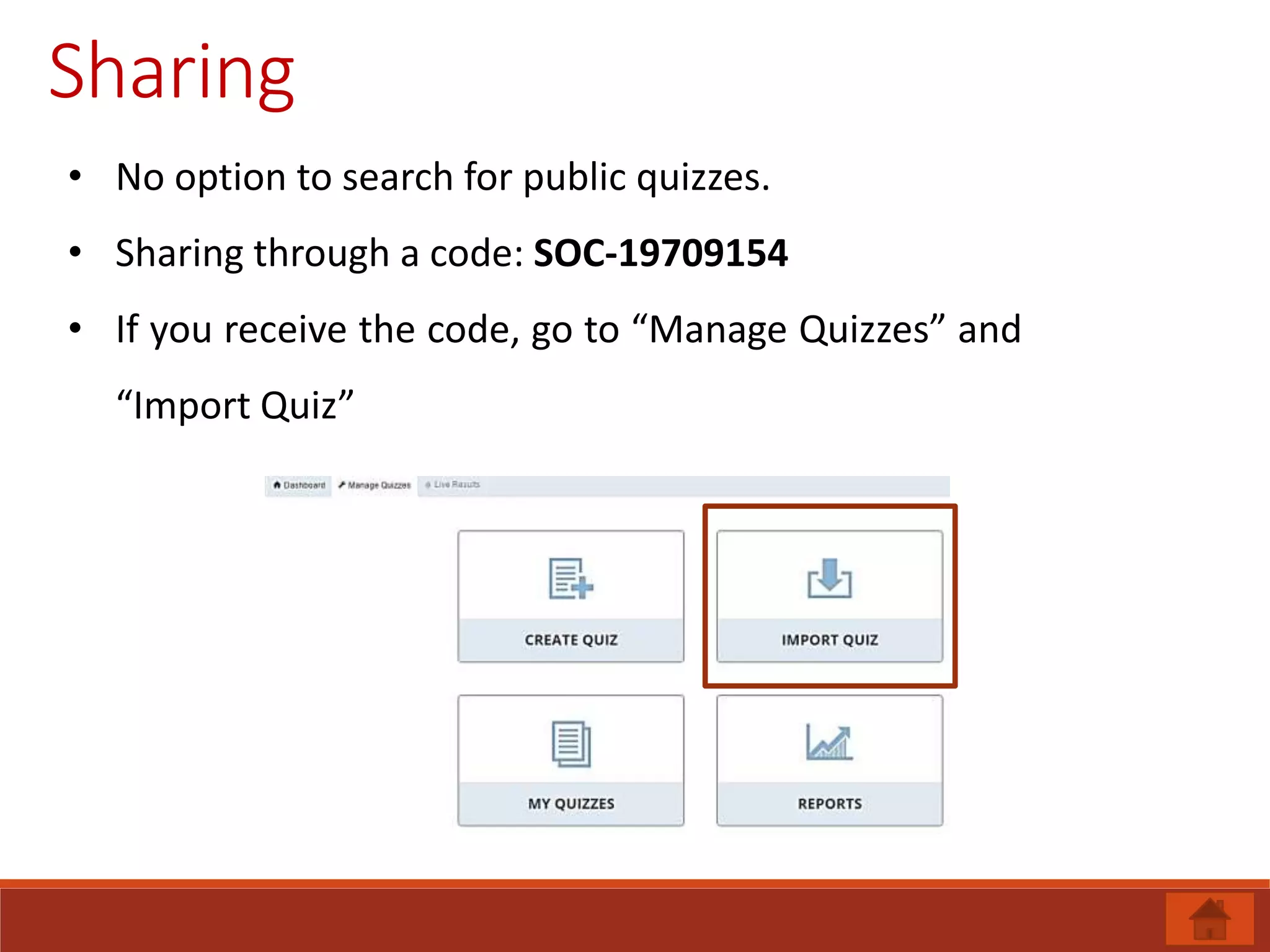
Sharing
• No option to search for public quizzes.
• Sharing through a code: SOC-19709154
• If you receive the code, go to “Manage Quizzes” and
“Import Quiz”
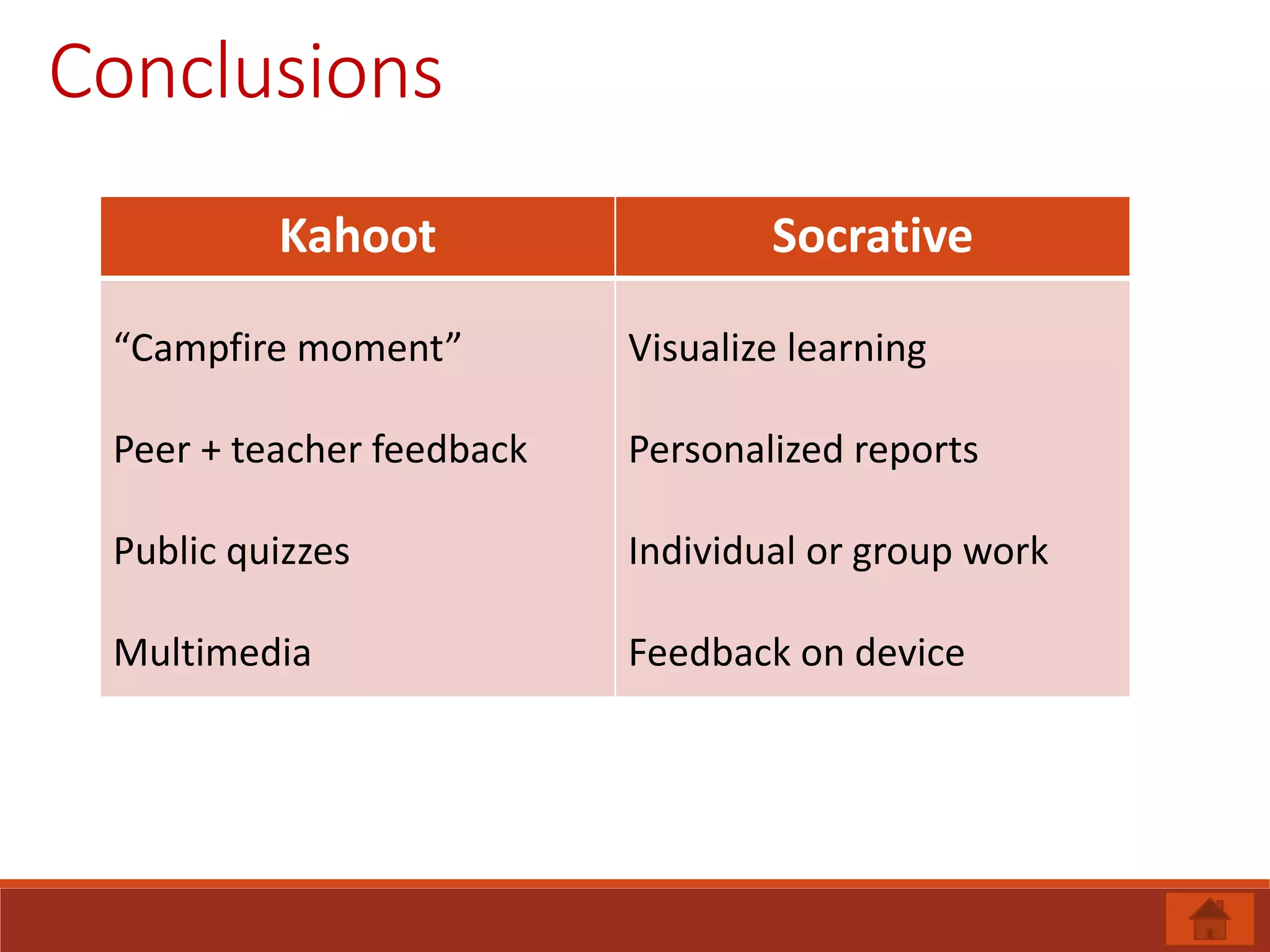
Conclusions
Kahoot Socrative
“Campfire moment”
Peer + teacher feedback
Public quizzes
Multimedia
Visualize learning
Personalized reports
Individual or group work
Feedback on device

Playing and learning with Socrative and Kahoot

  • 1.
    Fernando Romeu Esquerré EscolaOficial d’Idiomes De Tortosa PLAY LEARN www.elteaching.com
  • 2.
    1. Kahoot types 2.Creating a quiz 3. Question types a) Multiple choice b) Image-based c) Video-based 4. Word count limit, timing, points 5. General options for the quiz 6. Test results 7. Sharing tests 8. Finding public quizzes 9. Kahoot, students and teachers.
  • 3.
    Kahoot types The Quizis the most commonly used format, it includes timed responses and a points system creating a competitive atmosphere. The survey is similar but does not use points. This means it can be used for feedback or finding out what a class knows without the competition. A Discussion is a single question, without the competitive elements. This can be used to ignite discussion, at the beginning of a session. For example, you could ask a question such as 'I believe that women are biologically more suited to looking after children'. The responses will then appear at the front, which could ignite debate.
  • 4.
    Creating a quiz 1.Sign up / in at getkahoot.com 2. Choose the type of quiz you want to create. 3. Give it a name. 4. Add the questions 5. Add the tags, audience and difficulty level.
  • 5.
    Multiple choice • Controlover the number of options. • One or more correct answers • Clear view of students’ choices. • Formative feedback
  • 6.
    Image-based • Identify places •Vocabulary • Opposites • Actions
  • 7.
  • 8.
    Word-count limit, timingand points • Question: 95 characters • Options: 60 characters • Questions can give students points or not • There can be more than one correct answer • Time limit can vary • More than 15 questions can lead to a decrease in attention
  • 9.
  • 10.
  • 11.
  • 12.
  • 13.
    Kahoot, students andteachers Students Teachers • Usually play in groups (3/4) • Competition • Collaboration • See scores in real time. • Know who’s ahead of them • Can re-play at home. • Can kick out inappropriate nicknames. • Play the quiz, manage pauses. • Provide feedback. • Can analyze quiz results
  • 14.
    1. Visualizing studentunderstanding 2. Room code 3. Creating a quiz 4. Editing questions 5. Question types. 6. Media and format 7. Ways of running quizzes. 8. Space race & exit ticket 9. Results 10. Sharing
  • 15.
    Visualizing student understanding •Students see the questions on their own device. • Teacher sees how each student and how each question is performing. • Live results allow teachers to see which questions need revision in the class. • Teachers can group students for a review based on their results.
  • 16.
    Room code • Essentialfor students to access an activity. • Initially, it’s a random combination of letters and numbers. • We can customize it.
  • 17.
    Creating a quiz •Go to “Manage Quizzes” and then “Create quiz”
  • 18.
    Editing questions • Formattingincludes bold and italic. • Only one correct option. • Box for feedback
  • 19.
    Question types • Multiplechoice • True or False • Short answer
  • 20.
    Media and format •Formatting includes bold and italic. • Only images accepted.
  • 21.
  • 22.
    Space race andexit ticket • Space race encourages competition. • Teachers form groups or let students choose theirs. • Mixed-ability can be considered when assigning teams • Exit ticket is designed for teacher feedback.
  • 23.
  • 24.
    Sharing • No optionto search for public quizzes. • Sharing through a code: SOC-19709154 • If you receive the code, go to “Manage Quizzes” and “Import Quiz”
  • 25.
    Conclusions Kahoot Socrative “Campfire moment” Peer+ teacher feedback Public quizzes Multimedia Visualize learning Personalized reports Individual or group work Feedback on device

Editor's Notes

  • #3 Tip: Add your own speaker notes here.