A PRESENTATION ON PHP  - BY MANISH BOTHRA
Agenda 1. Brief History of PHP 3. Examples 2. INSTALLATION
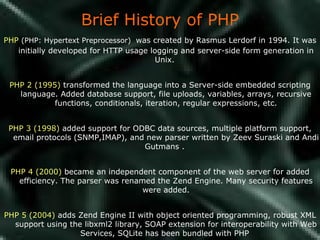
Brief History of PHP PHP   (PHP: Hypertext Preprocessor)   was created by Rasmus Lerdorf in 1994. It was initially developed for HTTP usage logging and server-side form generation in Unix.  PHP 2 (1995)  transformed the language into a Server-side embedded scripting language. Added database support, file uploads, variables, arrays, recursive functions, conditionals, iteration, regular expressions, etc. PHP 3 (1998)  added support for ODBC data sources, multiple platform support, email protocols (SNMP,IMAP), and new parser written by Zeev Suraski and Andi Gutmans .  PHP 4 (2000)  became an independent component of the web server for added efficiency. The parser was renamed the Zend Engine. Many security features were added. PHP 5 (2004)  adds Zend Engine II with object oriented programming, robust XML support using the libxml2 library, SOAP extension for interoperability with Web Services, SQLite has been bundled with PHP
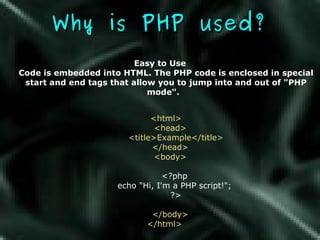
Why is PHP used? Easy to Use Code is embedded into HTML.   The PHP code is enclosed in special start and end tags that allow you to jump into and out of &quot;PHP mode&quot;.   <html>    <head>        <title>Example</title>    </head>    <body>        <?php         echo &quot;Hi, I'm a PHP script!&quot;;         ?>     </body> </html>
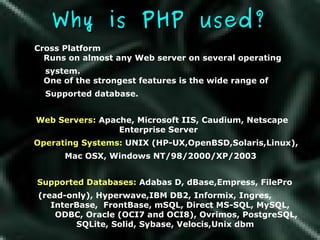
Why is PHP used? Cross Platform   Runs on almost any Web server on several operating  system.   One of the strongest features is the wide range of  Supported database. Web Servers:  Apache, Microsoft IIS, Caudium, Netscape Enterprise Server  Operating Systems:  UNIX (HP-UX,OpenBSD,Solaris,Linux), Mac OSX, Windows NT/98/2000/XP/2003 Supported Databases:  Adabas D, dBase,Empress, FilePro  (read-only), Hyperwave,IBM DB2, Informix, Ingres,  InterBase,  FrontBase, mSQL, Direct MS-SQL, MySQL,  ODBC, Oracle (OCI7 and OCI8), Ovrimos, PostgreSQL, SQLite, Solid, Sybase, Velocis,Unix dbm
INSTALLATION
Installing PHP on Windows I ntroduction Introduction and Scope Choosing an installation method Windows InstallShield Installation Manual Installation
Installing PHP on Windows Introduction Scope of this presentation NOT for production systems Assumes Windows and Web Server are already installed and configured Developing and testing only Covers default installation, no extensions
Installing PHP on Windows Introduction Supported 32-bit Windows Platforms (Win32)  Windows 9x (95/98/ME) Windows NT (NT/2000/XP) Workstation/Home/Professional Server Editions
Installing PHP on Windows Introduction Supported web server packages MS Personal Web Server (PWS) 3+ MS Internet Information Server (IIS) 3+ Apache Web Server 2+ Netscape, iPlanet Many many more
Installing PHP on Windows Introduction A quick word on security Web servers are targets! Stay patched MS Baseline Security Analyzer IIS Lockdown Tool Work offline if possible

Installing PHP on Windows Choosing an Installation Method Windows InstallShield  (Beginners) Manual Binary Installation  (Intermediate) Building from Source  (Advanced)
Installing PHP on Windows Choosing an Installation Method Windows Installshield Quick, small, easy Configures some common settings for a few  web servers (IIS, PWS, Xitami, Apache)  Only installs CGI version (php.exe) NOT a secure or production configuration  by default Limited extensions A quick-and-easy way to get your feet wet  with PHP
Installing PHP on Windows Choosing an Installation Method Manual Binary Installation Bigger download, but still less than 6MB Configuration is manual, but DLLs are available  for all supported web servers. Installs CGI version OR new ISAPI version. Forces you to consider security and performance  up-front with manual configuration of php.ini Requires manual copying of files, and setting of  permissions Requires manual configuration of your web server
Installing PHP on Windows Choosing an Installation Method Building from source A fun weekend project (not for the faint of heart) Poorly documented (“set and forget”)  Requires MS Visual Studio (C++)
Installing PHP on Windows Windows InstallShield Installation (IIS) Example environment Windows XP Professional (SP 1) IIS 5.1 PHP 4.3.1
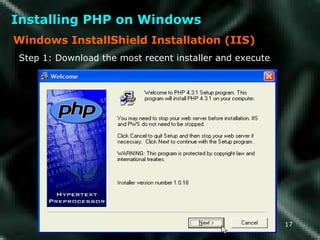
Installing PHP on Windows Windows InstallShield Installation (IIS) Step 1: Download the most recent installer and execute
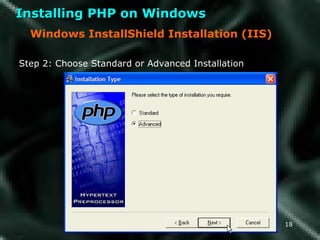
Installing PHP on Windows Windows InstallShield Installation (IIS) Step 2: Choose Standard or Advanced Installation
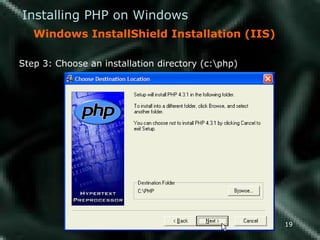
Installing PHP on Windows Windows InstallShield Installation (IIS) Step 3: Choose an installation directory (c:\php)
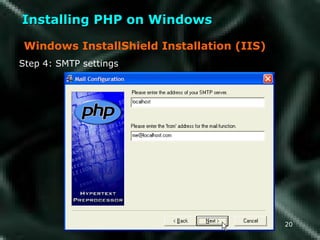
Installing PHP on Windows Windows InstallShield Installation (IIS) Step 4: SMTP settings
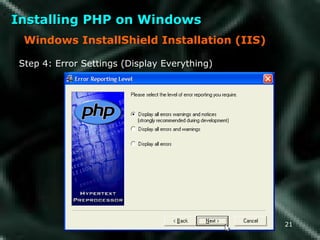
Installing PHP on Windows Windows InstallShield Installation (IIS) Step 4: Error Settings (Display Everything)
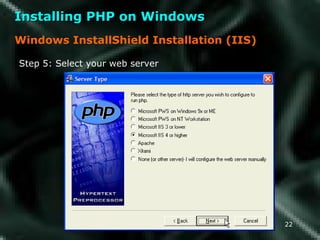
Installing PHP on Windows Windows InstallShield Installation (IIS) Step 5: Select your web server
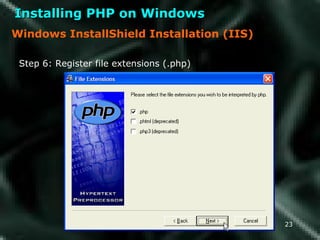
Installing PHP on Windows Windows InstallShield Installation (IIS) Step 6: Register file extensions (.php)
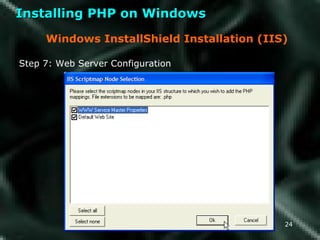
Installing PHP on Windows Windows InstallShield Installation (IIS) Step 7: Web Server Configuration
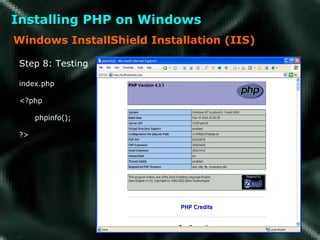
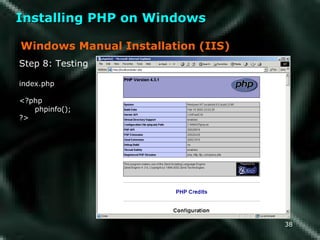
Installing PHP on Windows Windows InstallShield Installation (IIS) Step 8: Testing index.php <?php phpinfo(); ?>
Installing PHP on Windows Windows Manual Installation (IIS) Example environment Windows 2000 Server (SP 3) IIS 5.0 PHP 4.3.1 For brevity, the following conventions will be Used: %SROOT%  - The Systems Windows directory, often referred to as  “ System Root”. Depending on version of Windows, this may be  c:\windows or c:\winnt System Folder  – The folder where your Windows installation keeps  important system files. Usually %SROOT%\System32
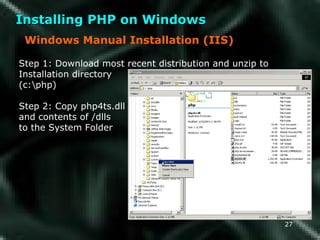
Installing PHP on Windows Windows Manual Installation (IIS) Step 1: Download most recent distribution and unzip to Installation directory  (c:\php) Step 2: Copy php4ts.dll and contents of /dlls to the System Folder
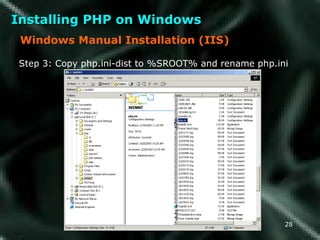
Installing PHP on Windows Windows Manual Installation (IIS) Step 3: Copy php.ini-dist to %SROOT% and rename php.ini
Installing PHP on Windows Windows Manual Installation (IIS) Step 4: Edit php.ini Extensions directory. By default, extensions are kept in the  “ extensions” folder of the installation directory. extension_dir = c:\php\extensions\ Document Root. This is the local folder that your web server uses  as the web publishing root directory. doc_root = c:\Inetpub\wwwroot For IIS installations you MUST turn off cgi.force_redirect cgi.force_redirect = 0
Installing PHP on Windows Windows Manual Installation (IIS) Step 5: Set file permissions The following files and folders must have “read” and “execute” permissions enabled for the system’s web user (I_USR_ hostname ) %SROOT%\php.ini C:\php\
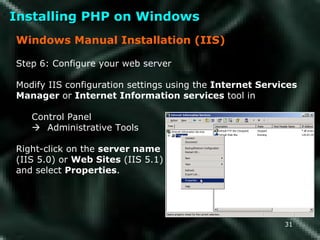
Installing PHP on Windows Windows Manual Installation (IIS) Step 6: Configure your web server Modify IIS configuration settings using the  Internet Services Manager  or  Internet Information services  tool in  Control Panel     Administrative Tools Right-click on the  server name   (IIS 5.0) or  Web Sites  (IIS 5.1) and select  Properties .
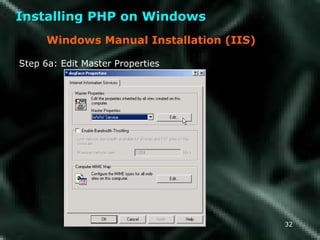
Installing PHP on Windows Windows Manual Installation (IIS) Step 6a: Edit Master Properties
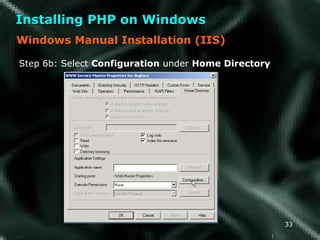
Installing PHP on Windows ) Windows Manual Installation (IIS) Step 6b: Select  Configuration  under  Home Directory
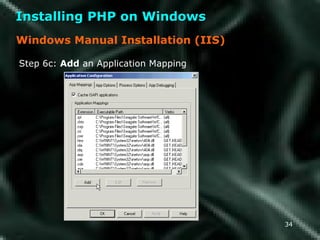
Installing PHP on Windows Windows Manual Installation (IIS) Step 6c:  Add  an Application Mapping
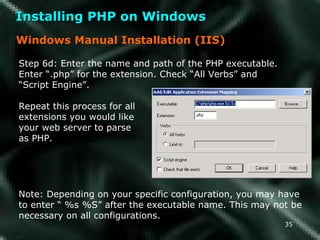
Installing PHP on Windows Windows Manual Installation (IIS) Step 6d: Enter the name and path of the PHP executable.  Enter “.php” for the extension. Check “All Verbs” and  “ Script Engine”.  Repeat this process for all extensions you would like  your web server to parse as PHP. Note: Depending on your specific configuration, you may have  to enter “ %s %S” after the executable name. This may not be  necessary on all configurations.
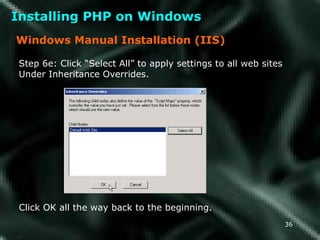
Installing PHP on Windows Windows Manual Installation (IIS) Step 6e: Click “Select All” to apply settings to all web sites Under Inheritance Overrides. Click OK all the way back to the beginning.
Installing PHP on Windows Windows Manual Installation (IIS) Step 7: RESTART all web services. It doesn’t hurt to reboot Windows.
Installing PHP on Windows Windows Manual Installation (IIS) Step 8: Testing index.php <?php phpinfo(); ?>
EXAMPLES
Examples PHP is a great way to implement templates on your website.  How to implement a simple page counter
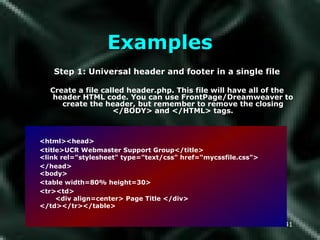
Examples Step 1: Universal header and footer in a single file Create a file called header.php. This file will have all of the header HTML code. You can use FrontPage/Dreamweaver to create the header, but remember to remove the closing </BODY> and </HTML> tags. <html><head> <title>UCR Webmaster Support Group</title> <link rel=&quot;stylesheet&quot; type=&quot;text/css&quot; href=“mycssfile.css&quot;> </head> <body> <table width=80% height=30> <tr><td> <div align=center> Page Title </div> </td></tr></table>
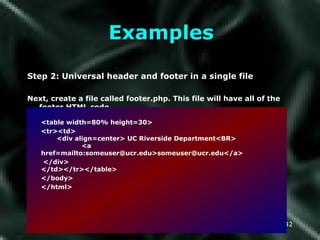
Examples Step 2: Universal header and footer in a single file Next, create a file called footer.php. This file will have all of the footer HTML code. <table width=80% height=30> <tr><td> <div align=center> UC Riverside Department<BR>   <a href=mailto:someuser@ucr.edu>someuser@ucr.edu</a> </div> </td></tr></table>  </body> </html>
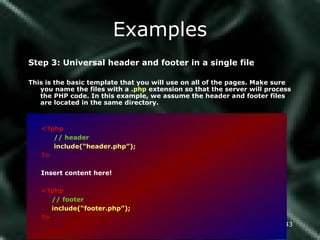
Examples Step 3: Universal header and footer in a single file This is the basic template that you will use on all of the pages. Make sure you name the files with a  .php  extension so that the server will process the PHP code. In this example, we assume the header and footer files are located in the same directory. <?php // header include(“header.php”); ?> Insert content here! <?php // footer include(“footer.php”); ?>
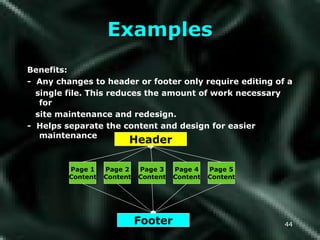
Examples Benefits:  -  Any changes to header or footer only require editing of a  single file. This reduces the amount of work necessary for site maintenance and redesign.  -  Helps separate the content and design for easier maintenance Page 1 Content Page 5 Content Page 3 Content Page 2 Content Page 4 Content Header Footer
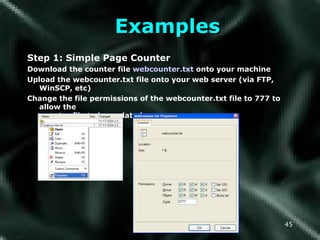
Examples Step 1: Simple Page Counter Download the counter file  webcounter.txt  onto your machine Upload the webcounter.txt file onto your web server (via FTP, WinSCP, etc) Change the file permissions of the webcounter.txt file to 777 to allow the counter file to be updated.
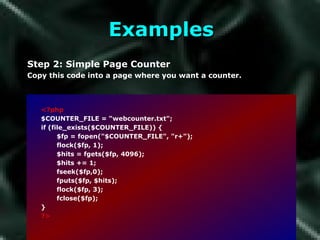
Examples Step 2: Simple Page Counter Copy this code into a page where you want a counter. <?php $COUNTER_FILE = “webcounter.txt&quot;; if (file_exists($COUNTER_FILE)) { $fp = fopen(&quot;$COUNTER_FILE&quot;, &quot;r+&quot;); flock($fp, 1); $hits = fgets($fp, 4096); $hits += 1;  fseek($fp,0); fputs($fp, $hits); flock($fp, 3); fclose($fp); }  ?>
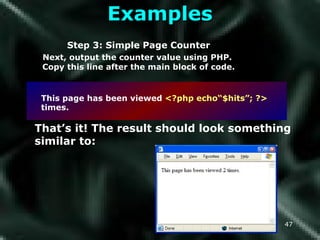
Examples Step 3: Simple Page Counter Next, output the counter value using PHP.  Copy this line after the main block of code. That’s it! The result should look something similar to: This page has been viewed   <?php echo“$hits”; ?>   times.
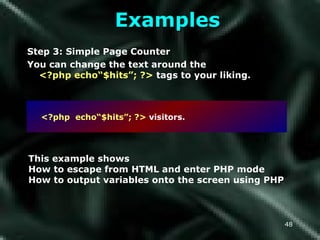
Examples Step 3: Simple Page Counter You can change the text around the  <?php echo“$hits”; ?>  tags to your liking. This example shows How to escape from HTML and enter PHP mode How to output variables onto the screen using PHP <?php  echo“$hits”; ?>   visitors.
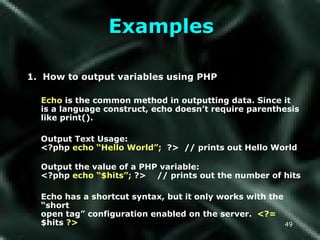
Examples 1.  How to output variables using PHP Echo  is the common method in outputting data. Since it  is a language construct, echo doesn’t require parenthesis like print(). Output Text Usage:  <?php  echo “Hello World”;   ?>  // prints out Hello World Output the value of a PHP variable: <?php  echo “$hits”;  ?>  // prints out the number of hits Echo has a shortcut syntax, but it only works with the “short  open tag” configuration enabled on the server.  <?=  $hits  ?>
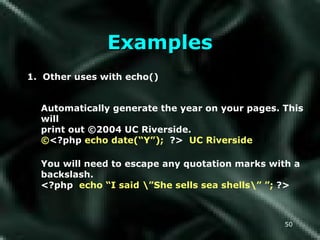
Examples 1.  Other uses with echo() Automatically generate the year on your pages. This will print out ©2004 UC Riverside.  © <?php  echo date(“Y”);  ?>   UC Riverside You will need to escape any quotation marks with a backslash. <?php   echo “I said \”She sells sea shells\” ”;  ?>
THANK YOU

Php Presentation

  • 1.
    A PRESENTATION ONPHP - BY MANISH BOTHRA
  • 2.
    Agenda 1. BriefHistory of PHP 3. Examples 2. INSTALLATION
  • 3.
    Brief History ofPHP PHP (PHP: Hypertext Preprocessor) was created by Rasmus Lerdorf in 1994. It was initially developed for HTTP usage logging and server-side form generation in Unix. PHP 2 (1995) transformed the language into a Server-side embedded scripting language. Added database support, file uploads, variables, arrays, recursive functions, conditionals, iteration, regular expressions, etc. PHP 3 (1998) added support for ODBC data sources, multiple platform support, email protocols (SNMP,IMAP), and new parser written by Zeev Suraski and Andi Gutmans . PHP 4 (2000) became an independent component of the web server for added efficiency. The parser was renamed the Zend Engine. Many security features were added. PHP 5 (2004) adds Zend Engine II with object oriented programming, robust XML support using the libxml2 library, SOAP extension for interoperability with Web Services, SQLite has been bundled with PHP
  • 4.
    Why is PHPused? Easy to Use Code is embedded into HTML. The PHP code is enclosed in special start and end tags that allow you to jump into and out of &quot;PHP mode&quot;. <html>    <head>        <title>Example</title>    </head>    <body>        <?php        echo &quot;Hi, I'm a PHP script!&quot;;        ?>     </body> </html>
  • 5.
    Why is PHPused? Cross Platform Runs on almost any Web server on several operating system. One of the strongest features is the wide range of Supported database. Web Servers: Apache, Microsoft IIS, Caudium, Netscape Enterprise Server Operating Systems: UNIX (HP-UX,OpenBSD,Solaris,Linux), Mac OSX, Windows NT/98/2000/XP/2003 Supported Databases: Adabas D, dBase,Empress, FilePro (read-only), Hyperwave,IBM DB2, Informix, Ingres, InterBase, FrontBase, mSQL, Direct MS-SQL, MySQL, ODBC, Oracle (OCI7 and OCI8), Ovrimos, PostgreSQL, SQLite, Solid, Sybase, Velocis,Unix dbm
  • 6.
  • 7.
    Installing PHP onWindows I ntroduction Introduction and Scope Choosing an installation method Windows InstallShield Installation Manual Installation
  • 8.
    Installing PHP onWindows Introduction Scope of this presentation NOT for production systems Assumes Windows and Web Server are already installed and configured Developing and testing only Covers default installation, no extensions
  • 9.
    Installing PHP onWindows Introduction Supported 32-bit Windows Platforms (Win32) Windows 9x (95/98/ME) Windows NT (NT/2000/XP) Workstation/Home/Professional Server Editions
  • 10.
    Installing PHP onWindows Introduction Supported web server packages MS Personal Web Server (PWS) 3+ MS Internet Information Server (IIS) 3+ Apache Web Server 2+ Netscape, iPlanet Many many more
  • 11.
    Installing PHP onWindows Introduction A quick word on security Web servers are targets! Stay patched MS Baseline Security Analyzer IIS Lockdown Tool Work offline if possible
  • 12.
    Installing PHP onWindows Choosing an Installation Method Windows InstallShield (Beginners) Manual Binary Installation (Intermediate) Building from Source (Advanced)
  • 13.
    Installing PHP onWindows Choosing an Installation Method Windows Installshield Quick, small, easy Configures some common settings for a few web servers (IIS, PWS, Xitami, Apache) Only installs CGI version (php.exe) NOT a secure or production configuration by default Limited extensions A quick-and-easy way to get your feet wet with PHP
  • 14.
    Installing PHP onWindows Choosing an Installation Method Manual Binary Installation Bigger download, but still less than 6MB Configuration is manual, but DLLs are available for all supported web servers. Installs CGI version OR new ISAPI version. Forces you to consider security and performance up-front with manual configuration of php.ini Requires manual copying of files, and setting of permissions Requires manual configuration of your web server
  • 15.
    Installing PHP onWindows Choosing an Installation Method Building from source A fun weekend project (not for the faint of heart) Poorly documented (“set and forget”) Requires MS Visual Studio (C++)
  • 16.
    Installing PHP onWindows Windows InstallShield Installation (IIS) Example environment Windows XP Professional (SP 1) IIS 5.1 PHP 4.3.1
  • 17.
    Installing PHP onWindows Windows InstallShield Installation (IIS) Step 1: Download the most recent installer and execute
  • 18.
    Installing PHP onWindows Windows InstallShield Installation (IIS) Step 2: Choose Standard or Advanced Installation
  • 19.
    Installing PHP onWindows Windows InstallShield Installation (IIS) Step 3: Choose an installation directory (c:\php)
  • 20.
    Installing PHP onWindows Windows InstallShield Installation (IIS) Step 4: SMTP settings
  • 21.
    Installing PHP onWindows Windows InstallShield Installation (IIS) Step 4: Error Settings (Display Everything)
  • 22.
    Installing PHP onWindows Windows InstallShield Installation (IIS) Step 5: Select your web server
  • 23.
    Installing PHP onWindows Windows InstallShield Installation (IIS) Step 6: Register file extensions (.php)
  • 24.
    Installing PHP onWindows Windows InstallShield Installation (IIS) Step 7: Web Server Configuration
  • 25.
    Installing PHP onWindows Windows InstallShield Installation (IIS) Step 8: Testing index.php <?php phpinfo(); ?>
  • 26.
    Installing PHP onWindows Windows Manual Installation (IIS) Example environment Windows 2000 Server (SP 3) IIS 5.0 PHP 4.3.1 For brevity, the following conventions will be Used: %SROOT% - The Systems Windows directory, often referred to as “ System Root”. Depending on version of Windows, this may be c:\windows or c:\winnt System Folder – The folder where your Windows installation keeps important system files. Usually %SROOT%\System32
  • 27.
    Installing PHP onWindows Windows Manual Installation (IIS) Step 1: Download most recent distribution and unzip to Installation directory (c:\php) Step 2: Copy php4ts.dll and contents of /dlls to the System Folder
  • 28.
    Installing PHP onWindows Windows Manual Installation (IIS) Step 3: Copy php.ini-dist to %SROOT% and rename php.ini
  • 29.
    Installing PHP onWindows Windows Manual Installation (IIS) Step 4: Edit php.ini Extensions directory. By default, extensions are kept in the “ extensions” folder of the installation directory. extension_dir = c:\php\extensions\ Document Root. This is the local folder that your web server uses as the web publishing root directory. doc_root = c:\Inetpub\wwwroot For IIS installations you MUST turn off cgi.force_redirect cgi.force_redirect = 0
  • 30.
    Installing PHP onWindows Windows Manual Installation (IIS) Step 5: Set file permissions The following files and folders must have “read” and “execute” permissions enabled for the system’s web user (I_USR_ hostname ) %SROOT%\php.ini C:\php\
  • 31.
    Installing PHP onWindows Windows Manual Installation (IIS) Step 6: Configure your web server Modify IIS configuration settings using the Internet Services Manager or Internet Information services tool in Control Panel  Administrative Tools Right-click on the server name (IIS 5.0) or Web Sites (IIS 5.1) and select Properties .
  • 32.
    Installing PHP onWindows Windows Manual Installation (IIS) Step 6a: Edit Master Properties
  • 33.
    Installing PHP onWindows ) Windows Manual Installation (IIS) Step 6b: Select Configuration under Home Directory
  • 34.
    Installing PHP onWindows Windows Manual Installation (IIS) Step 6c: Add an Application Mapping
  • 35.
    Installing PHP onWindows Windows Manual Installation (IIS) Step 6d: Enter the name and path of the PHP executable. Enter “.php” for the extension. Check “All Verbs” and “ Script Engine”. Repeat this process for all extensions you would like your web server to parse as PHP. Note: Depending on your specific configuration, you may have to enter “ %s %S” after the executable name. This may not be necessary on all configurations.
  • 36.
    Installing PHP onWindows Windows Manual Installation (IIS) Step 6e: Click “Select All” to apply settings to all web sites Under Inheritance Overrides. Click OK all the way back to the beginning.
  • 37.
    Installing PHP onWindows Windows Manual Installation (IIS) Step 7: RESTART all web services. It doesn’t hurt to reboot Windows.
  • 38.
    Installing PHP onWindows Windows Manual Installation (IIS) Step 8: Testing index.php <?php phpinfo(); ?>
  • 39.
  • 40.
    Examples PHP isa great way to implement templates on your website. How to implement a simple page counter
  • 41.
    Examples Step 1:Universal header and footer in a single file Create a file called header.php. This file will have all of the header HTML code. You can use FrontPage/Dreamweaver to create the header, but remember to remove the closing </BODY> and </HTML> tags. <html><head> <title>UCR Webmaster Support Group</title> <link rel=&quot;stylesheet&quot; type=&quot;text/css&quot; href=“mycssfile.css&quot;> </head> <body> <table width=80% height=30> <tr><td> <div align=center> Page Title </div> </td></tr></table>
  • 42.
    Examples Step 2:Universal header and footer in a single file Next, create a file called footer.php. This file will have all of the footer HTML code. <table width=80% height=30> <tr><td> <div align=center> UC Riverside Department<BR> <a href=mailto:someuser@ucr.edu>someuser@ucr.edu</a> </div> </td></tr></table> </body> </html>
  • 43.
    Examples Step 3:Universal header and footer in a single file This is the basic template that you will use on all of the pages. Make sure you name the files with a .php extension so that the server will process the PHP code. In this example, we assume the header and footer files are located in the same directory. <?php // header include(“header.php”); ?> Insert content here! <?php // footer include(“footer.php”); ?>
  • 44.
    Examples Benefits: - Any changes to header or footer only require editing of a single file. This reduces the amount of work necessary for site maintenance and redesign. - Helps separate the content and design for easier maintenance Page 1 Content Page 5 Content Page 3 Content Page 2 Content Page 4 Content Header Footer
  • 45.
    Examples Step 1:Simple Page Counter Download the counter file webcounter.txt onto your machine Upload the webcounter.txt file onto your web server (via FTP, WinSCP, etc) Change the file permissions of the webcounter.txt file to 777 to allow the counter file to be updated.
  • 46.
    Examples Step 2:Simple Page Counter Copy this code into a page where you want a counter. <?php $COUNTER_FILE = “webcounter.txt&quot;; if (file_exists($COUNTER_FILE)) { $fp = fopen(&quot;$COUNTER_FILE&quot;, &quot;r+&quot;); flock($fp, 1); $hits = fgets($fp, 4096); $hits += 1; fseek($fp,0); fputs($fp, $hits); flock($fp, 3); fclose($fp); } ?>
  • 47.
    Examples Step 3:Simple Page Counter Next, output the counter value using PHP. Copy this line after the main block of code. That’s it! The result should look something similar to: This page has been viewed <?php echo“$hits”; ?> times.
  • 48.
    Examples Step 3:Simple Page Counter You can change the text around the <?php echo“$hits”; ?> tags to your liking. This example shows How to escape from HTML and enter PHP mode How to output variables onto the screen using PHP <?php echo“$hits”; ?> visitors.
  • 49.
    Examples 1. How to output variables using PHP Echo is the common method in outputting data. Since it is a language construct, echo doesn’t require parenthesis like print(). Output Text Usage: <?php echo “Hello World”; ?> // prints out Hello World Output the value of a PHP variable: <?php echo “$hits”; ?> // prints out the number of hits Echo has a shortcut syntax, but it only works with the “short open tag” configuration enabled on the server. <?= $hits ?>
  • 50.
    Examples 1. Other uses with echo() Automatically generate the year on your pages. This will print out ©2004 UC Riverside. © <?php echo date(“Y”); ?> UC Riverside You will need to escape any quotation marks with a backslash. <?php echo “I said \”She sells sea shells\” ”; ?>
  • 51.