Setting up Morph
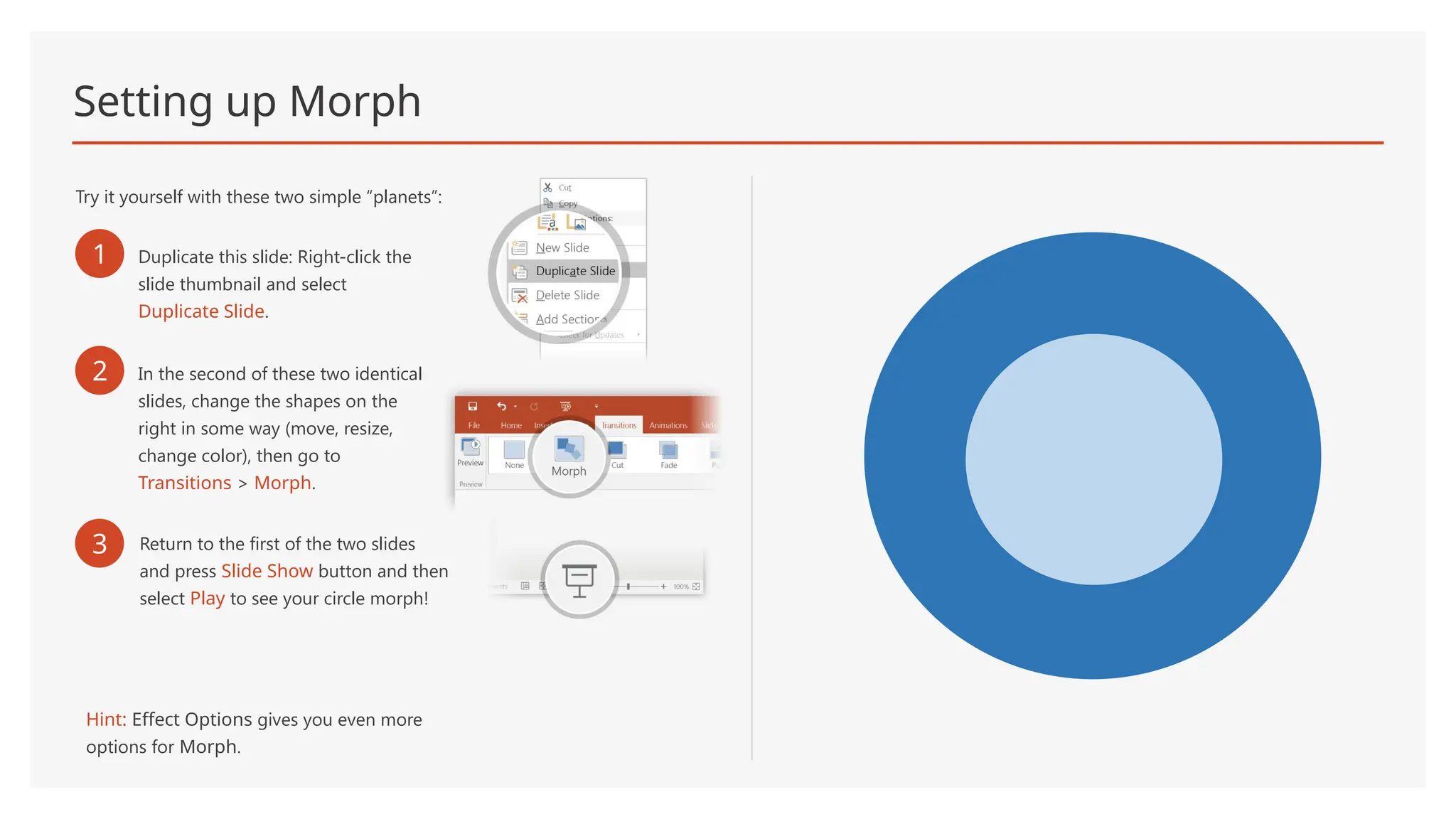
Tryit yourself with these two simple “planets”:
1 Duplicate this slide: Right-click the
slide thumbnail and select
Duplicate Slide.
2 In the second of these two identical
slides, change the shapes on the
right in some way (move, resize,
change color), then go to
Transitions > Morph.
3 Return to the first of the two slides
and press Slide Show button and then
select Play to see your circle morph!
Hint: Effect Options gives you even more
options for Morph.
2.
Working together inreal time
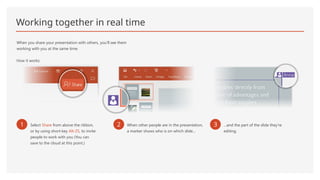
When you share your presentation with others, you’ll see them
working with you at the same time.
How it works:
1 Select Share from above the ribbon,
or by using short-key Alt-ZS, to invite
people to work with you (You can
save to the cloud at this point.)
2 When other people are in the presentation,
a marker shows who is on which slide…
3 …and the part of the slide they're
editing.
3.
You’re an expertwith Tell Me
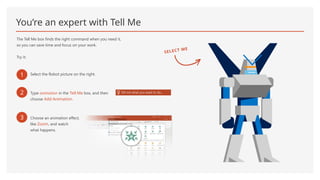
The Tell Me box finds the right command when you need it,
so you can save time and focus on your work.
Try it:
1 Select the Robot picture on the right.
2 Type animation in the Tell Me box, and then
choose Add Animation.
3 Choose an animation effect,
like Zoom, and watch
what happens.
SELECT ME
4.
Explore without leavingyour slides
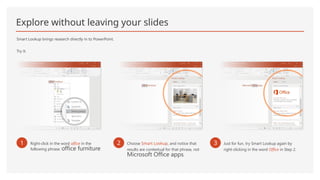
Smart Lookup brings research directly in to PowerPoint.
Try it:
1 Right-click in the word office in the
following phrase: office furniture
2 Choose Smart Lookup, and notice that
results are contextual for that phrase, not
Microsoft Office apps.
3 Just for fun, try Smart Lookup again by
right-clicking in the word Office in Step 2.
5.
More questions aboutPowerPoint?
Select the Tell Me button and type what you want to know.
Visit the PowerPoint team blog
Go to free PowerPoint training
SELECT THE ARROW WHEN IN SLIDE SHOW MODE