Course Code: BCA 301
Course Name: Operating System & Linux
Programming
By : Mohammad Asim
Unit 4: Topics to be Covered
 Information Management: Introduction, File
Concept, Access methods, Directory and Disk
structure, File Protection
 Linux File Security: Permission types,
Examining permissions, changing permissions
(symbolic method numeric method)
File Concept
 The file is a collection of related
information that is recorded on storage
device.
 The files stores information and data.
 It is a way of data collection which is
used as medium of giving input and
collecting output from any application.
File Types
 Ordinary Files ( Regular Files )
 It contains user information
 It contains text or executable programs
 It is either text file or binary file
 User can apply various operations
 Directory Files
 It is like a folder that contains files or other folder
 It don’t contain data
 But they have references to file contain within them
File Types
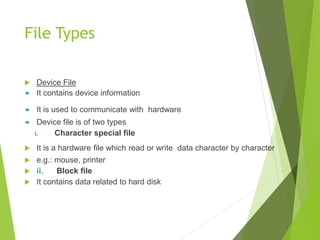
 Device File
 It contains device information
 It is used to communicate with hardware
 Device file is of two types
i. Character special file
 It is a hardware file which read or write data character by character
 e.g.: mouse, printer
 ii. Block file
 It contains data related to hard disk
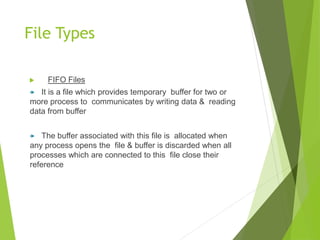
 FIFO Files
 It is a file which provides temporary buffer for two or
more process to communicates by writing data & reading
data from buffer
 The buffer associated with this file is allocated when
any process opens the file & buffer is discarded when all
processes which are connected to this file close their
reference
File Types
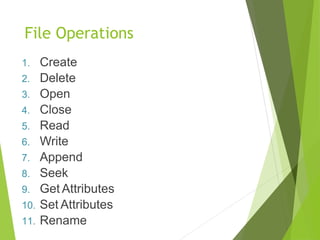
File Operations
1. Create
2. Delete
3. Open
4. Close
5. Read
6. Write
7. Append
8. Seek
9. Get Attributes
10. Set Attributes
11. Rename
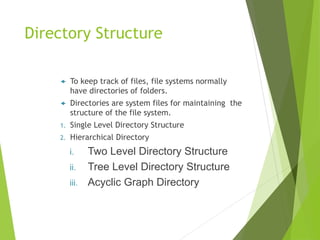
Directory Structure
 To keep track of files, file systems normally
have directories of folders.
 Directories are system files for maintaining the
structure of the file system.
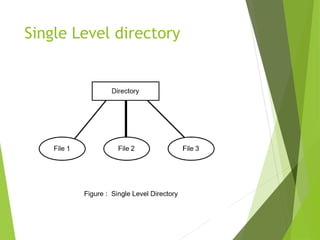
1. Single Level Directory Structure
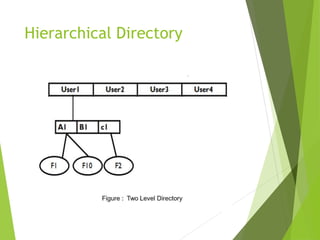
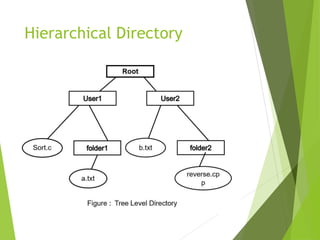
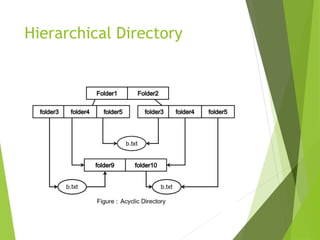
2. Hierarchical Directory
i. Two Level Directory Structure
ii. Tree Level Directory Structure
iii. Acyclic Graph Directory
Single Level directory
Hierarchical Directory
File System Structure
⚫ The concept of file system is to access the disk efficiently. It allows
data to store & retrieve from disk.
⚫ File system structure is composed of many layers as following:
1. Input-Output Control Interface
 It consist of device driver and interrupt handler.
 Both are used for data transfer between
 memory & disk
 The device driver translates file level command & output is
hardware instruction
2. Basic File Syatem Layer
It generates commands for device driver
Device driver read or write physical block
on disk
3.File Organization Module Layer
 This layer translates logical block
address to physical block address
4.Logical System Layer
 It manages metadata of any file like
location & permission of file
5.Application Program Layer
 This is a layer in which user creates an
application program
Access Methods
⚫ The information stored in the file
needs to be accessed and read into
the computer memory.
⚫ There are different methods
available to do it.
1)Sequential Access
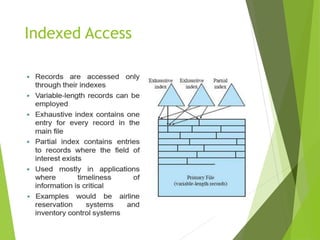
2)Indexed Access
3)Direct Access
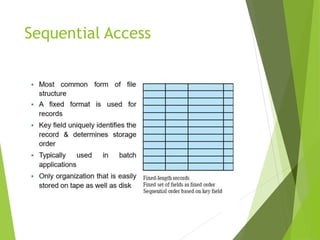
Sequential Access
Indexed Access
Direct Access
 The Linux security model is based on the one used on UNIX systems, and is as rigid as
the UNIX security model (and sometimes even more), which is already quite robust.
 On a Linux system, every file is owned by a user and a group user. There is also a third
category of users, those that are not the user owner and don't belong to the group
owning the file.
 For each category of users, read, write and execute permissions can be granted or
denied. We already used the long option to list files using the ls -l command, though
for other reasons. This command also displays file permissions for these three user
categories; they are indicated by the nine characters that follow the first character,
which is the file type indicator at the beginning of the file properties line.
 As seen in the examples below, the first three characters in this series of nine display
access rights for the actual user that owns the file. The next three are for the group
owner of the file, the last three for other users.
 The permissions are always in the same order: read, write, execute for the user, the
group and the others.
LINUX File Security
PERMISSION Types
 Each file and directory has three user based permission groups:
 owner - The Owner permissions apply only the owner of the file or directory, they
will not impact the actions of other users.
 group - The Group permissions apply only to the group that has been assigned to
the file or directory, they will not effect the actions of other users.
 all users - The All Users permissions apply to all other users on the system, this
is the permission group that you want to watch the most.
 Each file or directory has three basic permission types:
 read - The Read permission refers to a user's capability to read the contents of the
file.
 write - The Write permissions refer to a user's capability to write or modify a
file or directory.
 execute - The Execute permission affects a user's capability to execute a file or
view the contents of a directory.
VIEWING The Permissions
You can view the permissions by checking the file or directory permissions in your favorite
GUI File Manager or by reviewing the output of the "ls -l" command while in the
terminal and while working in the directory which contains the file or folder.
The permission in the command line is displayed as: _rwxrwxrwx 1 owner:group
1. User rights/Permissions
 The first character that I marked with an underscore is the special permission flag
that can vary.
 The following set of three characters (rwx) is for the owner permissions.
 The second set of three characters (rwx) is for the Group permissions.
 The third set of three characters (rwx) is for the All Users permissions.
2. Following that grouping since the integer/number displays the number of hardlinks to
the file.
3. The last piece is the Owner and Group assignment formatted as Owner:Group.
MODIFYING The Permissions
When in the command line, the permissions are edited by using the command
chmod. You can assign the permissions explicitly or by using a binary reference as
described below.
Explicitly Defining Permissions
To explicity define permissions you will need to reference the Permission Group
and Permission Types.
The Permission Groups used are:
 u - Owner
 g - Group
 o or a - All Users
The potential Assignment Operators are + (plus) and - (minus); these are used to
tell the system whether to add or remove the specific permissions.
The Permission Types that are used are:
 r - Read
 w - Write
 x - Execute
There are two parts to permissions.
 The first involves what someone is allowed to do with a file, and the second
involves who that “someone” can be.
What can be done
When controlling what can be done to a file or directory, there are three categories
of actions: read, write, and execute. What is specifically allowed or disallowed can
be different for files and directories, so we’ll talk about both for each category.
Read
The “read” permission controls, well, who can read a file. If you don’t have read
permissions for a file you can’t look inside and see its contents. The “read” permission for a
directory controls whether or not you can see a list of the files in the directory. Note,
however, that to do so you will also need “execute” permission for the directory.
Write
The “write” permission on a file controls whether or not you can change the file’s contents.
If you want to edit the text in an html file, for example, you need write permission before
you can do so. The “write” permission on a directory controls whether or not you can add,
delete, or rename files in that directory.
Execute
The “execute” permission for a file allows you to run that file from the command line. In
order to run any command (“chown”, “ls”, “rm”, etc.), you have to have execute
permission for the file representing that command. If you try to run a command and get a
“permission denied” error, it’s because you don’t have execute permission. The “execute”
permission for a directory lets you perform an operation in that directory, or to change
your working directory (“cd”) to that directory.
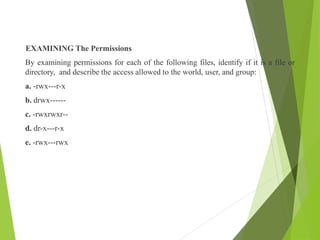
EXAMINING The Permissions
By examining permissions for each of the following files, identify if it is a file or
directory, and describe the access allowed to the world, user, and group:
a. -rwx---r-x
b. drwx------
c. -rwxrwxr--
d. dr-x---r-x
e. -rwx---rwx
CHANGING Permissions (Symbolic Method, Numeric Method)
By examining permissions for each of the following files, identify if it is a file or
directory, and describe the access allowed to the world, user, and group:
 Using Symbolic Modes With Chmod
In order to change the permissions of a file using symbolic permissions, use the
command format:
chmod SYMBOLIC-MODE FILENAME
where SYMBOLIC-MODE is the symbolic representation of permissions (which
we describe below) that you wish to apply to FILENAME.
The letters for user, group, and other are u,g, and o respectively. The letter a is used
to mean all three of these categories.
 Using Numeric Modes With Chmod
To set the permissions of a file or directory using numeric modes, simply use the
format:
chmod OCTAL-MODE FILENAME
where OCTAL-MODE is the octal form of the permissions.
For example, to set the permissions of filename to -rw-r--r-- you could run the
command:
chmod 644 filename
or to change permissions to -rwxrwxrwx you could use the command:
chmod 777 filename
Be careful when setting permissions to 777 as this means every single user
account can read, write, and execute that file.
Thank You…

OS Unit IV.ppt

  • 1.
    Course Code: BCA301 Course Name: Operating System & Linux Programming By : Mohammad Asim
  • 2.
    Unit 4: Topicsto be Covered  Information Management: Introduction, File Concept, Access methods, Directory and Disk structure, File Protection  Linux File Security: Permission types, Examining permissions, changing permissions (symbolic method numeric method)
  • 3.
    File Concept  Thefile is a collection of related information that is recorded on storage device.  The files stores information and data.  It is a way of data collection which is used as medium of giving input and collecting output from any application.
  • 4.
    File Types  OrdinaryFiles ( Regular Files )  It contains user information  It contains text or executable programs  It is either text file or binary file  User can apply various operations  Directory Files  It is like a folder that contains files or other folder  It don’t contain data  But they have references to file contain within them
  • 5.
    File Types  DeviceFile  It contains device information  It is used to communicate with hardware  Device file is of two types i. Character special file  It is a hardware file which read or write data character by character  e.g.: mouse, printer  ii. Block file  It contains data related to hard disk
  • 6.
     FIFO Files It is a file which provides temporary buffer for two or more process to communicates by writing data & reading data from buffer  The buffer associated with this file is allocated when any process opens the file & buffer is discarded when all processes which are connected to this file close their reference File Types
  • 7.
    File Operations 1. Create 2.Delete 3. Open 4. Close 5. Read 6. Write 7. Append 8. Seek 9. Get Attributes 10. Set Attributes 11. Rename
  • 8.
    Directory Structure  Tokeep track of files, file systems normally have directories of folders.  Directories are system files for maintaining the structure of the file system. 1. Single Level Directory Structure 2. Hierarchical Directory i. Two Level Directory Structure ii. Tree Level Directory Structure iii. Acyclic Graph Directory
  • 9.
  • 10.
  • 11.
  • 12.
  • 13.
    File System Structure ⚫The concept of file system is to access the disk efficiently. It allows data to store & retrieve from disk. ⚫ File system structure is composed of many layers as following: 1. Input-Output Control Interface  It consist of device driver and interrupt handler.  Both are used for data transfer between  memory & disk  The device driver translates file level command & output is hardware instruction
  • 14.
    2. Basic FileSyatem Layer It generates commands for device driver Device driver read or write physical block on disk 3.File Organization Module Layer  This layer translates logical block address to physical block address 4.Logical System Layer  It manages metadata of any file like location & permission of file 5.Application Program Layer  This is a layer in which user creates an application program
  • 15.
    Access Methods ⚫ Theinformation stored in the file needs to be accessed and read into the computer memory. ⚫ There are different methods available to do it. 1)Sequential Access 2)Indexed Access 3)Direct Access
  • 16.
  • 17.
  • 18.
  • 19.
     The Linuxsecurity model is based on the one used on UNIX systems, and is as rigid as the UNIX security model (and sometimes even more), which is already quite robust.  On a Linux system, every file is owned by a user and a group user. There is also a third category of users, those that are not the user owner and don't belong to the group owning the file.  For each category of users, read, write and execute permissions can be granted or denied. We already used the long option to list files using the ls -l command, though for other reasons. This command also displays file permissions for these three user categories; they are indicated by the nine characters that follow the first character, which is the file type indicator at the beginning of the file properties line.  As seen in the examples below, the first three characters in this series of nine display access rights for the actual user that owns the file. The next three are for the group owner of the file, the last three for other users.  The permissions are always in the same order: read, write, execute for the user, the group and the others. LINUX File Security
  • 20.
    PERMISSION Types  Eachfile and directory has three user based permission groups:  owner - The Owner permissions apply only the owner of the file or directory, they will not impact the actions of other users.  group - The Group permissions apply only to the group that has been assigned to the file or directory, they will not effect the actions of other users.  all users - The All Users permissions apply to all other users on the system, this is the permission group that you want to watch the most.  Each file or directory has three basic permission types:  read - The Read permission refers to a user's capability to read the contents of the file.  write - The Write permissions refer to a user's capability to write or modify a file or directory.  execute - The Execute permission affects a user's capability to execute a file or view the contents of a directory.
  • 21.
    VIEWING The Permissions Youcan view the permissions by checking the file or directory permissions in your favorite GUI File Manager or by reviewing the output of the "ls -l" command while in the terminal and while working in the directory which contains the file or folder. The permission in the command line is displayed as: _rwxrwxrwx 1 owner:group 1. User rights/Permissions  The first character that I marked with an underscore is the special permission flag that can vary.  The following set of three characters (rwx) is for the owner permissions.  The second set of three characters (rwx) is for the Group permissions.  The third set of three characters (rwx) is for the All Users permissions. 2. Following that grouping since the integer/number displays the number of hardlinks to the file. 3. The last piece is the Owner and Group assignment formatted as Owner:Group.
  • 22.
    MODIFYING The Permissions Whenin the command line, the permissions are edited by using the command chmod. You can assign the permissions explicitly or by using a binary reference as described below. Explicitly Defining Permissions To explicity define permissions you will need to reference the Permission Group and Permission Types. The Permission Groups used are:  u - Owner  g - Group  o or a - All Users
  • 23.
    The potential AssignmentOperators are + (plus) and - (minus); these are used to tell the system whether to add or remove the specific permissions. The Permission Types that are used are:  r - Read  w - Write  x - Execute There are two parts to permissions.  The first involves what someone is allowed to do with a file, and the second involves who that “someone” can be. What can be done When controlling what can be done to a file or directory, there are three categories of actions: read, write, and execute. What is specifically allowed or disallowed can be different for files and directories, so we’ll talk about both for each category.
  • 24.
    Read The “read” permissioncontrols, well, who can read a file. If you don’t have read permissions for a file you can’t look inside and see its contents. The “read” permission for a directory controls whether or not you can see a list of the files in the directory. Note, however, that to do so you will also need “execute” permission for the directory. Write The “write” permission on a file controls whether or not you can change the file’s contents. If you want to edit the text in an html file, for example, you need write permission before you can do so. The “write” permission on a directory controls whether or not you can add, delete, or rename files in that directory. Execute The “execute” permission for a file allows you to run that file from the command line. In order to run any command (“chown”, “ls”, “rm”, etc.), you have to have execute permission for the file representing that command. If you try to run a command and get a “permission denied” error, it’s because you don’t have execute permission. The “execute” permission for a directory lets you perform an operation in that directory, or to change your working directory (“cd”) to that directory.
  • 25.
    EXAMINING The Permissions Byexamining permissions for each of the following files, identify if it is a file or directory, and describe the access allowed to the world, user, and group: a. -rwx---r-x b. drwx------ c. -rwxrwxr-- d. dr-x---r-x e. -rwx---rwx
  • 26.
    CHANGING Permissions (SymbolicMethod, Numeric Method) By examining permissions for each of the following files, identify if it is a file or directory, and describe the access allowed to the world, user, and group:  Using Symbolic Modes With Chmod In order to change the permissions of a file using symbolic permissions, use the command format: chmod SYMBOLIC-MODE FILENAME where SYMBOLIC-MODE is the symbolic representation of permissions (which we describe below) that you wish to apply to FILENAME. The letters for user, group, and other are u,g, and o respectively. The letter a is used to mean all three of these categories.
  • 27.
     Using NumericModes With Chmod To set the permissions of a file or directory using numeric modes, simply use the format: chmod OCTAL-MODE FILENAME where OCTAL-MODE is the octal form of the permissions. For example, to set the permissions of filename to -rw-r--r-- you could run the command: chmod 644 filename or to change permissions to -rwxrwxrwx you could use the command: chmod 777 filename Be careful when setting permissions to 777 as this means every single user account can read, write, and execute that file.
  • 28.