OpenOffice.org
    Calc
IN THIS LESSON
     Introducing Calc

     Working in Calc

 Calc as Simple Database

    Formatting Pages
INTRODUCING
    CALC
What is Calc?
➔The    spreadsheet component of OpenOffice.org
➔Open    source alternative for MS Excel
➔Can  be used to enter data, usually numerical,
 to produce certain results
➔File   extension is .ods
Getting Started with Calc
â—Ź   Opening Calc
    â—Ź   Applications >> Office >> OpenOffice.org
        Spreadsheet
    â—Ź   Double-click the desktop shortcut
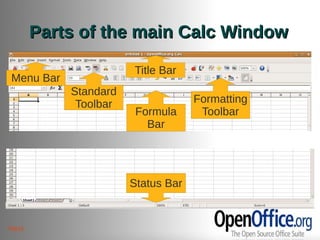
Parts of the main Calc Window

                      Title Bar
Menu Bar
           Standard
            Toolbar                Formatting
                       Formula      Toolbar
                         Bar


                      Status Bar


Next
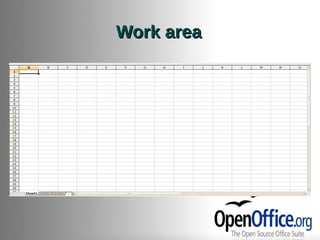
Work area
File management in Calc
â—Ź   Create:
    â—Ź   File >> New >> Spreadsheet or Ctrl + N or the
        New icon in the standard toolbar.
â—Ź   Open:
    â—Ź   File >> Open or Ctrl + O or the Open icon in the
        standard toolbar.
â—Ź   Save:
    â—Ź   File >> Save (Save as) or Ctrl + S or the Save icon
        in the standard toolbar.
Review Questions
1.Where is the Function 2.What is the keyboard
  Wizard button           shortcut for opening
  located?                an existing
  â—Ź  Title bar            document?
  â—Ź   Standard toolbar    â—Ź   Ctrl + N
  â—Ź   Formula bar         â—Ź   Ctrl + O
  â—Ź   Status bar          â—Ź   Ctrl + S
                          â—Ź   Ctrl + E
WORKING
 IN CALC
Sheets
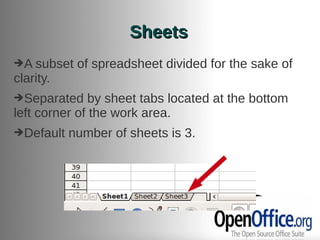
➔A subset   of spreadsheet divided for the sake of
clarity.
➔Separated     by sheet tabs located at the bottom
left corner of the work area.
➔Default   number of sheets is 3.
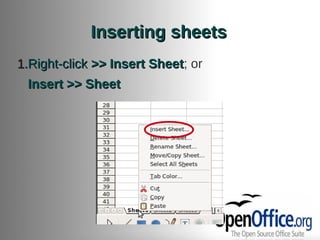
Inserting sheets
1.Right-click >> Insert Sheet; or
                        Sheet
 Insert >> Sheet
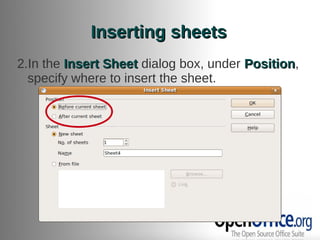
Inserting sheets
2.In the Insert Sheet dialog box, under Position,
                                        Position
  specify where to insert the sheet.
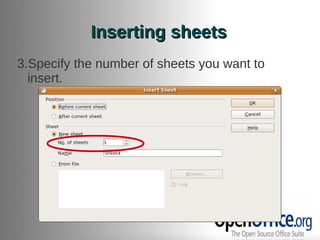
Inserting sheets
3.Specify the number of sheets you want to
  insert.
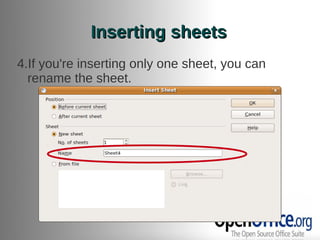
Inserting sheets
4.If you're inserting only one sheet, you can
  rename the sheet.
Inserting sheets
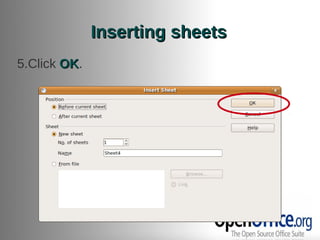
5.Click OK.
        OK
Renaming sheets
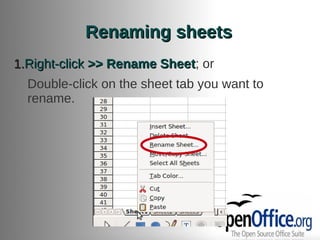
1.Right-click >> Rename Sheet; or
                        Sheet
  Double-click on the sheet tab you want to
  rename.
Renaming sheets
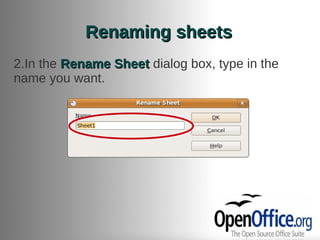
2.In the Rename Sheet dialog box, type in the
name you want.
Renaming sheets
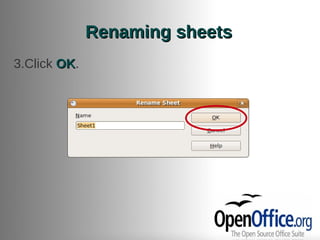
3.Click OK.
        OK
Moving/Copying sheets
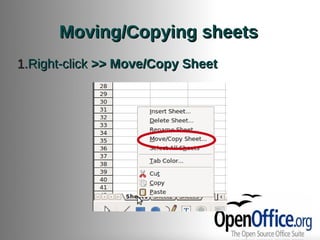
1.Right-click >> Move/Copy Sheet
Moving/Copying sheets
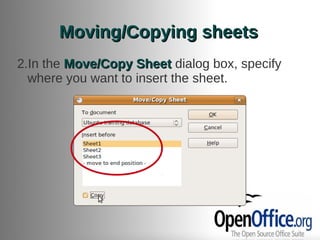
2.In the Move/Copy Sheet dialog box, specify
  where you want to insert the sheet.
Moving/Copying sheets
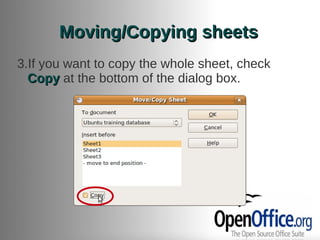
3.If you want to copy the whole sheet, check
  Copy at the bottom of the dialog box.
Moving/Copying sheets
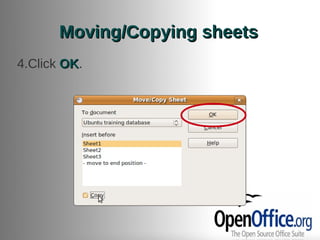
4.Click OK.
        OK
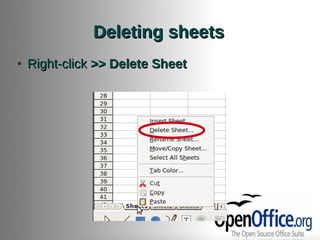
Deleting sheets
â—Ź   Right-click >> Delete Sheet
Cells
➔Can      be thought of as a box containing a data.
â—Ź   Cell Navigation
    â—Ź   Tab key (moves to the right)
    â—Ź   Arrow keys
    â—Ź   Enter key (moves down)
    â—Ź   Home keys
    â—Ź   Use the Name box
Cells
â—Ź   Selecting multiple cells
    â—Ź   Click and drag on the cells you want to select.
â—Ź   Select All
    â—Ź   Ctrl + A
    â—Ź   Click on the cornermost part of the work area.
Cells
â—Ź   Cutting                     â—Ź   Copying
    â—Ź   Cut icon in the             â—Ź   Copy icon in the
        standard toolbar                standard toolbar
    â—Ź   Ctrl + X                    â—Ź   Ctrl + C
    â—Ź   Edit >> Cut                 â—Ź   Edit >> Copy
    â—Ź   Right-click >> Cut          â—Ź   Right-click >> Copy
Cells
â—Ź   Pasting (pastes the formula)
    â—Ź   Paste icon in the standard toolbar
    â—Ź   Ctrl + V
    â—Ź   Edit >> Paste
    â—Ź   Right-click >> Paste
Rows and Columns
â—Ź   Selecting Entire Rows or Columns
    â—Ź   Single Row or Column
        –   Click on the row number or column letter
    â—Ź   Multiple Rows or Columns
        –   Click and drag on the row numbers or column letters you
            want to select
Rows and Columns
â—Ź   Inserting
    â—Ź   Right-click >> Insert Rows (or Insert Columns)
â—Ź   Deleting
    â—Ź   Right-click >> Delete Row (or Column)
â—Ź   Adjusting row height or column width
    â—Ź   Drag the side handles of the row or column
Rows and Columns
â—Ź   Hiding
    â—Ź   Right-click >> Hide
â—Ź   Showing
    â—Ź   Right-click >> Show
Viewing in Calc
â—Ź   Zoom
    â—Ź   Zoom drop down in the standard toolbar
â—Ź   Freeze
    â—Ź   Window >> Freeze
Entering, editing and formatting
                   data
â—Ź   Typing over text
â—Ź   Editing part of a cell
    â—Ź   Double-click the cell.
    â—Ź   Press F2.
              F2
Entering, editing and formatting
                   data
â—Ź   Using the formatting toolbar
â—Ź   Opening the Format Cells dialog box
    â—Ź   Format >> Cells
    â—Ź   Right-click >> Format Cells
â—Ź   Changing the number format of a data
    â—Ź   Format Cells dialog box >> Numbers tab
Entering, editing and formatting
                   data
â—Ź   Text Wrapping
â—Ź   Line breaks
    â—Ź   Ctrl + Enter
â—Ź   Deleting contents
    â—Ź   Press Delete then click the appropriate content you
        want to delete.
    â—Ź   Press Backspace for quick deletion.
Formulas and Functions
â—Ź   Most commonly used Functions
    â—Ź   SUM
    â—Ź   AVERAGE
    â—Ź   MIN
    â—Ź   MAX
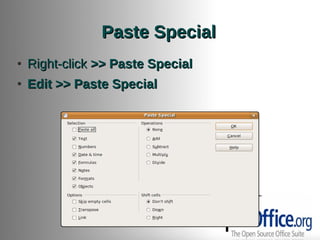
Paste Special
â—Ź   Right-click >> Paste Special
â—Ź   Edit >> Paste Special
Exercises
 Open the document Training database.ods
from the Documents folder. Open Sheet2.
Rename tab Sheet2 to 'Class 05'.
 Put background color on cells A1 to D1, align
them to the center and change the font size to
14pt.
 Change the number format of cells D2 to D7 to
percent with no decimal.
Exercises
In cell D8, compute for the sum total of cells
D2 to D7.
 In cell D9, compute for the average of cells D2
to D7.
 In cell D10, get the minimum value of cells D2
to D7.
 In cell D11, get the maximum value of cells D2
to D7.
Exercises
Put in borders on cells A1 to D7.
 From the sheet 'Class 05' link cells D8 to D11
to cells C4 to F4 in the sheet 'Summary'.
 Save this document with the following
specifications:
   File Name: Calc [Surname]
   Folder: Documents folder
   File Type: Microsoft Excel 97/2000/XP (.xls)
CALC AS A
 SIMPLE
DATABASE
Sorting data
➔Rearranges      data according to your
    specifications.
â—Ź   Data >> Sort
Filters
➔Helps    in limiting the visible rows in a
    spreadsheet.
â—Ź   Autofilters
    â—Ź   Data >> Filter >> AutoFilter
â—Ź   Standard filters
    â—Ź   Data >> Filter >> Standard Filter
Exercises
In Calc [Surname].xls, open the sheet Database.
 Sort the database by Class # then by Name of
Trainee.
 Filter the visible data to those who have taken the
exam.
 Of these who took the exam, filter the rows and limit
visibility to those who have achieved greater than 70.
Save changes and close this document.
FORMATTING
  PAGES
Formatting Pages for printing
â—Ź   Format >> Page
â—Ź   Inserting Headers and Footers
    â—Ź   Format >> Page >> Header (or Footer) tab >>
        Edit button
â—Ź   Page breaks
    âž” Manually  edit the page breaks through the Page
        Break Preview under the View menu.
Printing with Calc
â—Ź   Click the Print file directly button in the
    standard toolbar for quick printing.
â—Ź   File >> Print
â—Ź   Adding a print range
    â—Ź   Format >> Print Ranges >> Add
â—Ź   Repeating row or column in every page
    â—Ź   Format >> Print Ranges >> Edit
Exercises
  In Calc [Surname].xls, open the sheet
'Database'.
  Insert Header with the following specifications:
   Left Area: Date today
  â—Ź   Center Area: UNIVERSITY OF THE PHILIPPINES
      LOS BAÑOS
   Right Area: Your Surname
  For printing, repeat Row 1 every page.
  Save changes to this document.
Thank you po!!!


      THE END
UPLB ITC Training Support Team:

      Czarlina Evangelista

        Rachel Mojado

OpenOffice.org Walc

  • 1.
  • 2.
    IN THIS LESSON Introducing Calc Working in Calc Calc as Simple Database Formatting Pages
  • 3.
  • 4.
    What is Calc? ➔The spreadsheet component of OpenOffice.org ➔Open source alternative for MS Excel ➔Can be used to enter data, usually numerical, to produce certain results ➔File extension is .ods
  • 5.
    Getting Started withCalc â—Ź Opening Calc â—Ź Applications >> Office >> OpenOffice.org Spreadsheet â—Ź Double-click the desktop shortcut
  • 6.
    Parts of themain Calc Window Title Bar Menu Bar Standard Toolbar Formatting Formula Toolbar Bar Status Bar Next
  • 7.
  • 8.
    File management inCalc â—Ź Create: â—Ź File >> New >> Spreadsheet or Ctrl + N or the New icon in the standard toolbar. â—Ź Open: â—Ź File >> Open or Ctrl + O or the Open icon in the standard toolbar. â—Ź Save: â—Ź File >> Save (Save as) or Ctrl + S or the Save icon in the standard toolbar.
  • 9.
    Review Questions 1.Where isthe Function 2.What is the keyboard Wizard button shortcut for opening located? an existing â—Ź Title bar document? â—Ź Standard toolbar â—Ź Ctrl + N â—Ź Formula bar â—Ź Ctrl + O â—Ź Status bar â—Ź Ctrl + S â—Ź Ctrl + E
  • 10.
  • 11.
    Sheets ➔A subset of spreadsheet divided for the sake of clarity. ➔Separated by sheet tabs located at the bottom left corner of the work area. ➔Default number of sheets is 3.
  • 12.
    Inserting sheets 1.Right-click >>Insert Sheet; or Sheet Insert >> Sheet
  • 13.
    Inserting sheets 2.In theInsert Sheet dialog box, under Position, Position specify where to insert the sheet.
  • 14.
    Inserting sheets 3.Specify thenumber of sheets you want to insert.
  • 15.
    Inserting sheets 4.If you'reinserting only one sheet, you can rename the sheet.
  • 16.
  • 17.
    Renaming sheets 1.Right-click >>Rename Sheet; or Sheet Double-click on the sheet tab you want to rename.
  • 18.
    Renaming sheets 2.In theRename Sheet dialog box, type in the name you want.
  • 19.
  • 20.
  • 21.
    Moving/Copying sheets 2.In theMove/Copy Sheet dialog box, specify where you want to insert the sheet.
  • 22.
    Moving/Copying sheets 3.If youwant to copy the whole sheet, check Copy at the bottom of the dialog box.
  • 23.
  • 24.
    Deleting sheets â—Ź Right-click >> Delete Sheet
  • 25.
    Cells ➔Can be thought of as a box containing a data. ● Cell Navigation ● Tab key (moves to the right) ● Arrow keys ● Enter key (moves down) ● Home keys ● Use the Name box
  • 26.
    Cells â—Ź Selecting multiple cells â—Ź Click and drag on the cells you want to select. â—Ź Select All â—Ź Ctrl + A â—Ź Click on the cornermost part of the work area.
  • 27.
    Cells â—Ź Cutting â—Ź Copying â—Ź Cut icon in the â—Ź Copy icon in the standard toolbar standard toolbar â—Ź Ctrl + X â—Ź Ctrl + C â—Ź Edit >> Cut â—Ź Edit >> Copy â—Ź Right-click >> Cut â—Ź Right-click >> Copy
  • 28.
    Cells â—Ź Pasting (pastes the formula) â—Ź Paste icon in the standard toolbar â—Ź Ctrl + V â—Ź Edit >> Paste â—Ź Right-click >> Paste
  • 29.
    Rows and Columns ● Selecting Entire Rows or Columns ● Single Row or Column – Click on the row number or column letter ● Multiple Rows or Columns – Click and drag on the row numbers or column letters you want to select
  • 30.
    Rows and Columns â—Ź Inserting â—Ź Right-click >> Insert Rows (or Insert Columns) â—Ź Deleting â—Ź Right-click >> Delete Row (or Column) â—Ź Adjusting row height or column width â—Ź Drag the side handles of the row or column
  • 31.
    Rows and Columns â—Ź Hiding â—Ź Right-click >> Hide â—Ź Showing â—Ź Right-click >> Show
  • 32.
    Viewing in Calc â—Ź Zoom â—Ź Zoom drop down in the standard toolbar â—Ź Freeze â—Ź Window >> Freeze
  • 33.
    Entering, editing andformatting data â—Ź Typing over text â—Ź Editing part of a cell â—Ź Double-click the cell. â—Ź Press F2. F2
  • 34.
    Entering, editing andformatting data â—Ź Using the formatting toolbar â—Ź Opening the Format Cells dialog box â—Ź Format >> Cells â—Ź Right-click >> Format Cells â—Ź Changing the number format of a data â—Ź Format Cells dialog box >> Numbers tab
  • 35.
    Entering, editing andformatting data â—Ź Text Wrapping â—Ź Line breaks â—Ź Ctrl + Enter â—Ź Deleting contents â—Ź Press Delete then click the appropriate content you want to delete. â—Ź Press Backspace for quick deletion.
  • 36.
    Formulas and Functions â—Ź Most commonly used Functions â—Ź SUM â—Ź AVERAGE â—Ź MIN â—Ź MAX
  • 37.
    Paste Special â—Ź Right-click >> Paste Special â—Ź Edit >> Paste Special
  • 38.
    Exercises Open thedocument Training database.ods from the Documents folder. Open Sheet2. Rename tab Sheet2 to 'Class 05'. Put background color on cells A1 to D1, align them to the center and change the font size to 14pt. Change the number format of cells D2 to D7 to percent with no decimal.
  • 39.
    Exercises In cell D8,compute for the sum total of cells D2 to D7. In cell D9, compute for the average of cells D2 to D7. In cell D10, get the minimum value of cells D2 to D7. In cell D11, get the maximum value of cells D2 to D7.
  • 40.
    Exercises Put in borderson cells A1 to D7. From the sheet 'Class 05' link cells D8 to D11 to cells C4 to F4 in the sheet 'Summary'. Save this document with the following specifications: File Name: Calc [Surname] Folder: Documents folder File Type: Microsoft Excel 97/2000/XP (.xls)
  • 41.
    CALC AS A SIMPLE DATABASE
  • 42.
    Sorting data ➔Rearranges data according to your specifications. ● Data >> Sort
  • 43.
    Filters ➔Helps in limiting the visible rows in a spreadsheet. ● Autofilters ● Data >> Filter >> AutoFilter ● Standard filters ● Data >> Filter >> Standard Filter
  • 44.
    Exercises In Calc [Surname].xls,open the sheet Database. Sort the database by Class # then by Name of Trainee. Filter the visible data to those who have taken the exam. Of these who took the exam, filter the rows and limit visibility to those who have achieved greater than 70. Save changes and close this document.
  • 45.
  • 46.
    Formatting Pages forprinting â—Ź Format >> Page â—Ź Inserting Headers and Footers â—Ź Format >> Page >> Header (or Footer) tab >> Edit button â—Ź Page breaks âž” Manually edit the page breaks through the Page Break Preview under the View menu.
  • 47.
    Printing with Calc â—Ź Click the Print file directly button in the standard toolbar for quick printing. â—Ź File >> Print â—Ź Adding a print range â—Ź Format >> Print Ranges >> Add â—Ź Repeating row or column in every page â—Ź Format >> Print Ranges >> Edit
  • 48.
    Exercises InCalc [Surname].xls, open the sheet 'Database'. Insert Header with the following specifications: Left Area: Date today ● Center Area: UNIVERSITY OF THE PHILIPPINES LOS BAÑOS Right Area: Your Surname For printing, repeat Row 1 every page. Save changes to this document.
  • 49.
    Thank you po!!! THE END UPLB ITC Training Support Team: Czarlina Evangelista Rachel Mojado