1
Birla
Vishvakarma
Mahavidyalaya
Object snap
MEMB113 | Dept. of Mechanical Engineering | UNITEN | 200509AutoCADPart2
Content
• OSNAP
• OTRACK
• BLOCK & INSERT
• Draw command: rectangle,
polygon
• Edit command: trim, offset,
extend, array
MEMB113 | Dept. of Mechanical Engineering | UNITEN | 200509AutoCADPart2
Drawing aid: Object snap
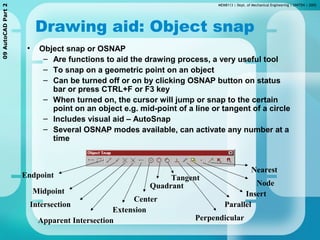
• Object snap or OSNAP
– Are functions to aid the drawing process, a very useful tool
– To snap on a geometric point on an object
– Can be turned off or on by clicking OSNAP button on status
bar or press CTRL+F or F3 key
– When turned on, the cursor will jump or snap to the certain
point on an object e.g. mid-point of a line or tangent of a circle
– Includes visual aid – AutoSnap
– Several OSNAP modes available, can activate any number at a
time
Endpoint
Midpoint
Intersection
Apparent Intersection
Extension
Center
Quadrant
Tangent
Perpendicular
Parallel
Insert
Node
Nearest
MEMB113 | Dept. of Mechanical Engineering | UNITEN | 200509AutoCADPart2
Object snap …cont
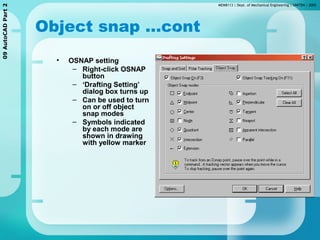
• OSNAP setting
– Right-click OSNAP
button
– ‘Drafting Setting’
dialog box turns up
– Can be used to turn
on or off object
snap modes
– Symbols indicated
by each mode are
shown in drawing
with yellow marker
MEMB113 | Dept. of Mechanical Engineering | UNITEN | 200509AutoCADPart2
Object snap …cont
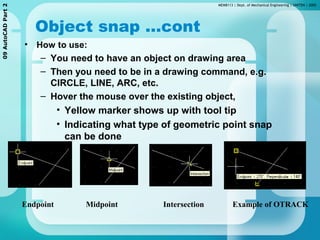
• How to use:
– You need to have an object on drawing area
– Then you need to be in a drawing command, e.g.
CIRCLE, LINE, ARC, etc.
– Hover the mouse over the existing object,
• Yellow marker shows up with tool tip
• Indicating what type of geometric point snap
can be done
Endpoint Midpoint Intersection Example of OTRACK
MEMB113 | Dept. of Mechanical Engineering | UNITEN | 200509AutoCADPart2
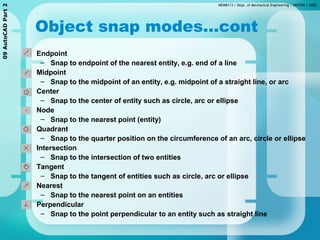
Object snap modes…cont
• Endpoint
– Snap to endpoint of the nearest entity, e.g. end of a line
• Midpoint
– Snap to the midpoint of an entity, e.g. midpoint of a straight line, or arc
• Center
– Snap to the center of entity such as circle, arc or ellipse
• Node
– Snap to the nearest point (entity)
• Quadrant
– Snap to the quarter position on the circumference of an arc, circle or ellipse
• Intersection
– Snap to the intersection of two entities
• Tangent
– Snap to the tangent of entities such as circle, arc or ellipse
• Nearest
– Snap to the nearest point on an entities
• Perpendicular
– Snap to the point perpendicular to an entity such as straight line
MEMB113 | Dept. of Mechanical Engineering | UNITEN | 200509AutoCADPart2
Block and insert
• Block and insert is similar to copy and paste, but with extra features,
where objects can be copied and inserted into the drawing
• Steps
– Create block [pd menu] >Block > Make
or click [Icon Block]
– Give name, select objects to be included
– To insert/paste block into drawing
– [pd menu] > Insert > Block or
click [Icon Insert Block]
– Specify insertion point on drawing to paste
Base point
(1) Give name
(2) Base point
(3) Select objects
Block (make)
Insert block
MEMB113 | Dept. of Mechanical Engineering | UNITEN | 200509AutoCADPart2
Block & insert ... cont
• To use/paste the block in drawing
– [pd menu] > Insert > Block.. Or [Icon
Insert Block]
– command:insert {enter}
Insert icon
Select block
Insertion point Scale Rotation
MEMB113 | Dept. of Mechanical Engineering | UNITEN | 200509AutoCADPart2
Rectangle
• To draw a rectangular object
– [pd menu] > Draw > Rectangle or [Icon
Rectangle] or Command:rectangle or rectang
Rectangle shape
Rectangle – with 0.25 chamfer
Rectangle – with 0.25 fillet
2nd point1st point
Rectangle icon
MEMB113 | Dept. of Mechanical Engineering | UNITEN | 200509AutoCADPart2
Polygon
• To draw many- & equal- side closed object e.g hexagon,
pentagon etc.
– [pd menu] > Draw > Polygon or [Icon Polygon] or
Command: polygon
Center - Inscribed
Center - Circumscribed Edge
1st point
2nd point
1st point
2nd point
1st point
2nd point
Examples of polygon drawn
Polygon icon
MEMB113 | Dept. of Mechanical Engineering | UNITEN | 200509AutoCADPart2
Offset
• To create copy of existing object at a certain distance
– Concentric circles and squares, parallel lines and
curves
– [pd menu] > Modify > Offset or [Icon Offset]
– Specify the distance
– Select the object
– Click on the side to place the object
Before After
Offset icon
Before After
Before After
MEMB113 | Dept. of Mechanical Engineering | UNITEN | 200509AutoCADPart2
Trim
• To remove a certain part of an object based on other object(s)
– [pd menu] > Modify > Trim or [Icon Trim]
Cutting edge
Part to be removed
Before After
Cutting edgeBefore After
Part to be removed
Cutting edge
Part to be removed
Before After
Cutting edge
Part to be removed
Cutting edge
Part to be removed
Before After
Before After
MEMB113 | Dept. of Mechanical Engineering | UNITEN | 200509AutoCADPart2
Extend
• To extend an object to another selected object
– [pd menu] > Modify > Extend or [Icon Extend] or
– command: extend
– Steps
• Active the command
• Click an object to be the boundary object
• The the object to be extended
• The object should extend to the boundary object
Boundary object
Before After Before After
Object to extend
Boundary object
Object to extend
MEMB113 | Dept. of Mechanical Engineering | UNITEN | 200509AutoCADPart2
Array
• Creates multiple copies with a certain
pattern and distance
• 2 types: rectangular and polar
Rectangular array
– [pd menu] > Modify > Array…
– [icon Array]
– Array Window will be displayed
AfterBefore
Array icon
MEMB113 | Dept. of Mechanical Engineering | UNITEN | 200509AutoCADPart2
Array …cont
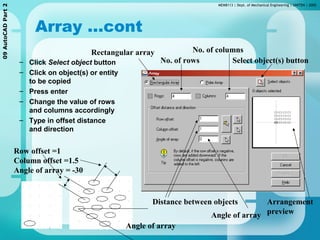
– Click Select object button
– Click on object(s) or entity
to be copied
– Press enter
– Change the value of rows
and columns accordingly
– Type in offset distance
and direction
Row offset =1
Column offset =1.5
Angle of array = -30
Select object(s) button
Rectangular array
No. of rows
No. of columns
Distance between objects
Angle of array
Arrangement
preview
Angle of array
MEMB113 | Dept. of Mechanical Engineering | UNITEN | 200509AutoCADPart2
Array …cont
– Click on Polar Array
– Select object(s)
– Specify center point
– Select method
• No.of item & angle to
fill
• No.of item & angle
between item
• Angle to fill & angle
between item
– Specify the required
value
– Click on ‘rotate item as
copied’ check box if
required
Polar array
– [pd menu] > Modify > Array…
– [icon Array]
MEMB113 | Dept. of Mechanical Engineering | UNITEN | 200509AutoCADPart2
Array …cont
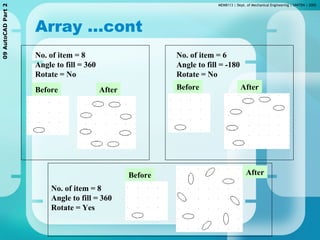
Before After
No. of item = 8
Angle to fill = 360
Rotate = No
Before After
No. of item = 6
Angle to fill = -180
Rotate = No
Before After
No. of item = 8
Angle to fill = 360
Rotate = Yes
Persented by
Dhruvit kardani 130080125007
Nishant desai 130080125003
Piyush lathiya 130080125011
Isha modi 130080125014

object snap

  • 1.
  • 2.
  • 3.
    MEMB113 | Dept.of Mechanical Engineering | UNITEN | 200509AutoCADPart2 Content • OSNAP • OTRACK • BLOCK & INSERT • Draw command: rectangle, polygon • Edit command: trim, offset, extend, array
  • 4.
    MEMB113 | Dept.of Mechanical Engineering | UNITEN | 200509AutoCADPart2 Drawing aid: Object snap • Object snap or OSNAP – Are functions to aid the drawing process, a very useful tool – To snap on a geometric point on an object – Can be turned off or on by clicking OSNAP button on status bar or press CTRL+F or F3 key – When turned on, the cursor will jump or snap to the certain point on an object e.g. mid-point of a line or tangent of a circle – Includes visual aid – AutoSnap – Several OSNAP modes available, can activate any number at a time Endpoint Midpoint Intersection Apparent Intersection Extension Center Quadrant Tangent Perpendicular Parallel Insert Node Nearest
  • 5.
    MEMB113 | Dept.of Mechanical Engineering | UNITEN | 200509AutoCADPart2 Object snap …cont • OSNAP setting – Right-click OSNAP button – ‘Drafting Setting’ dialog box turns up – Can be used to turn on or off object snap modes – Symbols indicated by each mode are shown in drawing with yellow marker
  • 6.
    MEMB113 | Dept.of Mechanical Engineering | UNITEN | 200509AutoCADPart2 Object snap …cont • How to use: – You need to have an object on drawing area – Then you need to be in a drawing command, e.g. CIRCLE, LINE, ARC, etc. – Hover the mouse over the existing object, • Yellow marker shows up with tool tip • Indicating what type of geometric point snap can be done Endpoint Midpoint Intersection Example of OTRACK
  • 7.
    MEMB113 | Dept.of Mechanical Engineering | UNITEN | 200509AutoCADPart2 Object snap modes…cont • Endpoint – Snap to endpoint of the nearest entity, e.g. end of a line • Midpoint – Snap to the midpoint of an entity, e.g. midpoint of a straight line, or arc • Center – Snap to the center of entity such as circle, arc or ellipse • Node – Snap to the nearest point (entity) • Quadrant – Snap to the quarter position on the circumference of an arc, circle or ellipse • Intersection – Snap to the intersection of two entities • Tangent – Snap to the tangent of entities such as circle, arc or ellipse • Nearest – Snap to the nearest point on an entities • Perpendicular – Snap to the point perpendicular to an entity such as straight line
  • 8.
    MEMB113 | Dept.of Mechanical Engineering | UNITEN | 200509AutoCADPart2 Block and insert • Block and insert is similar to copy and paste, but with extra features, where objects can be copied and inserted into the drawing • Steps – Create block [pd menu] >Block > Make or click [Icon Block] – Give name, select objects to be included – To insert/paste block into drawing – [pd menu] > Insert > Block or click [Icon Insert Block] – Specify insertion point on drawing to paste Base point (1) Give name (2) Base point (3) Select objects Block (make) Insert block
  • 9.
    MEMB113 | Dept.of Mechanical Engineering | UNITEN | 200509AutoCADPart2 Block & insert ... cont • To use/paste the block in drawing – [pd menu] > Insert > Block.. Or [Icon Insert Block] – command:insert {enter} Insert icon Select block Insertion point Scale Rotation
  • 10.
    MEMB113 | Dept.of Mechanical Engineering | UNITEN | 200509AutoCADPart2 Rectangle • To draw a rectangular object – [pd menu] > Draw > Rectangle or [Icon Rectangle] or Command:rectangle or rectang Rectangle shape Rectangle – with 0.25 chamfer Rectangle – with 0.25 fillet 2nd point1st point Rectangle icon
  • 11.
    MEMB113 | Dept.of Mechanical Engineering | UNITEN | 200509AutoCADPart2 Polygon • To draw many- & equal- side closed object e.g hexagon, pentagon etc. – [pd menu] > Draw > Polygon or [Icon Polygon] or Command: polygon Center - Inscribed Center - Circumscribed Edge 1st point 2nd point 1st point 2nd point 1st point 2nd point Examples of polygon drawn Polygon icon
  • 12.
    MEMB113 | Dept.of Mechanical Engineering | UNITEN | 200509AutoCADPart2 Offset • To create copy of existing object at a certain distance – Concentric circles and squares, parallel lines and curves – [pd menu] > Modify > Offset or [Icon Offset] – Specify the distance – Select the object – Click on the side to place the object Before After Offset icon Before After Before After
  • 13.
    MEMB113 | Dept.of Mechanical Engineering | UNITEN | 200509AutoCADPart2 Trim • To remove a certain part of an object based on other object(s) – [pd menu] > Modify > Trim or [Icon Trim] Cutting edge Part to be removed Before After Cutting edgeBefore After Part to be removed Cutting edge Part to be removed Before After Cutting edge Part to be removed Cutting edge Part to be removed Before After Before After
  • 14.
    MEMB113 | Dept.of Mechanical Engineering | UNITEN | 200509AutoCADPart2 Extend • To extend an object to another selected object – [pd menu] > Modify > Extend or [Icon Extend] or – command: extend – Steps • Active the command • Click an object to be the boundary object • The the object to be extended • The object should extend to the boundary object Boundary object Before After Before After Object to extend Boundary object Object to extend
  • 15.
    MEMB113 | Dept.of Mechanical Engineering | UNITEN | 200509AutoCADPart2 Array • Creates multiple copies with a certain pattern and distance • 2 types: rectangular and polar Rectangular array – [pd menu] > Modify > Array… – [icon Array] – Array Window will be displayed AfterBefore Array icon
  • 16.
    MEMB113 | Dept.of Mechanical Engineering | UNITEN | 200509AutoCADPart2 Array …cont – Click Select object button – Click on object(s) or entity to be copied – Press enter – Change the value of rows and columns accordingly – Type in offset distance and direction Row offset =1 Column offset =1.5 Angle of array = -30 Select object(s) button Rectangular array No. of rows No. of columns Distance between objects Angle of array Arrangement preview Angle of array
  • 17.
    MEMB113 | Dept.of Mechanical Engineering | UNITEN | 200509AutoCADPart2 Array …cont – Click on Polar Array – Select object(s) – Specify center point – Select method • No.of item & angle to fill • No.of item & angle between item • Angle to fill & angle between item – Specify the required value – Click on ‘rotate item as copied’ check box if required Polar array – [pd menu] > Modify > Array… – [icon Array]
  • 18.
    MEMB113 | Dept.of Mechanical Engineering | UNITEN | 200509AutoCADPart2 Array …cont Before After No. of item = 8 Angle to fill = 360 Rotate = No Before After No. of item = 6 Angle to fill = -180 Rotate = No Before After No. of item = 8 Angle to fill = 360 Rotate = Yes
  • 19.
    Persented by Dhruvit kardani130080125007 Nishant desai 130080125003 Piyush lathiya 130080125011 Isha modi 130080125014