1 | P a g e
cal
Displays a calendar
Syntax
cal [−smjy13] [[[day] month] year]
Description
View calendar of specific month or year
Options
−1 Display single month output. (This is the default.)
−3 Display prev/current/next month output.
−s Display Sunday as the first day of the week.
−m Display Monday as the first day of the week.
−j Display Julian dates (days one-based, numbered from January 1).
−y Display a calendar for the current year.
−V Display version information and exit.
Example 1
cal prints an ASCII calendar of the current month
[eleiss@eleiss ~]$ cal
August 2011
Su Mo Tu We Th Fr Sa
1 2 3 4 5 6
7 8 9 10 11 12 13
14 15 16 17 18 19 20
21 22 23 24 25 26 27
28 29 30 31
cal, when used without an argument, prints calendar of current month
Example 2
To view the calendar of a specific year, provide the year as an argument
[eleiss@eleiss ~]$ cal 2000
2000
January February March
Su Mo Tu We Th Fr Sa Su Mo Tu We Th Fr Sa Su Mo Tu We Th Fr Sa
1 1 2 3 4 5 1 2 3 4
2 3 4 5 6 7 8 6 7 8 9 10 11 12 5 6 7 8 9 10 11
2 | P a g e
9 10 11 12 13 14 15 13 14 15 16 17 18 19 12 13 14 15 16 17 18
16 17 18 19 20 21 22 20 21 22 23 24 25 26 19 20 21 22 23 24 25
23 24 25 26 27 28 29 27 28 29 26 27 28 29 30 31
30 31
April May June
Su Mo Tu We Th Fr Sa Su Mo Tu We Th Fr Sa Su Mo Tu We Th Fr Sa
1 1 2 3 4 5 6 1 2 3
2 3 4 5 6 7 8 7 8 9 10 11 12 13 4 5 6 7 8 9 10
9 10 11 12 13 14 15 14 15 16 17 18 19 20 11 12 13 14 15 16 17
16 17 18 19 20 21 22 21 22 23 24 25 26 27 18 19 20 21 22 23 24
23 24 25 26 27 28 29 28 29 30 31 25 26 27 28 29 30
30
July August September
Su Mo Tu We Th Fr Sa Su Mo Tu We Th Fr Sa Su Mo Tu We Th Fr Sa
1 1 2 3 4 5 1 2
2 3 4 5 6 7 8 6 7 8 9 10 11 12 3 4 5 6 7 8 9
9 10 11 12 13 14 15 13 14 15 16 17 18 19 10 11 12 13 14 15 16
16 17 18 19 20 21 22 20 21 22 23 24 25 26 17 18 19 20 21 22 23
23 24 25 26 27 28 29 27 28 29 30 31 24 25 26 27 28 29 30
30 31
October November December
Su Mo Tu We Th Fr Sa Su Mo Tu We Th Fr Sa Su Mo Tu We Th Fr Sa
1 2 3 4 5 6 7 1 2 3 4 1 2
8 9 10 11 12 13 14 5 6 7 8 9 10 11 3 4 5 6 7 8 9
15 16 17 18 19 20 21 12 13 14 15 16 17 18 10 11 12 13 14 15 16
22 23 24 25 26 27 28 19 20 21 22 23 24 25 17 18 19 20 21 22 23
29 30 31 26 27 28 29 30 24 25 26 27 28 29 30
31
The above command displays the calendar of year 2000
Example 3
To view the calendar of a specific month, provide the month and the year as arguments
[eleiss@eleiss ~]$ cal 1 1990
January 1990
Su Mo Tu We Th Fr Sa
1 2 3 4 5 6
7 8 9 10 11 12 13
14 15 16 17 18 19 20
21 22 23 24 25 26 27
28 29 30 31
The above command displays the calendar for January 1990
Example 4
The option -3 displays the calendar of the specified month along with its previous and next month
[eleiss@eleiss ~]$ cal -3 8 1947
July 1947 August 1947 September 1947
Su Mo Tu We Th Fr Sa Su Mo Tu We Th Fr Sa Su Mo Tu We Th Fr Sa
1 2 3 4 5 1 2 1 2 3 4 5 6
6 7 8 9 10 11 12 3 4 5 6 7 8 9 7 8 9 10 11 12 13
13 14 15 16 17 18 19 10 11 12 13 14 15 16 14 15 16 17 18 19 20
20 21 22 23 24 25 26 17 18 19 20 21 22 23 21 22 23 24 25 26 27
3 | P a g e
27 28 29 30 31 24 25 26 27 28 29 30 28 29 30
31
The above command displays the calendar for July, August and September 1947
date
print or set the system date and time
Syntax
date [OPTION]... [+FORMAT]
date [-u|--utc|--universal] [MMDDhhmm[[CC]YY][.ss]]
Description
Display the current time in the given FORMAT, or set the system date.
Options
-d, --date=STRING
display time described by STRING, not `now'
-f, --file=DATEFILE
like --date once for each line of DATEFILE
-r, --reference=FILE
display the last modification time of FILE
-R, --rfc-2822
output date and time in RFC 2822 format. Example: Mon, 07 Aug 2006 12:34:56 -0600
--rfc-3339=TIMESPEC
output date and time in RFC 3339 format. TIMESPEC=`date', `seconds', or `ns' for date and time to
the indicated precision. Date and time components are separated by a single space: 2006-08-07
12:34:56-06:00
-s, --set=STRING
set time described by STRING
-u, --utc, --universal
print or set Coordinated Universal Time
Formats
%d day of month (e.g, 01)
%m month (01..12)
%Y year
%F full date; same as %Y-%m-%d
%H hour (00..23)
4 | P a g e
%k hour (0..23)
%M minute (00..59)
%S second (00..60)
%T time; same as %H:%M:%S
Invoking date with no FORMAT argument is equivalent to invoking it with a default format that depends
on the LC_TIME locale category. In the default C locale, this format is '+%a %b %e %H:%M:%S %Z %Y',
so the output looks like Thu Mar 3 13:47:51 PST 2005.
Example 1
Show current date and time.
[eleiss@eleiss ~]$ date
Tue Aug 16 18:37:07 IST 2011
[eleiss@eleiss ~]$
date command shows current date and time when run without arguments.
Example 2
Show time in hh:mm:ss format
[eleiss@eleiss ~]$ date +"%H:%M:%S"
18:41:20
[eleiss@eleiss ~]$
If given an argument that starts with a `+', `date' prints the current date and time in the format defined by
that argument.
Example 3
Display time described by STRING.
[eleiss@eleiss ~]$ date +"%d-%m-%Y" -d "1 January"
01-01-2011
[eleiss@eleiss ~]$
prints the date and time specified by -d in format defined by the argument.
bc
An arbitrary precision calculator language
Syntax
bc [ -hlwsqv ] [long-options] [ file ... ]
5 | P a g e
Description
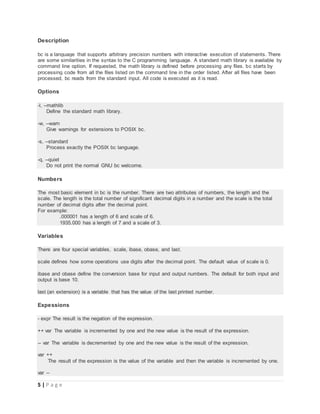
bc is a language that supports arbitrary precision numbers with interactive execution of statements. There
are some similarities in the syntax to the C programming language. A standard math library is available by
command line option. If requested, the math library is defined before processing any files. bc starts by
processing code from all the files listed on the command line in the order listed. After all files have been
processed, bc reads from the standard input. All code is executed as it is read.
Options
-l, --mathlib
Define the standard math library.
-w, --warn
Give warnings for extensions to POSIX bc.
-s, --standard
Process exactly the POSIX bc language.
-q, --quiet
Do not print the normal GNU bc welcome.
Numbers
The most basic element in bc is the number. There are two attributes of numbers, the length and the
scale. The length is the total number of significant decimal digits in a number and the scale is the total
number of decimal digits after the decimal point.
For example:
.000001 has a length of 6 and scale of 6.
1935.000 has a length of 7 and a scale of 3.
Variables
There are four special variables, scale, ibase, obase, and last.
scale defines how some operations use digits after the decimal point. The default value of scale is 0.
ibase and obase define the conversion base for input and output numbers. The default for both input and
output is base 10.
last (an extension) is a variable that has the value of the last printed number.
Expessions
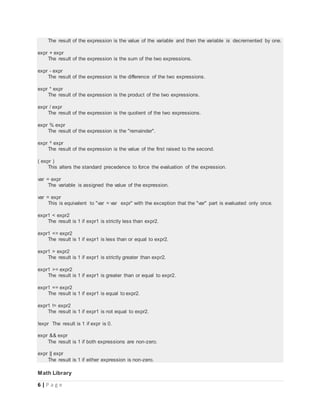
- expr The result is the negation of the expression.
++ var The variable is incremented by one and the new value is the result of the expression.
-- var The variable is decremented by one and the new value is the result of the expression.
var ++
The result of the expression is the value of the variable and then the variable is incremented by one.
var --
6 | P a g e
The result of the expression is the value of the variable and then the variable is decremented by one.
expr + expr
The result of the expression is the sum of the two expressions.
expr - expr
The result of the expression is the difference of the two expressions.
expr * expr
The result of the expression is the product of the two expressions.
expr / expr
The result of the expression is the quotient of the two expressions.
expr % expr
The result of the expression is the "remainder".
expr ^ expr
The result of the expression is the value of the first raised to the second.
( expr )
This alters the standard precedence to force the evaluation of the expression.
var = expr
The variable is assigned the value of the expression.
var = expr
This is equivalent to "var = var expr" with the exception that the "var" part is evaluated only once.
expr1 < expr2
The result is 1 if expr1 is strictly less than expr2.
expr1 <= expr2
The result is 1 if expr1 is less than or equal to expr2.
expr1 > expr2
The result is 1 if expr1 is strictly greater than expr2.
expr1 >= expr2
The result is 1 if expr1 is greater than or equal to expr2.
expr1 == expr2
The result is 1 if expr1 is equal to expr2.
expr1 != expr2
The result is 1 if expr1 is not equal to expr2.
!expr The result is 1 if expr is 0.
expr && expr
The result is 1 if both expressions are non-zero.
expr || expr
The result is 1 if either expression is non-zero.
Math Library
7 | P a g e
If bc is invoked with the -l option, a math library is preloaded and the default scale is set to 20. The math
library defines the following functions:
s (x) The sine of x, x is in radians.
c (x) The cosine of x, x is in radians.
a (x) The arctangent of x, arctangent returns radians.
l (x) The natural logarithm of x.
e (x) The exponential function of raising e to the value x.
Example 1
Demonstrate bc command.
[eleiss@eleiss ~]$ bc
bc 1.06.95
Copyright 1991-1994, 1997, 1998, 2000, 2004, 2006 Free Software Foundation,
Inc.
This is free software with ABSOLUTELY NO WARRANTY.
For details type `warranty'.
4+8
12
4*5
20
5-3
2
6/3
2
6%3
0
2^10
1024
10*5+4
54
10*(5+4)
90
Unlike other commands, when you run bc command dollar prompt ($) is not displayed on the screen. This
indicates that bc is ready to take input from you.
Example 2
Demonstrate expressions in bc command.
[eleiss@eleiss ~]$ bc -q
var=100
var
100
20 < 10
0
20 > 10
1
8 | P a g e
20 > 10 && 30 > 20
1
20 > 10 || 30 < 20
1
20 > 10 && 30 < 20
0
When expression is true, it returns 1 and 0 for false.
Example 3
Arithmetic library in bc.
[eleiss@eleiss ~]$ bc -l
bc 1.06.95
Copyright 1991-1994, 1997, 1998, 2000, 2004, 2006 Free Software Foundation,
Inc.
This is free software with ABSOLUTELY NO WARRANTY.
For details type `warranty&apos;.
s(1)
.84147098480789650665
c(1)
.54030230586813971740
l(1000)
6.90775527898213705205
If bc is invoked with the -l option, a math library is preloaded and the default scale is set to 20.
This example calculates sine, cosine and logarithm.
echo
Display a line of text.
Syntax
echo [SHORT-OPTION]... [STRING]...
echo LONG-OPTION
Description
Echo the STRING(s) to standard output.
Options
-n do not output the trailing newline
-e enable interpretation of backslash escapes
-E disable interpretation of backslash escapes (default)
Escape Sequence
9 | P a g e
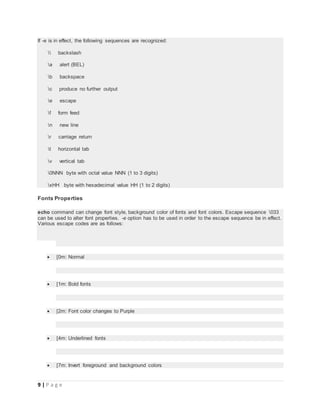
If -e is in effect, the following sequences are recognized:
 backslash
a alert (BEL)
b backspace
c produce no further output
e escape
f form feed
n new line
r carriage return
t horizontal tab
v vertical tab
0NNN byte with octal value NNN (1 to 3 digits)
xHH byte with hexadecimal value HH (1 to 2 digits)
Fonts Properties
echo command can change font style, background color of fonts and font colors. Escape sequence 033
can be used to alter font properties. -e option has to be used in order to the escape sequence be in effect.
Various escape codes are as follows:
 [0m: Normal
 [1m: Bold fonts
 [2m: Font color changes to Purple
 [4m: Underlined fonts
 [7m: Invert foreground and background colors
10 | P a g e
 [8m: Invisible fonts
 [9m: Cross lined fonts
 [30m: Font color changes to Grey
 [31m: Font color changes to Red
 [32m: Font color changes to Green
 [33m: Font color changes to Brown
 [34m: Font color changes to Blue
 [35m: Font color changes to Violet
 [36m: Font color changes to Sky Blue
 [37m: Font color changes to Light Grey
 [38m: Font color changes to Black
 [40m: Background color changes to Black
11 | P a g e
 [41m: Background color changes to Red
 [42m: Background color changes to Green
 [43m: Background color changes to Brown
 [44m: Background color changes to Blue
 [45m: Background color changes to Violet
 [46m: Background color changes to Sky Blue
 [47m: Background color changes to Light Grey
Example: 1
echo -e "033[31mHello Visitor033[0m"
The above command would print "Hello Visitor" in red color.
Example: 2
echo -e "033[1m033[41mHello Visitor033[0m"
The above command would print "Hello Visitor" in bold style and red background color.
Example 1
Display a string on standard output.
[eleiss@eleiss ~]$ echo "Eleiss Linux Resources"
Eleiss Linux Resources
[eleiss@eleiss ~]$
12 | P a g e
Echo prints the string given as argument on standard output.
Example 2
Demonstrate escape sequences in echo command.
[eleiss@eleiss ~]$ echo -e "EleissvLinuxvResources"
Eleiss
Linux
Resources
[eleiss@eleiss ~]$
Escape sequences can be used to format the output on standard output.
Example 3
Print a variable's value on standard output using echo command.
[eleiss@eleiss ~]$ os=Linux
[eleiss@eleiss ~]$ echo "I use $os"
I use Linux
[eleiss@eleiss ~]$
A variable "OS" has been assigned value "Linux" which is accessed by preceding a "$" sign to the
variable name.
Example 4
Testing echo command ( To be deleted )
[nicks@patroclus ~]$ echo "time pass"
time pass
[nicks@patroclus ~]$
This is a time pass example. Do not forget to delete it.
printf
Format and print data
Syntax
printf FORMAT [ARGUMENT]...
printf OPTION
Description
Print ARGUMENT(s) according to FORMAT, or execute according to OPTION
Options
--help Display help and exit
13 | P a g e
Format
FORMAT controls the output as in C printf. Interpreted sequences are:
" double quote
 backslash
a alert (BEL)
b backspace
c produce no further output
e escape
f form feed
n new line
r carriage return
t horizontal tab
v vertical tab
NNN byte with octal value NNN (1 to 3 digits)
xHH byte with hexadecimal value HH (1 to 2 digits)
uHHHH Unicode (ISO/IEC 10646) character with hex value HHHH (4 digits)
UHHHHHHHH
Unicode character qwith hex value HHHHHHHH (8 digits)
%% a single %
%b ARGUMENT as a string with `' escapes interpreted, except that
octal escapes are of the form 0 or 0NNN
and all C format specifications ending with one of diouxXfeEgGcs, with ARGUMENTs converted to proper
type first. Variable widths are handled.
Example 1
Print a string on standard output using printf command.
[eleiss@eleiss ~]$ printf "EleissvLinuxvResourcesn"
Eleiss
Linux
Resources
[eleiss@eleiss ~]$
[eleiss@eleiss ~]$ printf "Eleiss"
Eleiss[eleiss@eleiss ~]$
14 | P a g e
The first command demonstrates printf command with escape sequences and the second command
does that without the sequences.
Example 2
Demonstrate printf command like printf function in C language.
[eleiss@eleiss ~]$ printf "Ten in Decimal is: %dnTen in Octal is: %onTen in
Hexadecimal is: %x n"; 10 10 10
Ten in Decimal is: 10
Ten in Octal is: 12
Ten in Hexadecimal is: a
[eleiss@eleiss ~]$
Format specifiers can be used with printf command in the same way as in "printf" function in C
programming language.
passwd
update user's authentication tokens
Syntax
passwd [-k] [-l] [-u [-f]] [-d] [-n mindays] [-x maxdays] [-w warndays] [-i
inactivedays] [-S] [--stdin] [username]
Description
The passwd utility is used to update user's authentication token(s)
Options
-k The option -k, is used to indicate that the update should only be for expired authentication tokens
(passwords); the user wishes to keep their non-expired tokens as before.
-l This option is used to lock the specified account and it is available to root only. The locking is
performed by rendering the encrypted password into an invalid string (by prefixing the
encrypted string with an !).
--stdin
This option is used to indicate that passwd should read the new password from standard input, which
can be a pipe.
-u This is the reverse of the -l option - it will unlock the account password by removing the ! prefix. This
option is available to root only. By default passwd will refuse to create a passwordless account (it will not
unlock an account that has only &quot;!&quot; as a password). The force option -f will override this
protection.
-d This is a quick way to delete a password for an account. It will set the named account passwordless.
Available to root only.
-n This will set the minimum password lifetime, in days, if the user’s account supports password
lifetimes. Available to root only.
15 | P a g e
-x This will set the maximum password lifetime, in days, if the user’s account supports password
lifetimes. Available to root only.
-w This will set the number of days in advance the user will begin receiving warnings that her password
will expire, if the user’s account supports password lifetimes. Available to root only.
Example 1
Change user password.
[eleiss@eleiss ~]$ passwd
Changing password for user eleiss.
Changing password for eleiss.
(current) UNIX password:
New password:
BAD PASSWORD: it is based on a dictionary word
New password:
Retype new password:
passwd: all authentication tokens updated successfully.
[eleiss@eleiss ~]$
It does not accept weak passwords which are short in length or based on a dictionary word.
who
Show who is logged on
Syntax
who [OPTION]... [ FILE | ARG1 ARG2 ]
Description
Print information about users who are currently logged in.
Options
-a, --all
same as -b -d --login -p -r -t -T -u
-b, --boot
time of last system boot
-H, --heading
print line of column headings
-l, --login
print system login processes
-m only hostname and user associated with stdin
-q, --count
16 | P a g e
all login names and number of users logged on
-r, --runlevel
print current runlevel
-s, --short
print only name, line, and time (default)
-u, --users
list users logged in
Example 1
Show the name of the users who have currently logged in.
[eleiss@eleiss ~]$ who
eleiss tty1 2011-09-11 12:30 (:0)
eleiss pts/0 2011-09-11 12:32 (:0.0)
jennifer pts/2 2011-09-11 12:40 (:0.0)
eleiss pts/3 2011-09-11 12:42 (192.168.0.89)
alizee pts/4 2011-09-11 12:46 (:0.0)
[eleiss@eleiss ~]$
This command gives a four column output.
1. username
2. Terminal where the user has logged on
3. Log in time
4. IP Address from where the user has connected
Value (0:0) tells that the corresponding user has logged in from the current machine on a graphical
session running on the same machine.
Example 2
Show the last system boot up time using who command.
[eleiss@eleiss ~]$ who -b
system boot 2011-09-11 12:25
[eleiss@eleiss ~]$
The system was boot up on 11 September, 2011 at 12:25 Hours.
w
Show who is logged on and what they are doing
Syntax
w - [husfV] [user]
17 | P a g e
Description
w displays information about the users currently on the machine, and their processes. The header shows,
in this order, the current time, how long the system has been running, how many users are currently
logged on, and the system load averages for the past 1, 5, and 15 minutes.
The following entries are displayed for each user:
login name, the tty name, the remote host, login time, idle time, JCPU, PCPU, and the command line of
their current process.
The JCPU time is the time used by all processes attached to the tty. It does not include past background
jobs, but does include currently running background jobs.
The PCPU time is the time used by the current process, named in the "what" field.
Options
-h Don’t print the header.
-u Ignores the username while figuring out the current process and cpu times. To demonstrate this, do a
&quot;su&quot; and do a &quot;w&quot; and a &quot;w -u&quot;.
-s Use the short format. Don’t print the login time, JCPU or PCPU times.
-f Toggle printing the from (remote hostname) field. The default as released is for the from field to not be
printed, although your system administrator or distribution maintainer may have compiled a version in
which the from field is shown by default.
Example 1
Show the name of the users currently logged in the system.
[eleiss@eleiss ~]$ w
12:58:53 up 33 min, 4 users, load average: 0.28, 0.44, 0.49
USER TTY FROM LOGIN@ IDLE JCPU PCPU WHAT
panther tty1 :0 12:30 33:28 60.53s 0.09s pam: gdm-
password
eleiss pts/0 :0.0 12:32 6:52 0.89s 3.75s gnome-
terminal
godfred pts/2 :0.0 12:40 2:16 0.53s 0.22s ssh
eleiss@192.168.0.67
python pts/3 :0.0 12:46 0.00s 0.68s 3.75s gnome-
terminal
[eleiss@eleiss ~]$
The output is same as described above in "Description" section.
The very first row tells about the system boot up time, uptime, total number of currently logged in users,
and system load averages.
1. All the users have logged in from local host on tty1, pts/0, pts/2 and pts/3 respectively.
18 | P a g e
2. According to the fourth column, the login time of panther, eleiss, godfred and python are 12:30,
12:32, 12:40 and 12:46 respectively.
3. According to the fifth column, the users are idle for last 33, 6:52, 2:16 and 0 minutes respectively.
4. The last column says what the users are currently doing on their terminal. Panther user has
initiated a graphical session. eleiss and python are running gnome-terminal. While godfred has
made an ssh connection to a host 192.168.0.67 and the user name is eleiss.
uname
Print system information
Syntax
uname [OPTION]...
Description
Print certain system information.
Options
-a, --all
print all information, in the following order, except omit -p and -i if unknown:
-s, --kernel-name
print the kernel name
-n, --nodename
print the network node hostname
-r, --kernel-release
print the kernel release
-v, --kernel-version
print the kernel version
-m, --machine
print the machine hardware name
-p, --processor
print the processor type or &quot;unknown&quot;
-i, --hardware-platform
print the hardware platform or &quot;unknown&quot;
-o, --operating-system
print the operating system
Example 1
Demonstrate uname command.
19 | P a g e
[eleiss@eleiss ~]$ uname -s
Linux
[eleiss@eleiss ~]$ uname -n
eleiss
[eleiss@eleiss ~]$ uname -r
2.6.34.7-63.i686.PAE
[eleiss@eleiss ~]$ uname -v
#1 SMP Fri Dec 3 12:28:58 UTC 2010
[eleiss@eleiss ~]$ uname -m
i686
[eleiss@eleiss ~]$ uname -p
i686
[eleiss@eleiss ~]$ uname -i
i386
[eleiss@eleiss ~]$ uname -o
GNU/Linux
[eleiss@eleiss ~]$ uname -a
Linux eleiss 2.6.34.7-63.i686.PAE #1 SMP Fri Dec 3 12:28:58 UTC 2010 i686
i686 i386 GNU/Linux
[eleiss@eleiss ~]$
The above example demonstrates the use of uname command.
In the output, the last command displays all the information with the help of -a option. The information is
as below:
1. Kernel Name: Linux
2. Hostname of the network node: eleiss
3. Kernel Release: 2.6.34.7-63.i686.PAE
4. Kernel Version: #1 SMP Fri Dec 3 12:28:58 UTC 2010
5. Machine Hardware: i686
6. Processor Type: i686
7. Hardware Platform: i386
8. Operating System: GNU/Linux
expr
Evaluate expressions
Syntax
expr EXPRESSION
expr OPTION
Description
Print the value of EXPRESSION to standard output.
Options
--help display help and exit
20 | P a g e
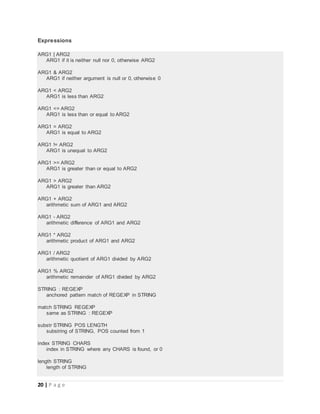
Expressions
ARG1 | ARG2
ARG1 if it is neither null nor 0, otherwise ARG2
ARG1 & ARG2
ARG1 if neither argument is null or 0, otherwise 0
ARG1 < ARG2
ARG1 is less than ARG2
ARG1 <= ARG2
ARG1 is less than or equal to ARG2
ARG1 = ARG2
ARG1 is equal to ARG2
ARG1 != ARG2
ARG1 is unequal to ARG2
ARG1 >= ARG2
ARG1 is greater than or equal to ARG2
ARG1 > ARG2
ARG1 is greater than ARG2
ARG1 + ARG2
arithmetic sum of ARG1 and ARG2
ARG1 - ARG2
arithmetic difference of ARG1 and ARG2
ARG1 * ARG2
arithmetic product of ARG1 and ARG2
ARG1 / ARG2
arithmetic quotient of ARG1 divided by ARG2
ARG1 % ARG2
arithmetic remainder of ARG1 divided by ARG2
STRING : REGEXP
anchored pattern match of REGEXP in STRING
match STRING REGEXP
same as STRING : REGEXP
substr STRING POS LENGTH
substring of STRING, POS counted from 1
index STRING CHARS
index in STRING where any CHARS is found, or 0
length STRING
length of STRING
21 | P a g e
+ TOKEN
interpret TOKEN as a string, even if it is a keyword like ‘match’ or an operator like ‘/’
( EXPRESSION )
value of EXPRESSION
Example 1
Demonstrate simple mathematical operations in expr command.
[eleiss@eleiss ~]$ expr 10 + 10
20
[eleiss@eleiss ~]$ expr 10 / 10
1
[eleiss@eleiss ~]$ expr 10 - 10
0
[eleiss@eleiss ~]$ expr 10 * 10
100
[eleiss@eleiss ~]$ expr 21 % 10
1
[eleiss@eleiss ~]$
The above example demonstrates how addition, subtraction, multiplication, division and modulation can
be performed by expr command.
You can perform these operation by using the standard operator symbol. But while using multiplication
operator, do not forget to escape the "*" otherwise it will throw a syntax error. This is so because the shell
treat the symbol as a pattern matching character.
Example 2
Can expr command perform mathematical operations on float numbers ?
[eleiss@eleiss ~]$ expr 10 / 3
3
[eleiss@eleiss ~]$ expr 10.5 + 0.5
expr: non-numeric argument
[eleiss@eleiss ~]$
You can not perform operations on float numbers. As you can see in the output, the first command of
division operation returns the floor value of the float number. The second command throws an error.
expr command treats float numbers as strings.
To perform floating point operations, one can use bc command.
Example 3
How can we perform logical expressions with expr command ?
[eleiss@eleiss ~]$ expr 10 > 5
1
[eleiss@eleiss ~]$ expr 10 > 25
22 | P a g e
0
[eleiss@eleiss ~]$ expr 10 < 25
1
[eleiss@eleiss ~]$ expr 10 < 2
0
[eleiss@eleiss ~]$ expr 10 = 2
0
[eleiss@eleiss ~]$ expr 10 = 10
1
[eleiss@eleiss ~]$ expr 10 != 10
0
[eleiss@eleiss ~]$ expr 10 != 20
1
[eleiss@eleiss ~]$
The output is self explanatory. When the expression is true, the command displays 0 or else it displays 1.
Do not forget to escape the operator symbols.
Example 4
How to match regular expression using expr command ?
[eleiss@eleiss ~]$ expr "I love Linux" : ^I.*love$
6
[eleiss@eleiss ~]$ expr "I love Linux" : ^I.*L.*$
12
[eleiss@eleiss ~]$ expr "I love Linux" : ^I.*do not.*$
0
[eleiss@eleiss ~]$ expr match "browser-v4.1-os" ^browser.*-os$
15
[eleiss@eleiss ~]$ expr match "browser-v4.1-os" ^rowser.*-os$
0
[eleiss@eleiss ~]$
If the string does not match the regular expression, the command returns 0.
Else the total number of characters that match the regular expression.
Example 5
Extract a part of string (substring) from a string using expr command.
[eleiss@eleiss ~]$ expr substr computer 2 5
omput
[eleiss@eleiss ~]$
The command extracts a substring starting at position 2 and length of 5 characters from the string
"computer;"
Example 6
Calculate length of a string using expr command.
23 | P a g e
[eleiss@eleiss ~]$ expr length "Count the length of this string"
31
[eleiss@eleiss ~]$
expr prints the length of the given string when length is used with the command.
Example 7
Find the first position of a character in the given string using expr command.
[eleiss@eleiss ~]$ expr index "Where is n in this string ?" n
10
[eleiss@eleiss ~]$
expr prints the first position of a character in the given string when index is used with the command.
test
Check file types and compare values
Syntax
test EXPRESSION
test
[ EXPRESSION ]
[ ]
[ OPTION
Description
Exit with the status determined by EXPRESSION. An omitted EXPRESSION defaults to false. Otherwise,
EXPRESSION is true or false and sets exit status.
Options
--help display help and exit
Expessions
( EXPRESSION )
EXPRESSION is true
! EXPRESSION
EXPRESSION is false
EXPRESSION1 -a EXPRESSION2
both EXPRESSION1 and EXPRESSION2 are true
EXPRESSION1 -o EXPRESSION2
either EXPRESSION1 or EXPRESSION2 is true
24 | P a g e
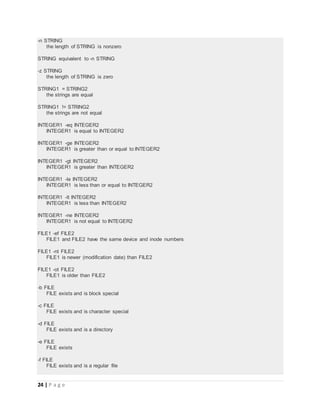
-n STRING
the length of STRING is nonzero
STRING equivalent to -n STRING
-z STRING
the length of STRING is zero
STRING1 = STRING2
the strings are equal
STRING1 != STRING2
the strings are not equal
INTEGER1 -eq INTEGER2
INTEGER1 is equal to INTEGER2
INTEGER1 -ge INTEGER2
INTEGER1 is greater than or equal to INTEGER2
INTEGER1 -gt INTEGER2
INTEGER1 is greater than INTEGER2
INTEGER1 -le INTEGER2
INTEGER1 is less than or equal to INTEGER2
INTEGER1 -lt INTEGER2
INTEGER1 is less than INTEGER2
INTEGER1 -ne INTEGER2
INTEGER1 is not equal to INTEGER2
FILE1 -ef FILE2
FILE1 and FILE2 have the same device and inode numbers
FILE1 -nt FILE2
FILE1 is newer (modification date) than FILE2
FILE1 -ot FILE2
FILE1 is older than FILE2
-b FILE
FILE exists and is block special
-c FILE
FILE exists and is character special
-d FILE
FILE exists and is a directory
-e FILE
FILE exists
-f FILE
FILE exists and is a regular file
25 | P a g e
-g FILE
FILE exists and is set-group-ID
-G FILE
FILE exists and is owned by the effective group ID
-h FILE
FILE exists and is a symbolic link (same as -L)
-k FILE
FILE exists and has its sticky bit set
-L FILE
FILE exists and is a symbolic link (same as -h)
-O FILE
FILE exists and is owned by the effective user ID
-p FILE
FILE exists and is a named pipe
-r FILE
FILE exists and read permission is granted
-s FILE
FILE exists and has a size greater than zero
-S FILE
FILE exists and is a socket
-t FD file descriptor FD is opened on a terminal
-u FILE
FILE exists and its set-user-ID bit is set
-w FILE
FILE exists and write permission is granted
-x FILE
FILE exists and execute (or search) permission is granted
Example 1
Check if length of given string is non-zero.
[eleiss@eleiss ~]$ test -n "Learning Linux commands is very easy"
[eleiss@eleiss ~]$ echo $?
0
[eleiss@eleiss ~]$ test -n ""
[eleiss@eleiss ~]$ echo $?
1
[eleiss@eleiss ~]$
test command does not print anything. That is why it is very much useful in shell scripts for condition
testing.
26 | P a g e
In the above example, output status "0" indicates that the length of the provided string is non-zero. If the
status is "1" then the length of the string is zero. i.e an empty string is supplied.
Example 2
Check if length of given string is zero.
[eleiss@eleiss ~]$ test -z "Learning Linux commands is very easy"
[eleiss@eleiss ~]$ echo $?
1
[eleiss@eleiss ~]$ test -z ""
[eleiss@eleiss ~]$ echo $?
0
[eleiss@eleiss ~]$
In the above example, output status "1" indicates that the length of the provided string is zero. If the status
is "0" then the length of the string is zero. i.e an empty string is supplied.
Example 3
Demonstrate how to match two strings using test command.
[eleiss@eleiss ~]$ test "India" = "India"
[eleiss@eleiss ~]$ echo $?
0
[eleiss@eleiss ~]$ test "India" = "india"
[eleiss@eleiss ~]$ echo $?
1
[eleiss@eleiss ~]$ test "Unix" != "Unix"
[eleiss@eleiss ~]$ echo $?
1
[eleiss@eleiss ~]$ test "Unix" != "unix"
[eleiss@eleiss ~]$ echo $?
0
[eleiss@eleiss ~]$
As we already know that test command does not print anything on standard output. If the status of the
command is "0" then the expression evaluated is true and if the status of the command is "1" then the
expression evaluated is false.
Unlike, other popular programming languages, test command does not need to supply "=" operator two
times
Do not get confused with the assignment operator and this string matching operator of test
command.
Example 4
Demonstrate logical expressions for two integer numbers using test command.
[eleiss@eleiss ~]$ test 5 -eq 5
[eleiss@eleiss ~]$ echo $?
0
27 | P a g e
[eleiss@eleiss ~]$ test 5 -ge 5
[eleiss@eleiss ~]$ echo $?
0
[eleiss@eleiss ~]$ test 5 -gt 5
[eleiss@eleiss ~]$ echo $?
1
[eleiss@eleiss ~]$ test 5 -lt 5
[eleiss@eleiss ~]$ echo $?
1
[eleiss@eleiss ~]$ test 5 -le 5
[eleiss@eleiss ~]$ echo $?
0
[eleiss@eleiss ~]$ test 5 -ne 5
[eleiss@eleiss ~]$ echo $?
1
[eleiss@eleiss ~]$
The meaning of the operators used in this example is as below:
1. -eq: Compare two operands for equality
2. -ne: Opposite of -eq
3. -gt: Check if the first operand is greater than the second operand
4. -ge: Check if the first operand is greater than or equal to second operand
5. -lt: Check if the first operand is less than the second operand
6. -le: Check if the first operand is less than or equal to second operand
Example 5
Check if a given file exists and is a regular file using test command.
[eleiss@eleiss ~]$ test -f out.ogv
[eleiss@eleiss ~]$ echo $?
0
[eleiss@eleiss ~]$ ls -l out.ogv
-rw-rw-r--. 1 eleiss eleiss 24539234 Aug 12 2010 out.ogv
[eleiss@eleiss ~]$
In this example you can see in the output of ls command that "out.ogv" is a regular file and of course it
does exist.
Example 6
Check if a given file has read permission.
[eleiss@eleiss ~]$ test -r out.ogv
[eleiss@eleiss ~]$ echo $?
0
[eleiss@eleiss ~]$ ls -l out.ogv
-rw-rw-r--. 1 eleiss eleiss 24539234 Aug 12 2010 out.ogv
[eleiss@eleiss ~]$ test -r /etc/shadow
[eleiss@eleiss ~]$ echo $?
1
28 | P a g e
[eleiss@eleiss ~]$ ls -l /etc/shadow
----------. 1 root root 1683 Jul 31 04:02 /etc/shadow
[eleiss@eleiss ~]$
In the output you can see, that "out.ogv" file has read permission for the user. But "/etc/shadow" does not
have.
seq
Print a sequence of numbers
Syntax
seq [OPTION]... LAST
seq [OPTION]... FIRST LAST
seq [OPTION]... FIRST INCREMENT LAST
Description
Print numbers from FIRST to LAST, in steps of INCREMENT. If FIRST or INCREMENT is omitted, it
defaults to 1.
Options
-f, --format=FORMAT
use printf style floating-point FORMAT
-s, --separator=STRING
use STRING to separate numbers (default: n)
-w, --equal-width
equalize width by padding with leading zeroes
Example 1
Print a sequence of numbers starting from 1 to 10.
[eleiss@eleiss ~]$ seq 1 10
1
2
3
4
5
6
7
8
9
10
[eleiss@eleiss ~]$
This command is very useful in shell scripts for looping purpose.
29 | P a g e
Example 2
Print first 10 odd numbers.
[eleiss@eleiss ~]$ seq 1 2 20
1
3
5
7
9
11
13
15
17
19
[eleiss@eleiss ~]$
The middle digit is the increment value for the sequence starting from 1 to 20 which results into first ten
odd numbers.
factor
Factor numbers
Syntax
factor [NUMBER]...
factor OPTION
Description
Print the prime factors of each specified integer NUMBER. If none are specified on the command line,
read them from standard input.
Options
--help display this help and exit
Example 1
Find prime factors of a given number.
[eleiss@eleiss ~]$ factor 100
100: 2 2 5 5
[eleiss@eleiss ~]$
This example finds the factor of 100.
rev
reverse lines of a file or files
30 | P a g e
Syntax
rev [file ...]
Description
The rev utility copies the specified files to the standard output, reversing the order of characters in every
line. If no files are specified, the standard input is read.
Options
No options available.
Filesystem Navigation
1. pwd - print name of current/working/present directory
2. cd - Change the current directory
3. mkdir - make directories
4. rmdir - remove empty directories
5. ls - list directory contents
pwd
print name of current/working/present directory
Syntax
pwd [OPTION]...
Description
Print the full filename of the current working directory.
Options
-L, --logical
use PWD from environment, even if it contains symlinks
-P, --physical
avoid all symlinks
Example 1
Display the present working directory.
[eleiss@eleiss ~]$ pwd
/home/eleiss
Here /home/eleiss is the present working directory.
31 | P a g e
In other words absolute path of "." directory
cd
Change the current directory
Syntax
cd [-L|-P] [dir]
Description
Change the current directory to dir. The variable HOME is the default dir. The variable CDPATH defines
the search path for the directory containing dir. Alternative directory names in CDPATH are separated by
a colon (:). A null directory name in CDPATH is the same as the current directory, i.e., ‘‘.’’. If dir begins
with a slash (/), then CDPATH is not used. An argument of - is equivalent to $OLDPWD. If a non-empty
directory name from CDPATH is used, or if - is the first argument, and the directory change is successful,
the absolute pathname of the new working directory is written to the standard output. The return value is
true if the directory was successfully changed; false otherwise.
Options
-P option to the set builtin command
-L option forces symbolic links to be followed
Example 1
Demonstration of cd command
[eleiss@eleiss ~]$ pwd
/home/eleiss
[eleiss@eleiss ~]$ cd Documents/
[eleiss@eleiss Documents]$ pwd
/home/eleiss/Documents
[eleiss@eleiss Documents]$ cd /etc
[eleiss@eleiss etc]$ pwd
/etc
[eleiss@eleiss etc]$
The first time pwd says that the working directory was "/home/eleiss". Running cd Documents changes
our current directory to "/home/eleiss/Documents."
Later is the example of cd command with absolute pathname.
mkdir
make directories
Syntax
32 | P a g e
mkdir [OPTION]... DIRECTORY...
Description
Create the DIRECTORY(ies), if they do not already exist.
Options
-m, --mode=MODE
set file mode (as in chmod), not a=rwx - umask
-p, --parents
no error if existing, make parent directories as needed
-v, --verbose
print a message for each created directory
Example 1
Create a directory named Linux in current directory.
[eleiss@eleiss empty]$ mkdir -v linux
mkdir: created directory `linux'
[eleiss@eleiss empty]$ ls
linux
[eleiss@eleiss empty]$
The above creates "Linux" directory in current directory. -v option prints the output.
Example 2
Create multiple directories in a single command.
[eleiss@eleiss empty]$ mkdir -v city state country
mkdir: created directory `city'
mkdir: created directory `state'
mkdir: created directory `country'
[eleiss@eleiss empty]$ ls
city country linux state
[eleiss@eleiss empty]$
More than one directories can be created in a single mkdir command by providing all the names to the
command.
Example 3
Create a directory hierarchy.
[eleiss@eleiss empty]$ mkdir -v friends friends/jigi friends/sachi
friends/het friends/daiv
mkdir: created directory `friends'
mkdir: created directory `friends/jigi'
33 | P a g e
mkdir: created directory `friends/sachi'
mkdir: created directory `friends/het'
mkdir: created directory `friends/daiv'
[eleiss@eleiss empty]$ ls friends/
daiv het jigi sachi
[eleiss@eleiss empty]$ mkdir -v fruits/mango fruits/orange fruits
mkdir: cannot create directory `fruits/mango': No such file or directory
mkdir: cannot create directory `fruits/orange': No such file or directory
mkdir: created directory `fruits'
[eleiss@eleiss empty]$ ls fruits/
[eleiss@eleiss empty]$
To create a parent-child directory hierarchy, provide parent directory first followed by children directories.
Example 4
Create a directory hierarchy (better way).
[eleiss@eleiss empty]$ mkdir -pv tree/branches/leaves
mkdir: created directory `tree'
mkdir: created directory `tree/branches'
mkdir: created directory `tree/branches/leaves'
[eleiss@eleiss empty]$
To create a parent-child directory hierarchy in a better way, one should use -p option. Provide the
directory hierarchy as an argument.
rmdir
remove empty directories
Syntax
rmdir [OPTION]... DIRECTORY...
Description
Remove the DIRECTORY(ies), if they are empty.
Options
--ignore-fail-on-non-empty
ignore each failure that is solely because a directory is non-empty
-p, --parents
remove DIRECTORY and its ancestors; e.g., ‘rmdir -p a/b/c’ is similar to ‘rmdir a/b/c a/b a’
-v, --verbose
output a diagnostic for every directory processed
Example 1
34 | P a g e
Remove a directory in current directory.
[eleiss@eleiss empty]$ ls
city country friends fruits linux state tree
[eleiss@eleiss empty]$ rmdir -v city
rmdir: removing directory, `city'
[eleiss@eleiss empty]$ ls
country friends fruits linux state tree
[eleiss@eleiss empty]$ rmdir friends
rmdir: failed to remove `friends': Directory not empty
[eleiss@eleiss empty]$
Provide the directory name (absolute or relative path) to rmdir as an argument in order to remove it.
If the directory is not empty, then the command will throw an error.
Example 2
Remove a directory hierarchy.
[eleiss@eleiss empty]$ rmdir -pv tree/branches/leaves/
rmdir: removing directory, `tree/branches/leaves/'
rmdir: removing directory, `tree/branches'
rmdir: removing directory, `tree'
[eleiss@eleiss empty]$
We can remove a directory hierarchy using -p option. The innermost directory gets removed first and then
the outer one and so forth.
ls
list directory contents
Syntax
ls [OPTION]... [FILE]...
Description
List information about the FILEs (the current directory by default). Sort entries alphabetically if none of -
cftuvSUX nor --sort.
Options
-a, --all
do not ignore entries starting with .
-A, --almost-all
do not list implied . and ..
-c with -lt: sort by, and show, ctime (time of last modification of file status information) with -l: show
ctime and sort by name otherwise: sort by ctime
35 | P a g e
-C list entries by columns
--color[=WHEN]
control whether color is used to distinguish file types. WHEN may be ‘never’, ‘always’, or ‘auto’
-d, --directory
list directory entries instead of contents, and do not dereference symbolic links
--group-directories-first
group directories before files. augment with a --sort option, but any use of --sort=none (-U)
disables grouping
-h, --human-readable
with -l, print sizes in human readable format (e.g., 1K 234M 2G)
--si likewise, but use powers of 1000 not 1024
-H, --dereference-command-line
follow symbolic links listed on the command line
--dereference-command-line-symlink-to-dir
follow each command line symbolic link that points to a directory
-i, --inode
print the index number of each file
-I, --ignore=PATTERN
do not list implied entries matching shell PATTERN
-l use a long listing format
-L, --dereference
when showing file information for a symbolic link, show information for the file the link references
rather than for the link itself
-n, --numeric-uid-gid
like -l, but list numeric user and group IDs
-r, --reverse
reverse order while sorting
-R, --recursive
list subdirectories recursively
-S sort by file size
--time-style=STYLE
with -l, show times using style STYLE: full-iso, long-iso, iso, locale, +FORMAT. FORMAT is
interpreted like ‘date’; if FORMAT is FORMAT1&lt;newline&gt;FORMAT2, FORMAT1 applies to non-
recent files and FORMAT2 to recent files; if STYLE is prefixed with ‘posix-’, STYLE takes effect only
outside the POSIX locale
-t sort by modification time
36 | P a g e
-u with -lt: sort by, and show, access time with -l: show access time and sort by name otherwise: sort
by access time
-U do not sort; list entries in directory order
-v natural sort of (version) numbers within text
-x list entries by lines instead of by columns
-X sort alphabetically by entry extension
-1 list one file per line
Example 1
List the content of a directory
[eleiss@eleiss empty]$ ls
country friends fruits guitar linux state
[eleiss@eleiss empty]$ ls .
country friends fruits guitar linux state
[eleiss@eleiss empty]$ ls friends/
daiv het jigi sachi
[eleiss@eleiss empty]$ ls /usr/
bin etc games include kerberos lib libexec local sbin share src
tmp
[eleiss@eleiss empty]$
When we run ls command without any options, it lists the files and directory of the current directory.
We can provide an absolute or relative path as well as an argument.
Example 2
List all the files and directories including the hidden ones.
[eleiss@eleiss empty]$ ls -a
. .. country friends fruits guitar .hidden linux state
[eleiss@eleiss empty]$
When ls command is run with -a option the hidden files and directories are also listed.
In the above output, ., .. and .hidden are hidden ones.
Example 3
Long listing /usr directory.
[eleiss@eleiss empty]$ ls -l /usr/
total 336
dr-xr-xr-x. 2 root root 106496 Sep 1 12:46 bin
drwxr-xr-x. 2 root root 4096 Oct 1 2009 etc
drwxr-xr-x. 2 root root 4096 Oct 1 2009 games
37 | P a g e
drwxr-xr-x. 177 root root 20480 Jun 29 19:54 include
drwxr-xr-x. 6 root root 4096 Dec 1 2010 kerberos
dr-xr-xr-x. 227 root root 143360 Jul 28 12:39 lib
drwxr-xr-x. 39 root root 12288 Jul 8 00:33 libexec
drwxr-xr-x. 12 root root 4096 Oct 28 2010 local
dr-xr-xr-x. 2 root root 20480 Aug 2 10:35 sbin
drwxr-xr-x. 391 root root 12288 Jul 28 12:39 share
drwxr-xr-x. 5 root root 4096 Nov 13 2010 src
lrwxrwxrwx. 1 root root 10 Jul 15 2010 tmp -> ../var/tmp
[eleiss@eleiss empty]$
The very first row is the total number of filesystem blocks occupied by the particular directory.
The remaining is a 9 field output. These fields are separated by one or multiple white spaces. These
fields are as:
1. File type and permissions
First character indicates file type.
o d : Directory
o - : Regular File
o p : FIFO File
o s : Socket File
o b : Block Special File
o c : Character Special File
o l : Symbolic Link
Permissions include Read, Write and Execute permission bits for owner, group and others.
2. Number of hardlinks
3. Owner
4. Group Owner
5. Size in bytes
6. Last Modification Time (Next three fields)
7. Name of files and directories
Example 4
Show the information of a directory but not of the files or directories in it.
[eleiss@eleiss empty]$ ls -ld /usr/
drwxr-xr-x. 13 root root 4096 Jul 15 2010 /usr/
[eleiss@eleiss empty]$ ls -l /usr/
total 336
dr-xr-xr-x. 2 root root 106496 Sep 1 12:46 bin
drwxr-xr-x. 2 root root 4096 Oct 1 2009 etc
drwxr-xr-x. 2 root root 4096 Oct 1 2009 games
drwxr-xr-x. 177 root root 20480 Jun 29 19:54 include
drwxr-xr-x. 6 root root 4096 Dec 1 2010 kerberos
38 | P a g e
dr-xr-xr-x. 227 root root 143360 Jul 28 12:39 lib
drwxr-xr-x. 39 root root 12288 Jul 8 00:33 libexec
drwxr-xr-x. 12 root root 4096 Oct 28 2010 local
dr-xr-xr-x. 2 root root 20480 Aug 2 10:35 sbin
drwxr-xr-x. 391 root root 12288 Jul 28 12:39 share
drwxr-xr-x. 5 root root 4096 Nov 13 2010 src
lrwxrwxrwx. 1 root root 10 Jul 15 2010 tmp -> ../var/tmp
[eleiss@eleiss empty]$
-d option does not list the content of the given directory. Rather the command shows the information of
the directory itself.
Example 5
Show the i-node number of all the files and directory in the given directory.
[eleiss@eleiss empty]$ ls -i
647399 country 647405 fruits 647396 linux
647400 friends 647397 guitar 647398 state
[eleiss@eleiss empty]$
-i option with ls command lists the content of a directory with their respective i-node numbers
File and Directory Operations
1. cat - concatenate files and print on the standard output
2. touch - change file timestamps
3. cp - copy files and directories
4. rm - remove files or directories
5. mv - move (rename) files
6. more - file perusal filter for crt viewing
7. file - determine file type
8. wc - print newline, word, and byte counts for each file
9. od - dump files in octal and other formats
10. cmp - compare two files
11. comm - compare two sorted files line by line
12. diff - find differences between two files
cat
concatenate files and print on the standard output
Syntax
cat [OPTION]... [FILE]...
Description
Concatenate FILE(s), or standard input, to standard output.
39 | P a g e
Options
-b, --number-nonblank
number nonempty output lines
-E, --show-ends
display $ at end of each line
-s, --squeeze-blank
suppress repeated empty output lines
-T, --show-tabs
display TAB characters as ^I
-v, --show-nonprinting
use ^ and M- notation, except for LFD and TAB
Example 1
Display content of a file to standard output.
[eleiss@eleiss ~]$ cat india
India is a great country. Jai Hind.
[eleiss@eleiss ~]$
The command reads the content of a file given as an argument and prints on standard output.
Example 2
Read content of multiple files and print to standard output.
[eleiss@eleiss ~]$ cat quote
most debugging problems are fixed easily; identifying the location of the
problem is hard
[eleiss@eleiss ~]$ cat /etc/shells
/bin/sh
/bin/bash
/sbin/nologin
/bin/tcsh
/bin/csh
/bin/zsh
[eleiss@eleiss ~]$ cat quote /etc/shells
most debugging problems are fixed easily; identifying the location of the
problem is hard
/bin/sh
/bin/bash
/sbin/nologin
/bin/tcsh
/bin/csh
/bin/zsh
[eleiss@eleiss ~]$
It is simple. Just keep on writing all the file names you want to read. The content of all the files get
displayed on standard output.
40 | P a g e
Example 3
Create a file using cat command.
[eleiss@eleiss ~]$ cat > computer
Computer is not as much intelligent as the human brain is.
[eleiss@eleiss ~]$ cat computer
Computer is not as much intelligent as the human brain is.
[eleiss@eleiss ~]$
Using the > symbol, we can redirect the standard output to a file resulting in creation of a new file. Press
Ctrl + d when content to the file is over.
Example 4
Append to a file using cat command.
[eleiss@eleiss ~]$ cat computer
Computer is not as much intelligent as the human brain is.
[eleiss@eleiss ~]$ cat >> computer
Not even a supercomputer is.
[eleiss@eleiss ~]$ cat computer
Computer is not as much intelligent as the human brain is.
Not even a supercomputer is.
[eleiss@eleiss ~]$
Appending to a file is another purpose of cat command.
Example 5
Copy a file using cat command.
[eleiss@eleiss ~]$ cat india
India is a great country. Jai Hind.
[eleiss@eleiss ~]$ cat india > country
[eleiss@eleiss ~]$ cat country
India is a great country. Jai Hind.
[eleiss@eleiss ~]$
File before > symbol is source file and file after > symbol is the destination file. If the destination file does
not exist, then a new file is created. If destination file already exists, then it is truncated before copying.
Example 6
Concatenate two files
[eleiss@eleiss ~]$ cat computer
Computer is not as much intelligent as the human brain is.
Not even a supercomputer is.
[eleiss@eleiss ~]$ cat india
India is a great country. Jai Hind.
[eleiss@eleiss ~]$ cat india computer >> newfile
[eleiss@eleiss ~]$ cat newfile
41 | P a g e
India is a great country. Jai Hind.
Computer is not as much intelligent as the human brain is.
Not even a supercomputer is.
[eleiss@eleiss ~]$
In the above command the two files "computer" and "india" are concatenated into a new file "newfile"
touch
change file timestamps
Syntax
touch [OPTION]... FILE...
Description
Update the access and modification times of each FILE to the current time. A FILE argument that does
not exist is created empty. A FILE argument string of - is handled specially and causes touch to change
the times of the file associated with standard output.
Options
-a change only the access time
-c, --no-create
do not create any files
-d, --date=STRING
parse STRING and use it instead of current time
-m change only the modification time
-r, --reference=FILE
use this file’s times instead of current time
-t STAMP
use [[CC]YY]MMDDhhmm[.ss] instead of current time
--time=WORD
change the specified time: WORD is access, atime, or use: equivalent to -a WORD is modify or
mtime: equivalent to -m
Date String
The --date=STRING is a mostly free format human readable date string such as "Sun, 29 Feb 2004
16:21:42 -0800" or "2004-02-29 16:21:42" or even "next Thursday". A date string may contain items
indicating calendar date, time of day, time zone, day of week, relative time, relative date, and numbers.
An empty string indicates the beginning of the day. The date string format is more complex than is easily
documented here but is fully described in the info documentation.
Example 1
42 | P a g e
Create a new file using touch command.
[eleiss@eleiss ~]$ touch hexagon
[eleiss@eleiss ~]$ ls -l hexagon
-rw-rw-r--. 1 nicks nicks 0 Sep 2 15:35 hexagon
[eleiss@eleiss ~]$ ls -l india
-rw-rw-r--. 1 nicks nicks 36 Sep 2 15:04 india
[eleiss@eleiss ~]$ touch india
[eleiss@eleiss ~]$ ls -l india
-rw-rw-r--. 1 nicks nicks 36 Sep 2 15:37 india
[eleiss@eleiss ~]$
If the file does not exist then it is created with zero length. In above command "hexagon" file is a newly
created file with zero length.
If file already exists then its last access time and last modification times are updated. In the above
command, the modification time of the file "india" has been chaged.
Example 2
Change the modification time of a file.
[eleiss@eleiss ~]$ ls -l india
-rw-rw-r--. 1 nicks nicks 36 Sep 2 15:37 india
[eleiss@eleiss ~]$ touch -t 201101010000 india
[eleiss@eleiss ~]$ ls -l india
-rw-rw-r--. 1 nicks nicks 36 Jan 1 2011 india
[eleiss@eleiss ~]$
In the above command we can see the last modification time of the file "india" has been changed with the
help of touch command without altering the file content.
This is a hack ! You can alter the last modification time of your work done and claim an earlier
date or time as your completion time ;-)
cp
copy files and directories
Syntax
cp [OPTION]... [-T] SOURCE DEST
cp [OPTION]... SOURCE... DIRECTORY
cp [OPTION]... -t DIRECTORY SOURCE...
Description
Copy SOURCE to DEST, or multiple SOURCE(s) to DIRECTORY.
Options
43 | P a g e
-a, --archive
same as -dR --preserve=all
--backup[=CONTROL]
make a backup of each existing destination file
-d same as --no-dereference --preserve=links
-f, --force
if an existing destination file cannot be opened, remove it and try again (redundant if the -n option is
used)
-i, --interactive
prompt before overwrite (overrides a previous -n option)
-H follow command-line symbolic links in SOURCE
-l, --link
link files instead of copying
-L, --dereference
always follow symbolic links in SOURCE
-P, --no-dereference
never follow symbolic links in SOURCE
-p same as --preserve=mode,ownership,timestamps
-R, -r, --recursive
copy directories recursively
-t, --target-directory=DIRECTORY
copy all SOURCE arguments into DIRECTORY
-T, --no-target-directory
treat DEST as a normal file
-u, --update
copy only when the SOURCE file is newer than the destination file or when the destination file is
missing
-v, --verbose
explain what is being done
Example 1
Copy a file from one directory to another directory.
[eleiss@eleiss ~]$ cp -v /etc/passwd .
`/etc/passwd' -> `./passwd'
[eleiss@eleiss ~]$ ls
passwd
[eleiss@eleiss ~]$ cp -v /etc/passwd ./password
`/etc/passwd' -> `./password'
[eleiss@eleiss ~]$ ls
44 | P a g e
passwd password
[eleiss@eleiss ~]$
Copying a file from one directory to another directory is as simple as providing the source file path and
destination file path. If the destination is a directory then a new file is created with the same name as
source file.
Example 2
Copy entire directory to another location.
[eleiss@eleiss ~]$ ls divya/
file1 file2
[eleiss@eleiss ~]$ cp -vr divya/ kavya
`divya/' -> `kavya'
`divya/file1' -> `kavya/file1'
`divya/file2' -> `kavya/file2'
[eleiss@eleiss ~]$
In the above command, the "divya" directory is copied to "kavya". If the destination directory does not
exist, it is created and then the files are copied into it.
rm
remove files or directories
Syntax
rm [OPTION]... FILE...
Description
rm removes each specified file. By default, it does not remove directories.
Options
-f, --force
ignore nonexistent files, never prompt
-i prompt before every removal
-I prompt once before removing more than three files, or when removing recursively. Less intrusive
than -i, while still giving protection against most mistakes
-r, -R, --recursive
remove directories and their contents recursively
-v, --verbose
explain what is being done
Example 1
45 | P a g e
Remove a file.
[eleiss@eleiss ~]$ rm -v divya/file1
removed `divya/file1'
[eleiss@eleiss ~]$ rm -v divya/
rm: cannot remove `divya/': Is a directory
[eleiss@eleiss ~]$
The above command demonstrates how to remove a file using rm command. We have to provide a
filename as an argument. We can see that by default a directory can not be removed using rm command.
Example 2
Remove a directory using rm command.
[eleiss@eleiss ~]$ rm -vr divya/
removed `divya/file2'
removed directory: `divya'
[eleiss@eleiss ~]$
As we have seen earlier that an empty directory can not be deleted. Using the -r option
with rm command, we can recursively remove a directory. First all the files and subdirectories
(recursively) are removed and then at the end the parent directory gets deleted.
rm command is more flexible than rmdir command.
mv
move (rename) files
Syntax
mv [OPTION]... [-T] SOURCE DEST
mv [OPTION]... SOURCE... DIRECTORY
mv [OPTION]... -t DIRECTORY SOURCE...
Description
Rename SOURCE to DEST, or move SOURCE(s) to DIRECTORY.
Options
-f, --force
do not prompt before overwriting
-i, --interactive
prompt before overwrite
-t, --target-directory=DIRECTORY
move all SOURCE arguments into DIRECTORY
-T, --no-target-directory
46 | P a g e
treat DEST as a normal file
-u, --update
move only when the SOURCE file is newer than the destination file or when the destination file is
missing
Example 1
Move a file from one location to another location.
[eleiss@eleiss ~]$ mv -v /tmp/shell_scripting .
`/tmp/shell_scripting' -> `./shell_scripting'
[eleiss@eleiss ~]$ ls
shell_scripting
[eleiss@eleiss ~]$
The above command moves a file named shell_scripting from /tmp directory to the current directory.
Example 2
Rename a file using mv command.
[eleiss@eleiss ~]$ ls
Mail Unix
[eleiss@eleiss ~]$ mv -v Unix Linux
`Unix' -> `Linux'
[eleiss@eleiss ~]$ ls
Linux Mail
[eleiss@eleiss ~]$
A file or directory can be rename by moving it in the same directory. In this example "Unix" is moved in
the same directory with a new name "Linux"
Searching and Locating
1. updatedb - update a database for mlocate
2. locate - find files by name
3. find - search for files in a directory hierarchy
updatedb
update a database for mlocate
Syntax
updatedb [OPTION]...
Description
updatedb creates or updates a database used by locate(1). If the database already exists, its data is
reused to avoid rereading directories that have not changed.
47 | P a g e
updatedb is usually run daily by cron(8) to update the default database.
Options
-U, --database-root PATH
Store only results of scanning the file system subtree rooted at PATH to the generated database. The
whole file system is scanned by default.
-o, --output FILE
Write the database to FILE instead of using the default database.
-v, --verbose
Output path names of files to standard output, as soon as they are found.
locate
find files by name
Syntax
locate [OPTION]... PATTERN...
Description
locate reads one or more databases prepared by updatedb(8) and writes file names matching at least one
of the PATTERNs to standard output, one per line.
If --regex is not specified, PATTERNs can contain globbing characters. If any PATTERN contains no
globbing characters, locate behaves as if the pattern were *PATTERN*.
By default, locate does not check whether files found in database still exist. locate can never report files
created after the most recent update of the relevant database.
Options
-b, --basename
Match only the base name against the specified patterns. This is the opposite of --wholename.
-c, --count
Instead of writing file names on standard output, write the number of matching entries only.
-d, --database DBPATH
Replace the default database with DBPATH. DBPATH is a :-separated list of database file names. If
more than one --database option is specified, the resulting path is a concatenation of the separate paths.
An empty database file name is replaced by the default database. A database file name - refers to
the standard input. Note that a database can be read from the standard input only once.
-e, --existing
Print only entries that refer to files existing at the time locate is run.
-i, --ignore-case
Ignore case distinctions when matching patterns.
48 | P a g e
-l, --limit, -n LIMIT
Exit successfully after finding LIMIT entries. If the --count option is specified, the resulting count is
also limited to LIMIT.
-r, --regexp REGEXP
Search for a basic regexp REGEXP. No PATTERNs are allowed if this option is used, but this option
can be specified multiple times.
--regex
Interpret all PATTERNs as extended regexps.
Example 1
search for a file using locate command.
[eleiss@eleiss ~]$ locate hello-1.1.c
/home/eleiss/hello-1.1.c
[eleiss@eleiss ~]$
The output is self explaining. The target file is located in /home/eleiss directory.
NOTE: In order to locate newly created files, the database must be updated first
using updatedb command.
find
search for files in a directory hierarchy
Syntax
find [-H] [-L] [-P] [-D debugopts] [-Olevel] [path...] [expression]
Description
find searches the directory tree rooted at each given file name by evaluating the given expression from
left to right, according to the rules of precedence, until the outcome is known (the left hand side is false
for and operations, true for or), at which point find moves on to the next file name.
Options
-P Never follow symbolic links.
-L Follow symbolic links.
When the -L option is in effect, the -type predicate will always match against the type of the file that a
symbolic link points to rather than the link itself (unless the symbolic link is broken). Using -L causes the -
lname and -ilname predicates always to return false.
-H Do not follow symbolic links, except while processing the command line arguments.
-Olevel
49 | P a g e
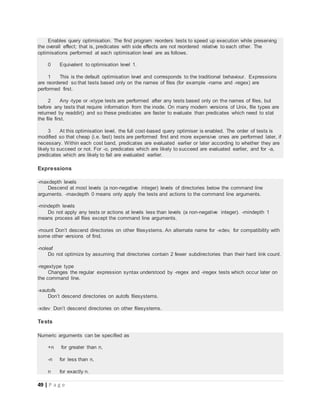
Enables query optimisation. The find program reorders tests to speed up execution while preserving
the overall effect; that is, predicates with side effects are not reordered relative to each other. The
optimisations performed at each optimisation level are as follows.
0 Equivalent to optimisation level 1.
1 This is the default optimisation level and corresponds to the traditional behaviour. Expressions
are reordered so that tests based only on the names of files (for example -name and -regex) are
performed first.
2 Any -type or -xtype tests are performed after any tests based only on the names of files, but
before any tests that require information from the inode. On many modern versions of Unix, file types are
returned by readdir() and so these predicates are faster to evaluate than predicates which need to stat
the file first.
3 At this optimisation level, the full cost-based query optimiser is enabled. The order of tests is
modified so that cheap (i.e. fast) tests are performed first and more expensive ones are performed later, if
necessary. Within each cost band, predicates are evaluated earlier or later according to whether they are
likely to succeed or not. For -o, predicates which are likely to succeed are evaluated earlier, and for -a,
predicates which are likely to fail are evaluated earlier.
Expressions
-maxdepth levels
Descend at most levels (a non-negative integer) levels of directories below the command line
arguments. -maxdepth 0 means only apply the tests and actions to the command line arguments.
-mindepth levels
Do not apply any tests or actions at levels less than levels (a non-negative integer). -mindepth 1
means process all files except the command line arguments.
-mount Don’t descend directories on other filesystems. An alternate name for -xdev, for compatibility with
some other versions of find.
-noleaf
Do not optimize by assuming that directories contain 2 fewer subdirectories than their hard link count.
-regextype type
Changes the regular expression syntax understood by -regex and -iregex tests which occur later on
the command line.
-xautofs
Don’t descend directories on autofs filesystems.
-xdev Don’t descend directories on other filesystems.
Tests
Numeric arguments can be specified as
+n for greater than n,
-n for less than n,
n for exactly n.
50 | P a g e
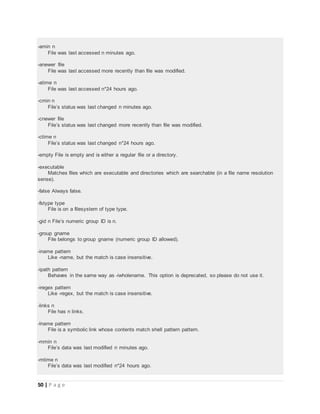
-amin n
File was last accessed n minutes ago.
-anewer file
File was last accessed more recently than file was modified.
-atime n
File was last accessed n*24 hours ago.
-cmin n
File’s status was last changed n minutes ago.
-cnewer file
File’s status was last changed more recently than file was modified.
-ctime n
File’s status was last changed n*24 hours ago.
-empty File is empty and is either a regular file or a directory.
-executable
Matches files which are executable and directories which are searchable (in a file name resolution
sense).
-false Always false.
-fstype type
File is on a filesystem of type type.
-gid n File’s numeric group ID is n.
-group gname
File belongs to group gname (numeric group ID allowed).
-iname pattern
Like -name, but the match is case insensitive.
-ipath pattern
Behaves in the same way as -iwholename. This option is deprecated, so please do not use it.
-iregex pattern
Like -regex, but the match is case insensitive.
-links n
File has n links.
-lname pattern
File is a symbolic link whose contents match shell pattern pattern.
-mmin n
File’s data was last modified n minutes ago.
-mtime n
File’s data was last modified n*24 hours ago.
51 | P a g e
-name pattern
Base of file name (the path with the leading directories removed) matches shell pattern pattern.
-newer file
File was modified more recently than file.
-nogroup
No group corresponds to file’s numeric group ID.
-nouser
No user corresponds to file’s numeric user ID.
-path pattern
File name matches shell pattern pattern.
-perm mode
File’s permission bits are exactly mode (octal or symbolic).
-perm -mode
All of the permission bits mode are set for the file.
-perm /mode
Any of the permission bits mode are set for the file.
-perm +mode
Deprecated, old way of searching for files with any of the permission bits in mode set.
-readable
Matches files which are readable.
-regex pattern
File name matches regular expression pattern.
-size n[cwbkMG]
File uses n units of space. The following suffixes can be used:
‘b’ for 512-byte blocks (this is the default if no suffix is used)
‘c’ for bytes
‘w’ for two-byte words
‘k’ for Kilobytes (units of 1024 bytes)
‘M’ for Megabytes (units of 1048576 bytes)
‘G’ for Gigabytes (units of 1073741824 bytes)
-type c
File is of type c:
b block (buffered) special
c character (unbuffered) special
d directory
52 | P a g e
p named pipe (FIFO)
f regular file
l symbolic link; this is never true if the -L option or the -follow option is in effect, unless the
symbolic link is broken. If you want to search for symbolic links when -L is in effect, use -xtype.
s socket
D door (Solaris)
-uid n File’s numeric user ID is n.
-used n
File was last accessed n days after its status was last changed.
-user uname
File is owned by user uname (numeric user ID allowed).
-writable
Matches files which are writable.
Actions
-delete
Delete files; true if removal succeeded.
-exec command ;
Execute command; true if 0 status is returned.
-exec command {} +
This variant of the -exec action runs the specified command on the selected files, but the command
line is built by appending each selected file name at the end; the total number of invocations of the
command will be much less than the number of matched files.
-fprint file
True; print the full file name into file file.
-fprintf file format
True; like -printf but write to file like -fprint.
-ok command ;
Like -exec but ask the user first.
-print True; print the full file name on the standard output, followed by a newline.
-quit Exit immediately
Example 1
search for a file using find command.
[eleiss@eleiss ~]$ find ./ -name "*hello*"
./hello-1.1.c
53 | P a g e
./hello-1.c
[eleiss@eleiss ~]$
This command finds files matching the pattern given in the current directory recursively.
Example 2
Find empty files in a directory.
[eleiss@eleiss ~]$ ls -l
total 12
-rw-rw-r--. 1 eleiss eleiss 81 Jan 1 2011 dhristadhyum
-rw-rw-r--. 1 eleiss eleiss 0 Sep 4 18:53 empty_file
-rw-rw-r--. 1 eleiss eleiss 125 Sep 4 16:02 hello-1.1.c
-rw-rw-r--. 1 eleiss eleiss 63 Sep 4 16:02 hello-1.c
[eleiss@eleiss ~]$ find ./ -empty
./empty_file
[eleiss@eleiss ~]$
The above command will search for an empty directory or regular file in the provided path recursively.
Example 3
Find all the files that were modified in last 24 hours.
[eleiss@eleiss ~]$ ls -l
total 12
-rw-rw-r--. 1 eleiss eleiss 81 Jan 1 2011 dhristadhyum
-rw-rw-r--. 1 eleiss eleiss 0 Sep 4 18:53 empty_file
-rw-rw-r--. 1 eleiss eleiss 125 Sep 4 16:02 hello-1.1.c
-rw-rw-r--. 1 eleiss eleiss 63 Sep 4 16:02 hello-1.c
[eleiss@eleiss ~]$ find ./ -mtime -1
./
./hello-1.1.c
./hello-1.c
./empty_file
[eleiss@eleiss ~]$
The command finds all the files and directories that were modified in last 24 hours.
Example 4
Find all the files which have read and write permissions for others in a directory.
[eleiss@eleiss ~]$ ls -l
total 16
-rw-rw-r--. 1 eleiss eleiss 81 Jan 1 2011 dhristadhyum
-rw-rw-r--. 1 eleiss eleiss 0 Sep 4 18:53 empty_file
-rw-rw-r--. 1 eleiss eleiss 125 Sep 4 16:02 hello-1.1.c
-rw-rw-r--. 1 eleiss eleiss 63 Sep 4 16:02 hello-1.c
-rw-r--rw-. 1 eleiss eleiss 6 Sep 4 19:01 world_writable
[eleiss@eleiss ~]$ find ./ -perm -o+rw
./world_writable
[eleiss@eleiss ~]$
54 | P a g e
The output says that "world_writable" has both read and write permissions for others.
Example 5
Remove all the files which have read and write permissions for others in a directory.
[eleiss@eleiss ~]$ ls -l
total 16
-rw-rw-r--. 1 eleiss eleiss 81 Jan 1 2011 dhristadhyum
-rw-rw-r--. 1 eleiss eleiss 0 Sep 4 18:53 empty_file
-rw-rw-r--. 1 eleiss eleiss 125 Sep 4 16:02 hello-1.1.c
-rw-rw-r--. 1 eleiss eleiss 63 Sep 4 16:02 hello-1.c
-rw-r--rw-. 1 eleiss eleiss 9 Sep 4 19:10 world_writable
[eleiss@eleiss ~]$ find ./ -type f -perm -o+rw -exec rm -fv {} ;
removed `./world_writable'
[eleiss@eleiss ~]$ ls -l
total 12
-rw-rw-r--. 1 eleiss eleiss 81 Jan 1 2011 dhristadhyum
-rw-rw-r--. 1 eleiss eleiss 0 Sep 4 18:53 empty_file
-rw-rw-r--. 1 eleiss eleiss 125 Sep 4 16:02 hello-1.1.c
-rw-rw-r--. 1 eleiss eleiss 63 Sep 4 16:02 hello-1.c
[eleiss@eleiss ~]$
First the find command will search for the files matching the given criteria and then operates
the rm command on each of them.
Users, Groups and Permissions
1. id - print real and effective user and group IDs
2. chmod - change file mode bits
3. chown - change file owner and group
4. chgrp - change group ownership
5. umask - set file creation mask
id
print real and effective user and group IDs
Syntax
id [OPTION]... [USERNAME]
Description
Print user and group information for the specified USERNAME, or (when USERNAME omitted) for the
current user.
Options
-a ignore, for compatibility with other versions
55 | P a g e
-Z, --context
print only the security context of the current user
-g, --group
print only the effective group ID
-G, --groups
print all group IDs
-n, --name
print a name instead of a number, for -ugG
-r, --real
print the real ID instead of the effective ID, with -ugG
-u, --user
print only the effective user ID
Example 1
Demonstrate id command.
[eleiss@eleiss ~]$ id
uid=501(eleiss) gid=501(eleiss) groups=501(eleiss),502(test)
context=unconfined_u:unconfined_r:unconfined_t:s0-s0:c0.c1023
[eleiss@eleiss ~]$
The user "eleiss" has user id 501 and primary group id 501. In addition the user is a member of another
group "test" whose id is 502. The remaining are SELinux properties.
chmod
change file mode bits
Syntax
chmod [OPTION]... MODE[,MODE]... FILE...
chmod [OPTION]... OCTAL-MODE FILE...
chmod [OPTION]... --reference=RFILE FILE...
Description
chmod changes the file mode bits of each given file according to mode, which can be either a symbolic
representation of changes to make, or an octal number representing the bit pattern for the new mode bits.
Options
--no-preserve-root
do not treat ‘/’ specially (the default)
-v, --verbose
56 | P a g e
output a diagnostic for every file processed
--reference=RFILE
use RFILE’s mode instead of MODE values
-R, --recursive
change files and directories recursively
Symbolic Mode
The format of a symbolic mode is [ugoa...][[+-=][perms...]...], where perms is either zero or more
letters from the set rwxXst, or a single letter from the set ugo. Multiple symbolic modes can be given,
separated by commas.
A combination of the letters ugoa controls which users’ access to the file will be changed: the user
who owns it (u), other users in the file’s group (g), other users not in the file’s group (o), or all users (a). If
none of these are given, the effect is as if a were given, but bits that are set in the umask are not affected.
The operator + causes the selected file mode bits to be added to the existing file mode bits of each
file; - causes them to be removed; and = causes them to be added and causes unmentioned bits to be
removed except that a directory’s unmentioned set user and group ID bits are not affected.
Octal Mode
A numeric mode is from one to four octal digits (0-7), derived by adding up the bits with values 4, 2, and
1. Omitted digits are assumed to be leading zeros. The first digit selects the set user ID (4) and set group
ID (2) and restricted deletion or sticky (1) attributes. The second digit selects permissions for the user
who owns the file: read (4), write (2), and execute (1); the third selects permissions for other users in the
file’s group, with the same values; and the fourth for other users not in the file’s group, with the same
values.
Example 1
Remove all permissions from a file for group and others.
[eleiss@eleiss ~]$ ls -l
total 4
-rw-rw-r--. 1 eleiss eleiss 22 Sep 4 19:22 cricket
[eleiss@eleiss ~]$ chmod g-rwx,o-rwx cricket
[eleiss@eleiss ~]$ ls -l
total 4
-rw-------. 1 eleiss eleiss 22 Sep 4 19:22 cricket
[eleiss@eleiss ~]$
Here permissions are given in symbolic representation.
Example 2
Give all the permissions for all to a file.
[eleiss@eleiss ~]$ ls -l
total 4
-rw-------. 1 eleiss eleiss 22 Sep 4 19:22 cricket
57 | P a g e
[eleiss@eleiss ~]$ chmod 777 cricket
[eleiss@eleiss ~]$ ls -l
total 4
-rwxrwxrwx. 1 eleiss eleiss 22 Sep 4 19:22 cricket
[eleiss@eleiss ~]$
Think twice before you do this. This will let everyone read, write and execute your file.
chown
change file owner and group
Syntax
chown [OPTION]... [OWNER][:[GROUP]] FILE...
chown [OPTION]... --reference=RFILE FILE...
Description
chown changes the user and/or group ownership of each given file.
If only an owner (a user name or numeric user ID) is given, that user is made the owner of each given file,
and the files’ group is not changed.
If the owner is followed by a colon and a group name (or numeric group ID), with no spaces between
them, the group ownership of the files is changed as well.
If a colon but no group name follows the user name, that user is made the owner of the files and the
group of the files is changed to that user’s login group.
If the colon and group are given, but the owner is omitted, only the group of the files is changed; in this
case, chown performs the same function as chgrp.
If only a colon is given, or if the entire operand is empty, neither the owner nor the group is changed.
Options
--dereference
affect the referent of each symbolic link (this is the default), rather than the symbolic link itself
-h, --no-dereference
affect each symbolic link instead of any referenced file (useful only on systems that can change
the ownership of a symlink)
--no-preserve-root
do not treat ‘/’ specially (the default)
--preserve-root
fail to operate recursively on ‘/’
--reference=RFILE
use RFILE’s owner and group rather than specifying OWNER:GROUP values
58 | P a g e
-R, --recursive
operate on files and directories recursively
-v, --verbose
output a diagnostic for every file processed
-H if a command line argument is a symbolic link to a directory, traverse it
-L traverse every symbolic link to a directory encountered
-P do not traverse any symbolic links (default)
Example 1
Change ownership of a file to root.
[root@eleiss ~]$ ls -l
total 4
-rwxrwxrwx. 1 eleiss eleiss 22 Sep 4 19:22 cricket
[root@eleiss ~]$ chown -v root cricket
changed ownership of `cricket' to root
[root@eleiss ~]$ ls -l
total 4
-rwxrwxrwx. 1 root eleiss 22 Sep 4 19:22 cricket
[root@eleiss ~]$
Only root can change the ownership.
Think what would happen if ordinary user could change the ownership of a file. :D
Example 2
Change ownership and group of a file.
[root@eleiss ~]$ ls -l
total 4
-rwxrwxrwx. 1 root eleiss 22 Sep 4 19:22 cricket
[root@eleiss ~]$ chown -v eleiss:root cricket
changed ownership of `cricket' to eleiss:root
[root@eleiss ~]$ ls -l
total 4
-rwxrwxrwx. 1 eleiss root 22 Sep 4 19:22 cricket
[root@eleiss ~]$
The new ownership of "cricket" is "eleiss" and group is "root".
chgrp
change group ownership
Syntax
59 | P a g e
chgrp [OPTION]... GROUP FILE...
chgrp [OPTION]... --reference=RFILE FILE...
Description
Change the group of each FILE to GROUP.
Options
--dereference
affect the referent of each symbolic link (this is the default), rather than the symbolic link itself
-h, --no-dereference
affect each symbolic link instead of any referenced file (useful only on systems that can change the
ownership of a symlink)
--no-preserve-root
do not treat ‘/’ specially (the default)
--preserve-root
fail to operate recursively on ‘/’
-f, --silent, --quiet
suppress most error messages
--reference=RFILE
use RFILE’s group rather than specifying a GROUP value
-R, --recursive
operate on files and directories recursively
-v, --verbose
output a diagnostic for every file processed
-H if a command line argument is a symbolic link to a directory, traverse it
-L traverse every symbolic link to a directory encountered
-P do not traverse any symbolic links (default)
Example 1
Change group of a file with chgrp command.
[eleiss@eleiss ~]$ ls -l
total 4
-rwxrwxrwx. 1 eleiss root 22 Sep 4 19:22 cricket
[eleiss@eleiss ~]$ chgrp eleiss cricket
[eleiss@eleiss ~]$ ls -l
total 4
-rwxrwxrwx. 1 eleiss eleiss 22 Sep 4 19:22 cricket
[eleiss@eleiss ~]$
Ordinary users can change group ownership of their own files.
60 | P a g e
umask
set file creation mask
Syntax
umask [-p] [-S] [mode]
Description
The user file-creation mask is set to mode.If mode begins with a digit, it is interpreted as an octal number;
otherwise it is interpreted as a symbolic mode mask similar to that accepted by chmod(1). If mode is
omitted, the current value of the mask is printed.
Options
-S option causes the mask to be printed in symbolic form; the default output is an octal number.
-p option is supplied, and mode is omitted, the output is in a form that may be reused as input.
Example 1
Demonstration of umask command.
[eleiss@eleiss ~]$ umask
0002
[eleiss@eleiss ~]$ touch dhananjay
[eleiss@eleiss ~]$ mkdir geeta
[eleiss@eleiss ~]$ ls -l dhananjay
-rw-rw-r--. 1 eleiss eleiss 0 Sep 4 19:46 dhananjay
[eleiss@eleiss ~]$ ls -ld geeta/
drwxrwxr-x. 2 eleiss eleiss 4096 Sep 4 19:46 geeta/
[eleiss@eleiss ~]$
The newly created file "dhananjay" has permissions 0666 minus 0002 which is 0664.
The newly created directory "geeta" has permissions 0777 minus 0002 which is 0775.
Example 2
Changing umask value.
[eleiss@eleiss ~]$ umask
0002
[eleiss@eleiss ~]$ umask 0022
[eleiss@eleiss ~]$ umask
0022
[eleiss@eleiss ~]$
The new umask value does not persist and the old value comes into action once the current shell is
exited. In order to make it persistent write this command in users's system start up files.
i.e "~/.bashrc" or "~/.bash_profile".
61 | P a g e
Editors
1. vim - Vi IMproved, a programmers text editor
vim
Vi IMproved, a programmers text editor
Syntax
vim [options] [file ..]
Description
Vim is a text editor that is upwards compatible to Vi. It can be used to edit all kinds of plain text. It is
especially useful for editing programs.
There are a lot of enhancements above Vi: multi level undo, multi windows and buffers, syntax
highlighting, command line editing, filename completion, on-line help, visual selection, etc.. See ":help
vi_diff.txt" for a summary of the differences between Vim and Vi.
While running Vim a lot of help can be obtained from the on-line help system, with the ":help" command.
Options
+[num] For the first file the cursor will be positioned on line &quot;num&quot;. If &quot;num&quot; is
missing, the cursor will be positioned on the last line.
+/{pat} For the first file the cursor will be positioned on the first occurrence of {pat}. See &quot;:help
search-pattern&quot; for the available search patterns.
+{command}
-c {command}
{command} will be executed after the first file has been read. {command} is interpreted as an Ex
command. If the {command} contains spaces it must be enclosed in double quotes (this depends on the
shell that is used). Example: Vim &quot;+set si&quot; main.c
-d Start in diff mode. There should be two, three or four file name arguments. Vim will open all the
files and show differences between them. Works like vimdiff(1)
-e Start Vim in Ex mode, just like the executable was called &quot;ex&quot;.
-E Start Vim in improved Ex mode, just like the executable was called &quot;exim&quot;.
-o[N] Open N windows stacked. When N is omitted, open one window for each file.
-O[N] Open N windows side by side. When N is omitted, open one window for each file.
-r {file} Recovery mode. The swap file is used to recover a crashed editing session. The swap file is a file
with the same filename as the text file with &quot;.swp&quot; appended. See &quot;:help recovery&quot;.
62 | P a g e
Shells
1. bash - GNU Bourne-Again SHell
2. history - Access command history
3. tty - print the file name of the terminal connected to standard input
4. tee - read from standard input and write to standard output and files
5. trap - Shell built-in command to respond to kernel signals.
bash
GNU Bourne-Again SHell
Syntax
bash [options] [file]
Description
Bash is an sh-compatible command language interpreter that executes commands read from the
standard input or from a file. Bash also incorporates useful features from the Korn and C shells (ksh and
csh).
Options
-c string If the -c option is present, then commands are read from string. If there are arguments after the
string, they are assigned to the positional parameters, starting with $0.
-i If the -i option is present, the shell is interactive.
-l Make bash act as if it had been invoked as a login shell
-r If the -r option is present, the shell becomes restricted
-s If the -s option is present, or if no arguments remain after option processing, then commands are
read from the standard input. This option allows the positional parameters to be set when invoking an
interactive shell.
-D A list of all double-quoted strings preceded by $ is printed on the standard output. These are the
strings that are subject to language translation when the current locale is not C or POSIX. This implies the
-n option; no commands will be executed.
[-+]O [shopt_option]
shopt_option is one of the shell options accepted by the shopt builtin. If shopt_option is present, -O
sets the value of that option; +O unsets it. If shopt_option is not supplied, the names and values of the
shell options accepted by shopt are printed on the standard output. If the invocation option is +O, the
output is displayed in a format that may be reused as input.
-- A -- signals the end of options and disables further option processing. Any arguments after the --
are treated as filenames and arguments. An argument of - is equivalent to --.
Control Characters
63 | P a g e
Control Characters change the behavior of the terminal or text display. A control character is a
CONTROL + key combination (pressed simultaneously). A control character may also be written in octal
or hexadecimal notation, following an escape.
 Ctrl + A - Moves cursor to beginning of line of text (on the command-line).
 Ctrl + B - Backspace (nondestructive).
 Ctrl + C - Break. Terminate a foreground job.
 Ctrl + D - Log out from a shell (similar to exit). EOF (end-of-file). This also terminates input from
stdin. When typing text on the console or in an xterm window, Ctl-D erases the character under
the cursor. When there are no characters present, Ctrl-D logs out of the session, as expected. In
an xterm window, this has the effect of closing the window.
 Ctrl + E - Moves cursor to end of line of text (on the command-line).
 Ctrl + F - Moves cursor forward one character position (on the command-line).
 Ctrl + G - BEL.
 Ctrl + H - Rubout (destructive backspace). Erases characters the cursor backs over while
backspacing.
 Ctrl + I - Horizontal tab.
 Ctrl + J - Newline (line feed).
 Ctrl + K - Vertical tab.
64 | P a g e
 Ctrl + L - Formfeed (clear the terminal screen).
 Ctrl + M - Carriage return.
 Ctrl + N - Erases a line of text recalled from history buffer(on the command-line).
 Ctrl + O - Issues a newline (on the command-line).
 Ctrl + P - Recalls last command from history buffer (on the command-line).
 Ctrl + Q - Resume
 Ctrl + R - Backwards search for text in history buffer (on the command-line).
 Ctrl + S - Suspend
 Ctrl + T - Reverses the position of the character the cursor is on with the previous character (on
the command-line).
 Ctrl + U - Erase a line of input, from the cursor backward to beginning of line.
 Ctrl + V - When inputting text, Ctrl-V permits inserting control characters.
 Ctrl + W - When typing text on the console or in an xterm window, Ctrl-W erases from the
character under the cursor backwards to the first instance of whitespace.
65 | P a g e
 Ctrl + X - In certain word processing programs, Cuts highlighted text and copies to clipboard.
 Ctrl + Y - Pastes back text previously erased (with Ctrl-U or Ctrl-W).
 Ctrl + Z - Pauses a foreground job.
history
Access command history
Syntax
history [options]
Description
With no options, display the command history list with line numbers. Lines listed with a * have been
modified. An argument of n lists only the last n lines.
Options
-c Clear the history list by deleting all the entries.
-d offset Delete the history entry at position offset.
-a Append the ‘‘new’’ history lines (history lines entered since the beginning of the current bash
session) to the history file.
-n Read the history lines not already read from the history file into the current history list. These are
lines appended to the history file since the beginning of the current bash session.
-r Read the contents of the history file and use them as the current history.
-w Write the current history to the history file, overwriting the history file’s contents.
Example 1
Show last five commands stored in history.
[eleiss@eleiss ~]$ history | tail -5
792 ls -l
793 pwd
794 cat /etc/passwd
795 tree
796 history | tail -5
66 | P a g e
[eleiss@eleiss ~]$
Above command shows the previous five commands run on the current shell.
Example 2
Run commands from the history.
[eleiss@eleiss ~]$ history | tail -5
792 ls -l
793 pwd
794 cat /etc/passwd
795 tree
796 history | tail -5
[eleiss@eleiss ~]$ !793
pwd
/home/eleiss
[eleiss@eleiss ~]$
You can run commands stored in history by using their reference number. In order to run a command by
its reference number type "!" character followed by the number and press enter, the shell runs the
command stored at the number in history. Here pwd command is stored at 793 position.
Example 3
Print a command at specific position in the history.
[eleiss@eleiss ~]$ history | tail -5
792 ls -l
793 pwd
794 cat /etc/passwd
795 tree
796 history | tail -5
[eleiss@eleiss ~]$ !793:p
pwd
[eleiss@eleiss ~]$
In order to print a command stored at some specific position in the history type "!" character followed by
the number followed by ":p"and press enter. Here in this example shell prints the command stored at
position 793 which is pwd.
tty
print the file name of the terminal connected to standard input
Syntax
tty [OPTION]...
Description
print the file name of the terminal connected to standard input
67 | P a g e
Options
-s, --silent, --quiet
print nothing, only return an exit status
Example 1
Find the name of the current terminal.
[eleiss@eleiss ~]$ tty
/dev/pts/2
[eleiss@eleiss ~]$
Here the user "eleiss" has logged in on "/dev/pts/2" terminal.
tee
read from standard input and write to standard output and files
Syntax
tee [OPTION]... [FILE]...
Description
Read from standard input and write to standard output and files. Copy standard input to each FILE, and
also to standard output.
Options
-a, --append
append to the given FILEs, do not overwrite
-i, --ignore-interrupts
ignore interrupt signals
Example 1
Demonstrate tee command.
[eleiss@eleiss ~]$ cat names | head -5 | tee girls
divya
dharmi
priti
komal
priyanka
[eleiss@eleiss ~]$ cat girls
divya
dharmi
priti
komal
priyanka
68 | P a g e
tulsi
vanita
rupa
[eleiss@eleiss ~]$
The above command prints first five lines from the file "names" and also stores the same output in a file
"girls" in current directory.
trap
Shell built-in command to respond to kernel signals.
Syntax
trap [-lp] [[arg] sigspec ...]
Description
The command arg is to be read and executed when the shell receives signal(s) sigspec.
Options
-l print a list of signal names and their corresponding numbers.
-p display commands to be executed by trap associated with signal
Filters
1. pr - convert text files for printing
2. head - output the first part of files
3. tail - output the last part of files
4. cut - remove sections from each line of files
5. paste - merge lines of files
6. sort - sort lines of text files
7. uniq - report or omit repeated lines
8. tr - translate or delete characters
9. sed - stream editor for filtering and transforming text
10. awk - pattern scanning and processing language
pr
convert text files for printing
Syntax
pr [OPTION]... [FILE]...
Description
69 | P a g e
Paginate or columnate FILE(s) for printing.
Options
+FIRST_PAGE[:LAST_PAGE], --pages=FIRST_PAGE[:LAST_PAGE]
begin [stop] printing with page FIRST_[LAST_]PAGE
-COLUMN, --columns=COLUMN
output COLUMN columns and print columns down, unless -a is used. Balance number of lines in the
columns on each page.
-a, --across
print columns across rather than down, used together with -COLUMN
-c, --show-control-chars
use hat notation (^G) and octal backslash notation
-d, --double-space
double space the output
-D, --date-format=FORMAT
use FORMAT for the header date
-e[CHAR[WIDTH]], --expand-tabs[=CHAR[WIDTH]]
expand input CHARs (TABs) to tab WIDTH (8)
-F, -f, --form-feed
use form feeds instead of newlines to separate pages (by a 3-line page header with -F or a 5-line
header and trailer without -F)
-h, --header=HEADER
use a centered HEADER instead of filename in page header, -h "" prints a blank line, don’t use -h""
-J, --join-lines
merge full lines, turns off -W line truncation, no column alignment, --sep-string[=STRING] sets
separators
-l, --length=PAGE_LENGTH
set the page length to PAGE_LENGTH (66) lines (default number of lines of text 56, and with -F 63)
-m, --merge
print all files in parallel, one in each column, truncate lines, but join lines of full length with -J
Example 1
Demonstrate pr command.
[eleiss@eleiss ~]$ cat /etc/passwd | head -5 | pr -l 15 -h "Passwd File"
2011-09-12 01:57 Passwd File Page 1
root:x:0:0:root:/root:/bin/bash
bin:x:1:1:bin:/bin:/sbin/nologin
70 | P a g e
daemon:x:2:2:daemon:/sbin:/sbin/nologin
adm:x:3:4:adm:/var/adm:/sbin/nologin
lp:x:4:7:lp:/var/spool/lpd:/sbin/nologin
[eleiss@eleiss ~]$
The command in example prepares the first five lines of "/etc/passwd" for printing. The header can be
customized with -h option.
head
output the first part of files
Syntax
head [OPTION]... [FILE]...
Description
Print the first 10 lines of each FILE to standard output. With more than one FILE, precede each with a
header giving the file name. With no FILE, or when FILE is -, read standard input.
Options
-c, --bytes=[-]K
print the first K bytes of each file; with the leading ‘-’, print all but the last K bytes of each file
-n, --lines=[-]K
print the first K lines instead of the first 10; with the leading ‘-’, print all but the last K lines of each file
Example 1
Print first six lines of some output using head command.
[eleiss@eleiss ~]$ seq 1 100 | head -6
1
2
3
4
5
6
[eleiss@eleiss ~]$
You already know that the above seq command would print integer numbers from 1 to 100. But the
output is modified and the first ten lines are printed.
head command is very useful in shell scripts.
71 | P a g e
If no argument is supplied to head command, it prints first ten lines.
Example 2
Print first hundred bytes of some output using head command.
[eleiss@eleiss ~]$ cat /etc/passwd | head -c 100
root:x:0:0:root:/root:/bin/bash
bin:x:1:1:bin:/bin:/sbin/nologin
daemon:x:2:2:daemon:/sbin:/sbin/nol[eleiss@eleiss ~]$
The output is the first hundred bytes of the file "/etc/passwd"
tail
output the last part of files
Syntax
tail [OPTION]... [FILE]...
Description
Print the last 10 lines of each FILE to standard output. With more than one FILE, precede each with a
header giving the file name. With no FILE, or when FILE is -, read standard input.
Options
-c, --bytes=K
output the last K bytes; alternatively, use -c +K to output bytes starting with the Kth of each file
-f, --follow[={name|descriptor}]
output appended data as the file grows; -f, --follow, and --follow=descriptor are equivalent
-F same as --follow=name --retry
-n, --lines=K
output the last K lines, instead of the last 10; or use -n +K to output lines starting with the Kth
--max-unchanged-stats=N
with --follow=name, reopen a FILE which has not changed size after N (default 5) iterations to see if it
has been unlinked or renamed (this is the usual case of rotated log files)
--pid=PID
with -f, terminate after process ID, PID dies
-q, --quiet, --silent
never output headers giving file names
--retry
72 | P a g e
keep trying to open a file even when it is or becomes inaccessible; useful when following by name,
i.e., with --follow=name
-s, --sleep-interval=N
with -f, sleep for approximately N seconds (default 1.0) between iterations
-v, --verbose
always output headers giving file names
Example 1
Print last seven lines of some output using tail command.
[eleiss@eleiss ~]$ ls -1
autosave.xmi
bin
Desktop
Documents
Downloads
empty
Music
out.ogv
passwd
Pictures
Public
README
Templates
texput.log
VGAME
Videos
[eleiss@eleiss ~]$ ls -1 | tail -7
Pictures
Public
README
Templates
texput.log
VGAME
Videos
[eleiss@eleiss ~]$
By default if you do not supply any argument to tail command, then it prints last ten lines of the input
supplied to it.
Example 2
Print all the lines from nth line using tail command.
[eleiss@eleiss ~]$ seq 1 100 | tail -n +94
94
95
96
97
98
99
100
73 | P a g e
[eleiss@eleiss ~]$
This command prints all the lines starting from 94th line.
Example 3
Print an excerpt of some output using the combination of head and tail command.
[eleiss@eleiss ~]$ seq 1 100 | tail -n +50 | head -8
50
51
52
53
54
55
56
57
[eleiss@eleiss ~]$
The combination of head and tail commands is very much useful in shell scripts.
In this example, the seq command generates a sequence starting from 1 to 100. The output is passed
to tail command which displays the lines starting from 50 and the output is then passed
to head command which displays the first eight lines.
cut
remove sections from each line of files
Syntax
cut [OPTION]... [FILE]...
Description
Print selected parts of lines from each FILE to standard output. With no FILE, or when FILE is -, read
standard input.
Options
-b, --bytes=LIST
select only these bytes
-c, --characters=LIST
select only these characters
-d, --delimiter=DELIM
use DELIM instead of TAB for field delimiter
-f, --fields=LIST
select only these fields; also print any line that contains no delimiter character, unless the -s option is
specified
74 | P a g e
-n with -b: don’t split multibyte characters
--complement
complement the set of selected bytes, characters or fields
-s, --only-delimited
do not print lines not containing delimiters
--output-delimiter=STRING
use STRING as the output delimiter the default is to use the input delimiter
Use one, and only one of -b, -c or -f. Each LIST is made up of one range, or many ranges separated by
commas. Selected input is written in the same order that it is read, and is written exactly once. Each
range is one of:
N N’th byte, character or field, counted from 1
N- from N’th byte, character or field, to end of line
N-M from N’th to M’th (included) byte, character or field
-M from first to M’th (included) byte, character or field
Example 1
Extract username and their login shell from a /etc/passwd file.
[eleiss@eleiss ~]$ cat /etc/passwd | cut -d":" -f 1,7
root:/bin/bash
bin:/sbin/nologin
daemon:/sbin/nologin
adm:/sbin/nologin
lp:/sbin/nologin
[eleiss@eleiss ~]$
In this example ":" is provided as a delimiter to the cut command. As you may know, a password file in
Linux is a seven fields file where every field is separated by ":"
cut command is one the most used commands in shell scripts.
Example 2
Display only file types and permissions of files in the current directory.
[eleiss@eleiss ~]$ ls -l
total 24068
-rw-------. 1 eleiss eleiss 14653 Feb 3 2011 autosave.xmi
drwxr-xr-x. 2 eleiss eleiss 4096 Jun 30 17:33 Desktop
drwxr-xr-x. 2 eleiss eleiss 4096 Apr 25 00:36 Documents
drwxrwxr-x. 3 eleiss eleiss 4096 Sep 4 19:46 empty
drwxr-xr-x. 2 eleiss eleiss 4096 Aug 5 2010 Music
-rw-rw-r--. 1 eleiss eleiss 24539234 Aug 12 2010 out.ogv
drwxr-xr-x. 2 eleiss eleiss 4096 Aug 7 2010 Pictures
75 | P a g e
-rw-rw-r--. 1 eleiss eleiss 618 Aug 11 2010 texput.log
drwx------. 2 eleiss eleiss 4096 May 17 23:31 VGAME
[eleiss@eleiss ~]$ ls -l | tail -n +2 | cut -b 1-10
-rw-------
drwxr-xr-x
drwxr-xr-x
drwxrwxr-x
drwxr-xr-x
-rw-rw-r--
drwxr-xr-x
-rw-rw-r--
drwx------
[eleiss@eleiss ~]$
tail command eliminates the first line from the output of ls -l command. As you know that the first ten
characters of the output are the file type and permissions. The cut command extracts first ten characters
from each line.
paste
merge lines of files
Syntax
paste [OPTION]... [FILE]...
Description
Write lines consisting of the sequentially corresponding lines from each FILE, separated by TABs, to
standard output. With no FILE, or when FILE is -, read standard input.
Options
-d, --delimiters=LIST
reuse characters from LIST instead of TABs
-s, --serial
paste one file at a time instead of in parallel
Example 1
Paste two files using paste command.
[eleiss@eleiss ~]$ cat name
Pintu
Manoj
Paresh
Rajni
Nitin
[eleiss@eleiss ~]$ cat roll
11
12
15
76 | P a g e
17
20
[eleiss@eleiss ~]$ paste name roll
Pintu 11
Manoj 12
Paresh 15
Rajni 17
Nitin 20
Here the paste command pastes two separate files "name" and "roll"
sort
sort lines of text files
Syntax
sort [OPTION]... [FILE]...
Description
Write sorted concatenation of all FILE(s) to standard output.
Options
-b, --ignore-leading-blanks
ignore leading blanks
-d, --dictionary-order
consider only blanks and alphanumeric characters
-f, --ignore-case
fold lower case to upper case characters
-g, --general-numeric-sort
compare according to general numerical value
-i, --ignore-nonprinting
consider only printable characters
-M, --month-sort
compare (unknown) &lt; ‘JAN’ &lt; ... &lt; ‘DEC’
-h, --human-numeric-sort
compare human readable numbers (e.g., 2K 1G)
-n, --numeric-sort
compare according to string numerical value
-R, --random-sort
sort by random hash of keys
--random-source=FILE
77 | P a g e
get random bytes from FILE
-r, --reverse
reverse the result of comparisons
--sort=WORD
sort according to WORD: general-numeric -g, human-numeric -h, month -M, numeric -n, random -R,
version -V
-k, --key=POS1[,POS2]
start a key at POS1 (origin 1), end it at POS2 (default end of line)
-m, --merge
merge already sorted files; do not sort
-o, --output=FILE
write result to FILE instead of standard output
-s, --stable
stabilize sort by disabling last-resort comparison
-t, --field-separator=SEP
use SEP instead of non-blank to blank transition
-T, --temporary-directory=DIR
use DIR for temporaries, not $TMPDIR or /tmp; multiple options specify multiple directories
-u, --unique
with -c, check for strict ordering; without -c, output only the first of an equal run
-z, --zero-terminated
end lines with 0 byte, not newline
Example 1
Sort the content of a file and display on standard output.
[eleiss@eleiss ~]$ cat cities
Surat
Vadodara
Mumbai
Ahmedabad
Delhi
[eleiss@eleiss ~]$ sort cities
Ahmedabad
Delhi
Mumbai
Surat
Vadodara
[eleiss@eleiss ~]$
In this example the content of the file "cities" is sorted in alphabetical order and then displayed on the
standard output. By default the sortcommand sorts in alphabetical order.
The original content of the file remains untouched.
78 | P a g e
Example 2
Sort the content of a file in numeric order and display the content on standard output.
[eleiss@eleiss ~]$ cat directory
9009909090 J'lo
8008890765 Alizee
6789678543 Madonna
9087612111 Shakira
8887776115 Rihana
[eleiss@eleiss ~]$ sort -n directory
6789678543 Madonna
8008890765 Alizee
8887776115 Rihana
9009909090 J'lo
9087612111 Shakira
[eleiss@eleiss ~]$
In this example, the sort command sorts the content of the file in numeric order and displays the output
on the standard output.
Example 3
Sort the content of a file in reverse alphabetical order and display the output on standard output.
[eleiss@eleiss ~]$ cat cities
Surat
Vadodara
Mumbai
Ahmedabad
Delhi
[eleiss@eleiss ~]$ sort -r cities
Vadodara
Surat
Mumbai
Delhi
Ahmedabad
[eleiss@eleiss ~]$
In this example, first the content of the file "cities" is displayed using cat command. Later the content of
the same is sorted in reverse alphabetical order using sort command.
Example 4
Sort the content of a file in alphabetical order ignoring the case and display the unique lines to the
standard output.
[eleiss@eleiss ~]$ cat cities
Surat
vadodara
Mumbai
Ahmedabad
Delhi
surat
79 | P a g e
Vadodara
mumbai
ahmedabad
delhi
[eleiss@eleiss ~]$ cat cities | sort -fu
Ahmedabad
Delhi
Mumbai
Surat
vadodara
[eleiss@eleiss ~]$
In this example, first the content of the file "cities" is displayed using cat command. Later the content of
the same is sorted in alphabetical order using sort command. The -f option ignores the case and -
u option displays only unique lines.
Example 5
Sort content of a file in ascending order according to months.
[eleiss@eleiss ~]$ cat birth_info
Jul,1969 J'lo
Aug,1984 Alizee
Aug,1958 Madonna
Feb,1977 Shakira
Feb,1983 Rihana
[eleiss@eleiss ~]$ sort -M birth_info
Feb,1977 Shakira
Feb,1983 Rihana
Jul,1969 J'lo
Aug,1958 Madonna
Aug,1984 Alizee
[eleiss@eleiss ~]$
The file "birth_info" contains the birth year and month of the popular celebrities. The content of the file is
displayed using cat command first. Later the same content is displayed sorted in ascending order
according to the months on standard output using sort command.
Example 6
Sort the content of a file in alphabetical order according to some field in the file.
[eleiss@eleiss ~]$ cat birth_info
Jul,1969 J'lo
Aug,1984 Alizee
Aug,1958 Madonna
Feb,1977 Shakira
Feb,1983 Rihana
[eleiss@eleiss ~]$ sort -t " " -k 2 birth_info
Aug,1984 Alizee
Jul,1969 J'lo
Aug,1958 Madonna
Feb,1983 Rihana
Feb,1977 Shakira
[eleiss@eleiss ~]$
80 | P a g e
The file "birth_info" is a two fields file. The fields are separated by a space character. The sort command
sorts the content of the file in alphabetical order but according to the second field.
uniq
report or omit repeated lines
Syntax
uniq [OPTION]... [INPUT [OUTPUT]]
Description
Filter adjacent matching lines from INPUT (or standard input), writing to OUTPUT (or standard output).
With no options, matching lines are merged to the first occurrence.
Options
-c, --count
prefix lines by the number of occurrences
-d, --repeated
only print duplicate lines
-D, --all-repeated[=delimit-method]
print all duplicate lines delimit-method={none(default),prepend,separate} Delimiting is done with blank
lines.
-f, --skip-fields=N
avoid comparing the first N fields
-i, --ignore-case
ignore differences in case when comparing
-s, --skip-chars=N
avoid comparing the first N characters
-u, --unique
only print unique lines
-z, --zero-terminated
end lines with 0 byte, not newline
-w, --check-chars=N
compare no more than N characters in lines
Example 1
Demonstrate uniq command.
[eleiss@eleiss ~]$ paste group-a group-b group-c
Noor Shoiab Afzal
Afzal Azhar Ali
81 | P a g e
Shoaib Asif Zafar
Shakib Zafar Shakib
Husain Imraan Noor
Salmaan Kasif Husain
[eleiss@eleiss ~]$ cat group-a group-b group-c | sort
Afzal
Afzal
Ali
Asif
Azhar
Husain
Husain
Imraan
Kasif
Noor
Noor
Salmaan
Shakib
Shakib
Shoaib
Shoiab
Zafar
Zafar
[eleiss@eleiss ~]$ cat group-a group-b group-c | sort | uniq
Afzal
Ali
Asif
Azhar
Husain
Imraan
Kasif
Noor
Salmaan
Shakib
Shoaib
Shoiab
Zafar
[eleiss@eleiss ~]$
There are three files "group-a", "group-b" and "group-c". The content of all the three files is displayed in
three different columns using pastecommand. There are many names which are common to any of the
two files.
The second command displays the content of all the three files at a time sorted in alphabetical order
using the combination of cat and sortcommands.
Finally, the uniq command prints unique lines in the previous commands output.
uniq command eliminatesthe repetitive lines only from a sorted output.
Example 2
Display only repeated lines and count them using uniq command.
[eleiss@eleiss ~]$ cat group-a group-b group-c | sort | uniq -dc
82 | P a g e
2 Afzal
2 Husain
2 Noor
2 Shakib
2 Zafar
[eleiss@eleiss ~]$
Consider the same three files as explained in the above example. In this example the uniq displays only
the repeated lines using the option -d. It also counts the occurrences of the repeated lines using -c option
and prefix it to each line.
paste
merge lines of files
Syntax
paste [OPTION]... [FILE]...
Description
Write lines consisting of the sequentially corresponding lines from each FILE, separated by TABs, to
standard output. With no FILE, or when FILE is -, read standard input.
Options
-d, --delimiters=LIST
reuse characters from LIST instead of TABs
-s, --serial
paste one file at a time instead of in parallel
Example 1
Paste two files using paste command.
[eleiss@eleiss ~]$ cat name
Pintu
Manoj
Paresh
Rajni
Nitin
[eleiss@eleiss ~]$ cat roll
11
12
15
17
20
[eleiss@eleiss ~]$ paste name roll
Pintu 11
83 | P a g e
Manoj 12
Paresh 15
Rajni 17
Nitin 20
Here the paste command pastes two separate files "name" and "roll"
tr
translate or delete characters
Syntax
tr [OPTION]... SET1 [SET2]
Description
Translate, squeeze, and/or delete characters from standard input, writing to standard output.
Options
-c, -C, --complement
use the complement of SET1
-d, --delete
delete characters in SET1, do not translate
-s, --squeeze-repeats
replace each input sequence of a repeated character that is listed in SET1 with a single occurrence
of that character
-t, --truncate-set1
first truncate SET1 to length of SET2
Sets
NNN character with octal value NNN (1 to 3 octal digits)
 backslash
a audible BEL
b backspace
f form feed
n new line
r return
t horizontal tab
v vertical tab
84 | P a g e
CHAR1-CHAR2
all characters from CHAR1 to CHAR2 in ascending order
[CHAR*]
in SET2, copies of CHAR until length of SET1
[CHAR*REPEAT]
REPEAT copies of CHAR, REPEAT octal if starting with 0
[:alnum:]
all letters and digits
[:alpha:]
all letters
[:blank:]
all horizontal whitespace
[:cntrl:]
all control characters
[:digit:]
all digits
[:graph:]
all printable characters, not including space
[:lower:]
all lower case letters
[:print:]
all printable characters, including space
[:punct:]
all punctuation characters
[:space:]
all horizontal or vertical whitespace
[:upper:]
all upper case letters
[:xdigit:]
all hexadecimal digits
[=CHAR=]
all characters which are equivalent to CHAR
Example 1
Translate all the characters of a file from lower case to upper case using tr command.
[eleiss@eleiss ~]$ cat legends
Mahatma Gandhiji
85 | P a g e
Lal Bahadur Shashtri
Sardar Vallabhbhai Patel
Gopalkrishna Gokhle
Bhagat Sinh
Lokmanya Tilak
[eleiss@eleiss ~]$ cat legends | tr [a-z] [A-Z]
MAHATMA GANDHIJI
LAL BAHADUR SHASHTRI
SARDAR VALLABHBHAI PATEL
GOPALKRISHNA GOKHLE
BHAGAT SINH
LOKMANYA TILAK
[eleiss@eleiss ~]$ cat legends | tr [:lower:] [:upper:]
MAHATMA GANDHIJI
LAL BAHADUR SHASHTRI
SARDAR VALLABHBHAI PATEL
GOPALKRISHNA GOKHLE
BHAGAT SINH
LOKMANYA TILAK
[eleiss@eleiss ~]$
The file "legends" containing names of some of the legends of India is displayed on the standard output
using the cat command.
As we can see some alphabetical characters are in lower case while the others are in upper case. There
are two illustrations given here that translate lower alphabetical characters to the upper ones
using tr command. The first tr command specifies the range of characters while the second one specifies
the sets.
Example 2
Translate a single character to another character in a file using tr command.
[eleiss@eleiss ~]$ cat birth_info
Jul,1969 J'lo
Aug,1984 Alizee
Aug,1958 Madonna
Feb,1977 Shakira
Feb,1983 Rihana
[eleiss@eleiss ~]$ cat birth_info | tr " " "-"
Jul,1969-J'lo
Aug,1984-Alizee
Aug,1958-Madonna
Feb,1977-Shakira
Feb,1983-Rihana
[eleiss@eleiss ~]$
The content of the file "birth_info" is displayed using cat command. It is a two fields file. The fields are
separated by a space character.
Later the tr command translates the space character into hyphen "-" character.
Example 3
86 | P a g e
Display name and permissions of all the files in current directory.
[eleiss@eleiss ~]$ ls -l
total 24104
-rw-------. 1 eleiss eleiss 14653 Feb 3 2011 autosave.xmi
drwxr-xr-x. 2 eleiss eleiss 4096 Sep 29 2010 bin
-rw-rw-r--. 1 eleiss eleiss 80 Sep 15 12:33 birth_info
-rw-rw-r--. 1 eleiss eleiss 76 Sep 15 11:42 cities
drwxr-xr-x. 2 eleiss eleiss 4096 Jun 30 17:33 Desktop
drwxr-xr-x. 2 eleiss eleiss 4096 Apr 25 00:36 Documents
drwxr-xr-x. 2 eleiss eleiss 4096 Mar 29 21:19 Downloads
drwxrwxr-x. 3 eleiss eleiss 4096 Sep 4 19:46 empty
[eleiss@eleiss ~]$ ls -l | tail -n +2 | tr -s " "
-rw-------. 1 eleiss eleiss 14653 Feb 3 2011 autosave.xmi
drwxr-xr-x. 2 eleiss eleiss 4096 Sep 29 2010 bin
-rw-rw-r--. 1 eleiss eleiss 80 Sep 15 12:33 birth_info
-rw-rw-r--. 1 eleiss eleiss 76 Sep 15 11:42 cities
drwxr-xr-x. 2 eleiss eleiss 4096 Jun 30 17:33 Desktop
drwxr-xr-x. 2 eleiss eleiss 4096 Apr 25 00:36 Documents
drwxr-xr-x. 2 eleiss eleiss 4096 Mar 29 21:19 Downloads
drwxrwxr-x. 3 eleiss eleiss 4096 Sep 4 19:46 empty
[eleiss@eleiss ~]$ ls -l | tail -n +2 | tr -s " " | cut -d" " -f 1,9
-rw-------. autosave.xmi
drwxr-xr-x. bin
-rw-rw-r--. birth_info
-rw-rw-r--. cities
drwxr-xr-x. Desktop
drwxr-xr-x. Documents
drwxr-xr-x. Downloads
drwxrwxr-x. empty
[eleiss@eleiss ~]$
The output of ls -l is a formatted one. There are uncertain number of spaces between two fields in each
row.
In the second command tr squeezes all the extra spaces from the output.
Using the squeezed output from tr command, the permission (first field) and the name (ninth field) of each
files in the current directory can be derived easily using cut command.
sed
stream editor for filtering and transforming text
Syntax
sed [OPTION]... {script-only-if-no-other-script} [input-file]...
Description
Sed is a stream editor. A stream editor is used to perform basic text transformations on an input stream (a
file or input from a pipeline). While in some ways similar to an editor which permits scripted edits (such as
87 | P a g e
ed), sed works by making only one pass over the input(s), and is consequently more efficient. But it is
sed’s ability to filter text in a pipeline which particularly distinguishes it from other types of editors.
Options
-e script, --expression=script
add the script to the commands to be executed
-f script-file, --file=script-file
add the contents of script-file to the commands to be executed
--follow-symlinks
follow symlinks when processing in place
-i[SUFFIX], --in-place[=SUFFIX]
edit files in place (makes backup if extension supplied)
-c, --copy
use copy instead of rename when shuffling files in -i mode
-r, --regexp-extended
use extended regular expressions in the script.
Commands
Zero-address ‘‘commands’’
: label
Label for b and t commands.
#comment
The comment extends until the next newline.
} The closing bracket of a { } block.
Zero- or One- address commands
= Print the current line number.
a 
text Append text, which has each embedded newline preceded by a backslash.
i 
text Insert text, which has each embedded newline preceded by a backslash.
q [exit-code]
Immediately quit the sed script without processing any more input, except that if auto-print is not
disabled the current pattern space will be printed.
Q [exit-code]
Immediately quit the sed script without processing any more input.
r filename
Append text read from filename.
88 | P a g e
R filename
Append a line read from filename. Each invocation of the command reads a line from the file.
Commands which accept address ranges
{ Begin a block of commands (end with a }).
b label
Branch to label; if label is omitted, branch to end of script.
t label
If a s/// has done a successful substitution since the last input line was read and since the last t
or T command, then branch to label; if label is omitted, branch to end of script.
T label
If no s/// has done a successful substitution since the last input line was read and since the last t
or T command, then branch to label; if label is omitted, branch to end of script.
c 
text Replace the selected lines with text, which has each embedded newline preceded by a
backslash.
d Delete pattern space. Start next cycle.
D Delete up to the first embedded newline in the pattern space. Start next cycle, but skip reading
from the input if there is still data in the pattern space.
h H Copy/append pattern space to hold space.
g G Copy/append hold space to pattern space.
x Exchange the contents of the hold and pattern spaces.
l List out the current line in a ‘‘visually unambiguous’’ form.
l width
List out the current line in a ‘‘visually unambiguous’’ form, breaking it at width characters. This is
a GNU extension.
n N Read/append the next line of input into the pattern space.
p Print the current pattern space.
P Print up to the first embedded newline of the current pattern space.
s/regexp/replacement/
y/source/dest/
Transliterate the characters in the pattern space which appear in source to the corresponding
character in dest.
Addresses
number Match only the specified line number.
89 | P a g e
first~step
Match every step’th line starting with line first. first can be zero; in this case, sed operates as if it
were equal to step.
$ Match the last line.
/regexp/
Match lines matching the regular expression regexp.
cregexpc
Match lines matching the regular expression regexp. The c may be any character.
GNU sed also supports some special 2-address forms:
0,addr2
Start out in "matched first address" state, until addr2 is found. This is similar to 1,addr2, except
that if addr2 matches the very first line of input the 0,addr2 form will be at the end of its range, whereas
the 1,addr2 form will still be at the beginning of its range. This works only when addr2 is a regular
expression.
addr1,+N
Will match addr1 and the N lines following addr1.
addr1,~N
Will match addr1 and the lines following addr1 until the next line whose input line number is a
multiple of N.
Example 1
Print a line from a file using sed command.
[eleiss@eleiss ~]$ cat employee
EMPLOYEE_ID NAME DESIGNATION
--------------------------------------------
1 Rahul General Manager
2 Soniya HR. Manager
3 Kapil Br. Manager
4 Maya IT Manager
5 Jaya Asst. Manager
6 Raja Director
7 Suresh Executive Officer
8 Anna Chief Executive Officer
9 Pranav Director
10 Chidambaram Director
[eleiss@eleiss ~]$ sed -n '3p' employee
1 Rahul General Manager
[eleiss@eleiss ~]$
p command is used to print lines in sed command. The -n option will not print anything unless an explicit
request to print is found.
In this example, the third line from the file "employee" is printed.
Example 2
90 | P a g e
Print all the lines that match a given pattern.(Simulation of grep command)
[eleiss@eleiss ~]$ sed -n '/Manager/p' employee
1 Rahul General Manager
2 Soniya HR. Manager
3 Kapil Br. Manager
4 Maya IT Manager
5 Jaya Asst. Manager
[eleiss@eleiss ~]$
A pattern can also be given as an address to the sed command. In this example, sed command searches
for the pattern "Manager" in the file "employee" and print all the matching lines just like what
the grep command does.
Example 3
Print a range of lines from a file using sed command.
[eleiss@eleiss ~]$ cat employee
EMPLOYEE_ID NAME DESIGNATION
--------------------------------------------
1 Rahul General Manager
2 Soniya HR. Manager
3 Kapil Br. Manager
4 Maya IT Manager
5 Jaya Asst. Manager
6 Raja Director
7 Suresh Executive Officer
8 Anna Chief Executive Officer
9 Pranav Director
10 Chidambaram Director
[eleiss@eleiss ~]$ sed -n '3,5p' employee
1 Rahul General Manager
2 Soniya HR. Manager
3 Kapil Br. Manager
[eleiss@eleiss ~]$ sed -n '/Rahul/,/Jaya/p' employee
1 Rahul General Manager
2 Soniya HR. Manager
3 Kapil Br. Manager
4 Maya IT Manager
5 Jaya Asst. Manager
[eleiss@eleiss ~]$
In this example first the sed prints lines numbers 3 to 5 from the file "employee". The range is defined by
line numbers.
In the second illustration, the range is defined by patterns. The command prints all the lines between the
two lines matching the given patterns.
Example 4
Print the last line of a file using sed command.
[eleiss@eleiss ~]$ sed -n '$p' employee
91 | P a g e
10 Chidambaram Director
[eleiss@eleiss ~]$
"$" is a special character denoting the last line of the given stream.
Example 5
Print all the lines but not the last one using sed command.
[eleiss@eleiss ~]$ sed -n '$!p' employee
EMPLOYEE_ID NAME DESIGNATION
--------------------------------------------
1 Rahul General Manager
2 Soniya HR. Manager
3 Kapil Br. Manager
4 Maya IT Manager
5 Jaya Asst. Manager
6 Raja Director
7 Suresh Executive Officer
8 Anna Chief Executive Officer
9 Pranav Director
[eleiss@eleiss ~]$
"!" is used for inversion. In this example all the lines are displayed but not the last line from the file
"employee". The "$" means the last line and the "inversion".
Example 6
Print multiple ranges of lines from a file using sed command.
[eleiss@eleiss ~]$ sed -n -e '1,5p' -e '$p' employee
EMPLOYEE_ID NAME DESIGNATION
--------------------------------------------
1 Rahul General Manager
2 Soniya HR. Manager
3 Kapil Br. Manager
10 Chidambaram Director
[eleiss@eleiss ~]$
-e option is used in order to provide multiple commands to the sed command. This example prints 1 to 5
lines and the last line of the file "employee".
Example 7
Demonstrate searching and replacing in sed command.
[eleiss@eleiss ~]$ echo "Sunil is the highest run scorer Indian batsman in
test cricket matches." | sed 's/Sunil/Sachin/'
Sachin is the highest run scoring Indian batsman in test cricket matches.
[eleiss@eleiss ~]$
s is for substitution in sed command. "/" is used as a delimiter. Any other character can also be used as a
delimiter instead of it.
92 | P a g e
This example replaces the name "Sunil" by "Sachin" in the given stream.
The search pattern is on the left side and the replacement string is on the right side.
Example 8
Repair a typo in a program file using sed command.
[eleiss@eleiss ~]$ cat process.c
#inculde<stdio.h>
#inculde<sys/types.h>
#inculde<unistd.h>
int main(int argc,char **argv)
{
pid_t pid;
pid=fork();
if(pid<0)
{
/*fork error*/
}
if(pid==0)
{
/*child Process area*/
}
/*parent area*/
return 0;
}
[eleiss@eleiss ~]$ sed -i 's:inculde:include:' process.c
[eleiss@eleiss ~]$ cat process.c
#include<stdio.h>
#include<sys/types.h>
#include<unistd.h>
int main(int argc,char **argv)
{
pid_t pid;
pid=fork();
if(pid<0)
{
/*fork error*/
}
if(pid==0)
{
/*child Process area*/
}
/*parent area*/
return 0;
}
[eleiss@eleiss ~]$
In this example, a very common typo is shown. "Spelling mistakes are one of the common mistakes made
by programmers. i.e. "inculde" is written instead of "include" in the above example.
93 | P a g e
There can be some typo scattered in a program file and there can more than one program file in a source
tree. sed is the utility to repair all of them with a single line command. Here -i option tells sed to reflect the
changes in the original file.
awk
pattern scanning and processing language
Syntax
awk [options] -f program file [ -- ] file ...
Description
The Awk text-processing language is useful for such tasks as:
1. Tallying information from text files and creating reports from the results.
2. Adding additional functions to text editors like "vi".
3. Translating files from one format to another.
4. Creating small databases.
5. Performing mathematical operations on files of numeric data.
Awk has two faces: it is a utility for performing simple text-processing tasks, and it is a programming
language for performing complex text-processing tasks.
Options
-F fs
--field-separator fs
Use fs for the input field separator (the value of the FS predefined variable).
-v var=val
--assign var=val
Assign the value val to the variable var, before execution of the program begins. Such variable
values are available to the BEGIN block of an AWK program.
-f program-file
--file program-file
Read the AWK program source from the file program-file, instead of from the first command line
argument. Multiple -f (or --file) options may be used.
Awk Program Execution
An awk program consists of a sequence of pattern-action statements and optional function definitions.
pattern { action statements }
function name(parameter list) { statements }
94 | P a g e
Awk first reads the program source from the program-file(s) if specified, from arguments to --source, or
from the first non-option argument on the command line. The -f and --source options may be used
multiple times on the command line. Awk reads the program text as if all the program-files and
command line source texts had been concatenated together.
Simple awk filtering
awk is not just a command, but a programming language too. It uses an unusual syntax that uses two
components and requires single quotes and curly braces:
awk options 'selection_criteria {action}' file(s)
Default action is to print the matched lines in the given files.
Variables in awk
awk variables are dynamic; they come into existence when they are first used. Their values are either
floating-point numbers or strings, or both, depending upon how they are used. A user-defined variable
used by awk has two special features:
 No type declarations are needed.
 By default, variables are initialized to zero or a null string, depending on its type. awk has a
mechanism of identifying the type of variable used from its context.
Built-in variables
 ARGC
The number of command line arguments (does not include options to awk, or the program
source).
 ARGIND
95 | P a g e
The index in ARGV of the current file being processed.
 ARGV
Array of command line arguments. The array is indexed from 0 to ARGC - 1. Dynamically
changing the contents of ARGV can control the files used for data.
 BINMODE
On non-POSIX systems, specifies use of “binary” mode for all file I/O. Numeric values of 1, 2, or
3, specify that input files, output files, or all files, respectively, should use binary I/O. String values
of "r", or "w" specify that input files, or output files, respectively, should use binary I/O. String
values of "rw" or "wr" specify that all files should use binary I/O. Any other string value is treated
as "rw", but generates a warning message.
 CONVFMT
The conversion format for numbers, "%.6g", by default.
 ENVIRON
An array containing the values of the current environment. The array is indexed by the
environment variables, each element being the value of that variable (e.g., ENVIRON["HOME"]
might be /home/eleiss). Changing this array does not affect the environment seen by programs
which awk spawns via redirection or the system() function.
 ERRNO
If a system error occurs either doing a redirection for getline, during a read for getline, or during a
close(), then ERRNO will contain a string describing the error. The value is subject to translation
in non-English locales.
 FIELDWIDTHS
 A white-space separated list of fieldwidths. When set,
awk parses the input into fields of fixed width, instead of using the value of the FS variable as the
field separator.
96 | P a g e
 FILENAME
The name of the current input file. If no files are specified on the command line, the value of
FILENAME is "-". However, FILENAME is undefined inside the BEGIN block (unless set by
getline).
 FNR
The input record number in the current input file.
 FS
The input field separator, a space by default.
 IGNORECASE
Controls the case-sensitivity of all regular expression and string operations. If IGNORECASE has
a non-zero value, then all ignore case when doing regular expression operations. NOTE: Array
subscripting is not affected. As with all awk variables, the initial value of IGNORECASE is zero,
so all regular expression and string operations are normally case sensitive.
 LINT
Provides dynamic control of the --lint option from within an awk program. When true, awk prints
lint warnings. When false, it does not. When assigned the string value "fatal", lint warnings
become fatal errors, exactly like --lint=fatal. Any other true value just prints warnings.
 NF
The number of fields in the current input record.
 NR
The total number of input records seen so far.
 OFMT
97 | P a g e
The output format for numbers, "%.6g", by default.
 OFS
The output field separator, a space by default.
 ORS
The output record separator, by default a newline.
 PROCINFO
The elements of this array provide access to information about the running awk program.
 RS
The input record separator, by default a newline.
 RT
The record terminator. awk sets RT to the input text that matched the character or regular
expression specified by RS.
 RSTART
The index of the first character matched by match(); 0 if no match. (This implies that character
indices start at one.)
 RLENGTH
The length of the string matched by match(); -1 if no match.
 SUBSEP
98 | P a g e
The character used to separate multiple subscripts in array elements, by default "034".
 TEXTDOMAIN
The text domain of the awk program; used to find the localized translations for the program's
strings.
Text Extraction Commands
1. cat - concatenate files and print on the standard output
2. head - output the first part of files
3. tail - output the last part of files
4. cut - remove sections from each line of files
5. less - opposite of more
6. grep - print lines matching a pattern
less
opposite of more
Syntax
less [options] file ...
Description
Less is a program similar to more (1), but which allows backward movement in the file as well as forward
movement. Also, less does not have to read the entire input file before starting, so with large input files it
starts up faster than text editors like vi (1).
Options
-c or --clear-screen
Causes full screen repaints to be painted from the top line down.By default, full screen repaints are
done by scrolling from the bottom of the screen.
-n or --line-numbers
Suppresses line numbers. The default (to use line numbers) may cause less to run more slowly in
some cases, especially with a very large input file. Suppressing line numbers with the -n option will avoid
this problem. Using line numbers means: the line number will be displayed in the verbose prompt and in
the = command, and the v command will pass the current line number to the editor (see also the
discussion of LESSEDIT in PROMPTS below).
-N or --LINE-NUMBERS
Causes a line number to be displayed at the beginning of each line in the display.
-s or --squeeze-blank-lines
99 | P a g e
Causes consecutive blank lines to be squeezed into a single blank line. This is useful when viewing
nroff output.
-S or --chop-long-lines
Causes lines longer than the screen width to be chopped rather than folded. That is, the portion of a
long line that does not fit in the screen width is not shown. The default is to fold long lines; that is, display
the remainder on the next line.
grep
print lines matching a pattern
Syntax
grep [OPTIONS] PATTERN [FILE...]
grep [OPTIONS] [-e PATTERN | -f FILE] [FILE...]
Description
grep searches the named input FILEs (or standard input if no files are named, or if a single hyphen-minus
(-) is given as file name) for lines containing a match to the given PATTERN. By default, grep prints the
matching lines.
In addition, two variant programs egrep and fgrep are available. egrep is the same as grep -E. fgrep is the
same as grep -F. Direct invocation as either egrep or fgrep is deprecated, but is provided to allow
historical applications that rely on them to run unmodified.
Options
Matcher Selection
-E, --extended-regexp
Interpret PATTERN as an extended regular expression.
-F, --fixed-strings
Interpret PATTERN as a list of fixed strings, separated by newlines, any of which is to be
matched.
-G, --basic-regexp
Interpret PATTERN as a basic regular expression. This is the default.
Matching Control
-e PATTERN, --regexp=PATTERN
Use PATTERN as the pattern. This can be used to specify multiple search patterns, or to protect
a pattern beginning with a hyphen (-).
-f FILE, --file=FILE
Obtain patterns from FILE, one per line. The empty file contains zero patterns, and therefore
matches nothing.
-i, --ignore-case
Ignore case distinctions in both the PATTERN and the input files.
-v, --invert-match
100 | P a g e
Invert the sense of matching, to select non-matching lines.
-w, --word-regexp
Select only those lines containing matches that form whole words. Word-constituent characters
are letters, digits, and the underscore.
-x, --line-regexp
Select only those matches that exactly match the whole line.
General Output Control
-c, --count
Instead print a count of matching lines for each input file.
-L, --files-without-match
Instead print the name of each input file from which no output would normally have been printed.
The scanning will stop on the first match.
-l, --files-with-matches
Instead print the name of each input file from which output would normally have been printed.
The scanning will stop on the first match.
-m NUM, --max-count=NUM
Stop reading a file after NUM matching lines.
-o, --only-matching
Print only the matched (non-empty) parts of a matching line, with each such part on a separate
output line.
Output Line Prefix Control
-H, --with-filename
Print the file name for each match.
-h, --no-filename
Suppress the prefixing of file names on output.
-n, --line-number
Prefix each line of output with the 1-based line number within its input file.
File and Directory Selection
-a, --text
Process a binary file as if it were text
--exclude-from=FILE
Skip files whose base name matches any of the file-name globs read from FILE
--exclude-dir=DIR
Exclude directories matching the pattern DIR from recursive searches.
-R, -r, --recursive
Read all files under each directory, recursively
Example 1
Print all the lines from a file containing a given keyword using grep command.
101 | P a g e
[eleiss@eleiss ~]$ cat You_sang_to_me.txt
Oh...
I just wanted you to comfort me
When I called you late last night you see
I was fallin' into love
Yes, I was crashin' into love
Oh of all the words you sang to me
About life, the truth and being free, yeah
You sang to me, oh how you sang to me
[eleiss@eleiss ~]$ grep "love" You_sang_to_me.txt
I was fallin' into love
Yes, I was crashin' into love
[eleiss@eleiss ~]$
The file that cat command displays the content of contains a stanza of a popular song "You sang to me"
by Marc Anthony.
Later the grep command prints all the lines of the file which contains the keyword "love".
By default a case sensitive search is performed. In order to ignore case you can use -i option
with grep command.
Example 2
Print all the lines from a file matching more than one patterns using grep command.
[eleiss@eleiss ~]$ grep -e "love" -e "you" You_sang_to_me.txt
I just wanted you to comfort me
When I called you late last night you see
I was fallin' into love
Yes, I was crashin' into love
Oh of all the words you sang to me
You sang to me, oh how you sang to me
[eleiss@eleiss ~]$
In this example the grep uses the same file as the previous example uses.
In this example the grep prints all the lines from the file matching the patterns "love" and/or "you"
Example 3
Print all the lines starting with alphabetical characters in a given range.
[eleiss@eleiss ~]$ cat register
Hardik Desai 1
Arpit Dudhwala 10
Pooja Chauhan 8
Arpit Patel 44
Jimmy Paanwala 36
Naitik Modi 25
Kartik Bhatarkar 5
Pooja Shah 57
[eleiss@eleiss ~]$ cat register | grep ^[a-m]
102 | P a g e
Hardik Desai 1
Arpit Dudhwala 10
Arpit Patel 44
Jimmy Paanwala 36
Kartik Bhatarkar 5
[eleiss@eleiss ~]$
In this example, the special character "^" imposes grep command to print all the lines matching a pattern
that starts with alphabetical characters starting from "a" to "h"
Example 4
Demonstrate inverted match in grep command.
[eleiss@eleiss ~]$ cat register
Hardik Desai 1
Arpit Dudhwala 10
Pooja Chauhan 8
Arpit Patel 44
Jimmy Paanwala 36
Naitik Modi 25
Kartik Bhatarkar 5
Pooja Shah 57
[eleiss@eleiss ~]$ cat register | grep -iv "arpit"
Hardik Desai 1
Pooja Chauhan 8
Jimmy Paanwala 36
Naitik Modi 25
Kartik Bhatarkar 5
Pooja Shah 57
[eleiss@eleiss ~]$
In this example, grep matches the pattern "arpit" ignoring the case (-i option) and prints all the lines on he
standard output that do not contain the pattern.
Example 5
Count the number lines that match the given pattern using grep command.
[eleiss@eleiss ~]$ cat register
Hardik Desai 1
Arpit Dudhwala 10
Pooja Chauhan 8
Arpit Patel 44
Jimmy Paanwala 36
Naitik Modi 25
Kartik Bhatarkar 5
Pooja Shah 57
[eleiss@eleiss ~]$ cat register | grep -c "Pooja"
2
[eleiss@eleiss ~]$
103 | P a g e
As you can see that the file "register" contains two lines that contain the pattern "Pooja". Instead of
printing the lines on the standard output, thegrep command counts the number of matched lines and
display that number on the standard output.
Example 6
Instead of printing the entire line of a file print only the matching pattern using grep command.
[eleiss@eleiss ~]$ cat register
Hardik Desai 1
Arpit Dudhwala 10
Pooja Chauhan 8
Arpit Patel 44
Jimmy Paanwala 36
Naitik Modi 25
Kartik Bhatarkar 5
Pooja Shah 57
[eleiss@eleiss ~]$ cat register | grep -o "P.*a"
Pooja Chauha
Pa
Paanwala
Pooja Sha
[eleiss@eleiss ~]$
In this example the grep command prints only the strings that match the given pattern which is a regular
exapression.
cut
remove sections from each line of files
Syntax
cut [OPTION]... [FILE]...
Description
Print selected parts of lines from each FILE to standard output. With no FILE, or when FILE is -, read
standard input.
Options
-b, --bytes=LIST
select only these bytes
-c, --characters=LIST
select only these characters
-d, --delimiter=DELIM
use DELIM instead of TAB for field delimiter
-f, --fields=LIST
104 | P a g e
select only these fields; also print any line that contains no delimiter character, unless the -s option is
specified
-n with -b: don’t split multibyte characters
--complement
complement the set of selected bytes, characters or fields
-s, --only-delimited
do not print lines not containing delimiters
--output-delimiter=STRING
use STRING as the output delimiter the default is to use the input delimiter
Use one, and only one of -b, -c or -f. Each LIST is made up of one range, or many ranges separated by
commas. Selected input is written in the same order that it is read, and is written exactly once. Each
range is one of:
N N’th byte, character or field, counted from 1
N- from N’th byte, character or field, to end of line
N-M from N’th to M’th (included) byte, character or field
-M from first to M’th (included) byte, character or field
Example 1
Extract username and their login shell from a /etc/passwd file.
[eleiss@eleiss ~]$ cat /etc/passwd | cut -d":" -f 1,7
root:/bin/bash
bin:/sbin/nologin
daemon:/sbin/nologin
adm:/sbin/nologin
lp:/sbin/nologin
[eleiss@eleiss ~]$
In this example ":" is provided as a delimiter to the cut command. As you may know, a password file in
Linux is a seven fields file where every field is separated by ":"
cut command is one the most used commands in shell scripts.
Example 2
Display only file types and permissions of files in the current directory.
[eleiss@eleiss ~]$ ls -l
total 24068
-rw-------. 1 eleiss eleiss 14653 Feb 3 2011 autosave.xmi
drwxr-xr-x. 2 eleiss eleiss 4096 Jun 30 17:33 Desktop
drwxr-xr-x. 2 eleiss eleiss 4096 Apr 25 00:36 Documents
drwxrwxr-x. 3 eleiss eleiss 4096 Sep 4 19:46 empty
drwxr-xr-x. 2 eleiss eleiss 4096 Aug 5 2010 Music
105 | P a g e
-rw-rw-r--. 1 eleiss eleiss 24539234 Aug 12 2010 out.ogv
drwxr-xr-x. 2 eleiss eleiss 4096 Aug 7 2010 Pictures
-rw-rw-r--. 1 eleiss eleiss 618 Aug 11 2010 texput.log
drwx------. 2 eleiss eleiss 4096 May 17 23:31 VGAME
[eleiss@eleiss ~]$ ls -l | tail -n +2 | cut -b 1-10
-rw-------
drwxr-xr-x
drwxr-xr-x
drwxrwxr-x
drwxr-xr-x
-rw-rw-r--
drwxr-xr-x
-rw-rw-r--
drwx------
[eleiss@eleiss ~]$
tail command eliminates the first line from the output of ls -l command. As you know that the first ten
characters of the output are the file type and permissions. The cut command extracts first ten characters
from each line.
Text Analysing Commands
1. sort - sort lines of text files
2. uniq - report or omit repeated lines
3. wc - print newline, word, and byte counts for each file
4. diff - find differences between two files
5. patch - apply a diff file to an original
6. aspell - interactive spell checker
Text Manipulation Commands
1. tr - translate or delete characters
2. sed - stream editor for filtering and transforming text
3. replace - a string-replacement utility
4. awk - pattern scanning and processing language
Compressing and Decompressing
1. zip - package and compress (archive) files
2. unzip - list, test and extract compressed files in a ZIP archive
3. gzip - compress or expand files
4. gunzip - expand files
5. bzip2 - a block-sorting file compressor
6. bunzip2 - a block-sorting file compressor
7. tar - create and restore archive
zip
106 | P a g e
package and compress (archive) files
Syntax
zip [options] [zipfile [file ...]] [-xi list]
Description
zip is a compression and file packaging utility.
The program is useful for packaging a set of files for distribution; for archiving files; and for saving disk
space by temporarily compressing unused files or directories.
The zip program puts one or more compressed files into a single zip archive, along with information about
the files (name, path, date, time of last modification, protection, and check information to verify file
integrity). An entire directory structure can be packed into a zip archive with a single command.
Compression ratios of 2:1 to 3:1 are common for text files.
Options
-a, --ascii
[Systems using EBCDIC] Translate file to ASCII format.
-e, --encrypt
Encrypt the contents of the zip archive using a password which is entered on the terminal in
response to a prompt (this will not be echoed; if standard error is not a tty, zip will exit with an error). The
password prompt is repeated to save the user from typing errors.
-r, --recurse-paths
Travel the directory structure recursively
-R, --recurse-patterns
Travel the directory structure recursively starting at the current directory
-u, --update
Replace (update) an existing entry in the zip archive only if it has been modified more recently than
the version already in the zip archive.
-x files, --exclude files
Explicitly exclude the specified files
unzip
list, test and extract compressed files in a ZIP archive
Syntax
unzip [-Z] [options] file[.zip] [file(s) ...] [-x xfile(s) ...] [-d exdir]
Description
unzip will list, test, or extract files from a ZIP archive
107 | P a g e
Options
file[.zip]
Path of the ZIP archive(s)
[file(s)]
An optional list of archive members to be processed, separated by spaces.
[-x xfile(s)]
An optional list of archive members to be excluded from processing.
[-d exdir]
An optional directory to which to extract files.
-Z zipinfo(1L) mode. If the first option on the command line is -Z, the remaining options are taken to be
zipinfo(1L) options.
-c extract files to stdout/screen
-l list archive files (short format).
-p extract files to pipe (stdout).
-t test archive files.
-u update existing files and create new ones if needed.
-z display only the archive comment.
gzip
compress or expand files
Syntax
gzip [ options ] [ name ... ]
Description
Gzip reduces the size of the named files using Lempel-Ziv coding (LZ77). Whenever possible, each file is
replaced by one with the extension .gz, while keeping the same ownership modes, access and
modification times. If no files are specified, or if a file name is "-", the standard input is compressed to the
standard output. Gzip will only attempt to compress regular files. In particular, it will ignore symbolic links.
Options
-a --ascii
Ascii text mode: convert end-of-lines using local conventions.
-c --stdout --to-stdout
Write output on standard output; keep original files unchanged. If there are several input files, the
output consists of a sequence of independently compressed members. To obtain better compression,
concatenate all input files before compressing them.
108 | P a g e
-d --decompress --uncompress
Decompress.
-l --list
For each compressed file, list the following fields:
compressed size: size of the compressed file
uncompressed size: size of the uncompressed file
ratio: compression ratio (0.0% if unknown)
uncompressed_name: name of the uncompressed file
-r --recursive
Travel the directory structure recursively. If any of the file names specified on the command line are
directories, gzip will descend into the directory and compress all the files it finds there (or decompress
them in the case of gunzip ).
-S .suf --suffix .suf
When compressing, use suffix .suf instead of .gz
-t --test
Test. Check the compressed file integrity.
-v --verbose
Verbose. Display the name and percentage reduction for each file compressed or decompressed.
gunzip
expand files
Syntax
gunzip [ options ] [ name ... ]
Description
Compressed files can be restored to their original form using gzip -d or gunzip.
Options
-a --ascii
Ascii text mode: convert end-of-lines using local conventions.
-c --stdout --to-stdout
Write output on standard output; keep original files unchanged. If there are several input files, the
output consists of a sequence of independently compressed members. To obtain better compression,
concatenate all input files before compressing them.
-l --list
For each compressed file, list the following fields:
compressed size: size of the compressed file
uncompressed size: size of the uncompressed file
109 | P a g e
ratio: compression ratio (0.0% if unknown)
uncompressed_name: name of the uncompressed file
-S .suf --suffix .suf
When compressing, use suffix .suf instead of .gz
-t --test
Test. Check the compressed file integrity.
-v --verbose
Verbose. Display the name and percentage reduction for each file compressed or decompressed.
bzip2
a block-sorting file compressor
Syntax
bzip2 [ options ] [ filenames ... ]
Description
bzip2 compresses files using the Burrows-Wheeler block sorting text compression algorithm, and
Huffman coding. Compression is generally considerably better than that achieved by more conventional
LZ77/LZ78-based compressors, and approaches the performance of the PPM family of statistical
compressors.
Options
-c --stdout
Compress or decompress to standard output.
-d --decompress
Force decompression. bzip2, bunzip2 and bzcat are really the same program, and the decision about
what actions to take is done on the basis of which name is used. This flag overrides that mechanism, and
forces bzip2 to decompress.
-z --compress
The complement to -d: forces compression, regardless of the invocation name.
-t --test
Check integrity of the specified file(s), but don’t decompress them. This really performs a trial
decompression and throws away the result.
-f --force
Force overwrite of output files.
-k --keep
Keep (don’t delete) input files during compression or decompression.
-s --small
Reduce memory usage, for compression, decompression and testing.
110 | P a g e
bunzip2
a block-sorting file compressor
Syntax
bunzip2 [ options ] [ filenames ... ]
Description
bunzip2 (or bzip2 -d) decompresses all specified files. bunzip2 will correctly decompress a file which is
the concatenation of two or more compressed files. The result is the concatenation of the corresponding
uncompressed files. Integrity testing (-t) of concatenated compressed files is also supported.
Options
-c --stdout
Compress or decompress to standard output.
-d --decompress
Force decompression. bzip2, bunzip2 and bzcat are really the same program, and the decision about
what actions to take is done on the basis of which name is used. This flag overrides that mechanism, and
forces bzip2 to decompress.
-z --compress
The complement to -d: forces compression, regardless of the invocation name.
-t --test
Check integrity of the specified file(s), but don’t decompress them. This really performs a trial
decompression and throws away the result.
-f --force
Force overwrite of output files.
-k --keep
Keep (don’t delete) input files during compression or decompression.
-s --small
Reduce memory usage, for compression, decompression and testing.
tar
create and restore archive
Syntax
tar [OPTION...] [FILE]...
Description
‘tar’ saves many files together into a single tape or disk archive, and can restore individual files from the
archive.
111 | P a g e
Options
-c, --create
create a new archive
--delete
delete from the archive
-r, --append
append files to the end of an archive
-t, --list
list the contents of an archive
-x, --extract, --get
extract files from an archive
-C, --directory=DIR
change to directory DIR
-f, --file=ARCHIVE
use archive file or device ARCHIVE
-j, --bzip2
filter the archive through bzip2
-J, --xz
filter the archive through xz
-p, --preserve-permissions
extract information about file permissions (default for superuser)
-v, --verbose
verbosely list files processed
-z, --gzip
filter the archive through gzip
Process Handling
1. ps - report a snapshot of the current processes
2. top - display Linux tasks
3. kill - terminate a process
4. pgrep - look up processes based on name and other attributes
5. pkill - signal processes based on name and other attributes
6. nice - run a program with modified scheduling priority
7. renice - alter priority of running processes
ps
report a snapshot of the current processes
112 | P a g e
Syntax
ps [OPTIONS...]
Description
ps displays information about a selection of the active processes.
By default, ps selects all processes with the same effective user ID (euid=EUID) as the current user and
associated with the same terminal as the invoker. It displays the process ID (pid=PID), the terminal
associated with the process (tname=TTY), the cumulated CPU time in [dd-]hh:mm:ss format (time=TIME),
and the executable name (ucmd=CMD). Output is unsorted by default.
Options
-A Select all processes. Identical to -e.
T Select all processes associated with this terminal. Identical to the t option without any argument.
-a Select all processes except both session leaders (see getsid(2)) and processes not associated with
a terminal.
a Lift the BSD-style &quot;only yourself&quot; restriction, which is imposed upon the set of all
processes when some BSD-style (without &quot;-&quot;) options are used or when the ps personality
setting is BSD-like. The set of processes selected in this manner is in addition to the set of processes
selected by other means. An alternate description is that this option causes ps to list all processes with a
terminal (tty), or to list all processes when used together with the x option.
x Lift the BSD-style &quot;must have a tty&quot; restriction, which is imposed upon the set of all
processes when some BSD-style (without &quot;-&quot;) options are used or when the ps personality
setting is BSD-like. The set of processes selected in this manner is in addition to the set of processes
selected by other means. An alternate description is that this option causes ps to list all processes owned
by you (same EUID as ps), or to list all processes when used together with the a option.
You may write to resources@eleiss.com for any Linux related queries.
top
display Linux tasks
Syntax
top -hv | -bcHisS -d delay -n iterations -p pid [, pid ...]
Description
The top program provides a dynamic real-time view of a running system. It can display system summary
information as well as a list of tasks currently being managed by the Linux kernel. The types of system
summary information shown and the types, order and size of information displayed for tasks are all user
configurable and that configuration can be made persistent across restarts.
113 | P a g e
Options
-b : Batch mode operation
Starts top in ’Batch mode’, which could be useful for sending output from top to other programs or to
a file.
-c : Command line/Program name toggle
Starts top with the last remembered ’c’ state reversed. Thus, if top was displaying command lines,
now that field will show program names, and visa versa.
-d : Delay time interval as: -d ss.tt (seconds.tenths)
Specifies the delay between screen updates, and overrides the corresponding value in one’s
personal configuration file or the startup default.
Fractional seconds are honored, but a negative number is not allowed. In all cases, however, such
changes are prohibited if top is running in ’Secure mode’, except for root (unless the ’s’ command-line
option was used).
-H : Threads toggle
Starts top with the last remembered ’H’ state reversed. When this toggle is On, all individual threads
will be displayed. Otherwise, top displays a summation of all threads in a process.
-i : Idle Processes toggle
Starts top with the last remembered ’i’ state reversed. When this toggle is Off, tasks that are idled or
zombied will not be displayed.
-n : Number of iterations limit as: -n number
Specifies the maximum number of iterations, or frames, top should produce before ending.
-u : Monitor by user as: -u somebody
Monitor only processes with an effective UID or user name matching that given.
-U : Monitor by user as: -U somebody
Monitor only processes with a UID or user name matching that given. This matches real, effective,
saved, and filesystem UIDs.
-p : Monitor PIDs as: -pN1 -pN2 ... or -pN1, N2 [,...]
Monitor only processes with specified process IDs. This option can be given up to 20 times, or you
can provide a comma delimited list with up to 20 pids. Co-mingling both approaches is permitted.
-s : Secure mode operation
Starts top with secure mode forced, even for root. This mode is far better controlled through the
system configuration file.
-S : Cumulative time mode toggle
Starts top with the last remembered ’S’ state reversed. When ’Cumulative mode’ is On, each process
is listed with the cpu time that it and its dead children have used. See the ’S’ interactive command for
additional information regarding this mode.
Fields
a: PID -- Process Id
The task’s unique process ID, which periodically wraps, though never restarting at zero.
b: PPID -- Parent Process Pid
114 | P a g e
The process ID of a task’s parent.
c: RUSER -- Real User Name
The real user name of the task’s owner.
d: UID -- User Id
The effective user ID of the task’s owner.
e: USER -- User Name
The effective user name of the task’s owner.
f: GROUP -- Group Name
The effective group name of the task’s owner.
g: TTY -- Controlling Tty
The name of the controlling terminal.
h: PR -- Priority
The priority of the task.
i: NI -- Nice value
The nice value of the task.
j: P -- Last used CPU (SMP)
A number representing the last used processor.
k: %CPU -- CPU usage
The task’s share of the elapsed CPU time since the last screen update, expressed as a percentage
of total CPU time.
l: TIME -- CPU Time
Total CPU time the task has used since it started.
m: TIME+ -- CPU Time, hundredths
The same as ’TIME’, but reflecting more granularity through hundredths of a second.
n: %MEM -- Memory usage (RES)
A task’s currently used share of available physical memory.
o: VIRT -- Virtual Image (kb)
The total amount of virtual memory used by the task. It includes all code, data and shared libraries
plus pages that have been swapped out. (Note: you can define the STATSIZE=1 environment variable
and the VIRT will be calculated from the /proc/#/state VmSize field.)
VIRT = SWAP + RES.
p: SWAP -- Swapped size (kb)
The swapped out portion of a task’s total virtual memory image.
q: RES -- Resident size (kb)
The non-swapped physical memory a task has used.
RES = CODE + DATA.
r: CODE -- Code size (kb)
115 | P a g e
The amount of physical memory devoted to executable code, also known as the ’text resident set’
size or TRS.
s: DATA -- Data+Stack size (kb)
The amount of physical memory devoted to other than executable code, also known as the ’data
resident set’ size or DRS.
t: SHR -- Shared Mem size (kb)
The amount of shared memory used by a task. It simply reflects memory that could be potentially
shared with other processes.
u: nFLT -- Page Fault count
The number of major page faults that have occurred for a task.
v: nDRT -- Dirty Pages count
The number of pages that have been modified since they were last written to disk.
w: S -- Process Status
The status of the task which can be one of:
’D’ = uninterruptible sleep
’R’ = running
’S’ = sleeping
’T’ = traced or stopped
’Z’ = zombie
x: Command -- Command line or Program name
Display the command line used to start a task or the name of the associated program.
y: WCHAN -- Sleeping in Function
Depending on the availability of the kernel link map (’System.map’), this field will show the name or
the address of the kernel function in which the task is currently sleeping. Running tasks will display a
dash (’-’) in this column.
z: Flags -- Task Flags
This column represents the task’s current scheduling flags which are expressed in hexadecimal
notation and with zeros suppressed.
kill
terminate a process
Syntax
kill [-s signal|-p] [--] pid...
kill -l [signal]
Description
The command kill sends the specified signal to the specified process or process group. If no signal is
specified, the TERM signal is sent. The TERM signal will kill processes which do not catch this signal. For
other processes, it may be necessary to use the KILL (9) signal, since this signal cannot be caught.
Options
116 | P a g e
pid... Specify the list of processes that kill should signal. Each pid can be one of five things:
n where n is larger than 0. The process with pid n will be signaled.
0 All processes in the current process group are signaled.
-1 All processes with pid larger than 1 will be signaled.
-n where n is larger than 1. All processes in process group n are signaled. When an argument of
the form ‘-n’ is given, and it is meant to denote a process group, either the signal must be specified first,
or the argument must be preceded by a ‘--’ option, otherwise it will be taken as the signal to send.
commandname
All processes invoked using that name will be signaled.
-s signal
Specify the signal to send. The signal may be given as a signal name or number.
-l Print a list of signal names. These are found in /usr/include/linux/signal.h
-a Do not restrict the commandname-to-pid conversion to processes with the same uid as the present
process.
-p Specify that kill should only print the process id (pid) of the named processes, and not send any
signals.
pgrep
look up processes based on name and other attributes
Syntax
pgrep [options] pattern
Description
pgrep looks through the currently running processes and lists the process IDs which matches the
selection criteria to stdout. All the criteria have to match.
Options
-d delimiter
Sets the string used to delimit each process ID in the output (by default a newline).
-f The pattern is normally only matched against the process name. When -f is set, the full command line
is used.
-g pgrp,...
Only match processes in the process group IDs listed. Process group 0 is translated into pgrep’s or
pkill’s own process group.
-G gid,...
117 | P a g e
Only match processes whose real group ID is listed. Either the numerical or symbolical value may be
used.
-l List the process name as well as the process ID.
-n Select only the newest (most recently started) of the matching processes.
-o Select only the oldest (least recently started) of the matching processes.
-P ppid,...
Only match processes whose parent process ID is listed.
-s sid,...
Only match processes whose process session ID is listed. Session ID 0 is translated into pgrep’s or
pkill’s own session ID.
-t term,...
Only match processes whose controlling terminal is listed. The terminal name should be specified
without the &quot;/dev/&quot; prefix.
-u euid,...
Only match processes whose effective user ID is listed. Either the numerical or symbolical value may
be used.
-U uid,...
Only match processes whose real user ID is listed. Either the numerical or symbolical value may be
used.
-v Negates the matching.
-x Only match processes whose name (or command line if -f is specified) exactly match the pattern.
pkill
signal processes based on name and other attributes
Syntax
pkill [options] pattern
Description
pkill will send the specified signal (by default SIGTERM) to each process instead of listing them on stdout.
Options
-f The pattern is normally only matched against the process name. When -f is set, the full command line
is used.
-g pgrp,...
Only match processes in the process group IDs listed. Process group 0 is translated into pgrep’s or
pkill’s own process group.
118 | P a g e
-G gid,...
Only match processes whose real group ID is listed. Either the numerical or symbolical value may be
used.
-n Select only the newest (most recently started) of the matching processes.
-o Select only the oldest (least recently started) of the matching processes.
-P ppid,...
Only match processes whose parent process ID is listed.
-s sid,...
Only match processes whose process session ID is listed. Session ID 0 is translated into pgrep’s or
pkill’s own session ID.
-t term,...
Only match processes whose controlling terminal is listed. The terminal name should be specified
without the &quot;/dev/&quot; prefix.
-u euid,...
Only match processes whose effective user ID is listed. Either the numerical or symbolical value may
be used.
-U uid,...
Only match processes whose real user ID is listed. Either the numerical or symbolical value may be
used.
-v Negates the matching.
-x Only match processes whose name (or command line if -f is specified) exactly match the pattern.
-signal
Defines the signal to send to each matched process. Either the numeric or the symbolic signal name
can be used. (pkill only.)
nice
run a program with modified scheduling priority
Syntax
nice [option] [command [arg]...]
Description
Run COMMAND with an adjusted niceness, which affects process scheduling. With no COMMAND, print
the current niceness. Nicenesses range from -20 (most favorable scheduling) to 19 (least favorable)
Options
-n, --adjustment=N
add integer N to the niceness (default 10)
119 | P a g e
renice
alter priority of running processes
Syntax
renice [-n] priority [[-p] pid ...] [[-g] pgrp ...] [[-u] user ...]
renice -h | -v
Description
Renice alters the scheduling priority of one or more running processes. Renice’ing a process group
causes all processes in the process group to have their scheduling priority altered. Renice’ing a user
causes all processes owned by the user to have their scheduling priority altered. By default, the
processes to be affected are specified by their process ID’s.
Options
-n, --priority
The scheduling priority of the process, process group, or user.
-g, --pgrp
Force who parameters to be interpreted as process group ID’s.
-u, --user
Force the who parameters to be interpreted as user names.
-p, --pid
Resets the who interpretation to be (the default) process ID’s.

Notes

  • 1.
    1 | Pa g e cal Displays a calendar Syntax cal [−smjy13] [[[day] month] year] Description View calendar of specific month or year Options −1 Display single month output. (This is the default.) −3 Display prev/current/next month output. −s Display Sunday as the first day of the week. −m Display Monday as the first day of the week. −j Display Julian dates (days one-based, numbered from January 1). −y Display a calendar for the current year. −V Display version information and exit. Example 1 cal prints an ASCII calendar of the current month [eleiss@eleiss ~]$ cal August 2011 Su Mo Tu We Th Fr Sa 1 2 3 4 5 6 7 8 9 10 11 12 13 14 15 16 17 18 19 20 21 22 23 24 25 26 27 28 29 30 31 cal, when used without an argument, prints calendar of current month Example 2 To view the calendar of a specific year, provide the year as an argument [eleiss@eleiss ~]$ cal 2000 2000 January February March Su Mo Tu We Th Fr Sa Su Mo Tu We Th Fr Sa Su Mo Tu We Th Fr Sa 1 1 2 3 4 5 1 2 3 4 2 3 4 5 6 7 8 6 7 8 9 10 11 12 5 6 7 8 9 10 11
  • 2.
    2 | Pa g e 9 10 11 12 13 14 15 13 14 15 16 17 18 19 12 13 14 15 16 17 18 16 17 18 19 20 21 22 20 21 22 23 24 25 26 19 20 21 22 23 24 25 23 24 25 26 27 28 29 27 28 29 26 27 28 29 30 31 30 31 April May June Su Mo Tu We Th Fr Sa Su Mo Tu We Th Fr Sa Su Mo Tu We Th Fr Sa 1 1 2 3 4 5 6 1 2 3 2 3 4 5 6 7 8 7 8 9 10 11 12 13 4 5 6 7 8 9 10 9 10 11 12 13 14 15 14 15 16 17 18 19 20 11 12 13 14 15 16 17 16 17 18 19 20 21 22 21 22 23 24 25 26 27 18 19 20 21 22 23 24 23 24 25 26 27 28 29 28 29 30 31 25 26 27 28 29 30 30 July August September Su Mo Tu We Th Fr Sa Su Mo Tu We Th Fr Sa Su Mo Tu We Th Fr Sa 1 1 2 3 4 5 1 2 2 3 4 5 6 7 8 6 7 8 9 10 11 12 3 4 5 6 7 8 9 9 10 11 12 13 14 15 13 14 15 16 17 18 19 10 11 12 13 14 15 16 16 17 18 19 20 21 22 20 21 22 23 24 25 26 17 18 19 20 21 22 23 23 24 25 26 27 28 29 27 28 29 30 31 24 25 26 27 28 29 30 30 31 October November December Su Mo Tu We Th Fr Sa Su Mo Tu We Th Fr Sa Su Mo Tu We Th Fr Sa 1 2 3 4 5 6 7 1 2 3 4 1 2 8 9 10 11 12 13 14 5 6 7 8 9 10 11 3 4 5 6 7 8 9 15 16 17 18 19 20 21 12 13 14 15 16 17 18 10 11 12 13 14 15 16 22 23 24 25 26 27 28 19 20 21 22 23 24 25 17 18 19 20 21 22 23 29 30 31 26 27 28 29 30 24 25 26 27 28 29 30 31 The above command displays the calendar of year 2000 Example 3 To view the calendar of a specific month, provide the month and the year as arguments [eleiss@eleiss ~]$ cal 1 1990 January 1990 Su Mo Tu We Th Fr Sa 1 2 3 4 5 6 7 8 9 10 11 12 13 14 15 16 17 18 19 20 21 22 23 24 25 26 27 28 29 30 31 The above command displays the calendar for January 1990 Example 4 The option -3 displays the calendar of the specified month along with its previous and next month [eleiss@eleiss ~]$ cal -3 8 1947 July 1947 August 1947 September 1947 Su Mo Tu We Th Fr Sa Su Mo Tu We Th Fr Sa Su Mo Tu We Th Fr Sa 1 2 3 4 5 1 2 1 2 3 4 5 6 6 7 8 9 10 11 12 3 4 5 6 7 8 9 7 8 9 10 11 12 13 13 14 15 16 17 18 19 10 11 12 13 14 15 16 14 15 16 17 18 19 20 20 21 22 23 24 25 26 17 18 19 20 21 22 23 21 22 23 24 25 26 27
  • 3.
    3 | Pa g e 27 28 29 30 31 24 25 26 27 28 29 30 28 29 30 31 The above command displays the calendar for July, August and September 1947 date print or set the system date and time Syntax date [OPTION]... [+FORMAT] date [-u|--utc|--universal] [MMDDhhmm[[CC]YY][.ss]] Description Display the current time in the given FORMAT, or set the system date. Options -d, --date=STRING display time described by STRING, not `now' -f, --file=DATEFILE like --date once for each line of DATEFILE -r, --reference=FILE display the last modification time of FILE -R, --rfc-2822 output date and time in RFC 2822 format. Example: Mon, 07 Aug 2006 12:34:56 -0600 --rfc-3339=TIMESPEC output date and time in RFC 3339 format. TIMESPEC=`date', `seconds', or `ns' for date and time to the indicated precision. Date and time components are separated by a single space: 2006-08-07 12:34:56-06:00 -s, --set=STRING set time described by STRING -u, --utc, --universal print or set Coordinated Universal Time Formats %d day of month (e.g, 01) %m month (01..12) %Y year %F full date; same as %Y-%m-%d %H hour (00..23)
  • 4.
    4 | Pa g e %k hour (0..23) %M minute (00..59) %S second (00..60) %T time; same as %H:%M:%S Invoking date with no FORMAT argument is equivalent to invoking it with a default format that depends on the LC_TIME locale category. In the default C locale, this format is '+%a %b %e %H:%M:%S %Z %Y', so the output looks like Thu Mar 3 13:47:51 PST 2005. Example 1 Show current date and time. [eleiss@eleiss ~]$ date Tue Aug 16 18:37:07 IST 2011 [eleiss@eleiss ~]$ date command shows current date and time when run without arguments. Example 2 Show time in hh:mm:ss format [eleiss@eleiss ~]$ date +"%H:%M:%S" 18:41:20 [eleiss@eleiss ~]$ If given an argument that starts with a `+', `date' prints the current date and time in the format defined by that argument. Example 3 Display time described by STRING. [eleiss@eleiss ~]$ date +"%d-%m-%Y" -d "1 January" 01-01-2011 [eleiss@eleiss ~]$ prints the date and time specified by -d in format defined by the argument. bc An arbitrary precision calculator language Syntax bc [ -hlwsqv ] [long-options] [ file ... ]
  • 5.
    5 | Pa g e Description bc is a language that supports arbitrary precision numbers with interactive execution of statements. There are some similarities in the syntax to the C programming language. A standard math library is available by command line option. If requested, the math library is defined before processing any files. bc starts by processing code from all the files listed on the command line in the order listed. After all files have been processed, bc reads from the standard input. All code is executed as it is read. Options -l, --mathlib Define the standard math library. -w, --warn Give warnings for extensions to POSIX bc. -s, --standard Process exactly the POSIX bc language. -q, --quiet Do not print the normal GNU bc welcome. Numbers The most basic element in bc is the number. There are two attributes of numbers, the length and the scale. The length is the total number of significant decimal digits in a number and the scale is the total number of decimal digits after the decimal point. For example: .000001 has a length of 6 and scale of 6. 1935.000 has a length of 7 and a scale of 3. Variables There are four special variables, scale, ibase, obase, and last. scale defines how some operations use digits after the decimal point. The default value of scale is 0. ibase and obase define the conversion base for input and output numbers. The default for both input and output is base 10. last (an extension) is a variable that has the value of the last printed number. Expessions - expr The result is the negation of the expression. ++ var The variable is incremented by one and the new value is the result of the expression. -- var The variable is decremented by one and the new value is the result of the expression. var ++ The result of the expression is the value of the variable and then the variable is incremented by one. var --
  • 6.
    6 | Pa g e The result of the expression is the value of the variable and then the variable is decremented by one. expr + expr The result of the expression is the sum of the two expressions. expr - expr The result of the expression is the difference of the two expressions. expr * expr The result of the expression is the product of the two expressions. expr / expr The result of the expression is the quotient of the two expressions. expr % expr The result of the expression is the "remainder". expr ^ expr The result of the expression is the value of the first raised to the second. ( expr ) This alters the standard precedence to force the evaluation of the expression. var = expr The variable is assigned the value of the expression. var = expr This is equivalent to "var = var expr" with the exception that the "var" part is evaluated only once. expr1 < expr2 The result is 1 if expr1 is strictly less than expr2. expr1 <= expr2 The result is 1 if expr1 is less than or equal to expr2. expr1 > expr2 The result is 1 if expr1 is strictly greater than expr2. expr1 >= expr2 The result is 1 if expr1 is greater than or equal to expr2. expr1 == expr2 The result is 1 if expr1 is equal to expr2. expr1 != expr2 The result is 1 if expr1 is not equal to expr2. !expr The result is 1 if expr is 0. expr && expr The result is 1 if both expressions are non-zero. expr || expr The result is 1 if either expression is non-zero. Math Library
  • 7.
    7 | Pa g e If bc is invoked with the -l option, a math library is preloaded and the default scale is set to 20. The math library defines the following functions: s (x) The sine of x, x is in radians. c (x) The cosine of x, x is in radians. a (x) The arctangent of x, arctangent returns radians. l (x) The natural logarithm of x. e (x) The exponential function of raising e to the value x. Example 1 Demonstrate bc command. [eleiss@eleiss ~]$ bc bc 1.06.95 Copyright 1991-1994, 1997, 1998, 2000, 2004, 2006 Free Software Foundation, Inc. This is free software with ABSOLUTELY NO WARRANTY. For details type `warranty'. 4+8 12 4*5 20 5-3 2 6/3 2 6%3 0 2^10 1024 10*5+4 54 10*(5+4) 90 Unlike other commands, when you run bc command dollar prompt ($) is not displayed on the screen. This indicates that bc is ready to take input from you. Example 2 Demonstrate expressions in bc command. [eleiss@eleiss ~]$ bc -q var=100 var 100 20 < 10 0 20 > 10 1
  • 8.
    8 | Pa g e 20 > 10 && 30 > 20 1 20 > 10 || 30 < 20 1 20 > 10 && 30 < 20 0 When expression is true, it returns 1 and 0 for false. Example 3 Arithmetic library in bc. [eleiss@eleiss ~]$ bc -l bc 1.06.95 Copyright 1991-1994, 1997, 1998, 2000, 2004, 2006 Free Software Foundation, Inc. This is free software with ABSOLUTELY NO WARRANTY. For details type `warranty&apos;. s(1) .84147098480789650665 c(1) .54030230586813971740 l(1000) 6.90775527898213705205 If bc is invoked with the -l option, a math library is preloaded and the default scale is set to 20. This example calculates sine, cosine and logarithm. echo Display a line of text. Syntax echo [SHORT-OPTION]... [STRING]... echo LONG-OPTION Description Echo the STRING(s) to standard output. Options -n do not output the trailing newline -e enable interpretation of backslash escapes -E disable interpretation of backslash escapes (default) Escape Sequence
  • 9.
    9 | Pa g e If -e is in effect, the following sequences are recognized: backslash a alert (BEL) b backspace c produce no further output e escape f form feed n new line r carriage return t horizontal tab v vertical tab 0NNN byte with octal value NNN (1 to 3 digits) xHH byte with hexadecimal value HH (1 to 2 digits) Fonts Properties echo command can change font style, background color of fonts and font colors. Escape sequence 033 can be used to alter font properties. -e option has to be used in order to the escape sequence be in effect. Various escape codes are as follows:  [0m: Normal  [1m: Bold fonts  [2m: Font color changes to Purple  [4m: Underlined fonts  [7m: Invert foreground and background colors
  • 10.
    10 | Pa g e  [8m: Invisible fonts  [9m: Cross lined fonts  [30m: Font color changes to Grey  [31m: Font color changes to Red  [32m: Font color changes to Green  [33m: Font color changes to Brown  [34m: Font color changes to Blue  [35m: Font color changes to Violet  [36m: Font color changes to Sky Blue  [37m: Font color changes to Light Grey  [38m: Font color changes to Black  [40m: Background color changes to Black
  • 11.
    11 | Pa g e  [41m: Background color changes to Red  [42m: Background color changes to Green  [43m: Background color changes to Brown  [44m: Background color changes to Blue  [45m: Background color changes to Violet  [46m: Background color changes to Sky Blue  [47m: Background color changes to Light Grey Example: 1 echo -e "033[31mHello Visitor033[0m" The above command would print "Hello Visitor" in red color. Example: 2 echo -e "033[1m033[41mHello Visitor033[0m" The above command would print "Hello Visitor" in bold style and red background color. Example 1 Display a string on standard output. [eleiss@eleiss ~]$ echo "Eleiss Linux Resources" Eleiss Linux Resources [eleiss@eleiss ~]$
  • 12.
    12 | Pa g e Echo prints the string given as argument on standard output. Example 2 Demonstrate escape sequences in echo command. [eleiss@eleiss ~]$ echo -e "EleissvLinuxvResources" Eleiss Linux Resources [eleiss@eleiss ~]$ Escape sequences can be used to format the output on standard output. Example 3 Print a variable's value on standard output using echo command. [eleiss@eleiss ~]$ os=Linux [eleiss@eleiss ~]$ echo "I use $os" I use Linux [eleiss@eleiss ~]$ A variable "OS" has been assigned value "Linux" which is accessed by preceding a "$" sign to the variable name. Example 4 Testing echo command ( To be deleted ) [nicks@patroclus ~]$ echo "time pass" time pass [nicks@patroclus ~]$ This is a time pass example. Do not forget to delete it. printf Format and print data Syntax printf FORMAT [ARGUMENT]... printf OPTION Description Print ARGUMENT(s) according to FORMAT, or execute according to OPTION Options --help Display help and exit
  • 13.
    13 | Pa g e Format FORMAT controls the output as in C printf. Interpreted sequences are: " double quote backslash a alert (BEL) b backspace c produce no further output e escape f form feed n new line r carriage return t horizontal tab v vertical tab NNN byte with octal value NNN (1 to 3 digits) xHH byte with hexadecimal value HH (1 to 2 digits) uHHHH Unicode (ISO/IEC 10646) character with hex value HHHH (4 digits) UHHHHHHHH Unicode character qwith hex value HHHHHHHH (8 digits) %% a single % %b ARGUMENT as a string with `' escapes interpreted, except that octal escapes are of the form 0 or 0NNN and all C format specifications ending with one of diouxXfeEgGcs, with ARGUMENTs converted to proper type first. Variable widths are handled. Example 1 Print a string on standard output using printf command. [eleiss@eleiss ~]$ printf "EleissvLinuxvResourcesn" Eleiss Linux Resources [eleiss@eleiss ~]$ [eleiss@eleiss ~]$ printf "Eleiss" Eleiss[eleiss@eleiss ~]$
  • 14.
    14 | Pa g e The first command demonstrates printf command with escape sequences and the second command does that without the sequences. Example 2 Demonstrate printf command like printf function in C language. [eleiss@eleiss ~]$ printf "Ten in Decimal is: %dnTen in Octal is: %onTen in Hexadecimal is: %x n"; 10 10 10 Ten in Decimal is: 10 Ten in Octal is: 12 Ten in Hexadecimal is: a [eleiss@eleiss ~]$ Format specifiers can be used with printf command in the same way as in "printf" function in C programming language. passwd update user's authentication tokens Syntax passwd [-k] [-l] [-u [-f]] [-d] [-n mindays] [-x maxdays] [-w warndays] [-i inactivedays] [-S] [--stdin] [username] Description The passwd utility is used to update user's authentication token(s) Options -k The option -k, is used to indicate that the update should only be for expired authentication tokens (passwords); the user wishes to keep their non-expired tokens as before. -l This option is used to lock the specified account and it is available to root only. The locking is performed by rendering the encrypted password into an invalid string (by prefixing the encrypted string with an !). --stdin This option is used to indicate that passwd should read the new password from standard input, which can be a pipe. -u This is the reverse of the -l option - it will unlock the account password by removing the ! prefix. This option is available to root only. By default passwd will refuse to create a passwordless account (it will not unlock an account that has only &quot;!&quot; as a password). The force option -f will override this protection. -d This is a quick way to delete a password for an account. It will set the named account passwordless. Available to root only. -n This will set the minimum password lifetime, in days, if the user’s account supports password lifetimes. Available to root only.
  • 15.
    15 | Pa g e -x This will set the maximum password lifetime, in days, if the user’s account supports password lifetimes. Available to root only. -w This will set the number of days in advance the user will begin receiving warnings that her password will expire, if the user’s account supports password lifetimes. Available to root only. Example 1 Change user password. [eleiss@eleiss ~]$ passwd Changing password for user eleiss. Changing password for eleiss. (current) UNIX password: New password: BAD PASSWORD: it is based on a dictionary word New password: Retype new password: passwd: all authentication tokens updated successfully. [eleiss@eleiss ~]$ It does not accept weak passwords which are short in length or based on a dictionary word. who Show who is logged on Syntax who [OPTION]... [ FILE | ARG1 ARG2 ] Description Print information about users who are currently logged in. Options -a, --all same as -b -d --login -p -r -t -T -u -b, --boot time of last system boot -H, --heading print line of column headings -l, --login print system login processes -m only hostname and user associated with stdin -q, --count
  • 16.
    16 | Pa g e all login names and number of users logged on -r, --runlevel print current runlevel -s, --short print only name, line, and time (default) -u, --users list users logged in Example 1 Show the name of the users who have currently logged in. [eleiss@eleiss ~]$ who eleiss tty1 2011-09-11 12:30 (:0) eleiss pts/0 2011-09-11 12:32 (:0.0) jennifer pts/2 2011-09-11 12:40 (:0.0) eleiss pts/3 2011-09-11 12:42 (192.168.0.89) alizee pts/4 2011-09-11 12:46 (:0.0) [eleiss@eleiss ~]$ This command gives a four column output. 1. username 2. Terminal where the user has logged on 3. Log in time 4. IP Address from where the user has connected Value (0:0) tells that the corresponding user has logged in from the current machine on a graphical session running on the same machine. Example 2 Show the last system boot up time using who command. [eleiss@eleiss ~]$ who -b system boot 2011-09-11 12:25 [eleiss@eleiss ~]$ The system was boot up on 11 September, 2011 at 12:25 Hours. w Show who is logged on and what they are doing Syntax w - [husfV] [user]
  • 17.
    17 | Pa g e Description w displays information about the users currently on the machine, and their processes. The header shows, in this order, the current time, how long the system has been running, how many users are currently logged on, and the system load averages for the past 1, 5, and 15 minutes. The following entries are displayed for each user: login name, the tty name, the remote host, login time, idle time, JCPU, PCPU, and the command line of their current process. The JCPU time is the time used by all processes attached to the tty. It does not include past background jobs, but does include currently running background jobs. The PCPU time is the time used by the current process, named in the "what" field. Options -h Don’t print the header. -u Ignores the username while figuring out the current process and cpu times. To demonstrate this, do a &quot;su&quot; and do a &quot;w&quot; and a &quot;w -u&quot;. -s Use the short format. Don’t print the login time, JCPU or PCPU times. -f Toggle printing the from (remote hostname) field. The default as released is for the from field to not be printed, although your system administrator or distribution maintainer may have compiled a version in which the from field is shown by default. Example 1 Show the name of the users currently logged in the system. [eleiss@eleiss ~]$ w 12:58:53 up 33 min, 4 users, load average: 0.28, 0.44, 0.49 USER TTY FROM LOGIN@ IDLE JCPU PCPU WHAT panther tty1 :0 12:30 33:28 60.53s 0.09s pam: gdm- password eleiss pts/0 :0.0 12:32 6:52 0.89s 3.75s gnome- terminal godfred pts/2 :0.0 12:40 2:16 0.53s 0.22s ssh eleiss@192.168.0.67 python pts/3 :0.0 12:46 0.00s 0.68s 3.75s gnome- terminal [eleiss@eleiss ~]$ The output is same as described above in "Description" section. The very first row tells about the system boot up time, uptime, total number of currently logged in users, and system load averages. 1. All the users have logged in from local host on tty1, pts/0, pts/2 and pts/3 respectively.
  • 18.
    18 | Pa g e 2. According to the fourth column, the login time of panther, eleiss, godfred and python are 12:30, 12:32, 12:40 and 12:46 respectively. 3. According to the fifth column, the users are idle for last 33, 6:52, 2:16 and 0 minutes respectively. 4. The last column says what the users are currently doing on their terminal. Panther user has initiated a graphical session. eleiss and python are running gnome-terminal. While godfred has made an ssh connection to a host 192.168.0.67 and the user name is eleiss. uname Print system information Syntax uname [OPTION]... Description Print certain system information. Options -a, --all print all information, in the following order, except omit -p and -i if unknown: -s, --kernel-name print the kernel name -n, --nodename print the network node hostname -r, --kernel-release print the kernel release -v, --kernel-version print the kernel version -m, --machine print the machine hardware name -p, --processor print the processor type or &quot;unknown&quot; -i, --hardware-platform print the hardware platform or &quot;unknown&quot; -o, --operating-system print the operating system Example 1 Demonstrate uname command.
  • 19.
    19 | Pa g e [eleiss@eleiss ~]$ uname -s Linux [eleiss@eleiss ~]$ uname -n eleiss [eleiss@eleiss ~]$ uname -r 2.6.34.7-63.i686.PAE [eleiss@eleiss ~]$ uname -v #1 SMP Fri Dec 3 12:28:58 UTC 2010 [eleiss@eleiss ~]$ uname -m i686 [eleiss@eleiss ~]$ uname -p i686 [eleiss@eleiss ~]$ uname -i i386 [eleiss@eleiss ~]$ uname -o GNU/Linux [eleiss@eleiss ~]$ uname -a Linux eleiss 2.6.34.7-63.i686.PAE #1 SMP Fri Dec 3 12:28:58 UTC 2010 i686 i686 i386 GNU/Linux [eleiss@eleiss ~]$ The above example demonstrates the use of uname command. In the output, the last command displays all the information with the help of -a option. The information is as below: 1. Kernel Name: Linux 2. Hostname of the network node: eleiss 3. Kernel Release: 2.6.34.7-63.i686.PAE 4. Kernel Version: #1 SMP Fri Dec 3 12:28:58 UTC 2010 5. Machine Hardware: i686 6. Processor Type: i686 7. Hardware Platform: i386 8. Operating System: GNU/Linux expr Evaluate expressions Syntax expr EXPRESSION expr OPTION Description Print the value of EXPRESSION to standard output. Options --help display help and exit
  • 20.
    20 | Pa g e Expressions ARG1 | ARG2 ARG1 if it is neither null nor 0, otherwise ARG2 ARG1 & ARG2 ARG1 if neither argument is null or 0, otherwise 0 ARG1 < ARG2 ARG1 is less than ARG2 ARG1 <= ARG2 ARG1 is less than or equal to ARG2 ARG1 = ARG2 ARG1 is equal to ARG2 ARG1 != ARG2 ARG1 is unequal to ARG2 ARG1 >= ARG2 ARG1 is greater than or equal to ARG2 ARG1 > ARG2 ARG1 is greater than ARG2 ARG1 + ARG2 arithmetic sum of ARG1 and ARG2 ARG1 - ARG2 arithmetic difference of ARG1 and ARG2 ARG1 * ARG2 arithmetic product of ARG1 and ARG2 ARG1 / ARG2 arithmetic quotient of ARG1 divided by ARG2 ARG1 % ARG2 arithmetic remainder of ARG1 divided by ARG2 STRING : REGEXP anchored pattern match of REGEXP in STRING match STRING REGEXP same as STRING : REGEXP substr STRING POS LENGTH substring of STRING, POS counted from 1 index STRING CHARS index in STRING where any CHARS is found, or 0 length STRING length of STRING
  • 21.
    21 | Pa g e + TOKEN interpret TOKEN as a string, even if it is a keyword like ‘match’ or an operator like ‘/’ ( EXPRESSION ) value of EXPRESSION Example 1 Demonstrate simple mathematical operations in expr command. [eleiss@eleiss ~]$ expr 10 + 10 20 [eleiss@eleiss ~]$ expr 10 / 10 1 [eleiss@eleiss ~]$ expr 10 - 10 0 [eleiss@eleiss ~]$ expr 10 * 10 100 [eleiss@eleiss ~]$ expr 21 % 10 1 [eleiss@eleiss ~]$ The above example demonstrates how addition, subtraction, multiplication, division and modulation can be performed by expr command. You can perform these operation by using the standard operator symbol. But while using multiplication operator, do not forget to escape the "*" otherwise it will throw a syntax error. This is so because the shell treat the symbol as a pattern matching character. Example 2 Can expr command perform mathematical operations on float numbers ? [eleiss@eleiss ~]$ expr 10 / 3 3 [eleiss@eleiss ~]$ expr 10.5 + 0.5 expr: non-numeric argument [eleiss@eleiss ~]$ You can not perform operations on float numbers. As you can see in the output, the first command of division operation returns the floor value of the float number. The second command throws an error. expr command treats float numbers as strings. To perform floating point operations, one can use bc command. Example 3 How can we perform logical expressions with expr command ? [eleiss@eleiss ~]$ expr 10 > 5 1 [eleiss@eleiss ~]$ expr 10 > 25
  • 22.
    22 | Pa g e 0 [eleiss@eleiss ~]$ expr 10 < 25 1 [eleiss@eleiss ~]$ expr 10 < 2 0 [eleiss@eleiss ~]$ expr 10 = 2 0 [eleiss@eleiss ~]$ expr 10 = 10 1 [eleiss@eleiss ~]$ expr 10 != 10 0 [eleiss@eleiss ~]$ expr 10 != 20 1 [eleiss@eleiss ~]$ The output is self explanatory. When the expression is true, the command displays 0 or else it displays 1. Do not forget to escape the operator symbols. Example 4 How to match regular expression using expr command ? [eleiss@eleiss ~]$ expr "I love Linux" : ^I.*love$ 6 [eleiss@eleiss ~]$ expr "I love Linux" : ^I.*L.*$ 12 [eleiss@eleiss ~]$ expr "I love Linux" : ^I.*do not.*$ 0 [eleiss@eleiss ~]$ expr match "browser-v4.1-os" ^browser.*-os$ 15 [eleiss@eleiss ~]$ expr match "browser-v4.1-os" ^rowser.*-os$ 0 [eleiss@eleiss ~]$ If the string does not match the regular expression, the command returns 0. Else the total number of characters that match the regular expression. Example 5 Extract a part of string (substring) from a string using expr command. [eleiss@eleiss ~]$ expr substr computer 2 5 omput [eleiss@eleiss ~]$ The command extracts a substring starting at position 2 and length of 5 characters from the string "computer;" Example 6 Calculate length of a string using expr command.
  • 23.
    23 | Pa g e [eleiss@eleiss ~]$ expr length "Count the length of this string" 31 [eleiss@eleiss ~]$ expr prints the length of the given string when length is used with the command. Example 7 Find the first position of a character in the given string using expr command. [eleiss@eleiss ~]$ expr index "Where is n in this string ?" n 10 [eleiss@eleiss ~]$ expr prints the first position of a character in the given string when index is used with the command. test Check file types and compare values Syntax test EXPRESSION test [ EXPRESSION ] [ ] [ OPTION Description Exit with the status determined by EXPRESSION. An omitted EXPRESSION defaults to false. Otherwise, EXPRESSION is true or false and sets exit status. Options --help display help and exit Expessions ( EXPRESSION ) EXPRESSION is true ! EXPRESSION EXPRESSION is false EXPRESSION1 -a EXPRESSION2 both EXPRESSION1 and EXPRESSION2 are true EXPRESSION1 -o EXPRESSION2 either EXPRESSION1 or EXPRESSION2 is true
  • 24.
    24 | Pa g e -n STRING the length of STRING is nonzero STRING equivalent to -n STRING -z STRING the length of STRING is zero STRING1 = STRING2 the strings are equal STRING1 != STRING2 the strings are not equal INTEGER1 -eq INTEGER2 INTEGER1 is equal to INTEGER2 INTEGER1 -ge INTEGER2 INTEGER1 is greater than or equal to INTEGER2 INTEGER1 -gt INTEGER2 INTEGER1 is greater than INTEGER2 INTEGER1 -le INTEGER2 INTEGER1 is less than or equal to INTEGER2 INTEGER1 -lt INTEGER2 INTEGER1 is less than INTEGER2 INTEGER1 -ne INTEGER2 INTEGER1 is not equal to INTEGER2 FILE1 -ef FILE2 FILE1 and FILE2 have the same device and inode numbers FILE1 -nt FILE2 FILE1 is newer (modification date) than FILE2 FILE1 -ot FILE2 FILE1 is older than FILE2 -b FILE FILE exists and is block special -c FILE FILE exists and is character special -d FILE FILE exists and is a directory -e FILE FILE exists -f FILE FILE exists and is a regular file
  • 25.
    25 | Pa g e -g FILE FILE exists and is set-group-ID -G FILE FILE exists and is owned by the effective group ID -h FILE FILE exists and is a symbolic link (same as -L) -k FILE FILE exists and has its sticky bit set -L FILE FILE exists and is a symbolic link (same as -h) -O FILE FILE exists and is owned by the effective user ID -p FILE FILE exists and is a named pipe -r FILE FILE exists and read permission is granted -s FILE FILE exists and has a size greater than zero -S FILE FILE exists and is a socket -t FD file descriptor FD is opened on a terminal -u FILE FILE exists and its set-user-ID bit is set -w FILE FILE exists and write permission is granted -x FILE FILE exists and execute (or search) permission is granted Example 1 Check if length of given string is non-zero. [eleiss@eleiss ~]$ test -n "Learning Linux commands is very easy" [eleiss@eleiss ~]$ echo $? 0 [eleiss@eleiss ~]$ test -n "" [eleiss@eleiss ~]$ echo $? 1 [eleiss@eleiss ~]$ test command does not print anything. That is why it is very much useful in shell scripts for condition testing.
  • 26.
    26 | Pa g e In the above example, output status "0" indicates that the length of the provided string is non-zero. If the status is "1" then the length of the string is zero. i.e an empty string is supplied. Example 2 Check if length of given string is zero. [eleiss@eleiss ~]$ test -z "Learning Linux commands is very easy" [eleiss@eleiss ~]$ echo $? 1 [eleiss@eleiss ~]$ test -z "" [eleiss@eleiss ~]$ echo $? 0 [eleiss@eleiss ~]$ In the above example, output status "1" indicates that the length of the provided string is zero. If the status is "0" then the length of the string is zero. i.e an empty string is supplied. Example 3 Demonstrate how to match two strings using test command. [eleiss@eleiss ~]$ test "India" = "India" [eleiss@eleiss ~]$ echo $? 0 [eleiss@eleiss ~]$ test "India" = "india" [eleiss@eleiss ~]$ echo $? 1 [eleiss@eleiss ~]$ test "Unix" != "Unix" [eleiss@eleiss ~]$ echo $? 1 [eleiss@eleiss ~]$ test "Unix" != "unix" [eleiss@eleiss ~]$ echo $? 0 [eleiss@eleiss ~]$ As we already know that test command does not print anything on standard output. If the status of the command is "0" then the expression evaluated is true and if the status of the command is "1" then the expression evaluated is false. Unlike, other popular programming languages, test command does not need to supply "=" operator two times Do not get confused with the assignment operator and this string matching operator of test command. Example 4 Demonstrate logical expressions for two integer numbers using test command. [eleiss@eleiss ~]$ test 5 -eq 5 [eleiss@eleiss ~]$ echo $? 0
  • 27.
    27 | Pa g e [eleiss@eleiss ~]$ test 5 -ge 5 [eleiss@eleiss ~]$ echo $? 0 [eleiss@eleiss ~]$ test 5 -gt 5 [eleiss@eleiss ~]$ echo $? 1 [eleiss@eleiss ~]$ test 5 -lt 5 [eleiss@eleiss ~]$ echo $? 1 [eleiss@eleiss ~]$ test 5 -le 5 [eleiss@eleiss ~]$ echo $? 0 [eleiss@eleiss ~]$ test 5 -ne 5 [eleiss@eleiss ~]$ echo $? 1 [eleiss@eleiss ~]$ The meaning of the operators used in this example is as below: 1. -eq: Compare two operands for equality 2. -ne: Opposite of -eq 3. -gt: Check if the first operand is greater than the second operand 4. -ge: Check if the first operand is greater than or equal to second operand 5. -lt: Check if the first operand is less than the second operand 6. -le: Check if the first operand is less than or equal to second operand Example 5 Check if a given file exists and is a regular file using test command. [eleiss@eleiss ~]$ test -f out.ogv [eleiss@eleiss ~]$ echo $? 0 [eleiss@eleiss ~]$ ls -l out.ogv -rw-rw-r--. 1 eleiss eleiss 24539234 Aug 12 2010 out.ogv [eleiss@eleiss ~]$ In this example you can see in the output of ls command that "out.ogv" is a regular file and of course it does exist. Example 6 Check if a given file has read permission. [eleiss@eleiss ~]$ test -r out.ogv [eleiss@eleiss ~]$ echo $? 0 [eleiss@eleiss ~]$ ls -l out.ogv -rw-rw-r--. 1 eleiss eleiss 24539234 Aug 12 2010 out.ogv [eleiss@eleiss ~]$ test -r /etc/shadow [eleiss@eleiss ~]$ echo $? 1
  • 28.
    28 | Pa g e [eleiss@eleiss ~]$ ls -l /etc/shadow ----------. 1 root root 1683 Jul 31 04:02 /etc/shadow [eleiss@eleiss ~]$ In the output you can see, that "out.ogv" file has read permission for the user. But "/etc/shadow" does not have. seq Print a sequence of numbers Syntax seq [OPTION]... LAST seq [OPTION]... FIRST LAST seq [OPTION]... FIRST INCREMENT LAST Description Print numbers from FIRST to LAST, in steps of INCREMENT. If FIRST or INCREMENT is omitted, it defaults to 1. Options -f, --format=FORMAT use printf style floating-point FORMAT -s, --separator=STRING use STRING to separate numbers (default: n) -w, --equal-width equalize width by padding with leading zeroes Example 1 Print a sequence of numbers starting from 1 to 10. [eleiss@eleiss ~]$ seq 1 10 1 2 3 4 5 6 7 8 9 10 [eleiss@eleiss ~]$ This command is very useful in shell scripts for looping purpose.
  • 29.
    29 | Pa g e Example 2 Print first 10 odd numbers. [eleiss@eleiss ~]$ seq 1 2 20 1 3 5 7 9 11 13 15 17 19 [eleiss@eleiss ~]$ The middle digit is the increment value for the sequence starting from 1 to 20 which results into first ten odd numbers. factor Factor numbers Syntax factor [NUMBER]... factor OPTION Description Print the prime factors of each specified integer NUMBER. If none are specified on the command line, read them from standard input. Options --help display this help and exit Example 1 Find prime factors of a given number. [eleiss@eleiss ~]$ factor 100 100: 2 2 5 5 [eleiss@eleiss ~]$ This example finds the factor of 100. rev reverse lines of a file or files
  • 30.
    30 | Pa g e Syntax rev [file ...] Description The rev utility copies the specified files to the standard output, reversing the order of characters in every line. If no files are specified, the standard input is read. Options No options available. Filesystem Navigation 1. pwd - print name of current/working/present directory 2. cd - Change the current directory 3. mkdir - make directories 4. rmdir - remove empty directories 5. ls - list directory contents pwd print name of current/working/present directory Syntax pwd [OPTION]... Description Print the full filename of the current working directory. Options -L, --logical use PWD from environment, even if it contains symlinks -P, --physical avoid all symlinks Example 1 Display the present working directory. [eleiss@eleiss ~]$ pwd /home/eleiss Here /home/eleiss is the present working directory.
  • 31.
    31 | Pa g e In other words absolute path of "." directory cd Change the current directory Syntax cd [-L|-P] [dir] Description Change the current directory to dir. The variable HOME is the default dir. The variable CDPATH defines the search path for the directory containing dir. Alternative directory names in CDPATH are separated by a colon (:). A null directory name in CDPATH is the same as the current directory, i.e., ‘‘.’’. If dir begins with a slash (/), then CDPATH is not used. An argument of - is equivalent to $OLDPWD. If a non-empty directory name from CDPATH is used, or if - is the first argument, and the directory change is successful, the absolute pathname of the new working directory is written to the standard output. The return value is true if the directory was successfully changed; false otherwise. Options -P option to the set builtin command -L option forces symbolic links to be followed Example 1 Demonstration of cd command [eleiss@eleiss ~]$ pwd /home/eleiss [eleiss@eleiss ~]$ cd Documents/ [eleiss@eleiss Documents]$ pwd /home/eleiss/Documents [eleiss@eleiss Documents]$ cd /etc [eleiss@eleiss etc]$ pwd /etc [eleiss@eleiss etc]$ The first time pwd says that the working directory was "/home/eleiss". Running cd Documents changes our current directory to "/home/eleiss/Documents." Later is the example of cd command with absolute pathname. mkdir make directories Syntax
  • 32.
    32 | Pa g e mkdir [OPTION]... DIRECTORY... Description Create the DIRECTORY(ies), if they do not already exist. Options -m, --mode=MODE set file mode (as in chmod), not a=rwx - umask -p, --parents no error if existing, make parent directories as needed -v, --verbose print a message for each created directory Example 1 Create a directory named Linux in current directory. [eleiss@eleiss empty]$ mkdir -v linux mkdir: created directory `linux' [eleiss@eleiss empty]$ ls linux [eleiss@eleiss empty]$ The above creates "Linux" directory in current directory. -v option prints the output. Example 2 Create multiple directories in a single command. [eleiss@eleiss empty]$ mkdir -v city state country mkdir: created directory `city' mkdir: created directory `state' mkdir: created directory `country' [eleiss@eleiss empty]$ ls city country linux state [eleiss@eleiss empty]$ More than one directories can be created in a single mkdir command by providing all the names to the command. Example 3 Create a directory hierarchy. [eleiss@eleiss empty]$ mkdir -v friends friends/jigi friends/sachi friends/het friends/daiv mkdir: created directory `friends' mkdir: created directory `friends/jigi'
  • 33.
    33 | Pa g e mkdir: created directory `friends/sachi' mkdir: created directory `friends/het' mkdir: created directory `friends/daiv' [eleiss@eleiss empty]$ ls friends/ daiv het jigi sachi [eleiss@eleiss empty]$ mkdir -v fruits/mango fruits/orange fruits mkdir: cannot create directory `fruits/mango': No such file or directory mkdir: cannot create directory `fruits/orange': No such file or directory mkdir: created directory `fruits' [eleiss@eleiss empty]$ ls fruits/ [eleiss@eleiss empty]$ To create a parent-child directory hierarchy, provide parent directory first followed by children directories. Example 4 Create a directory hierarchy (better way). [eleiss@eleiss empty]$ mkdir -pv tree/branches/leaves mkdir: created directory `tree' mkdir: created directory `tree/branches' mkdir: created directory `tree/branches/leaves' [eleiss@eleiss empty]$ To create a parent-child directory hierarchy in a better way, one should use -p option. Provide the directory hierarchy as an argument. rmdir remove empty directories Syntax rmdir [OPTION]... DIRECTORY... Description Remove the DIRECTORY(ies), if they are empty. Options --ignore-fail-on-non-empty ignore each failure that is solely because a directory is non-empty -p, --parents remove DIRECTORY and its ancestors; e.g., ‘rmdir -p a/b/c’ is similar to ‘rmdir a/b/c a/b a’ -v, --verbose output a diagnostic for every directory processed Example 1
  • 34.
    34 | Pa g e Remove a directory in current directory. [eleiss@eleiss empty]$ ls city country friends fruits linux state tree [eleiss@eleiss empty]$ rmdir -v city rmdir: removing directory, `city' [eleiss@eleiss empty]$ ls country friends fruits linux state tree [eleiss@eleiss empty]$ rmdir friends rmdir: failed to remove `friends': Directory not empty [eleiss@eleiss empty]$ Provide the directory name (absolute or relative path) to rmdir as an argument in order to remove it. If the directory is not empty, then the command will throw an error. Example 2 Remove a directory hierarchy. [eleiss@eleiss empty]$ rmdir -pv tree/branches/leaves/ rmdir: removing directory, `tree/branches/leaves/' rmdir: removing directory, `tree/branches' rmdir: removing directory, `tree' [eleiss@eleiss empty]$ We can remove a directory hierarchy using -p option. The innermost directory gets removed first and then the outer one and so forth. ls list directory contents Syntax ls [OPTION]... [FILE]... Description List information about the FILEs (the current directory by default). Sort entries alphabetically if none of - cftuvSUX nor --sort. Options -a, --all do not ignore entries starting with . -A, --almost-all do not list implied . and .. -c with -lt: sort by, and show, ctime (time of last modification of file status information) with -l: show ctime and sort by name otherwise: sort by ctime
  • 35.
    35 | Pa g e -C list entries by columns --color[=WHEN] control whether color is used to distinguish file types. WHEN may be ‘never’, ‘always’, or ‘auto’ -d, --directory list directory entries instead of contents, and do not dereference symbolic links --group-directories-first group directories before files. augment with a --sort option, but any use of --sort=none (-U) disables grouping -h, --human-readable with -l, print sizes in human readable format (e.g., 1K 234M 2G) --si likewise, but use powers of 1000 not 1024 -H, --dereference-command-line follow symbolic links listed on the command line --dereference-command-line-symlink-to-dir follow each command line symbolic link that points to a directory -i, --inode print the index number of each file -I, --ignore=PATTERN do not list implied entries matching shell PATTERN -l use a long listing format -L, --dereference when showing file information for a symbolic link, show information for the file the link references rather than for the link itself -n, --numeric-uid-gid like -l, but list numeric user and group IDs -r, --reverse reverse order while sorting -R, --recursive list subdirectories recursively -S sort by file size --time-style=STYLE with -l, show times using style STYLE: full-iso, long-iso, iso, locale, +FORMAT. FORMAT is interpreted like ‘date’; if FORMAT is FORMAT1&lt;newline&gt;FORMAT2, FORMAT1 applies to non- recent files and FORMAT2 to recent files; if STYLE is prefixed with ‘posix-’, STYLE takes effect only outside the POSIX locale -t sort by modification time
  • 36.
    36 | Pa g e -u with -lt: sort by, and show, access time with -l: show access time and sort by name otherwise: sort by access time -U do not sort; list entries in directory order -v natural sort of (version) numbers within text -x list entries by lines instead of by columns -X sort alphabetically by entry extension -1 list one file per line Example 1 List the content of a directory [eleiss@eleiss empty]$ ls country friends fruits guitar linux state [eleiss@eleiss empty]$ ls . country friends fruits guitar linux state [eleiss@eleiss empty]$ ls friends/ daiv het jigi sachi [eleiss@eleiss empty]$ ls /usr/ bin etc games include kerberos lib libexec local sbin share src tmp [eleiss@eleiss empty]$ When we run ls command without any options, it lists the files and directory of the current directory. We can provide an absolute or relative path as well as an argument. Example 2 List all the files and directories including the hidden ones. [eleiss@eleiss empty]$ ls -a . .. country friends fruits guitar .hidden linux state [eleiss@eleiss empty]$ When ls command is run with -a option the hidden files and directories are also listed. In the above output, ., .. and .hidden are hidden ones. Example 3 Long listing /usr directory. [eleiss@eleiss empty]$ ls -l /usr/ total 336 dr-xr-xr-x. 2 root root 106496 Sep 1 12:46 bin drwxr-xr-x. 2 root root 4096 Oct 1 2009 etc drwxr-xr-x. 2 root root 4096 Oct 1 2009 games
  • 37.
    37 | Pa g e drwxr-xr-x. 177 root root 20480 Jun 29 19:54 include drwxr-xr-x. 6 root root 4096 Dec 1 2010 kerberos dr-xr-xr-x. 227 root root 143360 Jul 28 12:39 lib drwxr-xr-x. 39 root root 12288 Jul 8 00:33 libexec drwxr-xr-x. 12 root root 4096 Oct 28 2010 local dr-xr-xr-x. 2 root root 20480 Aug 2 10:35 sbin drwxr-xr-x. 391 root root 12288 Jul 28 12:39 share drwxr-xr-x. 5 root root 4096 Nov 13 2010 src lrwxrwxrwx. 1 root root 10 Jul 15 2010 tmp -> ../var/tmp [eleiss@eleiss empty]$ The very first row is the total number of filesystem blocks occupied by the particular directory. The remaining is a 9 field output. These fields are separated by one or multiple white spaces. These fields are as: 1. File type and permissions First character indicates file type. o d : Directory o - : Regular File o p : FIFO File o s : Socket File o b : Block Special File o c : Character Special File o l : Symbolic Link Permissions include Read, Write and Execute permission bits for owner, group and others. 2. Number of hardlinks 3. Owner 4. Group Owner 5. Size in bytes 6. Last Modification Time (Next three fields) 7. Name of files and directories Example 4 Show the information of a directory but not of the files or directories in it. [eleiss@eleiss empty]$ ls -ld /usr/ drwxr-xr-x. 13 root root 4096 Jul 15 2010 /usr/ [eleiss@eleiss empty]$ ls -l /usr/ total 336 dr-xr-xr-x. 2 root root 106496 Sep 1 12:46 bin drwxr-xr-x. 2 root root 4096 Oct 1 2009 etc drwxr-xr-x. 2 root root 4096 Oct 1 2009 games drwxr-xr-x. 177 root root 20480 Jun 29 19:54 include drwxr-xr-x. 6 root root 4096 Dec 1 2010 kerberos
  • 38.
    38 | Pa g e dr-xr-xr-x. 227 root root 143360 Jul 28 12:39 lib drwxr-xr-x. 39 root root 12288 Jul 8 00:33 libexec drwxr-xr-x. 12 root root 4096 Oct 28 2010 local dr-xr-xr-x. 2 root root 20480 Aug 2 10:35 sbin drwxr-xr-x. 391 root root 12288 Jul 28 12:39 share drwxr-xr-x. 5 root root 4096 Nov 13 2010 src lrwxrwxrwx. 1 root root 10 Jul 15 2010 tmp -> ../var/tmp [eleiss@eleiss empty]$ -d option does not list the content of the given directory. Rather the command shows the information of the directory itself. Example 5 Show the i-node number of all the files and directory in the given directory. [eleiss@eleiss empty]$ ls -i 647399 country 647405 fruits 647396 linux 647400 friends 647397 guitar 647398 state [eleiss@eleiss empty]$ -i option with ls command lists the content of a directory with their respective i-node numbers File and Directory Operations 1. cat - concatenate files and print on the standard output 2. touch - change file timestamps 3. cp - copy files and directories 4. rm - remove files or directories 5. mv - move (rename) files 6. more - file perusal filter for crt viewing 7. file - determine file type 8. wc - print newline, word, and byte counts for each file 9. od - dump files in octal and other formats 10. cmp - compare two files 11. comm - compare two sorted files line by line 12. diff - find differences between two files cat concatenate files and print on the standard output Syntax cat [OPTION]... [FILE]... Description Concatenate FILE(s), or standard input, to standard output.
  • 39.
    39 | Pa g e Options -b, --number-nonblank number nonempty output lines -E, --show-ends display $ at end of each line -s, --squeeze-blank suppress repeated empty output lines -T, --show-tabs display TAB characters as ^I -v, --show-nonprinting use ^ and M- notation, except for LFD and TAB Example 1 Display content of a file to standard output. [eleiss@eleiss ~]$ cat india India is a great country. Jai Hind. [eleiss@eleiss ~]$ The command reads the content of a file given as an argument and prints on standard output. Example 2 Read content of multiple files and print to standard output. [eleiss@eleiss ~]$ cat quote most debugging problems are fixed easily; identifying the location of the problem is hard [eleiss@eleiss ~]$ cat /etc/shells /bin/sh /bin/bash /sbin/nologin /bin/tcsh /bin/csh /bin/zsh [eleiss@eleiss ~]$ cat quote /etc/shells most debugging problems are fixed easily; identifying the location of the problem is hard /bin/sh /bin/bash /sbin/nologin /bin/tcsh /bin/csh /bin/zsh [eleiss@eleiss ~]$ It is simple. Just keep on writing all the file names you want to read. The content of all the files get displayed on standard output.
  • 40.
    40 | Pa g e Example 3 Create a file using cat command. [eleiss@eleiss ~]$ cat > computer Computer is not as much intelligent as the human brain is. [eleiss@eleiss ~]$ cat computer Computer is not as much intelligent as the human brain is. [eleiss@eleiss ~]$ Using the > symbol, we can redirect the standard output to a file resulting in creation of a new file. Press Ctrl + d when content to the file is over. Example 4 Append to a file using cat command. [eleiss@eleiss ~]$ cat computer Computer is not as much intelligent as the human brain is. [eleiss@eleiss ~]$ cat >> computer Not even a supercomputer is. [eleiss@eleiss ~]$ cat computer Computer is not as much intelligent as the human brain is. Not even a supercomputer is. [eleiss@eleiss ~]$ Appending to a file is another purpose of cat command. Example 5 Copy a file using cat command. [eleiss@eleiss ~]$ cat india India is a great country. Jai Hind. [eleiss@eleiss ~]$ cat india > country [eleiss@eleiss ~]$ cat country India is a great country. Jai Hind. [eleiss@eleiss ~]$ File before > symbol is source file and file after > symbol is the destination file. If the destination file does not exist, then a new file is created. If destination file already exists, then it is truncated before copying. Example 6 Concatenate two files [eleiss@eleiss ~]$ cat computer Computer is not as much intelligent as the human brain is. Not even a supercomputer is. [eleiss@eleiss ~]$ cat india India is a great country. Jai Hind. [eleiss@eleiss ~]$ cat india computer >> newfile [eleiss@eleiss ~]$ cat newfile
  • 41.
    41 | Pa g e India is a great country. Jai Hind. Computer is not as much intelligent as the human brain is. Not even a supercomputer is. [eleiss@eleiss ~]$ In the above command the two files "computer" and "india" are concatenated into a new file "newfile" touch change file timestamps Syntax touch [OPTION]... FILE... Description Update the access and modification times of each FILE to the current time. A FILE argument that does not exist is created empty. A FILE argument string of - is handled specially and causes touch to change the times of the file associated with standard output. Options -a change only the access time -c, --no-create do not create any files -d, --date=STRING parse STRING and use it instead of current time -m change only the modification time -r, --reference=FILE use this file’s times instead of current time -t STAMP use [[CC]YY]MMDDhhmm[.ss] instead of current time --time=WORD change the specified time: WORD is access, atime, or use: equivalent to -a WORD is modify or mtime: equivalent to -m Date String The --date=STRING is a mostly free format human readable date string such as "Sun, 29 Feb 2004 16:21:42 -0800" or "2004-02-29 16:21:42" or even "next Thursday". A date string may contain items indicating calendar date, time of day, time zone, day of week, relative time, relative date, and numbers. An empty string indicates the beginning of the day. The date string format is more complex than is easily documented here but is fully described in the info documentation. Example 1
  • 42.
    42 | Pa g e Create a new file using touch command. [eleiss@eleiss ~]$ touch hexagon [eleiss@eleiss ~]$ ls -l hexagon -rw-rw-r--. 1 nicks nicks 0 Sep 2 15:35 hexagon [eleiss@eleiss ~]$ ls -l india -rw-rw-r--. 1 nicks nicks 36 Sep 2 15:04 india [eleiss@eleiss ~]$ touch india [eleiss@eleiss ~]$ ls -l india -rw-rw-r--. 1 nicks nicks 36 Sep 2 15:37 india [eleiss@eleiss ~]$ If the file does not exist then it is created with zero length. In above command "hexagon" file is a newly created file with zero length. If file already exists then its last access time and last modification times are updated. In the above command, the modification time of the file "india" has been chaged. Example 2 Change the modification time of a file. [eleiss@eleiss ~]$ ls -l india -rw-rw-r--. 1 nicks nicks 36 Sep 2 15:37 india [eleiss@eleiss ~]$ touch -t 201101010000 india [eleiss@eleiss ~]$ ls -l india -rw-rw-r--. 1 nicks nicks 36 Jan 1 2011 india [eleiss@eleiss ~]$ In the above command we can see the last modification time of the file "india" has been changed with the help of touch command without altering the file content. This is a hack ! You can alter the last modification time of your work done and claim an earlier date or time as your completion time ;-) cp copy files and directories Syntax cp [OPTION]... [-T] SOURCE DEST cp [OPTION]... SOURCE... DIRECTORY cp [OPTION]... -t DIRECTORY SOURCE... Description Copy SOURCE to DEST, or multiple SOURCE(s) to DIRECTORY. Options
  • 43.
    43 | Pa g e -a, --archive same as -dR --preserve=all --backup[=CONTROL] make a backup of each existing destination file -d same as --no-dereference --preserve=links -f, --force if an existing destination file cannot be opened, remove it and try again (redundant if the -n option is used) -i, --interactive prompt before overwrite (overrides a previous -n option) -H follow command-line symbolic links in SOURCE -l, --link link files instead of copying -L, --dereference always follow symbolic links in SOURCE -P, --no-dereference never follow symbolic links in SOURCE -p same as --preserve=mode,ownership,timestamps -R, -r, --recursive copy directories recursively -t, --target-directory=DIRECTORY copy all SOURCE arguments into DIRECTORY -T, --no-target-directory treat DEST as a normal file -u, --update copy only when the SOURCE file is newer than the destination file or when the destination file is missing -v, --verbose explain what is being done Example 1 Copy a file from one directory to another directory. [eleiss@eleiss ~]$ cp -v /etc/passwd . `/etc/passwd' -> `./passwd' [eleiss@eleiss ~]$ ls passwd [eleiss@eleiss ~]$ cp -v /etc/passwd ./password `/etc/passwd' -> `./password' [eleiss@eleiss ~]$ ls
  • 44.
    44 | Pa g e passwd password [eleiss@eleiss ~]$ Copying a file from one directory to another directory is as simple as providing the source file path and destination file path. If the destination is a directory then a new file is created with the same name as source file. Example 2 Copy entire directory to another location. [eleiss@eleiss ~]$ ls divya/ file1 file2 [eleiss@eleiss ~]$ cp -vr divya/ kavya `divya/' -> `kavya' `divya/file1' -> `kavya/file1' `divya/file2' -> `kavya/file2' [eleiss@eleiss ~]$ In the above command, the "divya" directory is copied to "kavya". If the destination directory does not exist, it is created and then the files are copied into it. rm remove files or directories Syntax rm [OPTION]... FILE... Description rm removes each specified file. By default, it does not remove directories. Options -f, --force ignore nonexistent files, never prompt -i prompt before every removal -I prompt once before removing more than three files, or when removing recursively. Less intrusive than -i, while still giving protection against most mistakes -r, -R, --recursive remove directories and their contents recursively -v, --verbose explain what is being done Example 1
  • 45.
    45 | Pa g e Remove a file. [eleiss@eleiss ~]$ rm -v divya/file1 removed `divya/file1' [eleiss@eleiss ~]$ rm -v divya/ rm: cannot remove `divya/': Is a directory [eleiss@eleiss ~]$ The above command demonstrates how to remove a file using rm command. We have to provide a filename as an argument. We can see that by default a directory can not be removed using rm command. Example 2 Remove a directory using rm command. [eleiss@eleiss ~]$ rm -vr divya/ removed `divya/file2' removed directory: `divya' [eleiss@eleiss ~]$ As we have seen earlier that an empty directory can not be deleted. Using the -r option with rm command, we can recursively remove a directory. First all the files and subdirectories (recursively) are removed and then at the end the parent directory gets deleted. rm command is more flexible than rmdir command. mv move (rename) files Syntax mv [OPTION]... [-T] SOURCE DEST mv [OPTION]... SOURCE... DIRECTORY mv [OPTION]... -t DIRECTORY SOURCE... Description Rename SOURCE to DEST, or move SOURCE(s) to DIRECTORY. Options -f, --force do not prompt before overwriting -i, --interactive prompt before overwrite -t, --target-directory=DIRECTORY move all SOURCE arguments into DIRECTORY -T, --no-target-directory
  • 46.
    46 | Pa g e treat DEST as a normal file -u, --update move only when the SOURCE file is newer than the destination file or when the destination file is missing Example 1 Move a file from one location to another location. [eleiss@eleiss ~]$ mv -v /tmp/shell_scripting . `/tmp/shell_scripting' -> `./shell_scripting' [eleiss@eleiss ~]$ ls shell_scripting [eleiss@eleiss ~]$ The above command moves a file named shell_scripting from /tmp directory to the current directory. Example 2 Rename a file using mv command. [eleiss@eleiss ~]$ ls Mail Unix [eleiss@eleiss ~]$ mv -v Unix Linux `Unix' -> `Linux' [eleiss@eleiss ~]$ ls Linux Mail [eleiss@eleiss ~]$ A file or directory can be rename by moving it in the same directory. In this example "Unix" is moved in the same directory with a new name "Linux" Searching and Locating 1. updatedb - update a database for mlocate 2. locate - find files by name 3. find - search for files in a directory hierarchy updatedb update a database for mlocate Syntax updatedb [OPTION]... Description updatedb creates or updates a database used by locate(1). If the database already exists, its data is reused to avoid rereading directories that have not changed.
  • 47.
    47 | Pa g e updatedb is usually run daily by cron(8) to update the default database. Options -U, --database-root PATH Store only results of scanning the file system subtree rooted at PATH to the generated database. The whole file system is scanned by default. -o, --output FILE Write the database to FILE instead of using the default database. -v, --verbose Output path names of files to standard output, as soon as they are found. locate find files by name Syntax locate [OPTION]... PATTERN... Description locate reads one or more databases prepared by updatedb(8) and writes file names matching at least one of the PATTERNs to standard output, one per line. If --regex is not specified, PATTERNs can contain globbing characters. If any PATTERN contains no globbing characters, locate behaves as if the pattern were *PATTERN*. By default, locate does not check whether files found in database still exist. locate can never report files created after the most recent update of the relevant database. Options -b, --basename Match only the base name against the specified patterns. This is the opposite of --wholename. -c, --count Instead of writing file names on standard output, write the number of matching entries only. -d, --database DBPATH Replace the default database with DBPATH. DBPATH is a :-separated list of database file names. If more than one --database option is specified, the resulting path is a concatenation of the separate paths. An empty database file name is replaced by the default database. A database file name - refers to the standard input. Note that a database can be read from the standard input only once. -e, --existing Print only entries that refer to files existing at the time locate is run. -i, --ignore-case Ignore case distinctions when matching patterns.
  • 48.
    48 | Pa g e -l, --limit, -n LIMIT Exit successfully after finding LIMIT entries. If the --count option is specified, the resulting count is also limited to LIMIT. -r, --regexp REGEXP Search for a basic regexp REGEXP. No PATTERNs are allowed if this option is used, but this option can be specified multiple times. --regex Interpret all PATTERNs as extended regexps. Example 1 search for a file using locate command. [eleiss@eleiss ~]$ locate hello-1.1.c /home/eleiss/hello-1.1.c [eleiss@eleiss ~]$ The output is self explaining. The target file is located in /home/eleiss directory. NOTE: In order to locate newly created files, the database must be updated first using updatedb command. find search for files in a directory hierarchy Syntax find [-H] [-L] [-P] [-D debugopts] [-Olevel] [path...] [expression] Description find searches the directory tree rooted at each given file name by evaluating the given expression from left to right, according to the rules of precedence, until the outcome is known (the left hand side is false for and operations, true for or), at which point find moves on to the next file name. Options -P Never follow symbolic links. -L Follow symbolic links. When the -L option is in effect, the -type predicate will always match against the type of the file that a symbolic link points to rather than the link itself (unless the symbolic link is broken). Using -L causes the - lname and -ilname predicates always to return false. -H Do not follow symbolic links, except while processing the command line arguments. -Olevel
  • 49.
    49 | Pa g e Enables query optimisation. The find program reorders tests to speed up execution while preserving the overall effect; that is, predicates with side effects are not reordered relative to each other. The optimisations performed at each optimisation level are as follows. 0 Equivalent to optimisation level 1. 1 This is the default optimisation level and corresponds to the traditional behaviour. Expressions are reordered so that tests based only on the names of files (for example -name and -regex) are performed first. 2 Any -type or -xtype tests are performed after any tests based only on the names of files, but before any tests that require information from the inode. On many modern versions of Unix, file types are returned by readdir() and so these predicates are faster to evaluate than predicates which need to stat the file first. 3 At this optimisation level, the full cost-based query optimiser is enabled. The order of tests is modified so that cheap (i.e. fast) tests are performed first and more expensive ones are performed later, if necessary. Within each cost band, predicates are evaluated earlier or later according to whether they are likely to succeed or not. For -o, predicates which are likely to succeed are evaluated earlier, and for -a, predicates which are likely to fail are evaluated earlier. Expressions -maxdepth levels Descend at most levels (a non-negative integer) levels of directories below the command line arguments. -maxdepth 0 means only apply the tests and actions to the command line arguments. -mindepth levels Do not apply any tests or actions at levels less than levels (a non-negative integer). -mindepth 1 means process all files except the command line arguments. -mount Don’t descend directories on other filesystems. An alternate name for -xdev, for compatibility with some other versions of find. -noleaf Do not optimize by assuming that directories contain 2 fewer subdirectories than their hard link count. -regextype type Changes the regular expression syntax understood by -regex and -iregex tests which occur later on the command line. -xautofs Don’t descend directories on autofs filesystems. -xdev Don’t descend directories on other filesystems. Tests Numeric arguments can be specified as +n for greater than n, -n for less than n, n for exactly n.
  • 50.
    50 | Pa g e -amin n File was last accessed n minutes ago. -anewer file File was last accessed more recently than file was modified. -atime n File was last accessed n*24 hours ago. -cmin n File’s status was last changed n minutes ago. -cnewer file File’s status was last changed more recently than file was modified. -ctime n File’s status was last changed n*24 hours ago. -empty File is empty and is either a regular file or a directory. -executable Matches files which are executable and directories which are searchable (in a file name resolution sense). -false Always false. -fstype type File is on a filesystem of type type. -gid n File’s numeric group ID is n. -group gname File belongs to group gname (numeric group ID allowed). -iname pattern Like -name, but the match is case insensitive. -ipath pattern Behaves in the same way as -iwholename. This option is deprecated, so please do not use it. -iregex pattern Like -regex, but the match is case insensitive. -links n File has n links. -lname pattern File is a symbolic link whose contents match shell pattern pattern. -mmin n File’s data was last modified n minutes ago. -mtime n File’s data was last modified n*24 hours ago.
  • 51.
    51 | Pa g e -name pattern Base of file name (the path with the leading directories removed) matches shell pattern pattern. -newer file File was modified more recently than file. -nogroup No group corresponds to file’s numeric group ID. -nouser No user corresponds to file’s numeric user ID. -path pattern File name matches shell pattern pattern. -perm mode File’s permission bits are exactly mode (octal or symbolic). -perm -mode All of the permission bits mode are set for the file. -perm /mode Any of the permission bits mode are set for the file. -perm +mode Deprecated, old way of searching for files with any of the permission bits in mode set. -readable Matches files which are readable. -regex pattern File name matches regular expression pattern. -size n[cwbkMG] File uses n units of space. The following suffixes can be used: ‘b’ for 512-byte blocks (this is the default if no suffix is used) ‘c’ for bytes ‘w’ for two-byte words ‘k’ for Kilobytes (units of 1024 bytes) ‘M’ for Megabytes (units of 1048576 bytes) ‘G’ for Gigabytes (units of 1073741824 bytes) -type c File is of type c: b block (buffered) special c character (unbuffered) special d directory
  • 52.
    52 | Pa g e p named pipe (FIFO) f regular file l symbolic link; this is never true if the -L option or the -follow option is in effect, unless the symbolic link is broken. If you want to search for symbolic links when -L is in effect, use -xtype. s socket D door (Solaris) -uid n File’s numeric user ID is n. -used n File was last accessed n days after its status was last changed. -user uname File is owned by user uname (numeric user ID allowed). -writable Matches files which are writable. Actions -delete Delete files; true if removal succeeded. -exec command ; Execute command; true if 0 status is returned. -exec command {} + This variant of the -exec action runs the specified command on the selected files, but the command line is built by appending each selected file name at the end; the total number of invocations of the command will be much less than the number of matched files. -fprint file True; print the full file name into file file. -fprintf file format True; like -printf but write to file like -fprint. -ok command ; Like -exec but ask the user first. -print True; print the full file name on the standard output, followed by a newline. -quit Exit immediately Example 1 search for a file using find command. [eleiss@eleiss ~]$ find ./ -name "*hello*" ./hello-1.1.c
  • 53.
    53 | Pa g e ./hello-1.c [eleiss@eleiss ~]$ This command finds files matching the pattern given in the current directory recursively. Example 2 Find empty files in a directory. [eleiss@eleiss ~]$ ls -l total 12 -rw-rw-r--. 1 eleiss eleiss 81 Jan 1 2011 dhristadhyum -rw-rw-r--. 1 eleiss eleiss 0 Sep 4 18:53 empty_file -rw-rw-r--. 1 eleiss eleiss 125 Sep 4 16:02 hello-1.1.c -rw-rw-r--. 1 eleiss eleiss 63 Sep 4 16:02 hello-1.c [eleiss@eleiss ~]$ find ./ -empty ./empty_file [eleiss@eleiss ~]$ The above command will search for an empty directory or regular file in the provided path recursively. Example 3 Find all the files that were modified in last 24 hours. [eleiss@eleiss ~]$ ls -l total 12 -rw-rw-r--. 1 eleiss eleiss 81 Jan 1 2011 dhristadhyum -rw-rw-r--. 1 eleiss eleiss 0 Sep 4 18:53 empty_file -rw-rw-r--. 1 eleiss eleiss 125 Sep 4 16:02 hello-1.1.c -rw-rw-r--. 1 eleiss eleiss 63 Sep 4 16:02 hello-1.c [eleiss@eleiss ~]$ find ./ -mtime -1 ./ ./hello-1.1.c ./hello-1.c ./empty_file [eleiss@eleiss ~]$ The command finds all the files and directories that were modified in last 24 hours. Example 4 Find all the files which have read and write permissions for others in a directory. [eleiss@eleiss ~]$ ls -l total 16 -rw-rw-r--. 1 eleiss eleiss 81 Jan 1 2011 dhristadhyum -rw-rw-r--. 1 eleiss eleiss 0 Sep 4 18:53 empty_file -rw-rw-r--. 1 eleiss eleiss 125 Sep 4 16:02 hello-1.1.c -rw-rw-r--. 1 eleiss eleiss 63 Sep 4 16:02 hello-1.c -rw-r--rw-. 1 eleiss eleiss 6 Sep 4 19:01 world_writable [eleiss@eleiss ~]$ find ./ -perm -o+rw ./world_writable [eleiss@eleiss ~]$
  • 54.
    54 | Pa g e The output says that "world_writable" has both read and write permissions for others. Example 5 Remove all the files which have read and write permissions for others in a directory. [eleiss@eleiss ~]$ ls -l total 16 -rw-rw-r--. 1 eleiss eleiss 81 Jan 1 2011 dhristadhyum -rw-rw-r--. 1 eleiss eleiss 0 Sep 4 18:53 empty_file -rw-rw-r--. 1 eleiss eleiss 125 Sep 4 16:02 hello-1.1.c -rw-rw-r--. 1 eleiss eleiss 63 Sep 4 16:02 hello-1.c -rw-r--rw-. 1 eleiss eleiss 9 Sep 4 19:10 world_writable [eleiss@eleiss ~]$ find ./ -type f -perm -o+rw -exec rm -fv {} ; removed `./world_writable' [eleiss@eleiss ~]$ ls -l total 12 -rw-rw-r--. 1 eleiss eleiss 81 Jan 1 2011 dhristadhyum -rw-rw-r--. 1 eleiss eleiss 0 Sep 4 18:53 empty_file -rw-rw-r--. 1 eleiss eleiss 125 Sep 4 16:02 hello-1.1.c -rw-rw-r--. 1 eleiss eleiss 63 Sep 4 16:02 hello-1.c [eleiss@eleiss ~]$ First the find command will search for the files matching the given criteria and then operates the rm command on each of them. Users, Groups and Permissions 1. id - print real and effective user and group IDs 2. chmod - change file mode bits 3. chown - change file owner and group 4. chgrp - change group ownership 5. umask - set file creation mask id print real and effective user and group IDs Syntax id [OPTION]... [USERNAME] Description Print user and group information for the specified USERNAME, or (when USERNAME omitted) for the current user. Options -a ignore, for compatibility with other versions
  • 55.
    55 | Pa g e -Z, --context print only the security context of the current user -g, --group print only the effective group ID -G, --groups print all group IDs -n, --name print a name instead of a number, for -ugG -r, --real print the real ID instead of the effective ID, with -ugG -u, --user print only the effective user ID Example 1 Demonstrate id command. [eleiss@eleiss ~]$ id uid=501(eleiss) gid=501(eleiss) groups=501(eleiss),502(test) context=unconfined_u:unconfined_r:unconfined_t:s0-s0:c0.c1023 [eleiss@eleiss ~]$ The user "eleiss" has user id 501 and primary group id 501. In addition the user is a member of another group "test" whose id is 502. The remaining are SELinux properties. chmod change file mode bits Syntax chmod [OPTION]... MODE[,MODE]... FILE... chmod [OPTION]... OCTAL-MODE FILE... chmod [OPTION]... --reference=RFILE FILE... Description chmod changes the file mode bits of each given file according to mode, which can be either a symbolic representation of changes to make, or an octal number representing the bit pattern for the new mode bits. Options --no-preserve-root do not treat ‘/’ specially (the default) -v, --verbose
  • 56.
    56 | Pa g e output a diagnostic for every file processed --reference=RFILE use RFILE’s mode instead of MODE values -R, --recursive change files and directories recursively Symbolic Mode The format of a symbolic mode is [ugoa...][[+-=][perms...]...], where perms is either zero or more letters from the set rwxXst, or a single letter from the set ugo. Multiple symbolic modes can be given, separated by commas. A combination of the letters ugoa controls which users’ access to the file will be changed: the user who owns it (u), other users in the file’s group (g), other users not in the file’s group (o), or all users (a). If none of these are given, the effect is as if a were given, but bits that are set in the umask are not affected. The operator + causes the selected file mode bits to be added to the existing file mode bits of each file; - causes them to be removed; and = causes them to be added and causes unmentioned bits to be removed except that a directory’s unmentioned set user and group ID bits are not affected. Octal Mode A numeric mode is from one to four octal digits (0-7), derived by adding up the bits with values 4, 2, and 1. Omitted digits are assumed to be leading zeros. The first digit selects the set user ID (4) and set group ID (2) and restricted deletion or sticky (1) attributes. The second digit selects permissions for the user who owns the file: read (4), write (2), and execute (1); the third selects permissions for other users in the file’s group, with the same values; and the fourth for other users not in the file’s group, with the same values. Example 1 Remove all permissions from a file for group and others. [eleiss@eleiss ~]$ ls -l total 4 -rw-rw-r--. 1 eleiss eleiss 22 Sep 4 19:22 cricket [eleiss@eleiss ~]$ chmod g-rwx,o-rwx cricket [eleiss@eleiss ~]$ ls -l total 4 -rw-------. 1 eleiss eleiss 22 Sep 4 19:22 cricket [eleiss@eleiss ~]$ Here permissions are given in symbolic representation. Example 2 Give all the permissions for all to a file. [eleiss@eleiss ~]$ ls -l total 4 -rw-------. 1 eleiss eleiss 22 Sep 4 19:22 cricket
  • 57.
    57 | Pa g e [eleiss@eleiss ~]$ chmod 777 cricket [eleiss@eleiss ~]$ ls -l total 4 -rwxrwxrwx. 1 eleiss eleiss 22 Sep 4 19:22 cricket [eleiss@eleiss ~]$ Think twice before you do this. This will let everyone read, write and execute your file. chown change file owner and group Syntax chown [OPTION]... [OWNER][:[GROUP]] FILE... chown [OPTION]... --reference=RFILE FILE... Description chown changes the user and/or group ownership of each given file. If only an owner (a user name or numeric user ID) is given, that user is made the owner of each given file, and the files’ group is not changed. If the owner is followed by a colon and a group name (or numeric group ID), with no spaces between them, the group ownership of the files is changed as well. If a colon but no group name follows the user name, that user is made the owner of the files and the group of the files is changed to that user’s login group. If the colon and group are given, but the owner is omitted, only the group of the files is changed; in this case, chown performs the same function as chgrp. If only a colon is given, or if the entire operand is empty, neither the owner nor the group is changed. Options --dereference affect the referent of each symbolic link (this is the default), rather than the symbolic link itself -h, --no-dereference affect each symbolic link instead of any referenced file (useful only on systems that can change the ownership of a symlink) --no-preserve-root do not treat ‘/’ specially (the default) --preserve-root fail to operate recursively on ‘/’ --reference=RFILE use RFILE’s owner and group rather than specifying OWNER:GROUP values
  • 58.
    58 | Pa g e -R, --recursive operate on files and directories recursively -v, --verbose output a diagnostic for every file processed -H if a command line argument is a symbolic link to a directory, traverse it -L traverse every symbolic link to a directory encountered -P do not traverse any symbolic links (default) Example 1 Change ownership of a file to root. [root@eleiss ~]$ ls -l total 4 -rwxrwxrwx. 1 eleiss eleiss 22 Sep 4 19:22 cricket [root@eleiss ~]$ chown -v root cricket changed ownership of `cricket' to root [root@eleiss ~]$ ls -l total 4 -rwxrwxrwx. 1 root eleiss 22 Sep 4 19:22 cricket [root@eleiss ~]$ Only root can change the ownership. Think what would happen if ordinary user could change the ownership of a file. :D Example 2 Change ownership and group of a file. [root@eleiss ~]$ ls -l total 4 -rwxrwxrwx. 1 root eleiss 22 Sep 4 19:22 cricket [root@eleiss ~]$ chown -v eleiss:root cricket changed ownership of `cricket' to eleiss:root [root@eleiss ~]$ ls -l total 4 -rwxrwxrwx. 1 eleiss root 22 Sep 4 19:22 cricket [root@eleiss ~]$ The new ownership of "cricket" is "eleiss" and group is "root". chgrp change group ownership Syntax
  • 59.
    59 | Pa g e chgrp [OPTION]... GROUP FILE... chgrp [OPTION]... --reference=RFILE FILE... Description Change the group of each FILE to GROUP. Options --dereference affect the referent of each symbolic link (this is the default), rather than the symbolic link itself -h, --no-dereference affect each symbolic link instead of any referenced file (useful only on systems that can change the ownership of a symlink) --no-preserve-root do not treat ‘/’ specially (the default) --preserve-root fail to operate recursively on ‘/’ -f, --silent, --quiet suppress most error messages --reference=RFILE use RFILE’s group rather than specifying a GROUP value -R, --recursive operate on files and directories recursively -v, --verbose output a diagnostic for every file processed -H if a command line argument is a symbolic link to a directory, traverse it -L traverse every symbolic link to a directory encountered -P do not traverse any symbolic links (default) Example 1 Change group of a file with chgrp command. [eleiss@eleiss ~]$ ls -l total 4 -rwxrwxrwx. 1 eleiss root 22 Sep 4 19:22 cricket [eleiss@eleiss ~]$ chgrp eleiss cricket [eleiss@eleiss ~]$ ls -l total 4 -rwxrwxrwx. 1 eleiss eleiss 22 Sep 4 19:22 cricket [eleiss@eleiss ~]$ Ordinary users can change group ownership of their own files.
  • 60.
    60 | Pa g e umask set file creation mask Syntax umask [-p] [-S] [mode] Description The user file-creation mask is set to mode.If mode begins with a digit, it is interpreted as an octal number; otherwise it is interpreted as a symbolic mode mask similar to that accepted by chmod(1). If mode is omitted, the current value of the mask is printed. Options -S option causes the mask to be printed in symbolic form; the default output is an octal number. -p option is supplied, and mode is omitted, the output is in a form that may be reused as input. Example 1 Demonstration of umask command. [eleiss@eleiss ~]$ umask 0002 [eleiss@eleiss ~]$ touch dhananjay [eleiss@eleiss ~]$ mkdir geeta [eleiss@eleiss ~]$ ls -l dhananjay -rw-rw-r--. 1 eleiss eleiss 0 Sep 4 19:46 dhananjay [eleiss@eleiss ~]$ ls -ld geeta/ drwxrwxr-x. 2 eleiss eleiss 4096 Sep 4 19:46 geeta/ [eleiss@eleiss ~]$ The newly created file "dhananjay" has permissions 0666 minus 0002 which is 0664. The newly created directory "geeta" has permissions 0777 minus 0002 which is 0775. Example 2 Changing umask value. [eleiss@eleiss ~]$ umask 0002 [eleiss@eleiss ~]$ umask 0022 [eleiss@eleiss ~]$ umask 0022 [eleiss@eleiss ~]$ The new umask value does not persist and the old value comes into action once the current shell is exited. In order to make it persistent write this command in users's system start up files. i.e "~/.bashrc" or "~/.bash_profile".
  • 61.
    61 | Pa g e Editors 1. vim - Vi IMproved, a programmers text editor vim Vi IMproved, a programmers text editor Syntax vim [options] [file ..] Description Vim is a text editor that is upwards compatible to Vi. It can be used to edit all kinds of plain text. It is especially useful for editing programs. There are a lot of enhancements above Vi: multi level undo, multi windows and buffers, syntax highlighting, command line editing, filename completion, on-line help, visual selection, etc.. See ":help vi_diff.txt" for a summary of the differences between Vim and Vi. While running Vim a lot of help can be obtained from the on-line help system, with the ":help" command. Options +[num] For the first file the cursor will be positioned on line &quot;num&quot;. If &quot;num&quot; is missing, the cursor will be positioned on the last line. +/{pat} For the first file the cursor will be positioned on the first occurrence of {pat}. See &quot;:help search-pattern&quot; for the available search patterns. +{command} -c {command} {command} will be executed after the first file has been read. {command} is interpreted as an Ex command. If the {command} contains spaces it must be enclosed in double quotes (this depends on the shell that is used). Example: Vim &quot;+set si&quot; main.c -d Start in diff mode. There should be two, three or four file name arguments. Vim will open all the files and show differences between them. Works like vimdiff(1) -e Start Vim in Ex mode, just like the executable was called &quot;ex&quot;. -E Start Vim in improved Ex mode, just like the executable was called &quot;exim&quot;. -o[N] Open N windows stacked. When N is omitted, open one window for each file. -O[N] Open N windows side by side. When N is omitted, open one window for each file. -r {file} Recovery mode. The swap file is used to recover a crashed editing session. The swap file is a file with the same filename as the text file with &quot;.swp&quot; appended. See &quot;:help recovery&quot;.
  • 62.
    62 | Pa g e Shells 1. bash - GNU Bourne-Again SHell 2. history - Access command history 3. tty - print the file name of the terminal connected to standard input 4. tee - read from standard input and write to standard output and files 5. trap - Shell built-in command to respond to kernel signals. bash GNU Bourne-Again SHell Syntax bash [options] [file] Description Bash is an sh-compatible command language interpreter that executes commands read from the standard input or from a file. Bash also incorporates useful features from the Korn and C shells (ksh and csh). Options -c string If the -c option is present, then commands are read from string. If there are arguments after the string, they are assigned to the positional parameters, starting with $0. -i If the -i option is present, the shell is interactive. -l Make bash act as if it had been invoked as a login shell -r If the -r option is present, the shell becomes restricted -s If the -s option is present, or if no arguments remain after option processing, then commands are read from the standard input. This option allows the positional parameters to be set when invoking an interactive shell. -D A list of all double-quoted strings preceded by $ is printed on the standard output. These are the strings that are subject to language translation when the current locale is not C or POSIX. This implies the -n option; no commands will be executed. [-+]O [shopt_option] shopt_option is one of the shell options accepted by the shopt builtin. If shopt_option is present, -O sets the value of that option; +O unsets it. If shopt_option is not supplied, the names and values of the shell options accepted by shopt are printed on the standard output. If the invocation option is +O, the output is displayed in a format that may be reused as input. -- A -- signals the end of options and disables further option processing. Any arguments after the -- are treated as filenames and arguments. An argument of - is equivalent to --. Control Characters
  • 63.
    63 | Pa g e Control Characters change the behavior of the terminal or text display. A control character is a CONTROL + key combination (pressed simultaneously). A control character may also be written in octal or hexadecimal notation, following an escape.  Ctrl + A - Moves cursor to beginning of line of text (on the command-line).  Ctrl + B - Backspace (nondestructive).  Ctrl + C - Break. Terminate a foreground job.  Ctrl + D - Log out from a shell (similar to exit). EOF (end-of-file). This also terminates input from stdin. When typing text on the console or in an xterm window, Ctl-D erases the character under the cursor. When there are no characters present, Ctrl-D logs out of the session, as expected. In an xterm window, this has the effect of closing the window.  Ctrl + E - Moves cursor to end of line of text (on the command-line).  Ctrl + F - Moves cursor forward one character position (on the command-line).  Ctrl + G - BEL.  Ctrl + H - Rubout (destructive backspace). Erases characters the cursor backs over while backspacing.  Ctrl + I - Horizontal tab.  Ctrl + J - Newline (line feed).  Ctrl + K - Vertical tab.
  • 64.
    64 | Pa g e  Ctrl + L - Formfeed (clear the terminal screen).  Ctrl + M - Carriage return.  Ctrl + N - Erases a line of text recalled from history buffer(on the command-line).  Ctrl + O - Issues a newline (on the command-line).  Ctrl + P - Recalls last command from history buffer (on the command-line).  Ctrl + Q - Resume  Ctrl + R - Backwards search for text in history buffer (on the command-line).  Ctrl + S - Suspend  Ctrl + T - Reverses the position of the character the cursor is on with the previous character (on the command-line).  Ctrl + U - Erase a line of input, from the cursor backward to beginning of line.  Ctrl + V - When inputting text, Ctrl-V permits inserting control characters.  Ctrl + W - When typing text on the console or in an xterm window, Ctrl-W erases from the character under the cursor backwards to the first instance of whitespace.
  • 65.
    65 | Pa g e  Ctrl + X - In certain word processing programs, Cuts highlighted text and copies to clipboard.  Ctrl + Y - Pastes back text previously erased (with Ctrl-U or Ctrl-W).  Ctrl + Z - Pauses a foreground job. history Access command history Syntax history [options] Description With no options, display the command history list with line numbers. Lines listed with a * have been modified. An argument of n lists only the last n lines. Options -c Clear the history list by deleting all the entries. -d offset Delete the history entry at position offset. -a Append the ‘‘new’’ history lines (history lines entered since the beginning of the current bash session) to the history file. -n Read the history lines not already read from the history file into the current history list. These are lines appended to the history file since the beginning of the current bash session. -r Read the contents of the history file and use them as the current history. -w Write the current history to the history file, overwriting the history file’s contents. Example 1 Show last five commands stored in history. [eleiss@eleiss ~]$ history | tail -5 792 ls -l 793 pwd 794 cat /etc/passwd 795 tree 796 history | tail -5
  • 66.
    66 | Pa g e [eleiss@eleiss ~]$ Above command shows the previous five commands run on the current shell. Example 2 Run commands from the history. [eleiss@eleiss ~]$ history | tail -5 792 ls -l 793 pwd 794 cat /etc/passwd 795 tree 796 history | tail -5 [eleiss@eleiss ~]$ !793 pwd /home/eleiss [eleiss@eleiss ~]$ You can run commands stored in history by using their reference number. In order to run a command by its reference number type "!" character followed by the number and press enter, the shell runs the command stored at the number in history. Here pwd command is stored at 793 position. Example 3 Print a command at specific position in the history. [eleiss@eleiss ~]$ history | tail -5 792 ls -l 793 pwd 794 cat /etc/passwd 795 tree 796 history | tail -5 [eleiss@eleiss ~]$ !793:p pwd [eleiss@eleiss ~]$ In order to print a command stored at some specific position in the history type "!" character followed by the number followed by ":p"and press enter. Here in this example shell prints the command stored at position 793 which is pwd. tty print the file name of the terminal connected to standard input Syntax tty [OPTION]... Description print the file name of the terminal connected to standard input
  • 67.
    67 | Pa g e Options -s, --silent, --quiet print nothing, only return an exit status Example 1 Find the name of the current terminal. [eleiss@eleiss ~]$ tty /dev/pts/2 [eleiss@eleiss ~]$ Here the user "eleiss" has logged in on "/dev/pts/2" terminal. tee read from standard input and write to standard output and files Syntax tee [OPTION]... [FILE]... Description Read from standard input and write to standard output and files. Copy standard input to each FILE, and also to standard output. Options -a, --append append to the given FILEs, do not overwrite -i, --ignore-interrupts ignore interrupt signals Example 1 Demonstrate tee command. [eleiss@eleiss ~]$ cat names | head -5 | tee girls divya dharmi priti komal priyanka [eleiss@eleiss ~]$ cat girls divya dharmi priti komal priyanka
  • 68.
    68 | Pa g e tulsi vanita rupa [eleiss@eleiss ~]$ The above command prints first five lines from the file "names" and also stores the same output in a file "girls" in current directory. trap Shell built-in command to respond to kernel signals. Syntax trap [-lp] [[arg] sigspec ...] Description The command arg is to be read and executed when the shell receives signal(s) sigspec. Options -l print a list of signal names and their corresponding numbers. -p display commands to be executed by trap associated with signal Filters 1. pr - convert text files for printing 2. head - output the first part of files 3. tail - output the last part of files 4. cut - remove sections from each line of files 5. paste - merge lines of files 6. sort - sort lines of text files 7. uniq - report or omit repeated lines 8. tr - translate or delete characters 9. sed - stream editor for filtering and transforming text 10. awk - pattern scanning and processing language pr convert text files for printing Syntax pr [OPTION]... [FILE]... Description
  • 69.
    69 | Pa g e Paginate or columnate FILE(s) for printing. Options +FIRST_PAGE[:LAST_PAGE], --pages=FIRST_PAGE[:LAST_PAGE] begin [stop] printing with page FIRST_[LAST_]PAGE -COLUMN, --columns=COLUMN output COLUMN columns and print columns down, unless -a is used. Balance number of lines in the columns on each page. -a, --across print columns across rather than down, used together with -COLUMN -c, --show-control-chars use hat notation (^G) and octal backslash notation -d, --double-space double space the output -D, --date-format=FORMAT use FORMAT for the header date -e[CHAR[WIDTH]], --expand-tabs[=CHAR[WIDTH]] expand input CHARs (TABs) to tab WIDTH (8) -F, -f, --form-feed use form feeds instead of newlines to separate pages (by a 3-line page header with -F or a 5-line header and trailer without -F) -h, --header=HEADER use a centered HEADER instead of filename in page header, -h "" prints a blank line, don’t use -h"" -J, --join-lines merge full lines, turns off -W line truncation, no column alignment, --sep-string[=STRING] sets separators -l, --length=PAGE_LENGTH set the page length to PAGE_LENGTH (66) lines (default number of lines of text 56, and with -F 63) -m, --merge print all files in parallel, one in each column, truncate lines, but join lines of full length with -J Example 1 Demonstrate pr command. [eleiss@eleiss ~]$ cat /etc/passwd | head -5 | pr -l 15 -h "Passwd File" 2011-09-12 01:57 Passwd File Page 1 root:x:0:0:root:/root:/bin/bash bin:x:1:1:bin:/bin:/sbin/nologin
  • 70.
    70 | Pa g e daemon:x:2:2:daemon:/sbin:/sbin/nologin adm:x:3:4:adm:/var/adm:/sbin/nologin lp:x:4:7:lp:/var/spool/lpd:/sbin/nologin [eleiss@eleiss ~]$ The command in example prepares the first five lines of "/etc/passwd" for printing. The header can be customized with -h option. head output the first part of files Syntax head [OPTION]... [FILE]... Description Print the first 10 lines of each FILE to standard output. With more than one FILE, precede each with a header giving the file name. With no FILE, or when FILE is -, read standard input. Options -c, --bytes=[-]K print the first K bytes of each file; with the leading ‘-’, print all but the last K bytes of each file -n, --lines=[-]K print the first K lines instead of the first 10; with the leading ‘-’, print all but the last K lines of each file Example 1 Print first six lines of some output using head command. [eleiss@eleiss ~]$ seq 1 100 | head -6 1 2 3 4 5 6 [eleiss@eleiss ~]$ You already know that the above seq command would print integer numbers from 1 to 100. But the output is modified and the first ten lines are printed. head command is very useful in shell scripts.
  • 71.
    71 | Pa g e If no argument is supplied to head command, it prints first ten lines. Example 2 Print first hundred bytes of some output using head command. [eleiss@eleiss ~]$ cat /etc/passwd | head -c 100 root:x:0:0:root:/root:/bin/bash bin:x:1:1:bin:/bin:/sbin/nologin daemon:x:2:2:daemon:/sbin:/sbin/nol[eleiss@eleiss ~]$ The output is the first hundred bytes of the file "/etc/passwd" tail output the last part of files Syntax tail [OPTION]... [FILE]... Description Print the last 10 lines of each FILE to standard output. With more than one FILE, precede each with a header giving the file name. With no FILE, or when FILE is -, read standard input. Options -c, --bytes=K output the last K bytes; alternatively, use -c +K to output bytes starting with the Kth of each file -f, --follow[={name|descriptor}] output appended data as the file grows; -f, --follow, and --follow=descriptor are equivalent -F same as --follow=name --retry -n, --lines=K output the last K lines, instead of the last 10; or use -n +K to output lines starting with the Kth --max-unchanged-stats=N with --follow=name, reopen a FILE which has not changed size after N (default 5) iterations to see if it has been unlinked or renamed (this is the usual case of rotated log files) --pid=PID with -f, terminate after process ID, PID dies -q, --quiet, --silent never output headers giving file names --retry
  • 72.
    72 | Pa g e keep trying to open a file even when it is or becomes inaccessible; useful when following by name, i.e., with --follow=name -s, --sleep-interval=N with -f, sleep for approximately N seconds (default 1.0) between iterations -v, --verbose always output headers giving file names Example 1 Print last seven lines of some output using tail command. [eleiss@eleiss ~]$ ls -1 autosave.xmi bin Desktop Documents Downloads empty Music out.ogv passwd Pictures Public README Templates texput.log VGAME Videos [eleiss@eleiss ~]$ ls -1 | tail -7 Pictures Public README Templates texput.log VGAME Videos [eleiss@eleiss ~]$ By default if you do not supply any argument to tail command, then it prints last ten lines of the input supplied to it. Example 2 Print all the lines from nth line using tail command. [eleiss@eleiss ~]$ seq 1 100 | tail -n +94 94 95 96 97 98 99 100
  • 73.
    73 | Pa g e [eleiss@eleiss ~]$ This command prints all the lines starting from 94th line. Example 3 Print an excerpt of some output using the combination of head and tail command. [eleiss@eleiss ~]$ seq 1 100 | tail -n +50 | head -8 50 51 52 53 54 55 56 57 [eleiss@eleiss ~]$ The combination of head and tail commands is very much useful in shell scripts. In this example, the seq command generates a sequence starting from 1 to 100. The output is passed to tail command which displays the lines starting from 50 and the output is then passed to head command which displays the first eight lines. cut remove sections from each line of files Syntax cut [OPTION]... [FILE]... Description Print selected parts of lines from each FILE to standard output. With no FILE, or when FILE is -, read standard input. Options -b, --bytes=LIST select only these bytes -c, --characters=LIST select only these characters -d, --delimiter=DELIM use DELIM instead of TAB for field delimiter -f, --fields=LIST select only these fields; also print any line that contains no delimiter character, unless the -s option is specified
  • 74.
    74 | Pa g e -n with -b: don’t split multibyte characters --complement complement the set of selected bytes, characters or fields -s, --only-delimited do not print lines not containing delimiters --output-delimiter=STRING use STRING as the output delimiter the default is to use the input delimiter Use one, and only one of -b, -c or -f. Each LIST is made up of one range, or many ranges separated by commas. Selected input is written in the same order that it is read, and is written exactly once. Each range is one of: N N’th byte, character or field, counted from 1 N- from N’th byte, character or field, to end of line N-M from N’th to M’th (included) byte, character or field -M from first to M’th (included) byte, character or field Example 1 Extract username and their login shell from a /etc/passwd file. [eleiss@eleiss ~]$ cat /etc/passwd | cut -d":" -f 1,7 root:/bin/bash bin:/sbin/nologin daemon:/sbin/nologin adm:/sbin/nologin lp:/sbin/nologin [eleiss@eleiss ~]$ In this example ":" is provided as a delimiter to the cut command. As you may know, a password file in Linux is a seven fields file where every field is separated by ":" cut command is one the most used commands in shell scripts. Example 2 Display only file types and permissions of files in the current directory. [eleiss@eleiss ~]$ ls -l total 24068 -rw-------. 1 eleiss eleiss 14653 Feb 3 2011 autosave.xmi drwxr-xr-x. 2 eleiss eleiss 4096 Jun 30 17:33 Desktop drwxr-xr-x. 2 eleiss eleiss 4096 Apr 25 00:36 Documents drwxrwxr-x. 3 eleiss eleiss 4096 Sep 4 19:46 empty drwxr-xr-x. 2 eleiss eleiss 4096 Aug 5 2010 Music -rw-rw-r--. 1 eleiss eleiss 24539234 Aug 12 2010 out.ogv drwxr-xr-x. 2 eleiss eleiss 4096 Aug 7 2010 Pictures
  • 75.
    75 | Pa g e -rw-rw-r--. 1 eleiss eleiss 618 Aug 11 2010 texput.log drwx------. 2 eleiss eleiss 4096 May 17 23:31 VGAME [eleiss@eleiss ~]$ ls -l | tail -n +2 | cut -b 1-10 -rw------- drwxr-xr-x drwxr-xr-x drwxrwxr-x drwxr-xr-x -rw-rw-r-- drwxr-xr-x -rw-rw-r-- drwx------ [eleiss@eleiss ~]$ tail command eliminates the first line from the output of ls -l command. As you know that the first ten characters of the output are the file type and permissions. The cut command extracts first ten characters from each line. paste merge lines of files Syntax paste [OPTION]... [FILE]... Description Write lines consisting of the sequentially corresponding lines from each FILE, separated by TABs, to standard output. With no FILE, or when FILE is -, read standard input. Options -d, --delimiters=LIST reuse characters from LIST instead of TABs -s, --serial paste one file at a time instead of in parallel Example 1 Paste two files using paste command. [eleiss@eleiss ~]$ cat name Pintu Manoj Paresh Rajni Nitin [eleiss@eleiss ~]$ cat roll 11 12 15
  • 76.
    76 | Pa g e 17 20 [eleiss@eleiss ~]$ paste name roll Pintu 11 Manoj 12 Paresh 15 Rajni 17 Nitin 20 Here the paste command pastes two separate files "name" and "roll" sort sort lines of text files Syntax sort [OPTION]... [FILE]... Description Write sorted concatenation of all FILE(s) to standard output. Options -b, --ignore-leading-blanks ignore leading blanks -d, --dictionary-order consider only blanks and alphanumeric characters -f, --ignore-case fold lower case to upper case characters -g, --general-numeric-sort compare according to general numerical value -i, --ignore-nonprinting consider only printable characters -M, --month-sort compare (unknown) &lt; ‘JAN’ &lt; ... &lt; ‘DEC’ -h, --human-numeric-sort compare human readable numbers (e.g., 2K 1G) -n, --numeric-sort compare according to string numerical value -R, --random-sort sort by random hash of keys --random-source=FILE
  • 77.
    77 | Pa g e get random bytes from FILE -r, --reverse reverse the result of comparisons --sort=WORD sort according to WORD: general-numeric -g, human-numeric -h, month -M, numeric -n, random -R, version -V -k, --key=POS1[,POS2] start a key at POS1 (origin 1), end it at POS2 (default end of line) -m, --merge merge already sorted files; do not sort -o, --output=FILE write result to FILE instead of standard output -s, --stable stabilize sort by disabling last-resort comparison -t, --field-separator=SEP use SEP instead of non-blank to blank transition -T, --temporary-directory=DIR use DIR for temporaries, not $TMPDIR or /tmp; multiple options specify multiple directories -u, --unique with -c, check for strict ordering; without -c, output only the first of an equal run -z, --zero-terminated end lines with 0 byte, not newline Example 1 Sort the content of a file and display on standard output. [eleiss@eleiss ~]$ cat cities Surat Vadodara Mumbai Ahmedabad Delhi [eleiss@eleiss ~]$ sort cities Ahmedabad Delhi Mumbai Surat Vadodara [eleiss@eleiss ~]$ In this example the content of the file "cities" is sorted in alphabetical order and then displayed on the standard output. By default the sortcommand sorts in alphabetical order. The original content of the file remains untouched.
  • 78.
    78 | Pa g e Example 2 Sort the content of a file in numeric order and display the content on standard output. [eleiss@eleiss ~]$ cat directory 9009909090 J'lo 8008890765 Alizee 6789678543 Madonna 9087612111 Shakira 8887776115 Rihana [eleiss@eleiss ~]$ sort -n directory 6789678543 Madonna 8008890765 Alizee 8887776115 Rihana 9009909090 J'lo 9087612111 Shakira [eleiss@eleiss ~]$ In this example, the sort command sorts the content of the file in numeric order and displays the output on the standard output. Example 3 Sort the content of a file in reverse alphabetical order and display the output on standard output. [eleiss@eleiss ~]$ cat cities Surat Vadodara Mumbai Ahmedabad Delhi [eleiss@eleiss ~]$ sort -r cities Vadodara Surat Mumbai Delhi Ahmedabad [eleiss@eleiss ~]$ In this example, first the content of the file "cities" is displayed using cat command. Later the content of the same is sorted in reverse alphabetical order using sort command. Example 4 Sort the content of a file in alphabetical order ignoring the case and display the unique lines to the standard output. [eleiss@eleiss ~]$ cat cities Surat vadodara Mumbai Ahmedabad Delhi surat
  • 79.
    79 | Pa g e Vadodara mumbai ahmedabad delhi [eleiss@eleiss ~]$ cat cities | sort -fu Ahmedabad Delhi Mumbai Surat vadodara [eleiss@eleiss ~]$ In this example, first the content of the file "cities" is displayed using cat command. Later the content of the same is sorted in alphabetical order using sort command. The -f option ignores the case and - u option displays only unique lines. Example 5 Sort content of a file in ascending order according to months. [eleiss@eleiss ~]$ cat birth_info Jul,1969 J'lo Aug,1984 Alizee Aug,1958 Madonna Feb,1977 Shakira Feb,1983 Rihana [eleiss@eleiss ~]$ sort -M birth_info Feb,1977 Shakira Feb,1983 Rihana Jul,1969 J'lo Aug,1958 Madonna Aug,1984 Alizee [eleiss@eleiss ~]$ The file "birth_info" contains the birth year and month of the popular celebrities. The content of the file is displayed using cat command first. Later the same content is displayed sorted in ascending order according to the months on standard output using sort command. Example 6 Sort the content of a file in alphabetical order according to some field in the file. [eleiss@eleiss ~]$ cat birth_info Jul,1969 J'lo Aug,1984 Alizee Aug,1958 Madonna Feb,1977 Shakira Feb,1983 Rihana [eleiss@eleiss ~]$ sort -t " " -k 2 birth_info Aug,1984 Alizee Jul,1969 J'lo Aug,1958 Madonna Feb,1983 Rihana Feb,1977 Shakira [eleiss@eleiss ~]$
  • 80.
    80 | Pa g e The file "birth_info" is a two fields file. The fields are separated by a space character. The sort command sorts the content of the file in alphabetical order but according to the second field. uniq report or omit repeated lines Syntax uniq [OPTION]... [INPUT [OUTPUT]] Description Filter adjacent matching lines from INPUT (or standard input), writing to OUTPUT (or standard output). With no options, matching lines are merged to the first occurrence. Options -c, --count prefix lines by the number of occurrences -d, --repeated only print duplicate lines -D, --all-repeated[=delimit-method] print all duplicate lines delimit-method={none(default),prepend,separate} Delimiting is done with blank lines. -f, --skip-fields=N avoid comparing the first N fields -i, --ignore-case ignore differences in case when comparing -s, --skip-chars=N avoid comparing the first N characters -u, --unique only print unique lines -z, --zero-terminated end lines with 0 byte, not newline -w, --check-chars=N compare no more than N characters in lines Example 1 Demonstrate uniq command. [eleiss@eleiss ~]$ paste group-a group-b group-c Noor Shoiab Afzal Afzal Azhar Ali
  • 81.
    81 | Pa g e Shoaib Asif Zafar Shakib Zafar Shakib Husain Imraan Noor Salmaan Kasif Husain [eleiss@eleiss ~]$ cat group-a group-b group-c | sort Afzal Afzal Ali Asif Azhar Husain Husain Imraan Kasif Noor Noor Salmaan Shakib Shakib Shoaib Shoiab Zafar Zafar [eleiss@eleiss ~]$ cat group-a group-b group-c | sort | uniq Afzal Ali Asif Azhar Husain Imraan Kasif Noor Salmaan Shakib Shoaib Shoiab Zafar [eleiss@eleiss ~]$ There are three files "group-a", "group-b" and "group-c". The content of all the three files is displayed in three different columns using pastecommand. There are many names which are common to any of the two files. The second command displays the content of all the three files at a time sorted in alphabetical order using the combination of cat and sortcommands. Finally, the uniq command prints unique lines in the previous commands output. uniq command eliminatesthe repetitive lines only from a sorted output. Example 2 Display only repeated lines and count them using uniq command. [eleiss@eleiss ~]$ cat group-a group-b group-c | sort | uniq -dc
  • 82.
    82 | Pa g e 2 Afzal 2 Husain 2 Noor 2 Shakib 2 Zafar [eleiss@eleiss ~]$ Consider the same three files as explained in the above example. In this example the uniq displays only the repeated lines using the option -d. It also counts the occurrences of the repeated lines using -c option and prefix it to each line. paste merge lines of files Syntax paste [OPTION]... [FILE]... Description Write lines consisting of the sequentially corresponding lines from each FILE, separated by TABs, to standard output. With no FILE, or when FILE is -, read standard input. Options -d, --delimiters=LIST reuse characters from LIST instead of TABs -s, --serial paste one file at a time instead of in parallel Example 1 Paste two files using paste command. [eleiss@eleiss ~]$ cat name Pintu Manoj Paresh Rajni Nitin [eleiss@eleiss ~]$ cat roll 11 12 15 17 20 [eleiss@eleiss ~]$ paste name roll Pintu 11
  • 83.
    83 | Pa g e Manoj 12 Paresh 15 Rajni 17 Nitin 20 Here the paste command pastes two separate files "name" and "roll" tr translate or delete characters Syntax tr [OPTION]... SET1 [SET2] Description Translate, squeeze, and/or delete characters from standard input, writing to standard output. Options -c, -C, --complement use the complement of SET1 -d, --delete delete characters in SET1, do not translate -s, --squeeze-repeats replace each input sequence of a repeated character that is listed in SET1 with a single occurrence of that character -t, --truncate-set1 first truncate SET1 to length of SET2 Sets NNN character with octal value NNN (1 to 3 octal digits) backslash a audible BEL b backspace f form feed n new line r return t horizontal tab v vertical tab
  • 84.
    84 | Pa g e CHAR1-CHAR2 all characters from CHAR1 to CHAR2 in ascending order [CHAR*] in SET2, copies of CHAR until length of SET1 [CHAR*REPEAT] REPEAT copies of CHAR, REPEAT octal if starting with 0 [:alnum:] all letters and digits [:alpha:] all letters [:blank:] all horizontal whitespace [:cntrl:] all control characters [:digit:] all digits [:graph:] all printable characters, not including space [:lower:] all lower case letters [:print:] all printable characters, including space [:punct:] all punctuation characters [:space:] all horizontal or vertical whitespace [:upper:] all upper case letters [:xdigit:] all hexadecimal digits [=CHAR=] all characters which are equivalent to CHAR Example 1 Translate all the characters of a file from lower case to upper case using tr command. [eleiss@eleiss ~]$ cat legends Mahatma Gandhiji
  • 85.
    85 | Pa g e Lal Bahadur Shashtri Sardar Vallabhbhai Patel Gopalkrishna Gokhle Bhagat Sinh Lokmanya Tilak [eleiss@eleiss ~]$ cat legends | tr [a-z] [A-Z] MAHATMA GANDHIJI LAL BAHADUR SHASHTRI SARDAR VALLABHBHAI PATEL GOPALKRISHNA GOKHLE BHAGAT SINH LOKMANYA TILAK [eleiss@eleiss ~]$ cat legends | tr [:lower:] [:upper:] MAHATMA GANDHIJI LAL BAHADUR SHASHTRI SARDAR VALLABHBHAI PATEL GOPALKRISHNA GOKHLE BHAGAT SINH LOKMANYA TILAK [eleiss@eleiss ~]$ The file "legends" containing names of some of the legends of India is displayed on the standard output using the cat command. As we can see some alphabetical characters are in lower case while the others are in upper case. There are two illustrations given here that translate lower alphabetical characters to the upper ones using tr command. The first tr command specifies the range of characters while the second one specifies the sets. Example 2 Translate a single character to another character in a file using tr command. [eleiss@eleiss ~]$ cat birth_info Jul,1969 J'lo Aug,1984 Alizee Aug,1958 Madonna Feb,1977 Shakira Feb,1983 Rihana [eleiss@eleiss ~]$ cat birth_info | tr " " "-" Jul,1969-J'lo Aug,1984-Alizee Aug,1958-Madonna Feb,1977-Shakira Feb,1983-Rihana [eleiss@eleiss ~]$ The content of the file "birth_info" is displayed using cat command. It is a two fields file. The fields are separated by a space character. Later the tr command translates the space character into hyphen "-" character. Example 3
  • 86.
    86 | Pa g e Display name and permissions of all the files in current directory. [eleiss@eleiss ~]$ ls -l total 24104 -rw-------. 1 eleiss eleiss 14653 Feb 3 2011 autosave.xmi drwxr-xr-x. 2 eleiss eleiss 4096 Sep 29 2010 bin -rw-rw-r--. 1 eleiss eleiss 80 Sep 15 12:33 birth_info -rw-rw-r--. 1 eleiss eleiss 76 Sep 15 11:42 cities drwxr-xr-x. 2 eleiss eleiss 4096 Jun 30 17:33 Desktop drwxr-xr-x. 2 eleiss eleiss 4096 Apr 25 00:36 Documents drwxr-xr-x. 2 eleiss eleiss 4096 Mar 29 21:19 Downloads drwxrwxr-x. 3 eleiss eleiss 4096 Sep 4 19:46 empty [eleiss@eleiss ~]$ ls -l | tail -n +2 | tr -s " " -rw-------. 1 eleiss eleiss 14653 Feb 3 2011 autosave.xmi drwxr-xr-x. 2 eleiss eleiss 4096 Sep 29 2010 bin -rw-rw-r--. 1 eleiss eleiss 80 Sep 15 12:33 birth_info -rw-rw-r--. 1 eleiss eleiss 76 Sep 15 11:42 cities drwxr-xr-x. 2 eleiss eleiss 4096 Jun 30 17:33 Desktop drwxr-xr-x. 2 eleiss eleiss 4096 Apr 25 00:36 Documents drwxr-xr-x. 2 eleiss eleiss 4096 Mar 29 21:19 Downloads drwxrwxr-x. 3 eleiss eleiss 4096 Sep 4 19:46 empty [eleiss@eleiss ~]$ ls -l | tail -n +2 | tr -s " " | cut -d" " -f 1,9 -rw-------. autosave.xmi drwxr-xr-x. bin -rw-rw-r--. birth_info -rw-rw-r--. cities drwxr-xr-x. Desktop drwxr-xr-x. Documents drwxr-xr-x. Downloads drwxrwxr-x. empty [eleiss@eleiss ~]$ The output of ls -l is a formatted one. There are uncertain number of spaces between two fields in each row. In the second command tr squeezes all the extra spaces from the output. Using the squeezed output from tr command, the permission (first field) and the name (ninth field) of each files in the current directory can be derived easily using cut command. sed stream editor for filtering and transforming text Syntax sed [OPTION]... {script-only-if-no-other-script} [input-file]... Description Sed is a stream editor. A stream editor is used to perform basic text transformations on an input stream (a file or input from a pipeline). While in some ways similar to an editor which permits scripted edits (such as
  • 87.
    87 | Pa g e ed), sed works by making only one pass over the input(s), and is consequently more efficient. But it is sed’s ability to filter text in a pipeline which particularly distinguishes it from other types of editors. Options -e script, --expression=script add the script to the commands to be executed -f script-file, --file=script-file add the contents of script-file to the commands to be executed --follow-symlinks follow symlinks when processing in place -i[SUFFIX], --in-place[=SUFFIX] edit files in place (makes backup if extension supplied) -c, --copy use copy instead of rename when shuffling files in -i mode -r, --regexp-extended use extended regular expressions in the script. Commands Zero-address ‘‘commands’’ : label Label for b and t commands. #comment The comment extends until the next newline. } The closing bracket of a { } block. Zero- or One- address commands = Print the current line number. a text Append text, which has each embedded newline preceded by a backslash. i text Insert text, which has each embedded newline preceded by a backslash. q [exit-code] Immediately quit the sed script without processing any more input, except that if auto-print is not disabled the current pattern space will be printed. Q [exit-code] Immediately quit the sed script without processing any more input. r filename Append text read from filename.
  • 88.
    88 | Pa g e R filename Append a line read from filename. Each invocation of the command reads a line from the file. Commands which accept address ranges { Begin a block of commands (end with a }). b label Branch to label; if label is omitted, branch to end of script. t label If a s/// has done a successful substitution since the last input line was read and since the last t or T command, then branch to label; if label is omitted, branch to end of script. T label If no s/// has done a successful substitution since the last input line was read and since the last t or T command, then branch to label; if label is omitted, branch to end of script. c text Replace the selected lines with text, which has each embedded newline preceded by a backslash. d Delete pattern space. Start next cycle. D Delete up to the first embedded newline in the pattern space. Start next cycle, but skip reading from the input if there is still data in the pattern space. h H Copy/append pattern space to hold space. g G Copy/append hold space to pattern space. x Exchange the contents of the hold and pattern spaces. l List out the current line in a ‘‘visually unambiguous’’ form. l width List out the current line in a ‘‘visually unambiguous’’ form, breaking it at width characters. This is a GNU extension. n N Read/append the next line of input into the pattern space. p Print the current pattern space. P Print up to the first embedded newline of the current pattern space. s/regexp/replacement/ y/source/dest/ Transliterate the characters in the pattern space which appear in source to the corresponding character in dest. Addresses number Match only the specified line number.
  • 89.
    89 | Pa g e first~step Match every step’th line starting with line first. first can be zero; in this case, sed operates as if it were equal to step. $ Match the last line. /regexp/ Match lines matching the regular expression regexp. cregexpc Match lines matching the regular expression regexp. The c may be any character. GNU sed also supports some special 2-address forms: 0,addr2 Start out in "matched first address" state, until addr2 is found. This is similar to 1,addr2, except that if addr2 matches the very first line of input the 0,addr2 form will be at the end of its range, whereas the 1,addr2 form will still be at the beginning of its range. This works only when addr2 is a regular expression. addr1,+N Will match addr1 and the N lines following addr1. addr1,~N Will match addr1 and the lines following addr1 until the next line whose input line number is a multiple of N. Example 1 Print a line from a file using sed command. [eleiss@eleiss ~]$ cat employee EMPLOYEE_ID NAME DESIGNATION -------------------------------------------- 1 Rahul General Manager 2 Soniya HR. Manager 3 Kapil Br. Manager 4 Maya IT Manager 5 Jaya Asst. Manager 6 Raja Director 7 Suresh Executive Officer 8 Anna Chief Executive Officer 9 Pranav Director 10 Chidambaram Director [eleiss@eleiss ~]$ sed -n '3p' employee 1 Rahul General Manager [eleiss@eleiss ~]$ p command is used to print lines in sed command. The -n option will not print anything unless an explicit request to print is found. In this example, the third line from the file "employee" is printed. Example 2
  • 90.
    90 | Pa g e Print all the lines that match a given pattern.(Simulation of grep command) [eleiss@eleiss ~]$ sed -n '/Manager/p' employee 1 Rahul General Manager 2 Soniya HR. Manager 3 Kapil Br. Manager 4 Maya IT Manager 5 Jaya Asst. Manager [eleiss@eleiss ~]$ A pattern can also be given as an address to the sed command. In this example, sed command searches for the pattern "Manager" in the file "employee" and print all the matching lines just like what the grep command does. Example 3 Print a range of lines from a file using sed command. [eleiss@eleiss ~]$ cat employee EMPLOYEE_ID NAME DESIGNATION -------------------------------------------- 1 Rahul General Manager 2 Soniya HR. Manager 3 Kapil Br. Manager 4 Maya IT Manager 5 Jaya Asst. Manager 6 Raja Director 7 Suresh Executive Officer 8 Anna Chief Executive Officer 9 Pranav Director 10 Chidambaram Director [eleiss@eleiss ~]$ sed -n '3,5p' employee 1 Rahul General Manager 2 Soniya HR. Manager 3 Kapil Br. Manager [eleiss@eleiss ~]$ sed -n '/Rahul/,/Jaya/p' employee 1 Rahul General Manager 2 Soniya HR. Manager 3 Kapil Br. Manager 4 Maya IT Manager 5 Jaya Asst. Manager [eleiss@eleiss ~]$ In this example first the sed prints lines numbers 3 to 5 from the file "employee". The range is defined by line numbers. In the second illustration, the range is defined by patterns. The command prints all the lines between the two lines matching the given patterns. Example 4 Print the last line of a file using sed command. [eleiss@eleiss ~]$ sed -n '$p' employee
  • 91.
    91 | Pa g e 10 Chidambaram Director [eleiss@eleiss ~]$ "$" is a special character denoting the last line of the given stream. Example 5 Print all the lines but not the last one using sed command. [eleiss@eleiss ~]$ sed -n '$!p' employee EMPLOYEE_ID NAME DESIGNATION -------------------------------------------- 1 Rahul General Manager 2 Soniya HR. Manager 3 Kapil Br. Manager 4 Maya IT Manager 5 Jaya Asst. Manager 6 Raja Director 7 Suresh Executive Officer 8 Anna Chief Executive Officer 9 Pranav Director [eleiss@eleiss ~]$ "!" is used for inversion. In this example all the lines are displayed but not the last line from the file "employee". The "$" means the last line and the "inversion". Example 6 Print multiple ranges of lines from a file using sed command. [eleiss@eleiss ~]$ sed -n -e '1,5p' -e '$p' employee EMPLOYEE_ID NAME DESIGNATION -------------------------------------------- 1 Rahul General Manager 2 Soniya HR. Manager 3 Kapil Br. Manager 10 Chidambaram Director [eleiss@eleiss ~]$ -e option is used in order to provide multiple commands to the sed command. This example prints 1 to 5 lines and the last line of the file "employee". Example 7 Demonstrate searching and replacing in sed command. [eleiss@eleiss ~]$ echo "Sunil is the highest run scorer Indian batsman in test cricket matches." | sed 's/Sunil/Sachin/' Sachin is the highest run scoring Indian batsman in test cricket matches. [eleiss@eleiss ~]$ s is for substitution in sed command. "/" is used as a delimiter. Any other character can also be used as a delimiter instead of it.
  • 92.
    92 | Pa g e This example replaces the name "Sunil" by "Sachin" in the given stream. The search pattern is on the left side and the replacement string is on the right side. Example 8 Repair a typo in a program file using sed command. [eleiss@eleiss ~]$ cat process.c #inculde<stdio.h> #inculde<sys/types.h> #inculde<unistd.h> int main(int argc,char **argv) { pid_t pid; pid=fork(); if(pid<0) { /*fork error*/ } if(pid==0) { /*child Process area*/ } /*parent area*/ return 0; } [eleiss@eleiss ~]$ sed -i 's:inculde:include:' process.c [eleiss@eleiss ~]$ cat process.c #include<stdio.h> #include<sys/types.h> #include<unistd.h> int main(int argc,char **argv) { pid_t pid; pid=fork(); if(pid<0) { /*fork error*/ } if(pid==0) { /*child Process area*/ } /*parent area*/ return 0; } [eleiss@eleiss ~]$ In this example, a very common typo is shown. "Spelling mistakes are one of the common mistakes made by programmers. i.e. "inculde" is written instead of "include" in the above example.
  • 93.
    93 | Pa g e There can be some typo scattered in a program file and there can more than one program file in a source tree. sed is the utility to repair all of them with a single line command. Here -i option tells sed to reflect the changes in the original file. awk pattern scanning and processing language Syntax awk [options] -f program file [ -- ] file ... Description The Awk text-processing language is useful for such tasks as: 1. Tallying information from text files and creating reports from the results. 2. Adding additional functions to text editors like "vi". 3. Translating files from one format to another. 4. Creating small databases. 5. Performing mathematical operations on files of numeric data. Awk has two faces: it is a utility for performing simple text-processing tasks, and it is a programming language for performing complex text-processing tasks. Options -F fs --field-separator fs Use fs for the input field separator (the value of the FS predefined variable). -v var=val --assign var=val Assign the value val to the variable var, before execution of the program begins. Such variable values are available to the BEGIN block of an AWK program. -f program-file --file program-file Read the AWK program source from the file program-file, instead of from the first command line argument. Multiple -f (or --file) options may be used. Awk Program Execution An awk program consists of a sequence of pattern-action statements and optional function definitions. pattern { action statements } function name(parameter list) { statements }
  • 94.
    94 | Pa g e Awk first reads the program source from the program-file(s) if specified, from arguments to --source, or from the first non-option argument on the command line. The -f and --source options may be used multiple times on the command line. Awk reads the program text as if all the program-files and command line source texts had been concatenated together. Simple awk filtering awk is not just a command, but a programming language too. It uses an unusual syntax that uses two components and requires single quotes and curly braces: awk options 'selection_criteria {action}' file(s) Default action is to print the matched lines in the given files. Variables in awk awk variables are dynamic; they come into existence when they are first used. Their values are either floating-point numbers or strings, or both, depending upon how they are used. A user-defined variable used by awk has two special features:  No type declarations are needed.  By default, variables are initialized to zero or a null string, depending on its type. awk has a mechanism of identifying the type of variable used from its context. Built-in variables  ARGC The number of command line arguments (does not include options to awk, or the program source).  ARGIND
  • 95.
    95 | Pa g e The index in ARGV of the current file being processed.  ARGV Array of command line arguments. The array is indexed from 0 to ARGC - 1. Dynamically changing the contents of ARGV can control the files used for data.  BINMODE On non-POSIX systems, specifies use of “binary” mode for all file I/O. Numeric values of 1, 2, or 3, specify that input files, output files, or all files, respectively, should use binary I/O. String values of "r", or "w" specify that input files, or output files, respectively, should use binary I/O. String values of "rw" or "wr" specify that all files should use binary I/O. Any other string value is treated as "rw", but generates a warning message.  CONVFMT The conversion format for numbers, "%.6g", by default.  ENVIRON An array containing the values of the current environment. The array is indexed by the environment variables, each element being the value of that variable (e.g., ENVIRON["HOME"] might be /home/eleiss). Changing this array does not affect the environment seen by programs which awk spawns via redirection or the system() function.  ERRNO If a system error occurs either doing a redirection for getline, during a read for getline, or during a close(), then ERRNO will contain a string describing the error. The value is subject to translation in non-English locales.  FIELDWIDTHS  A white-space separated list of fieldwidths. When set, awk parses the input into fields of fixed width, instead of using the value of the FS variable as the field separator.
  • 96.
    96 | Pa g e  FILENAME The name of the current input file. If no files are specified on the command line, the value of FILENAME is "-". However, FILENAME is undefined inside the BEGIN block (unless set by getline).  FNR The input record number in the current input file.  FS The input field separator, a space by default.  IGNORECASE Controls the case-sensitivity of all regular expression and string operations. If IGNORECASE has a non-zero value, then all ignore case when doing regular expression operations. NOTE: Array subscripting is not affected. As with all awk variables, the initial value of IGNORECASE is zero, so all regular expression and string operations are normally case sensitive.  LINT Provides dynamic control of the --lint option from within an awk program. When true, awk prints lint warnings. When false, it does not. When assigned the string value "fatal", lint warnings become fatal errors, exactly like --lint=fatal. Any other true value just prints warnings.  NF The number of fields in the current input record.  NR The total number of input records seen so far.  OFMT
  • 97.
    97 | Pa g e The output format for numbers, "%.6g", by default.  OFS The output field separator, a space by default.  ORS The output record separator, by default a newline.  PROCINFO The elements of this array provide access to information about the running awk program.  RS The input record separator, by default a newline.  RT The record terminator. awk sets RT to the input text that matched the character or regular expression specified by RS.  RSTART The index of the first character matched by match(); 0 if no match. (This implies that character indices start at one.)  RLENGTH The length of the string matched by match(); -1 if no match.  SUBSEP
  • 98.
    98 | Pa g e The character used to separate multiple subscripts in array elements, by default "034".  TEXTDOMAIN The text domain of the awk program; used to find the localized translations for the program's strings. Text Extraction Commands 1. cat - concatenate files and print on the standard output 2. head - output the first part of files 3. tail - output the last part of files 4. cut - remove sections from each line of files 5. less - opposite of more 6. grep - print lines matching a pattern less opposite of more Syntax less [options] file ... Description Less is a program similar to more (1), but which allows backward movement in the file as well as forward movement. Also, less does not have to read the entire input file before starting, so with large input files it starts up faster than text editors like vi (1). Options -c or --clear-screen Causes full screen repaints to be painted from the top line down.By default, full screen repaints are done by scrolling from the bottom of the screen. -n or --line-numbers Suppresses line numbers. The default (to use line numbers) may cause less to run more slowly in some cases, especially with a very large input file. Suppressing line numbers with the -n option will avoid this problem. Using line numbers means: the line number will be displayed in the verbose prompt and in the = command, and the v command will pass the current line number to the editor (see also the discussion of LESSEDIT in PROMPTS below). -N or --LINE-NUMBERS Causes a line number to be displayed at the beginning of each line in the display. -s or --squeeze-blank-lines
  • 99.
    99 | Pa g e Causes consecutive blank lines to be squeezed into a single blank line. This is useful when viewing nroff output. -S or --chop-long-lines Causes lines longer than the screen width to be chopped rather than folded. That is, the portion of a long line that does not fit in the screen width is not shown. The default is to fold long lines; that is, display the remainder on the next line. grep print lines matching a pattern Syntax grep [OPTIONS] PATTERN [FILE...] grep [OPTIONS] [-e PATTERN | -f FILE] [FILE...] Description grep searches the named input FILEs (or standard input if no files are named, or if a single hyphen-minus (-) is given as file name) for lines containing a match to the given PATTERN. By default, grep prints the matching lines. In addition, two variant programs egrep and fgrep are available. egrep is the same as grep -E. fgrep is the same as grep -F. Direct invocation as either egrep or fgrep is deprecated, but is provided to allow historical applications that rely on them to run unmodified. Options Matcher Selection -E, --extended-regexp Interpret PATTERN as an extended regular expression. -F, --fixed-strings Interpret PATTERN as a list of fixed strings, separated by newlines, any of which is to be matched. -G, --basic-regexp Interpret PATTERN as a basic regular expression. This is the default. Matching Control -e PATTERN, --regexp=PATTERN Use PATTERN as the pattern. This can be used to specify multiple search patterns, or to protect a pattern beginning with a hyphen (-). -f FILE, --file=FILE Obtain patterns from FILE, one per line. The empty file contains zero patterns, and therefore matches nothing. -i, --ignore-case Ignore case distinctions in both the PATTERN and the input files. -v, --invert-match
  • 100.
    100 | Pa g e Invert the sense of matching, to select non-matching lines. -w, --word-regexp Select only those lines containing matches that form whole words. Word-constituent characters are letters, digits, and the underscore. -x, --line-regexp Select only those matches that exactly match the whole line. General Output Control -c, --count Instead print a count of matching lines for each input file. -L, --files-without-match Instead print the name of each input file from which no output would normally have been printed. The scanning will stop on the first match. -l, --files-with-matches Instead print the name of each input file from which output would normally have been printed. The scanning will stop on the first match. -m NUM, --max-count=NUM Stop reading a file after NUM matching lines. -o, --only-matching Print only the matched (non-empty) parts of a matching line, with each such part on a separate output line. Output Line Prefix Control -H, --with-filename Print the file name for each match. -h, --no-filename Suppress the prefixing of file names on output. -n, --line-number Prefix each line of output with the 1-based line number within its input file. File and Directory Selection -a, --text Process a binary file as if it were text --exclude-from=FILE Skip files whose base name matches any of the file-name globs read from FILE --exclude-dir=DIR Exclude directories matching the pattern DIR from recursive searches. -R, -r, --recursive Read all files under each directory, recursively Example 1 Print all the lines from a file containing a given keyword using grep command.
  • 101.
    101 | Pa g e [eleiss@eleiss ~]$ cat You_sang_to_me.txt Oh... I just wanted you to comfort me When I called you late last night you see I was fallin' into love Yes, I was crashin' into love Oh of all the words you sang to me About life, the truth and being free, yeah You sang to me, oh how you sang to me [eleiss@eleiss ~]$ grep "love" You_sang_to_me.txt I was fallin' into love Yes, I was crashin' into love [eleiss@eleiss ~]$ The file that cat command displays the content of contains a stanza of a popular song "You sang to me" by Marc Anthony. Later the grep command prints all the lines of the file which contains the keyword "love". By default a case sensitive search is performed. In order to ignore case you can use -i option with grep command. Example 2 Print all the lines from a file matching more than one patterns using grep command. [eleiss@eleiss ~]$ grep -e "love" -e "you" You_sang_to_me.txt I just wanted you to comfort me When I called you late last night you see I was fallin' into love Yes, I was crashin' into love Oh of all the words you sang to me You sang to me, oh how you sang to me [eleiss@eleiss ~]$ In this example the grep uses the same file as the previous example uses. In this example the grep prints all the lines from the file matching the patterns "love" and/or "you" Example 3 Print all the lines starting with alphabetical characters in a given range. [eleiss@eleiss ~]$ cat register Hardik Desai 1 Arpit Dudhwala 10 Pooja Chauhan 8 Arpit Patel 44 Jimmy Paanwala 36 Naitik Modi 25 Kartik Bhatarkar 5 Pooja Shah 57 [eleiss@eleiss ~]$ cat register | grep ^[a-m]
  • 102.
    102 | Pa g e Hardik Desai 1 Arpit Dudhwala 10 Arpit Patel 44 Jimmy Paanwala 36 Kartik Bhatarkar 5 [eleiss@eleiss ~]$ In this example, the special character "^" imposes grep command to print all the lines matching a pattern that starts with alphabetical characters starting from "a" to "h" Example 4 Demonstrate inverted match in grep command. [eleiss@eleiss ~]$ cat register Hardik Desai 1 Arpit Dudhwala 10 Pooja Chauhan 8 Arpit Patel 44 Jimmy Paanwala 36 Naitik Modi 25 Kartik Bhatarkar 5 Pooja Shah 57 [eleiss@eleiss ~]$ cat register | grep -iv "arpit" Hardik Desai 1 Pooja Chauhan 8 Jimmy Paanwala 36 Naitik Modi 25 Kartik Bhatarkar 5 Pooja Shah 57 [eleiss@eleiss ~]$ In this example, grep matches the pattern "arpit" ignoring the case (-i option) and prints all the lines on he standard output that do not contain the pattern. Example 5 Count the number lines that match the given pattern using grep command. [eleiss@eleiss ~]$ cat register Hardik Desai 1 Arpit Dudhwala 10 Pooja Chauhan 8 Arpit Patel 44 Jimmy Paanwala 36 Naitik Modi 25 Kartik Bhatarkar 5 Pooja Shah 57 [eleiss@eleiss ~]$ cat register | grep -c "Pooja" 2 [eleiss@eleiss ~]$
  • 103.
    103 | Pa g e As you can see that the file "register" contains two lines that contain the pattern "Pooja". Instead of printing the lines on the standard output, thegrep command counts the number of matched lines and display that number on the standard output. Example 6 Instead of printing the entire line of a file print only the matching pattern using grep command. [eleiss@eleiss ~]$ cat register Hardik Desai 1 Arpit Dudhwala 10 Pooja Chauhan 8 Arpit Patel 44 Jimmy Paanwala 36 Naitik Modi 25 Kartik Bhatarkar 5 Pooja Shah 57 [eleiss@eleiss ~]$ cat register | grep -o "P.*a" Pooja Chauha Pa Paanwala Pooja Sha [eleiss@eleiss ~]$ In this example the grep command prints only the strings that match the given pattern which is a regular exapression. cut remove sections from each line of files Syntax cut [OPTION]... [FILE]... Description Print selected parts of lines from each FILE to standard output. With no FILE, or when FILE is -, read standard input. Options -b, --bytes=LIST select only these bytes -c, --characters=LIST select only these characters -d, --delimiter=DELIM use DELIM instead of TAB for field delimiter -f, --fields=LIST
  • 104.
    104 | Pa g e select only these fields; also print any line that contains no delimiter character, unless the -s option is specified -n with -b: don’t split multibyte characters --complement complement the set of selected bytes, characters or fields -s, --only-delimited do not print lines not containing delimiters --output-delimiter=STRING use STRING as the output delimiter the default is to use the input delimiter Use one, and only one of -b, -c or -f. Each LIST is made up of one range, or many ranges separated by commas. Selected input is written in the same order that it is read, and is written exactly once. Each range is one of: N N’th byte, character or field, counted from 1 N- from N’th byte, character or field, to end of line N-M from N’th to M’th (included) byte, character or field -M from first to M’th (included) byte, character or field Example 1 Extract username and their login shell from a /etc/passwd file. [eleiss@eleiss ~]$ cat /etc/passwd | cut -d":" -f 1,7 root:/bin/bash bin:/sbin/nologin daemon:/sbin/nologin adm:/sbin/nologin lp:/sbin/nologin [eleiss@eleiss ~]$ In this example ":" is provided as a delimiter to the cut command. As you may know, a password file in Linux is a seven fields file where every field is separated by ":" cut command is one the most used commands in shell scripts. Example 2 Display only file types and permissions of files in the current directory. [eleiss@eleiss ~]$ ls -l total 24068 -rw-------. 1 eleiss eleiss 14653 Feb 3 2011 autosave.xmi drwxr-xr-x. 2 eleiss eleiss 4096 Jun 30 17:33 Desktop drwxr-xr-x. 2 eleiss eleiss 4096 Apr 25 00:36 Documents drwxrwxr-x. 3 eleiss eleiss 4096 Sep 4 19:46 empty drwxr-xr-x. 2 eleiss eleiss 4096 Aug 5 2010 Music
  • 105.
    105 | Pa g e -rw-rw-r--. 1 eleiss eleiss 24539234 Aug 12 2010 out.ogv drwxr-xr-x. 2 eleiss eleiss 4096 Aug 7 2010 Pictures -rw-rw-r--. 1 eleiss eleiss 618 Aug 11 2010 texput.log drwx------. 2 eleiss eleiss 4096 May 17 23:31 VGAME [eleiss@eleiss ~]$ ls -l | tail -n +2 | cut -b 1-10 -rw------- drwxr-xr-x drwxr-xr-x drwxrwxr-x drwxr-xr-x -rw-rw-r-- drwxr-xr-x -rw-rw-r-- drwx------ [eleiss@eleiss ~]$ tail command eliminates the first line from the output of ls -l command. As you know that the first ten characters of the output are the file type and permissions. The cut command extracts first ten characters from each line. Text Analysing Commands 1. sort - sort lines of text files 2. uniq - report or omit repeated lines 3. wc - print newline, word, and byte counts for each file 4. diff - find differences between two files 5. patch - apply a diff file to an original 6. aspell - interactive spell checker Text Manipulation Commands 1. tr - translate or delete characters 2. sed - stream editor for filtering and transforming text 3. replace - a string-replacement utility 4. awk - pattern scanning and processing language Compressing and Decompressing 1. zip - package and compress (archive) files 2. unzip - list, test and extract compressed files in a ZIP archive 3. gzip - compress or expand files 4. gunzip - expand files 5. bzip2 - a block-sorting file compressor 6. bunzip2 - a block-sorting file compressor 7. tar - create and restore archive zip
  • 106.
    106 | Pa g e package and compress (archive) files Syntax zip [options] [zipfile [file ...]] [-xi list] Description zip is a compression and file packaging utility. The program is useful for packaging a set of files for distribution; for archiving files; and for saving disk space by temporarily compressing unused files or directories. The zip program puts one or more compressed files into a single zip archive, along with information about the files (name, path, date, time of last modification, protection, and check information to verify file integrity). An entire directory structure can be packed into a zip archive with a single command. Compression ratios of 2:1 to 3:1 are common for text files. Options -a, --ascii [Systems using EBCDIC] Translate file to ASCII format. -e, --encrypt Encrypt the contents of the zip archive using a password which is entered on the terminal in response to a prompt (this will not be echoed; if standard error is not a tty, zip will exit with an error). The password prompt is repeated to save the user from typing errors. -r, --recurse-paths Travel the directory structure recursively -R, --recurse-patterns Travel the directory structure recursively starting at the current directory -u, --update Replace (update) an existing entry in the zip archive only if it has been modified more recently than the version already in the zip archive. -x files, --exclude files Explicitly exclude the specified files unzip list, test and extract compressed files in a ZIP archive Syntax unzip [-Z] [options] file[.zip] [file(s) ...] [-x xfile(s) ...] [-d exdir] Description unzip will list, test, or extract files from a ZIP archive
  • 107.
    107 | Pa g e Options file[.zip] Path of the ZIP archive(s) [file(s)] An optional list of archive members to be processed, separated by spaces. [-x xfile(s)] An optional list of archive members to be excluded from processing. [-d exdir] An optional directory to which to extract files. -Z zipinfo(1L) mode. If the first option on the command line is -Z, the remaining options are taken to be zipinfo(1L) options. -c extract files to stdout/screen -l list archive files (short format). -p extract files to pipe (stdout). -t test archive files. -u update existing files and create new ones if needed. -z display only the archive comment. gzip compress or expand files Syntax gzip [ options ] [ name ... ] Description Gzip reduces the size of the named files using Lempel-Ziv coding (LZ77). Whenever possible, each file is replaced by one with the extension .gz, while keeping the same ownership modes, access and modification times. If no files are specified, or if a file name is "-", the standard input is compressed to the standard output. Gzip will only attempt to compress regular files. In particular, it will ignore symbolic links. Options -a --ascii Ascii text mode: convert end-of-lines using local conventions. -c --stdout --to-stdout Write output on standard output; keep original files unchanged. If there are several input files, the output consists of a sequence of independently compressed members. To obtain better compression, concatenate all input files before compressing them.
  • 108.
    108 | Pa g e -d --decompress --uncompress Decompress. -l --list For each compressed file, list the following fields: compressed size: size of the compressed file uncompressed size: size of the uncompressed file ratio: compression ratio (0.0% if unknown) uncompressed_name: name of the uncompressed file -r --recursive Travel the directory structure recursively. If any of the file names specified on the command line are directories, gzip will descend into the directory and compress all the files it finds there (or decompress them in the case of gunzip ). -S .suf --suffix .suf When compressing, use suffix .suf instead of .gz -t --test Test. Check the compressed file integrity. -v --verbose Verbose. Display the name and percentage reduction for each file compressed or decompressed. gunzip expand files Syntax gunzip [ options ] [ name ... ] Description Compressed files can be restored to their original form using gzip -d or gunzip. Options -a --ascii Ascii text mode: convert end-of-lines using local conventions. -c --stdout --to-stdout Write output on standard output; keep original files unchanged. If there are several input files, the output consists of a sequence of independently compressed members. To obtain better compression, concatenate all input files before compressing them. -l --list For each compressed file, list the following fields: compressed size: size of the compressed file uncompressed size: size of the uncompressed file
  • 109.
    109 | Pa g e ratio: compression ratio (0.0% if unknown) uncompressed_name: name of the uncompressed file -S .suf --suffix .suf When compressing, use suffix .suf instead of .gz -t --test Test. Check the compressed file integrity. -v --verbose Verbose. Display the name and percentage reduction for each file compressed or decompressed. bzip2 a block-sorting file compressor Syntax bzip2 [ options ] [ filenames ... ] Description bzip2 compresses files using the Burrows-Wheeler block sorting text compression algorithm, and Huffman coding. Compression is generally considerably better than that achieved by more conventional LZ77/LZ78-based compressors, and approaches the performance of the PPM family of statistical compressors. Options -c --stdout Compress or decompress to standard output. -d --decompress Force decompression. bzip2, bunzip2 and bzcat are really the same program, and the decision about what actions to take is done on the basis of which name is used. This flag overrides that mechanism, and forces bzip2 to decompress. -z --compress The complement to -d: forces compression, regardless of the invocation name. -t --test Check integrity of the specified file(s), but don’t decompress them. This really performs a trial decompression and throws away the result. -f --force Force overwrite of output files. -k --keep Keep (don’t delete) input files during compression or decompression. -s --small Reduce memory usage, for compression, decompression and testing.
  • 110.
    110 | Pa g e bunzip2 a block-sorting file compressor Syntax bunzip2 [ options ] [ filenames ... ] Description bunzip2 (or bzip2 -d) decompresses all specified files. bunzip2 will correctly decompress a file which is the concatenation of two or more compressed files. The result is the concatenation of the corresponding uncompressed files. Integrity testing (-t) of concatenated compressed files is also supported. Options -c --stdout Compress or decompress to standard output. -d --decompress Force decompression. bzip2, bunzip2 and bzcat are really the same program, and the decision about what actions to take is done on the basis of which name is used. This flag overrides that mechanism, and forces bzip2 to decompress. -z --compress The complement to -d: forces compression, regardless of the invocation name. -t --test Check integrity of the specified file(s), but don’t decompress them. This really performs a trial decompression and throws away the result. -f --force Force overwrite of output files. -k --keep Keep (don’t delete) input files during compression or decompression. -s --small Reduce memory usage, for compression, decompression and testing. tar create and restore archive Syntax tar [OPTION...] [FILE]... Description ‘tar’ saves many files together into a single tape or disk archive, and can restore individual files from the archive.
  • 111.
    111 | Pa g e Options -c, --create create a new archive --delete delete from the archive -r, --append append files to the end of an archive -t, --list list the contents of an archive -x, --extract, --get extract files from an archive -C, --directory=DIR change to directory DIR -f, --file=ARCHIVE use archive file or device ARCHIVE -j, --bzip2 filter the archive through bzip2 -J, --xz filter the archive through xz -p, --preserve-permissions extract information about file permissions (default for superuser) -v, --verbose verbosely list files processed -z, --gzip filter the archive through gzip Process Handling 1. ps - report a snapshot of the current processes 2. top - display Linux tasks 3. kill - terminate a process 4. pgrep - look up processes based on name and other attributes 5. pkill - signal processes based on name and other attributes 6. nice - run a program with modified scheduling priority 7. renice - alter priority of running processes ps report a snapshot of the current processes
  • 112.
    112 | Pa g e Syntax ps [OPTIONS...] Description ps displays information about a selection of the active processes. By default, ps selects all processes with the same effective user ID (euid=EUID) as the current user and associated with the same terminal as the invoker. It displays the process ID (pid=PID), the terminal associated with the process (tname=TTY), the cumulated CPU time in [dd-]hh:mm:ss format (time=TIME), and the executable name (ucmd=CMD). Output is unsorted by default. Options -A Select all processes. Identical to -e. T Select all processes associated with this terminal. Identical to the t option without any argument. -a Select all processes except both session leaders (see getsid(2)) and processes not associated with a terminal. a Lift the BSD-style &quot;only yourself&quot; restriction, which is imposed upon the set of all processes when some BSD-style (without &quot;-&quot;) options are used or when the ps personality setting is BSD-like. The set of processes selected in this manner is in addition to the set of processes selected by other means. An alternate description is that this option causes ps to list all processes with a terminal (tty), or to list all processes when used together with the x option. x Lift the BSD-style &quot;must have a tty&quot; restriction, which is imposed upon the set of all processes when some BSD-style (without &quot;-&quot;) options are used or when the ps personality setting is BSD-like. The set of processes selected in this manner is in addition to the set of processes selected by other means. An alternate description is that this option causes ps to list all processes owned by you (same EUID as ps), or to list all processes when used together with the a option. You may write to resources@eleiss.com for any Linux related queries. top display Linux tasks Syntax top -hv | -bcHisS -d delay -n iterations -p pid [, pid ...] Description The top program provides a dynamic real-time view of a running system. It can display system summary information as well as a list of tasks currently being managed by the Linux kernel. The types of system summary information shown and the types, order and size of information displayed for tasks are all user configurable and that configuration can be made persistent across restarts.
  • 113.
    113 | Pa g e Options -b : Batch mode operation Starts top in ’Batch mode’, which could be useful for sending output from top to other programs or to a file. -c : Command line/Program name toggle Starts top with the last remembered ’c’ state reversed. Thus, if top was displaying command lines, now that field will show program names, and visa versa. -d : Delay time interval as: -d ss.tt (seconds.tenths) Specifies the delay between screen updates, and overrides the corresponding value in one’s personal configuration file or the startup default. Fractional seconds are honored, but a negative number is not allowed. In all cases, however, such changes are prohibited if top is running in ’Secure mode’, except for root (unless the ’s’ command-line option was used). -H : Threads toggle Starts top with the last remembered ’H’ state reversed. When this toggle is On, all individual threads will be displayed. Otherwise, top displays a summation of all threads in a process. -i : Idle Processes toggle Starts top with the last remembered ’i’ state reversed. When this toggle is Off, tasks that are idled or zombied will not be displayed. -n : Number of iterations limit as: -n number Specifies the maximum number of iterations, or frames, top should produce before ending. -u : Monitor by user as: -u somebody Monitor only processes with an effective UID or user name matching that given. -U : Monitor by user as: -U somebody Monitor only processes with a UID or user name matching that given. This matches real, effective, saved, and filesystem UIDs. -p : Monitor PIDs as: -pN1 -pN2 ... or -pN1, N2 [,...] Monitor only processes with specified process IDs. This option can be given up to 20 times, or you can provide a comma delimited list with up to 20 pids. Co-mingling both approaches is permitted. -s : Secure mode operation Starts top with secure mode forced, even for root. This mode is far better controlled through the system configuration file. -S : Cumulative time mode toggle Starts top with the last remembered ’S’ state reversed. When ’Cumulative mode’ is On, each process is listed with the cpu time that it and its dead children have used. See the ’S’ interactive command for additional information regarding this mode. Fields a: PID -- Process Id The task’s unique process ID, which periodically wraps, though never restarting at zero. b: PPID -- Parent Process Pid
  • 114.
    114 | Pa g e The process ID of a task’s parent. c: RUSER -- Real User Name The real user name of the task’s owner. d: UID -- User Id The effective user ID of the task’s owner. e: USER -- User Name The effective user name of the task’s owner. f: GROUP -- Group Name The effective group name of the task’s owner. g: TTY -- Controlling Tty The name of the controlling terminal. h: PR -- Priority The priority of the task. i: NI -- Nice value The nice value of the task. j: P -- Last used CPU (SMP) A number representing the last used processor. k: %CPU -- CPU usage The task’s share of the elapsed CPU time since the last screen update, expressed as a percentage of total CPU time. l: TIME -- CPU Time Total CPU time the task has used since it started. m: TIME+ -- CPU Time, hundredths The same as ’TIME’, but reflecting more granularity through hundredths of a second. n: %MEM -- Memory usage (RES) A task’s currently used share of available physical memory. o: VIRT -- Virtual Image (kb) The total amount of virtual memory used by the task. It includes all code, data and shared libraries plus pages that have been swapped out. (Note: you can define the STATSIZE=1 environment variable and the VIRT will be calculated from the /proc/#/state VmSize field.) VIRT = SWAP + RES. p: SWAP -- Swapped size (kb) The swapped out portion of a task’s total virtual memory image. q: RES -- Resident size (kb) The non-swapped physical memory a task has used. RES = CODE + DATA. r: CODE -- Code size (kb)
  • 115.
    115 | Pa g e The amount of physical memory devoted to executable code, also known as the ’text resident set’ size or TRS. s: DATA -- Data+Stack size (kb) The amount of physical memory devoted to other than executable code, also known as the ’data resident set’ size or DRS. t: SHR -- Shared Mem size (kb) The amount of shared memory used by a task. It simply reflects memory that could be potentially shared with other processes. u: nFLT -- Page Fault count The number of major page faults that have occurred for a task. v: nDRT -- Dirty Pages count The number of pages that have been modified since they were last written to disk. w: S -- Process Status The status of the task which can be one of: ’D’ = uninterruptible sleep ’R’ = running ’S’ = sleeping ’T’ = traced or stopped ’Z’ = zombie x: Command -- Command line or Program name Display the command line used to start a task or the name of the associated program. y: WCHAN -- Sleeping in Function Depending on the availability of the kernel link map (’System.map’), this field will show the name or the address of the kernel function in which the task is currently sleeping. Running tasks will display a dash (’-’) in this column. z: Flags -- Task Flags This column represents the task’s current scheduling flags which are expressed in hexadecimal notation and with zeros suppressed. kill terminate a process Syntax kill [-s signal|-p] [--] pid... kill -l [signal] Description The command kill sends the specified signal to the specified process or process group. If no signal is specified, the TERM signal is sent. The TERM signal will kill processes which do not catch this signal. For other processes, it may be necessary to use the KILL (9) signal, since this signal cannot be caught. Options
  • 116.
    116 | Pa g e pid... Specify the list of processes that kill should signal. Each pid can be one of five things: n where n is larger than 0. The process with pid n will be signaled. 0 All processes in the current process group are signaled. -1 All processes with pid larger than 1 will be signaled. -n where n is larger than 1. All processes in process group n are signaled. When an argument of the form ‘-n’ is given, and it is meant to denote a process group, either the signal must be specified first, or the argument must be preceded by a ‘--’ option, otherwise it will be taken as the signal to send. commandname All processes invoked using that name will be signaled. -s signal Specify the signal to send. The signal may be given as a signal name or number. -l Print a list of signal names. These are found in /usr/include/linux/signal.h -a Do not restrict the commandname-to-pid conversion to processes with the same uid as the present process. -p Specify that kill should only print the process id (pid) of the named processes, and not send any signals. pgrep look up processes based on name and other attributes Syntax pgrep [options] pattern Description pgrep looks through the currently running processes and lists the process IDs which matches the selection criteria to stdout. All the criteria have to match. Options -d delimiter Sets the string used to delimit each process ID in the output (by default a newline). -f The pattern is normally only matched against the process name. When -f is set, the full command line is used. -g pgrp,... Only match processes in the process group IDs listed. Process group 0 is translated into pgrep’s or pkill’s own process group. -G gid,...
  • 117.
    117 | Pa g e Only match processes whose real group ID is listed. Either the numerical or symbolical value may be used. -l List the process name as well as the process ID. -n Select only the newest (most recently started) of the matching processes. -o Select only the oldest (least recently started) of the matching processes. -P ppid,... Only match processes whose parent process ID is listed. -s sid,... Only match processes whose process session ID is listed. Session ID 0 is translated into pgrep’s or pkill’s own session ID. -t term,... Only match processes whose controlling terminal is listed. The terminal name should be specified without the &quot;/dev/&quot; prefix. -u euid,... Only match processes whose effective user ID is listed. Either the numerical or symbolical value may be used. -U uid,... Only match processes whose real user ID is listed. Either the numerical or symbolical value may be used. -v Negates the matching. -x Only match processes whose name (or command line if -f is specified) exactly match the pattern. pkill signal processes based on name and other attributes Syntax pkill [options] pattern Description pkill will send the specified signal (by default SIGTERM) to each process instead of listing them on stdout. Options -f The pattern is normally only matched against the process name. When -f is set, the full command line is used. -g pgrp,... Only match processes in the process group IDs listed. Process group 0 is translated into pgrep’s or pkill’s own process group.
  • 118.
    118 | Pa g e -G gid,... Only match processes whose real group ID is listed. Either the numerical or symbolical value may be used. -n Select only the newest (most recently started) of the matching processes. -o Select only the oldest (least recently started) of the matching processes. -P ppid,... Only match processes whose parent process ID is listed. -s sid,... Only match processes whose process session ID is listed. Session ID 0 is translated into pgrep’s or pkill’s own session ID. -t term,... Only match processes whose controlling terminal is listed. The terminal name should be specified without the &quot;/dev/&quot; prefix. -u euid,... Only match processes whose effective user ID is listed. Either the numerical or symbolical value may be used. -U uid,... Only match processes whose real user ID is listed. Either the numerical or symbolical value may be used. -v Negates the matching. -x Only match processes whose name (or command line if -f is specified) exactly match the pattern. -signal Defines the signal to send to each matched process. Either the numeric or the symbolic signal name can be used. (pkill only.) nice run a program with modified scheduling priority Syntax nice [option] [command [arg]...] Description Run COMMAND with an adjusted niceness, which affects process scheduling. With no COMMAND, print the current niceness. Nicenesses range from -20 (most favorable scheduling) to 19 (least favorable) Options -n, --adjustment=N add integer N to the niceness (default 10)
  • 119.
    119 | Pa g e renice alter priority of running processes Syntax renice [-n] priority [[-p] pid ...] [[-g] pgrp ...] [[-u] user ...] renice -h | -v Description Renice alters the scheduling priority of one or more running processes. Renice’ing a process group causes all processes in the process group to have their scheduling priority altered. Renice’ing a user causes all processes owned by the user to have their scheduling priority altered. By default, the processes to be affected are specified by their process ID’s. Options -n, --priority The scheduling priority of the process, process group, or user. -g, --pgrp Force who parameters to be interpreted as process group ID’s. -u, --user Force the who parameters to be interpreted as user names. -p, --pid Resets the who interpretation to be (the default) process ID’s.