


Mysql Basi di Dati Università di Enna A.A. 2005/06
Intro MySQL ®  and the MySQL logo are registered trademarks of  MySQL AB  (a Swedish  company) The MySQL® software delivers a very fast, multi-threaded, multi-user, and robust SQL (Structured Query Language)  database server The MySQL Web site ( http://www.mysql.com/ ) provides the latest information about MySQL and MySQL AB   the “AB” part of the company name is the acronym for the Swedish “aktiebolag,” or “stock company”
License The MySQL software is  Dual Licensed Users can choose to use the MySQL software as an Open Source product under the terms of the GNU General Public License  Users can purchase a standard commercial license from MySQL AB  See  http://www.mysql.com/company/ legal / licensing /  for more information on our licensing policies.
Documentation The MySQL Database Software is under constant development, and the Reference Manual is updated frequently as well. The most recent version of the manual is available online in searchable form at  http:// dev.mysql.com / doc /   Formats available: HTML PDF  CHM
Operating Systems Supported by MySQL  It is possible to port MySQL to all modern systems that have a  C++ compiler  and a working implementation of  POSIX threads Thread support is needed for the  server . To compile only the client code, the only requirement is a C++ compiler “ We use and develop the software ourselves primarily  on  Linux  (SuSE and Red Hat), FreeBSD, and Sun Solaris (Versions 8 and 9)”
Operating Systems Supported by MySQL MySQL has been reported to compile successfully on the following operating systems: AIX 4.x, 5.x  Amiga  BSDI 2.x  Digital Unix 4.x  FreeBSD 2.x, 3.x, 4.x  Mac OS X  Windows 9x, Me, NT, 2000, XP, and 2003
Installing MySQL on Windows  A native  Windows version of MySQL  has been available from MySQL AB since  version 3.21  and represents a sizable percentage of the daily downloads of MySQL The  installer  for the Windows version of  MySQL 5.0,  combined with a  GUI Configuration Wizard , automatically installs MySQL, creates an option file, starts the server, and secures the default user accounts
Installing MySQL on Windows MySQL 5.0 for Windows is available in three distribution formats:  The binary distribution contains a setup program that installs everything you need so that you can start the server immediately The source distribution contains all the code and support files for building the executables using the Visual Studio 2003 compiler system Generally speaking, you should use the binary distribution. It is simpler to use than the others, and you need no additional tools to get MySQL up and running
Installing MySQL on Windows A copy of the MySQL binary distribution for Windows, which can be downloaded from  http:// dev.mysql.com / downloads /   You may also have the following optional requirements:  If you plan to connect to the MySQL server via ODBC, you also need a Connector/ODBC driver If you need tables with a size larger than 4GB, install MySQL on an NTFS or newer filesystem
For MySQL 5.0, there are three installation packages to choose from when installing MySQL on Windows. The packages are as follows: Essential package Complete package Noinstall archive The Essentials package is recommended for most users Installing MySQL on Windows
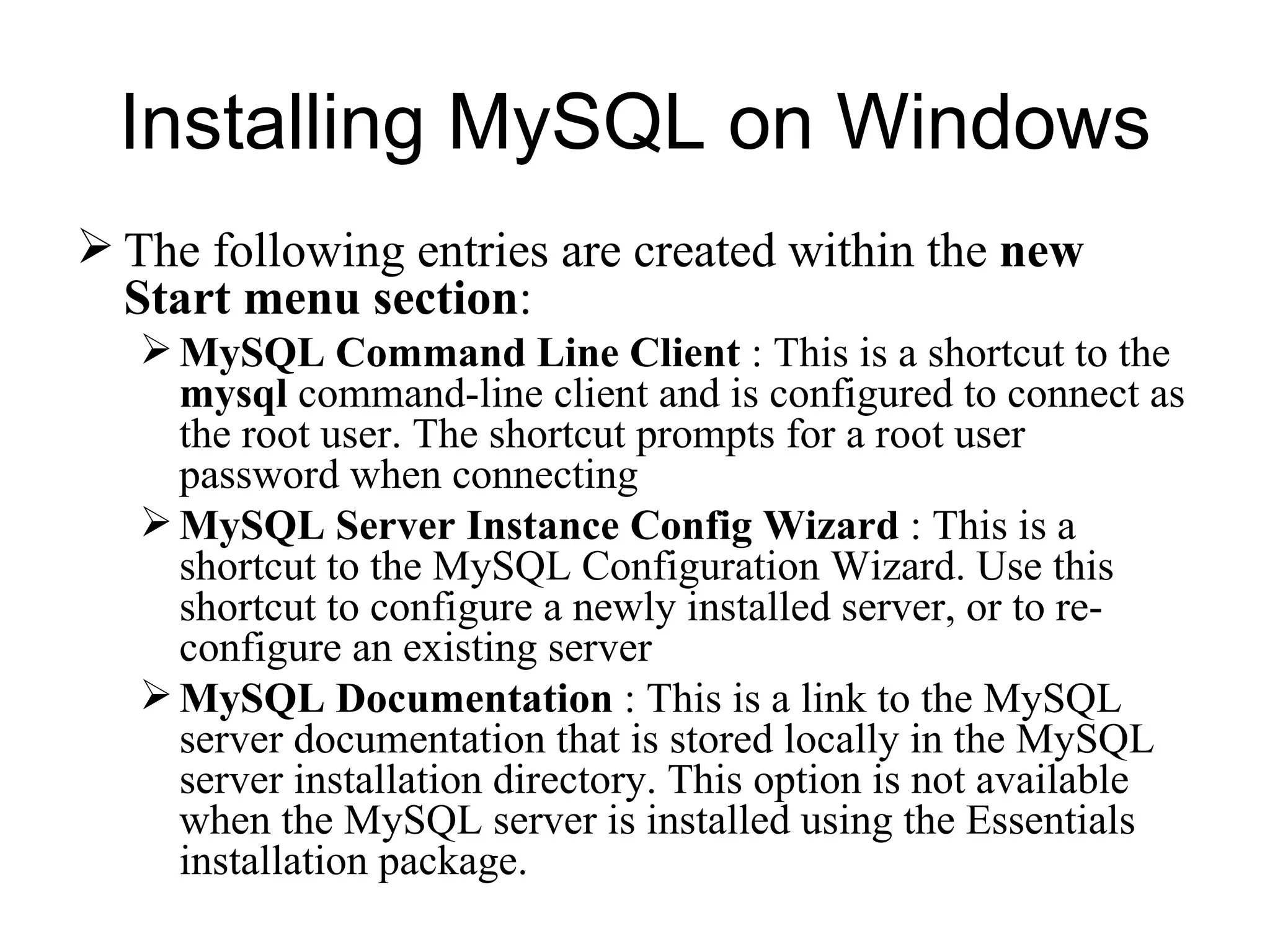
The following entries are created within the  new Start menu section :  MySQL Command Line Client  : This is a shortcut to the  mysql  command-line client and is configured to connect as the root user. The shortcut prompts for a root user password when connecting MySQL Server Instance Config Wizard  : This is a shortcut to the MySQL Configuration Wizard. Use this shortcut to configure a newly installed server, or to re-configure an existing server MySQL Documentation  : This is a link to the MySQL server documentation that is stored locally in the MySQL server installation directory. This option is not available when the MySQL server is installed using the Essentials installation package. Installing MySQL on Windows
The Main Features of MySQL  Written in C and C++ Tested with a broad range of different  compilers Works on many different platforms Uses GNU Automake, Autoconf, and Libtool for portability APIs for C, C++, Eiffel, Java, Perl, PHP, Python, Ruby, and Tcl are available …
Column Types  Many column types:  signed/unsigned integers 1, 2, 3, 4, and 8 bytes long  FLOAT, DOUBLE CHAR, VARCHAR TEXT BLOB DATE, TIME, DATETIME, TIMESTAMP, YEAR  SET, ENUM Fixed-length and variable-length records
Statements and Functions Full operator and function support in the SELECT and WHERE clauses of queries.  Full support for SQL GROUP BY and ORDER BY clauses. Support for group functions (COUNT(), COUNT(DISTINCT ...), AVG(), STD(), SUM(), MAX(), MIN() Support for LEFT OUTER JOIN and RIGHT OUTER JOIN  Support for aliases on tables and columns as required by standard SQL
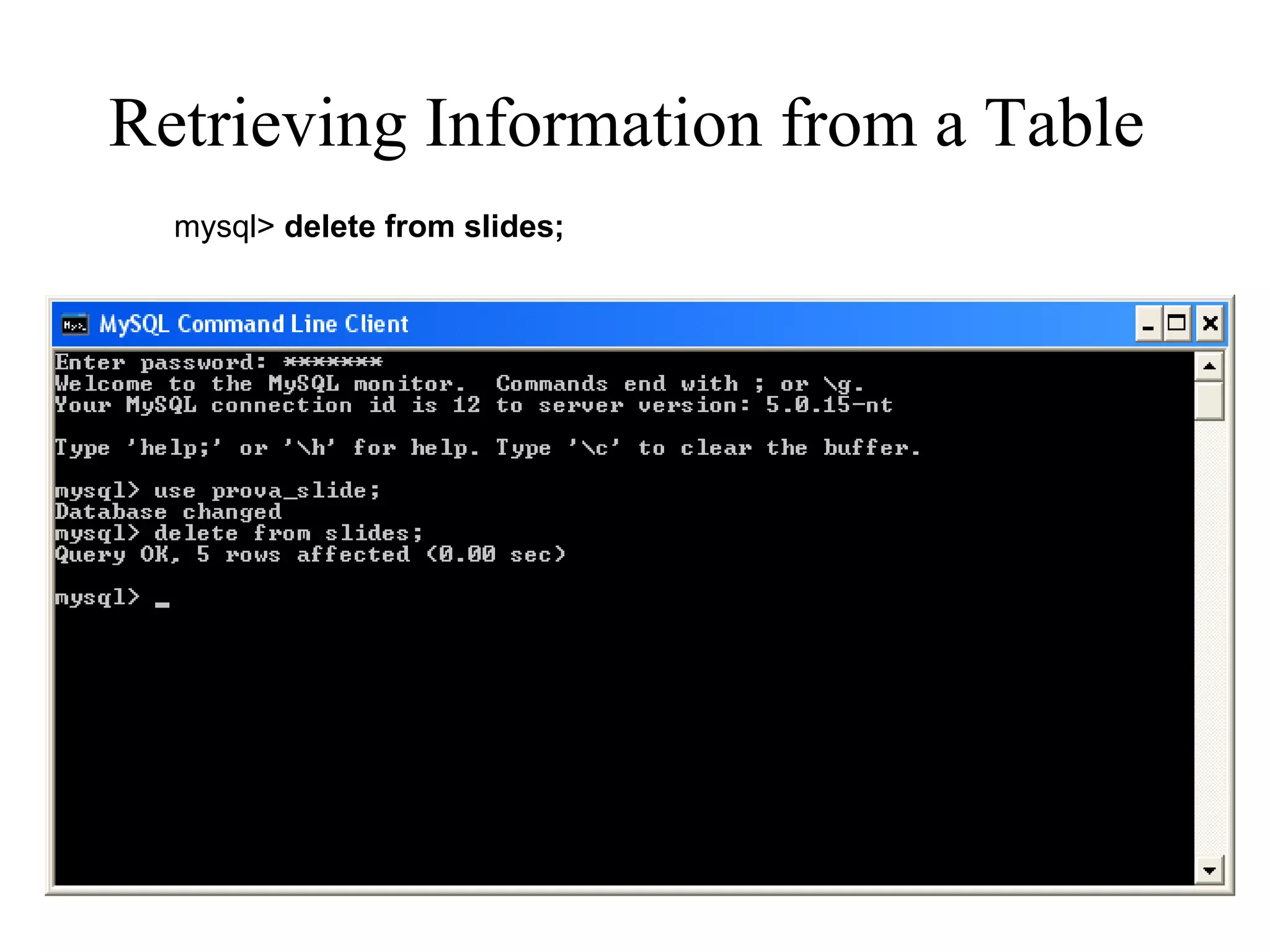
Statements and Functions (2) DELETE, INSERT, REPLACE, and UPDATE return the number of rows that were changed (affected) The MySQL-specific  SHOW  command can be used to retrieve information about databases, database engines, tables, and indexes. The  EXPLAIN  command can be used to determine how the optimizer resolves a query  Function names  do not clash with table or column names. For example,  ABS  is a valid column name. The only restriction is that for a function call, no  spaces  are allowed between the function name and the ‘ ( ’ that follows it  You can mix tables from  different databases  in the same query
Limits  Handles large databases.  “ We use MySQL Server with databases that contain 50 million records …” “…  We also know of users who use MySQL Server with 60,000 tables and about 5,000,000,000 rows …”
Connectivity  Clients can connect to the MySQL server using TCP/IP sockets on any platform  The Connector/ODBC (MyODBC) interface provides MySQL support for client programs that use ODBC (Open Database Connectivity) connections.  For example, you can use MS Access to connect to your MySQL server. The Connector/J interface provides MySQL support for Java client programs that use JDBC connections
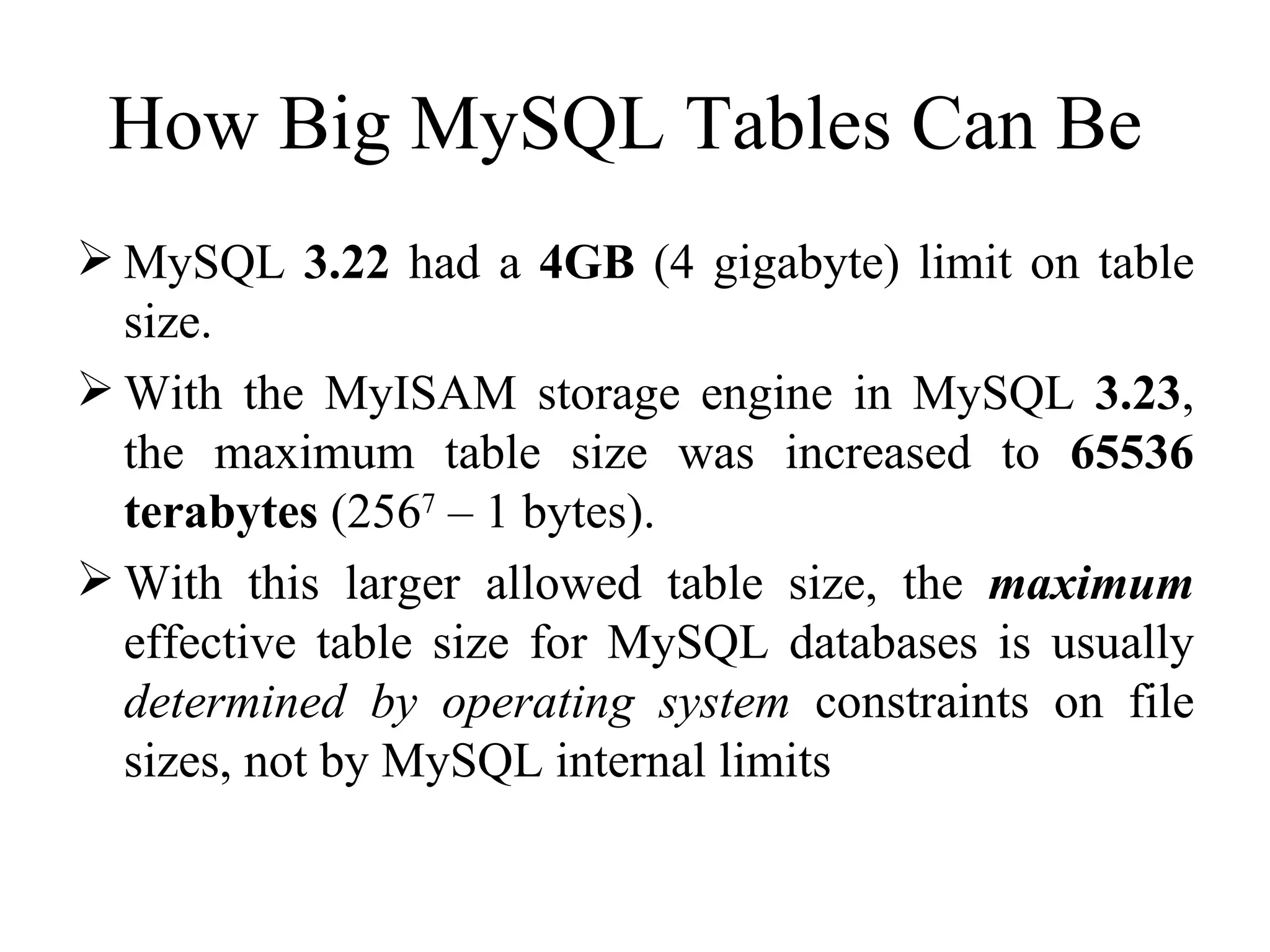
How Big MySQL Tables Can Be  MySQL  3.22  had a  4GB  (4 gigabyte) limit on table size.  With the MyISAM storage engine in MySQL  3.23 , the maximum table size was increased to  65536 terabytes  (256 7  – 1 bytes).  With this larger allowed table size, the  maximum  effective table size for MySQL databases is usually  determined by operating system  constraints on file sizes, not by MySQL internal limits
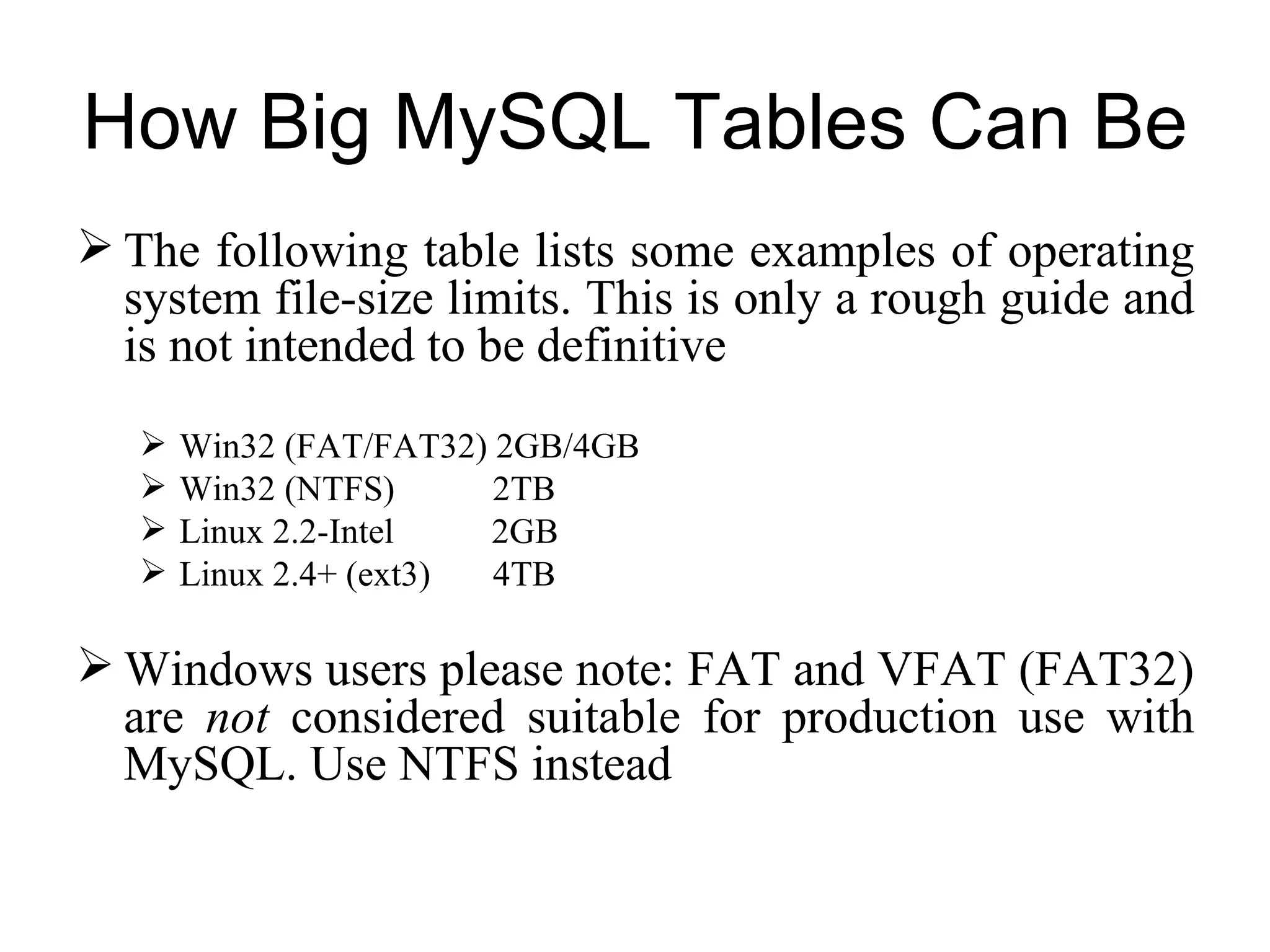
The following table lists some examples of operating system file-size limits. This is only a rough guide and is not intended to be definitive   Win32 (FAT/FAT32) 2GB/4GB Win32 (NTFS)  2TB Linux 2.2-Intel  2GB  Linux 2.4+ (ext3)  4TB  Windows users please note: FAT and VFAT (FAT32) are  not  considered suitable for production use with MySQL. Use NTFS instead  How Big MySQL Tables Can Be
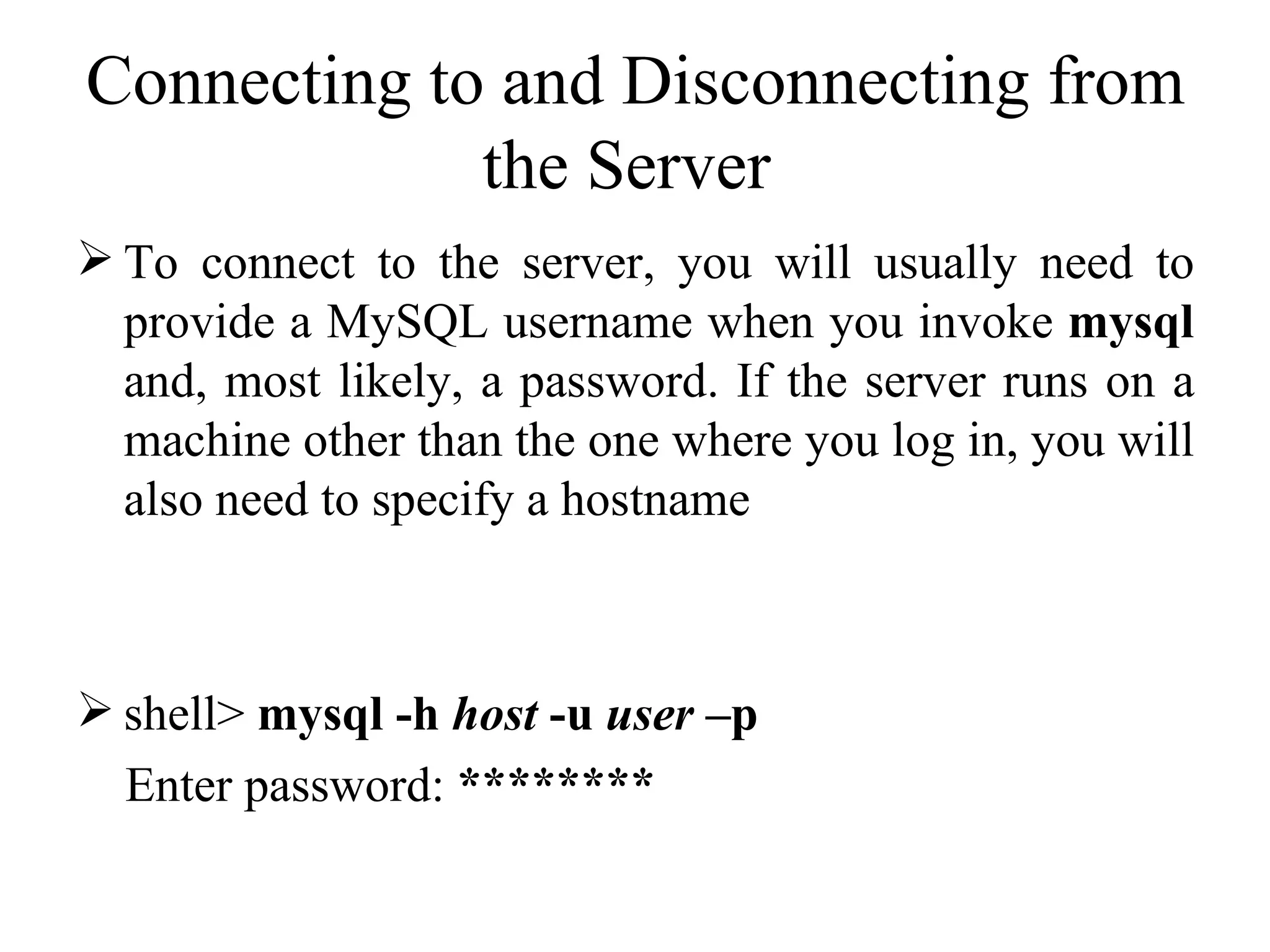
Connecting to and Disconnecting from the Server  To connect to the server, you will usually need to provide a MySQL username when you invoke  mysql  and, most likely, a password. If the server runs on a machine other than the one where you log in, you will also need to specify a hostname  shell>  mysql -h  host  -u  user  –p Enter password:  ********
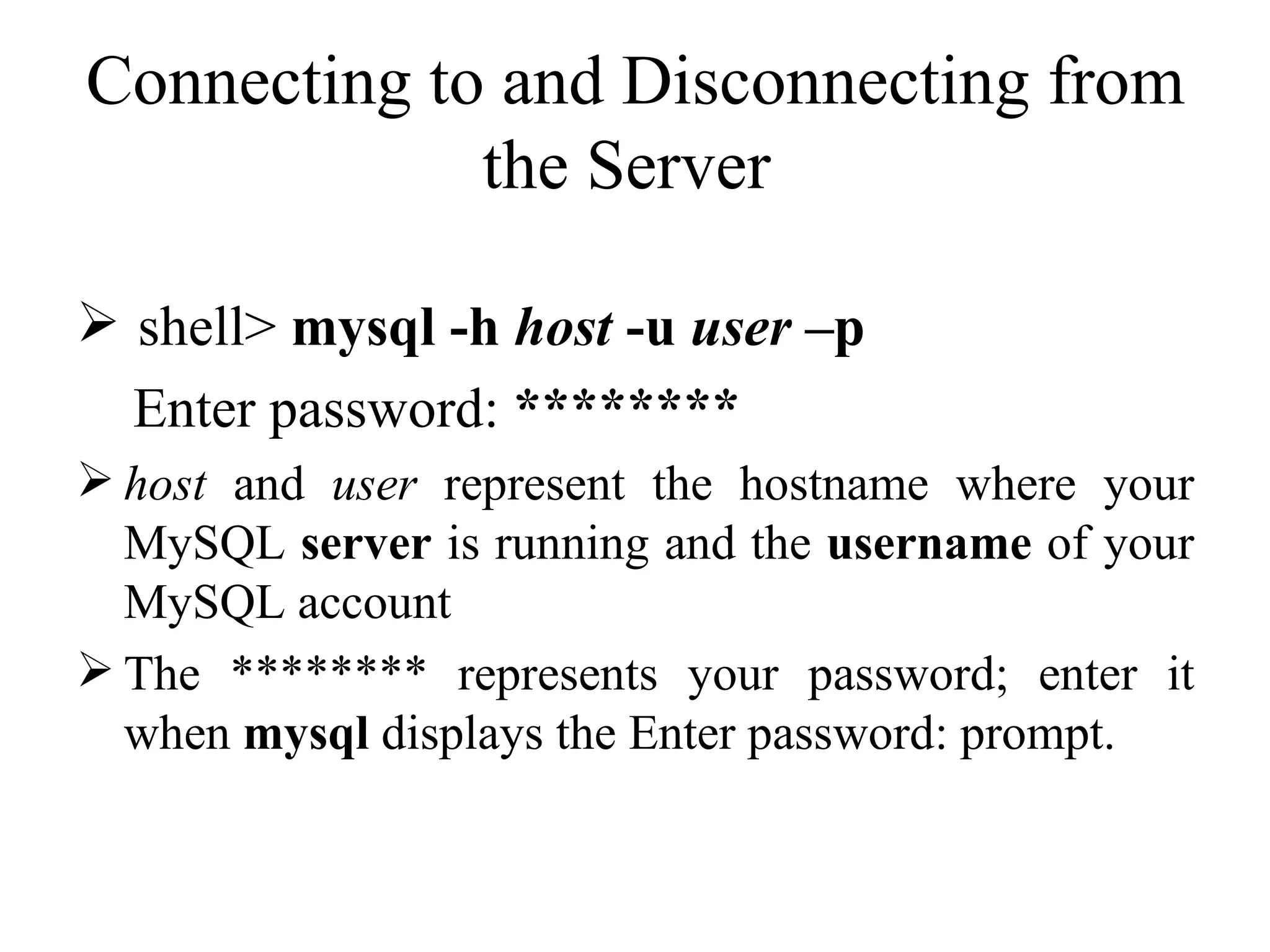
Connecting to and Disconnecting from the Server  shell>  mysql -h  host  -u  user  –p Enter password:  ********   host  and  user  represent the hostname where your MySQL  server  is running and the  username  of your MySQL account  The ******** represents your password; enter it when  mysql  displays the Enter password: prompt.
Connecting to and Disconnecting from the Server
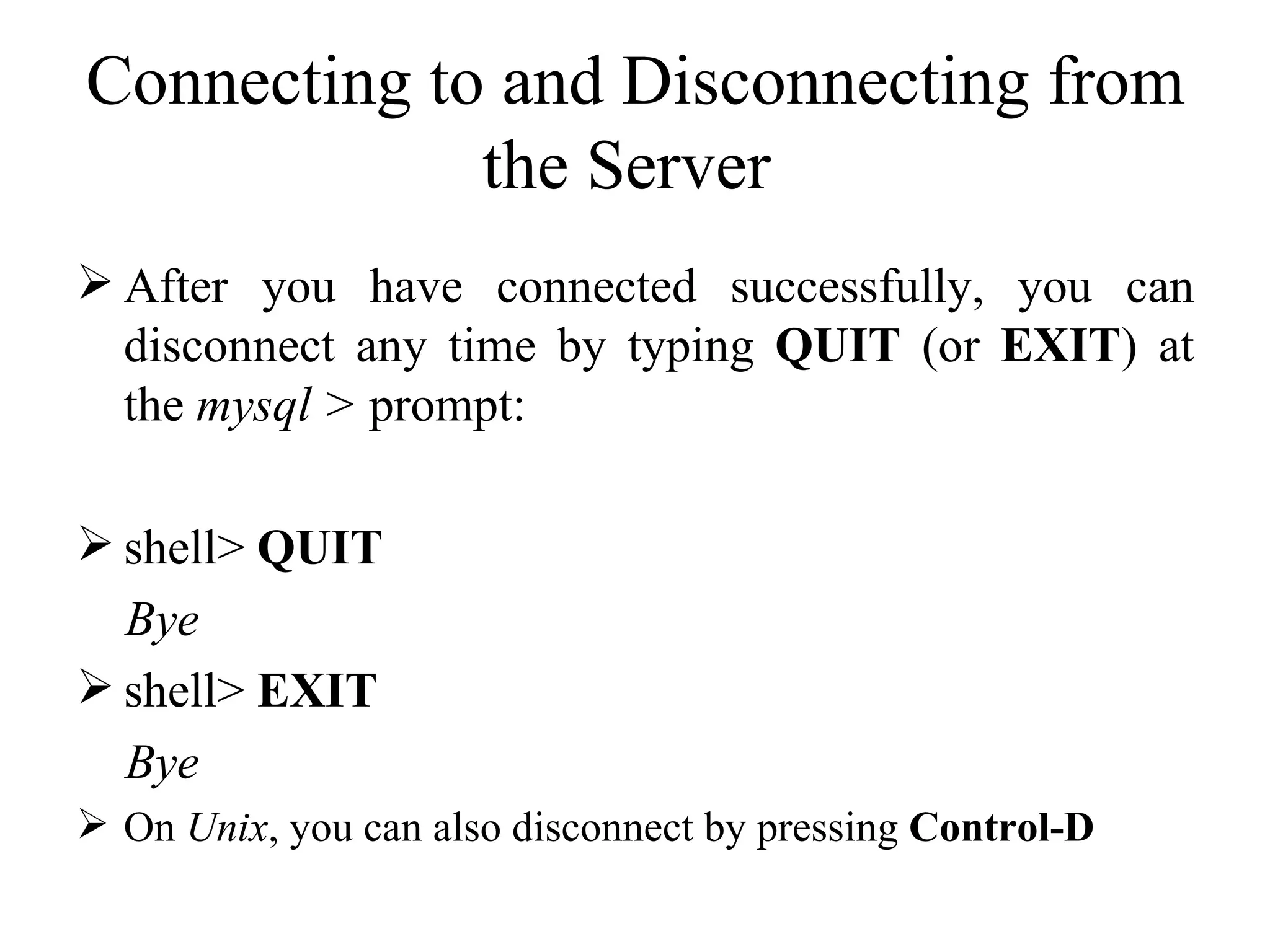
Connecting to and Disconnecting from the Server  Some MySQL installations allow users to connect as the anonymous ( unnamed ) user to the server running on the  local host .  If this is the case on your machine, you should be able to connect to that server by invoking  mysql  without any options:  shell>  mysql
Connecting to and Disconnecting from the Server  After you have connected successfully, you can disconnect any time by typing  QUIT  (or  EXIT ) at the  mysql >  prompt:  shell>  QUIT Bye shell>  EXIT Bye On  Unix , you can also disconnect by pressing  Control-D
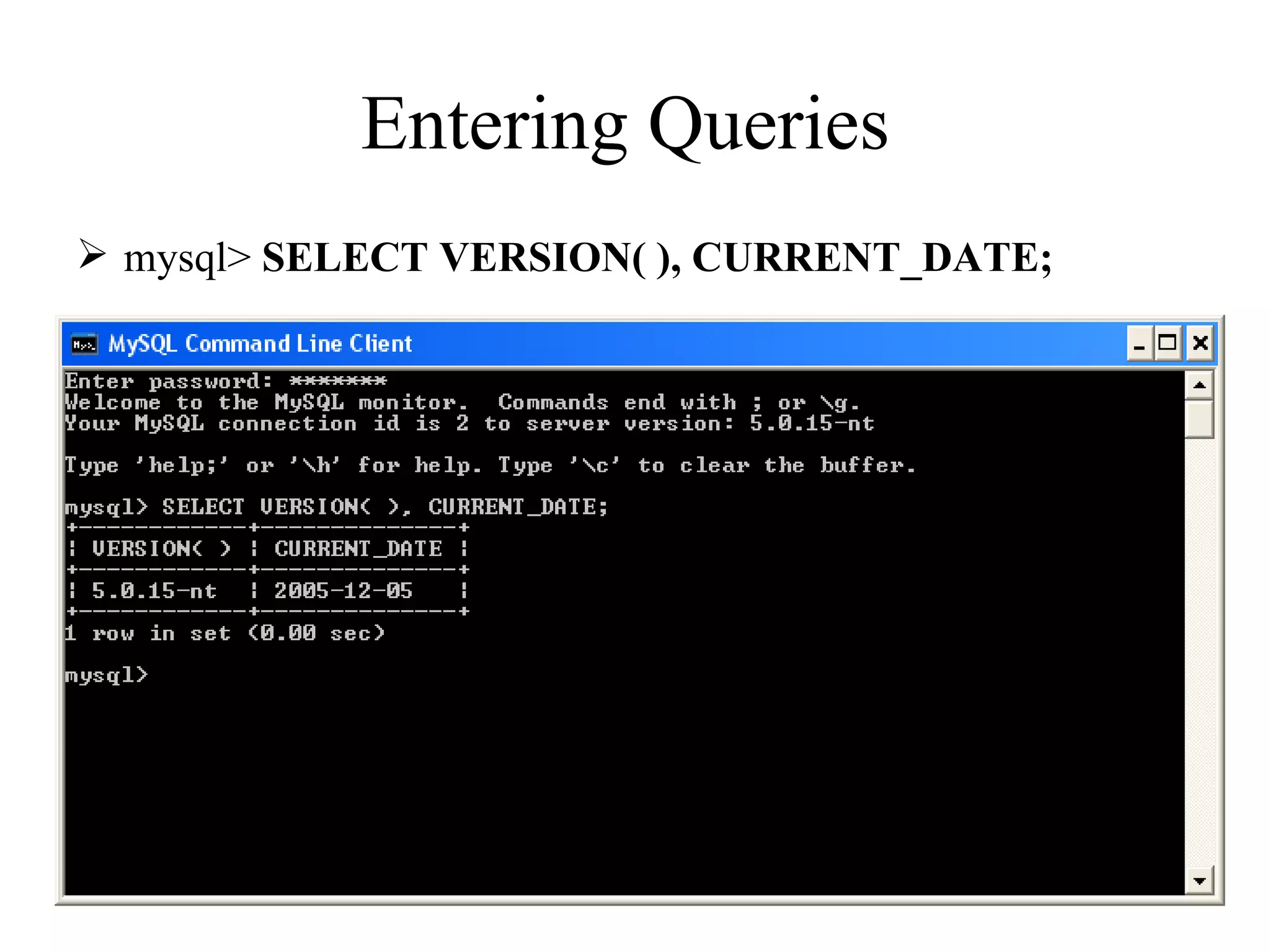
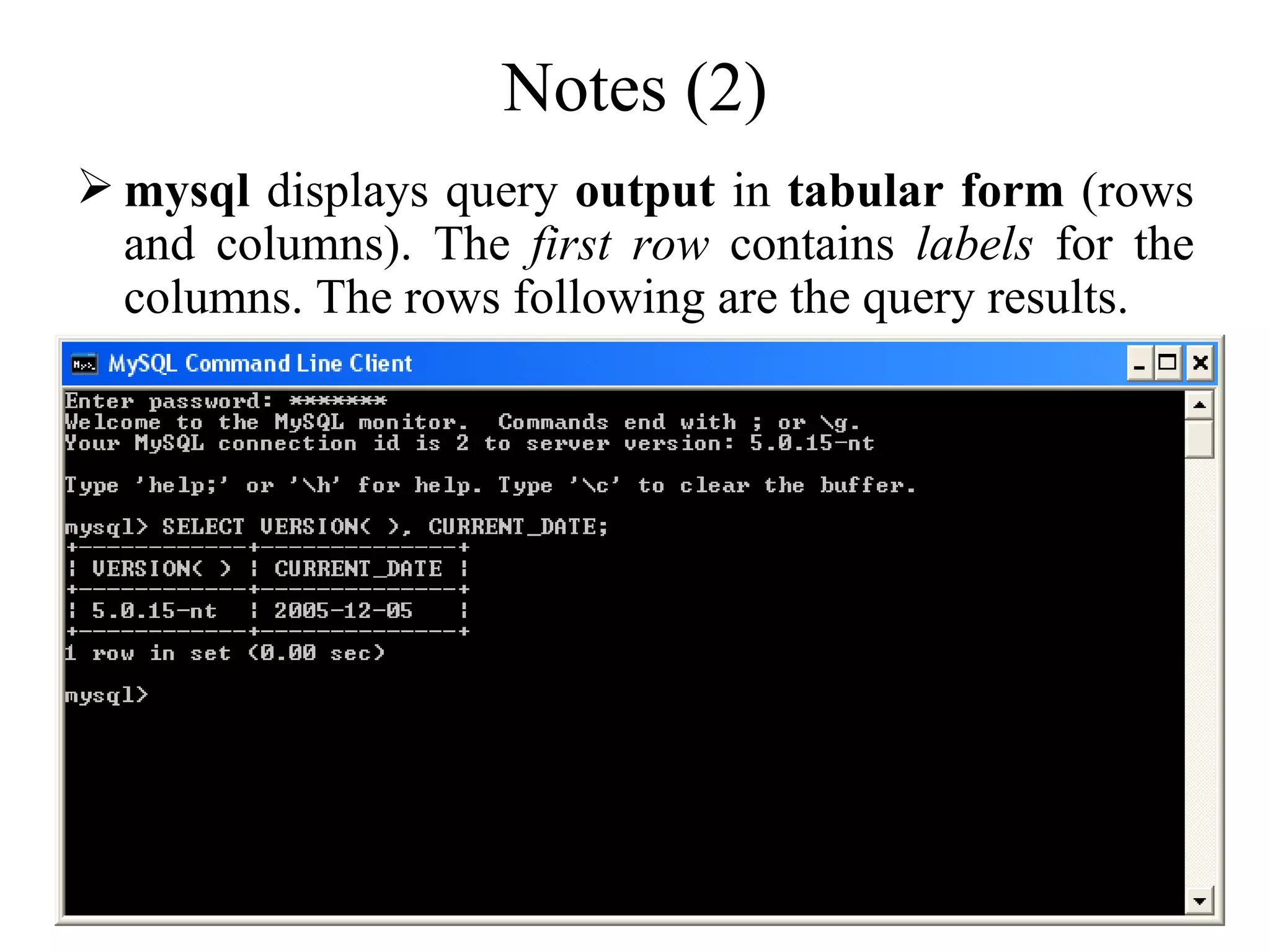
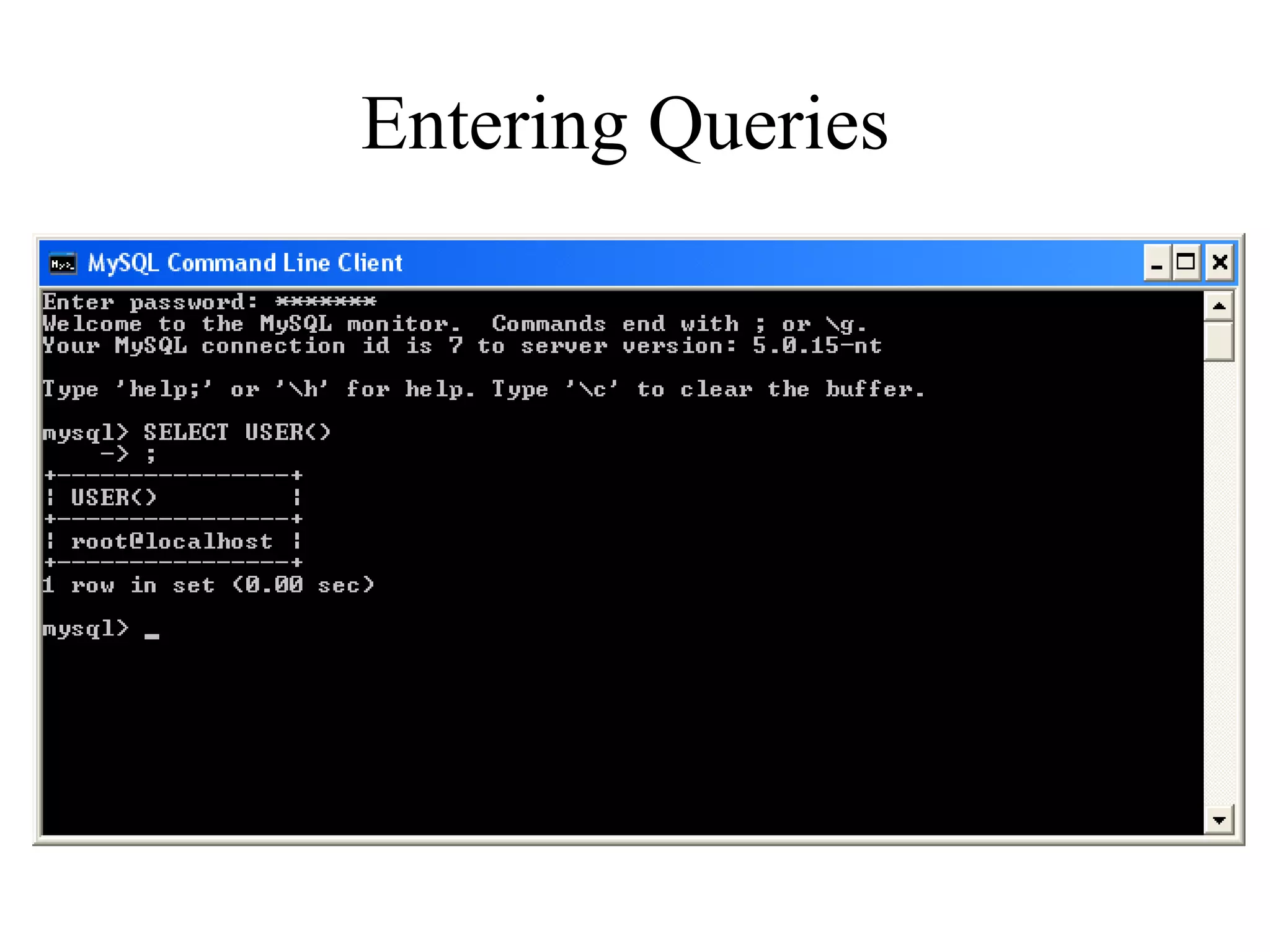
Entering Queries  mysql>  SELECT VERSION( ), CURRENT_DATE;
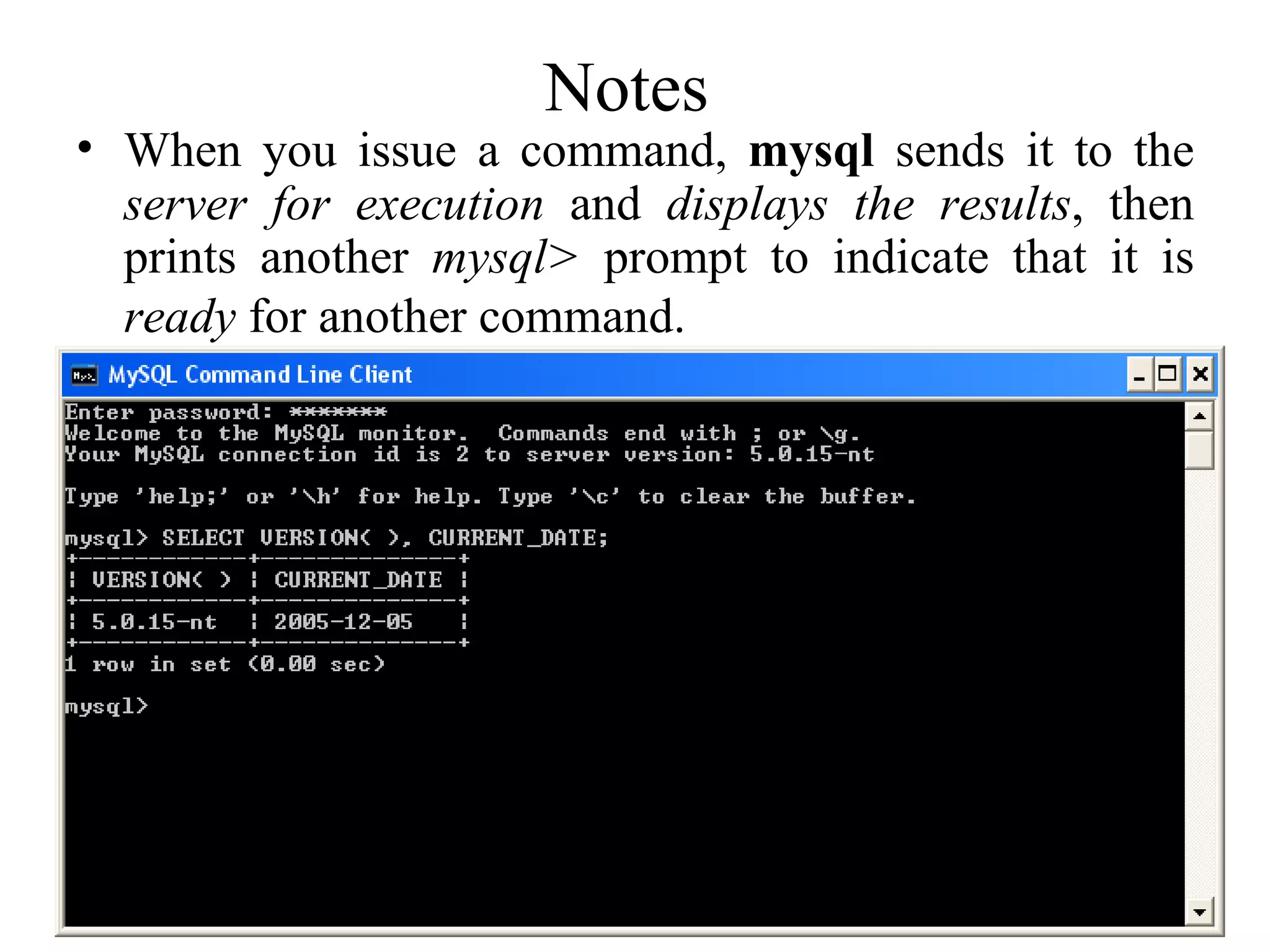
Notes  When you issue a command,  mysql  sends it to the  server for execution  and  displays the results , then prints another  mysql>  prompt to indicate that it is  ready  for another command.
Notes (2) mysql  displays query  output  in  tabular form  (rows and columns). The  first row  contains  labels  for the columns. The rows following are the query results.
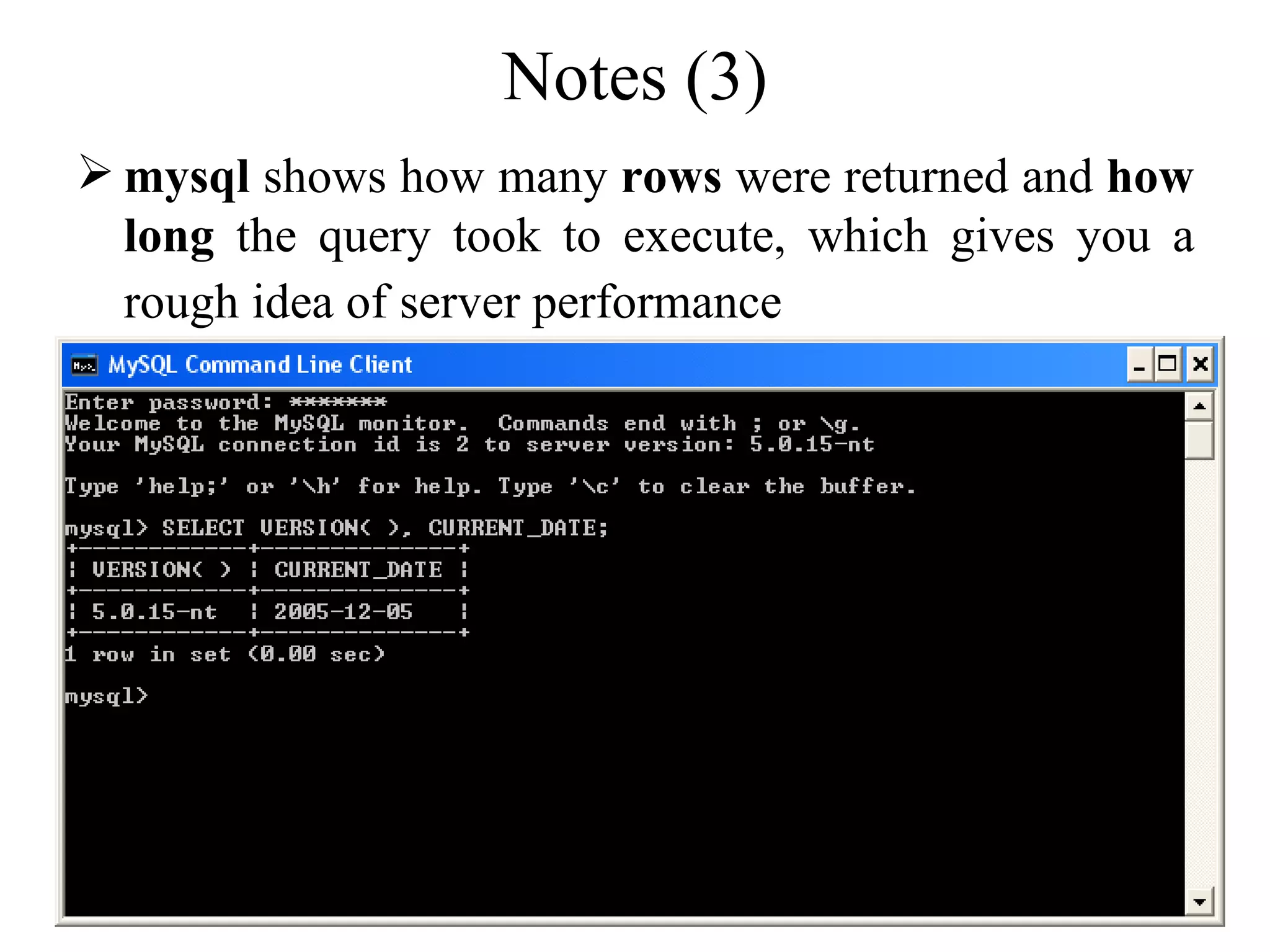
Notes (3) mysql  shows how many  rows  were returned and  how long  the query took to execute, which gives you a rough idea of server performance
Entering Queries  Keywords may be entered in any lettercase. The following queries are equivalent:  mysql>  SELECT VERSION(), CURRENT_DATE; mysql>  select version(), current_date;   mysql>  SeLeCt vErSiOn(), current_DATE;
Here's another query. It demonstrates that you can use  mysql  as a simple calculator Entering Queries
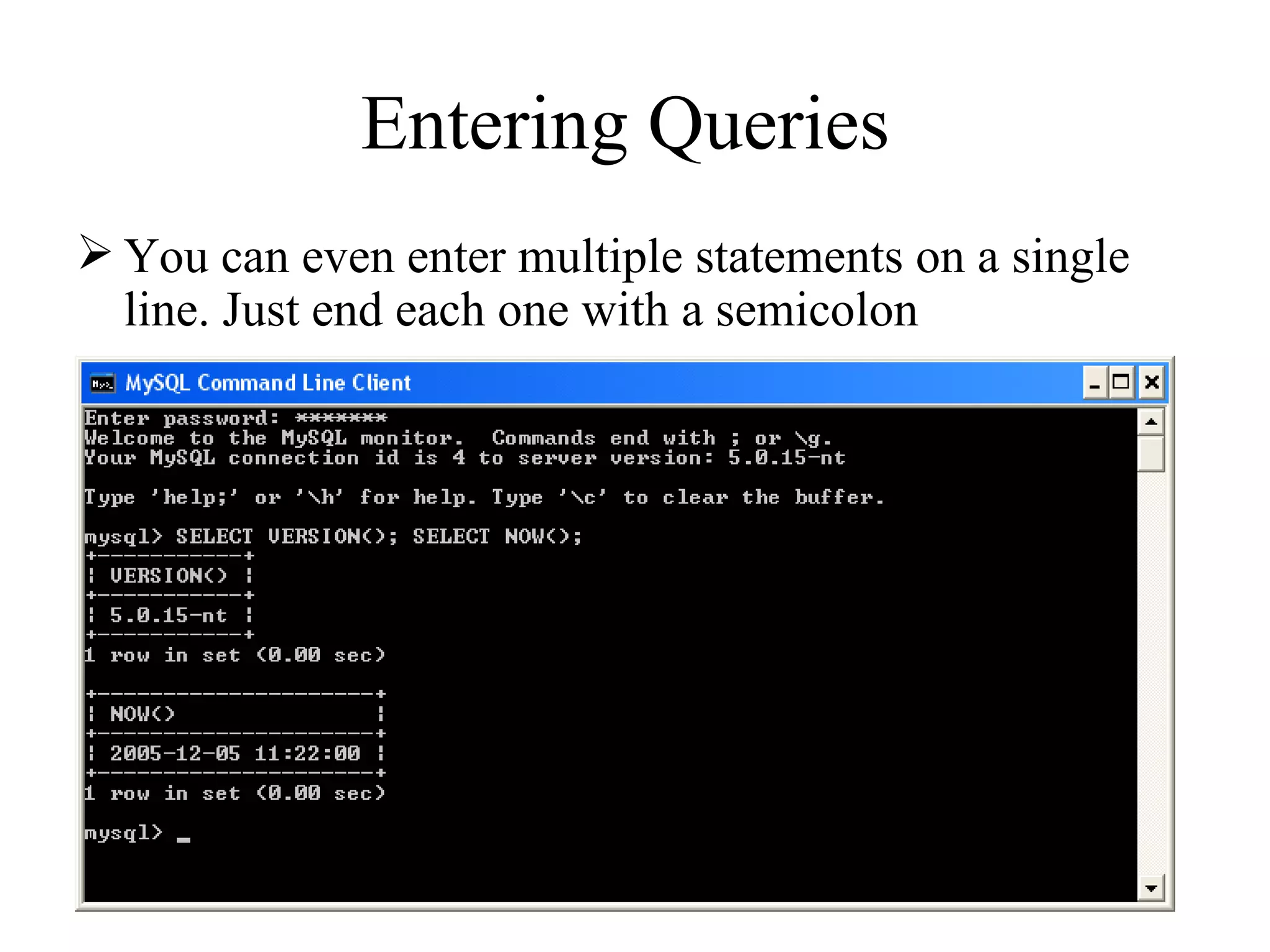
You can even enter multiple statements on a single line. Just end each one with a semicolon Entering Queries
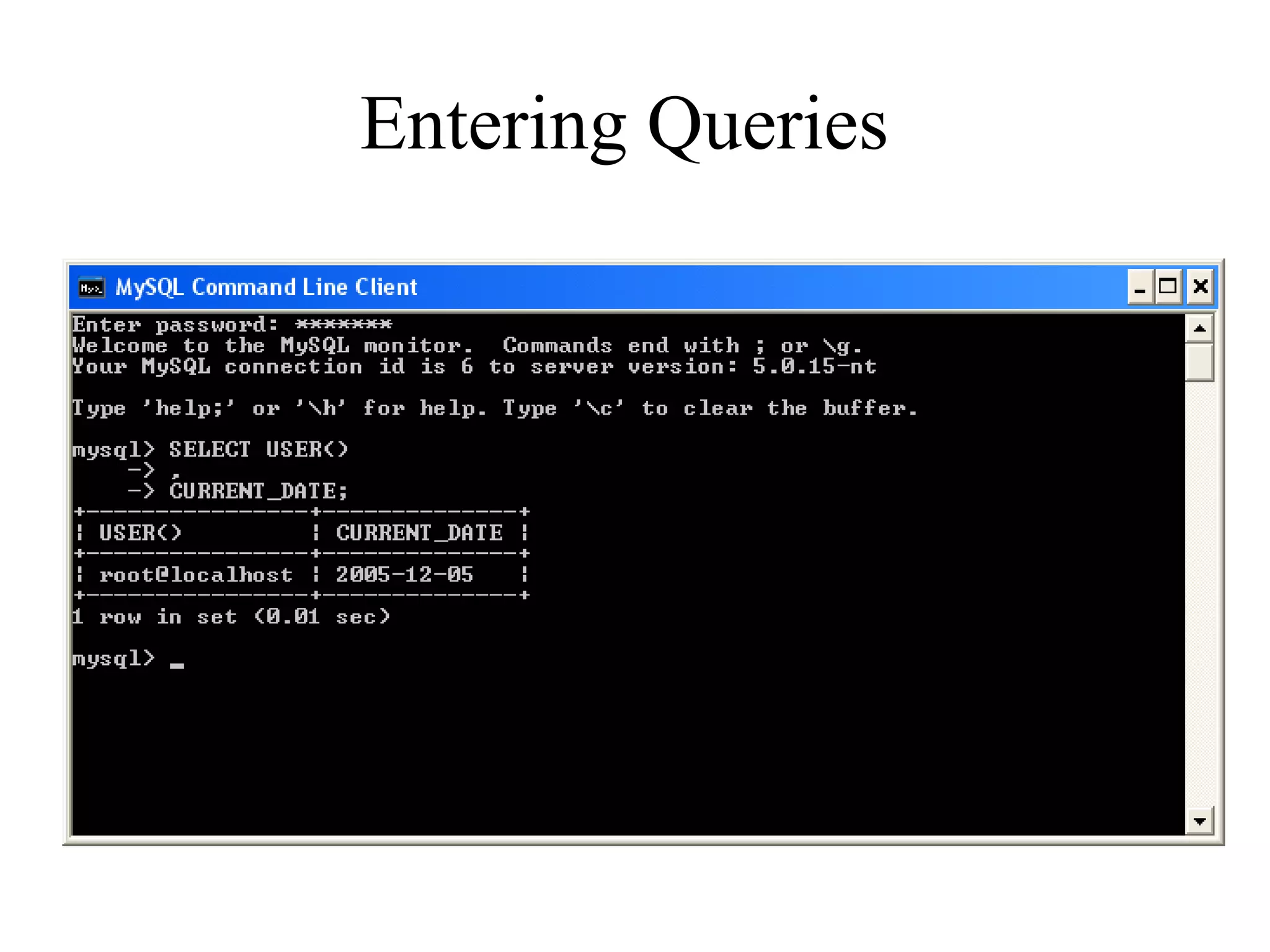
A command need not be given all on a single line, so lengthy commands that require several lines are not a problem mysql  determines where your statement ends by looking for the terminating semicolon, not by looking for the end of the input line   Entering Queries
Entering Queries
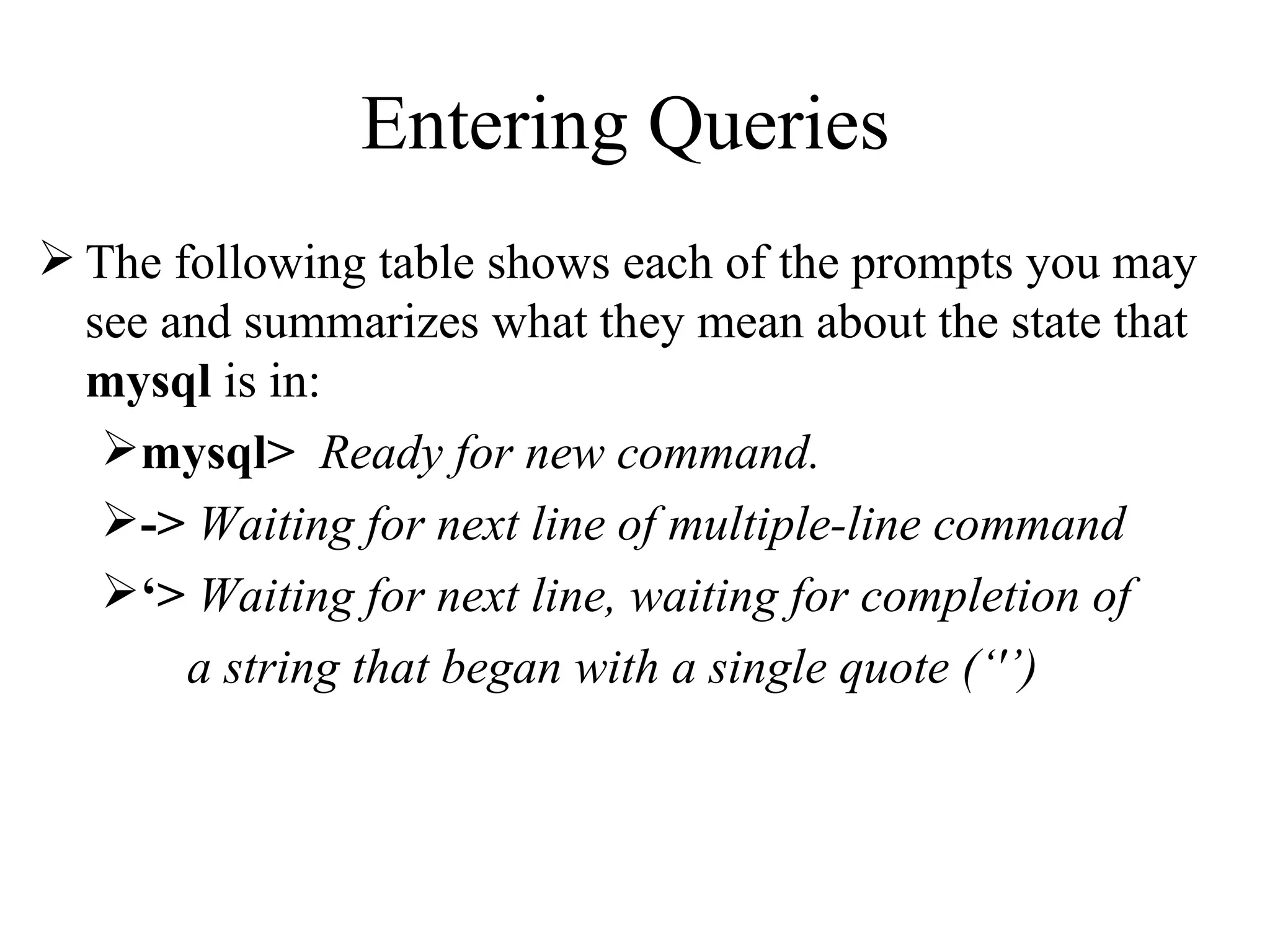
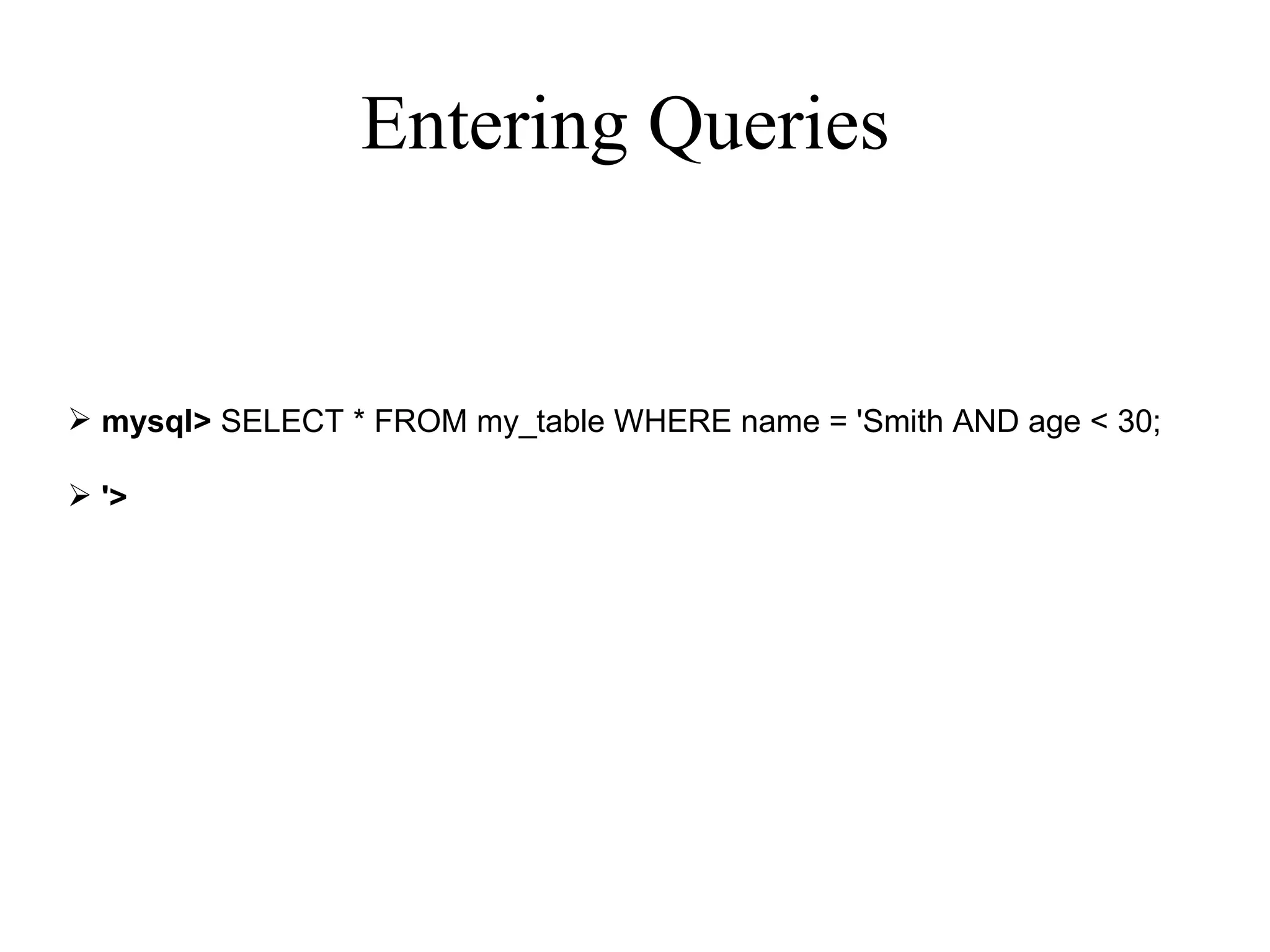
The following table shows each of the prompts you may see and summarizes what they mean about the state that  mysql  is in: mysql>   Ready for new command. ->   Waiting for next line of multiple-line command ‘ >   Waiting for next line, waiting for completion of  a string that began with a single quote (‘'’) Entering Queries
">   Waiting for next line, waiting for completion  of a  string that began with a double quote  (‘"’) `>   Waiting for next line, waiting for completion of an  identifier that began with a backtick  (‘`’) /*>   Waiting for next line, waiting for completion of a comment  that began with  /* Entering Queries
Entering Queries
Entering Queries  mysql>  SELECT * FROM my_table WHERE name = 'Smith AND age < 30; '>
Creating and Using a Database  This section shows you how to:  Create a  database  Create a  table  Load data  into the table  Retrieve data  from the table in various ways  Use  multiple  tables
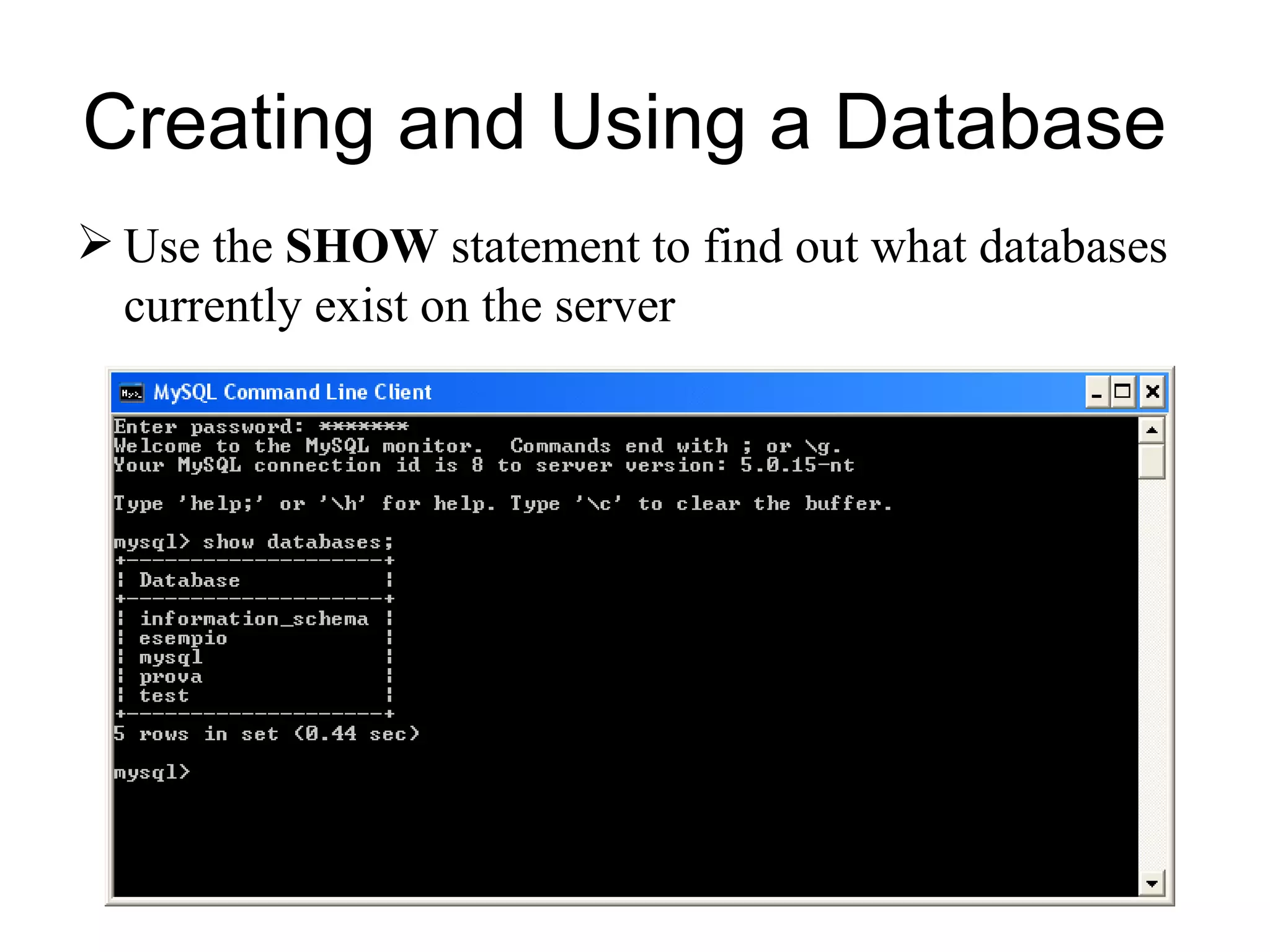
Use the  SHOW  statement to find out what databases currently exist on the server Creating and Using a Database
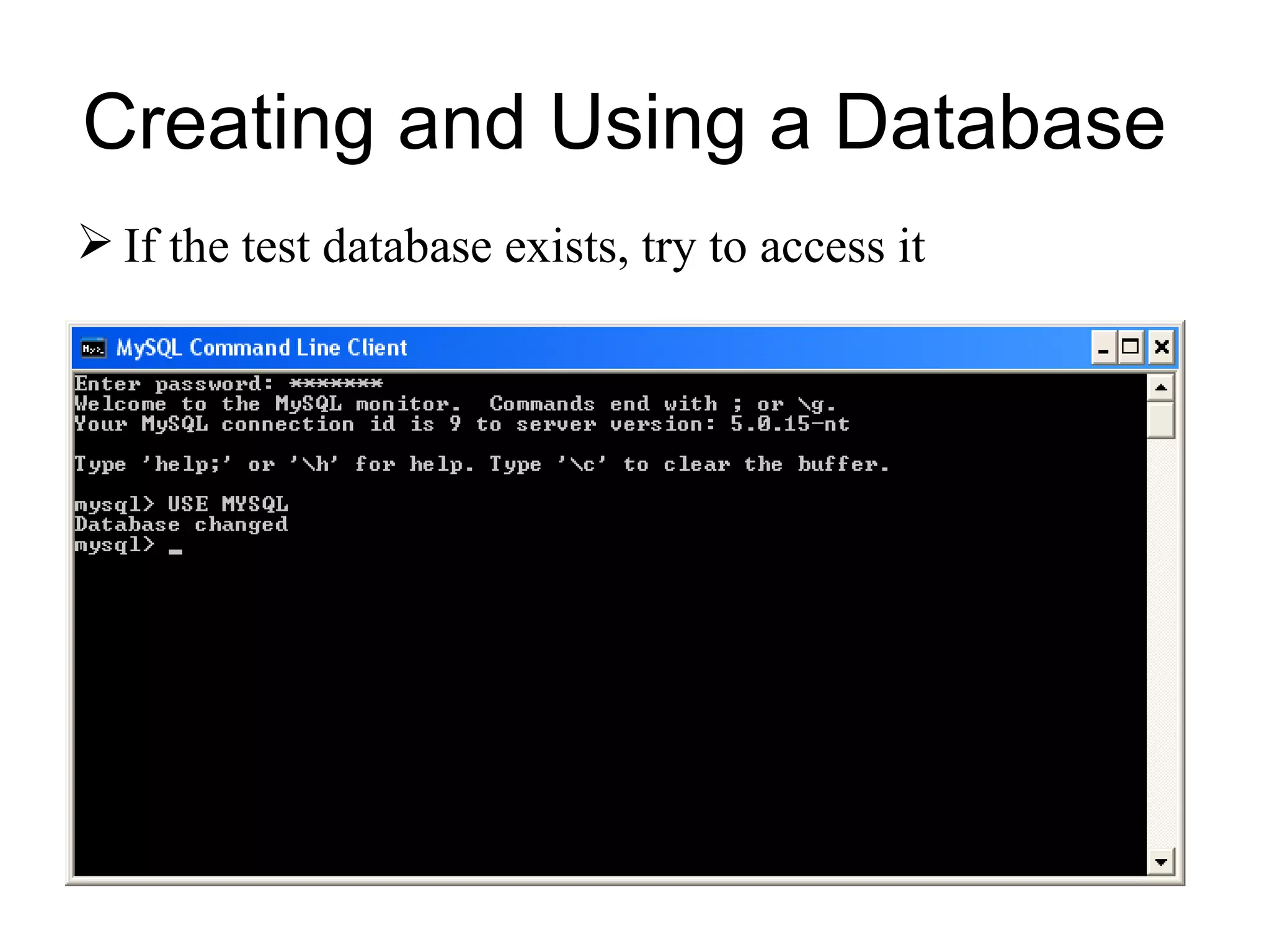
If the test database exists, try to access it Creating and Using a Database
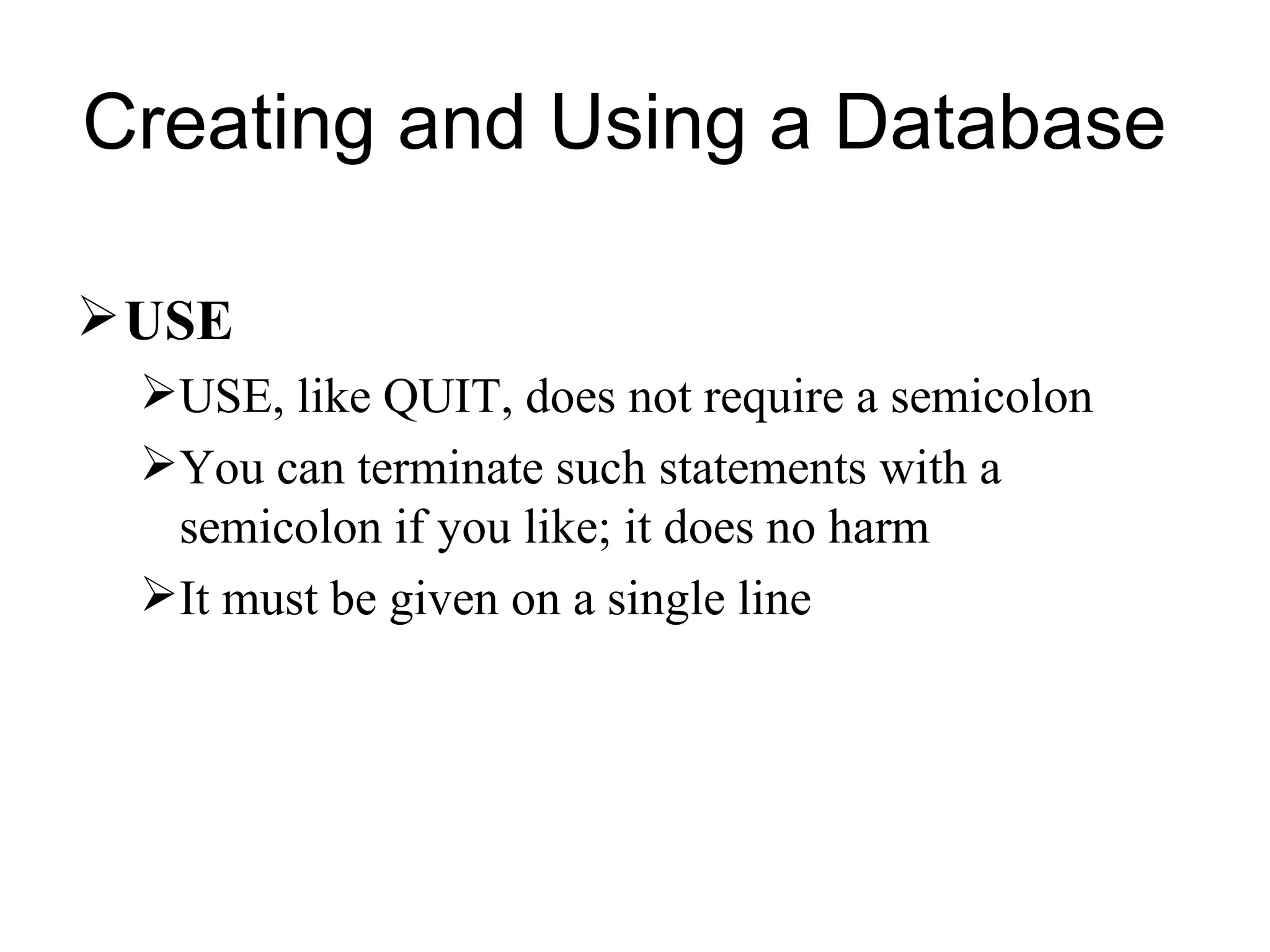
USE USE, like QUIT, does not require a semicolon You can terminate such statements with a semicolon if you like; it does no harm  It must be given on a single line  Creating and Using a Database
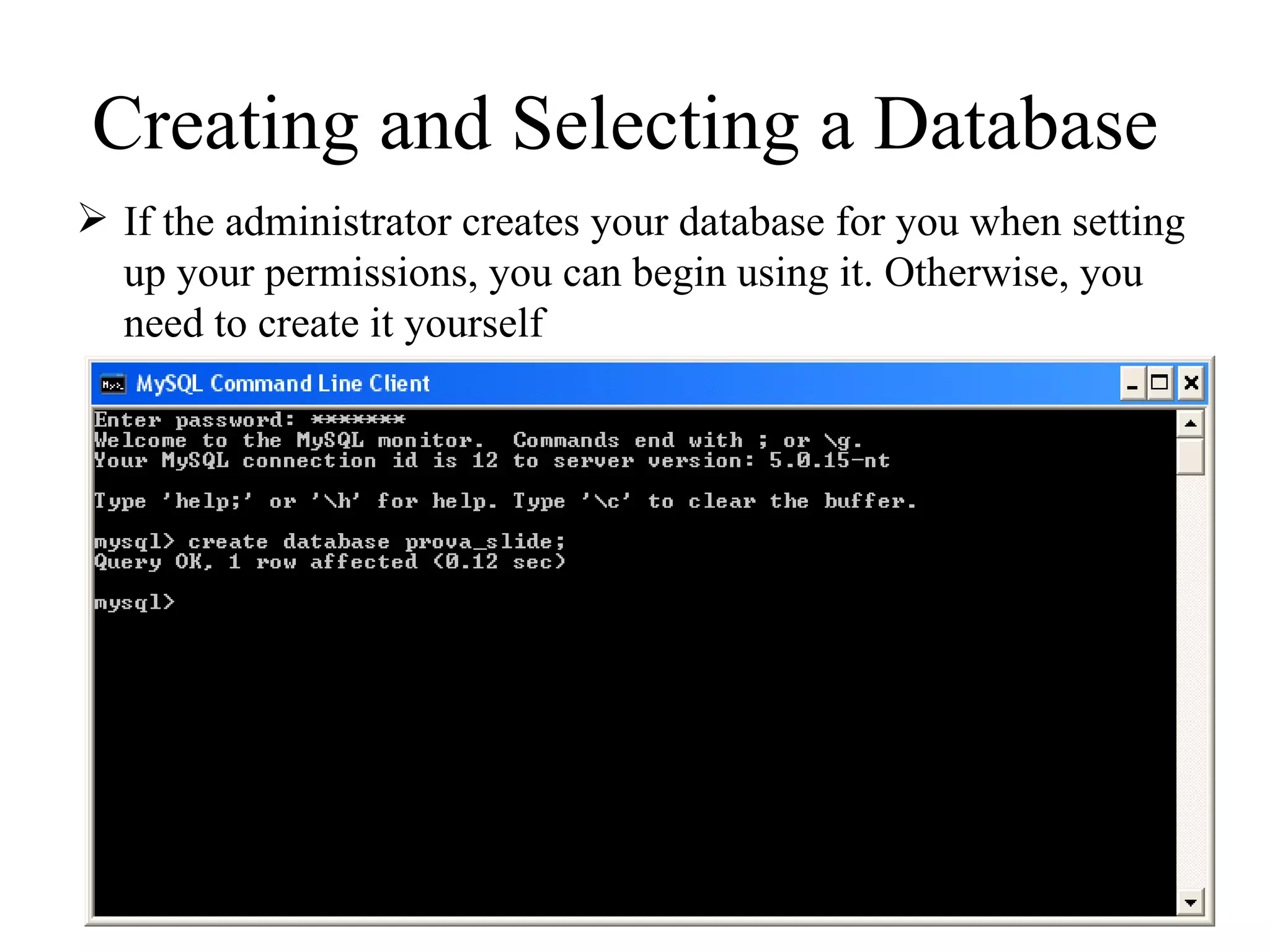
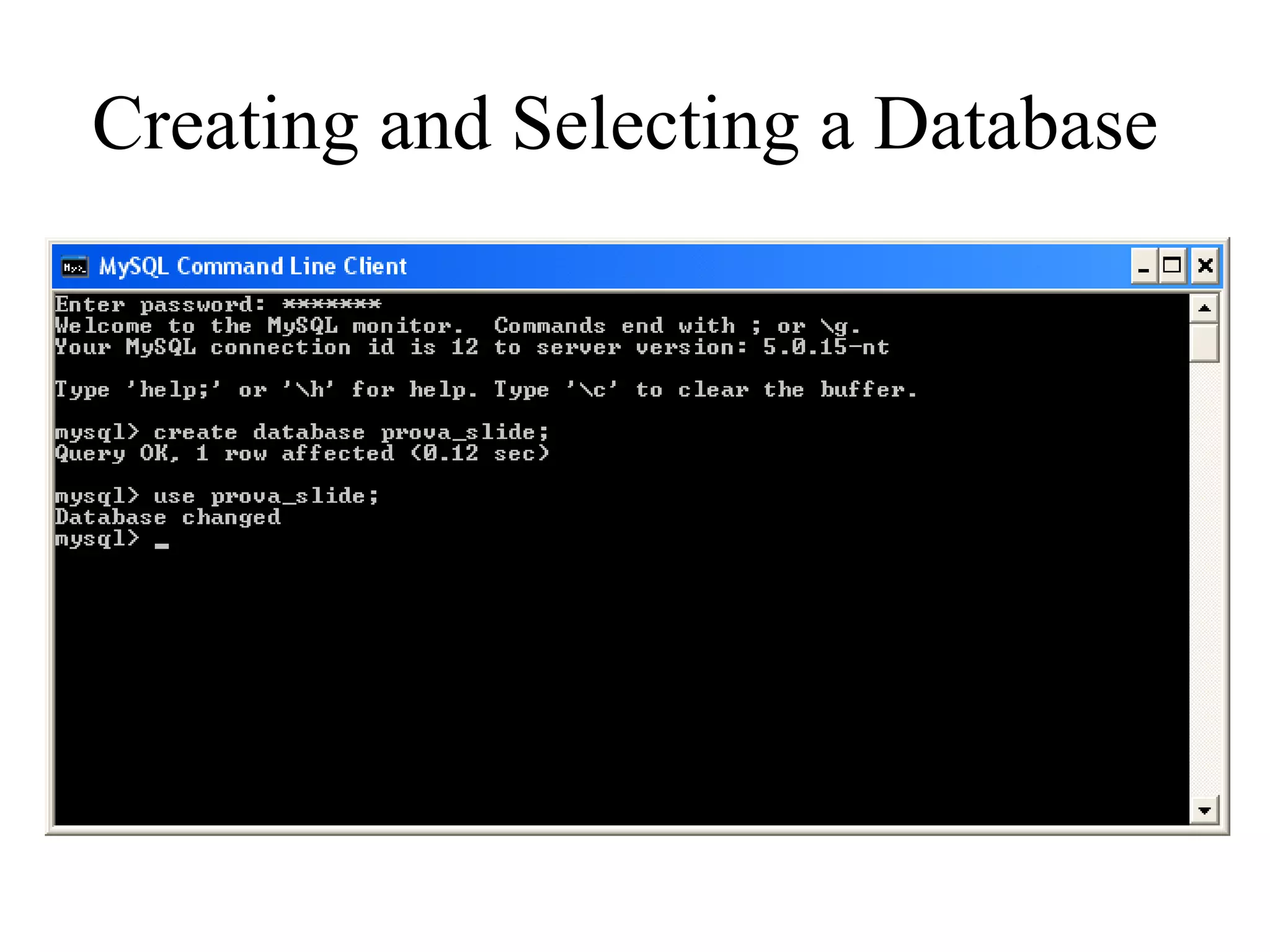
Creating and Selecting a Database  If the administrator creates your database for you when setting up your permissions, you can begin using it. Otherwise, you need to create it yourself
Creating and Selecting a Database
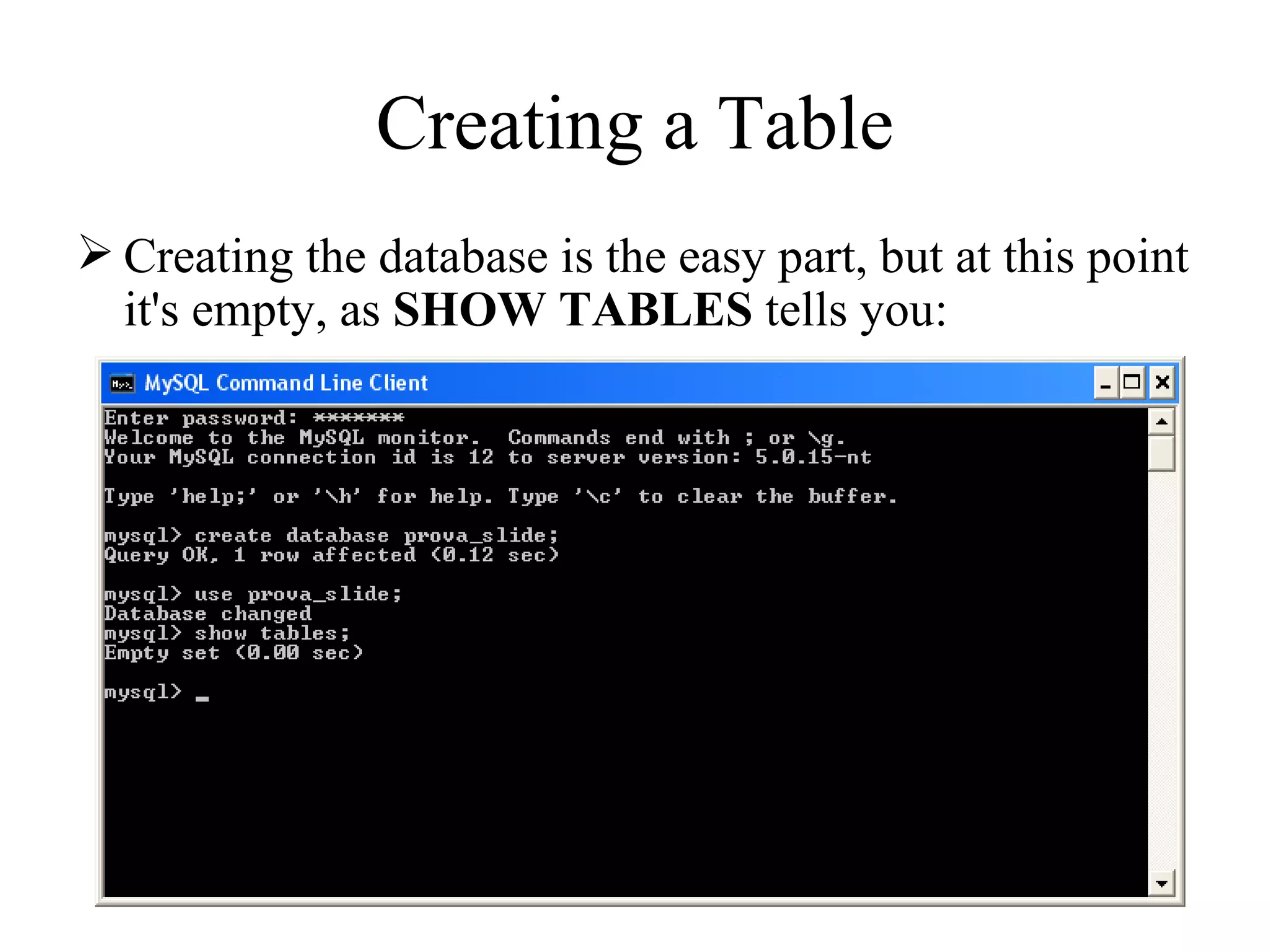
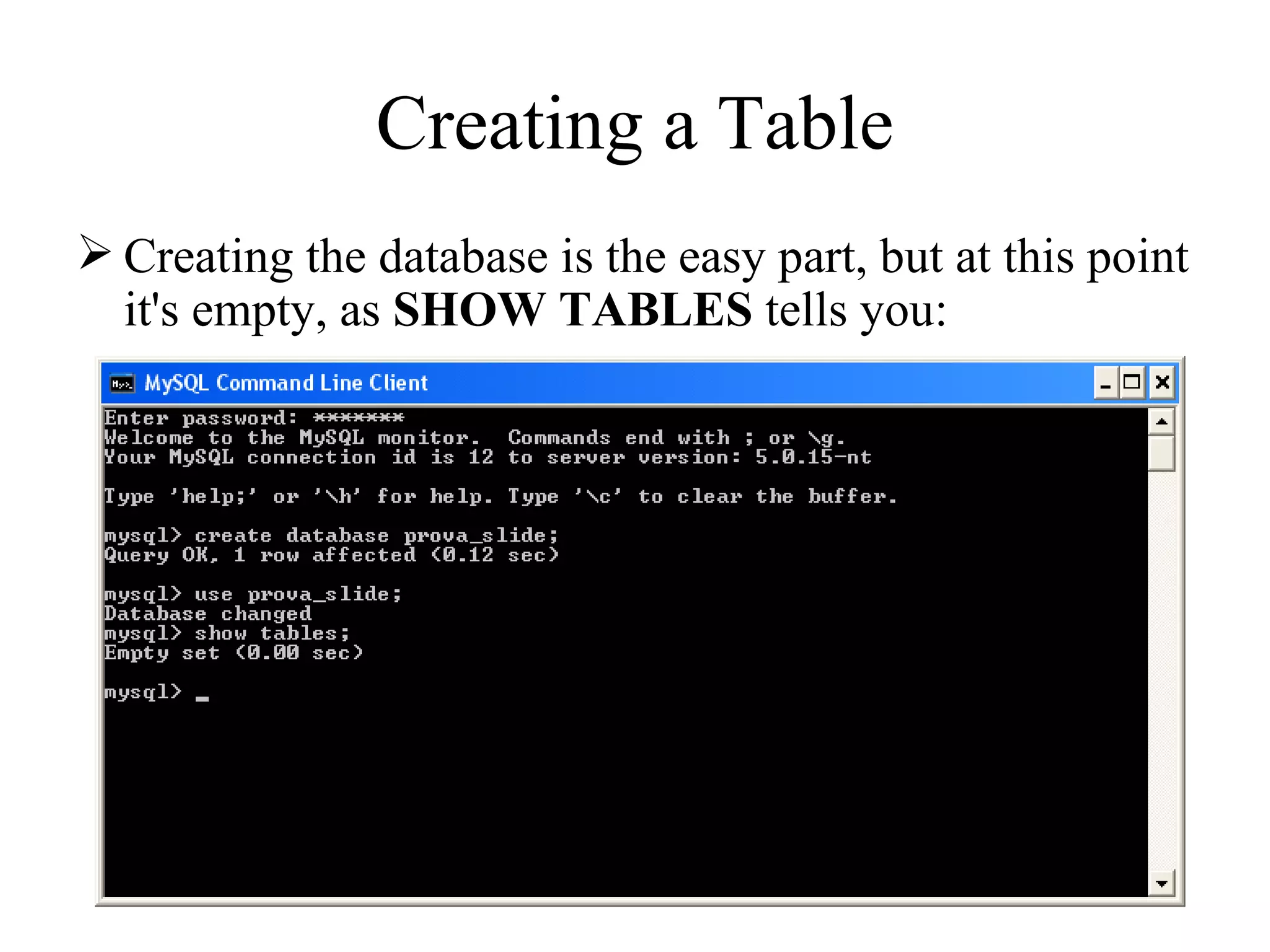
  Creating a Table  Creating the database is the easy part, but at this point it's empty, as  SHOW TABLES  tells you:
  Creating a Table  Creating the database is the easy part, but at this point it's empty, as  SHOW TABLES  tells you:
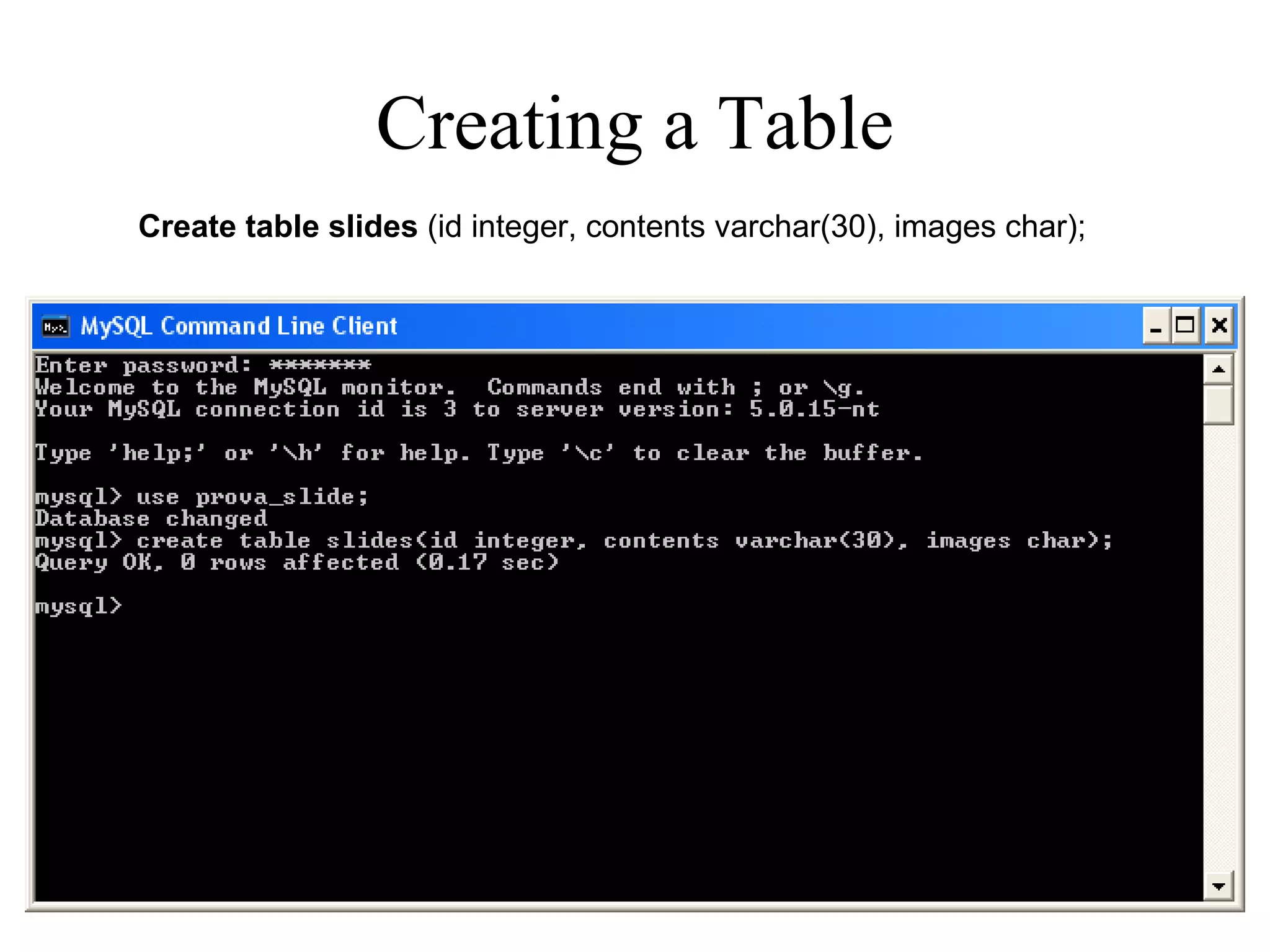
  Creating a Table  Create table slides  (id integer, contents varchar(30), images char);
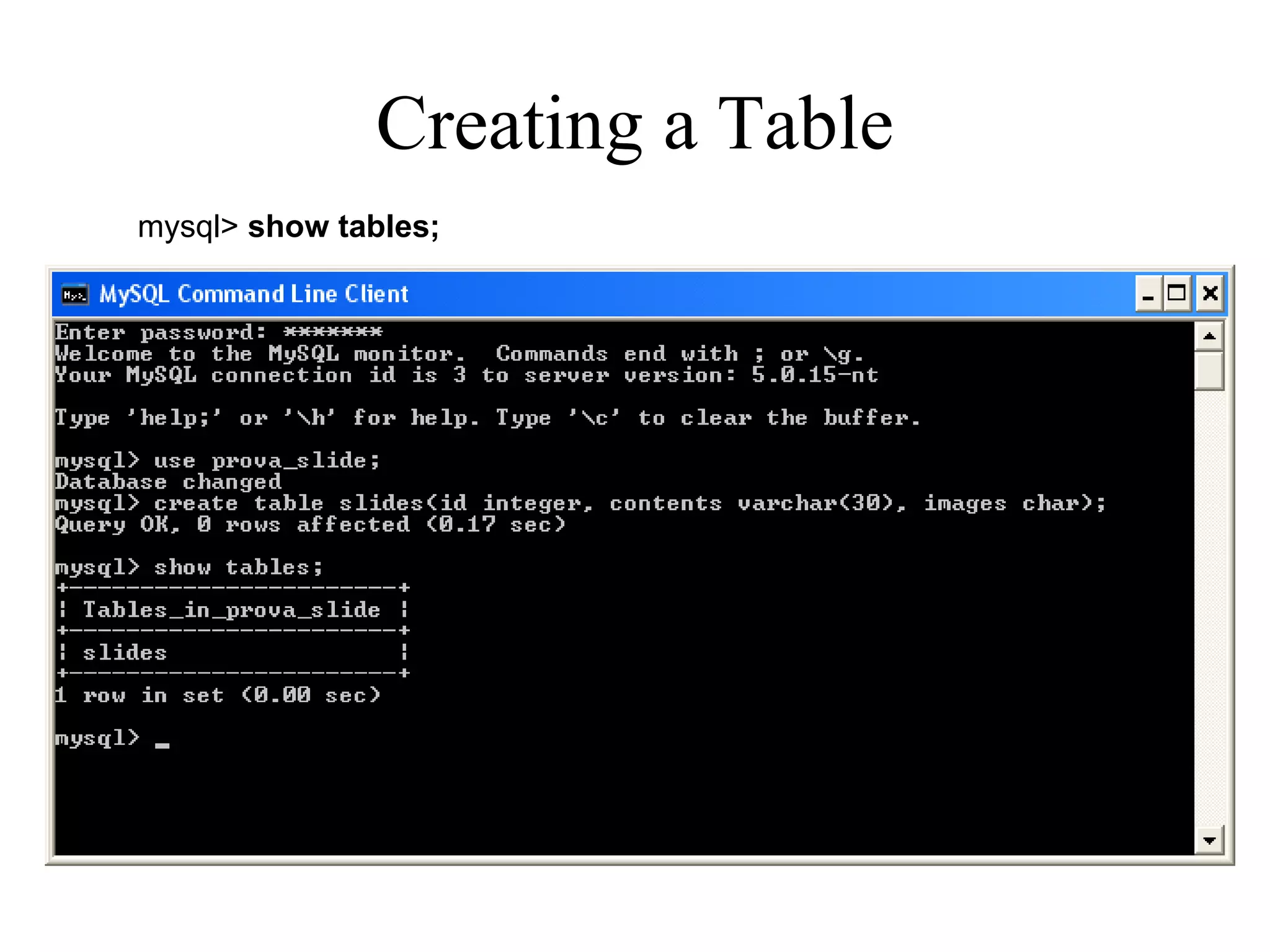
  Creating a Table  mysql>  show tables;
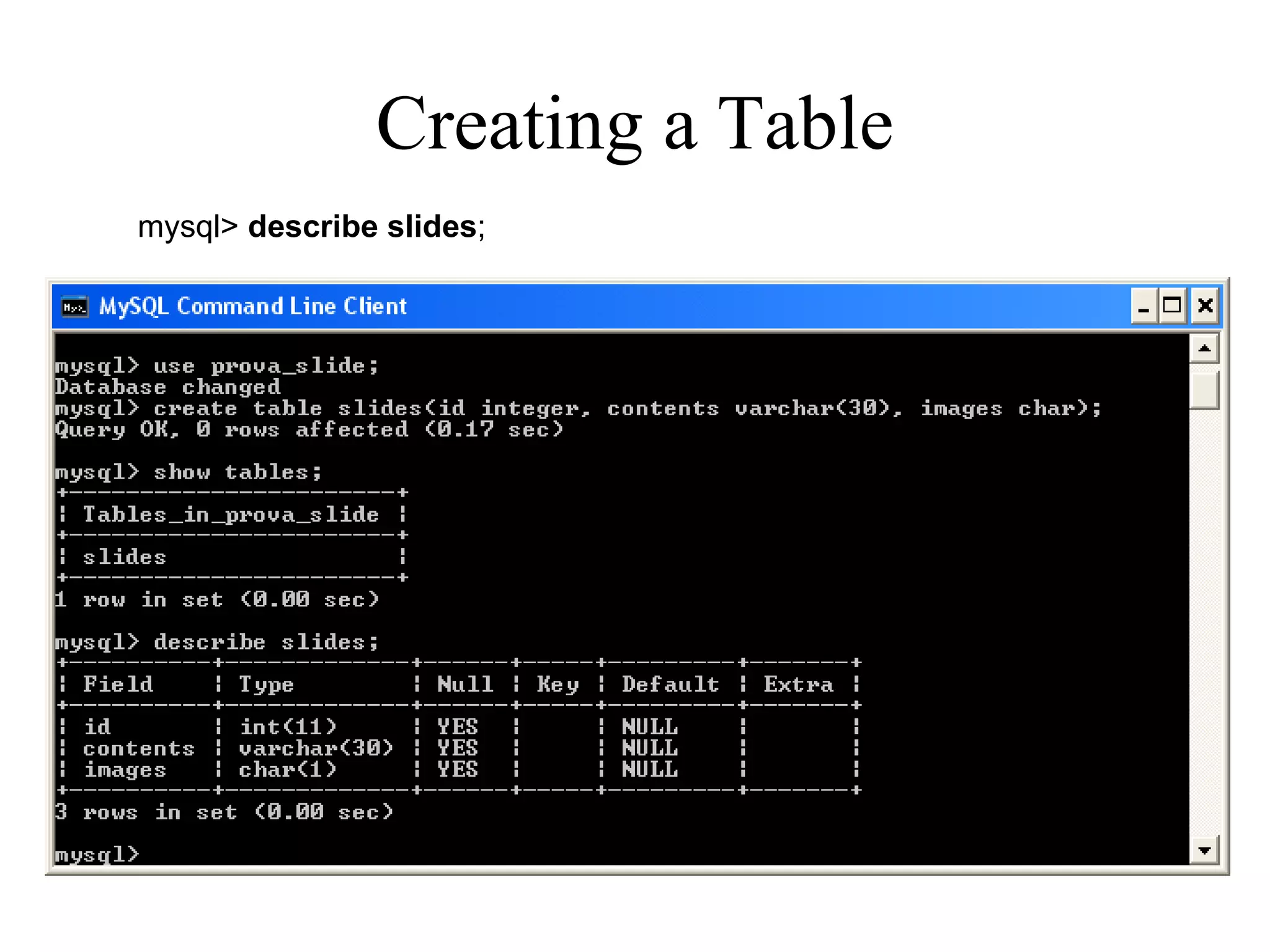
  Creating a Table  mysql>  describe slides ;
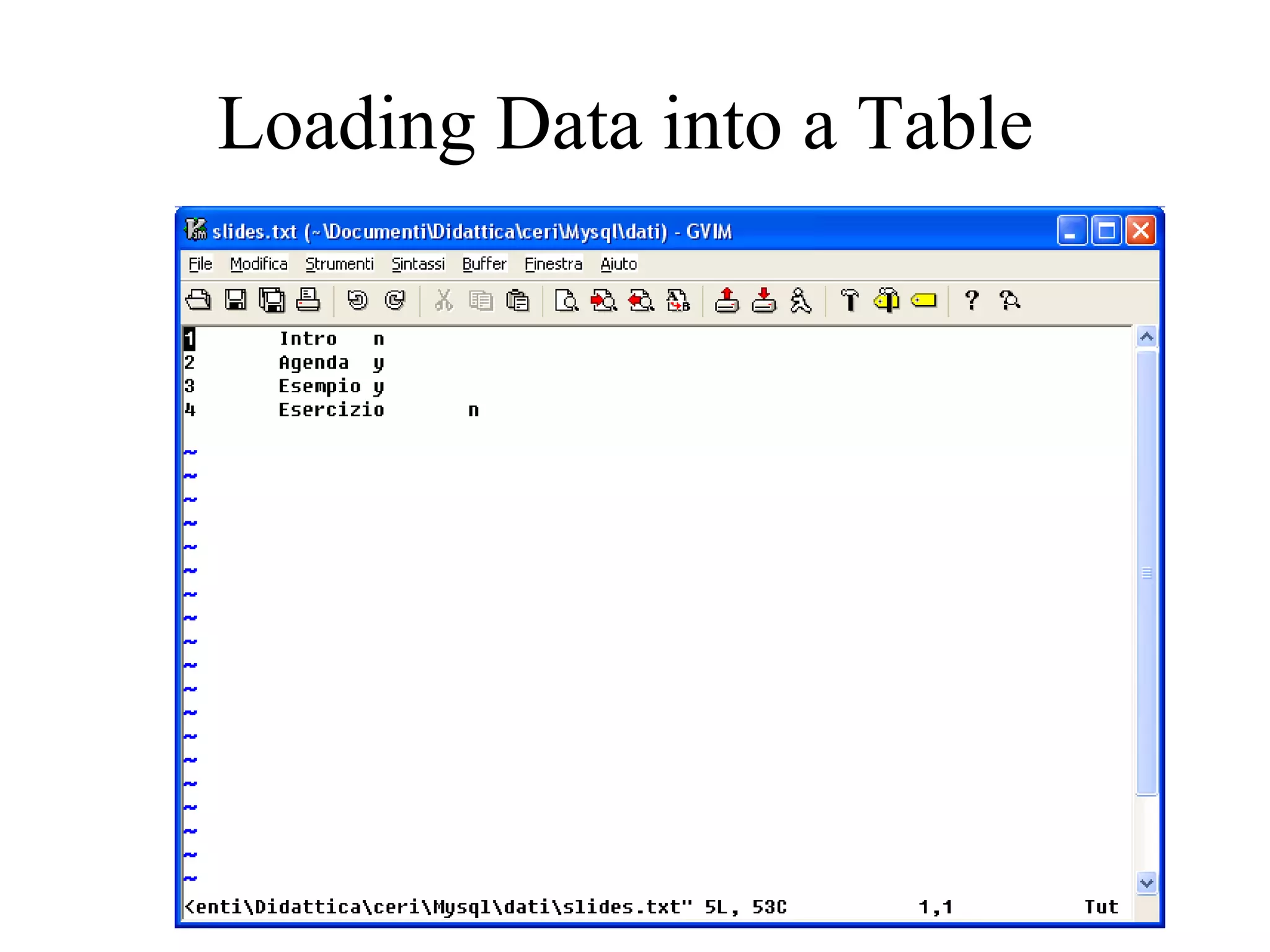
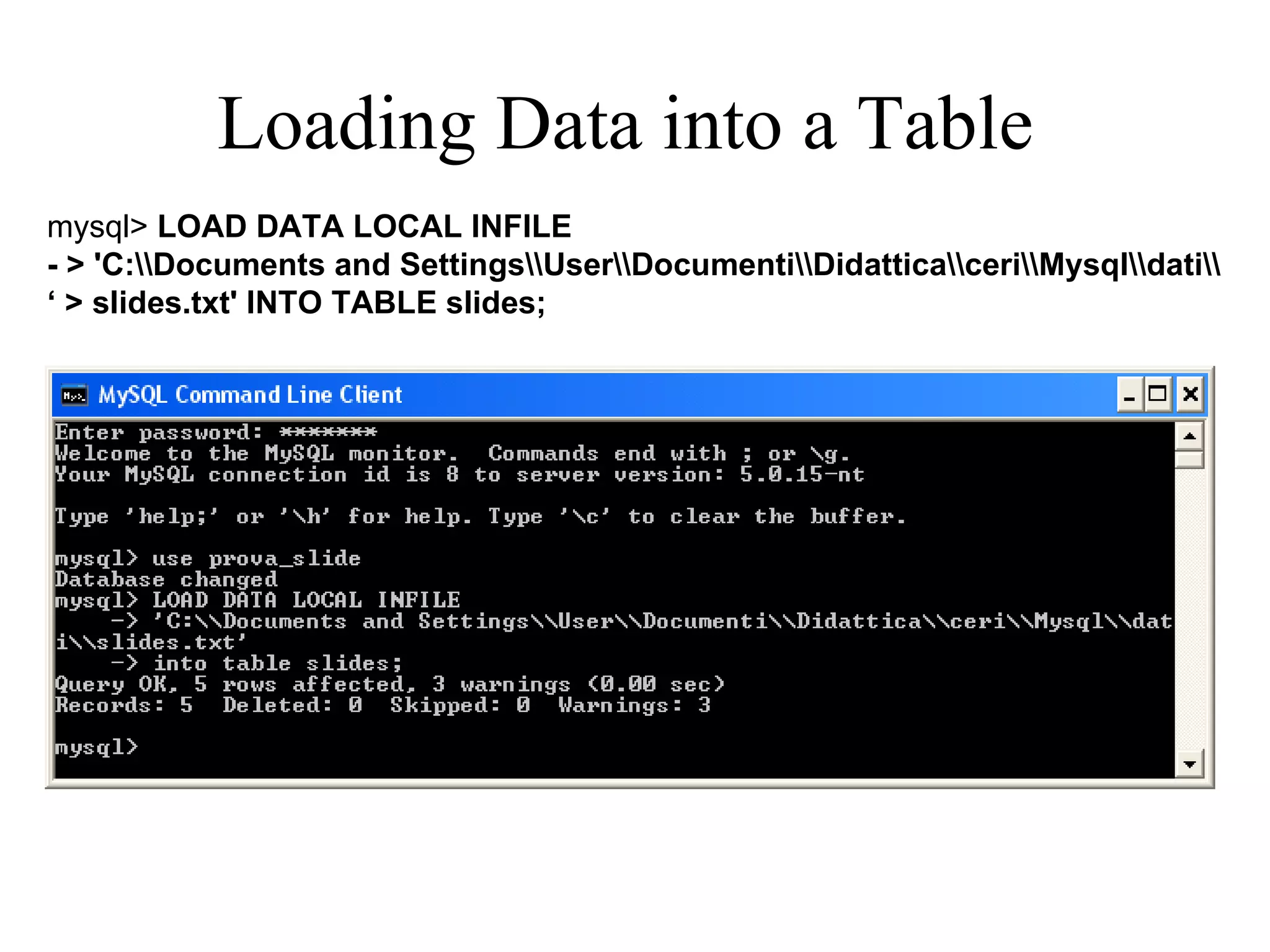
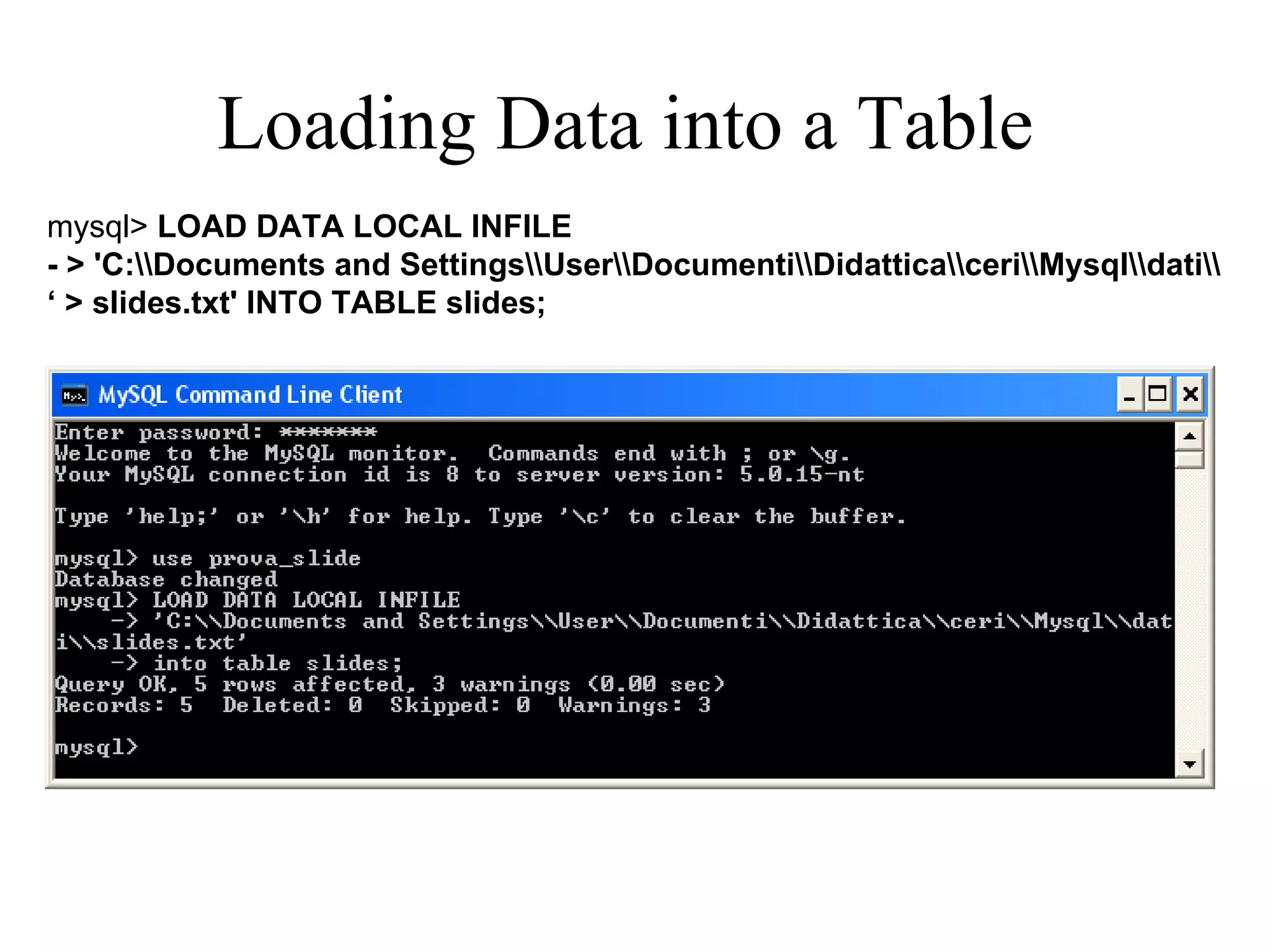
Loading Data into a Table  After creating your table, you need to populate it. The  LOAD DATA  statement is useful for this Because you are beginning with an  empty table , an easy way to  populate it  is to create a  text file  containing a row for each of your slide, then load the contents of the file into the table with a single statement
Loading Data into a Table
Loading Data into a Table  mysql>  LOAD DATA LOCAL INFILE  - > 'C:\\Documents and Settings\\User\\Documenti\\Didattica\\ceri\\Mysql\\dati\\ ‘  > slides.txt' INTO TABLE slides;
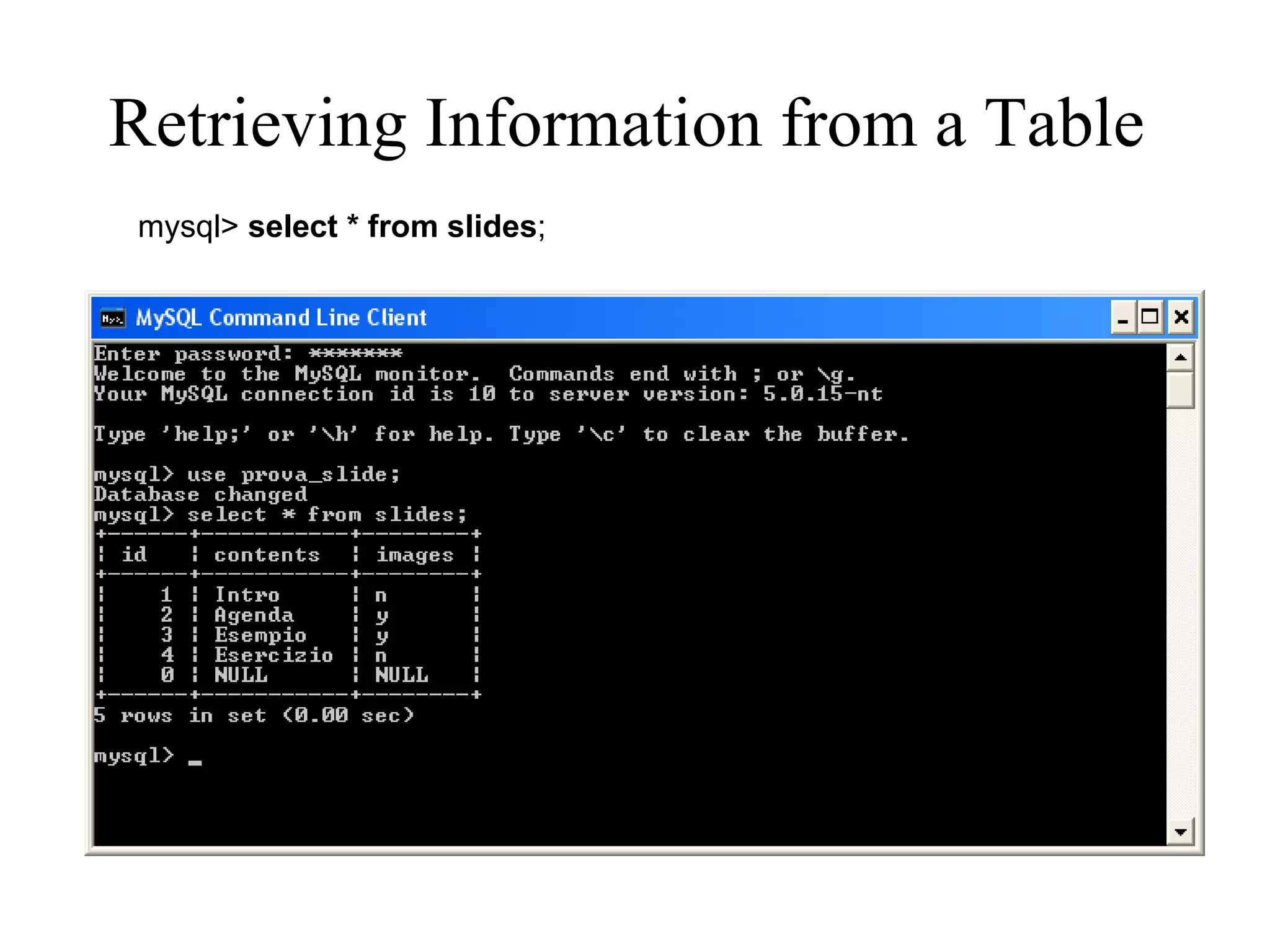
Retrieving Information from a Table   mysql>  select * from slides ;
Retrieving Information from a Table   mysql>  select contents from slides ;
Retrieving Information from a Table   mysql>  delete from slides;
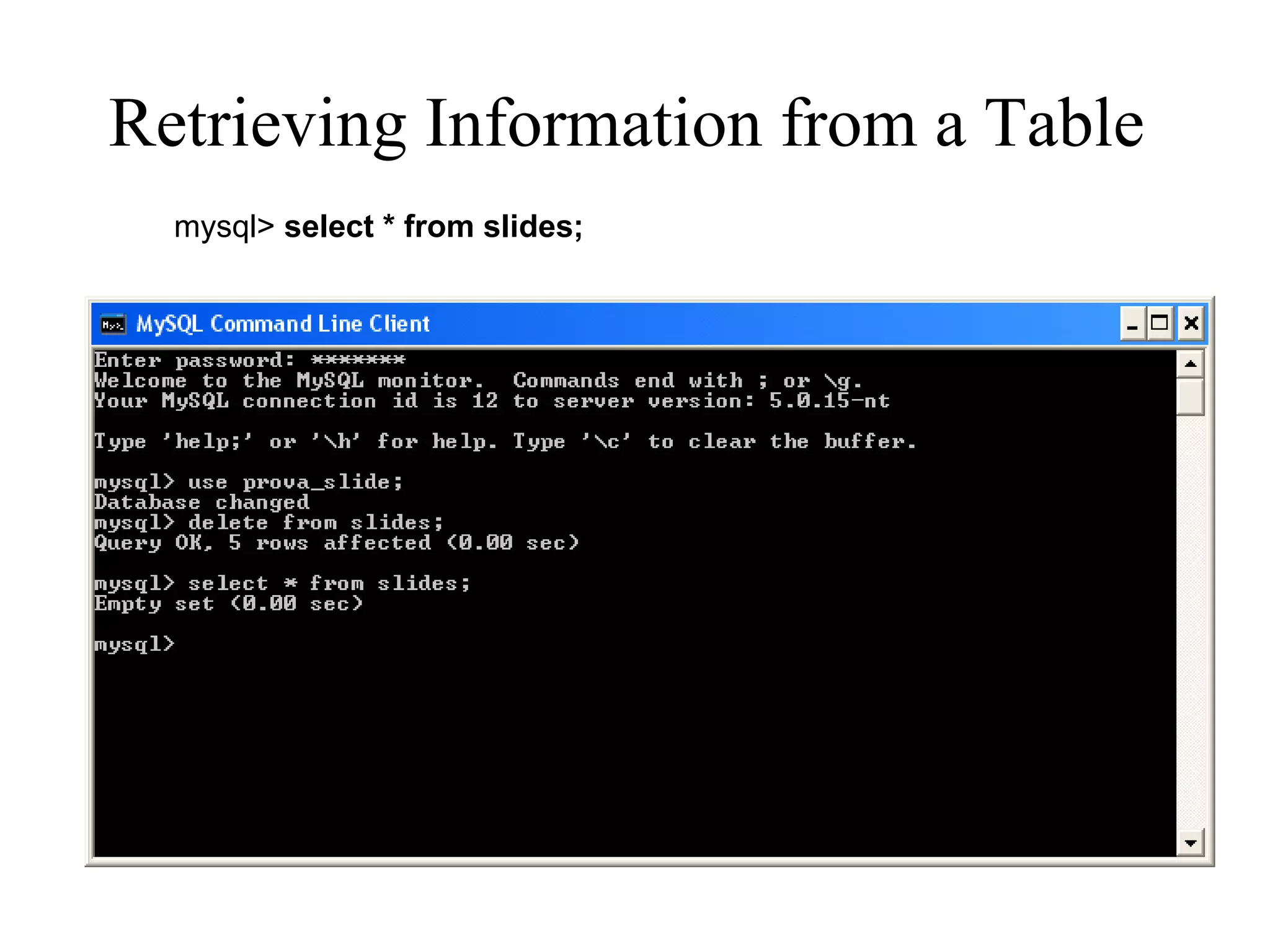
Retrieving Information from a Table   mysql>  select * from slides;
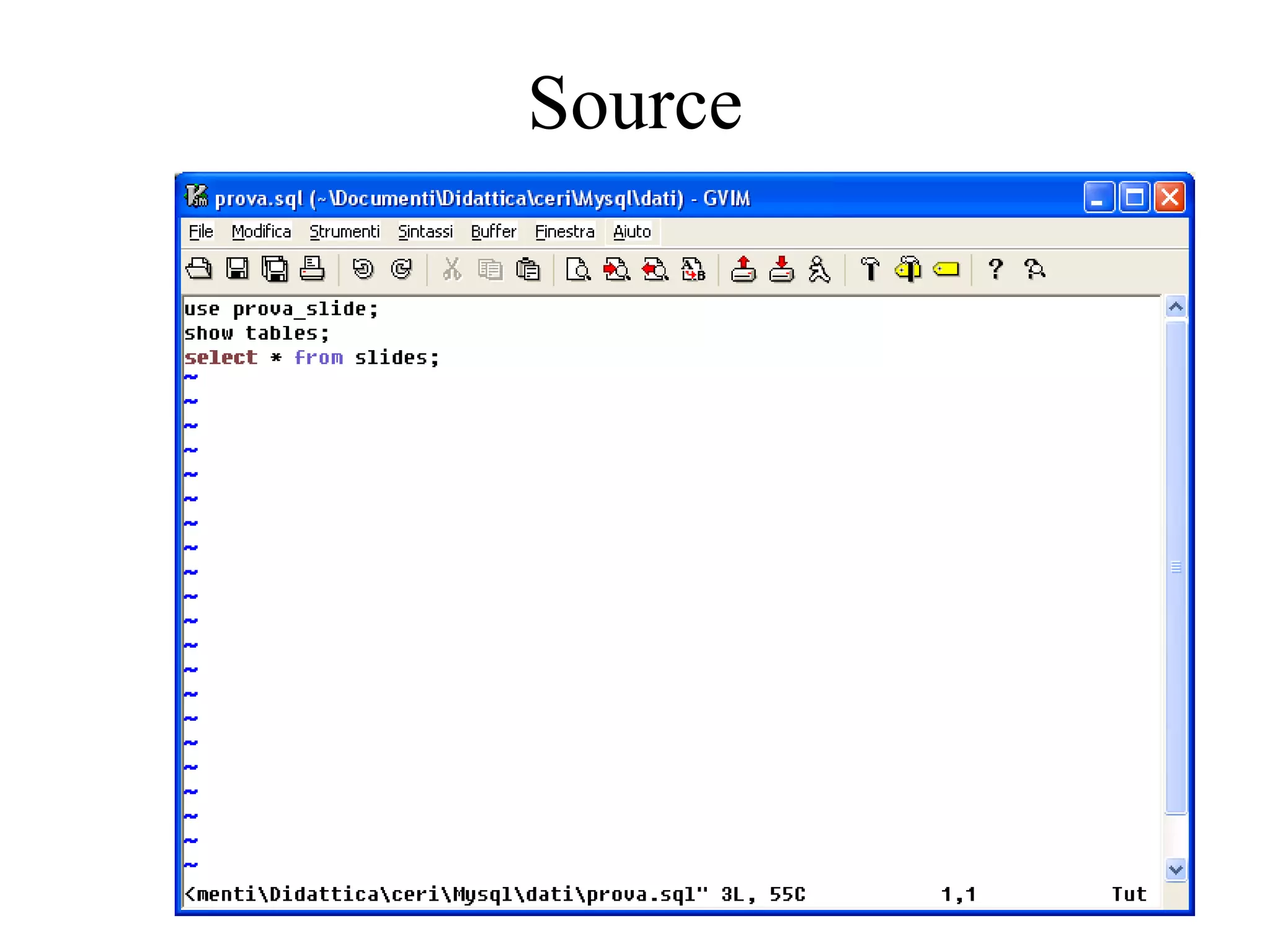
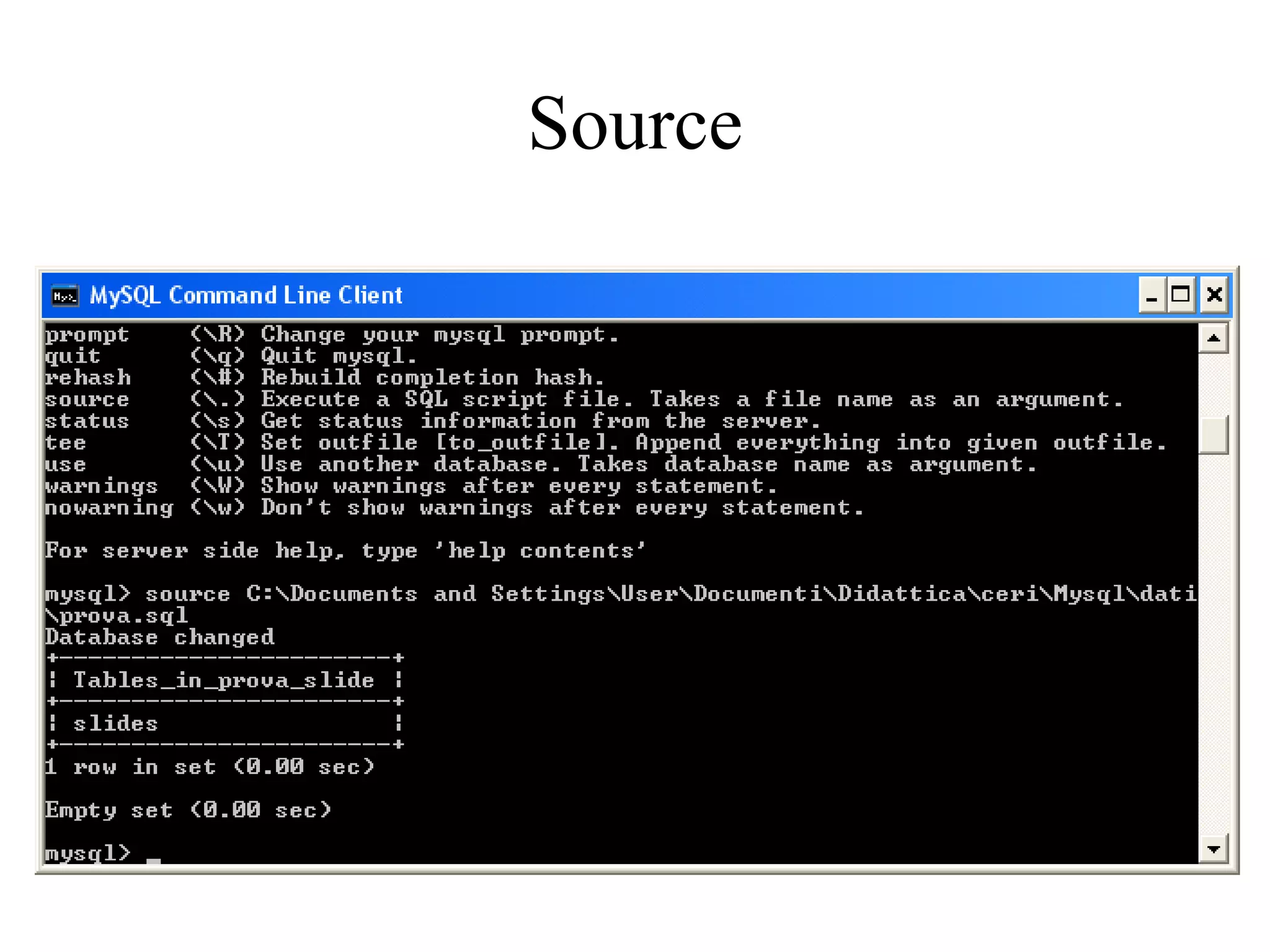
Source
Source

Mysqlppt3510

  • 1.
    Mysql Basi diDati Università di Enna A.A. 2005/06
  • 2.
    Intro MySQL ® and the MySQL logo are registered trademarks of MySQL AB (a Swedish company) The MySQL® software delivers a very fast, multi-threaded, multi-user, and robust SQL (Structured Query Language) database server The MySQL Web site ( http://www.mysql.com/ ) provides the latest information about MySQL and MySQL AB the “AB” part of the company name is the acronym for the Swedish “aktiebolag,” or “stock company”
  • 3.
    License The MySQLsoftware is Dual Licensed Users can choose to use the MySQL software as an Open Source product under the terms of the GNU General Public License Users can purchase a standard commercial license from MySQL AB See http://www.mysql.com/company/ legal / licensing / for more information on our licensing policies.
  • 4.
    Documentation The MySQLDatabase Software is under constant development, and the Reference Manual is updated frequently as well. The most recent version of the manual is available online in searchable form at http:// dev.mysql.com / doc / Formats available: HTML PDF CHM
  • 5.
    Operating Systems Supportedby MySQL It is possible to port MySQL to all modern systems that have a C++ compiler and a working implementation of POSIX threads Thread support is needed for the server . To compile only the client code, the only requirement is a C++ compiler “ We use and develop the software ourselves primarily on Linux (SuSE and Red Hat), FreeBSD, and Sun Solaris (Versions 8 and 9)”
  • 6.
    Operating Systems Supportedby MySQL MySQL has been reported to compile successfully on the following operating systems: AIX 4.x, 5.x Amiga BSDI 2.x Digital Unix 4.x FreeBSD 2.x, 3.x, 4.x Mac OS X Windows 9x, Me, NT, 2000, XP, and 2003
  • 7.
    Installing MySQL onWindows A native Windows version of MySQL has been available from MySQL AB since version 3.21 and represents a sizable percentage of the daily downloads of MySQL The installer for the Windows version of MySQL 5.0, combined with a GUI Configuration Wizard , automatically installs MySQL, creates an option file, starts the server, and secures the default user accounts
  • 8.
    Installing MySQL onWindows MySQL 5.0 for Windows is available in three distribution formats: The binary distribution contains a setup program that installs everything you need so that you can start the server immediately The source distribution contains all the code and support files for building the executables using the Visual Studio 2003 compiler system Generally speaking, you should use the binary distribution. It is simpler to use than the others, and you need no additional tools to get MySQL up and running
  • 9.
    Installing MySQL onWindows A copy of the MySQL binary distribution for Windows, which can be downloaded from http:// dev.mysql.com / downloads / You may also have the following optional requirements: If you plan to connect to the MySQL server via ODBC, you also need a Connector/ODBC driver If you need tables with a size larger than 4GB, install MySQL on an NTFS or newer filesystem
  • 10.
    For MySQL 5.0,there are three installation packages to choose from when installing MySQL on Windows. The packages are as follows: Essential package Complete package Noinstall archive The Essentials package is recommended for most users Installing MySQL on Windows
  • 11.
    The following entriesare created within the new Start menu section : MySQL Command Line Client : This is a shortcut to the mysql command-line client and is configured to connect as the root user. The shortcut prompts for a root user password when connecting MySQL Server Instance Config Wizard : This is a shortcut to the MySQL Configuration Wizard. Use this shortcut to configure a newly installed server, or to re-configure an existing server MySQL Documentation : This is a link to the MySQL server documentation that is stored locally in the MySQL server installation directory. This option is not available when the MySQL server is installed using the Essentials installation package. Installing MySQL on Windows
  • 12.
    The Main Featuresof MySQL Written in C and C++ Tested with a broad range of different compilers Works on many different platforms Uses GNU Automake, Autoconf, and Libtool for portability APIs for C, C++, Eiffel, Java, Perl, PHP, Python, Ruby, and Tcl are available …
  • 13.
    Column Types Many column types: signed/unsigned integers 1, 2, 3, 4, and 8 bytes long FLOAT, DOUBLE CHAR, VARCHAR TEXT BLOB DATE, TIME, DATETIME, TIMESTAMP, YEAR SET, ENUM Fixed-length and variable-length records
  • 14.
    Statements and FunctionsFull operator and function support in the SELECT and WHERE clauses of queries. Full support for SQL GROUP BY and ORDER BY clauses. Support for group functions (COUNT(), COUNT(DISTINCT ...), AVG(), STD(), SUM(), MAX(), MIN() Support for LEFT OUTER JOIN and RIGHT OUTER JOIN Support for aliases on tables and columns as required by standard SQL
  • 15.
    Statements and Functions(2) DELETE, INSERT, REPLACE, and UPDATE return the number of rows that were changed (affected) The MySQL-specific SHOW command can be used to retrieve information about databases, database engines, tables, and indexes. The EXPLAIN command can be used to determine how the optimizer resolves a query Function names do not clash with table or column names. For example, ABS is a valid column name. The only restriction is that for a function call, no spaces are allowed between the function name and the ‘ ( ’ that follows it You can mix tables from different databases in the same query
  • 16.
    Limits Handleslarge databases. “ We use MySQL Server with databases that contain 50 million records …” “… We also know of users who use MySQL Server with 60,000 tables and about 5,000,000,000 rows …”
  • 17.
    Connectivity Clientscan connect to the MySQL server using TCP/IP sockets on any platform The Connector/ODBC (MyODBC) interface provides MySQL support for client programs that use ODBC (Open Database Connectivity) connections. For example, you can use MS Access to connect to your MySQL server. The Connector/J interface provides MySQL support for Java client programs that use JDBC connections
  • 18.
    How Big MySQLTables Can Be MySQL 3.22 had a 4GB (4 gigabyte) limit on table size. With the MyISAM storage engine in MySQL 3.23 , the maximum table size was increased to 65536 terabytes (256 7 – 1 bytes). With this larger allowed table size, the maximum effective table size for MySQL databases is usually determined by operating system constraints on file sizes, not by MySQL internal limits
  • 19.
    The following tablelists some examples of operating system file-size limits. This is only a rough guide and is not intended to be definitive Win32 (FAT/FAT32) 2GB/4GB Win32 (NTFS) 2TB Linux 2.2-Intel 2GB Linux 2.4+ (ext3) 4TB Windows users please note: FAT and VFAT (FAT32) are not considered suitable for production use with MySQL. Use NTFS instead How Big MySQL Tables Can Be
  • 20.
    Connecting to andDisconnecting from the Server To connect to the server, you will usually need to provide a MySQL username when you invoke mysql and, most likely, a password. If the server runs on a machine other than the one where you log in, you will also need to specify a hostname shell> mysql -h host -u user –p Enter password: ********
  • 21.
    Connecting to andDisconnecting from the Server shell> mysql -h host -u user –p Enter password: ******** host and user represent the hostname where your MySQL server is running and the username of your MySQL account The ******** represents your password; enter it when mysql displays the Enter password: prompt.
  • 22.
    Connecting to andDisconnecting from the Server
  • 23.
    Connecting to andDisconnecting from the Server Some MySQL installations allow users to connect as the anonymous ( unnamed ) user to the server running on the local host . If this is the case on your machine, you should be able to connect to that server by invoking mysql without any options: shell> mysql
  • 24.
    Connecting to andDisconnecting from the Server After you have connected successfully, you can disconnect any time by typing QUIT (or EXIT ) at the mysql > prompt: shell> QUIT Bye shell> EXIT Bye On Unix , you can also disconnect by pressing Control-D
  • 25.
    Entering Queries mysql> SELECT VERSION( ), CURRENT_DATE;
  • 26.
    Notes Whenyou issue a command, mysql sends it to the server for execution and displays the results , then prints another mysql> prompt to indicate that it is ready for another command.
  • 27.
    Notes (2) mysql displays query output in tabular form (rows and columns). The first row contains labels for the columns. The rows following are the query results.
  • 28.
    Notes (3) mysql shows how many rows were returned and how long the query took to execute, which gives you a rough idea of server performance
  • 29.
    Entering Queries Keywords may be entered in any lettercase. The following queries are equivalent: mysql> SELECT VERSION(), CURRENT_DATE; mysql> select version(), current_date; mysql> SeLeCt vErSiOn(), current_DATE;
  • 30.
    Here's another query.It demonstrates that you can use mysql as a simple calculator Entering Queries
  • 31.
    You can evenenter multiple statements on a single line. Just end each one with a semicolon Entering Queries
  • 32.
    A command neednot be given all on a single line, so lengthy commands that require several lines are not a problem mysql determines where your statement ends by looking for the terminating semicolon, not by looking for the end of the input line Entering Queries
  • 33.
  • 34.
    The following tableshows each of the prompts you may see and summarizes what they mean about the state that mysql is in: mysql> Ready for new command. -> Waiting for next line of multiple-line command ‘ > Waiting for next line, waiting for completion of a string that began with a single quote (‘'’) Entering Queries
  • 35.
    &quot;> Waiting for next line, waiting for completion of a string that began with a double quote (‘&quot;’) `> Waiting for next line, waiting for completion of an identifier that began with a backtick (‘`’) /*> Waiting for next line, waiting for completion of a comment that began with /* Entering Queries
  • 36.
  • 37.
    Entering Queries mysql> SELECT * FROM my_table WHERE name = 'Smith AND age < 30; '>
  • 38.
    Creating and Usinga Database This section shows you how to: Create a database Create a table Load data into the table Retrieve data from the table in various ways Use multiple tables
  • 39.
    Use the SHOW statement to find out what databases currently exist on the server Creating and Using a Database
  • 40.
    If the testdatabase exists, try to access it Creating and Using a Database
  • 41.
    USE USE, likeQUIT, does not require a semicolon You can terminate such statements with a semicolon if you like; it does no harm It must be given on a single line Creating and Using a Database
  • 42.
    Creating and Selectinga Database If the administrator creates your database for you when setting up your permissions, you can begin using it. Otherwise, you need to create it yourself
  • 43.
  • 44.
      Creating aTable Creating the database is the easy part, but at this point it's empty, as SHOW TABLES tells you:
  • 45.
      Creating aTable Creating the database is the easy part, but at this point it's empty, as SHOW TABLES tells you:
  • 46.
      Creating aTable Create table slides (id integer, contents varchar(30), images char);
  • 47.
      Creating aTable mysql> show tables;
  • 48.
      Creating aTable mysql> describe slides ;
  • 49.
    Loading Data intoa Table After creating your table, you need to populate it. The LOAD DATA statement is useful for this Because you are beginning with an empty table , an easy way to populate it is to create a text file containing a row for each of your slide, then load the contents of the file into the table with a single statement
  • 50.
  • 51.
    Loading Data intoa Table mysql> LOAD DATA LOCAL INFILE - > 'C:\\Documents and Settings\\User\\Documenti\\Didattica\\ceri\\Mysql\\dati\\ ‘ > slides.txt' INTO TABLE slides;
  • 52.
    Loading Data intoa Table mysql> LOAD DATA LOCAL INFILE - > 'C:\\Documents and Settings\\User\\Documenti\\Didattica\\ceri\\Mysql\\dati\\ ‘ > slides.txt' INTO TABLE slides;
  • 53.
    Retrieving Information froma Table mysql> select * from slides ;
  • 54.
    Retrieving Information froma Table mysql> select contents from slides ;
  • 55.
    Retrieving Information froma Table mysql> delete from slides;
  • 56.
    Retrieving Information froma Table mysql> select * from slides;
  • 57.
  • 58.