
MongoDB Basic Installation
Mr. Parkhe Kishor B.
Sr. Software Engineer
Highmark Credit Information Services Pvt. Ltd., Pune
Email: parkhekishor@gmail.com Mobile No. +919595745346
email: parkhekishor@gmail.com Mobile
No. +919595745346
MongoDB Basic Installation
This guide shows, how to install MongoDB on Windows and Centos.
1. Windows installation
2. Centos Installation
Step 1.1
Download latest production release MongoDB from MongoDB download page .
There are three build of for MongoDB.
Windows server 2008 R2
Windows 64 bits
Windows 32 bits (development up to 2GB)
Note: Type following commend in the command prompt to find architecture of
your windows platform.
C:>wmic os get osarchitecture
OSArchitecture
32-bit
email: parkhekishor@gmail.com Mobile
No. +919595745346
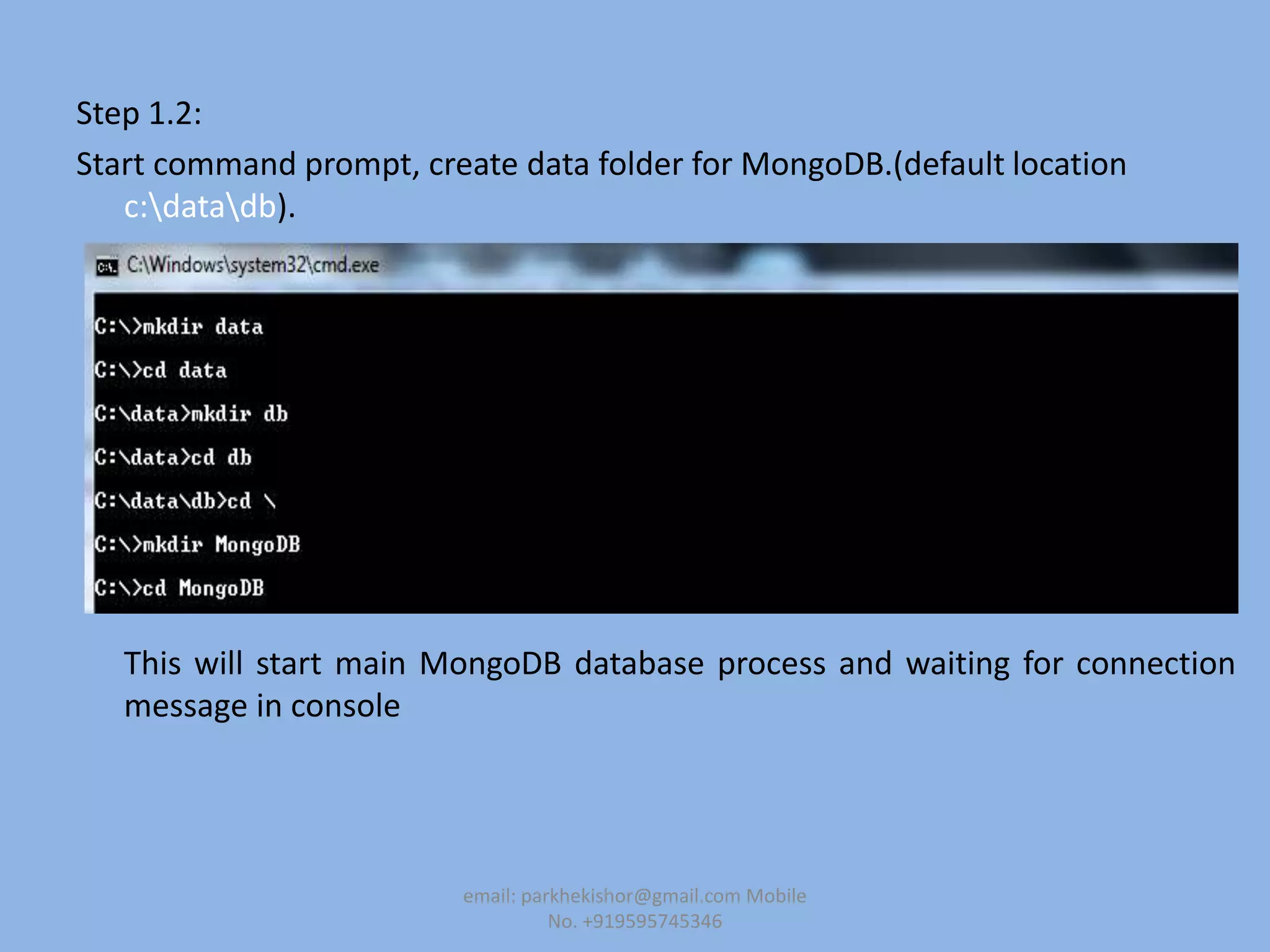
Step 1.2:
Start command prompt, create data folder for MongoDB.(default location
c:datadb).
This will start main MongoDB database process and waiting for connection
message in console
email: parkhekishor@gmail.com Mobile
No. +919595745346
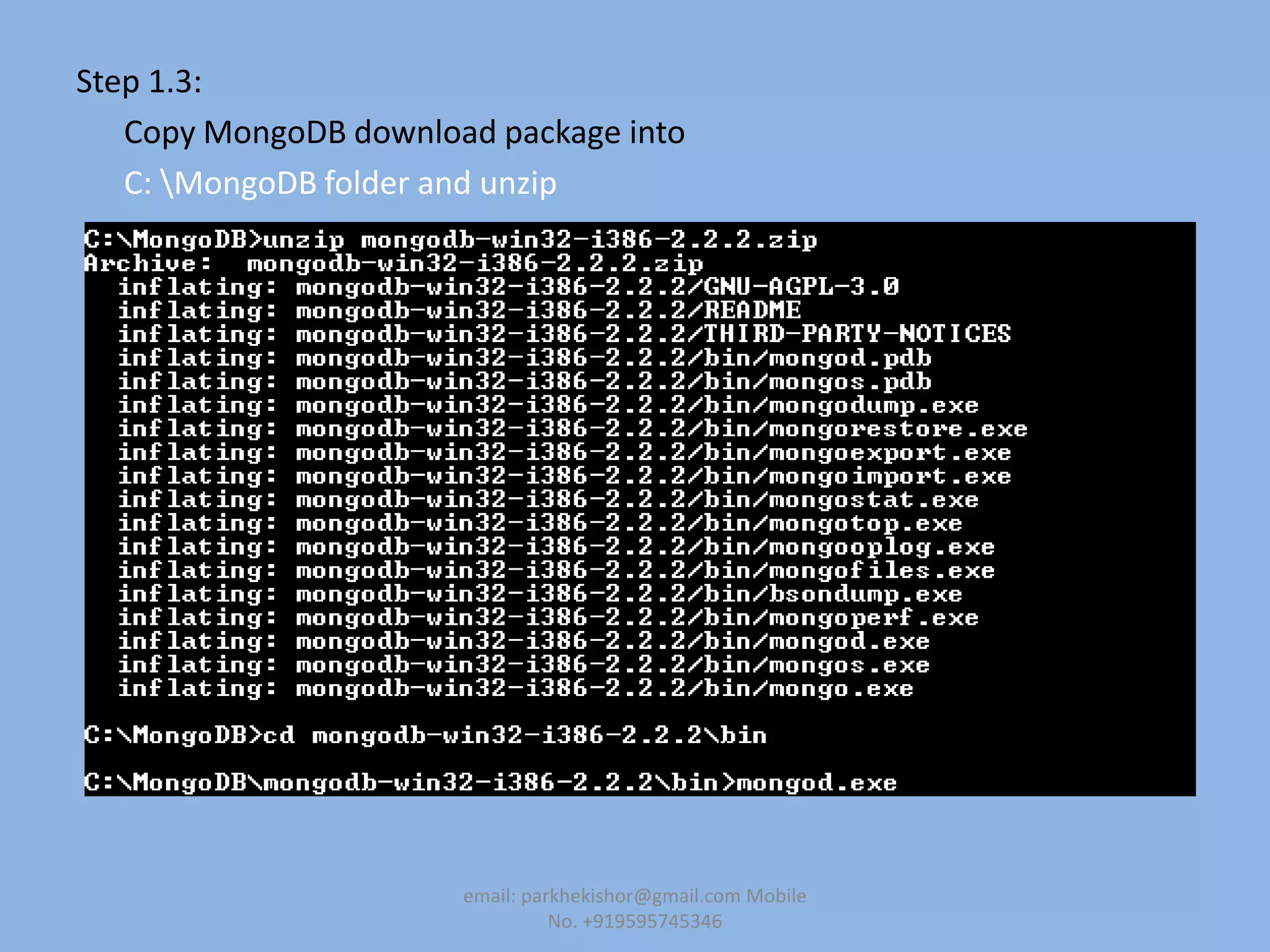
Step 1.3:
Copy MongoDB download package into
C: MongoDB folder and unzip
email: parkhekishor@gmail.com Mobile
No. +919595745346
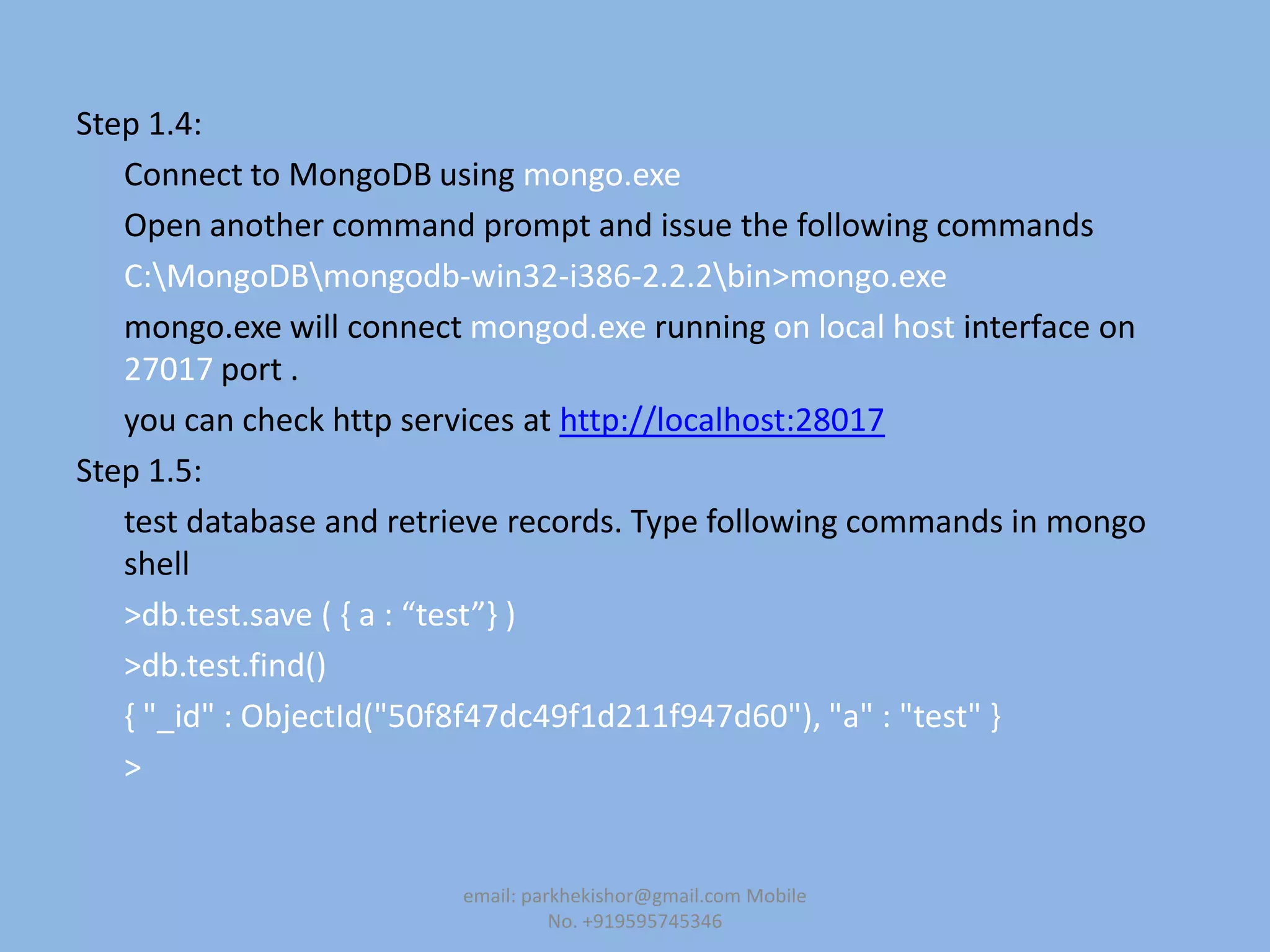
Step 1.4:
Connect to MongoDB using mongo.exe
Open another command prompt and issue the following commands
C:MongoDBmongodb-win32-i386-2.2.2bin>mongo.exe
mongo.exe will connect mongod.exe running on local host interface on
27017 port .
you can check http services at http://localhost:28017
Step 1.5:
test database and retrieve records. Type following commands in mongo
shell
>db.test.save ( , a : “test”- )
>db.test.find()
{ "_id" : ObjectId("50f8f47dc49f1d211f947d60"), "a" : "test" }
>
email: parkhekishor@gmail.com Mobile
No. +919595745346
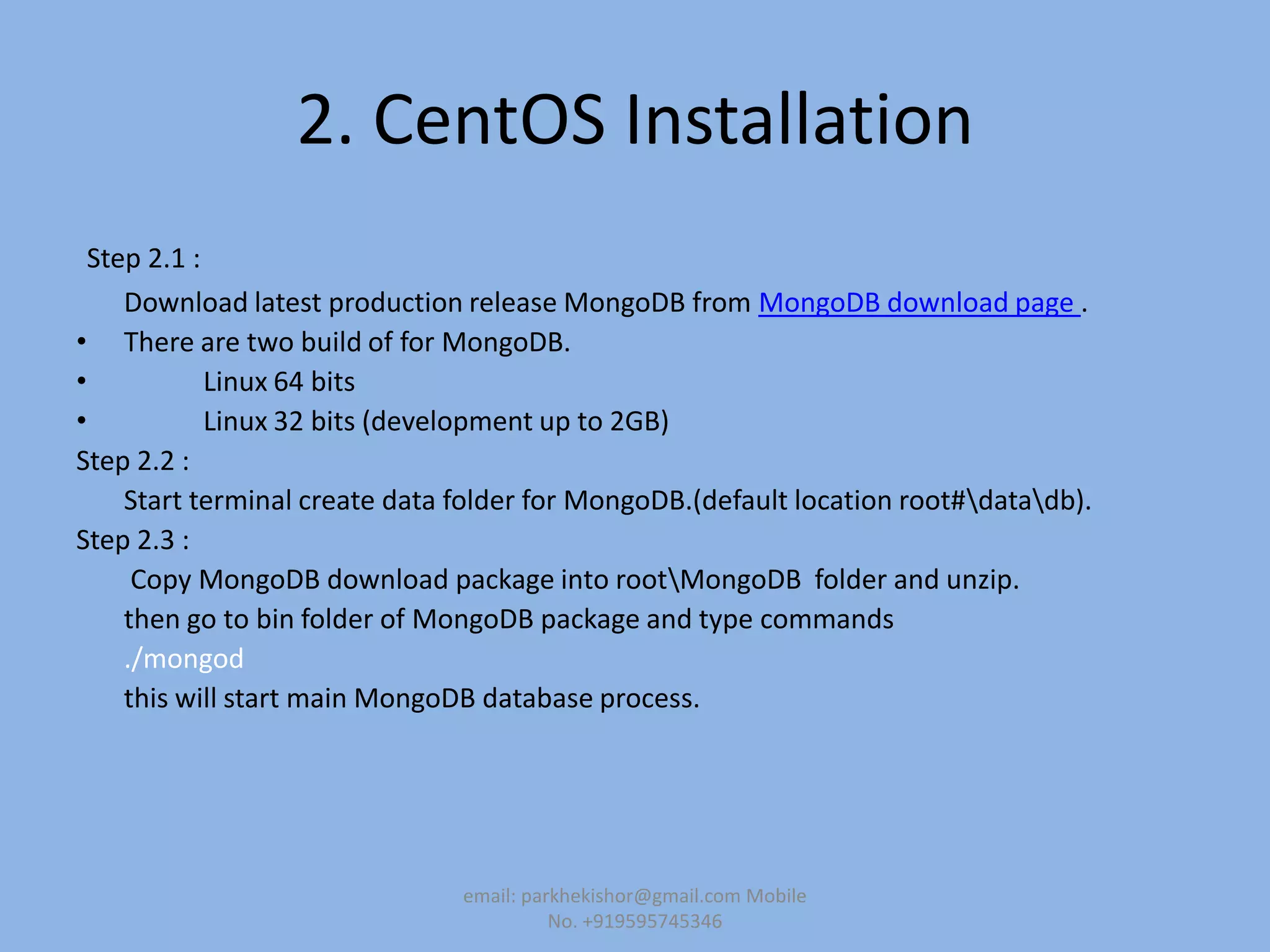
2. CentOS Installation
Step 2.1 :
Download latest production release MongoDB from MongoDB download page .
• There are two build of for MongoDB.
• Linux 64 bits
• Linux 32 bits (development up to 2GB)
Step 2.2 :
Start terminal create data folder for MongoDB.(default location root#datadb).
Step 2.3 :
Copy MongoDB download package into rootMongoDB folder and unzip.
then go to bin folder of MongoDB package and type commands
./mongod
this will start main MongoDB database process.
email: parkhekishor@gmail.com Mobile
No. +919595745346
Step 1.4:
Connect to MongoDB using mongo.exe
Open another command prompt and issue the following commands
[root@HMCLUSTER2 /]# cd mongodb-linux-x86_64-2.0.6/bin
[root@HMCLUSTER2 bin]# ./mongo
mongo.rpm will connect mongod.rpm running on local host interface on 27017
port .
you can check http services at http://localhost:28017
Step 1.5:
test database and retrieve records. Type following commands in mongo shell
>db.test.save ( , a : “test”- )
>db.test.find()
{ "_id" : ObjectId("50f8f47dc49f1d211f947d60"), "a" : "test" }
>
email: parkhekishor@gmail.com Mobile
No. +919595745346
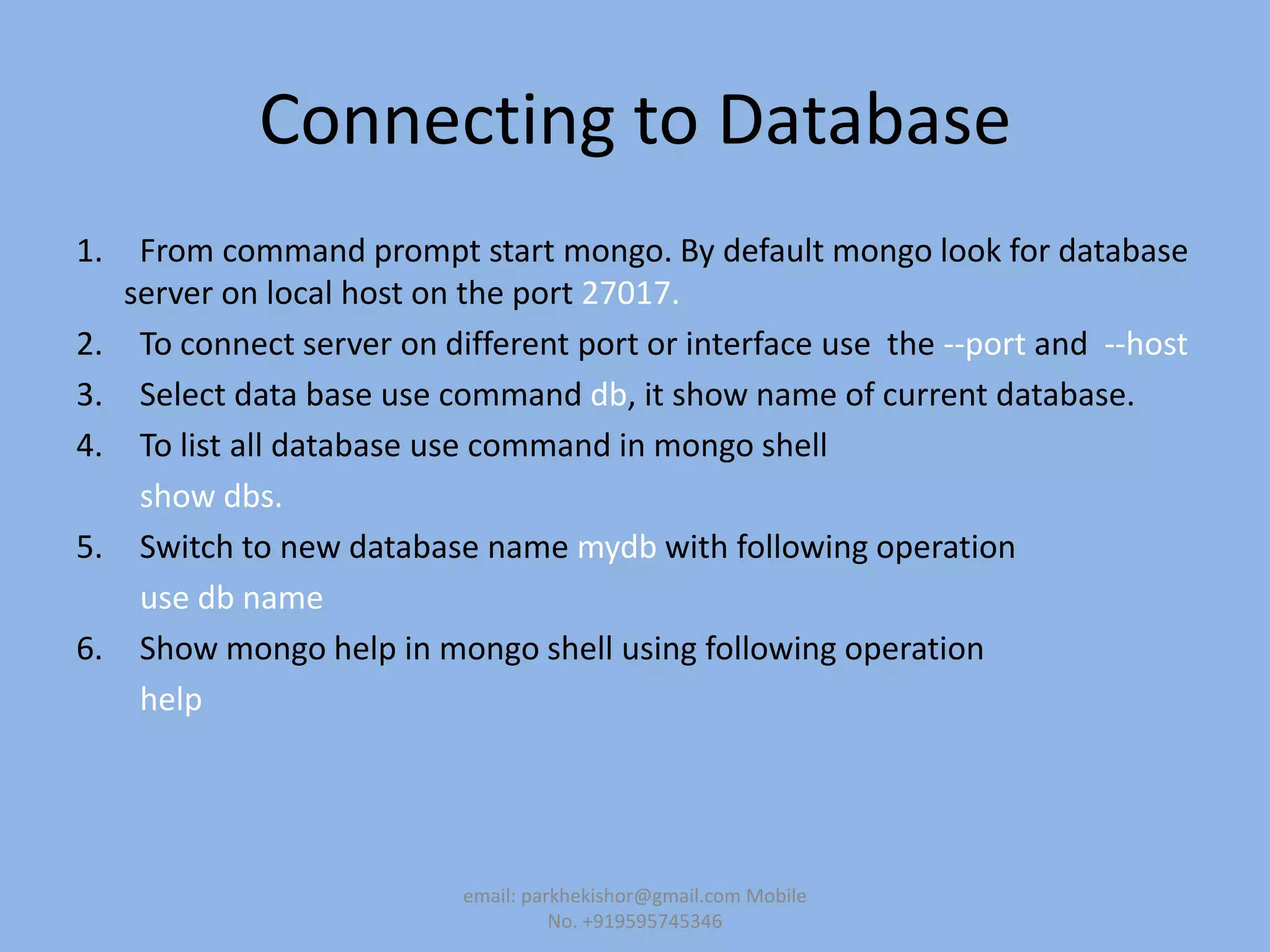
Connecting to Database
1. From command prompt start mongo. By default mongo look for database
server on local host on the port 27017.
2. To connect server on different port or interface use the --port and --host
3. Select data base use command db, it show name of current database.
4. To list all database use command in mongo shell
show dbs.
5. Switch to new database name mydb with following operation
use db name
6. Show mongo help in mongo shell using following operation
help
email: parkhekishor@gmail.com Mobile
No. +919595745346
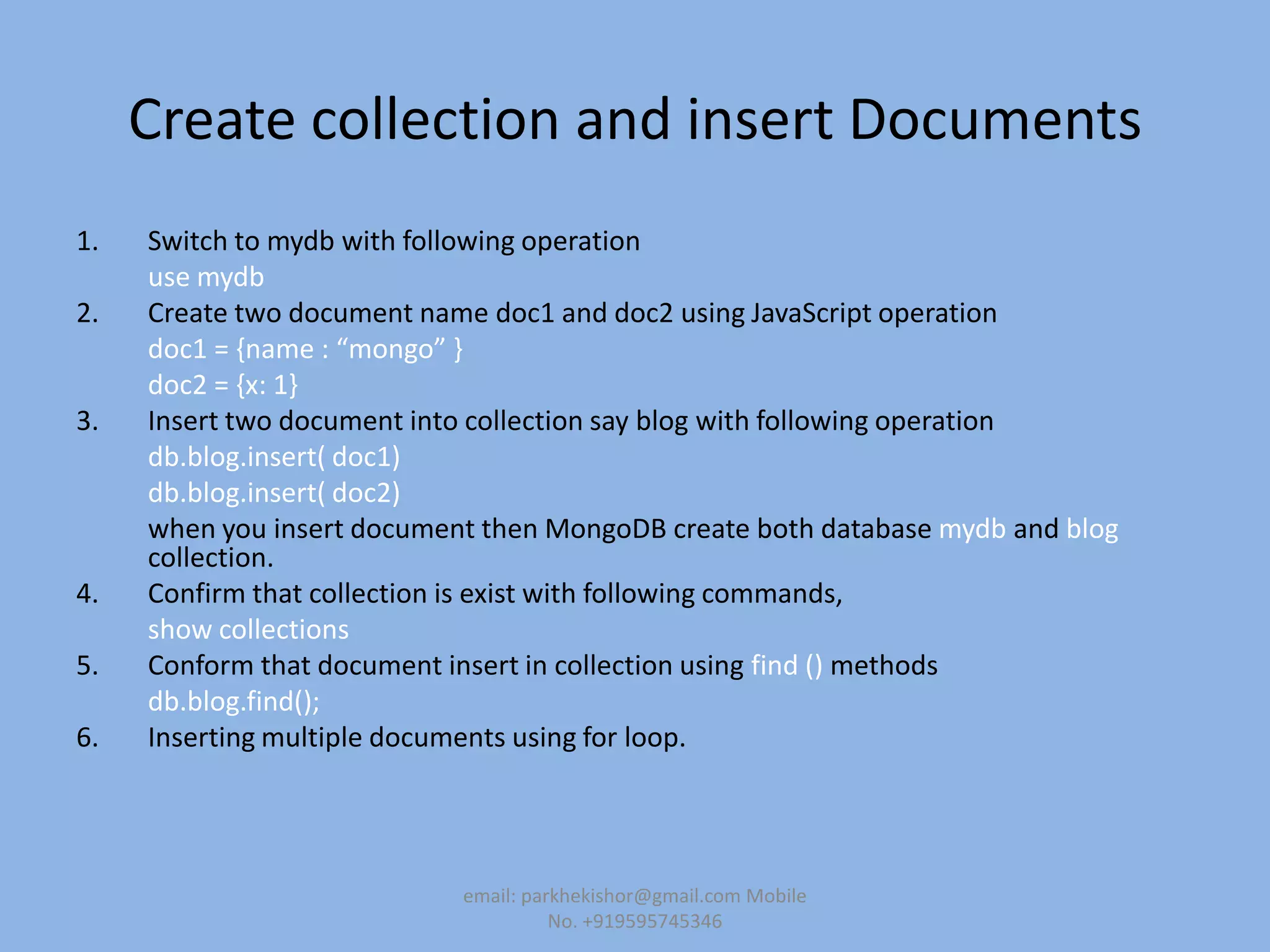
Create collection and insert Documents
1. Switch to mydb with following operation
use mydb
2. Create two document name doc1 and doc2 using JavaScript operation
doc1 = ,name : “mongo” -
doc2 = {x: 1}
3. Insert two document into collection say blog with following operation
db.blog.insert( doc1)
db.blog.insert( doc2)
when you insert document then MongoDB create both database mydb and blog
collection.
4. Confirm that collection is exist with following commands,
show collections
5. Conform that document insert in collection using find () methods
db.blog.find();
6. Inserting multiple documents using for loop.
email: parkhekishor@gmail.com Mobile
No. +919595745346
Implementing Curser
1. When you querying, MongoDB return curser object that contain result of
query.
2. Iterating over the curser with loop
var curser= db.blog.find();
while( curser.hasnext() ){
printjson( curser.next() );
}
3. Use array operation with curser
curser[4];
email: parkhekishor@gmail.com Mobile
No. +919595745346
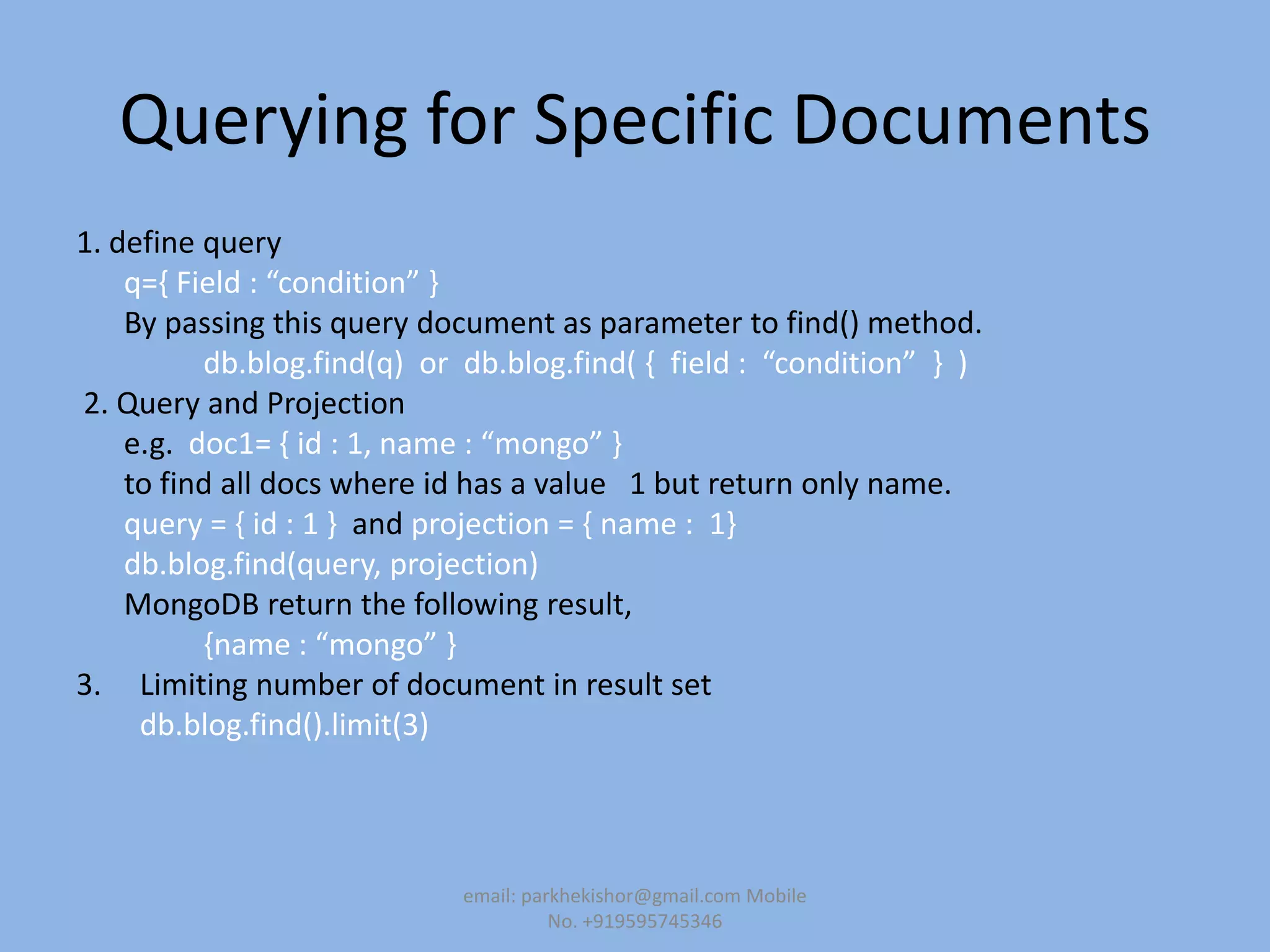
Querying for Specific Documents
1. define query
q=, Field : “condition” -
By passing this query document as parameter to find() method.
db.blog.find(q) or db.blog.find( , field : “condition” - )
2. Query and Projection
e.g. doc1= , id : 1, name : “mongo” -
to find all docs where id has a value 1 but return only name.
query = { id : 1 } and projection = { name : 1}
db.blog.find(query, projection)
MongoDB return the following result,
,name : “mongo” -
3. Limiting number of document in result set
db.blog.find().limit(3)
email: parkhekishor@gmail.com Mobile
No. +919595745346
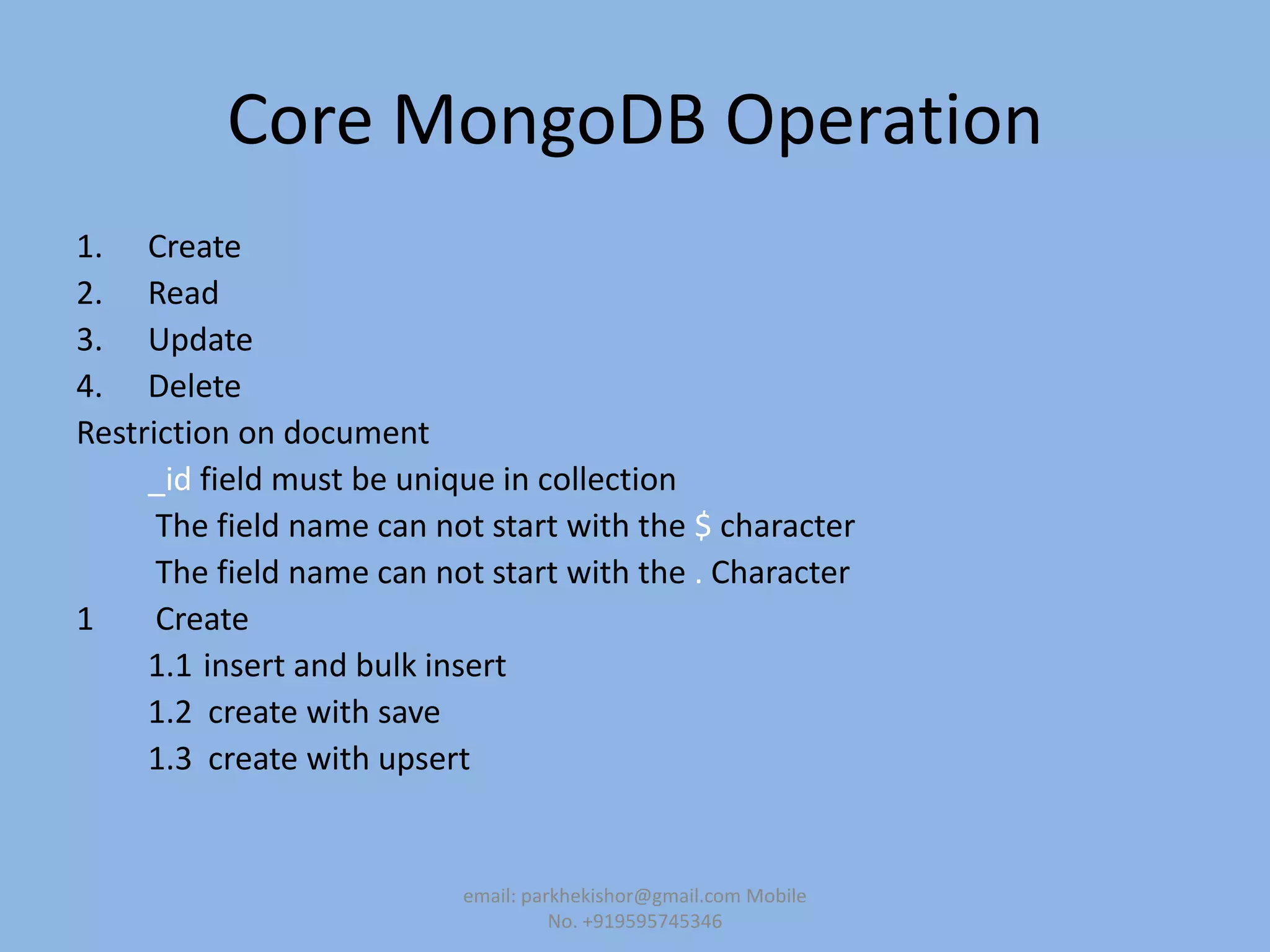
Core MongoDB Operation
1. Create
2. Read
3. Update
4. Delete
Restriction on document
_id field must be unique in collection
The field name can not start with the $ character
The field name can not start with the . Character
1 Create
1.1 insert and bulk insert
1.2 create with save
1.3 create with upsert
email: parkhekishor@gmail.com Mobile
No. +919595745346
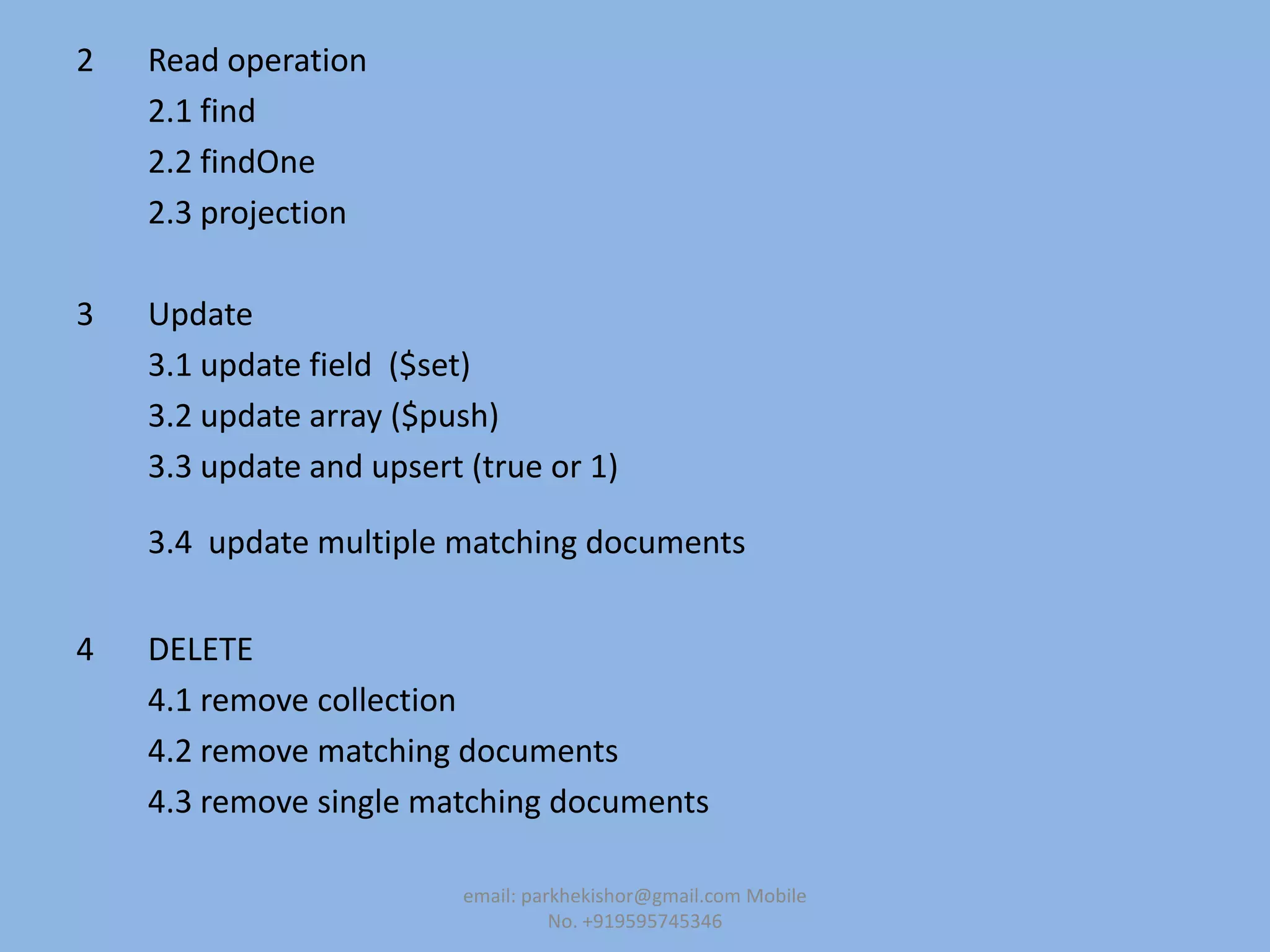
2 Read operation
2.1 find
2.2 findOne
2.3 projection
3 Update
3.1 update field ($set)
3.2 update array ($push)
3.3 update and upsert (true or 1)
3.4 update multiple matching documents
4 DELETE
4.1 remove collection
4.2 remove matching documents
4.3 remove single matching documents
email: parkhekishor@gmail.com Mobile
No. +919595745346
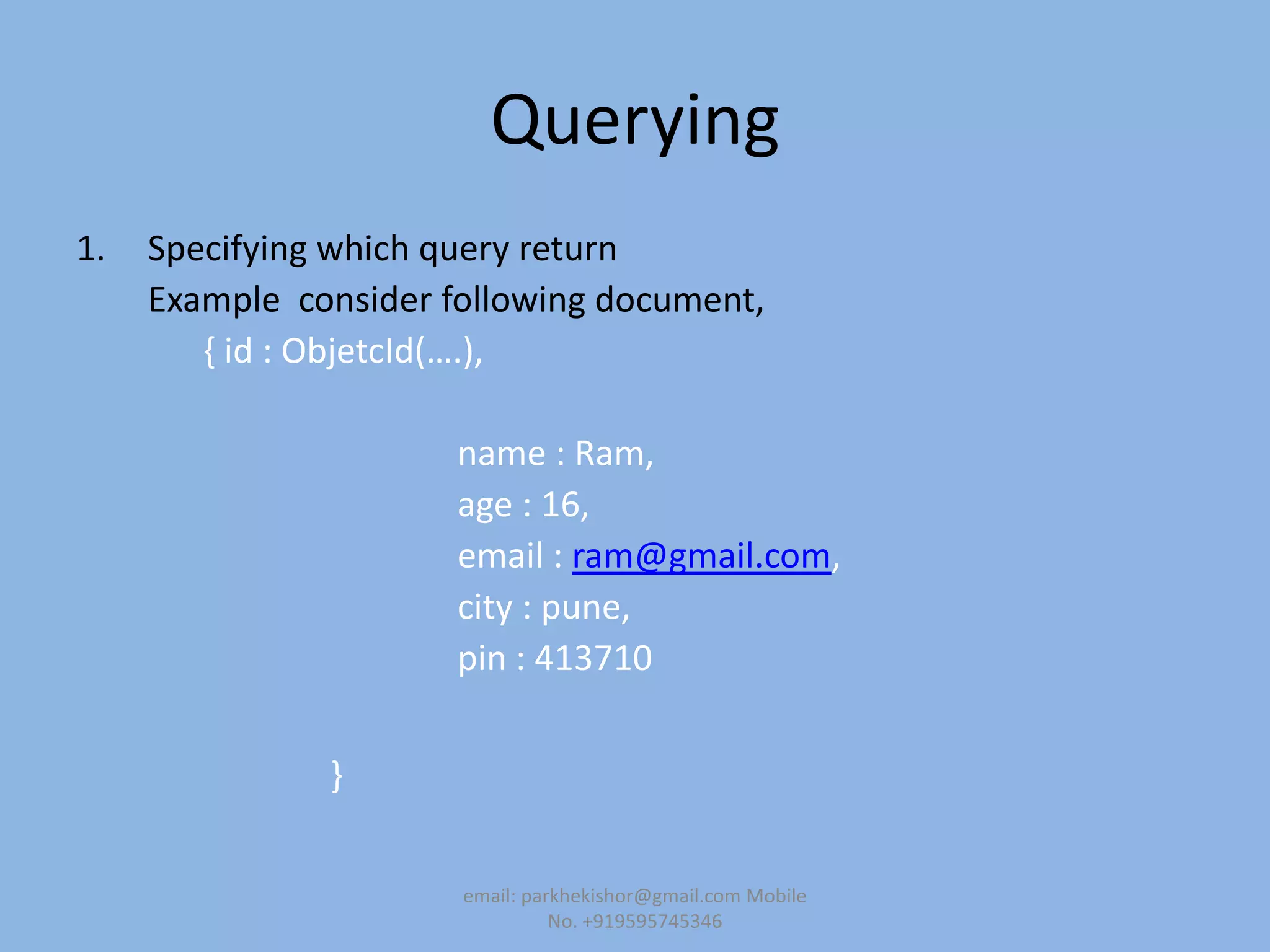
Querying
1. Specifying which query return
Example consider following document,
, id : ObjetcId(….),
name : Ram,
age : 16,
email : ram@gmail.com,
city : pune,
pin : 413710
}
email: parkhekishor@gmail.com Mobile
No. +919595745346
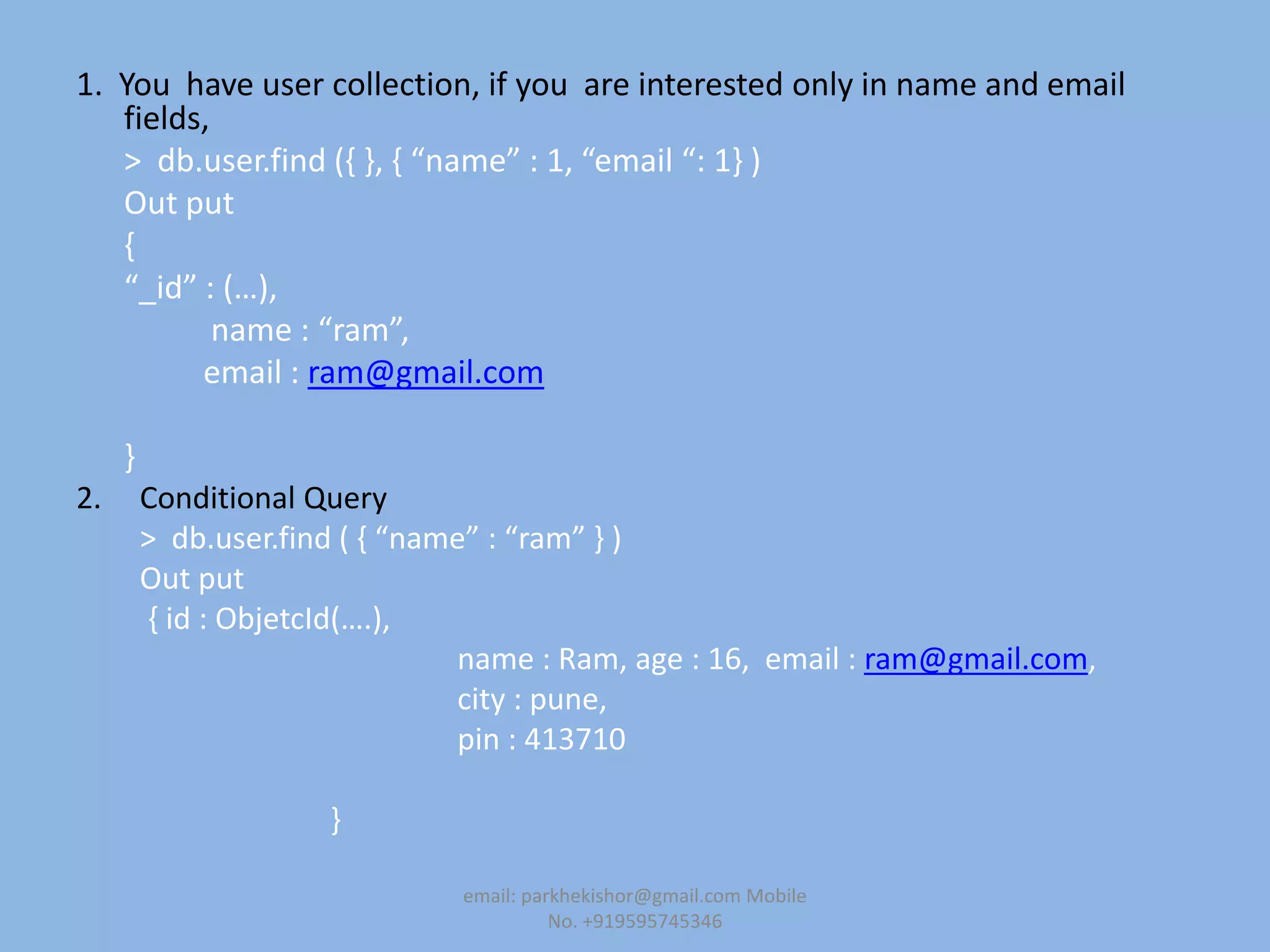
1. You have user collection, if you are interested only in name and email
fields,
> db.user.find (, -, , “name” : 1, “email “: 1- )
Out put
{
“_id” : (…),
name : “ram”,
email : ram@gmail.com
}
2. Conditional Query
> db.user.find ( , “name” : “ram” - )
Out put
, id : ObjetcId(….),
name : Ram, age : 16, email : ram@gmail.com,
city : pune,
pin : 413710
}
email: parkhekishor@gmail.com Mobile
No. +919595745346
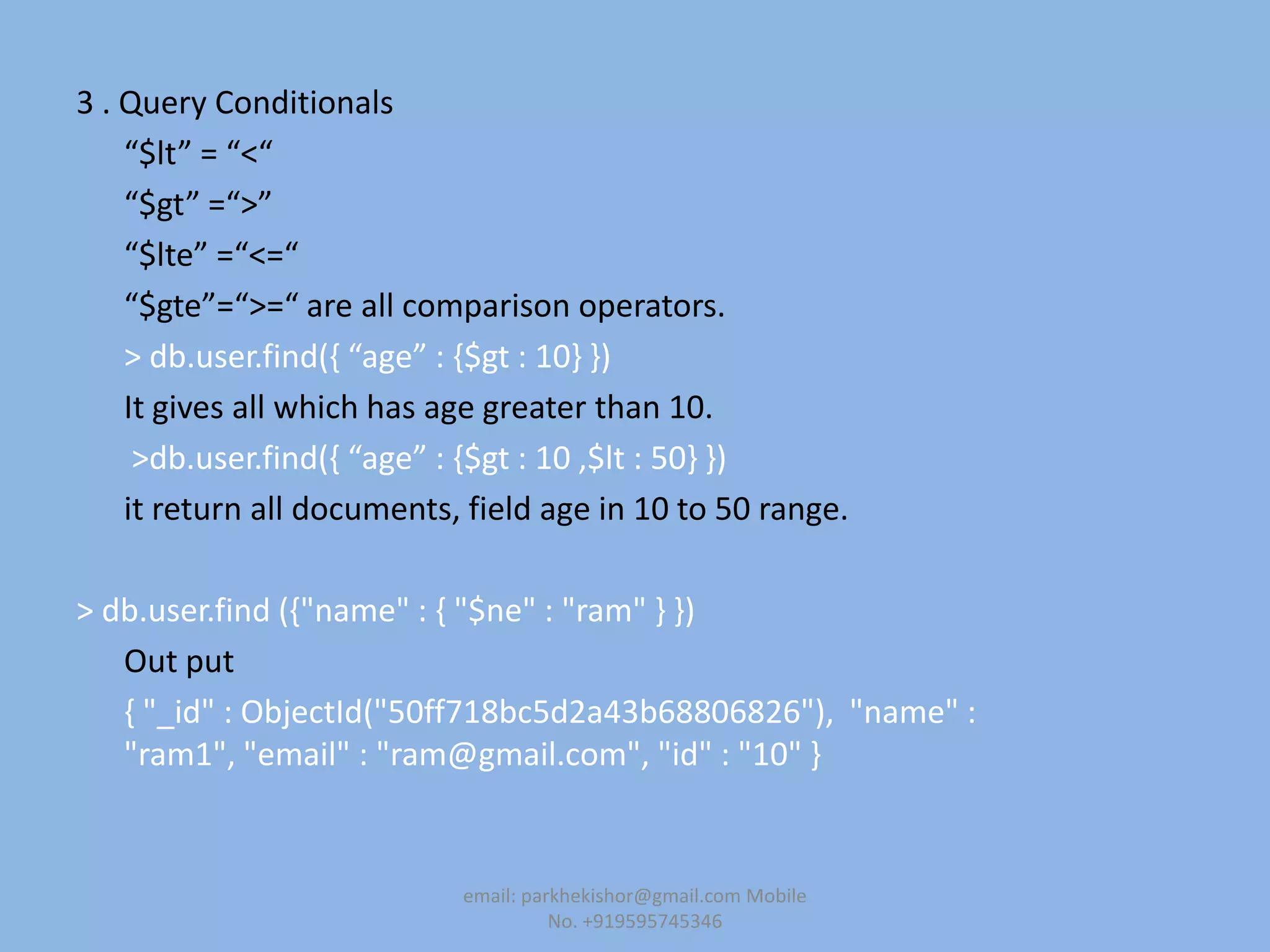
3 . Query Conditionals
“$lt” = “<“
“$gt” =“>”
“$lte” =“<=“
“$gte”=“>=“ are all comparison operators.
> db.user.find(, “age” : ,$gt : 10- -)
It gives all which has age greater than 10.
>db.user.find(, “age” : ,$gt : 10 ,$lt : 50- -)
it return all documents, field age in 10 to 50 range.
> db.user.find ({"name" : { "$ne" : "ram" } })
Out put
{ "_id" : ObjectId("50ff718bc5d2a43b68806826"), "name" :
"ram1", "email" : "ram@gmail.com", "id" : "10" }
email: parkhekishor@gmail.com Mobile
No. +919595745346
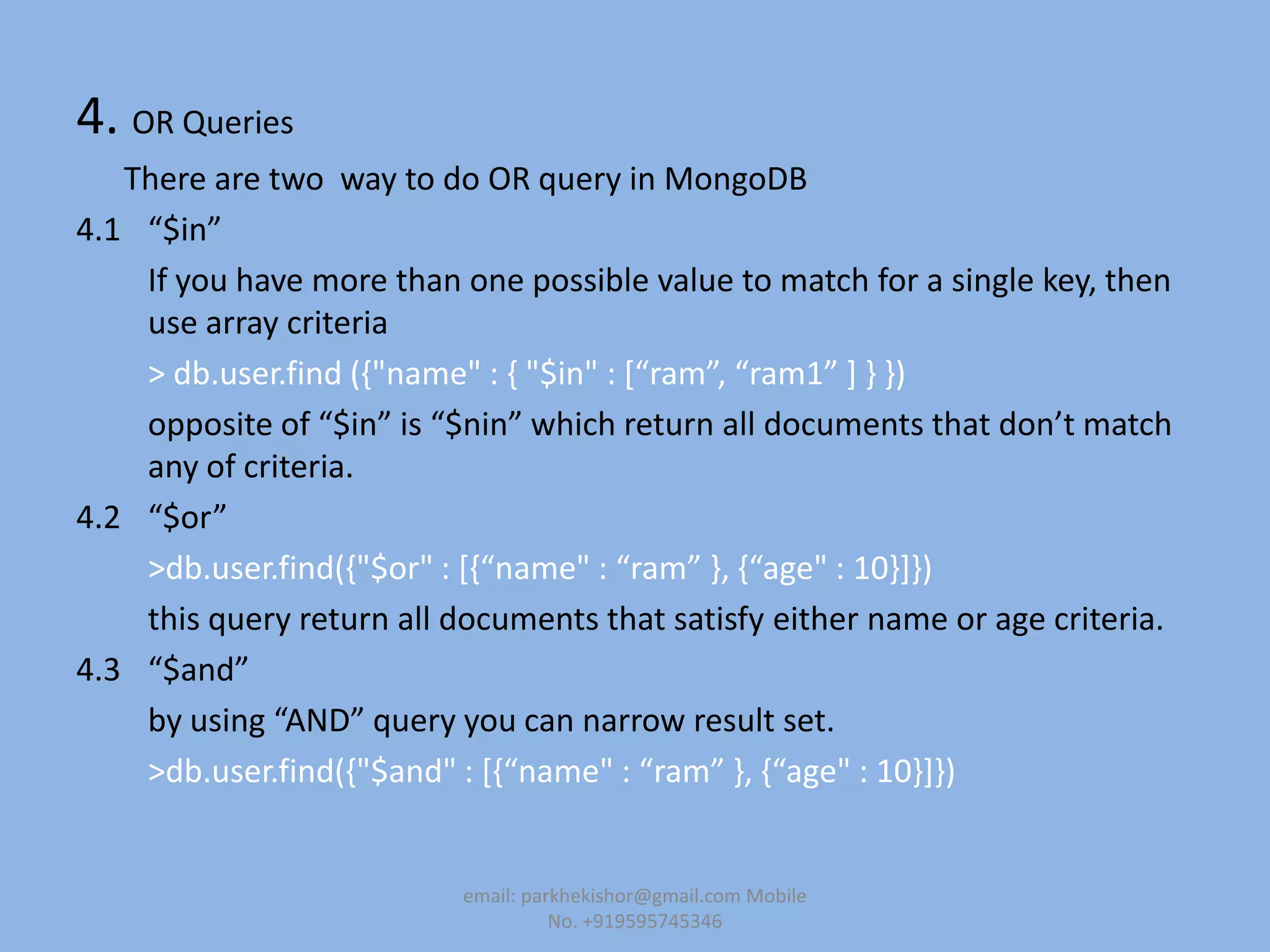
4. OR Queries
There are two way to do OR query in MongoDB
4.1 “$in”
If you have more than one possible value to match for a single key, then
use array criteria
> db.user.find (,"name" : , "$in" : *“ram”, “ram1” + - -)
opposite of “$in” is “$nin” which return all documents that don’t match
any of criteria.
4.2 “$or”
>db.user.find(,"$or" : *,“name" : “ram” -, ,“age" : 10-+-)
this query return all documents that satisfy either name or age criteria.
4.3 “$and”
by using “AND” query you can narrow result set.
>db.user.find(,"$and" : *,“name" : “ram” -, ,“age" : 10-+-)
email: parkhekishor@gmail.com Mobile
No. +919595745346
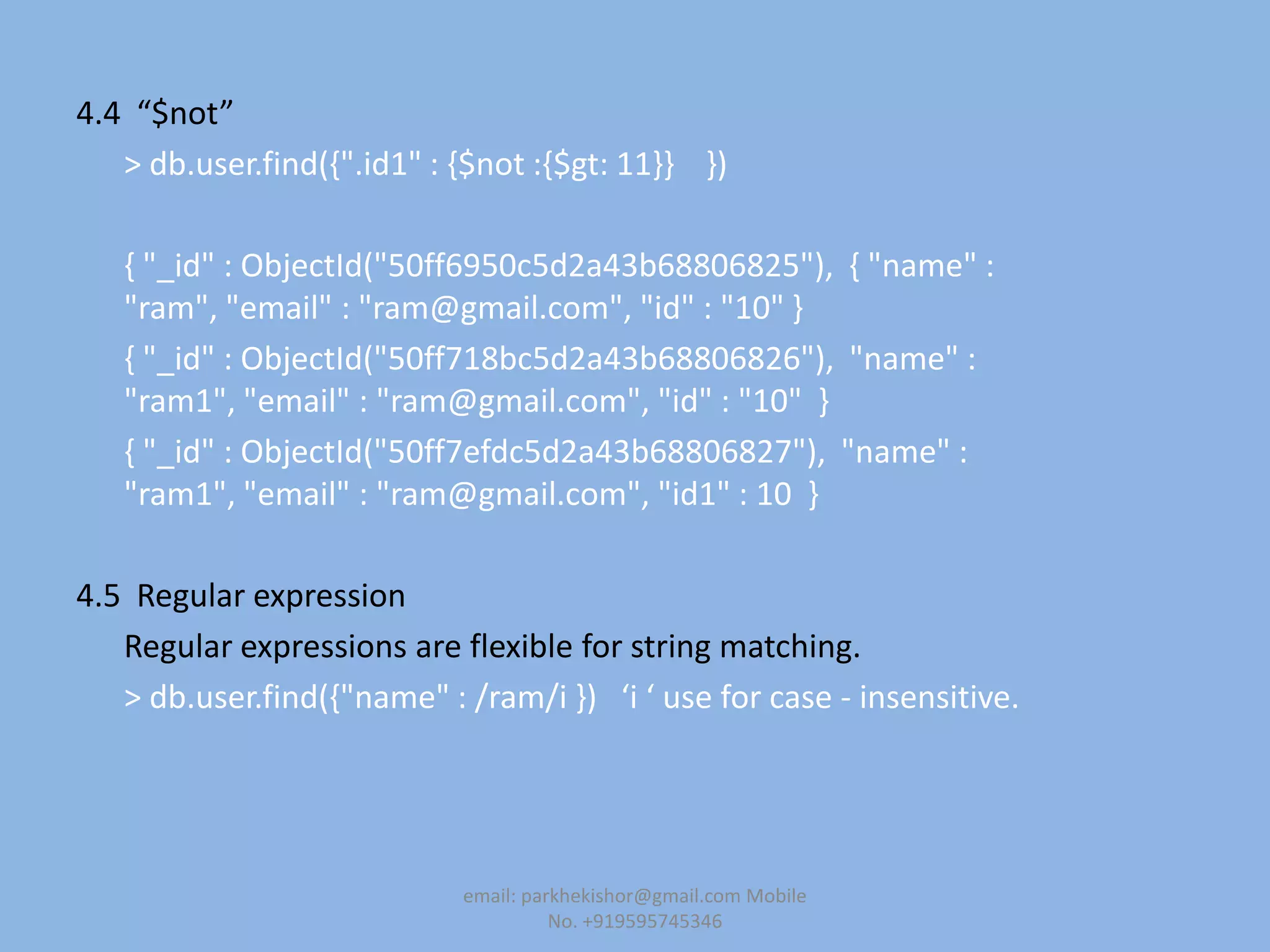
4.4 “$not”
> db.user.find({".id1" : {$not :{$gt: 11}} })
{ "_id" : ObjectId("50ff6950c5d2a43b68806825"), { "name" :
"ram", "email" : "ram@gmail.com", "id" : "10" }
{ "_id" : ObjectId("50ff718bc5d2a43b68806826"), "name" :
"ram1", "email" : "ram@gmail.com", "id" : "10" }
{ "_id" : ObjectId("50ff7efdc5d2a43b68806827"), "name" :
"ram1", "email" : "ram@gmail.com", "id1" : 10 }
4.5 Regular expression
Regular expressions are flexible for string matching.
> db.user.find({"name" : /ram/i -) ‘i ‘ use for case - insensitive.
email: parkhekishor@gmail.com Mobile
No. +919595745346
Querying Array
Example suppose array is a list of colors,
1 like this:
> db.user.insert({colors : [ "red" , "white" ,"green", "black"]})
the following query:
> db.user.find({colors : "red"})
Out put:
{ "_id" : ObjectId("50ff83f9c5d2a43b68806829"), "colors" : [
"red", "white", "green", "black" ] }
2 if you need to match array more than on element the you use $all,
> db.user.find(,colors : ,$all : *"red“ , “ black " +--)
{ "_id" : ObjectId("50ff83f9c5d2a43b68806829"), "colors" : [
"red", "white", "green", "black" ] }
email: parkhekishor@gmail.com Mobile
No. +919595745346
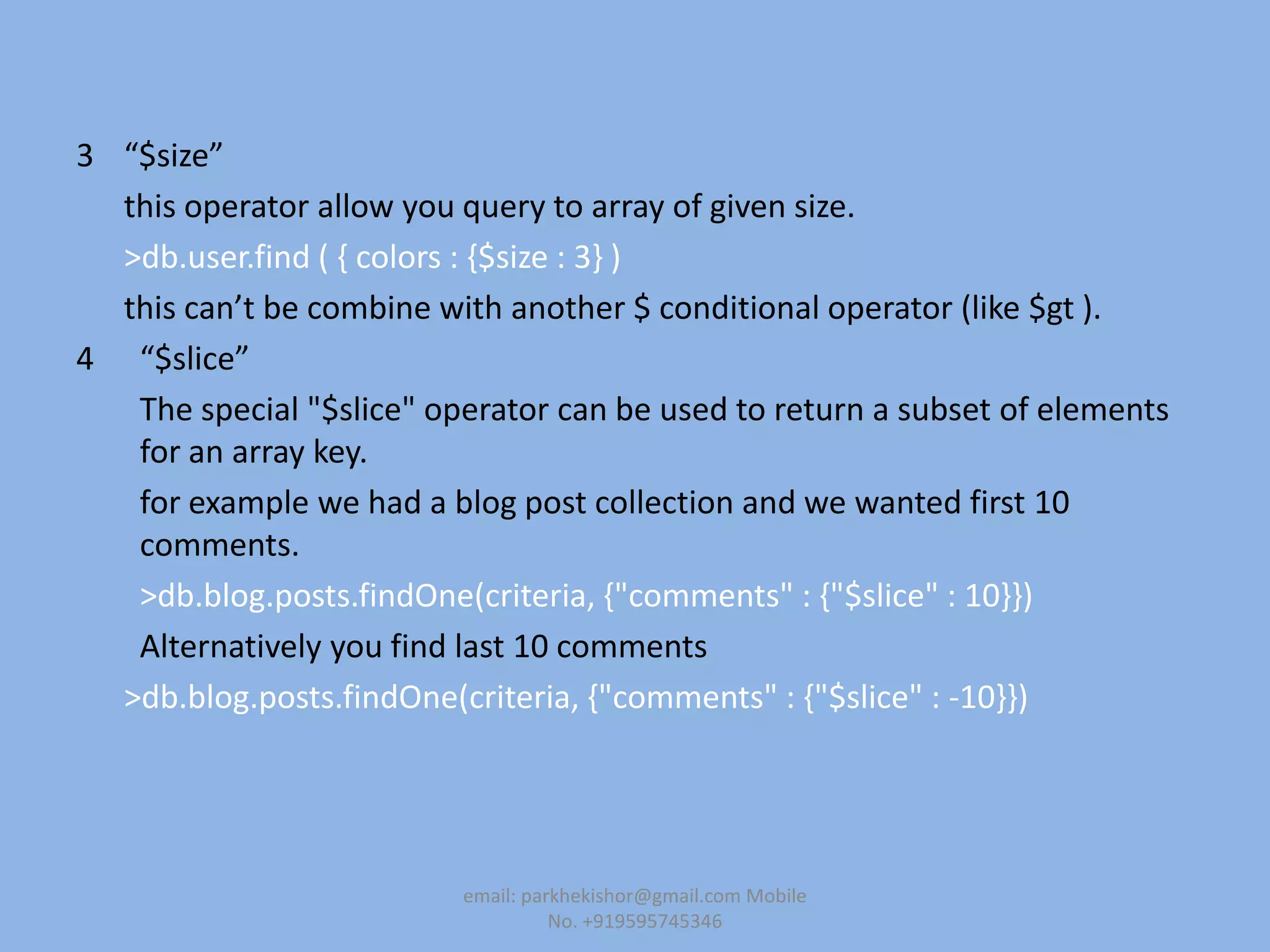
3 “$size”
this operator allow you query to array of given size.
>db.user.find ( { colors : {$size : 3} )
this can’t be combine with another $ conditional operator (like $gt ).
4 “$slice”
The special "$slice" operator can be used to return a subset of elements
for an array key.
for example we had a blog post collection and we wanted first 10
comments.
>db.blog.posts.findOne(criteria, {"comments" : {"$slice" : 10}})
Alternatively you find last 10 comments
>db.blog.posts.findOne(criteria, {"comments" : {"$slice" : -10}})
email: parkhekishor@gmail.com Mobile
No. +919595745346
"$slice" can also return pages in the middle of the results by taking an
offset and the number of elements to return:
> db.blog.posts.findOne(criteria, {"comments" : {"$slice" : [23, 10]}})
this would keep first 23 elements and return 24th to 34th.
email: parkhekishor@gmail.com Mobile
No. +919595745346
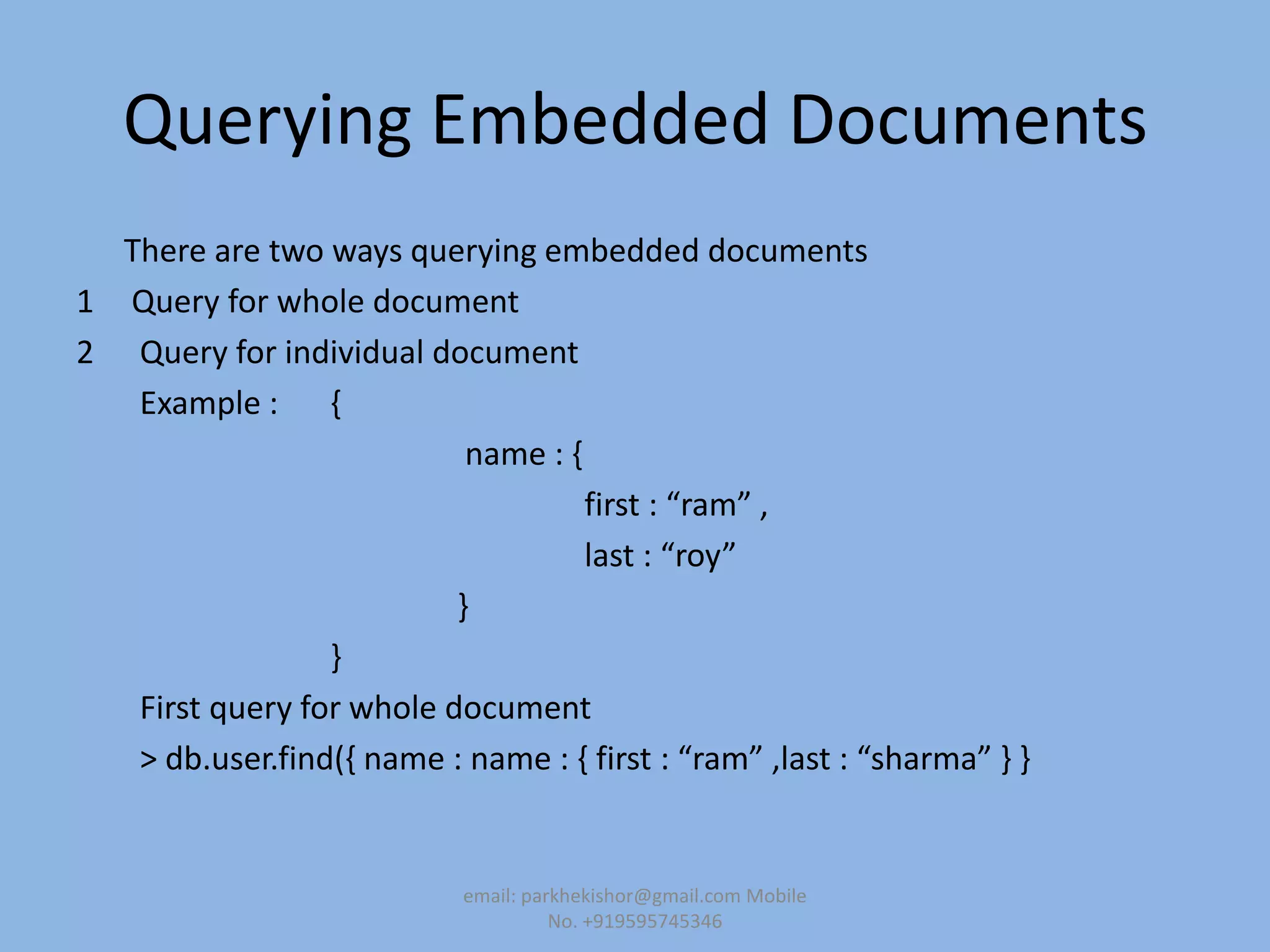
Querying Embedded Documents
There are two ways querying embedded documents
1 Query for whole document
2 Query for individual document
Example : {
name : {
first : “ram” ,
last : “roy”
}
}
First query for whole document
> db.user.find(, name : name : , first : “ram” ,last : “sharma” - -
email: parkhekishor@gmail.com Mobile
No. +919595745346
Query for just a specific key or keys of an embedded document.
>db.user.find( , “name.first” : “ram”-)
Example
{
"content" : “what is MongoDB? ",
"comments" : [
{
"author" : “ram",
"score" : 3,
"comment" : "nice post"
},
{
"author" : “sham",
"score" : 6,
"comment" : "terrible post"
}
]
}
email: parkhekishor@gmail.com Mobile
No. +919595745346
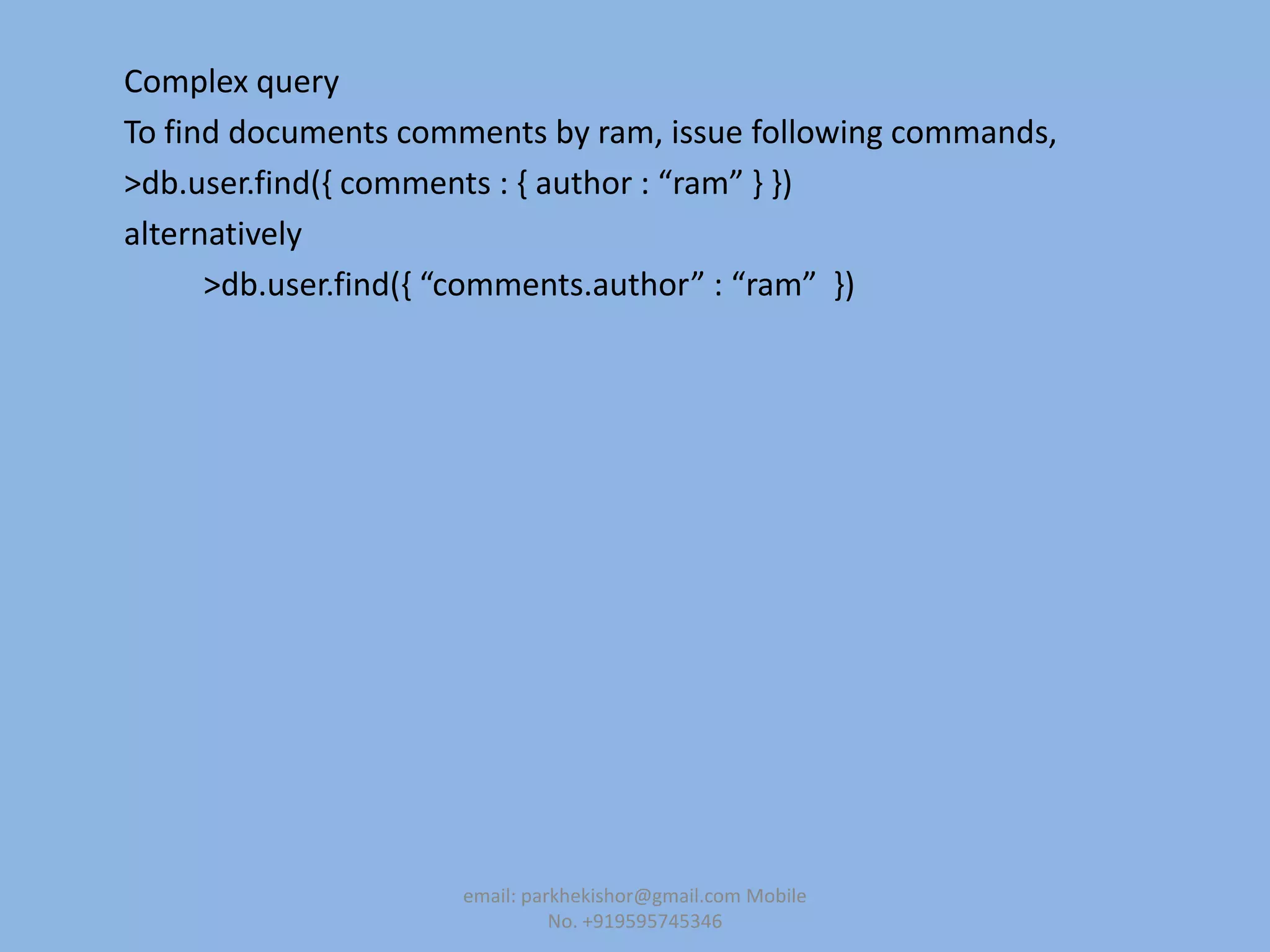
Complex query
To find documents comments by ram, issue following commands,
>db.user.find(, comments : , author : “ram” - -)
alternatively
>db.user.find(, “comments.author” : “ram” -)
email: parkhekishor@gmail.com Mobile
No. +919595745346

Mongo db basic installation

  • 1.
    MongoDB Basic Installation Mr.Parkhe Kishor B. Sr. Software Engineer Highmark Credit Information Services Pvt. Ltd., Pune Email: parkhekishor@gmail.com Mobile No. +919595745346 email: parkhekishor@gmail.com Mobile No. +919595745346
  • 2.
    MongoDB Basic Installation Thisguide shows, how to install MongoDB on Windows and Centos. 1. Windows installation 2. Centos Installation Step 1.1 Download latest production release MongoDB from MongoDB download page . There are three build of for MongoDB. Windows server 2008 R2 Windows 64 bits Windows 32 bits (development up to 2GB) Note: Type following commend in the command prompt to find architecture of your windows platform. C:>wmic os get osarchitecture OSArchitecture 32-bit email: parkhekishor@gmail.com Mobile No. +919595745346
  • 3.
    Step 1.2: Start commandprompt, create data folder for MongoDB.(default location c:datadb). This will start main MongoDB database process and waiting for connection message in console email: parkhekishor@gmail.com Mobile No. +919595745346
  • 4.
    Step 1.3: Copy MongoDBdownload package into C: MongoDB folder and unzip email: parkhekishor@gmail.com Mobile No. +919595745346
  • 5.
    Step 1.4: Connect toMongoDB using mongo.exe Open another command prompt and issue the following commands C:MongoDBmongodb-win32-i386-2.2.2bin>mongo.exe mongo.exe will connect mongod.exe running on local host interface on 27017 port . you can check http services at http://localhost:28017 Step 1.5: test database and retrieve records. Type following commands in mongo shell >db.test.save ( , a : “test”- ) >db.test.find() { "_id" : ObjectId("50f8f47dc49f1d211f947d60"), "a" : "test" } > email: parkhekishor@gmail.com Mobile No. +919595745346
  • 6.
    2. CentOS Installation Step2.1 : Download latest production release MongoDB from MongoDB download page . • There are two build of for MongoDB. • Linux 64 bits • Linux 32 bits (development up to 2GB) Step 2.2 : Start terminal create data folder for MongoDB.(default location root#datadb). Step 2.3 : Copy MongoDB download package into rootMongoDB folder and unzip. then go to bin folder of MongoDB package and type commands ./mongod this will start main MongoDB database process. email: parkhekishor@gmail.com Mobile No. +919595745346
  • 7.
    Step 1.4: Connect toMongoDB using mongo.exe Open another command prompt and issue the following commands [root@HMCLUSTER2 /]# cd mongodb-linux-x86_64-2.0.6/bin [root@HMCLUSTER2 bin]# ./mongo mongo.rpm will connect mongod.rpm running on local host interface on 27017 port . you can check http services at http://localhost:28017 Step 1.5: test database and retrieve records. Type following commands in mongo shell >db.test.save ( , a : “test”- ) >db.test.find() { "_id" : ObjectId("50f8f47dc49f1d211f947d60"), "a" : "test" } > email: parkhekishor@gmail.com Mobile No. +919595745346
  • 8.
    Connecting to Database 1.From command prompt start mongo. By default mongo look for database server on local host on the port 27017. 2. To connect server on different port or interface use the --port and --host 3. Select data base use command db, it show name of current database. 4. To list all database use command in mongo shell show dbs. 5. Switch to new database name mydb with following operation use db name 6. Show mongo help in mongo shell using following operation help email: parkhekishor@gmail.com Mobile No. +919595745346
  • 9.
    Create collection andinsert Documents 1. Switch to mydb with following operation use mydb 2. Create two document name doc1 and doc2 using JavaScript operation doc1 = ,name : “mongo” - doc2 = {x: 1} 3. Insert two document into collection say blog with following operation db.blog.insert( doc1) db.blog.insert( doc2) when you insert document then MongoDB create both database mydb and blog collection. 4. Confirm that collection is exist with following commands, show collections 5. Conform that document insert in collection using find () methods db.blog.find(); 6. Inserting multiple documents using for loop. email: parkhekishor@gmail.com Mobile No. +919595745346
  • 10.
    Implementing Curser 1. Whenyou querying, MongoDB return curser object that contain result of query. 2. Iterating over the curser with loop var curser= db.blog.find(); while( curser.hasnext() ){ printjson( curser.next() ); } 3. Use array operation with curser curser[4]; email: parkhekishor@gmail.com Mobile No. +919595745346
  • 11.
    Querying for SpecificDocuments 1. define query q=, Field : “condition” - By passing this query document as parameter to find() method. db.blog.find(q) or db.blog.find( , field : “condition” - ) 2. Query and Projection e.g. doc1= , id : 1, name : “mongo” - to find all docs where id has a value 1 but return only name. query = { id : 1 } and projection = { name : 1} db.blog.find(query, projection) MongoDB return the following result, ,name : “mongo” - 3. Limiting number of document in result set db.blog.find().limit(3) email: parkhekishor@gmail.com Mobile No. +919595745346
  • 12.
    Core MongoDB Operation 1.Create 2. Read 3. Update 4. Delete Restriction on document _id field must be unique in collection The field name can not start with the $ character The field name can not start with the . Character 1 Create 1.1 insert and bulk insert 1.2 create with save 1.3 create with upsert email: parkhekishor@gmail.com Mobile No. +919595745346
  • 13.
    2 Read operation 2.1find 2.2 findOne 2.3 projection 3 Update 3.1 update field ($set) 3.2 update array ($push) 3.3 update and upsert (true or 1) 3.4 update multiple matching documents 4 DELETE 4.1 remove collection 4.2 remove matching documents 4.3 remove single matching documents email: parkhekishor@gmail.com Mobile No. +919595745346
  • 14.
    Querying 1. Specifying whichquery return Example consider following document, , id : ObjetcId(….), name : Ram, age : 16, email : ram@gmail.com, city : pune, pin : 413710 } email: parkhekishor@gmail.com Mobile No. +919595745346
  • 15.
    1. You haveuser collection, if you are interested only in name and email fields, > db.user.find (, -, , “name” : 1, “email “: 1- ) Out put { “_id” : (…), name : “ram”, email : ram@gmail.com } 2. Conditional Query > db.user.find ( , “name” : “ram” - ) Out put , id : ObjetcId(….), name : Ram, age : 16, email : ram@gmail.com, city : pune, pin : 413710 } email: parkhekishor@gmail.com Mobile No. +919595745346
  • 16.
    3 . QueryConditionals “$lt” = “<“ “$gt” =“>” “$lte” =“<=“ “$gte”=“>=“ are all comparison operators. > db.user.find(, “age” : ,$gt : 10- -) It gives all which has age greater than 10. >db.user.find(, “age” : ,$gt : 10 ,$lt : 50- -) it return all documents, field age in 10 to 50 range. > db.user.find ({"name" : { "$ne" : "ram" } }) Out put { "_id" : ObjectId("50ff718bc5d2a43b68806826"), "name" : "ram1", "email" : "ram@gmail.com", "id" : "10" } email: parkhekishor@gmail.com Mobile No. +919595745346
  • 17.
    4. OR Queries Thereare two way to do OR query in MongoDB 4.1 “$in” If you have more than one possible value to match for a single key, then use array criteria > db.user.find (,"name" : , "$in" : *“ram”, “ram1” + - -) opposite of “$in” is “$nin” which return all documents that don’t match any of criteria. 4.2 “$or” >db.user.find(,"$or" : *,“name" : “ram” -, ,“age" : 10-+-) this query return all documents that satisfy either name or age criteria. 4.3 “$and” by using “AND” query you can narrow result set. >db.user.find(,"$and" : *,“name" : “ram” -, ,“age" : 10-+-) email: parkhekishor@gmail.com Mobile No. +919595745346
  • 18.
    4.4 “$not” > db.user.find({".id1": {$not :{$gt: 11}} }) { "_id" : ObjectId("50ff6950c5d2a43b68806825"), { "name" : "ram", "email" : "ram@gmail.com", "id" : "10" } { "_id" : ObjectId("50ff718bc5d2a43b68806826"), "name" : "ram1", "email" : "ram@gmail.com", "id" : "10" } { "_id" : ObjectId("50ff7efdc5d2a43b68806827"), "name" : "ram1", "email" : "ram@gmail.com", "id1" : 10 } 4.5 Regular expression Regular expressions are flexible for string matching. > db.user.find({"name" : /ram/i -) ‘i ‘ use for case - insensitive. email: parkhekishor@gmail.com Mobile No. +919595745346
  • 19.
    Querying Array Example supposearray is a list of colors, 1 like this: > db.user.insert({colors : [ "red" , "white" ,"green", "black"]}) the following query: > db.user.find({colors : "red"}) Out put: { "_id" : ObjectId("50ff83f9c5d2a43b68806829"), "colors" : [ "red", "white", "green", "black" ] } 2 if you need to match array more than on element the you use $all, > db.user.find(,colors : ,$all : *"red“ , “ black " +--) { "_id" : ObjectId("50ff83f9c5d2a43b68806829"), "colors" : [ "red", "white", "green", "black" ] } email: parkhekishor@gmail.com Mobile No. +919595745346
  • 20.
    3 “$size” this operatorallow you query to array of given size. >db.user.find ( { colors : {$size : 3} ) this can’t be combine with another $ conditional operator (like $gt ). 4 “$slice” The special "$slice" operator can be used to return a subset of elements for an array key. for example we had a blog post collection and we wanted first 10 comments. >db.blog.posts.findOne(criteria, {"comments" : {"$slice" : 10}}) Alternatively you find last 10 comments >db.blog.posts.findOne(criteria, {"comments" : {"$slice" : -10}}) email: parkhekishor@gmail.com Mobile No. +919595745346
  • 21.
    "$slice" can alsoreturn pages in the middle of the results by taking an offset and the number of elements to return: > db.blog.posts.findOne(criteria, {"comments" : {"$slice" : [23, 10]}}) this would keep first 23 elements and return 24th to 34th. email: parkhekishor@gmail.com Mobile No. +919595745346
  • 22.
    Querying Embedded Documents Thereare two ways querying embedded documents 1 Query for whole document 2 Query for individual document Example : { name : { first : “ram” , last : “roy” } } First query for whole document > db.user.find(, name : name : , first : “ram” ,last : “sharma” - - email: parkhekishor@gmail.com Mobile No. +919595745346
  • 23.
    Query for justa specific key or keys of an embedded document. >db.user.find( , “name.first” : “ram”-) Example { "content" : “what is MongoDB? ", "comments" : [ { "author" : “ram", "score" : 3, "comment" : "nice post" }, { "author" : “sham", "score" : 6, "comment" : "terrible post" } ] } email: parkhekishor@gmail.com Mobile No. +919595745346
  • 24.
    Complex query To finddocuments comments by ram, issue following commands, >db.user.find(, comments : , author : “ram” - -) alternatively >db.user.find(, “comments.author” : “ram” -) email: parkhekishor@gmail.com Mobile No. +919595745346