Lesson 1: ManagingUser Accounts
AD DS Administration Tools
Creating User Accounts
Configuring User Account Attributes
Creating User Profiles
Demonstration: Managing User Accounts
• Demonstration: Using Templates to Manage User
Accounts
4.
AD DS AdministrationTools
To manage AD DS objects, you can use the
following graphical tools:
• Active Directory Administration snap-ins
• Active Directory Administrative Center
You can also use the following command-
line tools:
• Active Directory module in Windows
PowerShell
• Directory Service commands
C:/
5.
Creating User Accounts
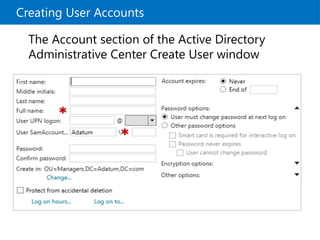
TheAccount section of the Active Directory
Administrative Center Create User window
Demonstration: Managing UserAccounts
In this demonstration, you will see how to:
• Use the Active Directory Administrative Center to
manage user accounts
• Delete a user account
• Create a new user account
• Move the user account
• View the WINDOWS POWERSHELL HISTORY
• Use Windows PowerShell to manage user accounts
• Find inactive user accounts
• Find disabled user accounts
• Delete disabled user accounts
9.
Demonstration: Using Templatesto Manage User
Accounts
In this demonstration, you will see how to:
• Create a user template account
• Use Windows PowerShell to create a user from the
user template
• Verify the properties of the new user account
10.
Lesson 2: ManagingGroups
Group Types
Group Scopes
Implementing Group Management
Default Groups
Special Identities
• Demonstration: Managing Groups
11.
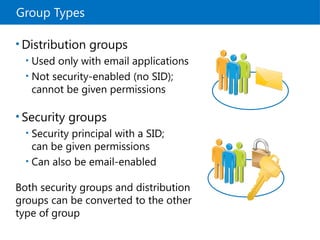
Group Types
• Distributiongroups
• Used only with email applications
• Not security-enabled (no SID);
cannot be given permissions
• Security groups
• Security principal with a SID;
can be given permissions
• Can also be email-enabled
Both security groups and distribution
groups can be converted to the other
type of group
12.
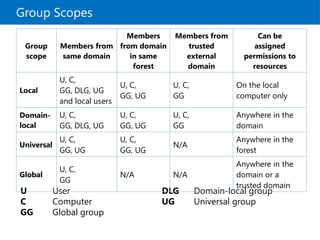
Group Scopes
U User
CComputer
GG Global group
DLG Domain-local group
UG Universal group
Group
scope
Members from
same domain
Members
from domain
in same
forest
Members from
trusted
external
domain
Can be
assigned
permissions to
resources
Local
U, C,
GG, DLG, UG
and local users
U, C,
GG, UG
U, C,
GG
On the local
computer only
Domain-
local
U, C,
GG, DLG, UG
U, C,
GG, UG
U, C,
GG
Anywhere in the
domain
Universal
U, C,
GG, UG
U, C,
GG, UG
N/A
Anywhere in the
forest
Global
U, C,
GG
N/A N/A
Anywhere in the
domain or a
trusted domain
13.
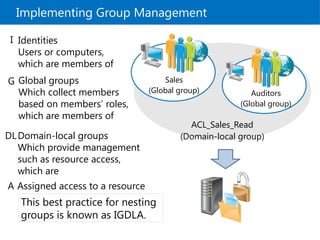
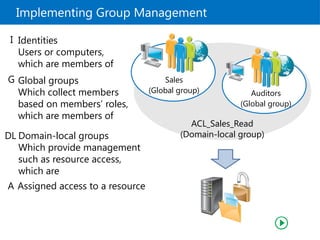
Implementing Group Management
ACL_Sales_Read
(Domain-localgroup)
Sales
(Global group) Auditors
(Global group)
Domain-local groups
Which provide management
such as resource access,
which are
DL
Global groups
Which collect members
based on members’ roles,
which are members of
G
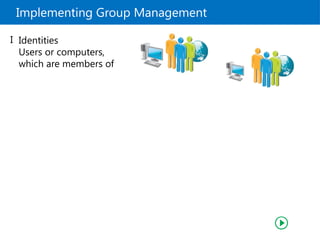
Identities
Users or computers,
which are members of
I
Assigned access to a resource
A
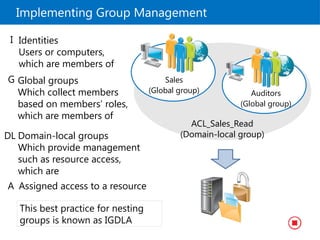
This best practice for nesting
groups is known as IGDLA.
Implementing Group Management
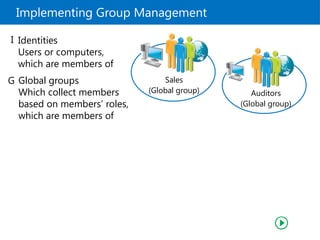
Sales
(Globalgroup) Auditors
(Global group)
Global groups
Which collect members
based on members’ roles,
which are members of
G
Identities
Users or computers,
which are members of
I
16.
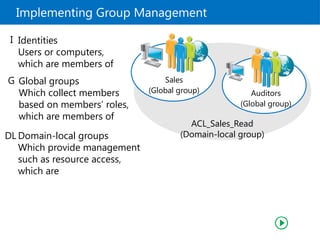
Implementing Group Management
ACL_Sales_Read
(Domain-localgroup)
Sales
(Global group) Auditors
(Global group)
Domain-local groups
Which provide management
such as resource access,
which are
DL
Global groups
Which collect members
based on members’ roles,
which are members of
G
Identities
Users or computers,
which are members of
I
17.
Implementing Group Management
ACL_Sales_Read
(Domain-localgroup)
Sales
(Global group) Auditors
(Global group)
Domain-local groups
Which provide management
such as resource access,
which are
DL
Global groups
Which collect members
based on members’ roles,
which are members of
G
Identities
Users or computers,
which are members of
I
Assigned access to a resource
A
18.
Implementing Group Management
ACL_Sales_Read
(Domain-localgroup)
Sales
(Global group) Auditors
(Global group)
Domain-local groups
Which provide management
such as resource access,
which are
DL
Global groups
Which collect members
based on members’ roles,
which are members of
G
Identities
Users or computers,
which are members of
I
Assigned access to a resource
A
This best practice for nesting
groups is known as IGDLA
19.
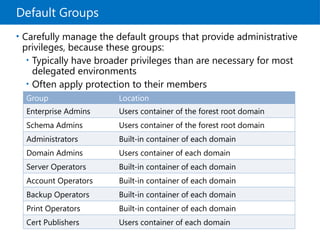
Default Groups
• Carefullymanage the default groups that provide administrative
privileges, because these groups:
• Typically have broader privileges than are necessary for most
delegated environments
• Often apply protection to their members
Group Location
Enterprise Admins Users container of the forest root domain
Schema Admins Users container of the forest root domain
Administrators Built-in container of each domain
Domain Admins Users container of each domain
Server Operators Built-in container of each domain
Account Operators Built-in container of each domain
Backup Operators Built-in container of each domain
Print Operators Built-in container of each domain
Cert Publishers Users container of each domain
20.
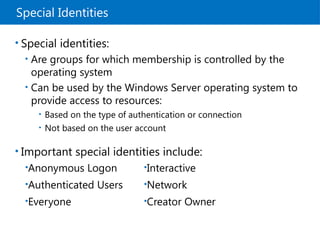
Special Identities
• Specialidentities:
• Are groups for which membership is controlled by the
operating system
• Can be used by the Windows Server operating system to
provide access to resources:
• Based on the type of authentication or connection
• Not based on the user account
• Important special identities include:
•Anonymous Logon
•Authenticated Users
•Everyone
•Interactive
•Network
•Creator Owner
21.
Demonstration: Managing Groups
Inthis demonstration, you will see how to:
• Create a new group
• Add members to the group
• Add a user to the group
• Change the group type and scope
• Modifying the group’s Managed By property
22.
Lesson 3: ManagingComputer Accounts
What Is the Computers Container?
Specifying the Location of Computer Accounts
Controlling Permissions to Create Computer
Accounts
Performing an Offline Domain Join
Computer Accounts and Secure Channels
Resetting the Secure Channel
• Bring Your Own Device
23.
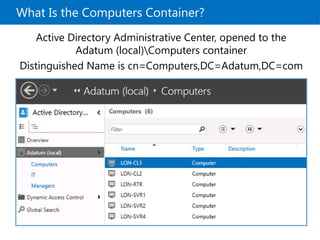
What Is theComputers Container?
Active Directory Administrative Center, opened to the
Adatum (local)Computers container
Distinguished Name is cn=Computers,DC=Adatum,DC=com
24.
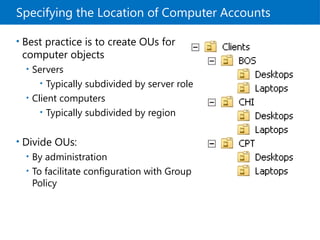
Specifying the Locationof Computer Accounts
• Best practice is to create OUs for
computer objects
• Servers
• Typically subdivided by server role
• Client computers
• Typically subdivided by region
• Divide OUs:
• By administration
• To facilitate configuration with Group
Policy
25.
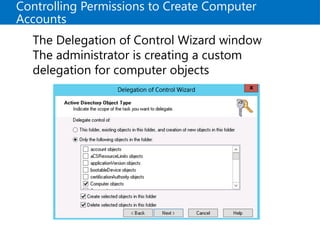
Controlling Permissions toCreate Computer
Accounts
The Delegation of Control Wizard window
The administrator is creating a custom
delegation for computer objects
26.
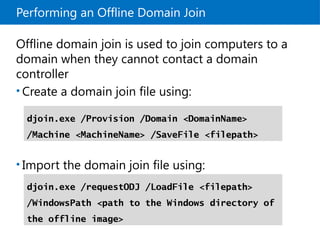
Performing an OfflineDomain Join
Offline domain join is used to join computers to a
domain when they cannot contact a domain
controller
• Create a domain join file using:
• Import the domain join file using:
djoin.exe /Provision /Domain <DomainName>
/Machine <MachineName> /SaveFile <filepath>
djoin.exe /requestODJ /LoadFile <filepath>
/WindowsPath <path to the Windows directory of
the offline image>
27.
Computer Accounts andSecure Channels
• Computers have accounts
• sAMAccountName and password
• Used to create a secure channel between the computer
and a domain controller
• Scenarios in which a secure channel can be broken
• Reinstalling a computer, even with same name,
generates a new SID and password
• Restoring a computer from an old backup, or rolling
back a computer to an old snapshot
• Computer and domain disagree about what the
password is
28.
Resetting the SecureChannel
• Do not delete a computer from the domain and
then rejoin it
• This creates a new account, resulting in a new SID and
lost group memberships
• Options for resetting the secure channel
• Active Directory Users and Computers
• Active Directory Administrative Center
• dsmod
• netdom
• nltest
• Windows PowerShell
29.
Bring Your OwnDevice
AD FS has been enhanced to support BYOD
programs
• Workplace Join creates an AD DS object for
consumer devices
Limit content access to specific devices
• Using Dynamic Access Control or conditions on
permissions you can limit content access to
domain-joined devices
Support for iOS
• iOS devices can be workplace-joined as well
30.
Lesson 4: DelegatingAdministration
Considerations for Using Organizational Units
AD DS Permissions
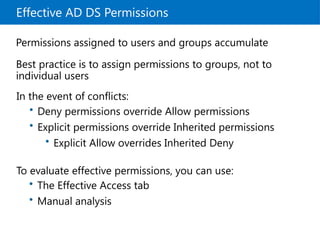
Effective AD DS Permissions
• Demonstration: Delegating Administrative
Permissions
31.
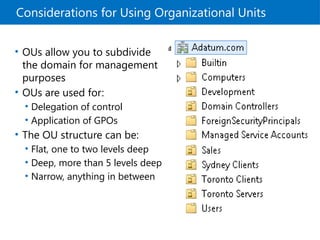
Considerations for UsingOrganizational Units
• OUs allow you to subdivide
the domain for management
purposes
• OUs are used for:
• Delegation of control
• Application of GPOs
• The OU structure can be:
• Flat, one to two levels deep
• Deep, more than 5 levels deep
• Narrow, anything in between
Effective AD DSPermissions
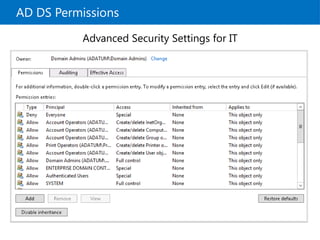
Permissions assigned to users and groups accumulate
Best practice is to assign permissions to groups, not to
individual users
In the event of conflicts:
To evaluate effective permissions, you can use:
• Deny permissions override Allow permissions
• Explicit permissions override Inherited permissions
• Explicit Allow overrides Inherited Deny
• The Effective Access tab
• Manual analysis
34.
Demonstration: Delegating Administrative
Permissions
Inthis demonstration, you will see how to:
• Create an OU
• Move objects into an OU
• Delegate a standard task
• Delegate a custom task
• View AD DS permissions resulting from these
delegations
35.
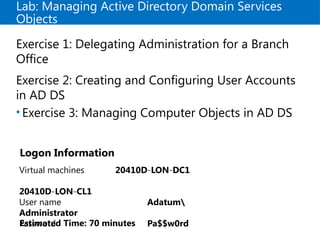
Lab: Managing ActiveDirectory Domain Services
Objects
Exercise 1: Delegating Administration for a Branch
Office
Exercise 2: Creating and Configuring User Accounts
in AD DS
• Exercise 3: Managing Computer Objects in AD DS
Logon Information
Virtual machines 20410D LON DC1
‑ ‑
20410D LON CL1
‑ ‑
User name Adatum
Administrator
Password Pa$$w0rd
Estimated Time: 70 minutes
36.
Lab Scenario
You havebeen working for A. Datum Corporation as a
desktop support specialist and have visited desktop
computers to troubleshoot app and network problems.
You have recently accepted a promotion to the server
support team. One of your first assignments is to configure
the infrastructure service for a new branch office.
To begin deployment of the new branch office, you are
preparing AD DS objects. As part of this preparation, you
need to create an OU for the branch office and delegate
permission to manage it. Then you need to create users
and groups for the new branch office. Finally, you need to
reset the secure channel for a computer account that has
lost connectivity to the domain in the branch office.
37.
Lab Review
What arethe options for modifying the attributes
of new and existing users?
What types of objects can be members of global
groups?
What types of objects can be members of domain-
local groups?
• Which two credentials are necessary for any
computer to join a domain?
38.
Module Review andTakeaways
Review Questions
• Best Practices
• Tools
Editor's Notes
#1 Presentation: 75 minutes
Lab: 70 minutes
After completing this module, students should be able to:
Manage user accounts with graphical tools.
Manage groups with graphical tools.
Manage computer accounts.
Delegate permission to perform Active Directory® Domain Services (AD DS) administration.
Required Materials
To teach this module, you need the Microsoft® Office PowerPoint® file 20410D_03.pptx.
Important: We recommend that you use Office PowerPoint 2007 or a newer version to display the slides for this course. If you use PowerPoint Viewer or an older version of PowerPoint, all the features of the slides might not be displayed correctly.
Preparation Tasks
To prepare for this module:
Read all of the materials for this module.
Practice performing the demonstrations and lab exercises.
Work through the Module Review and Takeaways section, and determine how you will use this section to reinforce student learning and promote knowledge transfer to on‑the‑job performance.
#2 Emphasize that managing users and computers has gotten much more complex with the proliferation of consumer devices in the workplace. Instead of just managing a relatively simple system of users and workstations, students may be managing multiple device types, operating systems, locations, multiple devices per user, various levels of access requirements, various levels of security depending on access level required, and many other factors.
#3 One way to approach this lesson’s content is to focus on the demonstrations. Start the demonstrations, and then discuss the content in the topics as you proceed. This might take a couple of practices before you can perform the demonstrations without referring to the notes pages, but it makes the lesson a more engaging experience for students.
#4 Consider demonstrating each tool as you discuss it.
#5 Consider performing a demonstration of creating a user account, by using the steps that the student handbook provides.
Discussion Prompt
Ask your students about their user account naming strategies.
#7 Consider demonstrating this procedure while you discuss the content with your students.
#8 Discussion Prompt
When you discuss the content that precedes the demonstration steps, students might be interested in discussing how to communicate a password change to users. Ask your students how they currently do this, and have them think about other methods. Possible solutions include sending a text to their cell phones, sending an email to an alternate address such as a Microsoft Live account, or making a telephone call.
Windows PowerShell
If appropriate, mention to your students that they also can use Windows PowerShell® commands to perform common user administration tasks, such as resetting a user’s password, by using the Set‑ADAccountPassword command.
For example, the following command resets Amy‘s password:
Set ADAccountPassword ‑identity ‘cn=amy, ou=IT, dc=contoso, dc=com’ ‑Reset ‑NewPassword (ConvertTo SecureString ‑AsPlainText “Pa$$w0rd2” ‑Force)
To unlock a user account by using Windows PowerShell, you can use the following command:
Unlock ADAccount ‑identity ‘cn=amy strand, ou=IT, dc=contoso, dc=com’
To disable or enable a user account by using Windows PowerShell, type the following cmdlets at a Windows PowerShell prompt:
Enable ADAccount ‑identity <name>
Disable ADAccount ‑identity <name>
Preparation Steps
Start the required virtual machine, 20410D‑LON‑DC1.
#9 Discussion Prompt
Discuss the reasons for using template accounts. Typically, you use template accounts to save the time needed to fill out the properties on the user accounts. Explain that using Windows PowerShell to create users from a template copies only the specified properties. The properties that cannot be copied include the Member Of property. If you want to include the group memberships from a template, then you need to use either Active Directory Users and Computers or the Active Directory Administrative Center.
Reference:
For a full list of the properties that can be copied from a template for a new user, refer to "Copy a User's Properties" at http://go.microsoft.com/fwlink/?LinkID=331092.
Preparation Steps
Ensure that the required virtual machine, 20410D‑LON‑DC1, is running.
Demonstration Steps
Create a template account
On LON‑DC1, in Server Manager, click Tools, and then click Active Directory Administrative Center.
In the Active Directory Administrative Center, click Adatum (local), and then double‑click Sales.
In the Action pane, click New, and then click User.
In the Create User dialog box, in First name, type _LondonSales, in Last name, type Template.
In User UPN logon, type _LondonSales.
Select Protect from accidental deletion.
Under Organization, in Department, type Sales.
In Company, type A. Datum.
#10 Some students who are inexperienced with Windows Server often have difficulty grasping the concept of groups within groups. Consider using your whiteboard to go through the following example:
Draw three domains as triangles, and add a file resource to each domain.
Ask your students how many file permissions are required if each domain hosts 100 users who each need access to the three file resources in your three domains.
Group the three sets of 100 users, and repeat the question.
Group the groups, and repeat the question.
This elegantly demonstrates the benefit of nesting groups.
Now all you need to do is to explain the particulars of the types and scopes in Windows Server. As with Lesson 1, consider making the demonstration the focus of this lesson.
#11 Explain to students that they can use distribution groups to send email messages to collections of users, but only with messaging programs such as Microsoft Exchange Server. Stress that distribution lists are not security-enabled, so they cannot be listed in discretionary access control lists (DACLs).
Also explain to students that they can use security groups to assign rights and permissions to both groups of users and groups of computers. A security group is security-enabled, and you can use it to assign permissions to local and network resources.
#12 Use the table to describe group scopes. Consider drawing a diagram with several domains that shows where you can create groups, and the implications of each group scope.
#13 This slide and the next five explain the example in the student notes. This slide summarizes the example, and the next five slides build up the example frame by frame. The five frames are:
Identities
Global groups
Domain-local groups
Assigned resource access
A copy of the summary, as shown in the first slide above
Alternatively, draw an illustration on the whiteboard by using the following guidelines to illustrate the advantage of group nesting:
Draw three domain objects, each containing five users. Draw a file object in one of the three domains.
Question: How many file permissions do you need to create to assign permissions on this file for each user?
Answer: You need to create 15 file permissions.
Draw a circle around the five users in each domain, and explain that the circles represent global groups.
Question: How many permissions on the file do you need to assign at the global group level?
Answer: You need to assign three permissions.
Draw a circle adjacent to the file. Draw arrows from your global groups to this circle, indicating that you have added these groups to a local group in the resource holding domain.
Question: How many permissions must you assign to the local group?
Answer: You must assign one permission to the local group.
#14 This is the 1st of 5 frames.
Identities are assigned to users or groups.
#15 This is the 2nd of 5 frames.
The users and computers have been collected into two separate groups, the Sales (global group) and the Auditors (global group).
#16 This is the 3rd of 5 frames.
The two global groups have been combined into one domain local group, which is called ACL_Sales_Read.
#17 This is the 4th of 5 frames.
The domain-local group has been given access to a resource.
#18 This is the 5th of 5 frames.
This is a summary of the example. It is the same as the slide in the Student Manual.
#19 Show your students the groups mentioned on the slide as you discuss them.
#20 Show your students the identities that are mentioned on the slide, as you discuss them.
#21 Preparation Steps
The required virtual machine, 20410D‑LON‑DC1, should be running after the previous demonstration.
Demonstration Steps
Create a new group
On LON‑DC1, switch to Active Directory Administrative Center.
Expand Adatum (Local), and then click IT.
In the Tasks list, under IT, point to New, and then click Group.
In the Create Group dialog box, in Group name, type IT Managers.
Add members to the group
Scroll down, and under Members, click Add.
In the Select Users, Contacts, Computers, Service Accounts, or Groups dialog box, in Enter the object names to select (examples), type April; Don.
Click Check Names, and then click OK.
In the Create Group IT Managers dialog box, click OK.
Add a user to the group
In the details pane, right‑click Ed Meadows.
Click Add to group.
In the Select Groups dialog box, in Enter the object names to select (examples), type IT Managers.
Click Check Names, and then click OK.
#22 There are no demonstrations in this lesson. As you proceed through the content, consider performing small, impromptu demonstrations to help reinforce the content.
#23 Consider opening Active Directory Users and Computers or Active Directory Administrative Center and demonstrating the default location for computer objects.
Explain that the Distinguished Name “cn=Computers,DC=Adatum,DC=com” provides a full description of the Computers object. The common named object (cn) Computers is a container located in the domain component (DC) Adatum, which is in the domain component named com.
#24 Emphasize the best practice of creating custom OUs for computer objects, rather than relying on the default Computers container.
Help students understand just enough about delegation (assigning permissions to OUs) and about configuration (linking GPOs to OUs) to understand how they might choose to design OU branches for clients and servers. Later modules go into more detail about Group Policy and delegation, and their impact on OU design. Do not go into too much detail here, but rather use the opportunity to introduce students to these concepts.
#25 Consider demonstrating the process of delegating control over computer creation and deletion.
#26 Explain that offline domain join was introduced to help with joining computers to the domain over unreliable connections. In Windows 8 and Windows Server 2012, domain join was expanded to include the DirectAccess feature. This enables computers to join the domain without communicating with a domain controller; and once the DirectAccess settings are applied, the computers can interact with the domain through any Internet connection.
Discuss the scenarios for offline domain join. Ask students how they might use this feature in their own environments. Students from organizations that do not have branch offices will find this feature less useful than students from organizations that have remote branches.
#27 Explain that the secure channel between a computer and a domain controller is used for all communication with the domain, including user sign-in authentication to the computer. The secure channel is established when the computer authenticates to the domain by using its user name and password. Like users, computers have sign-in names and passwords. If the computer is unable to sign in successfully, the secure channel is not established. The effect is similar to when a user enters the wrong user name or password. In both circumstances, the user is not able to authenticate to the domain.
There are several scenarios during which the secure channel can be broken. Three of these are listed on the slide.
The slide does not list Administrator errors in AD DS. These can include dangerous Active Directory actions, such as rolling back a domain controller that is running a snapshot. You should mention that there are several ways for an administrator to damage AD DS (manually, automatically, intentionally, or accidentally), and damage might become apparent when broken secure channels appear.
Discussion Prompt
Ask students:
What scenarios have you encountered in which you identified that the secure channel was broken?
How did you know the secure channel was broken?
After students have shared their experiences, ask the question a slightly different way:
What scenarios have caused you to remove a computer from the domain, and then rejoin it to the domain?
This is a very common technique that administrators use to reset a secure channel. They often do not realize what they are actually doing when they remove the computer and then rejoin the domain.
If students have not already mentioned the sign-in message that states, “The trust relationship between the workstation and the primary domain failed,” ask students the following question:
Have you ever tried to sign in to the domain and received a message telling you that the computer could not talk to the domain? What messages did you receive?
Help students delineate messages such as “A domain controller is not available,” which is typically the result of networking connectivity problems, from messages that mention trust with the domain or otherwise indicate problems with the secure channel.
The following topic discusses the steps to take when one of these scenarios happens.
#28 A broken computer account manifests itself with a variety of symptoms, error messages, and event‑log entries.
Mention that users might be able to sign in to a machine with a broken secure channel by using cached credentials, but they will experience other strange behavior, because authentication cannot use Kerberos version 5 (V5) protocol without a functioning secure channel.
Because nltest and netdom reset the secure channel without requiring a reboot, you should try those commands first. If you are not successful with those two commands, only then should you use dsmod, or the Reset Account selection in Active Directory Users and Computers or Active Directory Administrative Center to reset the computer account.
Resetting the secure channel requires the Reset Password permission on the computer object.
#29 This topic is a high-level overview of the new features in Windows Server 2012 R2 that help support consumer devices in a bring-your-own-device scenario.
#30 Consider starting the demonstration topic, and then discussing the content in the other three topics. Start the lesson by asking your students to consider at what point a single administrator is unable to manage a network alone, and how best to allocate administrative tasks to other administrators.
#31 Discuss the design of an organizational unit (OU) hierarchy. Discuss your experience with OU design, and students’ environments and the reasons they have created OUs. Explain that you should create OUs with a specific management goal in mind, with ease of management as a goal.
#32 Consider demonstrating the process of viewing permissions.
#33 Consider demonstrating the process of viewing effective permissions.
#34 Discussion Prompt
You can manage delegation of control in Active Directory Domain Services (AD DS) either manually or by using the Delegation of Control Wizard. If you have a complex permission scenario, you may need to configure the permissions manually, but it is usually easier to assign permissions in AD DS by using the Delegation of Control Wizard.
Preparation Steps
The required virtual machine, 20410D‑LON‑DC1, should be running after the previous demonstration.
Demonstration Steps
Create an OU
On LON‑DC1, in Server Manager, click Tools, and then click Active Directory Users and Computers.
Expand the Adatum.com domain.
Right click Adatum.com, point to New, and then click Organizational Unit.
In the New Object – Organizational Unit dialog box, in Name, type Executives.
Note: Discuss the purpose of the Protect Container From Accidental Deletion setting.
In the New Object – Organizational Unit dialog box, click OK.
Move users into the Executives OU
Click the Managers OU.
Click Carol Troup, and then hold down Shift while clicking Euan Garden.
Right click Euan Garden, and then click Move.
In the Move dialog box, click Executives, and then click OK.
#35 Before students begin the lab, read the lab scenario and display the next slide. Before each exercise, read the scenario associated with the exercise to the class. The scenarios give context to the lab and exercises, and help to facilitate the discussion at the end of the lab. Remind students to complete the discussion questions after the last lab exercise.
Exercise 1: Delegating Administration for a Branch Office
A. Datum delegates management of each branch office to a specific group. This allows an employee who works onsite to be configured as an administrator when required. Each branch office has a branch administrators group that can perform full administration within the branch office OU. There is also a branch office help desk group that is able to manage users in the branch office OU, but not other objects. You need to create these groups for the new branch office and delegate permissions to the groups.
Exercise 2: Creating and Configuring User Accounts in AD DS
You have a list of new users for the branch office, and you need to create user accounts for them.
Exercise 3: Managing Computer Objects in AD DS
A workstation has lost its connectivity to the domain and cannot authenticate users properly. When users attempt to access resources from this workstation, access is denied. You need to reset the computer account to recreate the trust relationship between the client and the domain.
#37 Lab Review Questions
Question
What are the options for modifying the attributes of new and existing users?
Answer
You can modify attributes of new and existing users in the following ways:
Select multiple users and then open the Properties dialog box
Use the dsmod command
Create a user account based on a user account template
Use the Set-ADUser Windows PowerShell cmdlet
Question
What types of objects can be members of global groups?
Answer
Global groups can include as members users and other roles (global groups) from the same domain.
Question
What types of objects can be members of domain-local groups?
Answer
Domain-local groups can contain roles (global groups) and individual users from any trusted domain in the same forest or an external forest, and other domain-local groups in the same domain. Finally, domain-local groups can contain universal groups from anywhere in the forest.
Question
Which two credentials are necessary for any computer to join a domain?
Answer
The necessary credentials are the local credentials that are in the local Administrators group of the computer, and domain credentials that have permissions to join a computer to the computer account.
#38 Module Review Questions
Point students to the appropriate section in the course so that they are able to answer the questions that this section presents.
Question
Your company has branches in multiple cities, and each branch has a local domain that is part of the company forest. Each branch also has their own printers that are managed by using domain-local groups from their local domain. The company's sales people frequently travel between locations.
How can you provide the sales people with access to the various printers as they travel between locations?
Answer
You can create a group with domain local scope, and assign it permission to access the printer. Put the Sales user accounts in a group with global scope, and then add this group to the group that has domain-local scope. When you want to give the Sales users access to a new printer, assign the group with domain-local scope permission to access the new printer. All members of the group with global scope receive access to the new printer automatically.
Question
You are responsible for managing accounts and access to resources for your group members. A user in your group transfers to another department within the company. What should you do with the user’s account?
Answer
Although your company might have a Human Resources representative with AD DS permissions to move user accounts, the best solution is to move the user account into the appropriate OU of the new department. In this manner, the Group Policies associated with the new department are enforced. If applying the correct Group Policies is important, the user’s account should be disabled until someone with appropriate security permissions can move it into the new OU.
Question
What is the main difference between the Computers container and an OU?
Answer
You cannot create an OU within a Computers container, so you cannot subdivide the Computers container. In addition, you cannot link a GPO to a container. Because of this, as a best practice you should move newly created computer accounts from the Computers container to an OU.