U: Drive Informational Guide
What is the My Documents Folder?
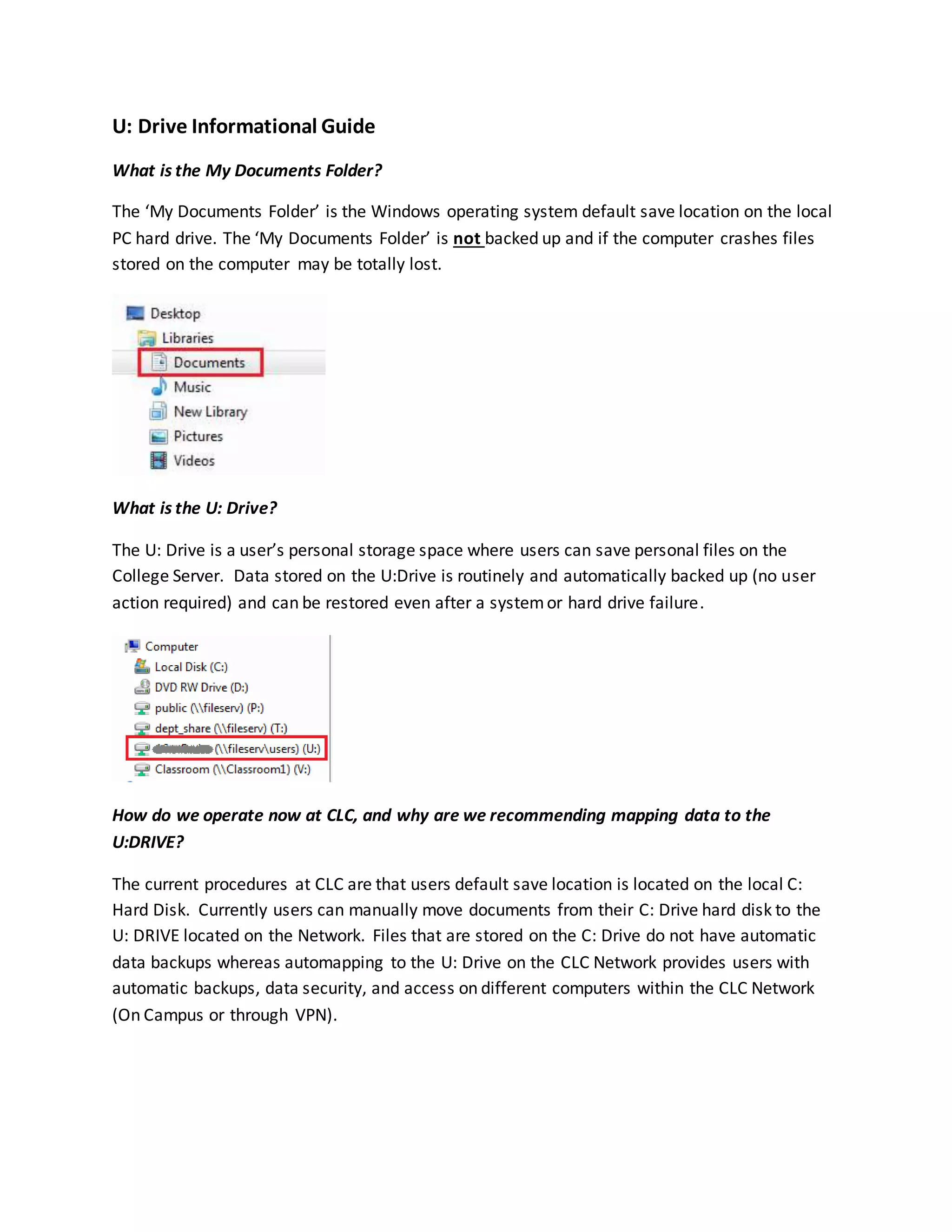
The ‘My Documents Folder’ is the Windows operating system default save location on the local
PC hard drive. The ‘My Documents Folder’ is not backed up and if the computer crashes files
stored on the computer may be totally lost.
What is the U: Drive?
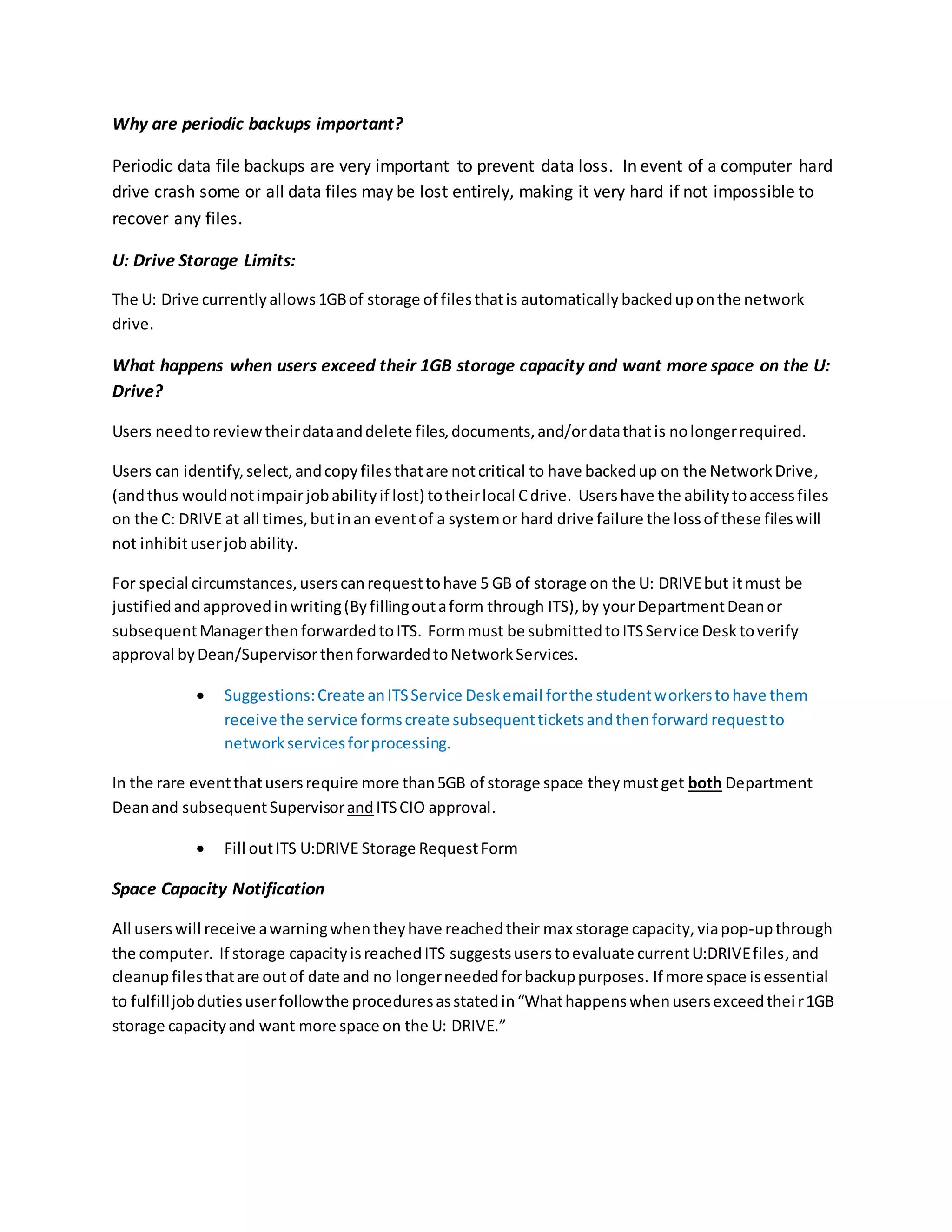
The U: Drive is a user’s personal storage space where users can save personal files on the
College Server. Data stored on the U:Drive is routinely and automatically backed up (no user
action required) and can be restored even after a systemor hard drive failure.
How do we operate now at CLC, and why are we recommending mapping data to the
U:DRIVE?
The current procedures at CLC are that users default save location is located on the local C:
Hard Disk. Currently users can manually move documents from their C: Drive hard disk to the
U: DRIVE located on the Network. Files that are stored on the C: Drive do not have automatic
data backups whereas automapping to the U: Drive on the CLC Network provides users with
automatic backups, data security, and access on different computers within the CLC Network
(On Campus or through VPN).
Why are periodic backups important?
Periodic data file backups are very important to prevent data loss. In event of a computer hard
drive crash some or all data files may be lost entirely, making it very hard if not impossible to
recover any files.
U: Drive Storage Limits:
The U: Drive currentlyallows1GBof storage of filesthatis automatically backedup onthe network
drive.
What happens when users exceed their 1GB storage capacity and want more space on the U:
Drive?
Users needtoreviewtheirdataanddelete files,documents,and/ordatathatis nolongerrequired.
Users can identify,select,andcopyfilesthatare notcritical to have backedup on the NetworkDrive,
(andthus wouldnotimpairjobabilityif lost) totheirlocal Cdrive. Usershave the abilitytoaccessfiles
on the C: DRIVE at all times,butinan eventof a systemor hard drive failure the lossof these fileswill
not inhibituserjobability.
For special circumstances,userscanrequesttohave 5 GB of storage on the U: DRIVEbut itmust be
justifiedandapprovedinwriting(Byfillingoutaform through ITS),by yourDepartmentDeanor
subsequentManagerthenforwardedtoITS. Formmust be submittedtoITSService Desk toverify
approval byDean/SupervisorthenforwardedtoNetworkServices.
 Suggestions:Create anITSService Deskemail forthe studentworkerstohave them
receive the service formscreate subsequentticketsandthenforwardrequestto
networkservicesforprocessing.
In the rare eventthatusersrequire more than5GB of storage space theymustget both Department
Deanand subsequentSupervisorandITSCIO approval.
 Fill outITS U:DRIVE Storage RequestForm
Space Capacity Notification
All userswill receive awarningwhentheyhave reachedtheir max storage capacity, viapop-upthrough
the computer. If storage capacityisreachedITS suggestsuserstoevaluate currentU:DRIVEfiles,and
cleanupfilesthatare outof date and no longerneededforbackuppurposes. If more space isessential
to fulfilljobdutiesuserfollowthe proceduresasstatedin“Whathappenswhenusersexceedthei r1GB
storage capacityand want more space on the U: DRIVE.”
U: Drive Procedures:
1. Users shouldanalyze theircurrentMy Documentsfilesanddeterminewhat filesneed tobe
routinelystoredonthe NetworkU:DRIVE. Typicallydocuments,spreadsheets,power point
presentations,and/ordiagramsproducedbyMicrosoftOffice are automaticallystoredinthe
MyDocumentsFolder.
Personal documents,datafiles,and/orpicturesthatare not critical to jobexecutionshouldbe
copiedtoa differentfolderonthe local C:DRIVE. Jobcritical filesthatneedtobe routinely
backedup to preventlossshouldbe migratedtothe U:DRIVE Folder.
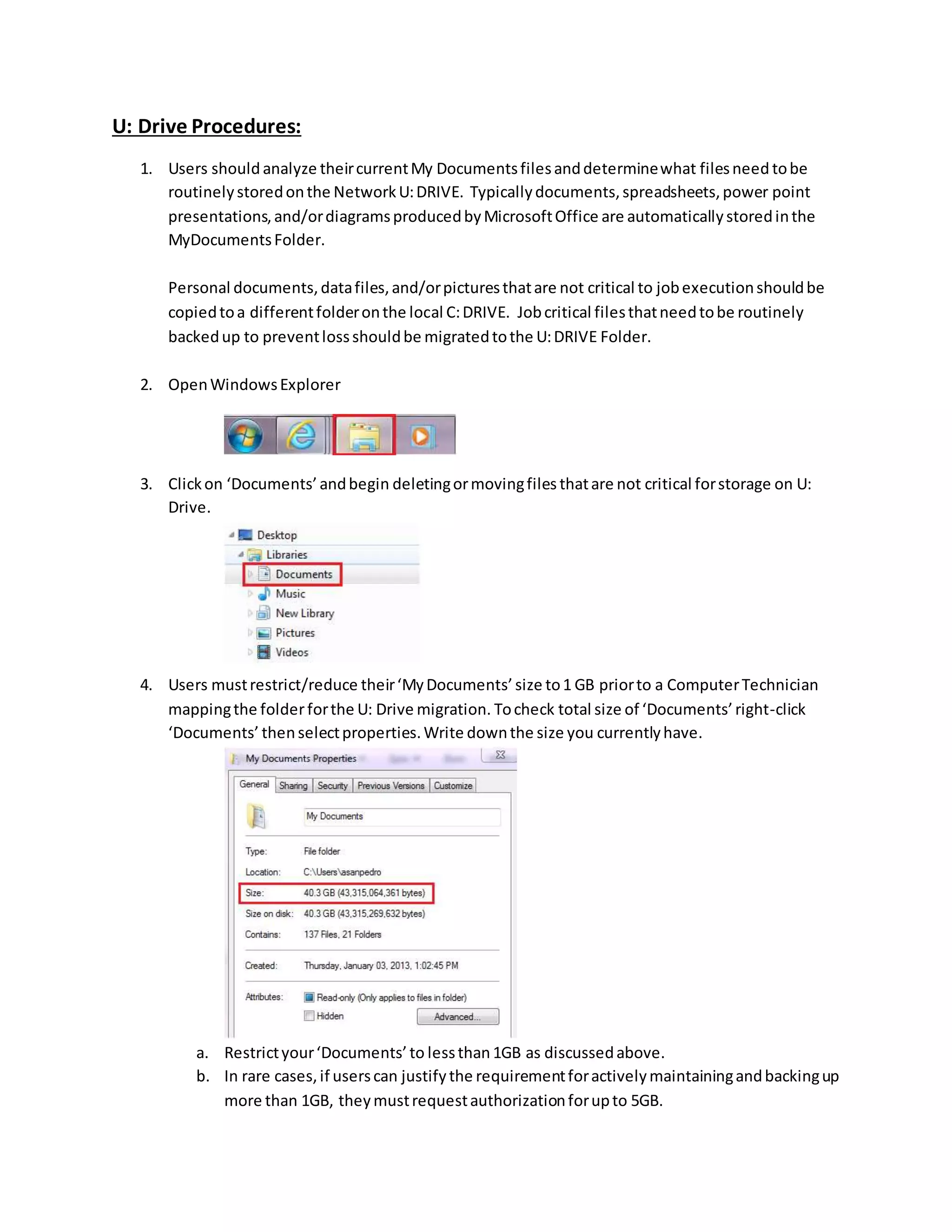
2. OpenWindowsExplorer
3. Clickon ‘Documents’andbegin deletingormovingfiles thatare not critical forstorage on U:
Drive.
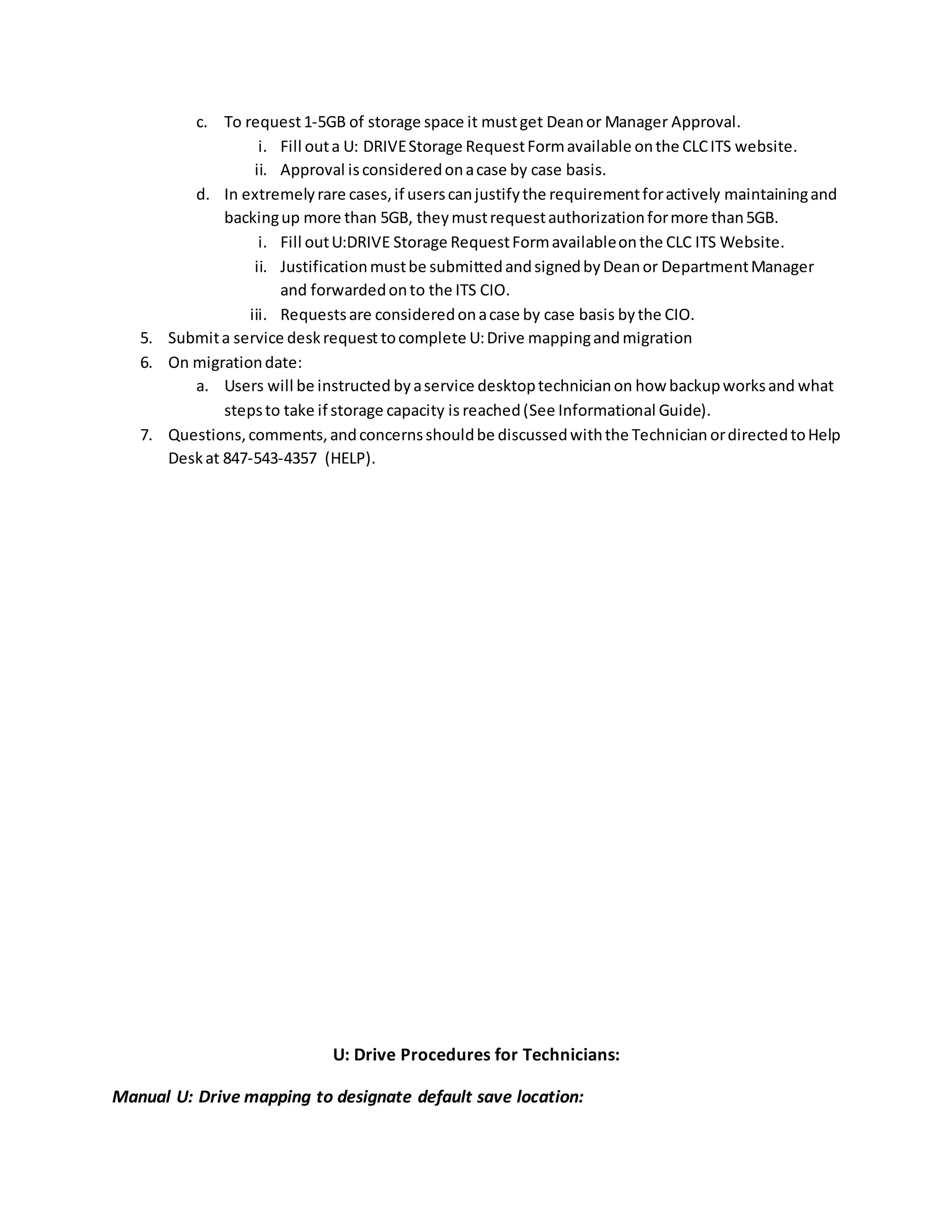
4. Users mustrestrict/reduce their‘MyDocuments’ size to1 GB priorto a ComputerTechnician
mappingthe folderforthe U: Drive migration. Tocheck total size of ‘Documents’right-click
‘Documents’ thenselectproperties.Write downthe size you currentlyhave.
a. Restrictyour‘Documents’to lessthan 1GB as discussedabove.
b. In rare cases,if userscan justifythe requirementforactivelymaintainingandbackingup
more than 1GB, theymustrequestauthorizationforupto 5GB.
c. To request1-5GB of storage space it mustget Deanor Manager Approval.
i. Fill outa U: DRIVEStorage RequestFormavailable onthe CLCITS website.
ii. Approval isconsideredonacase by case basis.
d. In extremelyrare cases,if userscanjustifythe requirementforactively maintainingand
backingup more than 5GB, theymustrequestauthorizationformore than5GB.
i. Fill outU:DRIVE Storage RequestFormavailableonthe CLC ITS Website.
ii. Justificationmustbe submittedandsignedbyDeanor DepartmentManager
and forwardedonto the ITS CIO.
iii. Requestsare consideredonacase by case basis bythe CIO.
5. Submita service deskrequest tocomplete U:Drive mappingand migration
6. On migrationdate:
a. Users will be instructed byaservice desktoptechnicianon how backupworksand what
stepsto take if storage capacity is reached(See Informational Guide).
7. Questions,comments,andconcernsshouldbe discussedwiththe Technician ordirectedtoHelp
Deskat 847-543-4357 (HELP).
U: Drive Procedures for Technicians:
Manual U: Drive mapping to designate default save location:
1. OpenWindowsExplorer
2. Select‘Yourname (fileservusers) (U:)’
3. Create a newfoldernamed‘MyNetworkFiles’
4. Right-click‘MyNetworkFiles’andselect‘alwaysavailable offline’
5. Select‘Documents’
6. Selectthe linknextto‘Includes:Xlocations’
7. Select‘Add’andnavigate toyourComputerandthe NetworkDrive Folderyoucreatednamed
‘My NetworkFiles’.Makessure toselect/highlightfolderthenclick‘Include folder’.
8. Right-Click‘MyNetworkFiles’andselect‘Setasdefaultsave location’
9. Click‘OK’
Registry Setting change to designate default save location:

Modified u drive procedures

  • 1.
    U: Drive InformationalGuide What is the My Documents Folder? The ‘My Documents Folder’ is the Windows operating system default save location on the local PC hard drive. The ‘My Documents Folder’ is not backed up and if the computer crashes files stored on the computer may be totally lost. What is the U: Drive? The U: Drive is a user’s personal storage space where users can save personal files on the College Server. Data stored on the U:Drive is routinely and automatically backed up (no user action required) and can be restored even after a systemor hard drive failure. How do we operate now at CLC, and why are we recommending mapping data to the U:DRIVE? The current procedures at CLC are that users default save location is located on the local C: Hard Disk. Currently users can manually move documents from their C: Drive hard disk to the U: DRIVE located on the Network. Files that are stored on the C: Drive do not have automatic data backups whereas automapping to the U: Drive on the CLC Network provides users with automatic backups, data security, and access on different computers within the CLC Network (On Campus or through VPN).
  • 2.
    Why are periodicbackups important? Periodic data file backups are very important to prevent data loss. In event of a computer hard drive crash some or all data files may be lost entirely, making it very hard if not impossible to recover any files. U: Drive Storage Limits: The U: Drive currentlyallows1GBof storage of filesthatis automatically backedup onthe network drive. What happens when users exceed their 1GB storage capacity and want more space on the U: Drive? Users needtoreviewtheirdataanddelete files,documents,and/ordatathatis nolongerrequired. Users can identify,select,andcopyfilesthatare notcritical to have backedup on the NetworkDrive, (andthus wouldnotimpairjobabilityif lost) totheirlocal Cdrive. Usershave the abilitytoaccessfiles on the C: DRIVE at all times,butinan eventof a systemor hard drive failure the lossof these fileswill not inhibituserjobability. For special circumstances,userscanrequesttohave 5 GB of storage on the U: DRIVEbut itmust be justifiedandapprovedinwriting(Byfillingoutaform through ITS),by yourDepartmentDeanor subsequentManagerthenforwardedtoITS. Formmust be submittedtoITSService Desk toverify approval byDean/SupervisorthenforwardedtoNetworkServices.  Suggestions:Create anITSService Deskemail forthe studentworkerstohave them receive the service formscreate subsequentticketsandthenforwardrequestto networkservicesforprocessing. In the rare eventthatusersrequire more than5GB of storage space theymustget both Department Deanand subsequentSupervisorandITSCIO approval.  Fill outITS U:DRIVE Storage RequestForm Space Capacity Notification All userswill receive awarningwhentheyhave reachedtheir max storage capacity, viapop-upthrough the computer. If storage capacityisreachedITS suggestsuserstoevaluate currentU:DRIVEfiles,and cleanupfilesthatare outof date and no longerneededforbackuppurposes. If more space isessential to fulfilljobdutiesuserfollowthe proceduresasstatedin“Whathappenswhenusersexceedthei r1GB storage capacityand want more space on the U: DRIVE.”
  • 3.
    U: Drive Procedures: 1.Users shouldanalyze theircurrentMy Documentsfilesanddeterminewhat filesneed tobe routinelystoredonthe NetworkU:DRIVE. Typicallydocuments,spreadsheets,power point presentations,and/ordiagramsproducedbyMicrosoftOffice are automaticallystoredinthe MyDocumentsFolder. Personal documents,datafiles,and/orpicturesthatare not critical to jobexecutionshouldbe copiedtoa differentfolderonthe local C:DRIVE. Jobcritical filesthatneedtobe routinely backedup to preventlossshouldbe migratedtothe U:DRIVE Folder. 2. OpenWindowsExplorer 3. Clickon ‘Documents’andbegin deletingormovingfiles thatare not critical forstorage on U: Drive. 4. Users mustrestrict/reduce their‘MyDocuments’ size to1 GB priorto a ComputerTechnician mappingthe folderforthe U: Drive migration. Tocheck total size of ‘Documents’right-click ‘Documents’ thenselectproperties.Write downthe size you currentlyhave. a. Restrictyour‘Documents’to lessthan 1GB as discussedabove. b. In rare cases,if userscan justifythe requirementforactivelymaintainingandbackingup more than 1GB, theymustrequestauthorizationforupto 5GB.
  • 4.
    c. To request1-5GBof storage space it mustget Deanor Manager Approval. i. Fill outa U: DRIVEStorage RequestFormavailable onthe CLCITS website. ii. Approval isconsideredonacase by case basis. d. In extremelyrare cases,if userscanjustifythe requirementforactively maintainingand backingup more than 5GB, theymustrequestauthorizationformore than5GB. i. Fill outU:DRIVE Storage RequestFormavailableonthe CLC ITS Website. ii. Justificationmustbe submittedandsignedbyDeanor DepartmentManager and forwardedonto the ITS CIO. iii. Requestsare consideredonacase by case basis bythe CIO. 5. Submita service deskrequest tocomplete U:Drive mappingand migration 6. On migrationdate: a. Users will be instructed byaservice desktoptechnicianon how backupworksand what stepsto take if storage capacity is reached(See Informational Guide). 7. Questions,comments,andconcernsshouldbe discussedwiththe Technician ordirectedtoHelp Deskat 847-543-4357 (HELP). U: Drive Procedures for Technicians: Manual U: Drive mapping to designate default save location:
  • 5.
    1. OpenWindowsExplorer 2. Select‘Yourname(fileservusers) (U:)’ 3. Create a newfoldernamed‘MyNetworkFiles’ 4. Right-click‘MyNetworkFiles’andselect‘alwaysavailable offline’ 5. Select‘Documents’ 6. Selectthe linknextto‘Includes:Xlocations’ 7. Select‘Add’andnavigate toyourComputerandthe NetworkDrive Folderyoucreatednamed ‘My NetworkFiles’.Makessure toselect/highlightfolderthenclick‘Include folder’. 8. Right-Click‘MyNetworkFiles’andselect‘Setasdefaultsave location’ 9. Click‘OK’ Registry Setting change to designate default save location: