Staff Training Monday 5 th  October
Drama Studio  CRJ – Science, PE 203a   AHU – Maths, Technology, ICT & Business 121  – PIJ – Enterprise, Humanities 70   SHU – English, Drama, Exp Arts 59  –  ZAM & LEP – Languages, Art
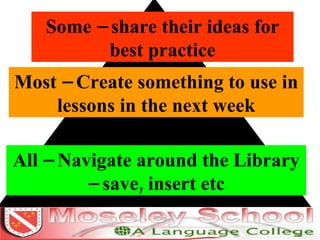
Some – share their ideas for best practice Most – Create something to use in lessons in the next week All – Navigate around the Library – save, insert etc
School Media Library
1. In school 2. via the website from home Ways to access?
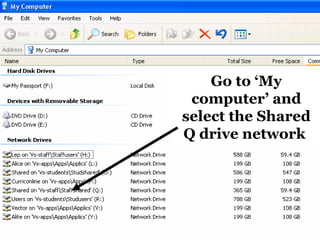
Go to ‘My computer’ and select the Shared Q drive network
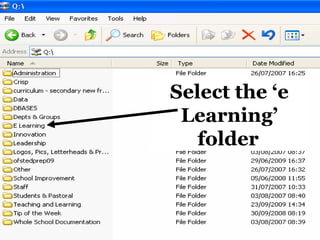
Select the ‘e Learning’ folder
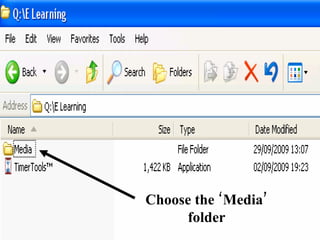
Choose the ‘Media’ folder
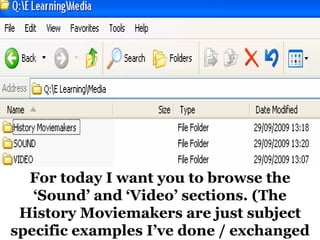
For today I want you to browse the ‘Sound’ and ‘Video’ sections. (The History Moviemakers are just subject specific examples I’ve done / exchanged
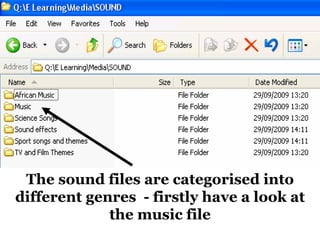
The sound files are categorised into different genres  - firstly have a look at the music file
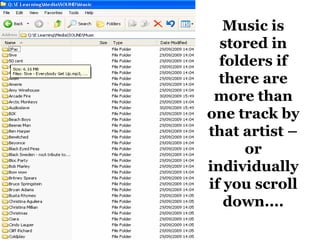
Music is stored in folders if there are more than one track by that artist – or individually if you scroll down....
Once you’ve had a look through the sound files – go and take a look through the video section
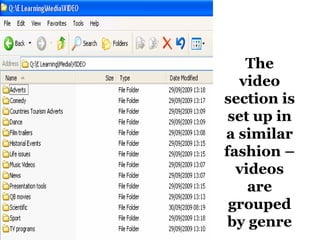
The video section is set up in a similar fashion – videos are grouped by genre
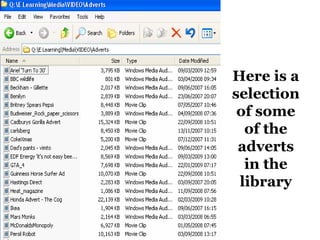
Here is a selection of some of the adverts in the library
Or you can access the library from home....
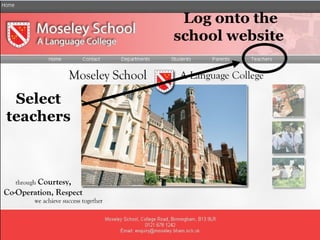
Log onto the school website  Select teachers
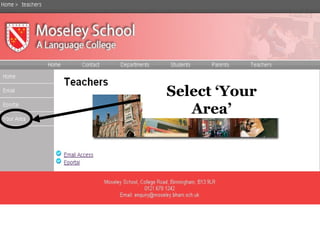
Select ‘Your Area’
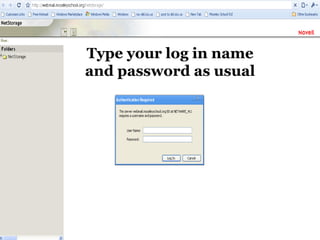
Type your log in name and password as usual
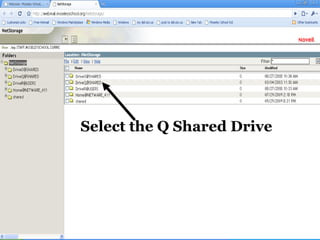
Select the Q Shared Drive
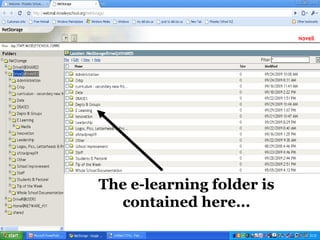
The e-learning folder is contained here...
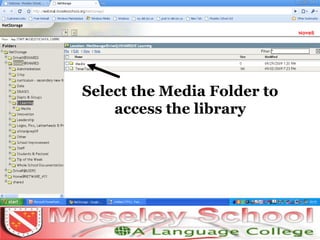
Select the Media Folder to access the library
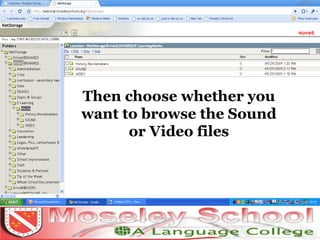
Then choose whether you want to browse the Sound or Video files
If you’re confident you know where the library is located  AND  you know how to insert Video/Sound Files into a ppt then please feel free to spend the time browsing the site / creating something for use in lessons this week. If you are not at this stage....please  READ ON .....
How to insert a video or sound file into a PowerPoint
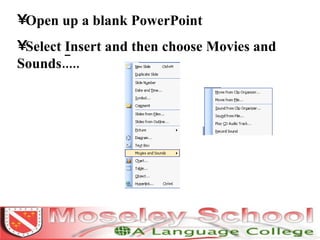
Open up a blank PowerPoint Select  I nsert and then choose Movies and Sounds.....
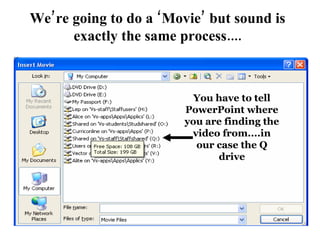
We’re going to do a ‘Movie’ but sound is exactly the same process.... You have to tell PowerPoint where you are finding the video from....in our case the Q drive
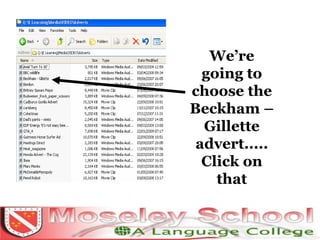
We’re going to choose the Beckham – Gillette advert..... Click on that
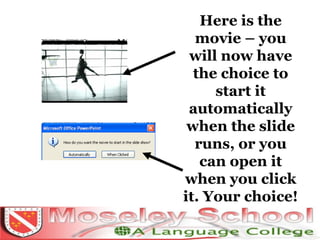
Here is the movie – you will now have the choice to start it automatically when the slide runs, or you can open it when you click it. Your choice!
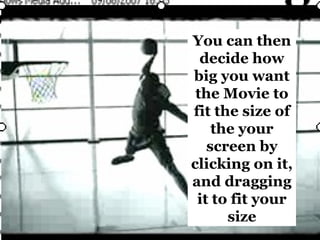
You can then decide how big you want the Movie to fit the size of the your screen by clicking on it, and dragging it to fit your size
Now have a go at doing exactly the same for a sound file....

Media Library Computer Room

  • 1.
  • 2.
    Drama Studio CRJ – Science, PE 203a AHU – Maths, Technology, ICT & Business 121 – PIJ – Enterprise, Humanities 70 SHU – English, Drama, Exp Arts 59 – ZAM & LEP – Languages, Art
  • 3.
    Some – sharetheir ideas for best practice Most – Create something to use in lessons in the next week All – Navigate around the Library – save, insert etc
  • 4.
  • 5.
    1. In school2. via the website from home Ways to access?
  • 6.
    Go to ‘Mycomputer’ and select the Shared Q drive network
  • 7.
    Select the ‘eLearning’ folder
  • 8.
  • 9.
    For today Iwant you to browse the ‘Sound’ and ‘Video’ sections. (The History Moviemakers are just subject specific examples I’ve done / exchanged
  • 10.
    The sound filesare categorised into different genres - firstly have a look at the music file
  • 11.
    Music is storedin folders if there are more than one track by that artist – or individually if you scroll down....
  • 12.
    Once you’ve hada look through the sound files – go and take a look through the video section
  • 13.
    The video sectionis set up in a similar fashion – videos are grouped by genre
  • 14.
    Here is aselection of some of the adverts in the library
  • 15.
    Or you canaccess the library from home....
  • 16.
    Log onto theschool website Select teachers
  • 17.
  • 18.
    Type your login name and password as usual
  • 19.
    Select the QShared Drive
  • 20.
    The e-learning folderis contained here...
  • 21.
    Select the MediaFolder to access the library
  • 22.
    Then choose whetheryou want to browse the Sound or Video files
  • 23.
    If you’re confidentyou know where the library is located AND you know how to insert Video/Sound Files into a ppt then please feel free to spend the time browsing the site / creating something for use in lessons this week. If you are not at this stage....please READ ON .....
  • 24.
    How to inserta video or sound file into a PowerPoint
  • 25.
    Open up ablank PowerPoint Select I nsert and then choose Movies and Sounds.....
  • 26.
    We’re going todo a ‘Movie’ but sound is exactly the same process.... You have to tell PowerPoint where you are finding the video from....in our case the Q drive
  • 27.
    We’re going tochoose the Beckham – Gillette advert..... Click on that
  • 28.
    Here is themovie – you will now have the choice to start it automatically when the slide runs, or you can open it when you click it. Your choice!
  • 29.
    You can thendecide how big you want the Movie to fit the size of the your screen by clicking on it, and dragging it to fit your size
  • 30.
    Now have ago at doing exactly the same for a sound file....