Programming for Evolutionary Biology
           April 3rd – 19th 2013
            Leipzig, Germany


 Introduction to Unix systems
Part 2: Introducing the terminal
         Giovanni Marco Dall'Olio
         Universitat Pompeu Fabra
             Barcelona (Spain)
Schedule
   9.30 – 11.00: “What is Unix?” and hands on a 
    Fedora system
   11.30 – 12.30: Introducing the terminal
   14:30 – 16:30: Grep & Unix philosophy
   17:00 – 18:00: awk, make, and question time
What is the terminal?
   The terminal is a software that allows to execute 
    commands by typing
   Instead of clicking an icon in a menu, we call a 
    software by writing its name
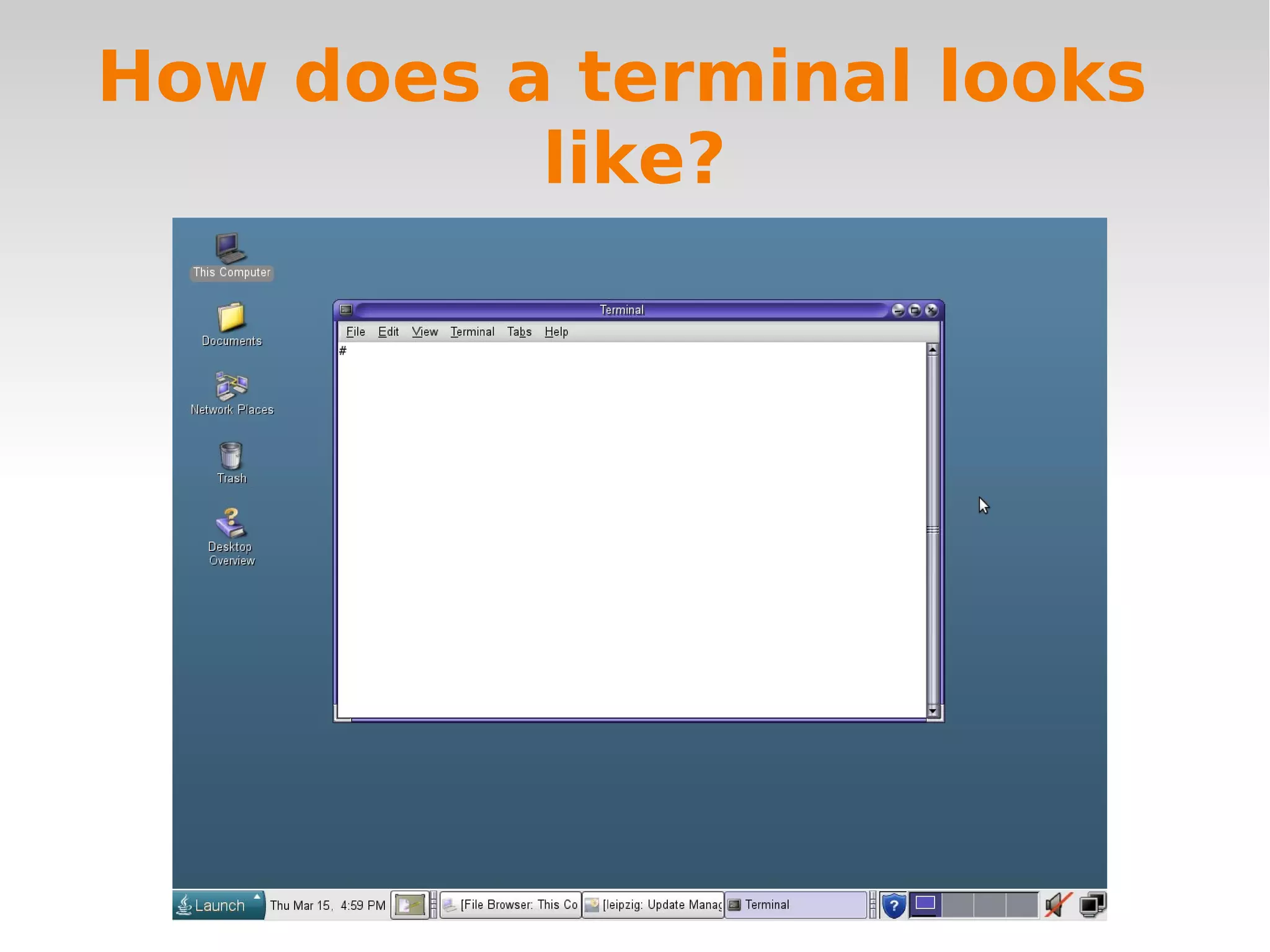
How does a terminal looks
          like?
The terminal: history and
          why
   Back in the '70s, when Unix was developed, 
    computers did not have graphical interfaces
   Also, computer were mostly used for data 
    analysis.
The terminal: history and
          why
   Back in the '70s, when Unix was developed, 
    computers did not have graphical interfaces
   Also, computer were mostly used for data 
    analysis.
       ●   The most common operations were analysis of 
           datasets and manipulation of text files
Why use the terminal
           today?
   A common problem in bioinformatics is to deal 
    with big collections of text files
   The terminal is a good instrument to manage big 
    collections of text files. More than 30 years of 
    experience.
some Terminology
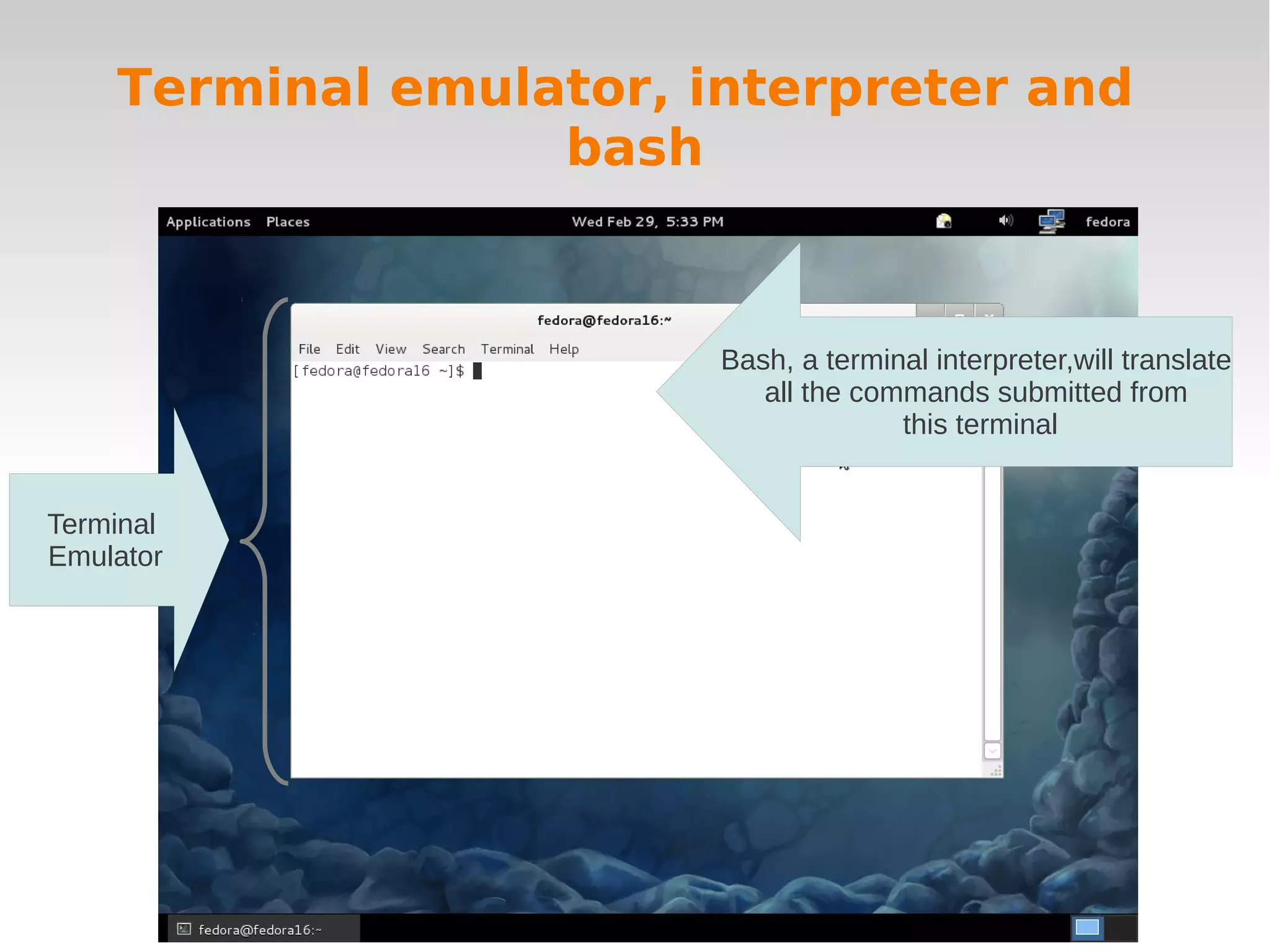
   Terminal emulator: the software that shows the 
    window where you type the commands, and 
    prints the output of the commands
   Interpreter: the software that translate 
    commands to the computer 
   Bash: name of the most commonly used 
    interpreter
Terminal emulator, interpreter and
                  bash


                        Bash, a terminal interpreter,will translate
                           all the commands submitted from
                                      this terminal


Terminal
Emulator
Your first command: ls
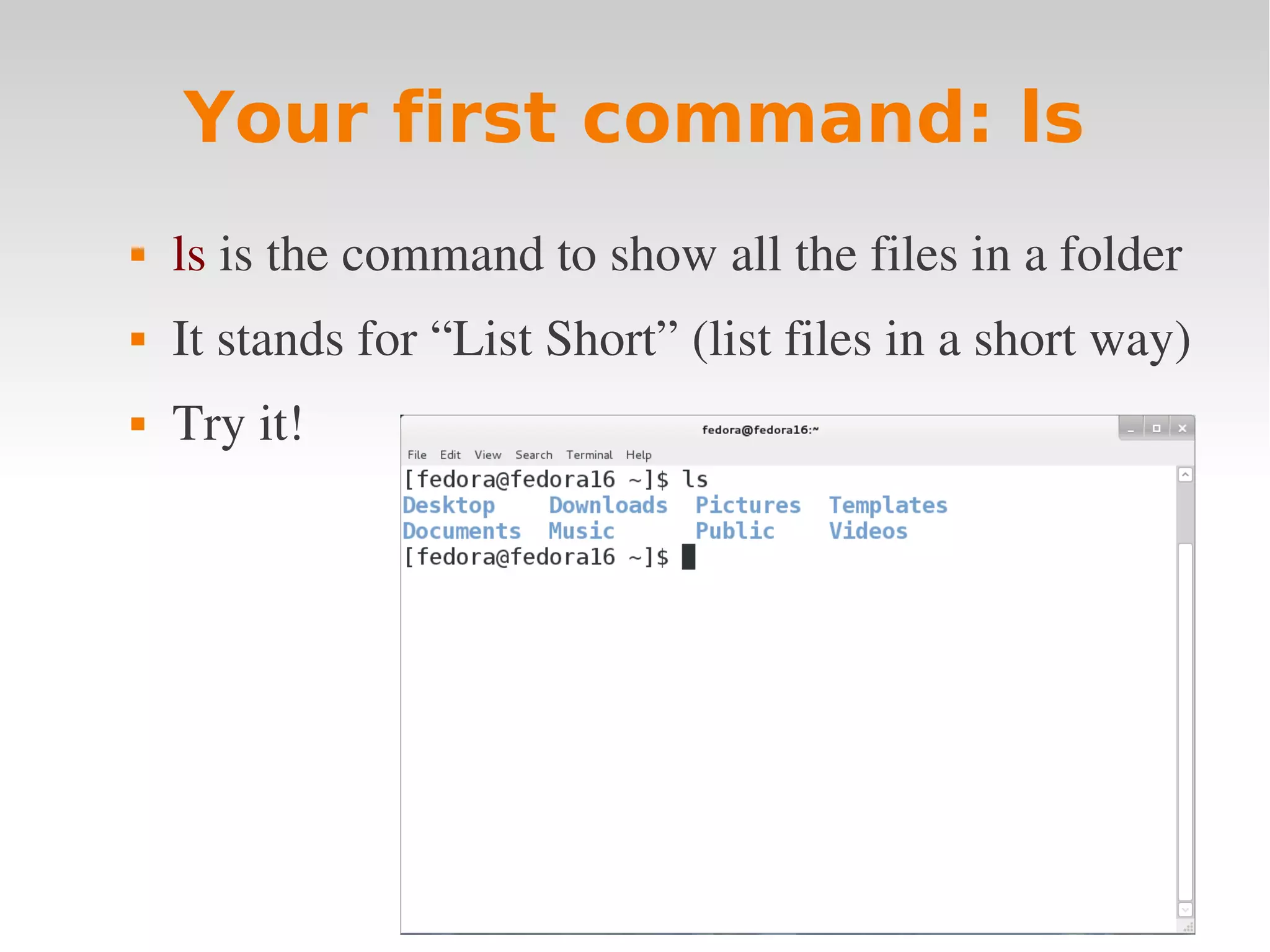
   ls is the command to show all the files in a folder
   It stands for “List Short” (list files in a short way)
   Try it!
Output of “ls”
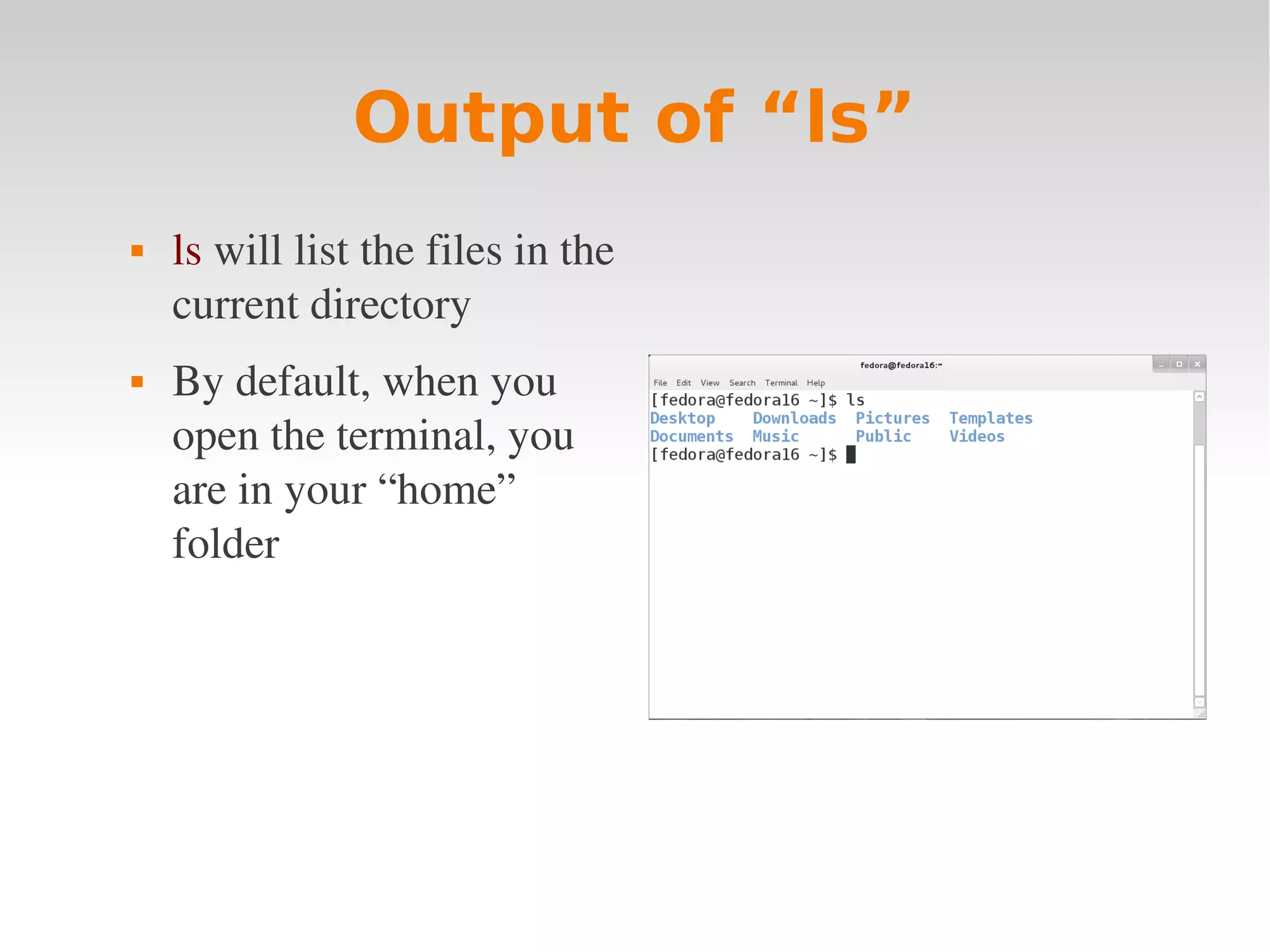
   ls will list the files in the 
    current directory
   By default, when you 
    open the terminal, you 
    are in your “home” 
    folder
“ls” is showing the contents of the
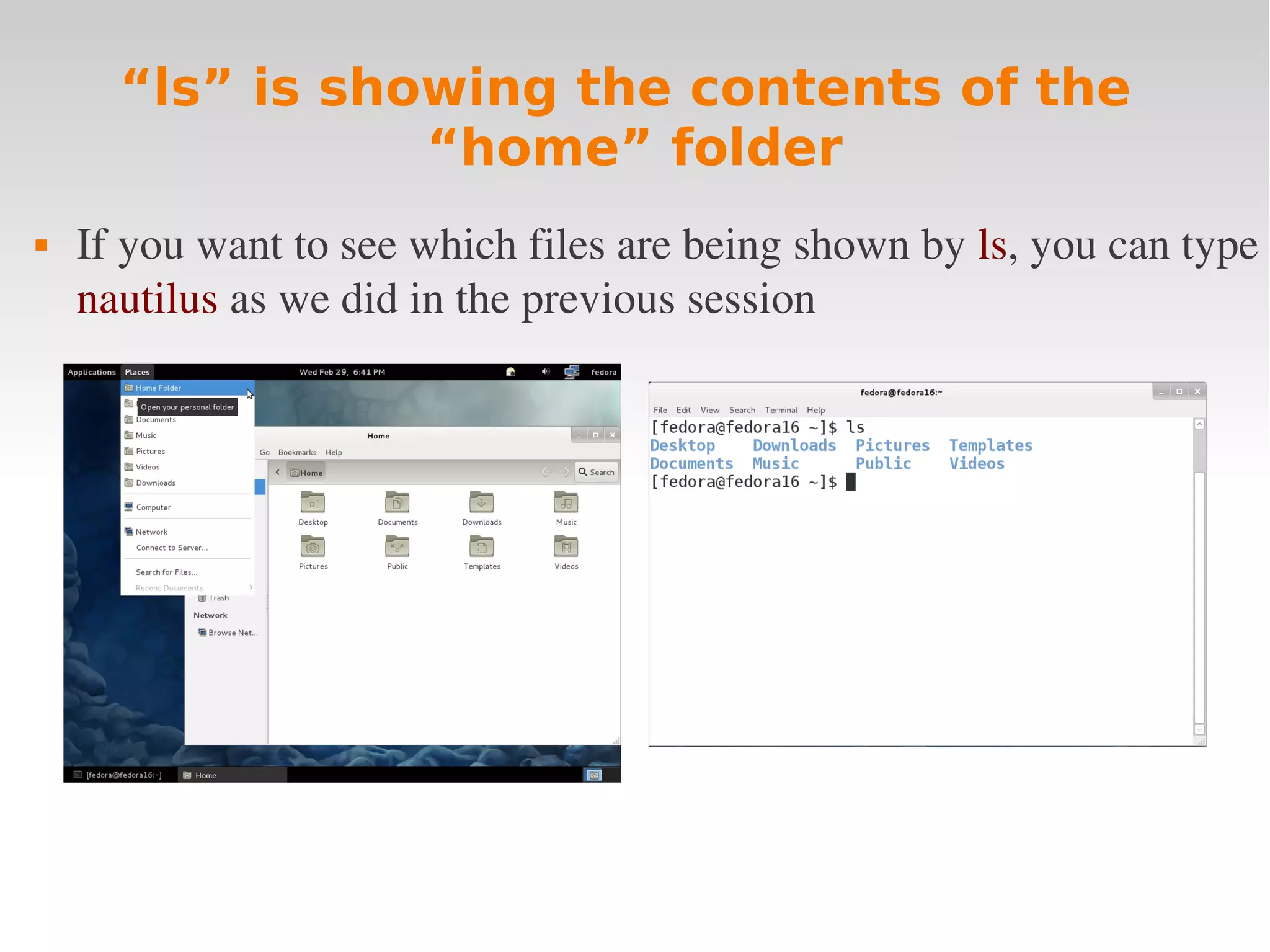
                 “home” folder
   If you want to see which files are being shown by ls, you can type 
    nautilus as we did in the previous session
Anatomy of a command
   Each command call is usually composed by three 
    parts:
       ●   The command itself
       ●   Parameters (optionals)
       ●   Arguments 
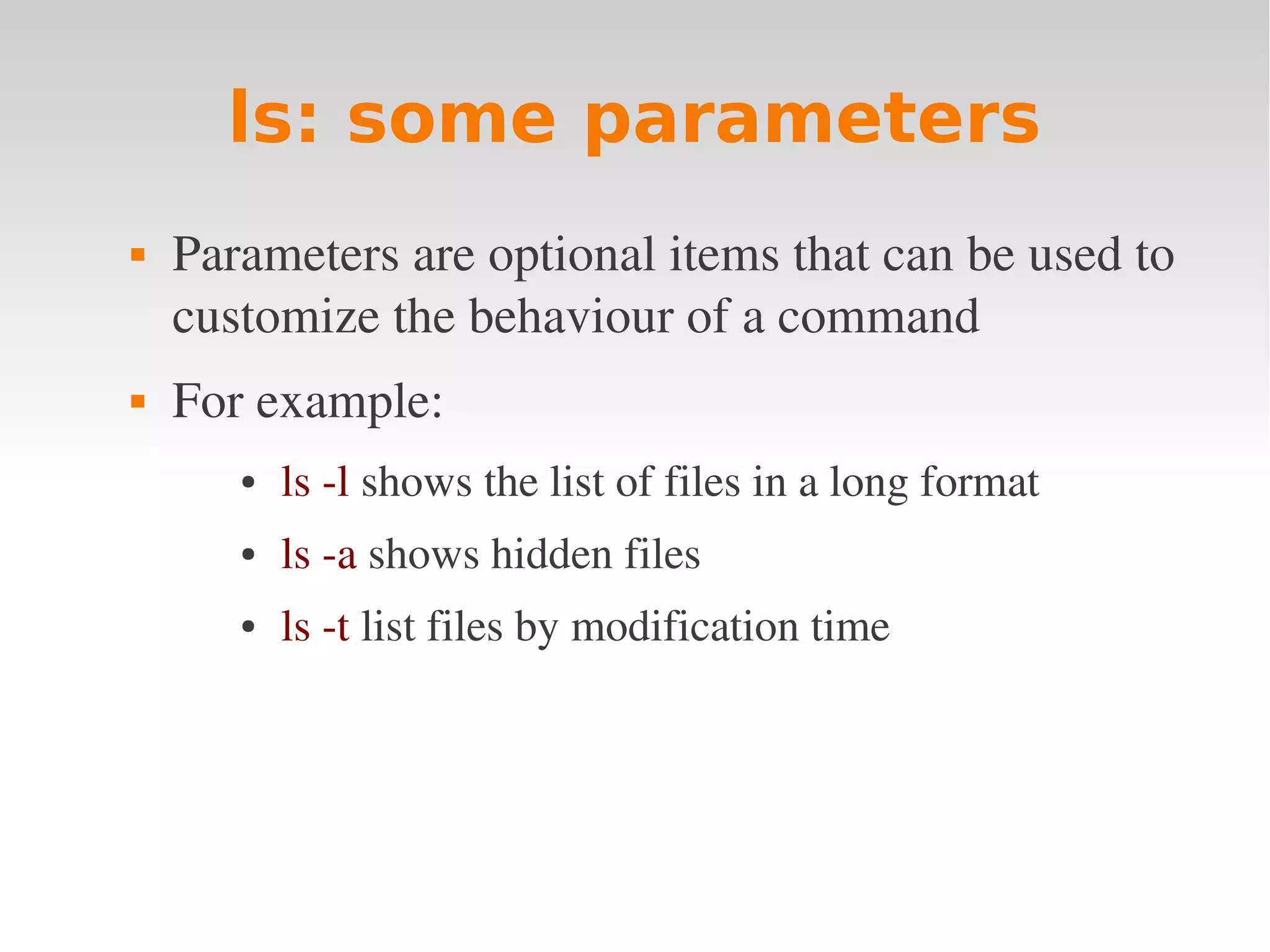
ls: some parameters
   Parameters are optional items that can be used to 
    customize the behaviour of a command
   For example:
       ●   ls ­l shows the list of files in a long format
       ●   ls ­a shows hidden files
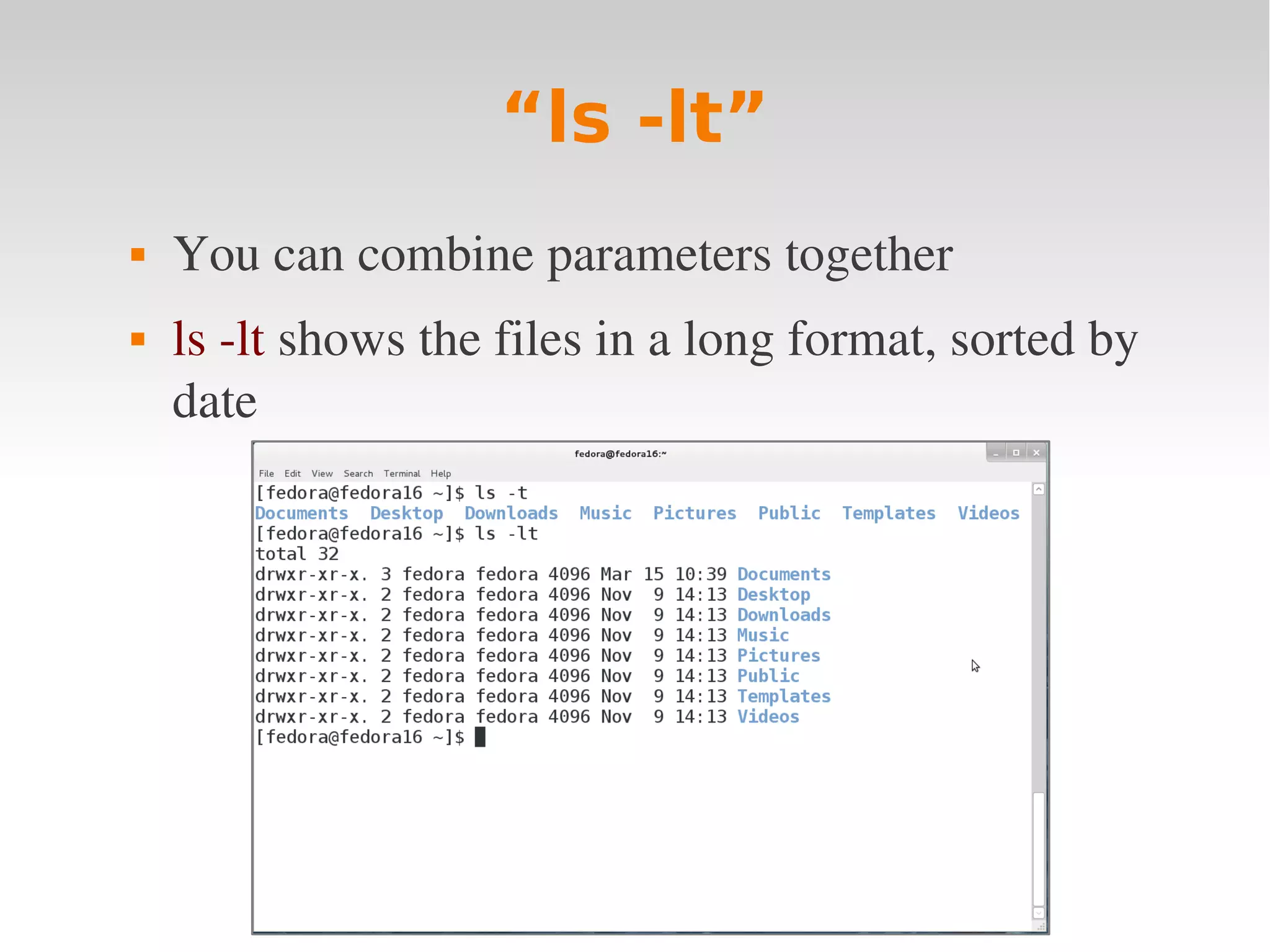
       ●   ls ­t list files by modification time
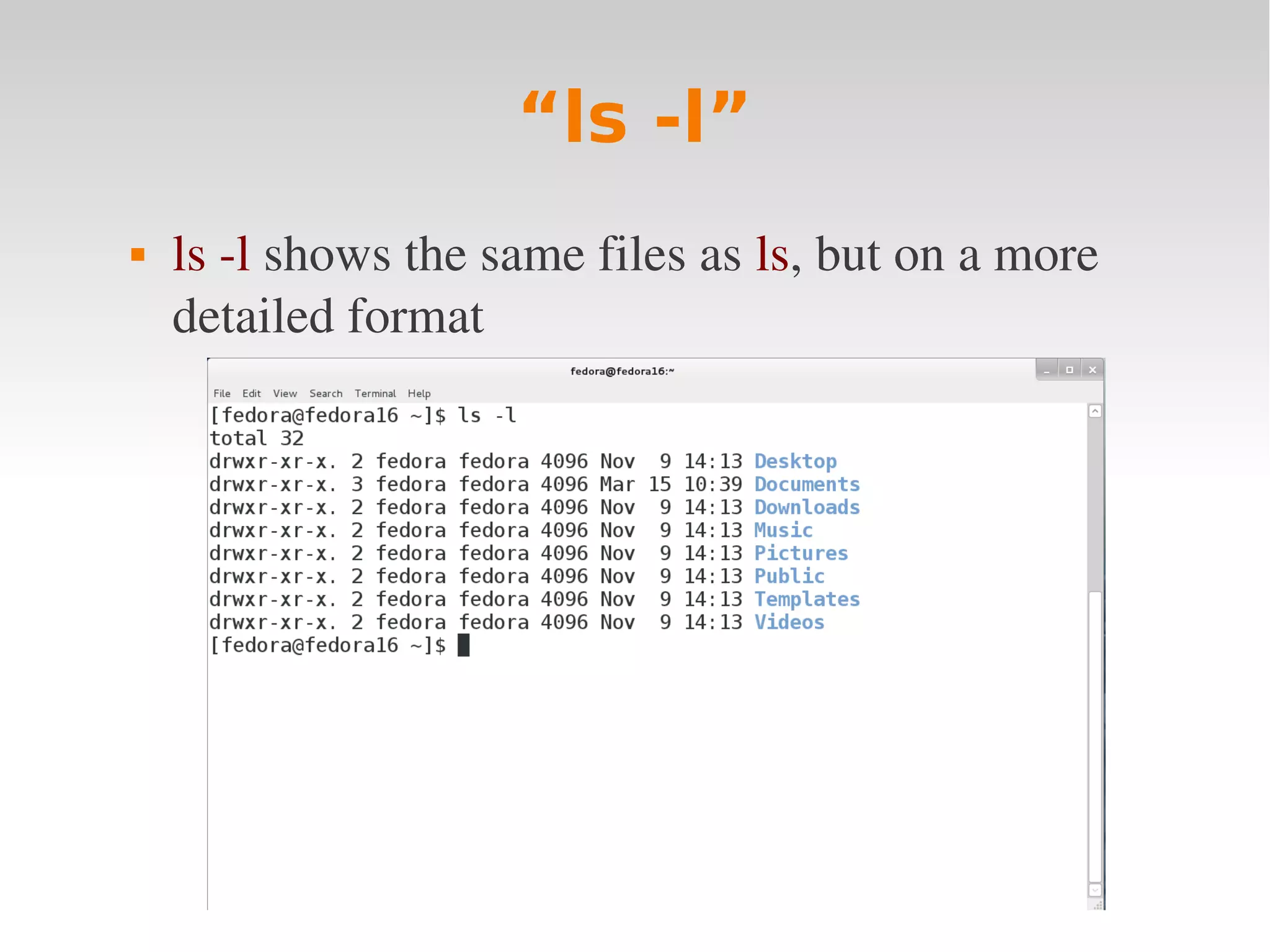
“ls -l”
   ls ­l shows the same files as ls, but on a more 
    detailed format
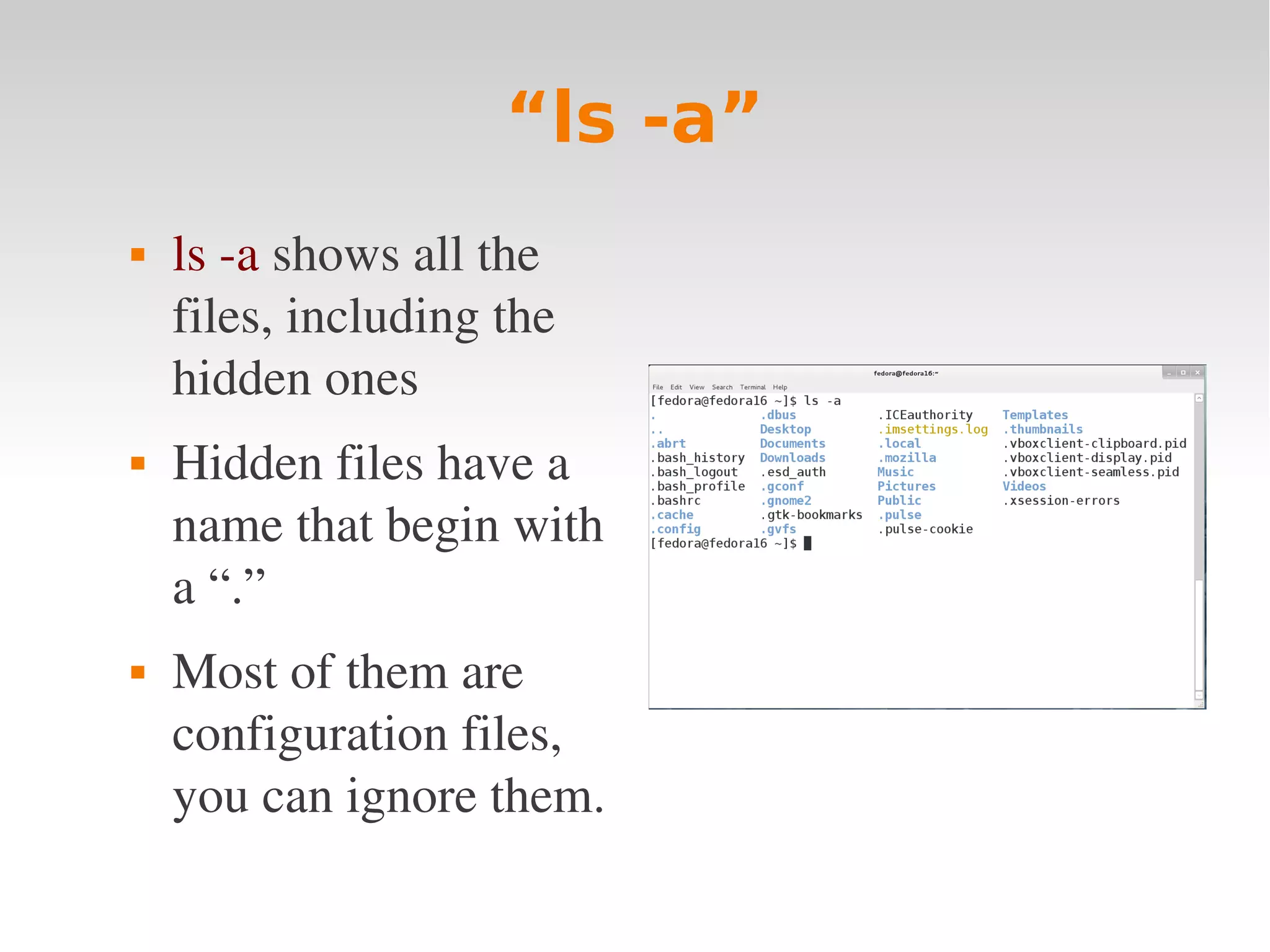
“ls -a”
   ls ­a shows all the 
    files, including the 
    hidden ones
   Hidden files have a 
    name that begin with 
    a “.” 
   Most of them are 
    configuration files, 
    you can ignore them.
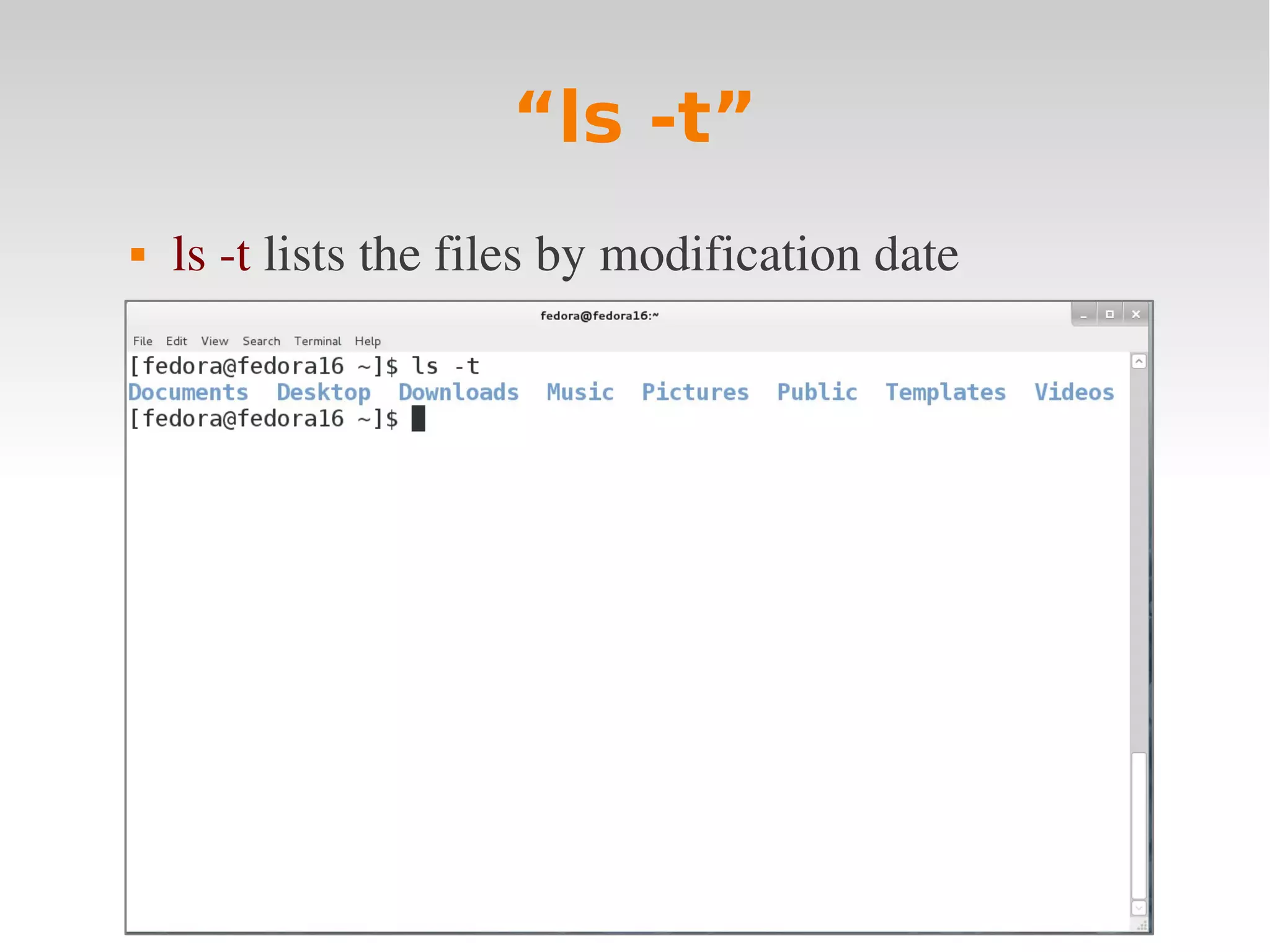
“ls -t”
   ls ­t lists the files by modification date
“ls -lt”
   You can combine parameters together
   ls ­lt shows the files in a long format, sorted by 
    date
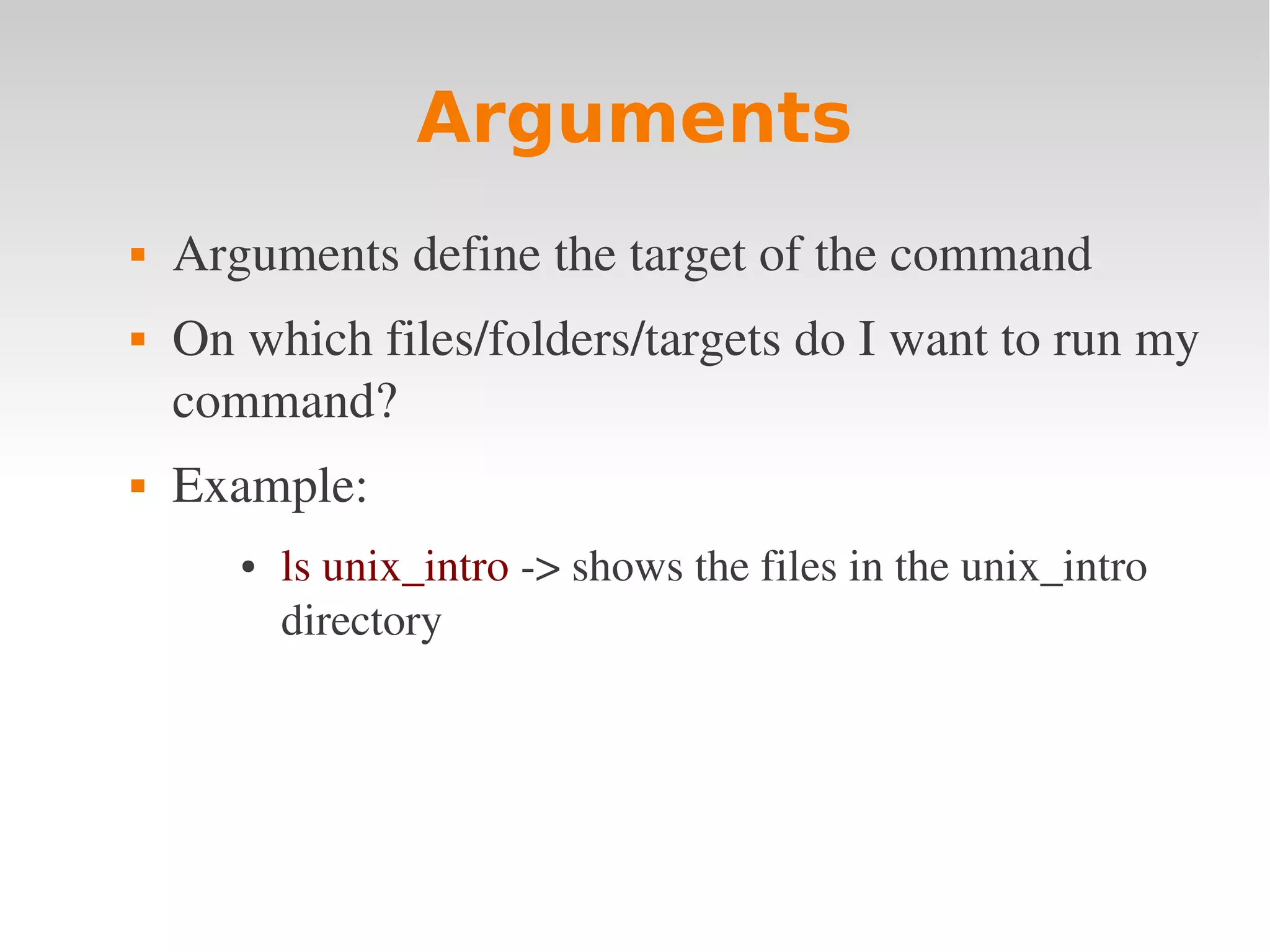
Arguments
   Arguments define the target of the command 
   On which files/folders/targets do I want to run my 
    command?
   Example: 
       ●   ls unix_intro ­> shows the files in the unix_intro 
           directory
Quick exercise
   In the following call, which are the commands, 
    the parameters and the arguments?
       ●   ls ­la /homes/evopadmin
How to get the
      documentation of a
          command?
   Three methods:
      ●   ­­help
      ●   man
      ●   info
“ls --help”
   The simplest way to get the documentation of a 
    command is by using the ­­help parameter
   For example:
      ls ­­help
   Most unix command accept a ­­help or ­h 
    parameter
Consulting the
      documentation of a
        command: man
   The command man is used to see the 
    documentation of a command
   Understanding how to read the documentation is 
    the key to learn how to use the shell
Your second command: man
    The command “man” is used to see the 
     documentation of a command
    Usage: man <name of the command>
    Try it:
        ●   man ls
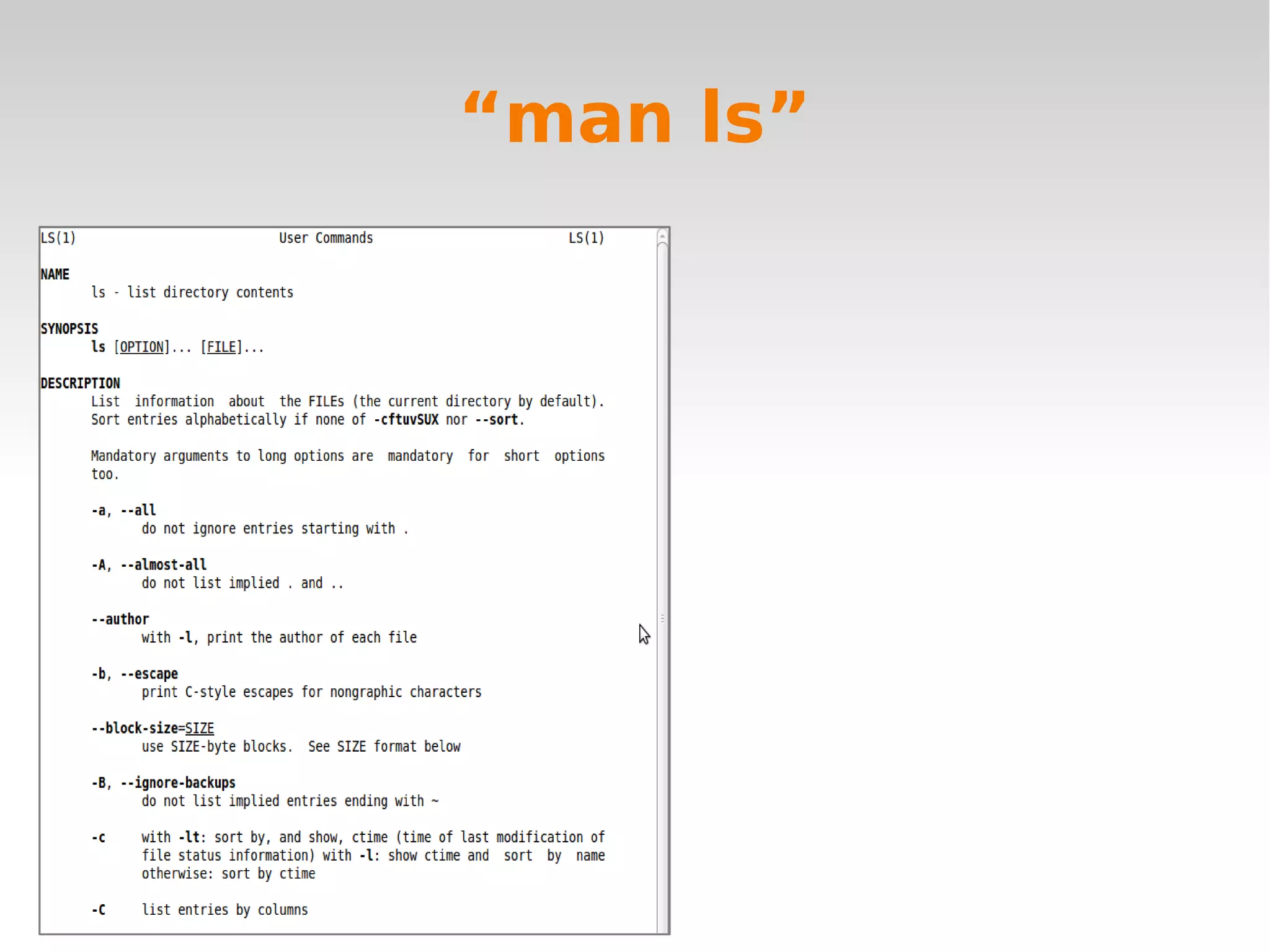
“man ls”
Understanding a man page
   Each manual page is composed by at least three 
    sections:
       ●   NAME (the name of the command)
       ●   SYNOPSIS (how to launch the command)
       ●   DESCRIPTION/OPTIONS (description of what 
           the command does, and its options)
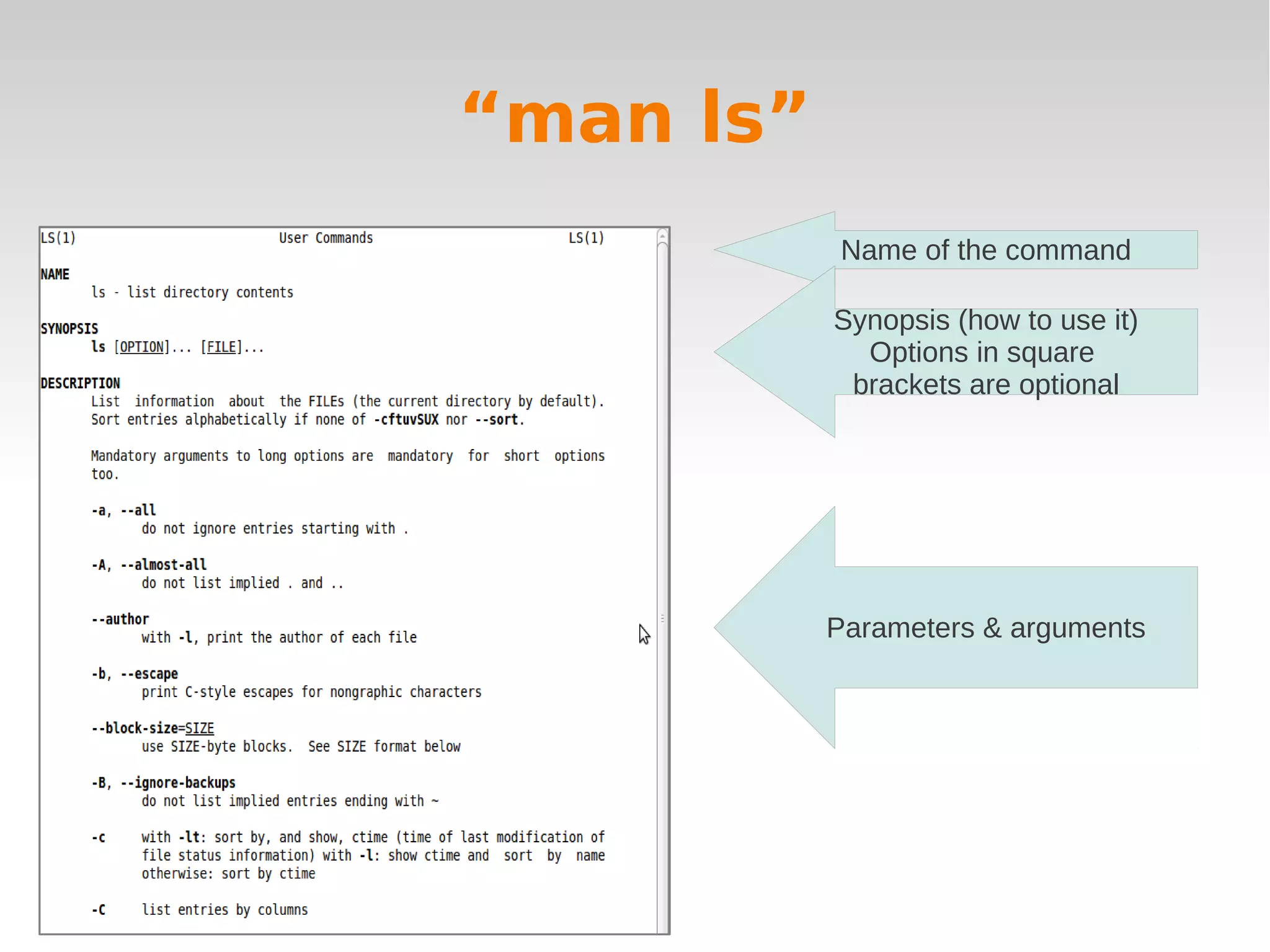
“man ls”
           Name of the command

           Synopsis (how to use it)
             Options in square
            brackets are optional


           Parameters & arguments
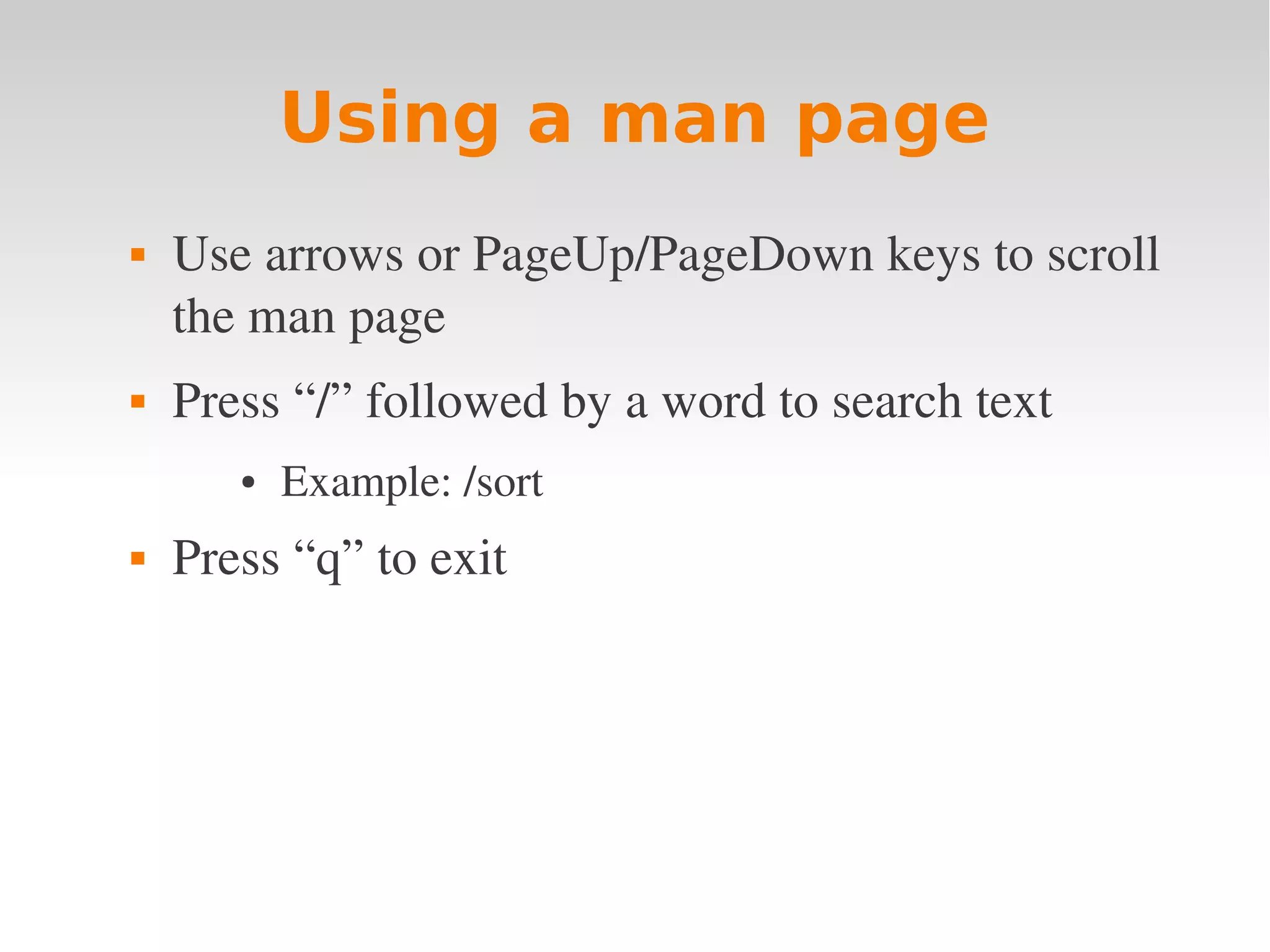
Using a man page
   Use arrows or PageUp/PageDown keys to scroll 
    the man page
   Press “/” followed by a word to search text
       ●   Example: /sort
   Press “q” to exit 
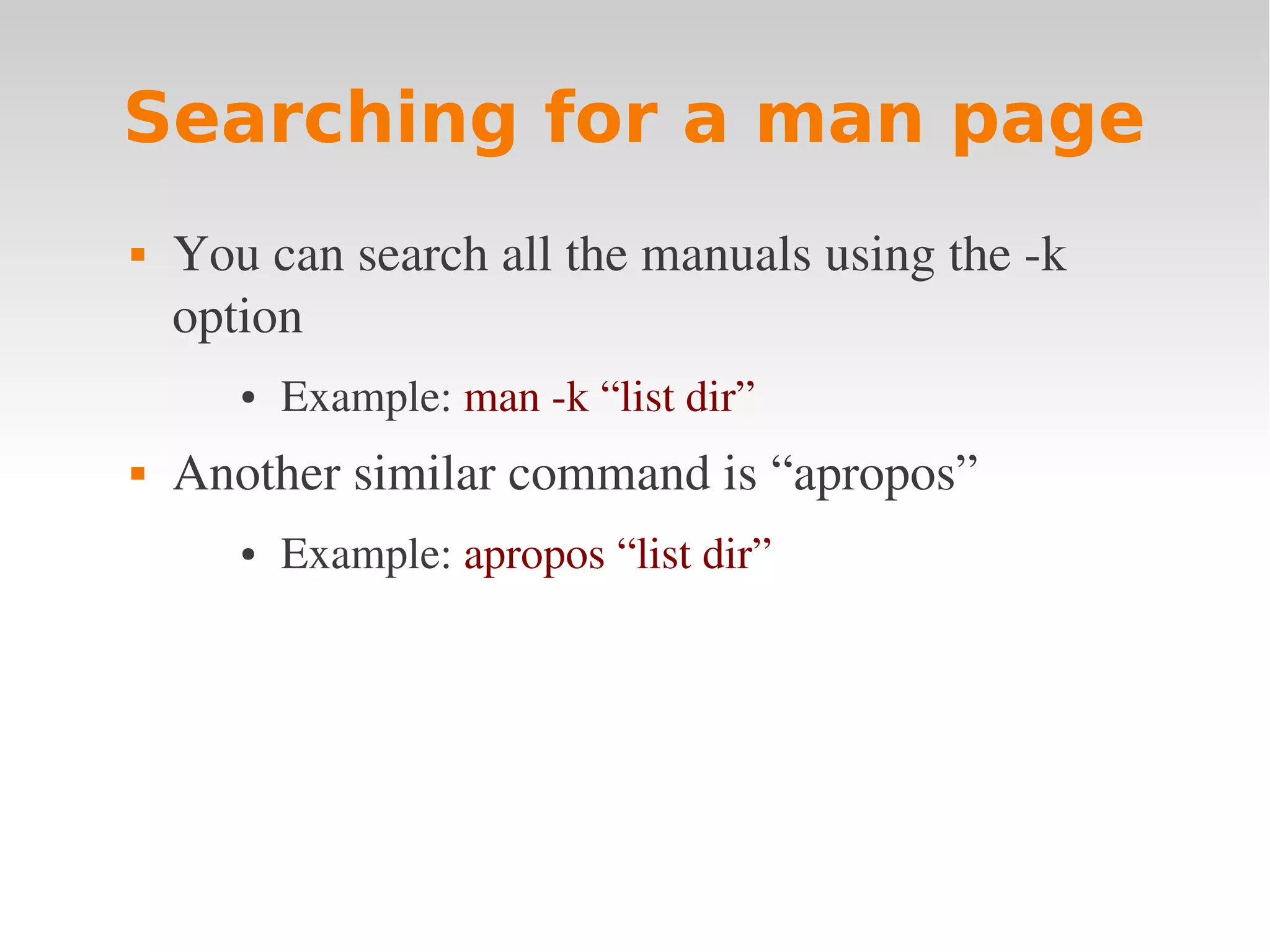
Searching for a man page
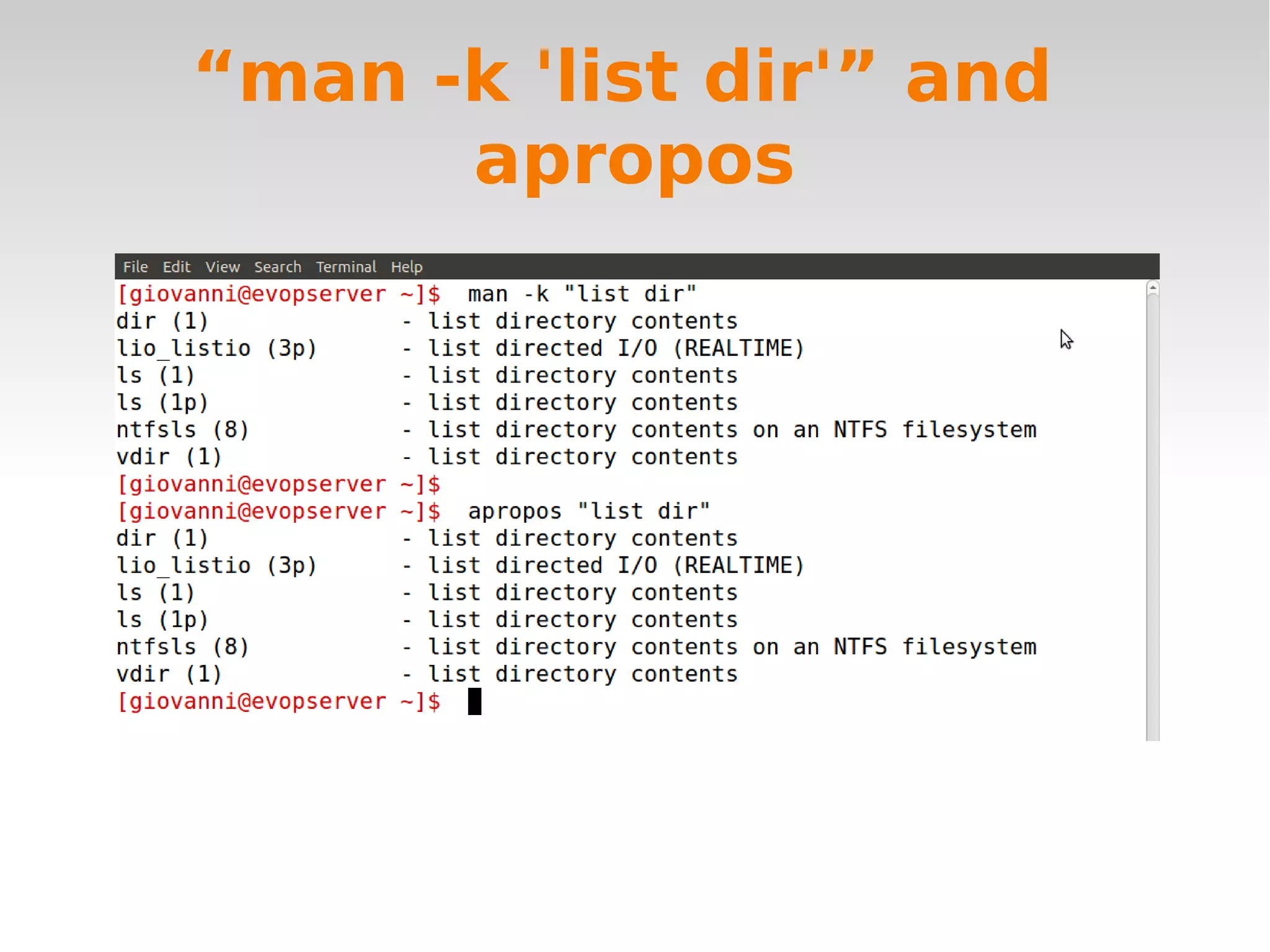
   You can search all the manuals using the ­k 
    option
       ●   Example: man ­k “list dir”
   Another similar command is “apropos”
       ●   Example: apropos “list dir”
Other sections in a man
             page
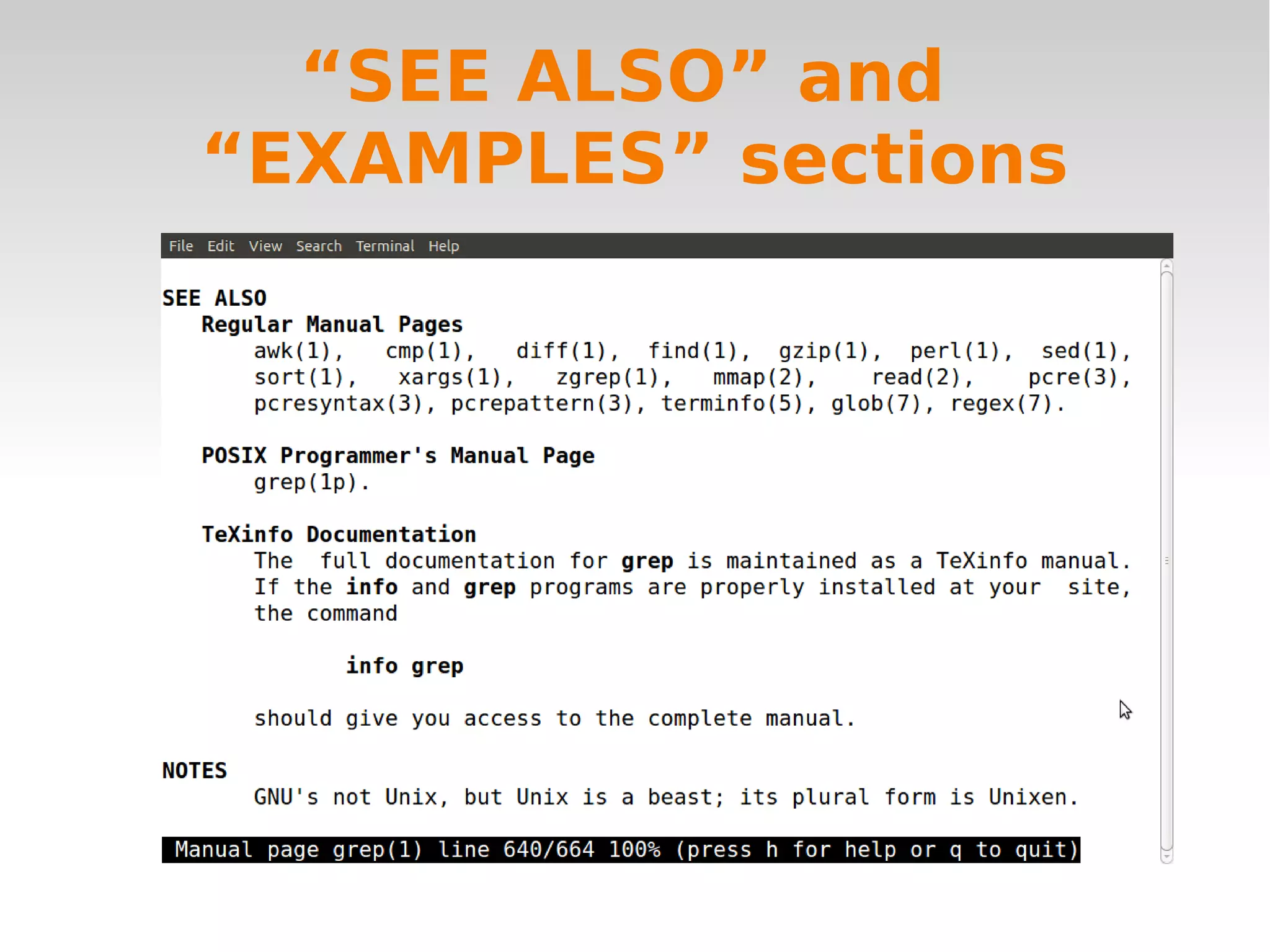
   SEE ALSO: some man pages contain references 
    to similar commands
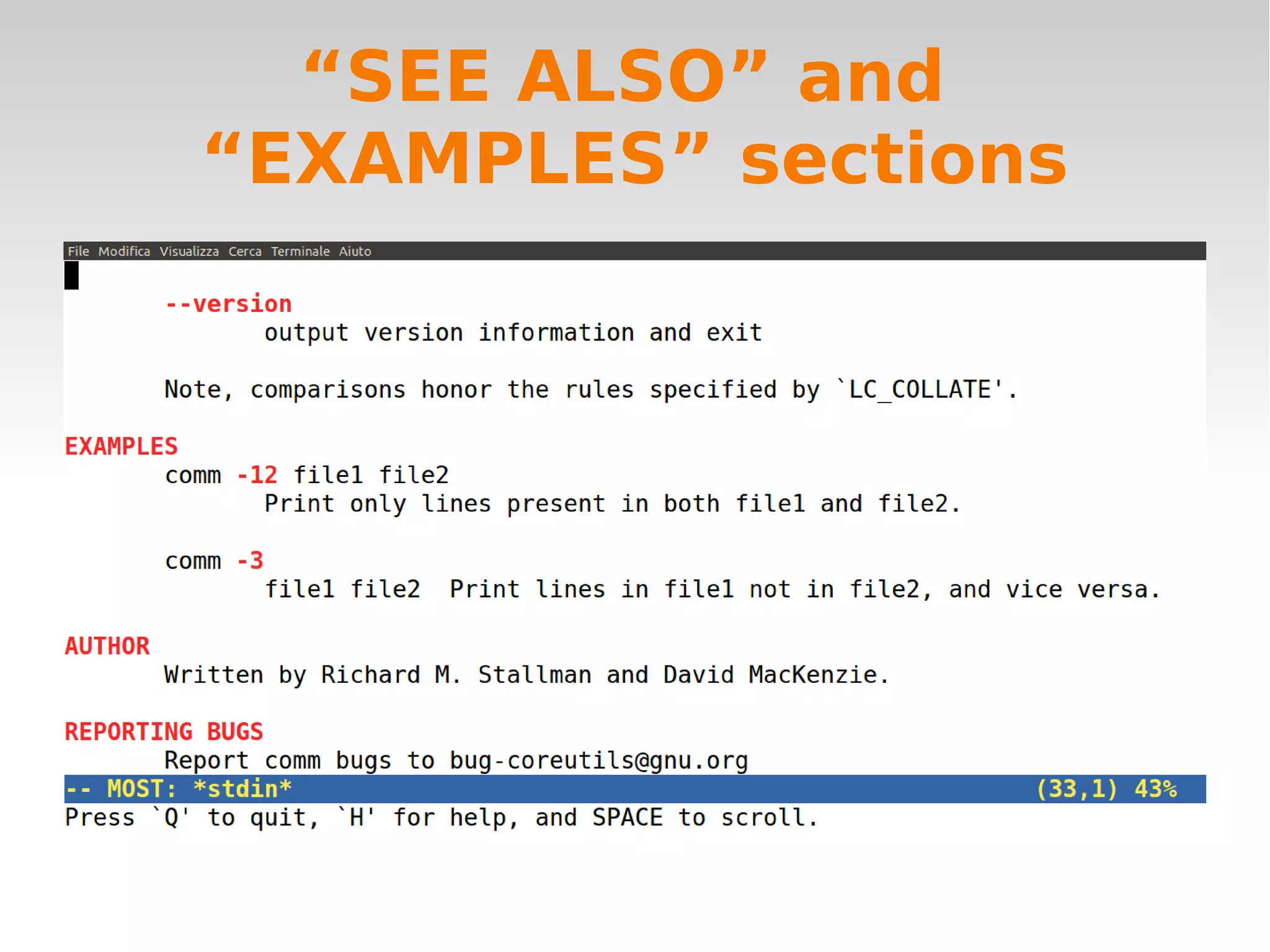
   EXAMPLES: some man pages contain an 
    “examples” section
“SEE ALSO” and
“EXAMPLES” sections
“SEE ALSO” and
“EXAMPLES” sections
“man -k 'list dir'” and
      apropos
Another way to access
    documentation: “info”
   The command “info” shows a more descriptive 
    documentation of a command
   Example:
       ●   info ls
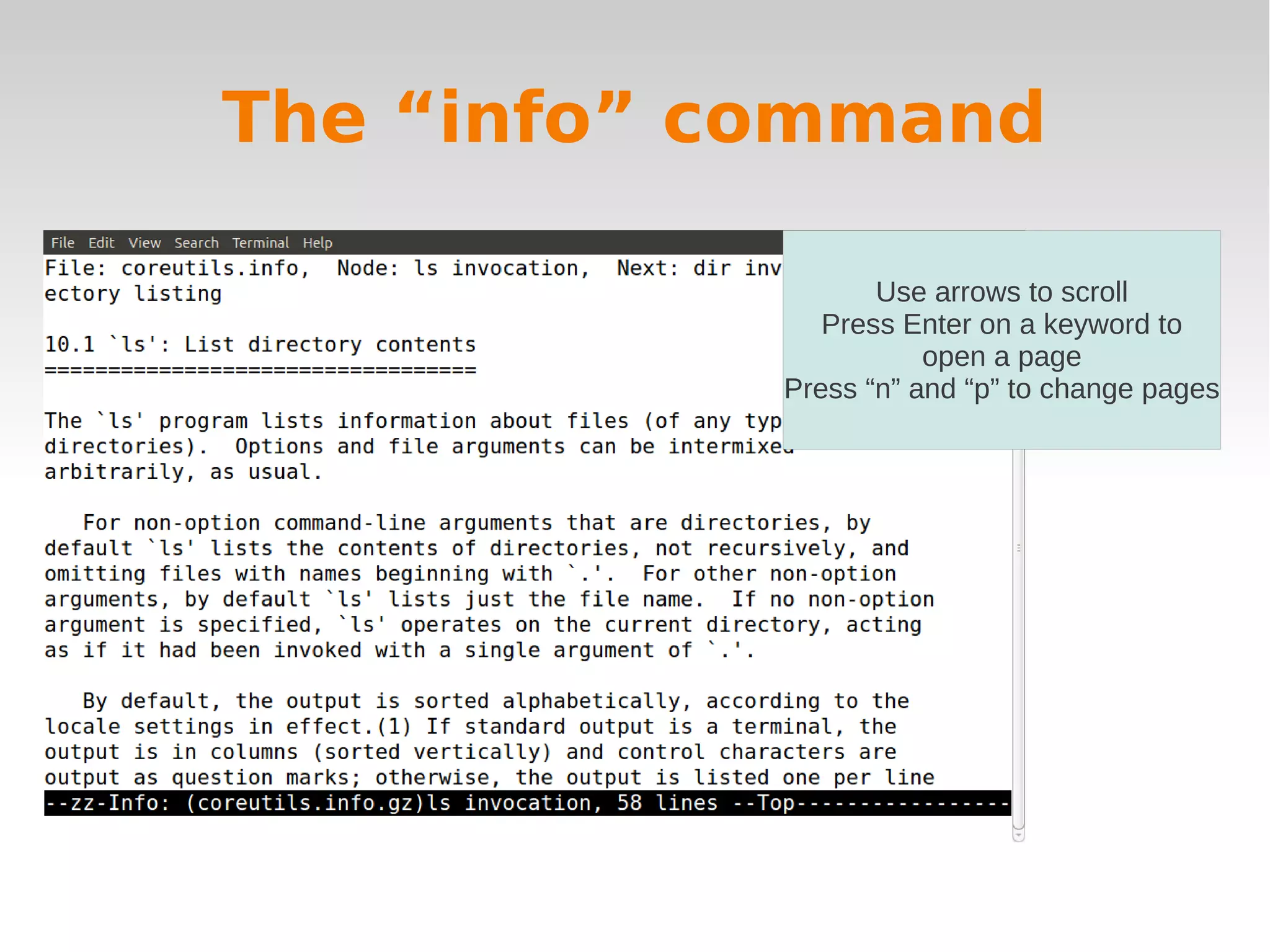
The “info” command

                   Use arrows to scroll
               Press Enter on a keyword to
                       open a page
            Press “n” and “p” to change pages
Short exercise
   Which parameter can be passed to “ls” to sort 
    files by size?
   How to show the contents of directory recursively
   Which command can be used to show the 
    contents of a folder as a tree? (hint: use apropos)
How to get help: Internet
   Apart from “­­help”, man and info, the best place 
    to look for help on a command is.. Internet!
How to get help: Internet
   Apart from “­­help”, man and info, the best place 
    to look for help on a command is.. Internet!
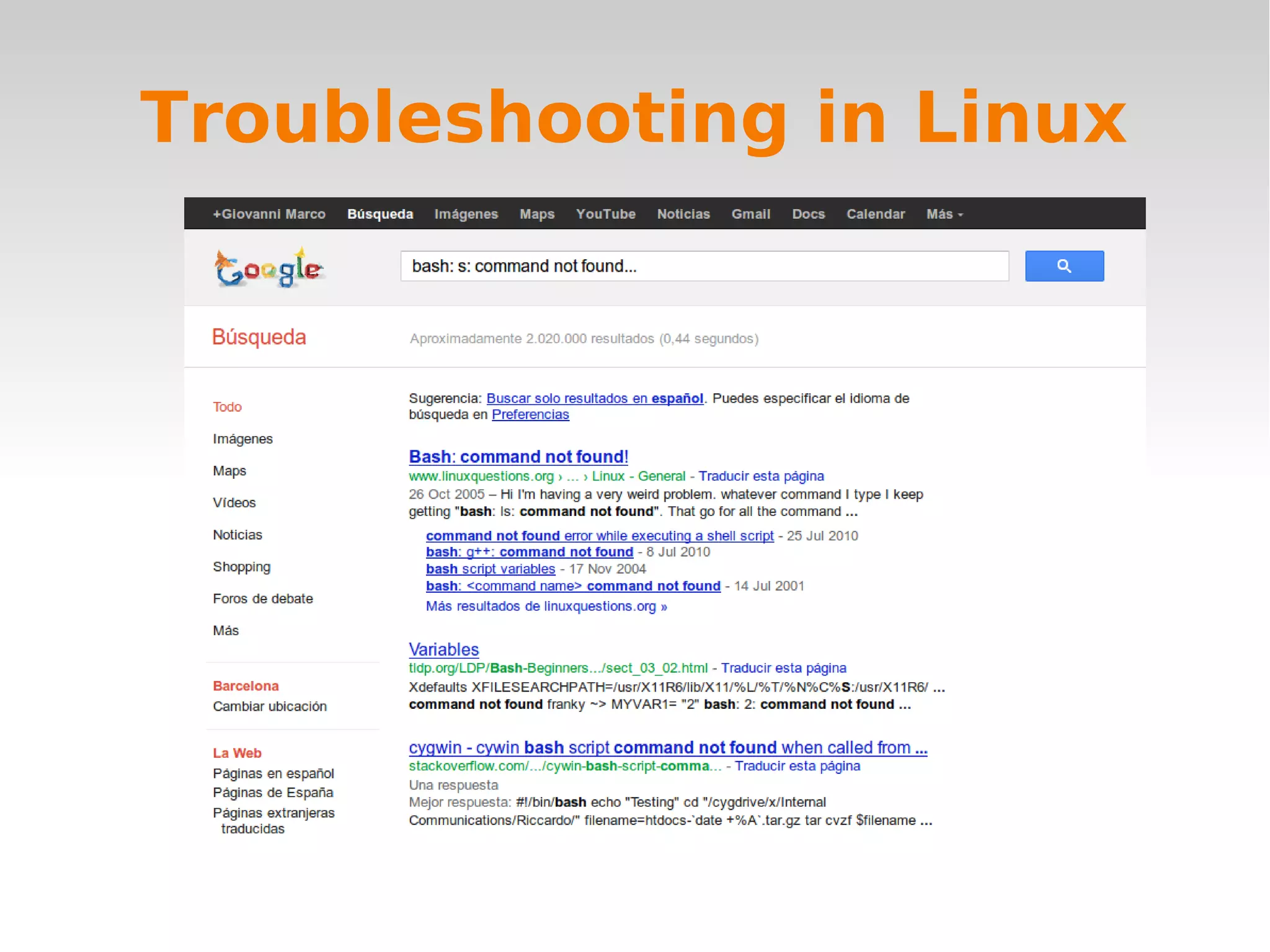
   Tips to get better results when searching the 
    documentation of a Unix command on Internet:
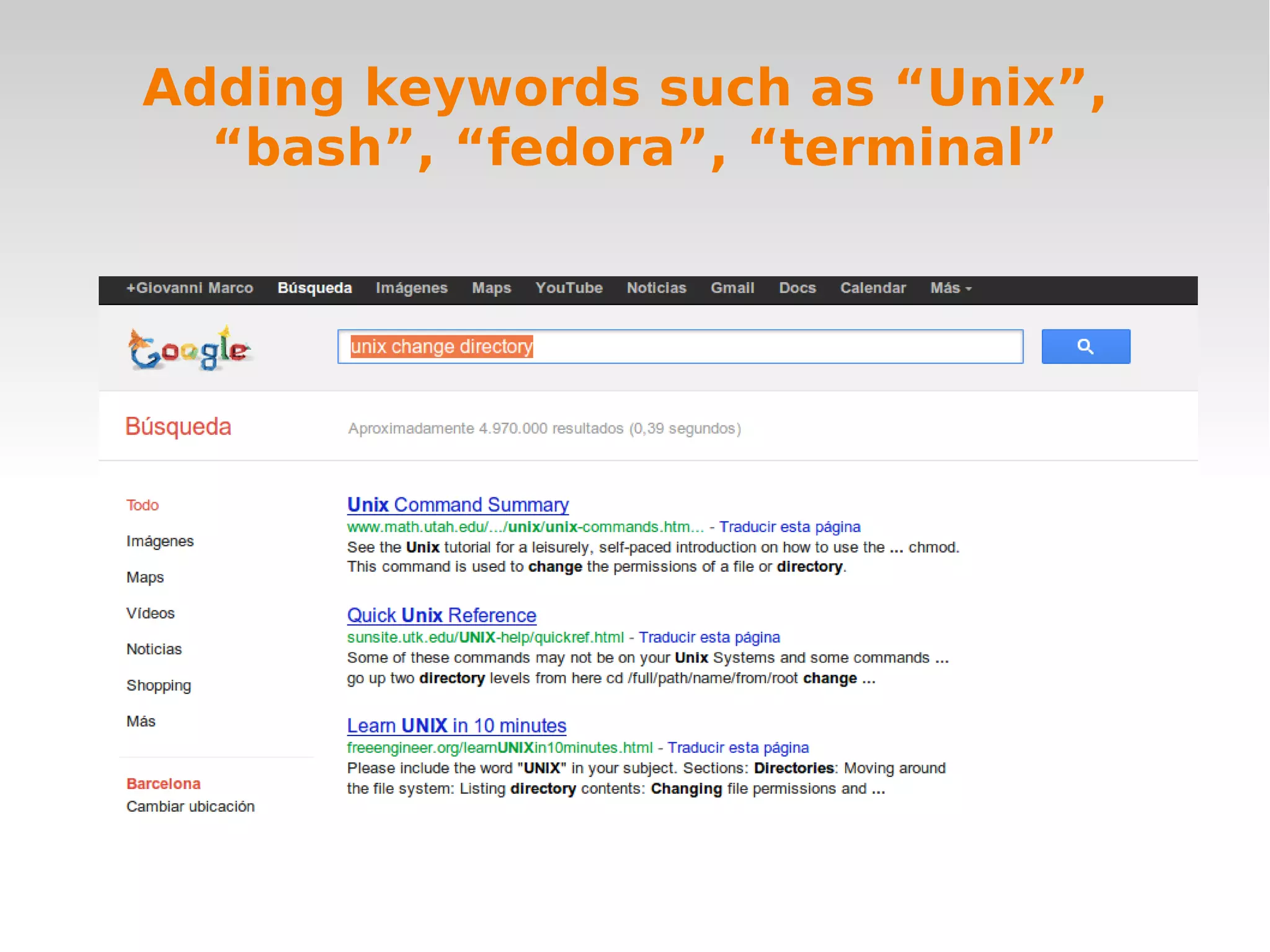
       ●   Add keywords such as “Unix”, “bash”, “fedora”
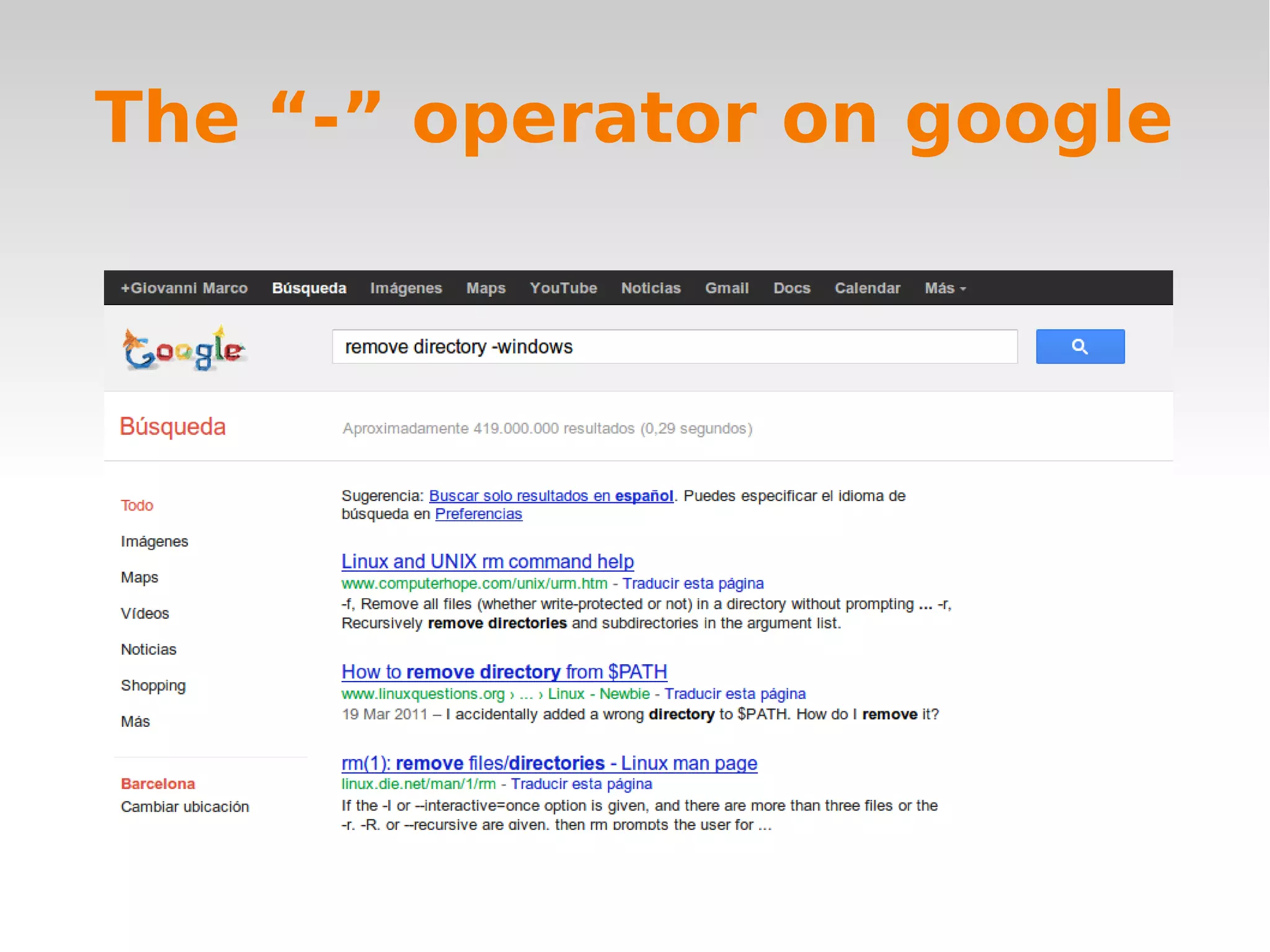
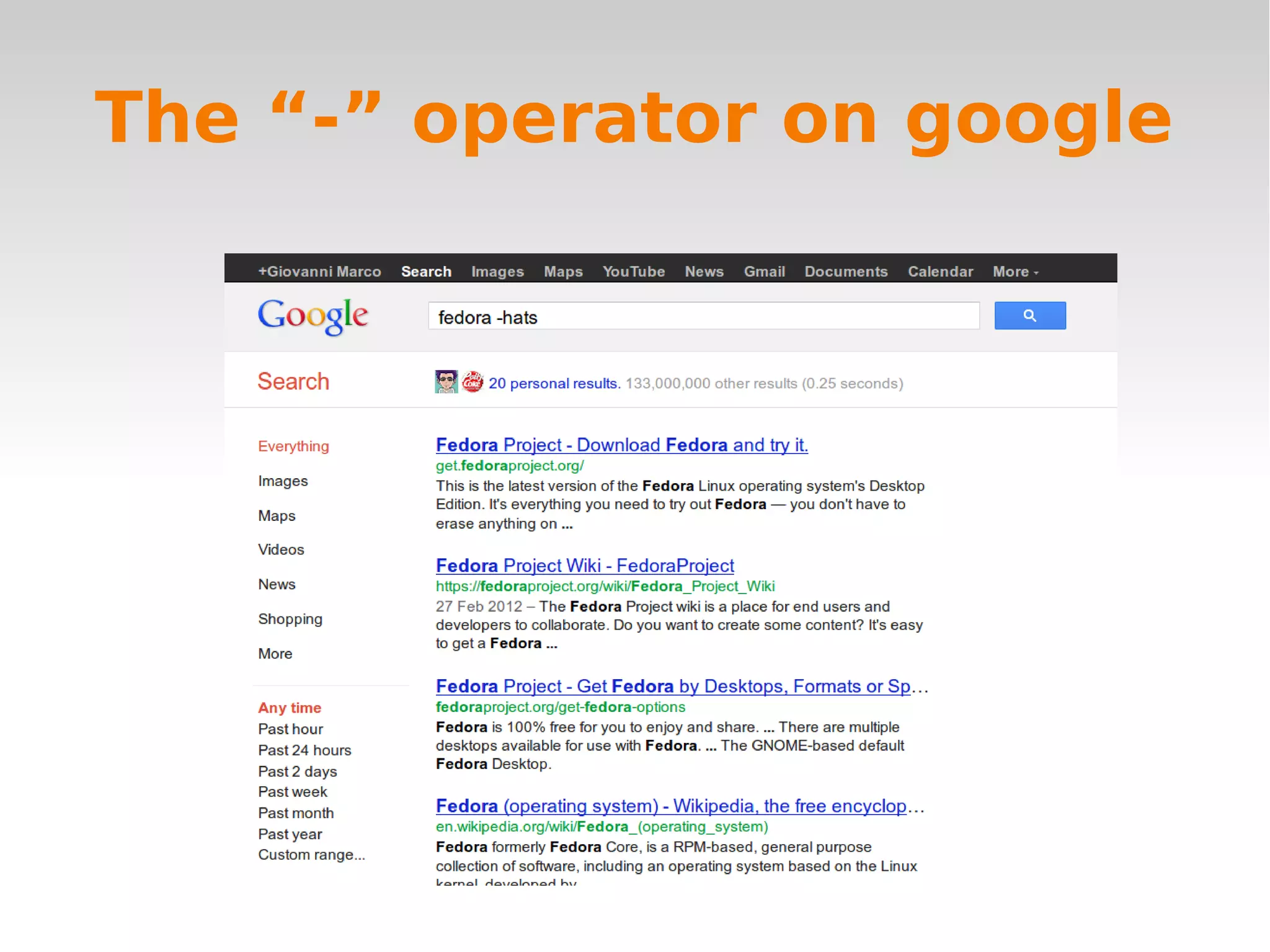
       ●   Use the “­” operator on google to remove junk 
           results
       ●   If you have problem with a software or with your 
           installation, copy and paste the error on google.
Adding keywords such as “Unix”,
  “bash”, “fedora”, “terminal”
The “-” operator on google
Troubleshooting in Linux
Navigating the file system
    from the terminal
   We will now see how to navigate folders and files 
    from the terminal
Change directory: cd
   Let's start navigating the file system!
   The command cd allows you to move to another 
    folder
   Let's enter the folder of the course:
       ●   cd unix_intro
       ●   ls
The “cd” man page
   Note: the cd command is documented inside the 
    “bash” man page
       ●   Type man bash and then look for ls
   You can also look at: 
       ●   man dir (dir is a similar command to ls)
       ●   info coreutils ls
Which folder am I?
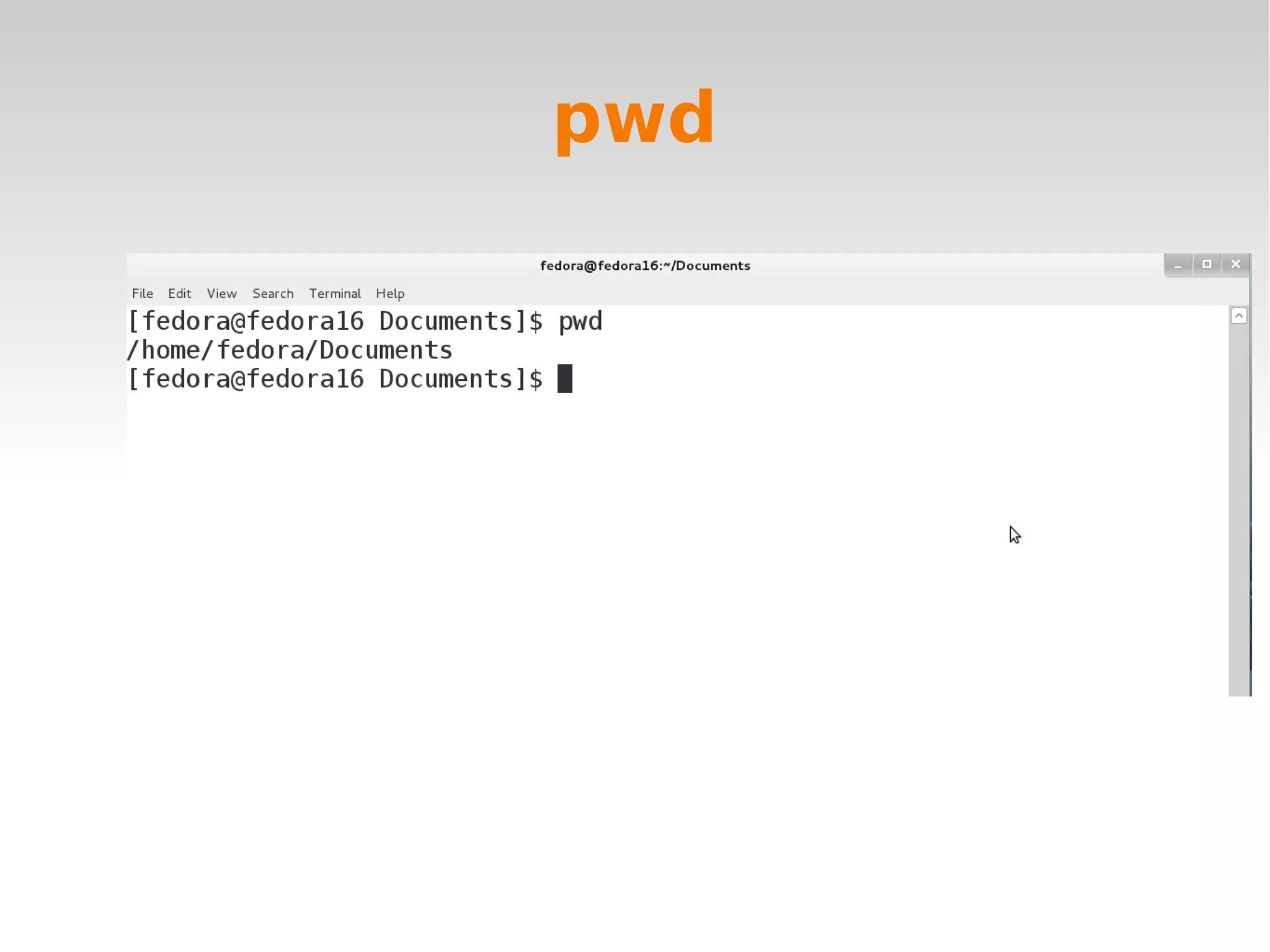
   If you don't know which folder are you in, you 
    can use the command pwd
   Also, if you run cd without arguments, it will 
    return to the home folder 
pwd
If you get lost: type “cd”
    without arguments
   Typing cd without arguments will bring you to 
    your home directory
“cd ..”
   “cd ..” lets you return to the parent folder 
   Example:
       ●   cd unix_intro → goes to the unix_intro folder
       ●   cd .. → returns to the home folder
A tip: bash completion
   You can use the “tab” key on the keyboard to 
    complete commands and arguments
   Example:
       ●   cd Docu<tab> will complete to cd Documents
   Thanks to tab completion, you can save a lot of 
    typing
Let's look at the files in the
        course folder
    Type, in the following order:
     cd (to go back to the home folder)
     cd /homes/evopserver/evopadmin/unix_intro (use the tab key for autocompletion)
     ls
     cd exercises
     ls

     Check with your teaching assistant that you are in the correct folder.
Let's see some “fasta” files
    Go to the folder 
     leipzig_course/unix_intro/exercises/fasta
        ●   fasta, not fastq! 
    You should see some fasta files there:
        ●   MGAT1.fasta, MGAT2.fasta, MGAT3.fasta, 
            MGAT4A.fasta, MGAT5.fasta
head & tail
   The head and tail print the first or the last lines in 
    a file
   Let's try it:
       ●   head MGAT1.fasta → the first lines of 
           MGAT1.fasta
       ●   tail MGAT3.fasta → the last lines of the file
   head and tail are useful to inspect big text files
The symbol “*”
   The symbol * (wildcard) can be used to represent 
    all the files in the current folder
   Try it:
       ●   head * → will show the first lines of all the files in 
           the folder
The man page for “head”
   Exercise: 
       ●   open the man page for head
       ●   determine which parameter is used for printing a 
           custom number of lines
“cat” & “less”
   The cat command prints the content of a file to 
    the screen
   The less command allows to read the content of a 
    file, with the same interface as for the man pages
Launching gedit from the
     command line
   Note that you can use the command line to launch 
    any software installed in the computer
       ●   gedit → text editor
       ●   google­chrome → web browser
       ●   gnome­terminal → other terminal
Other useful commands (1)
   clean → clear the terminal
   rm → delete files
   mkdir → create directory
   more → like less, good for piping
Other useful commands (2)
   echo → print a message
   history → show the history of the commands 
    typed
   dos2unix → clean files edited in MS Windows 
    notepad for unix
Resume of the session:
   man and info → documentation
   cd, ls, pwd → navigate folders
   head, less → show contents of files
Time for lunch!


 See you here at 14:30!

Linux intro 2 basic terminal

  • 1.
    Programming for EvolutionaryBiology April 3rd – 19th 2013 Leipzig, Germany Introduction to Unix systems Part 2: Introducing the terminal Giovanni Marco Dall'Olio Universitat Pompeu Fabra Barcelona (Spain)
  • 2.
    Schedule  9.30 – 11.00: “What is Unix?” and hands on a  Fedora system  11.30 – 12.30: Introducing the terminal  14:30 – 16:30: Grep & Unix philosophy  17:00 – 18:00: awk, make, and question time
  • 3.
    What is theterminal?  The terminal is a software that allows to execute  commands by typing  Instead of clicking an icon in a menu, we call a  software by writing its name
  • 4.
    How does aterminal looks like?
  • 5.
    The terminal: historyand why  Back in the '70s, when Unix was developed,  computers did not have graphical interfaces  Also, computer were mostly used for data  analysis.
  • 6.
    The terminal: historyand why  Back in the '70s, when Unix was developed,  computers did not have graphical interfaces  Also, computer were mostly used for data  analysis. ● The most common operations were analysis of  datasets and manipulation of text files
  • 7.
    Why use theterminal today?  A common problem in bioinformatics is to deal  with big collections of text files  The terminal is a good instrument to manage big  collections of text files. More than 30 years of  experience.
  • 8.
    some Terminology  Terminal emulator: the software that shows the  window where you type the commands, and  prints the output of the commands  Interpreter: the software that translate  commands to the computer   Bash: name of the most commonly used  interpreter
  • 9.
    Terminal emulator, interpreterand bash Bash, a terminal interpreter,will translate all the commands submitted from this terminal Terminal Emulator
  • 10.
    Your first command:ls  ls is the command to show all the files in a folder  It stands for “List Short” (list files in a short way)  Try it!
  • 11.
    Output of “ls”  ls will list the files in the  current directory  By default, when you  open the terminal, you  are in your “home”  folder
  • 12.
    “ls” is showingthe contents of the “home” folder  If you want to see which files are being shown by ls, you can type  nautilus as we did in the previous session
  • 13.
    Anatomy of acommand  Each command call is usually composed by three  parts: ● The command itself ● Parameters (optionals) ● Arguments 
  • 14.
    ls: some parameters  Parameters are optional items that can be used to  customize the behaviour of a command  For example: ● ls ­l shows the list of files in a long format ● ls ­a shows hidden files ● ls ­t list files by modification time
  • 15.
    “ls -l”  ls ­l shows the same files as ls, but on a more  detailed format
  • 16.
    “ls -a”  ls ­a shows all the  files, including the  hidden ones  Hidden files have a  name that begin with  a “.”   Most of them are  configuration files,  you can ignore them.
  • 17.
    “ls -t”  ls ­t lists the files by modification date
  • 18.
    “ls -lt”  You can combine parameters together  ls ­lt shows the files in a long format, sorted by  date
  • 19.
    Arguments  Arguments define the target of the command   On which files/folders/targets do I want to run my  command?  Example:  ● ls unix_intro ­> shows the files in the unix_intro  directory
  • 20.
    Quick exercise  In the following call, which are the commands,  the parameters and the arguments? ● ls ­la /homes/evopadmin
  • 21.
    How to getthe documentation of a command?  Three methods: ● ­­help ● man ● info
  • 22.
    “ls --help”  The simplest way to get the documentation of a  command is by using the ­­help parameter  For example: ls ­­help  Most unix command accept a ­­help or ­h  parameter
  • 23.
    Consulting the documentation of a command: man  The command man is used to see the  documentation of a command  Understanding how to read the documentation is  the key to learn how to use the shell
  • 24.
    Your second command:man  The command “man” is used to see the  documentation of a command  Usage: man <name of the command>  Try it: ● man ls
  • 25.
  • 26.
    Understanding a manpage  Each manual page is composed by at least three  sections: ● NAME (the name of the command) ● SYNOPSIS (how to launch the command) ● DESCRIPTION/OPTIONS (description of what  the command does, and its options)
  • 27.
    “man ls” Name of the command Synopsis (how to use it) Options in square brackets are optional Parameters & arguments
  • 28.
    Using a manpage  Use arrows or PageUp/PageDown keys to scroll  the man page  Press “/” followed by a word to search text ● Example: /sort  Press “q” to exit 
  • 29.
    Searching for aman page  You can search all the manuals using the ­k  option ● Example: man ­k “list dir”  Another similar command is “apropos” ● Example: apropos “list dir”
  • 30.
    Other sections ina man page  SEE ALSO: some man pages contain references  to similar commands  EXAMPLES: some man pages contain an  “examples” section
  • 31.
  • 32.
  • 33.
    “man -k 'listdir'” and apropos
  • 34.
    Another way toaccess documentation: “info”  The command “info” shows a more descriptive  documentation of a command  Example: ● info ls
  • 35.
    The “info” command Use arrows to scroll Press Enter on a keyword to open a page Press “n” and “p” to change pages
  • 36.
    Short exercise  Which parameter can be passed to “ls” to sort  files by size?  How to show the contents of directory recursively  Which command can be used to show the  contents of a folder as a tree? (hint: use apropos)
  • 37.
    How to gethelp: Internet  Apart from “­­help”, man and info, the best place  to look for help on a command is.. Internet!
  • 38.
    How to gethelp: Internet  Apart from “­­help”, man and info, the best place  to look for help on a command is.. Internet!  Tips to get better results when searching the  documentation of a Unix command on Internet: ● Add keywords such as “Unix”, “bash”, “fedora” ● Use the “­” operator on google to remove junk  results ● If you have problem with a software or with your  installation, copy and paste the error on google.
  • 39.
    Adding keywords suchas “Unix”, “bash”, “fedora”, “terminal”
  • 40.
  • 41.
  • 42.
  • 43.
    Navigating the filesystem from the terminal  We will now see how to navigate folders and files  from the terminal
  • 44.
    Change directory: cd  Let's start navigating the file system!  The command cd allows you to move to another  folder  Let's enter the folder of the course: ● cd unix_intro ● ls
  • 45.
    The “cd” manpage  Note: the cd command is documented inside the  “bash” man page ● Type man bash and then look for ls  You can also look at:  ● man dir (dir is a similar command to ls) ● info coreutils ls
  • 46.
    Which folder amI?  If you don't know which folder are you in, you  can use the command pwd  Also, if you run cd without arguments, it will  return to the home folder 
  • 47.
  • 48.
    If you getlost: type “cd” without arguments  Typing cd without arguments will bring you to  your home directory
  • 49.
    “cd ..”  “cd ..” lets you return to the parent folder   Example: ● cd unix_intro → goes to the unix_intro folder ● cd .. → returns to the home folder
  • 50.
    A tip: bashcompletion  You can use the “tab” key on the keyboard to  complete commands and arguments  Example: ● cd Docu<tab> will complete to cd Documents  Thanks to tab completion, you can save a lot of  typing
  • 51.
    Let's look atthe files in the course folder  Type, in the following order: cd (to go back to the home folder) cd /homes/evopserver/evopadmin/unix_intro (use the tab key for autocompletion) ls cd exercises ls Check with your teaching assistant that you are in the correct folder.
  • 52.
    Let's see some“fasta” files  Go to the folder  leipzig_course/unix_intro/exercises/fasta ● fasta, not fastq!   You should see some fasta files there: ● MGAT1.fasta, MGAT2.fasta, MGAT3.fasta,  MGAT4A.fasta, MGAT5.fasta
  • 53.
    head & tail  The head and tail print the first or the last lines in  a file  Let's try it: ● head MGAT1.fasta → the first lines of  MGAT1.fasta ● tail MGAT3.fasta → the last lines of the file  head and tail are useful to inspect big text files
  • 54.
    The symbol “*”  The symbol * (wildcard) can be used to represent  all the files in the current folder  Try it: ● head * → will show the first lines of all the files in  the folder
  • 55.
    The man pagefor “head”  Exercise:  ● open the man page for head ● determine which parameter is used for printing a  custom number of lines
  • 56.
    “cat” & “less”  The cat command prints the content of a file to  the screen  The less command allows to read the content of a  file, with the same interface as for the man pages
  • 57.
    Launching gedit fromthe command line  Note that you can use the command line to launch  any software installed in the computer ● gedit → text editor ● google­chrome → web browser ● gnome­terminal → other terminal
  • 58.
    Other useful commands(1)  clean → clear the terminal  rm → delete files  mkdir → create directory  more → like less, good for piping
  • 59.
    Other useful commands(2)  echo → print a message  history → show the history of the commands  typed  dos2unix → clean files edited in MS Windows  notepad for unix
  • 60.
    Resume of thesession:  man and info → documentation  cd, ls, pwd → navigate folders  head, less → show contents of files
  • 61.
    Time for lunch! See you here at 14:30!