Linux     for Beginners   RAHUL SINGH Rahul projects1991@gmail.com
Agenda Introduction  Linux Distributions  Quick Start Files Process Shell & Programming  Networking  Security
Introduction  This course is for beginners  What you learn  General introduction to GNU/Linux OS Basic operations in Text Mode A little about administration What you don't learn learn  In depth Linux structure  Kernel Internal  System programming  …
Introduction Security perspectives  OS role  Govern any things in computer Has privilege  Insecure OS  insecure machine
Introduction Why Linux?  Free Open Source, Freedom, GPL (GNU Public License)‏ No charge  More secure Open source OS for computer scientists You see what happen, no hidden things  You need it
History  1960 MULTICS, Multiplex Computing System 1974 in AT&T Free Unix  Free BSD POSIX  Unix is commercial  MINIX Simple and free UNIX liked OS, by Tanenbaum
History  1991 Linus Torvalds  Free kernel for i386 5 Oct 1991 in newsgroup of minix Linux 0.0.2 1994 Linux 1.0 Linux Logo TUX
Now  linux-2.6.26,  www.kernel.org  Multitasking, SMP, multi-user Wide range of CPUs Popular OS in universities and academic research Open source  Platform of network services Wide range of network protocols and services Platform for embedded development
Linux Distributions  What required OS, kernel, kernel-space Applications, user-space Interfaces and basic commands Applications  Services  Kernel by Linus and world wide developers Most of applications by GNU project  GNU : GNU is Not Unix  Our operating system: GNU/Linux
Linux Distributions  Red Hat & Fedora  Stable and commercial support  SuSE Most updated and user friendly  Supported by Novel  UBUNTU  New fast growing user friendly Debian based Debian Most complete distribution, the Sarge
Linux Distributions  Bluecat Linux for embedded systems LinuxPPC Linux to run on PowerPC machines Astaro Security applaince, Firewall, Antivirus Live CD KNOPPIX, PHLAK, Karamad, ...
Quick Start  Access to Linux  Remote  Local  Remote  Through network Telnet, insecure and disabled now SSH, Secure Shell Protocol Local Linux installation or Live CDs
Quick Start  System powered on BIOS POST Bootloader, Grub or LiLo Initialize Hardware Kernel extraction  Kernel Initialize Hardware  Kernel data structures initialization
Quick Start  System Services  Configured Services network and network services User interface G raphical  Called as X window system, it is a service  KDE, GNOME  Text, Shells  Switch between them: ALT-F? and CTRL-ALT-F? Screen 7 is the X
Text vs. X Contrary to MS Windows X isn't integrated into OS X is just an application  Shell  Interactive program, interface between user and kernel  Real power of Linux, specially for hackers and administrators  Bash (Brown Again Shell), tsh, csh  We study Linux Text Mode and just applications not Kernel
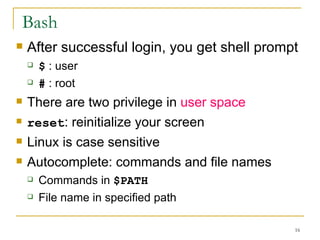
Bash After successful login, you get shell prompt $  : user  #  : root There are two privilege in  user space   reset : reinitialize your screen Linux is case sensitive  Autocomplete: commands and file names Commands in  $PATH File name in specified path
Bash Linux is multiprocess, even in command line Process can be run in background  Widecards * : string ?: a char []: regular expression  IO redirection to file  >   : overwrite,  2> : overwrite by stderror  >> : append  < : Read input
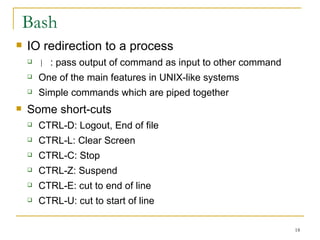
Bash IO redirection to a process |  : pass output of command as input to other command  One of the main features in UNIX-like systems  Simple commands which are piped together  Some short-cuts  CTRL-D: Logout, End of file  CTRL-L: Clear Screen CTRL-C: Stop  CTRL-Z: Suspend  CTRL-E: cut to end of line CTRL-U: cut to start of line
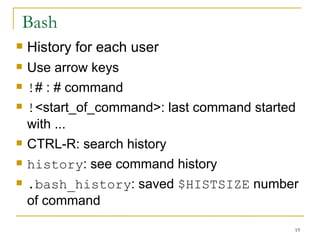
Bash History for each user Use arrow keys ! # : # command  ! <start_of_command>: last command started with ... CTRL-R: search history  history : see command history  .bash_history : saved  $HISTSIZE  number of command
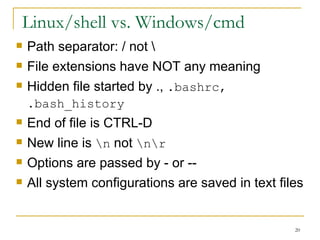
Linux/shell vs. Windows/cmd Path separator: / not \ File extensions have NOT any meaning  Hidden file started by .,  .bashrc, .bash_history   End of file is CTRL-D New line is  \n  not  \n\r Options are passed by - or --  All system configurations are saved in text files
Help & Doc Command's builtin helps:  -h  or  --help Man pages  Info pages Documents in  /usr/share/doc Info pages  are NOT complete  Easy to use info  <command name> or  pinfo  <command name> whatis
Help & Doc Man pages Most complete documentation in Linux  Very technical  Title, description, see also and files man  <man-category> file/command/function  searched in <MANPATH> manpath  : find out the <MANPATH> configuration file:  /etc/manpath.conf man -k  topic : search topic in titles =  apropos   man -K  topic: search topic in body
Mans /usr/share/man man1: User commands man2: System libraries  man3: Programming libraries  man4: Special files man5: File formats  man7: Misc. network protocols, ... man8: System administration Other mans: Application man pages
Internet documents  The Linux Documentation Project:  www.tldp.org Tutorials  HOWTOs  Software home pages Mailing lists Everything is  googlized
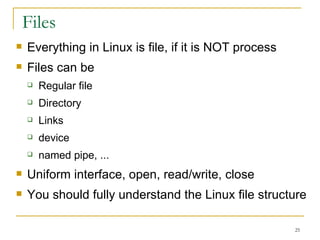
Files Everything in Linux is file, if it is NOT process Files can be   Regular file Directory  Links device named pipe, ... Uniform interface, open, read/write, close You should fully understand the Linux file structure
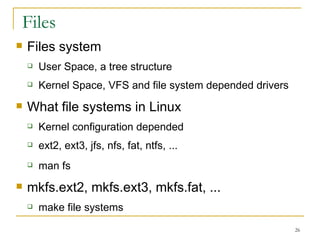
Files Files system  User Space, a tree structure  Kernel Space, VFS and file system depended drivers  What file systems in Linux Kernel configuration depended  ext2, ext3, jfs, nfs, fat, ntfs, ... man fs mkfs.ext2, mkfs.ext3, mkfs.fat, ... make file systems
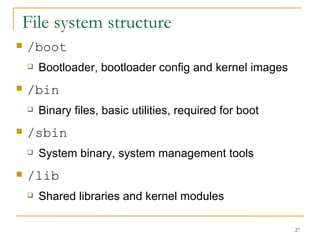
File system structure  /boot Bootloader, bootloader config and kernel images  /bin Binary files, basic utilities, required for boot /sbin System binary, system management tools  /lib Shared libraries and kernel modules
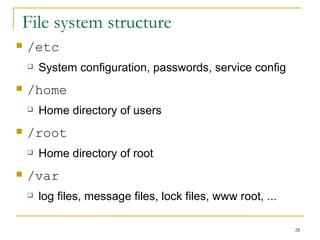
File system structure  /etc System configuration, passwords, service config /home Home directory of users /root Home directory of root /var log files, message files, lock files, www root, ...
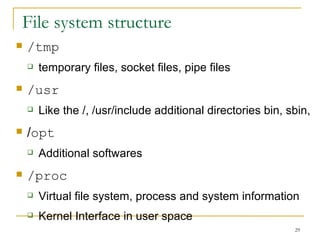
File system structure  /tmp temporary files, socket files, pipe files  /usr Like the /, /usr/include additional directories bin, sbin,  / opt Additional softwares  /proc Virtual file system, process and system information Kernel Interface in user space
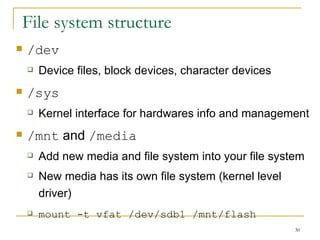
File system structure  /dev Device files, block devices, character devices  /sys Kernel interface for hardwares info and management  /mnt  and  /media Add new media and file system into your file system  New media has its own file system (kernel level driver)‏ mount -t vfat /dev/sdb1 /mnt/flash
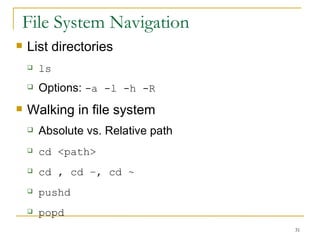
File System Navigation  List directories ls Options:  -a -l -h -R  Walking in file system  Absolute vs. Relative path cd <path> cd , cd –, cd ~ pushd  popd
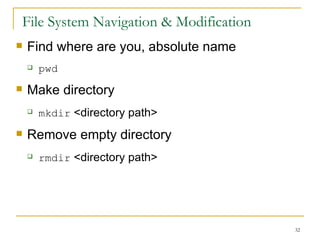
File System Navigation & Modification Find where are you, absolute name  pwd Make directory  mkdir  <directory path> Remove empty directory  rmdir  <directory path>
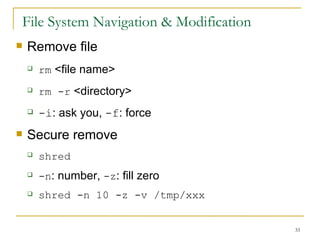
File System Navigation & Modification Remove file  rm  <file name> rm -r  <directory> -i : ask you,  -f : force  Secure remove  shred   -n : number,  -z : fill zero shred -n 10 -z -v /tmp/xxx
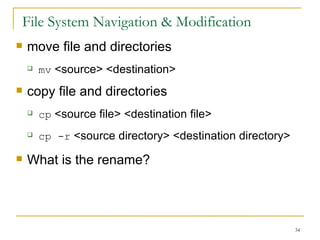
File System Navigation & Modification move file and directories mv  <source> <destination> copy file and directories  cp  <source file> <destination file> cp -r  <source directory> <destination directory> What is the rename?
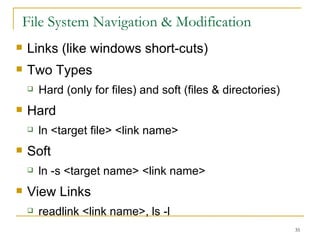
File System Navigation & Modification Links (like windows short-cuts)‏ Two Types Hard (only for files) and soft (files & directories)‏ Hard ln <target file> <link name>  Soft ln -s <target name> <link name> View Links readlink <link name>, ls -l
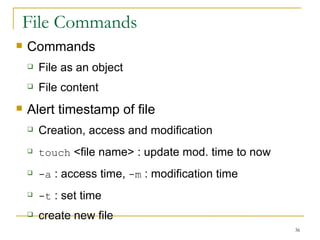
File Commands Commands File as an object  File content Alert timestamp of file  Creation, access and modification  touch  <file name> : update mod. time to now  -a  : access time,  -m  : modification time  -t  : set time  create new file
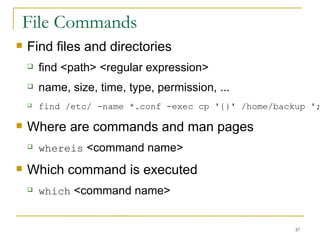
File Commands Find files and directories find <path> <regular expression> name, size, time, type, permission, ... find /etc/ -name *.conf -exec cp '{}' /home/backup ';' Where are commands and man pages  whereis  <command name> Which command is executed  which  <command name>
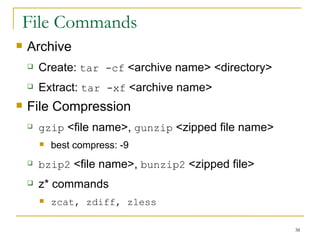
File Commands Archive  Create:  tar -cf  <archive name> <directory> Extract:  tar -xf  <archive name> File Compression  gzip  <file name>,  gunzip  <zipped file name> best compress: -9 bzip2  <file name>,  bunzip2  <zipped file> z* commands zcat, zdiff, zless
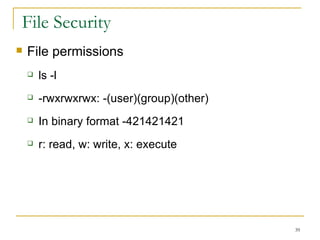
File Security  File permissions ls -l -rwxrwxrwx: -(user)(group)(other)‏ In binary format -421421421 r: read, w: write, x: execute
File Security  More file permissions  t: sticky bit. Others can not delete your file even with “w” permission  s & g: Set User/Group ID. Change process id to file owner Chang permissions chmod [ugo][+-=][rwx/binary] file Attributes: undelete, fill zero, append only, ... lsattr, chattr
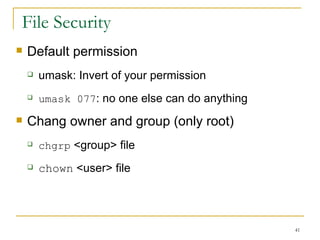
File Security  Default permission  umask: Invert of your permission  umask 077 : no one else can do anything Chang owner and group (only root)‏ chgrp  <group> file chown  <user> file
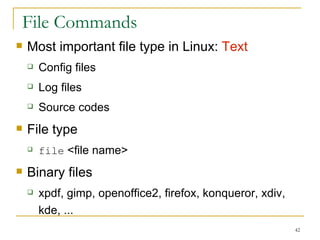
File Commands Most important file type in Linux:  Text Config files Log files  Source codes  File type file  <file name> Binary files xpdf, gimp, openoffice2, firefox, konqueror, xdiv, kde, ...
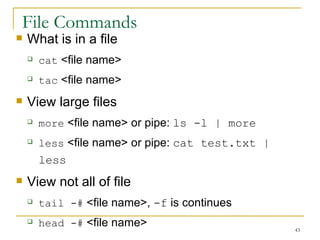
File Commands What is in a file  cat  <file name> tac  <file name> View large files more  <file name> or pipe:  ls -l | more   less  <file name> or pipe:  cat test.txt | less View not all of file  tail -#  <file name>,  -f  is continues  head -#  <file name>
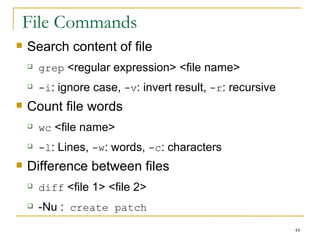
File Commands Search content of file  grep  <regular expression> <file name> -i : ignore case,  -v : invert result,  -r : recursive  Count file words  wc  <file name> -l : Lines,  -w : words,  -c : characters  Difference between files  diff  <file 1> <file 2> -Nu :  create patch
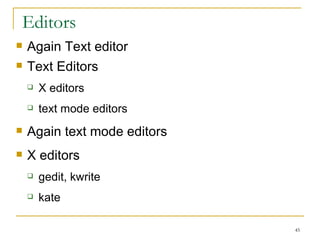
Editors Again Text editor Text Editors X editors text mode editors  Again text mode editors X editors gedit, kwrite  kate
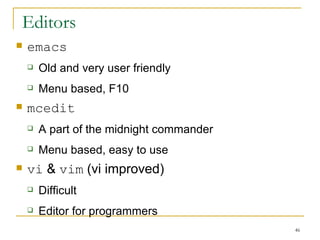
Editors emacs   Old and very user friendly  Menu based, F10 mcedit A part of the midnight commander Menu based, easy to use  vi  &  vim  (vi improved)‏ Difficult  Editor for programmers
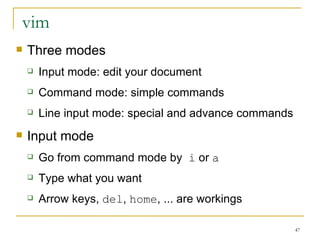
vim  Three modes  Input mode: edit your document Command mode: simple commands Line input mode: special and advance commands Input mode Go from command mode by  i  or  a Type what you want  Arrow keys,  del ,  home , ... are workings
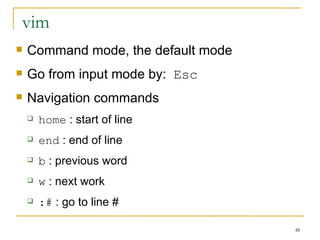
vim  Command mode, the default mode Go from input mode by:  Esc Navigation commands  home  : start of line end  : end of line  b  : previous word w  : next work  :#  : go to line #
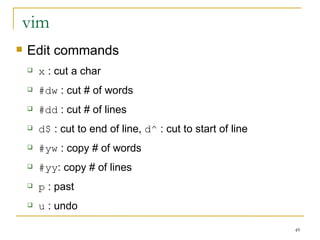
vim  Edit commands  x  : cut a char #dw  : cut # of words  #dd  : cut # of lines  d$  : cut to end of line,  d^  : cut to start of line #yw  : copy # of words #yy : copy # of lines p  : past  u  : undo
vim  Line Input mode Go from command mode by  : :w  : save file,  :w!  : force to save :e  <filename> : open file :q  : quit,  :q!  : force to quit  :! <any command> : run shell command  /<str>  : search str  :#1,#2 s/ <str1> / <str2>  /[c,g] : replace
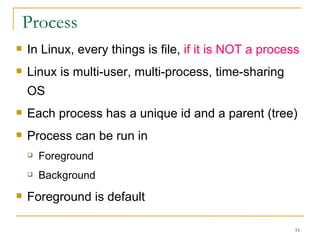
Process In Linux, every things is file,  if it is NOT a process Linux is multi-user, multi-process, time-sharing OS Each process has a unique id and a parent (tree)‏ Process can be run in Foreground  Background   Foreground is default
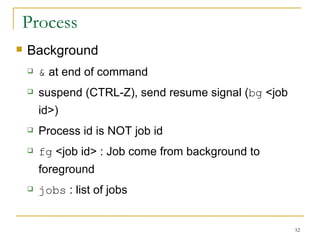
Process Background  &  at end of command  suspend (CTRL-Z), send resume signal ( bg  <job id>)‏ Process id is NOT job id fg  <job id> : Job come from background to foreground  jobs  : list of jobs
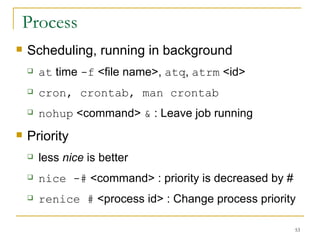
Process Scheduling, running in background  at  time  -f  <file name>,  atq ,  atrm  <id> cron, crontab, man crontab   nohup  <command>  &  : Leave job running  Priority  less  nice  is better  nice -#  <command> : priority is decreased by # renice #  <process id> : Change process priority
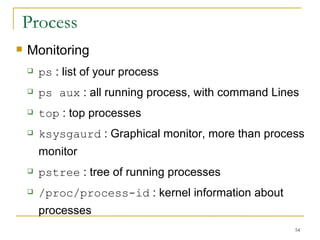
Process  Monitoring  ps  : list of your process ps aux  : all running process, with command Lines top  : top processes  ksysgaurd  : Graphical monitor, more than process monitor  pstree  : tree of running processes  /proc/process-id  : kernel information about processes
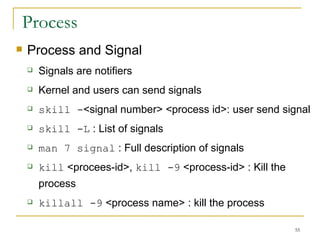
Process Process and Signal  Signals are notifiers  Kernel and users can send signals  skill - <signal number> <process id>: user send signal  skill -L  : List of signals  man 7 signal  : Full description of signals  kill  <procees-id>,  kill -9  <process-id> : Kill the process  killall -9  <process name> : kill the process
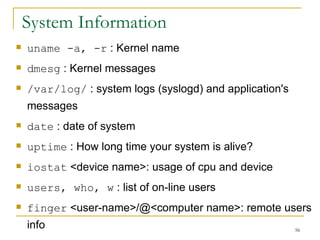
System Information uname -a, -r  : Kernel name  dmesg  : Kernel messages /var/log/  : system logs (syslogd) and application's messages date  : date of system  uptime  : How long time your system is alive? iostat  <device name>: usage of cpu and device  users, who, w  : list of on-line users  finger  <user-name>/@<computer name>: remote users info
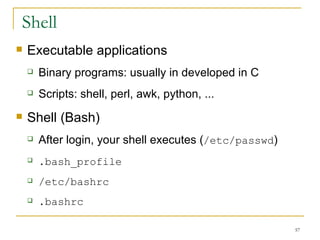
Shell Executable applications Binary programs: usually in developed in C Scripts: shell, perl, awk, python, ... Shell (Bash)‏ After login, your shell executes ( /etc/passwd )‏ .bash_profile   /etc/bashrc .bashrc
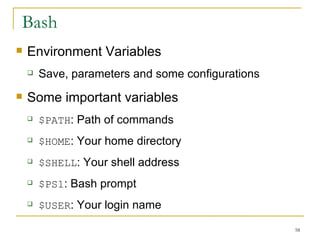
Bash Environment Variables  Save, parameters and some configurations  Some important variables $PATH : Path of commands  $HOME : Your home directory  $SHELL : Your shell address  $PS1 : Bash prompt  $USER : Your login name
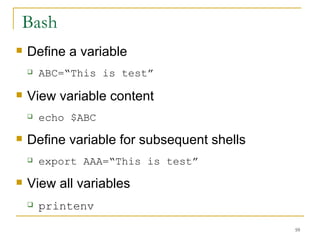
Bash Define a variable ABC=“This is test” View variable content  echo $ABC Define variable for subsequent shells  export AAA=“This is test” View all variables printenv
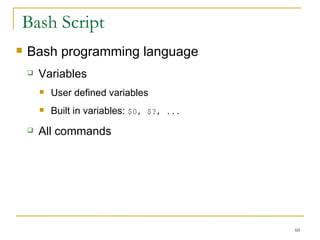
Bash Script Bash programming language  Variables User defined variables  Built in variables:  $0, $?, ... All commands
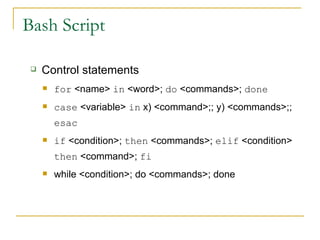
Bash Script Control statements  for  <name>  in  <word>;  do  <commands>;  done case  <variable>  in  x) <command>;; y) <commands>;;  esac if  <condition>;  then  <commands>;  elif  <condition>  then  <command>;  fi   while <condition>; do <commands>; done
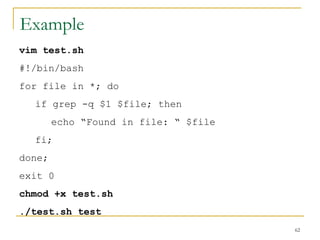
Example  vim test.sh  #!/bin/bash for file in *; do if grep -q $1 $file; then echo “Found in file: “ $file  fi; done; exit 0 chmod +x test.sh ./test.sh test
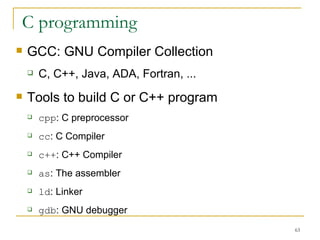
C programming  GCC: GNU Compiler Collection  C, C++, Java, ADA, Fortran, ... Tools to build C or C++ program  cpp : C preprocessor  cc : C Compiler  c++ : C++ Compiler  as : The assembler  ld : Linker  gdb : GNU debugger
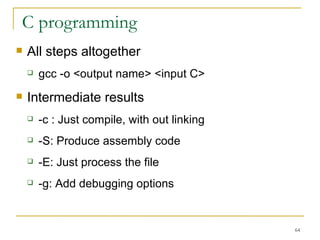
C programming  All steps altogether gcc -o <output name> <input C> Intermediate results  -c : Just compile, with out linking  -S: Produce assembly code -E: Just process the file  -g: Add debugging options
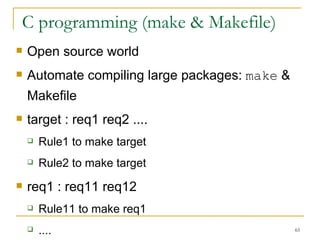
C programming (make & Makefile)  Open source world  Automate compiling large packages:  make  & Makefile  target : req1 req2 .... Rule1 to make target  Rule2 to make target  req1 : req11 req12 Rule11 to make req1 ....
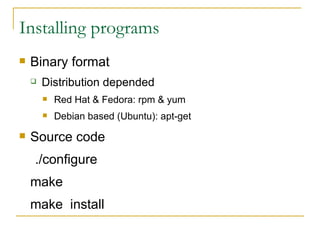
Installing programs Binary format Distribution depended Red Hat & Fedora: rpm & yum Debian based (Ubuntu): apt-get Source code ./configure make  make  install
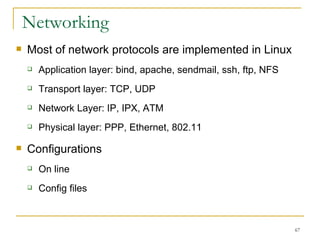
Networking  Most of network protocols are implemented in Linux Application layer: bind, apache, sendmail, ssh, ftp, NFS Transport layer: TCP, UDP Network Layer: IP, IPX, ATM Physical layer: PPP, Ethernet, 802.11 Configurations On line Config files
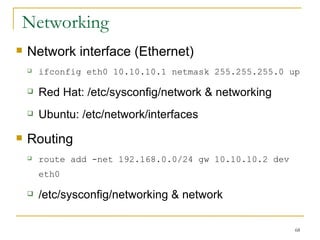
Networking  Network interface (Ethernet)‏ ifconfig eth0 10.10.10.1 netmask 255.255.255.0 up Red Hat: /etc/sysconfig/network & networking Ubuntu: /etc/network/interfaces Routing route add -net 192.168.0.0/24 gw 10.10.10.2 dev eth0  /etc/sysconfig/networking & network
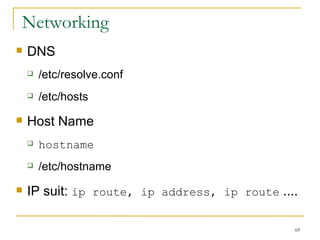
Networking  DNS /etc/resolve.conf /etc/hosts Host Name hostname /etc/hostname IP suit:  ip route, ip address, ip route  ....
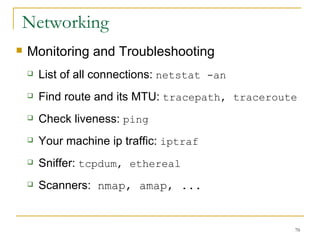
Networking  Monitoring and Troubleshooting List of all connections:  netstat -an Find route and its MTU:  tracepath, traceroute Check liveness:  ping   Your machine ip traffic:  iptraf   Sniffer:  tcpdum, ethereal Scanners:  nmap, amap, ...
Using from Network  Remote shell:  telnet, ssh Remote file transfer:  ftp, lftp, sftp, scp Web:  lynx, firefox Download:  wget, crul, prozilla  Mail:  fetchmail, mail DNS resolver:  nslookup, dig Windows NetBIOS:  smb*  commands
Services Linux services Network services: web, mail, ... Local services: udev, alsa Startup scripts /etc/init.d/<sevice name>,  /etc/init.d/apache2 Configuration files  /etc,  /etc/apache2
Security  Security  Local: File security, Process security  Network  SELinux: role-based access control and sandboxing  Each user  Has its own unique ID, /etc/passwd Belong to some groups, /etc/group
Security  Process security  Each process has its own user id You can kill only your processes, root can do anythings
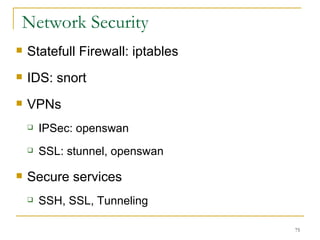
Network Security  Statefull Firewall: iptables IDS: snort  VPNs IPSec: openswan SSL: stunnel, openswan Secure services SSH, SSL, Tunneling
Now is the end time of my presentation But it is the start of your Linux learning

Linux

  • 1.
    Linux for Beginners RAHUL SINGH Rahul projects1991@gmail.com
  • 2.
    Agenda Introduction Linux Distributions Quick Start Files Process Shell & Programming Networking Security
  • 3.
    Introduction Thiscourse is for beginners What you learn General introduction to GNU/Linux OS Basic operations in Text Mode A little about administration What you don't learn learn In depth Linux structure Kernel Internal System programming …
  • 4.
    Introduction Security perspectives OS role Govern any things in computer Has privilege Insecure OS insecure machine
  • 5.
    Introduction Why Linux? Free Open Source, Freedom, GPL (GNU Public License)‏ No charge More secure Open source OS for computer scientists You see what happen, no hidden things You need it
  • 6.
    History 1960MULTICS, Multiplex Computing System 1974 in AT&T Free Unix Free BSD POSIX Unix is commercial MINIX Simple and free UNIX liked OS, by Tanenbaum
  • 7.
    History 1991Linus Torvalds Free kernel for i386 5 Oct 1991 in newsgroup of minix Linux 0.0.2 1994 Linux 1.0 Linux Logo TUX
  • 8.
    Now linux-2.6.26, www.kernel.org Multitasking, SMP, multi-user Wide range of CPUs Popular OS in universities and academic research Open source Platform of network services Wide range of network protocols and services Platform for embedded development
  • 9.
    Linux Distributions What required OS, kernel, kernel-space Applications, user-space Interfaces and basic commands Applications Services Kernel by Linus and world wide developers Most of applications by GNU project GNU : GNU is Not Unix Our operating system: GNU/Linux
  • 10.
    Linux Distributions Red Hat & Fedora Stable and commercial support SuSE Most updated and user friendly Supported by Novel UBUNTU New fast growing user friendly Debian based Debian Most complete distribution, the Sarge
  • 11.
    Linux Distributions Bluecat Linux for embedded systems LinuxPPC Linux to run on PowerPC machines Astaro Security applaince, Firewall, Antivirus Live CD KNOPPIX, PHLAK, Karamad, ...
  • 12.
    Quick Start Access to Linux Remote Local Remote Through network Telnet, insecure and disabled now SSH, Secure Shell Protocol Local Linux installation or Live CDs
  • 13.
    Quick Start System powered on BIOS POST Bootloader, Grub or LiLo Initialize Hardware Kernel extraction Kernel Initialize Hardware Kernel data structures initialization
  • 14.
    Quick Start System Services Configured Services network and network services User interface G raphical Called as X window system, it is a service KDE, GNOME Text, Shells Switch between them: ALT-F? and CTRL-ALT-F? Screen 7 is the X
  • 15.
    Text vs. XContrary to MS Windows X isn't integrated into OS X is just an application Shell Interactive program, interface between user and kernel Real power of Linux, specially for hackers and administrators Bash (Brown Again Shell), tsh, csh We study Linux Text Mode and just applications not Kernel
  • 16.
    Bash After successfullogin, you get shell prompt $ : user # : root There are two privilege in user space reset : reinitialize your screen Linux is case sensitive Autocomplete: commands and file names Commands in $PATH File name in specified path
  • 17.
    Bash Linux ismultiprocess, even in command line Process can be run in background Widecards * : string ?: a char []: regular expression IO redirection to file > : overwrite, 2> : overwrite by stderror >> : append < : Read input
  • 18.
    Bash IO redirectionto a process | : pass output of command as input to other command One of the main features in UNIX-like systems Simple commands which are piped together Some short-cuts CTRL-D: Logout, End of file CTRL-L: Clear Screen CTRL-C: Stop CTRL-Z: Suspend CTRL-E: cut to end of line CTRL-U: cut to start of line
  • 19.
    Bash History foreach user Use arrow keys ! # : # command ! <start_of_command>: last command started with ... CTRL-R: search history history : see command history .bash_history : saved $HISTSIZE number of command
  • 20.
    Linux/shell vs. Windows/cmdPath separator: / not \ File extensions have NOT any meaning Hidden file started by ., .bashrc, .bash_history End of file is CTRL-D New line is \n not \n\r Options are passed by - or -- All system configurations are saved in text files
  • 21.
    Help & DocCommand's builtin helps: -h or --help Man pages Info pages Documents in /usr/share/doc Info pages are NOT complete Easy to use info <command name> or pinfo <command name> whatis
  • 22.
    Help & DocMan pages Most complete documentation in Linux Very technical Title, description, see also and files man <man-category> file/command/function searched in <MANPATH> manpath : find out the <MANPATH> configuration file: /etc/manpath.conf man -k topic : search topic in titles = apropos man -K topic: search topic in body
  • 23.
    Mans /usr/share/man man1:User commands man2: System libraries man3: Programming libraries man4: Special files man5: File formats man7: Misc. network protocols, ... man8: System administration Other mans: Application man pages
  • 24.
    Internet documents The Linux Documentation Project: www.tldp.org Tutorials HOWTOs Software home pages Mailing lists Everything is googlized
  • 25.
    Files Everything inLinux is file, if it is NOT process Files can be Regular file Directory Links device named pipe, ... Uniform interface, open, read/write, close You should fully understand the Linux file structure
  • 26.
    Files Files system User Space, a tree structure Kernel Space, VFS and file system depended drivers What file systems in Linux Kernel configuration depended ext2, ext3, jfs, nfs, fat, ntfs, ... man fs mkfs.ext2, mkfs.ext3, mkfs.fat, ... make file systems
  • 27.
    File system structure /boot Bootloader, bootloader config and kernel images /bin Binary files, basic utilities, required for boot /sbin System binary, system management tools /lib Shared libraries and kernel modules
  • 28.
    File system structure /etc System configuration, passwords, service config /home Home directory of users /root Home directory of root /var log files, message files, lock files, www root, ...
  • 29.
    File system structure /tmp temporary files, socket files, pipe files /usr Like the /, /usr/include additional directories bin, sbin, / opt Additional softwares /proc Virtual file system, process and system information Kernel Interface in user space
  • 30.
    File system structure /dev Device files, block devices, character devices /sys Kernel interface for hardwares info and management /mnt and /media Add new media and file system into your file system New media has its own file system (kernel level driver)‏ mount -t vfat /dev/sdb1 /mnt/flash
  • 31.
    File System Navigation List directories ls Options: -a -l -h -R Walking in file system Absolute vs. Relative path cd <path> cd , cd –, cd ~ pushd popd
  • 32.
    File System Navigation& Modification Find where are you, absolute name pwd Make directory mkdir <directory path> Remove empty directory rmdir <directory path>
  • 33.
    File System Navigation& Modification Remove file rm <file name> rm -r <directory> -i : ask you, -f : force Secure remove shred -n : number, -z : fill zero shred -n 10 -z -v /tmp/xxx
  • 34.
    File System Navigation& Modification move file and directories mv <source> <destination> copy file and directories cp <source file> <destination file> cp -r <source directory> <destination directory> What is the rename?
  • 35.
    File System Navigation& Modification Links (like windows short-cuts)‏ Two Types Hard (only for files) and soft (files & directories)‏ Hard ln <target file> <link name> Soft ln -s <target name> <link name> View Links readlink <link name>, ls -l
  • 36.
    File Commands CommandsFile as an object File content Alert timestamp of file Creation, access and modification touch <file name> : update mod. time to now -a : access time, -m : modification time -t : set time create new file
  • 37.
    File Commands Findfiles and directories find <path> <regular expression> name, size, time, type, permission, ... find /etc/ -name *.conf -exec cp '{}' /home/backup ';' Where are commands and man pages whereis <command name> Which command is executed which <command name>
  • 38.
    File Commands Archive Create: tar -cf <archive name> <directory> Extract: tar -xf <archive name> File Compression gzip <file name>, gunzip <zipped file name> best compress: -9 bzip2 <file name>, bunzip2 <zipped file> z* commands zcat, zdiff, zless
  • 39.
    File Security File permissions ls -l -rwxrwxrwx: -(user)(group)(other)‏ In binary format -421421421 r: read, w: write, x: execute
  • 40.
    File Security More file permissions t: sticky bit. Others can not delete your file even with “w” permission s & g: Set User/Group ID. Change process id to file owner Chang permissions chmod [ugo][+-=][rwx/binary] file Attributes: undelete, fill zero, append only, ... lsattr, chattr
  • 41.
    File Security Default permission umask: Invert of your permission umask 077 : no one else can do anything Chang owner and group (only root)‏ chgrp <group> file chown <user> file
  • 42.
    File Commands Mostimportant file type in Linux: Text Config files Log files Source codes File type file <file name> Binary files xpdf, gimp, openoffice2, firefox, konqueror, xdiv, kde, ...
  • 43.
    File Commands Whatis in a file cat <file name> tac <file name> View large files more <file name> or pipe: ls -l | more less <file name> or pipe: cat test.txt | less View not all of file tail -# <file name>, -f is continues head -# <file name>
  • 44.
    File Commands Searchcontent of file grep <regular expression> <file name> -i : ignore case, -v : invert result, -r : recursive Count file words wc <file name> -l : Lines, -w : words, -c : characters Difference between files diff <file 1> <file 2> -Nu : create patch
  • 45.
    Editors Again Texteditor Text Editors X editors text mode editors Again text mode editors X editors gedit, kwrite kate
  • 46.
    Editors emacs Old and very user friendly Menu based, F10 mcedit A part of the midnight commander Menu based, easy to use vi & vim (vi improved)‏ Difficult Editor for programmers
  • 47.
    vim Threemodes Input mode: edit your document Command mode: simple commands Line input mode: special and advance commands Input mode Go from command mode by i or a Type what you want Arrow keys, del , home , ... are workings
  • 48.
    vim Commandmode, the default mode Go from input mode by: Esc Navigation commands home : start of line end : end of line b : previous word w : next work :# : go to line #
  • 49.
    vim Editcommands x : cut a char #dw : cut # of words #dd : cut # of lines d$ : cut to end of line, d^ : cut to start of line #yw : copy # of words #yy : copy # of lines p : past u : undo
  • 50.
    vim LineInput mode Go from command mode by : :w : save file, :w! : force to save :e <filename> : open file :q : quit, :q! : force to quit :! <any command> : run shell command /<str> : search str :#1,#2 s/ <str1> / <str2> /[c,g] : replace
  • 51.
    Process In Linux,every things is file, if it is NOT a process Linux is multi-user, multi-process, time-sharing OS Each process has a unique id and a parent (tree)‏ Process can be run in Foreground Background Foreground is default
  • 52.
    Process Background & at end of command suspend (CTRL-Z), send resume signal ( bg <job id>)‏ Process id is NOT job id fg <job id> : Job come from background to foreground jobs : list of jobs
  • 53.
    Process Scheduling, runningin background at time -f <file name>, atq , atrm <id> cron, crontab, man crontab nohup <command> & : Leave job running Priority less nice is better nice -# <command> : priority is decreased by # renice # <process id> : Change process priority
  • 54.
    Process Monitoring ps : list of your process ps aux : all running process, with command Lines top : top processes ksysgaurd : Graphical monitor, more than process monitor pstree : tree of running processes /proc/process-id : kernel information about processes
  • 55.
    Process Process andSignal Signals are notifiers Kernel and users can send signals skill - <signal number> <process id>: user send signal skill -L : List of signals man 7 signal : Full description of signals kill <procees-id>, kill -9 <process-id> : Kill the process killall -9 <process name> : kill the process
  • 56.
    System Information uname-a, -r : Kernel name dmesg : Kernel messages /var/log/ : system logs (syslogd) and application's messages date : date of system uptime : How long time your system is alive? iostat <device name>: usage of cpu and device users, who, w : list of on-line users finger <user-name>/@<computer name>: remote users info
  • 57.
    Shell Executable applicationsBinary programs: usually in developed in C Scripts: shell, perl, awk, python, ... Shell (Bash)‏ After login, your shell executes ( /etc/passwd )‏ .bash_profile /etc/bashrc .bashrc
  • 58.
    Bash Environment Variables Save, parameters and some configurations Some important variables $PATH : Path of commands $HOME : Your home directory $SHELL : Your shell address $PS1 : Bash prompt $USER : Your login name
  • 59.
    Bash Define avariable ABC=“This is test” View variable content echo $ABC Define variable for subsequent shells export AAA=“This is test” View all variables printenv
  • 60.
    Bash Script Bashprogramming language Variables User defined variables Built in variables: $0, $?, ... All commands
  • 61.
    Bash Script Controlstatements for <name> in <word>; do <commands>; done case <variable> in x) <command>;; y) <commands>;; esac if <condition>; then <commands>; elif <condition> then <command>; fi while <condition>; do <commands>; done
  • 62.
    Example vimtest.sh #!/bin/bash for file in *; do if grep -q $1 $file; then echo “Found in file: “ $file fi; done; exit 0 chmod +x test.sh ./test.sh test
  • 63.
    C programming GCC: GNU Compiler Collection C, C++, Java, ADA, Fortran, ... Tools to build C or C++ program cpp : C preprocessor cc : C Compiler c++ : C++ Compiler as : The assembler ld : Linker gdb : GNU debugger
  • 64.
    C programming All steps altogether gcc -o <output name> <input C> Intermediate results -c : Just compile, with out linking -S: Produce assembly code -E: Just process the file -g: Add debugging options
  • 65.
    C programming (make& Makefile) Open source world Automate compiling large packages: make & Makefile target : req1 req2 .... Rule1 to make target Rule2 to make target req1 : req11 req12 Rule11 to make req1 ....
  • 66.
    Installing programs Binaryformat Distribution depended Red Hat & Fedora: rpm & yum Debian based (Ubuntu): apt-get Source code ./configure make make install
  • 67.
    Networking Mostof network protocols are implemented in Linux Application layer: bind, apache, sendmail, ssh, ftp, NFS Transport layer: TCP, UDP Network Layer: IP, IPX, ATM Physical layer: PPP, Ethernet, 802.11 Configurations On line Config files
  • 68.
    Networking Networkinterface (Ethernet)‏ ifconfig eth0 10.10.10.1 netmask 255.255.255.0 up Red Hat: /etc/sysconfig/network & networking Ubuntu: /etc/network/interfaces Routing route add -net 192.168.0.0/24 gw 10.10.10.2 dev eth0 /etc/sysconfig/networking & network
  • 69.
    Networking DNS/etc/resolve.conf /etc/hosts Host Name hostname /etc/hostname IP suit: ip route, ip address, ip route ....
  • 70.
    Networking Monitoringand Troubleshooting List of all connections: netstat -an Find route and its MTU: tracepath, traceroute Check liveness: ping Your machine ip traffic: iptraf Sniffer: tcpdum, ethereal Scanners: nmap, amap, ...
  • 71.
    Using from Network Remote shell: telnet, ssh Remote file transfer: ftp, lftp, sftp, scp Web: lynx, firefox Download: wget, crul, prozilla Mail: fetchmail, mail DNS resolver: nslookup, dig Windows NetBIOS: smb* commands
  • 72.
    Services Linux servicesNetwork services: web, mail, ... Local services: udev, alsa Startup scripts /etc/init.d/<sevice name>, /etc/init.d/apache2 Configuration files /etc, /etc/apache2
  • 73.
    Security Security Local: File security, Process security Network SELinux: role-based access control and sandboxing Each user Has its own unique ID, /etc/passwd Belong to some groups, /etc/group
  • 74.
    Security Processsecurity Each process has its own user id You can kill only your processes, root can do anythings
  • 75.
    Network Security Statefull Firewall: iptables IDS: snort VPNs IPSec: openswan SSL: stunnel, openswan Secure services SSH, SSL, Tunneling
  • 76.
    Now is theend time of my presentation But it is the start of your Linux learning

Editor's Notes