HTML
Introduction to webdesign:
the basic web page
with practice suggestions
Online Publishing
CSS
• Cascading Stylesheets
• To apply layout to a HTML page, in a way that clearly separates
layout from content
• Selectors: indicate to what you want to apply formatting
• Cascading: Styles are inherited
• 3 ways to implement:
• Inline styles
• In the HTML Header
• In a separate CSS file
CSS Selectors
• Any HTML Element
• body
• h1
• p
• a
• li
• …
• id selector: #myparagraph1 #mainimage
• class selector: .citation .french .highlight
CSS Box Model
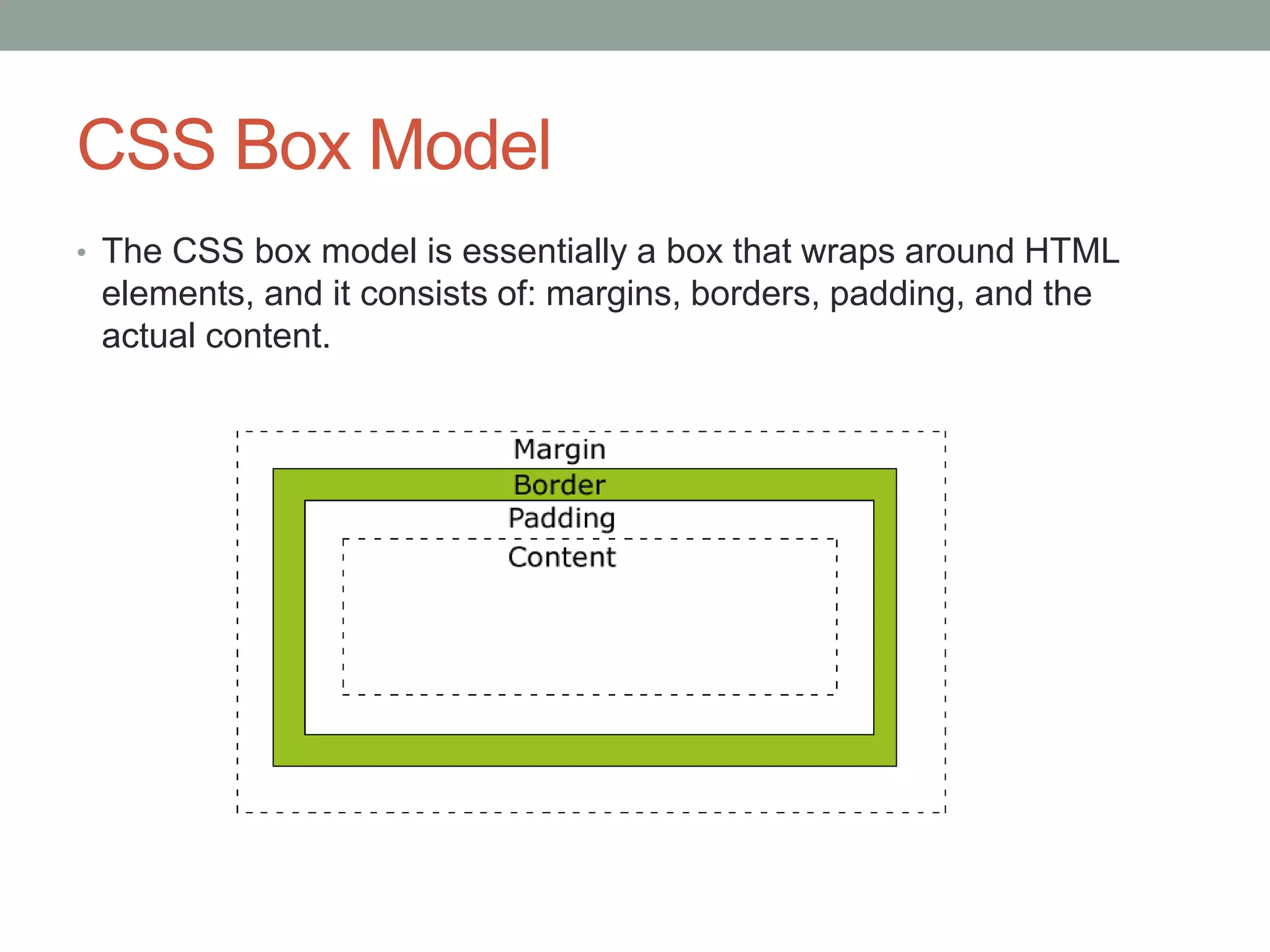
• The CSS box model is essentially a box that wraps around HTML
elements, and it consists of: margins, borders, padding, and the
actual content.
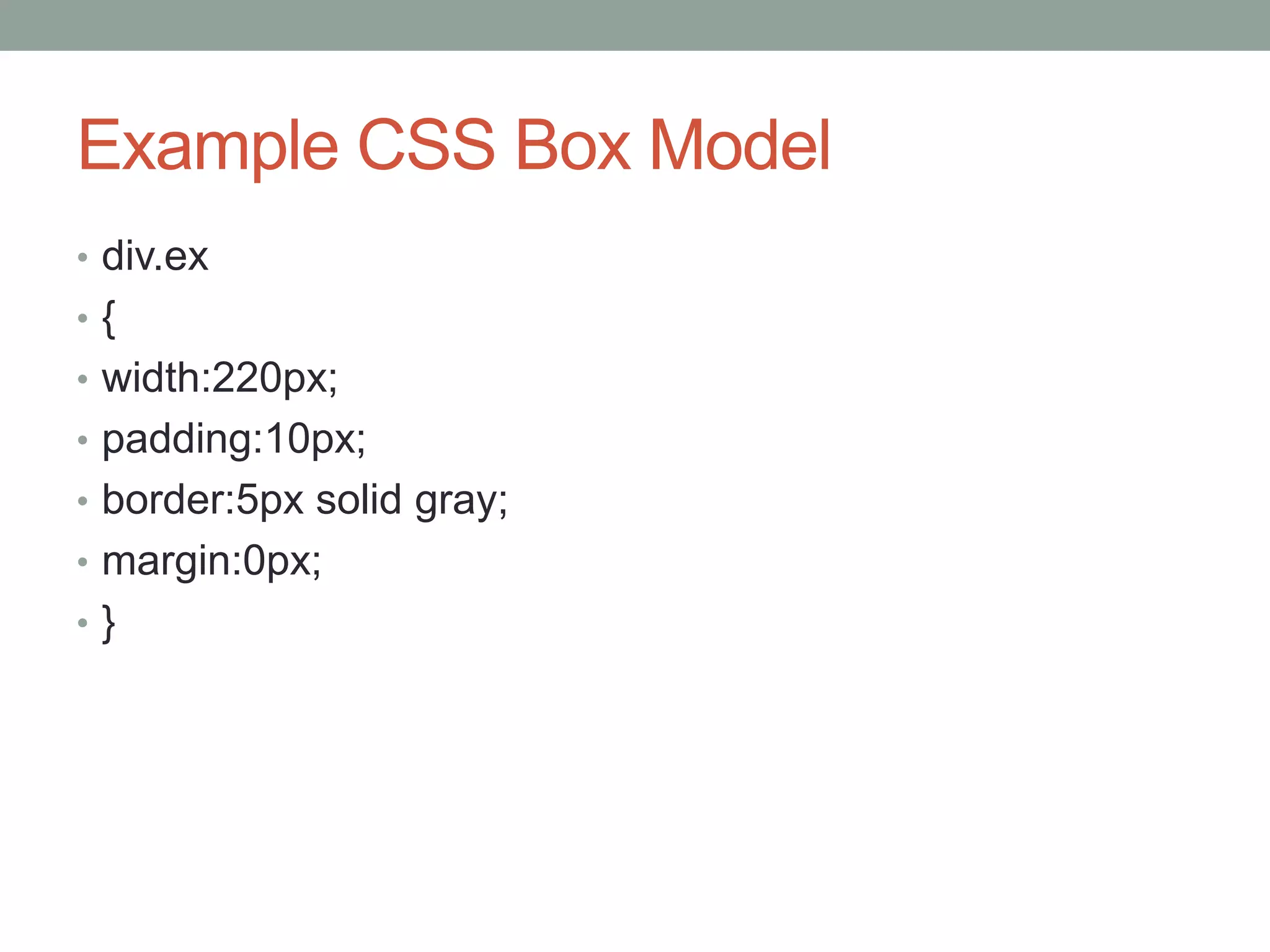
Example CSS Box Model
• div.ex
• {
• width:220px;
• padding:10px;
• border:5px solid gray;
• margin:0px;
• }
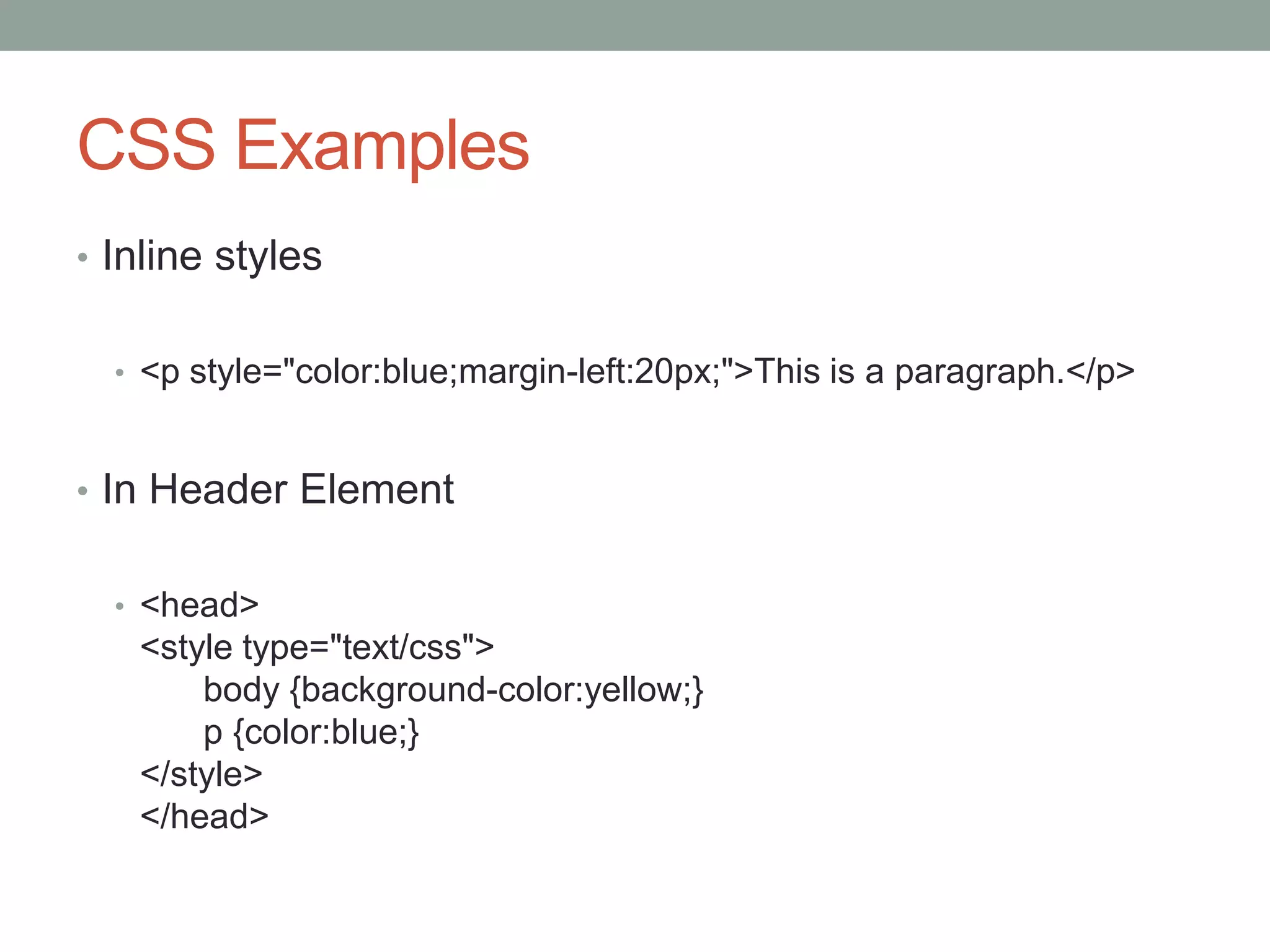
CSS Examples
• Inline styles
• <p style="color:blue;margin-left:20px;">This is a paragraph.</p>
• In Header Element
• <head>
<style type="text/css">
body {background-color:yellow;}
p {color:blue;}
</style>
</head>
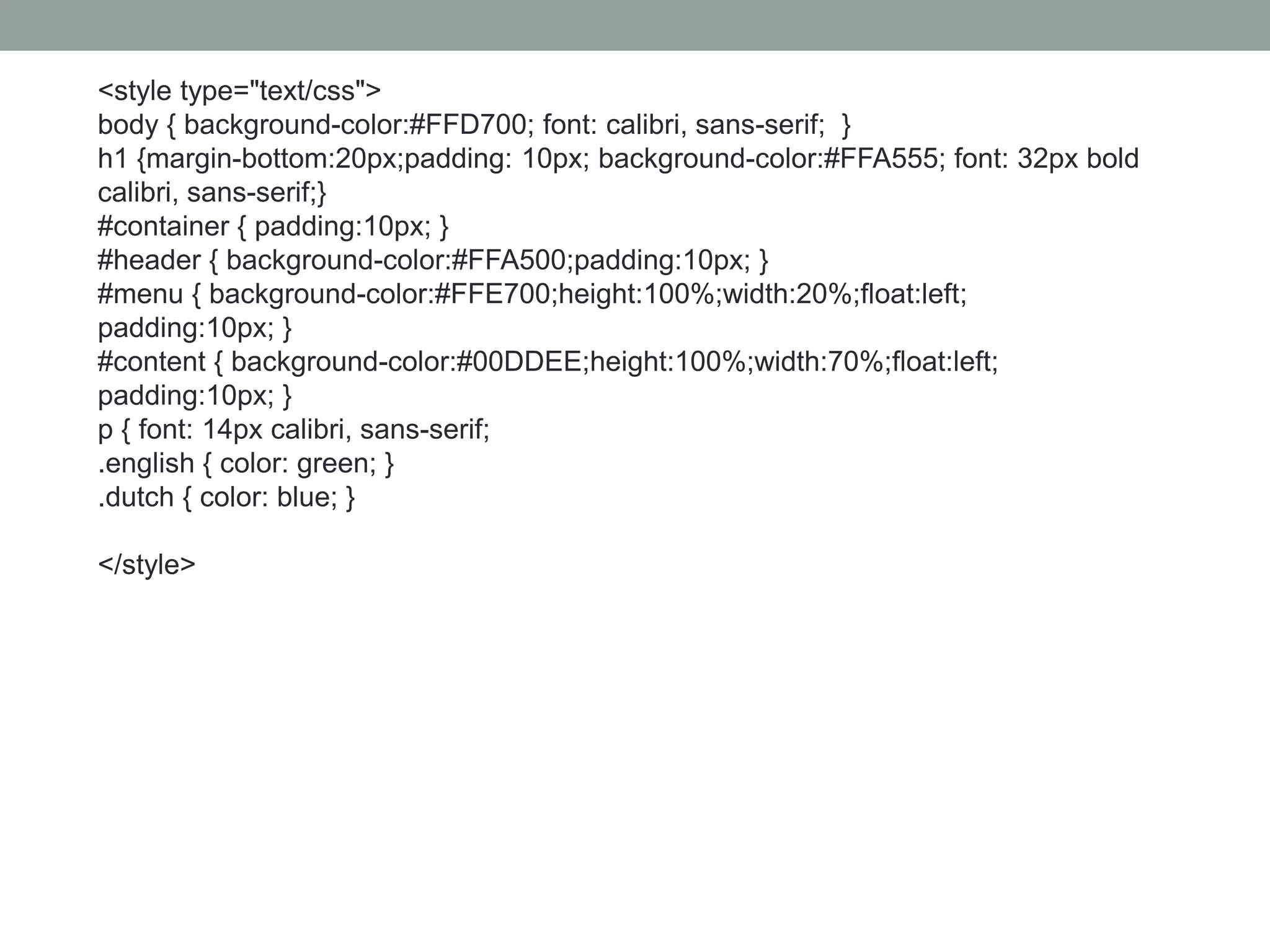
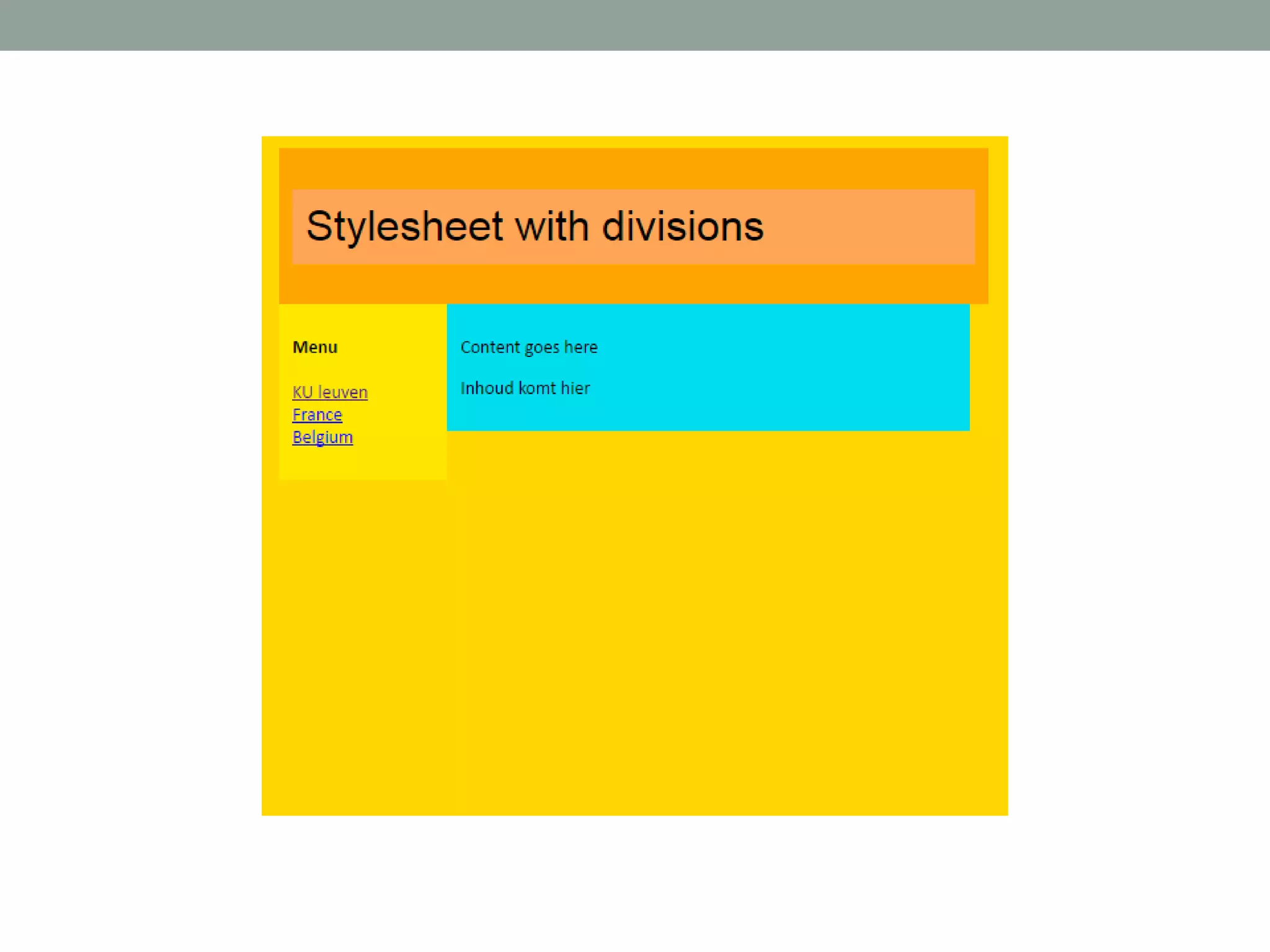
<style type="text/css">
body { background-color:#FFD700; font: calibri, sans-serif; }
h1 {margin-bottom:20px;padding: 10px; background-color:#FFA555; font: 32px bold
calibri, sans-serif;}
#container { padding:10px; }
#header { background-color:#FFA500;padding:10px; }
#menu { background-color:#FFE700;height:100%;width:20%;float:left;
padding:10px; }
#content { background-color:#00DDEE;height:100%;width:70%;float:left;
padding:10px; }
p { font: 14px calibri, sans-serif;
.english { color: green; }
.dutch { color: blue; }
</style>
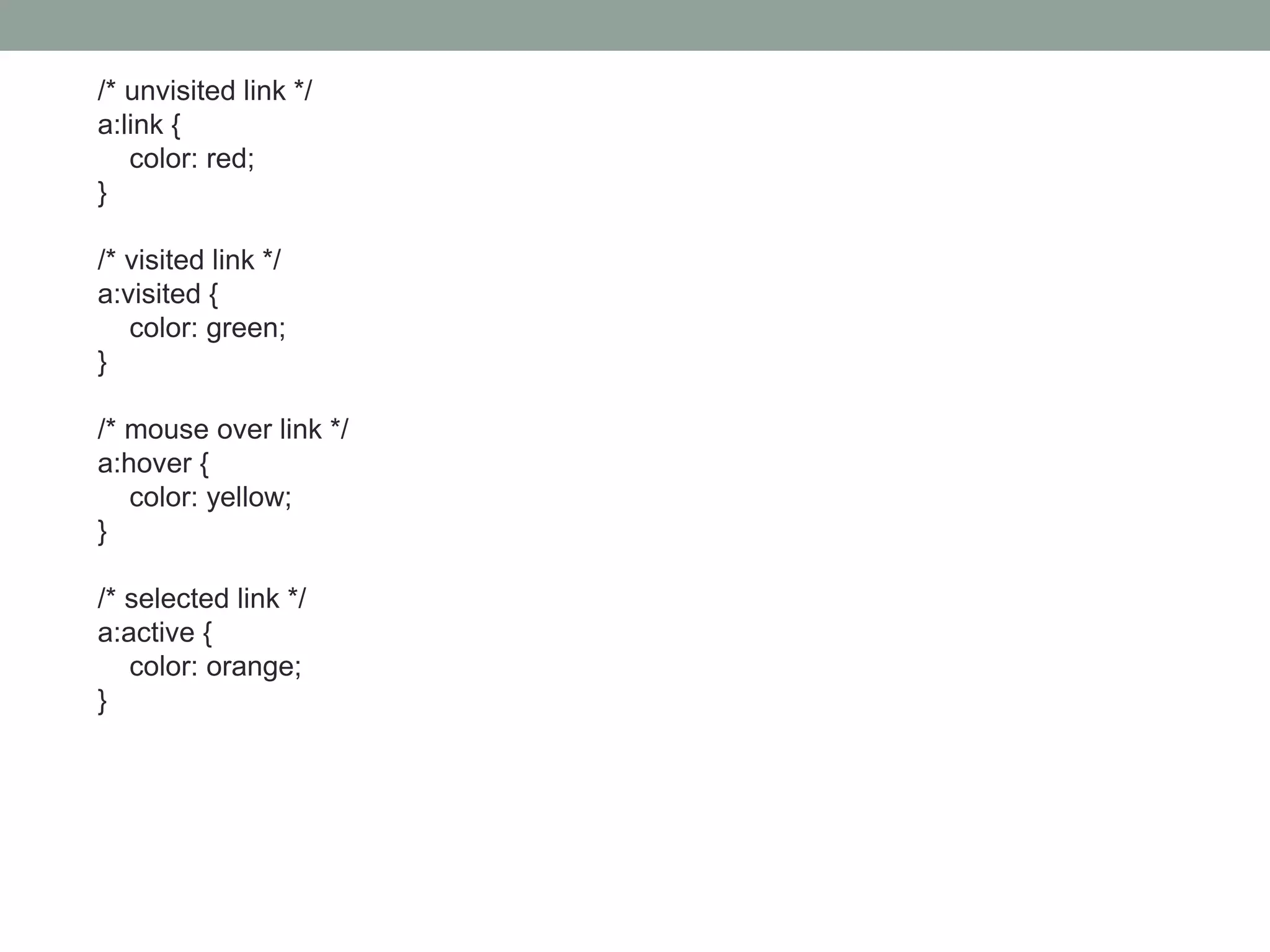
/* unvisited link */
a:link {
color: red;
}
/* visited link */
a:visited {
color: green;
}
/* mouse over link */
a:hover {
color: yellow;
}
/* selected link */
a:active {
color: orange;
}
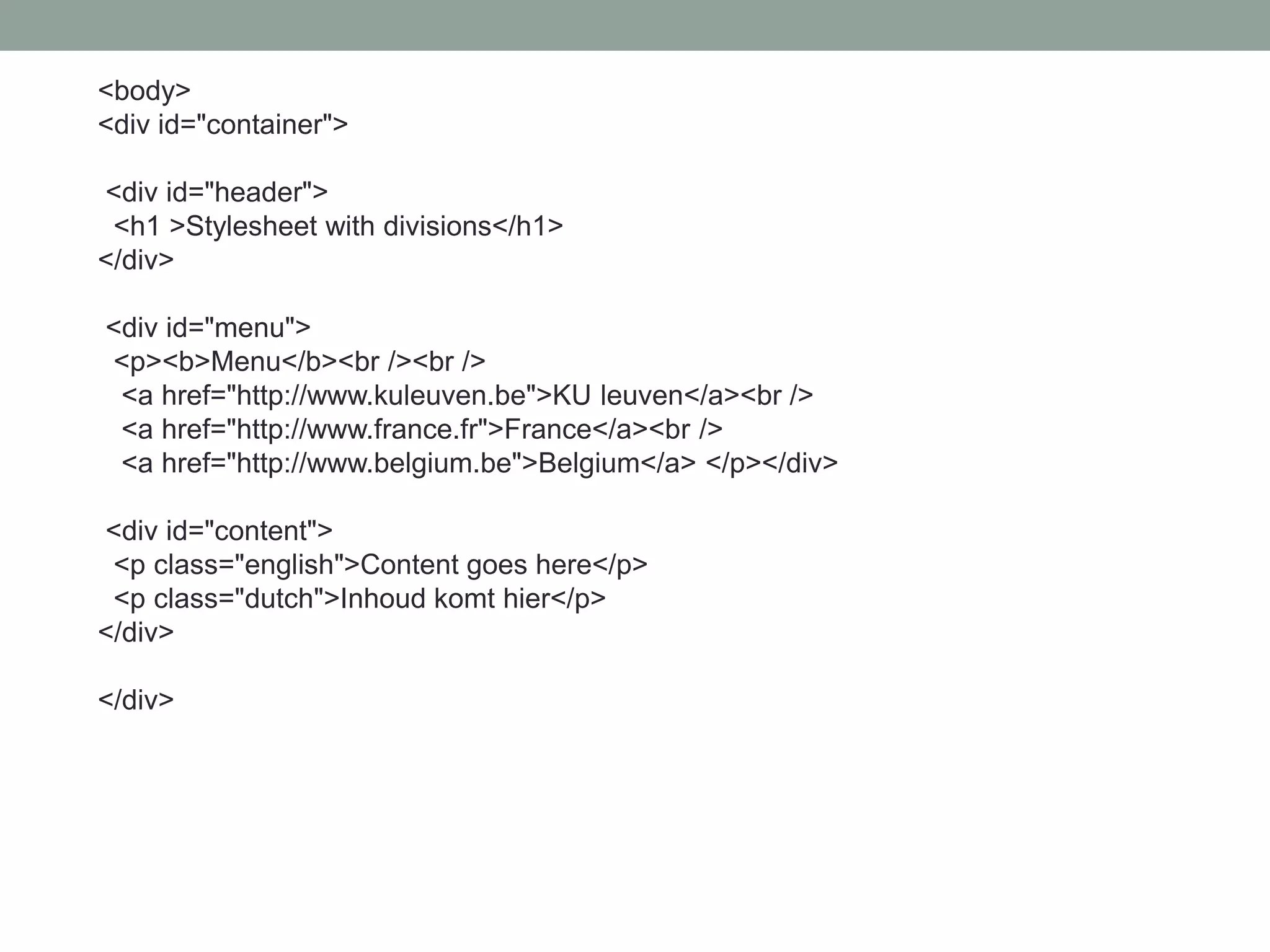
<body>
<div id="container">
<div id="header">
<h1 >Stylesheet with divisions</h1>
</div>
<div id="menu">
<p><b>Menu</b><br /><br />
<a href="http://www.kuleuven.be">KU leuven</a><br />
<a href="http://www.france.fr">France</a><br />
<a href="http://www.belgium.be">Belgium</a> </p></div>
<div id="content">
<p class="english">Content goes here</p>
<p class="dutch">Inhoud komt hier</p>
</div>
</div>
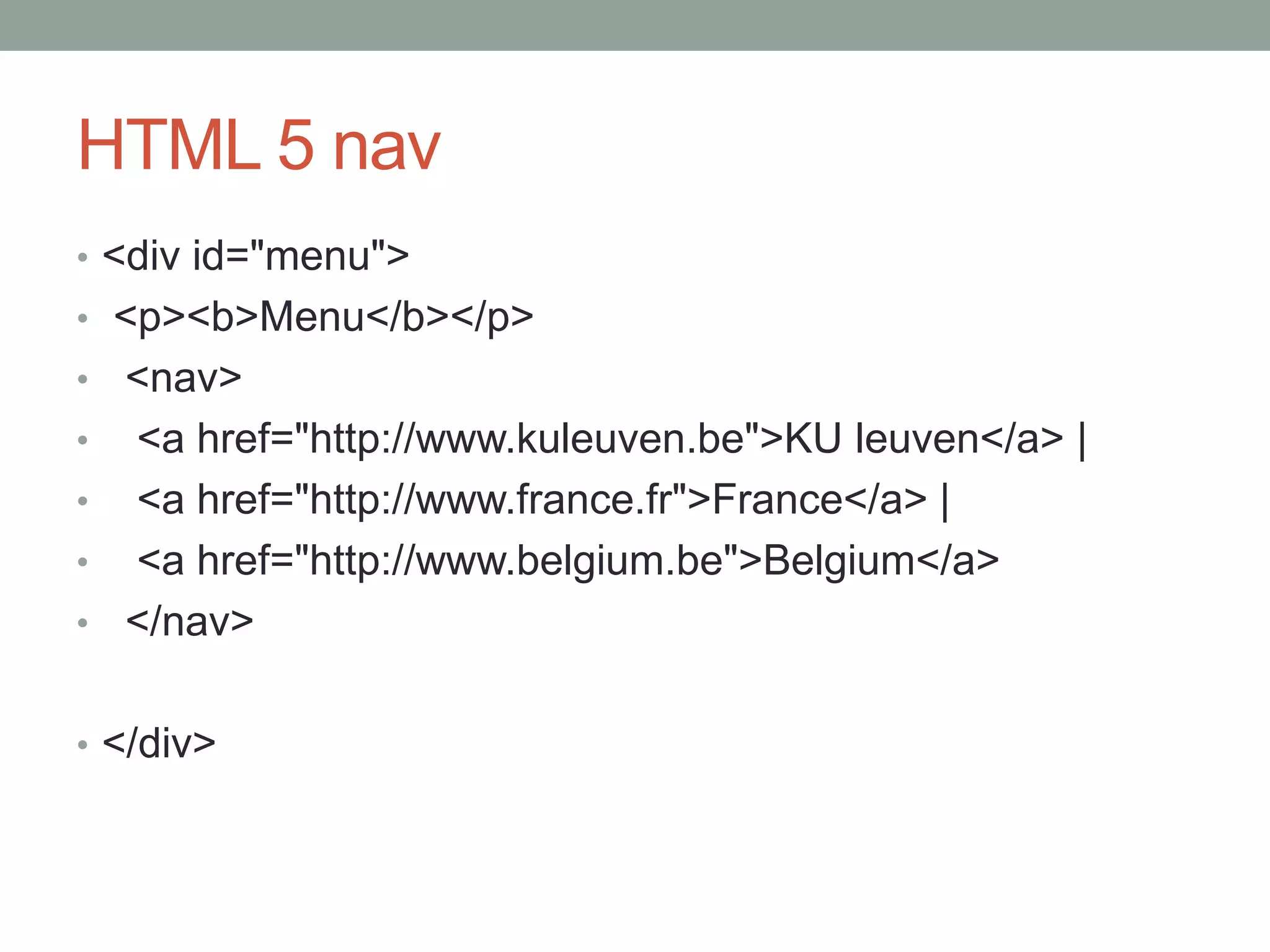
HTML 5 nav
• <div id="menu">
• <p><b>Menu</b></p>
• <nav>
• <a href="http://www.kuleuven.be">KU leuven</a> |
• <a href="http://www.france.fr">France</a> |
• <a href="http://www.belgium.be">Belgium</a>
• </nav>
• </div>
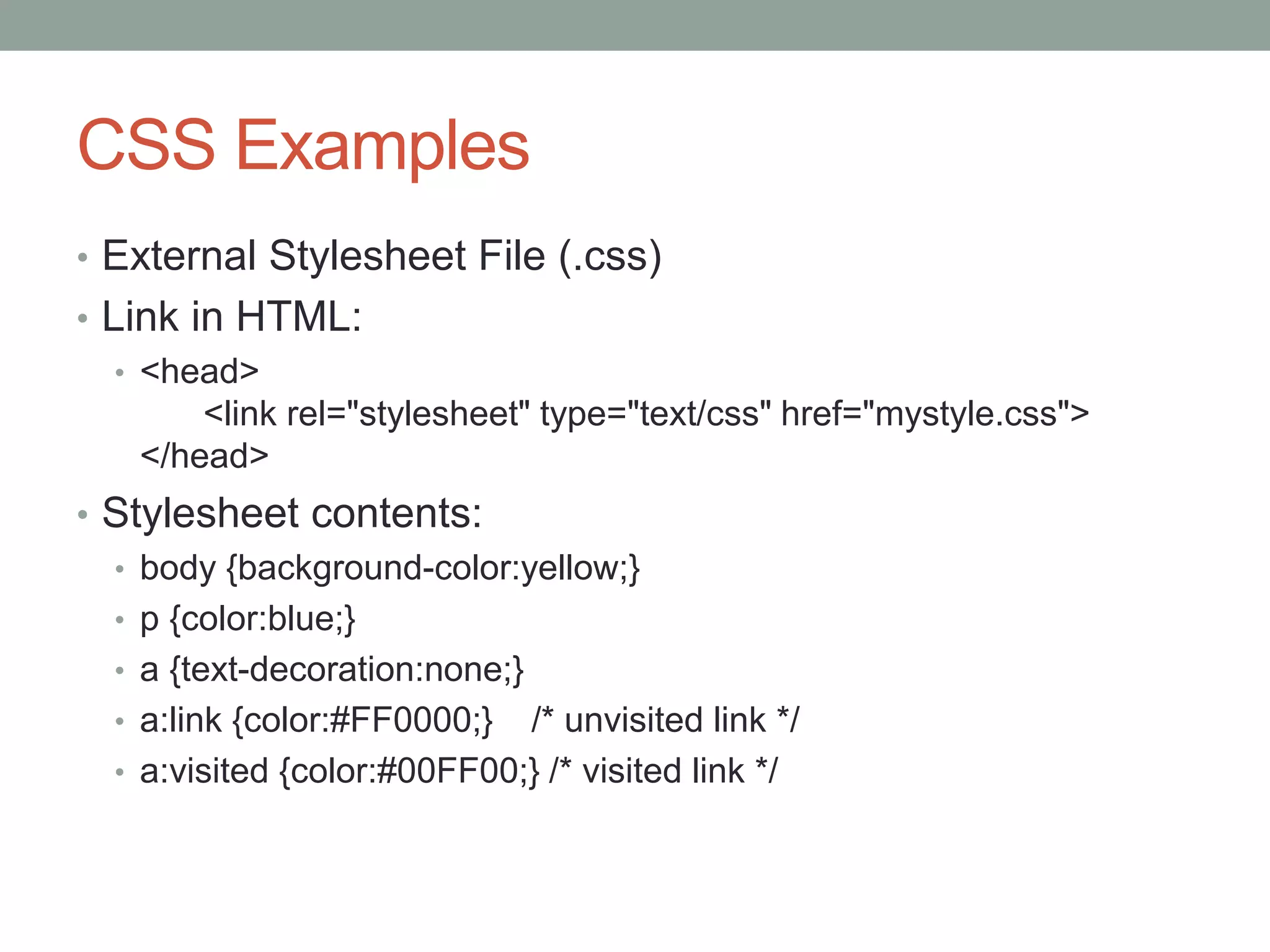
CSS Examples
• External Stylesheet File (.css)
• Link in HTML:
• <head>
<link rel="stylesheet" type="text/css" href="mystyle.css">
</head>
• Stylesheet contents:
• body {background-color:yellow;}
• p {color:blue;}
• a {text-decoration:none;}
• a:link {color:#FF0000;} /* unvisited link */
• a:visited {color:#00FF00;} /* visited link */
Customizing WordPress CSS
• https://en.support.wordpress.com/custom-design/editing-
css/
• https://dailypost.wordpress.com/2013/06/21/css-intro/
• https://dailypost.wordpress.com/2013/08/29/css-matched-
rule-pane/
HTML color codes
• http://www.w3schools.com/colors/colors_picker.asp
• http://htmlcolorcodes.com/color-picker/
Forms
• Forms are an easy way to implement interactivity on a
website
• You need 2 pages (you can combine it in one):
• the actual HTML page with Form elements
• A server-side or client-side script that will parse the form
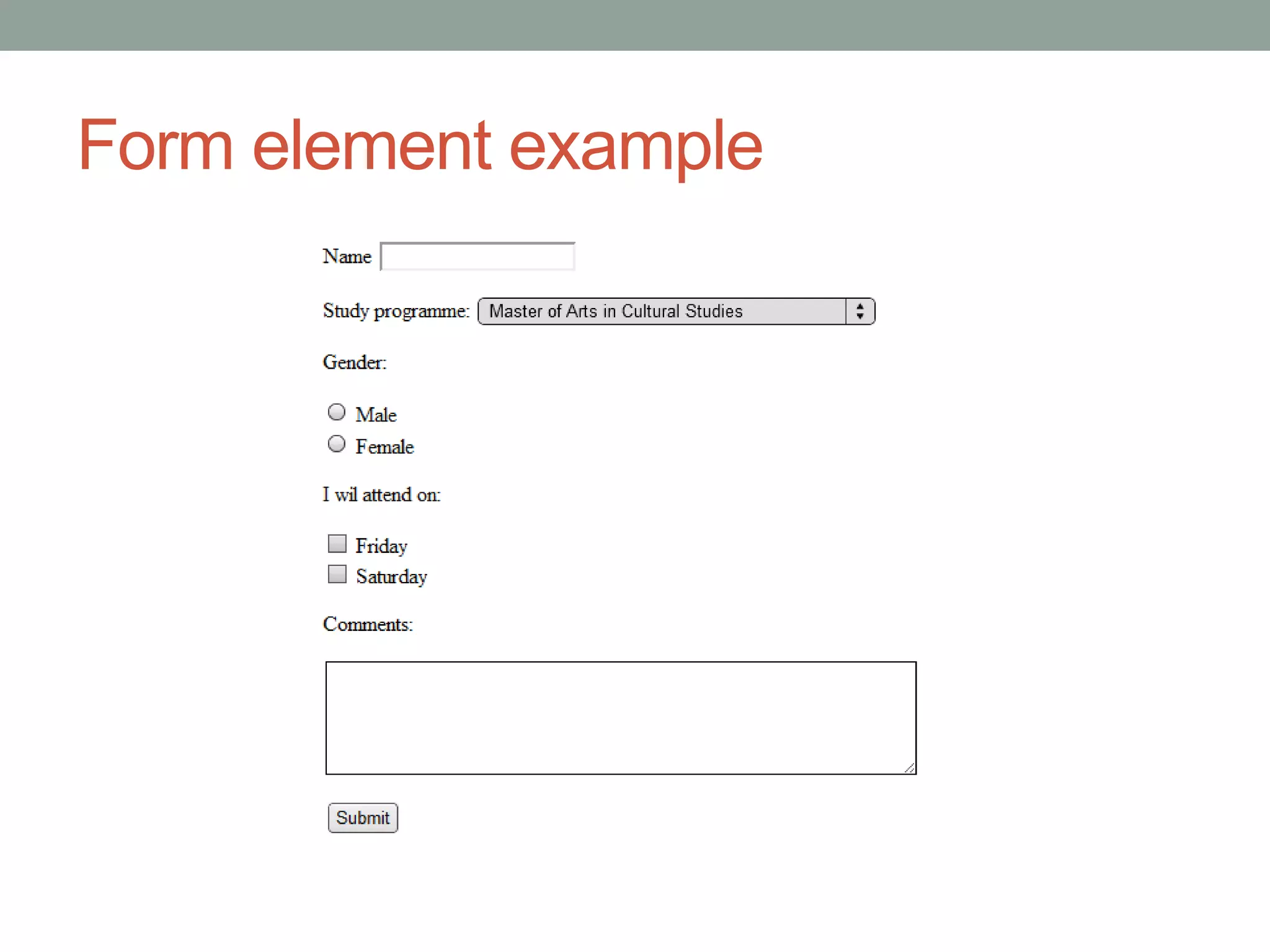
Form element example
Form Example Code
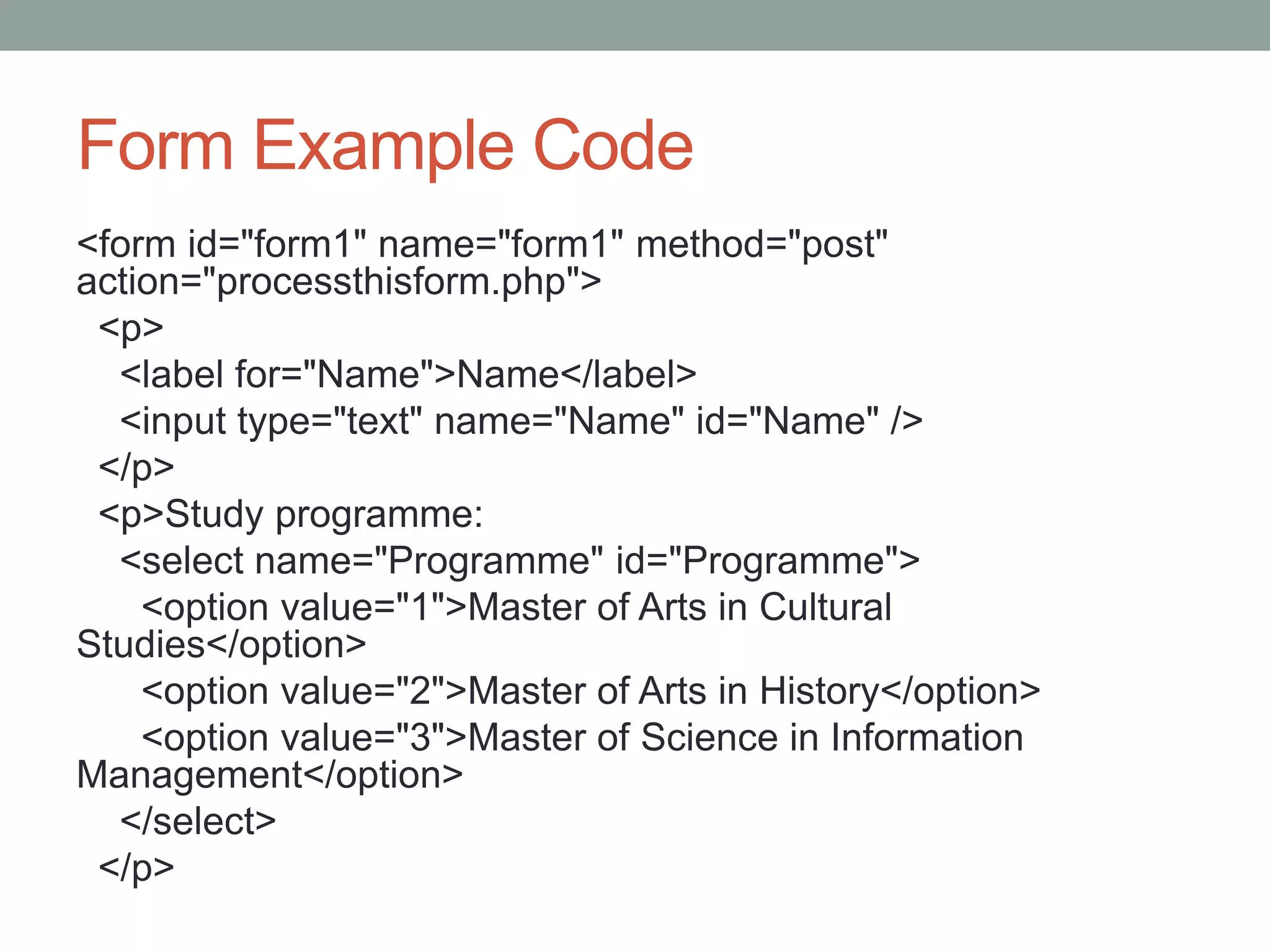
<form id="form1" name="form1" method="post"
action="processthisform.php">
<p>
<label for="Name">Name</label>
<input type="text" name="Name" id="Name" />
</p>
<p>Study programme:
<select name="Programme" id="Programme">
<option value="1">Master of Arts in Cultural
Studies</option>
<option value="2">Master of Arts in History</option>
<option value="3">Master of Science in Information
Management</option>
</select>
</p>
Form Example Code
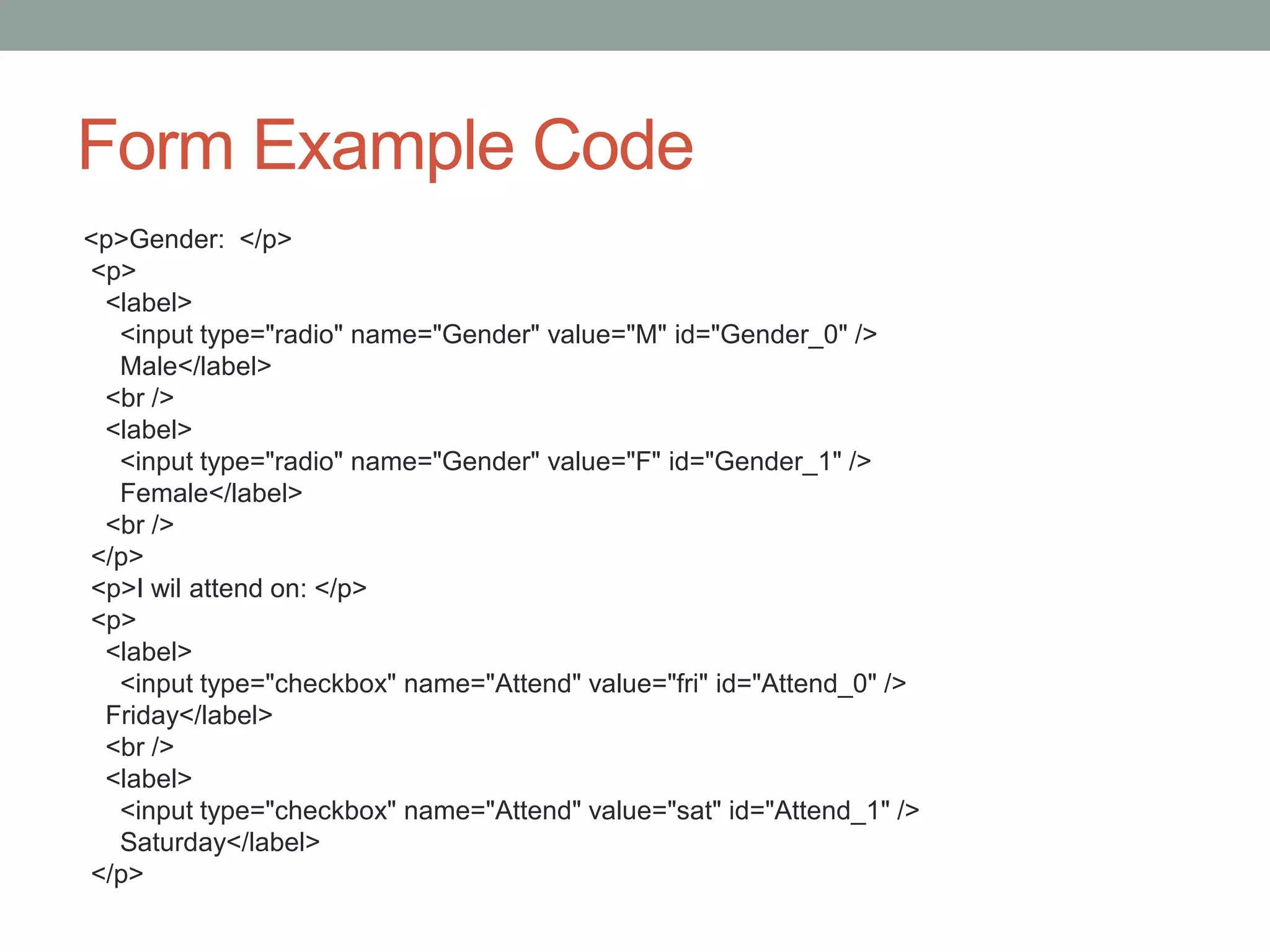
<p>Gender: </p>
<p>
<label>
<input type="radio" name="Gender" value="M" id="Gender_0" />
Male</label>
<br />
<label>
<input type="radio" name="Gender" value="F" id="Gender_1" />
Female</label>
<br />
</p>
<p>I wil attend on: </p>
<p>
<label>
<input type="checkbox" name="Attend" value="fri" id="Attend_0" />
Friday</label>
<br />
<label>
<input type="checkbox" name="Attend" value="sat" id="Attend_1" />
Saturday</label>
</p>
Form Example Code
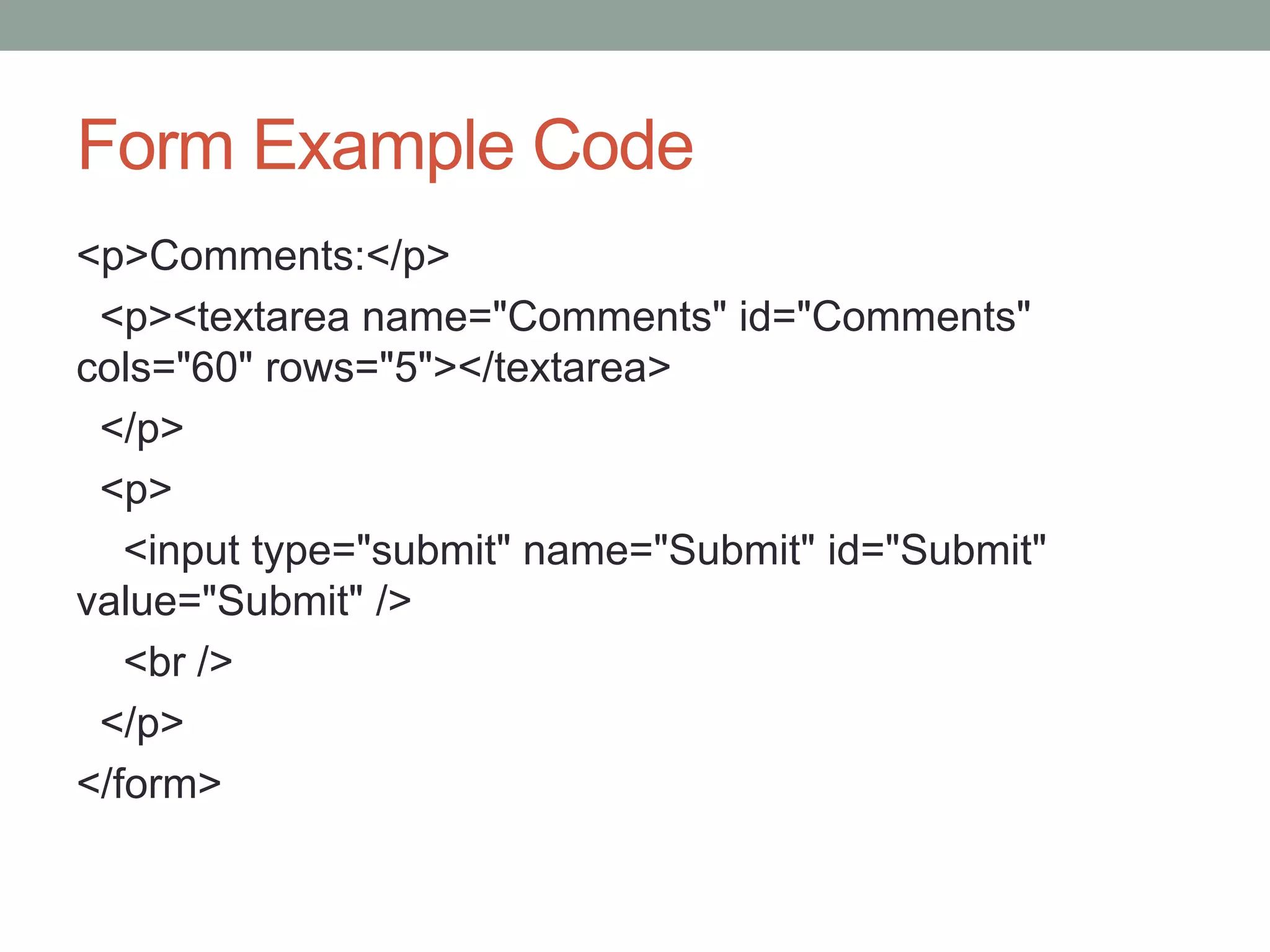
<p>Comments:</p>
<p><textarea name="Comments" id="Comments"
cols="60" rows="5"></textarea>
</p>
<p>
<input type="submit" name="Submit" id="Submit"
value="Submit" />
<br />
</p>
</form>
Form Example Code
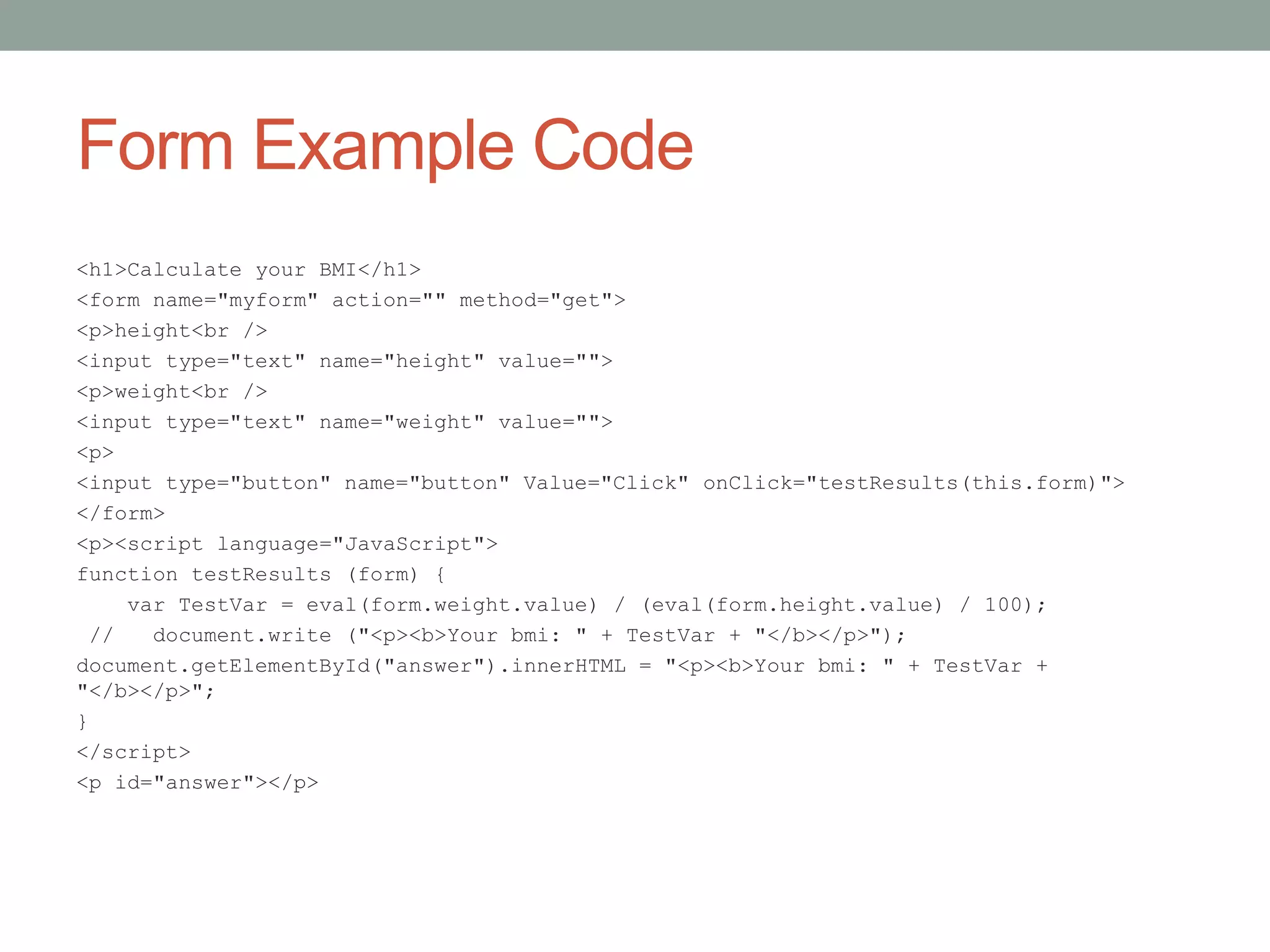
<h1>Calculate your BMI</h1>
<form name="myform" action="" method="get">
<p>height<br />
<input type="text" name="height" value="">
<p>weight<br />
<input type="text" name="weight" value="">
<p>
<input type="button" name="button" Value="Click" onClick="testResults(this.form)">
</form>
<p><script language="JavaScript">
function testResults (form) {
var TestVar = eval(form.weight.value) / (eval(form.height.value) / 100);
// document.write ("<p><b>Your bmi: " + TestVar + "</b></p>");
document.getElementById("answer").innerHTML = "<p><b>Your bmi: " + TestVar +
"</b></p>";
}
</script>
<p id="answer"></p>
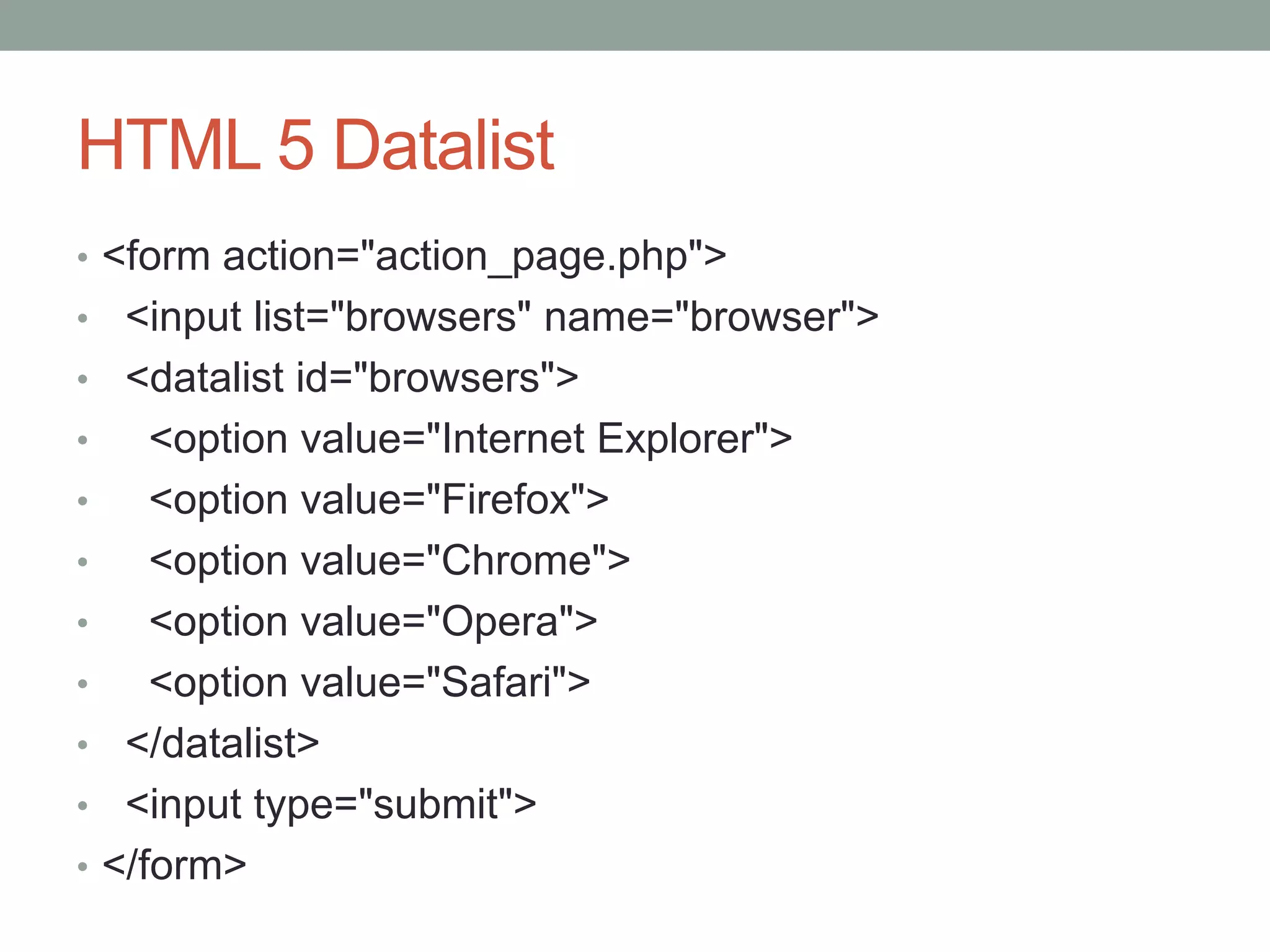
HTML 5 Datalist
• <form action="action_page.php">
• <input list="browsers" name="browser">
• <datalist id="browsers">
• <option value="Internet Explorer">
• <option value="Firefox">
• <option value="Chrome">
• <option value="Opera">
• <option value="Safari">
• </datalist>
• <input type="submit">
• </form>
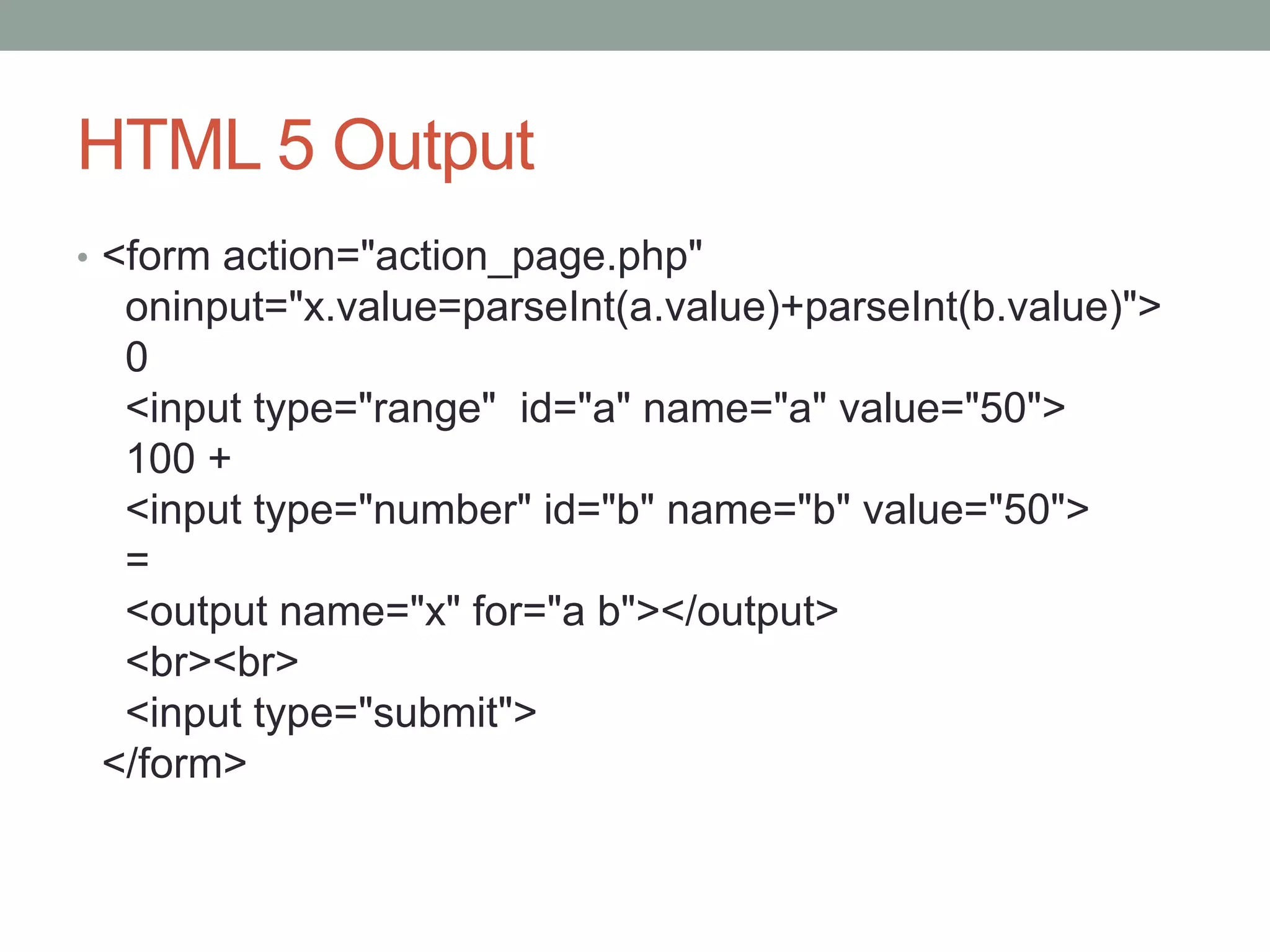
HTML 5 Output
• <form action="action_page.php"
oninput="x.value=parseInt(a.value)+parseInt(b.value)">
0
<input type="range" id="a" name="a" value="50">
100 +
<input type="number" id="b" name="b" value="50">
=
<output name="x" for="a b"></output>
<br><br>
<input type="submit">
</form>
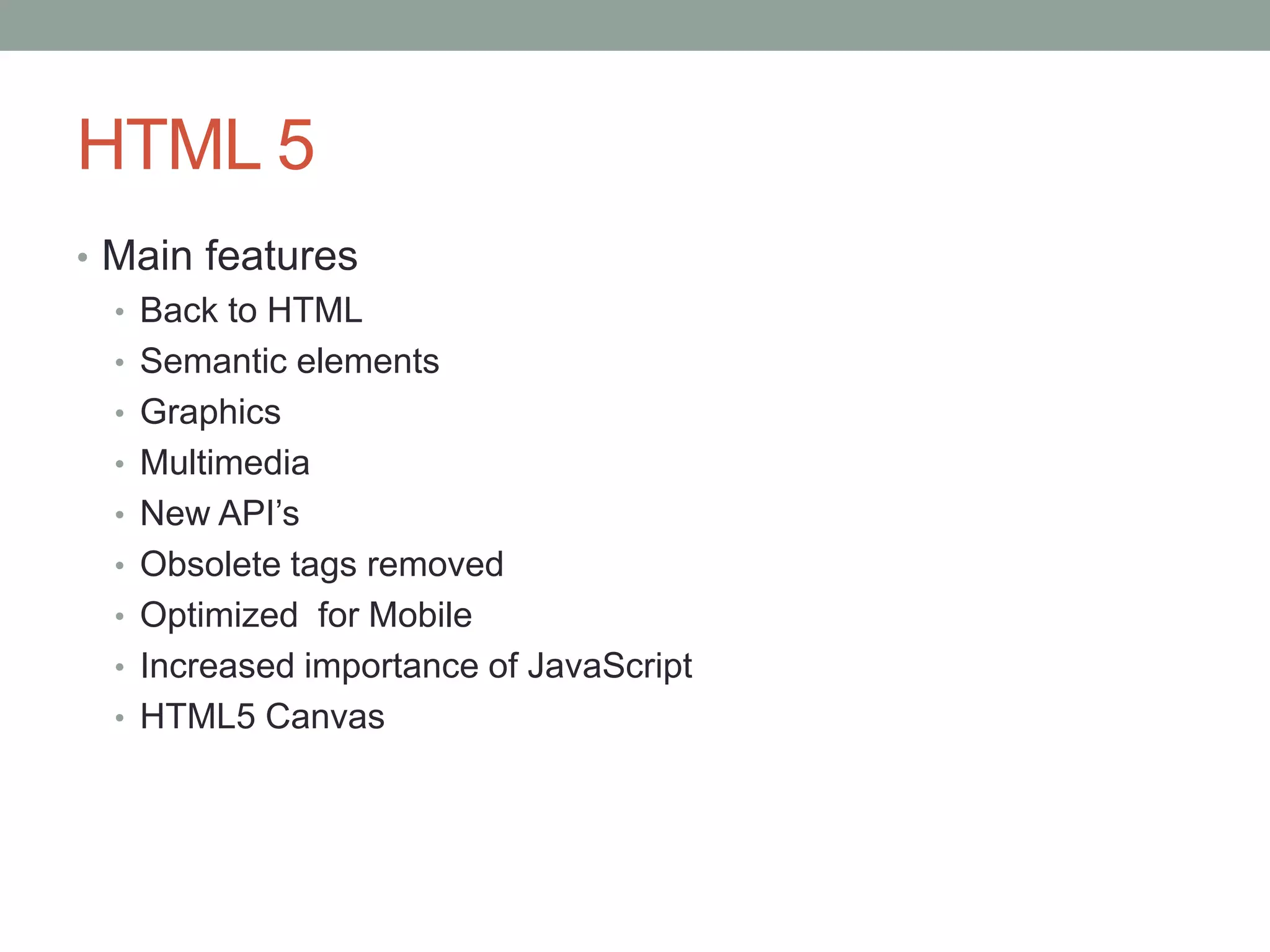
HTML 5
• Main features
• Back to HTML
• Semantic elements
• Graphics
• Multimedia
• New API’s
• Obsolete tags removed
• Optimized for Mobile
• Increased importance of JavaScript
• HTML5 Canvas
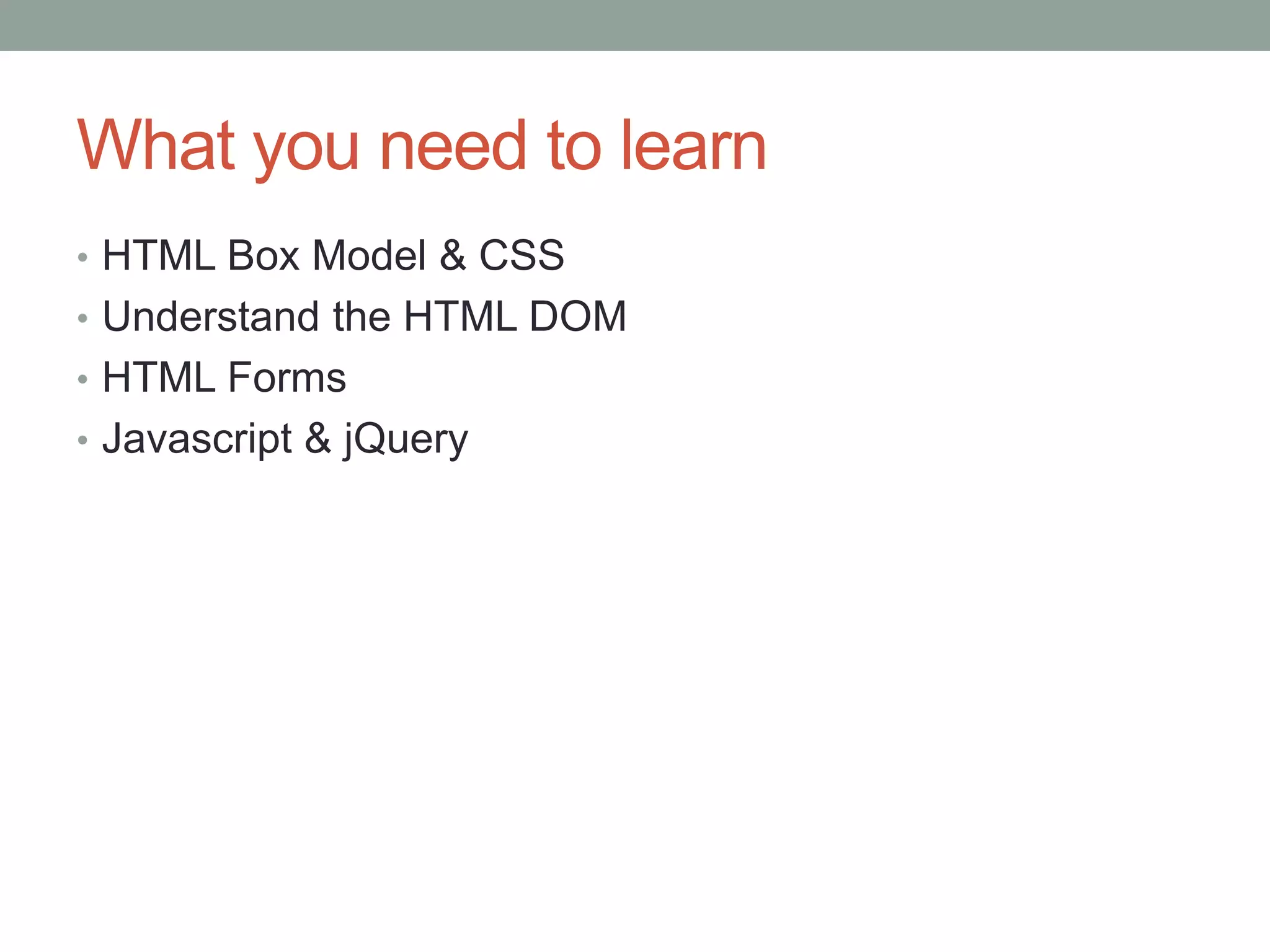
What you need to learn
• HTML Box Model & CSS
• Understand the HTML DOM
• HTML Forms
• Javascript & jQuery
Some links
• Notepad++
• EasyPHP: http://www.easyphp.org
• http://html5demos.com/file-api
• http://www.sitepoint.com/html5-ajax-file-upload/
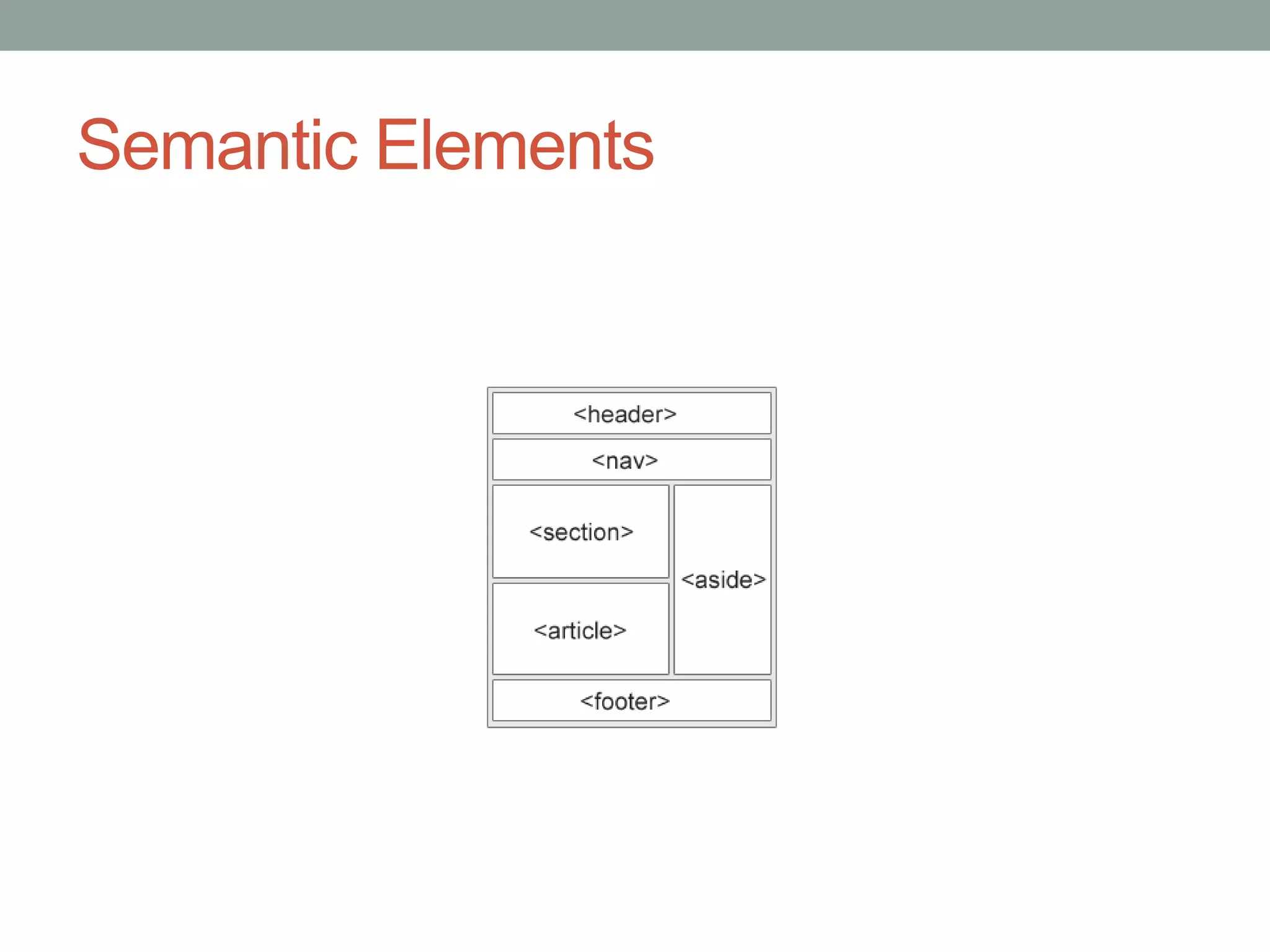
Semantic Elements
Graphics
• Canvas
• Drawing graphics on the fly using Javascript
• SVG
• You can now directly define SVG graphics in HTML
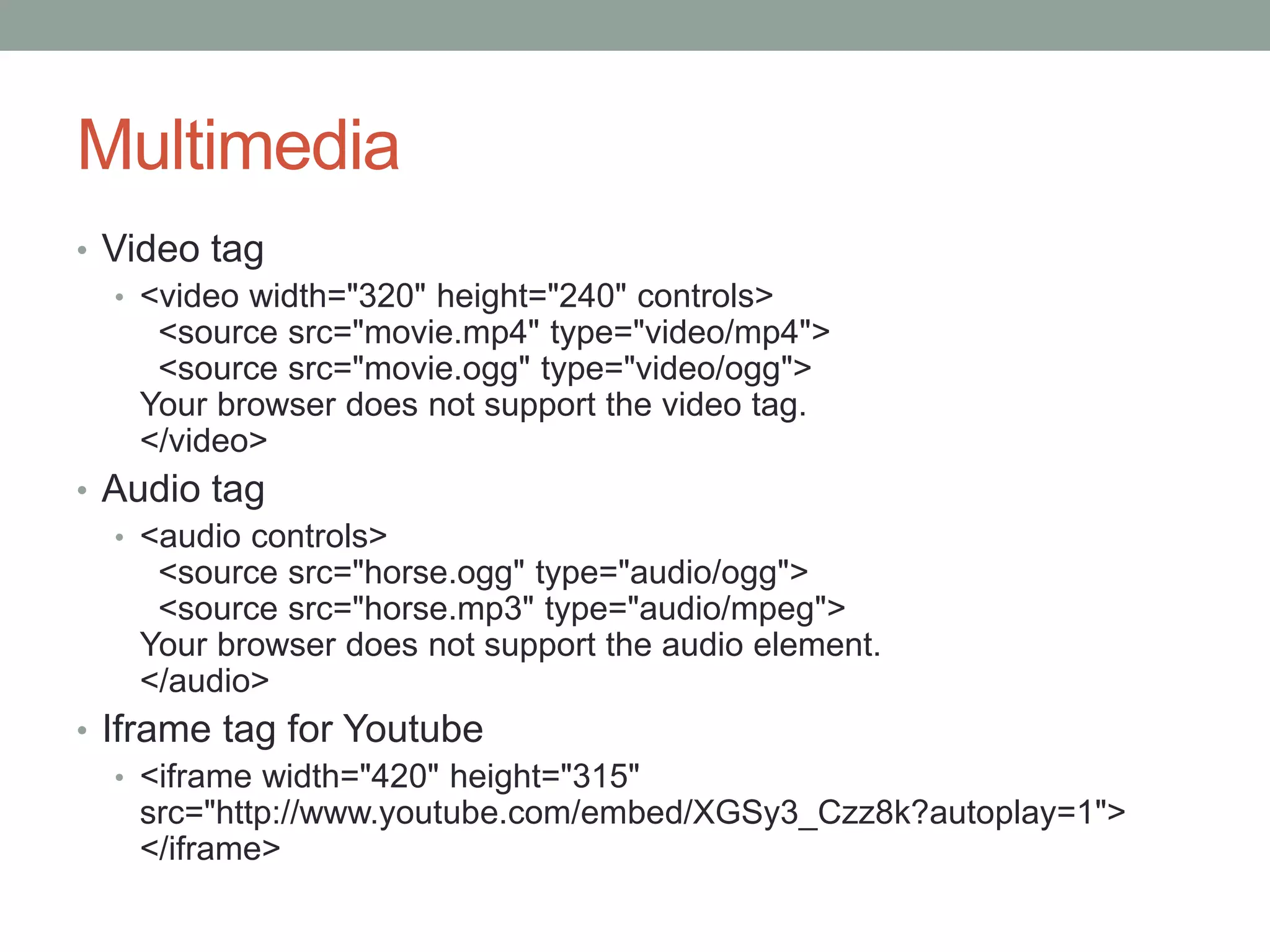
Multimedia
• Video tag
• <video width="320" height="240" controls>
<source src="movie.mp4" type="video/mp4">
<source src="movie.ogg" type="video/ogg">
Your browser does not support the video tag.
</video>
• Audio tag
• <audio controls>
<source src="horse.ogg" type="audio/ogg">
<source src="horse.mp3" type="audio/mpeg">
Your browser does not support the audio element.
</audio>
• Iframe tag for Youtube
• <iframe width="420" height="315"
src="http://www.youtube.com/embed/XGSy3_Czz8k?autoplay=1">
</iframe>
API’s
• HTML Drag & Drop
• Local Storage
• Geolocation

Lecture 03 HTML&CSS Part 2

  • 1.
    HTML Introduction to webdesign: thebasic web page with practice suggestions Online Publishing
  • 2.
    CSS • Cascading Stylesheets •To apply layout to a HTML page, in a way that clearly separates layout from content • Selectors: indicate to what you want to apply formatting • Cascading: Styles are inherited • 3 ways to implement: • Inline styles • In the HTML Header • In a separate CSS file
  • 3.
    CSS Selectors • AnyHTML Element • body • h1 • p • a • li • … • id selector: #myparagraph1 #mainimage • class selector: .citation .french .highlight
  • 4.
    CSS Box Model •The CSS box model is essentially a box that wraps around HTML elements, and it consists of: margins, borders, padding, and the actual content.
  • 5.
    Example CSS BoxModel • div.ex • { • width:220px; • padding:10px; • border:5px solid gray; • margin:0px; • }
  • 6.
    CSS Examples • Inlinestyles • <p style="color:blue;margin-left:20px;">This is a paragraph.</p> • In Header Element • <head> <style type="text/css"> body {background-color:yellow;} p {color:blue;} </style> </head>
  • 7.
    <style type="text/css"> body {background-color:#FFD700; font: calibri, sans-serif; } h1 {margin-bottom:20px;padding: 10px; background-color:#FFA555; font: 32px bold calibri, sans-serif;} #container { padding:10px; } #header { background-color:#FFA500;padding:10px; } #menu { background-color:#FFE700;height:100%;width:20%;float:left; padding:10px; } #content { background-color:#00DDEE;height:100%;width:70%;float:left; padding:10px; } p { font: 14px calibri, sans-serif; .english { color: green; } .dutch { color: blue; } </style>
  • 8.
    /* unvisited link*/ a:link { color: red; } /* visited link */ a:visited { color: green; } /* mouse over link */ a:hover { color: yellow; } /* selected link */ a:active { color: orange; }
  • 9.
    <body> <div id="container"> <div id="header"> <h1>Stylesheet with divisions</h1> </div> <div id="menu"> <p><b>Menu</b><br /><br /> <a href="http://www.kuleuven.be">KU leuven</a><br /> <a href="http://www.france.fr">France</a><br /> <a href="http://www.belgium.be">Belgium</a> </p></div> <div id="content"> <p class="english">Content goes here</p> <p class="dutch">Inhoud komt hier</p> </div> </div>
  • 11.
    HTML 5 nav •<div id="menu"> • <p><b>Menu</b></p> • <nav> • <a href="http://www.kuleuven.be">KU leuven</a> | • <a href="http://www.france.fr">France</a> | • <a href="http://www.belgium.be">Belgium</a> • </nav> • </div>
  • 12.
    CSS Examples • ExternalStylesheet File (.css) • Link in HTML: • <head> <link rel="stylesheet" type="text/css" href="mystyle.css"> </head> • Stylesheet contents: • body {background-color:yellow;} • p {color:blue;} • a {text-decoration:none;} • a:link {color:#FF0000;} /* unvisited link */ • a:visited {color:#00FF00;} /* visited link */
  • 13.
    Customizing WordPress CSS •https://en.support.wordpress.com/custom-design/editing- css/ • https://dailypost.wordpress.com/2013/06/21/css-intro/ • https://dailypost.wordpress.com/2013/08/29/css-matched- rule-pane/
  • 14.
    HTML color codes •http://www.w3schools.com/colors/colors_picker.asp • http://htmlcolorcodes.com/color-picker/
  • 15.
    Forms • Forms arean easy way to implement interactivity on a website • You need 2 pages (you can combine it in one): • the actual HTML page with Form elements • A server-side or client-side script that will parse the form
  • 16.
  • 17.
    Form Example Code <formid="form1" name="form1" method="post" action="processthisform.php"> <p> <label for="Name">Name</label> <input type="text" name="Name" id="Name" /> </p> <p>Study programme: <select name="Programme" id="Programme"> <option value="1">Master of Arts in Cultural Studies</option> <option value="2">Master of Arts in History</option> <option value="3">Master of Science in Information Management</option> </select> </p>
  • 18.
    Form Example Code <p>Gender:</p> <p> <label> <input type="radio" name="Gender" value="M" id="Gender_0" /> Male</label> <br /> <label> <input type="radio" name="Gender" value="F" id="Gender_1" /> Female</label> <br /> </p> <p>I wil attend on: </p> <p> <label> <input type="checkbox" name="Attend" value="fri" id="Attend_0" /> Friday</label> <br /> <label> <input type="checkbox" name="Attend" value="sat" id="Attend_1" /> Saturday</label> </p>
  • 19.
    Form Example Code <p>Comments:</p> <p><textareaname="Comments" id="Comments" cols="60" rows="5"></textarea> </p> <p> <input type="submit" name="Submit" id="Submit" value="Submit" /> <br /> </p> </form>
  • 20.
    Form Example Code <h1>Calculateyour BMI</h1> <form name="myform" action="" method="get"> <p>height<br /> <input type="text" name="height" value=""> <p>weight<br /> <input type="text" name="weight" value=""> <p> <input type="button" name="button" Value="Click" onClick="testResults(this.form)"> </form> <p><script language="JavaScript"> function testResults (form) { var TestVar = eval(form.weight.value) / (eval(form.height.value) / 100); // document.write ("<p><b>Your bmi: " + TestVar + "</b></p>"); document.getElementById("answer").innerHTML = "<p><b>Your bmi: " + TestVar + "</b></p>"; } </script> <p id="answer"></p>
  • 21.
    HTML 5 Datalist •<form action="action_page.php"> • <input list="browsers" name="browser"> • <datalist id="browsers"> • <option value="Internet Explorer"> • <option value="Firefox"> • <option value="Chrome"> • <option value="Opera"> • <option value="Safari"> • </datalist> • <input type="submit"> • </form>
  • 22.
    HTML 5 Output •<form action="action_page.php" oninput="x.value=parseInt(a.value)+parseInt(b.value)"> 0 <input type="range" id="a" name="a" value="50"> 100 + <input type="number" id="b" name="b" value="50"> = <output name="x" for="a b"></output> <br><br> <input type="submit"> </form>
  • 23.
    HTML 5 • Mainfeatures • Back to HTML • Semantic elements • Graphics • Multimedia • New API’s • Obsolete tags removed • Optimized for Mobile • Increased importance of JavaScript • HTML5 Canvas
  • 24.
    What you needto learn • HTML Box Model & CSS • Understand the HTML DOM • HTML Forms • Javascript & jQuery
  • 25.
    Some links • Notepad++ •EasyPHP: http://www.easyphp.org • http://html5demos.com/file-api • http://www.sitepoint.com/html5-ajax-file-upload/
  • 26.
  • 27.
    Graphics • Canvas • Drawinggraphics on the fly using Javascript • SVG • You can now directly define SVG graphics in HTML
  • 28.
    Multimedia • Video tag •<video width="320" height="240" controls> <source src="movie.mp4" type="video/mp4"> <source src="movie.ogg" type="video/ogg"> Your browser does not support the video tag. </video> • Audio tag • <audio controls> <source src="horse.ogg" type="audio/ogg"> <source src="horse.mp3" type="audio/mpeg"> Your browser does not support the audio element. </audio> • Iframe tag for Youtube • <iframe width="420" height="315" src="http://www.youtube.com/embed/XGSy3_Czz8k?autoplay=1"> </iframe>
  • 29.
    API’s • HTML Drag& Drop • Local Storage • Geolocation