Frame Class
Lecture 10
Naveen Kumar
A Simple Program
import javax.swing.JFrame;
import javax.swing.JLabel;
HelloWorldFrame extends Jframe
{
public static void main(String args[])
{ JFrame f = new JFrame();
f. setSize(100, 100);
JLabel X = new JLabel("Hello World");
f.add(X);
f.setVisible(true);
} }
2
A Simple Program
import javax.swing.JFrame;
import javax.swing.JLabel;
HelloWorldFrame extends Jframe
{
public static void main(String args[])
{ new HelloWorldFrame();
}
HelloWorldFrame()
{ JLabel X = new JLabel("Hello World");
add(X);
setSize(100, 100);
setVisible(true);
} }3
Problem: on window close cursor will not go
on C: prompt
Frame Windows
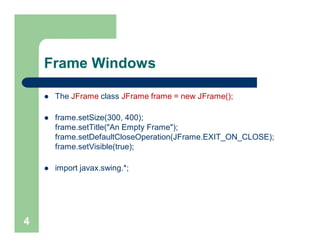
 The JFrame class JFrame frame = new JFrame();
 frame.setSize(300, 400);
frame.setTitle("An Empty Frame");
frame.setDefaultCloseOperation(JFrame.EXIT_ON_CLOSE);
frame.setVisible(true);
 import javax.swing.*;
4
Frame program
import javax.swing.*;
public class frame
{
public static void main(String[] args)
{
JFrame frame = new JFrame();
final int FRAME_WIDTH = 300;
final int FRAME_HEIGHT = 400;
frame.setSize(FRAME_WIDTH, FRAME_HEIGHT);
frame.setTitle("An Empty Frame");
frame.setDefaultCloseOperation(JFrame.EXIT_ON_CLOSE);
frame.setVisible(true);
}
}
5
Self Check
 How do you display a square frame with a title bar that
reads "Hello, World!"?
 How can a program display two frames at once?
Answers
 Modify the EmptyFrameViewer program as follows:
frame.setSize(300, 300);
frame.setTitle("Hello, World!");
 Construct two JFrame objects, set each of their sizes,
and call setVisible(true) on each of them
6
Drawing Shapes
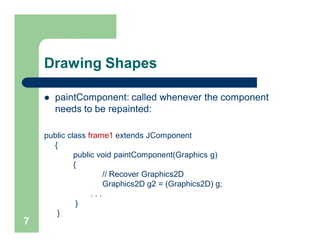
 paintComponent: called whenever the component
needs to be repainted:
public class frame1 extends JComponent
{
public void paintComponent(Graphics g)
{
// Recover Graphics2D
Graphics2D g2 = (Graphics2D) g;
. . .
}
}
7
Drawing Shapes
 Graphics class lets you manipulate the graphics state
(such as current color)
 Graphics2D class has methods to draw shape objects
 Use a cast to recover the Graphics2D object from the
Graphics parameter
Rectangle box = new Rectangle(5, 10, 20, 30);
g2.draw(box);
 java.awt package8
Rectangle Drawing Program Classes
 frame1: its paintComponent method produces the drawing
 frame: its main method constructs a frame and a frame1, adds the
component to the frame, and makes the frame visible
– Construct a frame
– Construct an object of your component class:
frame1 component = new frame1();
– Add the component to the frame
frame.add(component);
However, if you use an older version of Java (before Version 5), you
must make a slightly more complicated call:
frame.getContentPane().add(component);
– Make the frame visible frame.setVisible(true);
9
An example (produce a drawing
with two boxes)
import java.awt.Graphics;
import java.awt.Graphics2D;
import java.awt.Rectangle;
import javax.swing.JComponent; /** A component that draws two rectangles. */
public class frame1 extends JComponent {
public void paintComponent(Graphics g) {
Graphics2D g2 = (Graphics2D) g; // Recover Graphics2D
Rectangle box = new Rectangle(5, 10, 20, 30); // Construct a rectangle and
g2.draw(box); // draw it
box.translate(15, 25); // Move rectangle 15 units to the right and 25 units down
g2.draw(box); // Draw moved rectangle
} }
10
Create frame and add drawing
import javax.swing.JFrame;
public class frame {
public static void main(String[] args) {
JFrame frame = new JFrame();
final int FRAME_WIDTH = 300;
final int FRAME_HEIGHT = 400;
frame.setSize(FRAME_WIDTH,FRAME_HEIGHT);
frame.setTitle("Two rectangles");
frame.setDefaultCloseOperation(JFrame.EXIT_ON_CLOSE);
frame1 component = new frame1();
frame.add(component);
frame.setVisible(true);
} }11
Self Check
 How do you modify the program to draw two squares?
 How do you modify the program to draw one rectangle and one
square?
 What happens if you call g.draw(box) instead of g2.draw(box)?
Answers
 Rectangle box = new Rectangle(5, 10, 20, 20);
 Replace the call to box.translate(15, 25) with
box = new Rectangle(20, 35, 20, 20);
 The compiler complains that g doesn't have a draw method
12
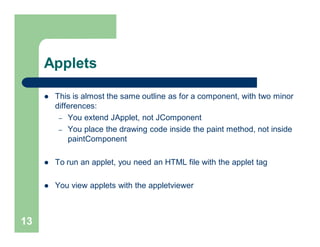
Applets
 This is almost the same outline as for a component, with two minor
differences:
– You extend JApplet, not JComponent
– You place the drawing code inside the paint method, not inside
paintComponent
 To run an applet, you need an HTML file with the applet tag
 You view applets with the appletviewer
13
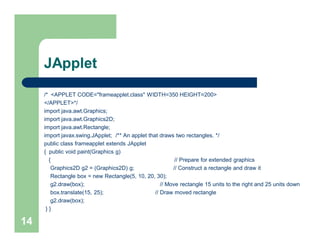
JApplet
/* <APPLET CODE="frameapplet.class" WIDTH=350 HEIGHT=200>
</APPLET>*/
import java.awt.Graphics;
import java.awt.Graphics2D;
import java.awt.Rectangle;
import javax.swing.JApplet; /** An applet that draws two rectangles. */
public class frameapplet extends JApplet
{ public void paint(Graphics g)
{ // Prepare for extended graphics
Graphics2D g2 = (Graphics2D) g; // Construct a rectangle and draw it
Rectangle box = new Rectangle(5, 10, 20, 30);
g2.draw(box); // Move rectangle 15 units to the right and 25 units down
box.translate(15, 25); // Draw moved rectangle
g2.draw(box);
} }
14
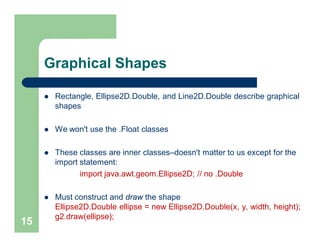
Graphical Shapes
 Rectangle, Ellipse2D.Double, and Line2D.Double describe graphical
shapes
 We won't use the .Float classes
 These classes are inner classes–doesn't matter to us except for the
import statement:
import java.awt.geom.Ellipse2D; // no .Double
 Must construct and draw the shape
Ellipse2D.Double ellipse = new Ellipse2D.Double(x, y, width, height);
g2.draw(ellipse);
15
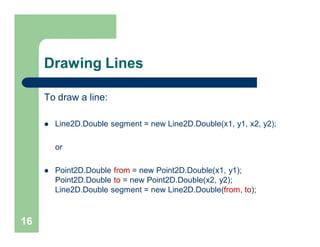
Drawing Lines
To draw a line:
 Line2D.Double segment = new Line2D.Double(x1, y1, x2, y2);
or
 Point2D.Double from = new Point2D.Double(x1, y1);
Point2D.Double to = new Point2D.Double(x2, y2);
Line2D.Double segment = new Line2D.Double(from, to);
16
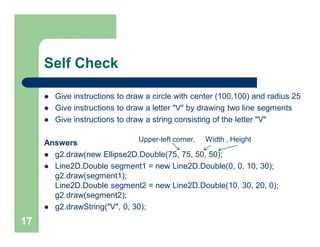
Self Check
 Give instructions to draw a circle with center (100,100) and radius 25
 Give instructions to draw a letter "V" by drawing two line segments
 Give instructions to draw a string consisting of the letter "V"
Answers
 g2.draw(new Ellipse2D.Double(75, 75, 50, 50);
 Line2D.Double segment1 = new Line2D.Double(0, 0, 10, 30);
g2.draw(segment1);
Line2D.Double segment2 = new Line2D.Double(10, 30, 20, 0);
g2.draw(segment2);
 g2.drawString("V", 0, 30);
17
Upper-left corner, Width , Height
Colors
 Standard colors Color.BLUE, Color.RED, Color.PINK etc.
 Specify red, green, blue between 0.0F and 1.0F
 Color magenta = new Color(1.0F, 0.0F, 1.0F); // F = float
Set color in graphics context
 g2.setColor(magenta);
Color is used when drawing and filling shapes
 g2.fill(rectangle); // filled with current color
18
Self Check
 What are the RGB color values of Color.BLUE?
 How do you draw a yellow square on a red background?
Answers
 0.0F, 0.0F, and 0.1F
 First fill a big red square, then fill a small yellow square inside:
g2.setColor(Color.RED);
g2.fill(new Rectangle(0, 0, 200, 200));
g2.setColor(Color.YELLOW);
g2.fill(new Rectangle(50, 50, 100, 100));
Note: Use import java.awt.Color;
19
Drawing Graphical Shapes
 Rectangle leftRectangle
= new Rectangle(100, 100, 30, 60);
Rectangle rightRectangle
= new Rectangle(160, 100, 30, 60);
Line2D.Double topLine
= new Line2D.Double(130, 100, 160, 100);
Line2D.Double bottomLine
= new Line2D.Double(130, 160, 160, 160);
20
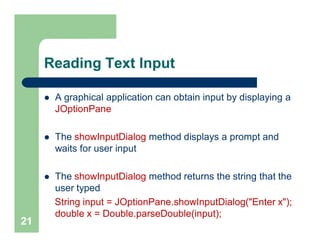
Reading Text Input
 A graphical application can obtain input by displaying a
JOptionPane
 The showInputDialog method displays a prompt and
waits for user input
 The showInputDialog method returns the string that the
user typed
String input = JOptionPane.showInputDialog("Enter x");
double x = Double.parseDouble(input);
21
An Example
import java.awt.Color; import javax.swing.Jframe;
import javax.swing.JOptionPane; import javax.swing.JComponent;
public class ColorViewer {
public static void main(String[] args) {
JFrame frame = new JFrame(); final int FRAME_WIDTH = 300; final int FRAME_HEIGHT = 400;
frame.setSize(FRAME_WIDTH, FRAME_HEIGHT);
frame.setDefaultCloseOperation(JFrame.EXIT_ON_CLOSE);
String input; // Ask the user for red, green, blue values
input = JOptionPane.showInputDialog("red:");
double red = Double.parseDouble(input);
input = JOptionPane.showInputDialog("green:");
double green = Double.parseDouble(input);
input = JOptionPane.showInputDialog("blue:");
double blue = Double.parseDouble(input);
Color fillColor = new Color( (float) red, (float) green, (float) blue);
Square component = new Square (fillColor);
frame.add(component); frame.setVisible(true); } }22
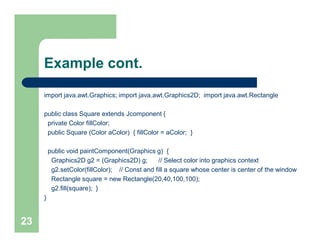
Example cont.
import java.awt.Graphics; import java.awt.Graphics2D; import java.awt.Rectangle
public class Square extends Jcomponent {
private Color fillColor;
public Square (Color aColor) { fillColor = aColor; }
public void paintComponent(Graphics g) {
Graphics2D g2 = (Graphics2D) g; // Select color into graphics context
g2.setColor(fillColor); // Const and fill a square whose center is center of the window
Rectangle square = new Rectangle(20,40,100,100);
g2.fill(square); }
}
23

Lec 10 10_sept [compatibility mode]

  • 1.
  • 2.
    A Simple Program importjavax.swing.JFrame; import javax.swing.JLabel; HelloWorldFrame extends Jframe { public static void main(String args[]) { JFrame f = new JFrame(); f. setSize(100, 100); JLabel X = new JLabel("Hello World"); f.add(X); f.setVisible(true); } } 2
  • 3.
    A Simple Program importjavax.swing.JFrame; import javax.swing.JLabel; HelloWorldFrame extends Jframe { public static void main(String args[]) { new HelloWorldFrame(); } HelloWorldFrame() { JLabel X = new JLabel("Hello World"); add(X); setSize(100, 100); setVisible(true); } }3 Problem: on window close cursor will not go on C: prompt
  • 4.
    Frame Windows  TheJFrame class JFrame frame = new JFrame();  frame.setSize(300, 400); frame.setTitle("An Empty Frame"); frame.setDefaultCloseOperation(JFrame.EXIT_ON_CLOSE); frame.setVisible(true);  import javax.swing.*; 4
  • 5.
    Frame program import javax.swing.*; publicclass frame { public static void main(String[] args) { JFrame frame = new JFrame(); final int FRAME_WIDTH = 300; final int FRAME_HEIGHT = 400; frame.setSize(FRAME_WIDTH, FRAME_HEIGHT); frame.setTitle("An Empty Frame"); frame.setDefaultCloseOperation(JFrame.EXIT_ON_CLOSE); frame.setVisible(true); } } 5
  • 6.
    Self Check  Howdo you display a square frame with a title bar that reads "Hello, World!"?  How can a program display two frames at once? Answers  Modify the EmptyFrameViewer program as follows: frame.setSize(300, 300); frame.setTitle("Hello, World!");  Construct two JFrame objects, set each of their sizes, and call setVisible(true) on each of them 6
  • 7.
    Drawing Shapes  paintComponent:called whenever the component needs to be repainted: public class frame1 extends JComponent { public void paintComponent(Graphics g) { // Recover Graphics2D Graphics2D g2 = (Graphics2D) g; . . . } } 7
  • 8.
    Drawing Shapes  Graphicsclass lets you manipulate the graphics state (such as current color)  Graphics2D class has methods to draw shape objects  Use a cast to recover the Graphics2D object from the Graphics parameter Rectangle box = new Rectangle(5, 10, 20, 30); g2.draw(box);  java.awt package8
  • 9.
    Rectangle Drawing ProgramClasses  frame1: its paintComponent method produces the drawing  frame: its main method constructs a frame and a frame1, adds the component to the frame, and makes the frame visible – Construct a frame – Construct an object of your component class: frame1 component = new frame1(); – Add the component to the frame frame.add(component); However, if you use an older version of Java (before Version 5), you must make a slightly more complicated call: frame.getContentPane().add(component); – Make the frame visible frame.setVisible(true); 9
  • 10.
    An example (producea drawing with two boxes) import java.awt.Graphics; import java.awt.Graphics2D; import java.awt.Rectangle; import javax.swing.JComponent; /** A component that draws two rectangles. */ public class frame1 extends JComponent { public void paintComponent(Graphics g) { Graphics2D g2 = (Graphics2D) g; // Recover Graphics2D Rectangle box = new Rectangle(5, 10, 20, 30); // Construct a rectangle and g2.draw(box); // draw it box.translate(15, 25); // Move rectangle 15 units to the right and 25 units down g2.draw(box); // Draw moved rectangle } } 10
  • 11.
    Create frame andadd drawing import javax.swing.JFrame; public class frame { public static void main(String[] args) { JFrame frame = new JFrame(); final int FRAME_WIDTH = 300; final int FRAME_HEIGHT = 400; frame.setSize(FRAME_WIDTH,FRAME_HEIGHT); frame.setTitle("Two rectangles"); frame.setDefaultCloseOperation(JFrame.EXIT_ON_CLOSE); frame1 component = new frame1(); frame.add(component); frame.setVisible(true); } }11
  • 12.
    Self Check  Howdo you modify the program to draw two squares?  How do you modify the program to draw one rectangle and one square?  What happens if you call g.draw(box) instead of g2.draw(box)? Answers  Rectangle box = new Rectangle(5, 10, 20, 20);  Replace the call to box.translate(15, 25) with box = new Rectangle(20, 35, 20, 20);  The compiler complains that g doesn't have a draw method 12
  • 13.
    Applets  This isalmost the same outline as for a component, with two minor differences: – You extend JApplet, not JComponent – You place the drawing code inside the paint method, not inside paintComponent  To run an applet, you need an HTML file with the applet tag  You view applets with the appletviewer 13
  • 14.
    JApplet /* <APPLET CODE="frameapplet.class"WIDTH=350 HEIGHT=200> </APPLET>*/ import java.awt.Graphics; import java.awt.Graphics2D; import java.awt.Rectangle; import javax.swing.JApplet; /** An applet that draws two rectangles. */ public class frameapplet extends JApplet { public void paint(Graphics g) { // Prepare for extended graphics Graphics2D g2 = (Graphics2D) g; // Construct a rectangle and draw it Rectangle box = new Rectangle(5, 10, 20, 30); g2.draw(box); // Move rectangle 15 units to the right and 25 units down box.translate(15, 25); // Draw moved rectangle g2.draw(box); } } 14
  • 15.
    Graphical Shapes  Rectangle,Ellipse2D.Double, and Line2D.Double describe graphical shapes  We won't use the .Float classes  These classes are inner classes–doesn't matter to us except for the import statement: import java.awt.geom.Ellipse2D; // no .Double  Must construct and draw the shape Ellipse2D.Double ellipse = new Ellipse2D.Double(x, y, width, height); g2.draw(ellipse); 15
  • 16.
    Drawing Lines To drawa line:  Line2D.Double segment = new Line2D.Double(x1, y1, x2, y2); or  Point2D.Double from = new Point2D.Double(x1, y1); Point2D.Double to = new Point2D.Double(x2, y2); Line2D.Double segment = new Line2D.Double(from, to); 16
  • 17.
    Self Check  Giveinstructions to draw a circle with center (100,100) and radius 25  Give instructions to draw a letter "V" by drawing two line segments  Give instructions to draw a string consisting of the letter "V" Answers  g2.draw(new Ellipse2D.Double(75, 75, 50, 50);  Line2D.Double segment1 = new Line2D.Double(0, 0, 10, 30); g2.draw(segment1); Line2D.Double segment2 = new Line2D.Double(10, 30, 20, 0); g2.draw(segment2);  g2.drawString("V", 0, 30); 17 Upper-left corner, Width , Height
  • 18.
    Colors  Standard colorsColor.BLUE, Color.RED, Color.PINK etc.  Specify red, green, blue between 0.0F and 1.0F  Color magenta = new Color(1.0F, 0.0F, 1.0F); // F = float Set color in graphics context  g2.setColor(magenta); Color is used when drawing and filling shapes  g2.fill(rectangle); // filled with current color 18
  • 19.
    Self Check  Whatare the RGB color values of Color.BLUE?  How do you draw a yellow square on a red background? Answers  0.0F, 0.0F, and 0.1F  First fill a big red square, then fill a small yellow square inside: g2.setColor(Color.RED); g2.fill(new Rectangle(0, 0, 200, 200)); g2.setColor(Color.YELLOW); g2.fill(new Rectangle(50, 50, 100, 100)); Note: Use import java.awt.Color; 19
  • 20.
    Drawing Graphical Shapes Rectangle leftRectangle = new Rectangle(100, 100, 30, 60); Rectangle rightRectangle = new Rectangle(160, 100, 30, 60); Line2D.Double topLine = new Line2D.Double(130, 100, 160, 100); Line2D.Double bottomLine = new Line2D.Double(130, 160, 160, 160); 20
  • 21.
    Reading Text Input A graphical application can obtain input by displaying a JOptionPane  The showInputDialog method displays a prompt and waits for user input  The showInputDialog method returns the string that the user typed String input = JOptionPane.showInputDialog("Enter x"); double x = Double.parseDouble(input); 21
  • 22.
    An Example import java.awt.Color;import javax.swing.Jframe; import javax.swing.JOptionPane; import javax.swing.JComponent; public class ColorViewer { public static void main(String[] args) { JFrame frame = new JFrame(); final int FRAME_WIDTH = 300; final int FRAME_HEIGHT = 400; frame.setSize(FRAME_WIDTH, FRAME_HEIGHT); frame.setDefaultCloseOperation(JFrame.EXIT_ON_CLOSE); String input; // Ask the user for red, green, blue values input = JOptionPane.showInputDialog("red:"); double red = Double.parseDouble(input); input = JOptionPane.showInputDialog("green:"); double green = Double.parseDouble(input); input = JOptionPane.showInputDialog("blue:"); double blue = Double.parseDouble(input); Color fillColor = new Color( (float) red, (float) green, (float) blue); Square component = new Square (fillColor); frame.add(component); frame.setVisible(true); } }22
  • 23.
    Example cont. import java.awt.Graphics;import java.awt.Graphics2D; import java.awt.Rectangle public class Square extends Jcomponent { private Color fillColor; public Square (Color aColor) { fillColor = aColor; } public void paintComponent(Graphics g) { Graphics2D g2 = (Graphics2D) g; // Select color into graphics context g2.setColor(fillColor); // Const and fill a square whose center is center of the window Rectangle square = new Rectangle(20,40,100,100); g2.fill(square); } } 23