What you will needHeadset (with microphone if audio is to be used)Internet accessLatest java downloadCorrect proxy settings (may need technician to help you)
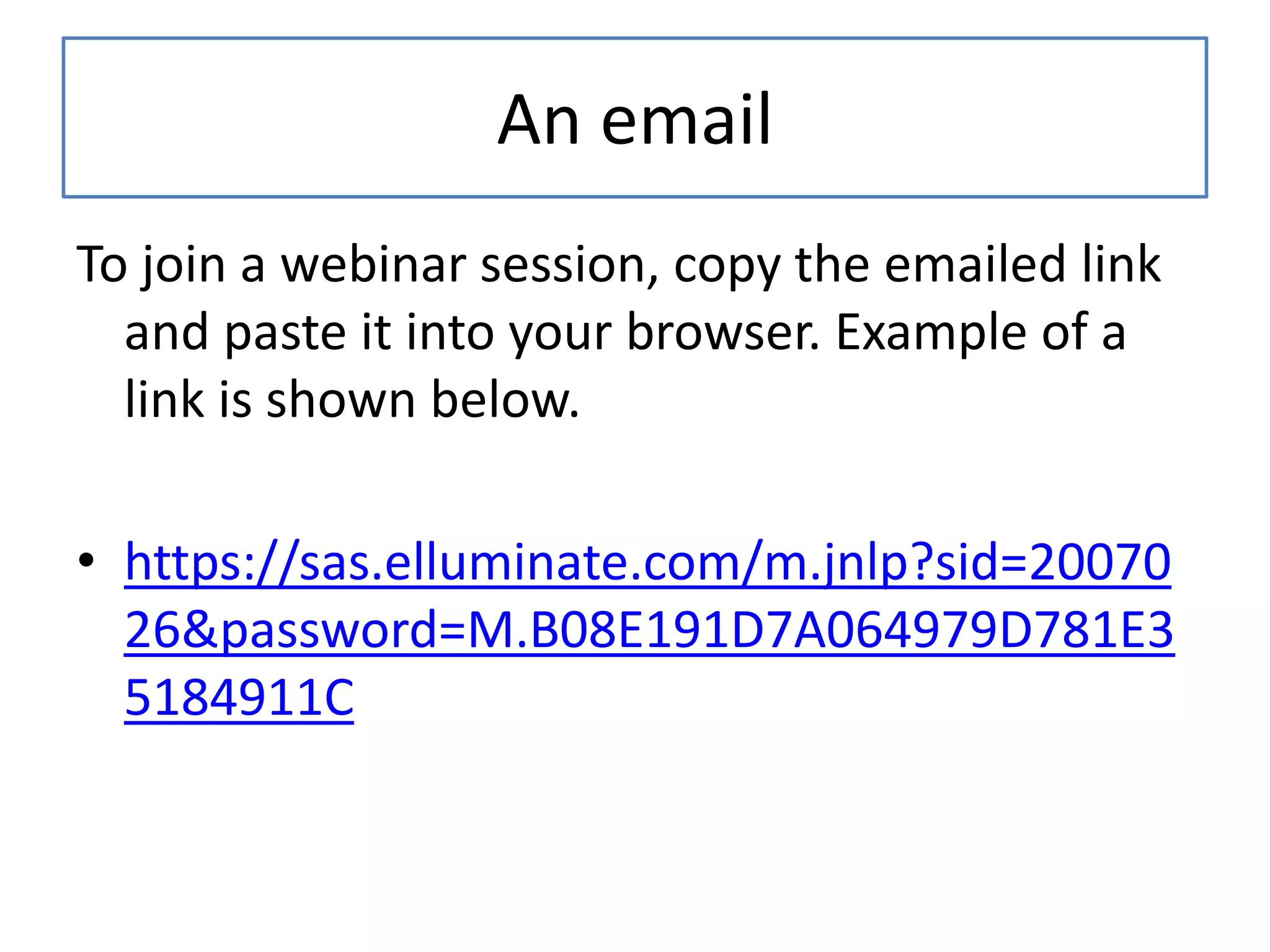
An emailTo join a webinar session, copy the emailed link and paste it into your browser. Example of a link is shown below. https://sas.elluminate.com/m.jnlp?sid=2007026&password=M.B08E191D7A064979D781E35184911C
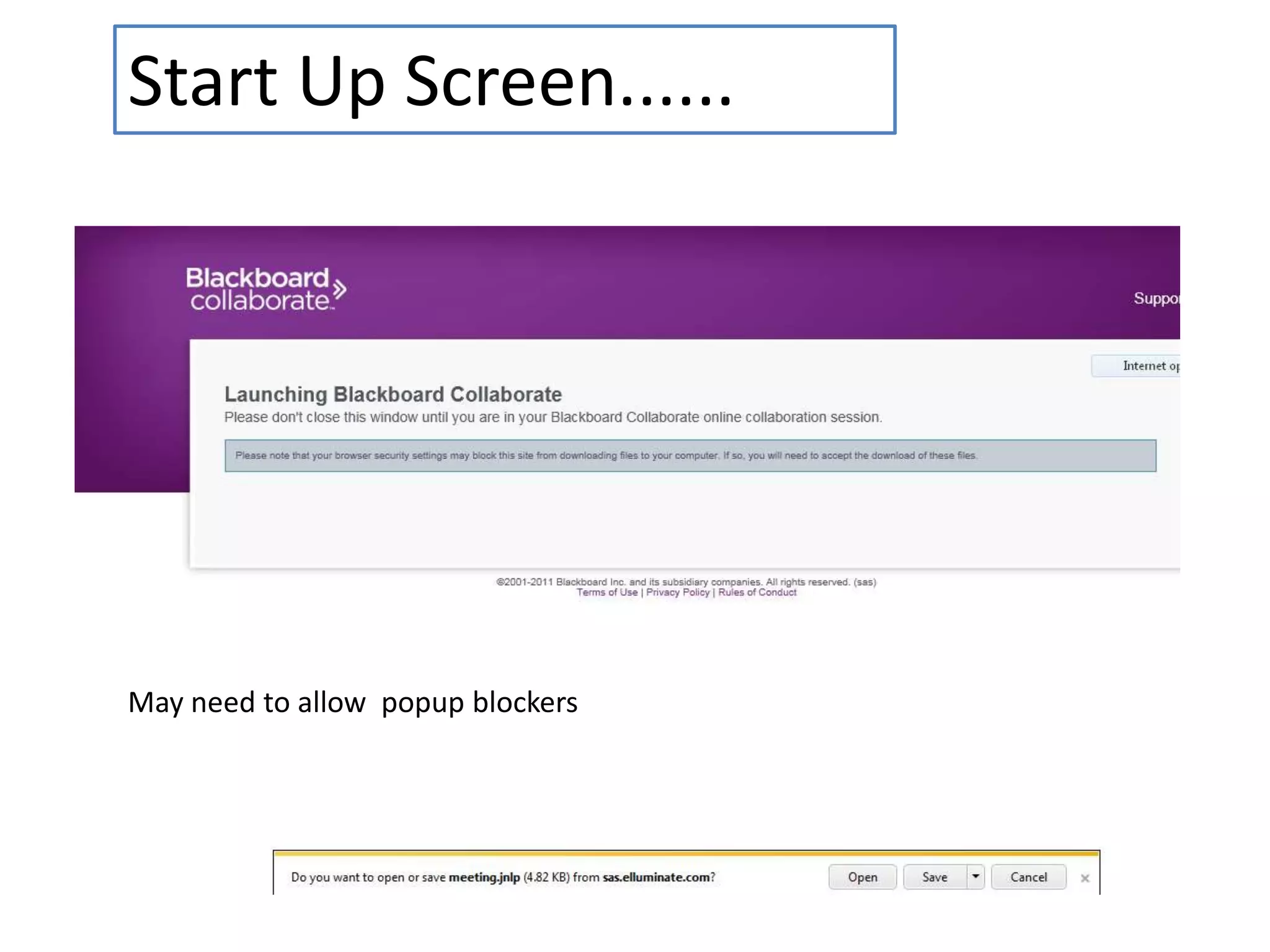
Start Up Screen......May need to allow  popup blockers
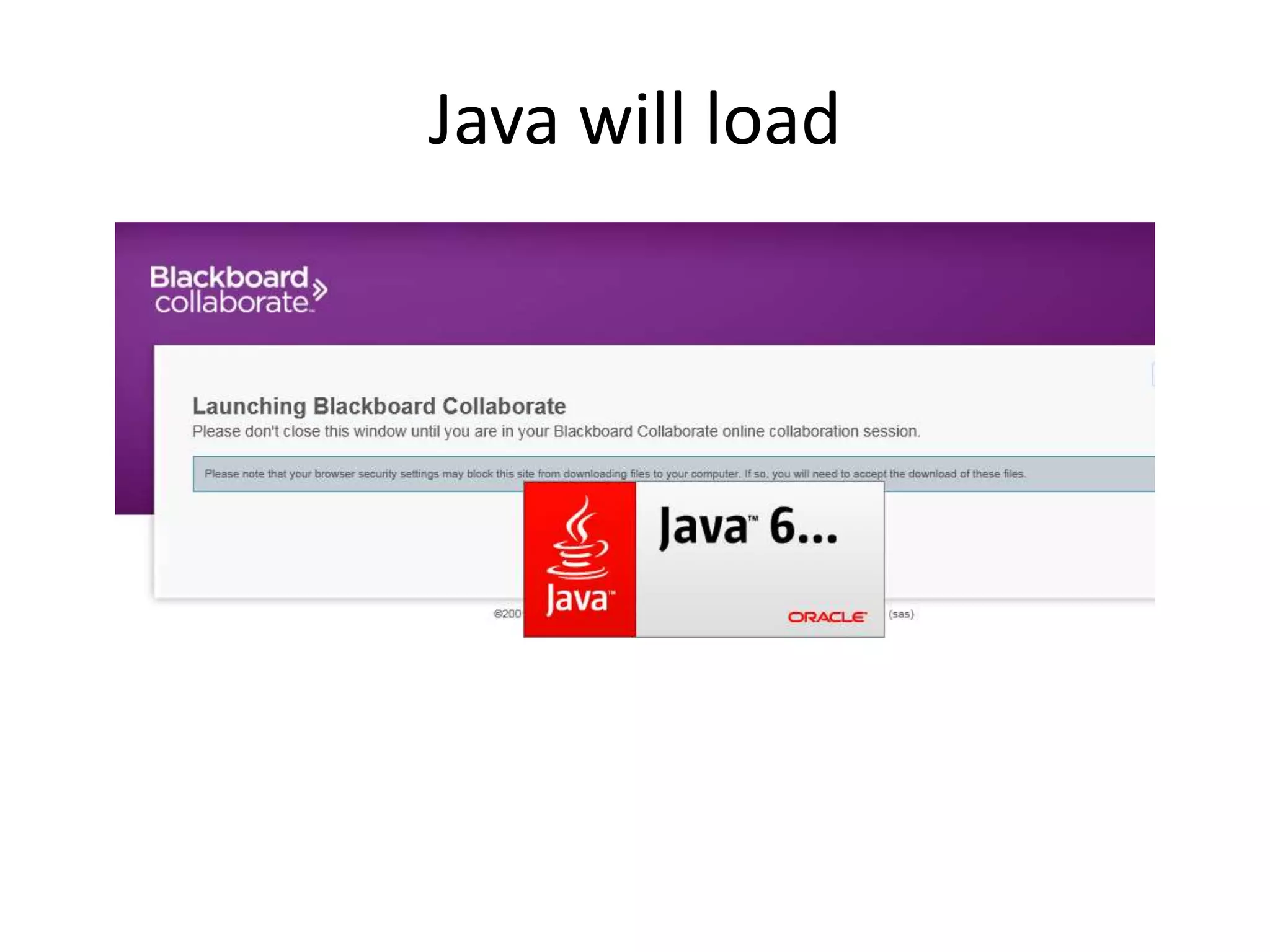
Java will load
Prompt to entera name....Students should enter with first name followed by school identifierEgCarla_HPC or Carl_HawkesdaleTeachers should come in with their first or full namesOr follow protocol determined by your organizer.
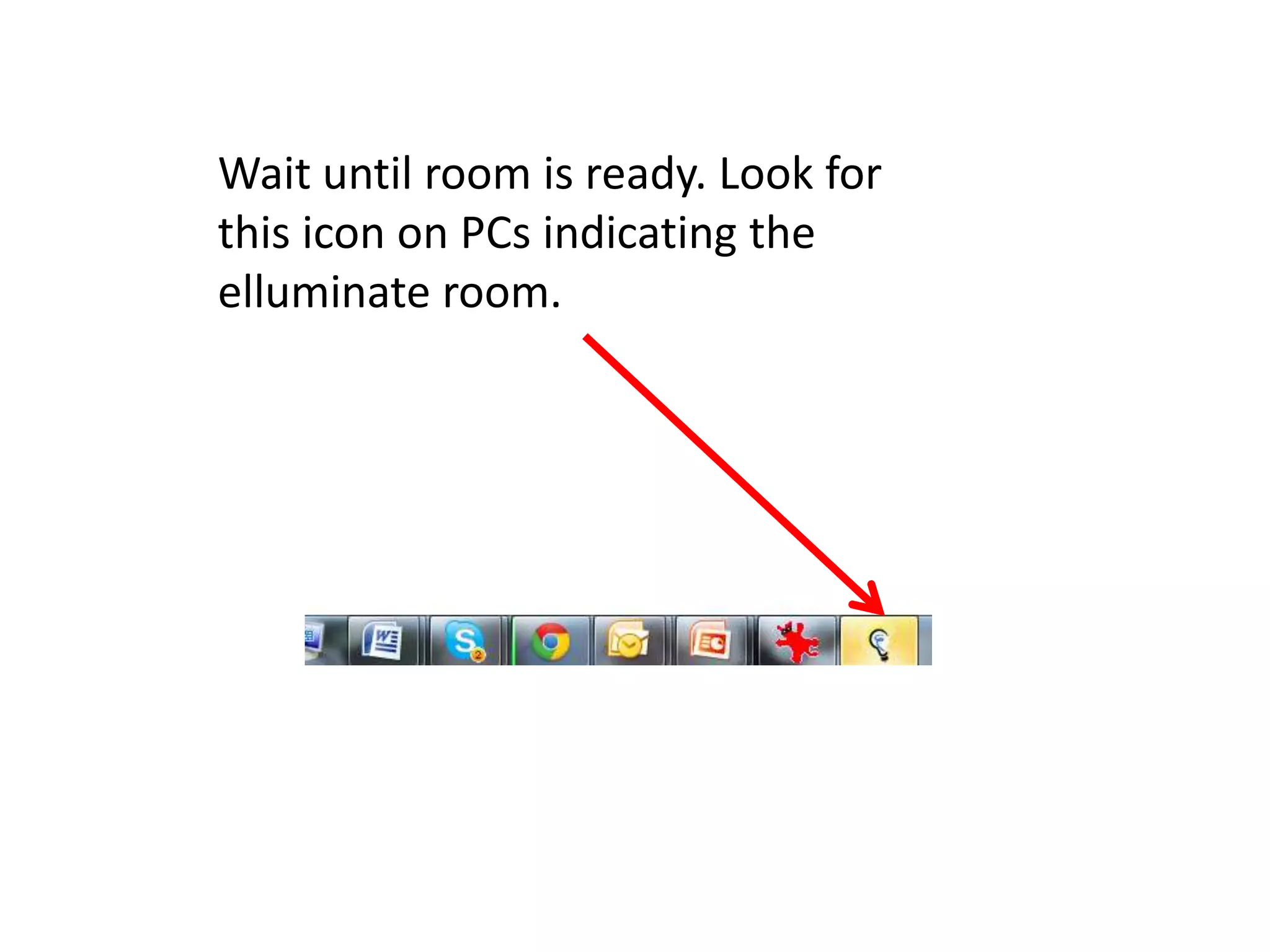
Wait until room is ready. Look for this icon on PCs indicating the elluminate room.
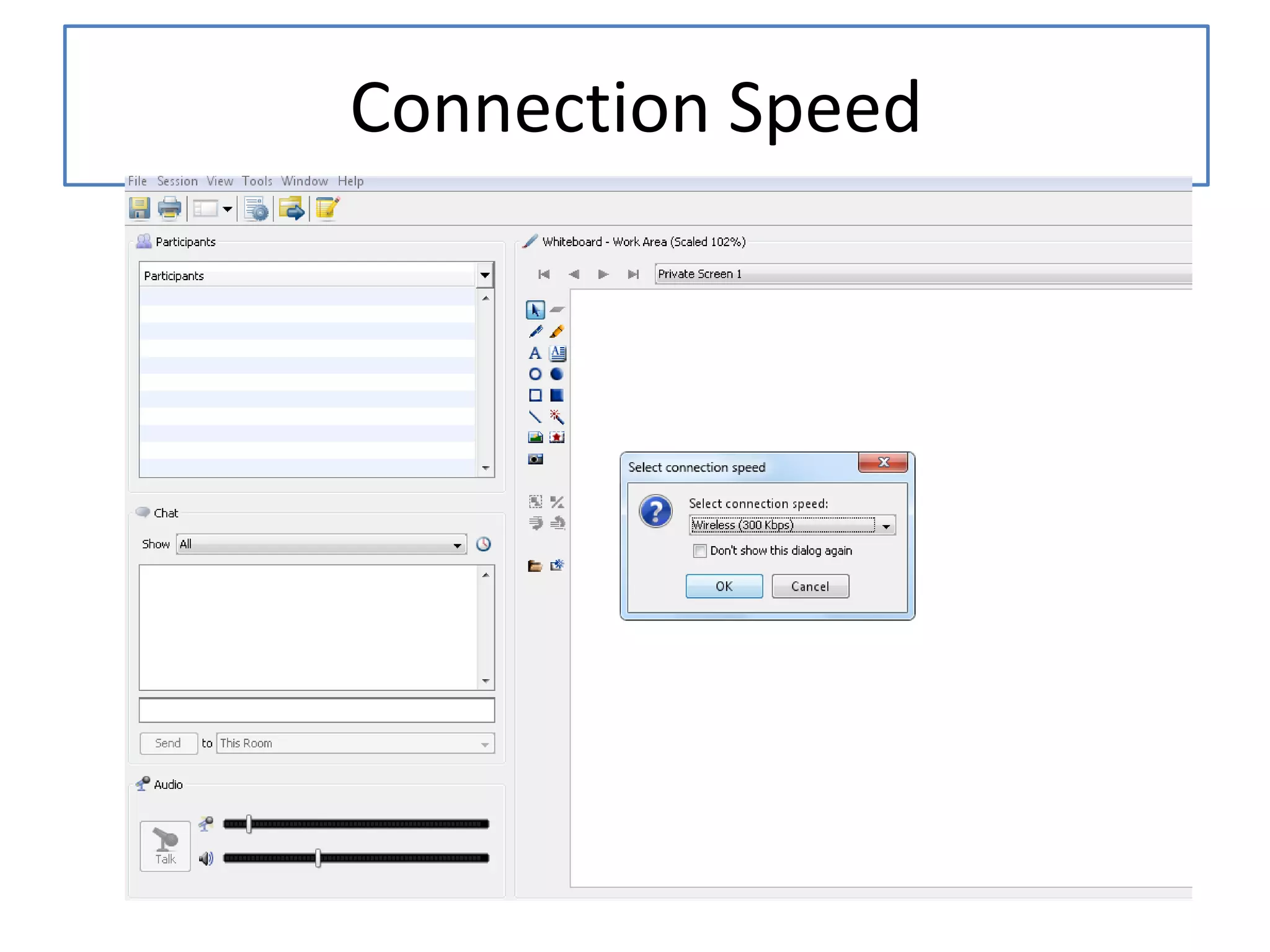
Connection Speed
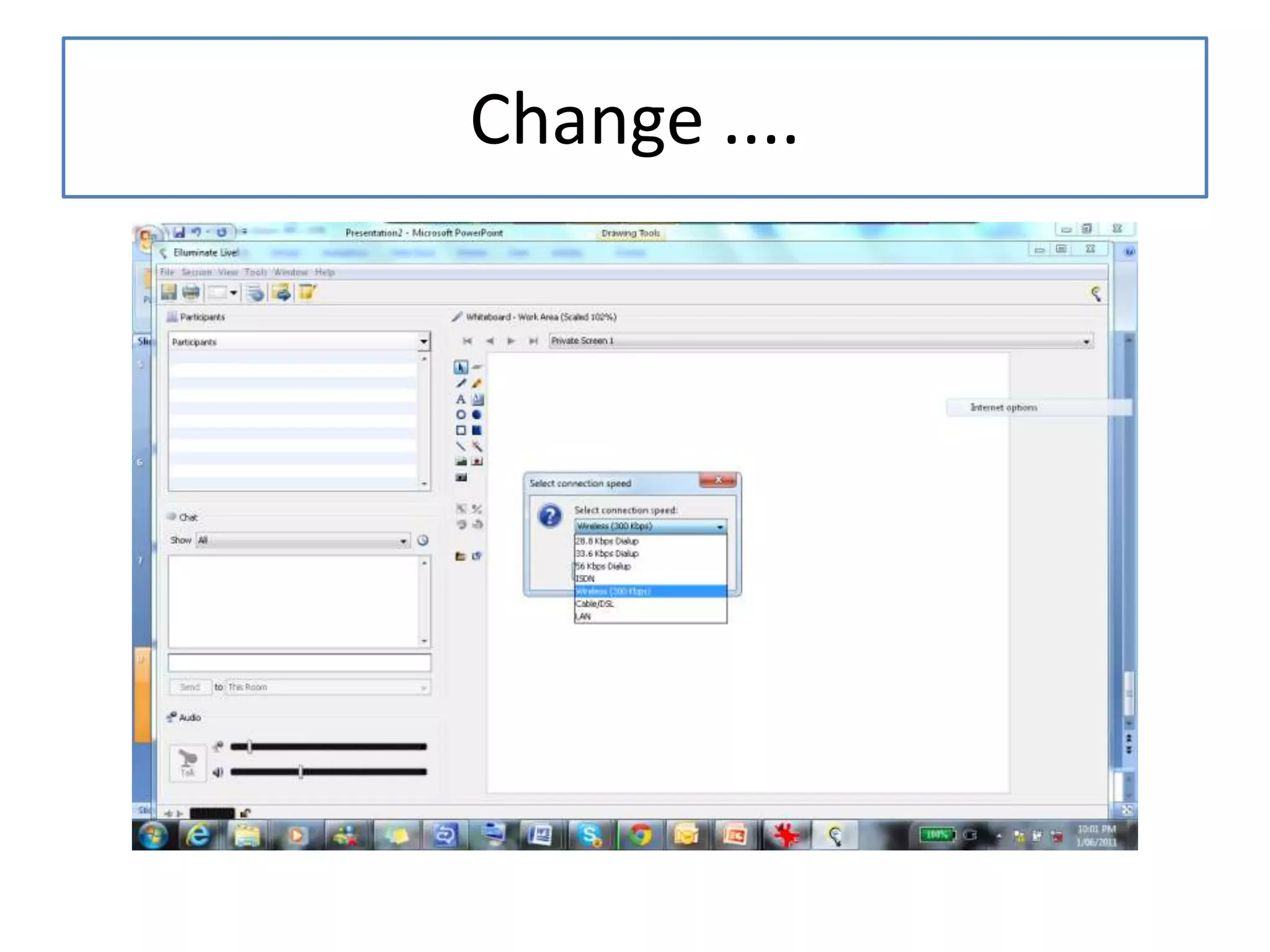
Change ....
Change connection speedWireless if on a laptop or netbookCable DSL if on a desktopDrop speed back to dial up if you have really poor bandwidth.Once in elluminate, gotoTools>preferences>connection speeds (see next slide)
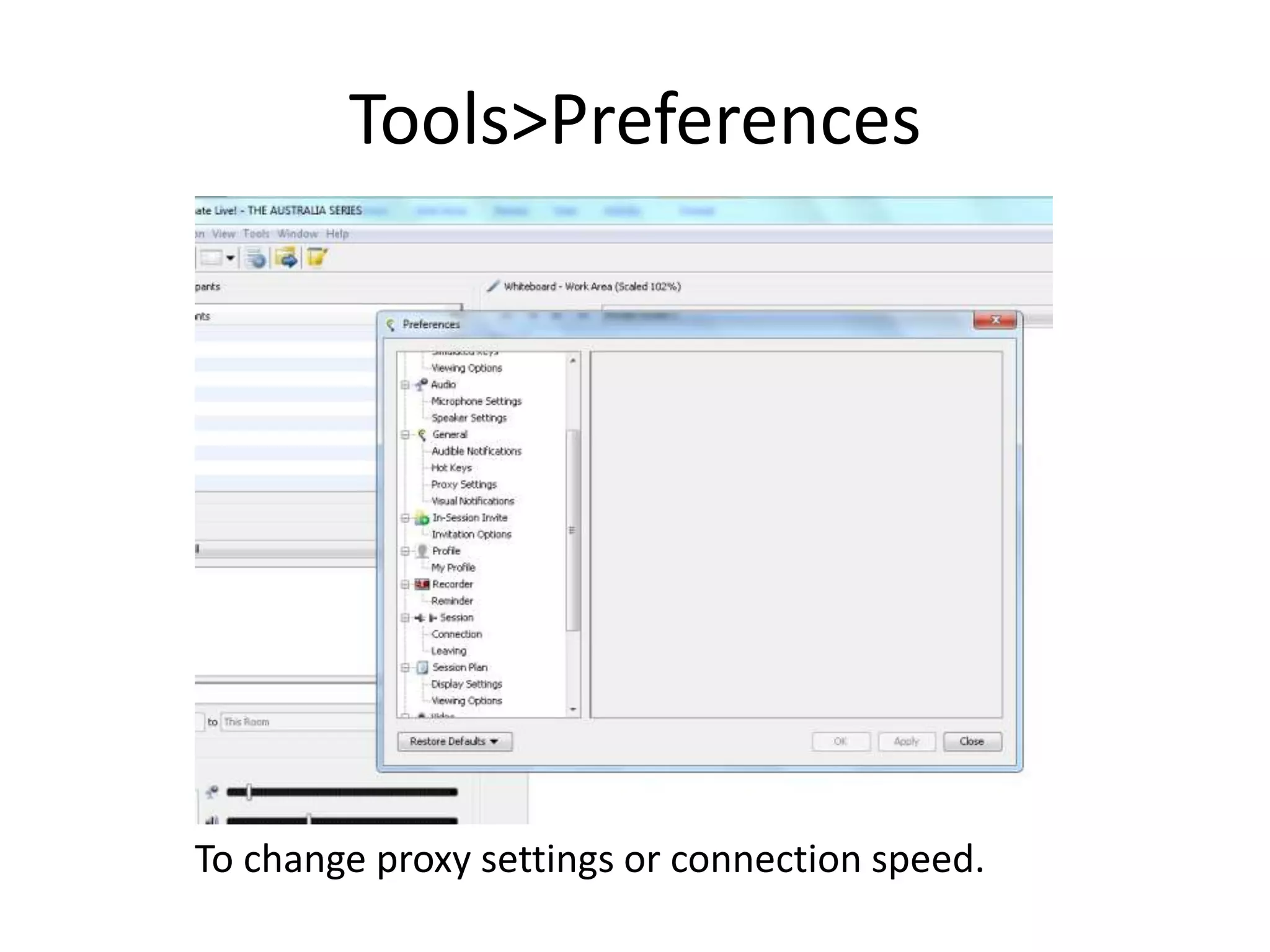
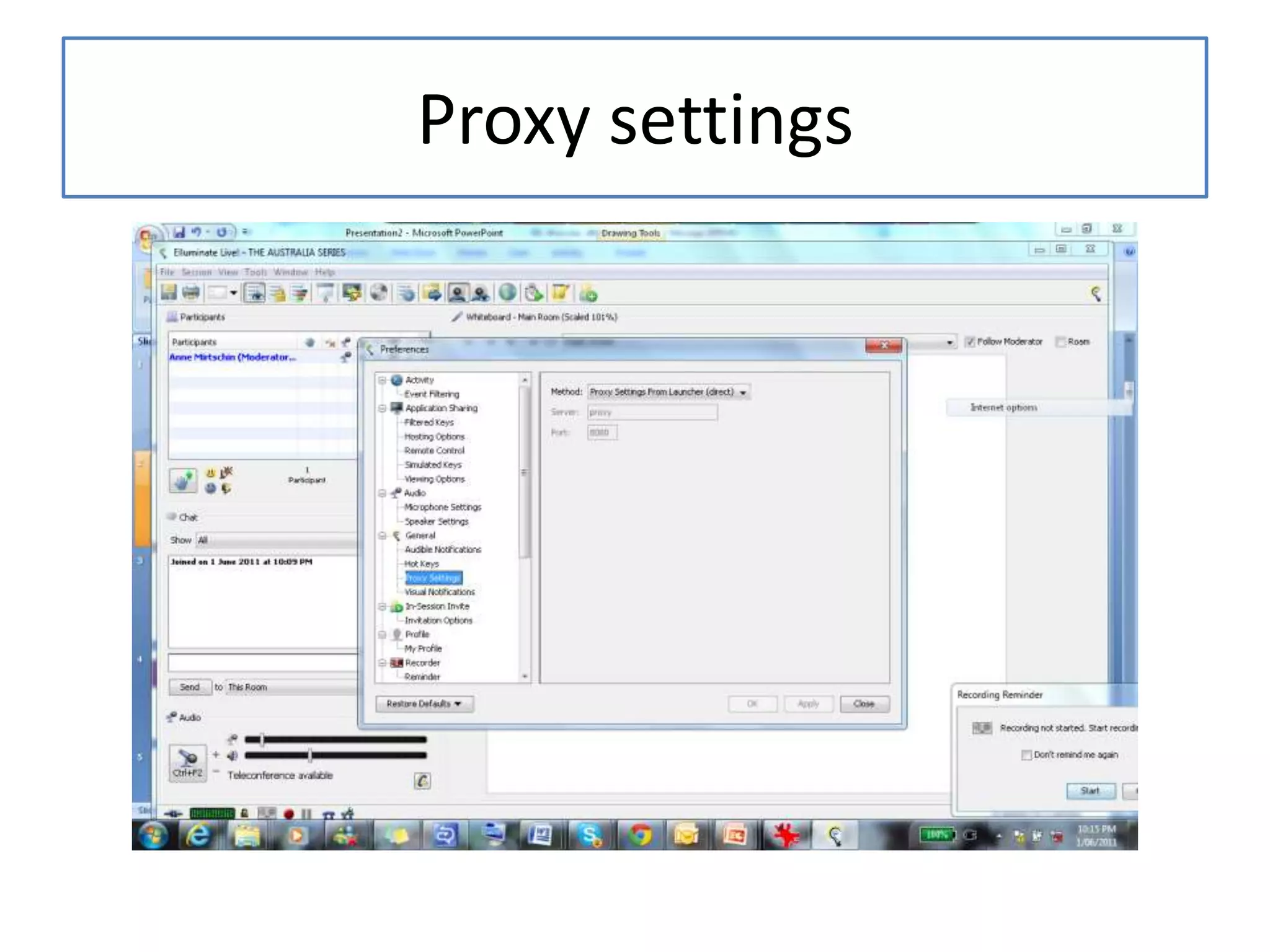
Tools>PreferencesTo change proxy settings or connection speed.
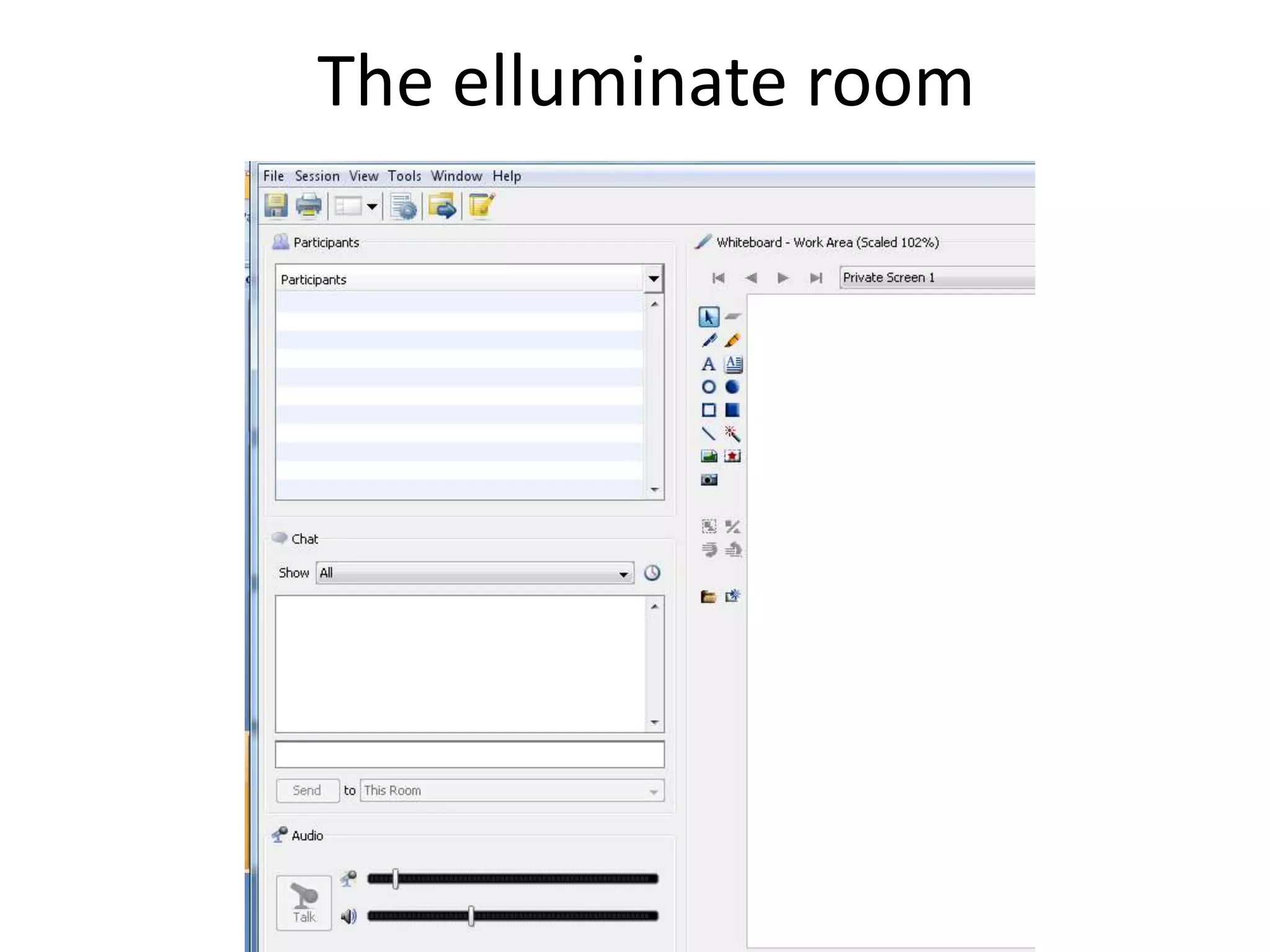
The elluminate room
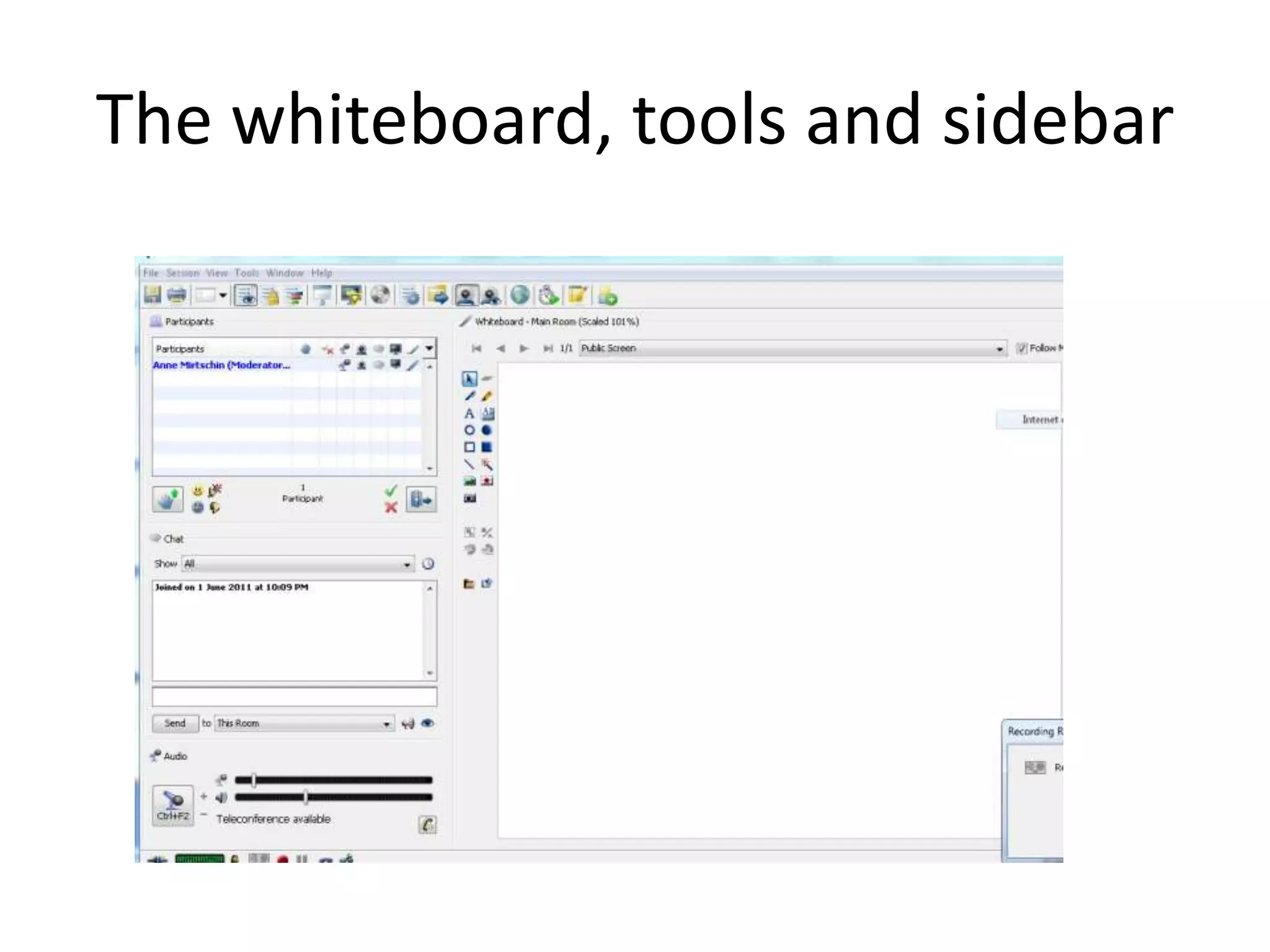
The whiteboard, tools and sidebar
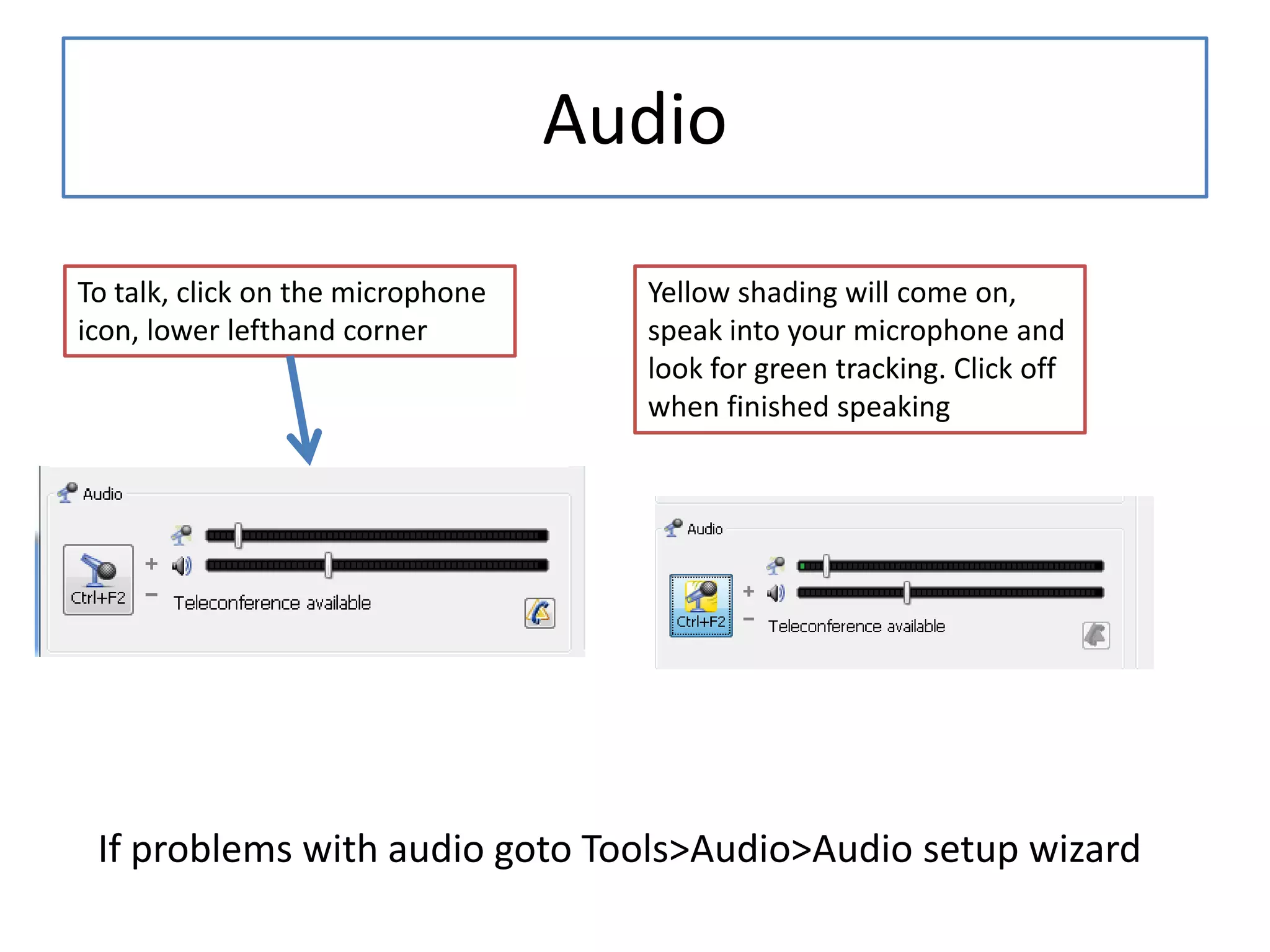
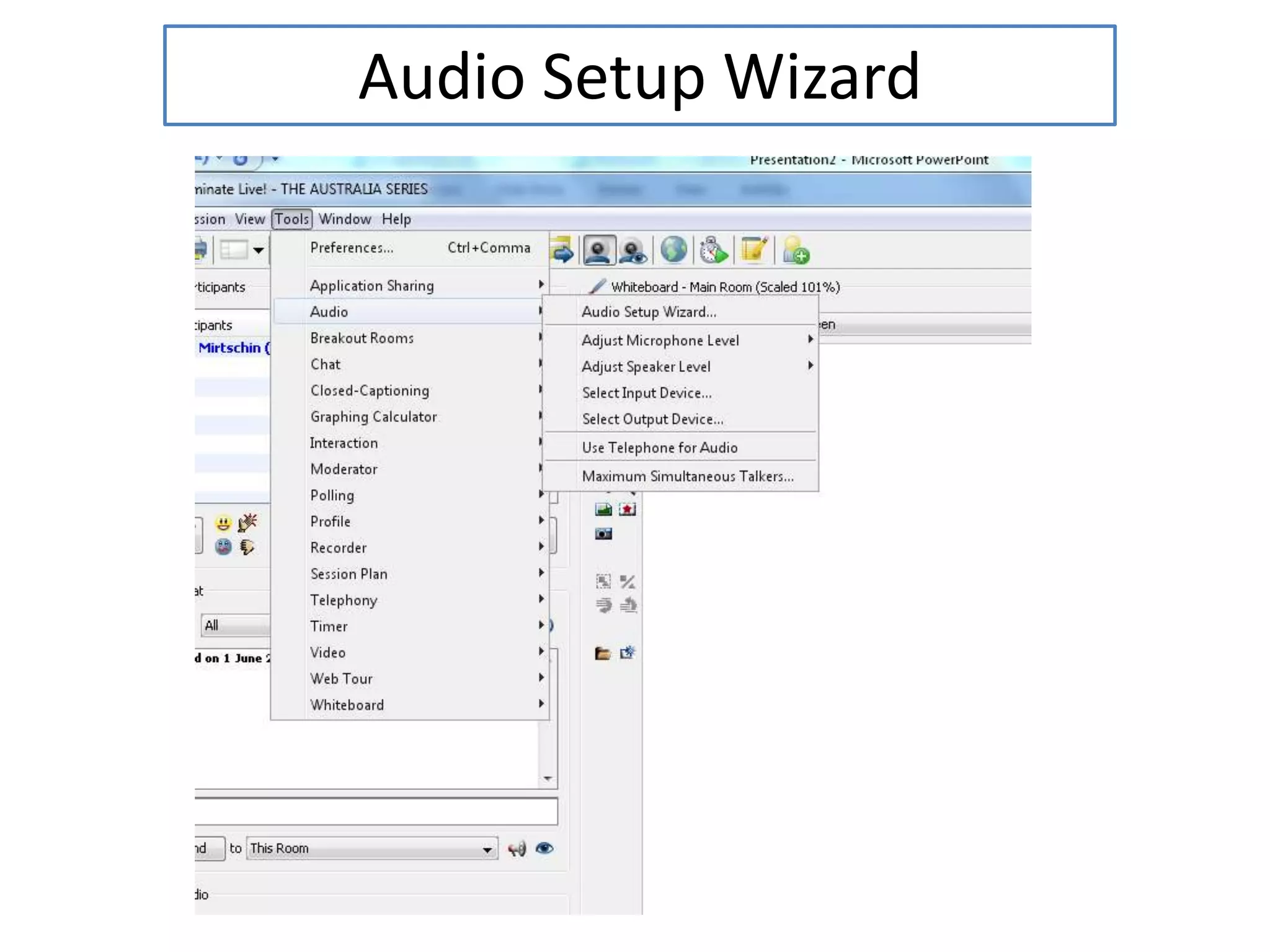
AudioTo talk, click on the microphone icon, lower lefthand cornerYellow shading will come on, speak into your microphone and look for green tracking. Click off when finished speakingIf problems with audio goto Tools>Audio>Audio setup wizard
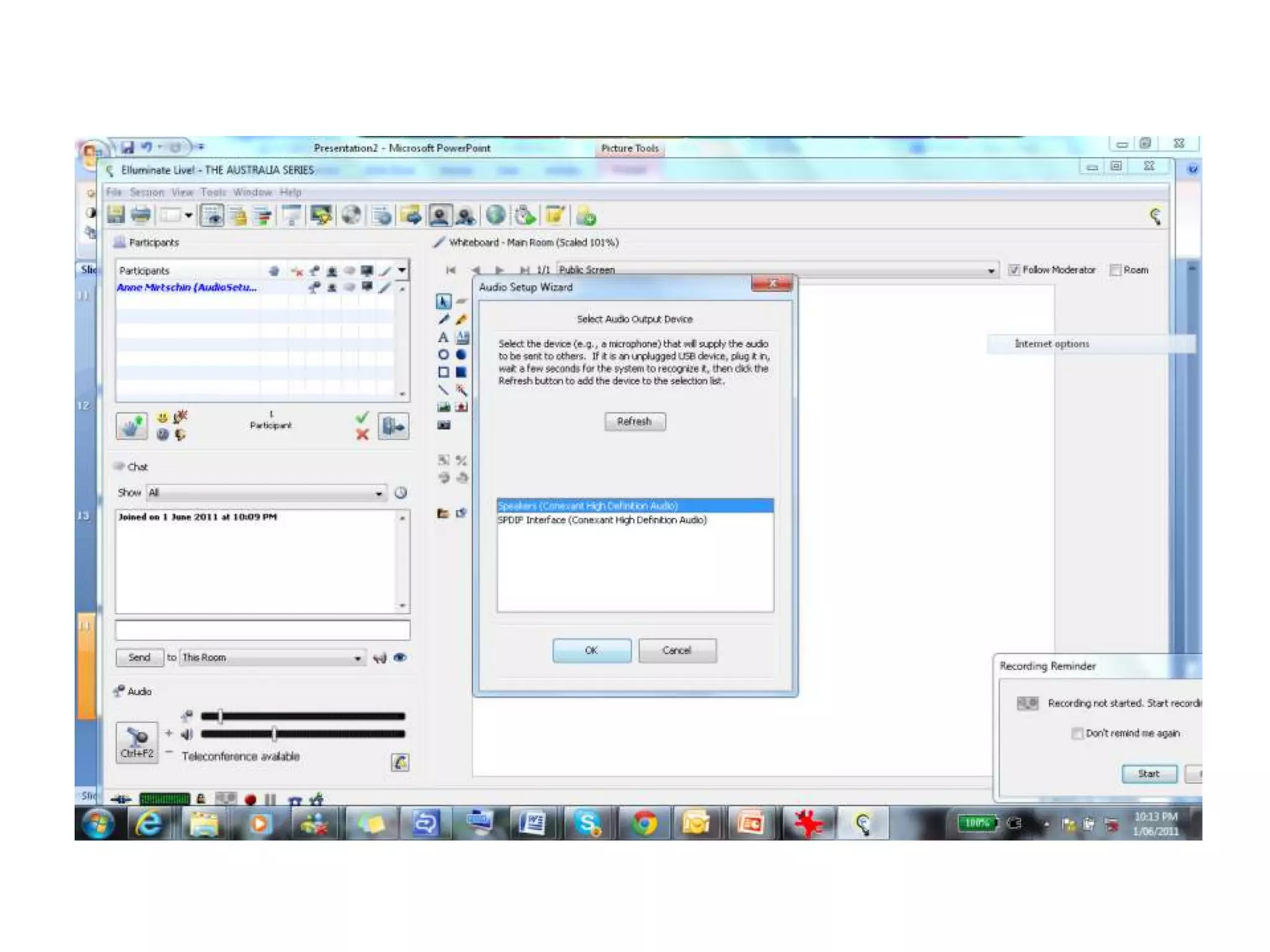
Audio Setup Wizard
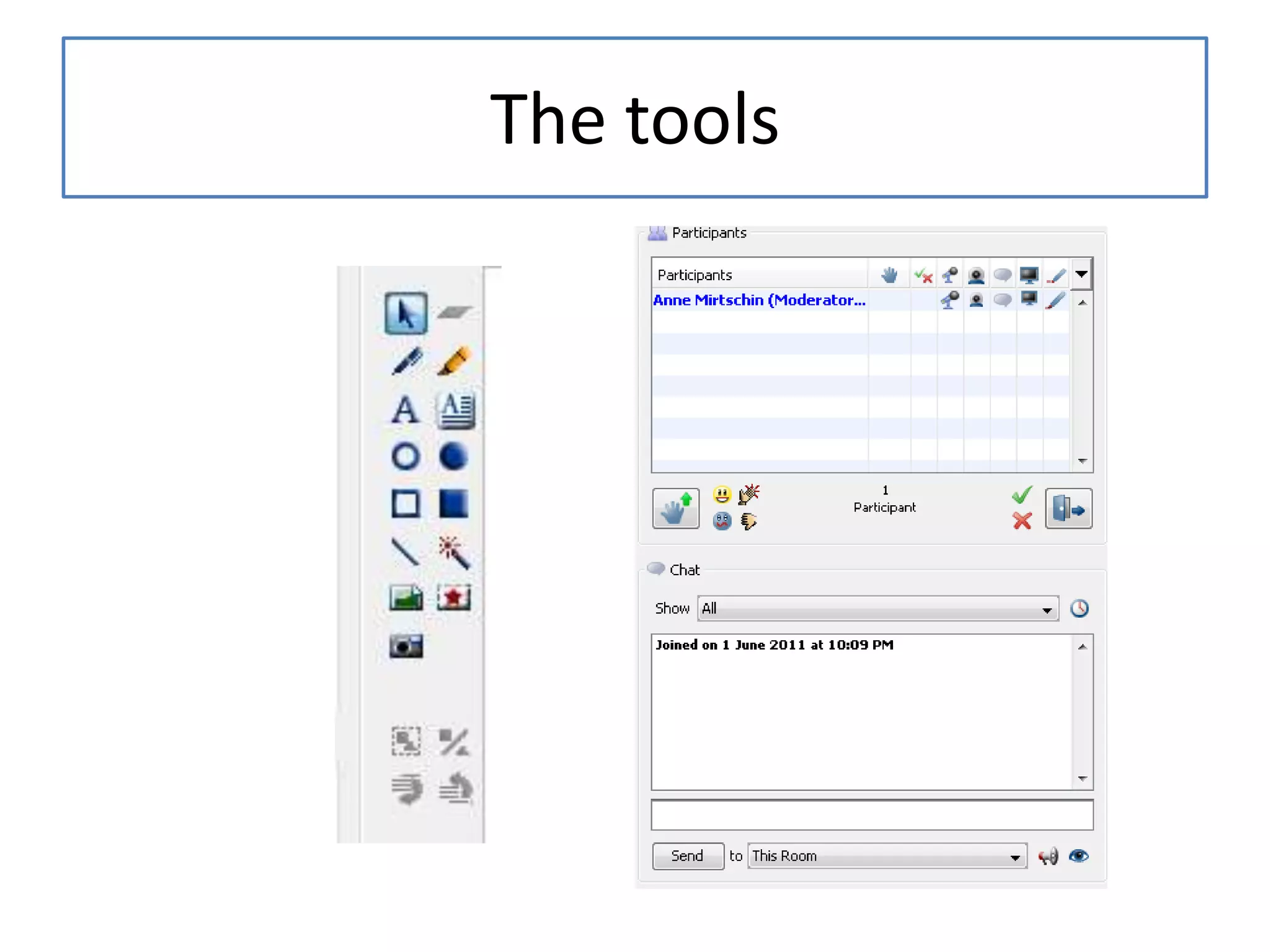
The tools
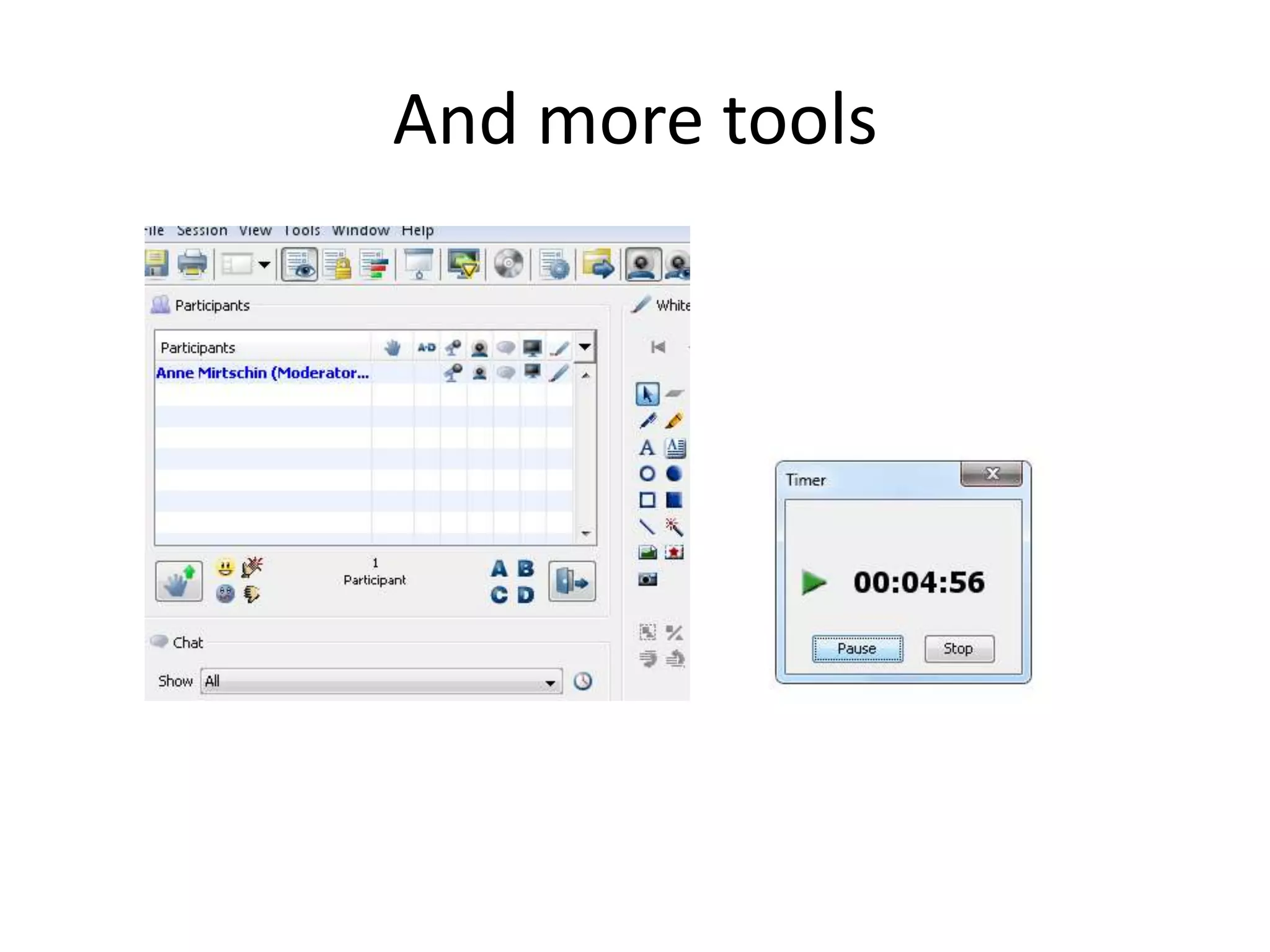
And more tools
Problems that might ariseAudio – hearing or microphoneWill not load – proxy settings. Grab your technicianMacs – tend to have unresolved problems, at times.
Proxy settings
TipsDiscuss appropriate code of conduct/behaviour in a virtual room – appropriate chat, whiteboard useFirst time in with students will take a while as there could be many issues (ask for a techie or someone (teacher/student) who is savvy with sound etc)
If audio doesn’t workgo through audio wizard in elluminate, try different port for jacks, make sure mute is off on computer volume switch is up on headset, try another headset.
Test before the sessionAlways, always test before the session
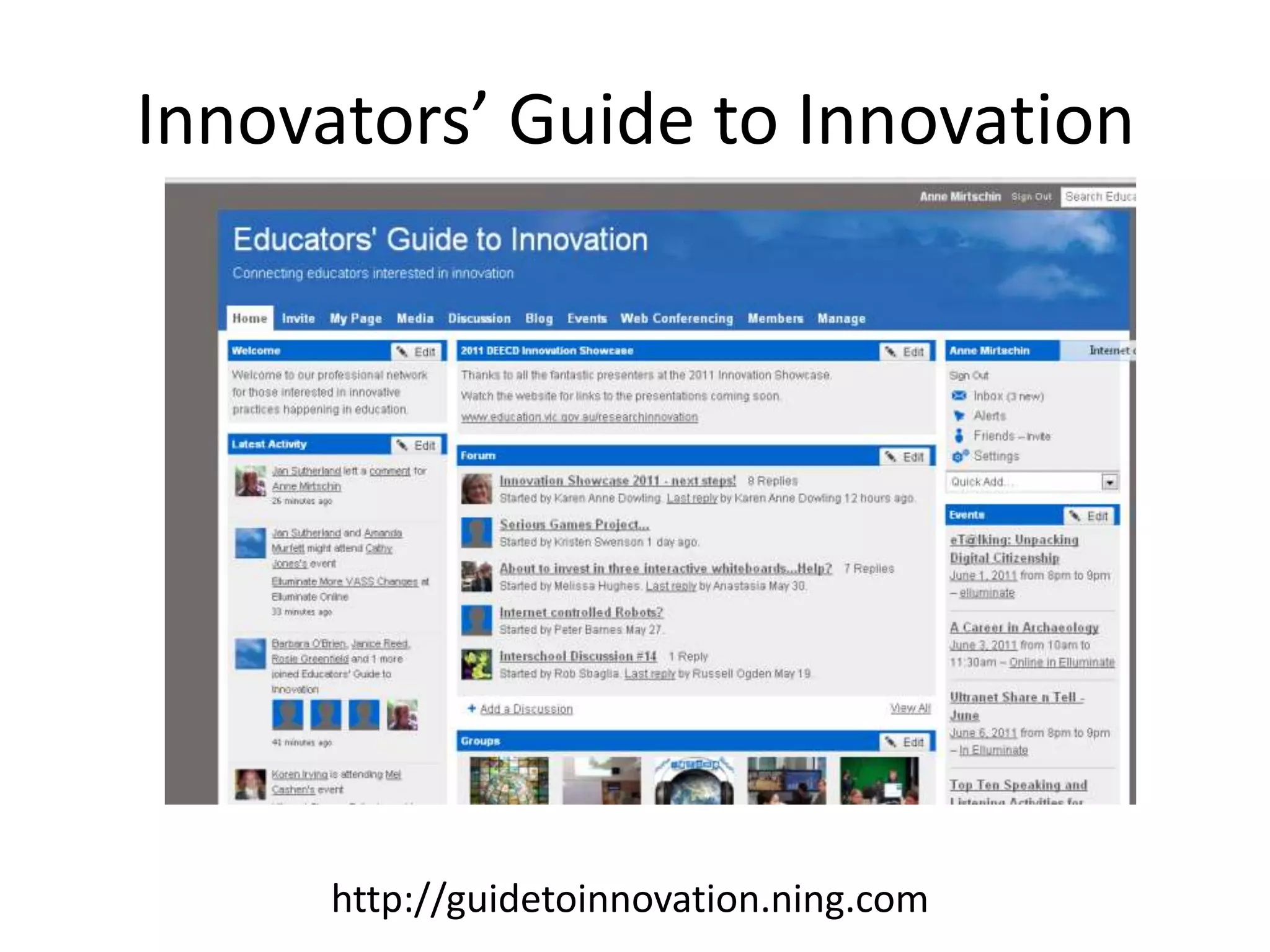
Innovators’ Guide to Innovationhttp://guidetoinnovation.ning.com
DEECD Website – Virtual Conference CentreGetting started pagehttp://www.education.vic.gov.au/researchinnovation/virtualconferencecentre/use/start.htmSupport Pagehttp://www.education.vic.gov.au/researchinnovation/virtualconferencecentre/support.htmVideos on Educators Guide to Innovationhttp://guidetoinnovation.ning.com/video/logging-into-elluminatehttp://guidetoinnovation.ning.com/video/getting-sound-in-elluminate
Want to learn more....Tech Talk Tuesdays(http://techtalktuesdays.global2.vic.edu.au)eT@lking and other Australian series(http://australiaseries.wordpress.com)Educators Guide to InnovationWeb conference coachinghttp://guidetoinnovation.ning.com/forum/topics/want-to-learn-how-to-use
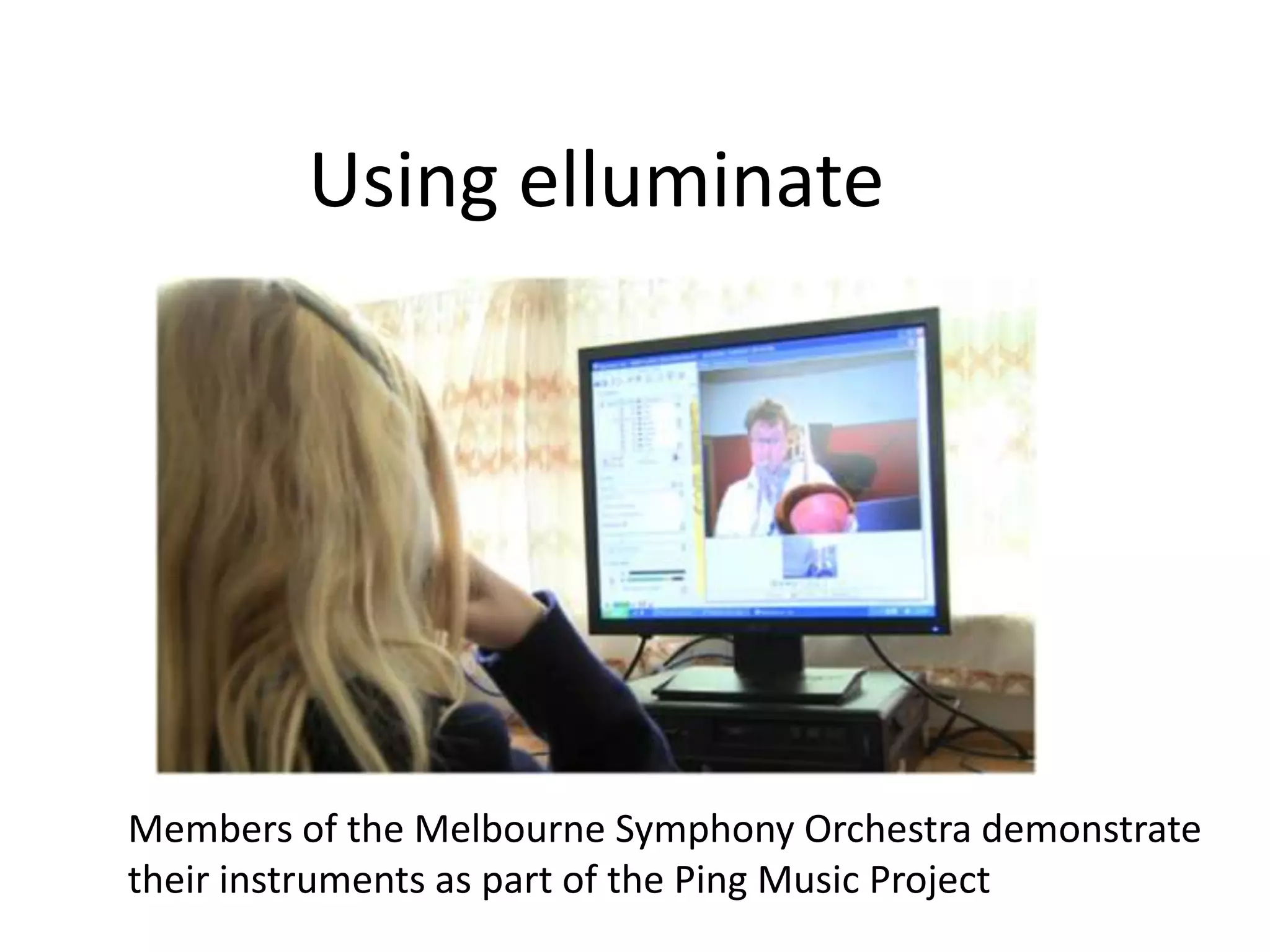
Using elluminateMembers of the Melbourne Symphony Orchestra demonstrate their instruments as part of the Ping Music Project
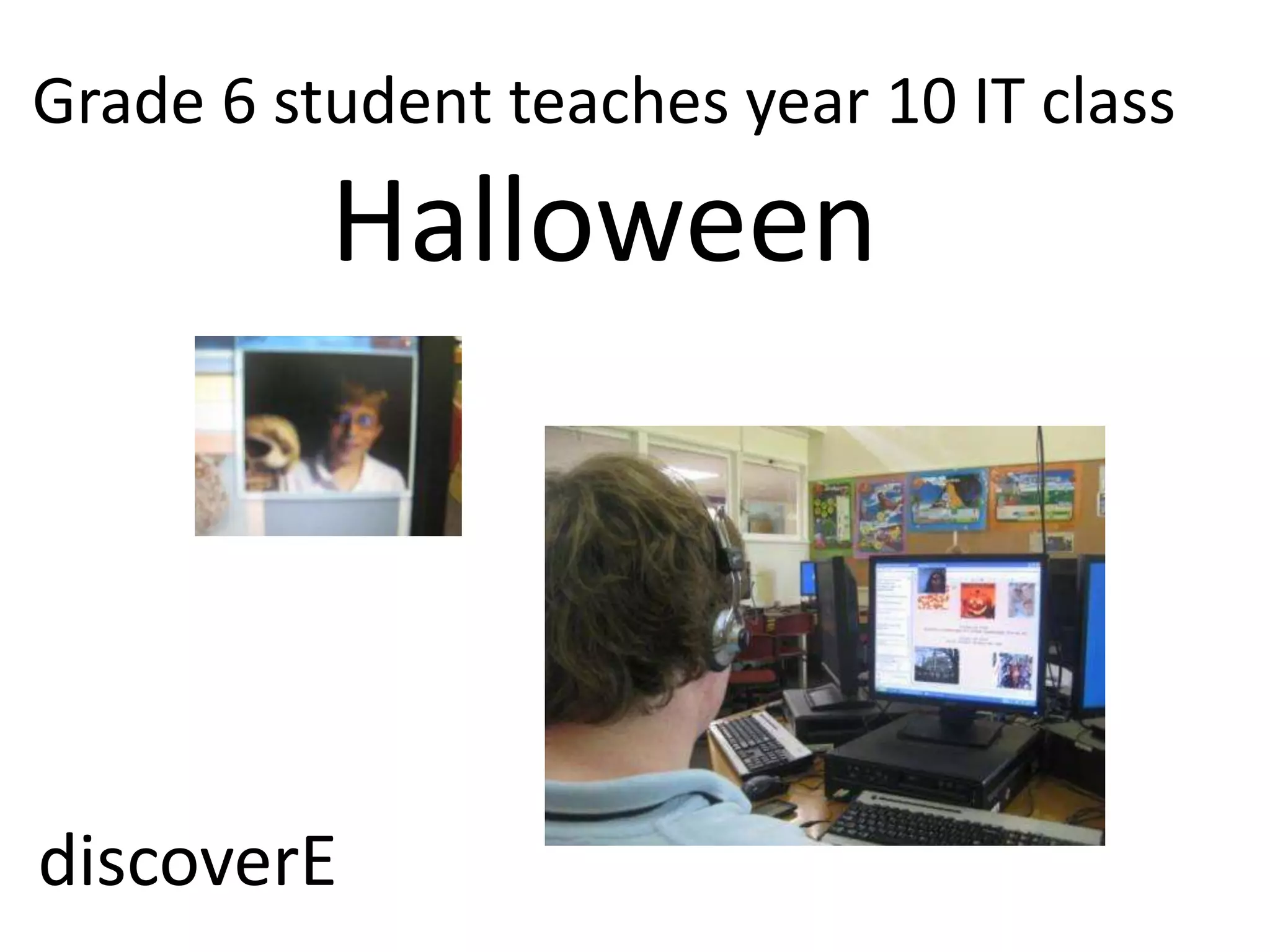
Grade 6 student teaches year 10 IT classHalloweendiscoverE
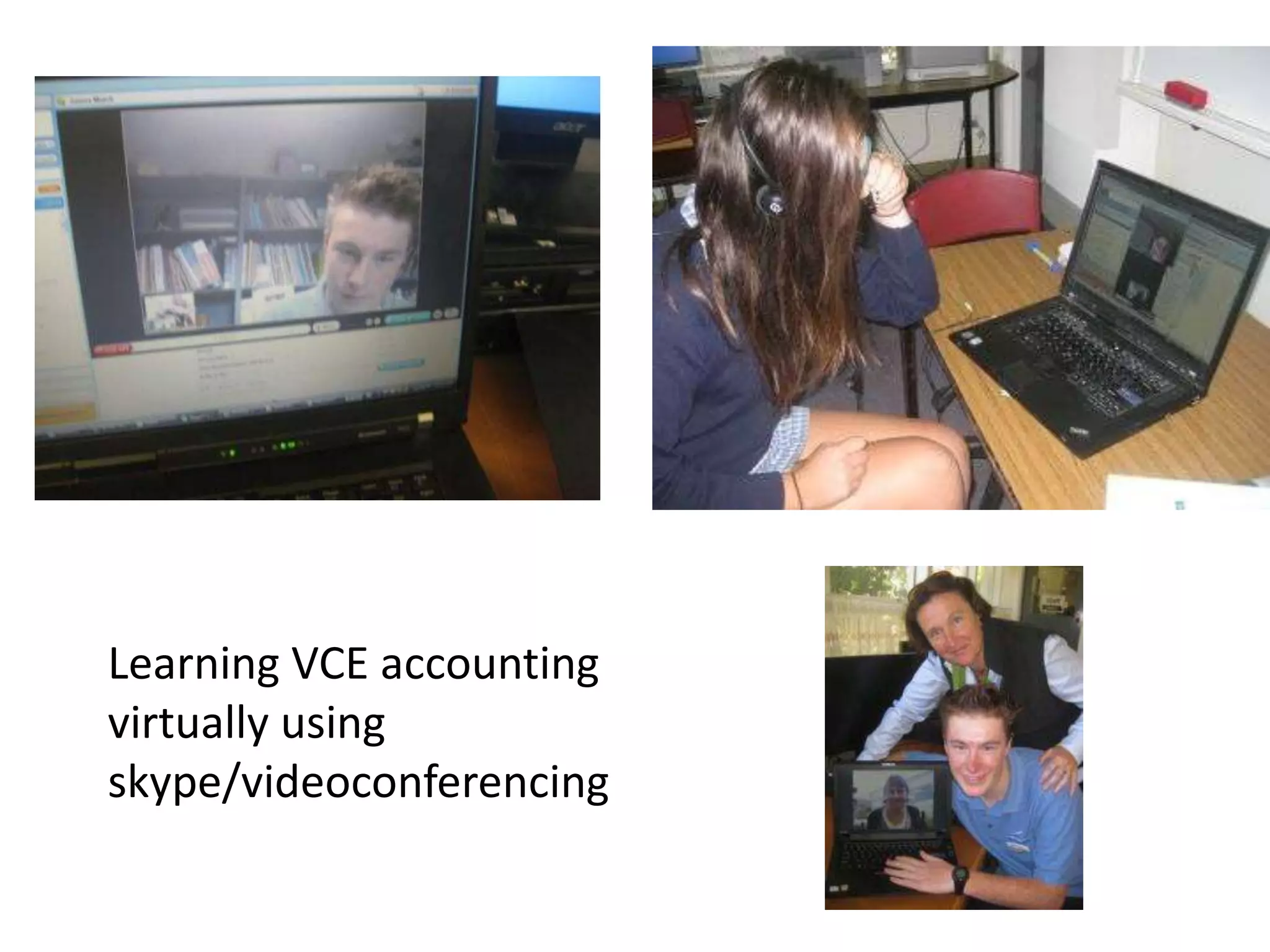
Learning VCE accounting virtually using skype/videoconferencingCash Journals
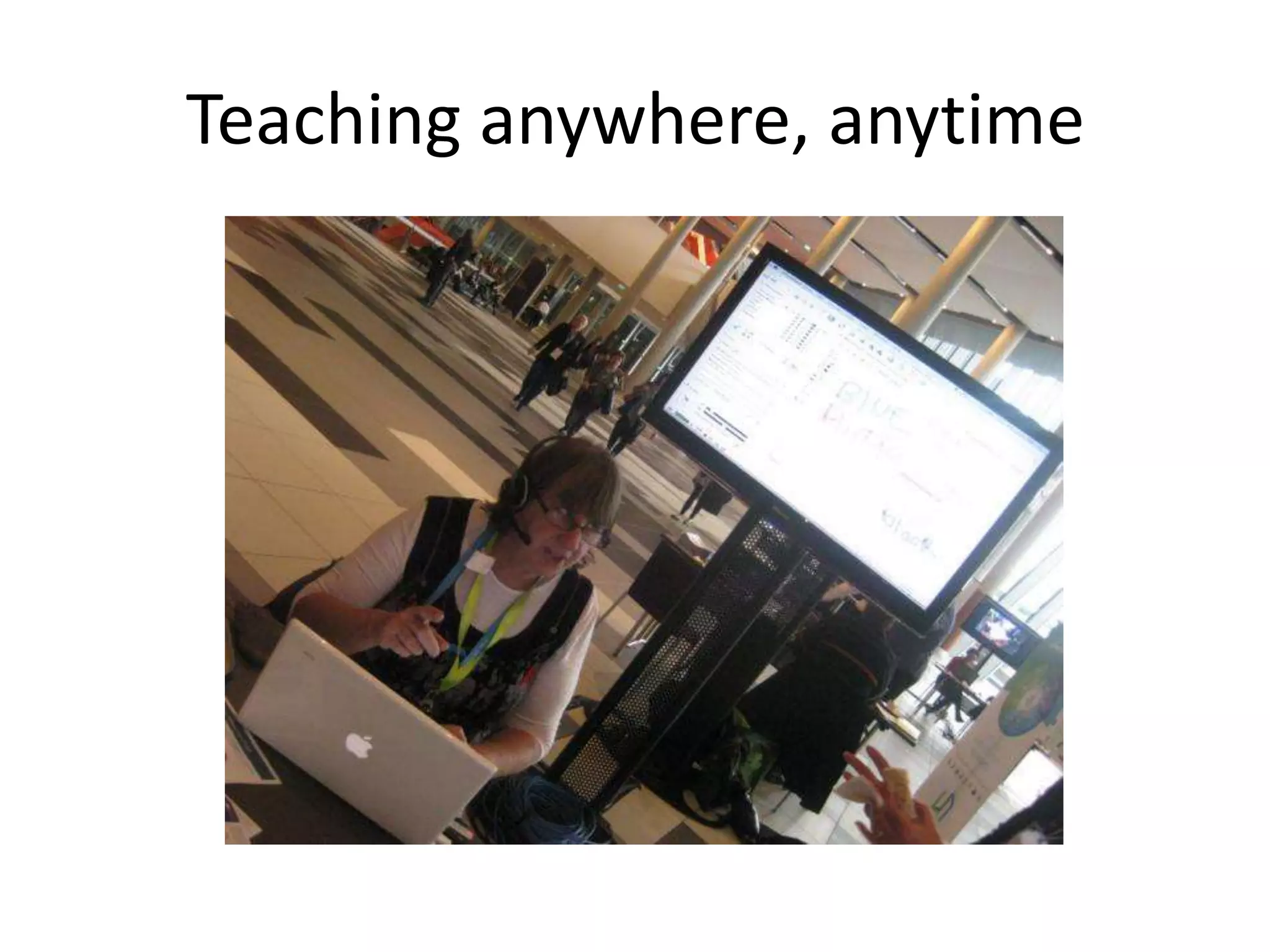
Teaching anywhere, anytime

Learning in elluminate

  • 2.
    What you willneedHeadset (with microphone if audio is to be used)Internet accessLatest java downloadCorrect proxy settings (may need technician to help you)
  • 3.
    An emailTo joina webinar session, copy the emailed link and paste it into your browser. Example of a link is shown below. https://sas.elluminate.com/m.jnlp?sid=2007026&password=M.B08E191D7A064979D781E35184911C
  • 4.
    Start Up Screen......Mayneed to allow popup blockers
  • 5.
  • 6.
    Prompt to enteraname....Students should enter with first name followed by school identifierEgCarla_HPC or Carl_HawkesdaleTeachers should come in with their first or full namesOr follow protocol determined by your organizer.
  • 7.
    Wait until roomis ready. Look for this icon on PCs indicating the elluminate room.
  • 8.
  • 9.
  • 10.
    Change connection speedWirelessif on a laptop or netbookCable DSL if on a desktopDrop speed back to dial up if you have really poor bandwidth.Once in elluminate, gotoTools>preferences>connection speeds (see next slide)
  • 11.
    Tools>PreferencesTo change proxysettings or connection speed.
  • 12.
  • 13.
  • 14.
    AudioTo talk, clickon the microphone icon, lower lefthand cornerYellow shading will come on, speak into your microphone and look for green tracking. Click off when finished speakingIf problems with audio goto Tools>Audio>Audio setup wizard
  • 15.
  • 17.
  • 18.
  • 19.
    Problems that mightariseAudio – hearing or microphoneWill not load – proxy settings. Grab your technicianMacs – tend to have unresolved problems, at times.
  • 20.
  • 21.
    TipsDiscuss appropriate codeof conduct/behaviour in a virtual room – appropriate chat, whiteboard useFirst time in with students will take a while as there could be many issues (ask for a techie or someone (teacher/student) who is savvy with sound etc)
  • 22.
    If audio doesn’tworkgo through audio wizard in elluminate, try different port for jacks, make sure mute is off on computer volume switch is up on headset, try another headset.
  • 23.
    Test before thesessionAlways, always test before the session
  • 24.
    Innovators’ Guide toInnovationhttp://guidetoinnovation.ning.com
  • 25.
    DEECD Website –Virtual Conference CentreGetting started pagehttp://www.education.vic.gov.au/researchinnovation/virtualconferencecentre/use/start.htmSupport Pagehttp://www.education.vic.gov.au/researchinnovation/virtualconferencecentre/support.htmVideos on Educators Guide to Innovationhttp://guidetoinnovation.ning.com/video/logging-into-elluminatehttp://guidetoinnovation.ning.com/video/getting-sound-in-elluminate
  • 26.
    Want to learnmore....Tech Talk Tuesdays(http://techtalktuesdays.global2.vic.edu.au)eT@lking and other Australian series(http://australiaseries.wordpress.com)Educators Guide to InnovationWeb conference coachinghttp://guidetoinnovation.ning.com/forum/topics/want-to-learn-how-to-use
  • 27.
    Using elluminateMembers ofthe Melbourne Symphony Orchestra demonstrate their instruments as part of the Ping Music Project
  • 28.
    Grade 6 studentteaches year 10 IT classHalloweendiscoverE
  • 29.
    Learning VCE accountingvirtually using skype/videoconferencingCash Journals
  • 30.