Site Manager
Knowledge Base
Knowledge Base
•
•

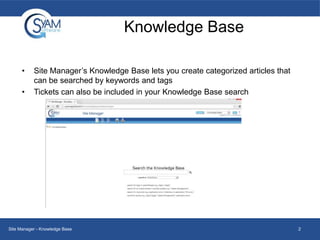
Site Manager’s Knowledge Base lets you create categorized articles that
can be searched by keywords and tags
Tickets can also be included in your Knowledge Base search

Site Manager - Knowledge Base

2
Setting up the Knowledge Base
•

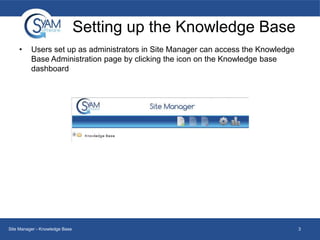
Users set up as administrators in Site Manager can access the Knowledge
Base Administration page by clicking the icon on the Knowledge base
dashboard

Site Manager - Knowledge Base

3
Administration Options
•

•

•

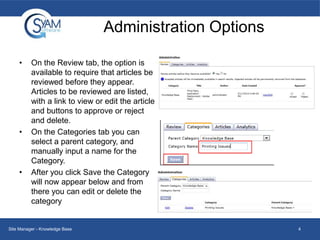
On the Review tab, the option is
available to require that articles be
reviewed before they appear.
Articles to be reviewed are listed,
with a link to view or edit the article
and buttons to approve or reject
and delete.
On the Categories tab you can
select a parent category, and
manually input a name for the
Category.
After you click Save the Category
will now appear below and from
there you can edit or delete the
category

Site Manager - Knowledge Base

4
Administration Options
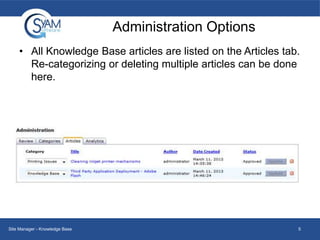
• All Knowledge Base articles are listed on the Articles tab.
Re-categorizing or deleting multiple articles can be done
here.

Site Manager - Knowledge Base

5
Writing the Article
•

•

•

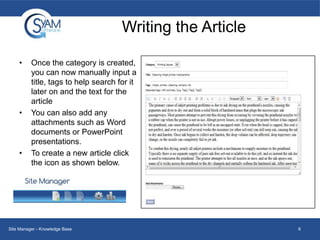
Once the category is created,
you can now manually input a
title, tags to help search for it
later on and the text for the
article
You can also add any
attachments such as Word
documents or PowerPoint
presentations.
To create a new article click
the icon as shown below.

Site Manager - Knowledge Base

6
Analytics Tab
•

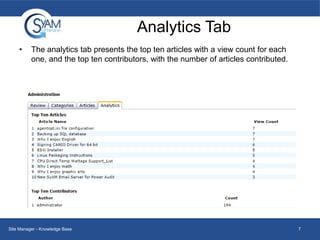
The analytics tab presents the top ten articles with a view count for each
one, and the top ten contributors, with the number of articles contributed.

Site Manager - Knowledge Base

7
Analytics Dashboard
•

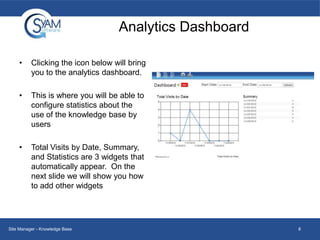
Clicking the icon below will bring
you to the analytics dashboard.

•

This is where you will be able to
configure statistics about the
use of the knowledge base by
users

•

Total Visits by Date, Summary,
and Statistics are 3 widgets that
automatically appear. On the
next slide we will show you how
to add other widgets

Site Manager - Knowledge Base

8
Adding a Widget
•

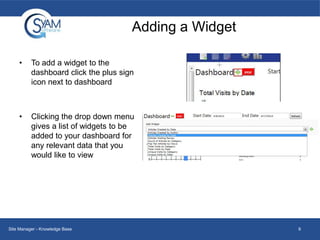
To add a widget to the
dashboard click the plus sign
icon next to dashboard

•

Clicking the drop down menu
gives a list of widgets to be
added to your dashboard for
any relevant data that you
would like to view

Site Manager - Knowledge Base

9
Deleting a Widget
•

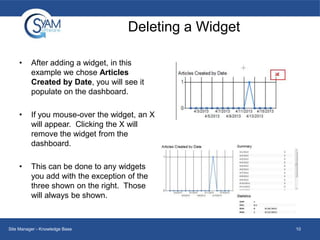
After adding a widget, in this
example we chose Articles
Created by Date, you will see it
populate on the dashboard.

•

If you mouse-over the widget, an X
will appear. Clicking the X will
remove the widget from the
dashboard.

•

This can be done to any widgets
you add with the exception of the
three shown on the right. Those
will always be shown.

Site Manager - Knowledge Base

10
Changing the Date
•

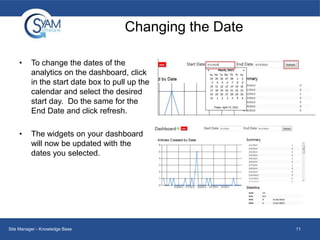
To change the dates of the
analytics on the dashboard, click
in the start date box to pull up the
calendar and select the desired
start day. Do the same for the
End Date and click refresh.

•

The widgets on your dashboard
will now be updated with the
dates you selected.

Site Manager - Knowledge Base

11
Exporting to PDF
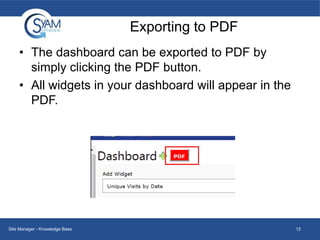
• The dashboard can be exported to PDF by
simply clicking the PDF button.
• All widgets in your dashboard will appear in the
PDF.

Site Manager - Knowledge Base

12
Searching for Existing Articles
•
•

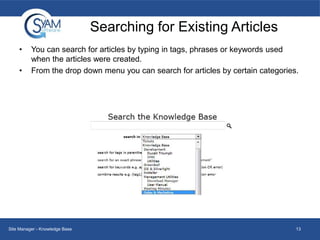
You can search for articles by typing in tags, phrases or keywords used
when the articles were created.
From the drop down menu you can search for articles by certain categories.

Site Manager - Knowledge Base

13

Knowledge base

  • 1.
  • 2.
    Knowledge Base • • Site Manager’sKnowledge Base lets you create categorized articles that can be searched by keywords and tags Tickets can also be included in your Knowledge Base search Site Manager - Knowledge Base 2
  • 3.
    Setting up theKnowledge Base • Users set up as administrators in Site Manager can access the Knowledge Base Administration page by clicking the icon on the Knowledge base dashboard Site Manager - Knowledge Base 3
  • 4.
    Administration Options • • • On theReview tab, the option is available to require that articles be reviewed before they appear. Articles to be reviewed are listed, with a link to view or edit the article and buttons to approve or reject and delete. On the Categories tab you can select a parent category, and manually input a name for the Category. After you click Save the Category will now appear below and from there you can edit or delete the category Site Manager - Knowledge Base 4
  • 5.
    Administration Options • AllKnowledge Base articles are listed on the Articles tab. Re-categorizing or deleting multiple articles can be done here. Site Manager - Knowledge Base 5
  • 6.
    Writing the Article • • • Oncethe category is created, you can now manually input a title, tags to help search for it later on and the text for the article You can also add any attachments such as Word documents or PowerPoint presentations. To create a new article click the icon as shown below. Site Manager - Knowledge Base 6
  • 7.
    Analytics Tab • The analyticstab presents the top ten articles with a view count for each one, and the top ten contributors, with the number of articles contributed. Site Manager - Knowledge Base 7
  • 8.
    Analytics Dashboard • Clicking theicon below will bring you to the analytics dashboard. • This is where you will be able to configure statistics about the use of the knowledge base by users • Total Visits by Date, Summary, and Statistics are 3 widgets that automatically appear. On the next slide we will show you how to add other widgets Site Manager - Knowledge Base 8
  • 9.
    Adding a Widget • Toadd a widget to the dashboard click the plus sign icon next to dashboard • Clicking the drop down menu gives a list of widgets to be added to your dashboard for any relevant data that you would like to view Site Manager - Knowledge Base 9
  • 10.
    Deleting a Widget • Afteradding a widget, in this example we chose Articles Created by Date, you will see it populate on the dashboard. • If you mouse-over the widget, an X will appear. Clicking the X will remove the widget from the dashboard. • This can be done to any widgets you add with the exception of the three shown on the right. Those will always be shown. Site Manager - Knowledge Base 10
  • 11.
    Changing the Date • Tochange the dates of the analytics on the dashboard, click in the start date box to pull up the calendar and select the desired start day. Do the same for the End Date and click refresh. • The widgets on your dashboard will now be updated with the dates you selected. Site Manager - Knowledge Base 11
  • 12.
    Exporting to PDF •The dashboard can be exported to PDF by simply clicking the PDF button. • All widgets in your dashboard will appear in the PDF. Site Manager - Knowledge Base 12
  • 13.
    Searching for ExistingArticles • • You can search for articles by typing in tags, phrases or keywords used when the articles were created. From the drop down menu you can search for articles by certain categories. Site Manager - Knowledge Base 13