
RCC INSTITUTE OF INFORMATION TECHNOLOGY
B.TECH 3rd YEAR
COMPUTER SCIENCE & ENGIEERING
OCTOBER ,2017
OBJECT ORIENTED PROGRAMMING (WITH JAVA LANGUAGE)
CS504D
JAVA SWING
by Arkadeep Dey
1. WHAT IS Java Foundation Classes?
2. DIFFERENCE BETWEEN AWT AND SWING
3. SWING
4. SWING COMPONENTS
5. SWING PACKAGES
6. Description of Classes
7. Top-Level Containers
1. Useful JFrame Constructors and Methods
2. Examle:A SIMPLE SWING APPLICTON
8. Java Swing Components…
9. General-Purpose Containers
1. Using the JPanel Class
2. Useful JPanel Constructors and Methods
 CONTENTS
9. Using Labels
1. Useful JLabels Constructors and
Methods
10. Basic Controls
1. Creating Buttons
2. Useful JButtons Constructors and
Methods
3. Uneditable Information Displays
4. Editable Displays of Formatted
Information
11. Pluggable Look Feel Support
12. Accessibility API
13. Java 2D API
14. Conclusion
Arkadeep Dey,CSE2015/030
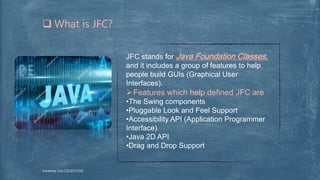
JFC stands for Java Foundation Classes,
and it includes a group of features to help
people build GUIs (Graphical User
Interfaces).
Features which help defined JFC are
•The Swing components
•Pluggable Look and Feel Support
•Accessibility API (Application Programmer
Interface)
•Java 2D API
•Drag and Drop Support
 What is JFC?
Arkadeep Dey,CSE2015/030
Swing is a package that lets you create applications
that use a flashy Graphical User Interface (or GUI)
instead of a dull console interface.
However, The Swing API provides many different
classes for creating various types of user interface
elements
Three classes: JFrame, JPanel, and JLabel. These
classes are part of a larger collection of classes that
are all related through inheritance.
 Swing
Arkadeep Dey,CSE2015/030
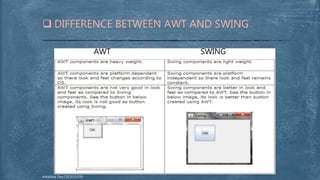
 DIFFERENCE BETWEEN AWT AND SWING
AWT SWING
Arkadeep Dey,CSE2015/030
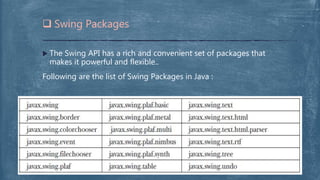
 The Swing API has a rich and convenient set of packages that
makes it powerful and flexible..
Following are the list of Swing Packages in Java :
 Swing Packages
Arkadeep Dey,CSE2015/030
 Swing Components
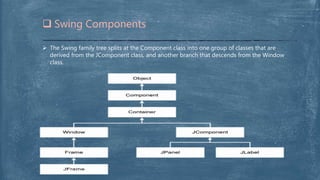
 The Swing family tree splits at the Component class into one group of classes that are
derived from the JComponent class, and another branch that descends from the Window
class.
Arkadeep Dey,CSE2015/030
 Description of Classes
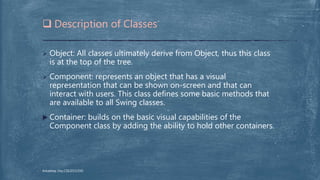
 Object: All classes ultimately derive from Object, thus this class
is at the top of the tree.
 Component: represents an object that has a visual
representation that can be shown on-screen and that can
interact with users. This class defines some basic methods that
are available to all Swing classes.
 Container: builds on the basic visual capabilities of the
Component class by adding the ability to hold other containers.
Arkadeep Dey,CSE2015/030
 Window: a specialized type of container object that has a border,
a title bar, buttons that minimize, maximize, and close the
window, and that can be repositioned and possibly even resized
by the user.
 Frame: a type of Window that serves as the basis for Java GUI
applications. Frame is an AWT class that has been improved upon
by the JFrame class.
 JFrame: the Swing version of the older Frame class. Most of the
Swing applications include at least one JFrame object.
 JComponent: is the basis for all other Swing components except
for frames.
 Description of Classes
Arkadeep Dey,CSE2015/030
 Description of Classes
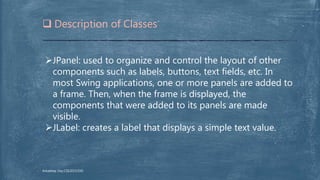
JPanel: used to organize and control the layout of other
components such as labels, buttons, text fields, etc. In
most Swing applications, one or more panels are added to
a frame. Then, when the frame is displayed, the
components that were added to its panels are made
visible.
JLabel: creates a label that displays a simple text value.
Arkadeep Dey,CSE2015/030
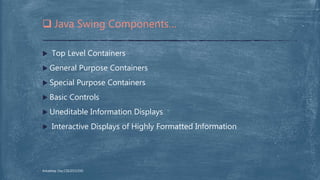
 Top Level Containers
 General Purpose Containers
 Special Purpose Containers
 Basic Controls
 Uneditable Information Displays
 Interactive Displays of Highly Formatted Information
 Java Swing Components…
Arkadeep Dey,CSE2015/030
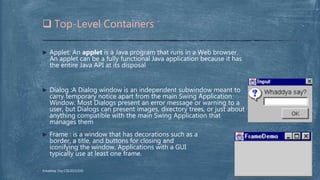
 Applet: An applet is a Java program that runs in a Web browser.
An applet can be a fully functional Java application because it has
the entire Java API at its disposal
 Dialog :A Dialog window is an independent subwindow meant to
carry temporary notice apart from the main Swing Application
Window. Most Dialogs present an error message or warning to a
user, but Dialogs can present images, directory trees, or just about
anything compatible with the main Swing Application that
manages them
 Frame : is a window that has decorations such as a
border, a title, and buttons for closing and
iconifying the window. Applications with a GUI
typically use at least one frame.
 Top-Level Containers
Arkadeep Dey,CSE2015/030
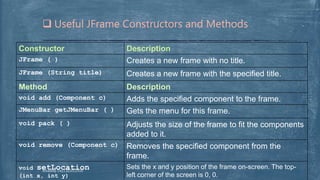
Constructor Description
JFrame ( ) Creates a new frame with no title.
JFrame (String title) Creates a new frame with the specified title.
Method Description
void add (Component c) Adds the specified component to the frame.
JMenuBar getJMenuBar ( ) Gets the menu for this frame.
void pack ( ) Adjusts the size of the frame to fit the components
added to it.
void remove (Component c) Removes the specified component from the
frame.
void setLocation
(int x, int y)
Sets the x and y position of the frame on-screen. The top-
left corner of the screen is 0, 0.
 Useful JFrame Constructors and Methods
Arkadeep Dey,CSE2015/030
import javax.swing.JFrame;
public class Simple extends JFrame {
public Simple() {
setSize(300, 200);
setTitle("Simple");
setDefaultCloseOperation(EXIT_ON_CLOSE);
}
public static void main(String[] args) {
Simple simple = new Simple();
simple.setVisible(true);
}
}
 Examle:A SIMPLE SWING APPLICTON
 OUTPUT -
Arkadeep Dey,CSE2015/030
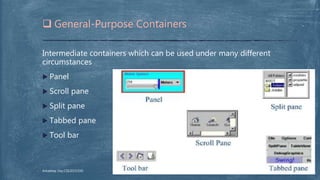
Intermediate containers which can be used under many different
circumstances
 Panel
 Scroll pane
 Split pane
 Tabbed pane
 Tool bar
 General-Purpose Containers
Arkadeep Dey,CSE2015/030
 A panel is a type of container that's designed to hold a group of
components so they can be displayed on a frame. The normal
way to display a group of controls such as text fields, labels,
buttons, and other GUI widgets is to add those controls to a
panel, and then add the panel to the frame.
 You can bypass the panel and add the controls directly to the
frame if you want, but using a separate panel to hold the frames
control is almost always a good idea
 Using the JPanel Class
Arkadeep Dey,CSE2015/030
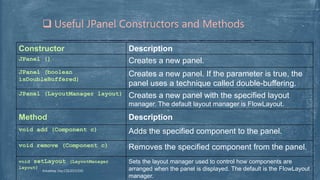
Constructor Description
JPanel () Creates a new panel.
JPanel (boolean
isDoubleBuffered)
Creates a new panel. If the parameter is true, the
panel uses a technique called double-buffering.
JPanel (LayoutManager layout) Creates a new panel with the specified layout
manager. The default layout manager is FIowLayout.
Method Description
void add (Component c) Adds the specified component to the panel.
void remove (Component c) Removes the specified component from the panel.
void setLayout (LayoutManager
layout)
Sets the layout manager used to control how components are
arranged when the panel is displayed. The default is the FIowLayout
manager.
 Useful JPanel Constructors and Methods
Arkadeep Dey,CSE2015/030
 A label is a component that simply displays text. Labels are used
for a variety of purposes: to display captions for other controls
such as text fields or combo boxes, to display informational
messages, or to show the results of a calculation or a database
lookup.
 A label can also display an image, or it can display both an
image and some text. And you have complete control over the
appearance of the text.
 You can specify the font, size, whether the text is bold, italic, or
underlined, what color the text is displayed as, and so on.
 Using Labels
Arkadeep Dey,CSE2015/030
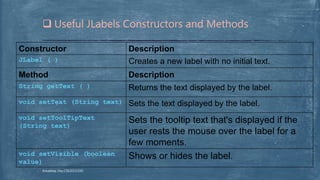
Constructor Description
JLabel ( ) Creates a new label with no initial text.
Method Description
String getText ( ) Returns the text displayed by the label.
void setText (String text) Sets the text displayed by the label.
void setToolTipText
(String text)
Sets the tooltip text that's displayed if the
user rests the mouse over the label for a
few moments.
void setVisible (boolean
value)
Shows or hides the label.
 Useful JLabels Constructors and Methods
Arkadeep Dey,CSE2015/030
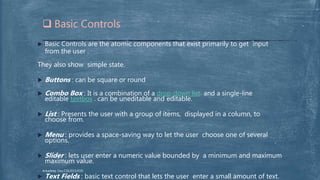
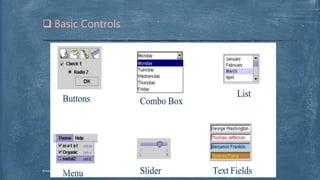
 Basic Controls are the atomic components that exist primarily to get input
from the user .
They also show simple state.
 Buttons : can be square or round
 Combo Box : It is a combination of a drop-down list and a single-line
editable textbox . can be uneditable and editable.
 List : Presents the user with a group of items, displayed in a column, to
choose from.
 Menu : provides a space-saving way to let the user choose one of several
options.
 Slider : lets user enter a numeric value bounded by a minimum and maximum
maximum value.
 Text Fields : basic text control that lets the user enter a small amount of text.
 Basic Controls
Arkadeep Dey,CSE2015/030
 Basic Controls
Arkadeep Dey,CSE2015/030
Next to labels, the Swing component used most is the
JButton component which creates a button . The user
can click it .
The constructors of the JButton class are similar to the
constructors for the JLabel class. You can either create
an empty button or a button with text.
 Creating Buttons
Arkadeep Dey,CSE2015/030
Constructor Description
JButton ( ) Creates a new button with no initial text.
JButton (String text) Creates a new button with the specified
text.
Method Description
doClick ( ) Triggers an action event for the button as if
the user clicked it.
String getText () Returns the text displayed by the button.
void setEnabled (boolean
value)
Enables or disables the button. The default setting
is true (enabled).
 Useful JButton Constructors and Methods
Arkadeep Dey,CSE2015/030
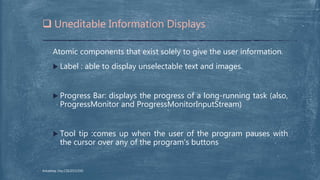
Atomic components that exist solely to give the user information.
 Label : able to display unselectable text and images.
 Progress Bar: displays the progress of a long-running task (also,
ProgressMonitor and ProgressMonitorInputStream)
 Tool tip :comes up when the user of the program pauses with
the cursor over any of the program's buttons
 Uneditable Information Displays
Arkadeep Dey,CSE2015/030
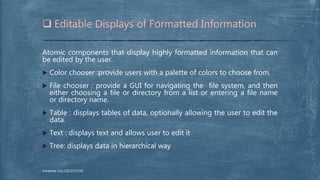
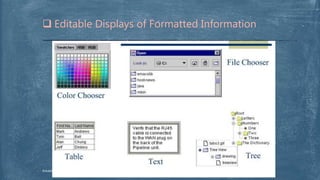
Atomic components that display highly formatted information that can
be edited by the user.
 Color chooser :provide users with a palette of colors to choose from.
 File chooser : provide a GUI for navigating the file system, and then
either choosing a file or directory from a list or entering a file name
or directory name.
 Table : displays tables of data, optionally allowing the user to edit the
data.
 Text : displays text and allows user to edit it
 Tree: displays data in hierarchical way
 Editable Displays of Formatted Information
Arkadeep Dey,CSE2015/030
 Editable Displays of Formatted Information
Arkadeep Dey,CSE2015/030
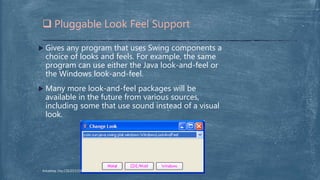
 Gives any program that uses Swing components a
choice of looks and feels. For example, the same
program can use either the Java look-and-feel or
the Windows look-and-feel.
 Many more look-and-feel packages will be
available in the future from various sources,
including some that use sound instead of a visual
look.
 Pluggable Look Feel Support
Arkadeep Dey,CSE2015/030
 Enables assistive technologies such as screen
readers and Braille displays (for blind people)
to get information from the user interface.
 Primarily, assistive technologies exist to enable
people with permanent or temporary disabilities
to use the computer.
 For example, if you get carpal tunnel syndrome,
you can use assistive technologies to accomplish
your work without using your hands.
 Accessibility API
Arkadeep Dey,CSE2015/030
Developers to easily incorporate high-quality 2D
graphics, text, and images in applications and in
applets.
Enables you to display complex charts and graphs that
use various line and fill styles to distinguish sets of
data.
Enables you to store and to manipulate image databy
performing image-filter operations, such as blur and
sharpen.
 Java 2D API
Java 2 Platform only Enables
Arkadeep Dey,CSE2015/030
 Swing defines a very large GUI toolkit. It has many more
features that you will want to explore on your own. For example,
Swing provides toolbars, tooltips, and progress bars. It also
provides a complete menu subsystem. Swing’s pluggable look
and feel lets you substitute another appearance and behaviour
for an element. You can define your own models for the various
components, and you can change the way that cells are edited
and rendered when working with tables and trees. The best way
to become familiar with Swing’s capabilities is to experiment
with it.
 CONCLUSION
Arkadeep Dey,CSE2015/030
THANK YOU

Arkadeep Dey,CSE2015/030

Java Swing

  • 1.
    RCC INSTITUTE OFINFORMATION TECHNOLOGY B.TECH 3rd YEAR COMPUTER SCIENCE & ENGIEERING OCTOBER ,2017 OBJECT ORIENTED PROGRAMMING (WITH JAVA LANGUAGE) CS504D JAVA SWING by Arkadeep Dey
  • 2.
    1. WHAT ISJava Foundation Classes? 2. DIFFERENCE BETWEEN AWT AND SWING 3. SWING 4. SWING COMPONENTS 5. SWING PACKAGES 6. Description of Classes 7. Top-Level Containers 1. Useful JFrame Constructors and Methods 2. Examle:A SIMPLE SWING APPLICTON 8. Java Swing Components… 9. General-Purpose Containers 1. Using the JPanel Class 2. Useful JPanel Constructors and Methods  CONTENTS 9. Using Labels 1. Useful JLabels Constructors and Methods 10. Basic Controls 1. Creating Buttons 2. Useful JButtons Constructors and Methods 3. Uneditable Information Displays 4. Editable Displays of Formatted Information 11. Pluggable Look Feel Support 12. Accessibility API 13. Java 2D API 14. Conclusion Arkadeep Dey,CSE2015/030
  • 3.
    JFC stands forJava Foundation Classes, and it includes a group of features to help people build GUIs (Graphical User Interfaces). Features which help defined JFC are •The Swing components •Pluggable Look and Feel Support •Accessibility API (Application Programmer Interface) •Java 2D API •Drag and Drop Support  What is JFC? Arkadeep Dey,CSE2015/030
  • 4.
    Swing is apackage that lets you create applications that use a flashy Graphical User Interface (or GUI) instead of a dull console interface. However, The Swing API provides many different classes for creating various types of user interface elements Three classes: JFrame, JPanel, and JLabel. These classes are part of a larger collection of classes that are all related through inheritance.  Swing Arkadeep Dey,CSE2015/030
  • 5.
     DIFFERENCE BETWEENAWT AND SWING AWT SWING Arkadeep Dey,CSE2015/030
  • 6.
     The SwingAPI has a rich and convenient set of packages that makes it powerful and flexible.. Following are the list of Swing Packages in Java :  Swing Packages Arkadeep Dey,CSE2015/030
  • 7.
     Swing Components The Swing family tree splits at the Component class into one group of classes that are derived from the JComponent class, and another branch that descends from the Window class. Arkadeep Dey,CSE2015/030
  • 8.
     Description ofClasses  Object: All classes ultimately derive from Object, thus this class is at the top of the tree.  Component: represents an object that has a visual representation that can be shown on-screen and that can interact with users. This class defines some basic methods that are available to all Swing classes.  Container: builds on the basic visual capabilities of the Component class by adding the ability to hold other containers. Arkadeep Dey,CSE2015/030
  • 9.
     Window: aspecialized type of container object that has a border, a title bar, buttons that minimize, maximize, and close the window, and that can be repositioned and possibly even resized by the user.  Frame: a type of Window that serves as the basis for Java GUI applications. Frame is an AWT class that has been improved upon by the JFrame class.  JFrame: the Swing version of the older Frame class. Most of the Swing applications include at least one JFrame object.  JComponent: is the basis for all other Swing components except for frames.  Description of Classes Arkadeep Dey,CSE2015/030
  • 10.
     Description ofClasses JPanel: used to organize and control the layout of other components such as labels, buttons, text fields, etc. In most Swing applications, one or more panels are added to a frame. Then, when the frame is displayed, the components that were added to its panels are made visible. JLabel: creates a label that displays a simple text value. Arkadeep Dey,CSE2015/030
  • 11.
     Top LevelContainers  General Purpose Containers  Special Purpose Containers  Basic Controls  Uneditable Information Displays  Interactive Displays of Highly Formatted Information  Java Swing Components… Arkadeep Dey,CSE2015/030
  • 12.
     Applet: Anapplet is a Java program that runs in a Web browser. An applet can be a fully functional Java application because it has the entire Java API at its disposal  Dialog :A Dialog window is an independent subwindow meant to carry temporary notice apart from the main Swing Application Window. Most Dialogs present an error message or warning to a user, but Dialogs can present images, directory trees, or just about anything compatible with the main Swing Application that manages them  Frame : is a window that has decorations such as a border, a title, and buttons for closing and iconifying the window. Applications with a GUI typically use at least one frame.  Top-Level Containers Arkadeep Dey,CSE2015/030
  • 13.
    Constructor Description JFrame () Creates a new frame with no title. JFrame (String title) Creates a new frame with the specified title. Method Description void add (Component c) Adds the specified component to the frame. JMenuBar getJMenuBar ( ) Gets the menu for this frame. void pack ( ) Adjusts the size of the frame to fit the components added to it. void remove (Component c) Removes the specified component from the frame. void setLocation (int x, int y) Sets the x and y position of the frame on-screen. The top- left corner of the screen is 0, 0.  Useful JFrame Constructors and Methods Arkadeep Dey,CSE2015/030
  • 14.
    import javax.swing.JFrame; public classSimple extends JFrame { public Simple() { setSize(300, 200); setTitle("Simple"); setDefaultCloseOperation(EXIT_ON_CLOSE); } public static void main(String[] args) { Simple simple = new Simple(); simple.setVisible(true); } }  Examle:A SIMPLE SWING APPLICTON  OUTPUT - Arkadeep Dey,CSE2015/030
  • 15.
    Intermediate containers whichcan be used under many different circumstances  Panel  Scroll pane  Split pane  Tabbed pane  Tool bar  General-Purpose Containers Arkadeep Dey,CSE2015/030
  • 16.
     A panelis a type of container that's designed to hold a group of components so they can be displayed on a frame. The normal way to display a group of controls such as text fields, labels, buttons, and other GUI widgets is to add those controls to a panel, and then add the panel to the frame.  You can bypass the panel and add the controls directly to the frame if you want, but using a separate panel to hold the frames control is almost always a good idea  Using the JPanel Class Arkadeep Dey,CSE2015/030
  • 17.
    Constructor Description JPanel ()Creates a new panel. JPanel (boolean isDoubleBuffered) Creates a new panel. If the parameter is true, the panel uses a technique called double-buffering. JPanel (LayoutManager layout) Creates a new panel with the specified layout manager. The default layout manager is FIowLayout. Method Description void add (Component c) Adds the specified component to the panel. void remove (Component c) Removes the specified component from the panel. void setLayout (LayoutManager layout) Sets the layout manager used to control how components are arranged when the panel is displayed. The default is the FIowLayout manager.  Useful JPanel Constructors and Methods Arkadeep Dey,CSE2015/030
  • 18.
     A labelis a component that simply displays text. Labels are used for a variety of purposes: to display captions for other controls such as text fields or combo boxes, to display informational messages, or to show the results of a calculation or a database lookup.  A label can also display an image, or it can display both an image and some text. And you have complete control over the appearance of the text.  You can specify the font, size, whether the text is bold, italic, or underlined, what color the text is displayed as, and so on.  Using Labels Arkadeep Dey,CSE2015/030
  • 19.
    Constructor Description JLabel () Creates a new label with no initial text. Method Description String getText ( ) Returns the text displayed by the label. void setText (String text) Sets the text displayed by the label. void setToolTipText (String text) Sets the tooltip text that's displayed if the user rests the mouse over the label for a few moments. void setVisible (boolean value) Shows or hides the label.  Useful JLabels Constructors and Methods Arkadeep Dey,CSE2015/030
  • 20.
     Basic Controlsare the atomic components that exist primarily to get input from the user . They also show simple state.  Buttons : can be square or round  Combo Box : It is a combination of a drop-down list and a single-line editable textbox . can be uneditable and editable.  List : Presents the user with a group of items, displayed in a column, to choose from.  Menu : provides a space-saving way to let the user choose one of several options.  Slider : lets user enter a numeric value bounded by a minimum and maximum maximum value.  Text Fields : basic text control that lets the user enter a small amount of text.  Basic Controls Arkadeep Dey,CSE2015/030
  • 21.
  • 22.
    Next to labels,the Swing component used most is the JButton component which creates a button . The user can click it . The constructors of the JButton class are similar to the constructors for the JLabel class. You can either create an empty button or a button with text.  Creating Buttons Arkadeep Dey,CSE2015/030
  • 23.
    Constructor Description JButton () Creates a new button with no initial text. JButton (String text) Creates a new button with the specified text. Method Description doClick ( ) Triggers an action event for the button as if the user clicked it. String getText () Returns the text displayed by the button. void setEnabled (boolean value) Enables or disables the button. The default setting is true (enabled).  Useful JButton Constructors and Methods Arkadeep Dey,CSE2015/030
  • 24.
    Atomic components thatexist solely to give the user information.  Label : able to display unselectable text and images.  Progress Bar: displays the progress of a long-running task (also, ProgressMonitor and ProgressMonitorInputStream)  Tool tip :comes up when the user of the program pauses with the cursor over any of the program's buttons  Uneditable Information Displays Arkadeep Dey,CSE2015/030
  • 25.
    Atomic components thatdisplay highly formatted information that can be edited by the user.  Color chooser :provide users with a palette of colors to choose from.  File chooser : provide a GUI for navigating the file system, and then either choosing a file or directory from a list or entering a file name or directory name.  Table : displays tables of data, optionally allowing the user to edit the data.  Text : displays text and allows user to edit it  Tree: displays data in hierarchical way  Editable Displays of Formatted Information Arkadeep Dey,CSE2015/030
  • 26.
     Editable Displaysof Formatted Information Arkadeep Dey,CSE2015/030
  • 27.
     Gives anyprogram that uses Swing components a choice of looks and feels. For example, the same program can use either the Java look-and-feel or the Windows look-and-feel.  Many more look-and-feel packages will be available in the future from various sources, including some that use sound instead of a visual look.  Pluggable Look Feel Support Arkadeep Dey,CSE2015/030
  • 28.
     Enables assistivetechnologies such as screen readers and Braille displays (for blind people) to get information from the user interface.  Primarily, assistive technologies exist to enable people with permanent or temporary disabilities to use the computer.  For example, if you get carpal tunnel syndrome, you can use assistive technologies to accomplish your work without using your hands.  Accessibility API Arkadeep Dey,CSE2015/030
  • 29.
    Developers to easilyincorporate high-quality 2D graphics, text, and images in applications and in applets. Enables you to display complex charts and graphs that use various line and fill styles to distinguish sets of data. Enables you to store and to manipulate image databy performing image-filter operations, such as blur and sharpen.  Java 2D API Java 2 Platform only Enables Arkadeep Dey,CSE2015/030
  • 30.
     Swing definesa very large GUI toolkit. It has many more features that you will want to explore on your own. For example, Swing provides toolbars, tooltips, and progress bars. It also provides a complete menu subsystem. Swing’s pluggable look and feel lets you substitute another appearance and behaviour for an element. You can define your own models for the various components, and you can change the way that cells are edited and rendered when working with tables and trees. The best way to become familiar with Swing’s capabilities is to experiment with it.  CONCLUSION Arkadeep Dey,CSE2015/030
  • 31.