
JAVA SE
OBJECTIVES:
   Introduction
   Need of Programming languages
   Different Programming languages
   Java need in today’s world
   Categorization of java
   Installation of a JDK
   Execution of a java program
   JRE – JVM – JDK – SDK - IDE
Introduction
   A programming language is an artificial language
    designed to communicate instructions to a
    machine, particularly a computer.

   Programming languages can be used to create
    programs that control the behavior of a machine
    and/or to express algorithms precisely.
Contd…
   The description of a programming language is
    usually split into two components. They are
    Syntax (form) and Semantics (meaning).

   Finally programming language is a language,
    which is used to maintain communication with a
    System.
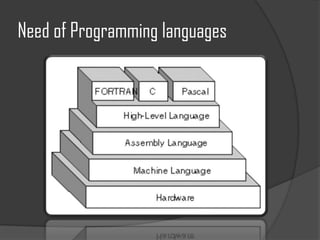
Need of Programming languages
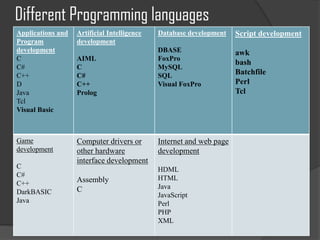
Different Programming languages
Applications and   Artificial Intelligence   Database development    Script development
Program            development
development                                  DBASE                   awk
C                  AIML                      FoxPro
                                                                     bash
C#                 C                         MySQL
C++                C#                        SQL                     Batchfile
D                  C++                       Visual FoxPro           Perl
Java               Prolog                                            Tcl
Tcl
Visual Basic


Game               Computer drivers or       Internet and web page
development        other hardware            development
                   interface development
C                                            HDML
C#                                           HTML
C++                Assembly
                   C                         Java
DarkBASIC                                    JavaScript
Java                                         Perl
                                             PHP
                                             XML
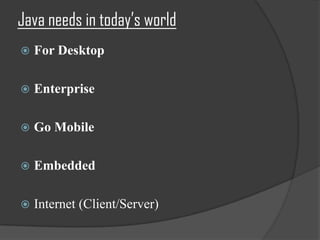
Java needs in today’s world
   For Desktop

   Enterprise

   Go Mobile

   Embedded

   Internet (Client/Server)
Categorization of java
 Java Card
 Micro Edition (ME)          JAVA ME
 Standard Edition (SE)     JAVA SE
 Enterprise Edition (EE)   JAVA EE
 JavaFX
 PersonalJava (discontinued)
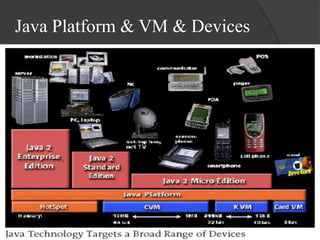
Java Platform & VM & Devices
Versions of java
 JDK 1.0 (January 23, 1996)
 JDK 1.1 (February 19, 1997)
 J2SE 1.2 (December 8, 1998)
 J2SE 1.3 (May 8, 2000)
 J2SE 1.4 (February 6, 2002)
 J2SE 5.0 (September 30, 2004)
 Java SE 6 (December 11, 2006)
 Java SE 7 (July 28, 2011)
Installation of a JDK (JAVA SE)


   Video reference
Execution of a java program

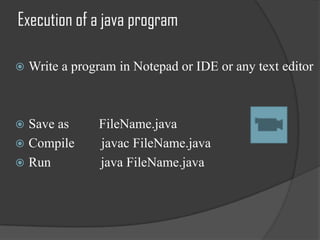
   Write a program in Notepad or IDE or any text editor


 Save as       FileName.java
 Compile       javac FileName.java
 Run           java FileName.java
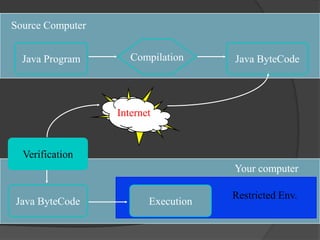
Source Computer


  Java Program       Compilation     Java ByteCode


                  Internet


  Verification
                                     Your computer

                                     Restricted Env.
Java ByteCode            Execution
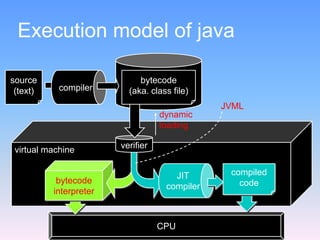
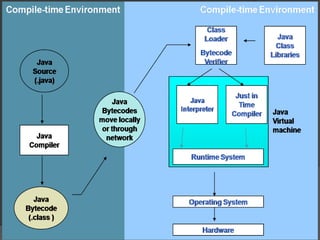
Execution model of java

source                       bytecode
 (text)     compiler      (aka. class file)
                                               JVML
                                   dynamic
                                   loading

 virtual machine        verifier


                                      JIT       compiled
           bytecode                               code
                                    compiler
          interpreter


                                   CPU
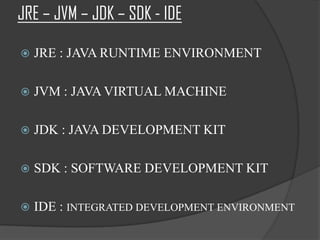
JRE – JVM – JDK – SDK - IDE

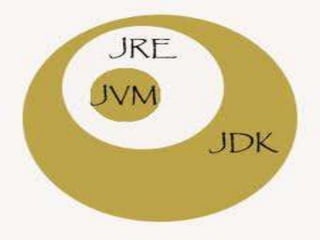
   JRE : JAVA RUNTIME ENVIRONMENT

   JVM : JAVA VIRTUAL MACHINE

   JDK : JAVA DEVELOPMENT KIT

   SDK : SOFTWARE DEVELOPMENT KIT

   IDE : INTEGRATED DEVELOPMENT ENVIRONMENT
   JVM :                    A self-contained operating
    environment that behaves as if it is a separate
    computer. For example, Java applets run in a Java
    virtual machine (JVM) that has no access to the host
    operating system.

   JRE: Java Run-Time Environment is the part of the
    Java Development Kit (JDK) required to run Java
    programs.
                   It comprises the Java Virtual Machine,
    the Java platform core classes, and supporting files. It
    does not include the compiler, debugger, or other tools
    present in the JDK. ...
   JDK(Java Development Kit) :
       software development package from Sun Microsystems
    that implements the basic set of tools needed to write, test
    and debug Java applications and applets


   SDK(Software Developers Kit)
       a set of tools, including API, frameworks, interface
    elements, etc. used to create software, i.e. apps.


   IDE:
        An integrated development environment (IDE) (also
    known as integrated design environment, integrated
    debugging environment or interactive development
    environment) is a software application that provides
    comprehensive facilities to computer programmers for
    software development.
Questions…
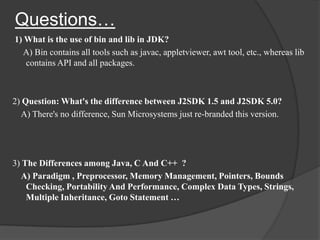
1) What is the use of bin and lib in JDK?
  A) Bin contains all tools such as javac, appletviewer, awt tool, etc., whereas lib
   contains API and all packages.


2) Question: What's the difference between J2SDK 1.5 and J2SDK 5.0?
  A) There's no difference, Sun Microsystems just re-branded this version.


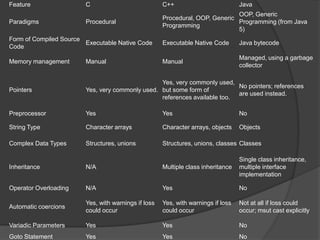
3) The Differences among Java, C And C++ ?
  A) Paradigm , Preprocessor, Memory Management, Pointers, Bounds
    Checking, Portability And Performance, Complex Data Types, Strings,
    Multiple Inheritance, Goto Statement …
Feature                 C                            C++                          Java
                                                                              OOP, Generic
                                                     Procedural, OOP, Generic
Paradigms               Procedural                                            Programming (from Java
                                                     Programming
                                                                              5)
Form of Compiled Source
                        Executable Native Code       Executable Native Code       Java bytecode
Code
                                                                                  Managed, using a garbage
Memory management       Manual                       Manual
                                                                                  collector

                                                 Yes, very commonly used,
                                                                           No pointers; references
Pointers                Yes, very commonly used. but some form of
                                                                           are used instead.
                                                 references available too.

Preprocessor            Yes                          Yes                          No

String Type             Character arrays             Character arrays, objects    Objects

Complex Data Types      Structures, unions           Structures, unions, classes Classes

                                                                                  Single class inheritance,
Inheritance             N/A                          Multiple class inheritance   multiple interface
                                                                                  implementation

Operator Overloading    N/A                          Yes                          No

                        Yes, with warnings if loss   Yes, with warnings if loss   Not at all if loss could
Automatic coercions
                        could occur                  could occur                  occur; msut cast explicitly

Variadic Parameters     Yes                          Yes                          No
Goto Statement          Yes                          Yes                          No
To be contd…

Java Starting

  • 1.
  • 2.
    OBJECTIVES:  Introduction  Need of Programming languages  Different Programming languages  Java need in today’s world  Categorization of java  Installation of a JDK  Execution of a java program  JRE – JVM – JDK – SDK - IDE
  • 3.
    Introduction  A programming language is an artificial language designed to communicate instructions to a machine, particularly a computer.  Programming languages can be used to create programs that control the behavior of a machine and/or to express algorithms precisely.
  • 4.
    Contd…  The description of a programming language is usually split into two components. They are Syntax (form) and Semantics (meaning).  Finally programming language is a language, which is used to maintain communication with a System.
  • 5.
  • 6.
    Different Programming languages Applicationsand Artificial Intelligence Database development Script development Program development development DBASE awk C AIML FoxPro bash C# C MySQL C++ C# SQL Batchfile D C++ Visual FoxPro Perl Java Prolog Tcl Tcl Visual Basic Game Computer drivers or Internet and web page development other hardware development interface development C HDML C# HTML C++ Assembly C Java DarkBASIC JavaScript Java Perl PHP XML
  • 7.
    Java needs intoday’s world  For Desktop  Enterprise  Go Mobile  Embedded  Internet (Client/Server)
  • 8.
    Categorization of java Java Card  Micro Edition (ME) JAVA ME  Standard Edition (SE) JAVA SE  Enterprise Edition (EE) JAVA EE  JavaFX  PersonalJava (discontinued)
  • 9.
    Java Platform &VM & Devices
  • 10.
    Versions of java JDK 1.0 (January 23, 1996)  JDK 1.1 (February 19, 1997)  J2SE 1.2 (December 8, 1998)  J2SE 1.3 (May 8, 2000)  J2SE 1.4 (February 6, 2002)  J2SE 5.0 (September 30, 2004)  Java SE 6 (December 11, 2006)  Java SE 7 (July 28, 2011)
  • 11.
    Installation of aJDK (JAVA SE)  Video reference
  • 12.
    Execution of ajava program  Write a program in Notepad or IDE or any text editor  Save as FileName.java  Compile javac FileName.java  Run java FileName.java
  • 13.
    Source Computer Java Program Compilation Java ByteCode Internet Verification Your computer Restricted Env. Java ByteCode Execution
  • 14.
    Execution model ofjava source bytecode (text) compiler (aka. class file) JVML dynamic loading virtual machine verifier JIT compiled bytecode code compiler interpreter CPU
  • 15.
    JRE – JVM– JDK – SDK - IDE  JRE : JAVA RUNTIME ENVIRONMENT  JVM : JAVA VIRTUAL MACHINE  JDK : JAVA DEVELOPMENT KIT  SDK : SOFTWARE DEVELOPMENT KIT  IDE : INTEGRATED DEVELOPMENT ENVIRONMENT
  • 17.
    JVM : A self-contained operating environment that behaves as if it is a separate computer. For example, Java applets run in a Java virtual machine (JVM) that has no access to the host operating system.  JRE: Java Run-Time Environment is the part of the Java Development Kit (JDK) required to run Java programs. It comprises the Java Virtual Machine, the Java platform core classes, and supporting files. It does not include the compiler, debugger, or other tools present in the JDK. ...
  • 18.
    JDK(Java Development Kit) : software development package from Sun Microsystems that implements the basic set of tools needed to write, test and debug Java applications and applets  SDK(Software Developers Kit) a set of tools, including API, frameworks, interface elements, etc. used to create software, i.e. apps.  IDE: An integrated development environment (IDE) (also known as integrated design environment, integrated debugging environment or interactive development environment) is a software application that provides comprehensive facilities to computer programmers for software development.
  • 20.
    Questions… 1) What isthe use of bin and lib in JDK? A) Bin contains all tools such as javac, appletviewer, awt tool, etc., whereas lib contains API and all packages. 2) Question: What's the difference between J2SDK 1.5 and J2SDK 5.0? A) There's no difference, Sun Microsystems just re-branded this version. 3) The Differences among Java, C And C++ ? A) Paradigm , Preprocessor, Memory Management, Pointers, Bounds Checking, Portability And Performance, Complex Data Types, Strings, Multiple Inheritance, Goto Statement …
  • 21.
    Feature C C++ Java OOP, Generic Procedural, OOP, Generic Paradigms Procedural Programming (from Java Programming 5) Form of Compiled Source Executable Native Code Executable Native Code Java bytecode Code Managed, using a garbage Memory management Manual Manual collector Yes, very commonly used, No pointers; references Pointers Yes, very commonly used. but some form of are used instead. references available too. Preprocessor Yes Yes No String Type Character arrays Character arrays, objects Objects Complex Data Types Structures, unions Structures, unions, classes Classes Single class inheritance, Inheritance N/A Multiple class inheritance multiple interface implementation Operator Overloading N/A Yes No Yes, with warnings if loss Yes, with warnings if loss Not at all if loss could Automatic coercions could occur could occur occur; msut cast explicitly Variadic Parameters Yes Yes No Goto Statement Yes Yes No
  • 22.

Editor's Notes

  • #12 STEP 1: Download JDKGoto Java SE download site @ http://www.oracle.com/technetwork/java/javase/downloads/index.html.Click the "Download" button under "JDK" of "Java SE 7".Choose your operating platform, e.g., Windows x86 (for 32-bit Windows OS - "jdk-7u2-windows-i586.exe" 84MB); or Windows x64 (for 64-bit Windows OS).(For Mac Users Only) Download JDK from http://developer.apple.com/java/download/ and follow the instructions to install (or google "how to install JDK on Mac").STEP 2: Install JDK/JRERun the downloaded installer, which installs both the JDK (Java Development Kit) and JRE (Java Runtime). By default, the JDK and JRE will be installed into directories "C:\\Program Files\\java\\jdk1.7.0" and "C:\\Program Files\\java\\jre7", respectively. For novices, accept the defaults.I shall refer to the JDK installed directory as <JAVA_HOME>, hereafter, in this article.(For Advanced Users Only)The default JDK/JRE directories work but I recommend avoiding "Program Files" directory because of that blank character in the directory name. You may change the installed directories for JDK and JRE during installation. I personally installed JDK and all my programming tools in "d:\\bin" (instead of "C:\\Program Files") for ease of maintenance.It is always cleaner to un-install all the out-dated JDK/JRE before installing a new version.STEP 3: Include JDK's "bin" directory in the PATHWindows Operating System searches the current directory and the directories listed in the PATH environment variable for executable programs invoked from the CMD shell. JDK's programs (such as compiler javac.exe and runtime java.exe) reside in directory "<JAVA_HOME>\\bin" (where <JAVA_HOME> denotes the JDK installed directory you have chosen in the previous step). You need to include the "<JAVA_HOME>\\bin" directory in the PATH environment variable.To edit the PATH environment variable in Windows 2000/XP/Vista/7:Click the "Start" button ⇒ "Control Panel" ⇒ "System" ⇒ (Vista/7 only) "Advanced system settings".Switch to "Advanced" tab ⇒ "Environment Variables..."In "System Variables" box, scroll down to select "PATH" ⇒ "Edit..."In "Variable value" field, INSERT "c:\\Program Files\\java\\jdk1.7.0\\bin" (assume that this is your JDK's binary directory) IN FRONT of all the existing directories, followed by a semi-colon (;) which separates the JDK's binary directory from the rest of the existing directories. DO NOT DELETE any existing entries; otherwise, some existing applications may not run. Variable name : PATH Variable value : c:\\Program Files\\java\\jdk1.7.0\\bin;....exiting entries.... (For Advanced Users Only) I suggested that you place the JDK binary directory in front of "c:\\windows\\system32" and "c:\\windows". This is because some Windows systems may have an out-dated copy of JDK/JRE in these directories. Do a search for "java.exe", and you will be amazed of the findings.You could read "Java Applications and Environment Variable" for more discussions about PATH environment variable.(For Mac and Linux Users Only) You can set the environment variables JAVA_HOME and PATH in your .profile or .bashrc or .bash_profile (under your home directory $HOME) by including the following commands:export JAVA_HOME=path_to_JDK_directory export PATH=$JAVA_HOME/bin:$PATH For Mac OS X, the path_to_JDK_directory is probably /Library/Java/Home. For Linux (Ubuntu), it is probably /usr/lib/jvm/java-7-xxx.STEP 4: Verify the JDK InstallationLaunch a CMD shell (click the "Start" button ⇒ run... ⇒ enter "cmd"), andIssue a "path" command to list the content of the PATH environment variable. Check the output and make sure that <JAVA_HOME>\\bin is listed in the PATH. prompt> pathPATH=c:\\Program Files\\java\\jdk1.7.0\\bin;......other entries......Issue the following commands to verify that JDK is properly installed and display its version: prompt> java -version java version "1.7.0"Java(TM) SE Runtime Environment (build 1.7.0-b147)Java HotSpot(TM) Client VM (build 21.0-b17, mixed mode, sharing) prompt> javac Usage: javac <options> <source files> ......... .........STEP 5: Compile & Run a Java Hello-world ProgramRead "Writing your First Java Program with JDK and a Programming Text Editor". "Everything that can possibly go wrong will go wrong": Read "JDK Installation Common Errors".STEP 6: Download JDK API DocumentationThe JDK download does not include the documentation, which needs to be downloaded separately. In the past, I always insist that my students should have a local copy of JDK API Documentation. But, today, you can easily access the online copy by googling "JDK 7 Documentation".To install JDK API documentation:From the Java SE download page (@ http://www.oracle.com/technetwork/java/javase/downloads/index.html), look for "Java SE 7 Documentation" (under "Additional Resources") ⇒ Download the zip-file (e.g., "jdk-7....zip" - about 57MB).Unzip into the <JAVA_HOME> (JDK installed directory). The documentation will be unzipped into "<$JAVA_HOME>\\docs". Browse the JDK documentation by opening "<JAVA_HOME>\\docs\\index.html".STEP 7: (For Advanced Users Only) JDK's Source CodeSource code for JDK is provided and kept in "<JAVA_HOME>\\src.zip". I strongly recommend that you to go through some of the source files such as "String.java", "Math.java", and "Integer.java", under "java\\lang".