IT203 - Database Development Unit 5 – Microsoft SQL Server and MySQL Matthew Moldvan
Key Concepts DBMS variations SQL Server features Queries and types of queries SQL Server Management Studio MySQL features Scripts Queries Database creation
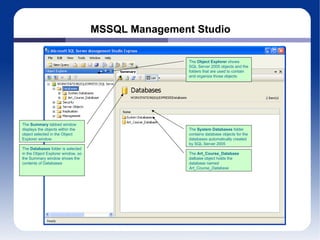
MSSQL Management Studio The  Object Explorer  shows SQL Server 2005 objects and the folders that are used to contain and organize those objects The  Summary  tabbed window displays the objects within the object selected in the Object Explorer window The  System Databases  folder contains database objects for the databases automatically created by SQL Server 2005 The  Databases  folder is selected in the Object Explorer window, so the Summary window shows the contents of Databases The  Art_Course_Database  datbase object holds the database named  Art_Course_Database
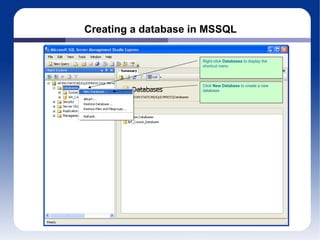
Creating a database in MSSQL Click  New Database  to create a new database Right-click  Databases  to display the shortcut menu
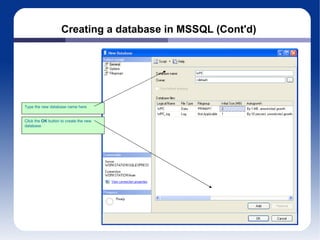
Creating a database in MSSQL (Cont'd) Click the  OK  button to create the new database Type the new database name here
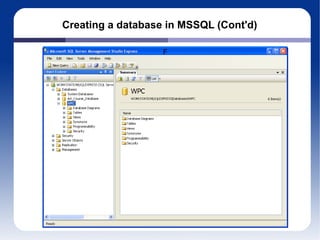
Creating a database in MSSQL (Cont'd) F
Creating SQL Scripts This is the Microsoft Notepad text editor—the file name is  DBC-e03-MSSQL-WPC-Create-Tables.sql The SQL keyword Name is enclosed in brackets as  [Name] The lines that start with /* are comments—any text between the /* and the */ characters on a line is a comment and ignored by the DBMS when it runs the SQL
Queries and types of queries Query Definition: anytime we need to add, remove, update, or view information from a database, we issue a request; this is called a  query  in database terms The contents of the query depend on the type of query Types of queries SELECT Must specify what we want to view and which table we want to view from INSERT Must specify what we want to insert, and which table to place it in DELETE Must specify what we want to delete from which table
Queries and types of queries (cont'd) UPDATE You get the idea ... Other less often used types CREATE DB DROP DB ALTER TRUNCATE etc.
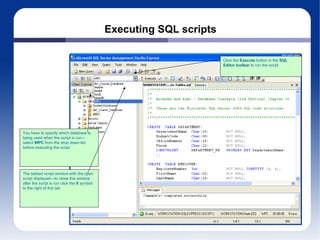
Executing SQL scripts You have to specify which database is being used when the script is run—select  WPC  from the drop down list before executing the script Click the  Execute  button in the  SQL Editor toolbar  to run the script The tabbed script window with the open script displayed—to close this window after the script is run click the  X  symbol to the right of this tab
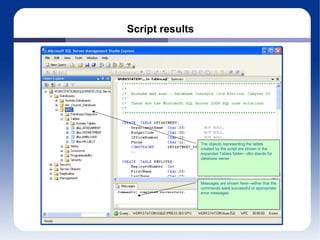
Script results The objects representing the tables created by the script are shown in the expanded Tables folder— dbo  stands for  database owner Messages are shown here—either that the commands were successful or appropriate error messages
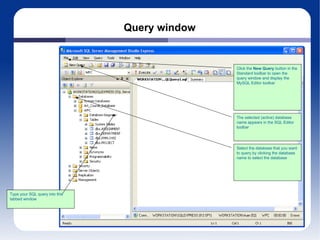
Query window Click the  New Query  button in the Standard toolbar to open the query window and display the MySQL Editor toolbar Select the database that you want to query by clicking the database name to select the database The selected (active) database name appears in the SQL Editor toolbar Type your SQL query into this tabbed window
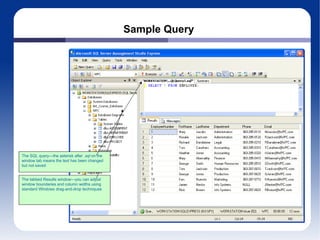
Sample Query The tabbed Results window—you can adjust window boundaries and column widths using standard Windows drag-and-drop techniques The SQL query—the asterisk after  .sql  on the window tab means the text has been changed but not saved
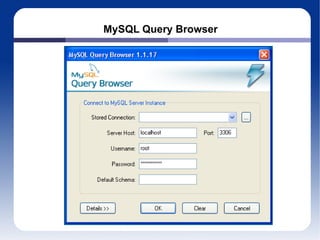
MySQL Query Browser
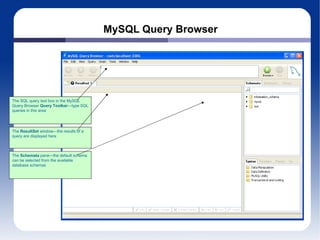
MySQL Query Browser The SQL query text box in the MySQL Query Browser  Query Toolbar —type SQL queries in this area The  ResultSet  window—the results of a query are displayed here The  Schemata  pane—the default schema can be selected from the available database schemas
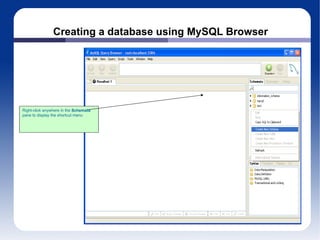
Creating a database using MySQL Browser Right-click anywhere in the  Schemata  pane to display the shortcut menu
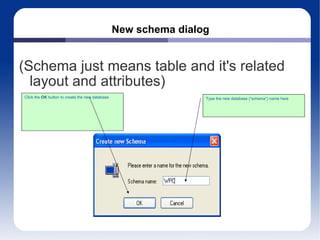
New schema dialog (Schema just means table and it's related layout and attributes) Click the  OK  button to create the new database Type the new database (“schema”) name here
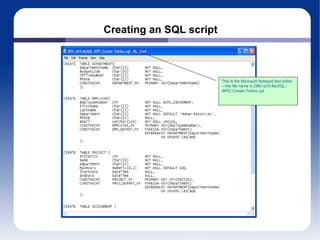
This is the Microsoft Notepad text editor—the file name is  DBC-e03-MySQL-WPC-Create-Tables.sql Creating an SQL script
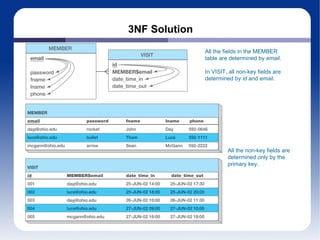
3NF Solution All the fields in the MEMBER table are determined by  email . In VISIT, all non-key fields are determined by  id  and  email .  All the non-key fields are determined only by the primary key.
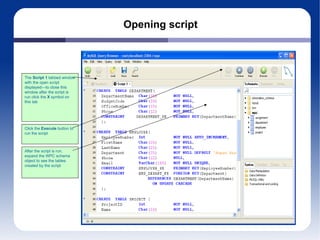
Opening script The  Script 1  tabbed window with the open script displayed—to close this window after the script is run click the  X  symbol on this tab Click the  Execute  button to run the script After the script is run, expand the WPC schema object to see the tables created by the script
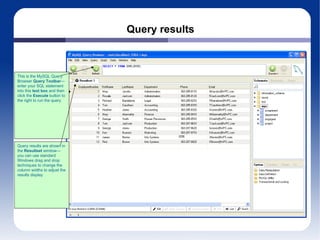
Query results This is the MySQL Query Browser  Query Toolbar —enter your SQL statement into this  text box  and then click the  Execute  button to the right to run the query Query results are shown in the  Resultset  window—you can use standard Windows drag and drop techniques to change the column widths to adjust the results display
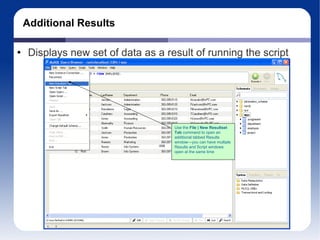
Additional Results Displays new set of data as a result of running the script Use the  File | New Resultset Tab  command to open an additional tabbed Results window—you can have multiple Results and Script windows open at the same time
Database Development Reminders: Mid term exam in Unit 5 Questions?

It203 class slides-unit5

  • 1.
    IT203 - DatabaseDevelopment Unit 5 – Microsoft SQL Server and MySQL Matthew Moldvan
  • 2.
    Key Concepts DBMSvariations SQL Server features Queries and types of queries SQL Server Management Studio MySQL features Scripts Queries Database creation
  • 3.
    MSSQL Management StudioThe Object Explorer shows SQL Server 2005 objects and the folders that are used to contain and organize those objects The Summary tabbed window displays the objects within the object selected in the Object Explorer window The System Databases folder contains database objects for the databases automatically created by SQL Server 2005 The Databases folder is selected in the Object Explorer window, so the Summary window shows the contents of Databases The Art_Course_Database datbase object holds the database named Art_Course_Database
  • 4.
    Creating a databasein MSSQL Click New Database to create a new database Right-click Databases to display the shortcut menu
  • 5.
    Creating a databasein MSSQL (Cont'd) Click the OK button to create the new database Type the new database name here
  • 6.
    Creating a databasein MSSQL (Cont'd) F
  • 7.
    Creating SQL ScriptsThis is the Microsoft Notepad text editor—the file name is DBC-e03-MSSQL-WPC-Create-Tables.sql The SQL keyword Name is enclosed in brackets as [Name] The lines that start with /* are comments—any text between the /* and the */ characters on a line is a comment and ignored by the DBMS when it runs the SQL
  • 8.
    Queries and typesof queries Query Definition: anytime we need to add, remove, update, or view information from a database, we issue a request; this is called a query in database terms The contents of the query depend on the type of query Types of queries SELECT Must specify what we want to view and which table we want to view from INSERT Must specify what we want to insert, and which table to place it in DELETE Must specify what we want to delete from which table
  • 9.
    Queries and typesof queries (cont'd) UPDATE You get the idea ... Other less often used types CREATE DB DROP DB ALTER TRUNCATE etc.
  • 10.
    Executing SQL scriptsYou have to specify which database is being used when the script is run—select WPC from the drop down list before executing the script Click the Execute button in the SQL Editor toolbar to run the script The tabbed script window with the open script displayed—to close this window after the script is run click the X symbol to the right of this tab
  • 11.
    Script results Theobjects representing the tables created by the script are shown in the expanded Tables folder— dbo stands for database owner Messages are shown here—either that the commands were successful or appropriate error messages
  • 12.
    Query window Clickthe New Query button in the Standard toolbar to open the query window and display the MySQL Editor toolbar Select the database that you want to query by clicking the database name to select the database The selected (active) database name appears in the SQL Editor toolbar Type your SQL query into this tabbed window
  • 13.
    Sample Query Thetabbed Results window—you can adjust window boundaries and column widths using standard Windows drag-and-drop techniques The SQL query—the asterisk after .sql on the window tab means the text has been changed but not saved
  • 14.
  • 15.
    MySQL Query BrowserThe SQL query text box in the MySQL Query Browser Query Toolbar —type SQL queries in this area The ResultSet window—the results of a query are displayed here The Schemata pane—the default schema can be selected from the available database schemas
  • 16.
    Creating a databaseusing MySQL Browser Right-click anywhere in the Schemata pane to display the shortcut menu
  • 17.
    New schema dialog(Schema just means table and it's related layout and attributes) Click the OK button to create the new database Type the new database (“schema”) name here
  • 18.
    This is theMicrosoft Notepad text editor—the file name is DBC-e03-MySQL-WPC-Create-Tables.sql Creating an SQL script
  • 19.
    3NF Solution Allthe fields in the MEMBER table are determined by email . In VISIT, all non-key fields are determined by id and email . All the non-key fields are determined only by the primary key.
  • 20.
    Opening script The Script 1 tabbed window with the open script displayed—to close this window after the script is run click the X symbol on this tab Click the Execute button to run the script After the script is run, expand the WPC schema object to see the tables created by the script
  • 21.
    Query results Thisis the MySQL Query Browser Query Toolbar —enter your SQL statement into this text box and then click the Execute button to the right to run the query Query results are shown in the Resultset window—you can use standard Windows drag and drop techniques to change the column widths to adjust the results display
  • 22.
    Additional Results Displaysnew set of data as a result of running the script Use the File | New Resultset Tab command to open an additional tabbed Results window—you can have multiple Results and Script windows open at the same time
  • 23.
    Database Development Reminders:Mid term exam in Unit 5 Questions?