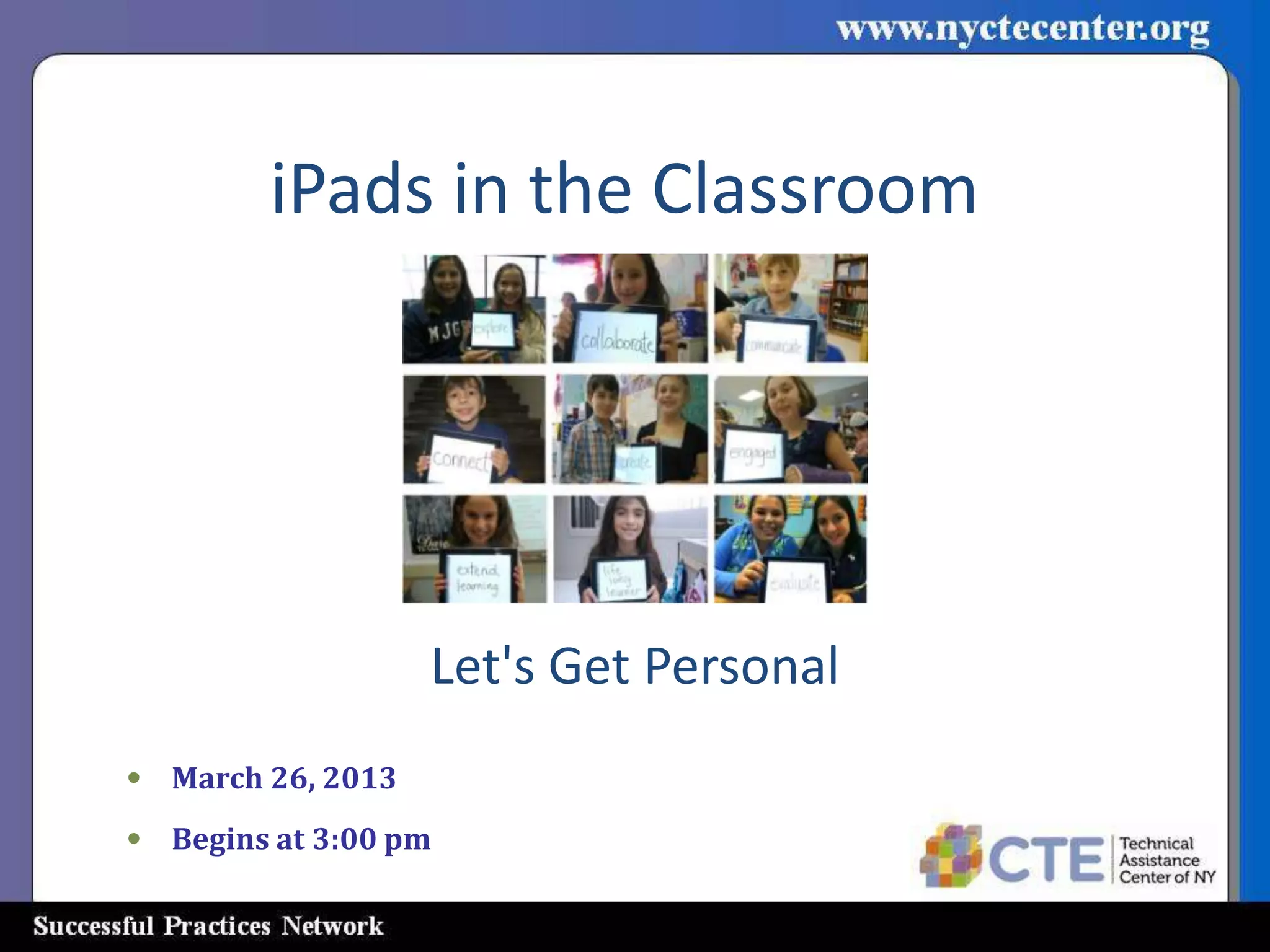
iPads in the Classroom


                   Let's Get Personal
• March 26, 2013
• Begins at 3:00 pm
Webinar Guidelines
• All participants are on mute during the entire webinar.
• Presentation will be 45 minutes, questions and answers
  will be 15 minutes.
• To ask a question, type your question in the question
  control panel in the upper right corner of your screen.
• We will try to answer questions as they come in. If your
  question is not answered it will be addressed at the end
  in the Question and Answer section.
• If you are disconnected for any reason please call
                     (518) 723-2137
Webinar Extras
• The webinar is being recorded to be placed on
  the CTE TAC Website.
• You will be able to download the PowerPoint
  slide show.
iPads in the Classroom

     Presenter: Mike Dionne
Retired Sidney Central School District
        Technology Director
K-12 Technology Education Teacher
iPads in the Classroom
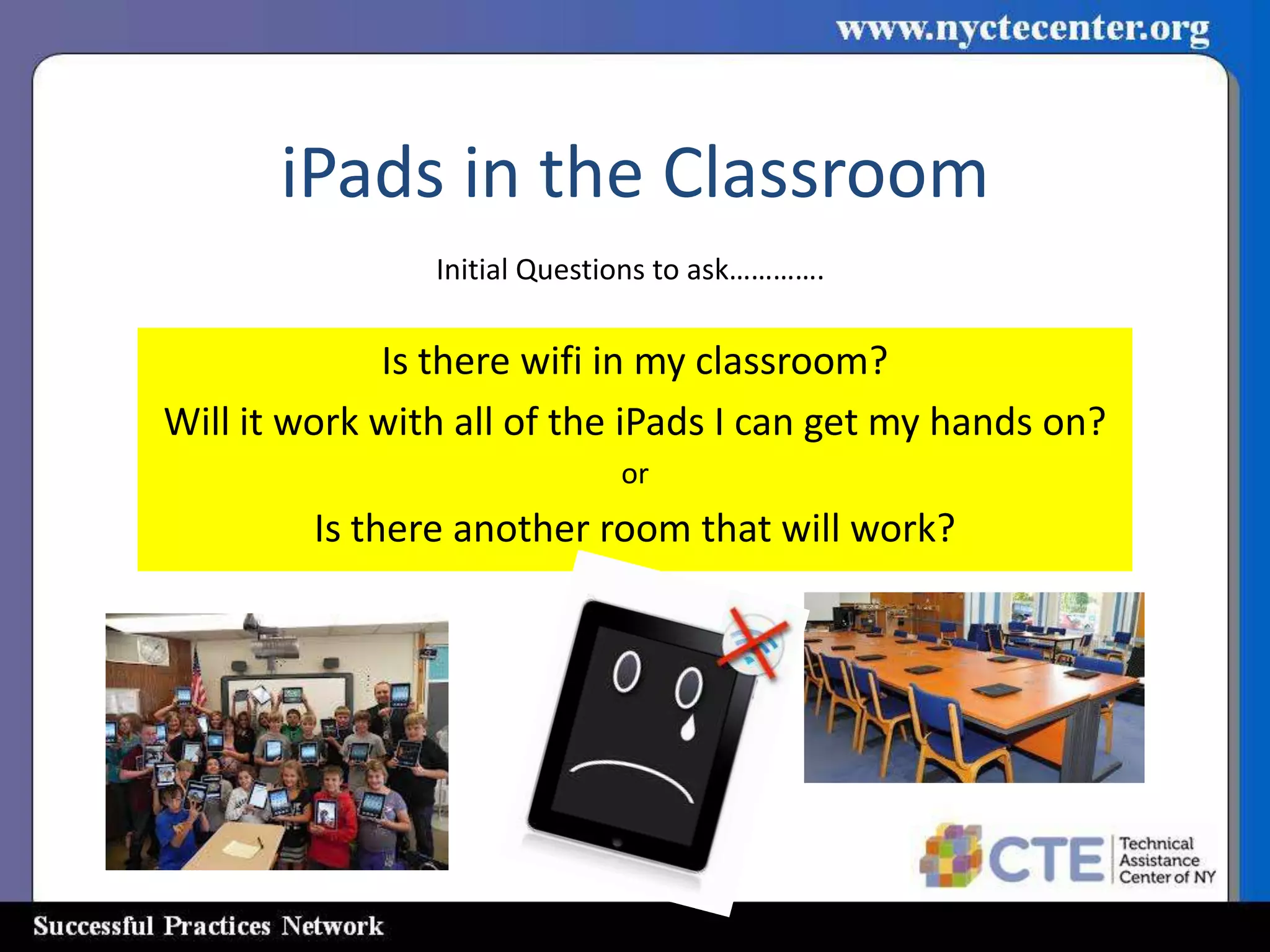
                Initial Questions to ask………….

             Is there wifi in my classroom?
Will it work with all of the iPads I can get my hands on?
                             or
         Is there another room that will work?
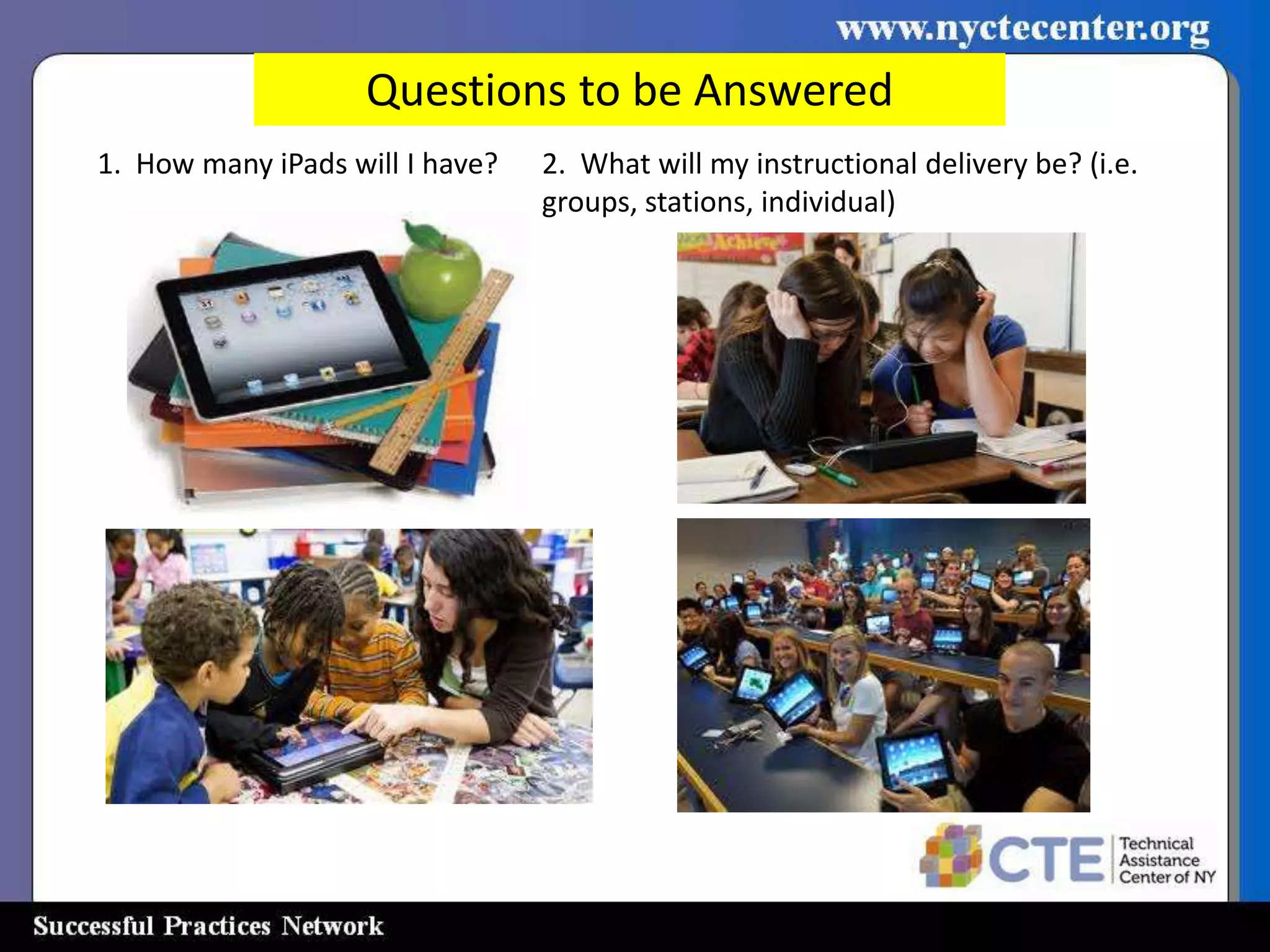
Questions to be Answered
1. How many iPads will I have?   2. What will my instructional delivery be? (i.e.
                                 groups, stations, individual)
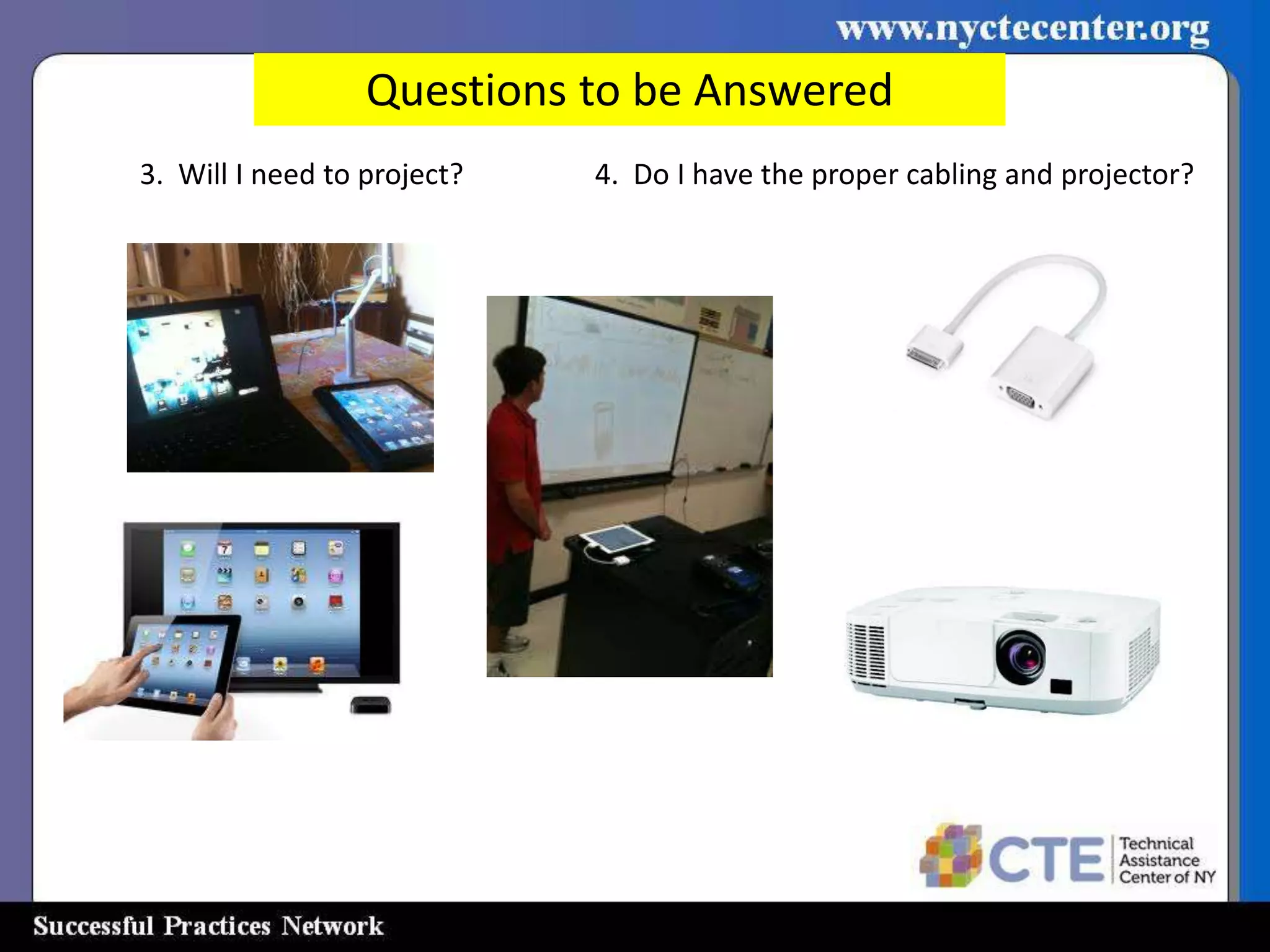
Questions to be Answered
3. Will I need to project?   4. Do I have the proper cabling and projector?
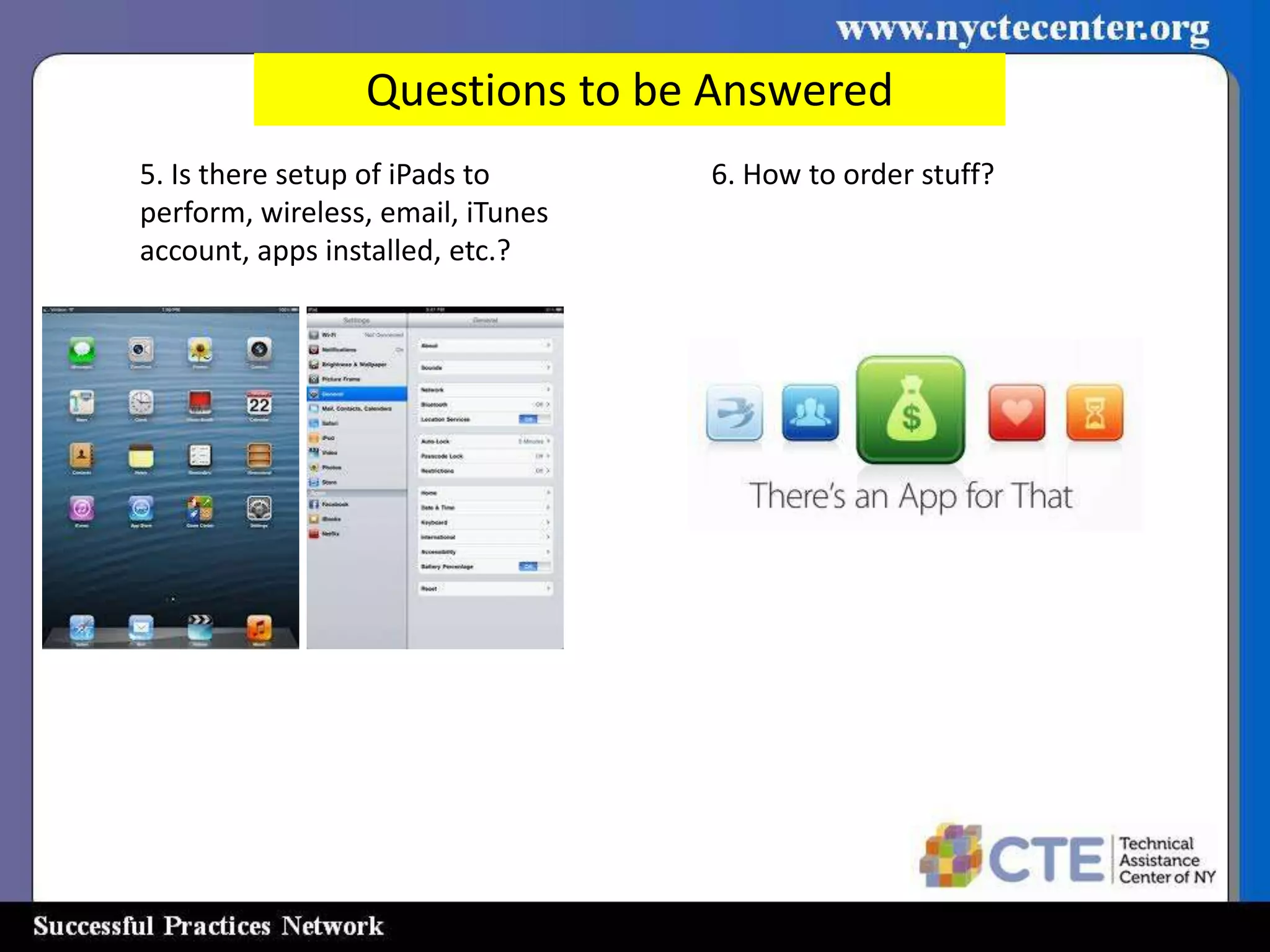
Questions to be Answered
5. Is there setup of iPads to      6. How to order stuff?
perform, wireless, email, iTunes
account, apps installed, etc.?
Questions to be Answered
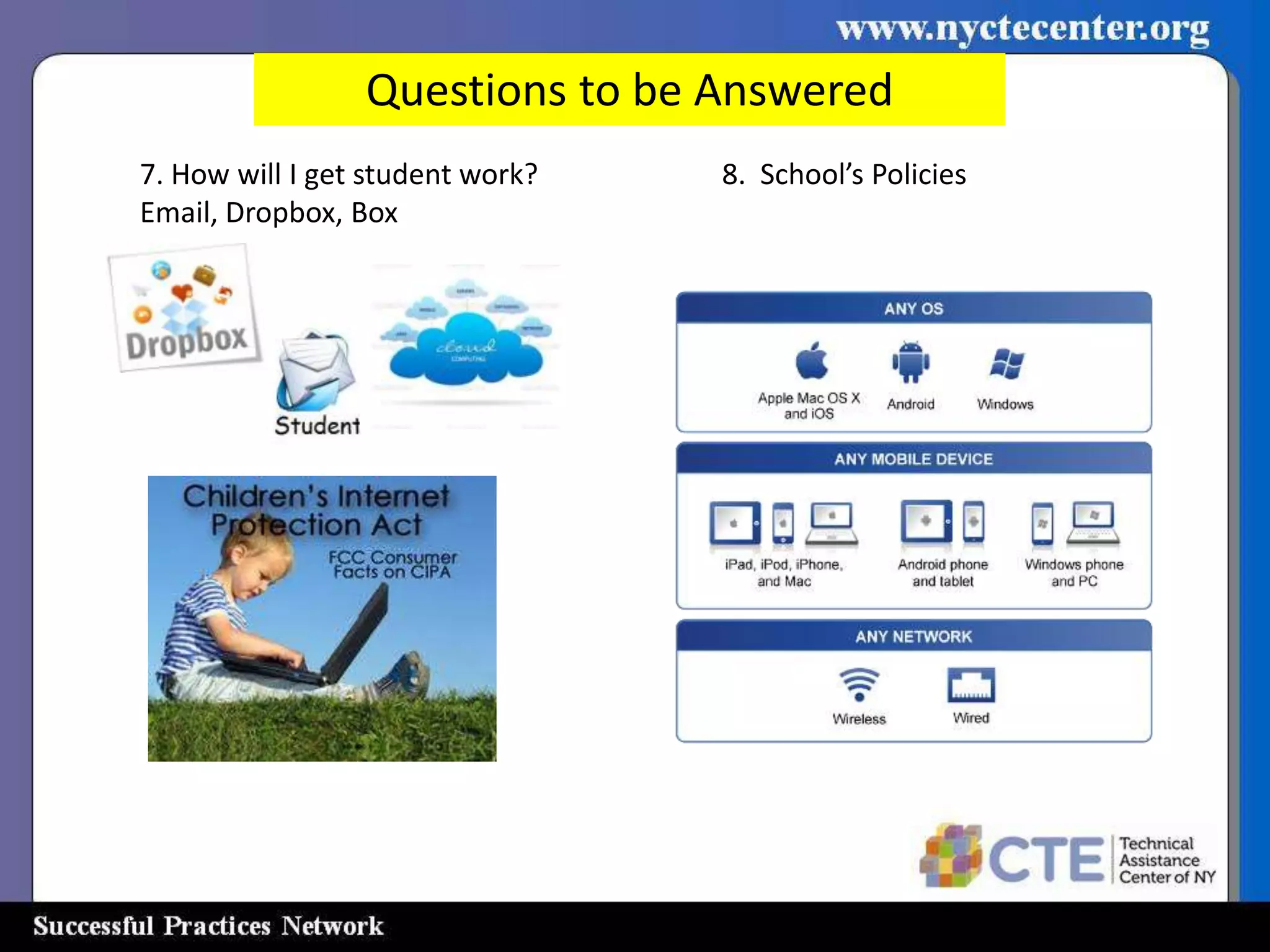
7. How will I get student work?   8. School’s Policies
Email, Dropbox, Box
Questions to be Answered

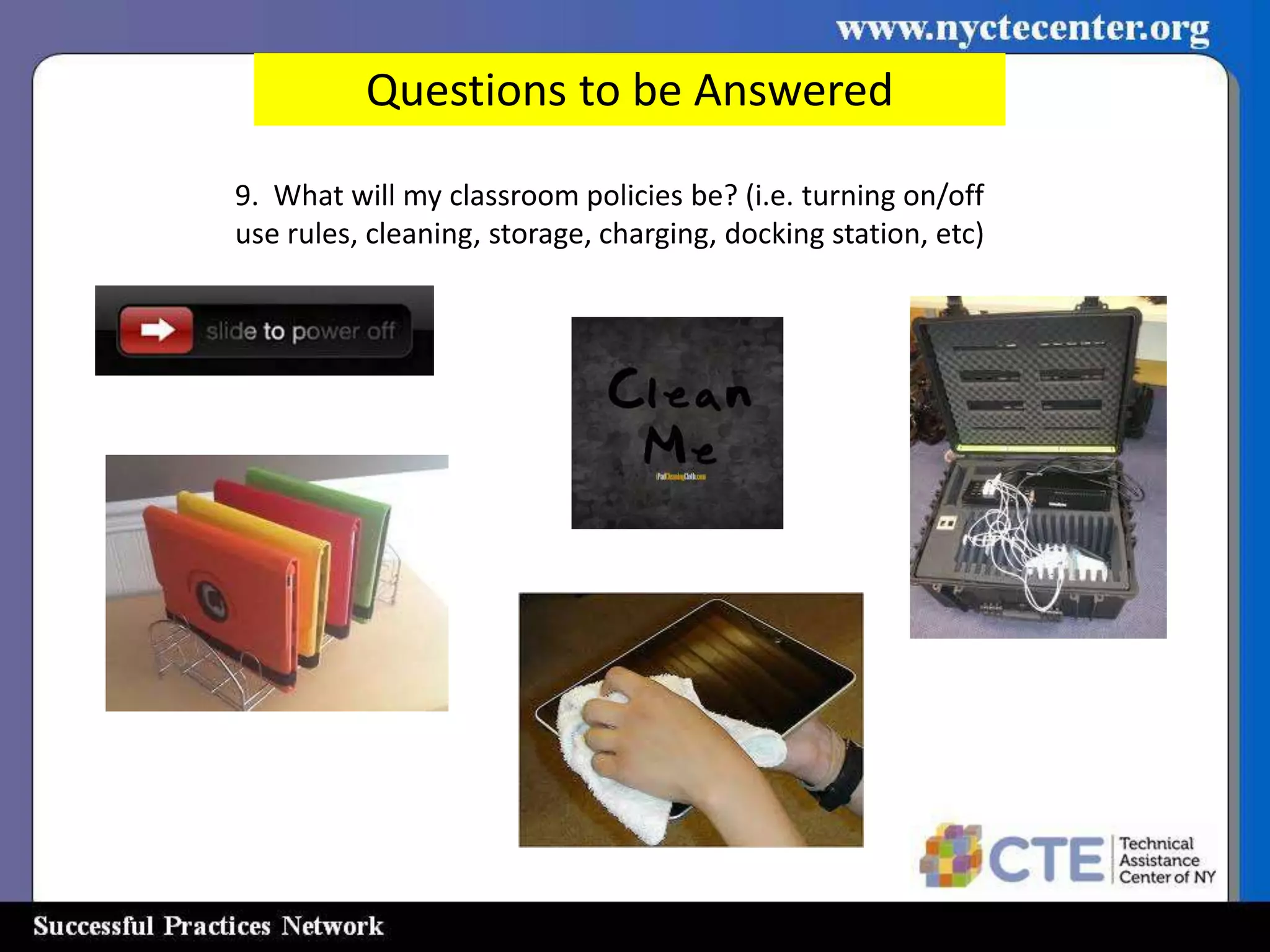
9. What will my classroom policies be? (i.e. turning on/off
use rules, cleaning, storage, charging, docking station, etc)
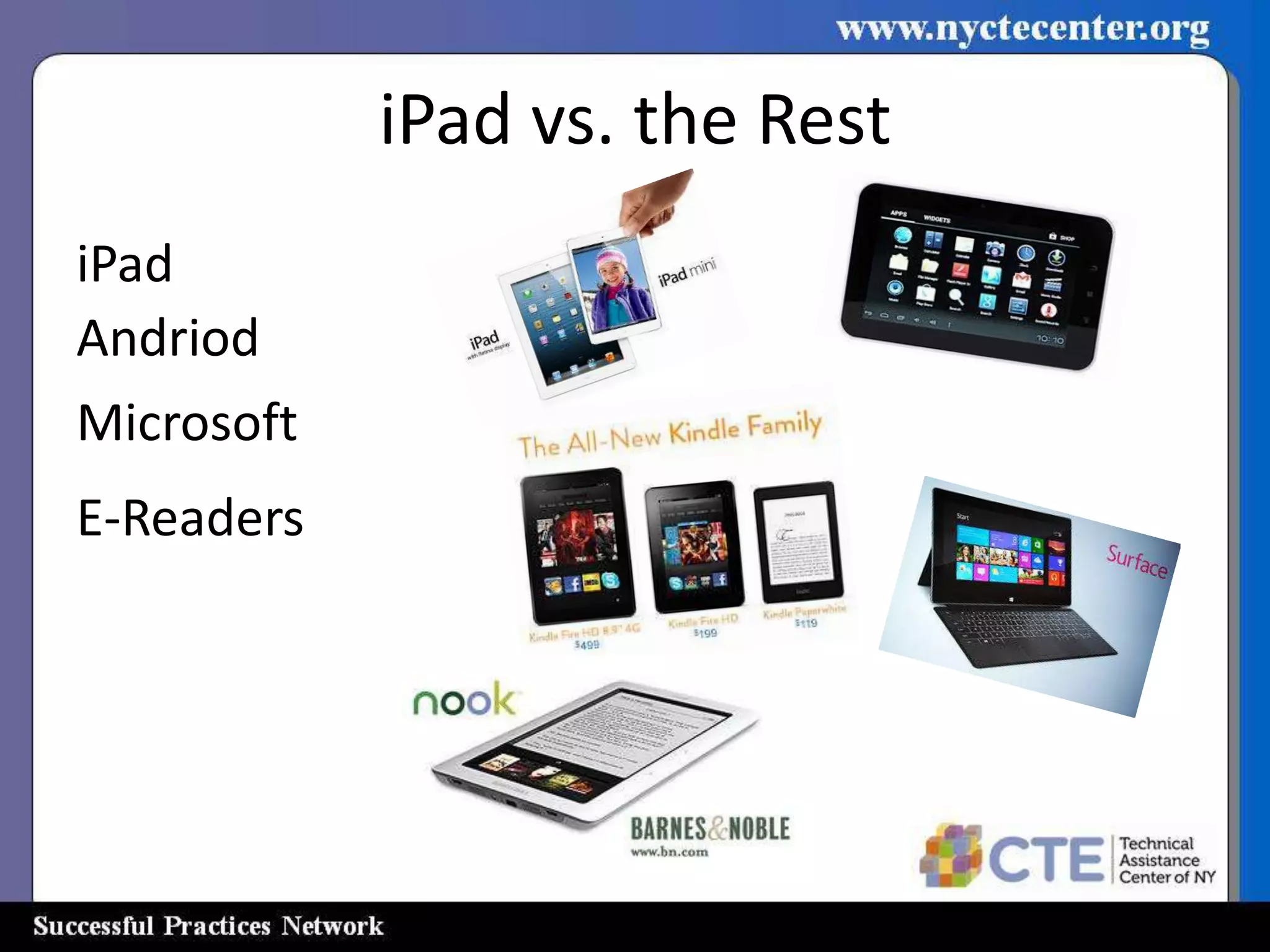
iPad vs. the Rest
iPad
Andriod
Microsoft
E-Readers
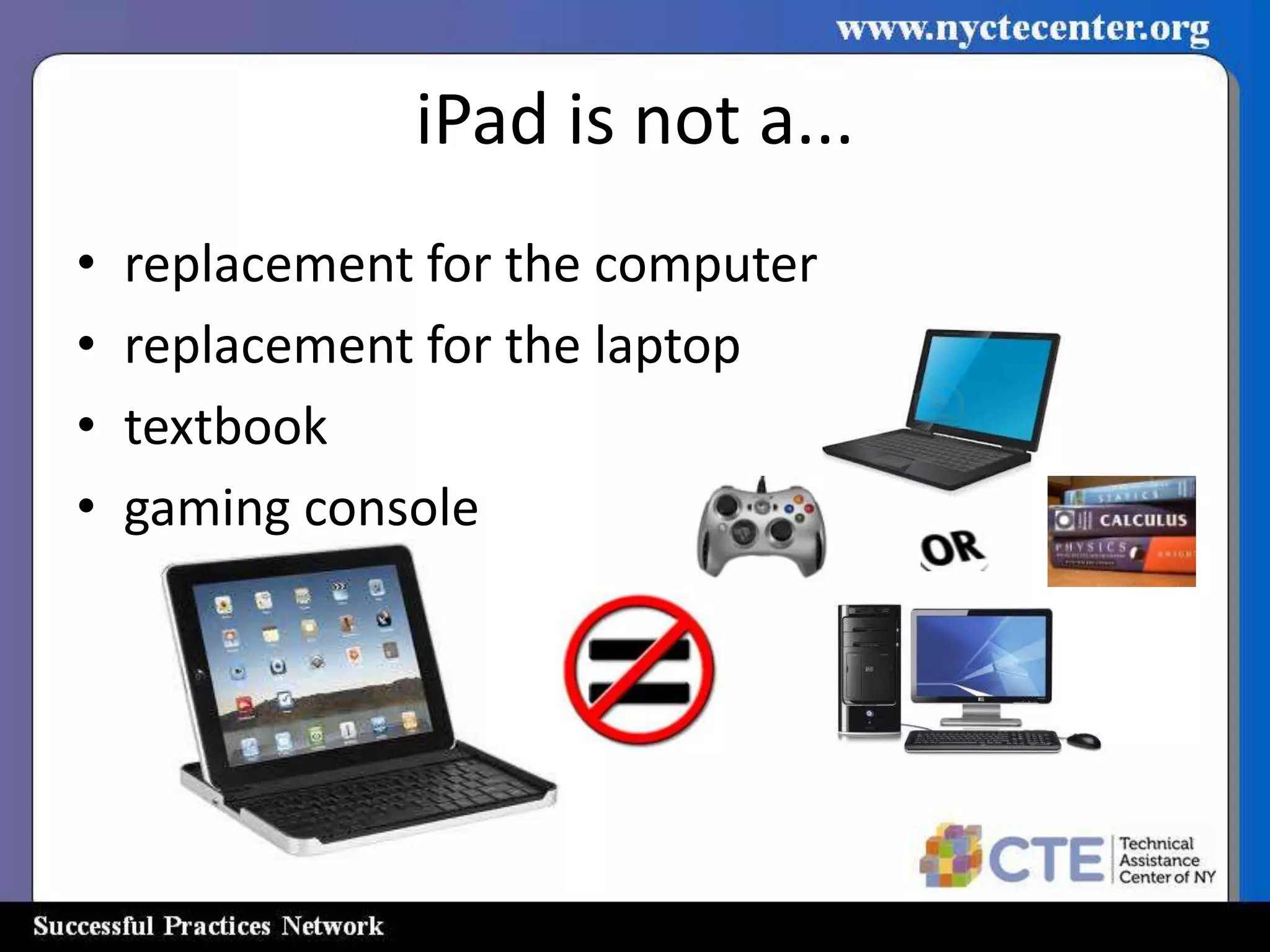
iPad is not a...
•   replacement for the computer
•   replacement for the laptop
•   textbook
•   gaming console
iPad is...
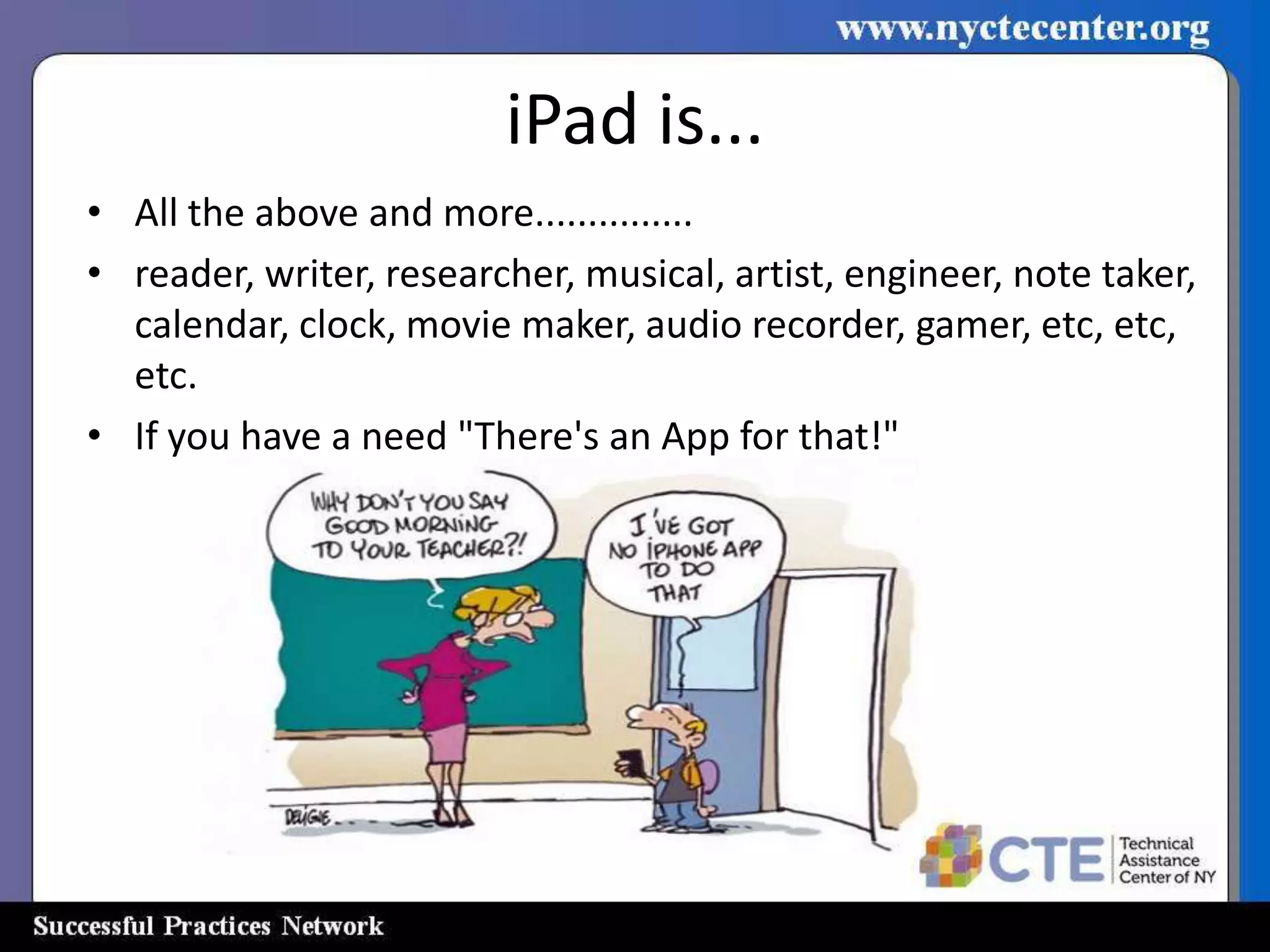
• All the above and more...............
• reader, writer, researcher, musical, artist, engineer, note taker,
  calendar, clock, movie maker, audio recorder, gamer, etc, etc,
  etc.
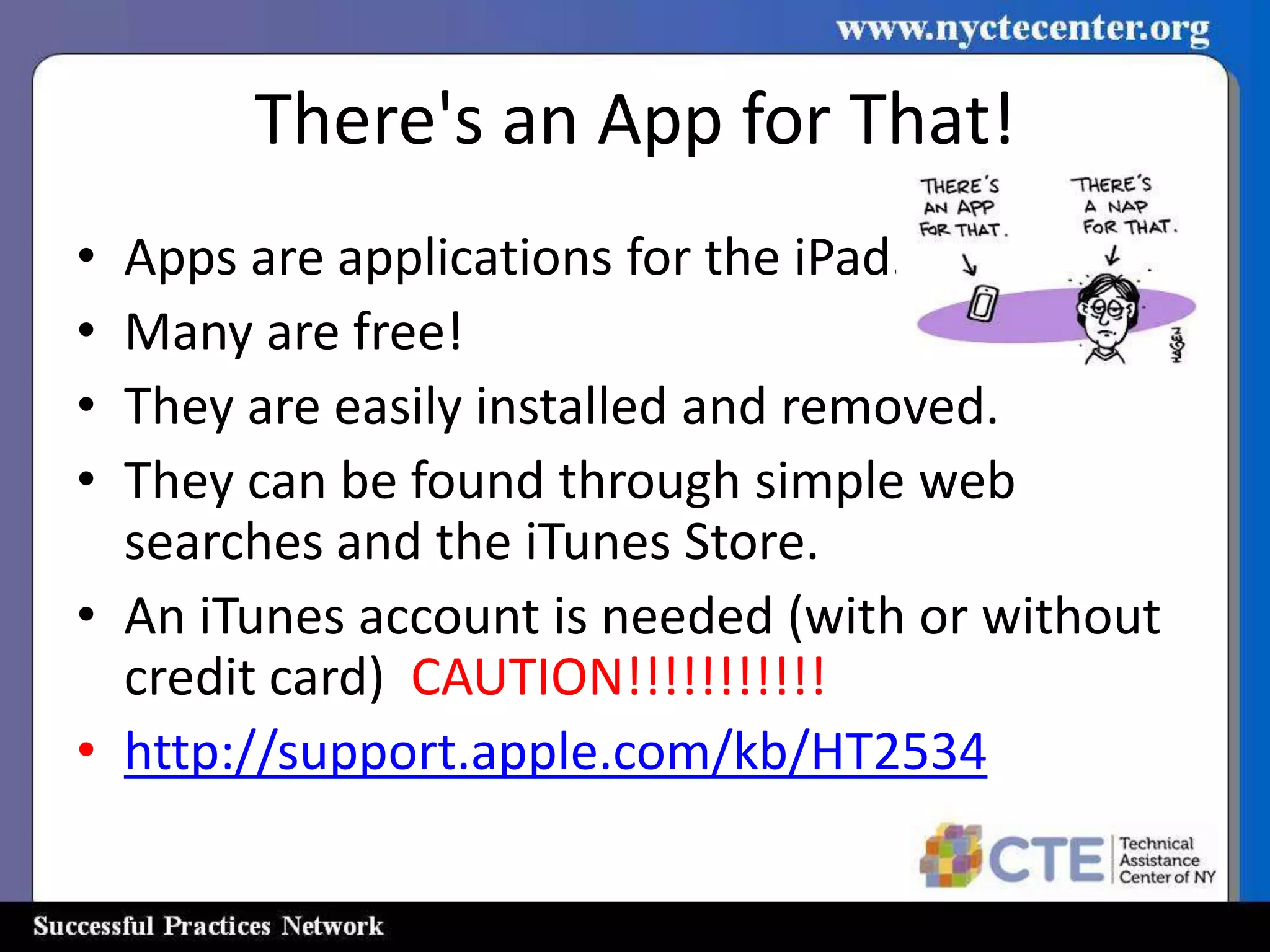
• If you have a need "There's an App for that!"
Why?
•   I will access up-to-date information - you have a textbook that is 5 years old.
•   I will immediately know when I misspell a word – you have to wait until it’s graded.
•   I will learn how to care for technology by using it – you will read about it.
•   I will see math problems in 3D – you will do the odd problems.
•   I will create artwork and poetry and share it with the world – you will share yours with the
    class.
•   I will have 24/7 access – you have the entire class period.
•   I will access the most dynamic information – yours will be printed and photocopied.
•   I will communicate with leaders and experts using email – you will wait for Friday’s speaker.
•   I will select my learning style – you will use the teacher’s favorite learning style.
•   I will collaborate with my peers from around the world – you will collaborate with peers in
    your classroom.
•   I will take my learning as far as I want – you must wait for the rest of the class.
•   Abilene, Kansas High School Dialogue Buzz
Be Relevant!
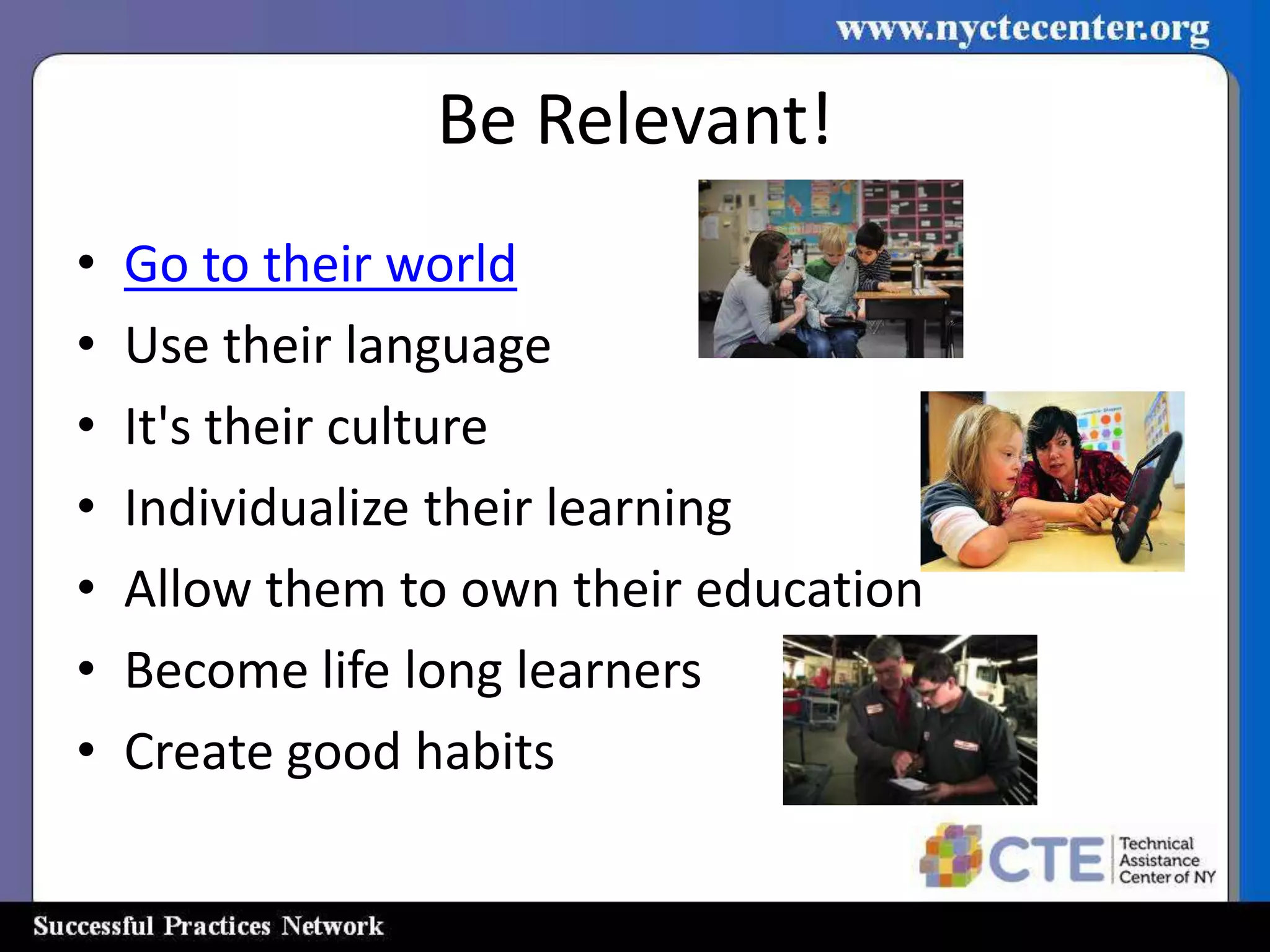
•   Go to their world
•   Use their language
•   It's their culture
•   Individualize their learning
•   Allow them to own their education
•   Become life long learners
•   Create good habits
I Want Them....... Now What?
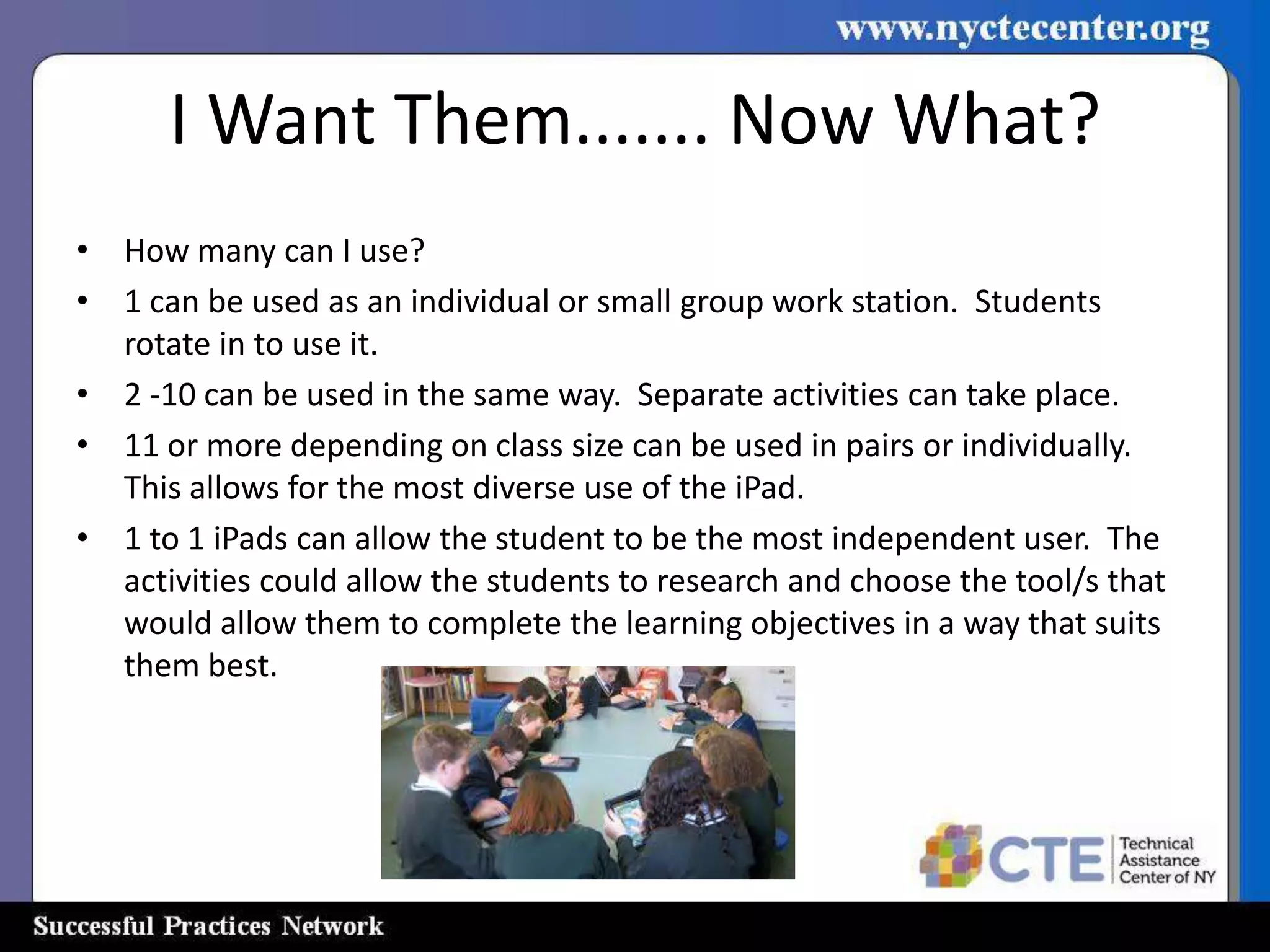
• How many can I use?
• 1 can be used as an individual or small group work station. Students
  rotate in to use it.
• 2 -10 can be used in the same way. Separate activities can take place.
• 11 or more depending on class size can be used in pairs or individually.
  This allows for the most diverse use of the iPad.
• 1 to 1 iPads can allow the student to be the most independent user. The
  activities could allow the students to research and choose the tool/s that
  would allow them to complete the learning objectives in a way that suits
  them best.
Nuts and Bolts
How to obtain iPads
1. District Tech Department
2. Lab - sign out?
3. BOCES sign out?
4. Purchase
5. Shared classrooms
6. Other
Nuts and Bolts
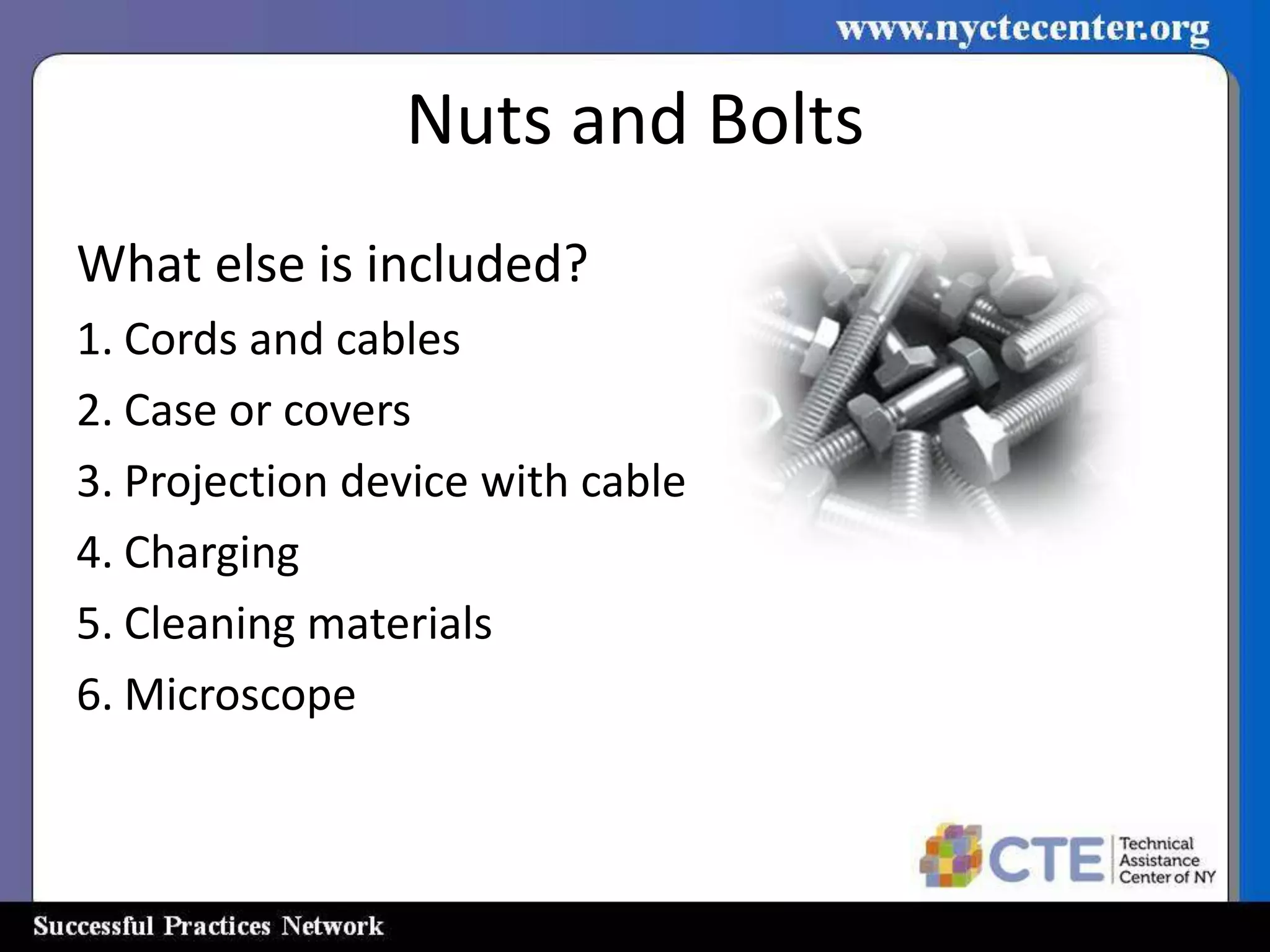
What else is included?
1. Cords and cables
2. Case or covers
3. Projection device with cable
4. Charging
5. Cleaning materials
6. Microscope
Care and Use
•   Will they hold a charge for a whole day?
•   How and when will I charge them?
•   How will I hand them out to class?
•   Will students be assigned a specific iPad?
•   Who will clean them?
•   Will students keep them to take home?
•   Who will check them?
Setting Up the iPad
I believe in an open environment (network). Of course this
    is greatly determined by age, but we should teach them
    smart responsible learning habits as quickly as possible.
    If given reason enough not to risk losing the technology,
    proper behavior will prevail.
If you have a choice I believe the iPad should be open
    enough for students to be able to install and delete apps.
    They should be able to enter their email address as well.
    This will allow them to discover apps that are best suited
    to their needs.
With that said...................
Setup Considerations
•   How to assign to students (keep records)
•   Checking history, apps used, etc.
•   Wireless (capacity)
•   How to connect
•   iTunes account (without Credit Card)
•   App installation allowed
•   Email setup allowed
•   Printing available (wireless printer)
Rules of Use
Must have.......

• Turn on/off - (battery life)
• Respect for physical limitations
• Respect for learning capabilities (digital
  citizenry)
• Keeping clean (healthy environment)
Student Outcomes
How will I get student work?
• Email
• Dropbox (Dropittome)
• Google Drive
• Print (wireless printer)
• Evernote (free app)
• Edmodo (free app)
• School WebDav Server
Built in Uses
                 (without adding Apps)
•   Internet access
•   Note taking
•   Record/Edit audio and video
•   Taking pictures
•   Listening to music
•   Reading
•   Maps
•   Watching video
•   Calendar
•   Clock
There's an App for That!
• Apps are applications for the iPad.
• Many are free!
• They are easily installed and removed.
• They can be found through simple web
  searches and the iTunes Store.
• An iTunes account is needed (with or without
  credit card) CAUTION!!!!!!!!!!!
• http://support.apple.com/kb/HT2534
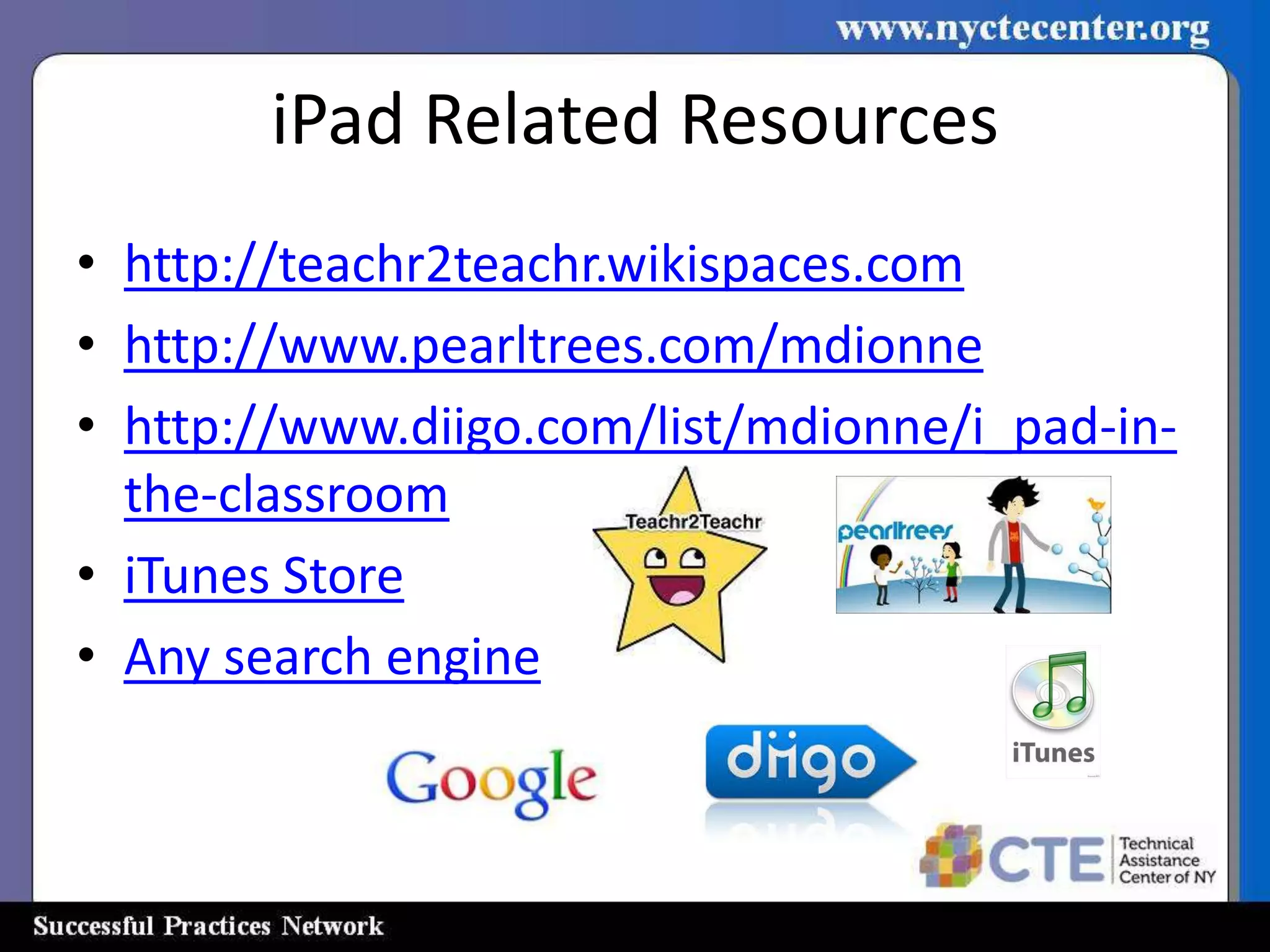
iPad Related Resources
• http://teachr2teachr.wikispaces.com
• http://www.pearltrees.com/mdionne
• http://www.diigo.com/list/mdionne/i_pad-in-
  the-classroom
• iTunes Store
• Any search engine
Teachr2Teachr
                    Michael Dionne

• http://Teachr2Teachr.wikispaces.com
• mdionne57@gmail.com

• iPads in the Classroom
• (PLN) Personal Learning Network
• Cell Phones in the Classroom
iPads in the Classroom

     Thank you for attending.
    Thank you for sharing Mike!
 Tomorrow AM the archive of the
Webinar will be available on the CTE
 TAC Website with the PowerPoint

iPad Webinar 1

  • 1.
    iPads in theClassroom Let's Get Personal • March 26, 2013 • Begins at 3:00 pm
  • 2.
    Webinar Guidelines • Allparticipants are on mute during the entire webinar. • Presentation will be 45 minutes, questions and answers will be 15 minutes. • To ask a question, type your question in the question control panel in the upper right corner of your screen. • We will try to answer questions as they come in. If your question is not answered it will be addressed at the end in the Question and Answer section. • If you are disconnected for any reason please call (518) 723-2137
  • 3.
    Webinar Extras • Thewebinar is being recorded to be placed on the CTE TAC Website. • You will be able to download the PowerPoint slide show.
  • 4.
    iPads in theClassroom Presenter: Mike Dionne Retired Sidney Central School District Technology Director K-12 Technology Education Teacher
  • 5.
    iPads in theClassroom Initial Questions to ask…………. Is there wifi in my classroom? Will it work with all of the iPads I can get my hands on? or Is there another room that will work?
  • 6.
    Questions to beAnswered 1. How many iPads will I have? 2. What will my instructional delivery be? (i.e. groups, stations, individual)
  • 7.
    Questions to beAnswered 3. Will I need to project? 4. Do I have the proper cabling and projector?
  • 8.
    Questions to beAnswered 5. Is there setup of iPads to 6. How to order stuff? perform, wireless, email, iTunes account, apps installed, etc.?
  • 9.
    Questions to beAnswered 7. How will I get student work? 8. School’s Policies Email, Dropbox, Box
  • 10.
    Questions to beAnswered 9. What will my classroom policies be? (i.e. turning on/off use rules, cleaning, storage, charging, docking station, etc)
  • 11.
    iPad vs. theRest iPad Andriod Microsoft E-Readers
  • 12.
    iPad is nota... • replacement for the computer • replacement for the laptop • textbook • gaming console
  • 13.
    iPad is... • Allthe above and more............... • reader, writer, researcher, musical, artist, engineer, note taker, calendar, clock, movie maker, audio recorder, gamer, etc, etc, etc. • If you have a need "There's an App for that!"
  • 14.
    Why? • I will access up-to-date information - you have a textbook that is 5 years old. • I will immediately know when I misspell a word – you have to wait until it’s graded. • I will learn how to care for technology by using it – you will read about it. • I will see math problems in 3D – you will do the odd problems. • I will create artwork and poetry and share it with the world – you will share yours with the class. • I will have 24/7 access – you have the entire class period. • I will access the most dynamic information – yours will be printed and photocopied. • I will communicate with leaders and experts using email – you will wait for Friday’s speaker. • I will select my learning style – you will use the teacher’s favorite learning style. • I will collaborate with my peers from around the world – you will collaborate with peers in your classroom. • I will take my learning as far as I want – you must wait for the rest of the class. • Abilene, Kansas High School Dialogue Buzz
  • 15.
    Be Relevant! • Go to their world • Use their language • It's their culture • Individualize their learning • Allow them to own their education • Become life long learners • Create good habits
  • 16.
    I Want Them.......Now What? • How many can I use? • 1 can be used as an individual or small group work station. Students rotate in to use it. • 2 -10 can be used in the same way. Separate activities can take place. • 11 or more depending on class size can be used in pairs or individually. This allows for the most diverse use of the iPad. • 1 to 1 iPads can allow the student to be the most independent user. The activities could allow the students to research and choose the tool/s that would allow them to complete the learning objectives in a way that suits them best.
  • 17.
    Nuts and Bolts Howto obtain iPads 1. District Tech Department 2. Lab - sign out? 3. BOCES sign out? 4. Purchase 5. Shared classrooms 6. Other
  • 18.
    Nuts and Bolts Whatelse is included? 1. Cords and cables 2. Case or covers 3. Projection device with cable 4. Charging 5. Cleaning materials 6. Microscope
  • 19.
    Care and Use • Will they hold a charge for a whole day? • How and when will I charge them? • How will I hand them out to class? • Will students be assigned a specific iPad? • Who will clean them? • Will students keep them to take home? • Who will check them?
  • 20.
    Setting Up theiPad I believe in an open environment (network). Of course this is greatly determined by age, but we should teach them smart responsible learning habits as quickly as possible. If given reason enough not to risk losing the technology, proper behavior will prevail. If you have a choice I believe the iPad should be open enough for students to be able to install and delete apps. They should be able to enter their email address as well. This will allow them to discover apps that are best suited to their needs. With that said...................
  • 21.
    Setup Considerations • How to assign to students (keep records) • Checking history, apps used, etc. • Wireless (capacity) • How to connect • iTunes account (without Credit Card) • App installation allowed • Email setup allowed • Printing available (wireless printer)
  • 22.
    Rules of Use Musthave....... • Turn on/off - (battery life) • Respect for physical limitations • Respect for learning capabilities (digital citizenry) • Keeping clean (healthy environment)
  • 23.
    Student Outcomes How willI get student work? • Email • Dropbox (Dropittome) • Google Drive • Print (wireless printer) • Evernote (free app) • Edmodo (free app) • School WebDav Server
  • 24.
    Built in Uses (without adding Apps) • Internet access • Note taking • Record/Edit audio and video • Taking pictures • Listening to music • Reading • Maps • Watching video • Calendar • Clock
  • 25.
    There's an Appfor That! • Apps are applications for the iPad. • Many are free! • They are easily installed and removed. • They can be found through simple web searches and the iTunes Store. • An iTunes account is needed (with or without credit card) CAUTION!!!!!!!!!!! • http://support.apple.com/kb/HT2534
  • 26.
    iPad Related Resources •http://teachr2teachr.wikispaces.com • http://www.pearltrees.com/mdionne • http://www.diigo.com/list/mdionne/i_pad-in- the-classroom • iTunes Store • Any search engine
  • 27.
    Teachr2Teachr Michael Dionne • http://Teachr2Teachr.wikispaces.com • mdionne57@gmail.com • iPads in the Classroom • (PLN) Personal Learning Network • Cell Phones in the Classroom
  • 28.
    iPads in theClassroom Thank you for attending. Thank you for sharing Mike! Tomorrow AM the archive of the Webinar will be available on the CTE TAC Website with the PowerPoint