Basic MS-DOS
History 
MS-DOS 1.0 was released in August 1981, 
and was updated until April 1994 when it was 
replaced by Windows 95 
All versions of windows still contain some type 
of DOS, in windows 95 and 98 you can go to 
run and type command to get to DOS prompt, 
in NT, 2000, and XP you can type CMD and 
get DOS.
Introduction 
The role of DOS is to interpret commands that 
the user enters via the keyboard. 
These commands allow the following tasks to be 
executed: 
file and folder management 
disk upgrades 
hardware configuration 
memory optimization 
program execution
File Manipulation 
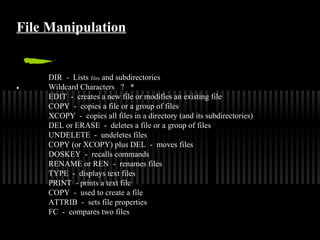
DIR - Lists files and subdirectories 
· Wildcard Characters ? * 
EDIT - creates a new file or modifies an existing file 
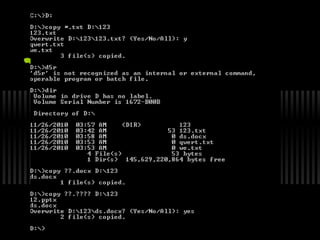
COPY - copies a file or a group of files 
XCOPY - copies all files in a directory (and its subdirectories) 
DEL or ERASE - deletes a file or a group of files 
UNDELETE - undeletes files 
COPY (or XCOPY) plus DEL - moves files 
DOSKEY - recalls commands 
RENAME or REN - renames files 
TYPE - displays text files 
PRINT - prints a text file 
COPY - used to create a file 
ATTRIB - sets file properties 
FC - compares two files
Directory Manipulation 
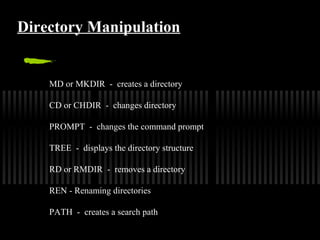
MD or MKDIR - creates a directory 
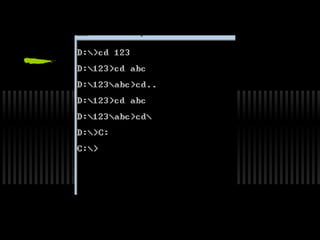
CD or CHDIR - changes directory 
PROMPT - changes the command prompt 
TREE - displays the directory structure 
RD or RMDIR - removes a directory 
REN - Renaming directories 
PATH - creates a search path
Basic Structure 
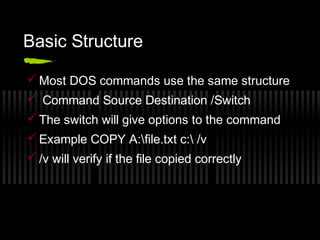
Most DOS commands use the same structure 
 Command Source Destination /Switch 
The switch will give options to the command 
Example COPY A:file.txt c: /v 
/v will verify if the file copied correctly
The Help Switch /? 
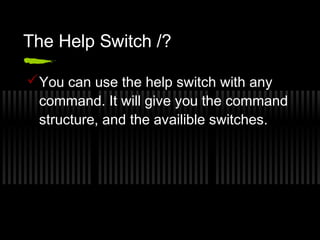
You can use the help switch with any 
command. It will give you the command 
structure, and the availible switches.
MS-DOS Prompt 
The prompt in MS-DOS displays your 
current directory 
C:doscommands> means you are in 
that directory, and any command you 
use will apply to the current directory 
unless you specify a different one.
DOS Naming 
Characters like * + = |  [ ] : ; “ < 
> , ? / cannot be used in DOS 
names.
Relative and Absolute path 
Alternatively referred to as the file path and full path, 
the absolute path contains the root directory and all 
other subdirectories that contain a file or folder. 
absolute path 
C:Windowscalc.exe 
Windows non absolute path (relative path) 
calc.exe
Wildcard characters 
Wildcard character will replace a single letter, 
or word with a wild character 
* will replace any amput of characters, and ? 
Will replace one. 
Example: copy a:/*.txt c:/ will copy all text files 
to drive c:/ 
Example 2: copy a:/?????.txt c:/ will copy any 
5 letter text file to c:/
Basic Commands CD 
CD- Change directory 
You use this command when you want 
to change the directory. 
Example: CD C:DOS will bring you to 
the dos folder
Basic Commands CD.. And CD 
CD.. - brings you to the previous 
directory. 
Example: if you are in C:DOSFOLDER 
CD.. Will bring you to C:DOS
Basic Commands CLS 
CLS Will clear the contents of the screen
Basic Commands DIR 
DIR will display the contents of the folder
Basic Commands COPY 
COPY will copy the file from one location 
to another 
Example COPY A:file.txt c: will copy 
the file from a: to c:
Basic Command XCOPY 
XCOPY can move files, directories, and 
whole drives from one location to 
another, It is more powerful then the 
copy command, and has a lot of 
switches.
Basic Commands MOVE 
MOVE will move the file or directory 
from one location to another 
Example: MOVE a:file.txt c:file.txt will 
move the file to the c: drive
Basic Command DEL 
DEL will delete a file or an empty 
directory from the drive
Basic Command EDIT 
EDIT will open a text file
Basic Commands REN 
REN will rename the file 
Example : REN file.txt myfile.txt will 
rename the file.txt to myfile.txt
Basic Commands MD/RD 
MD is used to make a directory (folder) 
in MS-DOS. 
Example: MD myfolder will make a folder 
called myfolder in current directory 
RD is used for remove directory
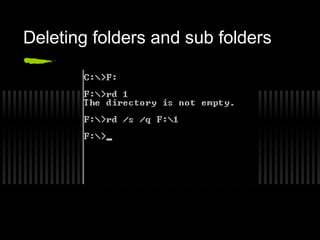
Deleting folders and sub folders
Basic Command TREE 
TREE shows you all of the folders and 
files in current directory like explorer in 
windows.
Attributes 
Attributes are the properties of a file 
such as hidden, read-only, archive or 
system file. 
In MS-DOS you can view/change 
attributes with the attrib command. 
Example: attrib +r file.txt will make the 
file read-only.
The MORE Command
The PRINT Command 
The PRINT Command in MS DOS is 
used to print the text files 
Syntax : 
PRINT Filename 
E.g. 
PRINT File1.txt
The PROMPT Command 
The PROMPT is used to configure a 
DOS prompt into our linking 
Syntax : 
C: PROMPT Promptname 
E.g. 
PROMPT NCIT 
Now, the Prompt will be as NCIT
Checking the Date/Time 
For checking the date from the system in MS 
DOS, we use the DATE command. It returns 
the current system date. 
Similarly, the TIME command returns the 
current time from the system. 
Syntax : 
 C:>DATE 
E.g. C:>DATE
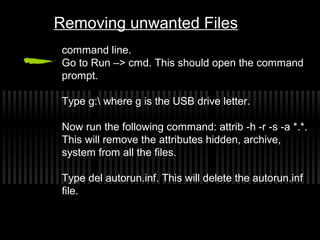
Removing unwanted Files 
command line. 
Go to Run –> cmd. This should open the command 
prompt. 
Type g: where g is the USB drive letter. 
Now run the following command: attrib -h -r -s -a *.*. 
This will remove the attributes hidden, archive, 
system from all the files. 
Type del autorun.inf. This will delete the autorun.inf 
file.
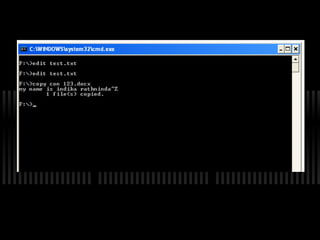
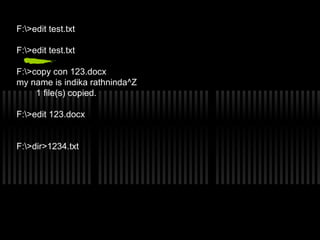
F:>edit test.txt 
F:>edit test.txt 
F:>copy con 123.docx 
my name is indika rathninda^Z 
1 file(s) copied. 
F:>edit 123.docx 
F:>dir>1234.txt
Batch file 
DOS, OS/2, and Windows, a batch file is a 
type of script file, a text file containing a 
series of commands to be executed by the 
command line interpreter. A batch file may 
contain any command the interpreter accepts 
interactively at the command prompt.
The Old New Thing 
The command processor CMD.EXE comes with a mini-calculator 
that can perform simple arithmetic on 32-bit 
signed integers: 
C:>set /a 2+2 4 
C:>set /a 2*(9/2) 8 
C:>set /a (2*9)/2 9 
C:>set /a "31>>2" 7 
Note that we had to quote the shift operator since it 
would otherwise be misinterpreted as a "redirect stdout 
and append" operator. 
For more information, type set /? at the command 
prompt.
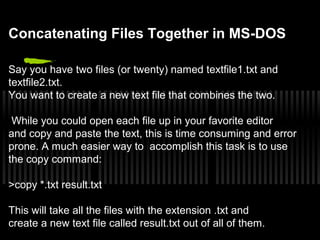
Concatenating Files Together in MS-DOS 
Say you have two files (or twenty) named textfile1.txt and 
textfile2.txt. 
You want to create a new text file that combines the two. 
While you could open each file up in your favorite editor 
and copy and paste the text, this is time consuming and error 
prone. A much easier way to accomplish this task is to use 
the copy command: 
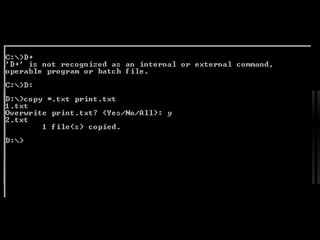
>copy *.txt result.txt 
This will take all the files with the extension .txt and 
create a new text file called result.txt out of all of them.
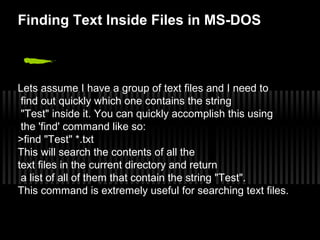
Finding Text Inside Files in MS-DOS 
Lets assume I have a group of text files and I need to 
find out quickly which one contains the string 
"Test" inside it. You can quickly accomplish this using 
the 'find' command like so: 
>find "Test" *.txt 
This will search the contents of all the 
text files in the current directory and return 
a list of all of them that contain the string "Test". 
This command is extremely useful for searching text files.
Introduction to ms dos

Introduction to ms dos

  • 1.
  • 2.
    History MS-DOS 1.0was released in August 1981, and was updated until April 1994 when it was replaced by Windows 95 All versions of windows still contain some type of DOS, in windows 95 and 98 you can go to run and type command to get to DOS prompt, in NT, 2000, and XP you can type CMD and get DOS.
  • 3.
    Introduction The roleof DOS is to interpret commands that the user enters via the keyboard. These commands allow the following tasks to be executed: file and folder management disk upgrades hardware configuration memory optimization program execution
  • 4.
    File Manipulation DIR- Lists files and subdirectories · Wildcard Characters ? * EDIT - creates a new file or modifies an existing file COPY - copies a file or a group of files XCOPY - copies all files in a directory (and its subdirectories) DEL or ERASE - deletes a file or a group of files UNDELETE - undeletes files COPY (or XCOPY) plus DEL - moves files DOSKEY - recalls commands RENAME or REN - renames files TYPE - displays text files PRINT - prints a text file COPY - used to create a file ATTRIB - sets file properties FC - compares two files
  • 5.
    Directory Manipulation MDor MKDIR - creates a directory CD or CHDIR - changes directory PROMPT - changes the command prompt TREE - displays the directory structure RD or RMDIR - removes a directory REN - Renaming directories PATH - creates a search path
  • 6.
    Basic Structure MostDOS commands use the same structure  Command Source Destination /Switch The switch will give options to the command Example COPY A:file.txt c: /v /v will verify if the file copied correctly
  • 7.
    The Help Switch/? You can use the help switch with any command. It will give you the command structure, and the availible switches.
  • 8.
    MS-DOS Prompt Theprompt in MS-DOS displays your current directory C:doscommands> means you are in that directory, and any command you use will apply to the current directory unless you specify a different one.
  • 9.
    DOS Naming Characterslike * + = | [ ] : ; “ < > , ? / cannot be used in DOS names.
  • 10.
    Relative and Absolutepath Alternatively referred to as the file path and full path, the absolute path contains the root directory and all other subdirectories that contain a file or folder. absolute path C:Windowscalc.exe Windows non absolute path (relative path) calc.exe
  • 11.
    Wildcard characters Wildcardcharacter will replace a single letter, or word with a wild character * will replace any amput of characters, and ? Will replace one. Example: copy a:/*.txt c:/ will copy all text files to drive c:/ Example 2: copy a:/?????.txt c:/ will copy any 5 letter text file to c:/
  • 12.
    Basic Commands CD CD- Change directory You use this command when you want to change the directory. Example: CD C:DOS will bring you to the dos folder
  • 13.
    Basic Commands CD..And CD CD.. - brings you to the previous directory. Example: if you are in C:DOSFOLDER CD.. Will bring you to C:DOS
  • 14.
    Basic Commands CLS CLS Will clear the contents of the screen
  • 15.
    Basic Commands DIR DIR will display the contents of the folder
  • 16.
    Basic Commands COPY COPY will copy the file from one location to another Example COPY A:file.txt c: will copy the file from a: to c:
  • 17.
    Basic Command XCOPY XCOPY can move files, directories, and whole drives from one location to another, It is more powerful then the copy command, and has a lot of switches.
  • 18.
    Basic Commands MOVE MOVE will move the file or directory from one location to another Example: MOVE a:file.txt c:file.txt will move the file to the c: drive
  • 19.
    Basic Command DEL DEL will delete a file or an empty directory from the drive
  • 20.
    Basic Command EDIT EDIT will open a text file
  • 21.
    Basic Commands REN REN will rename the file Example : REN file.txt myfile.txt will rename the file.txt to myfile.txt
  • 22.
    Basic Commands MD/RD MD is used to make a directory (folder) in MS-DOS. Example: MD myfolder will make a folder called myfolder in current directory RD is used for remove directory
  • 23.
  • 24.
    Basic Command TREE TREE shows you all of the folders and files in current directory like explorer in windows.
  • 25.
    Attributes Attributes arethe properties of a file such as hidden, read-only, archive or system file. In MS-DOS you can view/change attributes with the attrib command. Example: attrib +r file.txt will make the file read-only.
  • 26.
  • 27.
    The PRINT Command The PRINT Command in MS DOS is used to print the text files Syntax : PRINT Filename E.g. PRINT File1.txt
  • 28.
    The PROMPT Command The PROMPT is used to configure a DOS prompt into our linking Syntax : C: PROMPT Promptname E.g. PROMPT NCIT Now, the Prompt will be as NCIT
  • 29.
    Checking the Date/Time For checking the date from the system in MS DOS, we use the DATE command. It returns the current system date. Similarly, the TIME command returns the current time from the system. Syntax :  C:>DATE E.g. C:>DATE
  • 30.
    Removing unwanted Files command line. Go to Run –> cmd. This should open the command prompt. Type g: where g is the USB drive letter. Now run the following command: attrib -h -r -s -a *.*. This will remove the attributes hidden, archive, system from all the files. Type del autorun.inf. This will delete the autorun.inf file.
  • 32.
    F:>edit test.txt F:>edittest.txt F:>copy con 123.docx my name is indika rathninda^Z 1 file(s) copied. F:>edit 123.docx F:>dir>1234.txt
  • 36.
    Batch file DOS,OS/2, and Windows, a batch file is a type of script file, a text file containing a series of commands to be executed by the command line interpreter. A batch file may contain any command the interpreter accepts interactively at the command prompt.
  • 37.
    The Old NewThing The command processor CMD.EXE comes with a mini-calculator that can perform simple arithmetic on 32-bit signed integers: C:>set /a 2+2 4 C:>set /a 2*(9/2) 8 C:>set /a (2*9)/2 9 C:>set /a "31>>2" 7 Note that we had to quote the shift operator since it would otherwise be misinterpreted as a "redirect stdout and append" operator. For more information, type set /? at the command prompt.
  • 38.
    Concatenating Files Togetherin MS-DOS Say you have two files (or twenty) named textfile1.txt and textfile2.txt. You want to create a new text file that combines the two. While you could open each file up in your favorite editor and copy and paste the text, this is time consuming and error prone. A much easier way to accomplish this task is to use the copy command: >copy *.txt result.txt This will take all the files with the extension .txt and create a new text file called result.txt out of all of them.
  • 39.
    Finding Text InsideFiles in MS-DOS Lets assume I have a group of text files and I need to find out quickly which one contains the string "Test" inside it. You can quickly accomplish this using the 'find' command like so: >find "Test" *.txt This will search the contents of all the text files in the current directory and return a list of all of them that contain the string "Test". This command is extremely useful for searching text files.

Editor's Notes

  • #24 rmdir &amp;quot;c:\pathofyourdirectory&amp;quot; /q /s purpose – empty folders
  • #36 Go to new directory