1
HYPERTEXT MARKUP LANGUAGE (HTML)
2
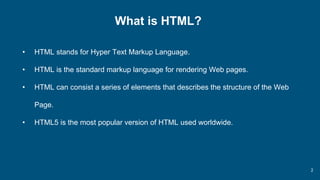
What is HTML?
• HTML stands for Hyper Text Markup Language.
• HTML is the standard markup language for rendering Web pages.
• HTML can consist a series of elements that describes the structure of the Web
Page.
• HTML5 is the most popular version of HTML used worldwide.
3
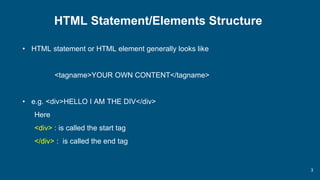
HTML Statement/Elements Structure
• HTML statement or HTML element generally looks like
<tagname>YOUR OWN CONTENT</tagname>
• e.g. <div>HELLO I AM THE DIV</div>
Here
<div> : is called the start tag
</div> : is called the end tag
4
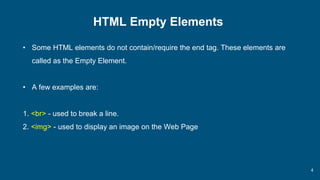
HTML Empty Elements
• Some HTML elements do not contain/require the end tag. These elements are
called as the Empty Element.
• A few examples are:
1. <br> - used to break a line.
2. <img> - used to display an image on the Web Page
5
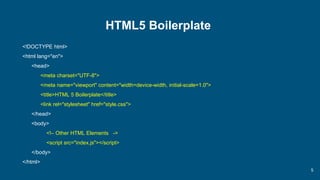
HTML5 Boilerplate
<!DOCTYPE html>
<html lang="en">
<head>
<meta charset="UTF-8">
<meta name="viewport" content="width=device-width, initial-scale=1.0">
<title>HTML 5 Boilerplate</title>
<link rel="stylesheet" href="style.css">
</head>
<body>
<!– Other HTML Elements ->
<script src="index.js"></script>
</body>
</html>
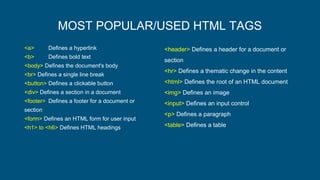
MOST POPULAR/USED HTML TAGS
<a> Defines a hyperlink
<b> Defines bold text
<body> Defines the document's body
<br> Defines a single line break
<button> Defines a clickable button
<div> Defines a section in a document
<footer> Defines a footer for a document or
section
<form> Defines an HTML form for user input
<h1> to <h6> Defines HTML headings
<header> Defines a header for a document or
section
<hr> Defines a thematic change in the content
<html> Defines the root of an HTML document
<img> Defines an image
<input> Defines an input control
<p> Defines a paragraph
<table> Defines a table
QUESTIONS
Q1. Is HTML capable of doing mathematical computation?
Q2. What are the possible contents that can come in header and footer?
Q3. What is HTML Boilerplate?
8
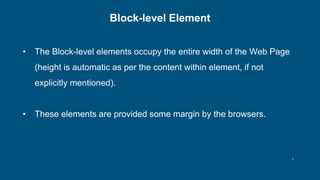
Block-level Element
• The Block-level elements occupy the entire width of the Web Page
(height is automatic as per the content within element, if not
explicitly mentioned).
• These elements are provided some margin by the browsers.
9
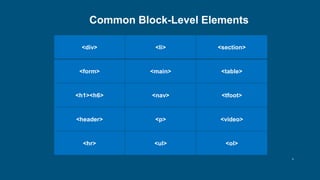
Common Block-Level Elements
<div> <li> <section>
<form> <main> <table>
<h1><h6> <nav> <tfoot>
<header> <p> <video>
<hr> <ul> <ol>
10
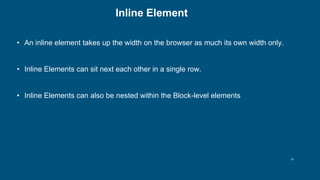
Inline Element
• An inline element takes up the width on the browser as much its own width only.
• Inline Elements can sit next each other in a single row.
• Inline Elements can also be nested within the Block-level elements
11
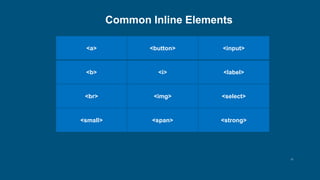
Common Inline Elements
<a> <button> <input>
<b> <i> <label>
<br> <img> <select>
<small> <span> <strong>
12
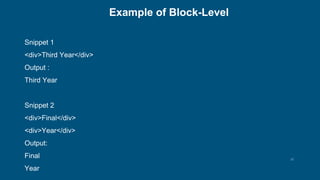
Example of Block-Level
Snippet 1
<div>Third Year</div>
Output :
Third Year
Snippet 2
<div>Final</div>
<div>Year</div>
Output:
Final
Year
13
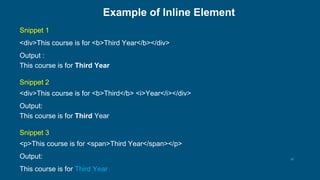
Example of Inline Element
Snippet 1
<div>This course is for <b>Third Year</b></div>
Output :
This course is for Third Year
Snippet 2
<div>This course is for <b>Third</b> <i>Year</i></div>
Output:
This course is for Third Year
Snippet 3
<p>This course is for <span>Third Year</span></p>
Output:
This course is for Third Year
14
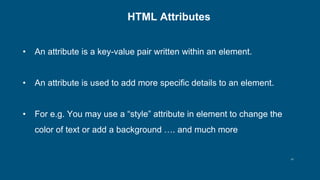
HTML Attributes
• An attribute is a key-value pair written within an element.
• An attribute is used to add more specific details to an element.
• For e.g. You may use a “style” attribute in element to change the
color of text or add a background …. and much more
15
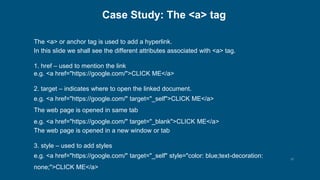
Case Study: The <a> tag
The <a> or anchor tag is used to add a hyperlink.
In this slide we shall see the different attributes associated with <a> tag.
1. href – used to mention the link
e.g. <a href="https://google.com/">CLICK ME</a>
2. target – indicates where to open the linked document.
e.g. <a href="https://google.com/" target="_self">CLICK ME</a>
The web page is opened in same tab
e.g. <a href="https://google.com/" target="_blank">CLICK ME</a>
The web page is opened in a new window or tab
3. style – used to add styles
e.g. <a href="https://google.com/" target="_self" style="color: blue;text-decoration:
none;">CLICK ME</a>
16
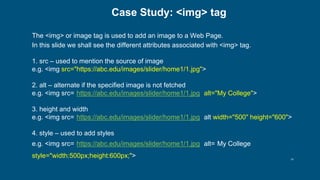
Case Study: <img> tag
The <img> or image tag is used to add an image to a Web Page.
In this slide we shall see the different attributes associated with <img> tag.
1. src – used to mention the source of image
e.g. <img src="https://abc.edu/images/slider/home1/1.jpg">
2. alt – alternate if the specified image is not fetched
e.g. <img src="https://abc.edu/images/slider/home1/1.jpg" alt="My College">
3. height and width
e.g. <img src="https://abc.edu/images/slider/home1/1.jpg" alt width="500" height="600">
4. style – used to add styles
e.g. <img src="https://abc.edu/images/slider/home1/1.jpg" alt="My College"
style="width:500px;height:600px;">

Introduction to HTML.pptx

  • 1.
  • 2.
    2 What is HTML? •HTML stands for Hyper Text Markup Language. • HTML is the standard markup language for rendering Web pages. • HTML can consist a series of elements that describes the structure of the Web Page. • HTML5 is the most popular version of HTML used worldwide.
  • 3.
    3 HTML Statement/Elements Structure •HTML statement or HTML element generally looks like <tagname>YOUR OWN CONTENT</tagname> • e.g. <div>HELLO I AM THE DIV</div> Here <div> : is called the start tag </div> : is called the end tag
  • 4.
    4 HTML Empty Elements •Some HTML elements do not contain/require the end tag. These elements are called as the Empty Element. • A few examples are: 1. <br> - used to break a line. 2. <img> - used to display an image on the Web Page
  • 5.
    5 HTML5 Boilerplate <!DOCTYPE html> <htmllang="en"> <head> <meta charset="UTF-8"> <meta name="viewport" content="width=device-width, initial-scale=1.0"> <title>HTML 5 Boilerplate</title> <link rel="stylesheet" href="style.css"> </head> <body> <!– Other HTML Elements -> <script src="index.js"></script> </body> </html>
  • 6.
    MOST POPULAR/USED HTMLTAGS <a> Defines a hyperlink <b> Defines bold text <body> Defines the document's body <br> Defines a single line break <button> Defines a clickable button <div> Defines a section in a document <footer> Defines a footer for a document or section <form> Defines an HTML form for user input <h1> to <h6> Defines HTML headings <header> Defines a header for a document or section <hr> Defines a thematic change in the content <html> Defines the root of an HTML document <img> Defines an image <input> Defines an input control <p> Defines a paragraph <table> Defines a table
  • 7.
    QUESTIONS Q1. Is HTMLcapable of doing mathematical computation? Q2. What are the possible contents that can come in header and footer? Q3. What is HTML Boilerplate?
  • 8.
    8 Block-level Element • TheBlock-level elements occupy the entire width of the Web Page (height is automatic as per the content within element, if not explicitly mentioned). • These elements are provided some margin by the browsers.
  • 9.
    9 Common Block-Level Elements <div><li> <section> <form> <main> <table> <h1><h6> <nav> <tfoot> <header> <p> <video> <hr> <ul> <ol>
  • 10.
    10 Inline Element • Aninline element takes up the width on the browser as much its own width only. • Inline Elements can sit next each other in a single row. • Inline Elements can also be nested within the Block-level elements
  • 11.
    11 Common Inline Elements <a><button> <input> <b> <i> <label> <br> <img> <select> <small> <span> <strong>
  • 12.
    12 Example of Block-Level Snippet1 <div>Third Year</div> Output : Third Year Snippet 2 <div>Final</div> <div>Year</div> Output: Final Year
  • 13.
    13 Example of InlineElement Snippet 1 <div>This course is for <b>Third Year</b></div> Output : This course is for Third Year Snippet 2 <div>This course is for <b>Third</b> <i>Year</i></div> Output: This course is for Third Year Snippet 3 <p>This course is for <span>Third Year</span></p> Output: This course is for Third Year
  • 14.
    14 HTML Attributes • Anattribute is a key-value pair written within an element. • An attribute is used to add more specific details to an element. • For e.g. You may use a “style” attribute in element to change the color of text or add a background …. and much more
  • 15.
    15 Case Study: The<a> tag The <a> or anchor tag is used to add a hyperlink. In this slide we shall see the different attributes associated with <a> tag. 1. href – used to mention the link e.g. <a href="https://google.com/">CLICK ME</a> 2. target – indicates where to open the linked document. e.g. <a href="https://google.com/" target="_self">CLICK ME</a> The web page is opened in same tab e.g. <a href="https://google.com/" target="_blank">CLICK ME</a> The web page is opened in a new window or tab 3. style – used to add styles e.g. <a href="https://google.com/" target="_self" style="color: blue;text-decoration: none;">CLICK ME</a>
  • 16.
    16 Case Study: <img>tag The <img> or image tag is used to add an image to a Web Page. In this slide we shall see the different attributes associated with <img> tag. 1. src – used to mention the source of image e.g. <img src="https://abc.edu/images/slider/home1/1.jpg"> 2. alt – alternate if the specified image is not fetched e.g. <img src="https://abc.edu/images/slider/home1/1.jpg" alt="My College"> 3. height and width e.g. <img src="https://abc.edu/images/slider/home1/1.jpg" alt width="500" height="600"> 4. style – used to add styles e.g. <img src="https://abc.edu/images/slider/home1/1.jpg" alt="My College" style="width:500px;height:600px;">