










Introduction to
Git
@parallelit
(part 2)
Agenda
‱ Referring to a commit
‱ Undoing changes
‱ git reset
‱ git checkout
‱ git revert
‱ Reverting Vs resetting
‱ git rebase
‱ gitignore
‱ Git in action
‱ HEAD or head?
‱ Fast-forward Merge
‱ Tracked branches
‱ Tagging
‱ git commit --amend
Referring to a commit
The most direct way to reference a commit is via
its SHA-1 hash. This acts as the unique ID for
each commit. You can ïŹnd the hash of all your
commits in the git log output.
Ref (1)
A ref is an indirect way of referring to a commit.
You can think of it as a user-friendly alias for a
commit hash. This is Git’s internal mechanism of
representing branches and tags.
Refs are stored as normal text ïŹles in the .git/refs
directory.
This is part of the reason why Git branches are so
lightweight compared to SVN.
Ref (2)
.git/refs/
heads/
master
develop
remotes/
origin/
master
tags/
v0.1
Special Refs
In addition to the refs directory, there are a few special refs that
reside in the top-level .git directory. They are listed below:
‱ HEAD := The currently checked-out commit/branch.
‱ FETCH_HEAD := The most recently fetched branch from a
remote repo.
‱ ORIG_HEAD := A backup reference to HEAD before drastic
changes to it.
‱ MERGE_HEAD := The commit(s) that you’re merging into the
current branch with git merge.
These refs are all created and updated by Git when necessary.
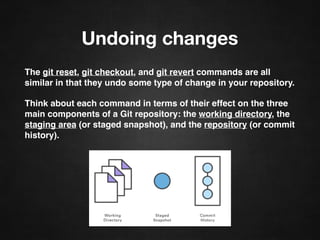
Undoing changes
The git reset, git checkout, and git revert commands are all
similar in that they undo some type of change in your repository.
Think about each command in terms of their effect on the three
main components of a Git repository: the working directory, the
staging area (or staged snapshot), and the repository (or commit
history).
git reset (1)
On the commit-level, resetting is a way to move
the tip of a branch to a different commit.
This usage of git reset is a simple way to undo
changes that haven’t been shared with anyone
else.
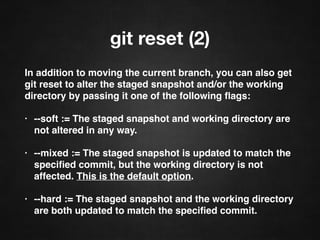
git reset (2)
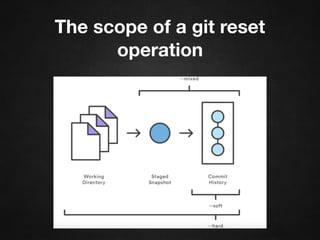
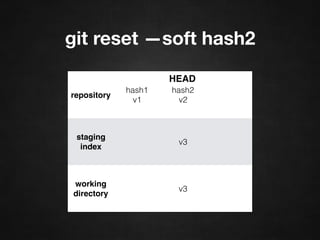
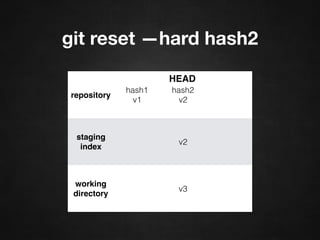
In addition to moving the current branch, you can also get
git reset to alter the staged snapshot and/or the working
directory by passing it one of the following ïŹ‚ags:
‱ --soft := The staged snapshot and working directory are
not altered in any way.
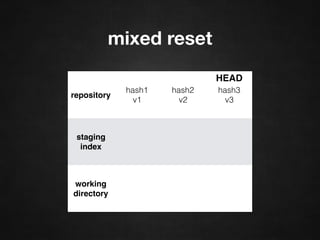
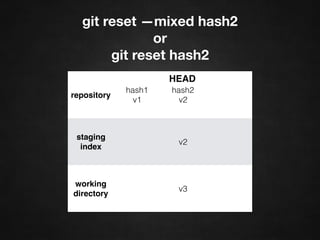
‱ --mixed := The staged snapshot is updated to match the
speciïŹed commit, but the working directory is not
affected. This is the default option.
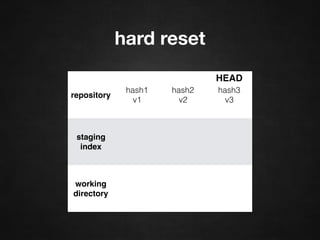
‱ --hard := The staged snapshot and the working directory
are both updated to match the speciïŹed commit.
The scope of a git reset
operation
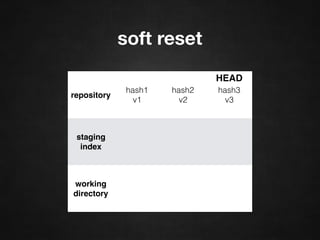
soft reset
repository
hash1
v1
hash2
v2
hash3
v3
staging
index
working
directory
HEAD
git reset —soft hash2
repository
hash1
v1
hash2
v2
staging
index
v3
working
directory
v3
HEAD
mixed reset
repository
hash1
v1
hash2
v2
hash3
v3
staging
index
working
directory
HEAD
git reset —mixed hash2
or
git reset hash2
repository
hash1
v1
hash2
v2
staging
index
v2
working
directory
v3
HEAD
hard reset
repository
hash1
v1
hash2
v2
hash3
v3
staging
index
working
directory
HEAD
git reset —hard hash2
repository
hash1
v1
hash2
v2
staging
index
v2
working
directory
v2
HEAD
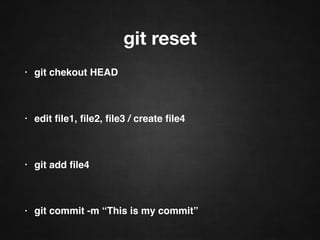
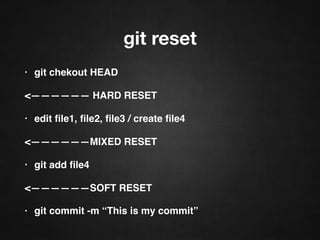
git reset
‱ git checkout HEAD
‱ edit ïŹle1, ïŹle2, ïŹle3 / create ïŹle4
‱ git add ïŹle4
‱ git commit -m “This is my commit”
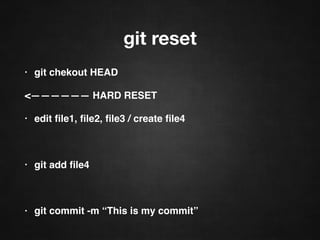
git reset
‱ git checkout HEAD
HARD RESET
‱ edit ïŹle1, ïŹle2, ïŹle3 / create ïŹle4
‱ git add ïŹle4
‱ git commit -m “This is my commit”
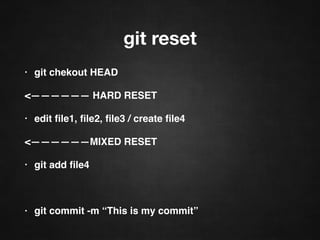
git reset
‱ git checkout HEAD
HARD RESET
‱ edit ïŹle1, ïŹle2, ïŹle3 / create ïŹle4
MIXED RESET
‱ git add ïŹle4
‱ git commit -m “This is my commit”
git reset
‱ git checkout HEAD
HARD RESET
‱ edit ïŹle1, ïŹle2, ïŹle3 / create ïŹle4
MIXED RESET
‱ git add ïŹle4
SOFT RESET
‱ git commit -m “This is my commit”
Git in action
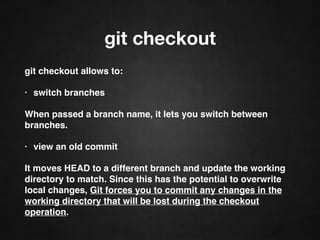
git checkout
git checkout allows to:
‱ switch branches
When passed a branch name, it lets you switch between
branches.
‱ view an old commit
It moves HEAD to a different branch and update the working
directory to match. Since this has the potential to overwrite
local changes, Git forces you to commit any changes in the
working directory that will be lost during the checkout
operation.
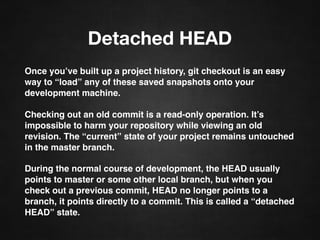
Detached HEAD
Once you’ve built up a project history, git checkout is an easy
way to “load” any of these saved snapshots onto your
development machine.
Checking out an old commit is a read-only operation. It’s
impossible to harm your repository while viewing an old
revision. The “current” state of your project remains untouched
in the master branch.
During the normal course of development, the HEAD usually
points to master or some other local branch, but when you
check out a previous commit, HEAD no longer points to a
branch, it points directly to a commit. This is called a “detached
HEAD” state.
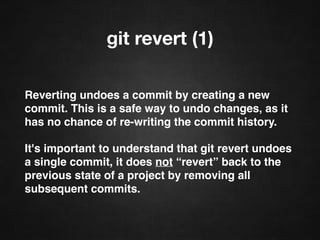
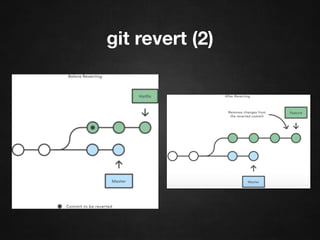
git revert (1)
Reverting undoes a commit by creating a new
commit. This is a safe way to undo changes, as it
has no chance of re-writing the commit history.
It's important to understand that git revert undoes
a single commit, it does not “revert” back to the
previous state of a project by removing all
subsequent commits.
git revert (2)
git revert (3)
Reverting undoes a commit by creating a new
commit. This is a safe way to undo changes, as it
has no chance of re-writing the commit history.
Contrast this with git reset, which does alter the
existing commit history. For this reason, git revert
should be used to undo changes on a public
branch, and git reset should be reserved for
undoing changes on a private branch.
git revert (4)
You can also think of git revert as a tool for
undoing committed changes, while git reset HEAD
is for undoing uncommitted changes.
Like git checkout, git revert has the potential to
overwrite ïŹles in the working directory, so it will
ask you to commit changes that would be lost
during the revert operation.
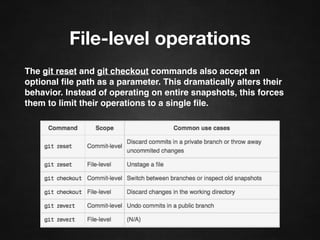
File-level operations
The git reset and git checkout commands also accept an
optional ïŹle path as a parameter. This dramatically alters their
behavior. Instead of operating on entire snapshots, this forces
them to limit their operations to a single ïŹle.
Git in action
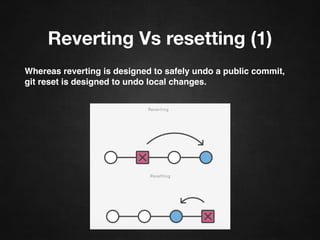
Reverting Vs resetting (1)
Whereas reverting is designed to safely undo a public commit,
git reset is designed to undo local changes.
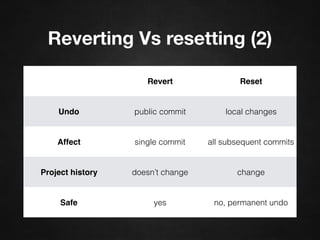
Reverting Vs resetting (2)
Revert Reset
Undo public commit local changes
Affect single commit all subsequent commits
Project history doesn’t change change
Safe yes no, permanent undo
Rewriting history using git
reset in a safe way
‱ git checkout HEAD
‱ git reset —hard hash1
‱ git reset —soft HEAD
git rebase (1)
Rebasing is the process of moving a branch to a new
base commit.
Git accomplishes this by creating new commits and
applying them to the speciïŹed base.
It’s literally rewriting your project history. It’s very
important to understand that, even though the branch
looks the same, it’s composed of entirely new commits.
The primary reason for rebasing is to maintain a linear
project history.
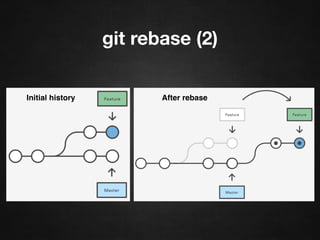
git rebase (2)
Initial history After rebase
The golden rule of rebasing:
Don’t rebase public history
As we’ve discussed with git commit --amend and git
reset, you should never rebase commits that have been
pushed to a public repository.
The rebase would replace the old commits with new ones,
and it would look like that part of your project history
abruptly vanished.
Before you run git rebase, always ask yourself, “Is
anyone else looking at this branch?”. If the answer is yes,
take your hands off the keyboard and start thinking about
a non-destructive way to make your changes. Otherwise,
you’re safe to re-write history as much as you like.
git rebase -i
Running git rebase with the -i ïŹ‚ag begins an
interactive rebasing session. Instead of blindly
moving all of the commits to the new base,
interactive rebasing gives you the opportunity to
alter individual commits in the process.
This lets you clean up history by removing,
splitting, and altering an existing series of
commits.
Initial history
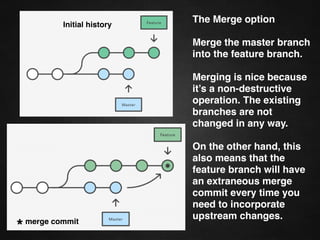
The Merge option
Merge the master branch
into the feature branch.
Merging is nice because
it’s a non-destructive
operation. The existing
branches are not
changed in any way.
On the other hand, this
also means that the
feature branch will have
an extraneous merge
commit every time you
need to incorporate
upstream changes.
*merge commit
Initial history
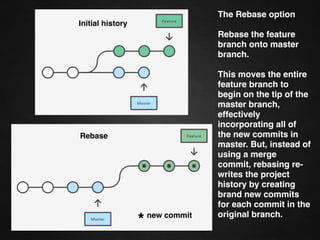
The Rebase option
Rebase the feature
branch onto master
branch.
This moves the entire
feature branch to
begin on the tip of the
master branch,
effectively
incorporating all of
the new commits in
master. But, instead of
using a merge
commit, rebasing re-
writes the project
history by creating
brand new commits
for each commit in the
original branch.
Rebase
*new commit
Initial history
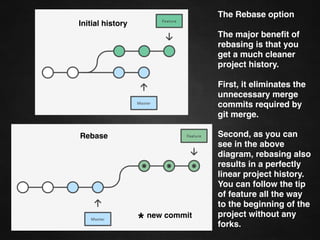
The Rebase option
The major beneïŹt of
rebasing is that you
get a much cleaner
project history.
First, it eliminates the
unnecessary merge
commits required by
git merge.
Second, as you can
see in the above
diagram, rebasing also
results in a perfectly
linear project history.
You can follow the tip
of feature all the way
to the beginning of the
project without any
forks.
Rebase
*new commit
Git in action
Coming next
‱ Branching
‱ Merging
‱ GitïŹ‚ow WorkïŹ‚ow
‱ GitHub Flow
‱ Pull request
http://sal.va.it/1OKfxiR
Download these slides on

Introduction to Git (part 2)

  • 1.
  • 2.
    Agenda ‱ Referring toa commit ‱ Undoing changes ‱ git reset ‱ git checkout ‱ git revert ‱ Reverting Vs resetting ‱ git rebase ‱ gitignore ‱ Git in action ‱ HEAD or head? ‱ Fast-forward Merge ‱ Tracked branches ‱ Tagging ‱ git commit --amend
  • 3.
    Referring to acommit The most direct way to reference a commit is via its SHA-1 hash. This acts as the unique ID for each commit. You can ïŹnd the hash of all your commits in the git log output.
  • 4.
    Ref (1) A refis an indirect way of referring to a commit. You can think of it as a user-friendly alias for a commit hash. This is Git’s internal mechanism of representing branches and tags. Refs are stored as normal text ïŹles in the .git/refs directory. This is part of the reason why Git branches are so lightweight compared to SVN.
  • 5.
  • 6.
    Special Refs In additionto the refs directory, there are a few special refs that reside in the top-level .git directory. They are listed below: ‱ HEAD := The currently checked-out commit/branch. ‱ FETCH_HEAD := The most recently fetched branch from a remote repo. ‱ ORIG_HEAD := A backup reference to HEAD before drastic changes to it. ‱ MERGE_HEAD := The commit(s) that you’re merging into the current branch with git merge. These refs are all created and updated by Git when necessary.
  • 7.
    Undoing changes The gitreset, git checkout, and git revert commands are all similar in that they undo some type of change in your repository. Think about each command in terms of their effect on the three main components of a Git repository: the working directory, the staging area (or staged snapshot), and the repository (or commit history).
  • 8.
    git reset (1) Onthe commit-level, resetting is a way to move the tip of a branch to a different commit. This usage of git reset is a simple way to undo changes that haven’t been shared with anyone else.
  • 9.
    git reset (2) Inaddition to moving the current branch, you can also get git reset to alter the staged snapshot and/or the working directory by passing it one of the following ïŹ‚ags: ‱ --soft := The staged snapshot and working directory are not altered in any way. ‱ --mixed := The staged snapshot is updated to match the speciïŹed commit, but the working directory is not affected. This is the default option. ‱ --hard := The staged snapshot and the working directory are both updated to match the speciïŹed commit.
  • 10.
    The scope ofa git reset operation
  • 11.
  • 12.
    git reset —softhash2 repository hash1 v1 hash2 v2 staging index v3 working directory v3 HEAD
  • 13.
  • 14.
    git reset —mixedhash2 or git reset hash2 repository hash1 v1 hash2 v2 staging index v2 working directory v3 HEAD
  • 15.
  • 16.
    git reset —hardhash2 repository hash1 v1 hash2 v2 staging index v2 working directory v2 HEAD
  • 17.
    git reset ‱ gitcheckout HEAD ‱ edit ïŹle1, ïŹle2, ïŹle3 / create ïŹle4 ‱ git add ïŹle4 ‱ git commit -m “This is my commit”
  • 18.
    git reset ‱ gitcheckout HEAD HARD RESET ‱ edit ïŹle1, ïŹle2, ïŹle3 / create ïŹle4 ‱ git add ïŹle4 ‱ git commit -m “This is my commit”
  • 19.
    git reset ‱ gitcheckout HEAD HARD RESET ‱ edit ïŹle1, ïŹle2, ïŹle3 / create ïŹle4 MIXED RESET ‱ git add ïŹle4 ‱ git commit -m “This is my commit”
  • 20.
    git reset ‱ gitcheckout HEAD HARD RESET ‱ edit ïŹle1, ïŹle2, ïŹle3 / create ïŹle4 MIXED RESET ‱ git add ïŹle4 SOFT RESET ‱ git commit -m “This is my commit”
  • 21.
  • 22.
    git checkout git checkoutallows to: ‱ switch branches When passed a branch name, it lets you switch between branches. ‱ view an old commit It moves HEAD to a different branch and update the working directory to match. Since this has the potential to overwrite local changes, Git forces you to commit any changes in the working directory that will be lost during the checkout operation.
  • 23.
    Detached HEAD Once you’vebuilt up a project history, git checkout is an easy way to “load” any of these saved snapshots onto your development machine. Checking out an old commit is a read-only operation. It’s impossible to harm your repository while viewing an old revision. The “current” state of your project remains untouched in the master branch. During the normal course of development, the HEAD usually points to master or some other local branch, but when you check out a previous commit, HEAD no longer points to a branch, it points directly to a commit. This is called a “detached HEAD” state.
  • 24.
    git revert (1) Revertingundoes a commit by creating a new commit. This is a safe way to undo changes, as it has no chance of re-writing the commit history. It's important to understand that git revert undoes a single commit, it does not “revert” back to the previous state of a project by removing all subsequent commits.
  • 25.
  • 26.
    git revert (3) Revertingundoes a commit by creating a new commit. This is a safe way to undo changes, as it has no chance of re-writing the commit history. Contrast this with git reset, which does alter the existing commit history. For this reason, git revert should be used to undo changes on a public branch, and git reset should be reserved for undoing changes on a private branch.
  • 27.
    git revert (4) Youcan also think of git revert as a tool for undoing committed changes, while git reset HEAD is for undoing uncommitted changes. Like git checkout, git revert has the potential to overwrite ïŹles in the working directory, so it will ask you to commit changes that would be lost during the revert operation.
  • 28.
    File-level operations The gitreset and git checkout commands also accept an optional ïŹle path as a parameter. This dramatically alters their behavior. Instead of operating on entire snapshots, this forces them to limit their operations to a single ïŹle.
  • 29.
  • 30.
    Reverting Vs resetting(1) Whereas reverting is designed to safely undo a public commit, git reset is designed to undo local changes.
  • 31.
    Reverting Vs resetting(2) Revert Reset Undo public commit local changes Affect single commit all subsequent commits Project history doesn’t change change Safe yes no, permanent undo
  • 32.
    Rewriting history usinggit reset in a safe way ‱ git checkout HEAD ‱ git reset —hard hash1 ‱ git reset —soft HEAD
  • 33.
    git rebase (1) Rebasingis the process of moving a branch to a new base commit. Git accomplishes this by creating new commits and applying them to the speciïŹed base. It’s literally rewriting your project history. It’s very important to understand that, even though the branch looks the same, it’s composed of entirely new commits. The primary reason for rebasing is to maintain a linear project history.
  • 34.
    git rebase (2) Initialhistory After rebase
  • 35.
    The golden ruleof rebasing: Don’t rebase public history As we’ve discussed with git commit --amend and git reset, you should never rebase commits that have been pushed to a public repository. The rebase would replace the old commits with new ones, and it would look like that part of your project history abruptly vanished. Before you run git rebase, always ask yourself, “Is anyone else looking at this branch?”. If the answer is yes, take your hands off the keyboard and start thinking about a non-destructive way to make your changes. Otherwise, you’re safe to re-write history as much as you like.
  • 36.
    git rebase -i Runninggit rebase with the -i ïŹ‚ag begins an interactive rebasing session. Instead of blindly moving all of the commits to the new base, interactive rebasing gives you the opportunity to alter individual commits in the process. This lets you clean up history by removing, splitting, and altering an existing series of commits.
  • 37.
    Initial history The Mergeoption Merge the master branch into the feature branch. Merging is nice because it’s a non-destructive operation. The existing branches are not changed in any way. On the other hand, this also means that the feature branch will have an extraneous merge commit every time you need to incorporate upstream changes. *merge commit
  • 38.
    Initial history The Rebaseoption Rebase the feature branch onto master branch. This moves the entire feature branch to begin on the tip of the master branch, effectively incorporating all of the new commits in master. But, instead of using a merge commit, rebasing re- writes the project history by creating brand new commits for each commit in the original branch. Rebase *new commit
  • 39.
    Initial history The Rebaseoption The major beneïŹt of rebasing is that you get a much cleaner project history. First, it eliminates the unnecessary merge commits required by git merge. Second, as you can see in the above diagram, rebasing also results in a perfectly linear project history. You can follow the tip of feature all the way to the beginning of the project without any forks. Rebase *new commit
  • 40.
  • 41.
    Coming next ‱ Branching ‱Merging ‱ GitïŹ‚ow WorkïŹ‚ow ‱ GitHub Flow ‱ Pull request
  • 42.