Beginning ExtJS with ASP.Net A simplified guide By NithyaVidhyaarthi
What is ExtJS ExtJS is a javascript framework (client-side) that enables developers to develop Rich Internet Application (RIA) (static websites or data-driven applications) with a plethora of options.
How do we begin? Download the latest copy of ExtJS from  www.extjs.com/download   Unzip using any file compression utility (Winzip / WinRAR). It is strongly recommended that you create a virtual directory for the unzipped folder (since certain examples work only if accessed via website / virtual directory).
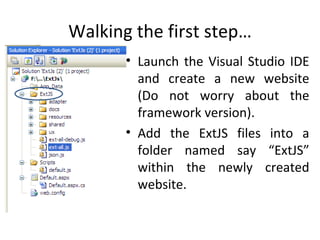
Walking the first step… Launch the Visual Studio IDE and create a new website (Do not worry about the framework version). Add the ExtJS files into a folder named say “ExtJS” within the newly created website.
Important Start editing the default.aspx & remove form elements with “runat = server” attribute. Make sure that no form elements within body has “runat = server” attribute. Add a javascript file. Name it “default.js” and place it within a folder named “Scripts” within the root directory.
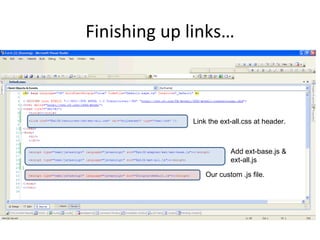
Files to be linked Add links to all the highlighted files. These files are very much important to set-up the ground work for our application. Next add your custom files. Example (in default.aspx):  <link href=&quot;ExtJS/resources/css/ext-all.css&quot; rel=&quot;stylesheet&quot; type=&quot;text/css&quot; /> <script type=&quot;text/javascript&quot; language=&quot;javascript&quot; src=&quot;ExtJS/adapter/ext/ext-base.js&quot;></script> <script type=&quot;text/javascript&quot; language=&quot;javascript&quot; src=&quot;ExtJS/ext-all.js&quot;></script> <script type=&quot;text/javascript&quot; language=&quot;javascript&quot; src=“Scripts/default.js&quot;></script>
Finishing up links… Link the ext-all.css at header. Add ext-base.js & ext-all.js Our custom .js file.
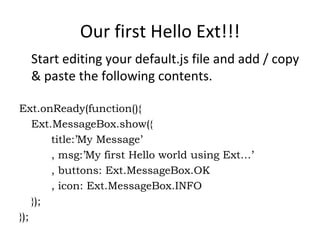
Our first Hello Ext!!! Start editing your default.js file and add / copy & paste the following contents.  Ext.onReady(function(){ Ext.MessageBox.show({ title:’My Message’  , msg:’My first Hello world using Ext…’ , buttons: Ext.MessageBox.OK , icon: Ext.MessageBox.INFO }); });
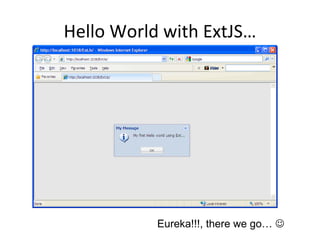
Run towards Hope… Verify again, whether you had added the links to the java-script files and CSS files correctly.  Now press the F5 key (or) the “debug” icon to execute the application. If everything is right, you would certainly see the image as in the next slide.
Hello World with ExtJS… Eureka!!!, there we go…  
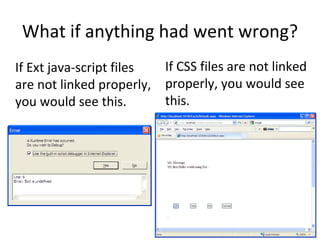
What if anything had went wrong? If Ext java-script files are not linked properly, you would see this. If CSS files are not linked properly, you would see this.
Fixing & Wrapping it up all… In case if you face any troubles as in the previous images, kindly correct the links (refer slide-6) and re-execute the application till you succeed. And there by “Congratulations” on making your first step with ExtJS. Check out for further releases on tutorial.
With Thanks… Hi there!, thank you so much for watching this tutorial. I’d made this too simple so it reaches out the mass with much ease. Kindly let me know your feedback and  help me to help you better .
Contact me via [email_address] [email_address] [email_address] arunprasadvidhyaarthi – skype Arunprasadvidhyaarthi – slideshare.com Arun85prasad – twitter Arunprasad – scribd.com

Introduction to ExtJS

  • 1.
    Beginning ExtJS withASP.Net A simplified guide By NithyaVidhyaarthi
  • 2.
    What is ExtJSExtJS is a javascript framework (client-side) that enables developers to develop Rich Internet Application (RIA) (static websites or data-driven applications) with a plethora of options.
  • 3.
    How do webegin? Download the latest copy of ExtJS from www.extjs.com/download Unzip using any file compression utility (Winzip / WinRAR). It is strongly recommended that you create a virtual directory for the unzipped folder (since certain examples work only if accessed via website / virtual directory).
  • 4.
    Walking the firststep… Launch the Visual Studio IDE and create a new website (Do not worry about the framework version). Add the ExtJS files into a folder named say “ExtJS” within the newly created website.
  • 5.
    Important Start editingthe default.aspx & remove form elements with “runat = server” attribute. Make sure that no form elements within body has “runat = server” attribute. Add a javascript file. Name it “default.js” and place it within a folder named “Scripts” within the root directory.
  • 6.
    Files to belinked Add links to all the highlighted files. These files are very much important to set-up the ground work for our application. Next add your custom files. Example (in default.aspx): <link href=&quot;ExtJS/resources/css/ext-all.css&quot; rel=&quot;stylesheet&quot; type=&quot;text/css&quot; /> <script type=&quot;text/javascript&quot; language=&quot;javascript&quot; src=&quot;ExtJS/adapter/ext/ext-base.js&quot;></script> <script type=&quot;text/javascript&quot; language=&quot;javascript&quot; src=&quot;ExtJS/ext-all.js&quot;></script> <script type=&quot;text/javascript&quot; language=&quot;javascript&quot; src=“Scripts/default.js&quot;></script>
  • 7.
    Finishing up links…Link the ext-all.css at header. Add ext-base.js & ext-all.js Our custom .js file.
  • 8.
    Our first HelloExt!!! Start editing your default.js file and add / copy & paste the following contents. Ext.onReady(function(){ Ext.MessageBox.show({ title:’My Message’ , msg:’My first Hello world using Ext…’ , buttons: Ext.MessageBox.OK , icon: Ext.MessageBox.INFO }); });
  • 9.
    Run towards Hope…Verify again, whether you had added the links to the java-script files and CSS files correctly. Now press the F5 key (or) the “debug” icon to execute the application. If everything is right, you would certainly see the image as in the next slide.
  • 10.
    Hello World withExtJS… Eureka!!!, there we go… 
  • 11.
    What if anythinghad went wrong? If Ext java-script files are not linked properly, you would see this. If CSS files are not linked properly, you would see this.
  • 12.
    Fixing & Wrappingit up all… In case if you face any troubles as in the previous images, kindly correct the links (refer slide-6) and re-execute the application till you succeed. And there by “Congratulations” on making your first step with ExtJS. Check out for further releases on tutorial.
  • 13.
    With Thanks… Hithere!, thank you so much for watching this tutorial. I’d made this too simple so it reaches out the mass with much ease. Kindly let me know your feedback and help me to help you better .
  • 14.
    Contact me via[email_address] [email_address] [email_address] arunprasadvidhyaarthi – skype Arunprasadvidhyaarthi – slideshare.com Arun85prasad – twitter Arunprasad – scribd.com