Introduction to Android
Jensen
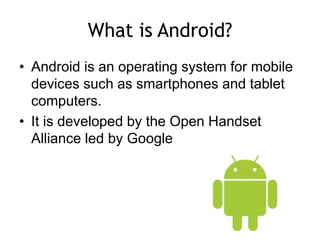
What is Android?
• Android is an operating system for mobile
devices such as smartphones and tablet
computers.
• It is developed by the Open Handset
Alliance led by Google
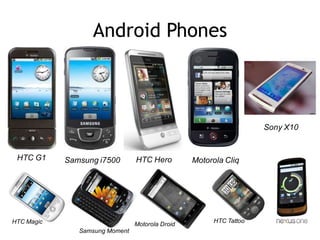
Android Phones
Motorola CliqHTC G1 HTC HeroSamsung i7500
Samsung Moment
Motorola DroidHTC Magic HTC Tattoo
Sony X10
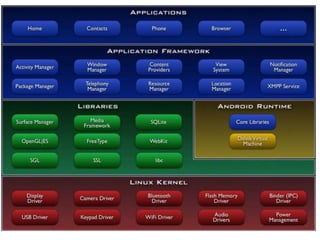
System Architecture
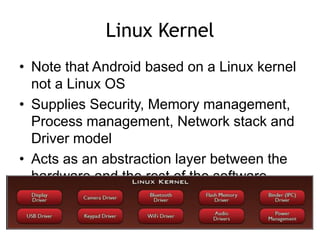
Linux Kernel
• Note that Android based on a Linux kernel
not a Linux OS
• Supplies Security, Memory management,
Process management, Network stack and
Driver model
• Acts as an abstraction layer between the
hardware and the rest of the software
stack
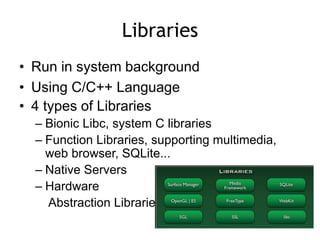
Libraries
• Run in system background
• Using C/C++ Language
• 4 types of Libraries
– Bionic Libc, system C libraries
– Function Libraries, supporting multimedia,
web browser, SQLite...
– Native Servers
– Hardware
Abstraction Libraries
Core Libraries
• System C library, the standard C system library,
tuned for embedded Linux-based devices
• Media Libraries, support playback and recording of
many popular audio and video formats, as well as
image files, including MPEG4, H.264, MP3, AAC, AMR,
JPG, and PNG
• Surface Manager, manages access to the display
subsystem and seamlessly composites 2D and 3D
graphic layers from multiple applications
• WebKit, a modern web browser engine which powers
both the Android browser and an embeddable web
view
• SGL, the underlying 2D graphics engine
• 3D libraries, an implementation based on OpenGL ES
1.0 APIs
Andoid Runtime
• The core of Android platform
• Dalvik Virtual Machine
– Register-based
– Executes files in the Dalvik
Executable (.dex) format
• Java core Libraries
– Provides most of the functionality of the Java
programming language.
Android Runtime (cont.)
• The functions of Java core libraries rely on
the Dalvik VM and the underlying Linux
kernel
• Multiple Dalvik VMs may run at the same
time
• Every Android application runs in its own
process, with its own instance of the
Dalvik virtual machine
– The "dx" tool in Android SDK can transform
compiled JAVA class into the .dex format
Dalvik Virtual Machine
• Android custom implementation virtual
machine
– Provides application portability and runtime
consistency
– Runs optimized file format (.dex) and Dalvik
bytecode
– Java .class / .jar files converted to .dex at build
time
• Designed for embedded environment
– Supports multiple virtual machine processes per
device
– Highly CPU-optimized bytecode interpreter
DVM vs. JVM
• DVM
– Google
– Dalvik executable
– Only supports a subset of standard Java Library
• JVM
– Sun
– Java bytecode
• Some worries that Java world may be divided
into different communities, each has its own
Java standard
DVM vs. JVM (2)
• register-based (DVM) vs. stack-based (JVM)
– register-based VMs allow for faster execution
times, but
– programs are larger when compiled.
• execution environment – multiple (DVM) vs.
single instance (JVM)
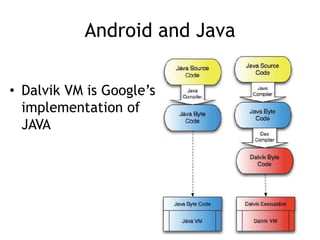
Android and Java
• Dalvik VM is Google’s
implementation of
JAVA
java vs. android api
• Since it uses Java compiler, it implicitly supports a
set of Java commands
• Compatible with Java SE5 code
• A subset of Apache Harmony (open source, free
Java implementation)
• Multithreading as time-slicng.
• Dalvik implements the keyword synchronized and
java.util.concurrent.* package
• Does not support
– awt, swing, rmi, applet, ...
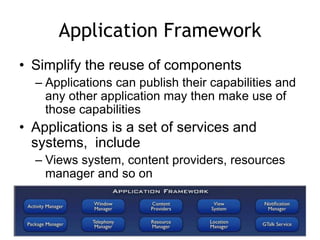
Application Framework
• Simplify the reuse of components
– Applications can publish their capabilities and
any other application may then make use of
those capabilities
• Applications is a set of services and
systems, include
– Views system, content providers, resources
manager and so on
Application Framework (cont.)
• Activity Manager, manages the lifecycle of
applications and provides a common navigation
backstack
• Notification Manager, enables all applications to
display custom alerts in the status bar
• Resource Manager, providing access to non-
code resources such as localized strings, graphics,
and layout files
• Content Providers, access data from other
applications (such as Contacts), or to share their
own data
• Views, used to build an application, including lists,
grids, text boxes, buttons, and even an
Applications
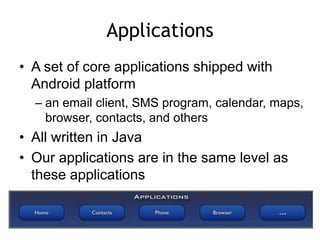
• A set of core applications shipped with
Android platform
– an email client, SMS program, calendar, maps,
browser, contacts, and others
• All written in Java
• Our applications are in the same level as
these applications
Android Features
• Reuse and replacement of components
• Dalvik virtual machine
• Integrated browser
• Optimized graphics
• SQLite
• Media support
• GSM Telephony
• Bluetooth, EDGE, 3G, and WiFi
• Camera, GPS, compass, and accelerometer
• Rich development environment
Application Fundamentals
• Apps are written in Java
• Bundled by Android Asset Packaging Tool
• Every App runs its own Linux process
• Each process has it’s own Java Virtual
Machine
• Each App is assigned a unique Linux user ID
• Apps can share the same user ID to see each
other’s files
Application Components
 Activity
◦ Present a visual user interface for one focused endeavor the user can undertake
◦ Example: a list of menu items users can choose from
 Services
◦ Run in the background for an indefinite period of time
◦ Example: calculate and provide the result to activities that need it
 Broadcast Receivers
◦ Receive and react to broadcast announcements
◦ Example: announcements that the time zone has changed
 Content Providers
◦ Store and retrieve data and make it accessible to all applications
◦ Example: Android ships with a number of content providers for common data types
(e.g., audio, video, images, personal contact information, etc.)
 Intents
◦ Hold the content of a message
◦ Example: convey a request for an activity to present an image to the user or let
the user edit some text
Hardware-oriented Features
Feature Description
Camera
A class that enables your application to interact with the camera to snap a photo,
acquire images for a preview screen, and modify parameters used to govern how the
camera operates.
Sensor Class representing a sensor. Use getSensorList(int) to get the list of available Sensors.
SensorManager A class that permits access to the sensors available within the Android platform.
SensorEventListe
ner
An interface used for receiving notifications from the SensorManager when sensor
values have changed. An application implements this interface to monitor one or more
sensors available in the hardware.
SensorEvent
This class represents a sensor event and holds information such as the sensor type
(e.g., accelerometer, orientation, etc.), the time-stamp, accuracy and of course the
sensor's data.
MediaRecorder
A class, used to record media samples, that can be useful for recording audio activity
within a specific location (such as a baby nursery). Audio clippings can also be
analyzed for identification purposes in an access-control or security application. For
example, it could be helpful to open the door to your time-share with your voice, rather
than having to meet with the realtor to get a key.
GeomagneticFiel This class is used to estimated estimate magnetic field at a given point on Earth, and
Sensor and SensorManager
Sensor type (Sensor class)
◦ Orientation, accelerometer, light, magnetic field,
proximity, temperature, etc.
Sampling rate
◦ Fastest, game, normal, user interface.
◦ When an application requests a specific sampling
rate, it is really only a hint, or suggestion, to the
sensor subsystem. There is no guarantee of a
particular rate being available.
Accuracy
◦ High, low, medium, unreliable.
Your Android SDK directory
docs/
guide – A comprehensive introductory guide
resources – FAQs, Articles, Howto’s and Best Practices
reference – javadoc (Java class documentation)
samples – sample code
tools – useful command line tools for specific tasks
platforms – different versions of Android systems
addons – Google extras e.g. Maps API
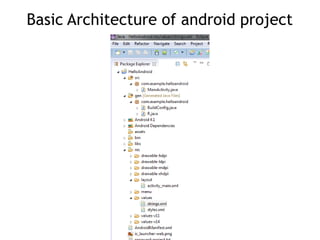
Basic Architecture of android project
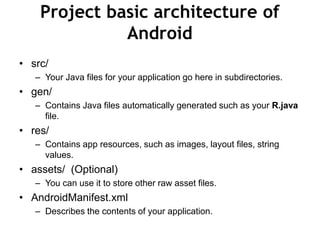
Project basic architecture of
Android
• src/
– Your Java files for your application go here in subdirectories.
• gen/
– Contains Java files automatically generated such as your R.java
file.
• res/
– Contains app resources, such as images, layout files, string
values.
• assets/ (Optional)
– You can use it to store other raw asset files.
• AndroidManifest.xml
– Describes the contents of your application.
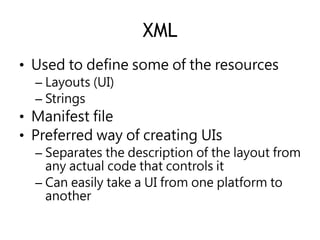
XML
• Used to define some of the resources
– Layouts (UI)
– Strings
• Manifest file
• Preferred way of creating UIs
– Separates the description of the layout from
any actual code that controls it
– Can easily take a UI from one platform to
another
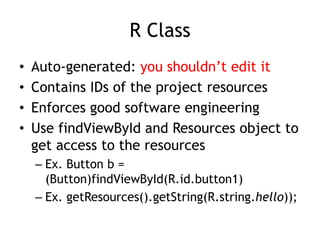
R Class
• Auto-generated: you shouldn’t edit it
• Contains IDs of the project resources
• Enforces good software engineering
• Use findViewById and Resources object to
get access to the resources
– Ex. Button b =
(Button)findViewById(R.id.button1)
– Ex. getResources().getString(R.string.hello));
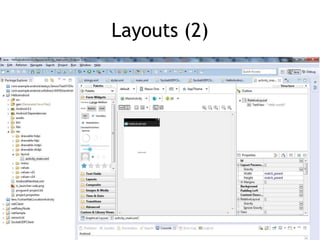
Layouts (1)
• Eclipse has a great UI creator
– Generates the XML for you
• Composed of View objects
• Can be specified for portrait and
landscape mode
– Use same file name, so can make completely
different UIs for the orientations without
modifying any code
Layouts (2)
Layouts (3)
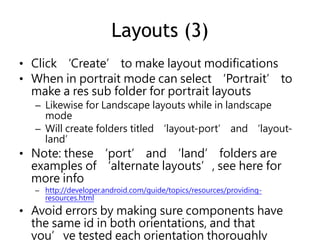
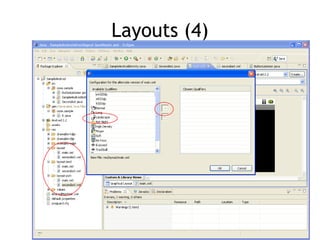
• Click ‘Create’ to make layout modifications
• When in portrait mode can select ‘Portrait’ to
make a res sub folder for portrait layouts
– Likewise for Landscape layouts while in landscape
mode
– Will create folders titled ‘layout-port’ and ‘layout-
land’
• Note: these ‘port’ and ‘land’ folders are
examples of ‘alternate layouts’, see here for
more info
– http://developer.android.com/guide/topics/resources/providing-
resources.html
• Avoid errors by making sure components have
the same id in both orientations, and that
you’ve tested each orientation thoroughly
Layouts (4)
AndroidManifest File (1)
• Contains characteristics about your application
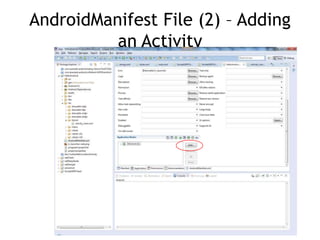
• When have more than one Activity in app, NEED to
specify it in manifest file
– Go to graphical view of the manifest file
– Add an Activity in the bottom right
– Browse for the name of the activity
• Need to specify Services and other components too
• Also important to define permissions and external
libraries, like Google Maps API
AndroidManifest File (2) – Adding
an Activity
Install running environment
Development Environment
• IDE – Eclipse
• Eclipse plug-in –Android Development
Tools (ADT)
• Software Development Kit (SDK)
• Android Emulator
• Debugger
Installing Java SDK
• Download location
– http://www.oracle.com/technetwork/java/javase/downl
oads/index.html
• Version
– Java Platform (JDK) 7u7
• Please uninstall all older versions of Java
from your system.
Installing Android SDK
• Download location
– http://developer.android.com/sdk/index.html
• There are some useful instructions on Internet
– http://developer.android.com/sdk/installing.html
Setup Android SDK
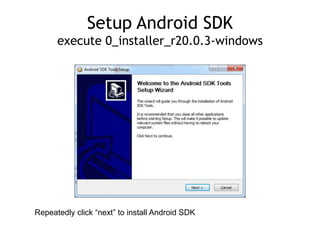
execute 0_installer_r20.0.3-windows
Repeatedly click “next” to install Android SDK
Installing Eclipse
• Download “Eclipse Classic”
– http://www.eclipse.org/downloads/
– Please select version based on your
operation system.
ADT Plugin
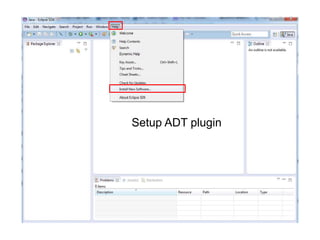
• In Eclipse, go to Help -> Install New Software
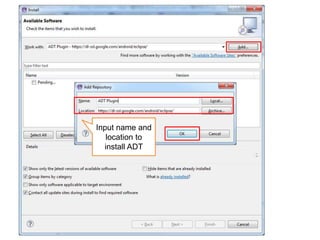
• Click ‘Add’ in top right
• Enter:
– Name: ADT Plugin
– Location: https://dl-ssl.google.com/android/eclipse/
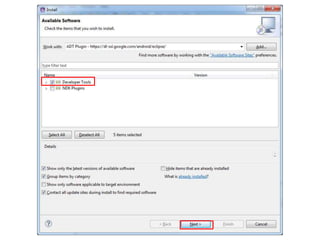
• Click OK, then select ‘Developer Tools’, click
Next
• Click Next and then Finish
• Afterwards, restart Eclipse
Setup ADT plugin
Input name and
location to
install ADT
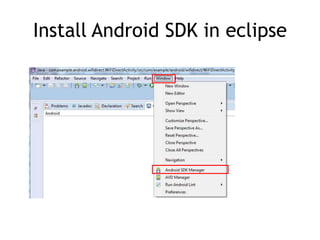
Install Android SDK in eclipse
Suggest to install Android 4.0, Android 4.1,
and Android 2.2
Hello World
An example of creating Android APP
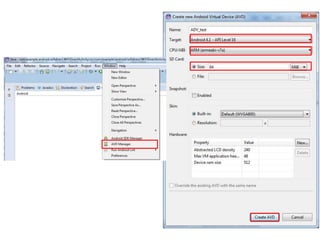
Create an AVD (Android Virtual
Device)
• You can run your application on an
emulator.
• An AVD defines the system image and
device settings used by the emulator.
• In Eclipse, select Window > AVD
Manager.)
• After you create an AVD, you can start it
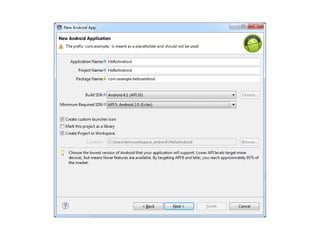
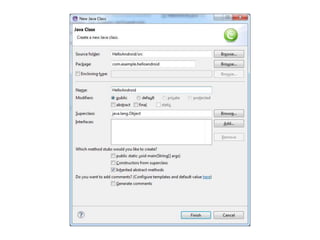
Create android new project
1. In Eclipse, select File > New > Project....
2. Select "Android Project" and click Next.
3. Fill in the project details with the following
values:
– Project name: HelloAndroid
– Build Target: Select a platform version that is
equal to or lower than the target you chose for
your AVD.
– Application name: Hello, Android
– Package name: com.example.helloandroid (or
your own private namespace)
– Create Activity: HelloAndroid
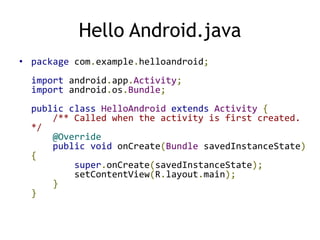
Hello Android.java
• package com.example.helloandroid;
import android.app.Activity;
import android.os.Bundle;
public class HelloAndroid extends Activity {
/** Called when the activity is first created.
*/
@Override
public void onCreate(Bundle savedInstanceState)
{
super.onCreate(savedInstanceState);
setContentView(R.layout.main);
}
}
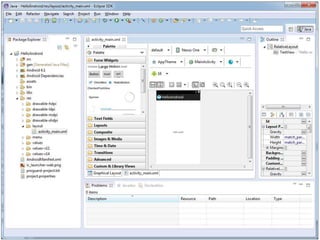
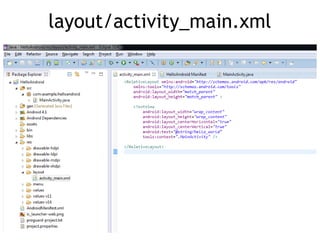
layout/activity_main.xml
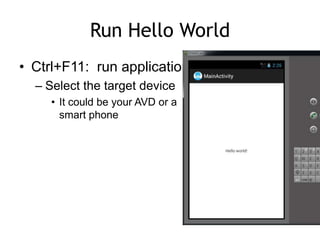
Run Hello World
• Ctrl+F11: run application
– Select the target device
• It could be your AVD or a
smart phone
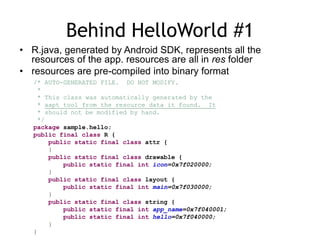
Behind HelloWorld #1
• R.java, generated by Android SDK, represents all the
resources of the app. resources are all in res folder
• resources are pre-compiled into binary format
/* AUTO-GENERATED FILE. DO NOT MODIFY.
*
* This class was automatically generated by the
* aapt tool from the resource data it found. It
* should not be modified by hand.
*/
package sample.hello;
public final class R {
public static final class attr {
}
public static final class drawable {
public static final int icon=0x7f020000;
}
public static final class layout {
public static final int main=0x7f030000;
}
public static final class string {
public static final int app_name=0x7f040001;
public static final int hello=0x7f040000;
}
}
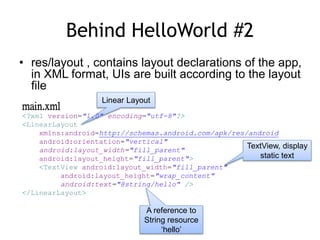
Behind HelloWorld #2
• res/layout , contains layout declarations of the app,
in XML format, UIs are built according to the layout
file
Linear Layout
main.xml
<?xml version="1.0" encoding="utf-8"?>
<LinearLayout
xmlns:android=http://schemas.android.com/apk/res/android
android:orientation="vertical"
android:layout_width="fill_parent"
android:layout_height="fill_parent">
<TextView android:layout_width="fill_parent"
android:layout_height="wrap_content"
android:text="@string/hello" />
</LinearLayout>
TextView, display
static text
A reference to
String resource
‘hello’
Behind HelloWorld #3
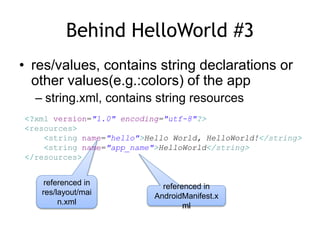
• res/values, contains string declarations or
other values(e.g.:colors) of the app
– string.xml, contains string resources
referenced in
res/layout/mai
n.xml
<?xml version="1.0" encoding="utf-8"?>
<resources>
<string name="hello">Hello World, HelloWorld!</string>
<string name="app_name">HelloWorld</string>
</resources>
referenced in
AndroidManifest.x
ml
Behind HelloWorld #4
• res/drawable, contains all image resources
– folders may have suffixes, app will choose the
most suitable one, so do the other resources
– Four folders: drawable-ldpi, drawable-hdpi,
drawable-mdpi, drawable-xdpi, each contains
an icon.png file
– app will choose the proper icon according to
the device DPI
– reference name:@drawable/icon
Behind HelloWorld #5
• AndroidManifest.xml describe the application
– declare app’s name, version, icon, permission,
etc…
– declare the application's components: activity,
service, receiver or provider
<manifest xmlns:android="http://schemas.android.com/apk/res/android"
package="com.example.helloandroid“ android:versionCode="1“ android:versionName="1.0" >
<uses-sdk
android:minSdkVersion="5“ android:targetSdkVersion="15" />
<application
android:icon="@drawable/ic_launcher“ android:label="@string/app_name"
android:theme="@style/AppTheme" >
<activity
android:name=".MainActivity“ android:label="@string/title_activity_main" >
<intent-filter>
<action android:name="android.intent.action.MAIN" />
<category android:name="android.intent.category.LAUNCHER" />
</intent-filter>
</activity>
</application>
</manifest>
Core Components-Activity #1
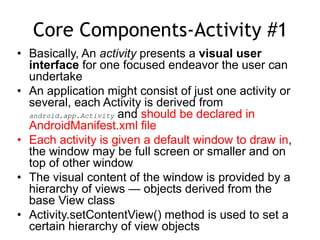
• Basically, An activity presents a visual user
interface for one focused endeavor the user can
undertake
• An application might consist of just one activity or
several, each Activity is derived from
android.app.Activity and should be declared in
AndroidManifest.xml file
• Each activity is given a default window to draw in,
the window may be full screen or smaller and on
top of other window
• The visual content of the window is provided by a
hierarchy of views — objects derived from the
base View class
• Activity.setContentView() method is used to set a
certain hierarchy of view objects
Core Components-Activity #2
• Activities are activated by asynchronous
messages called intents
– An intent is an Intent object that holds the content of
the message
– The action being requested or the URI of the data to
act on
• The <intent-filter> label in AndroidManifest.xml file
specifies the Intent that can start the Activity
– declares the main activity, it will be started
automatically when the app starts
• An activity is launched (or given something new to
do) by passing an Intent object to
Context.startActivity() or
Activity
lifecycle
Services (1)
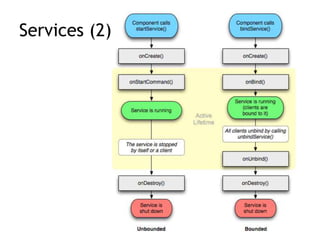
• Run in the background
– Can continue even if Activity that started it dies
– Should be used if something needs to be done while the user is
not interacting with application
• Otherwise, a thread is probably more applicable
– Should create a new thread in the service to do work in, since
the service runs in the main thread
• Can be bound to an application
– In which case will terminate when all applications bound to it
unbind
– Allows multiple applications to communicate with it via a
common interface
• Needs to be declared in manifest file
• Like Activities, has a structured life cycle
Services (2)
Other Core Components
• Broadcast receivers
– a component that does nothing but receive
and react to broadcast announcements
• Content providers
– A content provider makes a specific set of the
application's data available to other
applications.
– The data can be stored in the file system, in
an SQLite database, or in any other manner
that makes sense
Capture sensing data
Requirement
• You need to run this application on the
smart phone.
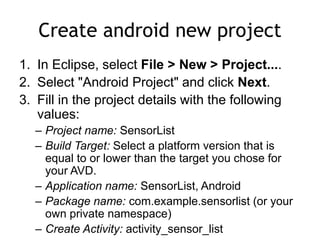
Create android new project
1. In Eclipse, select File > New > Project....
2. Select "Android Project" and click Next.
3. Fill in the project details with the following
values:
– Project name: SensorList
– Build Target: Select a platform version that is
equal to or lower than the target you chose for
your AVD.
– Application name: SensorList, Android
– Package name: com.example.sensorlist (or your
own private namespace)
– Create Activity: activity_sensor_list
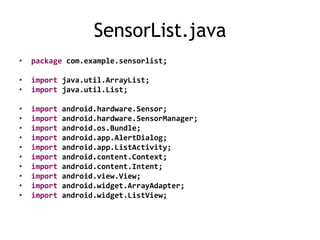
SensorList.java
• package com.example.sensorlist;
• import java.util.ArrayList;
• import java.util.List;
• import android.hardware.Sensor;
• import android.hardware.SensorManager;
• import android.os.Bundle;
• import android.app.AlertDialog;
• import android.app.ListActivity;
• import android.content.Context;
• import android.content.Intent;
• import android.view.View;
• import android.widget.ArrayAdapter;
• import android.widget.ListView;
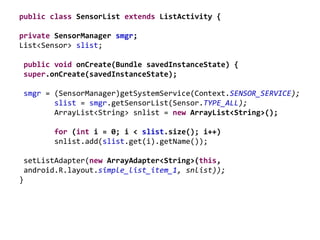
public class SensorList extends ListActivity {
private SensorManager smgr;
List<Sensor> slist;
public void onCreate(Bundle savedInstanceState) {
super.onCreate(savedInstanceState);
smgr = (SensorManager)getSystemService(Context.SENSOR_SERVICE);
slist = smgr.getSensorList(Sensor.TYPE_ALL);
ArrayList<String> snlist = new ArrayList<String>();
for (int i = 0; i < slist.size(); i++)
snlist.add(slist.get(i).getName());
setListAdapter(new ArrayAdapter<String>(this,
android.R.layout.simple_list_item_1, snlist));
}
protected void onListItemClick(ListView l, View v,int position,
long id) {
super.onListItemClick(l, v, position, id);
Intent intent = new Intent(this, SensorReader.class);
intent.putExtra("KEY_TYPE", slist.get(position).getType());
startActivity(intent);
}
}
SensorReader.java
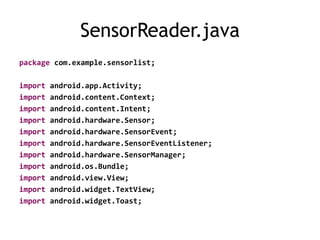
package com.example.sensorlist;
import android.app.Activity;
import android.content.Context;
import android.content.Intent;
import android.hardware.Sensor;
import android.hardware.SensorEvent;
import android.hardware.SensorEventListener;
import android.hardware.SensorManager;
import android.os.Bundle;
import android.view.View;
import android.widget.TextView;
import android.widget.Toast;
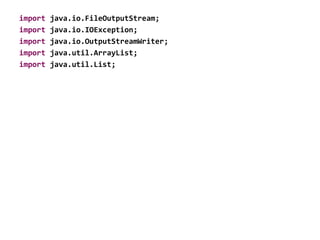
import java.io.FileOutputStream;
import java.io.IOException;
import java.io.OutputStreamWriter;
import java.util.ArrayList;
import java.util.List;
public class SensorReader extends Activity {
private SensorManager smgr;
private TextView tv;
private Sensor sensor;
private String fileName = "sensing_data.txt";
List<String> data = new ArrayList<String>();
public void onCreate(Bundle savedInstanceState) {
super.onCreate(savedInstanceState);
setContentView(R.layout.reader);
tv = (TextView)findViewById(R.id.ItemText);
smgr = (SensorManager)getSystemService(Context.SENSOR_SERVICE);
Intent intent = getIntent();
int stype = intent.getIntExtra("KEY_TYPE", -1);
sensor = smgr.getDefaultSensor(stype);
}
public void button1_Click(View view) {
finish();
}
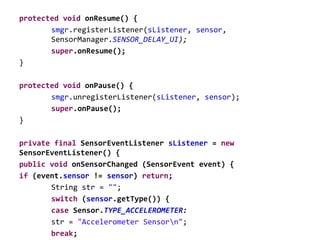
protected void onResume() {
smgr.registerListener(sListener, sensor,
SensorManager.SENSOR_DELAY_UI);
super.onResume();
}
protected void onPause() {
smgr.unregisterListener(sListener, sensor);
super.onPause();
}
private final SensorEventListener sListener = new
SensorEventListener() {
public void onSensorChanged (SensorEvent event) {
if (event.sensor != sensor) return;
String str = "";
switch (sensor.getType()) {
case Sensor.TYPE_ACCELEROMETER:
str = "Accelerometer Sensorn";
break;
case Sensor.TYPE_GYROSCOPE:
str = "Gyroscope Sensorn";
break;
case Sensor.TYPE_LIGHT:
str = "Light Sensorn";
break;
case Sensor.TYPE_MAGNETIC_FIELD:
str = "Magnetic Field Sensorn";
break;
case Sensor.TYPE_ORIENTATION:
str = "Orientation Sensorn";
break;
case Sensor.TYPE_PRESSURE:
str = "Pressure Sensorn";
break;
case Sensor.TYPE_PROXIMITY:
str = "Proximity Sensorn";
break;
case Sensor.TYPE_TEMPERATURE:
str = "Temperature Sensorn";
break;
case Sensor.TYPE_LINEAR_ACCELERATION:
str = "Liner Accelerometer Sensorn";
break;
case Sensor.TYPE_ROTATION_VECTOR:
str = "Rotation Sensorn";
break;
}
for (int i = 0; i < event.values.length; i++) {
str = str + "values[" + i + "]: " + event.values[i] + "n";
str2 += event.values[i] + " ";
}
data.add(str2);
str = str + "Accuracy: " + event.accuracy;
tv.setText(str);
}
public void onAccuracyChanged (Sensor sensor, int accuracy)
{
}
};
public void button2_Click(View view) {
try{
FileOutputStream out = openFileOutput(fileName,
MODE_PRIVATE);
OutputStreamWriter stOut = new OutputStreamWriter(out);
for (int index = 0; index < data.size(); index ++) {
stOut.write( data.get(index).toString() ); }
stOut.flush();
stOut.close();
Toast.makeText(this, "Success", Toast.LENGTH_SHORT).show();
} catch (IOException ex) {
Toast.makeText(this, "Fail", Toast.LENGTH_SHORT).show();
ex.printStackTrace();
}
}
}
res/layout/reader.xml
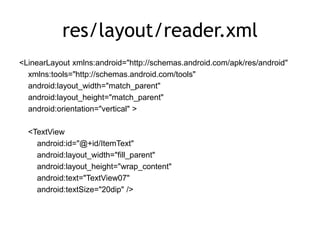
<LinearLayout xmlns:android="http://schemas.android.com/apk/res/android"
xmlns:tools="http://schemas.android.com/tools"
android:layout_width="match_parent"
android:layout_height="match_parent"
android:orientation="vertical" >
<TextView
android:id="@+id/ItemText"
android:layout_width="fill_parent"
android:layout_height="wrap_content"
android:text="TextView07"
android:textSize="20dip" />
<Button
android:id="@+id/button1"
android:layout_width="fill_parent"
android:layout_height="wrap_content"
android:onClick="button1_Click"
android:text="Return" />
<Button
android:id="@+id/button2"
android:layout_width="fill_parent"
android:layout_height="wrap_content"
android:onClick="button2_Click"
android:text="Save data" />
</LinearLayout>
Useful Materials
87
Android Official Site
• http://www.android.com
Android SDK, Tutorial, Concepts and API docs
• http://androidappdocs.appspot.com/index.html
Android Development Community
• http://www.anddev.org/

Introduction to Android (before 2015)

  • 1.
  • 2.
    What is Android? •Android is an operating system for mobile devices such as smartphones and tablet computers. • It is developed by the Open Handset Alliance led by Google
  • 4.
    Android Phones Motorola CliqHTCG1 HTC HeroSamsung i7500 Samsung Moment Motorola DroidHTC Magic HTC Tattoo Sony X10
  • 5.
  • 6.
    Linux Kernel • Notethat Android based on a Linux kernel not a Linux OS • Supplies Security, Memory management, Process management, Network stack and Driver model • Acts as an abstraction layer between the hardware and the rest of the software stack
  • 7.
    Libraries • Run insystem background • Using C/C++ Language • 4 types of Libraries – Bionic Libc, system C libraries – Function Libraries, supporting multimedia, web browser, SQLite... – Native Servers – Hardware Abstraction Libraries
  • 8.
    Core Libraries • SystemC library, the standard C system library, tuned for embedded Linux-based devices • Media Libraries, support playback and recording of many popular audio and video formats, as well as image files, including MPEG4, H.264, MP3, AAC, AMR, JPG, and PNG • Surface Manager, manages access to the display subsystem and seamlessly composites 2D and 3D graphic layers from multiple applications • WebKit, a modern web browser engine which powers both the Android browser and an embeddable web view • SGL, the underlying 2D graphics engine • 3D libraries, an implementation based on OpenGL ES 1.0 APIs
  • 9.
    Andoid Runtime • Thecore of Android platform • Dalvik Virtual Machine – Register-based – Executes files in the Dalvik Executable (.dex) format • Java core Libraries – Provides most of the functionality of the Java programming language.
  • 10.
    Android Runtime (cont.) •The functions of Java core libraries rely on the Dalvik VM and the underlying Linux kernel • Multiple Dalvik VMs may run at the same time • Every Android application runs in its own process, with its own instance of the Dalvik virtual machine – The "dx" tool in Android SDK can transform compiled JAVA class into the .dex format
  • 11.
    Dalvik Virtual Machine •Android custom implementation virtual machine – Provides application portability and runtime consistency – Runs optimized file format (.dex) and Dalvik bytecode – Java .class / .jar files converted to .dex at build time • Designed for embedded environment – Supports multiple virtual machine processes per device – Highly CPU-optimized bytecode interpreter
  • 12.
    DVM vs. JVM •DVM – Google – Dalvik executable – Only supports a subset of standard Java Library • JVM – Sun – Java bytecode • Some worries that Java world may be divided into different communities, each has its own Java standard
  • 13.
    DVM vs. JVM(2) • register-based (DVM) vs. stack-based (JVM) – register-based VMs allow for faster execution times, but – programs are larger when compiled. • execution environment – multiple (DVM) vs. single instance (JVM)
  • 14.
    Android and Java •Dalvik VM is Google’s implementation of JAVA
  • 15.
    java vs. androidapi • Since it uses Java compiler, it implicitly supports a set of Java commands • Compatible with Java SE5 code • A subset of Apache Harmony (open source, free Java implementation) • Multithreading as time-slicng. • Dalvik implements the keyword synchronized and java.util.concurrent.* package • Does not support – awt, swing, rmi, applet, ...
  • 16.
    Application Framework • Simplifythe reuse of components – Applications can publish their capabilities and any other application may then make use of those capabilities • Applications is a set of services and systems, include – Views system, content providers, resources manager and so on
  • 17.
    Application Framework (cont.) •Activity Manager, manages the lifecycle of applications and provides a common navigation backstack • Notification Manager, enables all applications to display custom alerts in the status bar • Resource Manager, providing access to non- code resources such as localized strings, graphics, and layout files • Content Providers, access data from other applications (such as Contacts), or to share their own data • Views, used to build an application, including lists, grids, text boxes, buttons, and even an
  • 18.
    Applications • A setof core applications shipped with Android platform – an email client, SMS program, calendar, maps, browser, contacts, and others • All written in Java • Our applications are in the same level as these applications
  • 19.
    Android Features • Reuseand replacement of components • Dalvik virtual machine • Integrated browser • Optimized graphics • SQLite • Media support • GSM Telephony • Bluetooth, EDGE, 3G, and WiFi • Camera, GPS, compass, and accelerometer • Rich development environment
  • 20.
    Application Fundamentals • Appsare written in Java • Bundled by Android Asset Packaging Tool • Every App runs its own Linux process • Each process has it’s own Java Virtual Machine • Each App is assigned a unique Linux user ID • Apps can share the same user ID to see each other’s files
  • 21.
    Application Components  Activity ◦Present a visual user interface for one focused endeavor the user can undertake ◦ Example: a list of menu items users can choose from  Services ◦ Run in the background for an indefinite period of time ◦ Example: calculate and provide the result to activities that need it  Broadcast Receivers ◦ Receive and react to broadcast announcements ◦ Example: announcements that the time zone has changed  Content Providers ◦ Store and retrieve data and make it accessible to all applications ◦ Example: Android ships with a number of content providers for common data types (e.g., audio, video, images, personal contact information, etc.)  Intents ◦ Hold the content of a message ◦ Example: convey a request for an activity to present an image to the user or let the user edit some text
  • 22.
    Hardware-oriented Features Feature Description Camera Aclass that enables your application to interact with the camera to snap a photo, acquire images for a preview screen, and modify parameters used to govern how the camera operates. Sensor Class representing a sensor. Use getSensorList(int) to get the list of available Sensors. SensorManager A class that permits access to the sensors available within the Android platform. SensorEventListe ner An interface used for receiving notifications from the SensorManager when sensor values have changed. An application implements this interface to monitor one or more sensors available in the hardware. SensorEvent This class represents a sensor event and holds information such as the sensor type (e.g., accelerometer, orientation, etc.), the time-stamp, accuracy and of course the sensor's data. MediaRecorder A class, used to record media samples, that can be useful for recording audio activity within a specific location (such as a baby nursery). Audio clippings can also be analyzed for identification purposes in an access-control or security application. For example, it could be helpful to open the door to your time-share with your voice, rather than having to meet with the realtor to get a key. GeomagneticFiel This class is used to estimated estimate magnetic field at a given point on Earth, and
  • 23.
    Sensor and SensorManager Sensortype (Sensor class) ◦ Orientation, accelerometer, light, magnetic field, proximity, temperature, etc. Sampling rate ◦ Fastest, game, normal, user interface. ◦ When an application requests a specific sampling rate, it is really only a hint, or suggestion, to the sensor subsystem. There is no guarantee of a particular rate being available. Accuracy ◦ High, low, medium, unreliable.
  • 24.
    Your Android SDKdirectory docs/ guide – A comprehensive introductory guide resources – FAQs, Articles, Howto’s and Best Practices reference – javadoc (Java class documentation) samples – sample code tools – useful command line tools for specific tasks platforms – different versions of Android systems addons – Google extras e.g. Maps API
  • 25.
    Basic Architecture ofandroid project
  • 26.
    Project basic architectureof Android • src/ – Your Java files for your application go here in subdirectories. • gen/ – Contains Java files automatically generated such as your R.java file. • res/ – Contains app resources, such as images, layout files, string values. • assets/ (Optional) – You can use it to store other raw asset files. • AndroidManifest.xml – Describes the contents of your application.
  • 27.
    XML • Used todefine some of the resources – Layouts (UI) – Strings • Manifest file • Preferred way of creating UIs – Separates the description of the layout from any actual code that controls it – Can easily take a UI from one platform to another
  • 28.
    R Class • Auto-generated:you shouldn’t edit it • Contains IDs of the project resources • Enforces good software engineering • Use findViewById and Resources object to get access to the resources – Ex. Button b = (Button)findViewById(R.id.button1) – Ex. getResources().getString(R.string.hello));
  • 29.
    Layouts (1) • Eclipsehas a great UI creator – Generates the XML for you • Composed of View objects • Can be specified for portrait and landscape mode – Use same file name, so can make completely different UIs for the orientations without modifying any code
  • 30.
  • 31.
    Layouts (3) • Click‘Create’ to make layout modifications • When in portrait mode can select ‘Portrait’ to make a res sub folder for portrait layouts – Likewise for Landscape layouts while in landscape mode – Will create folders titled ‘layout-port’ and ‘layout- land’ • Note: these ‘port’ and ‘land’ folders are examples of ‘alternate layouts’, see here for more info – http://developer.android.com/guide/topics/resources/providing- resources.html • Avoid errors by making sure components have the same id in both orientations, and that you’ve tested each orientation thoroughly
  • 32.
  • 33.
    AndroidManifest File (1) •Contains characteristics about your application • When have more than one Activity in app, NEED to specify it in manifest file – Go to graphical view of the manifest file – Add an Activity in the bottom right – Browse for the name of the activity • Need to specify Services and other components too • Also important to define permissions and external libraries, like Google Maps API
  • 34.
    AndroidManifest File (2)– Adding an Activity
  • 35.
  • 36.
    Development Environment • IDE– Eclipse • Eclipse plug-in –Android Development Tools (ADT) • Software Development Kit (SDK) • Android Emulator • Debugger
  • 37.
    Installing Java SDK •Download location – http://www.oracle.com/technetwork/java/javase/downl oads/index.html • Version – Java Platform (JDK) 7u7 • Please uninstall all older versions of Java from your system.
  • 38.
    Installing Android SDK •Download location – http://developer.android.com/sdk/index.html • There are some useful instructions on Internet – http://developer.android.com/sdk/installing.html
  • 39.
    Setup Android SDK execute0_installer_r20.0.3-windows Repeatedly click “next” to install Android SDK
  • 40.
    Installing Eclipse • Download“Eclipse Classic” – http://www.eclipse.org/downloads/ – Please select version based on your operation system.
  • 41.
    ADT Plugin • InEclipse, go to Help -> Install New Software • Click ‘Add’ in top right • Enter: – Name: ADT Plugin – Location: https://dl-ssl.google.com/android/eclipse/ • Click OK, then select ‘Developer Tools’, click Next • Click Next and then Finish • Afterwards, restart Eclipse
  • 42.
  • 43.
  • 47.
  • 48.
    Suggest to installAndroid 4.0, Android 4.1, and Android 2.2
  • 49.
    Hello World An exampleof creating Android APP
  • 50.
    Create an AVD(Android Virtual Device) • You can run your application on an emulator. • An AVD defines the system image and device settings used by the emulator. • In Eclipse, select Window > AVD Manager.) • After you create an AVD, you can start it
  • 54.
    Create android newproject 1. In Eclipse, select File > New > Project.... 2. Select "Android Project" and click Next. 3. Fill in the project details with the following values: – Project name: HelloAndroid – Build Target: Select a platform version that is equal to or lower than the target you chose for your AVD. – Application name: Hello, Android – Package name: com.example.helloandroid (or your own private namespace) – Create Activity: HelloAndroid
  • 58.
    Hello Android.java • packagecom.example.helloandroid; import android.app.Activity; import android.os.Bundle; public class HelloAndroid extends Activity { /** Called when the activity is first created. */ @Override public void onCreate(Bundle savedInstanceState) { super.onCreate(savedInstanceState); setContentView(R.layout.main); } }
  • 59.
  • 60.
    Run Hello World •Ctrl+F11: run application – Select the target device • It could be your AVD or a smart phone
  • 61.
    Behind HelloWorld #1 •R.java, generated by Android SDK, represents all the resources of the app. resources are all in res folder • resources are pre-compiled into binary format /* AUTO-GENERATED FILE. DO NOT MODIFY. * * This class was automatically generated by the * aapt tool from the resource data it found. It * should not be modified by hand. */ package sample.hello; public final class R { public static final class attr { } public static final class drawable { public static final int icon=0x7f020000; } public static final class layout { public static final int main=0x7f030000; } public static final class string { public static final int app_name=0x7f040001; public static final int hello=0x7f040000; } }
  • 62.
    Behind HelloWorld #2 •res/layout , contains layout declarations of the app, in XML format, UIs are built according to the layout file Linear Layout main.xml <?xml version="1.0" encoding="utf-8"?> <LinearLayout xmlns:android=http://schemas.android.com/apk/res/android android:orientation="vertical" android:layout_width="fill_parent" android:layout_height="fill_parent"> <TextView android:layout_width="fill_parent" android:layout_height="wrap_content" android:text="@string/hello" /> </LinearLayout> TextView, display static text A reference to String resource ‘hello’
  • 63.
    Behind HelloWorld #3 •res/values, contains string declarations or other values(e.g.:colors) of the app – string.xml, contains string resources referenced in res/layout/mai n.xml <?xml version="1.0" encoding="utf-8"?> <resources> <string name="hello">Hello World, HelloWorld!</string> <string name="app_name">HelloWorld</string> </resources> referenced in AndroidManifest.x ml
  • 64.
    Behind HelloWorld #4 •res/drawable, contains all image resources – folders may have suffixes, app will choose the most suitable one, so do the other resources – Four folders: drawable-ldpi, drawable-hdpi, drawable-mdpi, drawable-xdpi, each contains an icon.png file – app will choose the proper icon according to the device DPI – reference name:@drawable/icon
  • 65.
    Behind HelloWorld #5 •AndroidManifest.xml describe the application – declare app’s name, version, icon, permission, etc… – declare the application's components: activity, service, receiver or provider <manifest xmlns:android="http://schemas.android.com/apk/res/android" package="com.example.helloandroid“ android:versionCode="1“ android:versionName="1.0" > <uses-sdk android:minSdkVersion="5“ android:targetSdkVersion="15" /> <application android:icon="@drawable/ic_launcher“ android:label="@string/app_name" android:theme="@style/AppTheme" > <activity android:name=".MainActivity“ android:label="@string/title_activity_main" > <intent-filter> <action android:name="android.intent.action.MAIN" /> <category android:name="android.intent.category.LAUNCHER" /> </intent-filter> </activity> </application> </manifest>
  • 66.
    Core Components-Activity #1 •Basically, An activity presents a visual user interface for one focused endeavor the user can undertake • An application might consist of just one activity or several, each Activity is derived from android.app.Activity and should be declared in AndroidManifest.xml file • Each activity is given a default window to draw in, the window may be full screen or smaller and on top of other window • The visual content of the window is provided by a hierarchy of views — objects derived from the base View class • Activity.setContentView() method is used to set a certain hierarchy of view objects
  • 67.
    Core Components-Activity #2 •Activities are activated by asynchronous messages called intents – An intent is an Intent object that holds the content of the message – The action being requested or the URI of the data to act on • The <intent-filter> label in AndroidManifest.xml file specifies the Intent that can start the Activity – declares the main activity, it will be started automatically when the app starts • An activity is launched (or given something new to do) by passing an Intent object to Context.startActivity() or
  • 68.
  • 69.
    Services (1) • Runin the background – Can continue even if Activity that started it dies – Should be used if something needs to be done while the user is not interacting with application • Otherwise, a thread is probably more applicable – Should create a new thread in the service to do work in, since the service runs in the main thread • Can be bound to an application – In which case will terminate when all applications bound to it unbind – Allows multiple applications to communicate with it via a common interface • Needs to be declared in manifest file • Like Activities, has a structured life cycle
  • 70.
  • 71.
    Other Core Components •Broadcast receivers – a component that does nothing but receive and react to broadcast announcements • Content providers – A content provider makes a specific set of the application's data available to other applications. – The data can be stored in the file system, in an SQLite database, or in any other manner that makes sense
  • 72.
  • 73.
    Requirement • You needto run this application on the smart phone.
  • 74.
    Create android newproject 1. In Eclipse, select File > New > Project.... 2. Select "Android Project" and click Next. 3. Fill in the project details with the following values: – Project name: SensorList – Build Target: Select a platform version that is equal to or lower than the target you chose for your AVD. – Application name: SensorList, Android – Package name: com.example.sensorlist (or your own private namespace) – Create Activity: activity_sensor_list
  • 75.
    SensorList.java • package com.example.sensorlist; •import java.util.ArrayList; • import java.util.List; • import android.hardware.Sensor; • import android.hardware.SensorManager; • import android.os.Bundle; • import android.app.AlertDialog; • import android.app.ListActivity; • import android.content.Context; • import android.content.Intent; • import android.view.View; • import android.widget.ArrayAdapter; • import android.widget.ListView;
  • 76.
    public class SensorListextends ListActivity { private SensorManager smgr; List<Sensor> slist; public void onCreate(Bundle savedInstanceState) { super.onCreate(savedInstanceState); smgr = (SensorManager)getSystemService(Context.SENSOR_SERVICE); slist = smgr.getSensorList(Sensor.TYPE_ALL); ArrayList<String> snlist = new ArrayList<String>(); for (int i = 0; i < slist.size(); i++) snlist.add(slist.get(i).getName()); setListAdapter(new ArrayAdapter<String>(this, android.R.layout.simple_list_item_1, snlist)); }
  • 77.
    protected void onListItemClick(ListViewl, View v,int position, long id) { super.onListItemClick(l, v, position, id); Intent intent = new Intent(this, SensorReader.class); intent.putExtra("KEY_TYPE", slist.get(position).getType()); startActivity(intent); } }
  • 78.
    SensorReader.java package com.example.sensorlist; import android.app.Activity; importandroid.content.Context; import android.content.Intent; import android.hardware.Sensor; import android.hardware.SensorEvent; import android.hardware.SensorEventListener; import android.hardware.SensorManager; import android.os.Bundle; import android.view.View; import android.widget.TextView; import android.widget.Toast;
  • 79.
    import java.io.FileOutputStream; import java.io.IOException; importjava.io.OutputStreamWriter; import java.util.ArrayList; import java.util.List;
  • 80.
    public class SensorReaderextends Activity { private SensorManager smgr; private TextView tv; private Sensor sensor; private String fileName = "sensing_data.txt"; List<String> data = new ArrayList<String>(); public void onCreate(Bundle savedInstanceState) { super.onCreate(savedInstanceState); setContentView(R.layout.reader); tv = (TextView)findViewById(R.id.ItemText); smgr = (SensorManager)getSystemService(Context.SENSOR_SERVICE); Intent intent = getIntent(); int stype = intent.getIntExtra("KEY_TYPE", -1); sensor = smgr.getDefaultSensor(stype); } public void button1_Click(View view) { finish(); }
  • 81.
    protected void onResume(){ smgr.registerListener(sListener, sensor, SensorManager.SENSOR_DELAY_UI); super.onResume(); } protected void onPause() { smgr.unregisterListener(sListener, sensor); super.onPause(); } private final SensorEventListener sListener = new SensorEventListener() { public void onSensorChanged (SensorEvent event) { if (event.sensor != sensor) return; String str = ""; switch (sensor.getType()) { case Sensor.TYPE_ACCELEROMETER: str = "Accelerometer Sensorn"; break;
  • 82.
    case Sensor.TYPE_GYROSCOPE: str ="Gyroscope Sensorn"; break; case Sensor.TYPE_LIGHT: str = "Light Sensorn"; break; case Sensor.TYPE_MAGNETIC_FIELD: str = "Magnetic Field Sensorn"; break; case Sensor.TYPE_ORIENTATION: str = "Orientation Sensorn"; break; case Sensor.TYPE_PRESSURE: str = "Pressure Sensorn"; break; case Sensor.TYPE_PROXIMITY: str = "Proximity Sensorn"; break;
  • 83.
    case Sensor.TYPE_TEMPERATURE: str ="Temperature Sensorn"; break; case Sensor.TYPE_LINEAR_ACCELERATION: str = "Liner Accelerometer Sensorn"; break; case Sensor.TYPE_ROTATION_VECTOR: str = "Rotation Sensorn"; break; } for (int i = 0; i < event.values.length; i++) { str = str + "values[" + i + "]: " + event.values[i] + "n"; str2 += event.values[i] + " "; } data.add(str2); str = str + "Accuracy: " + event.accuracy; tv.setText(str); }
  • 84.
    public void onAccuracyChanged(Sensor sensor, int accuracy) { } }; public void button2_Click(View view) { try{ FileOutputStream out = openFileOutput(fileName, MODE_PRIVATE); OutputStreamWriter stOut = new OutputStreamWriter(out); for (int index = 0; index < data.size(); index ++) { stOut.write( data.get(index).toString() ); } stOut.flush(); stOut.close(); Toast.makeText(this, "Success", Toast.LENGTH_SHORT).show(); } catch (IOException ex) { Toast.makeText(this, "Fail", Toast.LENGTH_SHORT).show(); ex.printStackTrace(); } } }
  • 85.
  • 86.
  • 87.
    Useful Materials 87 Android OfficialSite • http://www.android.com Android SDK, Tutorial, Concepts and API docs • http://androidappdocs.appspot.com/index.html Android Development Community • http://www.anddev.org/

Editor's Notes