Programaci´n Orientada aObjetos
o
Interfaz Gr´fica
a
Federico Raue
fraue@cti.espol.edu.ec
Facultad de Ingenier´ en Electricidad y Computaci´n
ıa o
11 de Enero del 2010
Federico Rauefraue@cti.espol.edu.ec (FIEC) POO 11 de Enero del 2010 1 / 46
2.
Contenido
1 Map
2 Componentes Gr´ficos
a
3 JAVA GUI API
4 Frame
5 Layout Managers
6 Paneles
Federico Rauefraue@cti.espol.edu.ec (FIEC) POO 11 de Enero del 2010 2 / 46
3.
Map
Contenido
1 Map
2 Componentes Gr´ficos
a
3 JAVA GUI API
4 Frame
5 Layout Managers
6 Paneles
Federico Rauefraue@cti.espol.edu.ec (FIEC) POO 11 de Enero del 2010 3 / 46
4.
Map
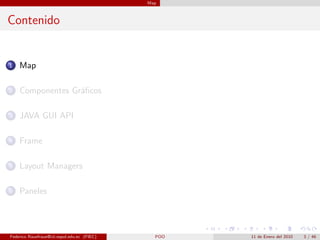
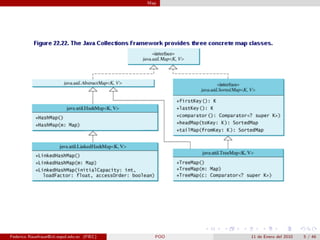
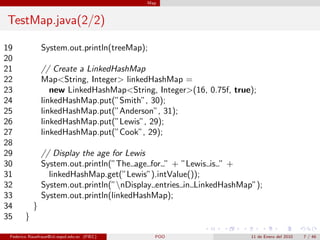
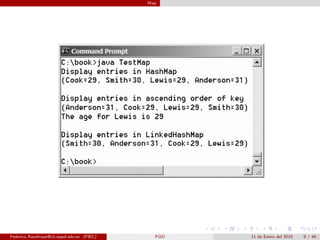
Una colecci´n almacena elementos en un set o una list
o
Map: Mapea llaves o claves a los elementos
Las claves son los ´
ındices
List: los ´
ındices son enteros
Map: los ´
ındices pueden ser cualquie objeto
Federico Rauefraue@cti.espol.edu.ec (FIEC) POO 11 de Enero del 2010 4 / 46
Map
Ejemplo
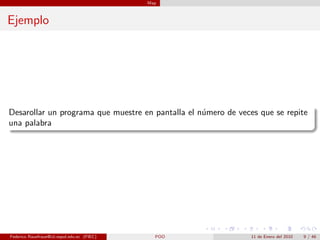
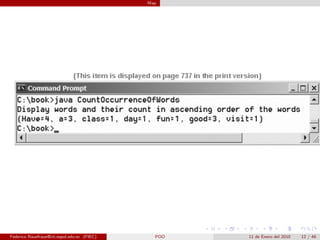
Desarollar un programaque muestre en pantalla el n´mero de veces que se repite
u
una palabra
Federico Rauefraue@cti.espol.edu.ec (FIEC) POO 11 de Enero del 2010 9 / 46
10.
Map
CountOccurrenceOfWords.java(1/2)
1import java.util.∗;
2
3 public class CountOccurrenceOfWords {
4 public static void main(String[] args) {
5 // Text in a string
6 String text = ”Have a good day. Have a good class. ” +
7 ”Have a good visit. Have fun!”;
8
9 // Create a hash map to hold words as key and count as value
10 Map<String, Integer> hashMap = new HashMap<String, Integer>();
11
12 String[] words = text.split(”[ .!?]”);
13 for (int i = 0; i < words.length; i++) {
14 if (words[i].length() > 1) {
15 if (hashMap.get(words[i]) != null) {
16 int value = hashMap.get(words[i]).intValue();
17 value++;
18 hashMap.put(words[i], value);
19 }
Federico Rauefraue@cti.espol.edu.ec (FIEC) POO 11 de Enero del 2010 10 / 46
11.
Map
CountOccurrenceOfWords.java(2/2)
20 else
21 hashMap.put(words[i], 1);
22 }
23 }
24
25 // Create a tree map from the hash map
26 Map<String, Integer> treeMap =
27 new TreeMap<String, Integer>(hashMap);
28
29 // Display mappings
30 System.out.println(”Display words and their count in ” +
31 ”ascending order of the words”);
32 System.out.print(treeMap);
33 }
34 }
Federico Rauefraue@cti.espol.edu.ec (FIEC) POO 11 de Enero del 2010 11 / 46
Componentes Gr´ficos
a
Contenido
1 Map
2 Componentes Gr´ficos
a
3 JAVA GUI API
4 Frame
5 Layout Managers
6 Paneles
Federico Rauefraue@cti.espol.edu.ec (FIEC) POO 11 de Enero del 2010 13 / 46
14.
Componentes Gr´ficos
a
Hasta ahora s´lo han usado la consola
o
GUI – Interfaz Gr´fico
a
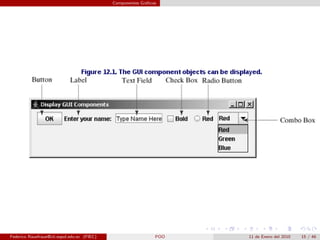
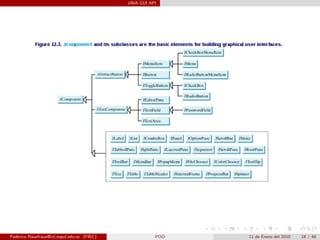
Objetos de GUI: buttons, labels, text fields, check boxes, radio buttons,
combo boxes
JButton, JLabel, JTextField, JCheckBox, JRadioButton, JComboBox
Ejemplos
Create a button with text OK
JButton jbtOK = new JButton(“OK”);
Create a label with text “Enter your name: ”
JLabel jlblName = new JLabel(“Enter your name: ”);
Create a text field with text “Type Name Here”
JTextField jtfName = new JTextField(“Type Name Here”);
Create a check box with text bold
JCheckBox jchkBold = new JCheckBox(“Bold”);
Create a radio button with text red
JRadioButton jrbRed = new JRadioButton(“Red“);
Create a combo box with choices red, green, and blue
JComboBox jcboColor = new JComboBox(new String[]”Red“, ”Green“,
”Blue“);
Federico Rauefraue@cti.espol.edu.ec (FIEC) POO 11 de Enero del 2010 14 / 46
15.
Componentes Gr´ficos
a
Federico Rauefraue@cti.espol.edu.ec (FIEC) POO 11 de Enero del 2010 15 / 46
16.
JAVA GUI API
Contenido
1 Map
2 Componentes Gr´ficos
a
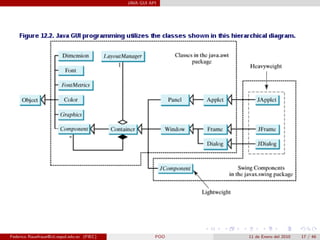
3 JAVA GUI API
4 Frame
5 Layout Managers
6 Paneles
Federico Rauefraue@cti.espol.edu.ec (FIEC) POO 11 de Enero del 2010 16 / 46
17.
JAVA GUI API
FedericoRauefraue@cti.espol.edu.ec (FIEC) POO 11 de Enero del 2010 17 / 46
18.
JAVA GUI API
FedericoRauefraue@cti.espol.edu.ec (FIEC) POO 11 de Enero del 2010 18 / 46
19.
Frame
Contenido
1 Map
2 Componentes Gr´ficos
a
3 JAVA GUI API
4 Frame
5 Layout Managers
6 Paneles
Federico Rauefraue@cti.espol.edu.ec (FIEC) POO 11 de Enero del 2010 19 / 46
20.
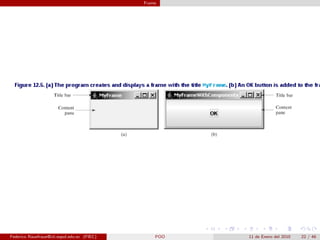
Frame
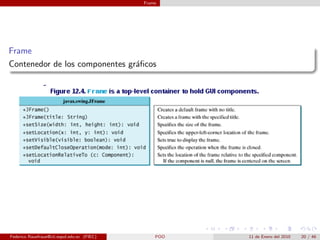
Frame
Contenedor de loscomponentes gr´ficos
a
Federico Rauefraue@cti.espol.edu.ec (FIEC) POO 11 de Enero del 2010 20 / 46
21.
Frame
MyFrame.java
1 importjavax.swing.∗;
2
3 public class MyFrame {
4 public static void main(String[] args) {
5 JFrame frame = new JFrame(”MyFrame”); // Create a frame
6 frame.setSize(400, 300); // Set the frame size
7 frame.setLocationRelativeTo(null); // New since JDK 1.4
8 frame.setDefaultCloseOperation(JFrame.EXIT ON CLOSE);
9 frame.setVisible(true); // Display the frame
10 }
11 }
Federico Rauefraue@cti.espol.edu.ec (FIEC) POO 11 de Enero del 2010 21 / 46
Frame
MyFrameWithComponents.java
1 importjavax.swing.∗;
2
3 public class MyFrameWithComponents {
4 public static void main(String[] args) {
5 JFrame frame = new JFrame(”MyFrameWithComponents”);
6
7 // Add a button into the frame
8 JButton jbtOK = new JButton(”OK”);
9 frame.add(jbtOK);
10
11 frame.setSize(400, 300);
12 frame.setDefaultCloseOperation(JFrame.EXIT ON CLOSE);
13 frame.setLocationRelativeTo(null); // Center the frame
14 frame.setVisible(true);
15 }
16 }
Federico Rauefraue@cti.espol.edu.ec (FIEC) POO 11 de Enero del 2010 23 / 46
24.
Layout Managers
Contenido
1 Map
2 Componentes Gr´ficos
a
3 JAVA GUI API
4 Frame
5 Layout Managers
6 Paneles
Federico Rauefraue@cti.espol.edu.ec (FIEC) POO 11 de Enero del 2010 24 / 46
25.
Layout Managers
Algunos sistemas basados en ventanas ubican la posici´n de los componentes
o
usando coordenadas
Ejemplo: colocar el bot´n en (40,50)
o
Son dependientes del Sistema Operativo
JAVA maneja una manera mas abstracta para ubicar los componentes
(LayoutManager)
Autom´ticamente mapea los componentes con su ubicaci´n
a o
Ejemplo: No decimos donde ubicar donde poner un bot´n pero JAVA sabe
o
donde ubicarlo por el Layout Manager
Un Layout Manayer se asigna a un contenedor usando el m´todo
e
setLayout(LayoutManager).
Ejemplo:LayoutManager layoutManager = new XLayout();
container.setLayout(layoutManager);
Federico Rauefraue@cti.espol.edu.ec (FIEC) POO 11 de Enero del 2010 25 / 46
26.
Layout Managers
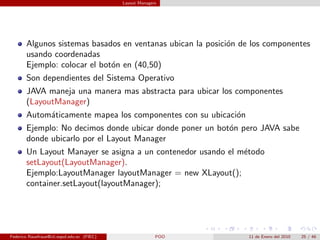
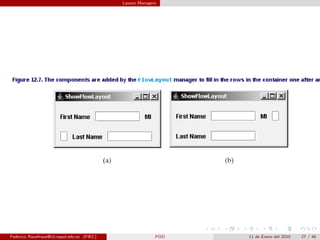
FlowLayout
Mas f´cil entre todos los layout manager.
a
Los componentes son ordenados de izquierda a derecha en el orden
como est´n a˜adiendose
a n
Cuando una fila est´ llena entonces se crea una nueva l´
a ınea
Alinear los componentes usando una de estas TRES CONSTANTES:
FlowLayout.RIGHT, FlowLayout.CENTER, FlowLayout.LEFT
Especificar la distancia entre los componentes (pixeles)
Federico Rauefraue@cti.espol.edu.ec (FIEC) POO 11 de Enero del 2010 26 / 46
Layout Managers
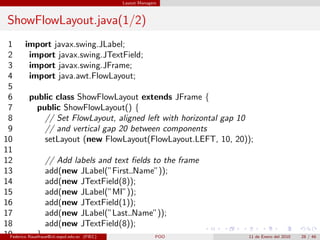
ShowFlowLayout.java(1/2)
1 import javax.swing.JLabel;
2 import javax.swing.JTextField;
3 import javax.swing.JFrame;
4 import java.awt.FlowLayout;
5
6 public class ShowFlowLayout extends JFrame {
7 public ShowFlowLayout() {
8 // Set FlowLayout, aligned left with horizontal gap 10
9 // and vertical gap 20 between components
10 setLayout (new FlowLayout(FlowLayout.LEFT, 10, 20));
11
12 // Add labels and text fields to the frame
13 add(new JLabel(”First Name”));
14 add(new JTextField(8));
15 add(new JLabel(”MI”));
16 add(new JTextField(1));
17 add(new JLabel(”Last Name”));
18 add(new JTextField(8));
19 }
Federico Rauefraue@cti.espol.edu.ec (FIEC) POO 11 de Enero del 2010 28 / 46
29.
Layout Managers
ShowFlowLayout.java(2/2)
20
21 /∗∗ Main method ∗/
22 public static void main(String[] args) {
23 ShowFlowLayout frame = new ShowFlowLayout();
24 frame.setTitle(”ShowFlowLayout”);
25 frame.setLocationRelativeTo(null); // Center the frame
26 frame.setDefaultCloseOperation(JFrame.EXIT ON CLOSE);
27 frame.setSize(200, 200);
28 frame.setVisible(true);
29 }
30 }
Federico Rauefraue@cti.espol.edu.ec (FIEC) POO 11 de Enero del 2010 29 / 46
30.
Layout Managers
Estilo parala creaci´n de GUI
o
Poner los componentes en el constructor del frame
Crear una aplicaci´n significa crear un Frame
o
Puede extenderse (a˜adir nuevos componentes o funciones
n
Una clase es f´cilmente reusable
a
Federico Rauefraue@cti.espol.edu.ec (FIEC) POO 11 de Enero del 2010 30 / 46
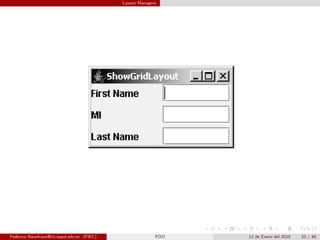
31.
Layout Managers
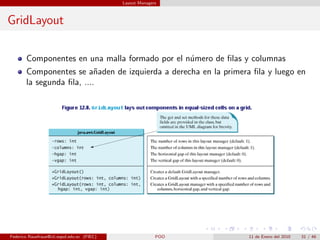
GridLayout
Componentes en una malla formado por el n´mero de filas y columnas
u
Componentes se a˜aden de izquierda a derecha en la primera fila y luego en
n
la segunda fila, ....
Federico Rauefraue@cti.espol.edu.ec (FIEC) POO 11 de Enero del 2010 31 / 46
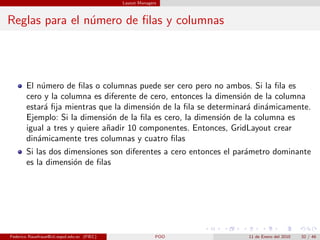
32.
Layout Managers
Reglas parael n´mero de filas y columnas
u
El n´mero de filas o columnas puede ser cero pero no ambos. Si la fila es
u
cero y la columna es diferente de cero, entonces la dimensi´n de la columna
o
estar´ fija mientras que la dimensi´n de la fila se determinar´ din´micamente.
a o a a
Ejemplo: Si la dimensi´n de la fila es cero, la dimensi´n de la columna es
o o
igual a tres y quiere a˜adir 10 componentes. Entonces, GridLayout crear
n
din´micamente tres columnas y cuatro filas
a
Si las dos dimensiones son diferentes a cero entonces el par´metro dominante
a
es la dimensi´n de filas
o
Federico Rauefraue@cti.espol.edu.ec (FIEC) POO 11 de Enero del 2010 32 / 46
Layout Managers
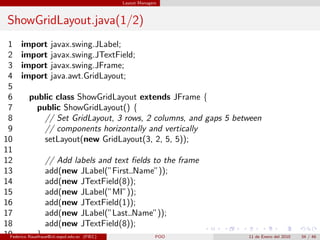
ShowGridLayout.java(1/2)
1 import javax.swing.JLabel;
2 import javax.swing.JTextField;
3 import javax.swing.JFrame;
4 import java.awt.GridLayout;
5
6 public class ShowGridLayout extends JFrame {
7 public ShowGridLayout() {
8 // Set GridLayout, 3 rows, 2 columns, and gaps 5 between
9 // components horizontally and vertically
10 setLayout(new GridLayout(3, 2, 5, 5));
11
12 // Add labels and text fields to the frame
13 add(new JLabel(”First Name”));
14 add(new JTextField(8));
15 add(new JLabel(”MI”));
16 add(new JTextField(1));
17 add(new JLabel(”Last Name”));
18 add(new JTextField(8));
19 }
Federico Rauefraue@cti.espol.edu.ec (FIEC) POO 11 de Enero del 2010 34 / 46
35.
Layout Managers
ShowGridLayout.java(2/2)
20
21 /∗∗ Main method ∗/
22 public static void main(String[] args) {
23 ShowGridLayout frame = new ShowGridLayout();
24 frame.setTitle(”ShowGridLayout”);
25 frame.setLocationRelativeTo(null); // Center the frame
26 frame.setDefaultCloseOperation(JFrame.EXIT ON CLOSE);
27 frame.setSize(200, 125);
28 frame.setVisible(true);
29 }
30 }
Federico Rauefraue@cti.espol.edu.ec (FIEC) POO 11 de Enero del 2010 35 / 46
36.
Layout Managers
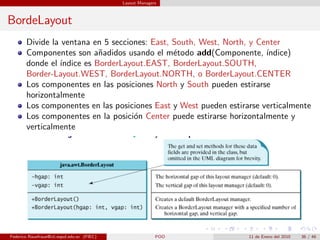
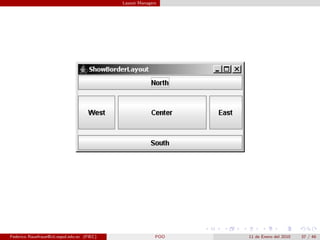
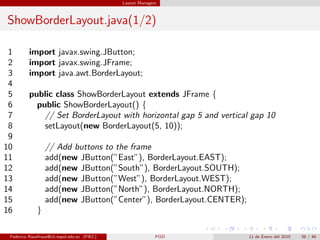
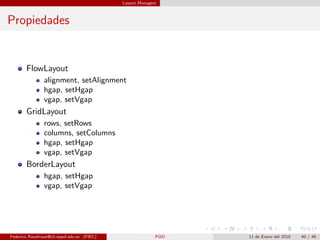
BordeLayout
Divide la ventana en 5 secciones: East, South, West, North, y Center
Componentes son a˜adidos usando el m´todo add(Componente, ´
n e ındice)
donde el ´ındice es BorderLayout.EAST, BorderLayout.SOUTH,
Border-Layout.WEST, BorderLayout.NORTH, o BorderLayout.CENTER
Los componentes en las posiciones North y South pueden estirarse
horizontalmente
Los componentes en las posiciones East y West pueden estirarse verticalmente
Los componentes en la posici´n Center puede estirarse horizontalmente y
o
verticalmente
Federico Rauefraue@cti.espol.edu.ec (FIEC) POO 11 de Enero del 2010 36 / 46
Paneles
Contenido
1 Map
2 Componentes Gr´ficos
a
3 JAVA GUI API
4 Frame
5 Layout Managers
6 Paneles
Federico Rauefraue@cti.espol.edu.ec (FIEC) POO 11 de Enero del 2010 41 / 46
42.
Paneles
Escenario: Desea ingresar 10 botones y un campo de texto en un frame.
Federico Rauefraue@cti.espol.edu.ec (FIEC) POO 11 de Enero del 2010 42 / 46
43.
Paneles
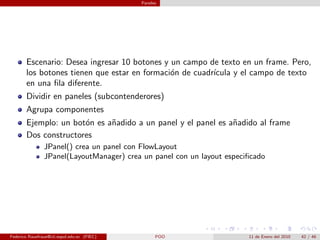
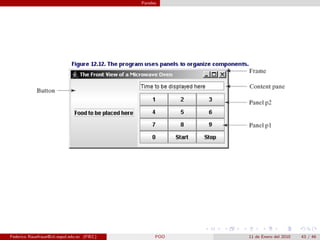
Escenario: Desea ingresar 10 botones y un campo de texto en un frame. Pero,
los botones tienen que estar en formaci´n de cuadr´
o ıcula y el campo de texto
en una fila diferente.
Dividir en paneles (subcontenderores)
Agrupa componentes
Ejemplo: un bot´n es a˜adido a un panel y el panel es a˜adido al frame
o n n
Dos constructores
JPanel() crea un panel con FlowLayout
JPanel(LayoutManager) crea un panel con un layout especificado
Federico Rauefraue@cti.espol.edu.ec (FIEC) POO 11 de Enero del 2010 42 / 46
Paneles
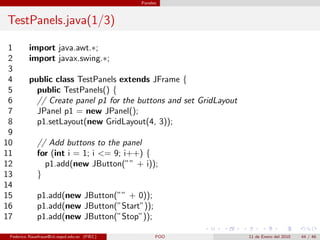
TestPanels.java(1/3)
1 import java.awt.∗;
2 import javax.swing.∗;
3
4 public class TestPanels extends JFrame {
5 public TestPanels() {
6 // Create panel p1 for the buttons and set GridLayout
7 JPanel p1 = new JPanel();
8 p1.setLayout(new GridLayout(4, 3));
9
10 // Add buttons to the panel
11 for (int i = 1; i <= 9; i++) {
12 p1.add(new JButton(”” + i));
13 }
14
15 p1.add(new JButton(”” + 0));
16 p1.add(new JButton(”Start”));
17 p1.add(new JButton(”Stop”));
Federico Rauefraue@cti.espol.edu.ec (FIEC) POO 11 de Enero del 2010 44 / 46
46.
Paneles
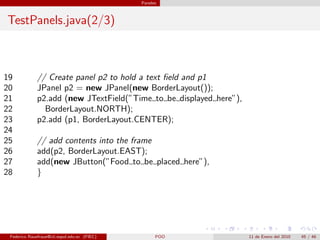
TestPanels.java(2/3)
19 // Create panel p2 to hold a text field and p1
20 JPanel p2 = new JPanel(new BorderLayout());
21 p2.add (new JTextField(”Time to be displayed here”),
22 BorderLayout.NORTH);
23 p2.add (p1, BorderLayout.CENTER);
24
25 // add contents into the frame
26 add(p2, BorderLayout.EAST);
27 add(new JButton(”Food to be placed here”),
28 }
Federico Rauefraue@cti.espol.edu.ec (FIEC) POO 11 de Enero del 2010 45 / 46
47.
Paneles
TestPanels.java(3/3)
30 /∗∗ Main method ∗/
31 public static void main(String[] args) {
32 TestPanels frame = new TestPanels();
33 frame.setTitle(”The Front View of a Microwave Oven”);
34 frame.setLocationRelativeTo(null); // Center the frame
35 frame.setDefaultCloseOperation(JFrame.EXIT ON CLOSE);
36 frame.setSize(400, 250);
37 frame.setVisible(true);
38 }
39 }
Federico Rauefraue@cti.espol.edu.ec (FIEC) POO 11 de Enero del 2010 46 / 46

![Map
TestMap.java(1/2)
1 import java.util.∗;
2
3 public class TestMap {
4 public static void main(String[] args) {
5 // Create a HashMap
6 Map<String, Integer> hashMap = new HashMap<String, Integer>();
7 hashMap.put(”Smith”, 30);
8 hashMap.put(”Anderson”, 31);
9 hashMap.put(”Lewis”, 29);
10 hashMap.put(”Cook”, 29);
11
12 System.out.println(”Display entries in HashMap”);
13 System.out.println(hashMap);
14
15 // Create a TreeMap from the previous HashMap
16 Map<String, Integer> treeMap =
17 new TreeMap<String, Integer>(hashMap);
18 System.out.println(”nDisplay entries in ascending order of key”);
Federico Rauefraue@cti.espol.edu.ec (FIEC) POO 11 de Enero del 2010 6 / 46](https://image.slidesharecdn.com/sesion11gui1-100926003301-phpapp02/85/Interfaz_Grafica_POO-6-320.jpg)
![Map
CountOccurrenceOfWords.java(1/2)
1 import java.util.∗;
2
3 public class CountOccurrenceOfWords {
4 public static void main(String[] args) {
5 // Text in a string
6 String text = ”Have a good day. Have a good class. ” +
7 ”Have a good visit. Have fun!”;
8
9 // Create a hash map to hold words as key and count as value
10 Map<String, Integer> hashMap = new HashMap<String, Integer>();
11
12 String[] words = text.split(”[ .!?]”);
13 for (int i = 0; i < words.length; i++) {
14 if (words[i].length() > 1) {
15 if (hashMap.get(words[i]) != null) {
16 int value = hashMap.get(words[i]).intValue();
17 value++;
18 hashMap.put(words[i], value);
19 }
Federico Rauefraue@cti.espol.edu.ec (FIEC) POO 11 de Enero del 2010 10 / 46](https://image.slidesharecdn.com/sesion11gui1-100926003301-phpapp02/85/Interfaz_Grafica_POO-10-320.jpg)
![Map
CountOccurrenceOfWords.java(2/2)
20 else
21 hashMap.put(words[i], 1);
22 }
23 }
24
25 // Create a tree map from the hash map
26 Map<String, Integer> treeMap =
27 new TreeMap<String, Integer>(hashMap);
28
29 // Display mappings
30 System.out.println(”Display words and their count in ” +
31 ”ascending order of the words”);
32 System.out.print(treeMap);
33 }
34 }
Federico Rauefraue@cti.espol.edu.ec (FIEC) POO 11 de Enero del 2010 11 / 46](https://image.slidesharecdn.com/sesion11gui1-100926003301-phpapp02/85/Interfaz_Grafica_POO-11-320.jpg)
![Componentes Gr´ficos
a
Hasta ahora s´lo han usado la consola
o
GUI – Interfaz Gr´fico
a
Objetos de GUI: buttons, labels, text fields, check boxes, radio buttons,
combo boxes
JButton, JLabel, JTextField, JCheckBox, JRadioButton, JComboBox
Ejemplos
Create a button with text OK
JButton jbtOK = new JButton(“OK”);
Create a label with text “Enter your name: ”
JLabel jlblName = new JLabel(“Enter your name: ”);
Create a text field with text “Type Name Here”
JTextField jtfName = new JTextField(“Type Name Here”);
Create a check box with text bold
JCheckBox jchkBold = new JCheckBox(“Bold”);
Create a radio button with text red
JRadioButton jrbRed = new JRadioButton(“Red“);
Create a combo box with choices red, green, and blue
JComboBox jcboColor = new JComboBox(new String[]”Red“, ”Green“,
”Blue“);
Federico Rauefraue@cti.espol.edu.ec (FIEC) POO 11 de Enero del 2010 14 / 46](https://image.slidesharecdn.com/sesion11gui1-100926003301-phpapp02/85/Interfaz_Grafica_POO-14-320.jpg)
![Frame
MyFrame.java
1 import javax.swing.∗;
2
3 public class MyFrame {
4 public static void main(String[] args) {
5 JFrame frame = new JFrame(”MyFrame”); // Create a frame
6 frame.setSize(400, 300); // Set the frame size
7 frame.setLocationRelativeTo(null); // New since JDK 1.4
8 frame.setDefaultCloseOperation(JFrame.EXIT ON CLOSE);
9 frame.setVisible(true); // Display the frame
10 }
11 }
Federico Rauefraue@cti.espol.edu.ec (FIEC) POO 11 de Enero del 2010 21 / 46](https://image.slidesharecdn.com/sesion11gui1-100926003301-phpapp02/85/Interfaz_Grafica_POO-21-320.jpg)
![Frame
MyFrameWithComponents.java
1 import javax.swing.∗;
2
3 public class MyFrameWithComponents {
4 public static void main(String[] args) {
5 JFrame frame = new JFrame(”MyFrameWithComponents”);
6
7 // Add a button into the frame
8 JButton jbtOK = new JButton(”OK”);
9 frame.add(jbtOK);
10
11 frame.setSize(400, 300);
12 frame.setDefaultCloseOperation(JFrame.EXIT ON CLOSE);
13 frame.setLocationRelativeTo(null); // Center the frame
14 frame.setVisible(true);
15 }
16 }
Federico Rauefraue@cti.espol.edu.ec (FIEC) POO 11 de Enero del 2010 23 / 46](https://image.slidesharecdn.com/sesion11gui1-100926003301-phpapp02/85/Interfaz_Grafica_POO-23-320.jpg)
![Layout Managers
ShowFlowLayout.java(2/2)
20
21 /∗∗ Main method ∗/
22 public static void main(String[] args) {
23 ShowFlowLayout frame = new ShowFlowLayout();
24 frame.setTitle(”ShowFlowLayout”);
25 frame.setLocationRelativeTo(null); // Center the frame
26 frame.setDefaultCloseOperation(JFrame.EXIT ON CLOSE);
27 frame.setSize(200, 200);
28 frame.setVisible(true);
29 }
30 }
Federico Rauefraue@cti.espol.edu.ec (FIEC) POO 11 de Enero del 2010 29 / 46](https://image.slidesharecdn.com/sesion11gui1-100926003301-phpapp02/85/Interfaz_Grafica_POO-29-320.jpg)
![Layout Managers
ShowGridLayout.java(2/2)
20
21 /∗∗ Main method ∗/
22 public static void main(String[] args) {
23 ShowGridLayout frame = new ShowGridLayout();
24 frame.setTitle(”ShowGridLayout”);
25 frame.setLocationRelativeTo(null); // Center the frame
26 frame.setDefaultCloseOperation(JFrame.EXIT ON CLOSE);
27 frame.setSize(200, 125);
28 frame.setVisible(true);
29 }
30 }
Federico Rauefraue@cti.espol.edu.ec (FIEC) POO 11 de Enero del 2010 35 / 46](https://image.slidesharecdn.com/sesion11gui1-100926003301-phpapp02/85/Interfaz_Grafica_POO-35-320.jpg)
![Layout Managers
ShowBorderLayout.java(2/2)
18 /∗∗ Main method ∗/
19 public static void main(String[] args) {
20 ShowBorderLayout frame = new ShowBorderLayout();
21 frame.setTitle(”ShowBorderLayout”);
22 frame.setLocationRelativeTo(null); // Center the frame
23 frame.setDefaultCloseOperation(JFrame.EXIT ON CLOSE);
24 frame.setSize(300, 200);
25 frame.setVisible(true);
26 }
27 }
Federico Rauefraue@cti.espol.edu.ec (FIEC) POO 11 de Enero del 2010 39 / 46](https://image.slidesharecdn.com/sesion11gui1-100926003301-phpapp02/85/Interfaz_Grafica_POO-39-320.jpg)
![Paneles
TestPanels.java(3/3)
30 /∗∗ Main method ∗/
31 public static void main(String[] args) {
32 TestPanels frame = new TestPanels();
33 frame.setTitle(”The Front View of a Microwave Oven”);
34 frame.setLocationRelativeTo(null); // Center the frame
35 frame.setDefaultCloseOperation(JFrame.EXIT ON CLOSE);
36 frame.setSize(400, 250);
37 frame.setVisible(true);
38 }
39 }
Federico Rauefraue@cti.espol.edu.ec (FIEC) POO 11 de Enero del 2010 46 / 46](https://image.slidesharecdn.com/sesion11gui1-100926003301-phpapp02/85/Interfaz_Grafica_POO-47-320.jpg)


