Downloading Ubuntu…
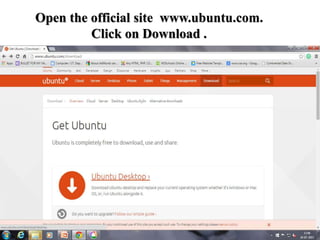
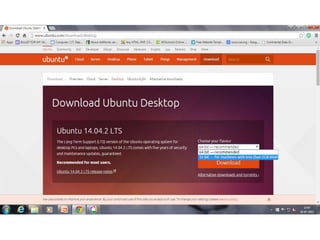
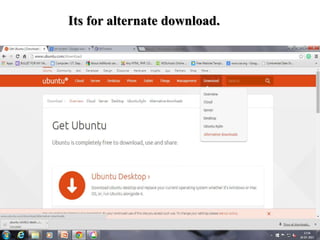
Open the official site www.ubuntu.com.
Click on Download .
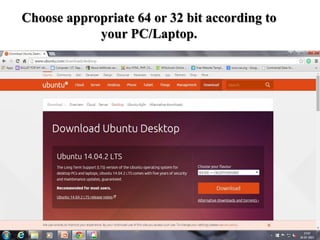
Choose appropriate 64 or 32 bit according to
your PC/Laptop.
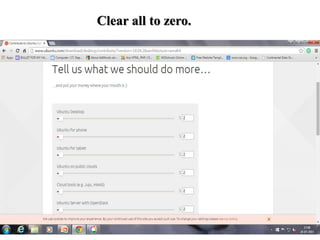
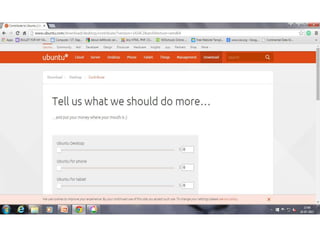
Clear all to zero.
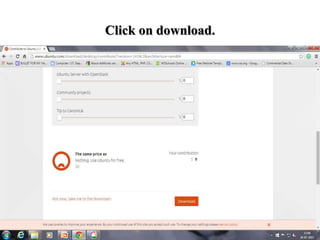
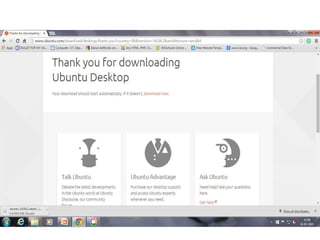
Click on download.
Its for alternate download.
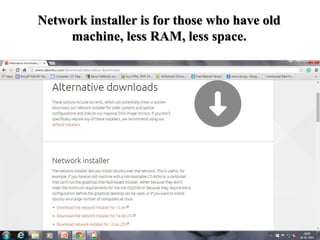
Network installer is for those who have old
machine, less RAM, less space.
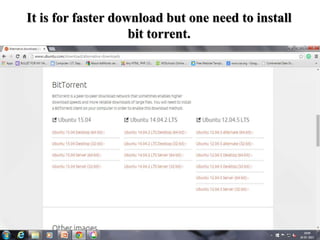
It is for faster download but one need to install
bit torrent.
Making CD-DVD bootable…
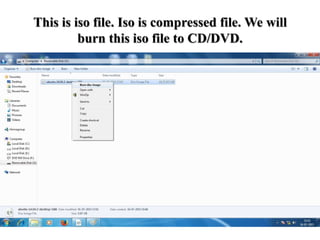
This is iso file. Iso is compressed file. We will
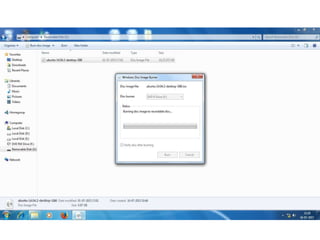
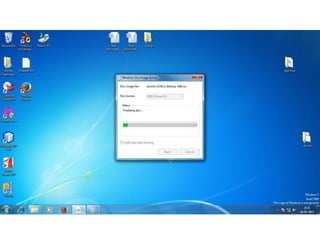
burn this iso file to CD/DVD.
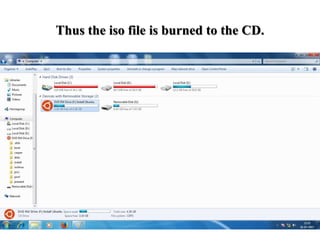
Thus the iso file is burned to the CD.
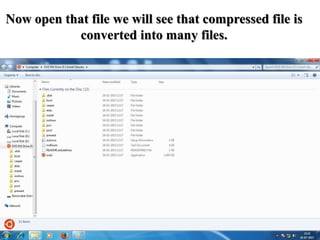
Now open that file we will see that compressed file is
converted into many files.
Creating space for installing
Ubuntu…
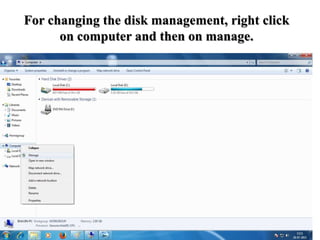
For changing the disk management, right click
on computer and then on manage.
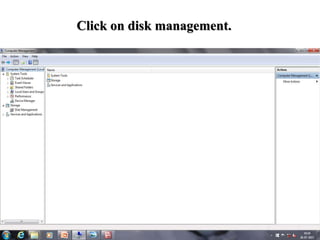
Click on disk management.
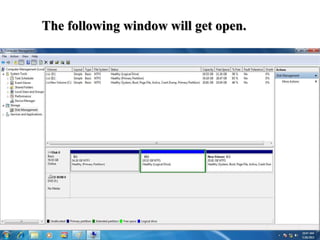
The following window will get open.
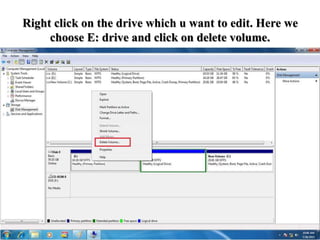
Right click on the drive which u want to edit. Here we
choose E: drive and click on delete volume.
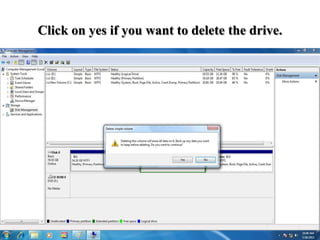
Click on yes if you want to delete the drive.
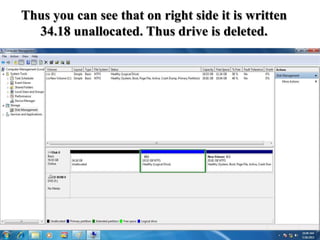
Thus you can see that on right side it is written
34.18 unallocated. Thus drive is deleted.
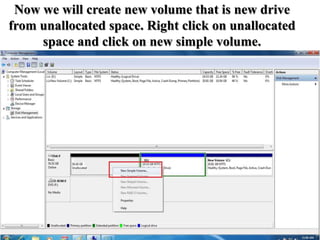
Now we will create new volume that is new drive
from unallocated space. Right click on unallocated
space and click on new simple volume.
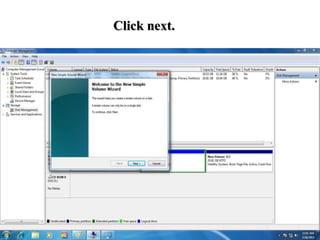
Click next.
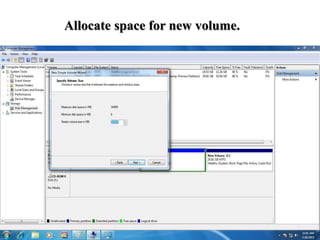
Allocate space for new volume.
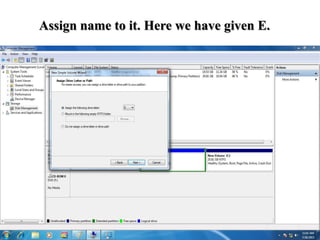
Assign name to it. Here we have given E.
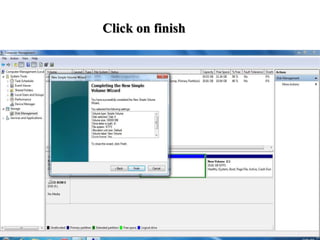
Click on finish
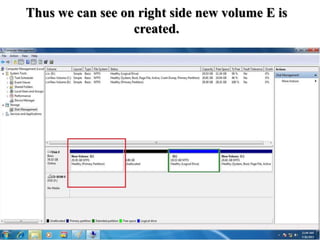
Thus we can see on right side new volume E is
created.
Installation of Ubuntu by booting…
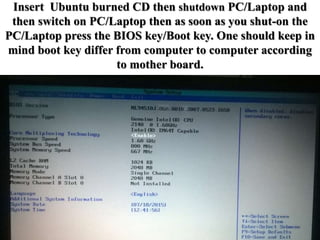
Insert Ubuntu burned CD then shutdown PC/Laptop and
then switch on PC/Laptop then as soon as you shut-on the
PC/Laptop press the BIOS key/Boot key. One should keep in
mind boot key differ from computer to computer according
to mother board.
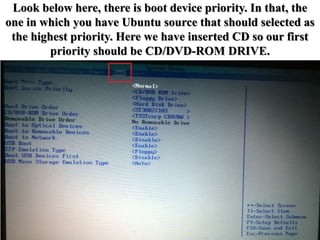
Look below here, there is boot device priority. In that, the
one in which you have Ubuntu source that should selected as
the highest priority. Here we have inserted CD so our first
priority should be CD/DVD-ROM DRIVE.
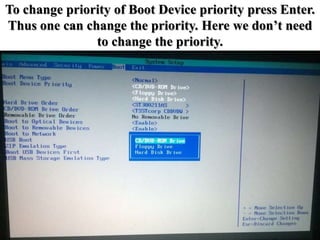
To change priority of Boot Device priority press Enter.
Thus one can change the priority. Here we don’t need
to change the priority.
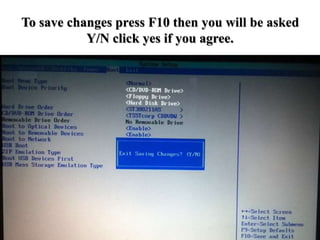
To save changes press F10 then you will be asked
Y/N click yes if you agree.
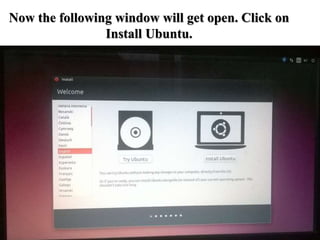
Now the following window will get open. Click on
Install Ubuntu.
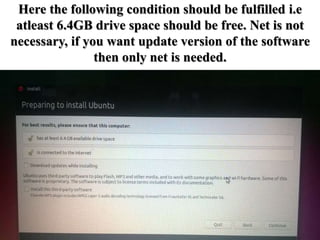
Here the following condition should be fulfilled i.e
atleast 6.4GB drive space should be free. Net is not
necessary, if you want update version of the software
then only net is needed.
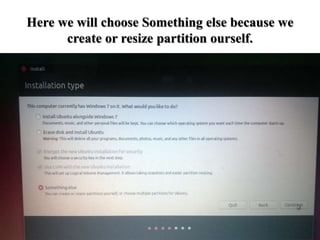
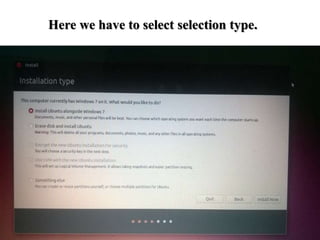
Here we have to select selection type.
Here we will choose Something else because we
create or resize partition ourself.
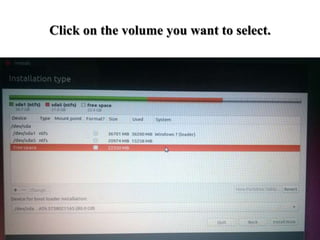
Click on the volume you want to select.
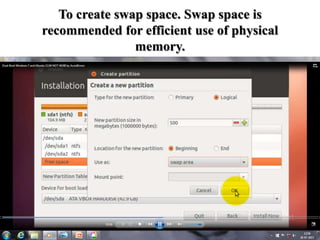
To create swap space. Swap space is
recommended for efficient use of physical
memory.
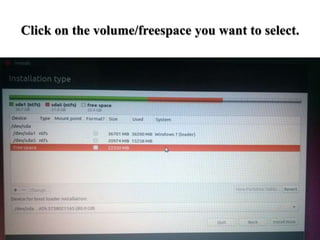
Click on the volume/freespace you want to select.
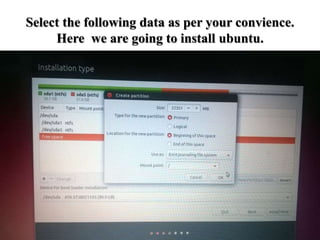
Select the following data as per your convience.
Here we are going to install ubuntu.
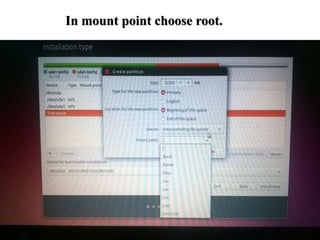
In mount point choose root.
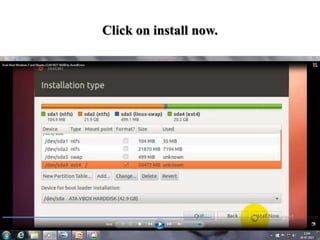
Click on install now.
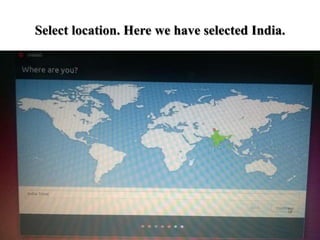
Select location. Here we have selected India.
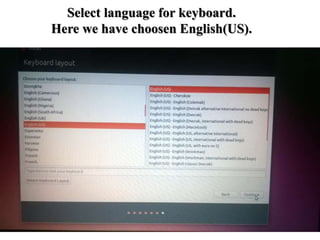
Select language for keyboard.
Here we have choosen English(US).
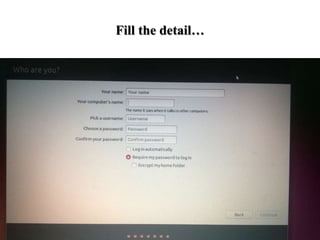
Fill the detail…
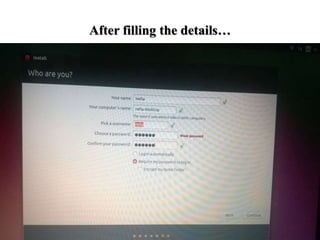
After filling the details…
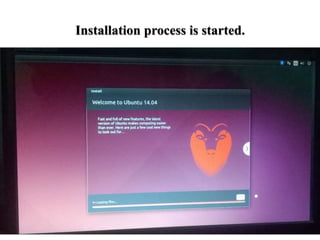
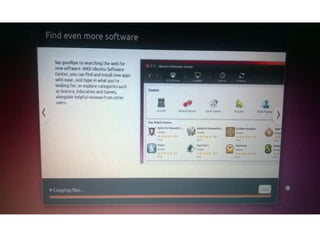
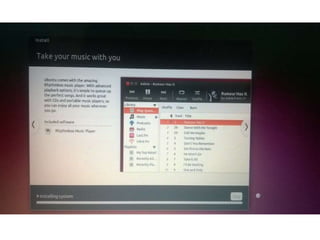
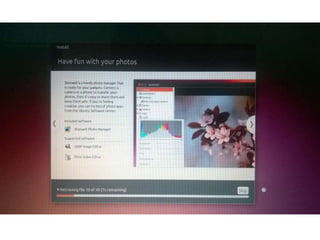
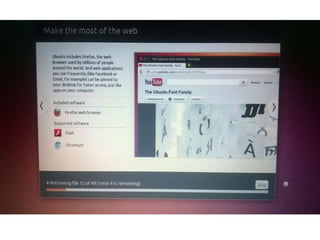
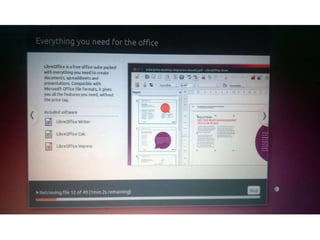
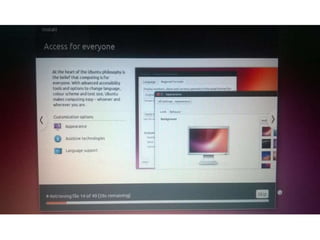
Installation process is started.
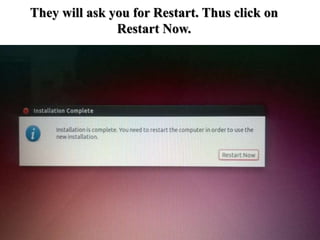
They will ask you for Restart. Thus click on
Restart Now.
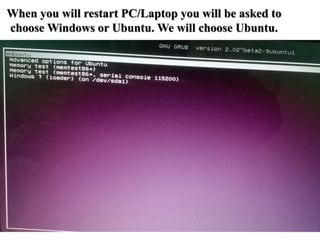
When you will restart PC/Laptop you will be asked to
choose Windows or Ubuntu. We will choose Ubuntu.
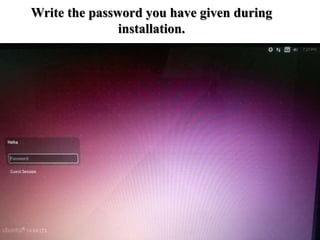
Write the password you have given during
installation.
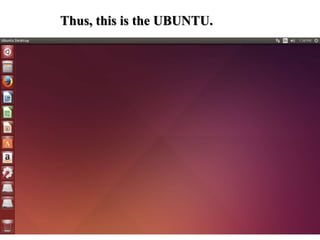
Thus, this is the UBUNTU.
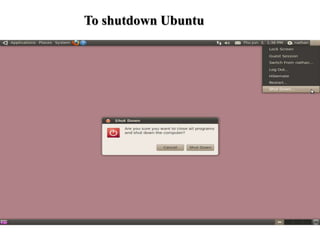
To shutdown Ubuntu
Installation of Virtual Machine
Workstation…
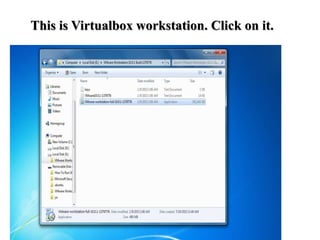
This is Virtualbox workstation. Click on it.
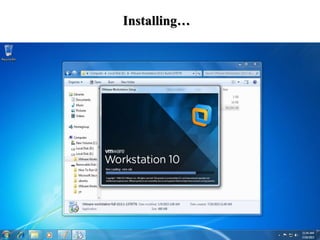
Installing…
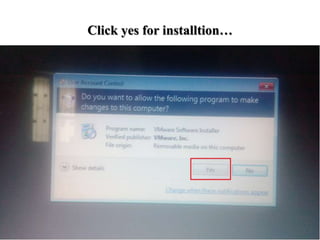
Click yes for installtion…
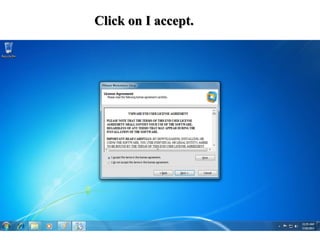
Click on I accept.
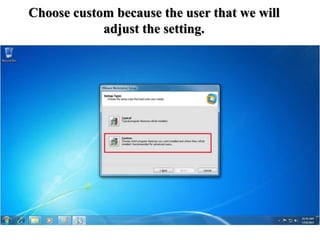
Choose custom because the user that we will
adjust the setting.
Select the features you want and click on next.
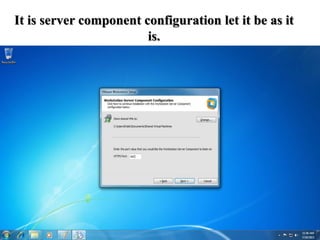
It is server component configuration let it be as it
is.
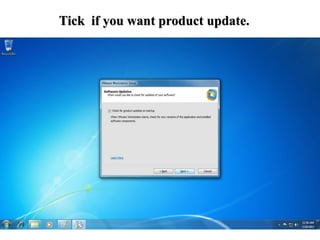
Tick if you want product update.
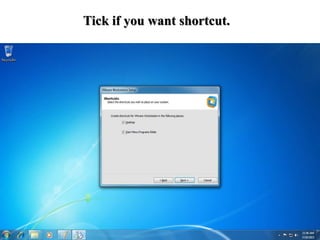
Tick if you want shortcut.
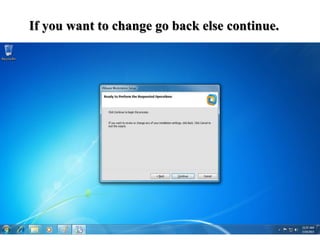
If you want to change go back else continue.
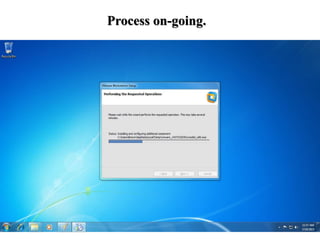
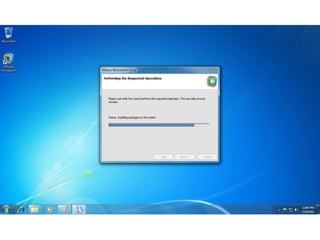
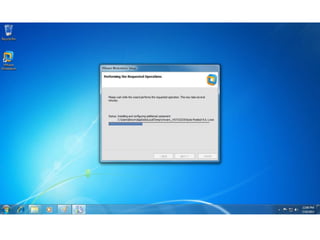
Process on-going.
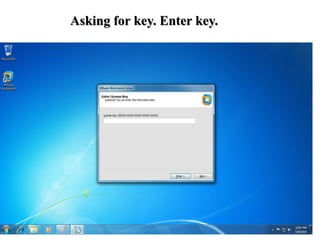
Asking for key. Enter key.
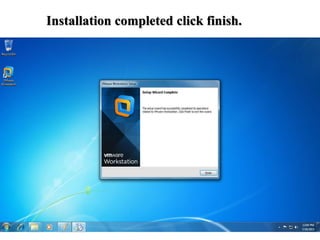
Installation completed click finish.
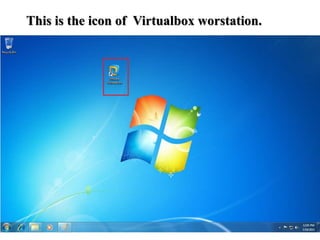
This is the icon of Virtualbox worstation.
Installing ubuntu by virtual
machine workstation…
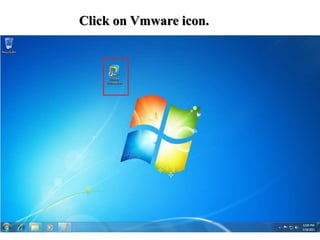
Click on Vmware icon.
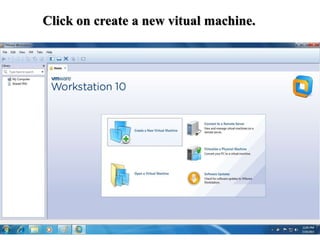
Click on create a new vitual machine.
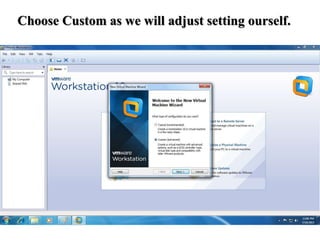
Choose Custom as we will adjust setting ourself.
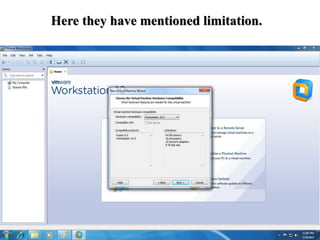
Here they have mentioned limitation.
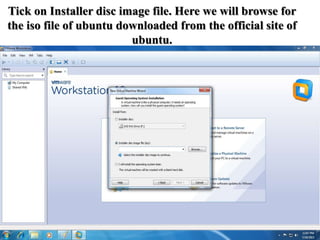
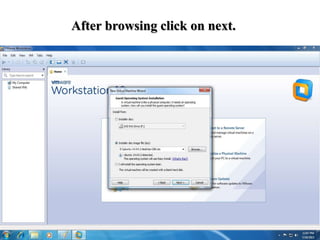
Tick on Installer disc image file. Here we will browse for
the iso file of ubuntu downloaded from the official site of
ubuntu.
After browsing click on next.
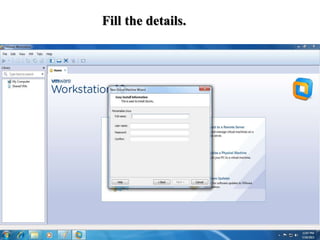
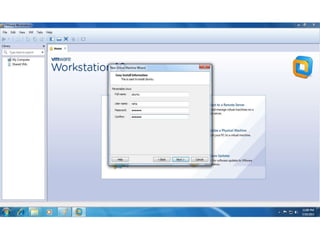
Fill the details.
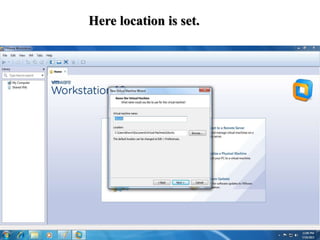
Here location is set.
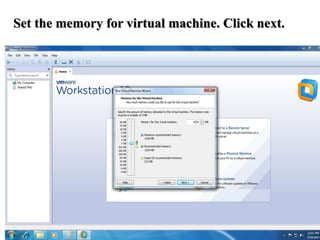
Set the memory for virtual machine. Click next.
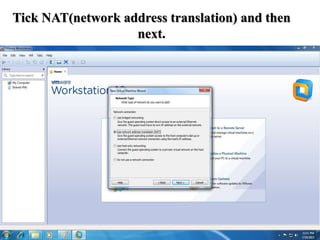
Tick NAT(network address translation) and then
next.
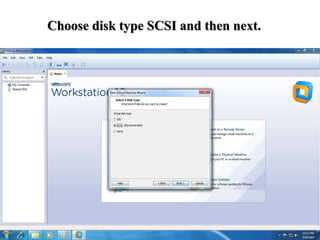
Choose disk type SCSI and then next.
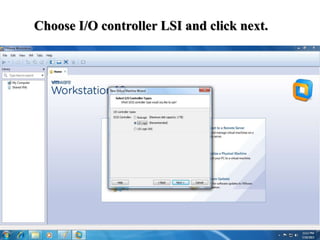
Choose I/O controller LSI and click next.
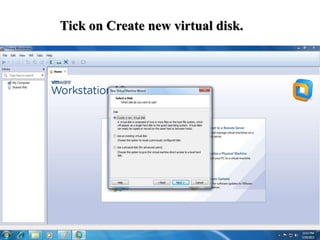
Tick on Create new virtual disk.
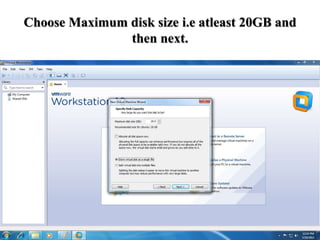
Choose Maximum disk size i.e atleast 20GB and
then next.
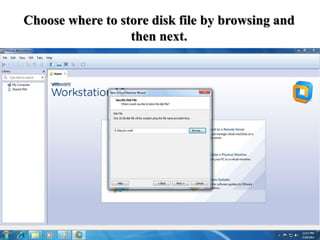
Choose where to store disk file by browsing and
then next.
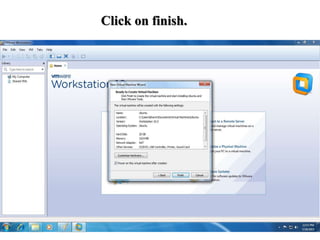
Click on finish.
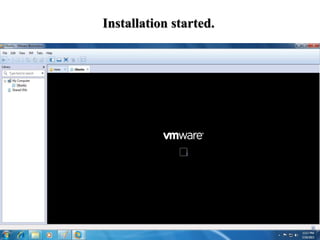
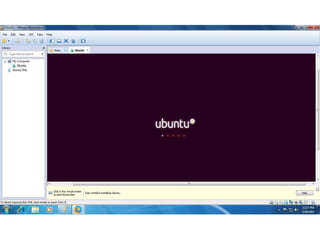
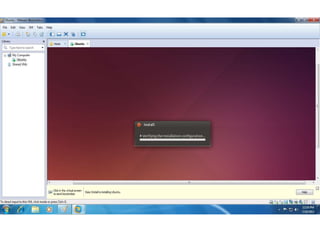
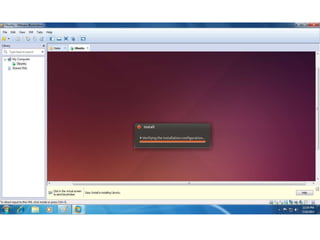
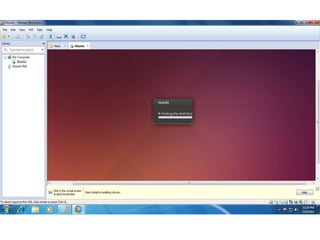
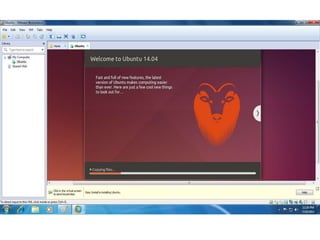
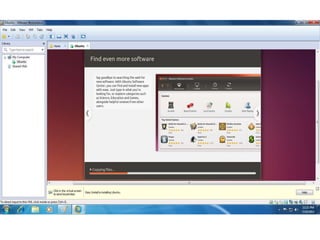
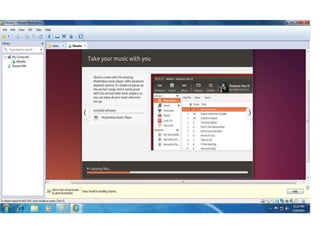
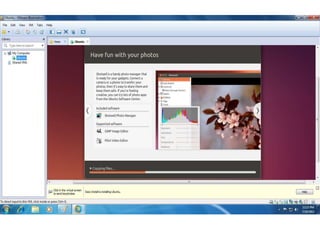
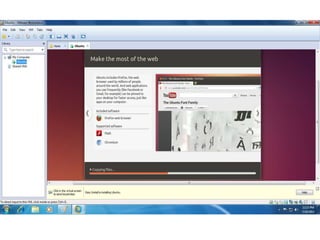
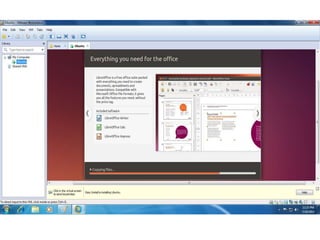
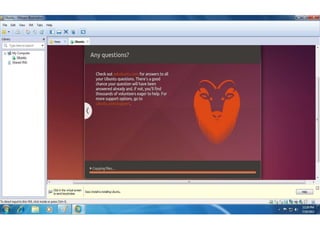
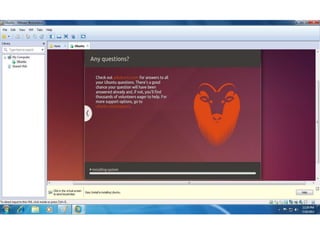
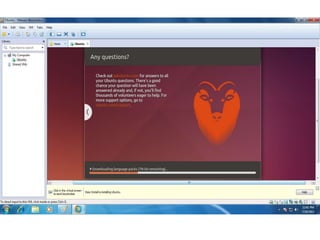
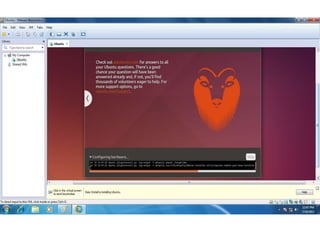
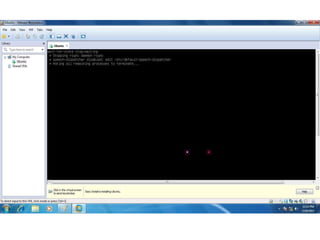
Installation started.
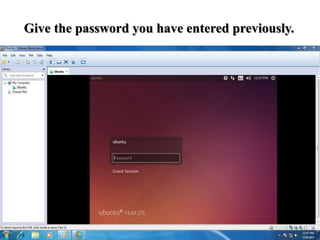
Give the password you have entered previously.
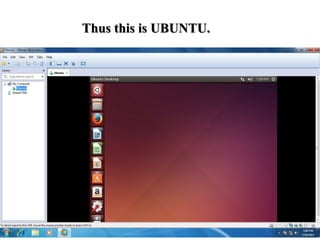
Thus this is UBUNTU.
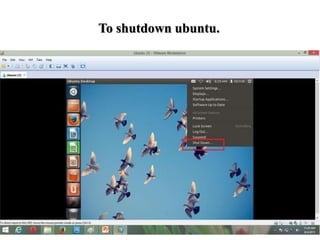
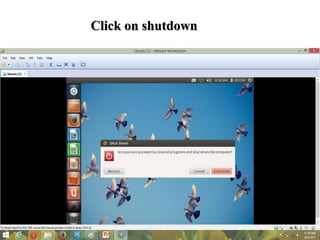
To shutdown ubuntu.
Click on shutdown
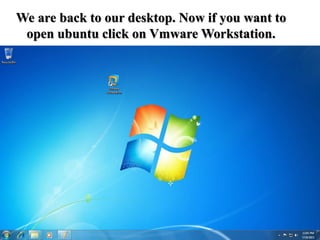
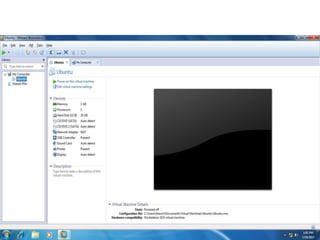
We are back to our desktop. Now if you want to
open ubuntu click on Vmware Workstation.
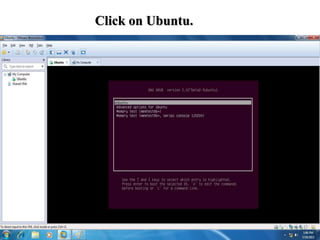
Click on Ubuntu.
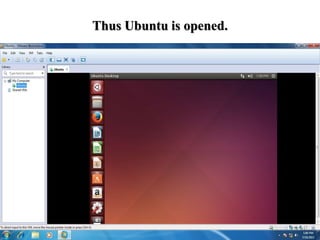
Thus Ubuntu is opened.
Installing UBUNTU