Implementing a document
viewer in ASP.NET Core 8.0
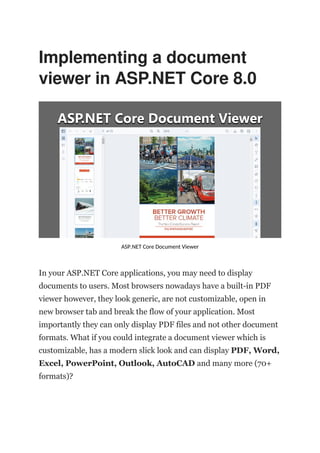
ASP.NET Core Document Viewer
In your ASP.NET Core applications, you may need to display
documents to users. Most browsers nowadays have a built-in PDF
viewer however, they look generic, are not customizable, open in
new browser tab and break the flow of your application. Most
importantly they can only display PDF files and not other document
formats. What if you could integrate a document viewer which is
customizable, has a modern slick look and can display PDF, Word,
Excel, PowerPoint, Outlook, AutoCAD and many more (70+
formats)?
This post will focus on ASP.NET Core Document Viewer which is
best on the market for this job, regarding performance and easy,
straightforward API. It also supports ASP.NET Classic for legacy
applications but in this post we will use the newest and best tech
ASP.NET Core.
Step 1 — Create an ASP.NET Core project
 Open Visual Studio 2022 and create a project by
selecting ASP.NET Core Web App (MVC) template. Other
ASP.NET Core templates can also be used but we will use
this template for this example.
 Give the project a name e.g. SampleDocumentViewer.
 Choose .NET 8.0 as framework. Older .NET versions are
also supported but we will use current LTS version 8.0 for
this example.
Step 2 — Add the necessary NuGet packages
 Right-click on the project in Solution Explorer and select
Manage NuGet Packages.
 Search DocumentUltimate and install the found package.
Step 3 — Add the initialization code to ASP.NET Core
pipeline
 Open Program.cs of your project and copy only the marked
lines to the same location:
var builder = WebApplication.CreateBuilder(args);
// Add services to the container.
builder.Services.AddControllersWithViews();
//----------------------
//Add GleamTech to the ASP.NET Core services container.
builder.Services.AddGleamTech();
//----------------------
var app = builder.Build();
// Configure the HTTP request pipeline.
if (!app.Environment.IsDevelopment())
{
app.UseExceptionHandler("/Home/Error");
}
//----------------------
//Register GleamTech to the ASP.NET Core HTTP request pipeline.
app.UseGleamTech();
//----------------------
app.UseStaticFiles();
app.UseRouting();
app.UseAuthorization();
app.MapControllerRoute(
name: "default",
pattern: "{controller=Home}/{action=Index}/{id?}");
app.Run();
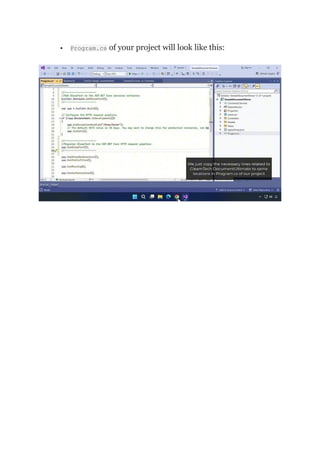
 Program.cs of your project will look like this:
Step 4 — Create a view and controller which will host
the document viewer
 Create MyDocumentViewer.cshtml under ViewsHome and
replace the contents with the following:
@using GleamTech.AspNet.Core
@using GleamTech.DocumentUltimate
@using GleamTech.DocumentUltimate.AspNet
@using GleamTech.DocumentUltimate.AspNet.UI
<!DOCTYPE html>
@{
var documentViewer = new DocumentViewer
{
Width = 800,
Height = 600,
Document = "~/Documents/Document.docx"
};
}
<html>
<head>
<title>Document Viewer</title>
@this.RenderHead(documentViewer)
</head>
<body>
@this.RenderBody(documentViewer)
</body>
</html>
 Add a controller method with same name which loads our
view:
public class HomeController : Controller
{
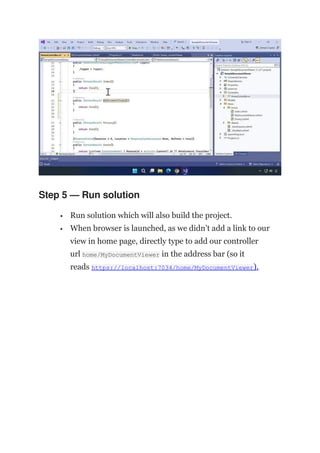
public IActionResult MyDocumentViewer()
{
return View();
}
}
Step 5 — Run solution
 Run solution which will also build the project.
 When browser is launched, as we didn’t add a link to our
view in home page, directly type to add our controller
url home/MyDocumentViewer in the address bar (so it
reads https://localhost:7034/home/MyDocumentViewer).
The output
DocumentViewer is now rendered in our host view and loaded the
given DOCX
document ~/Documents/Document.docx. DocumentViewer.Document
property can be set to a web app relative path (this example), a path
on disk, an Azure Blob file, an Amazon S3 file, a byte array or a
stream. This is possible by file providers feature. Please refer to docs
for more info and sample code on this.
Additional information
 Video Tutorial
 Online Documentation
 Live Demo Examples

Implementing a document viewer in ASP.NET Core 8.0

  • 1.
    Implementing a document viewerin ASP.NET Core 8.0 ASP.NET Core Document Viewer In your ASP.NET Core applications, you may need to display documents to users. Most browsers nowadays have a built-in PDF viewer however, they look generic, are not customizable, open in new browser tab and break the flow of your application. Most importantly they can only display PDF files and not other document formats. What if you could integrate a document viewer which is customizable, has a modern slick look and can display PDF, Word, Excel, PowerPoint, Outlook, AutoCAD and many more (70+ formats)?
  • 2.
    This post willfocus on ASP.NET Core Document Viewer which is best on the market for this job, regarding performance and easy, straightforward API. It also supports ASP.NET Classic for legacy applications but in this post we will use the newest and best tech ASP.NET Core. Step 1 — Create an ASP.NET Core project  Open Visual Studio 2022 and create a project by selecting ASP.NET Core Web App (MVC) template. Other ASP.NET Core templates can also be used but we will use this template for this example.
  • 3.
     Give theproject a name e.g. SampleDocumentViewer.  Choose .NET 8.0 as framework. Older .NET versions are also supported but we will use current LTS version 8.0 for this example.
  • 4.
    Step 2 —Add the necessary NuGet packages  Right-click on the project in Solution Explorer and select Manage NuGet Packages.  Search DocumentUltimate and install the found package.
  • 5.
    Step 3 —Add the initialization code to ASP.NET Core pipeline  Open Program.cs of your project and copy only the marked lines to the same location: var builder = WebApplication.CreateBuilder(args); // Add services to the container. builder.Services.AddControllersWithViews(); //---------------------- //Add GleamTech to the ASP.NET Core services container. builder.Services.AddGleamTech(); //---------------------- var app = builder.Build(); // Configure the HTTP request pipeline. if (!app.Environment.IsDevelopment()) { app.UseExceptionHandler("/Home/Error"); } //---------------------- //Register GleamTech to the ASP.NET Core HTTP request pipeline. app.UseGleamTech(); //---------------------- app.UseStaticFiles(); app.UseRouting(); app.UseAuthorization(); app.MapControllerRoute( name: "default", pattern: "{controller=Home}/{action=Index}/{id?}"); app.Run();
  • 6.
     Program.cs ofyour project will look like this:
  • 7.
    Step 4 —Create a view and controller which will host the document viewer  Create MyDocumentViewer.cshtml under ViewsHome and replace the contents with the following: @using GleamTech.AspNet.Core @using GleamTech.DocumentUltimate @using GleamTech.DocumentUltimate.AspNet @using GleamTech.DocumentUltimate.AspNet.UI <!DOCTYPE html> @{ var documentViewer = new DocumentViewer { Width = 800, Height = 600, Document = "~/Documents/Document.docx" }; } <html> <head> <title>Document Viewer</title> @this.RenderHead(documentViewer) </head> <body> @this.RenderBody(documentViewer) </body> </html>
  • 8.
     Add acontroller method with same name which loads our view: public class HomeController : Controller { public IActionResult MyDocumentViewer() { return View(); } }
  • 9.
    Step 5 —Run solution  Run solution which will also build the project.  When browser is launched, as we didn’t add a link to our view in home page, directly type to add our controller url home/MyDocumentViewer in the address bar (so it reads https://localhost:7034/home/MyDocumentViewer).
  • 10.
    The output DocumentViewer isnow rendered in our host view and loaded the given DOCX document ~/Documents/Document.docx. DocumentViewer.Document property can be set to a web app relative path (this example), a path on disk, an Azure Blob file, an Amazon S3 file, a byte array or a stream. This is possible by file providers feature. Please refer to docs for more info and sample code on this. Additional information  Video Tutorial  Online Documentation  Live Demo Examples