Coding
HTML Basics
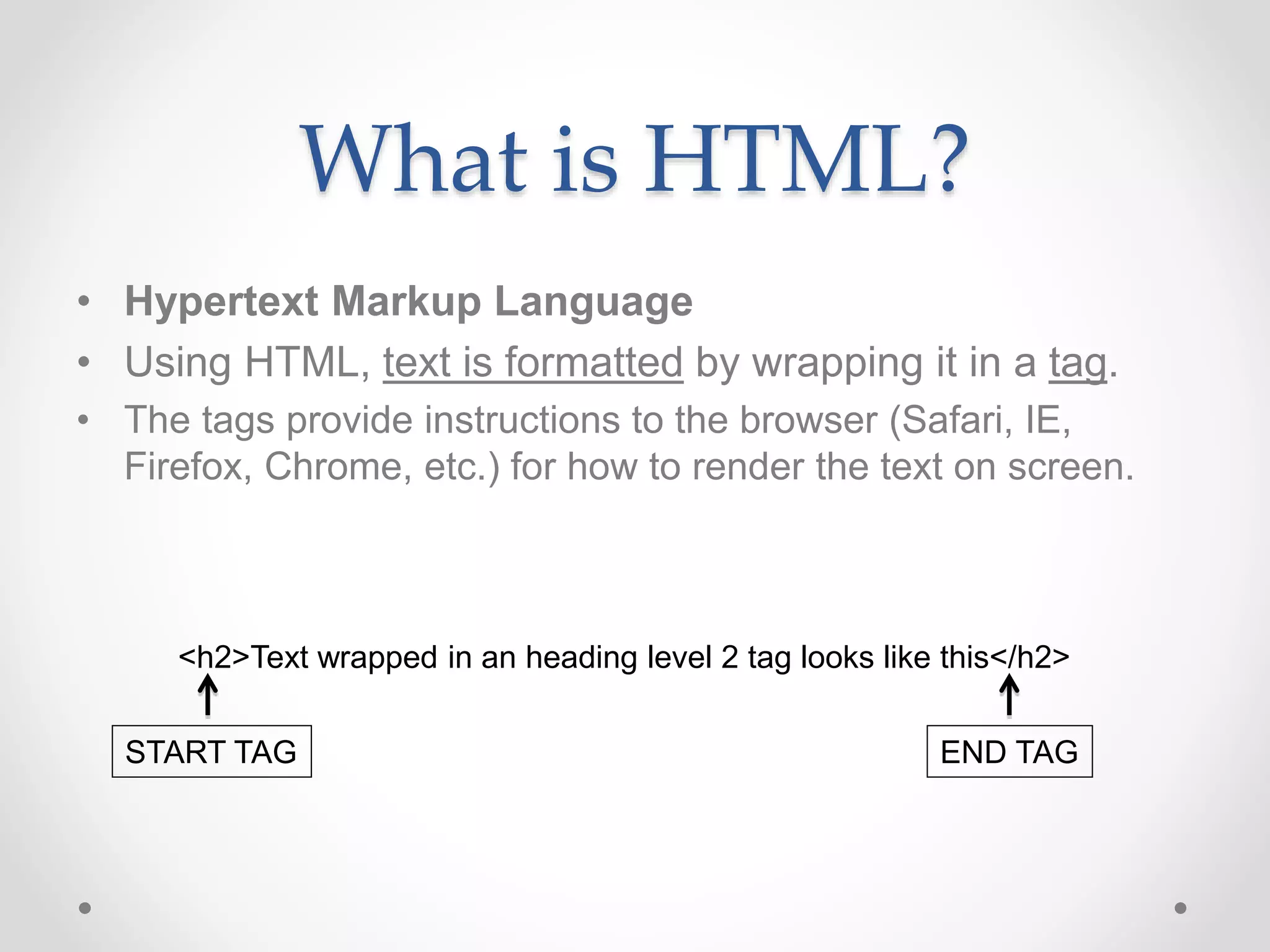
What is HTML?
• Hypertext Markup Language
• Using HTML, text is formatted by wrapping it in a tag.
• The tags provide instructions to the browser (Safari, IE,
Firefox, Chrome, etc.) for how to render the text on screen.
<h2>Text wrapped in an heading level 2 tag looks like this</h2>
START TAG END TAG
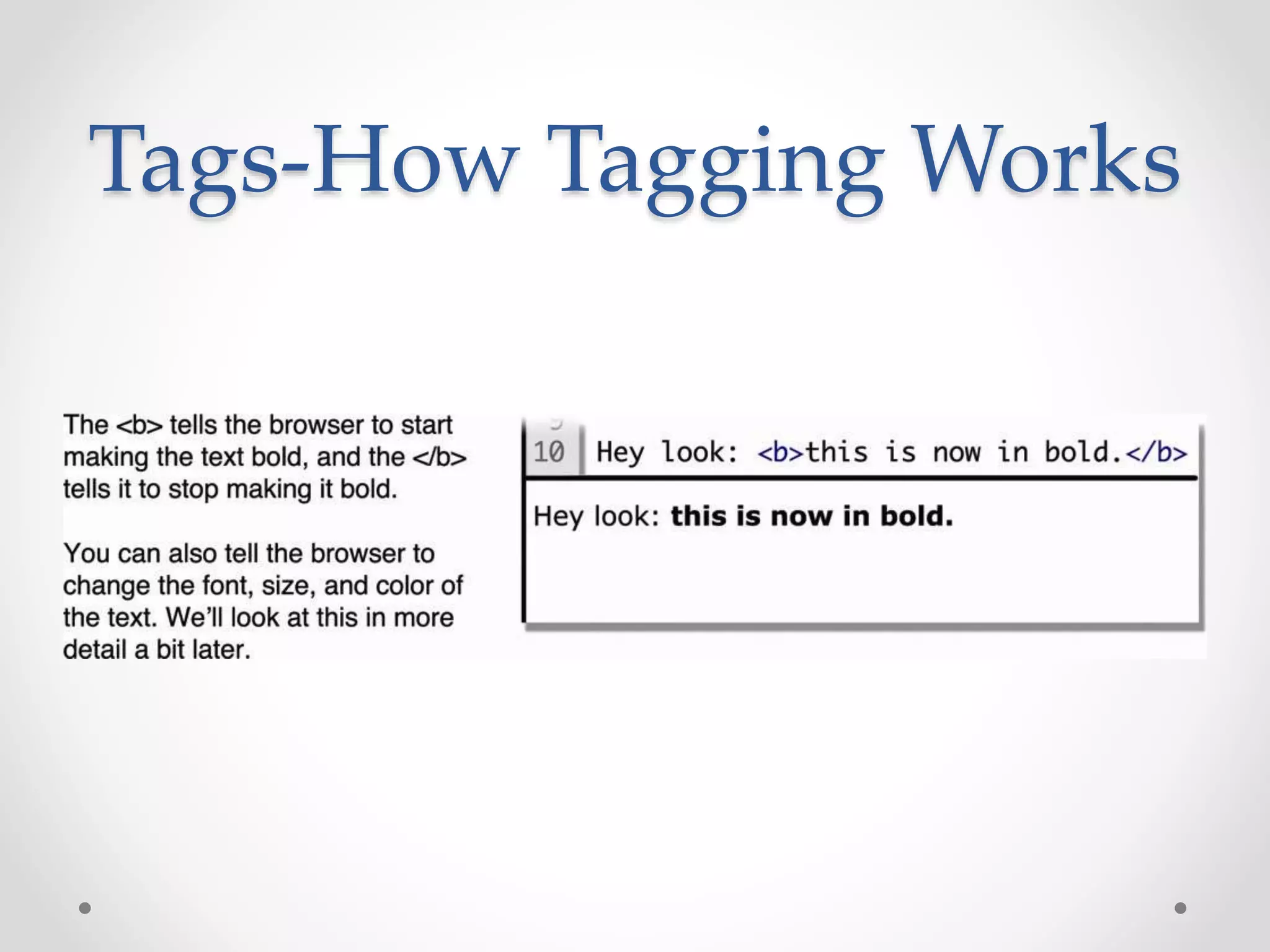
Tags-How Tagging Works
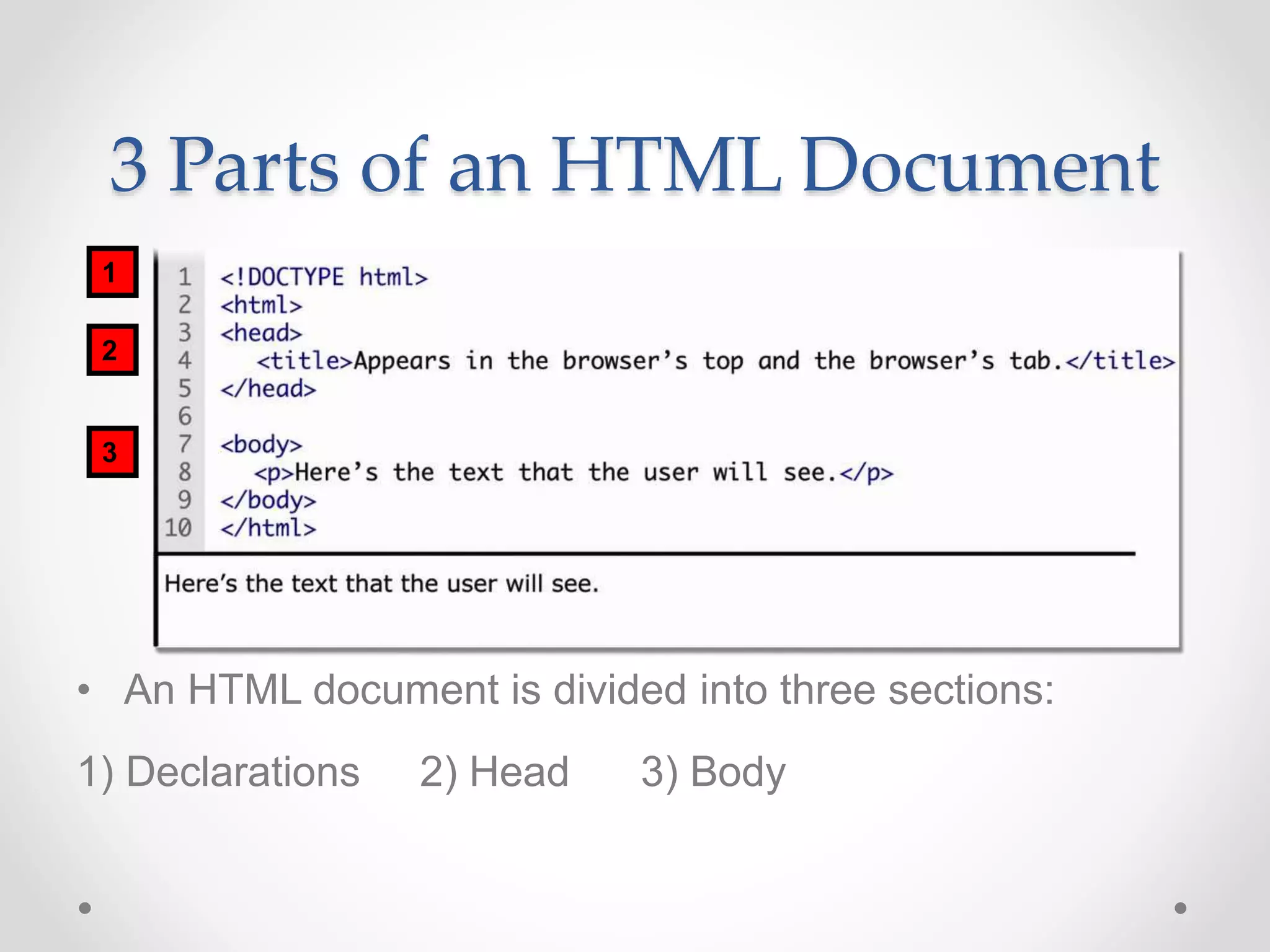
3 Parts of an HTML Document
• An HTML document is divided into three sections:
1) Declarations 2) Head 3) Body
1
2
3
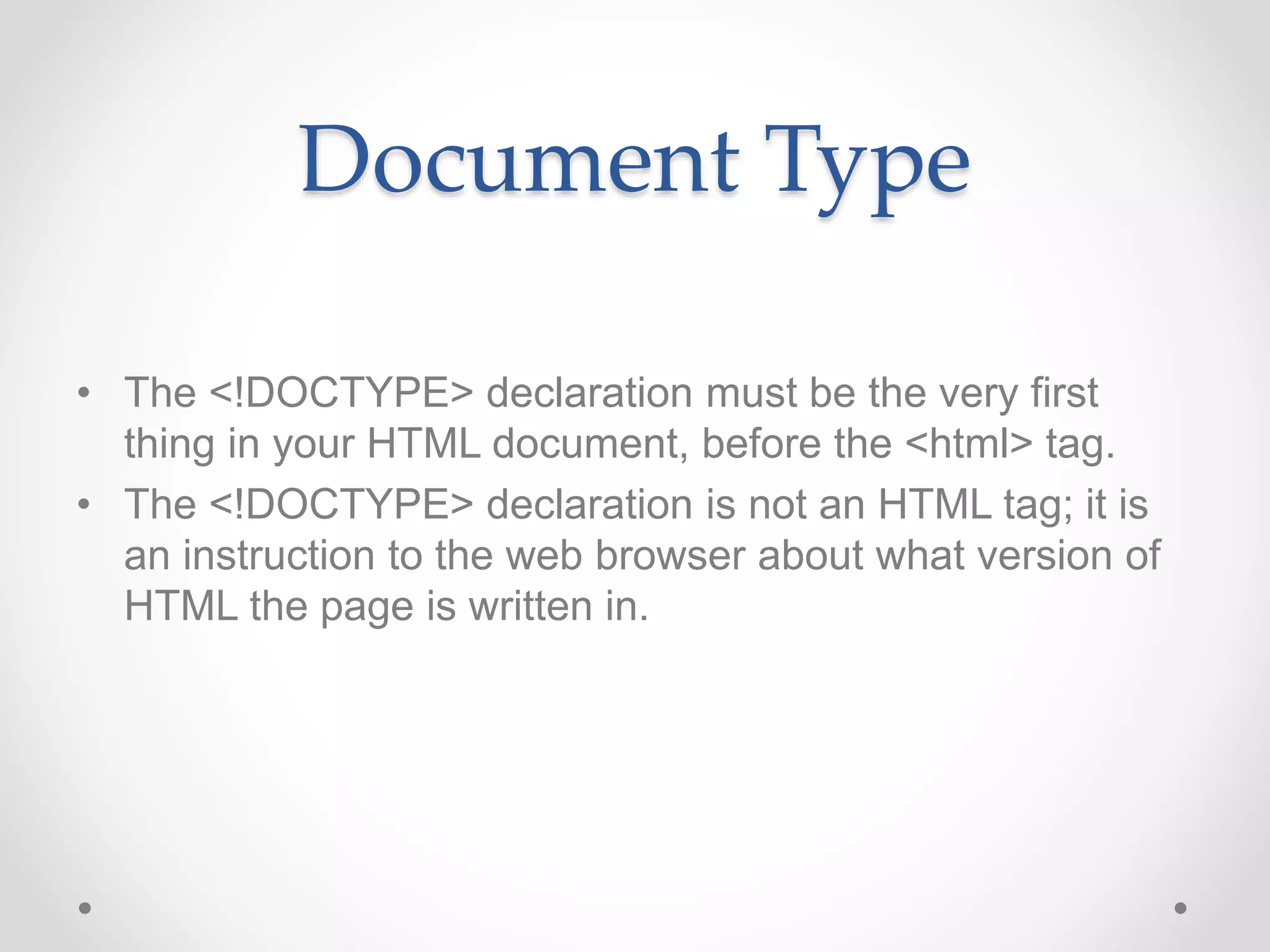
Document Type
• The <!DOCTYPE> declaration must be the very first
thing in your HTML document, before the <html> tag.
• The <!DOCTYPE> declaration is not an HTML tag; it is
an instruction to the web browser about what version of
HTML the page is written in.
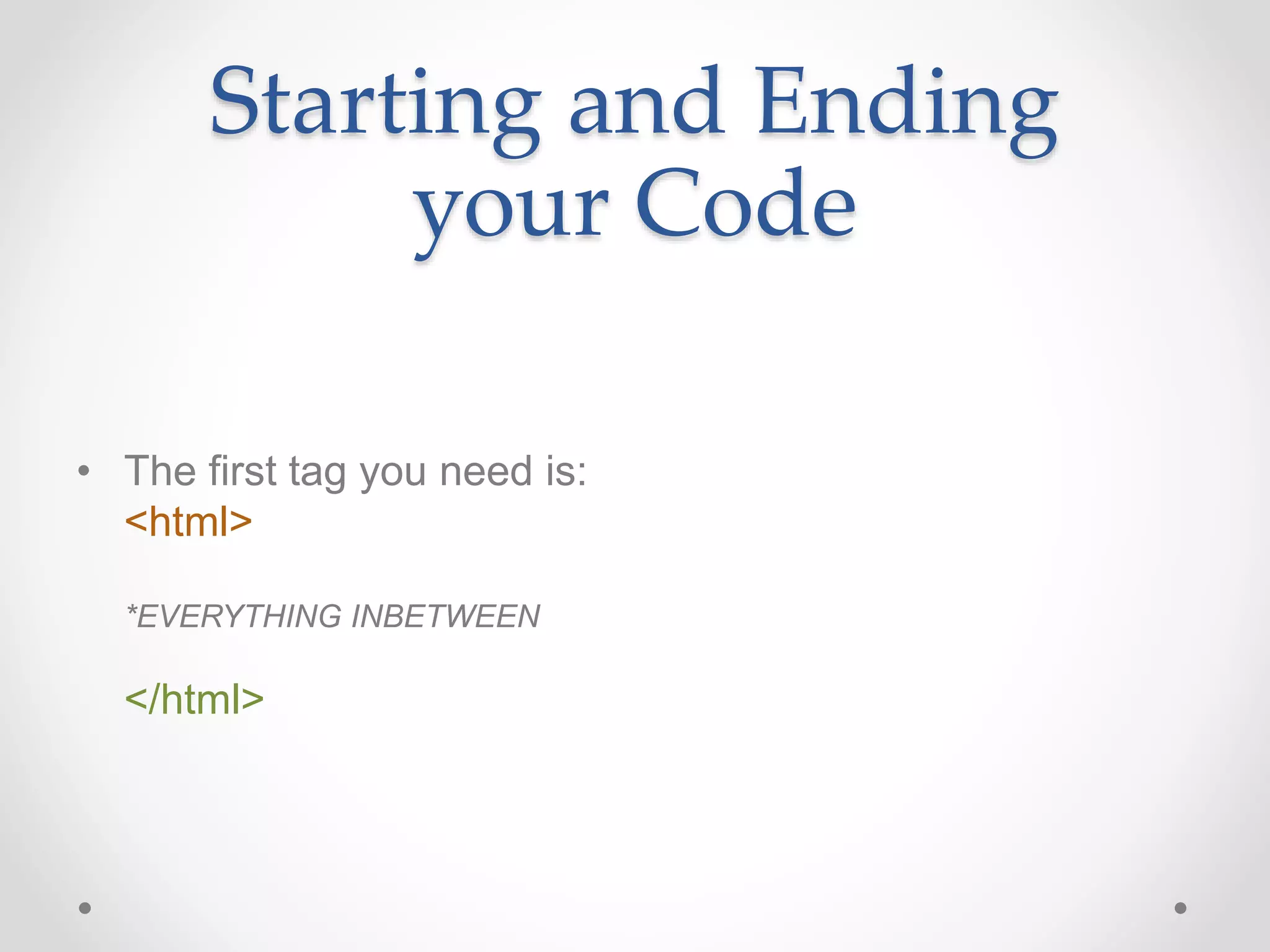
Starting and Ending
your Code
• The first tag you need is:
<html>
*EVERYTHING INBETWEEN
</html>
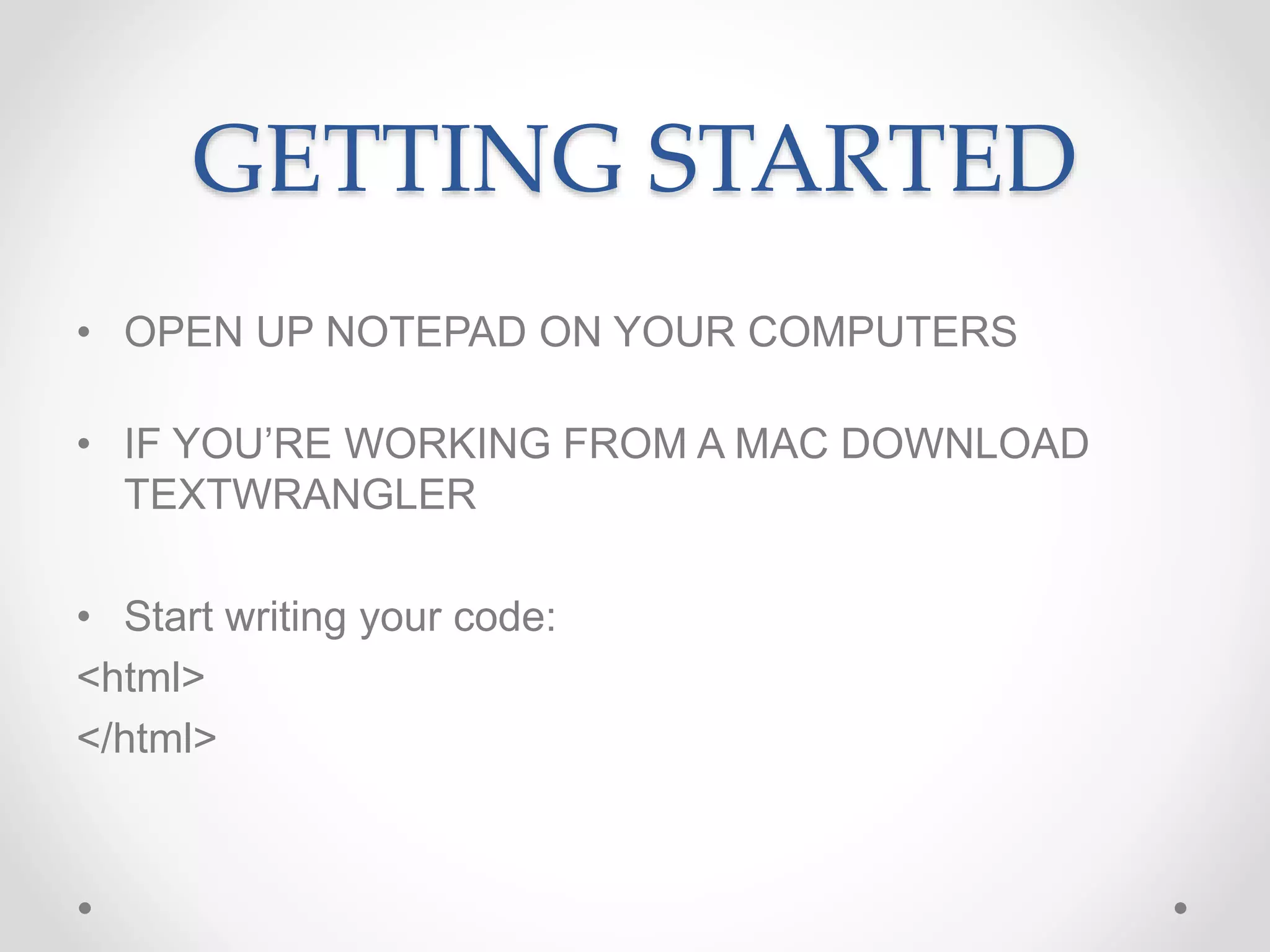
GETTING STARTED
• OPEN UP NOTEPAD ON YOUR COMPUTERS
• IF YOU’RE WORKING FROM A MAC DOWNLOAD
TEXTWRANGLER
• Start writing your code:
<html>
</html>
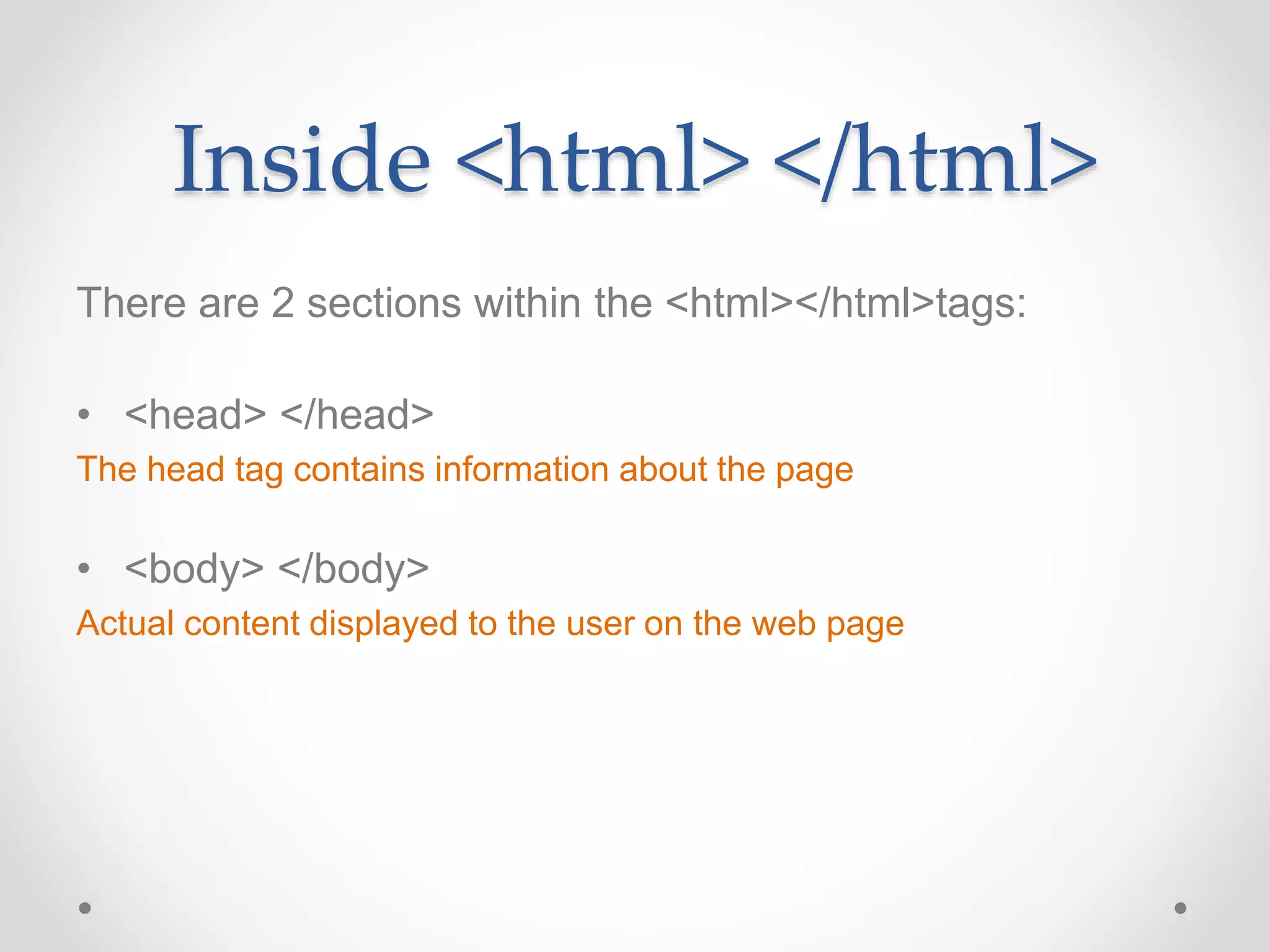
Inside <html> </html>
There are 2 sections within the <html></html>tags:
• <head> </head>
The head tag contains information about the page
• <body> </body>
Actual content displayed to the user on the web page
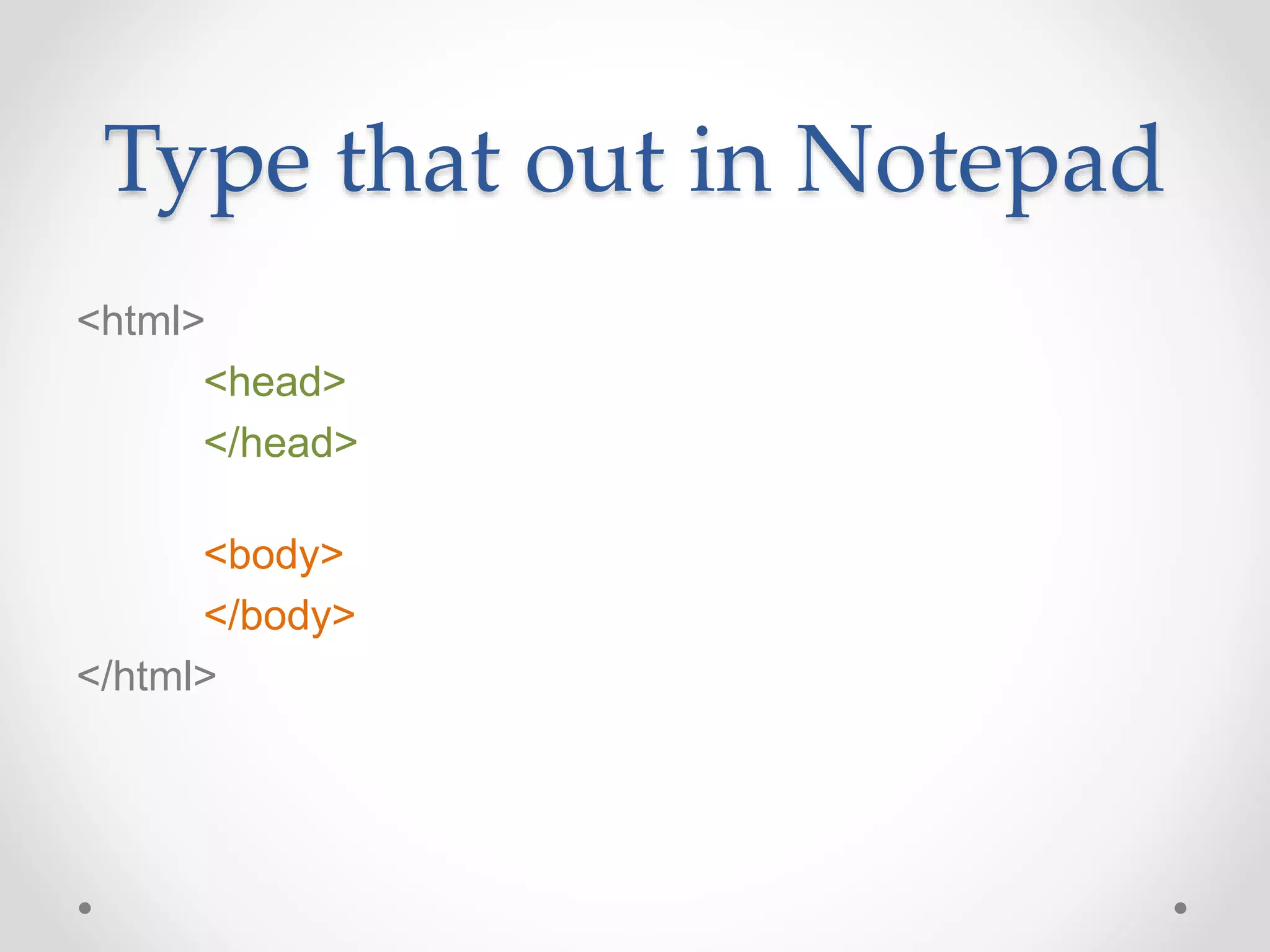
Type that out in Notepad
<html>
<head>
</head>
<body>
</body>
</html>
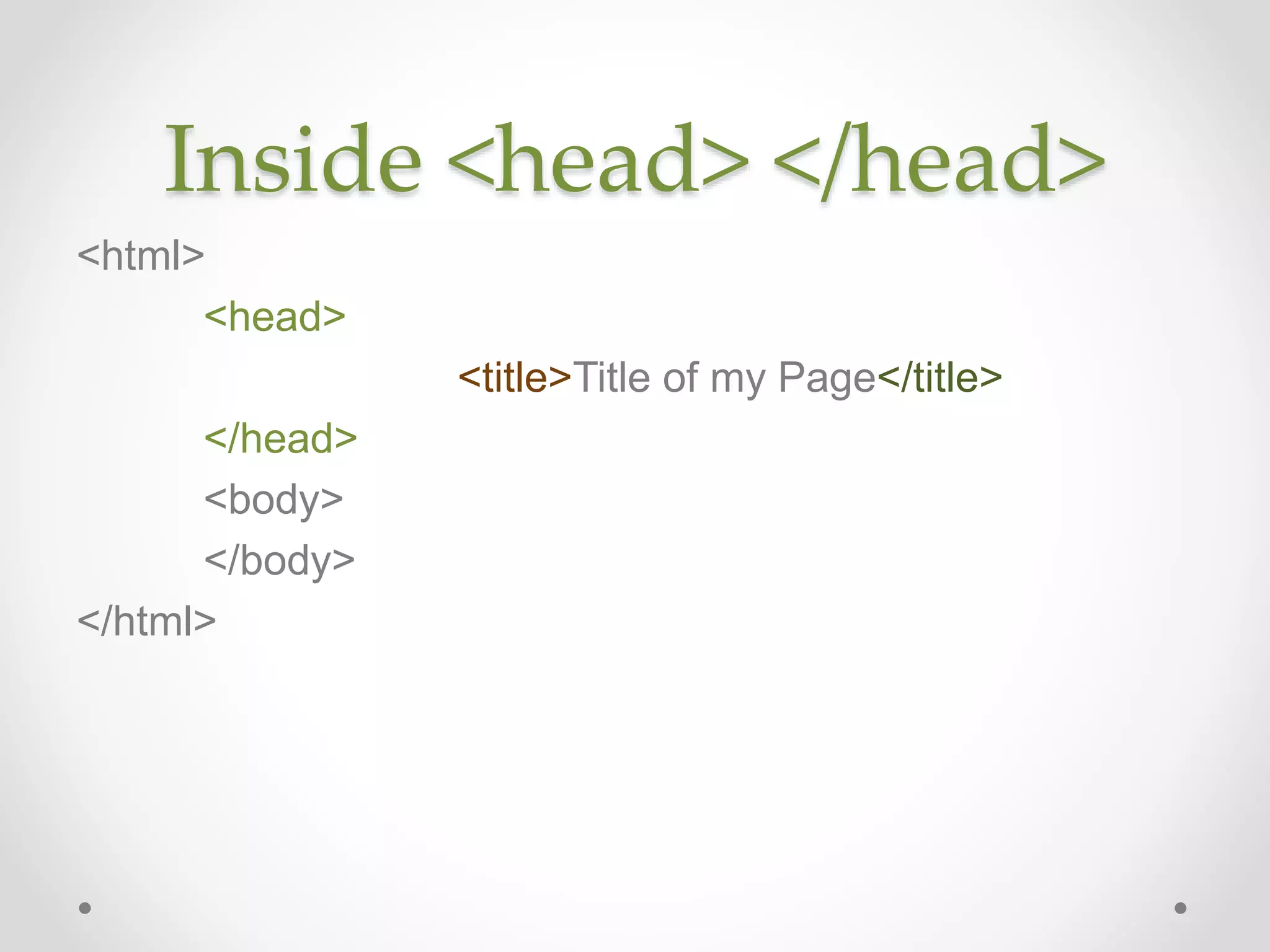
Inside <head> </head>
<html>
<head>
<title>Title of my Page</title>
</head>
<body>
</body>
</html>
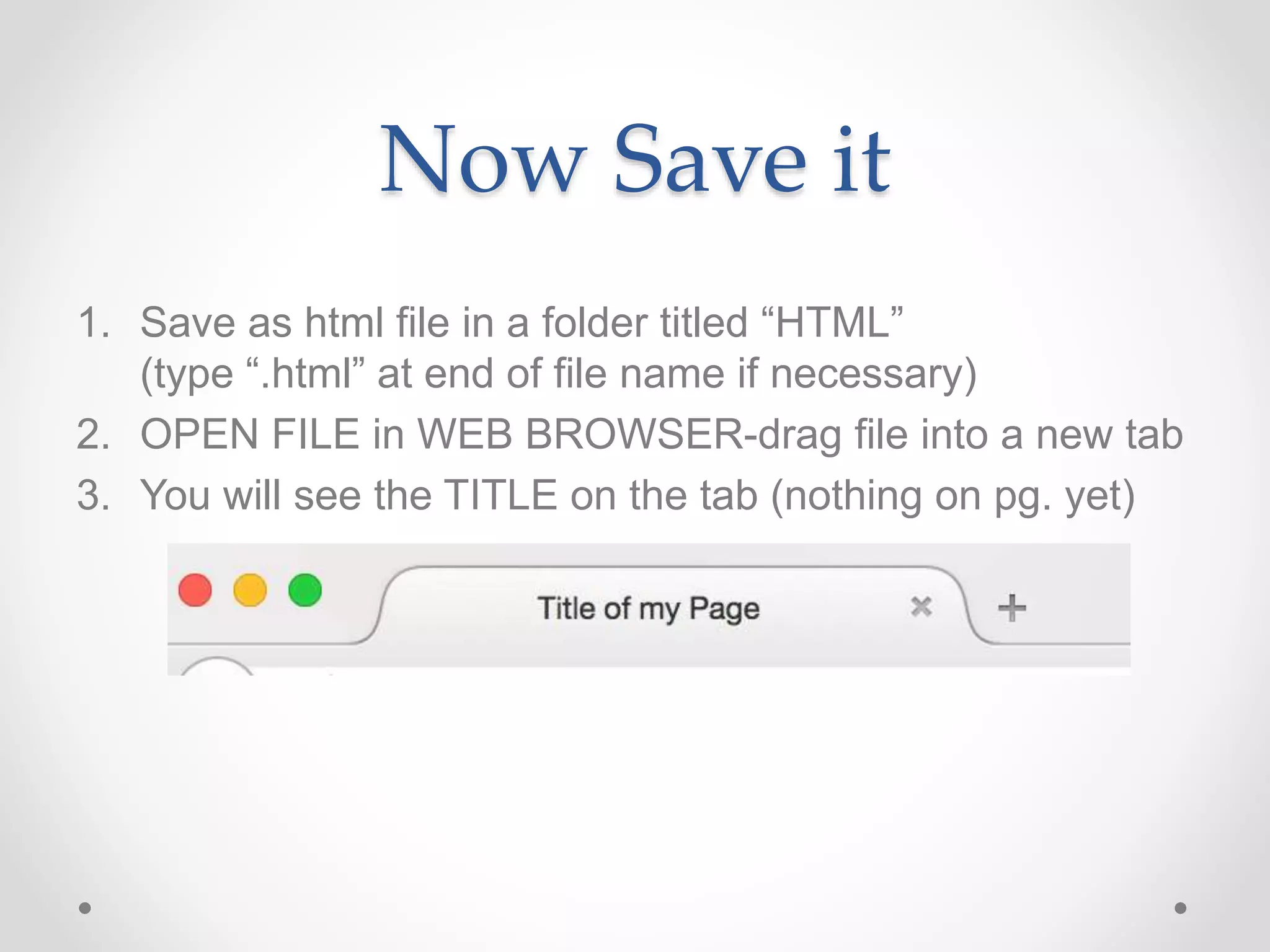
Now Save it
1. Save as html file in a folder titled “HTML”
(type “.html” at end of file name if necessary)
2. OPEN FILE in WEB BROWSER-drag file into a new tab
3. You will see the TITLE on the tab (nothing on pg. yet)
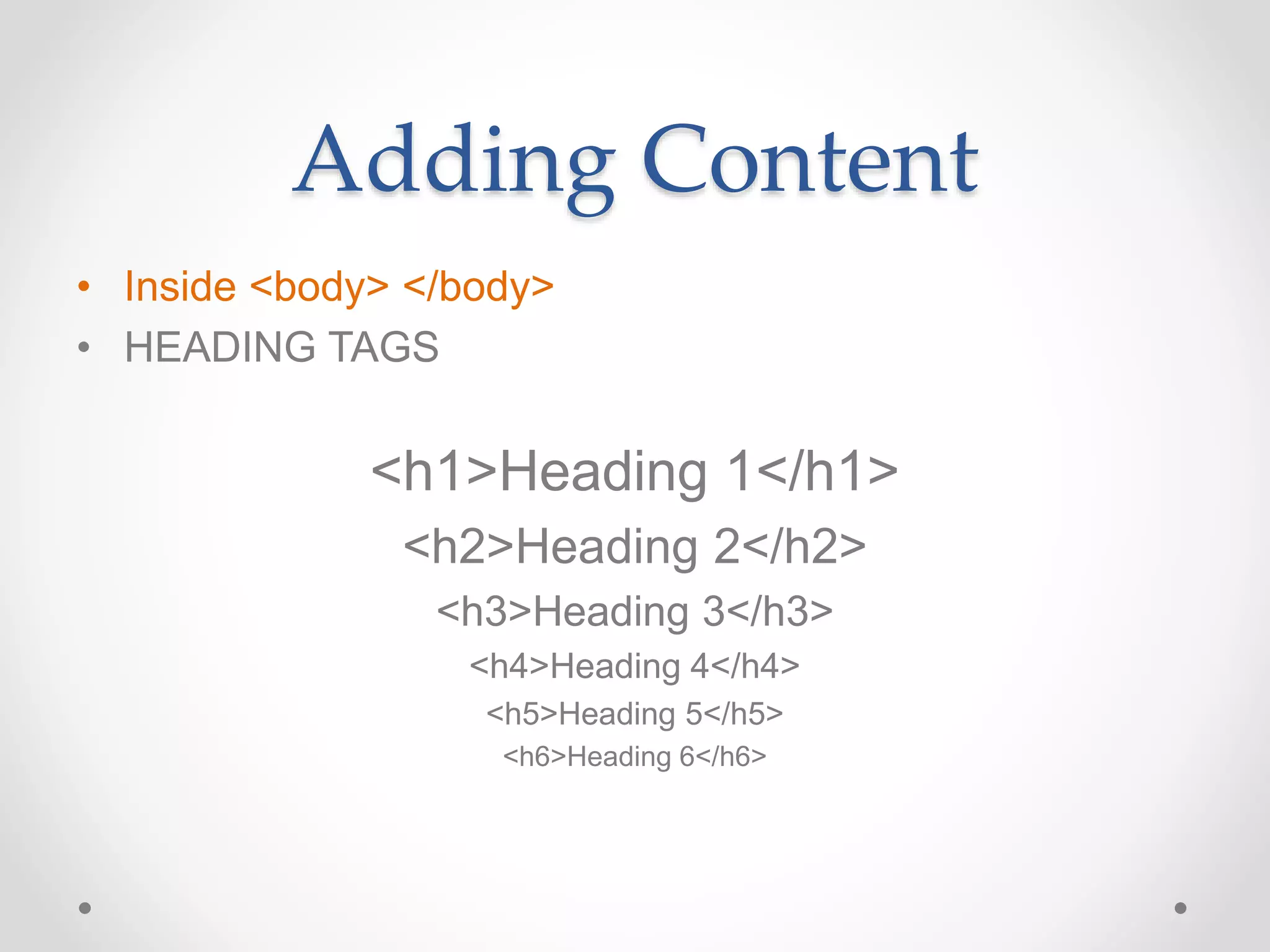
Adding Content
• Inside <body> </body>
• HEADING TAGS
<h1>Heading 1</h1>
<h2>Heading 2</h2>
<h3>Heading 3</h3>
<h4>Heading 4</h4>
<h5>Heading 5</h5>
<h6>Heading 6</h6>
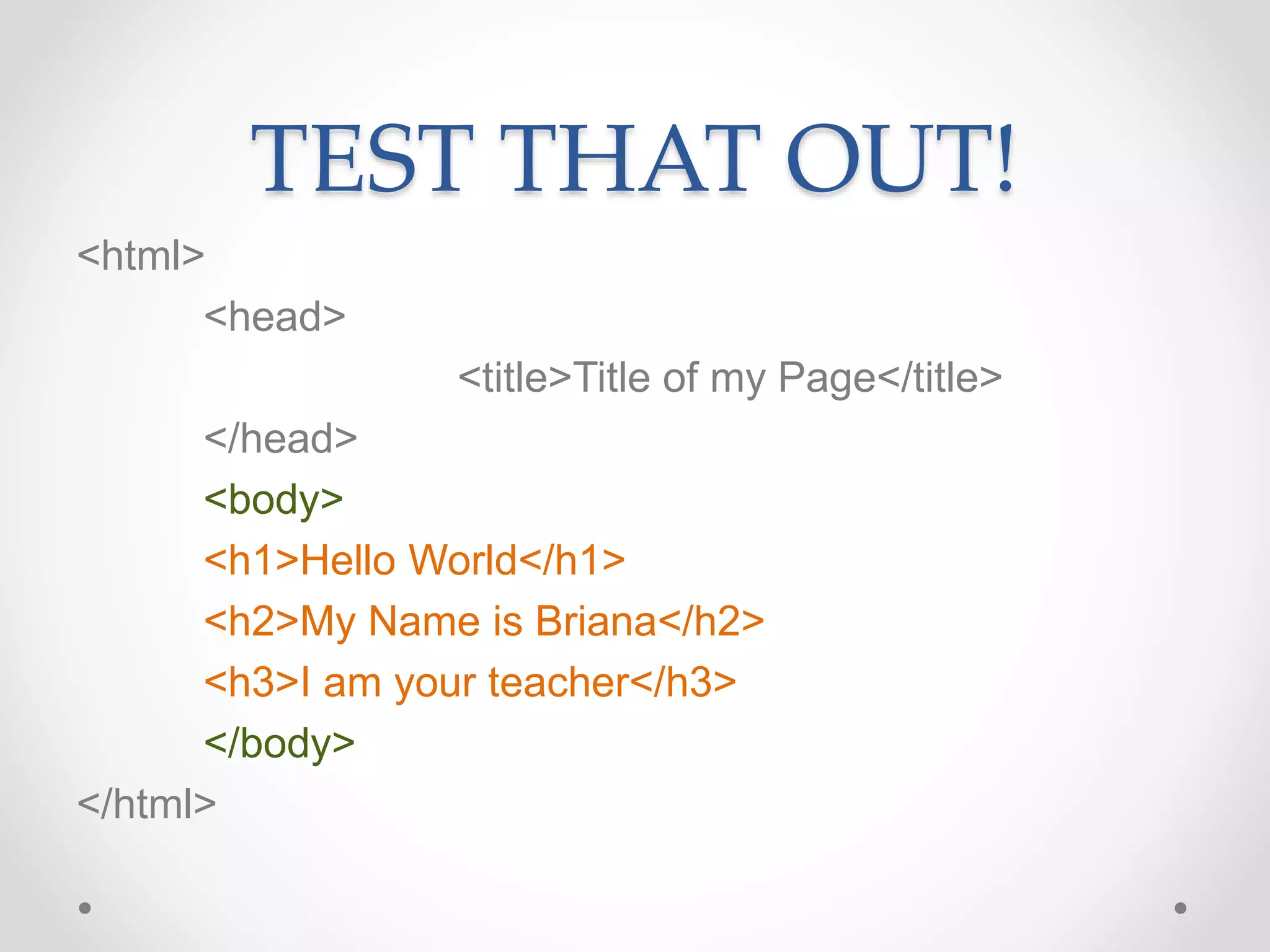
TEST THAT OUT!
<html>
<head>
<title>Title of my Page</title>
</head>
<body>
<h1>Hello World</h1>
<h2>My Name is Briana</h2>
<h3>I am your teacher</h3>
</body>
</html>
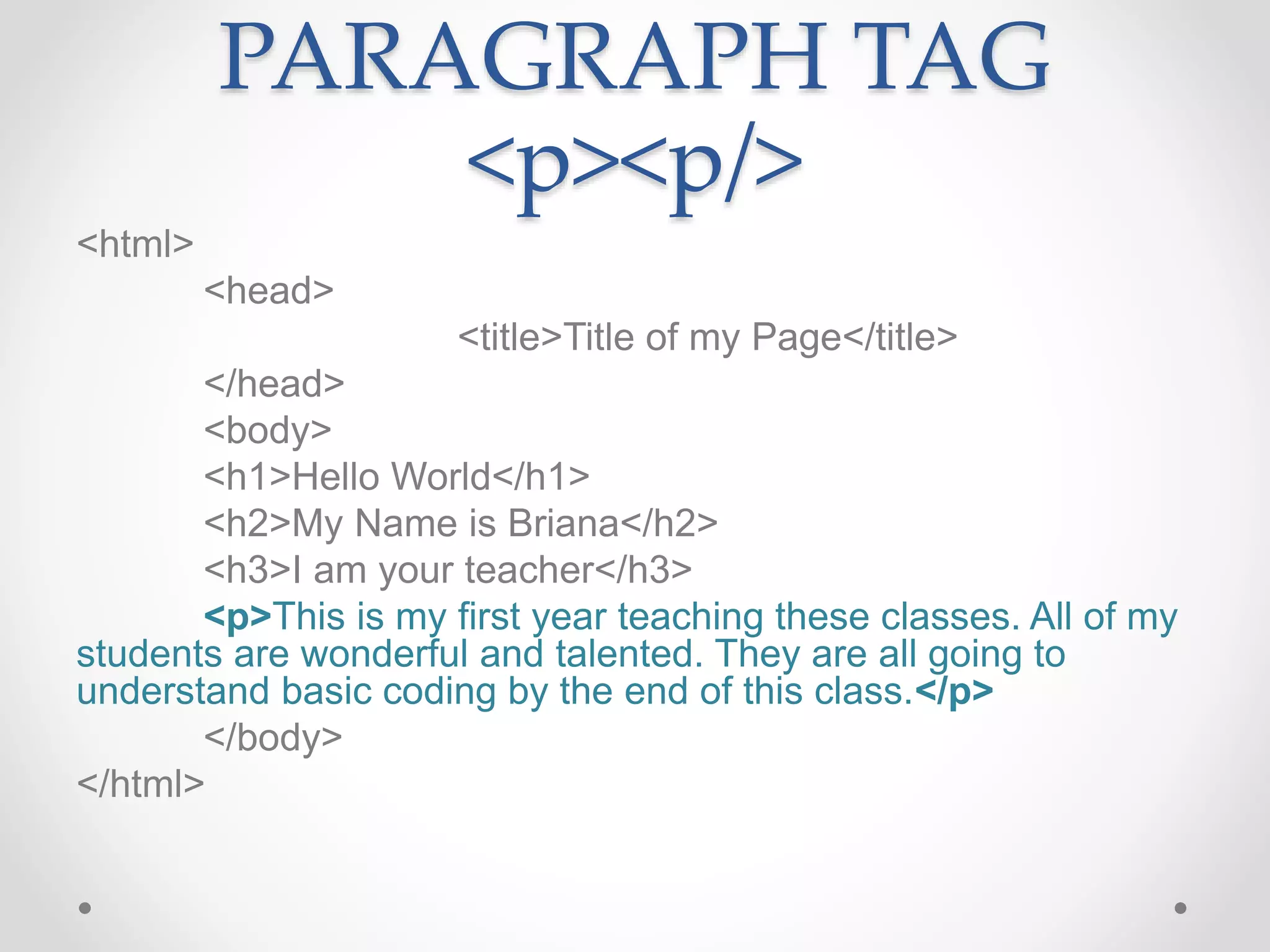
PARAGRAPH TAG
<p><p/>
<html>
<head>
<title>Title of my Page</title>
</head>
<body>
<h1>Hello World</h1>
<h2>My Name is Briana</h2>
<h3>I am your teacher</h3>
<p>This is my first year teaching these classes. All of my
students are wonderful and talented. They are all going to
understand basic coding by the end of this class.</p>
</body>
</html>
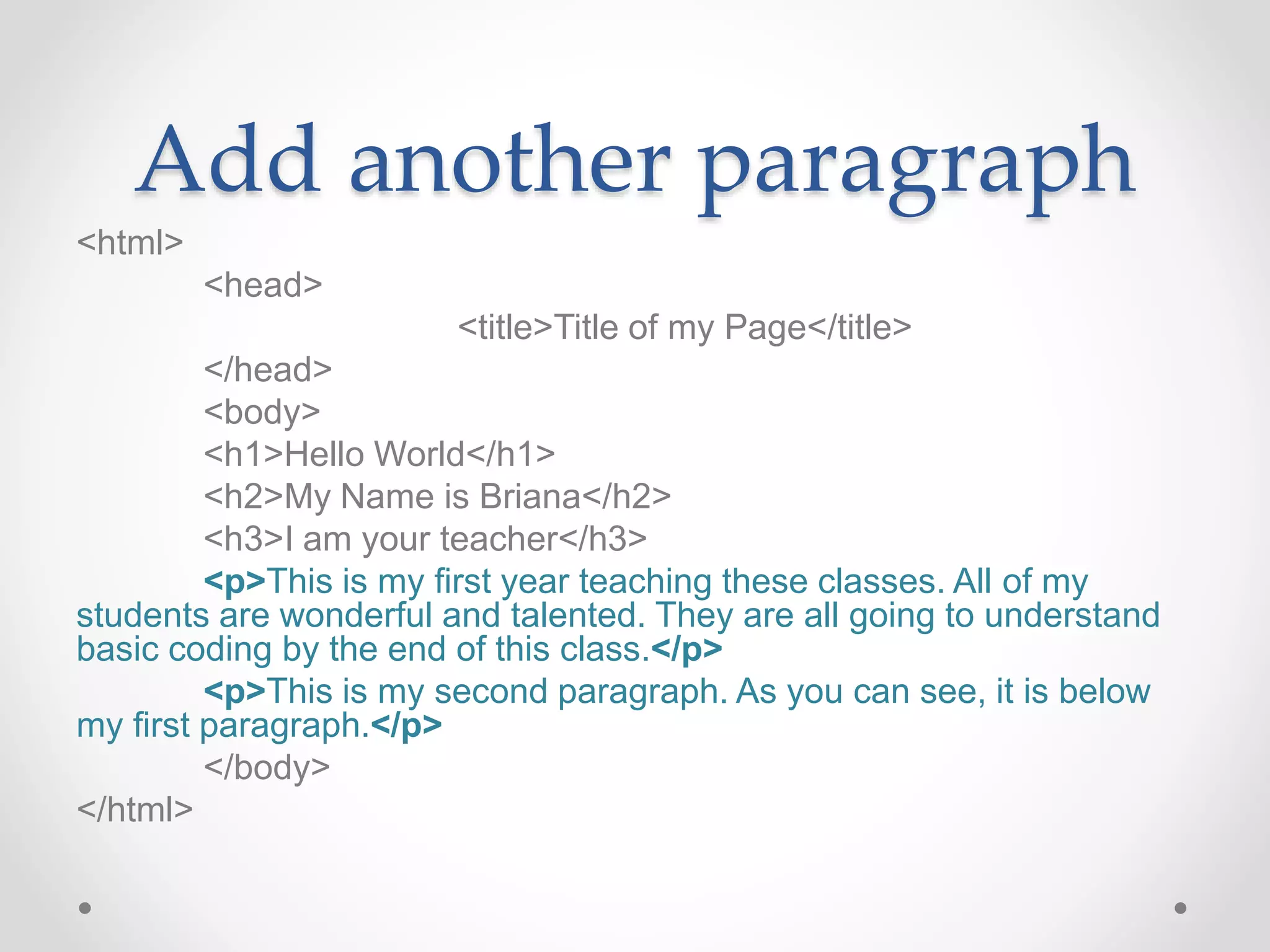
Add another paragraph
<html>
<head>
<title>Title of my Page</title>
</head>
<body>
<h1>Hello World</h1>
<h2>My Name is Briana</h2>
<h3>I am your teacher</h3>
<p>This is my first year teaching these classes. All of my
students are wonderful and talented. They are all going to understand
basic coding by the end of this class.</p>
<p>This is my second paragraph. As you can see, it is below
my first paragraph.</p>
</body>
</html>
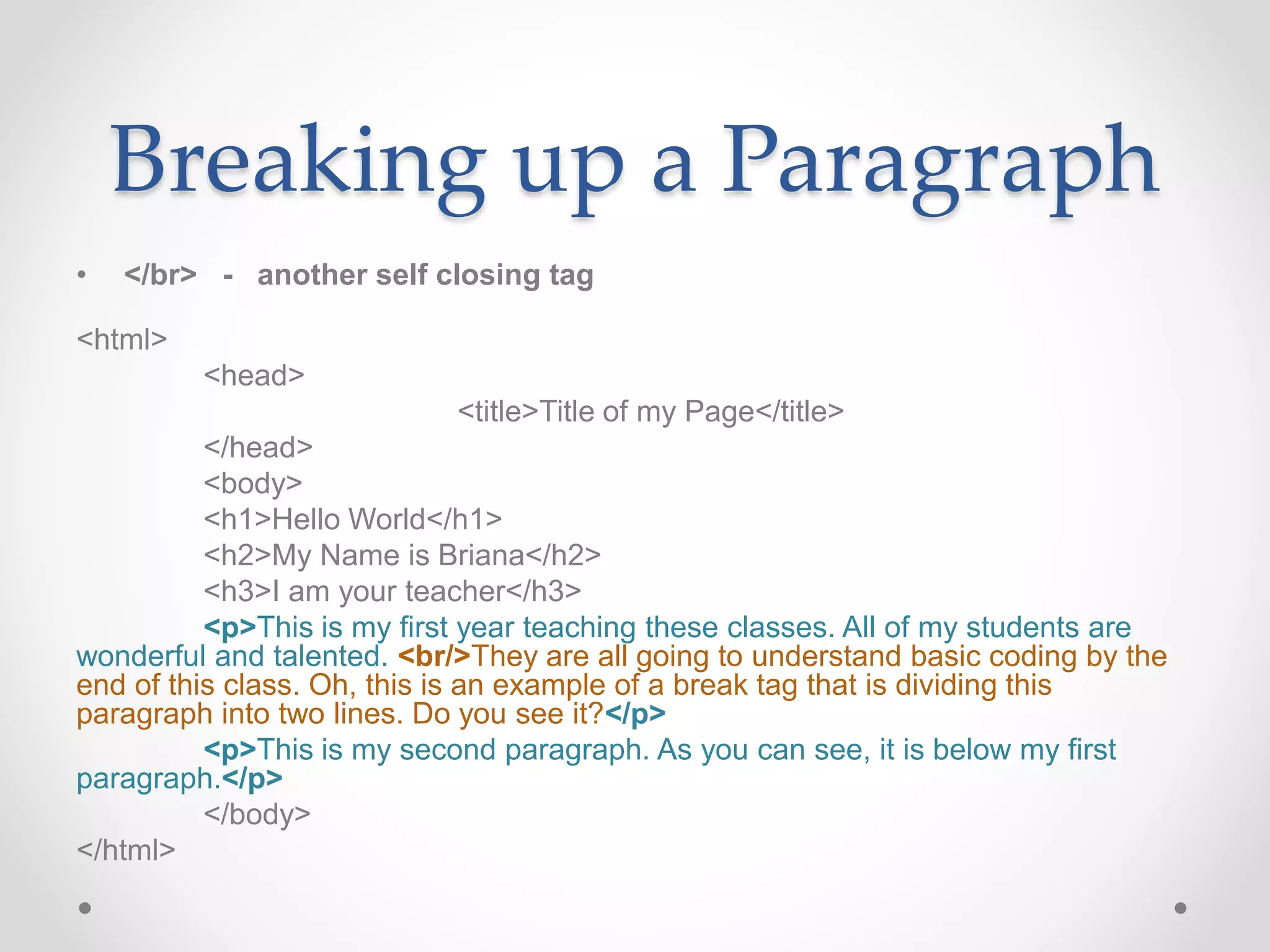
Breaking up a Paragraph
• </br> - another self closing tag
<html>
<head>
<title>Title of my Page</title>
</head>
<body>
<h1>Hello World</h1>
<h2>My Name is Briana</h2>
<h3>I am your teacher</h3>
<p>This is my first year teaching these classes. All of my students are
wonderful and talented. <br/>They are all going to understand basic coding by the
end of this class. Oh, this is an example of a break tag that is dividing this
paragraph into two lines. Do you see it?</p>
<p>This is my second paragraph. As you can see, it is below my first
paragraph.</p>
</body>
</html>
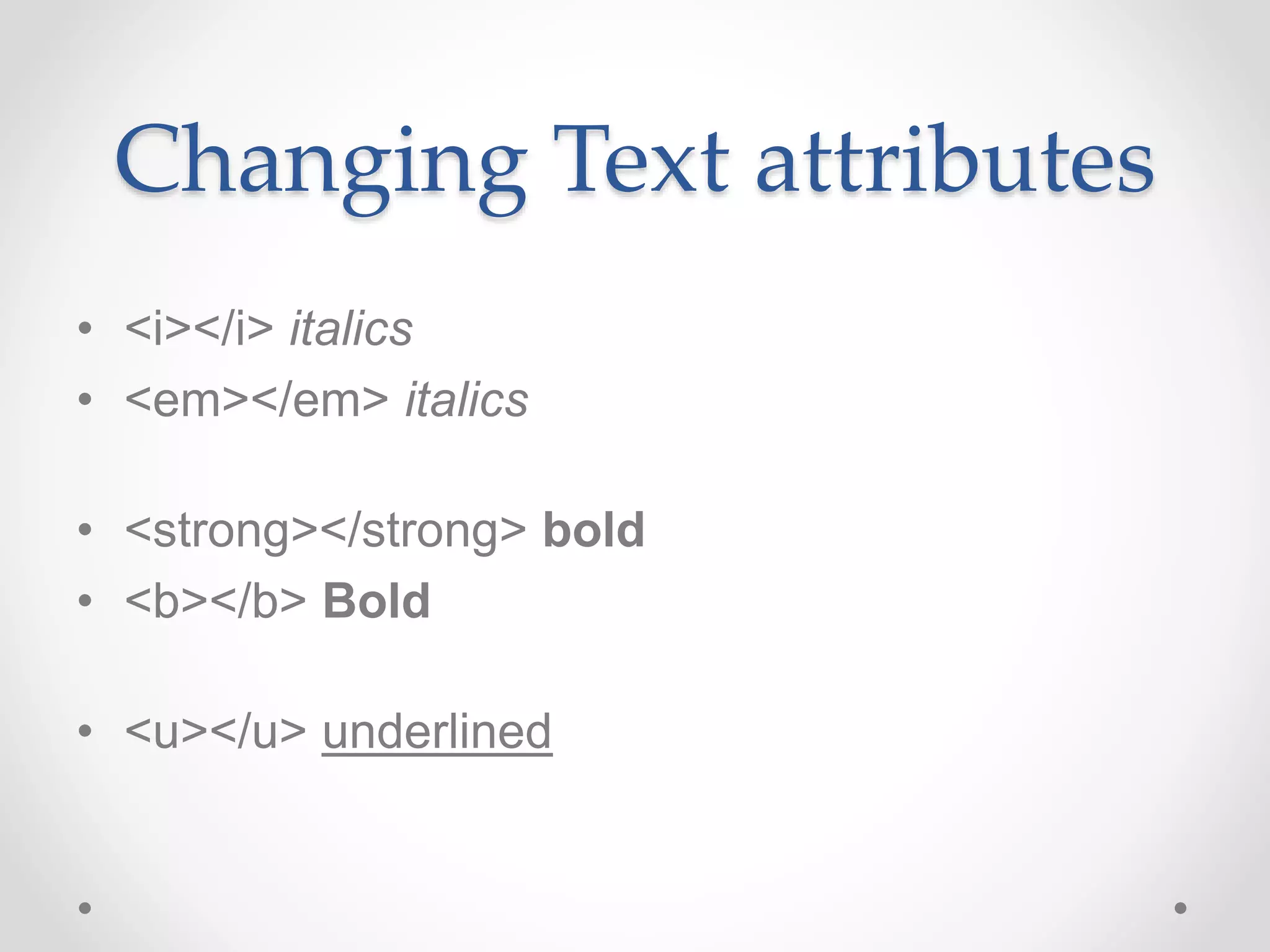
Changing Text attributes
• <i></i> italics
• <em></em> italics
• <strong></strong> bold
• <b></b> Bold
• <u></u> underlined
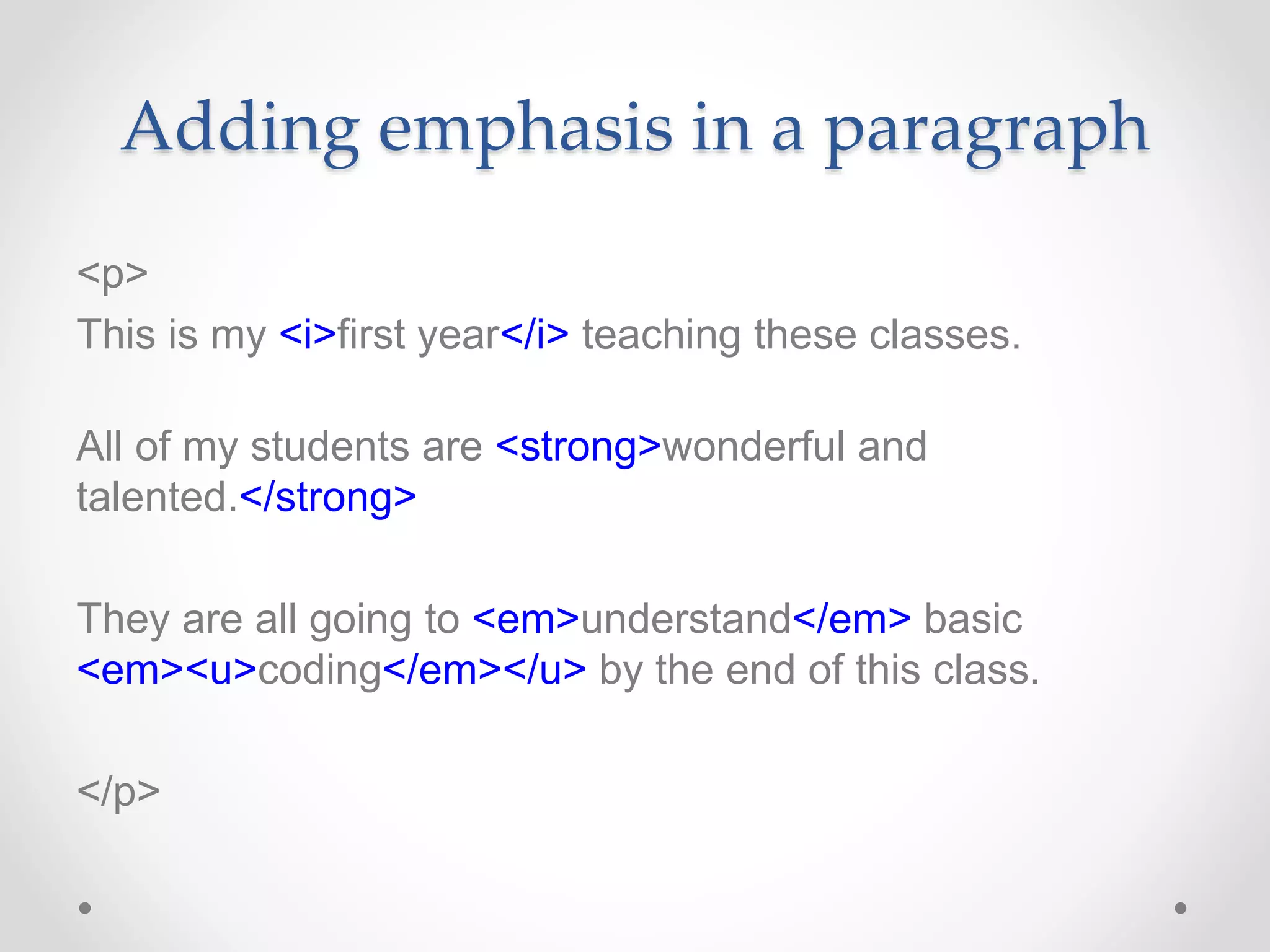
Adding emphasis in a paragraph
<p>
This is my <i>first year</i> teaching these classes.
All of my students are <strong>wonderful and
talented.</strong>
They are all going to <em>understand</em> basic
<em><u>coding</em></u> by the end of this class.
</p>
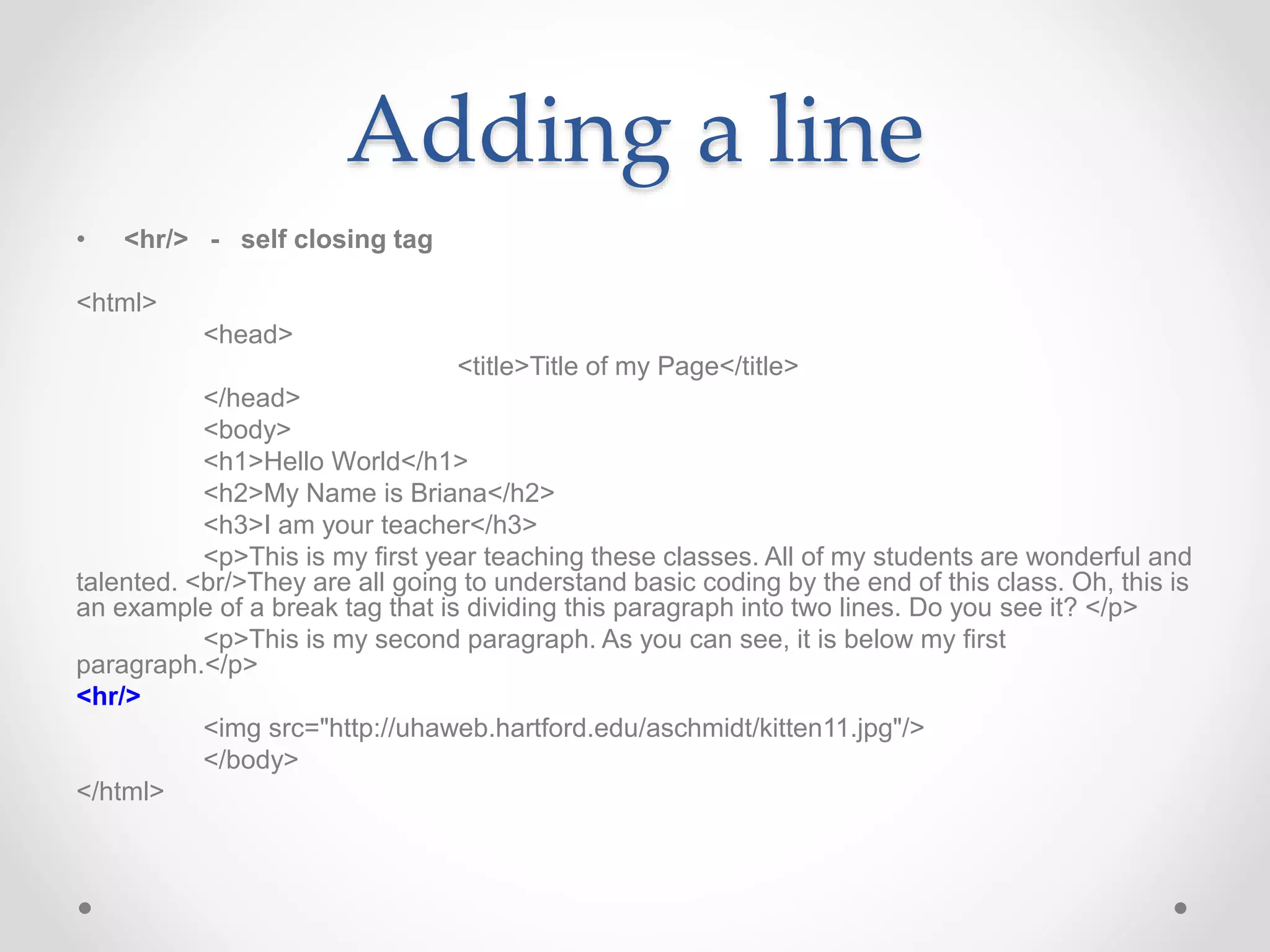
Adding a line
• <hr/> - self closing tag
<html>
<head>
<title>Title of my Page</title>
</head>
<body>
<h1>Hello World</h1>
<h2>My Name is Briana</h2>
<h3>I am your teacher</h3>
<p>This is my first year teaching these classes. All of my students are wonderful and
talented. <br/>They are all going to understand basic coding by the end of this class. Oh, this is
an example of a break tag that is dividing this paragraph into two lines. Do you see it? </p>
<p>This is my second paragraph. As you can see, it is below my first
paragraph.</p>
<hr/>
<img src="http://uhaweb.hartford.edu/aschmidt/kitten11.jpg"/>
</body>
</html>
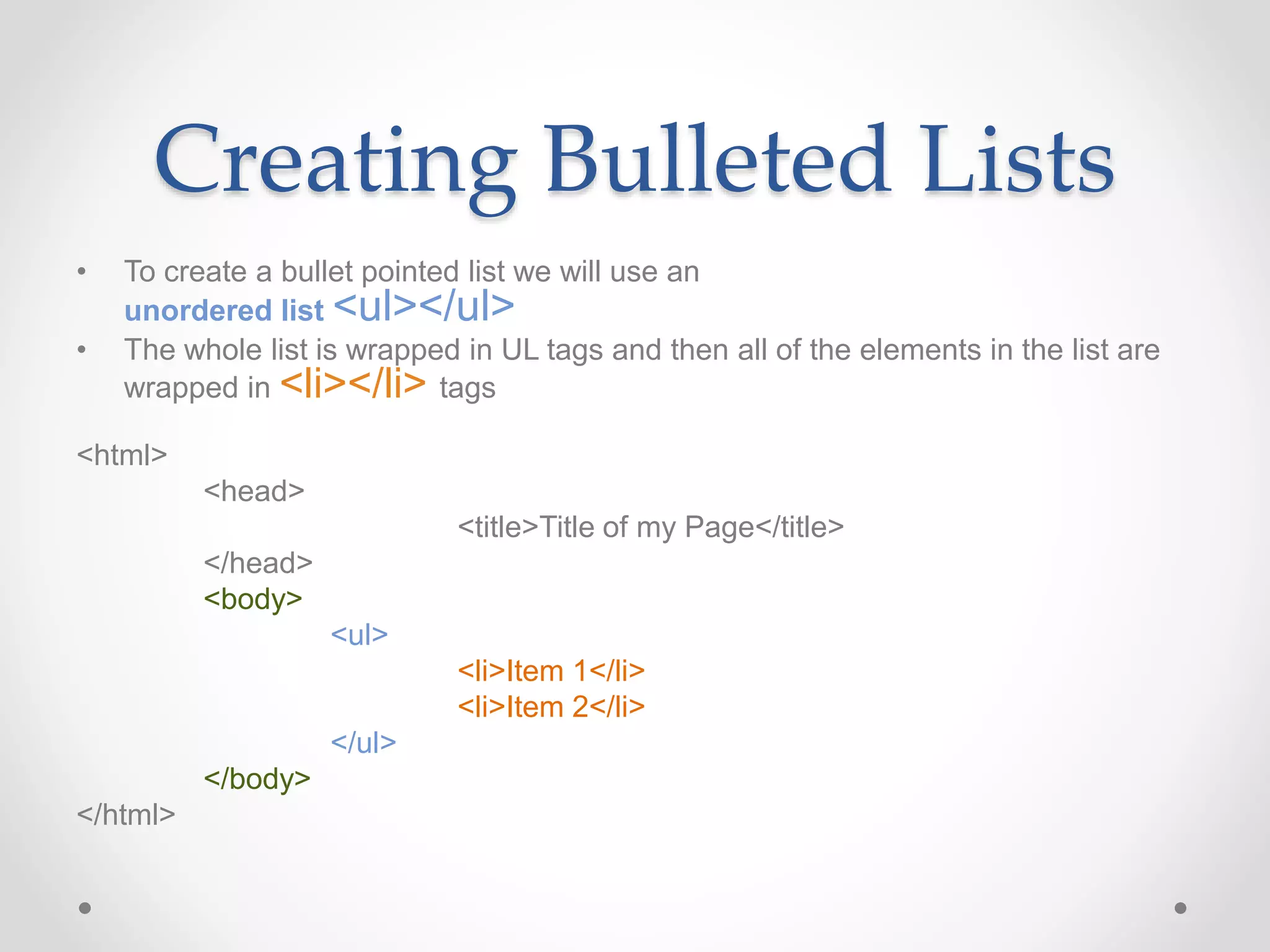
Creating Bulleted Lists
• To create a bullet pointed list we will use an
unordered list <ul></ul>
• The whole list is wrapped in UL tags and then all of the elements in the list are
wrapped in <li></li> tags
<html>
<head>
<title>Title of my Page</title>
</head>
<body>
<ul>
<li>Item 1</li>
<li>Item 2</li>
</ul>
</body>
</html>
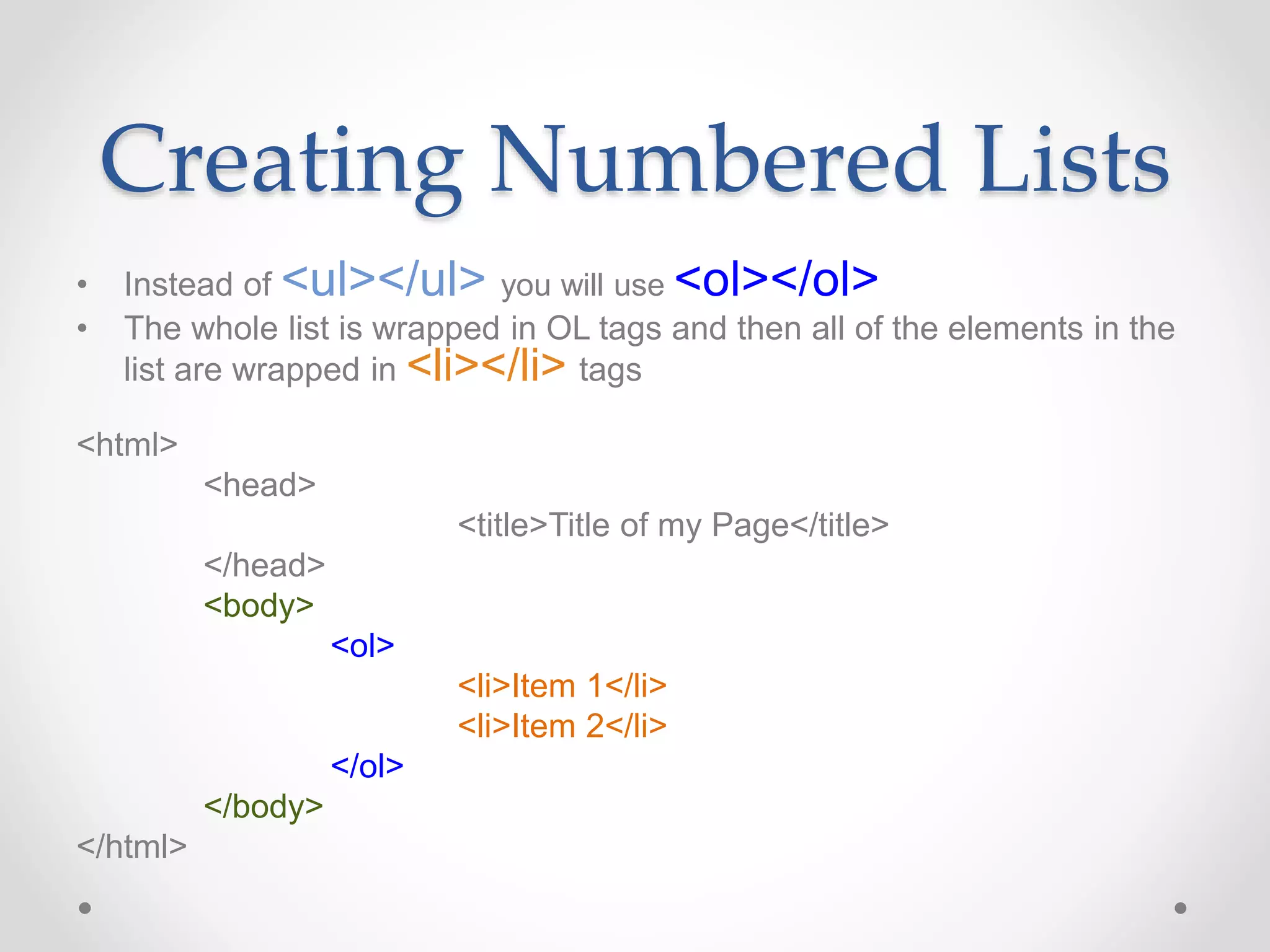
Creating Numbered Lists
• Instead of <ul></ul> you will use <ol></ol>
• The whole list is wrapped in OL tags and then all of the elements in the
list are wrapped in <li></li> tags
<html>
<head>
<title>Title of my Page</title>
</head>
<body>
<ol>
<li>Item 1</li>
<li>Item 2</li>
</ol>
</body>
</html>
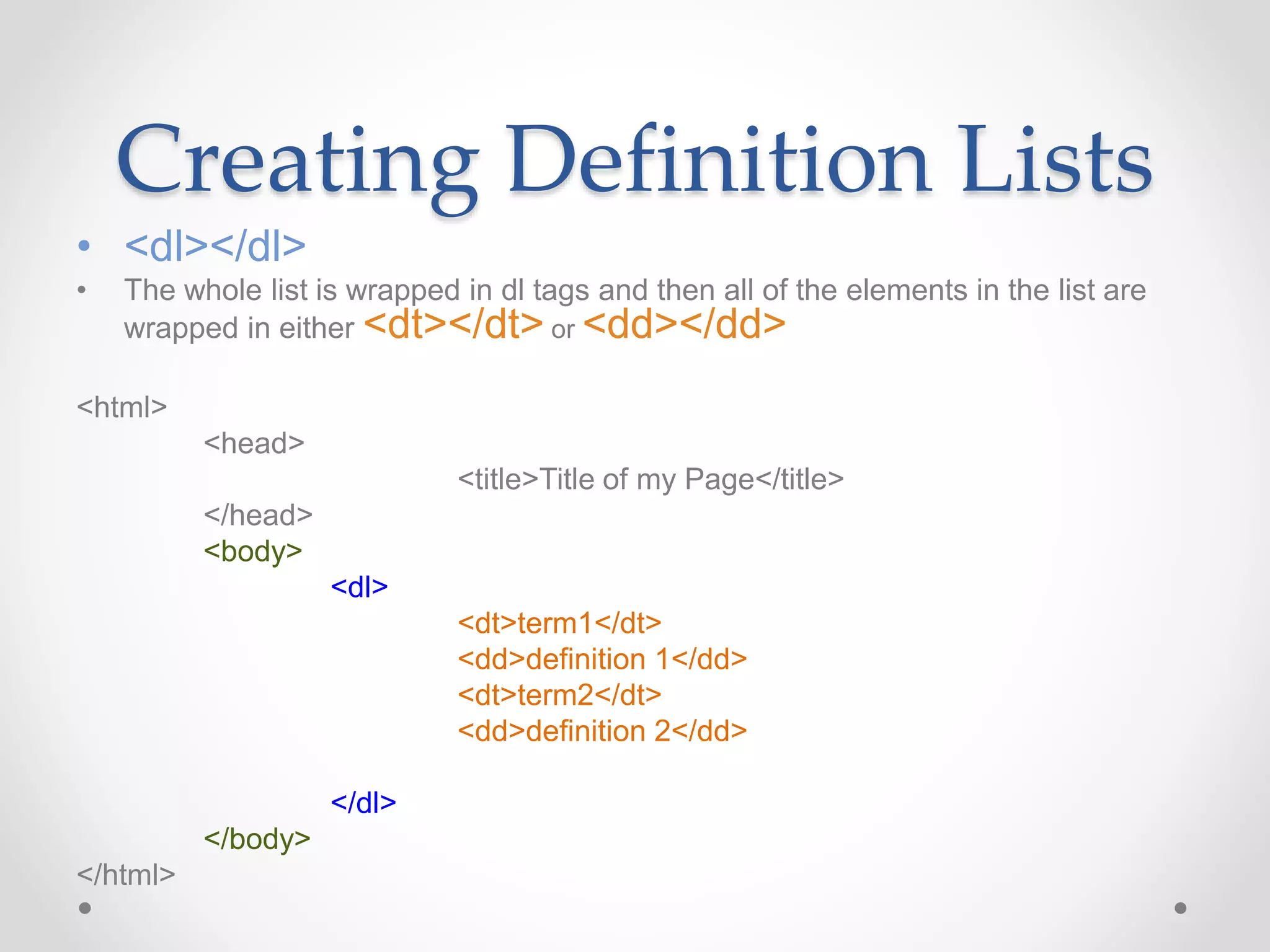
Creating Definition Lists
• <dl></dl>
• The whole list is wrapped in dl tags and then all of the elements in the list are
wrapped in either <dt></dt> or <dd></dd>
<html>
<head>
<title>Title of my Page</title>
</head>
<body>
<dl>
<dt>term1</dt>
<dd>definition 1</dd>
<dt>term2</dt>
<dd>definition 2</dd>
</dl>
</body>
</html>
Adding an IMAGE
• Find an image on Google
• Click on it
• Click View Image (so the image is on it’s own page)
• Copy the URL
• Now we will add it to our code
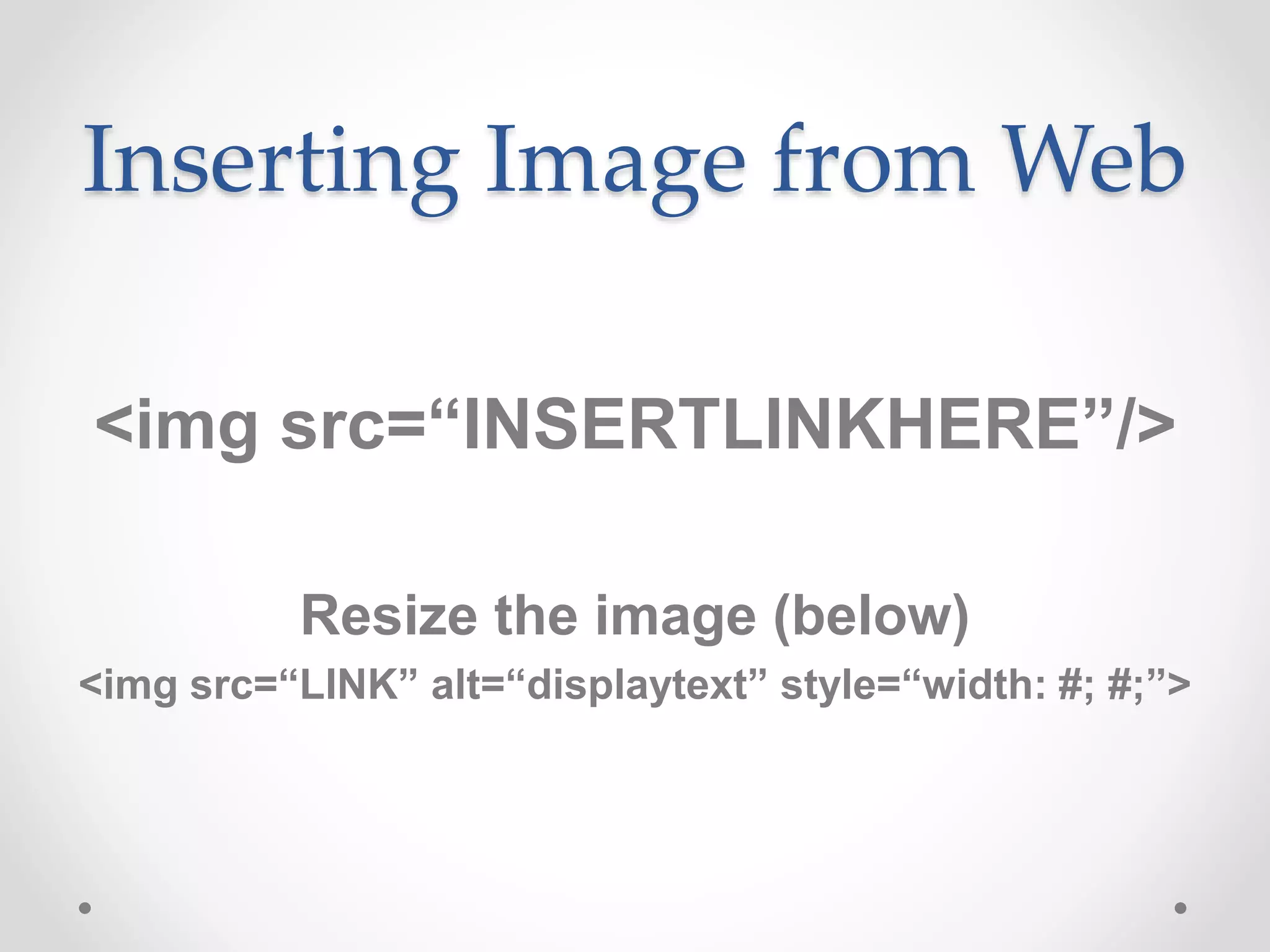
Inserting Image from Web
<img src=“INSERTLINKHERE”/>
Resize the image (below)
<img src=“LINK” alt=“displaytext” style=“width: #; #;”>
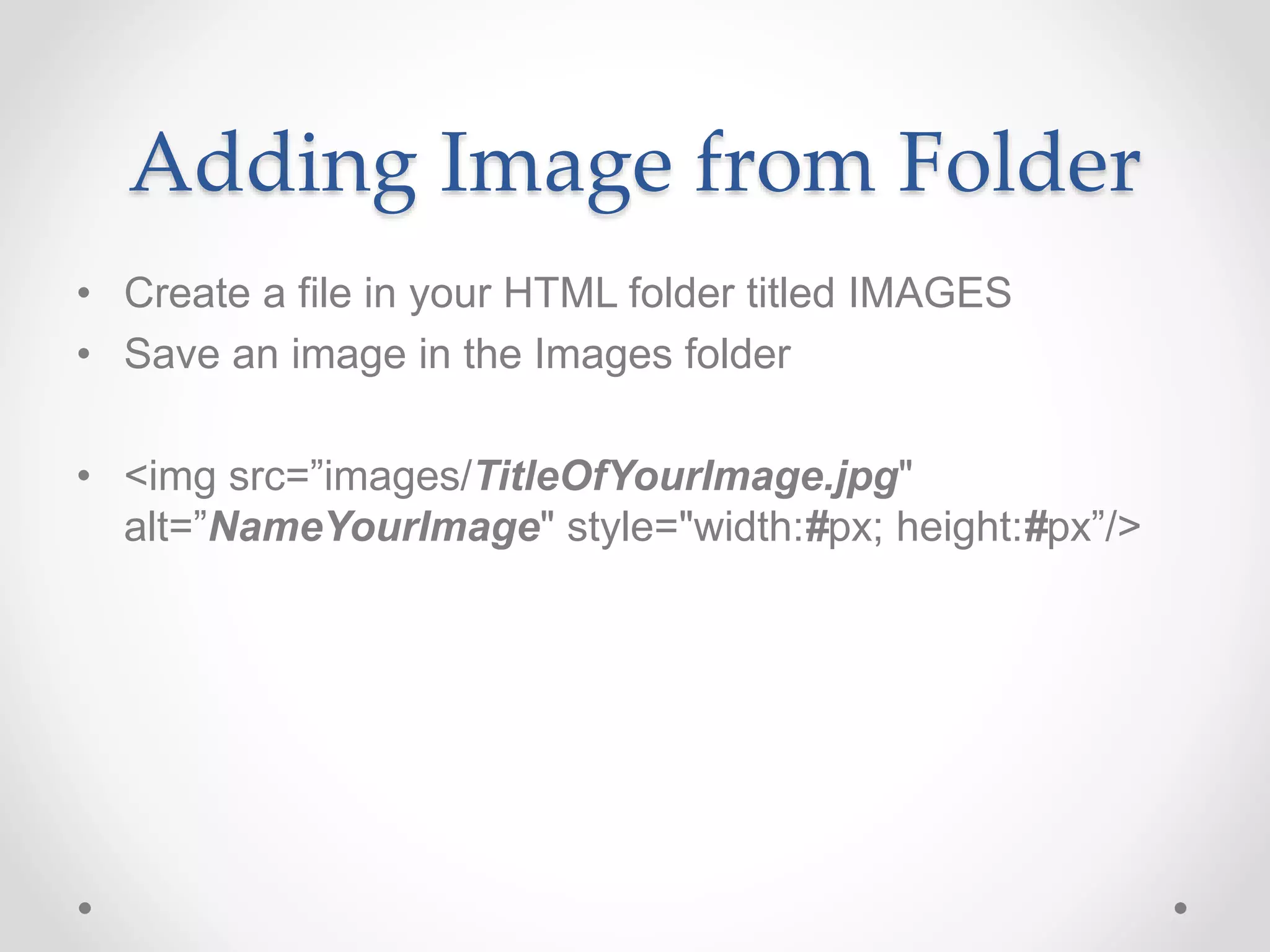
Adding Image from Folder
• Create a file in your HTML folder titled IMAGES
• Save an image in the Images folder
• <img src=”images/TitleOfYourImage.jpg"
alt=”NameYourImage" style="width:#px; height:#px”/>
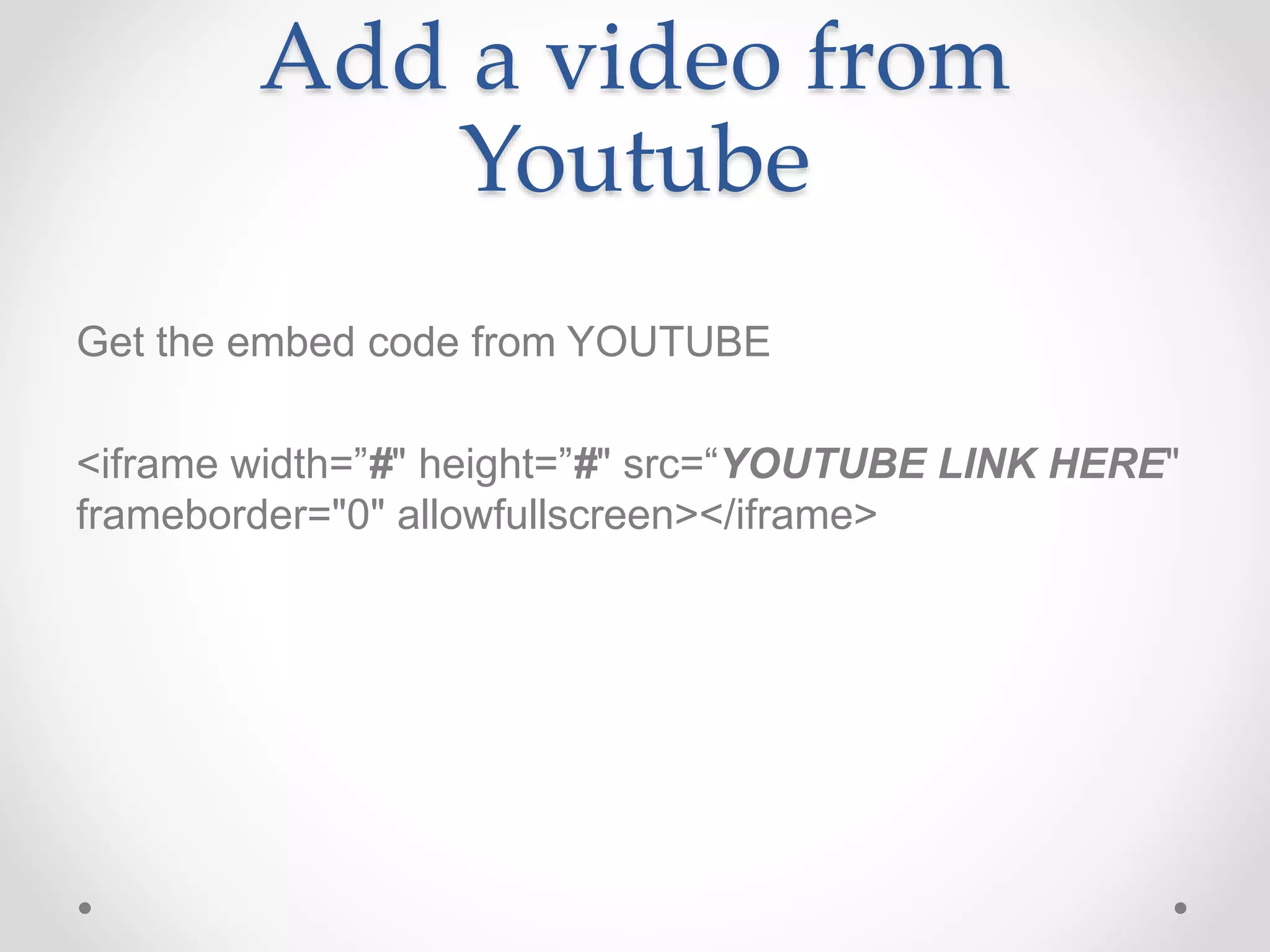
Add a video from
Youtube
Get the embed code from YOUTUBE
<iframe width=”#" height=”#" src=“YOUTUBE LINK HERE"
frameborder="0" allowfullscreen></iframe>
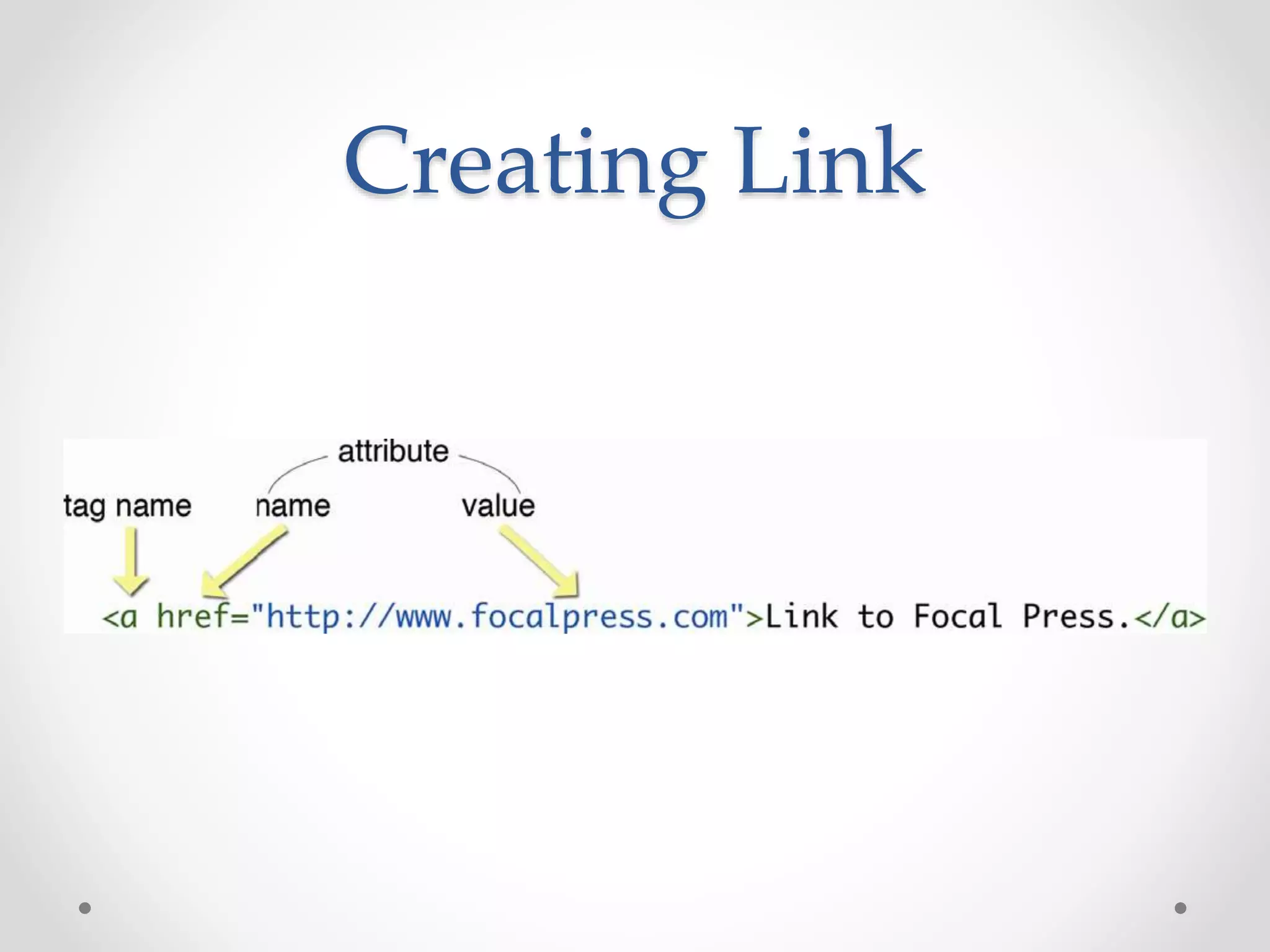
Creating Link
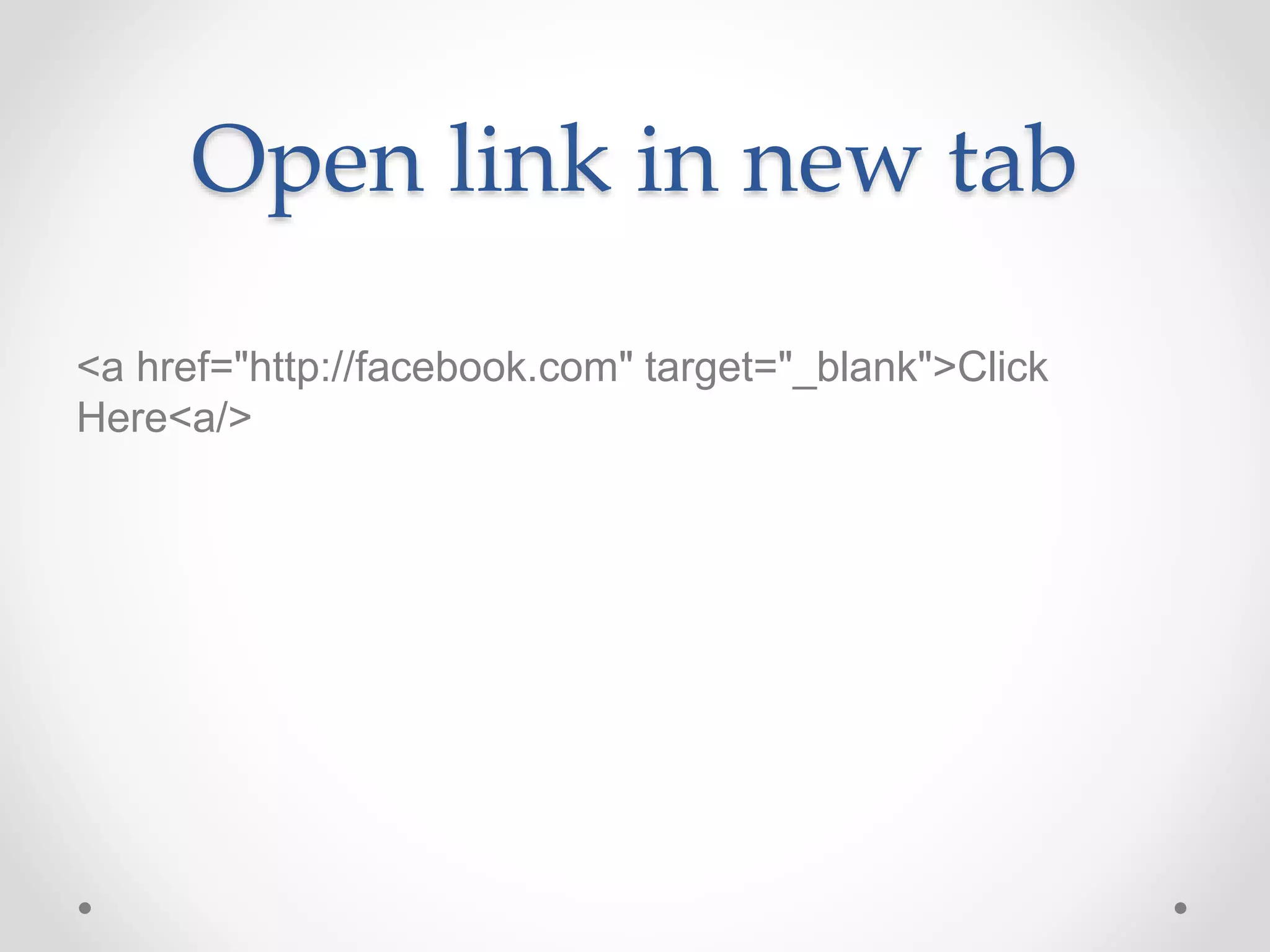
Open link in new tab
<a href="http://facebook.com" target="_blank">Click
Here<a/>
Links from Icons
<a href=”WEBSITELINK"> <img src=”ICON"alt="Youtube
Link" width=”#" height=”#"></a>
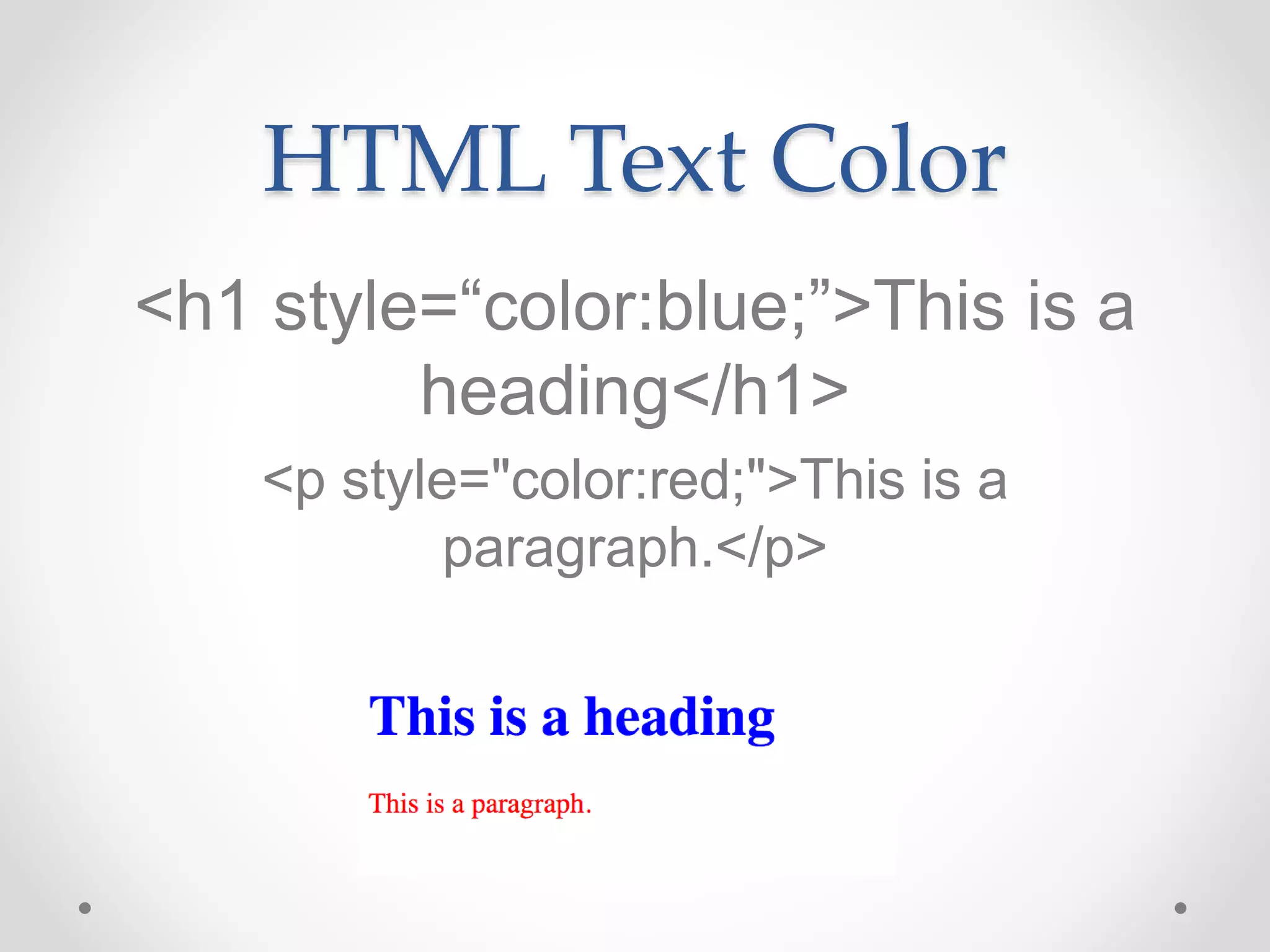
HTML Text Color
<h1 style=“color:blue;”>This is a
heading</h1>
<p style="color:red;">This is a
paragraph.</p>
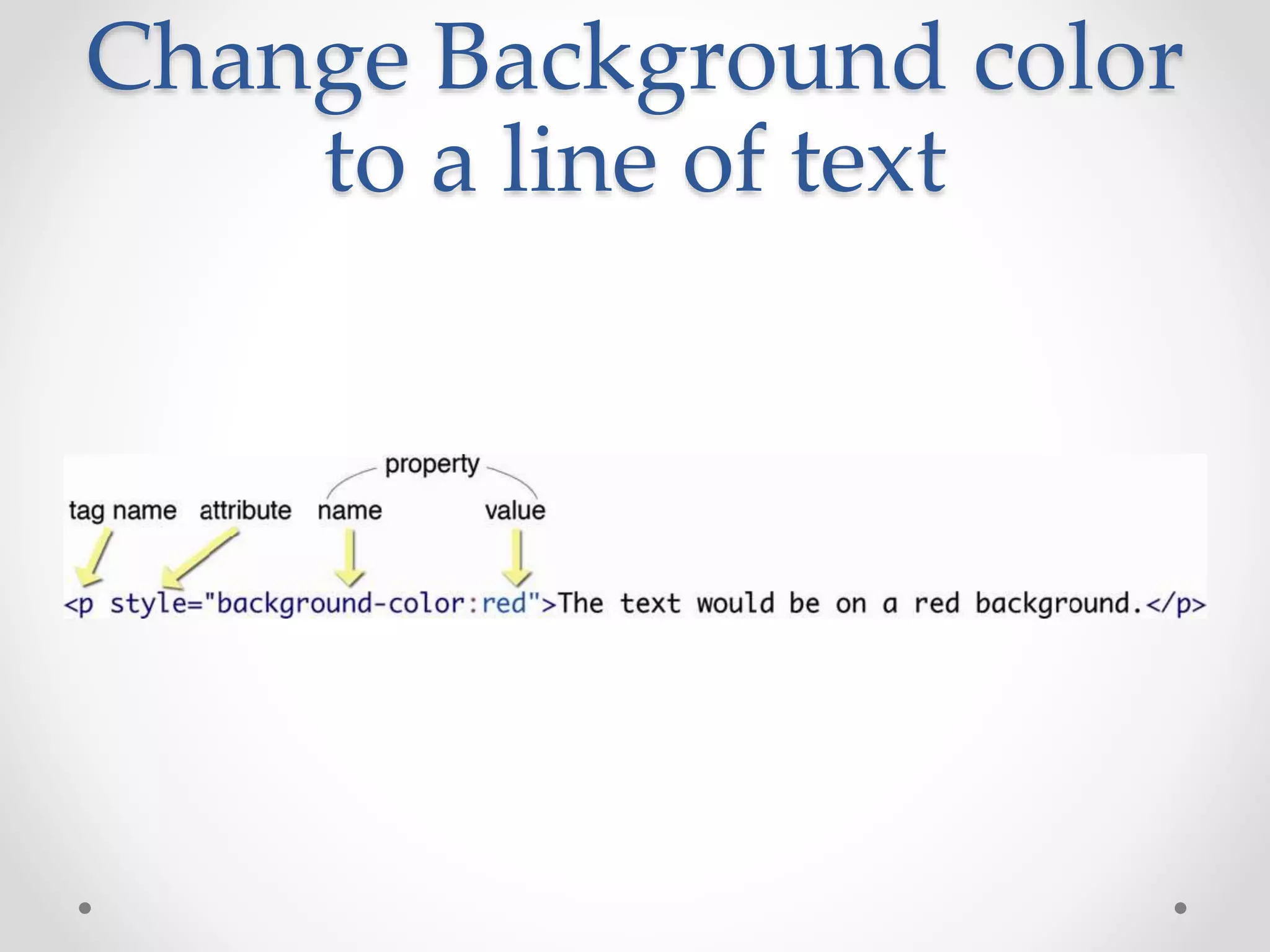
Change Background color
to a line of text
The <span> Element
• The <span> element is often used as a container for
some text.
• The <span> element has no required attributes, but both
style and class are common.
• When used together with CSS, the <span> element can
be used to style parts of the text:
The <span> Element
<!DOCTYPE html>
<html>
<body>
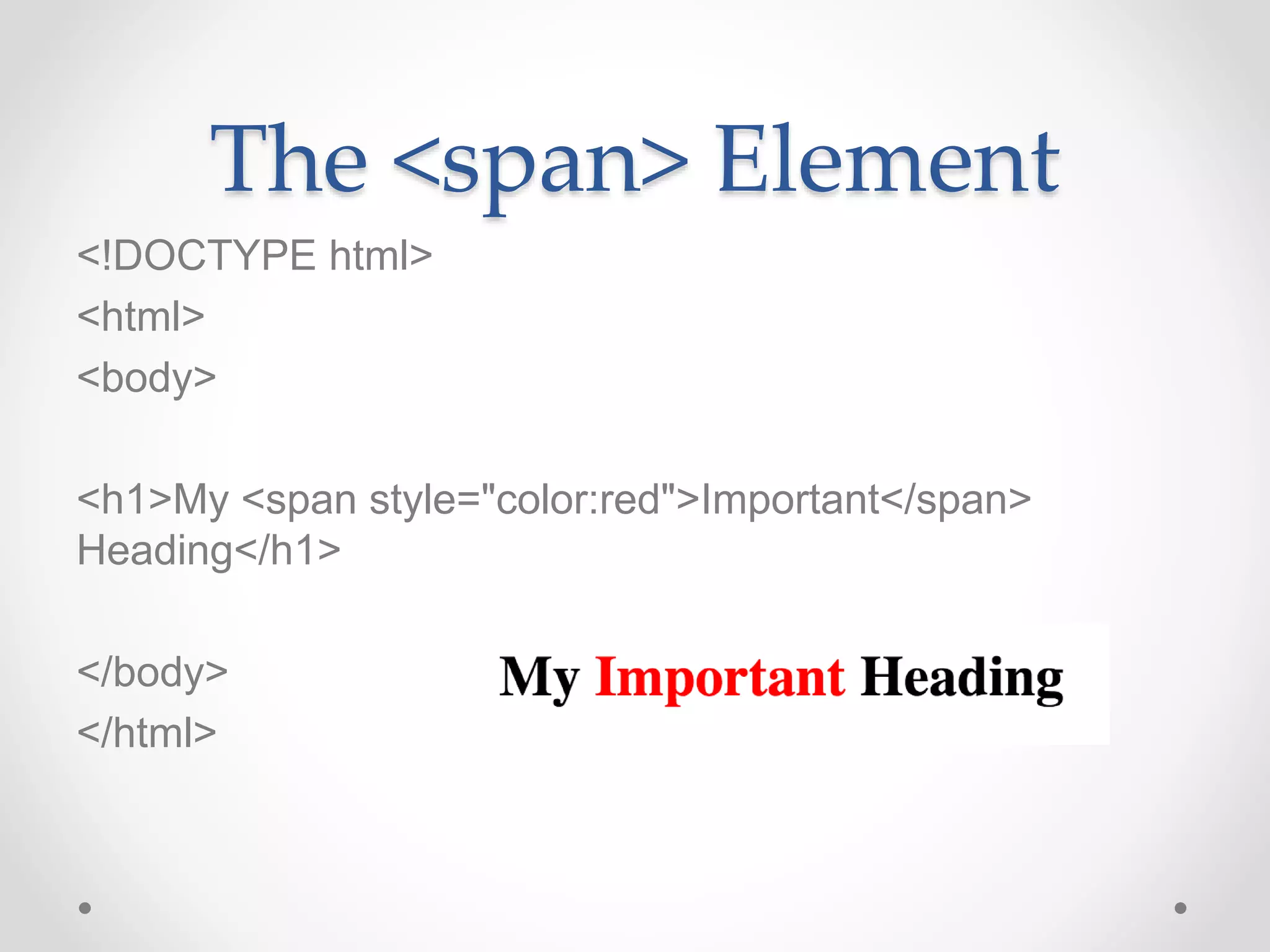
<h1>My <span style="color:red">Important</span>
Heading</h1>
</body>
</html>
HTML Fonts
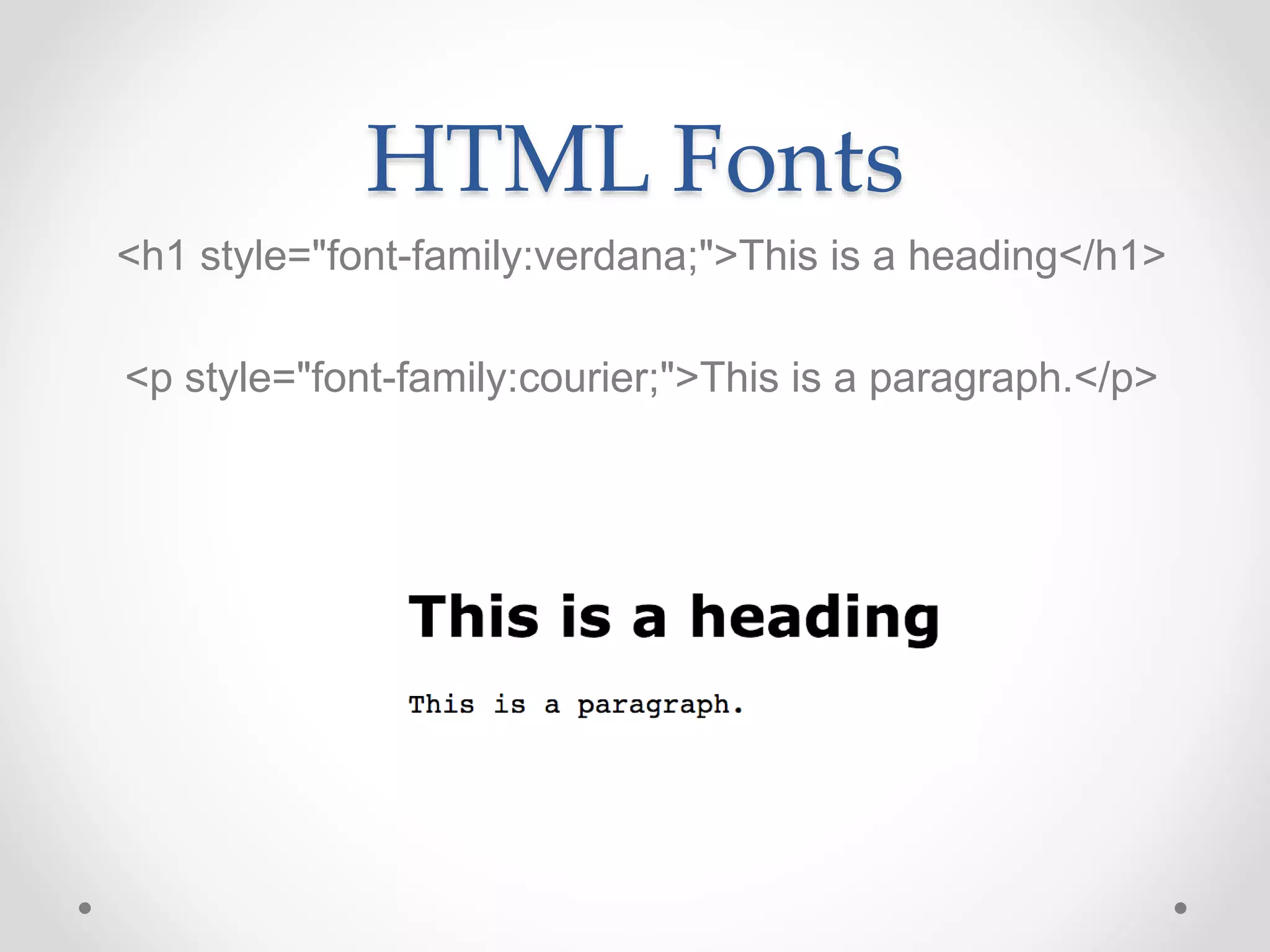
<h1 style="font-family:verdana;">This is a heading</h1>
<p style="font-family:courier;">This is a paragraph.</p>
HTML Text Size
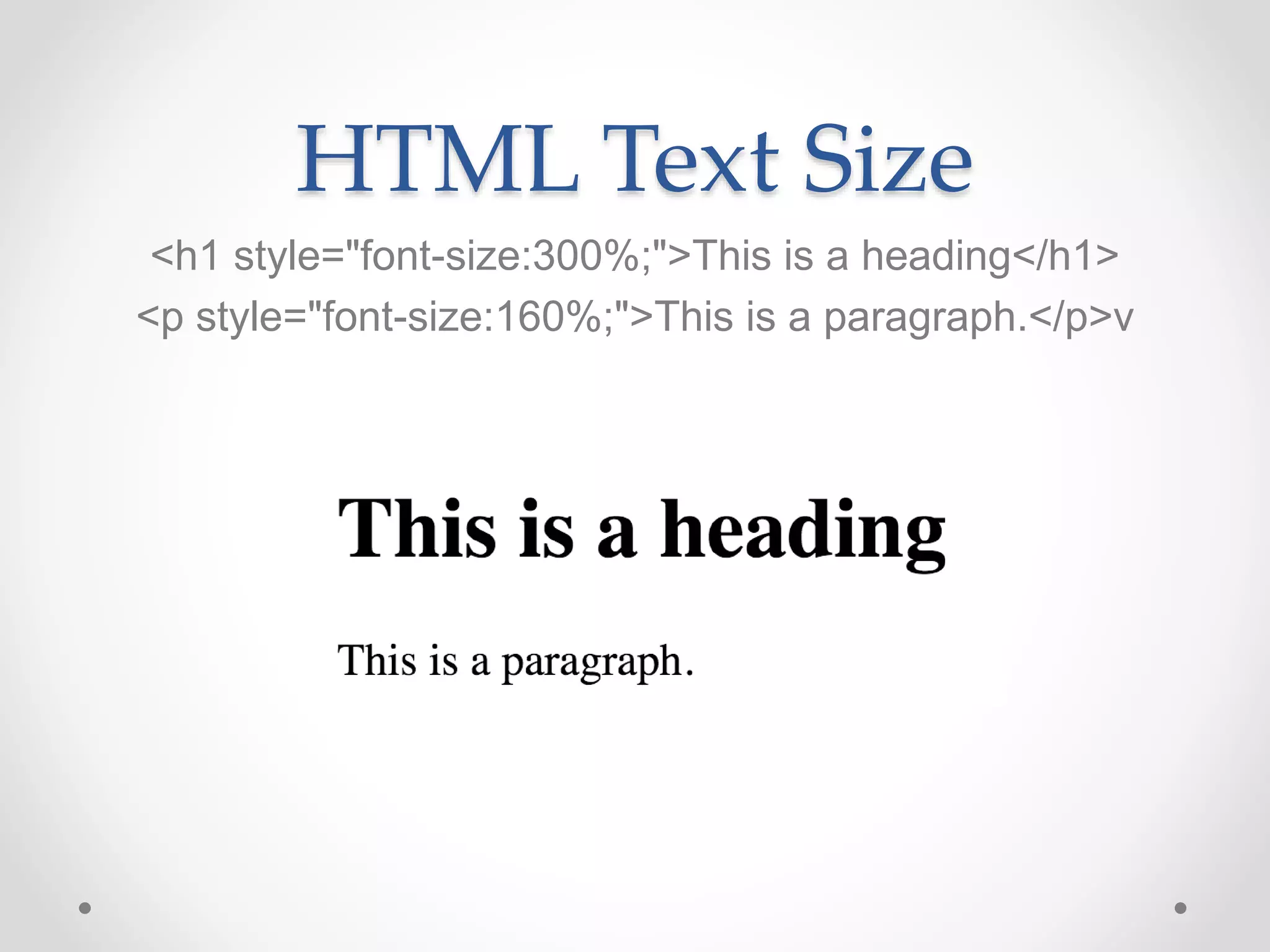
<h1 style="font-size:300%;">This is a heading</h1>
<p style="font-size:160%;">This is a paragraph.</p>v
HTML Text Alignment
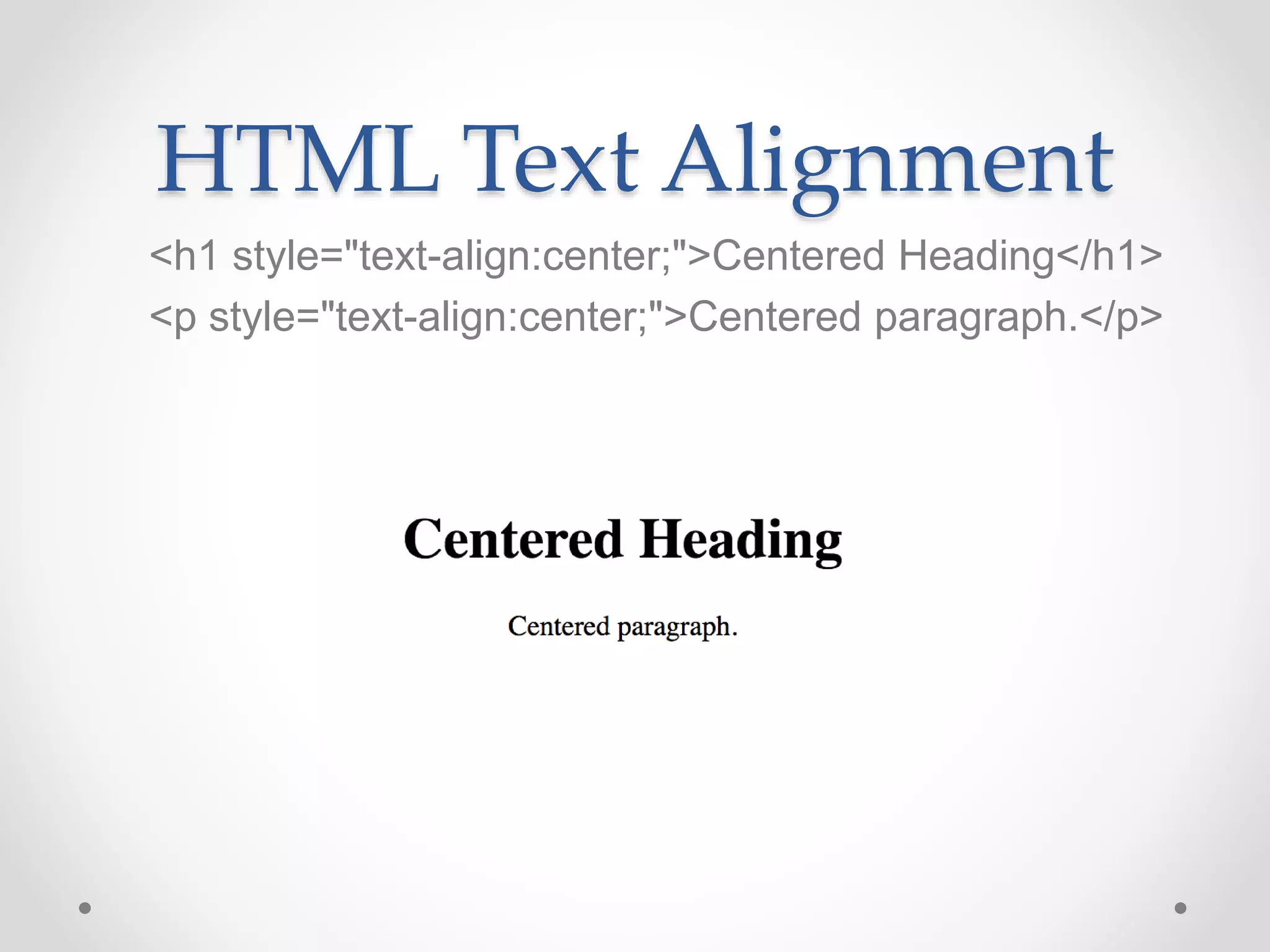
<h1 style="text-align:center;">Centered Heading</h1>
<p style="text-align:center;">Centered paragraph.</p>
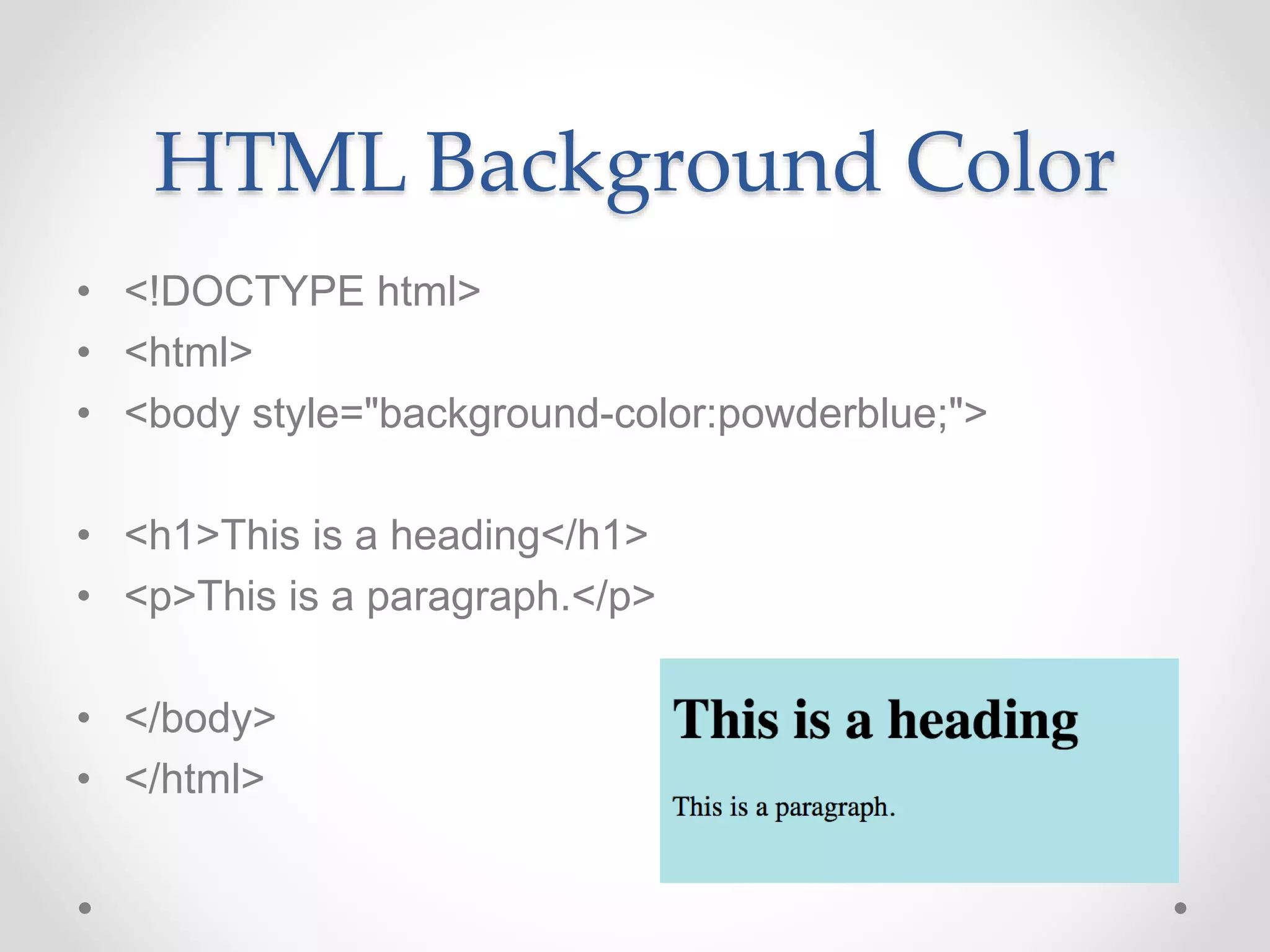
HTML Background Color
• <!DOCTYPE html>
• <html>
• <body style="background-color:powderblue;">
• <h1>This is a heading</h1>
• <p>This is a paragraph.</p>
• </body>
• </html>
HTML Background Image from File
• YOU MUST HAVE YOUR FILE SAVES AS INDEX.HTML
<html>
<head> <title>Title of my Page</title>
<body background = ”images/watercolor.jpg">
*everything else
</body>
</html>
CSS
• CSS stands for Cascading Style Sheets.
• CSS describes how HTML elements are to be displayed
on screen, paper, or in other media.
• CSS saves a lot of work. It can control the layout of
multiple web pages all at once.
CSS can be added to HTML elements in 3 ways:
• Inline - by using the style attribute in HTML elements
• Internal - by using a <style> element in the <head>
section
• External - by using an external CSS file
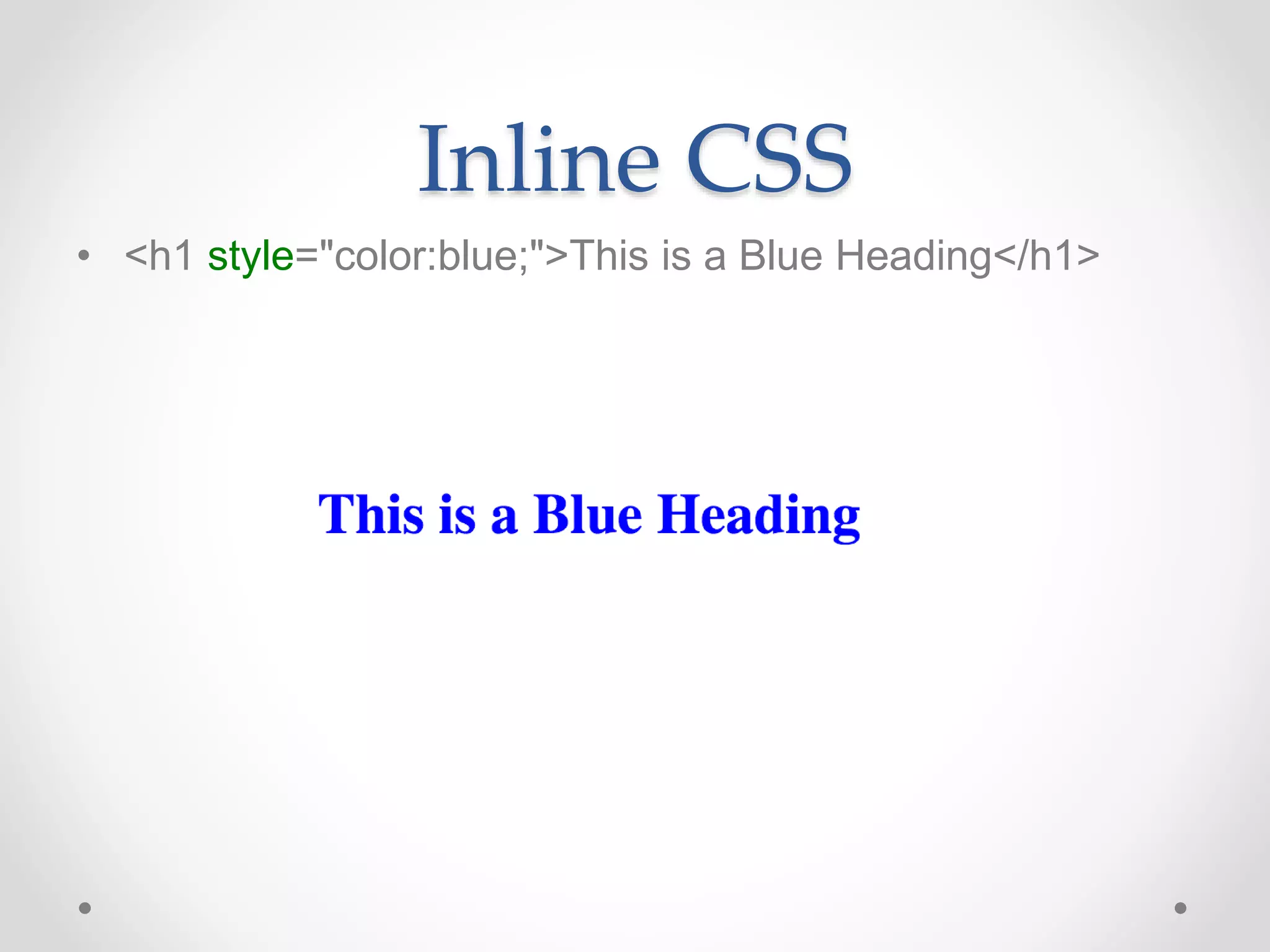
Inline CSS
• <h1 style="color:blue;">This is a Blue Heading</h1>
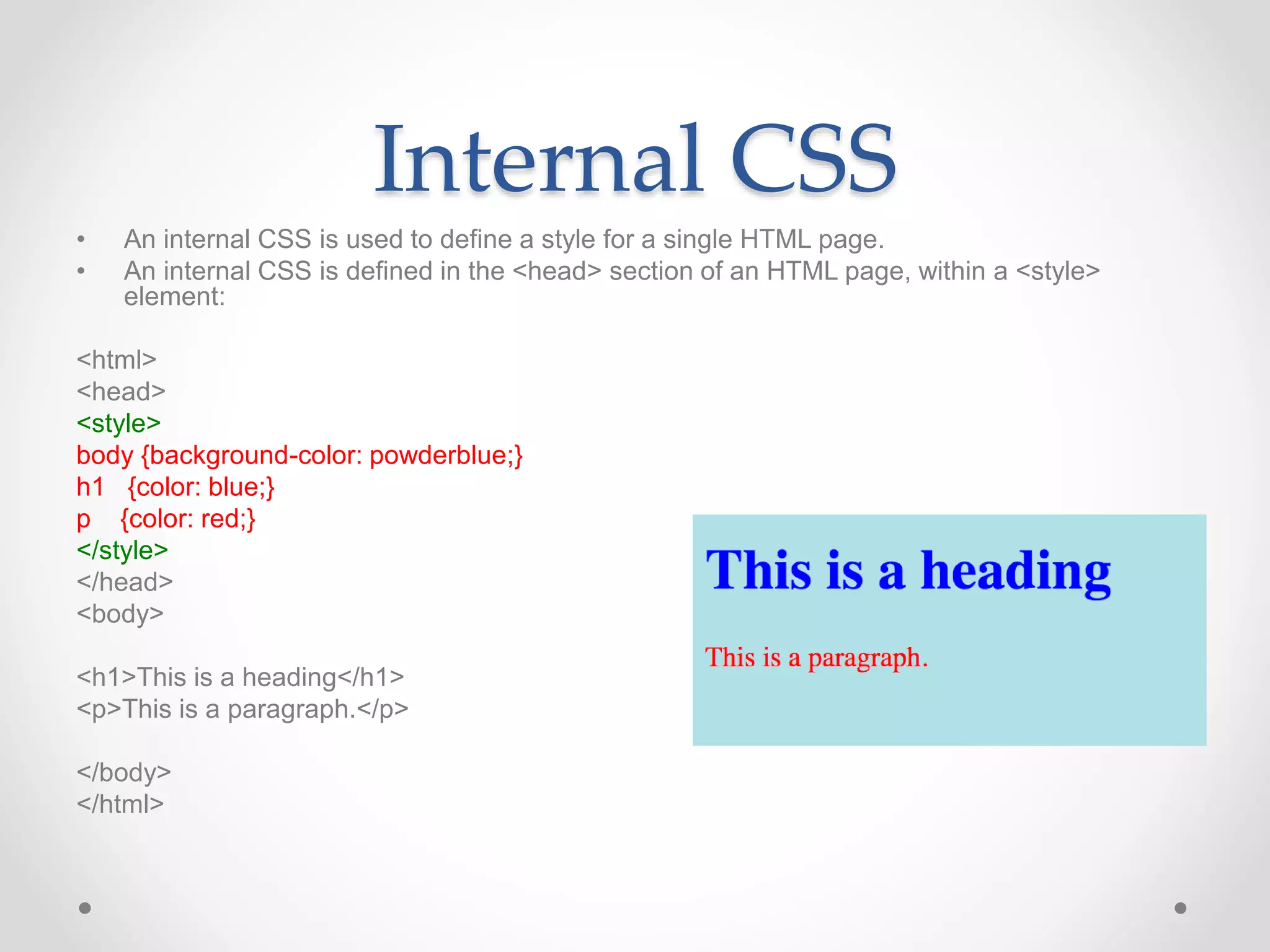
Internal CSS
• An internal CSS is used to define a style for a single HTML page.
• An internal CSS is defined in the <head> section of an HTML page, within a <style>
element:
<html>
<head>
<style>
body {background-color: powderblue;}
h1 {color: blue;}
p {color: red;}
</style>
</head>
<body>
<h1>This is a heading</h1>
<p>This is a paragraph.</p>
</body>
</html>
CSS Background Image from Link
<html>
<head> <title>Title of my Page</title>
<style>
body {
background-image: url(”LINKHERE");
}
</style>
</head>
<body>
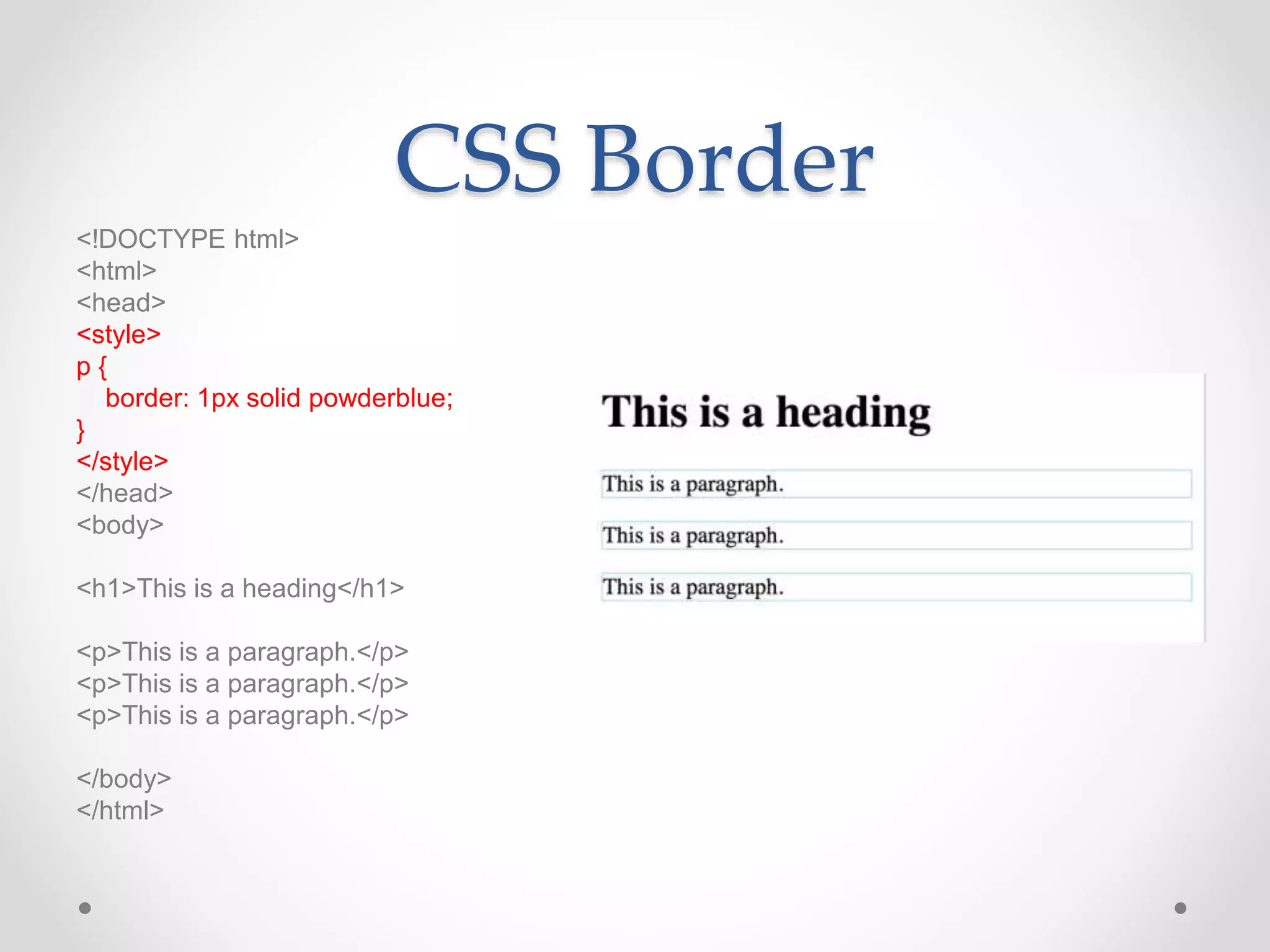
CSS Border
<!DOCTYPE html>
<html>
<head>
<style>
p {
border: 1px solid powderblue;
}
</style>
</head>
<body>
<h1>This is a heading</h1>
<p>This is a paragraph.</p>
</body>
</html>
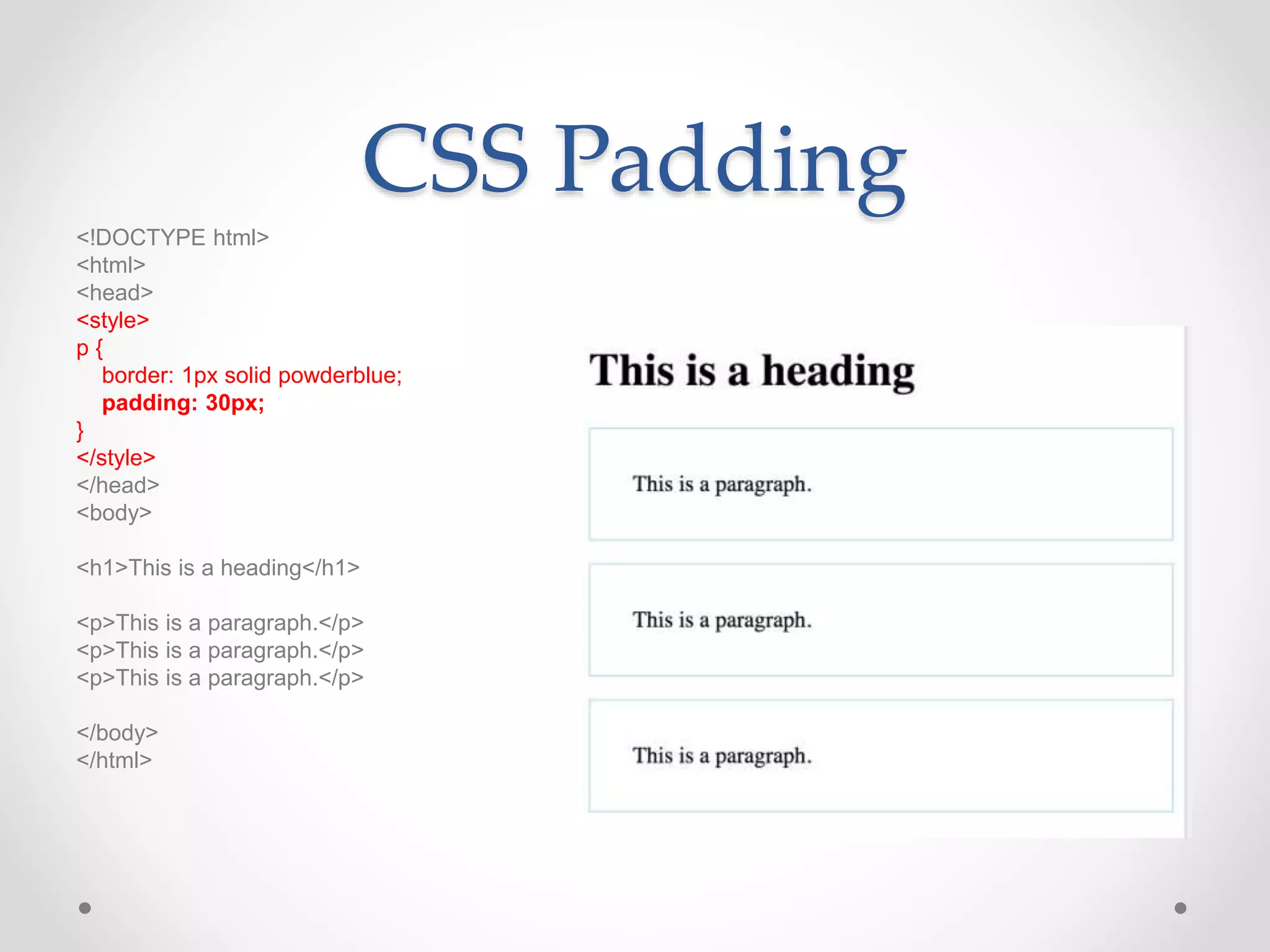
CSS Padding
<!DOCTYPE html>
<html>
<head>
<style>
p {
border: 1px solid powderblue;
padding: 30px;
}
</style>
</head>
<body>
<h1>This is a heading</h1>
<p>This is a paragraph.</p>
</body>
</html>
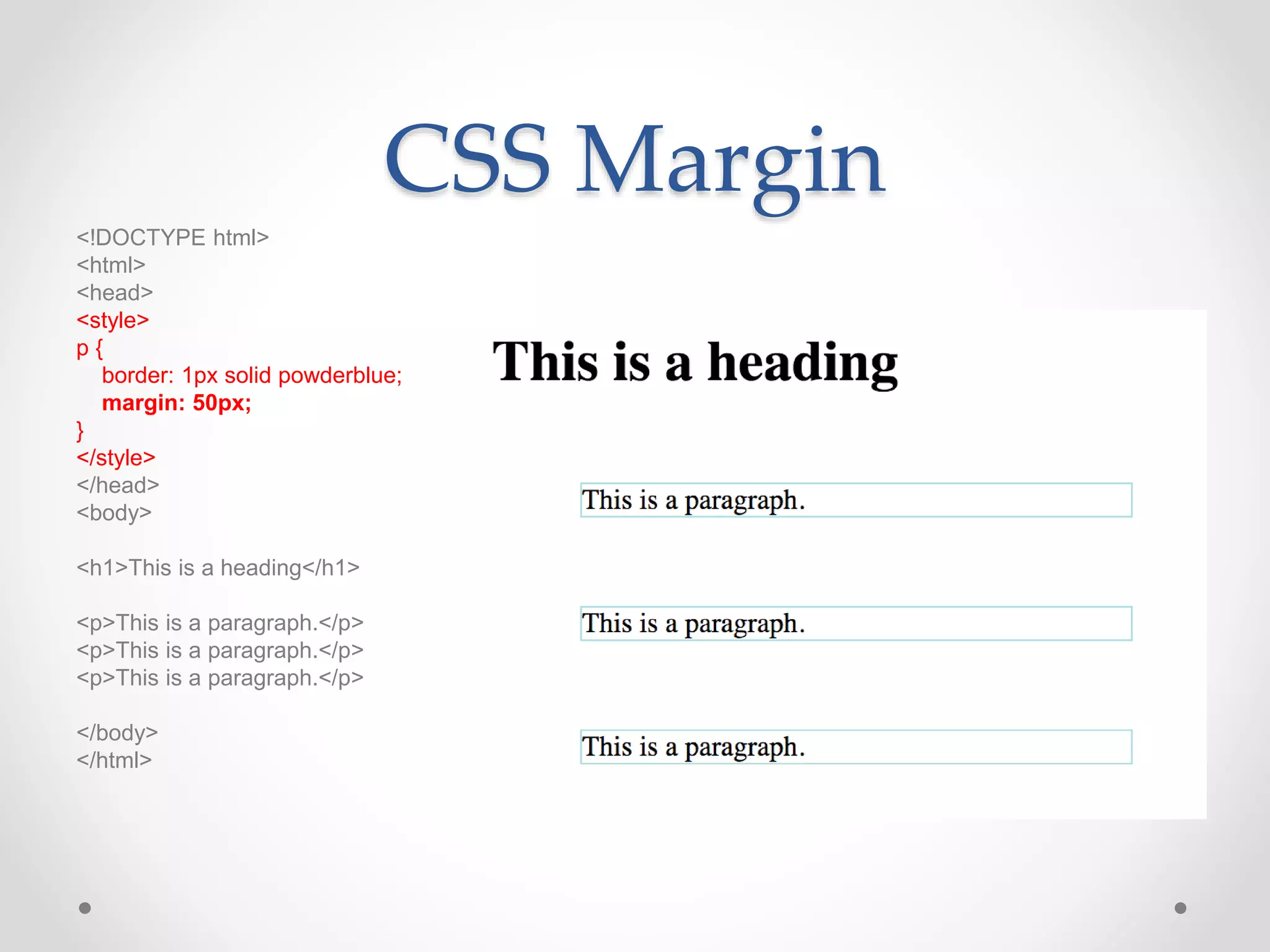
CSS Margin
<!DOCTYPE html>
<html>
<head>
<style>
p {
border: 1px solid powderblue;
margin: 50px;
}
</style>
</head>
<body>
<h1>This is a heading</h1>
<p>This is a paragraph.</p>
</body>
</html>
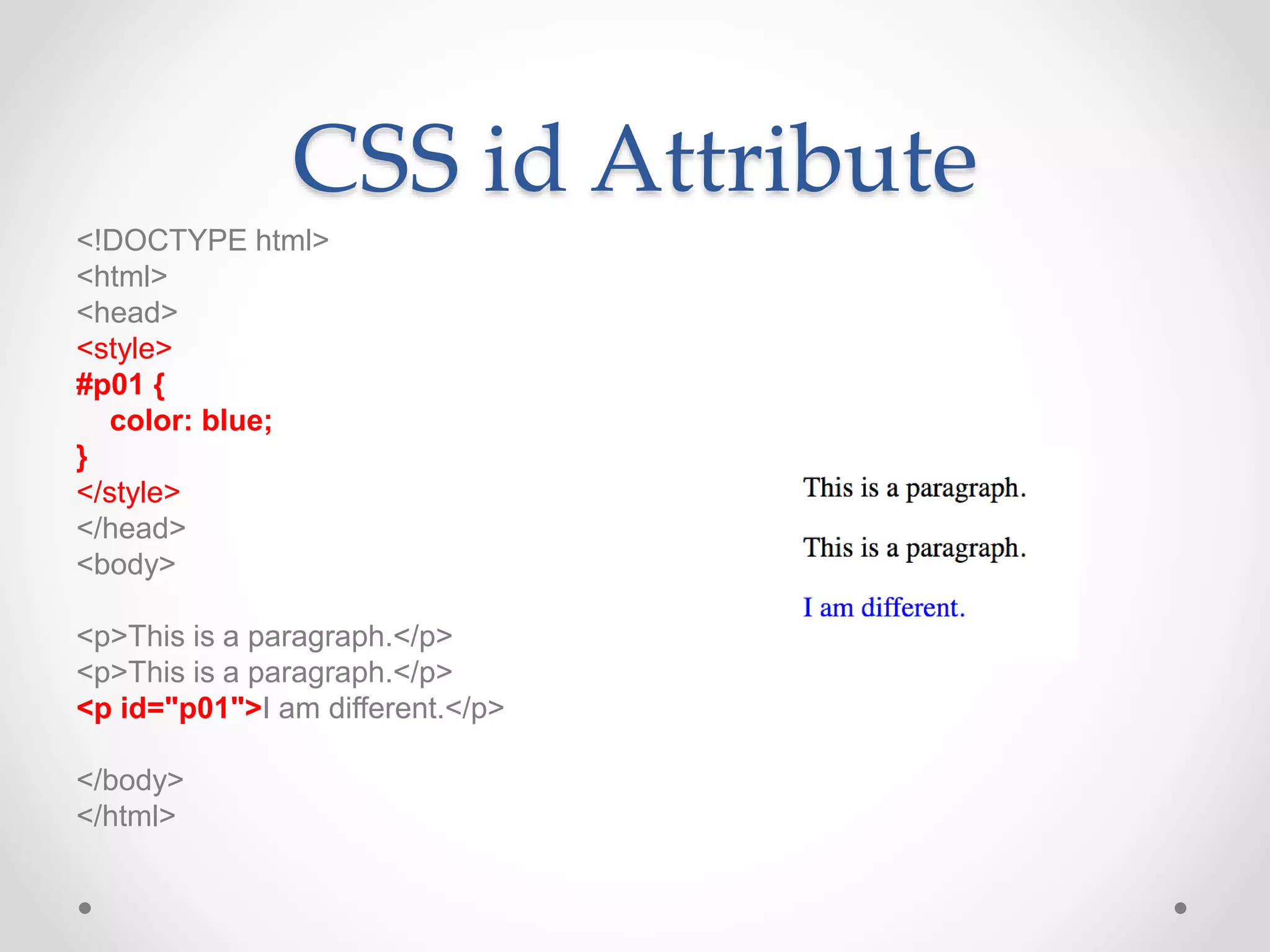
CSS id Attribute
<!DOCTYPE html>
<html>
<head>
<style>
#p01 {
color: blue;
}
</style>
</head>
<body>
<p>This is a paragraph.</p>
<p id="p01">I am different.</p>
</body>
</html>
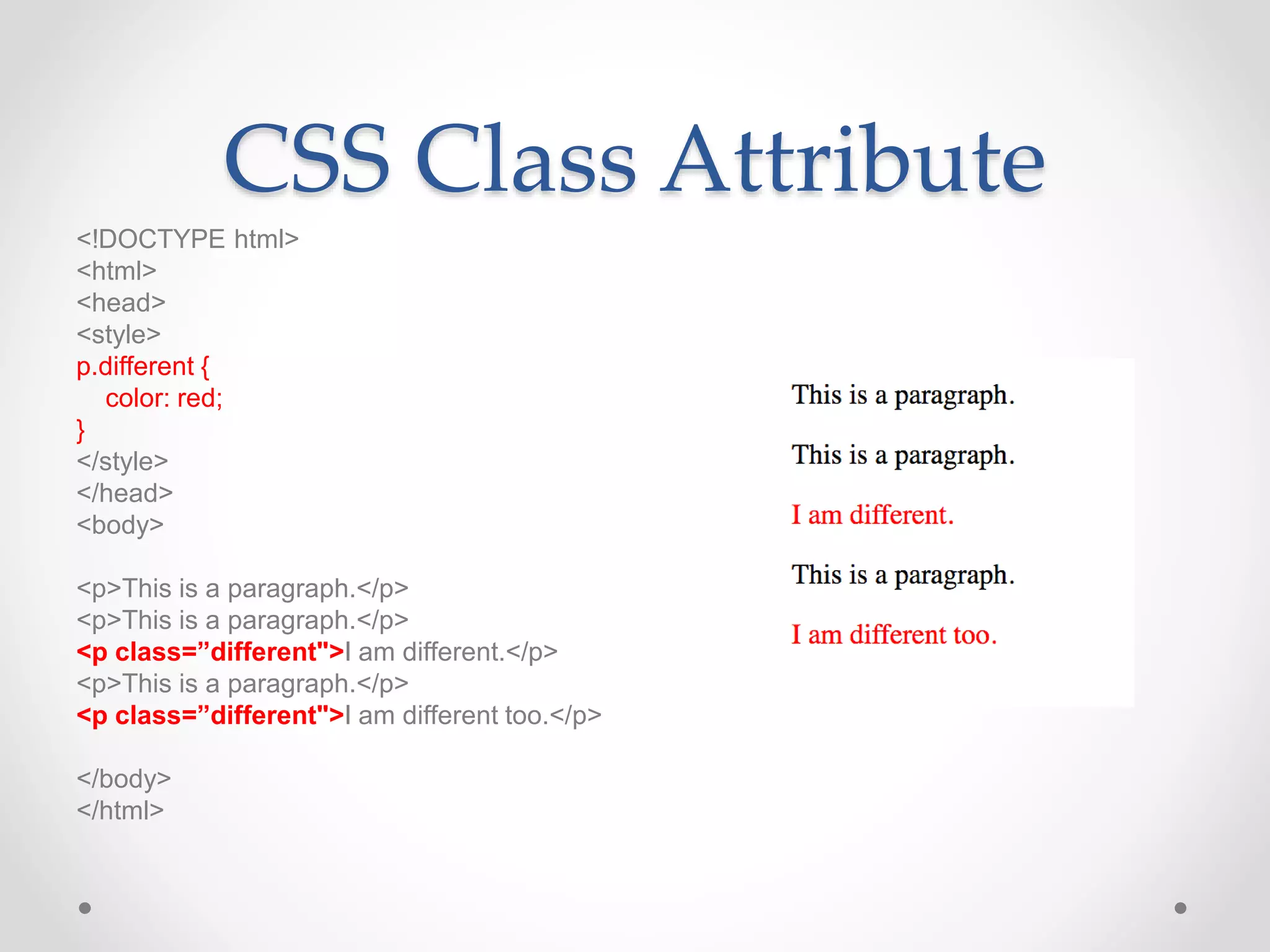
CSS Class Attribute
<!DOCTYPE html>
<html>
<head>
<style>
p.different {
color: red;
}
</style>
</head>
<body>
<p>This is a paragraph.</p>
<p class=”different">I am different.</p>
<p>This is a paragraph.</p>
<p class=”different">I am different too.</p>
</body>
</html>
The <div> Element
• The <div> element is often used as a container for other
HTML elements.
• The <div> element has no required attributes, but both
style and class are common.
• When used together with CSS, the <div> element can be
used to style blocks of content:
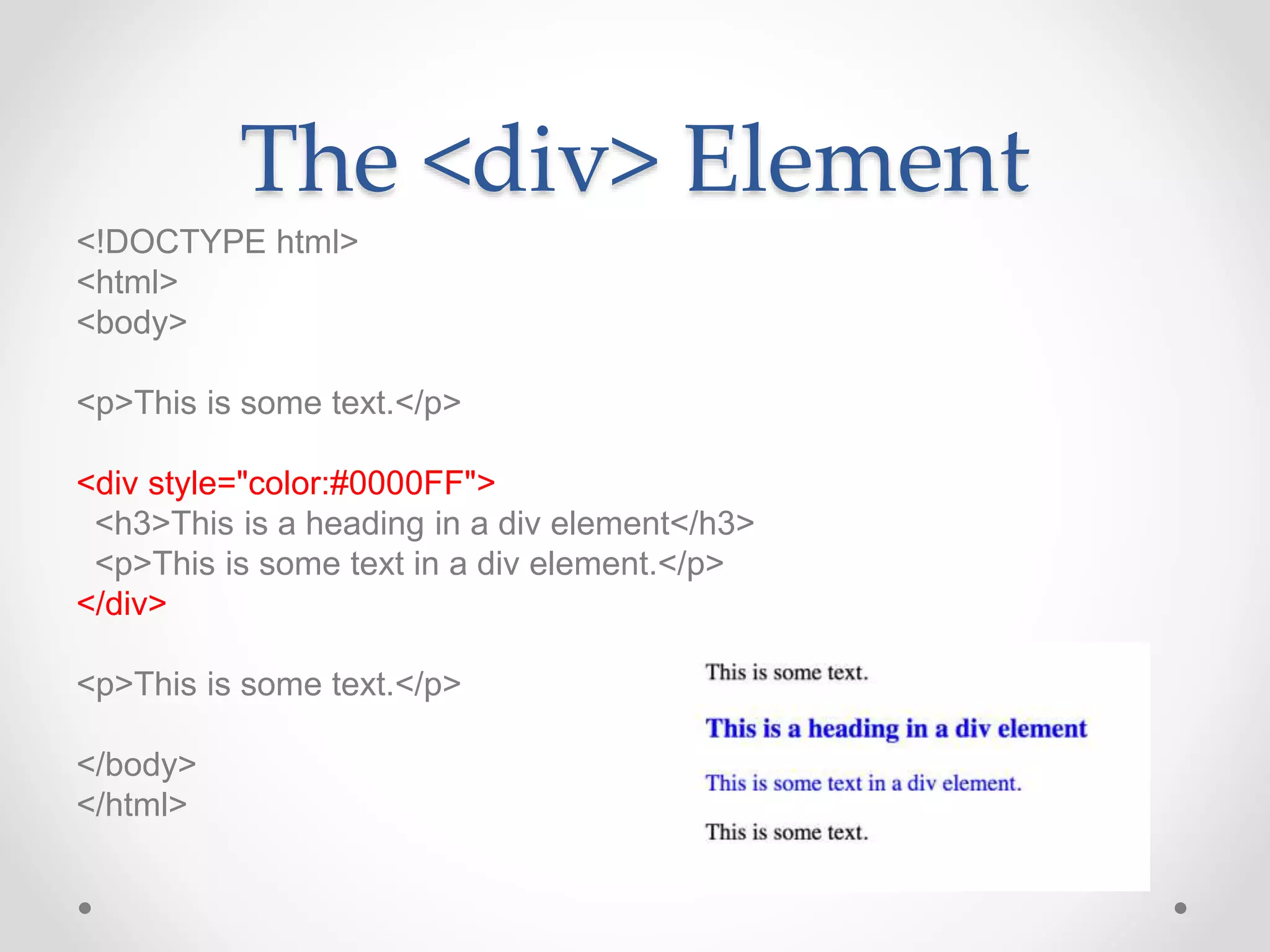
The <div> Element
<!DOCTYPE html>
<html>
<body>
<p>This is some text.</p>
<div style="color:#0000FF">
<h3>This is a heading in a div element</h3>
<p>This is some text in a div element.</p>
</div>
<p>This is some text.</p>
</body>
</html>
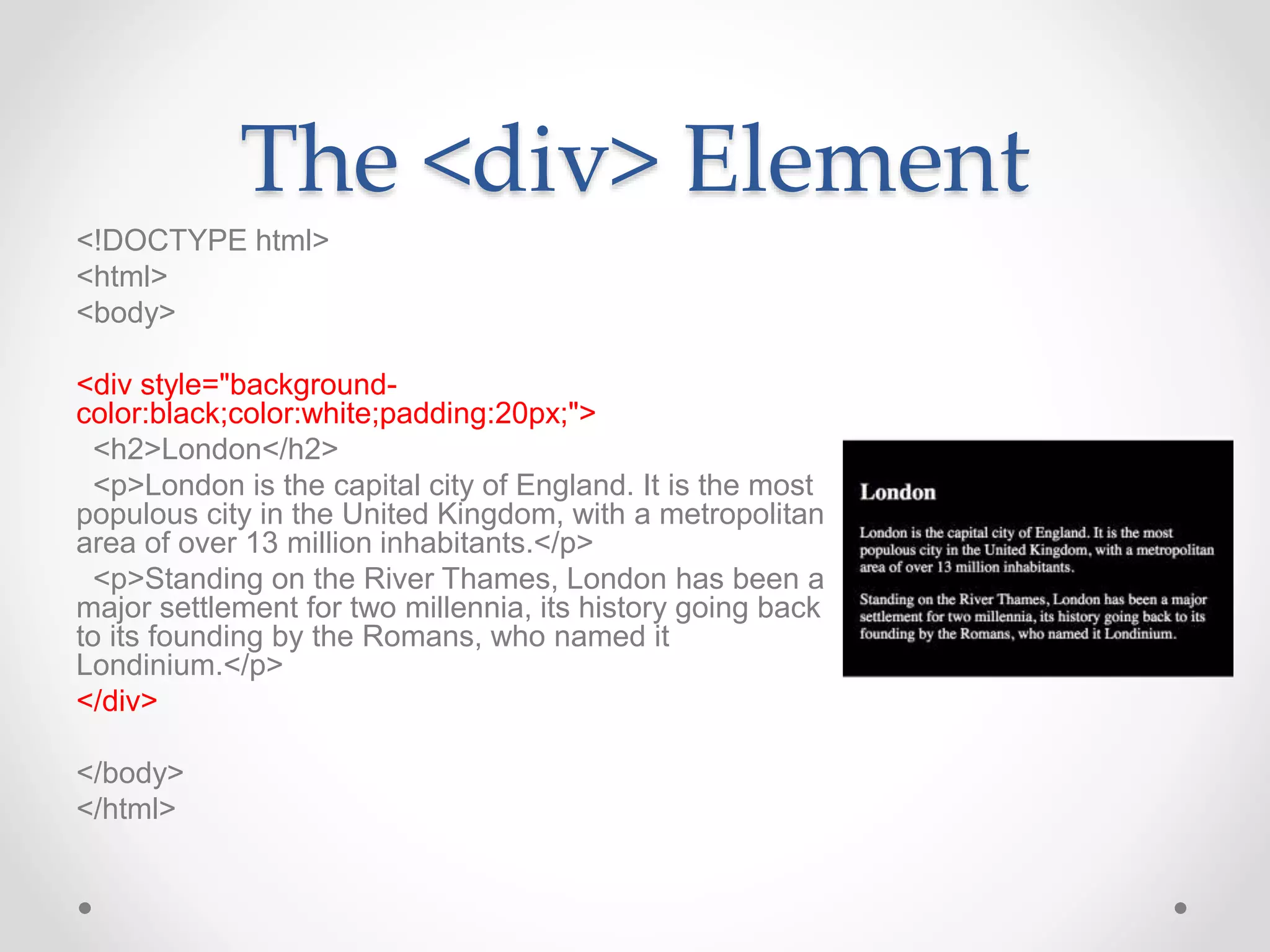
The <div> Element
<!DOCTYPE html>
<html>
<body>
<div style="background-
color:black;color:white;padding:20px;">
<h2>London</h2>
<p>London is the capital city of England. It is the most
populous city in the United Kingdom, with a metropolitan
area of over 13 million inhabitants.</p>
<p>Standing on the River Thames, London has been a
major settlement for two millennia, its history going back
to its founding by the Romans, who named it
Londinium.</p>
</div>
</body>
</html>
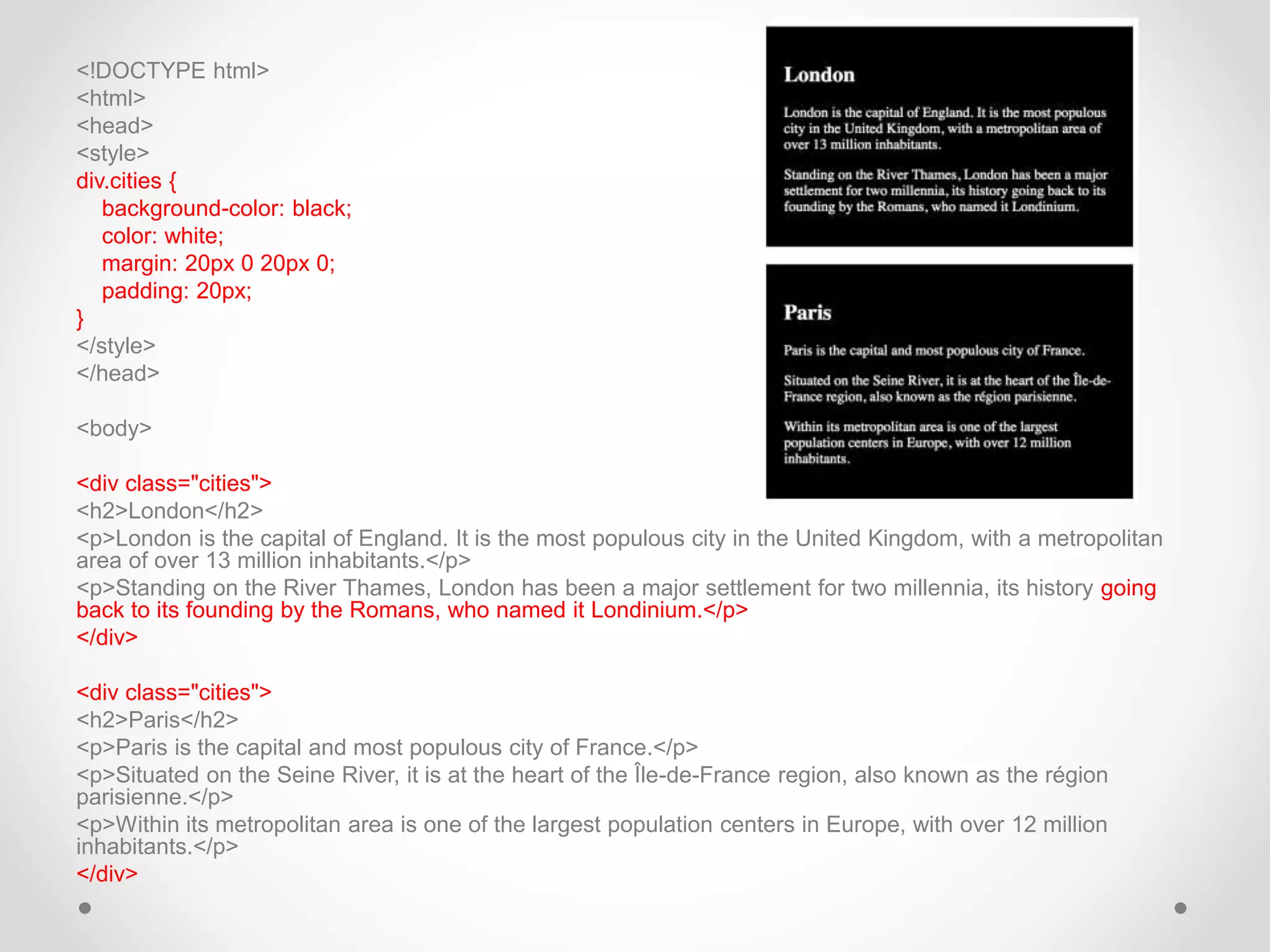
<!DOCTYPE html>
<html>
<head>
<style>
div.cities {
background-color: black;
color: white;
margin: 20px 0 20px 0;
padding: 20px;
}
</style>
</head>
<body>
<div class="cities">
<h2>London</h2>
<p>London is the capital of England. It is the most populous city in the United Kingdom, with a metropolitan
area of over 13 million inhabitants.</p>
<p>Standing on the River Thames, London has been a major settlement for two millennia, its history going
back to its founding by the Romans, who named it Londinium.</p>
</div>
<div class="cities">
<h2>Paris</h2>
<p>Paris is the capital and most populous city of France.</p>
<p>Situated on the Seine River, it is at the heart of the Île-de-France region, also known as the région
parisienne.</p>
<p>Within its metropolitan area is one of the largest population centers in Europe, with over 12 million
inhabitants.</p>
</div>
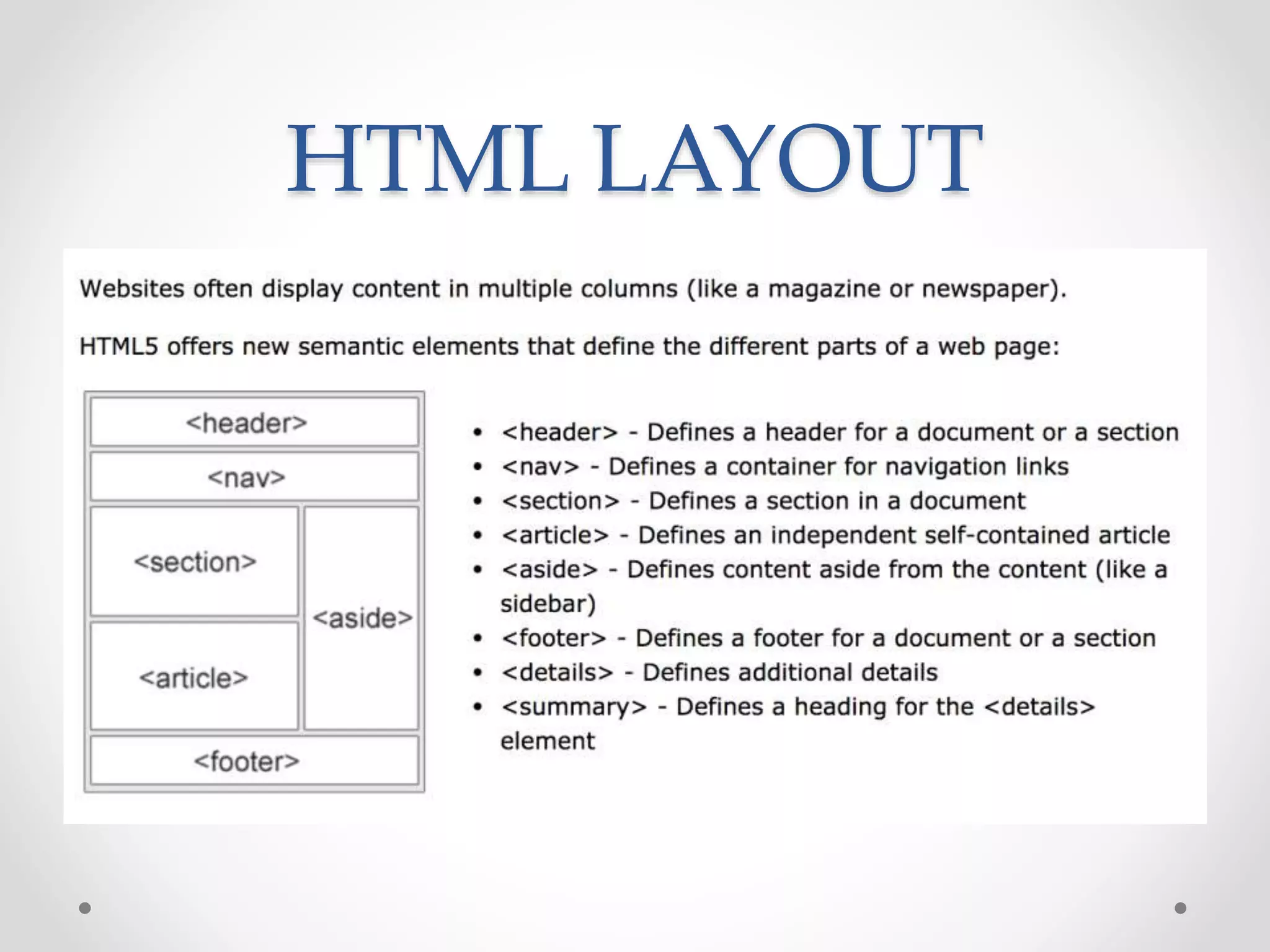
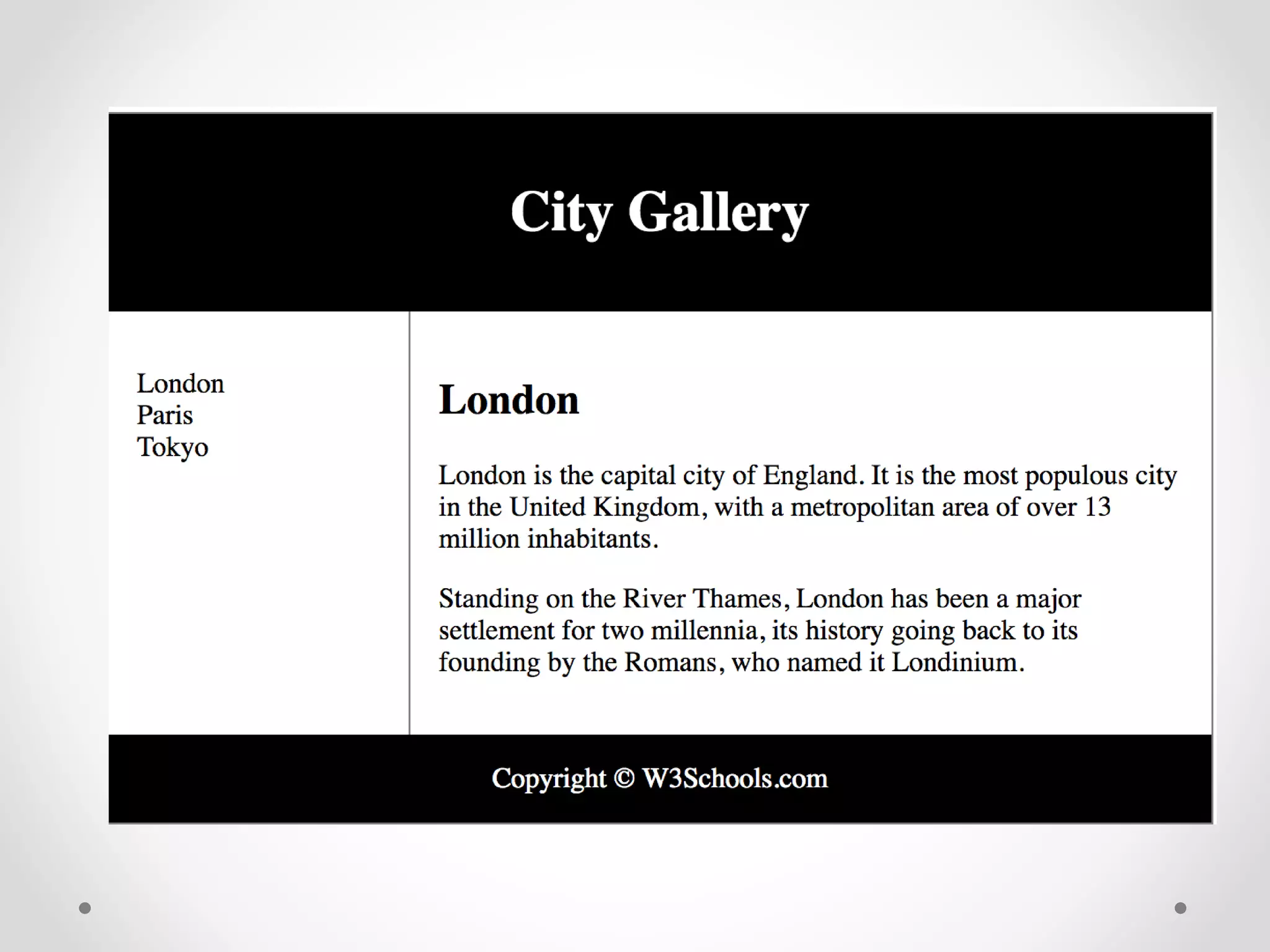
HTML LAYOUT
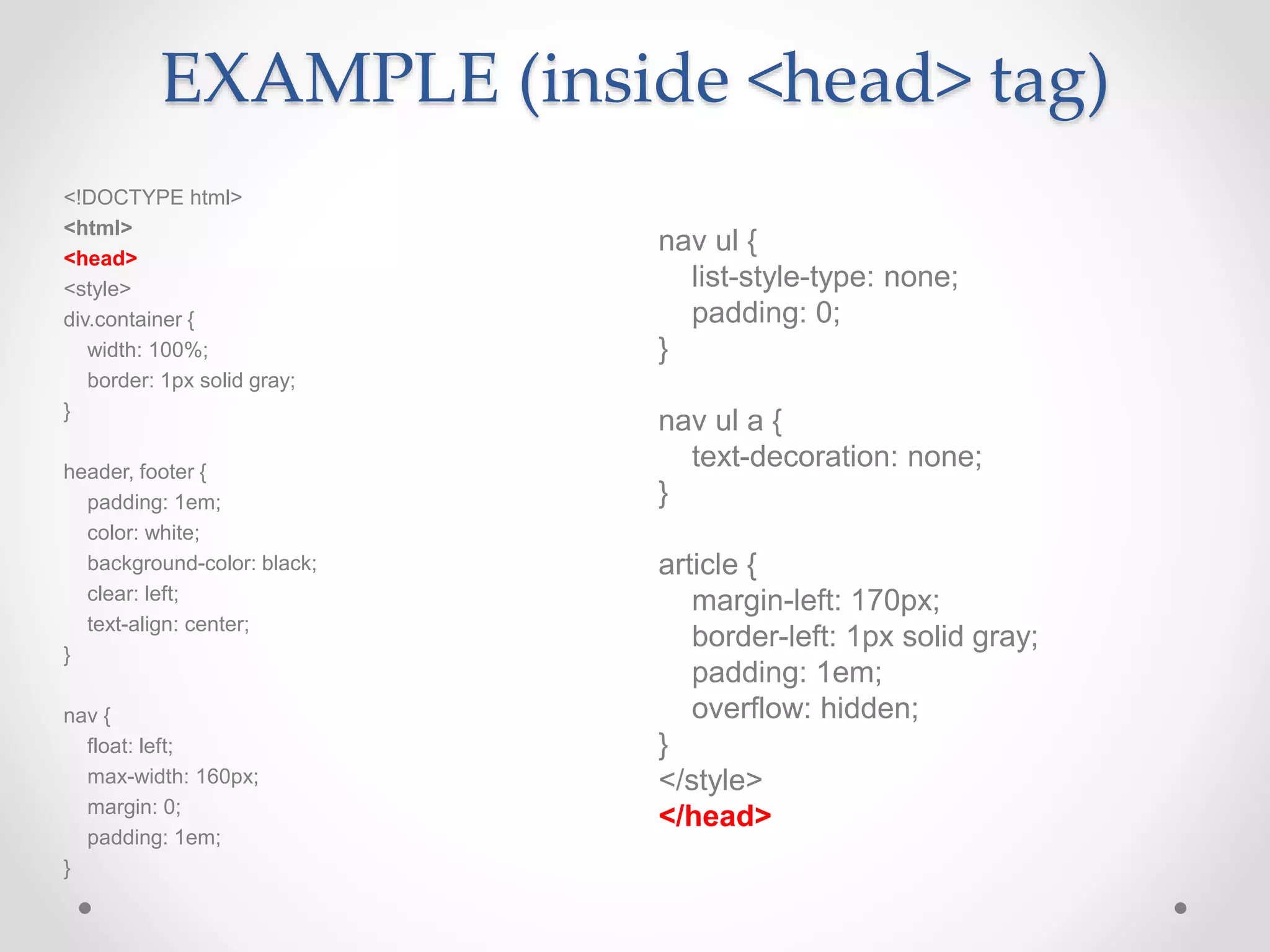
EXAMPLE (inside <head> tag)
nav ul {
list-style-type: none;
padding: 0;
}
nav ul a {
text-decoration: none;
}
article {
margin-left: 170px;
border-left: 1px solid gray;
padding: 1em;
overflow: hidden;
}
</style>
</head>
<!DOCTYPE html>
<html>
<head>
<style>
div.container {
width: 100%;
border: 1px solid gray;
}
header, footer {
padding: 1em;
color: white;
background-color: black;
clear: left;
text-align: center;
}
nav {
float: left;
max-width: 160px;
margin: 0;
padding: 1em;
}
Example (inside <body>)
<article>
<h1>London</h1>
<p>London is the capital city of England. It
is the most populous city in the United
Kingdom, with a metropolitan area of over 13
million inhabitants.</p>
<p>Standing on the River Thames, London
has been a major settlement for two
millennia, its history going back to its
founding by the Romans, who named it
Londinium.</p>
</article>
<footer>Copyright &copy;
W3Schools.com</footer>
</div>
</body>
</html>
<body>
<div class="container">
<header>
<h1>City Gallery</h1>
</header>
<nav>
<ul>
<li>London</li>
<li>Paris</li>
<li>Tokyo</li>
</ul>
</nav>
See what you can come
up with!

Html coding

  • 1.
  • 2.
    What is HTML? •Hypertext Markup Language • Using HTML, text is formatted by wrapping it in a tag. • The tags provide instructions to the browser (Safari, IE, Firefox, Chrome, etc.) for how to render the text on screen. <h2>Text wrapped in an heading level 2 tag looks like this</h2> START TAG END TAG
  • 3.
  • 4.
    3 Parts ofan HTML Document • An HTML document is divided into three sections: 1) Declarations 2) Head 3) Body 1 2 3
  • 5.
    Document Type • The<!DOCTYPE> declaration must be the very first thing in your HTML document, before the <html> tag. • The <!DOCTYPE> declaration is not an HTML tag; it is an instruction to the web browser about what version of HTML the page is written in.
  • 6.
    Starting and Ending yourCode • The first tag you need is: <html> *EVERYTHING INBETWEEN </html>
  • 7.
    GETTING STARTED • OPENUP NOTEPAD ON YOUR COMPUTERS • IF YOU’RE WORKING FROM A MAC DOWNLOAD TEXTWRANGLER • Start writing your code: <html> </html>
  • 8.
    Inside <html> </html> Thereare 2 sections within the <html></html>tags: • <head> </head> The head tag contains information about the page • <body> </body> Actual content displayed to the user on the web page
  • 9.
    Type that outin Notepad <html> <head> </head> <body> </body> </html>
  • 10.
    Inside <head> </head> <html> <head> <title>Titleof my Page</title> </head> <body> </body> </html>
  • 11.
    Now Save it 1.Save as html file in a folder titled “HTML” (type “.html” at end of file name if necessary) 2. OPEN FILE in WEB BROWSER-drag file into a new tab 3. You will see the TITLE on the tab (nothing on pg. yet)
  • 12.
    Adding Content • Inside<body> </body> • HEADING TAGS <h1>Heading 1</h1> <h2>Heading 2</h2> <h3>Heading 3</h3> <h4>Heading 4</h4> <h5>Heading 5</h5> <h6>Heading 6</h6>
  • 13.
    TEST THAT OUT! <html> <head> <title>Titleof my Page</title> </head> <body> <h1>Hello World</h1> <h2>My Name is Briana</h2> <h3>I am your teacher</h3> </body> </html>
  • 14.
    PARAGRAPH TAG <p><p/> <html> <head> <title>Title ofmy Page</title> </head> <body> <h1>Hello World</h1> <h2>My Name is Briana</h2> <h3>I am your teacher</h3> <p>This is my first year teaching these classes. All of my students are wonderful and talented. They are all going to understand basic coding by the end of this class.</p> </body> </html>
  • 15.
    Add another paragraph <html> <head> <title>Titleof my Page</title> </head> <body> <h1>Hello World</h1> <h2>My Name is Briana</h2> <h3>I am your teacher</h3> <p>This is my first year teaching these classes. All of my students are wonderful and talented. They are all going to understand basic coding by the end of this class.</p> <p>This is my second paragraph. As you can see, it is below my first paragraph.</p> </body> </html>
  • 16.
    Breaking up aParagraph • </br> - another self closing tag <html> <head> <title>Title of my Page</title> </head> <body> <h1>Hello World</h1> <h2>My Name is Briana</h2> <h3>I am your teacher</h3> <p>This is my first year teaching these classes. All of my students are wonderful and talented. <br/>They are all going to understand basic coding by the end of this class. Oh, this is an example of a break tag that is dividing this paragraph into two lines. Do you see it?</p> <p>This is my second paragraph. As you can see, it is below my first paragraph.</p> </body> </html>
  • 17.
    Changing Text attributes •<i></i> italics • <em></em> italics • <strong></strong> bold • <b></b> Bold • <u></u> underlined
  • 18.
    Adding emphasis ina paragraph <p> This is my <i>first year</i> teaching these classes. All of my students are <strong>wonderful and talented.</strong> They are all going to <em>understand</em> basic <em><u>coding</em></u> by the end of this class. </p>
  • 19.
    Adding a line •<hr/> - self closing tag <html> <head> <title>Title of my Page</title> </head> <body> <h1>Hello World</h1> <h2>My Name is Briana</h2> <h3>I am your teacher</h3> <p>This is my first year teaching these classes. All of my students are wonderful and talented. <br/>They are all going to understand basic coding by the end of this class. Oh, this is an example of a break tag that is dividing this paragraph into two lines. Do you see it? </p> <p>This is my second paragraph. As you can see, it is below my first paragraph.</p> <hr/> <img src="http://uhaweb.hartford.edu/aschmidt/kitten11.jpg"/> </body> </html>
  • 20.
    Creating Bulleted Lists •To create a bullet pointed list we will use an unordered list <ul></ul> • The whole list is wrapped in UL tags and then all of the elements in the list are wrapped in <li></li> tags <html> <head> <title>Title of my Page</title> </head> <body> <ul> <li>Item 1</li> <li>Item 2</li> </ul> </body> </html>
  • 21.
    Creating Numbered Lists •Instead of <ul></ul> you will use <ol></ol> • The whole list is wrapped in OL tags and then all of the elements in the list are wrapped in <li></li> tags <html> <head> <title>Title of my Page</title> </head> <body> <ol> <li>Item 1</li> <li>Item 2</li> </ol> </body> </html>
  • 22.
    Creating Definition Lists •<dl></dl> • The whole list is wrapped in dl tags and then all of the elements in the list are wrapped in either <dt></dt> or <dd></dd> <html> <head> <title>Title of my Page</title> </head> <body> <dl> <dt>term1</dt> <dd>definition 1</dd> <dt>term2</dt> <dd>definition 2</dd> </dl> </body> </html>
  • 23.
    Adding an IMAGE •Find an image on Google • Click on it • Click View Image (so the image is on it’s own page) • Copy the URL • Now we will add it to our code
  • 24.
    Inserting Image fromWeb <img src=“INSERTLINKHERE”/> Resize the image (below) <img src=“LINK” alt=“displaytext” style=“width: #; #;”>
  • 25.
    Adding Image fromFolder • Create a file in your HTML folder titled IMAGES • Save an image in the Images folder • <img src=”images/TitleOfYourImage.jpg" alt=”NameYourImage" style="width:#px; height:#px”/>
  • 26.
    Add a videofrom Youtube Get the embed code from YOUTUBE <iframe width=”#" height=”#" src=“YOUTUBE LINK HERE" frameborder="0" allowfullscreen></iframe>
  • 27.
  • 28.
    Open link innew tab <a href="http://facebook.com" target="_blank">Click Here<a/>
  • 29.
    Links from Icons <ahref=”WEBSITELINK"> <img src=”ICON"alt="Youtube Link" width=”#" height=”#"></a>
  • 30.
    HTML Text Color <h1style=“color:blue;”>This is a heading</h1> <p style="color:red;">This is a paragraph.</p>
  • 31.
  • 32.
    The <span> Element •The <span> element is often used as a container for some text. • The <span> element has no required attributes, but both style and class are common. • When used together with CSS, the <span> element can be used to style parts of the text:
  • 33.
    The <span> Element <!DOCTYPEhtml> <html> <body> <h1>My <span style="color:red">Important</span> Heading</h1> </body> </html>
  • 34.
    HTML Fonts <h1 style="font-family:verdana;">Thisis a heading</h1> <p style="font-family:courier;">This is a paragraph.</p>
  • 35.
    HTML Text Size <h1style="font-size:300%;">This is a heading</h1> <p style="font-size:160%;">This is a paragraph.</p>v
  • 36.
    HTML Text Alignment <h1style="text-align:center;">Centered Heading</h1> <p style="text-align:center;">Centered paragraph.</p>
  • 37.
    HTML Background Color •<!DOCTYPE html> • <html> • <body style="background-color:powderblue;"> • <h1>This is a heading</h1> • <p>This is a paragraph.</p> • </body> • </html>
  • 38.
    HTML Background Imagefrom File • YOU MUST HAVE YOUR FILE SAVES AS INDEX.HTML <html> <head> <title>Title of my Page</title> <body background = ”images/watercolor.jpg"> *everything else </body> </html>
  • 39.
    CSS • CSS standsfor Cascading Style Sheets. • CSS describes how HTML elements are to be displayed on screen, paper, or in other media. • CSS saves a lot of work. It can control the layout of multiple web pages all at once. CSS can be added to HTML elements in 3 ways: • Inline - by using the style attribute in HTML elements • Internal - by using a <style> element in the <head> section • External - by using an external CSS file
  • 40.
    Inline CSS • <h1style="color:blue;">This is a Blue Heading</h1>
  • 41.
    Internal CSS • Aninternal CSS is used to define a style for a single HTML page. • An internal CSS is defined in the <head> section of an HTML page, within a <style> element: <html> <head> <style> body {background-color: powderblue;} h1 {color: blue;} p {color: red;} </style> </head> <body> <h1>This is a heading</h1> <p>This is a paragraph.</p> </body> </html>
  • 42.
    CSS Background Imagefrom Link <html> <head> <title>Title of my Page</title> <style> body { background-image: url(”LINKHERE"); } </style> </head> <body>
  • 43.
    CSS Border <!DOCTYPE html> <html> <head> <style> p{ border: 1px solid powderblue; } </style> </head> <body> <h1>This is a heading</h1> <p>This is a paragraph.</p> <p>This is a paragraph.</p> <p>This is a paragraph.</p> </body> </html>
  • 44.
    CSS Padding <!DOCTYPE html> <html> <head> <style> p{ border: 1px solid powderblue; padding: 30px; } </style> </head> <body> <h1>This is a heading</h1> <p>This is a paragraph.</p> <p>This is a paragraph.</p> <p>This is a paragraph.</p> </body> </html>
  • 45.
    CSS Margin <!DOCTYPE html> <html> <head> <style> p{ border: 1px solid powderblue; margin: 50px; } </style> </head> <body> <h1>This is a heading</h1> <p>This is a paragraph.</p> <p>This is a paragraph.</p> <p>This is a paragraph.</p> </body> </html>
  • 46.
    CSS id Attribute <!DOCTYPEhtml> <html> <head> <style> #p01 { color: blue; } </style> </head> <body> <p>This is a paragraph.</p> <p>This is a paragraph.</p> <p id="p01">I am different.</p> </body> </html>
  • 47.
    CSS Class Attribute <!DOCTYPEhtml> <html> <head> <style> p.different { color: red; } </style> </head> <body> <p>This is a paragraph.</p> <p>This is a paragraph.</p> <p class=”different">I am different.</p> <p>This is a paragraph.</p> <p class=”different">I am different too.</p> </body> </html>
  • 48.
    The <div> Element •The <div> element is often used as a container for other HTML elements. • The <div> element has no required attributes, but both style and class are common. • When used together with CSS, the <div> element can be used to style blocks of content:
  • 49.
    The <div> Element <!DOCTYPEhtml> <html> <body> <p>This is some text.</p> <div style="color:#0000FF"> <h3>This is a heading in a div element</h3> <p>This is some text in a div element.</p> </div> <p>This is some text.</p> </body> </html>
  • 50.
    The <div> Element <!DOCTYPEhtml> <html> <body> <div style="background- color:black;color:white;padding:20px;"> <h2>London</h2> <p>London is the capital city of England. It is the most populous city in the United Kingdom, with a metropolitan area of over 13 million inhabitants.</p> <p>Standing on the River Thames, London has been a major settlement for two millennia, its history going back to its founding by the Romans, who named it Londinium.</p> </div> </body> </html>
  • 51.
    <!DOCTYPE html> <html> <head> <style> div.cities { background-color:black; color: white; margin: 20px 0 20px 0; padding: 20px; } </style> </head> <body> <div class="cities"> <h2>London</h2> <p>London is the capital of England. It is the most populous city in the United Kingdom, with a metropolitan area of over 13 million inhabitants.</p> <p>Standing on the River Thames, London has been a major settlement for two millennia, its history going back to its founding by the Romans, who named it Londinium.</p> </div> <div class="cities"> <h2>Paris</h2> <p>Paris is the capital and most populous city of France.</p> <p>Situated on the Seine River, it is at the heart of the Île-de-France region, also known as the région parisienne.</p> <p>Within its metropolitan area is one of the largest population centers in Europe, with over 12 million inhabitants.</p> </div>
  • 52.
  • 53.
    EXAMPLE (inside <head>tag) nav ul { list-style-type: none; padding: 0; } nav ul a { text-decoration: none; } article { margin-left: 170px; border-left: 1px solid gray; padding: 1em; overflow: hidden; } </style> </head> <!DOCTYPE html> <html> <head> <style> div.container { width: 100%; border: 1px solid gray; } header, footer { padding: 1em; color: white; background-color: black; clear: left; text-align: center; } nav { float: left; max-width: 160px; margin: 0; padding: 1em; }
  • 54.
    Example (inside <body>) <article> <h1>London</h1> <p>Londonis the capital city of England. It is the most populous city in the United Kingdom, with a metropolitan area of over 13 million inhabitants.</p> <p>Standing on the River Thames, London has been a major settlement for two millennia, its history going back to its founding by the Romans, who named it Londinium.</p> </article> <footer>Copyright &copy; W3Schools.com</footer> </div> </body> </html> <body> <div class="container"> <header> <h1>City Gallery</h1> </header> <nav> <ul> <li>London</li> <li>Paris</li> <li>Tokyo</li> </ul> </nav>
  • 56.
    See what youcan come up with!