HTML
AN INTRODUCTION
TO WEB PAGE
PROGRAMMING
INTRODUCTION TO HTML
• With HTML you can create your own Web site.
• HTML stands for Hyper Text Markup Language.
• HTML is derived from a language SGML (Standard
Graphics Markup Language).
• The future of HTML is XML (extended Markup
Language).
• HTML is not a programming language, it is a Markup
Language.
• A markup language is a set of markup tags.
• HTML uses markup tags to describe web pages.
• HTML is not case sensitive language.
• HTML documents contain HTML tags and plain text.
HTML Elements and Tags
• A tag is always enclosed in angle bracket
<>like <HTML>
• HTML tags normally come in pairs like
<HTML> and </HTML> i.e.
Start tag = <HTML>
End tag =</HTML>
• Start and end tags are also called opening
tags and closing tags
HOW TO START
• Write html code in notepad.
• Save the file with (.Html)/(.Htm) extension.
• View the page in any web browser viz.
INTERNET EXPLORER, NETSCAPE
NAVIGATOR etc.
• The purpose of a web browser (like internet
explorer or Firefox) is to read html documents
and display them as web pages.
Code With HTML
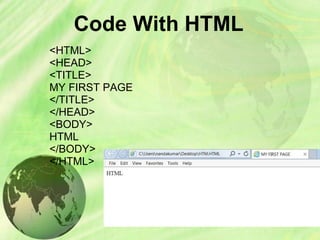
<HTML>
<HEAD>
<TITLE>
MY FIRST PAGE
</TITLE>
</HEAD>
<BODY>
HTML
</BODY>
</HTML>
Explanation of these tags
• <HTML> - Describe HTML web page that is
to be viewed by a web browser.
• <HEAD> - This defines the header section
of the page.
• <TITLE> - This shows a caption in the title
bar of the page.
• <BODY> - This tag show contents of the
web page will be displayed.
Types of HTML Tags
There are two different types of tags:->
Container Element:->
Container Tags contains start tag & end tag i.e.
<HTML>… </HTML>
Empty Element:->
Empty Tags contains start tag i.e.
<BR>
Text Formatting Tags
Heading Element:->
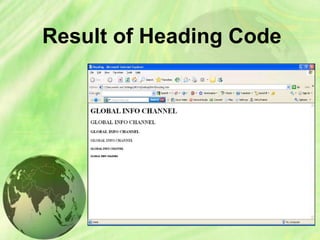
• There are six heading elements
(<H1>,<H2>,<H3>,<H4>, <H5>,<H6>).
• All the six heading elements are container
tag and requires a closing tag.
• <h1> will print the largest heading
• <h6> will print the smallest heading
Heading Tag Code
<html>
<head><title>heading</title></head>
<body>
<h1> GLOBAL INFO CHANNEL</h1>
<h2> GLOBAL INFO CHANNEL</h2>
<h3> GLOBAL INFO CHANNEL</h3>
<h4> GLOBAL INFO CHANNEL</h4>
<h5> GLOBAL INFO CHANNEL</h5>
<h6> GLOBAL INFO CHANNEL</h6>
</body>
</html>
Result of Heading Code
HTML Paragraph Tag
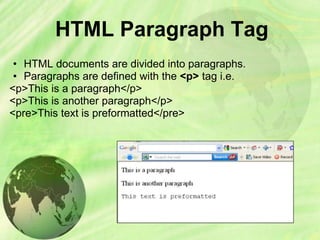
• HTML documents are divided into paragraphs.
• Paragraphs are defined with the <p> tag i.e.
<p>This is a paragraph</p>
<p>This is another paragraph</p>
<pre>This text is preformatted</pre>
Line Break & Horizontal
Line Tag
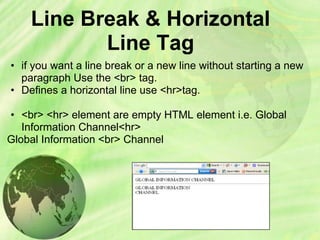
• if you want a line break or a new line without starting a new
paragraph Use the <br> tag.
• Defines a horizontal line use <hr>tag.
• <br> <hr> element are empty HTML element i.e. Global
Information Channel<hr>
Global Information <br> Channel
Text Formatting Tags
<b> Defines bold text
<big> Defines big text
<em> Defines emphasized text
<i> Defines italic text
<small> Defines small text
<strong> Defines strong text
<sub> Defines subscripted text
<super> Defines superscripted text
<ins> Defines inserted text
<del> Defines deleted text
<tt> Defines teletype text
<u> Defines underline text
<strike> Defines strike text
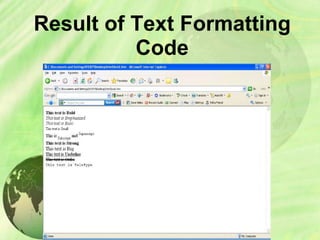
Text Formatting Code
<html>
<head></head>
<body>
<b>This text is Bold</b>
<br><em>This text is Emphasized</em>
<br><i>This text is Italic</i>
<br><small>This text is Small</small>
<br>This is<sub> Subscript</sub> and
<sup>Superscript</sup>
<br><strong>This text is Strong</strong>
<br><big>This text is Big</big>
<br><u>This text is Underline</u>
<br><strike>This text is Strike</strike>
<br><tt>This text is Teletype</tt>
</body>
</html>
Result of Text Formatting
Code
Font Tag
• This element is used to format the size,
typeface and color of the enclosed text.
• The commonly used fonts for web pages
are Arial, Comic Sans MS , Lucida Sans
Unicode, Arial Black, Courier New, Times
New Roman, Arial Narrow, Impact,
Verdana.
• The size attribute in font tag takes values
from 1 to 7.
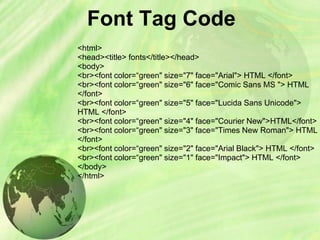
Font Tag Code
<html>
<head><title> fonts</title></head>
<body>
<br><font color=“green" size="7" face="Arial"> HTML </font>
<br><font color=“green" size="6" face="Comic Sans MS "> HTML
</font>
<br><font color=“green" size="5" face="Lucida Sans Unicode">
HTML </font>
<br><font color=“green" size="4" face="Courier New">HTML</font>
<br><font color=“green" size="3" face="Times New Roman"> HTML
</font>
<br><font color=“green" size="2" face="Arial Black"> HTML </font>
<br><font color=“green" size="1" face="Impact"> HTML </font>
</body>
</html>
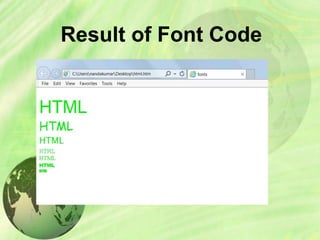
Result of Font Code
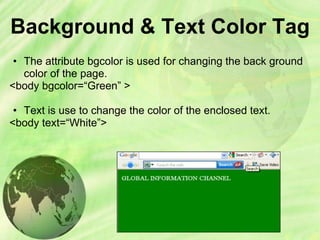
Background & Text Color Tag
• The attribute bgcolor is used for changing the back ground
color of the page.
<body bgcolor=“Green” >
• Text is use to change the color of the enclosed text.
<body text=“White”>
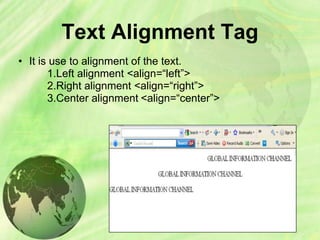
Text Alignment Tag
• It is use to alignment of the text.
1.Left alignment <align=“left”>
2.Right alignment <align=“right”>
3.Center alignment <align=“center”>
HTML List Tag
• Lists provide methods to show item or element
sequences in document content. There are
three main types of lists:->
1. Unordered lists:-unordered lists are bulleted.
2. Ordered lists:- Ordered lists are numbered.
3. Definition lists:- Used to create a definition list
List Tags
<LI>
<OL>
<UL>
<DL>
<DT>
<DD>
<LI> is an empty tag,it is used for
representing the list items
Ordered list
Unordered list
Defines a definition list
Defines a term (an item) in a definition
list
Defines a description of a term in a
definition list
Unordered List
• TYPE attribute to the <UL> tag to show
different bullets like:-
1.Disc
2.Circle
3.Square
<ul Type =“disc”>…..</ul>
• The attribute TYPE can also be used with
<LI> element.
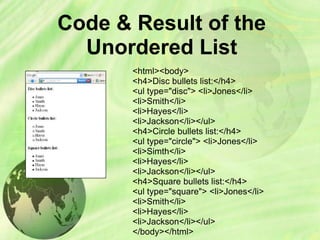
Code & Result of the
Unordered List
<html><body>
<h4>Disc bullets list:</h4>
<ul type="disc"> <li>Jones</li>
<li>Smith</li>
<li>Hayes</li>
<li>Jackson</li></ul>
<h4>Circle bullets list:</h4>
<ul type="circle"> <li>Jones</li>
<li>Simth</li>
<li>Hayes</li>
<li>Jackson</li></ul>
<h4>Square bullets list:</h4>
<ul type="square"> <li>Jones</li>
<li>Smith</li>
<li>Hayes</li>
<li>Jackson</li></ul>
</body></html>
Ordered List
• The TYPE attribute has the following value like:-
1.TYPE = "1" (Arabic numbers)
2.TYPE = "a" (Lowercase alphanumeric)
3.TYPE = "A" (Uppercase alphanumeric)
4.TYPE = "i" (Lowercase Roman numbers)
5.TYPE = "I" (Uppercase Roman numbers)
• By default Arabic numbers are used
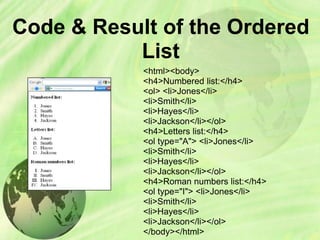
Code & Result of the Ordered
List
<html><body>
<h4>Numbered list:</h4>
<ol> <li>Jones</li>
<li>Smith</li>
<li>Hayes</li>
<li>Jackson</li></ol>
<h4>Letters list:</h4>
<ol type="A"> <li>Jones</li>
<li>Smith</li>
<li>Hayes</li>
<li>Jackson</li></ol>
<h4>Roman numbers list:</h4>
<ol type="I"> <li>Jones</li>
<li>Smith</li>
<li>Hayes</li>
<li>Jackson</li></ol>
</body></html>
Image Tag
• To display an image on a page, you need to
use the src attribute.
• src stands for "source". The value of the src
attribute is the URL of the image you want to
display on your page.
• It is a empty tag.
<IMG SRC ="url">
<IMG SRC="picture.gif“>
<IMG SRC="picture.gif“ HEIGHT="30"
WIDTH="50">
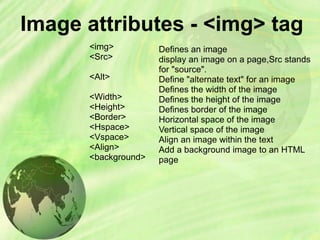
Image attributes - <img> tag
<img>
<Src>
<Alt>
<Width>
<Height>
<Border>
<Hspace>
<Vspace>
<Align>
<background>
Defines an image
display an image on a page,Src stands
for "source".
Define "alternate text" for an image
Defines the width of the image
Defines the height of the image
Defines border of the image
Horizontal space of the image
Vertical space of the image
Align an image within the text
Add a background image to an HTML
page
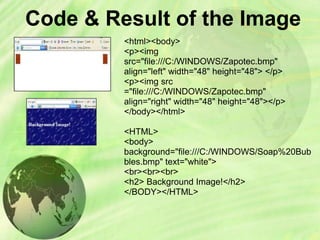
Code & Result of the Image
<html><body>
<p><img
src="file:///C:/WINDOWS/Zapotec.bmp"
align="left" width="48" height="48"> </p>
<p><img src
="file:///C:/WINDOWS/Zapotec.bmp"
align="right" width="48" height="48"></p>
</body></html>
<HTML>
<body>
background="file:///C:/WINDOWS/Soap%20Bub
bles.bmp" text="white">
<br><br><br>
<h2> Background Image!</h2>
</BODY></HTML>
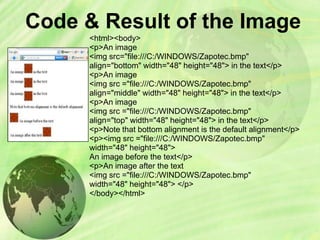
Code & Result of the Image
<html><body>
<p>An image
<img src="file:///C:/WINDOWS/Zapotec.bmp"
align="bottom" width="48" height="48"> in the text</p>
<p>An image
<img src ="file:///C:/WINDOWS/Zapotec.bmp"
align="middle" width="48" height="48"> in the text</p>
<p>An image
<img src ="file:///C:/WINDOWS/Zapotec.bmp"
align="top" width="48" height="48"> in the text</p>
<p>Note that bottom alignment is the default alignment</p>
<p><img src ="file:///C:/WINDOWS/Zapotec.bmp"
width="48" height="48">
An image before the text</p>
<p>An image after the text
<img src ="file:///C:/WINDOWS/Zapotec.bmp"
width="48" height="48"> </p>
</body></html>
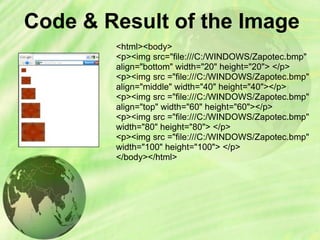
Code & Result of the Image
<html><body>
<p><img src="file:///C:/WINDOWS/Zapotec.bmp"
align="bottom" width="20" height="20"> </p>
<p><img src ="file:///C:/WINDOWS/Zapotec.bmp"
align="middle" width="40" height="40"></p>
<p><img src ="file:///C:/WINDOWS/Zapotec.bmp"
align="top" width="60" height="60"></p>
<p><img src ="file:///C:/WINDOWS/Zapotec.bmp"
width="80" height="80"> </p>
<p><img src ="file:///C:/WINDOWS/Zapotec.bmp"
width="100" height="100"> </p>
</body></html>
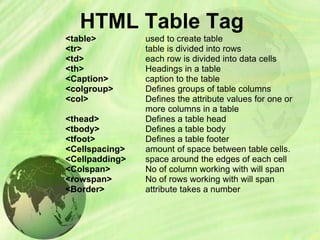
HTML Table Tag
<table>
<tr>
<td>
<th>
<Caption>
<colgroup>
<col>
<thead>
<tbody>
<tfoot>
<Cellspacing>
<Cellpadding>
<Colspan>
<rowspan>
<Border>
used to create table
table is divided into rows
each row is divided into data cells
Headings in a table
caption to the table
Defines groups of table columns
Defines the attribute values for one or
more columns in a table
Defines a table head
Defines a table body
Defines a table footer
amount of space between table cells.
space around the edges of each cell
No of column working with will span
No of rows working with will span
attribute takes a number
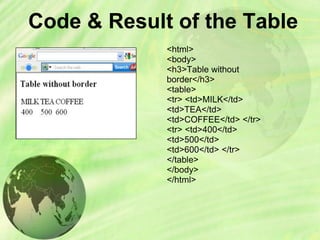
Code & Result of the Table
<html>
<body>
<h3>Table without
border</h3>
<table>
<tr> <td>MILK</td>
<td>TEA</td>
<td>COFFEE</td> </tr>
<tr> <td>400</td>
<td>500</td>
<td>600</td> </tr>
</table>
</body>
</html>
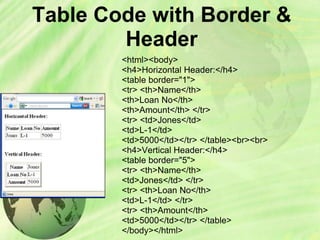
Table Code with Border &
Header
<html><body>
<h4>Horizontal Header:</h4>
<table border="1">
<tr> <th>Name</th>
<th>Loan No</th>
<th>Amount</th> </tr>
<tr> <td>Jones</td>
<td>L-1</td>
<td>5000</td></tr> </table><br><br>
<h4>Vertical Header:</h4>
<table border="5">
<tr> <th>Name</th>
<td>Jones</td> </tr>
<tr> <th>Loan No</th>
<td>L-1</td> </tr>
<tr> <th>Amount</th>
<td>5000</td></tr> </table>
</body></html>
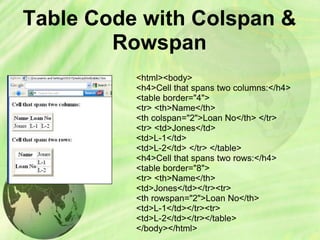
Table Code with Colspan &
Rowspan
<html><body>
<h4>Cell that spans two columns:</h4>
<table border="4">
<tr> <th>Name</th>
<th colspan="2">Loan No</th> </tr>
<tr> <td>Jones</td>
<td>L-1</td>
<td>L-2</td> </tr> </table>
<h4>Cell that spans two rows:</h4>
<table border="8">
<tr> <th>Name</th>
<td>Jones</td></tr><tr>
<th rowspan="2">Loan No</th>
<td>L-1</td></tr><tr>
<td>L-2</td></tr></table>
</body></html>
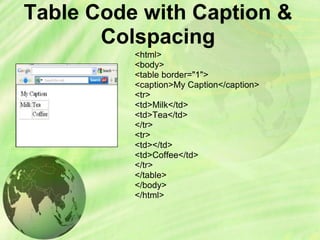
Table Code with Caption &
Colspacing
<html>
<body>
<table border="1">
<caption>My Caption</caption>
<tr>
<td>Milk</td>
<td>Tea</td>
</tr>
<tr>
<td></td>
<td>Coffee</td>
</tr>
</table>
</body>
</html>
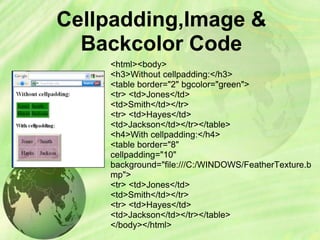
Cellpadding,Image &
Backcolor Code
<html><body>
<h3>Without cellpadding:</h3>
<table border="2" bgcolor="green">
<tr> <td>Jones</td>
<td>Smith</td></tr>
<tr> <td>Hayes</td>
<td>Jackson</td></tr></table>
<h4>With cellpadding:</h4>
<table border="8"
cellpadding="10"
background="file:///C:/WINDOWS/FeatherTexture.b
mp">
<tr> <td>Jones</td>
<td>Smith</td></tr>
<tr> <td>Hayes</td>
<td>Jackson</td></tr></table>
</body></html>
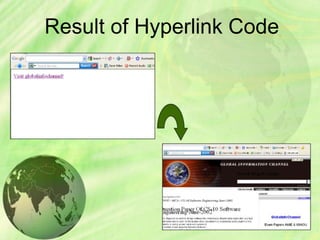
Hyperlink Tag
• A hyperlink is a reference (an address) to a
resource on the web.
• Hyperlinks can point to any resource on the
web: an HTML page, an image, a sound file,
a movie, etc.
• The HTML anchor element <a>, is used to
define both hyperlinks and anchors.
<a href="url">Link text</a>
• The href attribute defines the link address.
<a href="http://www.globalinfochannel/">Visit
globalinfochannel!</a>
Result of Hyperlink Code
ANY
QUESTIONS??
THANK YOU
DONE BY:-
N.K.ROHIT KUMAR
M.TARUN PRASAD
OF‘8’ A
A.E.C.S-2

Html

  • 1.
  • 2.
    INTRODUCTION TO HTML •With HTML you can create your own Web site. • HTML stands for Hyper Text Markup Language. • HTML is derived from a language SGML (Standard Graphics Markup Language). • The future of HTML is XML (extended Markup Language). • HTML is not a programming language, it is a Markup Language. • A markup language is a set of markup tags. • HTML uses markup tags to describe web pages. • HTML is not case sensitive language. • HTML documents contain HTML tags and plain text.
  • 3.
    HTML Elements andTags • A tag is always enclosed in angle bracket <>like <HTML> • HTML tags normally come in pairs like <HTML> and </HTML> i.e. Start tag = <HTML> End tag =</HTML> • Start and end tags are also called opening tags and closing tags
  • 4.
    HOW TO START •Write html code in notepad. • Save the file with (.Html)/(.Htm) extension. • View the page in any web browser viz. INTERNET EXPLORER, NETSCAPE NAVIGATOR etc. • The purpose of a web browser (like internet explorer or Firefox) is to read html documents and display them as web pages.
  • 5.
    Code With HTML <HTML> <HEAD> <TITLE> MYFIRST PAGE </TITLE> </HEAD> <BODY> HTML </BODY> </HTML>
  • 6.
    Explanation of thesetags • <HTML> - Describe HTML web page that is to be viewed by a web browser. • <HEAD> - This defines the header section of the page. • <TITLE> - This shows a caption in the title bar of the page. • <BODY> - This tag show contents of the web page will be displayed.
  • 7.
    Types of HTMLTags There are two different types of tags:-> Container Element:-> Container Tags contains start tag & end tag i.e. <HTML>… </HTML> Empty Element:-> Empty Tags contains start tag i.e. <BR>
  • 8.
    Text Formatting Tags HeadingElement:-> • There are six heading elements (<H1>,<H2>,<H3>,<H4>, <H5>,<H6>). • All the six heading elements are container tag and requires a closing tag. • <h1> will print the largest heading • <h6> will print the smallest heading
  • 9.
    Heading Tag Code <html> <head><title>heading</title></head> <body> <h1>GLOBAL INFO CHANNEL</h1> <h2> GLOBAL INFO CHANNEL</h2> <h3> GLOBAL INFO CHANNEL</h3> <h4> GLOBAL INFO CHANNEL</h4> <h5> GLOBAL INFO CHANNEL</h5> <h6> GLOBAL INFO CHANNEL</h6> </body> </html>
  • 10.
  • 11.
    HTML Paragraph Tag •HTML documents are divided into paragraphs. • Paragraphs are defined with the <p> tag i.e. <p>This is a paragraph</p> <p>This is another paragraph</p> <pre>This text is preformatted</pre>
  • 12.
    Line Break &Horizontal Line Tag • if you want a line break or a new line without starting a new paragraph Use the <br> tag. • Defines a horizontal line use <hr>tag. • <br> <hr> element are empty HTML element i.e. Global Information Channel<hr> Global Information <br> Channel
  • 13.
    Text Formatting Tags <b>Defines bold text <big> Defines big text <em> Defines emphasized text <i> Defines italic text <small> Defines small text <strong> Defines strong text <sub> Defines subscripted text <super> Defines superscripted text <ins> Defines inserted text <del> Defines deleted text <tt> Defines teletype text <u> Defines underline text <strike> Defines strike text
  • 14.
    Text Formatting Code <html> <head></head> <body> <b>Thistext is Bold</b> <br><em>This text is Emphasized</em> <br><i>This text is Italic</i> <br><small>This text is Small</small> <br>This is<sub> Subscript</sub> and <sup>Superscript</sup> <br><strong>This text is Strong</strong> <br><big>This text is Big</big> <br><u>This text is Underline</u> <br><strike>This text is Strike</strike> <br><tt>This text is Teletype</tt> </body> </html>
  • 15.
    Result of TextFormatting Code
  • 16.
    Font Tag • Thiselement is used to format the size, typeface and color of the enclosed text. • The commonly used fonts for web pages are Arial, Comic Sans MS , Lucida Sans Unicode, Arial Black, Courier New, Times New Roman, Arial Narrow, Impact, Verdana. • The size attribute in font tag takes values from 1 to 7.
  • 17.
    Font Tag Code <html> <head><title>fonts</title></head> <body> <br><font color=“green" size="7" face="Arial"> HTML </font> <br><font color=“green" size="6" face="Comic Sans MS "> HTML </font> <br><font color=“green" size="5" face="Lucida Sans Unicode"> HTML </font> <br><font color=“green" size="4" face="Courier New">HTML</font> <br><font color=“green" size="3" face="Times New Roman"> HTML </font> <br><font color=“green" size="2" face="Arial Black"> HTML </font> <br><font color=“green" size="1" face="Impact"> HTML </font> </body> </html>
  • 18.
  • 19.
    Background & TextColor Tag • The attribute bgcolor is used for changing the back ground color of the page. <body bgcolor=“Green” > • Text is use to change the color of the enclosed text. <body text=“White”>
  • 20.
    Text Alignment Tag •It is use to alignment of the text. 1.Left alignment <align=“left”> 2.Right alignment <align=“right”> 3.Center alignment <align=“center”>
  • 21.
    HTML List Tag •Lists provide methods to show item or element sequences in document content. There are three main types of lists:-> 1. Unordered lists:-unordered lists are bulleted. 2. Ordered lists:- Ordered lists are numbered. 3. Definition lists:- Used to create a definition list
  • 22.
    List Tags <LI> <OL> <UL> <DL> <DT> <DD> <LI> isan empty tag,it is used for representing the list items Ordered list Unordered list Defines a definition list Defines a term (an item) in a definition list Defines a description of a term in a definition list
  • 23.
    Unordered List • TYPEattribute to the <UL> tag to show different bullets like:- 1.Disc 2.Circle 3.Square <ul Type =“disc”>…..</ul> • The attribute TYPE can also be used with <LI> element.
  • 24.
    Code & Resultof the Unordered List <html><body> <h4>Disc bullets list:</h4> <ul type="disc"> <li>Jones</li> <li>Smith</li> <li>Hayes</li> <li>Jackson</li></ul> <h4>Circle bullets list:</h4> <ul type="circle"> <li>Jones</li> <li>Simth</li> <li>Hayes</li> <li>Jackson</li></ul> <h4>Square bullets list:</h4> <ul type="square"> <li>Jones</li> <li>Smith</li> <li>Hayes</li> <li>Jackson</li></ul> </body></html>
  • 25.
    Ordered List • TheTYPE attribute has the following value like:- 1.TYPE = "1" (Arabic numbers) 2.TYPE = "a" (Lowercase alphanumeric) 3.TYPE = "A" (Uppercase alphanumeric) 4.TYPE = "i" (Lowercase Roman numbers) 5.TYPE = "I" (Uppercase Roman numbers) • By default Arabic numbers are used
  • 26.
    Code & Resultof the Ordered List <html><body> <h4>Numbered list:</h4> <ol> <li>Jones</li> <li>Smith</li> <li>Hayes</li> <li>Jackson</li></ol> <h4>Letters list:</h4> <ol type="A"> <li>Jones</li> <li>Smith</li> <li>Hayes</li> <li>Jackson</li></ol> <h4>Roman numbers list:</h4> <ol type="I"> <li>Jones</li> <li>Smith</li> <li>Hayes</li> <li>Jackson</li></ol> </body></html>
  • 27.
    Image Tag • Todisplay an image on a page, you need to use the src attribute. • src stands for "source". The value of the src attribute is the URL of the image you want to display on your page. • It is a empty tag. <IMG SRC ="url"> <IMG SRC="picture.gif“> <IMG SRC="picture.gif“ HEIGHT="30" WIDTH="50">
  • 28.
    Image attributes -<img> tag <img> <Src> <Alt> <Width> <Height> <Border> <Hspace> <Vspace> <Align> <background> Defines an image display an image on a page,Src stands for "source". Define "alternate text" for an image Defines the width of the image Defines the height of the image Defines border of the image Horizontal space of the image Vertical space of the image Align an image within the text Add a background image to an HTML page
  • 29.
    Code & Resultof the Image <html><body> <p><img src="file:///C:/WINDOWS/Zapotec.bmp" align="left" width="48" height="48"> </p> <p><img src ="file:///C:/WINDOWS/Zapotec.bmp" align="right" width="48" height="48"></p> </body></html> <HTML> <body> background="file:///C:/WINDOWS/Soap%20Bub bles.bmp" text="white"> <br><br><br> <h2> Background Image!</h2> </BODY></HTML>
  • 30.
    Code & Resultof the Image <html><body> <p>An image <img src="file:///C:/WINDOWS/Zapotec.bmp" align="bottom" width="48" height="48"> in the text</p> <p>An image <img src ="file:///C:/WINDOWS/Zapotec.bmp" align="middle" width="48" height="48"> in the text</p> <p>An image <img src ="file:///C:/WINDOWS/Zapotec.bmp" align="top" width="48" height="48"> in the text</p> <p>Note that bottom alignment is the default alignment</p> <p><img src ="file:///C:/WINDOWS/Zapotec.bmp" width="48" height="48"> An image before the text</p> <p>An image after the text <img src ="file:///C:/WINDOWS/Zapotec.bmp" width="48" height="48"> </p> </body></html>
  • 31.
    Code & Resultof the Image <html><body> <p><img src="file:///C:/WINDOWS/Zapotec.bmp" align="bottom" width="20" height="20"> </p> <p><img src ="file:///C:/WINDOWS/Zapotec.bmp" align="middle" width="40" height="40"></p> <p><img src ="file:///C:/WINDOWS/Zapotec.bmp" align="top" width="60" height="60"></p> <p><img src ="file:///C:/WINDOWS/Zapotec.bmp" width="80" height="80"> </p> <p><img src ="file:///C:/WINDOWS/Zapotec.bmp" width="100" height="100"> </p> </body></html>
  • 32.
    HTML Table Tag <table> <tr> <td> <th> <Caption> <colgroup> <col> <thead> <tbody> <tfoot> <Cellspacing> <Cellpadding> <Colspan> <rowspan> <Border> usedto create table table is divided into rows each row is divided into data cells Headings in a table caption to the table Defines groups of table columns Defines the attribute values for one or more columns in a table Defines a table head Defines a table body Defines a table footer amount of space between table cells. space around the edges of each cell No of column working with will span No of rows working with will span attribute takes a number
  • 33.
    Code & Resultof the Table <html> <body> <h3>Table without border</h3> <table> <tr> <td>MILK</td> <td>TEA</td> <td>COFFEE</td> </tr> <tr> <td>400</td> <td>500</td> <td>600</td> </tr> </table> </body> </html>
  • 34.
    Table Code withBorder & Header <html><body> <h4>Horizontal Header:</h4> <table border="1"> <tr> <th>Name</th> <th>Loan No</th> <th>Amount</th> </tr> <tr> <td>Jones</td> <td>L-1</td> <td>5000</td></tr> </table><br><br> <h4>Vertical Header:</h4> <table border="5"> <tr> <th>Name</th> <td>Jones</td> </tr> <tr> <th>Loan No</th> <td>L-1</td> </tr> <tr> <th>Amount</th> <td>5000</td></tr> </table> </body></html>
  • 35.
    Table Code withColspan & Rowspan <html><body> <h4>Cell that spans two columns:</h4> <table border="4"> <tr> <th>Name</th> <th colspan="2">Loan No</th> </tr> <tr> <td>Jones</td> <td>L-1</td> <td>L-2</td> </tr> </table> <h4>Cell that spans two rows:</h4> <table border="8"> <tr> <th>Name</th> <td>Jones</td></tr><tr> <th rowspan="2">Loan No</th> <td>L-1</td></tr><tr> <td>L-2</td></tr></table> </body></html>
  • 36.
    Table Code withCaption & Colspacing <html> <body> <table border="1"> <caption>My Caption</caption> <tr> <td>Milk</td> <td>Tea</td> </tr> <tr> <td></td> <td>Coffee</td> </tr> </table> </body> </html>
  • 37.
    Cellpadding,Image & Backcolor Code <html><body> <h3>Withoutcellpadding:</h3> <table border="2" bgcolor="green"> <tr> <td>Jones</td> <td>Smith</td></tr> <tr> <td>Hayes</td> <td>Jackson</td></tr></table> <h4>With cellpadding:</h4> <table border="8" cellpadding="10" background="file:///C:/WINDOWS/FeatherTexture.b mp"> <tr> <td>Jones</td> <td>Smith</td></tr> <tr> <td>Hayes</td> <td>Jackson</td></tr></table> </body></html>
  • 38.
    Hyperlink Tag • Ahyperlink is a reference (an address) to a resource on the web. • Hyperlinks can point to any resource on the web: an HTML page, an image, a sound file, a movie, etc. • The HTML anchor element <a>, is used to define both hyperlinks and anchors. <a href="url">Link text</a> • The href attribute defines the link address. <a href="http://www.globalinfochannel/">Visit globalinfochannel!</a>
  • 39.
  • 40.
  • 41.
    THANK YOU DONE BY:- N.K.ROHITKUMAR M.TARUN PRASAD OF‘8’ A A.E.C.S-2