How to Use Bloglines A guide to creating and using a Bloglines account
Creating an account Go to bloglines.com Fill out the info requested Click to create your account 1 2 3 [email_address]
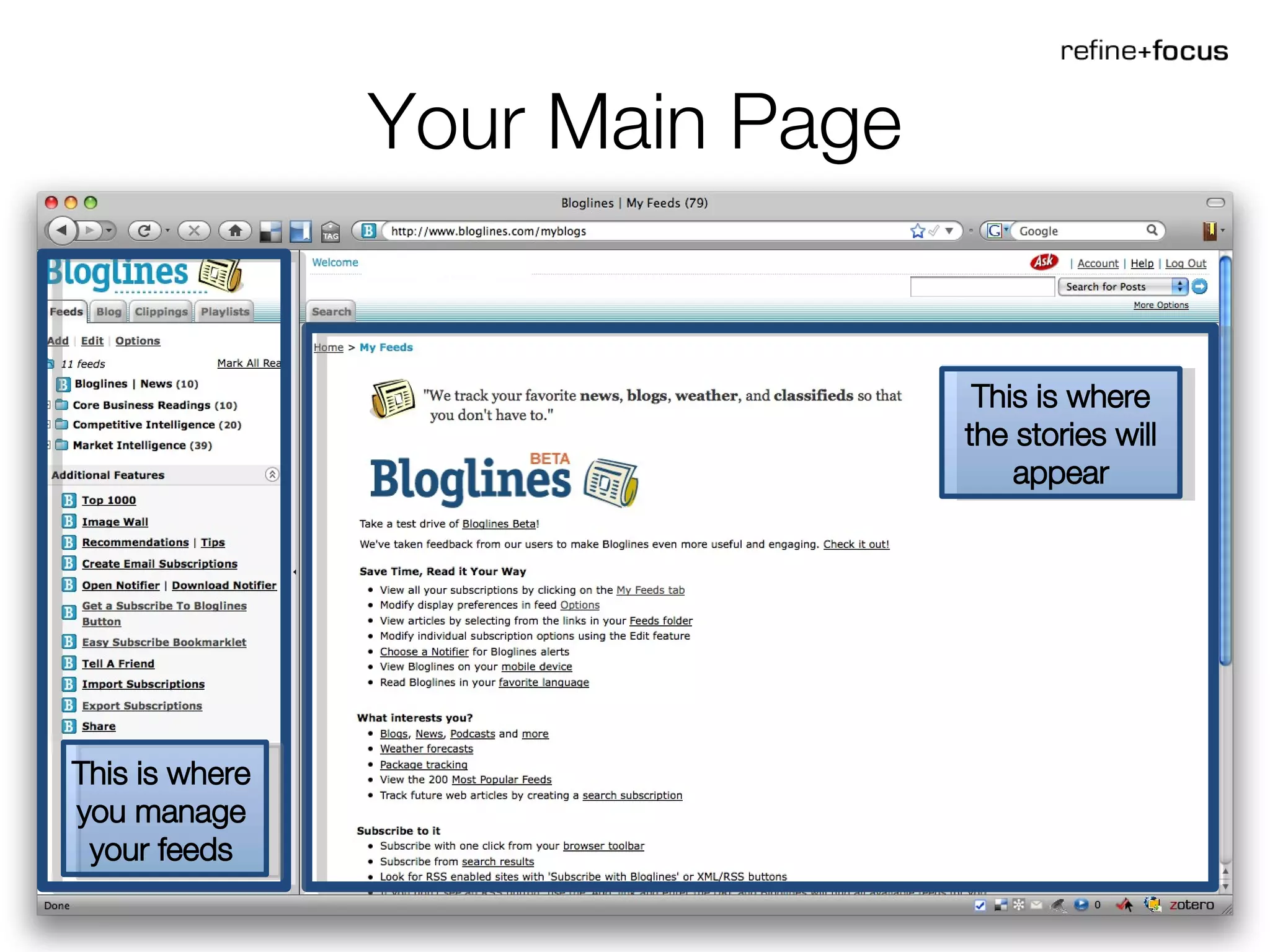
Your Main Page This is where the stories will appear This is where you manage your feeds
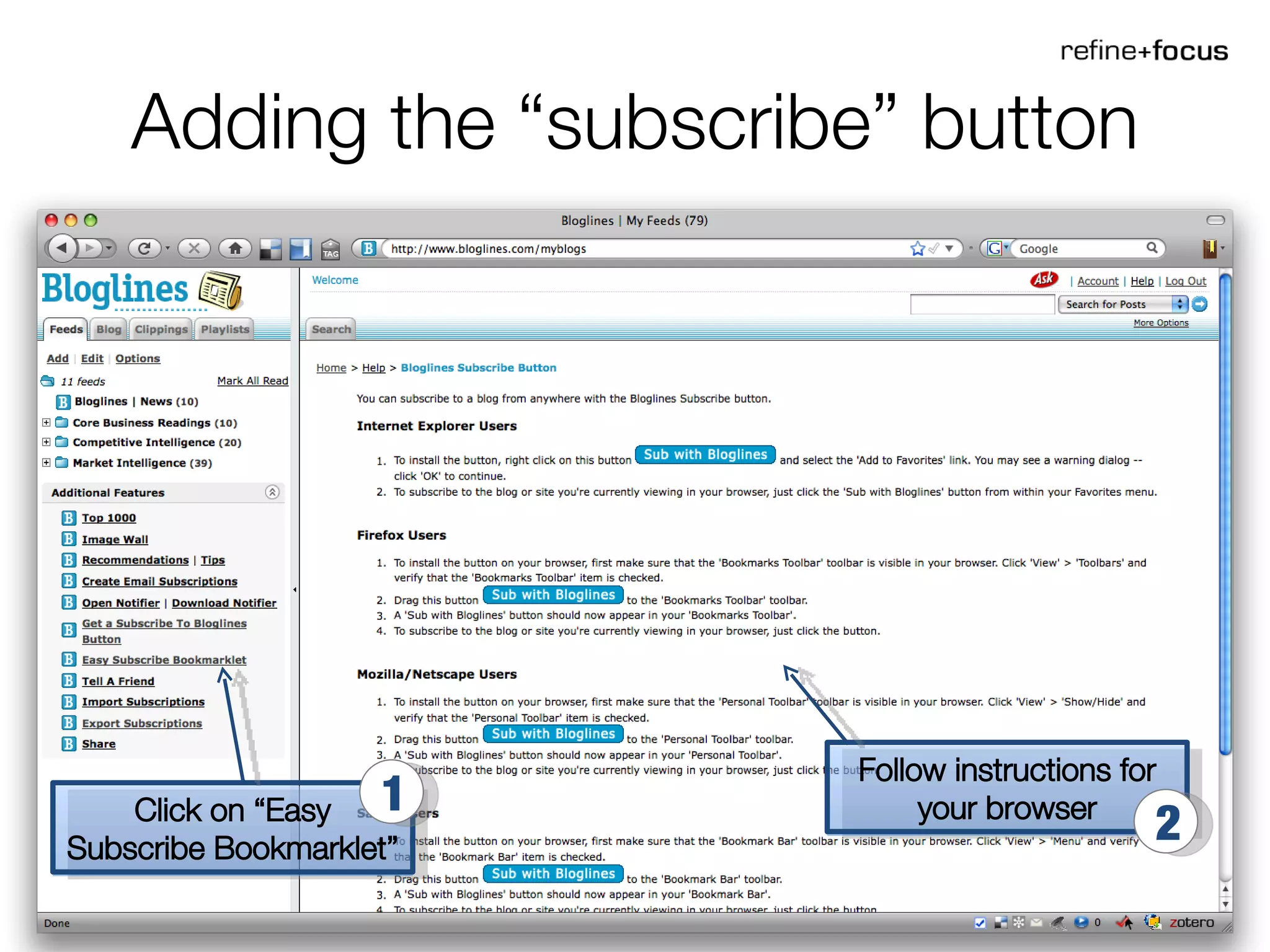
Adding the “subscribe” button Click on “Easy Subscribe Bookmarklet” 1 Follow instructions for your browser 2
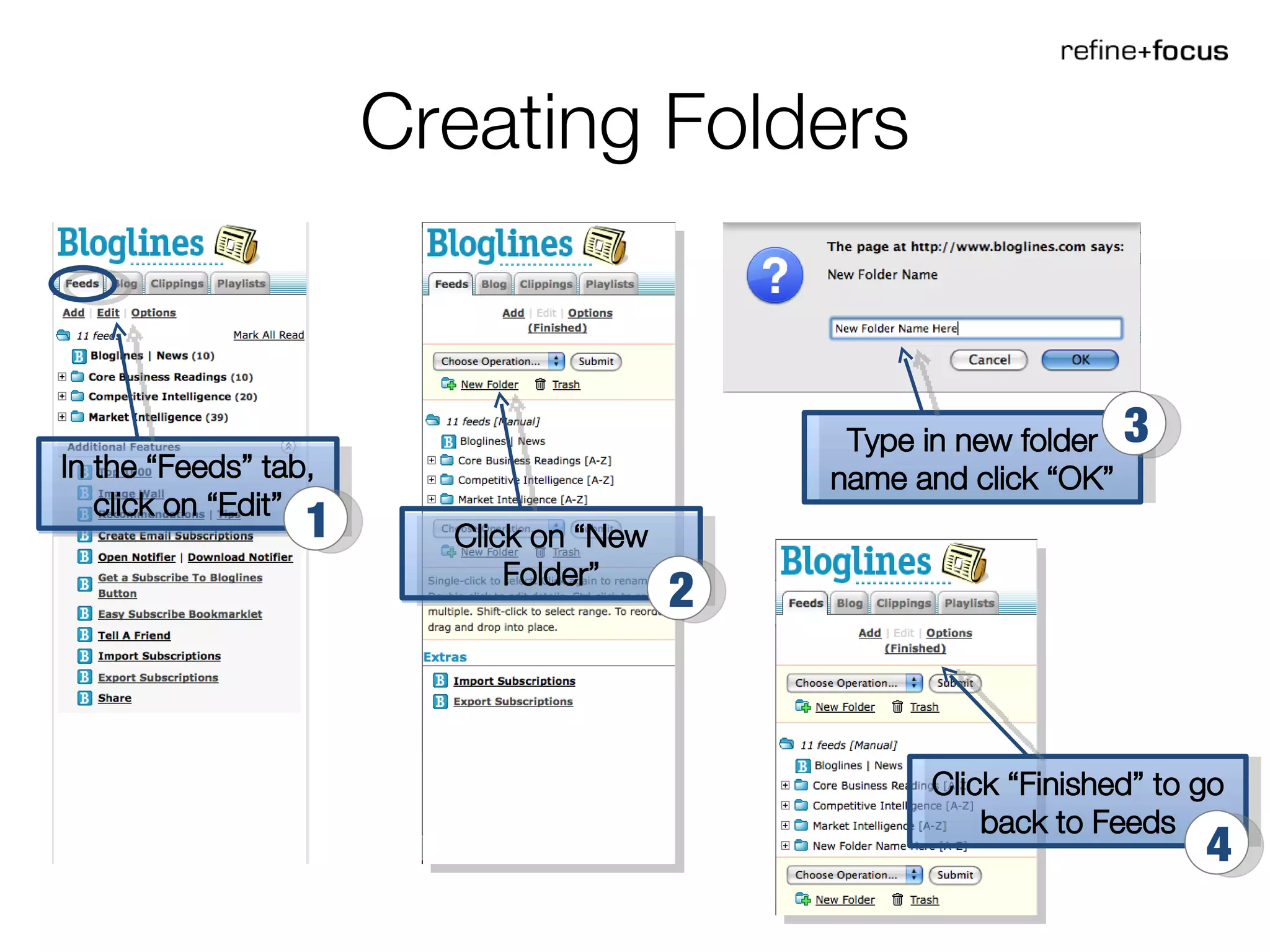
Creating Folders In the “Feeds” tab, click on “Edit” 1 Click on “New Folder” 2 Type in new folder name and click “OK” 3 Click “Finished” to go back to Feeds 4
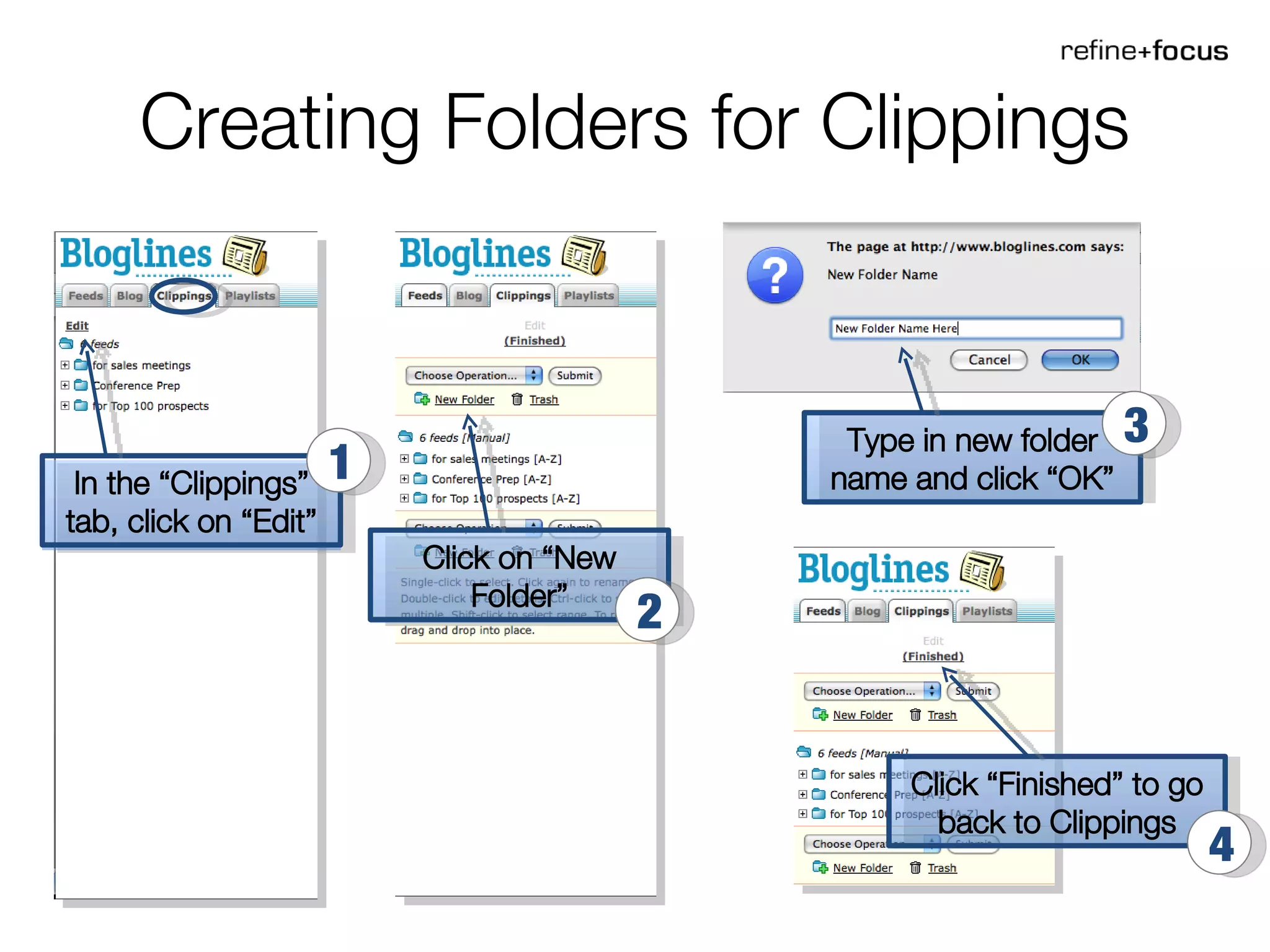
Creating Folders for Clippings In the “Clippings” tab, click on “Edit” 1 Click on “New Folder” 2 Type in new folder name and click “OK” 3 Click “Finished” to go back to Clippings 4
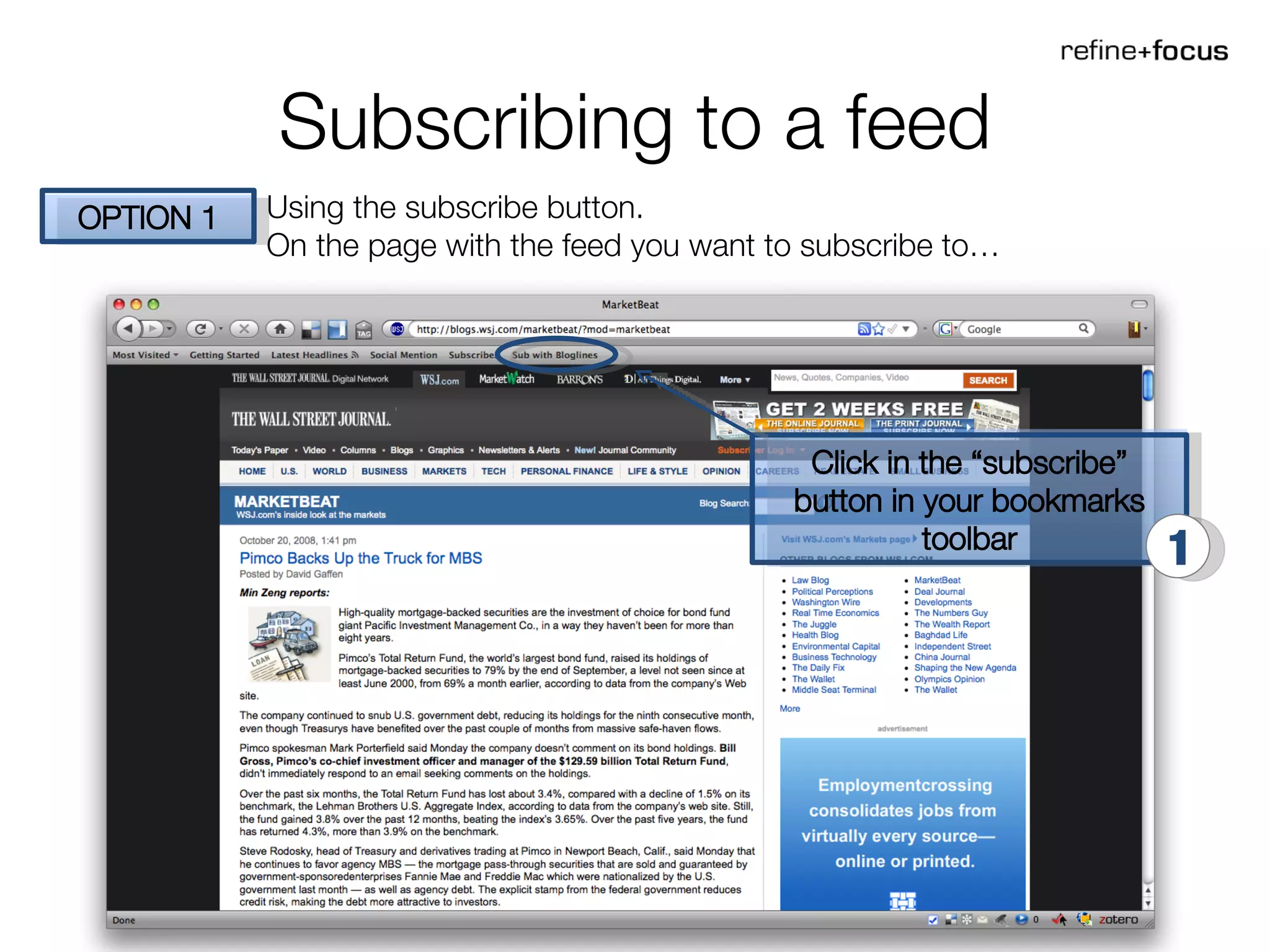
Subscribing to a feed OPTION 1 Using the subscribe button.  On the page with the feed you want to subscribe to … Click in the “subscribe” button in your bookmarks toolbar 1
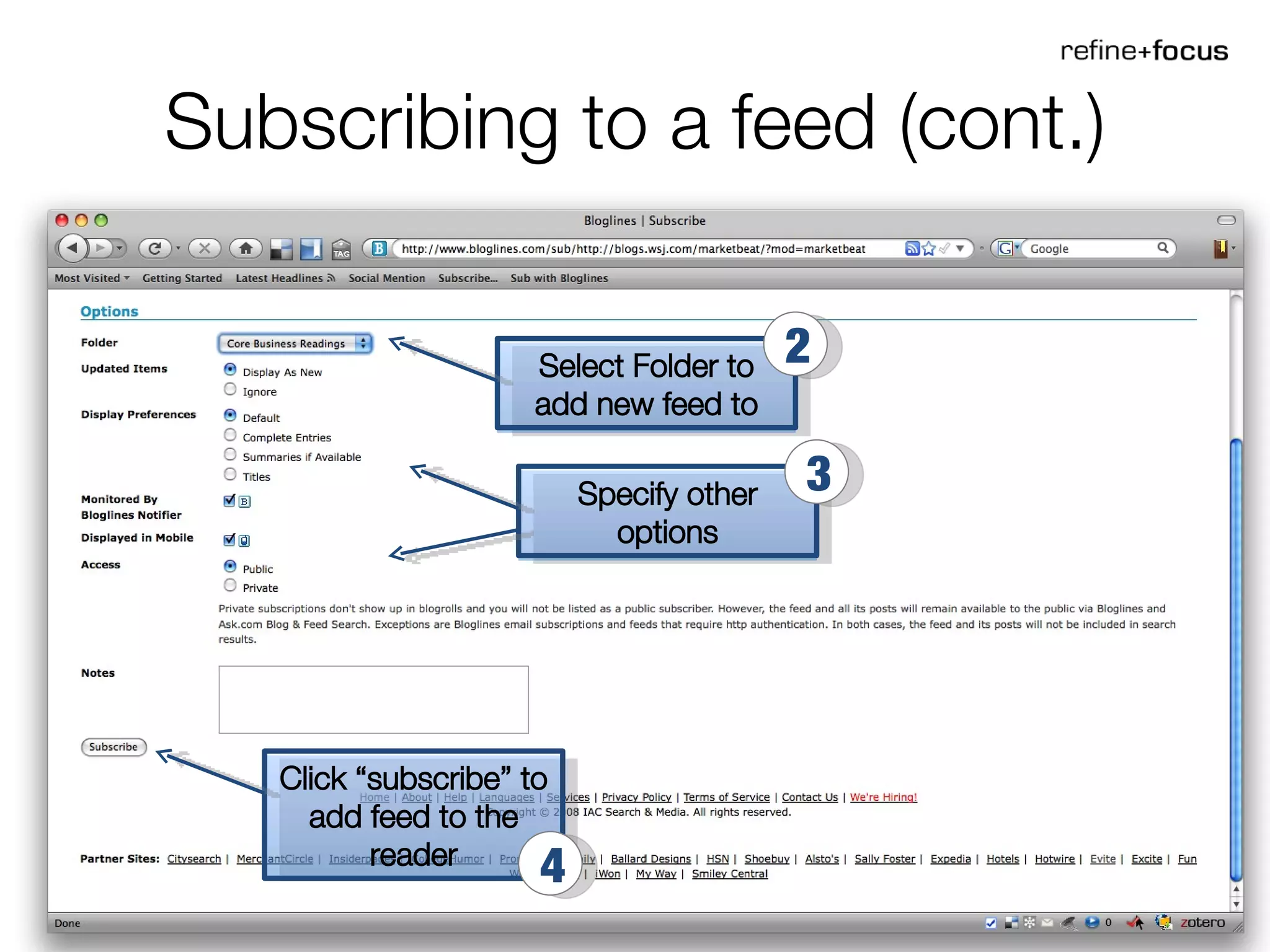
Subscribing to a feed (cont.) Select Folder to add new feed to 2 Specify other options 3 Click “subscribe” to add feed to the reader 4
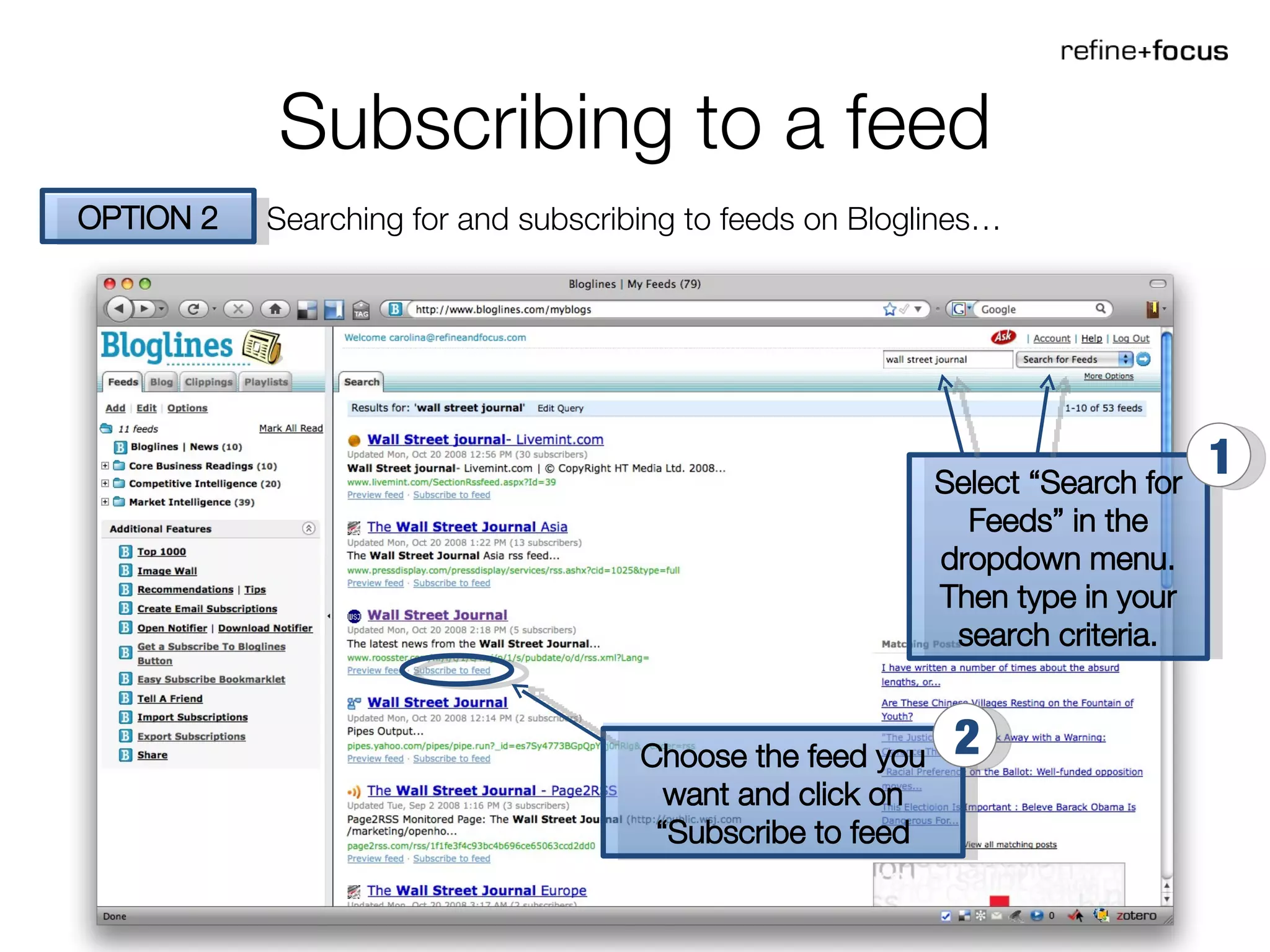
Subscribing to a feed OPTION 2 Searching for and subscribing to feeds on Bloglines … Select “Search for Feeds” in the dropdown menu. Then type in your search criteria. 1 Choose the feed you want and click on “Subscribe to feed 2
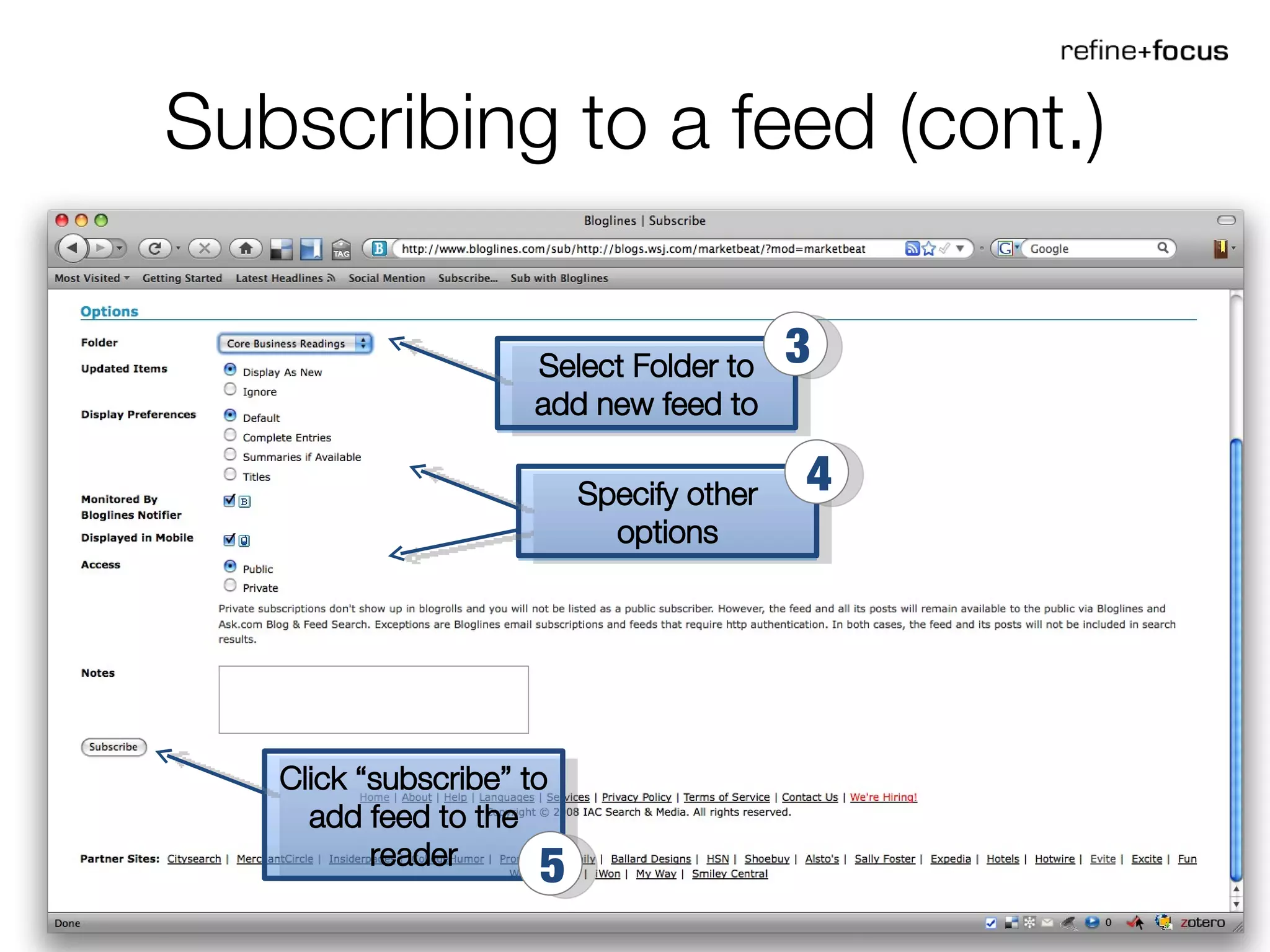
Subscribing to a feed (cont.) Select Folder to add new feed to 3 Specify other options 4 Click “subscribe” to add feed to the reader 5
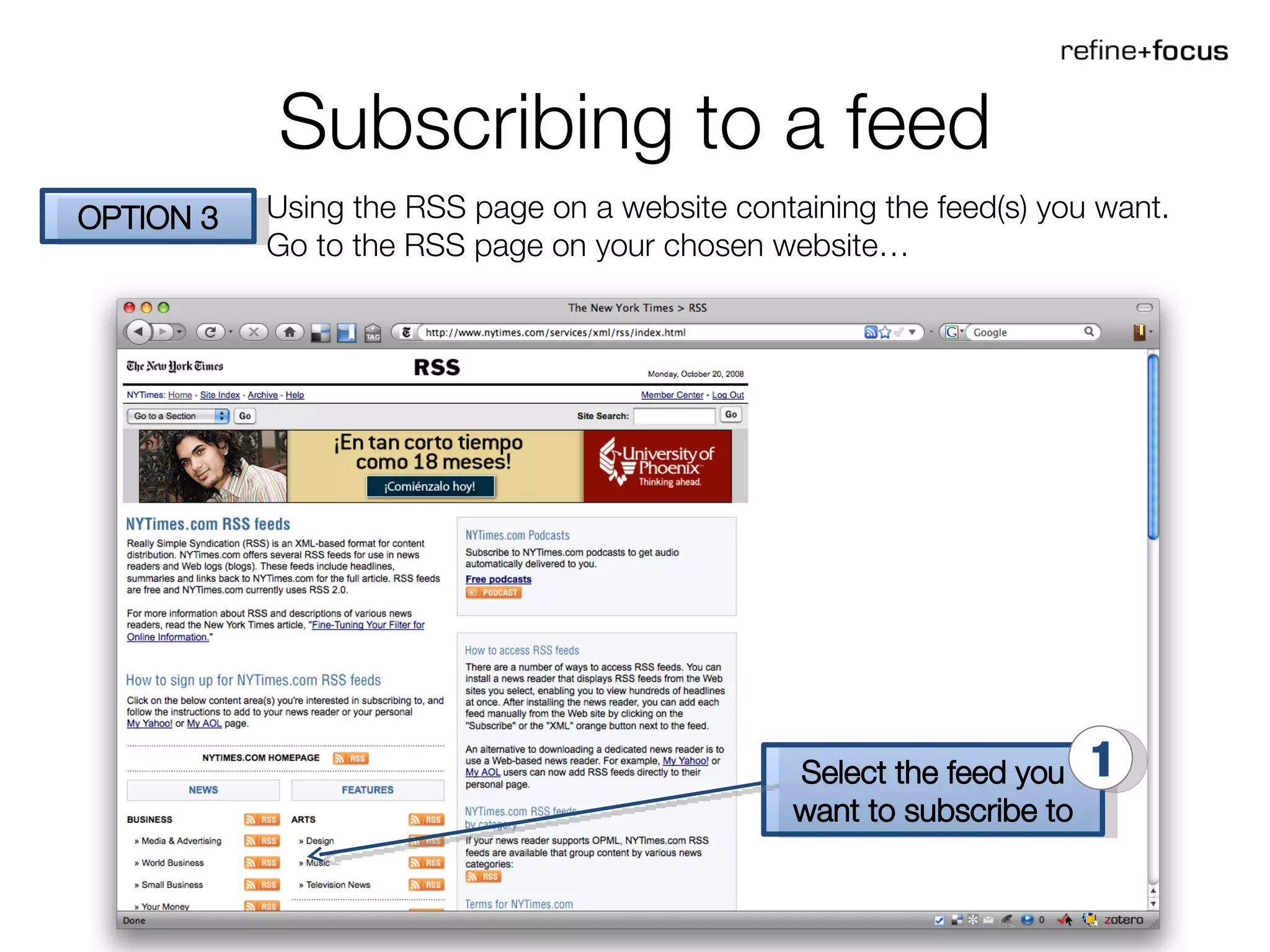
Subscribing to a feed OPTION 3 Using the RSS page on a website containing the feed(s) you want. Go to the RSS page on your chosen website … Select the feed you want to subscribe to 1
Subscribing to a feed (cont.) Choose “Bloglines” from the dropdown menu 2
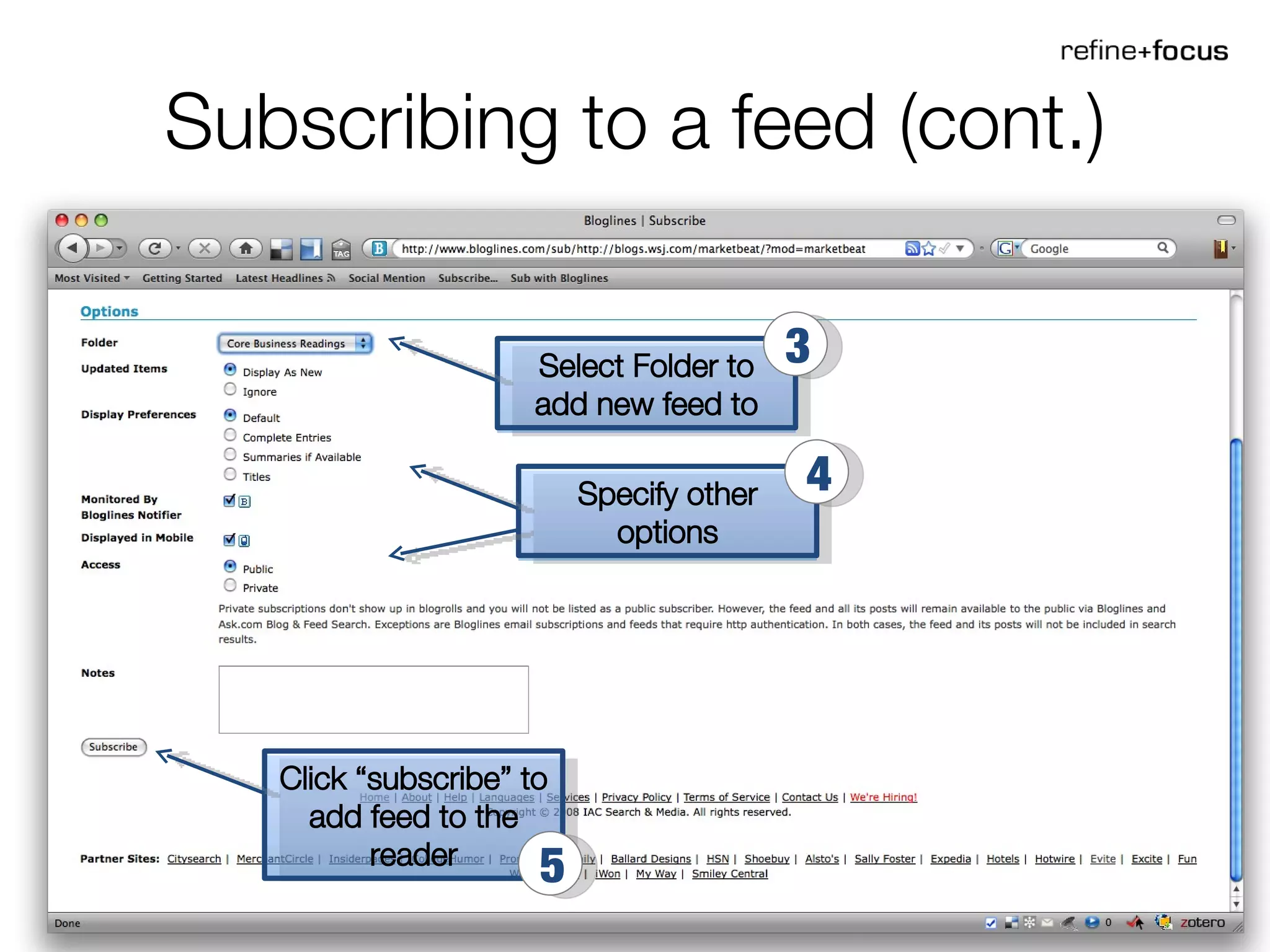
Subscribing to a feed (cont.) Select Folder to add new feed to 3 Specify other options 4 Click “subscribe” to add feed to the reader 5
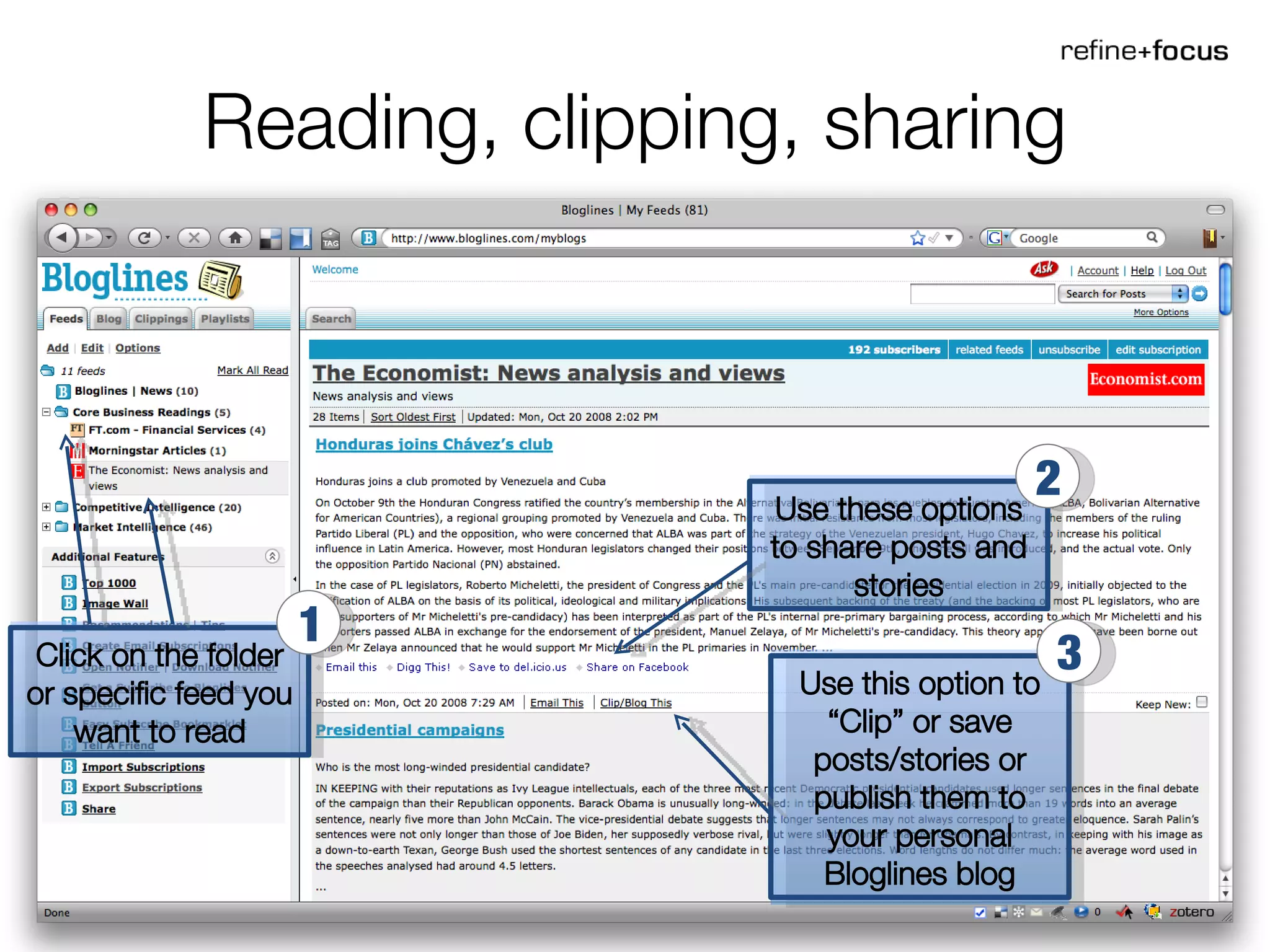
Reading, clipping, sharing Click on the folder or specific feed you want to read 1 Use these options to share posts and stories 2 Use this option to “Clip” or save posts/stories or publish them to your personal Bloglines blog 3
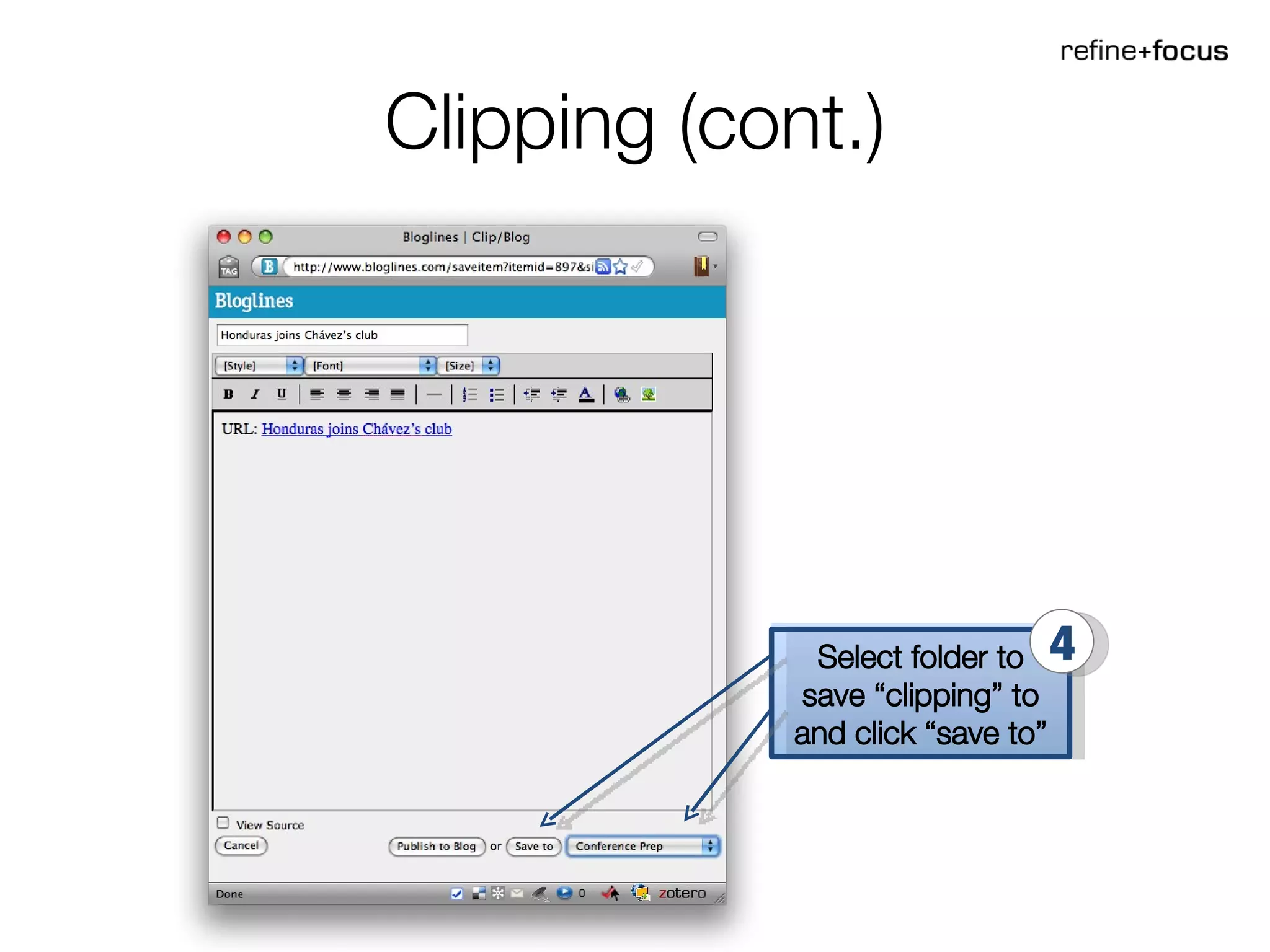
Clipping (cont.) Select folder to save “clipping” to and click “save to” 4
RSS Feeds In Plain English We strongly recommend that you please take a few minutes to watch the video liked below, which explains how RSS works. http://www.commoncraft.com/rss_plain_english

How to Use Bloglines

  • 1.
    How to UseBloglines A guide to creating and using a Bloglines account
  • 2.
    Creating an accountGo to bloglines.com Fill out the info requested Click to create your account 1 2 3 [email_address]
  • 3.
    Your Main PageThis is where the stories will appear This is where you manage your feeds
  • 4.
    Adding the “subscribe”button Click on “Easy Subscribe Bookmarklet” 1 Follow instructions for your browser 2
  • 5.
    Creating Folders Inthe “Feeds” tab, click on “Edit” 1 Click on “New Folder” 2 Type in new folder name and click “OK” 3 Click “Finished” to go back to Feeds 4
  • 6.
    Creating Folders forClippings In the “Clippings” tab, click on “Edit” 1 Click on “New Folder” 2 Type in new folder name and click “OK” 3 Click “Finished” to go back to Clippings 4
  • 7.
    Subscribing to afeed OPTION 1 Using the subscribe button. On the page with the feed you want to subscribe to … Click in the “subscribe” button in your bookmarks toolbar 1
  • 8.
    Subscribing to afeed (cont.) Select Folder to add new feed to 2 Specify other options 3 Click “subscribe” to add feed to the reader 4
  • 9.
    Subscribing to afeed OPTION 2 Searching for and subscribing to feeds on Bloglines … Select “Search for Feeds” in the dropdown menu. Then type in your search criteria. 1 Choose the feed you want and click on “Subscribe to feed 2
  • 10.
    Subscribing to afeed (cont.) Select Folder to add new feed to 3 Specify other options 4 Click “subscribe” to add feed to the reader 5
  • 11.
    Subscribing to afeed OPTION 3 Using the RSS page on a website containing the feed(s) you want. Go to the RSS page on your chosen website … Select the feed you want to subscribe to 1
  • 12.
    Subscribing to afeed (cont.) Choose “Bloglines” from the dropdown menu 2
  • 13.
    Subscribing to afeed (cont.) Select Folder to add new feed to 3 Specify other options 4 Click “subscribe” to add feed to the reader 5
  • 14.
    Reading, clipping, sharingClick on the folder or specific feed you want to read 1 Use these options to share posts and stories 2 Use this option to “Clip” or save posts/stories or publish them to your personal Bloglines blog 3
  • 15.
    Clipping (cont.) Selectfolder to save “clipping” to and click “save to” 4
  • 16.
    RSS Feeds InPlain English We strongly recommend that you please take a few minutes to watch the video liked below, which explains how RSS works. http://www.commoncraft.com/rss_plain_english