OVPLT – Home of Better Teaching, Better Learning
Setting up and running a Zoom webinar
Before you can begin you will need to submit a support ticket with Service Desk get access to Zoom Pro. When you receive confirmation that you have
access you can proceed with the instruction set that is best suited to your situation.
Install the Zoom extension on your computer
2
3
4
5
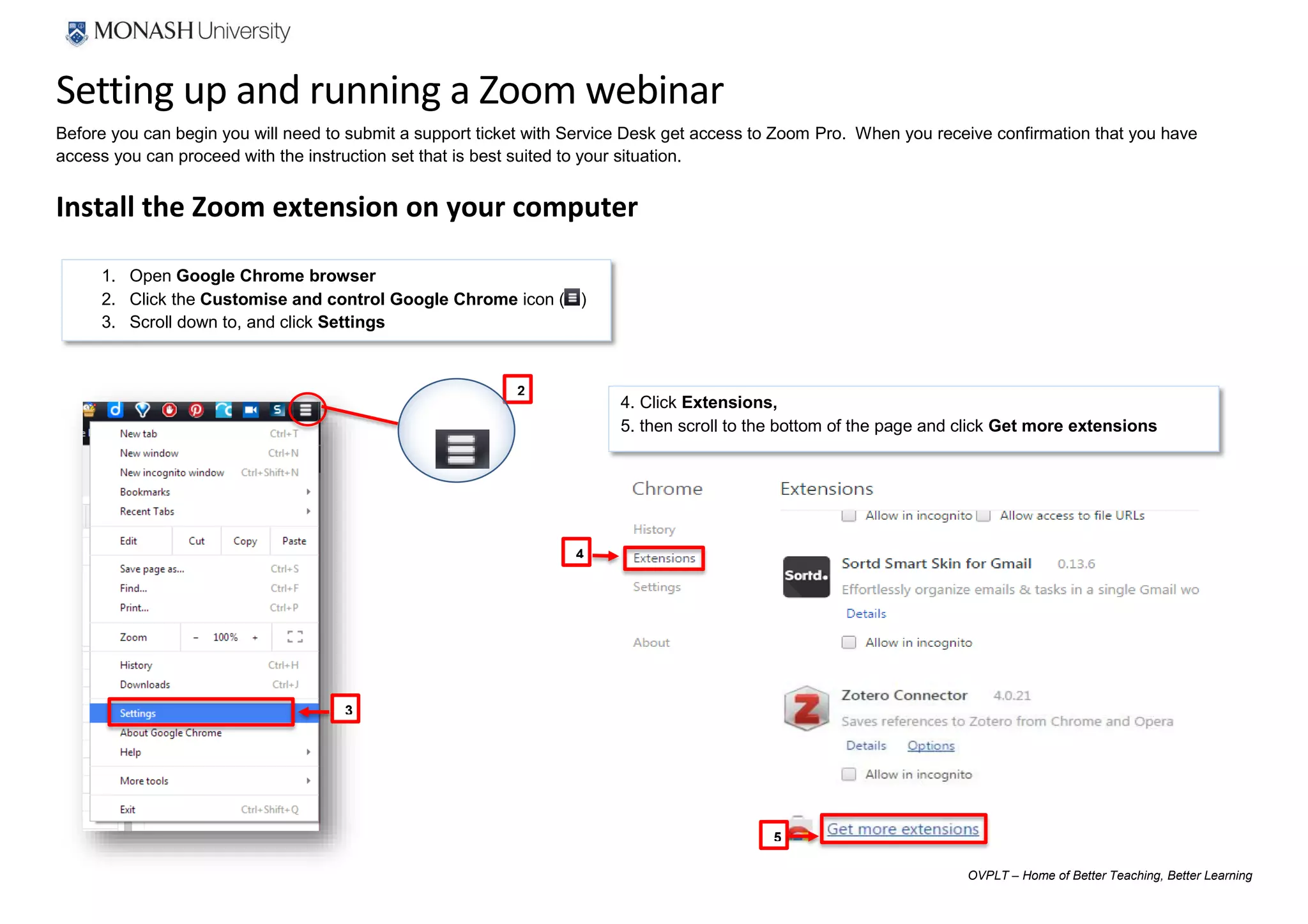
4. Click Extensions,
5. then scroll to the bottom of the page and click Get more extensions
1. Open Google Chrome browser
2. Click the Customise and control Google Chrome icon ( )
3. Scroll down to, and click Settings
OVPLT – Home of Better Teaching, Better Learning
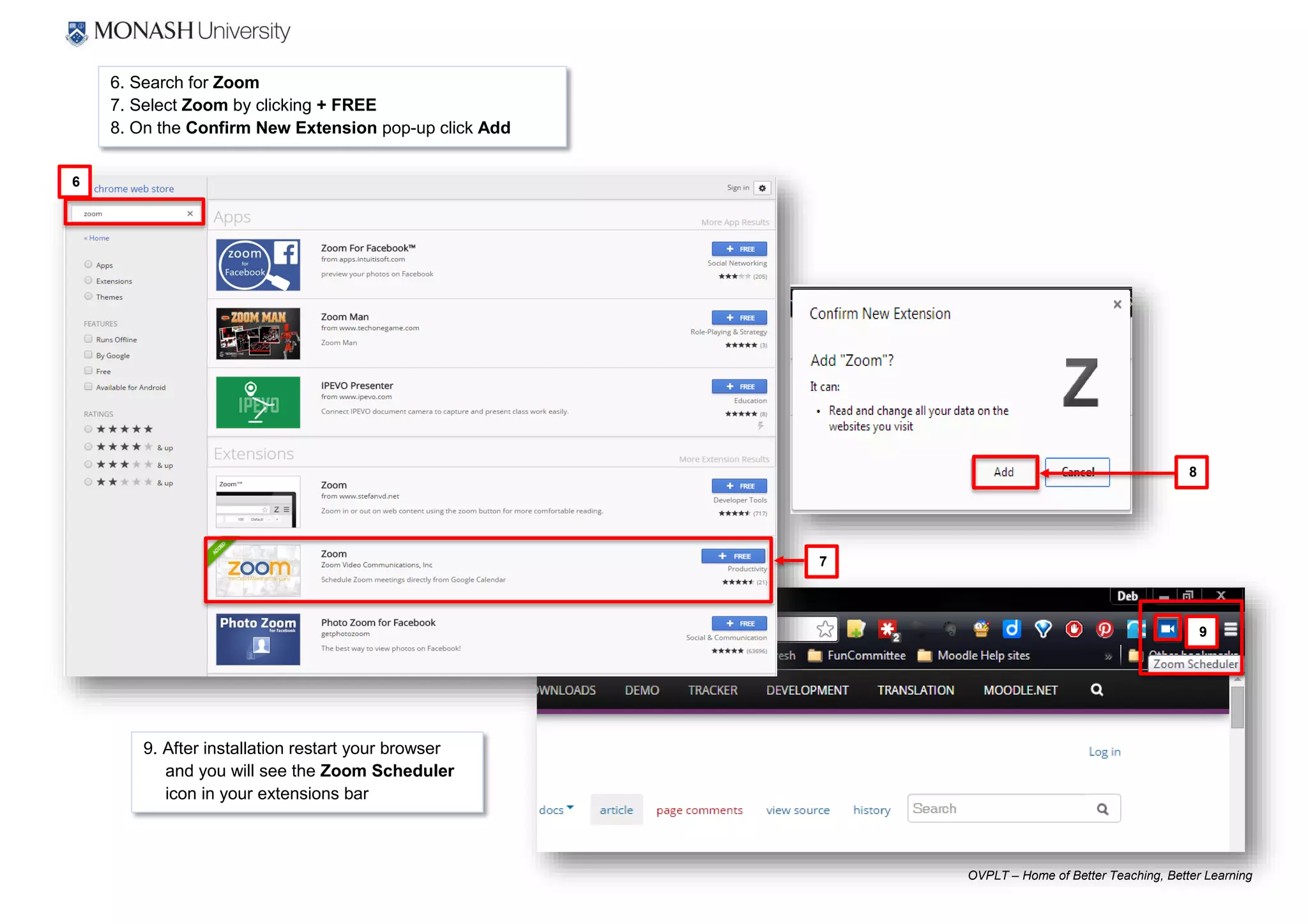
9. After installation restart your browser
and you will see the Zoom Scheduler
icon in your extensions bar
9
7
8
6. Search for Zoom
7. Select Zoom by clicking + FREE
8. On the Confirm New Extension pop-up click Add
6
OVPLT – Home of Better Teaching, Better Learning
Create a webinar and invite guests
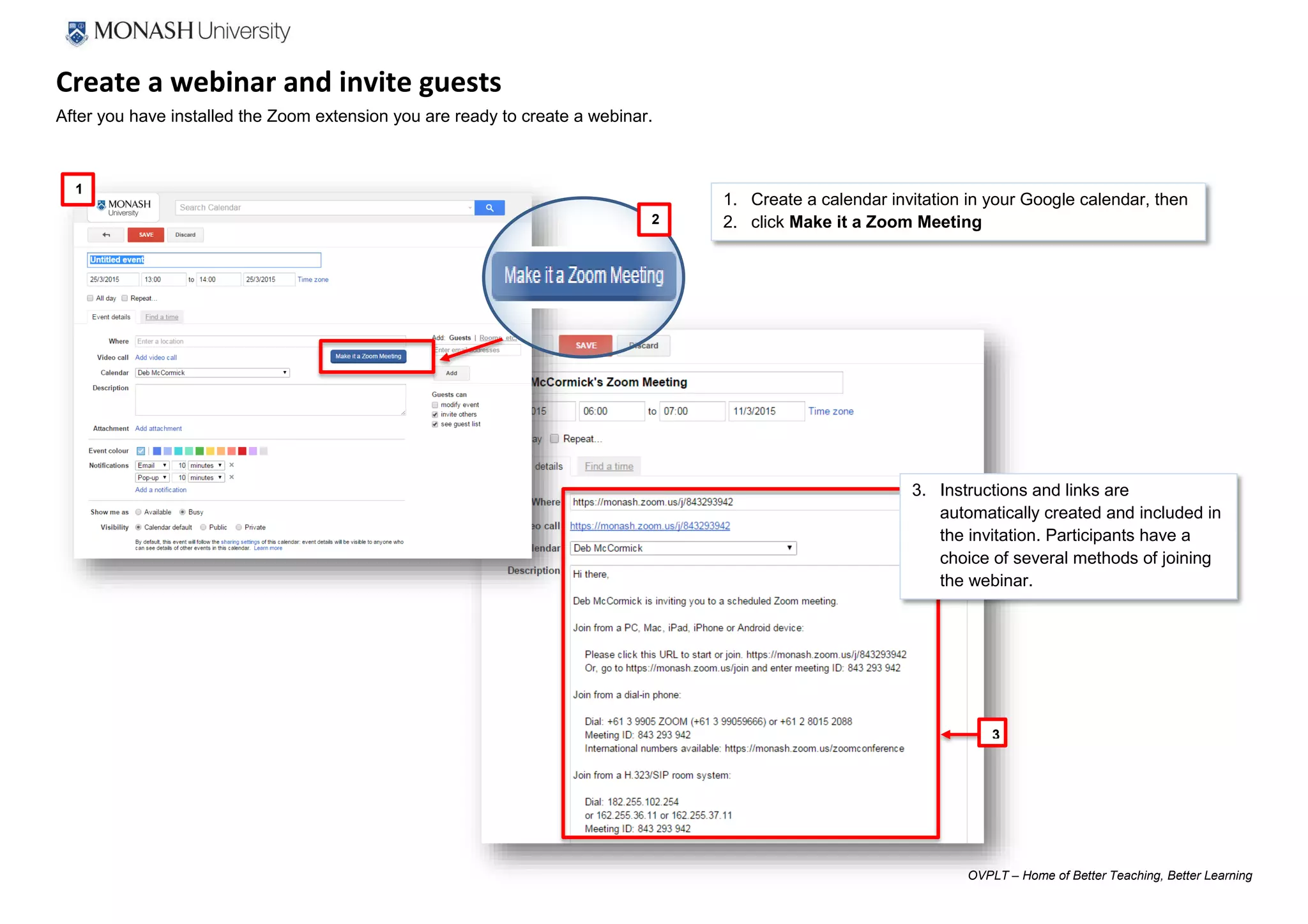
After you have installed the Zoom extension you are ready to create a webinar.
1. Create a calendar invitation in your Google calendar, then
2. click Make it a Zoom Meeting
3
1
2
3. Instructions and links are
automatically created and included in
the invitation. Participants have a
choice of several methods of joining
the webinar.
OVPLT – Home of Better Teaching, Better Learning
Hosting a Zoom webinar
You are the host of the meeting if:
 You started the instant meeting
 You scheduled the meeting and started the meeting
 You joined the meeting and claimed the host role
 You are given the host role during a meeting
What options do I have as a host?
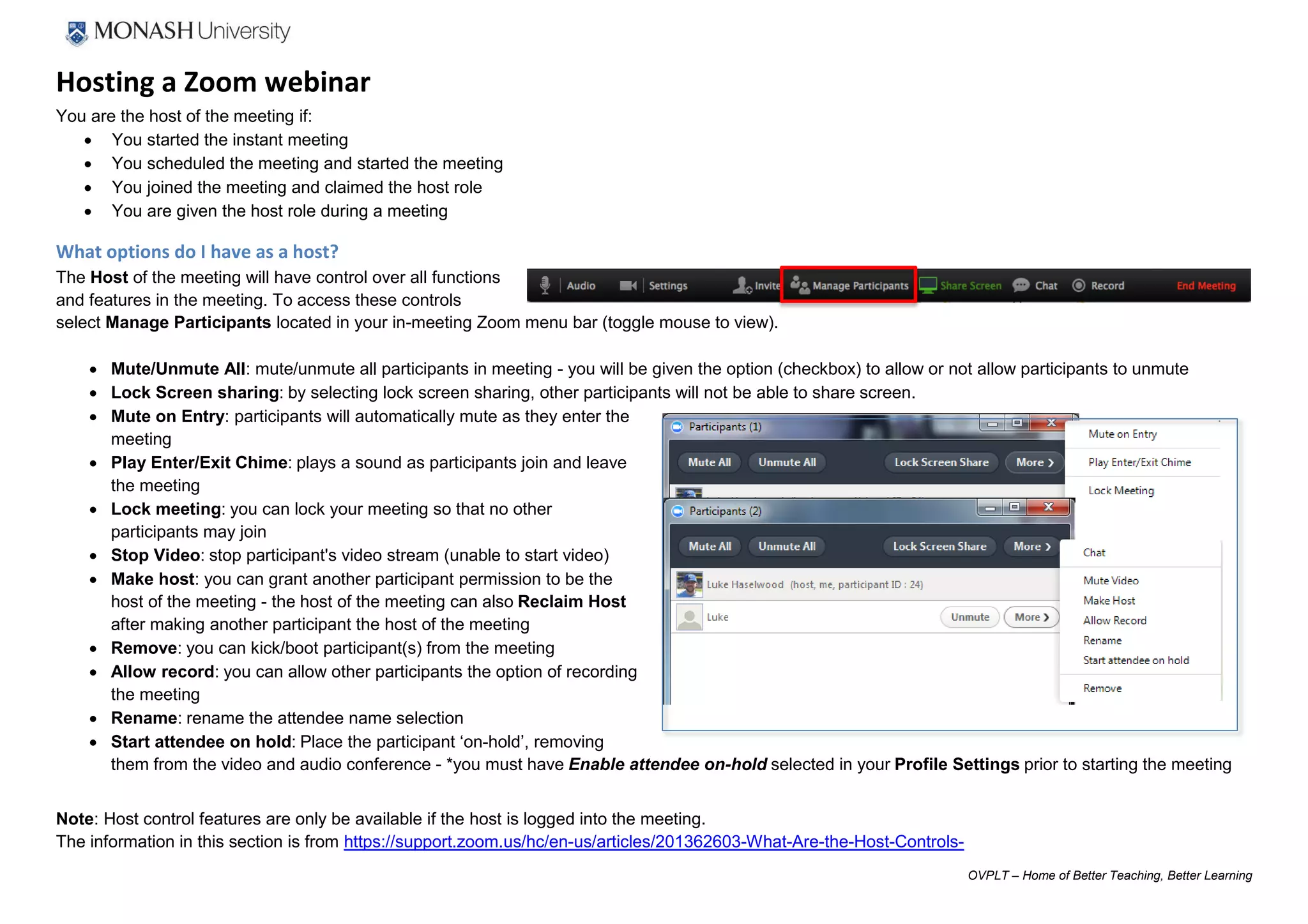
The Host of the meeting will have control over all functions
and features in the meeting. To access these controls
select Manage Participants located in your in-meeting Zoom menu bar (toggle mouse to view).
 Mute/Unmute All: mute/unmute all participants in meeting - you will be given the option (checkbox) to allow or not allow participants to unmute
 Lock Screen sharing: by selecting lock screen sharing, other participants will not be able to share screen.
 Mute on Entry: participants will automatically mute as they enter the
meeting
 Play Enter/Exit Chime: plays a sound as participants join and leave
the meeting
 Lock meeting: you can lock your meeting so that no other
participants may join
 Stop Video: stop participant's video stream (unable to start video)
 Make host: you can grant another participant permission to be the
host of the meeting - the host of the meeting can also Reclaim Host
after making another participant the host of the meeting
 Remove: you can kick/boot participant(s) from the meeting
 Allow record: you can allow other participants the option of recording
the meeting
 Rename: rename the attendee name selection
 Start attendee on hold: Place the participant ‘on-hold’, removing
them from the video and audio conference - *you must have Enable attendee on-hold selected in your Profile Settings prior to starting the meeting
Note: Host control features are only be available if the host is logged into the meeting.
The information in this section is from https://support.zoom.us/hc/en-us/articles/201362603-What-Are-the-Host-Controls-
OVPLT – Home of Better Teaching, Better Learning
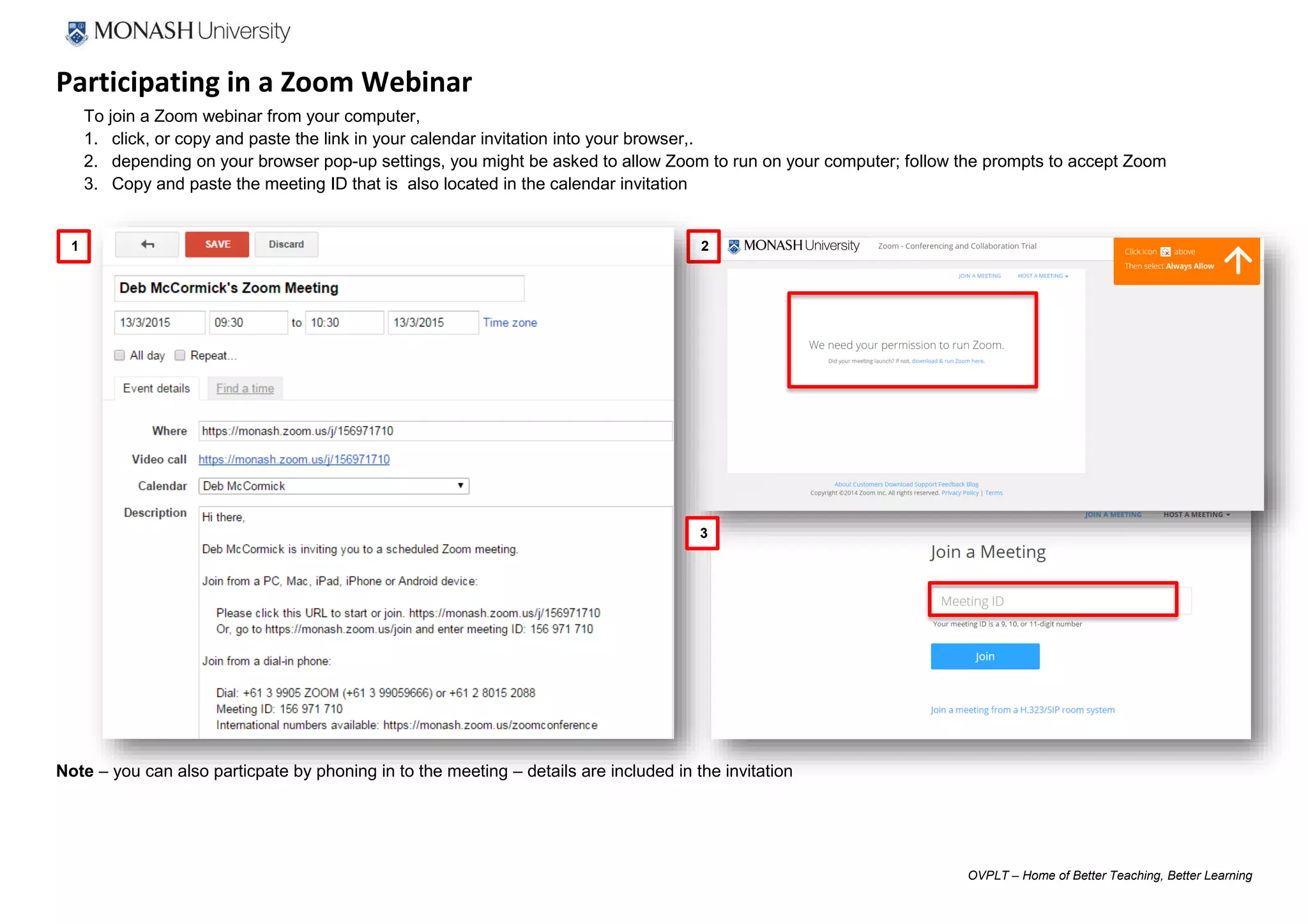
Participating in a Zoom Webinar
To join a Zoom webinar from your computer,
1. click, or copy and paste the link in your calendar invitation into your browser,.
2. depending on your browser pop-up settings, you might be asked to allow Zoom to run on your computer; follow the prompts to accept Zoom
3. Copy and paste the meeting ID that is also located in the calendar invitation
Note – you can also particpate by phoning in to the meeting – details are included in the invitation
1 2
3
OVPLT – Home of Better Teaching, Better Learning
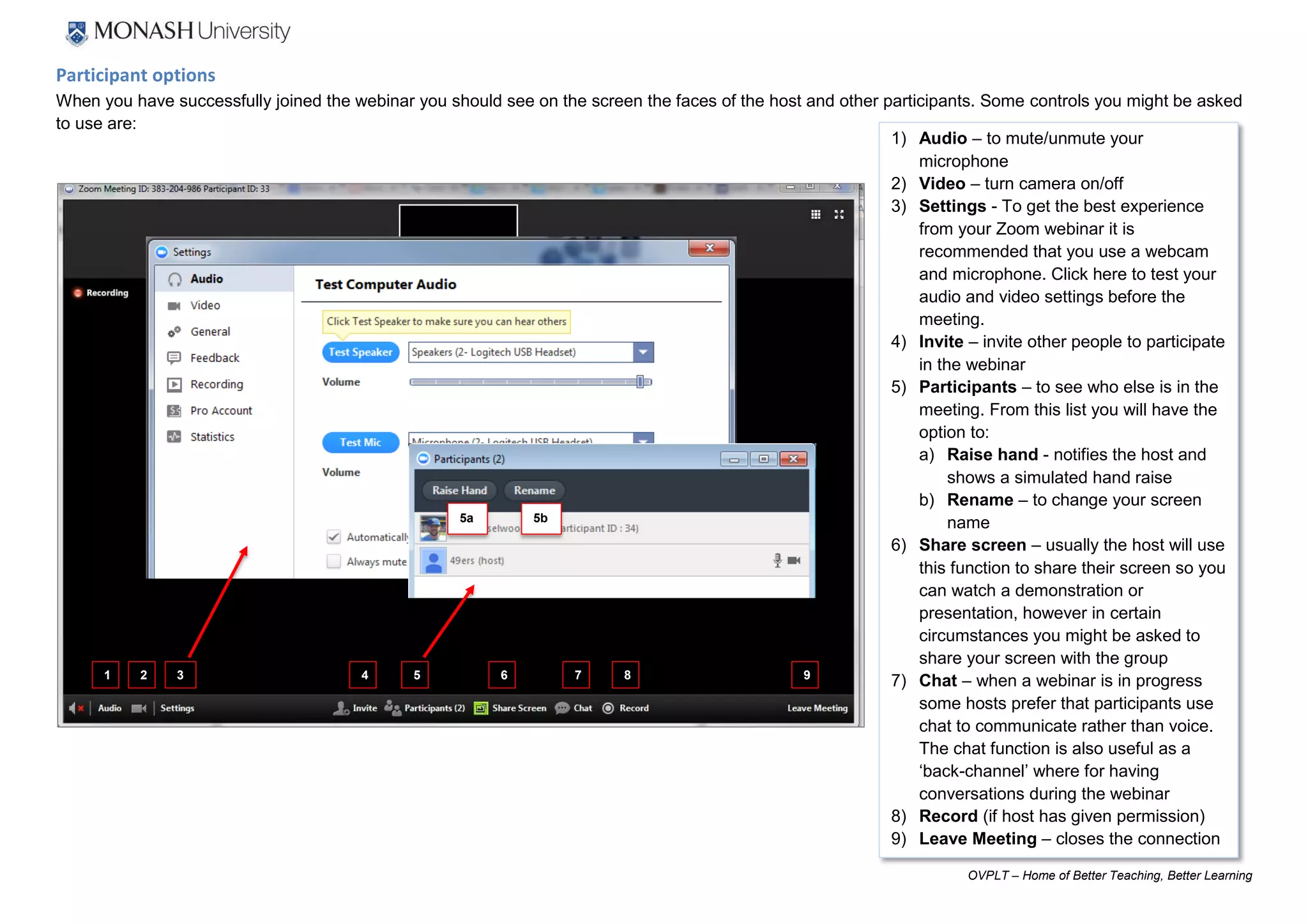
1) Audio – to mute/unmute your
microphone
2) Video – turn camera on/off
3) Settings - To get the best experience
from your Zoom webinar it is
recommended that you use a webcam
and microphone. Click here to test your
audio and video settings before the
meeting.
4) Invite – invite other people to participate
in the webinar
5) Participants – to see who else is in the
meeting. From this list you will have the
option to:
a) Raise hand - notifies the host and
shows a simulated hand raise
b) Rename – to change your screen
name
6) Share screen – usually the host will use
this function to share their screen so you
can watch a demonstration or
presentation, however in certain
circumstances you might be asked to
share your screen with the group
7) Chat – when a webinar is in progress
some hosts prefer that participants use
chat to communicate rather than voice.
The chat function is also useful as a
‘back-channel’ where for having
conversations during the webinar
8) Record (if host has given permission)
9) Leave Meeting – closes the connection
Participant options
When you have successfully joined the webinar you should see on the screen the faces of the host and other participants. Some controls you might be asked
to use are:
5a 5b
2 3 4 5 6 7 81 9
OVPLT – Home of Better Teaching, Better Learning
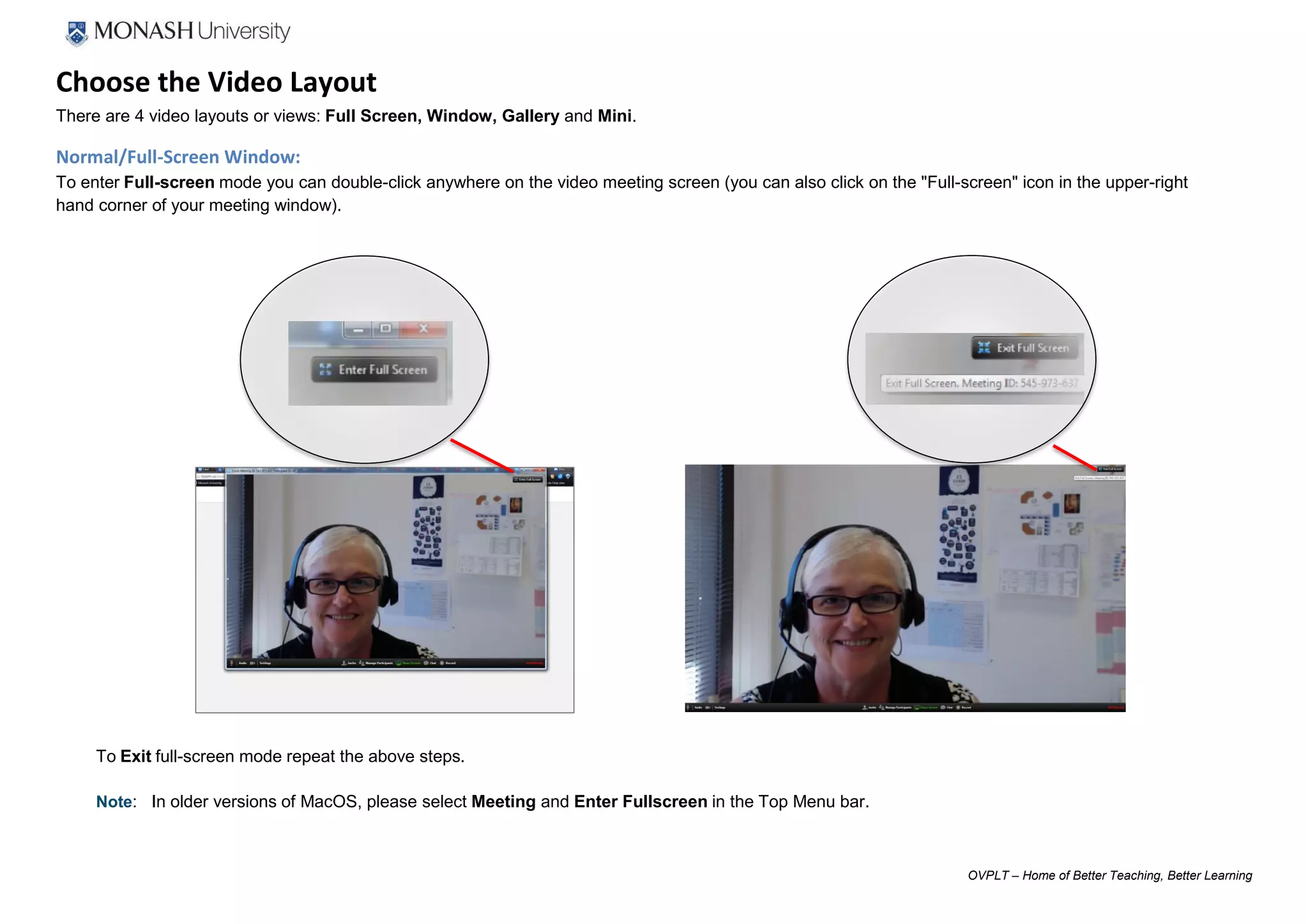
Choose the Video Layout
There are 4 video layouts or views: Full Screen, Window, Gallery and Mini.
Normal/Full-Screen Window:
To enter Full-screen mode you can double-click anywhere on the video meeting screen (you can also click on the "Full-screen" icon in the upper-right
hand corner of your meeting window).
To Exit full-screen mode repeat the above steps.
Note: In older versions of MacOS, please select Meeting and Enter Fullscreen in the Top Menu bar.
OVPLT – Home of Better Teaching, Better Learning
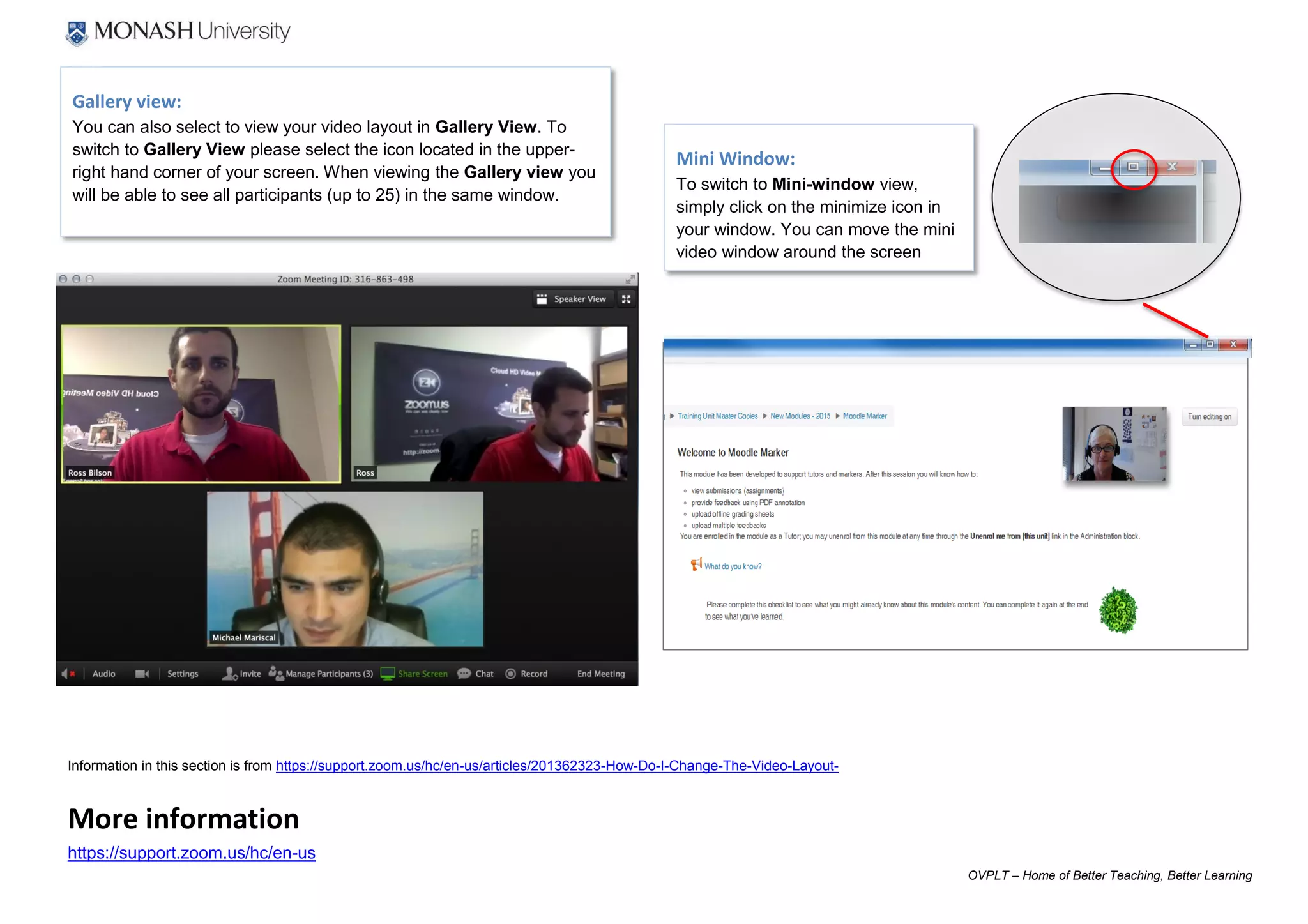
Gallery view:
You can also select to view your video layout in Gallery View. To
switch to Gallery View please select the icon located in the upper-
right hand corner of your screen. When viewing the Gallery view you
will be able to see all participants (up to 25) in the same window.
Mini Window:
To switch to Mini-window view,
simply click on the minimize icon in
your window. You can move the mini
video window around the screen
Information in this section is from https://support.zoom.us/hc/en-us/articles/201362323-How-Do-I-Change-The-Video-Layout-
More information
https://support.zoom.us/hc/en-us

How to set up a zoom webinar v2

  • 1.
    OVPLT – Homeof Better Teaching, Better Learning Setting up and running a Zoom webinar Before you can begin you will need to submit a support ticket with Service Desk get access to Zoom Pro. When you receive confirmation that you have access you can proceed with the instruction set that is best suited to your situation. Install the Zoom extension on your computer 2 3 4 5 4. Click Extensions, 5. then scroll to the bottom of the page and click Get more extensions 1. Open Google Chrome browser 2. Click the Customise and control Google Chrome icon ( ) 3. Scroll down to, and click Settings
  • 2.
    OVPLT – Homeof Better Teaching, Better Learning 9. After installation restart your browser and you will see the Zoom Scheduler icon in your extensions bar 9 7 8 6. Search for Zoom 7. Select Zoom by clicking + FREE 8. On the Confirm New Extension pop-up click Add 6
  • 3.
    OVPLT – Homeof Better Teaching, Better Learning Create a webinar and invite guests After you have installed the Zoom extension you are ready to create a webinar. 1. Create a calendar invitation in your Google calendar, then 2. click Make it a Zoom Meeting 3 1 2 3. Instructions and links are automatically created and included in the invitation. Participants have a choice of several methods of joining the webinar.
  • 4.
    OVPLT – Homeof Better Teaching, Better Learning Hosting a Zoom webinar You are the host of the meeting if:  You started the instant meeting  You scheduled the meeting and started the meeting  You joined the meeting and claimed the host role  You are given the host role during a meeting What options do I have as a host? The Host of the meeting will have control over all functions and features in the meeting. To access these controls select Manage Participants located in your in-meeting Zoom menu bar (toggle mouse to view).  Mute/Unmute All: mute/unmute all participants in meeting - you will be given the option (checkbox) to allow or not allow participants to unmute  Lock Screen sharing: by selecting lock screen sharing, other participants will not be able to share screen.  Mute on Entry: participants will automatically mute as they enter the meeting  Play Enter/Exit Chime: plays a sound as participants join and leave the meeting  Lock meeting: you can lock your meeting so that no other participants may join  Stop Video: stop participant's video stream (unable to start video)  Make host: you can grant another participant permission to be the host of the meeting - the host of the meeting can also Reclaim Host after making another participant the host of the meeting  Remove: you can kick/boot participant(s) from the meeting  Allow record: you can allow other participants the option of recording the meeting  Rename: rename the attendee name selection  Start attendee on hold: Place the participant ‘on-hold’, removing them from the video and audio conference - *you must have Enable attendee on-hold selected in your Profile Settings prior to starting the meeting Note: Host control features are only be available if the host is logged into the meeting. The information in this section is from https://support.zoom.us/hc/en-us/articles/201362603-What-Are-the-Host-Controls-
  • 5.
    OVPLT – Homeof Better Teaching, Better Learning Participating in a Zoom Webinar To join a Zoom webinar from your computer, 1. click, or copy and paste the link in your calendar invitation into your browser,. 2. depending on your browser pop-up settings, you might be asked to allow Zoom to run on your computer; follow the prompts to accept Zoom 3. Copy and paste the meeting ID that is also located in the calendar invitation Note – you can also particpate by phoning in to the meeting – details are included in the invitation 1 2 3
  • 6.
    OVPLT – Homeof Better Teaching, Better Learning 1) Audio – to mute/unmute your microphone 2) Video – turn camera on/off 3) Settings - To get the best experience from your Zoom webinar it is recommended that you use a webcam and microphone. Click here to test your audio and video settings before the meeting. 4) Invite – invite other people to participate in the webinar 5) Participants – to see who else is in the meeting. From this list you will have the option to: a) Raise hand - notifies the host and shows a simulated hand raise b) Rename – to change your screen name 6) Share screen – usually the host will use this function to share their screen so you can watch a demonstration or presentation, however in certain circumstances you might be asked to share your screen with the group 7) Chat – when a webinar is in progress some hosts prefer that participants use chat to communicate rather than voice. The chat function is also useful as a ‘back-channel’ where for having conversations during the webinar 8) Record (if host has given permission) 9) Leave Meeting – closes the connection Participant options When you have successfully joined the webinar you should see on the screen the faces of the host and other participants. Some controls you might be asked to use are: 5a 5b 2 3 4 5 6 7 81 9
  • 7.
    OVPLT – Homeof Better Teaching, Better Learning Choose the Video Layout There are 4 video layouts or views: Full Screen, Window, Gallery and Mini. Normal/Full-Screen Window: To enter Full-screen mode you can double-click anywhere on the video meeting screen (you can also click on the "Full-screen" icon in the upper-right hand corner of your meeting window). To Exit full-screen mode repeat the above steps. Note: In older versions of MacOS, please select Meeting and Enter Fullscreen in the Top Menu bar.
  • 8.
    OVPLT – Homeof Better Teaching, Better Learning Gallery view: You can also select to view your video layout in Gallery View. To switch to Gallery View please select the icon located in the upper- right hand corner of your screen. When viewing the Gallery view you will be able to see all participants (up to 25) in the same window. Mini Window: To switch to Mini-window view, simply click on the minimize icon in your window. You can move the mini video window around the screen Information in this section is from https://support.zoom.us/hc/en-us/articles/201362323-How-Do-I-Change-The-Video-Layout- More information https://support.zoom.us/hc/en-us