Presented By: Shannon Brown How to Use PowerPoint Effectively
PowerPoint can be a great tool for Educators… …follow these simple steps to use PowerPoint effectively!
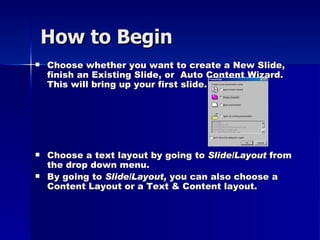
How to Begin Choose whether you want to create a New Slide, finish an Existing Slide, or  Auto Content Wizard. This will bring up your first slide. Choose a text layout by going to  Slide/Layout  from the drop down menu. By going to  Slide/Layout,  you can also choose a Content Layout or a Text & Content layout.
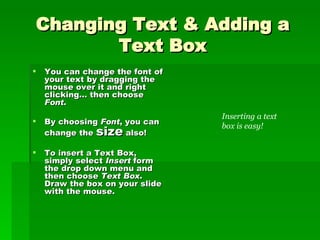
Changing Text & Adding a Text Box You can change the font of your text by dragging the mouse over it and right clicking… then choose  Font . By choosing  Font , you can change the  size  also! To insert a Text Box, simply select  Insert  form the drop down menu and then choose  Text Box . Draw the box on your slide with the mouse. Inserting a text box is easy!
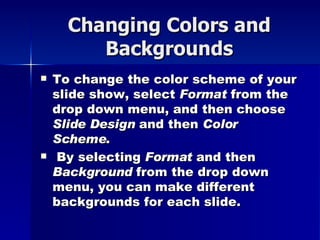
Changing Colors and Backgrounds To change the color scheme of your slide show, select  Format  from the drop down menu, and then choose  Slide Design  and then  Color Scheme . By selecting  Format  and then  Background  from the drop down menu, you can make different backgrounds for each slide.
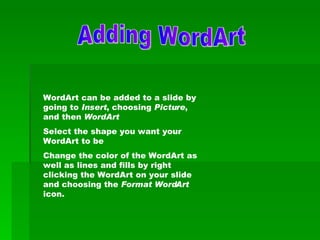
WordArt can be added to a slide by going to  Insert , choosing  Picture , and then  WordArt Select the shape you want your WordArt to be Change the color of the WordArt as well as lines and fills by right clicking the WordArt on your slide and choosing the  Format WordArt  icon. Adding WordArt
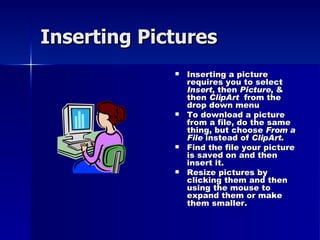
Inserting Pictures Inserting a picture requires you to select  Insert , then  Picture , & then  ClipArt   from the drop down menu To download a picture from a file, do the same thing, but choose  From a File  instead of  ClipArt . Find the file your picture is saved on and then insert it. Resize pictures by clicking them and then using the mouse to expand them or make them smaller.
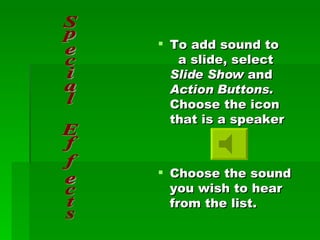
To add sound to  a slide, select  Slide Show  and  Action Buttons.  Choose the icon that is a speaker Choose the sound you wish to hear from the list. Special Effects
Right click on the slide that you wish to add a transition to Choose the transition of your choice from the list. Select the desired speed of the transition as well as any sound effect that you may want Slide transitioning
Save & Print! Once you have completed your slide show, you can save it by going to the drop down menu and choosing  File/Save As.  Print your slideshow by selecting File/Print. Choose how you want your slides to print underneath of the  Print What  . You can choose to print one slide per page, or you can opt to print handouts and select the number of slides you would like printed on one  page. Choose whether you want the slides to be printed in Black and white or color also .
Tips  Make sure that the font on your slides can be read from the back of the audience Use contrasting colors Know the order of your slides and which slides have what information on them Don’t make the text on the slide move in one by one… this takes the focus off of what the speaker is saying
Use PowerPoint as a fun way to get key information about the lesson across to the students. Have students use PowerPoint to build projects on, and then have them present their work to the class Use PowerPoint to keep students’ attention; it’ll be better than just lecturing them with your voice and no visuals ! Suggestions for Use

How To Power Point

  • 1.
    Presented By: ShannonBrown How to Use PowerPoint Effectively
  • 2.
    PowerPoint can bea great tool for Educators… …follow these simple steps to use PowerPoint effectively!
  • 3.
    How to BeginChoose whether you want to create a New Slide, finish an Existing Slide, or Auto Content Wizard. This will bring up your first slide. Choose a text layout by going to Slide/Layout from the drop down menu. By going to Slide/Layout, you can also choose a Content Layout or a Text & Content layout.
  • 4.
    Changing Text &Adding a Text Box You can change the font of your text by dragging the mouse over it and right clicking… then choose Font . By choosing Font , you can change the size also! To insert a Text Box, simply select Insert form the drop down menu and then choose Text Box . Draw the box on your slide with the mouse. Inserting a text box is easy!
  • 5.
    Changing Colors andBackgrounds To change the color scheme of your slide show, select Format from the drop down menu, and then choose Slide Design and then Color Scheme . By selecting Format and then Background from the drop down menu, you can make different backgrounds for each slide.
  • 6.
    WordArt can beadded to a slide by going to Insert , choosing Picture , and then WordArt Select the shape you want your WordArt to be Change the color of the WordArt as well as lines and fills by right clicking the WordArt on your slide and choosing the Format WordArt icon. Adding WordArt
  • 7.
    Inserting Pictures Insertinga picture requires you to select Insert , then Picture , & then ClipArt from the drop down menu To download a picture from a file, do the same thing, but choose From a File instead of ClipArt . Find the file your picture is saved on and then insert it. Resize pictures by clicking them and then using the mouse to expand them or make them smaller.
  • 8.
    To add soundto a slide, select Slide Show and Action Buttons. Choose the icon that is a speaker Choose the sound you wish to hear from the list. Special Effects
  • 9.
    Right click onthe slide that you wish to add a transition to Choose the transition of your choice from the list. Select the desired speed of the transition as well as any sound effect that you may want Slide transitioning
  • 10.
    Save & Print!Once you have completed your slide show, you can save it by going to the drop down menu and choosing File/Save As. Print your slideshow by selecting File/Print. Choose how you want your slides to print underneath of the Print What . You can choose to print one slide per page, or you can opt to print handouts and select the number of slides you would like printed on one page. Choose whether you want the slides to be printed in Black and white or color also .
  • 11.
    Tips Makesure that the font on your slides can be read from the back of the audience Use contrasting colors Know the order of your slides and which slides have what information on them Don’t make the text on the slide move in one by one… this takes the focus off of what the speaker is saying
  • 12.
    Use PowerPoint asa fun way to get key information about the lesson across to the students. Have students use PowerPoint to build projects on, and then have them present their work to the class Use PowerPoint to keep students’ attention; it’ll be better than just lecturing them with your voice and no visuals ! Suggestions for Use