HOW TO IMPORT
MBOX FILE INTO THUNDERBIRD?
Using Enstella MBOX Converter Software - A professional Guide
https://www.enstella.com/mbox-converter.html
WHAT IS
THUNDERBIRD & MBOX FORMAT?
https://www.enstella.com/mbox-converter.html
Thunderbird is a free, open-source email
client developed by Mozilla.
It stores email messages in the MBOX
format, which is used by many email
platforms.
MBOX is a plain text format storing email
messages in a single file – simple but
powerful for backups and transfers.
The Problem -
Why you need a Converter
https://www.enstella.com/mbox-converter.html
Thunderbird does not fully import MBOX file
Manual methods are time consuming and not
user-friendly
Other tools do not give you any guarantee
about your data
INTRODUCTION TO ENSTELLA MBOX
CONVERTER SOFTWARE
https://www.enstella.com/mbox-converter.html
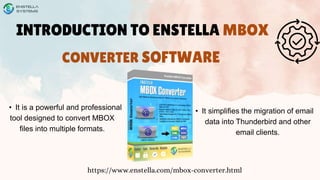
• It is a powerful and professional
tool designed to convert MBOX
files into multiple formats.
• It simplifies the migration of email
data into Thunderbird and other
email clients.
WHY CHOOSE
ENSTELLA MBOX CONVERTER SOFTWARE?
https://www.enstella.com/mbox-converter.html
✔ Fast and secure MBOX to EML, PST, MSG, HTML
and PDF conversion
✔ Supports bulk conversion for multiple MBOX files
✔ Preview all items before conversion
✔ Easy-to-use interface – no technical skills required
✔ Maintains original folder structure and email formatting
Step-by-Step Guide
Import MBOX file into Thunderbird
https://www.enstella.com/mbox-converter.html
• Visit Enstella’s official website
• Download the MBOX Converter Software
• Complete installation following the on-screen
instruction
Step-by-Step Guide
Import MBOX file into Thunderbird
https://www.enstella.com/mbox-converter.html
• Open the software and click “Add file” option
• Browse and select the MBOX files from your system
• And next preview all items before conversion
Step-by-Step Guide
Import MBOX file into Thunderbird
https://www.enstella.com/mbox-converter.html
• Select “export” and choose the Thunderbird supported MBOX or EMl
• Browse the destination path for saving output files
• Click on “Convert” to begin the process
Step-by-Step Guide
Import MBOX file into Thunderbird
https://www.enstella.com/mbox-converter.html
• Open Thunderbird and install the “importexporttool”
• Use it to import the files expoted by Enstella
• Navigate to folder, click right, and import/Export
THANKYOU
https://www.enstella.com/mbox-converter.html
If you find this information useful, please share it and if you have any
questions or experiences, please comment below. Our technical
customer support team is available for you 24/7.

How to import mbox file into Thunderbird.pdf

  • 1.
    HOW TO IMPORT MBOXFILE INTO THUNDERBIRD? Using Enstella MBOX Converter Software - A professional Guide https://www.enstella.com/mbox-converter.html
  • 2.
    WHAT IS THUNDERBIRD &MBOX FORMAT? https://www.enstella.com/mbox-converter.html Thunderbird is a free, open-source email client developed by Mozilla. It stores email messages in the MBOX format, which is used by many email platforms. MBOX is a plain text format storing email messages in a single file – simple but powerful for backups and transfers.
  • 3.
    The Problem - Whyyou need a Converter https://www.enstella.com/mbox-converter.html Thunderbird does not fully import MBOX file Manual methods are time consuming and not user-friendly Other tools do not give you any guarantee about your data
  • 4.
    INTRODUCTION TO ENSTELLAMBOX CONVERTER SOFTWARE https://www.enstella.com/mbox-converter.html • It is a powerful and professional tool designed to convert MBOX files into multiple formats. • It simplifies the migration of email data into Thunderbird and other email clients.
  • 5.
    WHY CHOOSE ENSTELLA MBOXCONVERTER SOFTWARE? https://www.enstella.com/mbox-converter.html ✔ Fast and secure MBOX to EML, PST, MSG, HTML and PDF conversion ✔ Supports bulk conversion for multiple MBOX files ✔ Preview all items before conversion ✔ Easy-to-use interface – no technical skills required ✔ Maintains original folder structure and email formatting
  • 6.
    Step-by-Step Guide Import MBOXfile into Thunderbird https://www.enstella.com/mbox-converter.html • Visit Enstella’s official website • Download the MBOX Converter Software • Complete installation following the on-screen instruction
  • 7.
    Step-by-Step Guide Import MBOXfile into Thunderbird https://www.enstella.com/mbox-converter.html • Open the software and click “Add file” option • Browse and select the MBOX files from your system • And next preview all items before conversion
  • 8.
    Step-by-Step Guide Import MBOXfile into Thunderbird https://www.enstella.com/mbox-converter.html • Select “export” and choose the Thunderbird supported MBOX or EMl • Browse the destination path for saving output files • Click on “Convert” to begin the process
  • 9.
    Step-by-Step Guide Import MBOXfile into Thunderbird https://www.enstella.com/mbox-converter.html • Open Thunderbird and install the “importexporttool” • Use it to import the files expoted by Enstella • Navigate to folder, click right, and import/Export
  • 10.
    THANKYOU https://www.enstella.com/mbox-converter.html If you findthis information useful, please share it and if you have any questions or experiences, please comment below. Our technical customer support team is available for you 24/7.