

Highlight
IMPORTANT
Words in PowerPoint
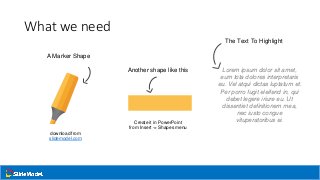
What we need
A Marker Shape
Another shape like this
The Text To Highlight
Lorem ipsum dolor sit amet,
eum tota dolores interpretaris
eu. Vel atqui dictas luptatum et.
Per porro fugit eleifend in, qui
debet legere iriure eu. Ut
dissentiet definitionem mea,
nec iusto congue
vituperatoribus ei.
download from
slidemodel.com
Create it in PowerPoint
from Insert -> Shapes menu
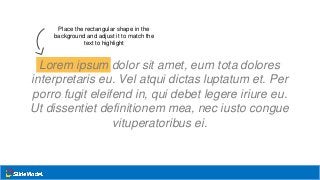
Place the rectangular shape in the
background and adjust it to match the
text to highlight
Lorem ipsum dolor sit amet, eum tota dolores
interpretaris eu. Vel atqui dictas luptatum et. Per
porro fugit eleifend in, qui debet legere iriure eu.
Ut dissentiet definitionem mea, nec iusto congue
vituperatoribus ei.
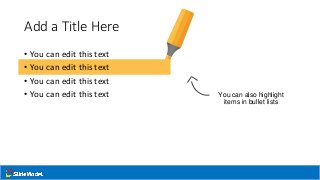
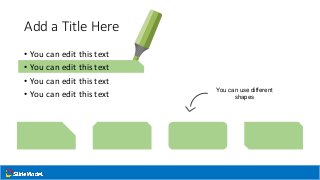
Add a Title Here
• You can edit this text
• You can edit this text You can also highlight
items in bullet lists
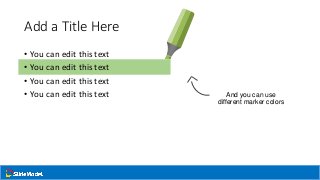
Add a Title Here
• You can edit this text
• You can edit this text And you can use
different marker colors
Add a Title Here
• You can edit this text
• You can edit this text You can use different
shapes
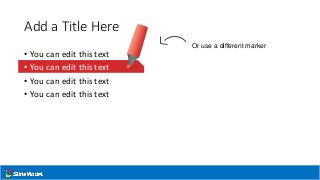
Add a Title Here
• You can edit this text
Or use a different marker
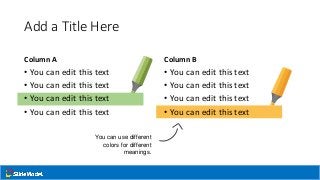
Add a Title Here
Column A
• You can edit this text
Column B
• You can edit this text
You can use different
colors for different
meanings.
@slidemodel
http://slidemodel.com

How to Highlight Text in PowerPoint

  • 1.
  • 2.
    What we need AMarker Shape Another shape like this The Text To Highlight Lorem ipsum dolor sit amet, eum tota dolores interpretaris eu. Vel atqui dictas luptatum et. Per porro fugit eleifend in, qui debet legere iriure eu. Ut dissentiet definitionem mea, nec iusto congue vituperatoribus ei. download from slidemodel.com Create it in PowerPoint from Insert -> Shapes menu
  • 3.
    Place the rectangularshape in the background and adjust it to match the text to highlight Lorem ipsum dolor sit amet, eum tota dolores interpretaris eu. Vel atqui dictas luptatum et. Per porro fugit eleifend in, qui debet legere iriure eu. Ut dissentiet definitionem mea, nec iusto congue vituperatoribus ei.
  • 4.
    Add a TitleHere • You can edit this text • You can edit this text • You can edit this text • You can edit this text You can also highlight items in bullet lists
  • 5.
    Add a TitleHere • You can edit this text • You can edit this text • You can edit this text • You can edit this text And you can use different marker colors
  • 6.
    Add a TitleHere • You can edit this text • You can edit this text • You can edit this text • You can edit this text You can use different shapes
  • 7.
    Add a TitleHere • You can edit this text • You can edit this text • You can edit this text • You can edit this text Or use a different marker
  • 8.
    Add a TitleHere Column A • You can edit this text • You can edit this text • You can edit this text • You can edit this text Column B • You can edit this text • You can edit this text • You can edit this text • You can edit this text You can use different colors for different meanings.
  • 9.

Editor's Notes

  • #10 You can safely remove this slide. This slide design was provided by SlideModel.com – You can download more templates, shapes and elements for PowerPoint from http://slidemodel.com/