Here's simple way for how to Find Printer IP Address so it can be connected and shared with other computers on a network. Fix find printer IP address in quick guide. Click here: https://installationsolutions.co/how-to-find-printer-ip-address
How to FindPrinter IP Address
Your printer IP address is necessary to configure network settings on your
printer. Knowing the static IP of a printer makes it easier to connect the
printer to other devices on the network. Finding it is quite easy. There are
several ways of finding the printer’s IP address, depending on the printer
make and model.
How to Find Printer IP Address on The Printer
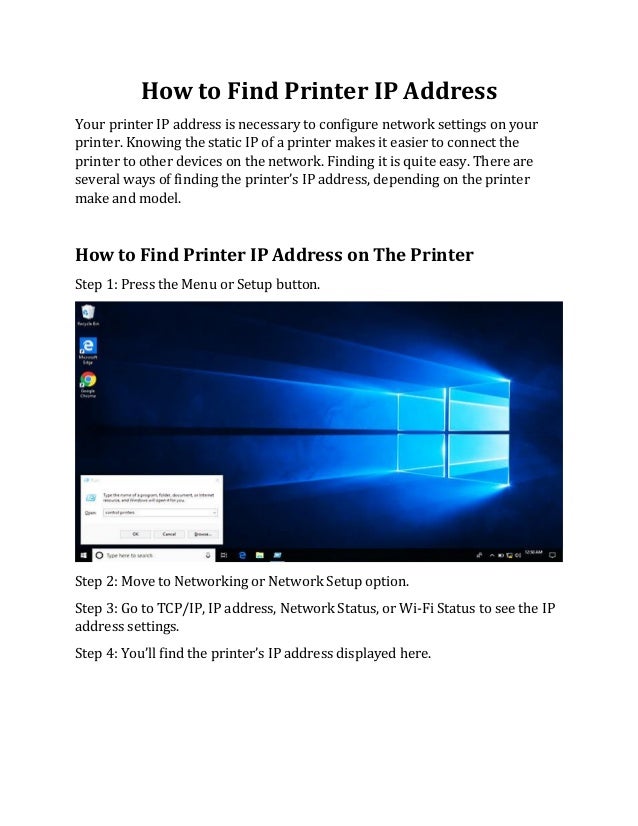
Step 1: Press the Menu or Setup button.
Step 2: Move to Networking or Network Setup option.
Step 3: Go to TCP/IP, IP address, Network Status, or Wi-Fi Status to see the IP
address settings.
Step 4: You’ll find the printer’s IP address displayed here.
2.
How to FindPrinter IP Address on Windows Computer
Ensure your printer is connected to the network before proceeding.
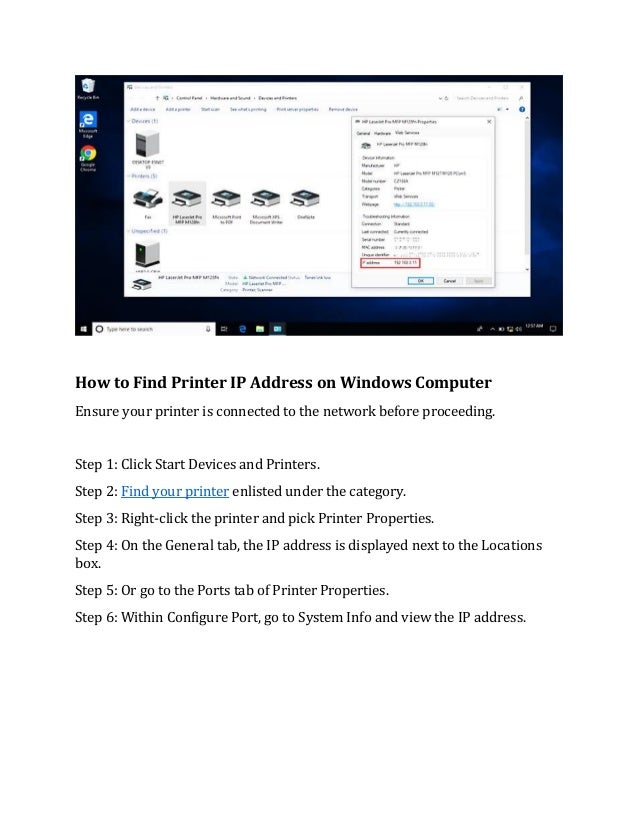
Step 1: Click Start Devices and Printers.
Step 2: Find your printer enlisted under the category.
Step 3: Right-click the printer and pick Printer Properties.
Step 4: On the General tab, the IP address is displayed next to the Locations
box.
Step 5: Or go to the Ports tab of Printer Properties.
Step 6: Within Configure Port, go to System Info and view the IP address.


![[Solved] iCloud Mail Not Receiving Mails](https://cdn.slidesharecdn.com/ss_thumbnails/icloudmailnotreceivingmails-220311110822-thumbnail.jpg?width=640&height=640&fit=bounds)


