How To Configure Amazon Elastic IP Address
i | P a g e
Table of Contents
Overview ...........................................................................................................................................1
Applies To..........................................................................................................................................1
Pre-requisites.....................................................................................................................................1
Elastic IP.............................................................................................................................................1
Elastic IPs – Launch.........................................................................................................................1
Elastic IPs – Allocate New Address ...................................................................................................1
Elastic IPs – Confirm NewAddress ...................................................................................................2
Elastic IPs – New Address Allocation ................................................................................................2
Elastic IPs – Associate Address .....................................................................................................3
Elastic IPs – Instance ID................................................................................................................3
Elastic IPs – Instance ID................................................................................................................4
Elastic IPs – Associate..................................................................................................................4
Elastic IPs – Associate..................................................................................................................5
Disassociate Address...........................................................................................................................5
Release Addresses..............................................................................................................................6
Elastic IPs – Release Addresses ........................................................................................................6
How To Configure Amazon Elastic IP Address
1 | P a g e
Overview
The purpose of this document is to Allocate, Associate, Disassociate and release Elastic IP Address in
Amazon AWS Console.
Applies To
Amazon AWS EC2 Instance
Pre-requisites
Existing AWS EC2 instance
Elastic IP
Elastic IP Address is an IP Address that doesn’t dynamic change when the EC2 Instance is stopped and
started from the management console.
Elastic IPs – Launch
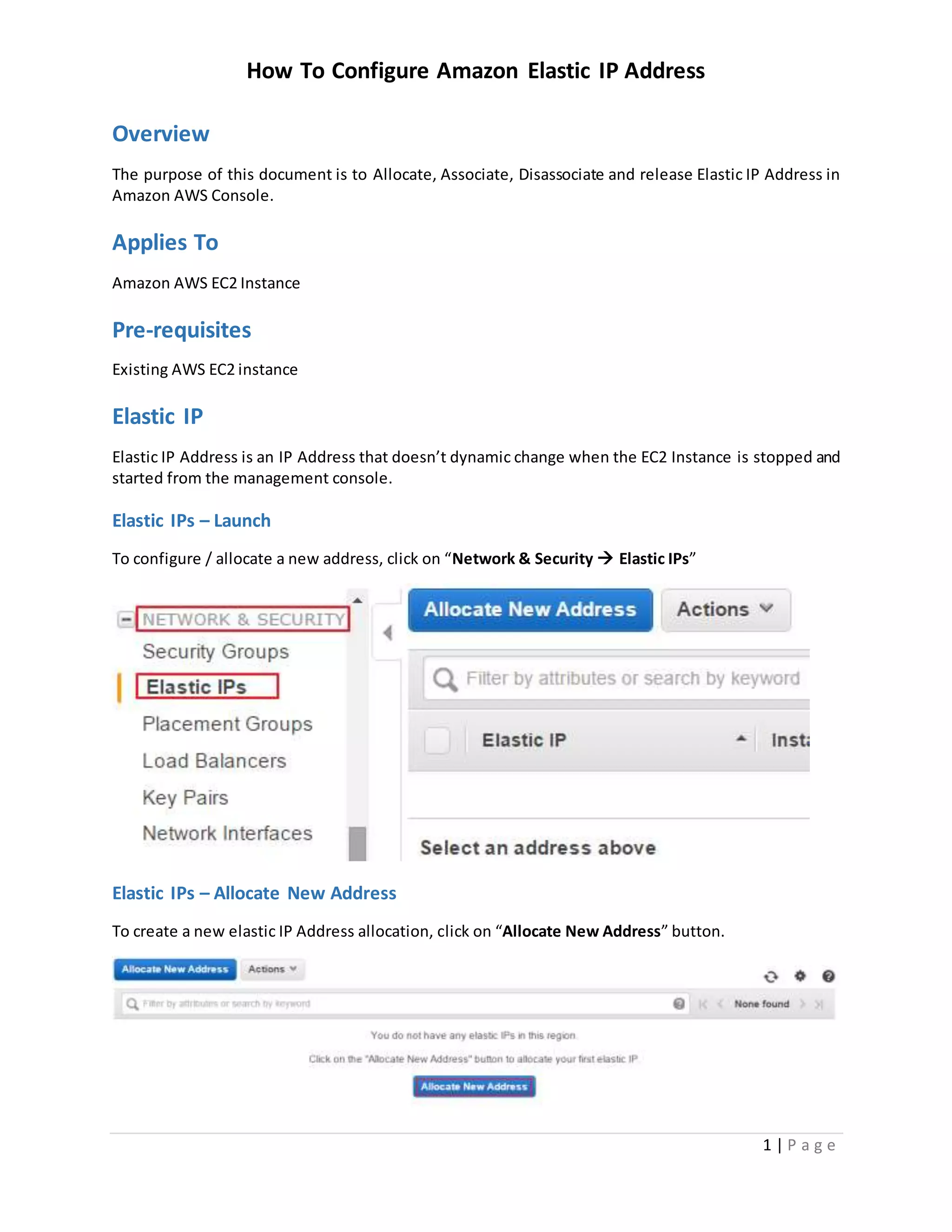
To configure / allocate a new address, click on “Network & Security  Elastic IPs”
Elastic IPs – Allocate New Address
To create a new elastic IP Address allocation, click on “Allocate New Address” button.
How To Configure Amazon Elastic IP Address
2 | P a g e
Elastic IPs – Confirm New Address
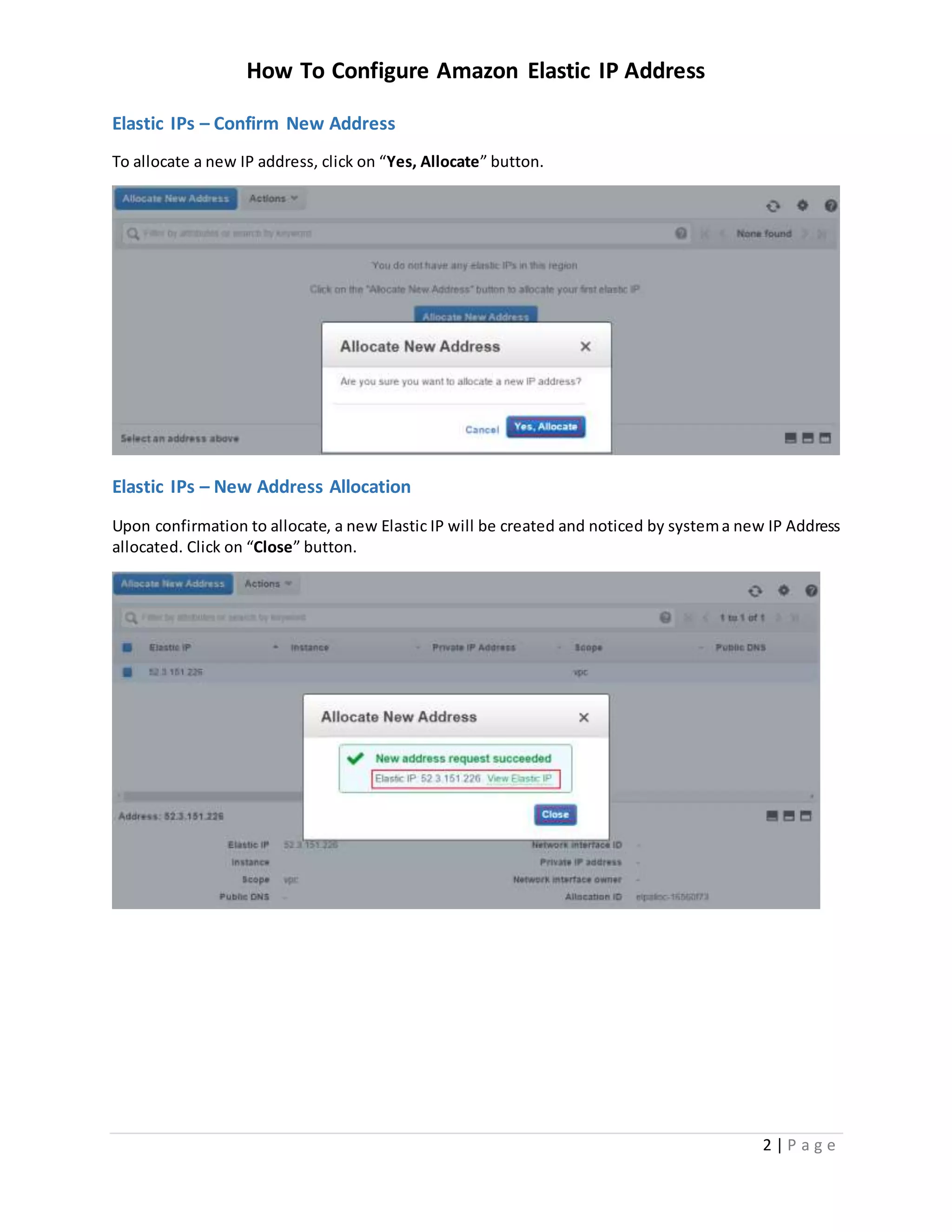
To allocate a new IP address, click on “Yes, Allocate” button.
Elastic IPs – New Address Allocation
Upon confirmation to allocate, a new Elastic IP will be created and noticed by systema new IP Address
allocated. Click on “Close” button.
How To Configure Amazon Elastic IP Address
3 | P a g e
Elastic IPs – Associate Address
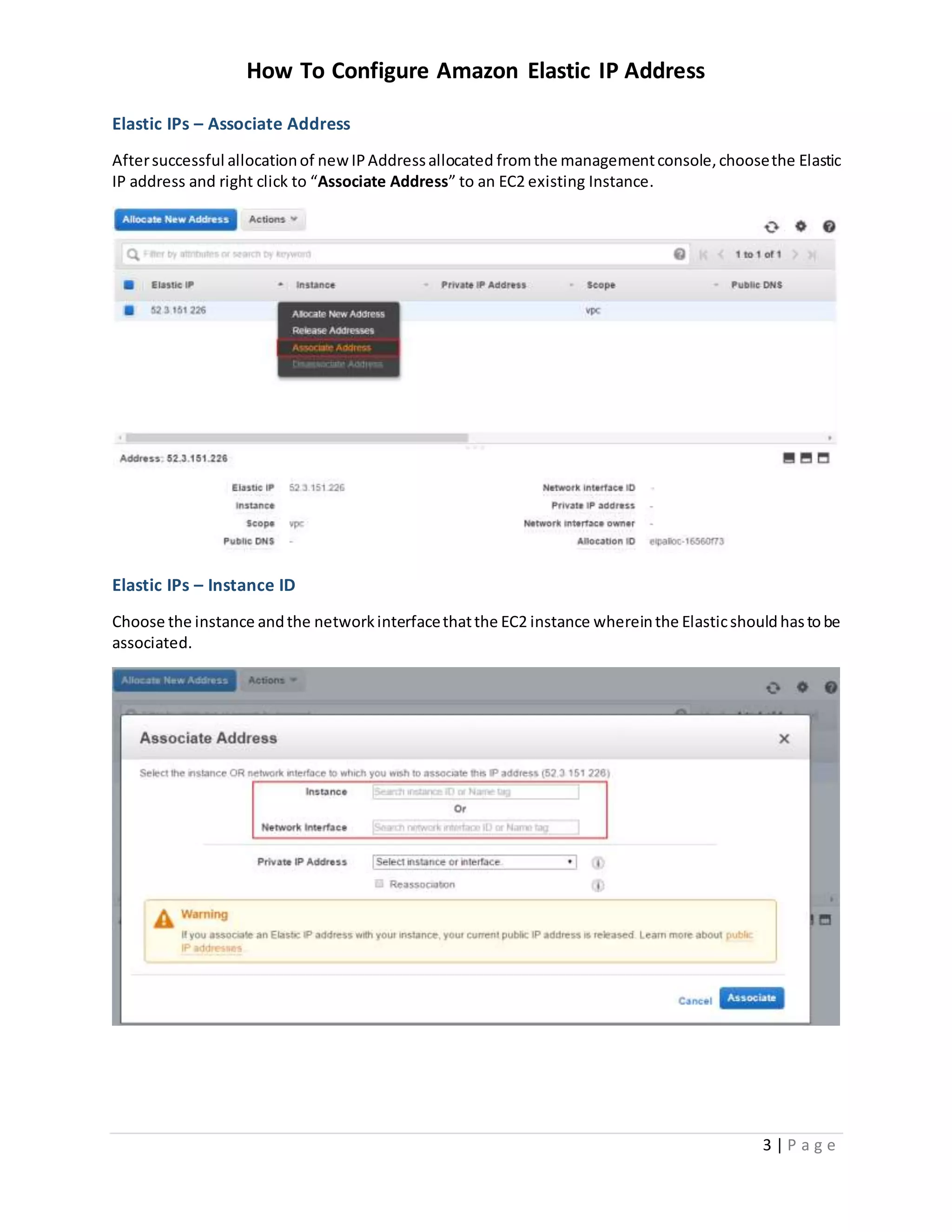
Aftersuccessful allocationof newIPAddressallocated fromthe managementconsole,choosethe Elastic
IP address and right click to “Associate Address” to an EC2 existing Instance.
Elastic IPs – Instance ID
Choose the instance andthe networkinterfacethatthe EC2 instance whereinthe Elasticshouldhastobe
associated.
How To Configure Amazon Elastic IP Address
4 | P a g e
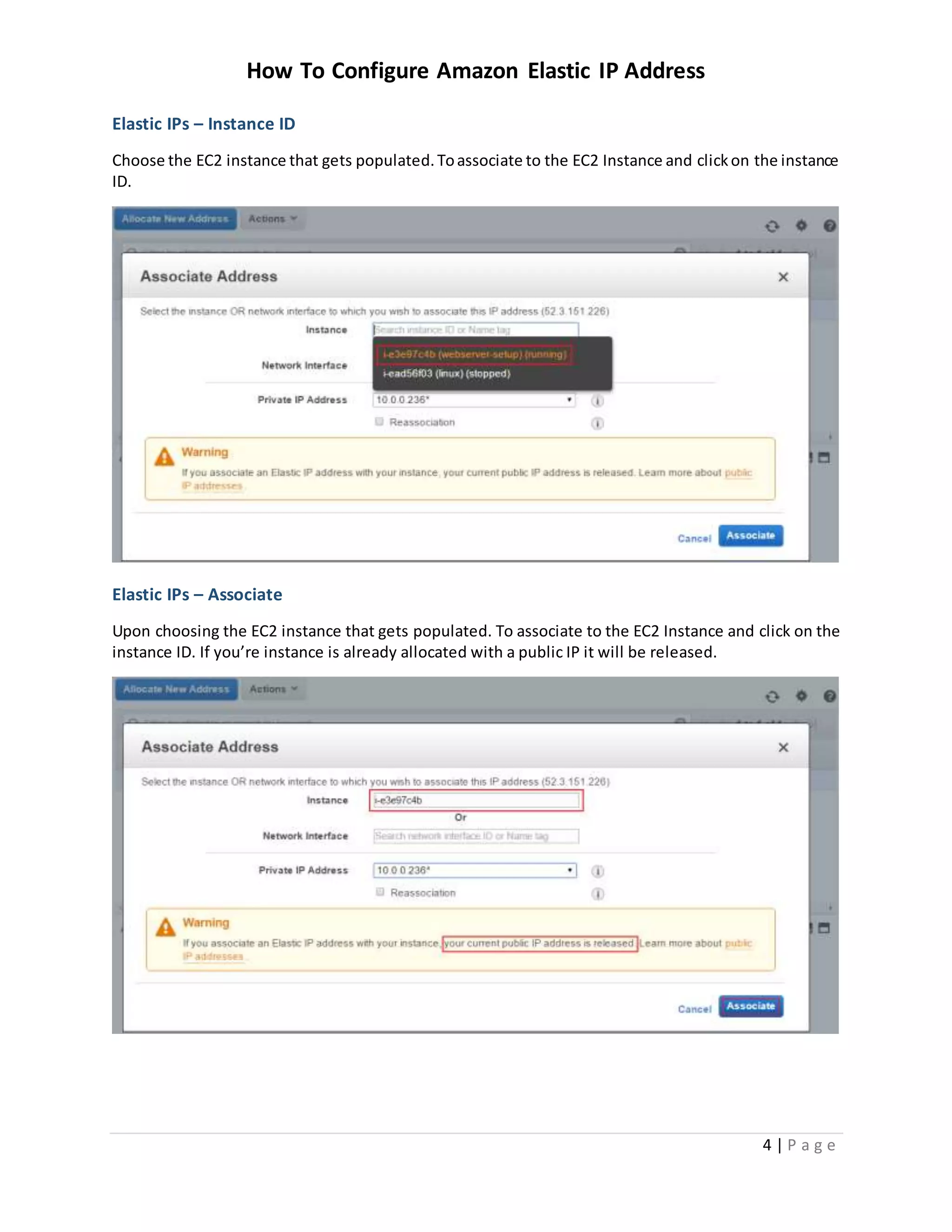
Elastic IPs – Instance ID
Choose the EC2 instance that gets populated.Toassociate to the EC2 Instance and clickon the instance
ID.
Elastic IPs – Associate
Upon choosing the EC2 instance that gets populated. To associate to the EC2 Instance and click on the
instance ID. If you’re instance is already allocated with a public IP it will be released.
How To Configure Amazon Elastic IP Address
5 | P a g e
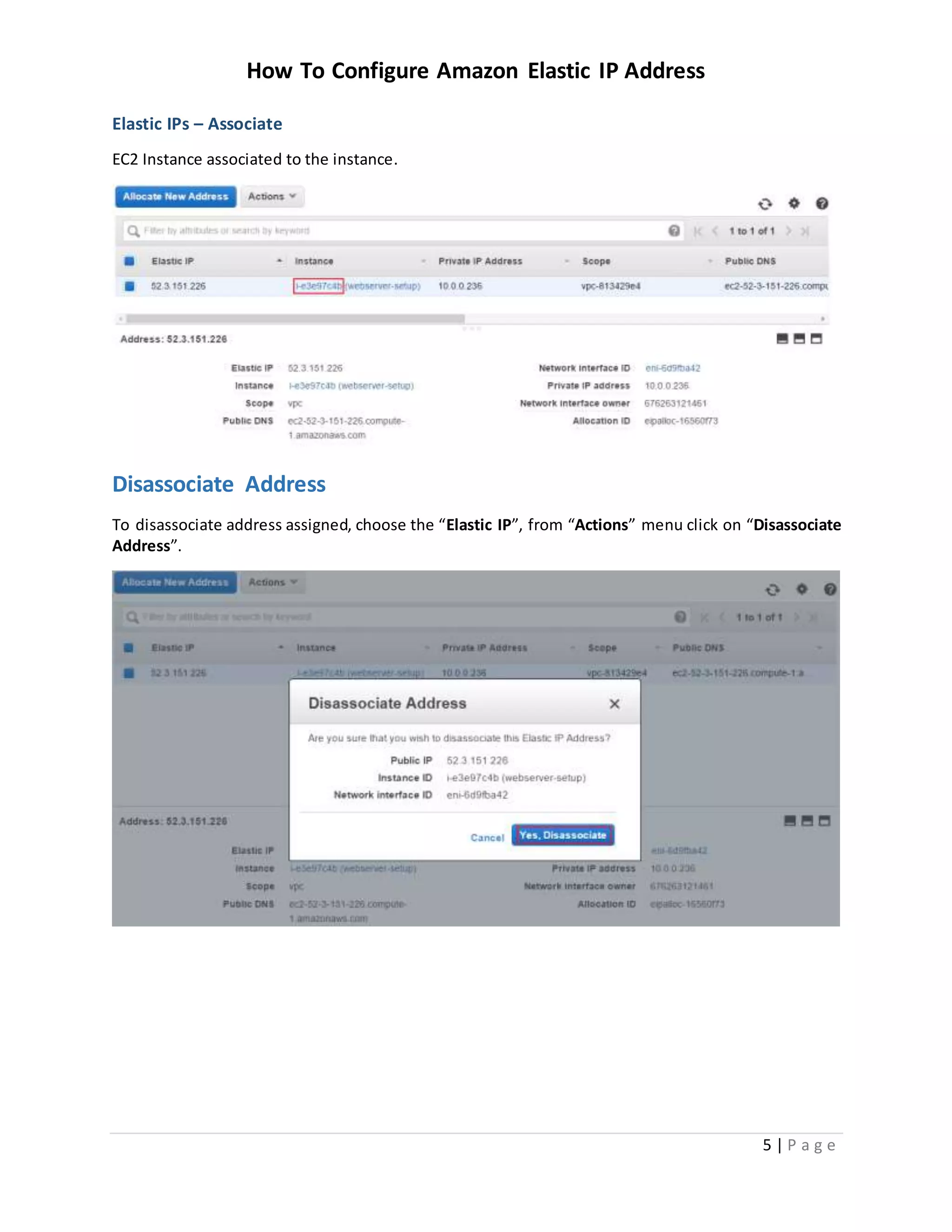
Elastic IPs – Associate
EC2 Instance associated to the instance.
Disassociate Address
To disassociate address assigned, choose the “Elastic IP”, from “Actions” menu click on “Disassociate
Address”.
How To Configure Amazon Elastic IP Address
6 | P a g e
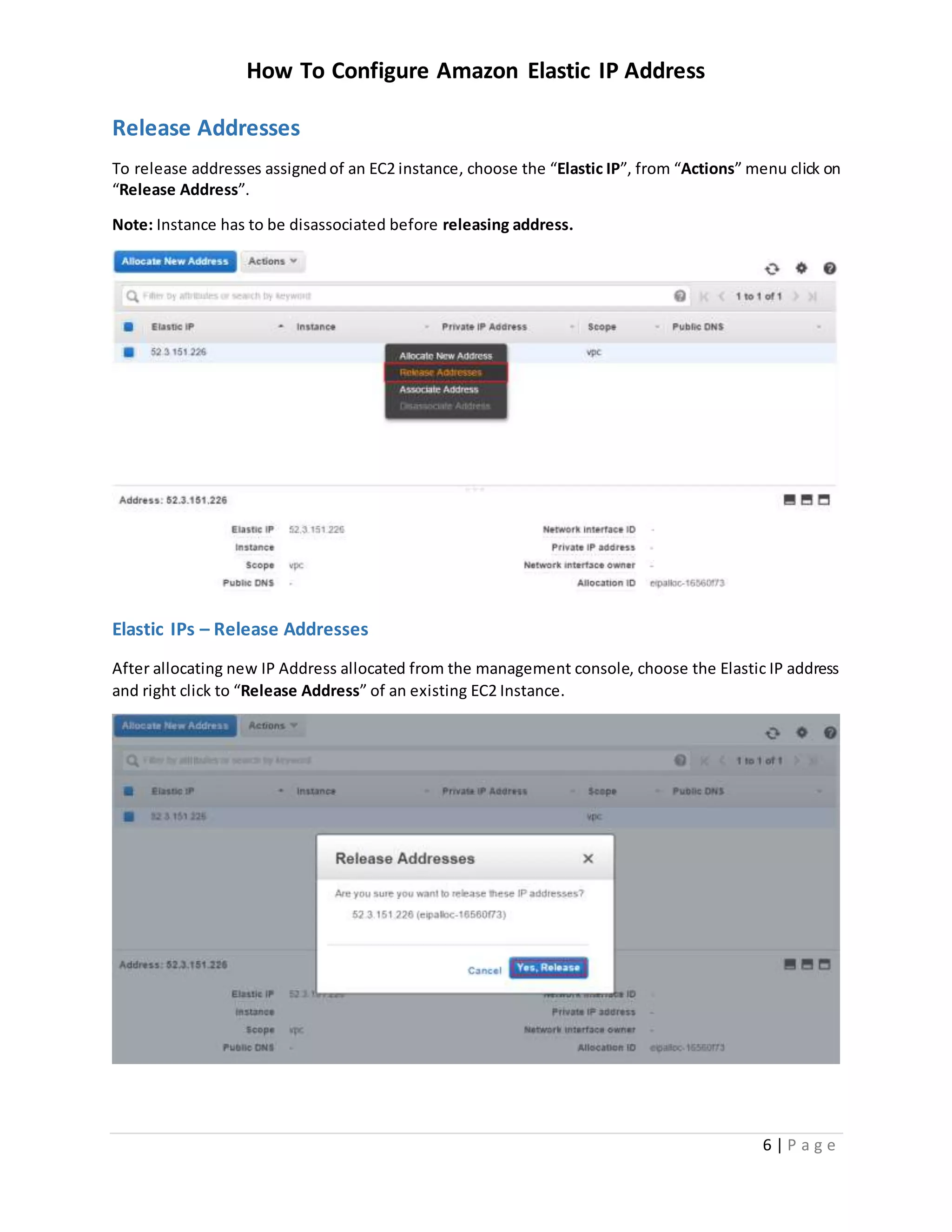
Release Addresses
To release addresses assignedof an EC2 instance, choose the “Elastic IP”, from “Actions” menu click on
“Release Address”.
Note: Instance has to be disassociated before releasing address.
Elastic IPs – Release Addresses
After allocating new IP Address allocated from the management console, choose the Elastic IP address
and right click to “Release Address” of an existing EC2 Instance.

How to Configure Amazon AWS EC2 Elastic IP Address

  • 1.
    How To ConfigureAmazon Elastic IP Address i | P a g e Table of Contents Overview ...........................................................................................................................................1 Applies To..........................................................................................................................................1 Pre-requisites.....................................................................................................................................1 Elastic IP.............................................................................................................................................1 Elastic IPs – Launch.........................................................................................................................1 Elastic IPs – Allocate New Address ...................................................................................................1 Elastic IPs – Confirm NewAddress ...................................................................................................2 Elastic IPs – New Address Allocation ................................................................................................2 Elastic IPs – Associate Address .....................................................................................................3 Elastic IPs – Instance ID................................................................................................................3 Elastic IPs – Instance ID................................................................................................................4 Elastic IPs – Associate..................................................................................................................4 Elastic IPs – Associate..................................................................................................................5 Disassociate Address...........................................................................................................................5 Release Addresses..............................................................................................................................6 Elastic IPs – Release Addresses ........................................................................................................6
  • 2.
    How To ConfigureAmazon Elastic IP Address 1 | P a g e Overview The purpose of this document is to Allocate, Associate, Disassociate and release Elastic IP Address in Amazon AWS Console. Applies To Amazon AWS EC2 Instance Pre-requisites Existing AWS EC2 instance Elastic IP Elastic IP Address is an IP Address that doesn’t dynamic change when the EC2 Instance is stopped and started from the management console. Elastic IPs – Launch To configure / allocate a new address, click on “Network & Security  Elastic IPs” Elastic IPs – Allocate New Address To create a new elastic IP Address allocation, click on “Allocate New Address” button.
  • 3.
    How To ConfigureAmazon Elastic IP Address 2 | P a g e Elastic IPs – Confirm New Address To allocate a new IP address, click on “Yes, Allocate” button. Elastic IPs – New Address Allocation Upon confirmation to allocate, a new Elastic IP will be created and noticed by systema new IP Address allocated. Click on “Close” button.
  • 4.
    How To ConfigureAmazon Elastic IP Address 3 | P a g e Elastic IPs – Associate Address Aftersuccessful allocationof newIPAddressallocated fromthe managementconsole,choosethe Elastic IP address and right click to “Associate Address” to an EC2 existing Instance. Elastic IPs – Instance ID Choose the instance andthe networkinterfacethatthe EC2 instance whereinthe Elasticshouldhastobe associated.
  • 5.
    How To ConfigureAmazon Elastic IP Address 4 | P a g e Elastic IPs – Instance ID Choose the EC2 instance that gets populated.Toassociate to the EC2 Instance and clickon the instance ID. Elastic IPs – Associate Upon choosing the EC2 instance that gets populated. To associate to the EC2 Instance and click on the instance ID. If you’re instance is already allocated with a public IP it will be released.
  • 6.
    How To ConfigureAmazon Elastic IP Address 5 | P a g e Elastic IPs – Associate EC2 Instance associated to the instance. Disassociate Address To disassociate address assigned, choose the “Elastic IP”, from “Actions” menu click on “Disassociate Address”.
  • 7.
    How To ConfigureAmazon Elastic IP Address 6 | P a g e Release Addresses To release addresses assignedof an EC2 instance, choose the “Elastic IP”, from “Actions” menu click on “Release Address”. Note: Instance has to be disassociated before releasing address. Elastic IPs – Release Addresses After allocating new IP Address allocated from the management console, choose the Elastic IP address and right click to “Release Address” of an existing EC2 Instance.