Roadio Quick 
Start Guides 
How to book 
lessons
Use Roadio to book lessons with 
your pupils in seconds 
2 
See how to… 
• Import your pupils’ contact details 
• Arrange a new lesson 
• What if my pupil doesn’t have the app? 
• Accept bookings from pupils 
• View your booked lessons
Welcome! 
This is your schedule 
view 
This is where you will 
book your lessons 
3
It’s located in the 
Lessons menu 
4
It’s located in the 
Lessons menu 
Tap the highlighted 
icon to see where 
Lessons are located in 
the main menu 
5
Now tap back on 
Lessons to start 
booking your lesson 
6
OK we’re back 
in… 
Let’s start 
7
OK we’re back 
in… 
Let’s start 
Tap on New to 
start booking 
your lesson 
8
You’re now in the New 
Lesson section 
This is where you’ll 
enter the lesson details 
9
You’re now in the New 
Lesson section 
This is where you’ll 
enter the lesson details 
(These details will be 
saved for next time you 
book a lesson with that 
pupil) 
10
To start booking a 
lesson, tap on Select 
Pupil 
11
This is where 
you will select 
your pupil for 
the booking 
12
Haven’t yet 
imported your 
pupils’ contact 
details? 
13
Haven’t yet 
imported your 
pupils’ contact 
details? 
Go ahead and 
Add them 
14
Haven’t yet 
imported your 
pupils’ contact 
details? 
Go ahead and 
Add them 
(If you have 
already added 
your contacts, 
skip to slide 23) 15
You can add 
pupil contact 
details 
Manually or 
from your 
Address Book 
16
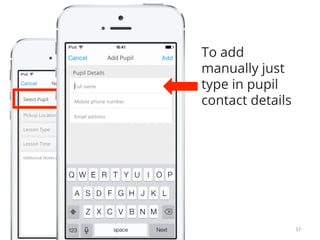
To add 
manually just 
type in pupil 
contact details 
17
To add 
manually just 
type in pupil 
contact details 
And tap Add 
when you’re 
done 
18
To add from 
address book 
just tap on the 
pupils whose 
contact details 
you’d like to 
import 
19
Then tap Done 
20
Success! 
You have just imported 
your pupil contacts to 
Roadio 
21
22 
Now select the pupil 
you’d like to book a 
lesson with
Now select the pupil 
you’d like to book a 
lesson with 
Just tap on the pupil 
you wish to select 
23
Let’s pick Leo 
24
Great! 
We are now booking a 
lesson with Leo 
25
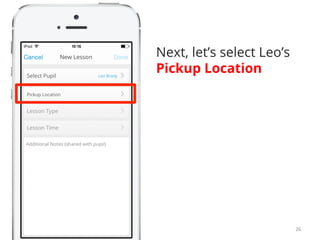
Next, let’s select Leo’s 
Pickup Location 
26
27 
First time 
booking with 
Leo?
First time 
booking with 
Leo? 
Add a new 
location for him 
28
First time 
booking with 
Leo? 
Add a new 
location for him 
(If you have 
already saved 
locations for 
your pupil, skip 
to slide 34) 
29
Type in the 
pickup address 
in the search 
box 
30
Type in the 
pickup address 
in the search 
box 
Then tap 
Search to locate 
the address 
31
32 
Finally, tap 
Done to save 
the location
The location is 
now saved as 
Leo’s location 
33
Now tap on the 
location to 
select it 
34
Perfect! 
This is where we’ll be 
picking Leo up from 
35
Next, let’s add the 
Lesson Type we want 
to book 
36
Next, let’s add the 
Lesson Type we want 
to book 
Tap here 
37
38 
This is where 
we’ll pick what 
type of lesson 
we want to 
book
Let’s book a 
Standard 
Lesson for Leo 
39
You can now 
choose to book 
your pre-set 
standard lesson 
or create a 
custom 
standard lesson 
40
Custom lessons 
allow you to 
make block 
bookings and 
set your desired 
lesson length 
and price 
41
Let’s go ahead 
and create a 
Custom 
standard lesson 
42
43 
Scroll up and 
tap Custom to 
select
44 
Scroll up and 
tap Custom to 
select
You can now set 
your custom 
lesson length 
and price here 
45
You can now set 
your custom 
lesson length 
and price 
You can also 
make block 
bookings 
46
Tap Done when 
you’re finished 
47
The type of lesson 
we’re booking is now 
displayed here 
48
49 
Nearly there! 
Let’s now set the time 
for the lesson
50 
Scroll through 
to pick your 
date & time for 
the booking
(Note: You can’t 
select the date 
here! 
This section 
displays the date 
& time you 
selected below) 
51
52 
Tap Select 
when you’re 
finished
53 
Now you can type in a 
Note for your pupil to 
see
54 
Lastly, 
tap Done to finish 
booking the lesson
55 
Congratulations! 
Your lesson is 
now booked 
It will now 
appear under 
Lessons in the 
main menu
(This is what your 
pupil sees) 
Leo instantly 
receives an email 
and a notification 
of the booking in 
the learner 
version of the app 
56
Don’t worry, if 
your pupil doesn’t 
have the learner 
app he still 
receives an email 
with all the 
booking details 
57
If your pupil has 
the app he sees 
the booking like 
this 
(Find out how to 
invite pupils to the 
learner app in 
‘How to invite 
pupils to the 
learner app’) 
58
59 
If your pupil has 
the app he sees 
the booking like 
this 
He can now 
confirm the 
lesson from his 
app
You will receive a pop 
up notification like this 
as soon as your pupil 
confirms the lesson 
60
You can also 
see if your pupil 
has confirmed 
by tapping on 
that lesson to 
display the 
lesson details 
61
62 
Your pupil’s 
confirmation appears 
green in the lesson 
detail view as Pupil 
Confirmed
You Confirmed, will 
automatically be 
marked green when 
you create a booking 
Or 
tap to mark it green 
when you confirm a 
booking sent to you by 
a student 
63
64 
In the lesson detail 
view you can also see 
the: 
Date of the lesson
In the lesson detail 
view you can also see 
the: 
Time and length of the 
lesson 
65
66 
In the lesson detail 
view you can also see 
the: 
Location of the lesson
In the lesson detail 
view you can also see 
the: 
Price of the lesson and 
whether its part of a 
block booking 
67
And you can also mark 
the lesson as paid 
when your pupil pays 
for the lesson 
68
Finally you can grade 
your pupil’s progress 
after each lesson in the 
Lesson Record 
(Learn more about that 
in ‘How to keep track of 
your pupils’ progress’) 
69
70 
That’s it! 
Now just tap Back to 
view your schedule
71 
Remember, when 
viewing your 
schedule you can 
tap this icon to 
get back to the 
main menu at any 
time
You now know 
how to book 
lessons using 
Roadio! 
For more how-to’s 
check out 
our Roadio 
support library 
Happy booking! 
72
For more guides and more information visit: 
Roadio support library 
www.roadio.com 
Or email support@roadio.com

How to book lessons

  • 1.
    Roadio Quick StartGuides How to book lessons
  • 2.
    Use Roadio tobook lessons with your pupils in seconds 2 See how to… • Import your pupils’ contact details • Arrange a new lesson • What if my pupil doesn’t have the app? • Accept bookings from pupils • View your booked lessons
  • 3.
    Welcome! This isyour schedule view This is where you will book your lessons 3
  • 4.
    It’s located inthe Lessons menu 4
  • 5.
    It’s located inthe Lessons menu Tap the highlighted icon to see where Lessons are located in the main menu 5
  • 6.
    Now tap backon Lessons to start booking your lesson 6
  • 7.
    OK we’re back in… Let’s start 7
  • 8.
    OK we’re back in… Let’s start Tap on New to start booking your lesson 8
  • 9.
    You’re now inthe New Lesson section This is where you’ll enter the lesson details 9
  • 10.
    You’re now inthe New Lesson section This is where you’ll enter the lesson details (These details will be saved for next time you book a lesson with that pupil) 10
  • 11.
    To start bookinga lesson, tap on Select Pupil 11
  • 12.
    This is where you will select your pupil for the booking 12
  • 13.
    Haven’t yet importedyour pupils’ contact details? 13
  • 14.
    Haven’t yet importedyour pupils’ contact details? Go ahead and Add them 14
  • 15.
    Haven’t yet importedyour pupils’ contact details? Go ahead and Add them (If you have already added your contacts, skip to slide 23) 15
  • 16.
    You can add pupil contact details Manually or from your Address Book 16
  • 17.
    To add manuallyjust type in pupil contact details 17
  • 18.
    To add manuallyjust type in pupil contact details And tap Add when you’re done 18
  • 19.
    To add from address book just tap on the pupils whose contact details you’d like to import 19
  • 20.
  • 21.
    Success! You havejust imported your pupil contacts to Roadio 21
  • 22.
    22 Now selectthe pupil you’d like to book a lesson with
  • 23.
    Now select thepupil you’d like to book a lesson with Just tap on the pupil you wish to select 23
  • 24.
  • 25.
    Great! We arenow booking a lesson with Leo 25
  • 26.
    Next, let’s selectLeo’s Pickup Location 26
  • 27.
    27 First time booking with Leo?
  • 28.
    First time bookingwith Leo? Add a new location for him 28
  • 29.
    First time bookingwith Leo? Add a new location for him (If you have already saved locations for your pupil, skip to slide 34) 29
  • 30.
    Type in the pickup address in the search box 30
  • 31.
    Type in the pickup address in the search box Then tap Search to locate the address 31
  • 32.
    32 Finally, tap Done to save the location
  • 33.
    The location is now saved as Leo’s location 33
  • 34.
    Now tap onthe location to select it 34
  • 35.
    Perfect! This iswhere we’ll be picking Leo up from 35
  • 36.
    Next, let’s addthe Lesson Type we want to book 36
  • 37.
    Next, let’s addthe Lesson Type we want to book Tap here 37
  • 38.
    38 This iswhere we’ll pick what type of lesson we want to book
  • 39.
    Let’s book a Standard Lesson for Leo 39
  • 40.
    You can now choose to book your pre-set standard lesson or create a custom standard lesson 40
  • 41.
    Custom lessons allowyou to make block bookings and set your desired lesson length and price 41
  • 42.
    Let’s go ahead and create a Custom standard lesson 42
  • 43.
    43 Scroll upand tap Custom to select
  • 44.
    44 Scroll upand tap Custom to select
  • 45.
    You can nowset your custom lesson length and price here 45
  • 46.
    You can nowset your custom lesson length and price You can also make block bookings 46
  • 47.
    Tap Done when you’re finished 47
  • 48.
    The type oflesson we’re booking is now displayed here 48
  • 49.
    49 Nearly there! Let’s now set the time for the lesson
  • 50.
    50 Scroll through to pick your date & time for the booking
  • 51.
    (Note: You can’t select the date here! This section displays the date & time you selected below) 51
  • 52.
    52 Tap Select when you’re finished
  • 53.
    53 Now youcan type in a Note for your pupil to see
  • 54.
    54 Lastly, tapDone to finish booking the lesson
  • 55.
    55 Congratulations! Yourlesson is now booked It will now appear under Lessons in the main menu
  • 56.
    (This is whatyour pupil sees) Leo instantly receives an email and a notification of the booking in the learner version of the app 56
  • 57.
    Don’t worry, if your pupil doesn’t have the learner app he still receives an email with all the booking details 57
  • 58.
    If your pupilhas the app he sees the booking like this (Find out how to invite pupils to the learner app in ‘How to invite pupils to the learner app’) 58
  • 59.
    59 If yourpupil has the app he sees the booking like this He can now confirm the lesson from his app
  • 60.
    You will receivea pop up notification like this as soon as your pupil confirms the lesson 60
  • 61.
    You can also see if your pupil has confirmed by tapping on that lesson to display the lesson details 61
  • 62.
    62 Your pupil’s confirmation appears green in the lesson detail view as Pupil Confirmed
  • 63.
    You Confirmed, will automatically be marked green when you create a booking Or tap to mark it green when you confirm a booking sent to you by a student 63
  • 64.
    64 In thelesson detail view you can also see the: Date of the lesson
  • 65.
    In the lessondetail view you can also see the: Time and length of the lesson 65
  • 66.
    66 In thelesson detail view you can also see the: Location of the lesson
  • 67.
    In the lessondetail view you can also see the: Price of the lesson and whether its part of a block booking 67
  • 68.
    And you canalso mark the lesson as paid when your pupil pays for the lesson 68
  • 69.
    Finally you cangrade your pupil’s progress after each lesson in the Lesson Record (Learn more about that in ‘How to keep track of your pupils’ progress’) 69
  • 70.
    70 That’s it! Now just tap Back to view your schedule
  • 71.
    71 Remember, when viewing your schedule you can tap this icon to get back to the main menu at any time
  • 72.
    You now know how to book lessons using Roadio! For more how-to’s check out our Roadio support library Happy booking! 72
  • 73.
    For more guidesand more information visit: Roadio support library www.roadio.com Or email support@roadio.com