Hardware
SLIDE 09
Definition of Computer Hardware
and Functions
 Computer hardware is a part of a computer system which is
a tangible and physically viewed device and a device that
runs instructions from software. Computer hardware is also
called hardware. Hardware plays an overall role in the
performance of a computer system. The following is how it
works, the types of computer hardware, and its functions.
How it Works Computer Hardware
(Hardware)
 Hardware has fundamentally non-physical parts called
firmware. Firmware functions as a basic provider of
instructions that can be done by a hardware. Firmware is
stored in a special memory chip on a hardware that can be
ROM or EEPROM. The firmware is a small software
(software) which is usually written in a low programming
language to produce basic instructions that can be used by
the hardware in question quickly. This basic instruction can
be divided into 3 namely,
1. Basic Input Instructions
 Basic input instructions are instructions that can provide
information to other software ie operating systems with
driver intermediaries. This happens when a user interacts
with the hardware in question. For example typing with the
keyboard, shifting the mouse, and others.
2. Basic Output Instructions
 Basic output instructions are instructions called by other
software, namely the operating system with driver
intermediaries. This happens when there is a command to
use the hardware from the user. For example playing videos
with a monitor, printing documents with a printer, and
others.
3. Basic Process Instructions
 Basic process instructions are instructions that act as
mediators of the input or output process that is carried out
by a hardware (not both). The basic process instructions in
question are instructions that only occur in a hardware or
not in a computer system as a whole.
Process Hardware
 Process hardware is a type of hardware that runs to perform
data or execute commands on the data entered. The main
process hardware of a computer system is the processor
(CPU), VGA, sound card (sound card), and motherboard.
Process
 The processor is the main process hardware that is an
electronic circuit component that can execute
computational logic, arithmetic, control systems, and
specific input / output (I / O) based on instructions
instructed by the user. Almost all processes in a computer
system are carried out by the processor. The CPU is also
called the (Central Processing Unit) which means
processor.
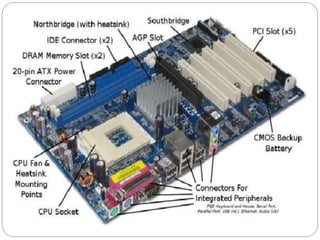
Motherboard
 The motherboard (mainboard) is hardware in the form of a
circuit board that connects each hardware device to a
computer system and is equipped with a BIOS chip. The
BIOS stands for Basic Input Output System.
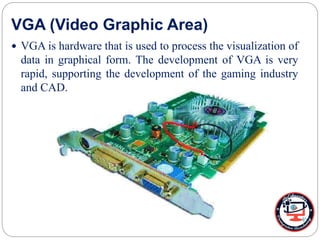
VGA (Video Graphic Area)
 VGA is hardware that is used to process the visualization of
data in graphical form. The development of VGA is very
rapid, supporting the development of the gaming industry
and CAD.
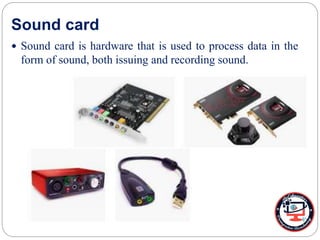
Sound card
 Sound card is hardware that is used to process data in the
form of sound, both issuing and recording sound.
Storage Hardware
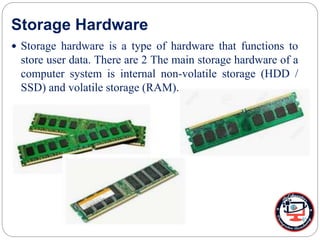
 Storage hardware is a type of hardware that functions to
store user data. There are 2 The main storage hardware of a
computer system is internal non-volatile storage (HDD /
SSD) and volatile storage (RAM).
ROM
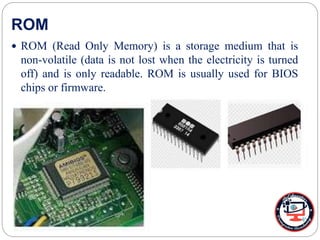
 ROM (Read Only Memory) is a storage medium that is
non-volatile (data is not lost when the electricity is turned
off) and is only readable. ROM is usually used for BIOS
chips or firmware.
Hard disk
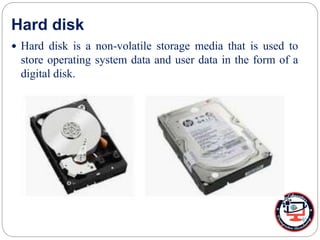
 Hard disk is a non-volatile storage media that is used to
store operating system data and user data in the form of a
digital disk.
Electrical Hardware
 To work a computer system requires a stable power and
voltage intake. Computer systems use electricity supply for
electricity management for each other hardware. In
addition, users install the voltage to stabilize the electricity
entering the computer system before being regulated by
power supply.
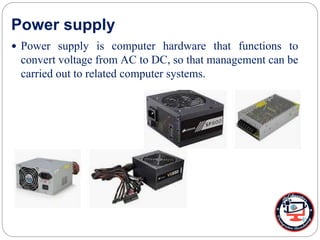
Power supply
 Power supply is computer hardware that functions to
convert voltage from AC to DC, so that management can be
carried out to related computer systems.
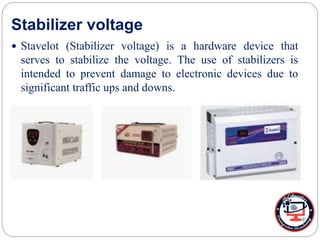
Stabilizer voltage
 Stavelot (Stabilizer voltage) is a hardware device that
serves to stabilize the voltage. The use of stabilizers is
intended to prevent damage to electronic devices due to
significant traffic ups and downs.
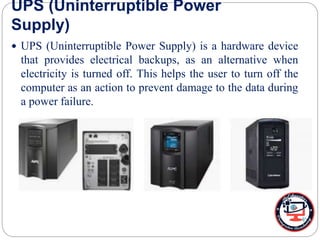
UPS (Uninterruptible Power
Supply)
 UPS (Uninterruptible Power Supply) is a hardware device
that provides electrical backups, as an alternative when
electricity is turned off. This helps the user to turn off the
computer as an action to prevent damage to the data during
a power failure.
SYSTEM COMPONENTS
CPU/PROCESSOR
 The CPU refers to the microprocessor chip.
Sometimes the “Tower” is called the CPU.
 It’s speed is measured in Megahertz (MHZ)
(Millions of cycles per second) or Gigahertz
(GHZ) Billions of cycles per second.
 (A cycle is the time required for the CPU to
execute an instruction step).
SYSTEM COMPONENTS
Ram – Random Access Memory
 Ram is the memory used by the computer to run
programs.
 The amount of Ram available will determine how
fast a program will run and how many windows
can be open at one time.
 Ram memory is considered Volatile because it
disappears when the power is turned off.
SYSTEM COMPONENTS
Hard Drive
 The Hard Drive is the computers main, long term
storage.
 It is referred to as non-volatile storage, because it
does not disappear when the power is turned off.
 The size of the Hard Drive is measured in
Gigabytes. (Billions of Bytes).
RAM VERSUS HARD DRIVE
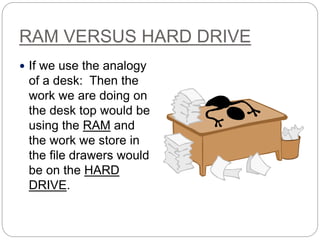
 If we use the analogy
of a desk: Then the
work we are doing on
the desk top would be
using the RAM and
the work we store in
the file drawers would
be on the HARD
DRIVE.
SYSTEM COMPONENTS
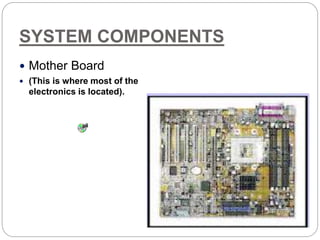
 Mother Board
 (This is where most of the
electronics is located).
SYSTEM COMPONENTS
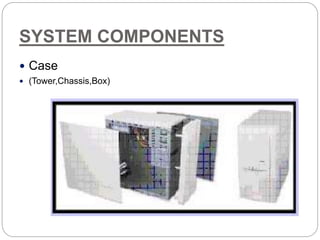
 Case
 (Tower,Chassis,Box)
SYSTEM COMPONENTS
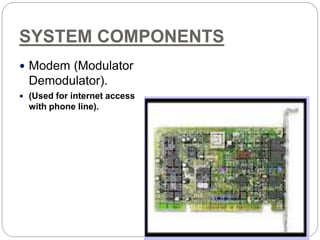
 Modem (Modulator
Demodulator).
 (Used for internet access
with phone line).
SYSTEM COMPONENTS
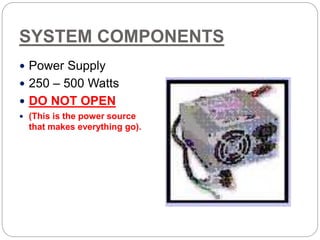
 Power Supply
 250 – 500 Watts
 DO NOT OPEN
 (This is the power source
that makes everything go).
SYSTEM COMPONENTS
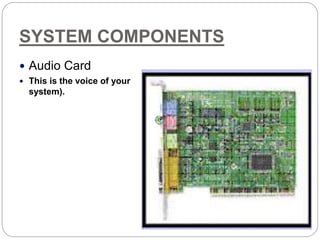
 Audio Card
 This is the voice of your
system).
SYSTEM COMPONENTS
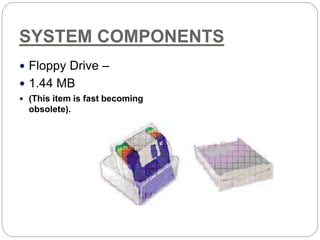
 Floppy Drive –
 1.44 MB
 (This item is fast becoming
obsolete).
SYSTEM COMPONENTS
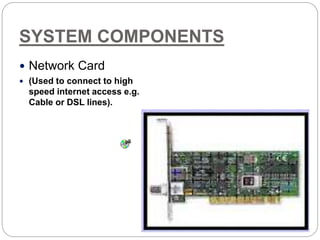
 Network Card
 (Used to connect to high
speed internet access e.g.
Cable or DSL lines).
SYSTEM COMPONENTS
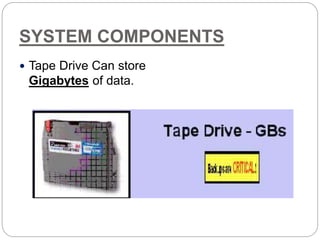
 Tape Drive Can store
Gigabytes of data.
SYSTEM COMPONENTS
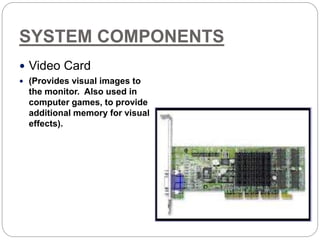
 Video Card
 (Provides visual images to
the monitor. Also used in
computer games, to provide
additional memory for visual
effects).
PERIPHERALS
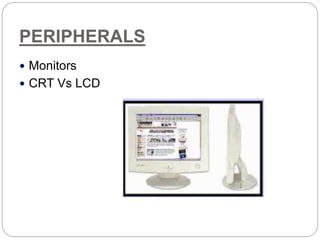
 Monitors
 CRT Vs LCD
PERIPHERALS
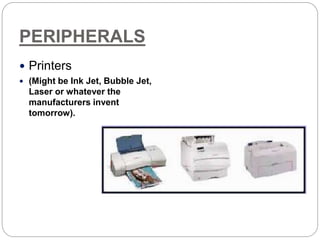
 Printers
 (Might be Ink Jet, Bubble Jet,
Laser or whatever the
manufacturers invent
tomorrow).
PERIPHERALS
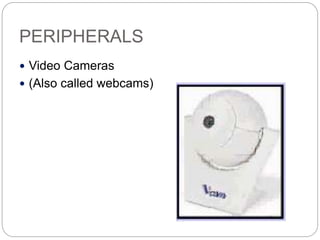
 Video Cameras
 (Also called webcams)
POWER PROTECTION
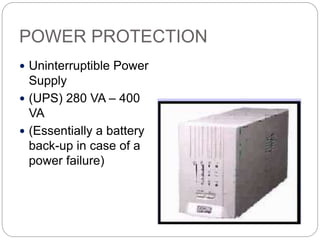
 Uninterruptible Power
Supply
 (UPS) 280 VA – 400
VA
 (Essentially a battery
back-up in case of a
power failure)
KEYBOARD
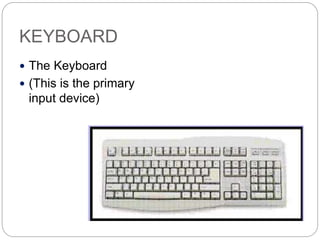
 The Keyboard
 (This is the primary
input device)
KEYBOARD
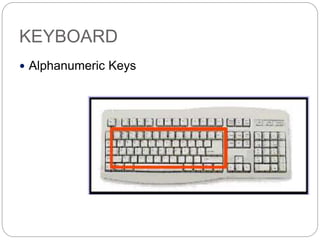
 Alphanumeric Keys
KEYBOARD
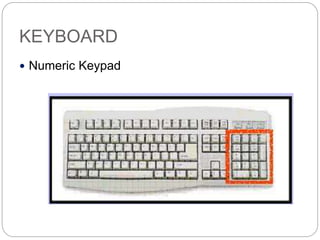
 Numeric Keypad
KEYBOARD
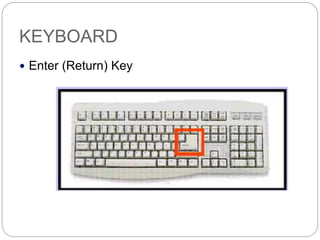
 Enter (Return) Key
KEYBOARD
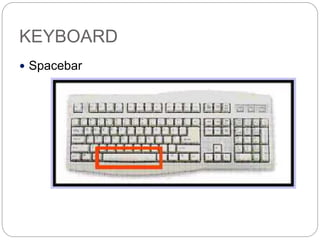
 Spacebar
KEYBOARD
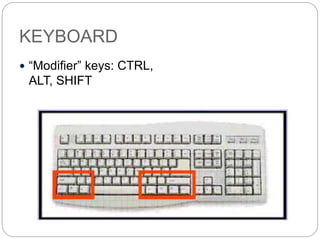
 “Modifier” keys: CTRL,
ALT, SHIFT
KEYBOARD
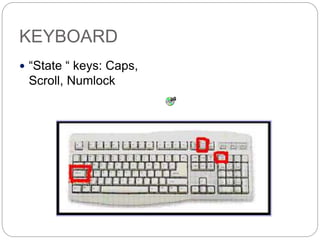
 “State “ keys: Caps,
Scroll, Numlock
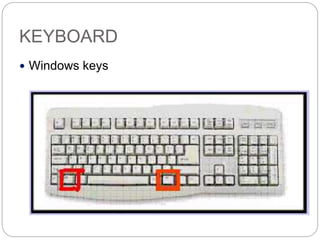
KEYBOARD
 Windows keys
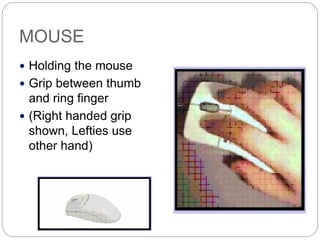
MOUSE
 Holding the mouse
 Grip between thumb
and ring finger
 (Right handed grip
shown, Lefties use
other hand)
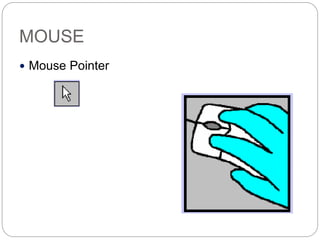
MOUSE
 Mouse Pointer
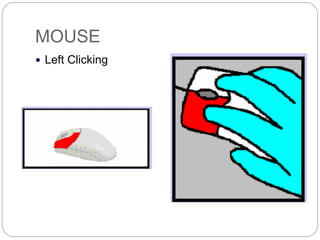
MOUSE
 Left Clicking
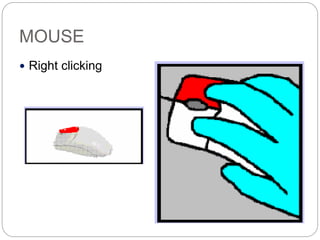
MOUSE
 Right clicking
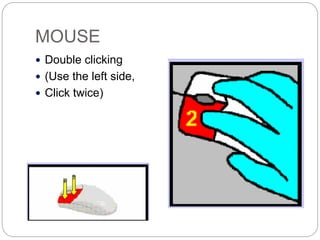
MOUSE
 Double clicking
 (Use the left side,
 Click twice)
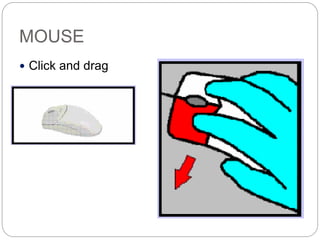
MOUSE
 Click and drag
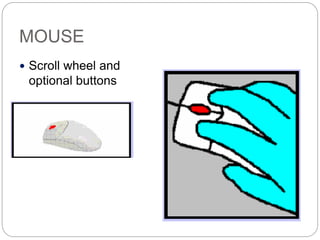
MOUSE
 Scroll wheel and
optional buttons
SOFTWARE
 Operating systems
 Applications
 Data
OPERATING SYSTEMS
 MS-DOS
 Windows 95,98,Me
 Windows NT, 2000,XP
 Linux
APPLICATIONS
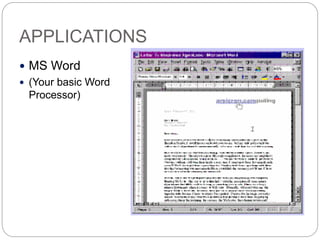
 MS Word
 (Your basic Word
Processor)
APPLICATIONS
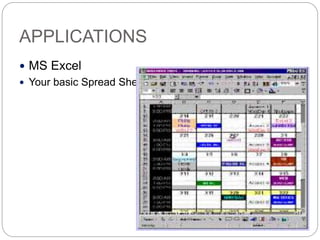
 MS Excel
 Your basic Spread Sheet)
APPLICATIONS
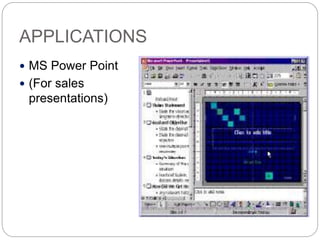
 MS Power Point
 (For sales
presentations)
APPLICATIONS
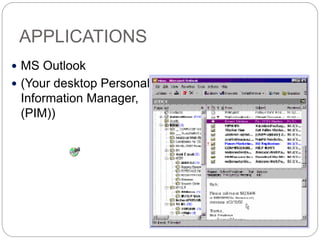
 MS Outlook
 (Your desktop Personal
Information Manager,
(PIM))
APPLICATIONS
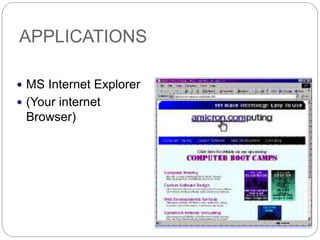
 MS Internet Explorer
 (Your internet
Browser)
APPLICATIONS
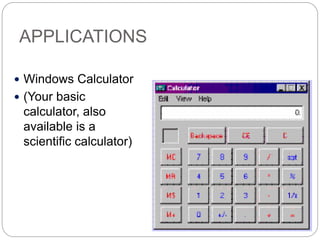
 Windows Calculator
 (Your basic
calculator, also
available is a
scientific calculator)
APPLICATIONS
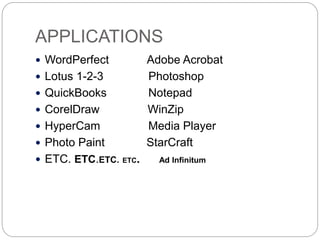
 WordPerfect Adobe Acrobat
 Lotus 1-2-3 Photoshop
 QuickBooks Notepad
 CorelDraw WinZip
 HyperCam Media Player
 Photo Paint StarCraft
 ETC. ETC.ETC. ETC. Ad Infinitum
DATA
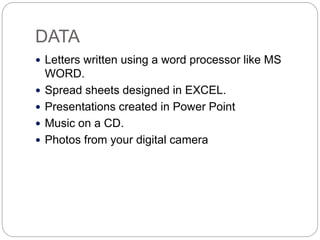
 Letters written using a word processor like MS
WORD.
 Spread sheets designed in EXCEL.
 Presentations created in Power Point
 Music on a CD.
 Photos from your digital camera
COMPUTER CAVEATS
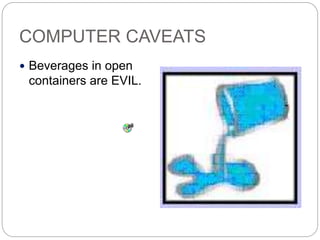
 Beverages in open
containers are EVIL.
COMPUTER CAVEATS
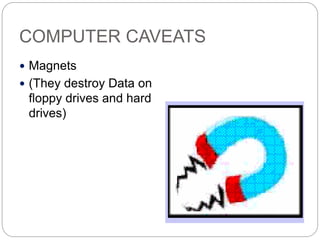
 Magnets
 (They destroy Data on
floppy drives and hard
drives)
COMPUTER CAVEATS
 Laser Printers and Power.
 Keep PC off the floor.
 When in doubt Reboot.
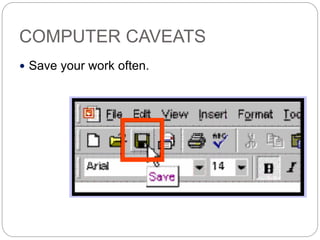
COMPUTER CAVEATS
 Save your work often.
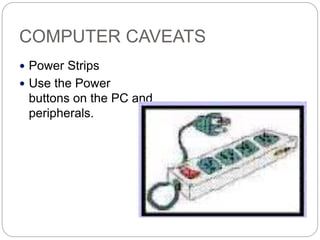
COMPUTER CAVEATS
 Power Strips
 Use the Power
buttons on the PC and
peripherals.
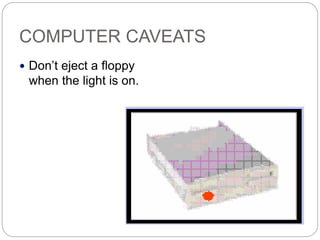
COMPUTER CAVEATS
 Don’t eject a floppy
when the light is on.
COMPUTER CAVEATS
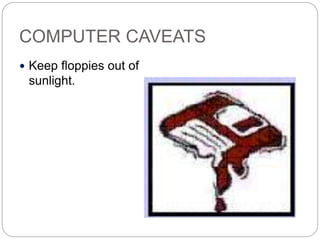
 Keep floppies out of
sunlight.
COMPUTER CAVEATS
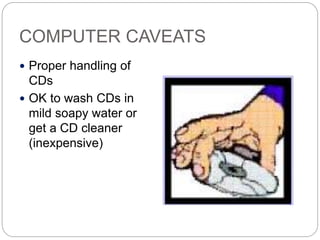
 Proper handling of
CDs
 OK to wash CDs in
mild soapy water or
get a CD cleaner
(inexpensive)
COMPUTER CAVEATS
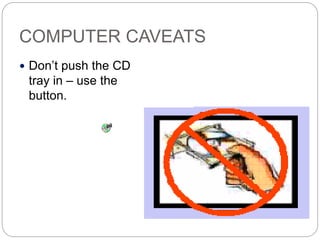
 Don’t push the CD
tray in – use the
button.
COMPUTER CAVEATS
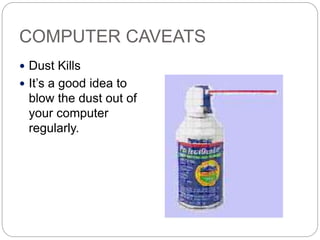
 Dust Kills
 It’s a good idea to
blow the dust out of
your computer
regularly.
COMPUTER CAVEATS
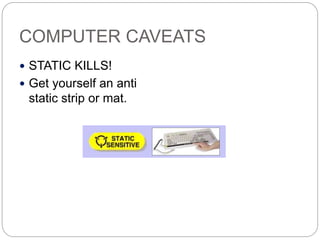
 STATIC KILLS!
 Get yourself an anti
static strip or mat.
TIME FOR A STRETCH BREAK
 TIME TO GET UP AND STRETCH
 CLEAN YOUR GLASSES
 GO WASHROOM IF YOU HAVE THE URGE
 LET’S TAKE A TEN MINUTE BREAK
Hardware performance

Hardware performance

  • 1.
  • 2.
    Definition of ComputerHardware and Functions  Computer hardware is a part of a computer system which is a tangible and physically viewed device and a device that runs instructions from software. Computer hardware is also called hardware. Hardware plays an overall role in the performance of a computer system. The following is how it works, the types of computer hardware, and its functions.
  • 3.
    How it WorksComputer Hardware (Hardware)  Hardware has fundamentally non-physical parts called firmware. Firmware functions as a basic provider of instructions that can be done by a hardware. Firmware is stored in a special memory chip on a hardware that can be ROM or EEPROM. The firmware is a small software (software) which is usually written in a low programming language to produce basic instructions that can be used by the hardware in question quickly. This basic instruction can be divided into 3 namely,
  • 4.
    1. Basic InputInstructions  Basic input instructions are instructions that can provide information to other software ie operating systems with driver intermediaries. This happens when a user interacts with the hardware in question. For example typing with the keyboard, shifting the mouse, and others.
  • 5.
    2. Basic OutputInstructions  Basic output instructions are instructions called by other software, namely the operating system with driver intermediaries. This happens when there is a command to use the hardware from the user. For example playing videos with a monitor, printing documents with a printer, and others.
  • 6.
    3. Basic ProcessInstructions  Basic process instructions are instructions that act as mediators of the input or output process that is carried out by a hardware (not both). The basic process instructions in question are instructions that only occur in a hardware or not in a computer system as a whole.
  • 7.
    Process Hardware  Processhardware is a type of hardware that runs to perform data or execute commands on the data entered. The main process hardware of a computer system is the processor (CPU), VGA, sound card (sound card), and motherboard.
  • 8.
    Process  The processoris the main process hardware that is an electronic circuit component that can execute computational logic, arithmetic, control systems, and specific input / output (I / O) based on instructions instructed by the user. Almost all processes in a computer system are carried out by the processor. The CPU is also called the (Central Processing Unit) which means processor.
  • 9.
    Motherboard  The motherboard(mainboard) is hardware in the form of a circuit board that connects each hardware device to a computer system and is equipped with a BIOS chip. The BIOS stands for Basic Input Output System.
  • 11.
    VGA (Video GraphicArea)  VGA is hardware that is used to process the visualization of data in graphical form. The development of VGA is very rapid, supporting the development of the gaming industry and CAD.
  • 12.
    Sound card  Soundcard is hardware that is used to process data in the form of sound, both issuing and recording sound.
  • 13.
    Storage Hardware  Storagehardware is a type of hardware that functions to store user data. There are 2 The main storage hardware of a computer system is internal non-volatile storage (HDD / SSD) and volatile storage (RAM).
  • 14.
    ROM  ROM (ReadOnly Memory) is a storage medium that is non-volatile (data is not lost when the electricity is turned off) and is only readable. ROM is usually used for BIOS chips or firmware.
  • 15.
    Hard disk  Harddisk is a non-volatile storage media that is used to store operating system data and user data in the form of a digital disk.
  • 16.
    Electrical Hardware  Towork a computer system requires a stable power and voltage intake. Computer systems use electricity supply for electricity management for each other hardware. In addition, users install the voltage to stabilize the electricity entering the computer system before being regulated by power supply.
  • 17.
    Power supply  Powersupply is computer hardware that functions to convert voltage from AC to DC, so that management can be carried out to related computer systems.
  • 18.
    Stabilizer voltage  Stavelot(Stabilizer voltage) is a hardware device that serves to stabilize the voltage. The use of stabilizers is intended to prevent damage to electronic devices due to significant traffic ups and downs.
  • 19.
    UPS (Uninterruptible Power Supply) UPS (Uninterruptible Power Supply) is a hardware device that provides electrical backups, as an alternative when electricity is turned off. This helps the user to turn off the computer as an action to prevent damage to the data during a power failure.
  • 20.
    SYSTEM COMPONENTS CPU/PROCESSOR  TheCPU refers to the microprocessor chip. Sometimes the “Tower” is called the CPU.  It’s speed is measured in Megahertz (MHZ) (Millions of cycles per second) or Gigahertz (GHZ) Billions of cycles per second.  (A cycle is the time required for the CPU to execute an instruction step).
  • 21.
    SYSTEM COMPONENTS Ram –Random Access Memory  Ram is the memory used by the computer to run programs.  The amount of Ram available will determine how fast a program will run and how many windows can be open at one time.  Ram memory is considered Volatile because it disappears when the power is turned off.
  • 22.
    SYSTEM COMPONENTS Hard Drive The Hard Drive is the computers main, long term storage.  It is referred to as non-volatile storage, because it does not disappear when the power is turned off.  The size of the Hard Drive is measured in Gigabytes. (Billions of Bytes).
  • 23.
    RAM VERSUS HARDDRIVE  If we use the analogy of a desk: Then the work we are doing on the desk top would be using the RAM and the work we store in the file drawers would be on the HARD DRIVE.
  • 24.
    SYSTEM COMPONENTS  MotherBoard  (This is where most of the electronics is located).
  • 25.
    SYSTEM COMPONENTS  Case (Tower,Chassis,Box)
  • 26.
    SYSTEM COMPONENTS  Modem(Modulator Demodulator).  (Used for internet access with phone line).
  • 27.
    SYSTEM COMPONENTS  PowerSupply  250 – 500 Watts  DO NOT OPEN  (This is the power source that makes everything go).
  • 28.
    SYSTEM COMPONENTS  AudioCard  This is the voice of your system).
  • 29.
    SYSTEM COMPONENTS  FloppyDrive –  1.44 MB  (This item is fast becoming obsolete).
  • 30.
    SYSTEM COMPONENTS  NetworkCard  (Used to connect to high speed internet access e.g. Cable or DSL lines).
  • 31.
    SYSTEM COMPONENTS  TapeDrive Can store Gigabytes of data.
  • 32.
    SYSTEM COMPONENTS  VideoCard  (Provides visual images to the monitor. Also used in computer games, to provide additional memory for visual effects).
  • 33.
  • 34.
    PERIPHERALS  Printers  (Mightbe Ink Jet, Bubble Jet, Laser or whatever the manufacturers invent tomorrow).
  • 35.
    PERIPHERALS  Video Cameras (Also called webcams)
  • 36.
    POWER PROTECTION  UninterruptiblePower Supply  (UPS) 280 VA – 400 VA  (Essentially a battery back-up in case of a power failure)
  • 37.
    KEYBOARD  The Keyboard (This is the primary input device)
  • 38.
  • 39.
  • 40.
  • 41.
  • 42.
  • 43.
    KEYBOARD  “State “keys: Caps, Scroll, Numlock
  • 44.
  • 45.
    MOUSE  Holding themouse  Grip between thumb and ring finger  (Right handed grip shown, Lefties use other hand)
  • 46.
  • 47.
  • 48.
  • 49.
    MOUSE  Double clicking (Use the left side,  Click twice)
  • 50.
  • 51.
    MOUSE  Scroll wheeland optional buttons
  • 52.
  • 53.
    OPERATING SYSTEMS  MS-DOS Windows 95,98,Me  Windows NT, 2000,XP  Linux
  • 54.
    APPLICATIONS  MS Word (Your basic Word Processor)
  • 55.
    APPLICATIONS  MS Excel Your basic Spread Sheet)
  • 56.
    APPLICATIONS  MS PowerPoint  (For sales presentations)
  • 57.
    APPLICATIONS  MS Outlook (Your desktop Personal Information Manager, (PIM))
  • 58.
    APPLICATIONS  MS InternetExplorer  (Your internet Browser)
  • 59.
    APPLICATIONS  Windows Calculator (Your basic calculator, also available is a scientific calculator)
  • 60.
    APPLICATIONS  WordPerfect AdobeAcrobat  Lotus 1-2-3 Photoshop  QuickBooks Notepad  CorelDraw WinZip  HyperCam Media Player  Photo Paint StarCraft  ETC. ETC.ETC. ETC. Ad Infinitum
  • 61.
    DATA  Letters writtenusing a word processor like MS WORD.  Spread sheets designed in EXCEL.  Presentations created in Power Point  Music on a CD.  Photos from your digital camera
  • 62.
    COMPUTER CAVEATS  Beveragesin open containers are EVIL.
  • 63.
    COMPUTER CAVEATS  Magnets (They destroy Data on floppy drives and hard drives)
  • 64.
    COMPUTER CAVEATS  LaserPrinters and Power.  Keep PC off the floor.  When in doubt Reboot.
  • 65.
    COMPUTER CAVEATS  Saveyour work often.
  • 66.
    COMPUTER CAVEATS  PowerStrips  Use the Power buttons on the PC and peripherals.
  • 67.
    COMPUTER CAVEATS  Don’teject a floppy when the light is on.
  • 68.
    COMPUTER CAVEATS  Keepfloppies out of sunlight.
  • 69.
    COMPUTER CAVEATS  Properhandling of CDs  OK to wash CDs in mild soapy water or get a CD cleaner (inexpensive)
  • 70.
    COMPUTER CAVEATS  Don’tpush the CD tray in – use the button.
  • 71.
    COMPUTER CAVEATS  DustKills  It’s a good idea to blow the dust out of your computer regularly.
  • 72.
    COMPUTER CAVEATS  STATICKILLS!  Get yourself an anti static strip or mat.
  • 73.
    TIME FOR ASTRETCH BREAK  TIME TO GET UP AND STRETCH  CLEAN YOUR GLASSES  GO WASHROOM IF YOU HAVE THE URGE  LET’S TAKE A TEN MINUTE BREAK