
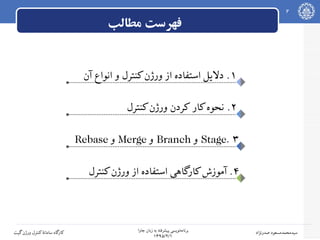
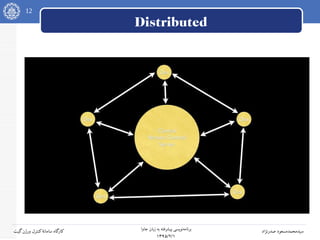
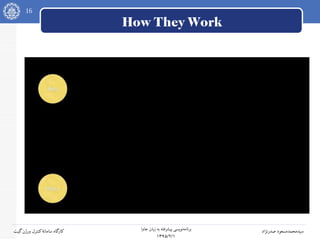
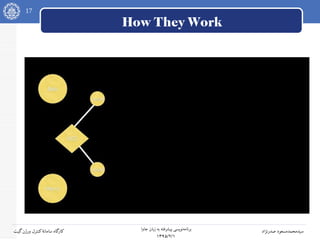
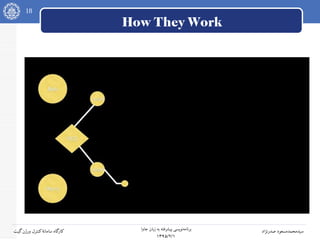
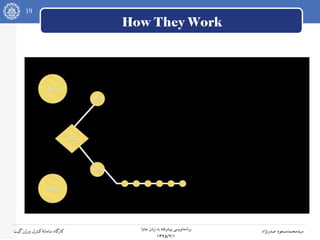
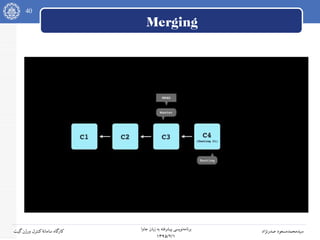
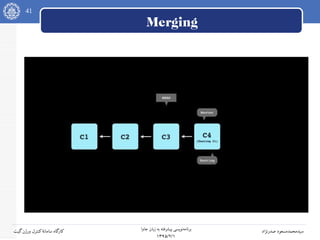
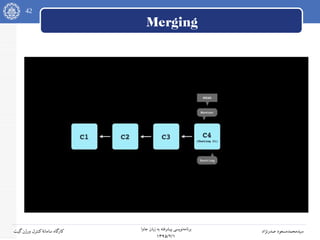
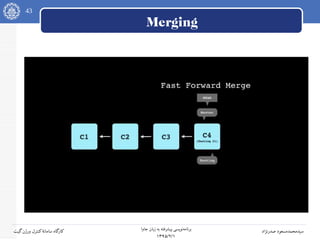
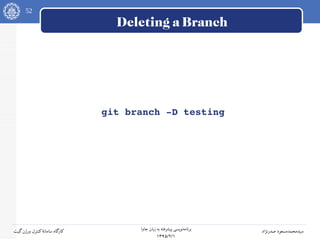
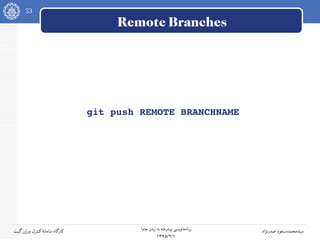
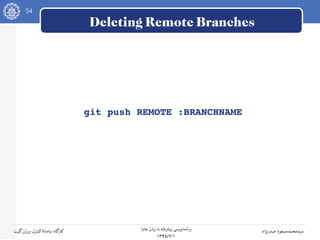
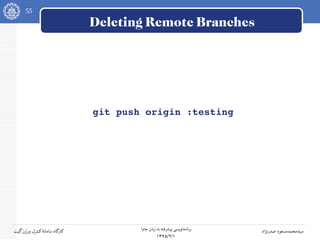

در این ارائه ابتدا به معرفی سامانههای کنترل ورژن پرداخته شد و پس از توضیح مفاهیم کنترل ورژن به آموزش شیوه استفاده از گیت پرداخته شده است. فیلم این کارگاه در سایت جشنواره روز آزادی نرمافزار سال ۹۴ در تهران به نشانی sfd.fsug.ir/1394 قرار گرفته است.
3
جاوا زبان بهپیشرفته نویسیبرنامه
۱۳۹۵/۲/۱
صدرنژاد سیدمحمدمسعودگیتورژن کنترلسامانه کارگاه
What is version control?
...a system that lets you track
changes in your source code
by “checking in” your code
into the system.
13
جاوا زبان بهپیشرفته نویسیبرنامه
۱۳۹۵/۲/۱
صدرنژاد سیدمحمدمسعودگیتورژن کنترلسامانه کارگاه
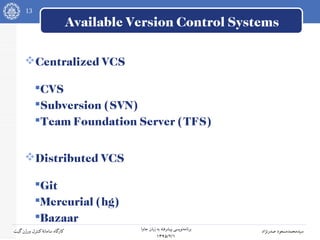
Available Version Control Systems
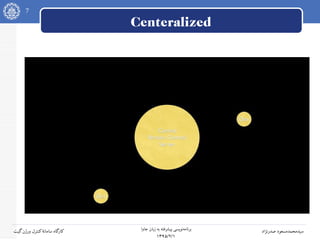
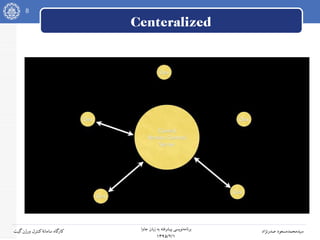
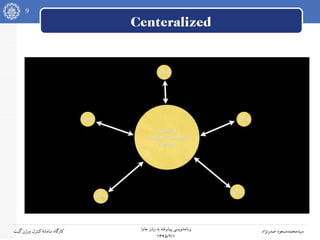
Centralized VCS
CVS
Subversion (SVN)
Team Foundation Server (TFS)
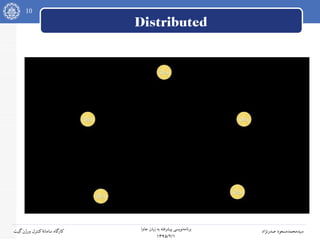
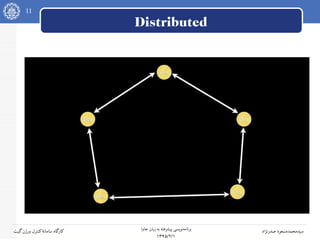
Distributed VCS
Git
Mercurial (hg)
Bazaar
15
جاوا زبان بهپیشرفته نویسیبرنامه
۱۳۹۵/۲/۱
صدرنژاد سیدمحمدمسعودگیتورژن کنترلسامانه کارگاه
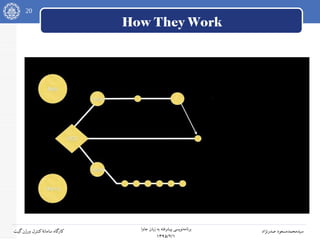
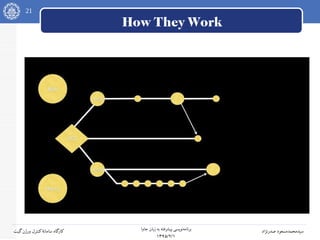
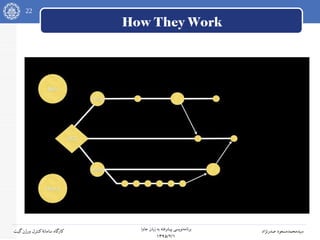
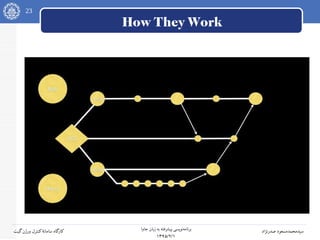
How They Work
16.
16
جاوا زبان بهپیشرفته نویسیبرنامه
۱۳۹۵/۲/۱
صدرنژاد سیدمحمدمسعودگیتورژن کنترلسامانه کارگاه
How They Work
17.
17
جاوا زبان بهپیشرفته نویسیبرنامه
۱۳۹۵/۲/۱
صدرنژاد سیدمحمدمسعودگیتورژن کنترلسامانه کارگاه
How They Work
18.
18
جاوا زبان بهپیشرفته نویسیبرنامه
۱۳۹۵/۲/۱
صدرنژاد سیدمحمدمسعودگیتورژن کنترلسامانه کارگاه
How They Work
19.
19
جاوا زبان بهپیشرفته نویسیبرنامه
۱۳۹۵/۲/۱
صدرنژاد سیدمحمدمسعودگیتورژن کنترلسامانه کارگاه
How They Work
20.
20
جاوا زبان بهپیشرفته نویسیبرنامه
۱۳۹۵/۲/۱
صدرنژاد سیدمحمدمسعودگیتورژن کنترلسامانه کارگاه
How They Work
21.
21
جاوا زبان بهپیشرفته نویسیبرنامه
۱۳۹۵/۲/۱
صدرنژاد سیدمحمدمسعودگیتورژن کنترلسامانه کارگاه
How They Work
22.
22
جاوا زبان بهپیشرفته نویسیبرنامه
۱۳۹۵/۲/۱
صدرنژاد سیدمحمدمسعودگیتورژن کنترلسامانه کارگاه
How They Work
23.
23
جاوا زبان بهپیشرفته نویسیبرنامه
۱۳۹۵/۲/۱
صدرنژاد سیدمحمدمسعودگیتورژن کنترلسامانه کارگاه
How They Work
24.
24
جاوا زبان بهپیشرفته نویسیبرنامه
۱۳۹۵/۲/۱
صدرنژاد سیدمحمدمسعودگیتورژن کنترلسامانه کارگاه
What is Git
...a distributed version control system
created by Linus Torvalds, creator of Linux
to replace BitKeeper as the VCS used
for maintaining the Linux kernel.
25.
25
جاوا زبان بهپیشرفته نویسیبرنامه
۱۳۹۵/۲/۱
صدرنژاد سیدمحمدمسعودگیتورژن کنترلسامانه کارگاه
Design Goals for Git
Speed
Simplicity
Strong support for non-linear development
Ability to handle large projects
26.
26
جاوا زبان بهپیشرفته نویسیبرنامه
۱۳۹۵/۲/۱
صدرنژاد سیدمحمدمسعودگیتورژن کنترلسامانه کارگاه
What Makes Git Different?
Snapshots, Not Differences
27.
27
جاوا زبان بهپیشرفته نویسیبرنامه
۱۳۹۵/۲/۱
صدرنژاد سیدمحمدمسعودگیتورژن کنترلسامانه کارگاه
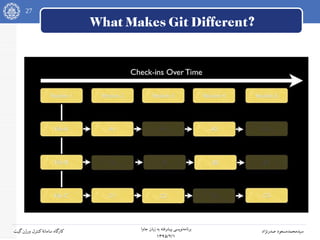
What Makes Git Different?
28.
28
جاوا زبان بهپیشرفته نویسیبرنامه
۱۳۹۵/۲/۱
صدرنژاد سیدمحمدمسعودگیتورژن کنترلسامانه کارگاه
What Makes Git Different?
It's All (Mostly) Local
29.
29
جاوا زبان بهپیشرفته نویسیبرنامه
۱۳۹۵/۲/۱
صدرنژاد سیدمحمدمسعودگیتورژن کنترلسامانه کارگاه
Three Main Stages
Commited
Staged
Modifed
50
جاوا زبان بهپیشرفته نویسیبرنامه
۱۳۹۵/۲/۱
صدرنژاد سیدمحمدمسعودگیتورژن کنترلسامانه کارگاه
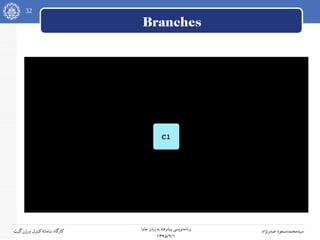
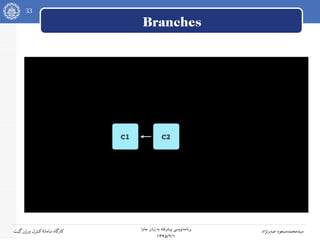
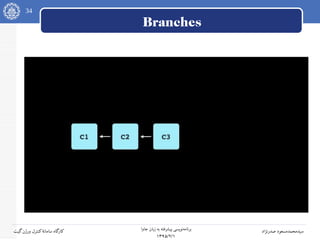
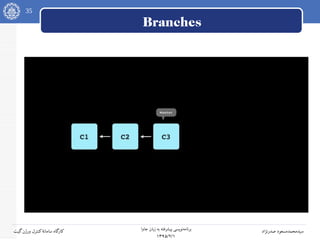
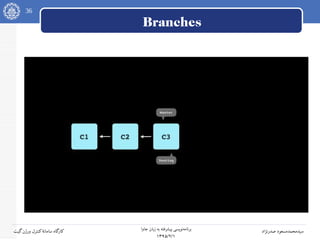
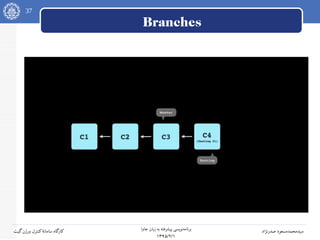
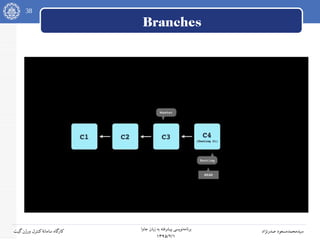
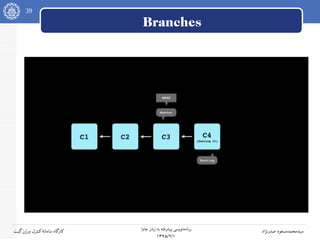
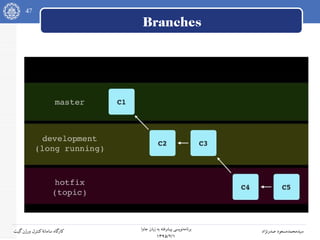
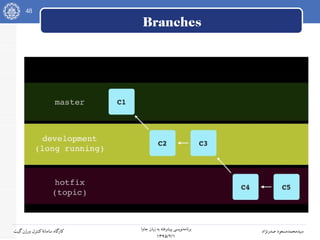
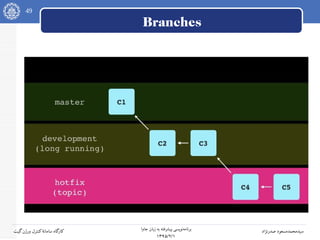
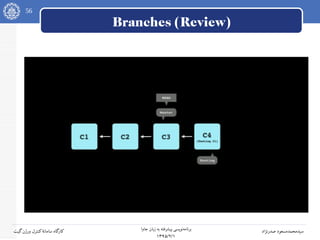
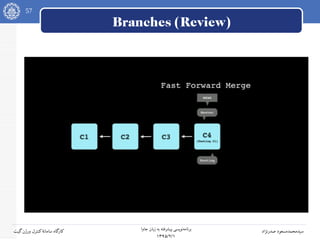
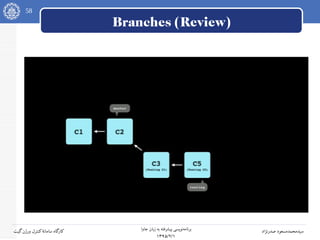
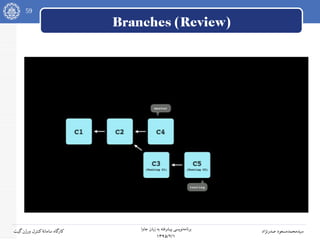
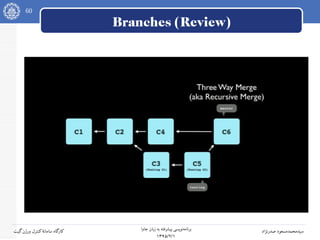
Branches
Long Running Branches Stick Around
Topic Branches Center Around Features,
Bug Fixes, Etc
Merged Back Into a Long Running Branch
Topic Branches Are Usually Deleted
When You're Done With Them
63
جاوا زبان بهپیشرفته نویسیبرنامه
۱۳۹۵/۲/۱
صدرنژاد سیدمحمدمسعودگیتورژن کنترلسامانه کارگاه
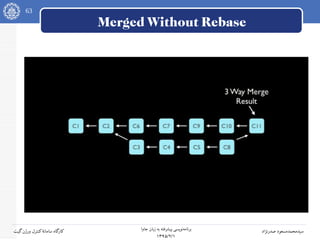
Merged Without Rebase
64.
64
جاوا زبان بهپیشرفته نویسیبرنامه
۱۳۹۵/۲/۱
صدرنژاد سیدمحمدمسعودگیتورژن کنترلسامانه کارگاه
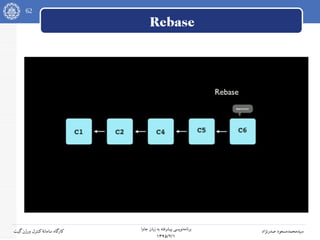
Merged With Rebase
65.
65
جاوا زبان بهپیشرفته نویسیبرنامه
۱۳۹۵/۲/۱
صدرنژاد سیدمحمدمسعودگیتورژن کنترلسامانه کارگاه
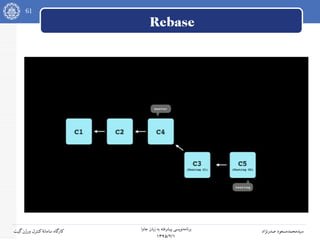
Rebase
Never Rebase a Public Branch!
66.
66
جاوا زبان بهپیشرفته نویسیبرنامه
۱۳۹۵/۲/۱
صدرنژاد سیدمحمدمسعودگیتورژن کنترلسامانه کارگاه
Workshop
Let's See in Action
Open Your Terminal
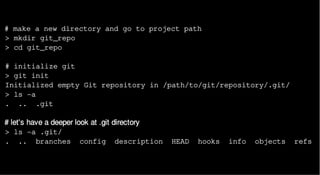
# make anew directory and go to project path
> mkdir git_repo
> cd git_repo
# initialize git
> git init
Initialized empty Git repository in /path/to/git/repository/.git/
> ls -a
. .. .git
# let's have a deeper look at .git directory
> ls -a .git/
. .. branches config description HEAD hooks info objects refs
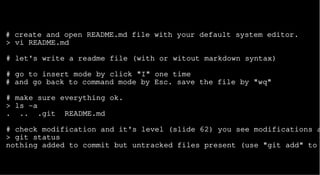
# create andopen README.md file with your default system editor.
> vi README.md
# let's write a readme file (with or witout markdown syntax)
# go to insert mode by click "I" one time
# and go back to command mode by Esc. save the file by "wq"
# make sure everything ok.
> ls -a
. .. .git README.md
# check modification and it's level (slide 62) you see modifications a
> git status
nothing added to commit but untracked files present (use "git add" to
71.
# level upthis file to staged level
> git add README.md
# look at git status. you see changes in staged level.
> git status
# add staged changes to new commit.
# write a meaningful message for your commit.
> git commit -m "added readme file"
[master (root-commit) 021bd57] commit message
0 files changed
create mode 100644 README
# look at git status. there is nothing to commit because changes
# are commited.
> git status
72.
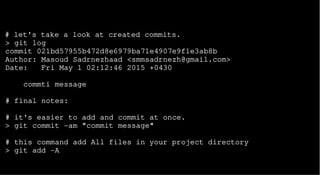
# let's takea look at created commits.
> git log
commit 021bd57955b472d8e6979ba71e4907e9f1e3ab8b
Author: Masoud Sadrnezhaad <smmsadrnezh@gmail.com>
Date: Fri May 1 02:12:46 2015 +0430
commti message
# final notes:
# it's easier to add and commit at once.
> git commit -am "commit message"
# this command add All files in your project directory
> git add -A
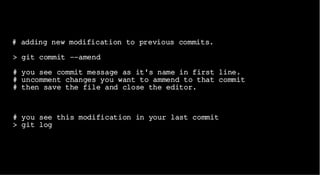
# adding newmodification to previous commits.
> git commit --amend
# you see commit message as it's name in first line.
# uncomment changes you want to ammend to that commit
# then save the file and close the editor.
# you see this modification in your last commit
> git log
75.
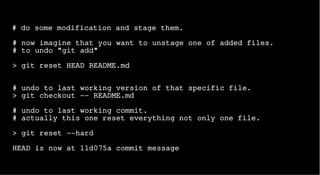
# do somemodification and stage them.
# now imagine that you want to unstage one of added files.
# to undo "git add"
> git reset HEAD README.md
# undo to last working version of that specific file.
> git checkout -- README.md
# undo to last working commit.
# actually this one reset everything not only one file.
> git reset --hard
HEAD is now at 11d075a commit message
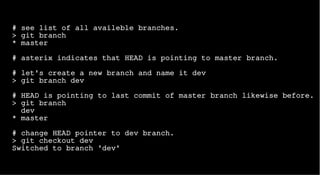
# see listof all availeble branches.
> git branch
* master
# asterix indicates that HEAD is pointing to master branch.
# let's create a new branch and name it dev
> git branch dev
# HEAD is pointing to last commit of master branch likewise before.
> git branch
dev
* master
# change HEAD pointer to dev branch.
> git checkout dev
Switched to branch 'dev'
78.
# do somemodification and commit them.
> git commit -am "message"
[master 79635ac] message
1 file changed, 1 insertion(+)
# switch back to master branch.
> git checkout dev
Switched to branch 'dev'
# open recent changed files. changes does not apply becuz
# you are working on master branch and commited to dev branch.
# it's possible to create and switch to new branch at once.
> git checkout -b dev master
# master indicates that new branch is started from master.
# -b used to create it.
79.
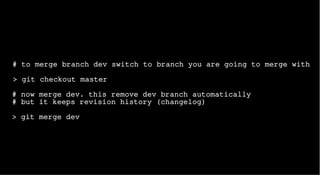
# to mergebranch dev switch to branch you are going to merge with
> git checkout master
# now merge dev. this remove dev branch automatically
# but it keeps revision history (changelog)
> git merge dev
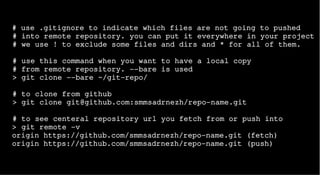
# use .gitignoreto indicate which files are not going to pushed
# into remote repository. you can put it everywhere in your project
# we use ! to exclude some files and dirs and * for all of them.
# use this command when you want to have a local copy
# from remote repository. --bare is used
> git clone --bare ~/git-repo/
# to clone from github
> git clone git@github.com:smmsadrnezh/repo-name.git
# to see centeral repository url you fetch from or push into
> git remote -v
origin https://github.com/smmsadrnezh/repo-name.git (fetch)
origin https://github.com/smmsadrnezh/repo-name.git (push)
82.
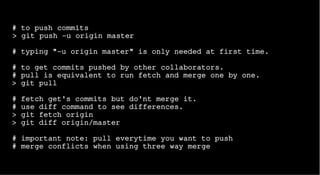
# to pushcommits
> git push -u origin master
# typing "-u origin master" is only needed at first time.
# to get commits pushed by other collaborators.
# pull is equivalent to run fetch and merge one by one.
> git pull
# fetch get's commits but do'nt merge it.
# use diff command to see differences.
> git fetch origin
> git diff origin/master
# important note: pull everytime you want to push
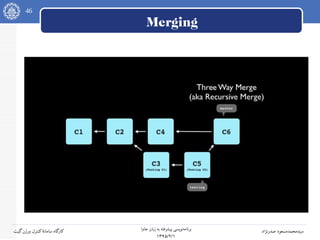
# merge conflicts when using three way merge