


git
git
get git on board
git?


• Version control system
git?


• Version control system
• Designed and developed by Linus Torvalds
  for Linux kernel development
git?

• Version control system
• Designed and developed by Linus Torvalds
  for Linux kernel development
• Like Subversion, but better...
git?

• Version control system
• Designed and developed by Linus Torvalds
  for Linux kernel development
• Like Subversion, but better...
• How???
git > svn
git > svn
git > svn

• Distributed
 • Every git repository is self-contained and
    includes a complete history of commits.
    (i.e. `git clone ...` vs `svn checkout ...`)
git > svn

• Distributed
 • Every git repository is self-contained and
    includes a complete history of commits.
    (i.e. `git clone ...` vs `svn checkout ...`)
  • You can commit/branch/merge locally.
    Read: Fast & offline.
git > svn
• Distributed
 • Every git repository is self-contained and
    includes a complete history of commits.
    (i.e. `git clone ...` vs `svn checkout ...`)
  • You can commit/branch/merge locally.
    Read: Fast & offline.
  • No single point of failure.
git > svn
• Distributed
 • Every git repository is self-contained and
    includes a complete history of commits.
    (i.e. `git clone ...` vs `svn checkout ...`)
  • You can commit/branch/merge locally.
    Read: Fast & offline.
  • No single point of failure.
  • No “latest revision”: unique revision ID
git > svn


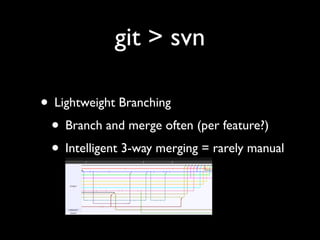
• Lightweight Branching
 • Branch and merge often (per feature?)
git > svn

• Lightweight Branching
 • Branch and merge often (per feature?)
 • Intelligent 3-way merging = rarely manual
git > svn

• Lightweight Branching
 • Branch and merge often (per feature?)
 • Intelligent 3-way merging = rarely manual
git > svn


• Small Space Requirements
 • Ex: Mozilla: SVN:12GB => git:420MB
git > svn


• git submodules vs svn externals
 • Not covered in this presentation
A couple new concepts

• “Remote” or “upstream”: A remotely
  accessible repository.
 • Push to a remote
 • Pull from a remote
A couple new concepts
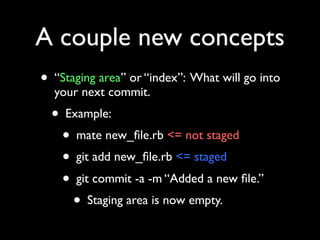
• “Staging area” or “index”: What will go into
  your next commit.
  • Example:
    • mate new_file.rb <= not staged
    • git add new_file.rb <= staged
    • git commit -a -m “Added a new file.”
      • Staging area is now empty.
Everything clear?
Get Started
Get Git Started
Get Git Started


• Yes, I know it’s getting gitting old
Get Git Started

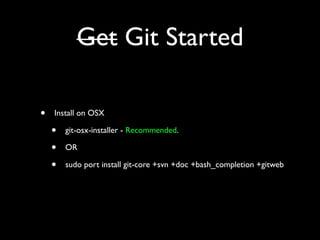
•   Install on OSX

    •   git-osx-installer - Recommended.

    •   OR

    •   sudo port install git-core +svn +doc +bash_completion +gitweb
Get Git Started

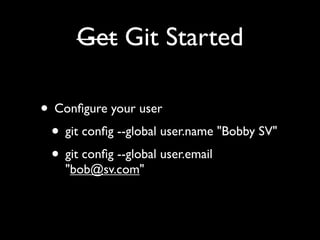
• Configure your user
 • git config --global user.name "Bobby SV"
 • git config --global user.email
    "bob@sv.com"
git commands: basics
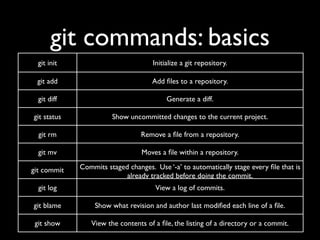
  git init                           Initialize a git repository.

 git add                            Add files to a repository.

  git diff                                Generate a diff.

git status             Show uncommitted changes to the current project.

  git rm                         Remove a file from a repository.

  git mv                         Moves a file within a repository.

git commit   Commits staged changes. Use ‘-a’ to automatically stage every file that is
                           already tracked before doing the commit.
  git log                             View a log of commits.

git blame         Show what revision and author last modified each line of a file.

 git show       View the contents of a file, the listing of a directory or a commit.
git commands: branches
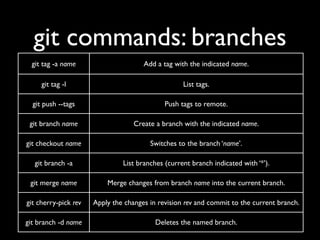
 git tag -a name                      Add a tag with the indicated name.

     git tag -l                                    List tags.

  git push --tags                            Push tags to remote.

 git branch name                   Create a branch with the indicated name.

git checkout name                       Switches to the branch ‘name’.

  git branch -a                List branches (current branch indicated with ‘*’).

 git merge name           Merge changes from branch name into the current branch.

git cherry-pick rev   Apply the changes in revision rev and commit to the current branch.

git branch -d name                        Deletes the named branch.
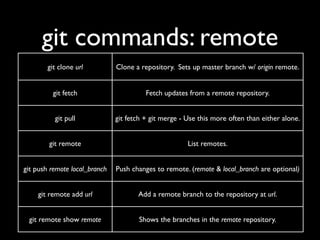
git commands: remote
        git clone url          Clone a repository. Sets up master branch w/ origin remote.


          git fetch                      Fetch updates from a remote repository.


          git pull             git fetch + git merge - Use this more often than either alone.


        git remote                                     List remotes.


git push remote local_branch   Push changes to remote. (remote & local_branch are optional)


    git remote add url                Add a remote branch to the repository at url.


 git remote show remote               Shows the branches in the remote repository.
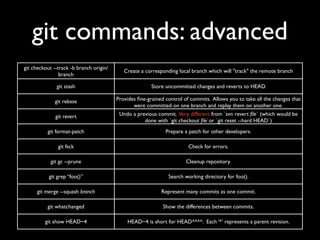
git commands: advanced
git checkout --track -b branch origin/
                                            Create a corresponding local branch which will "track" the remote branch
                branch

              git stash                                 Store uncommitted changes and reverts to HEAD.

              git rebase                 Provides fine-grained control of commits. Allows you to take all the changes that
                                                were committed on one branch and replay them on another one.
              git revert                  Undo a previous commit. Very different from `svn revert file` (which would be
                                                    done with `git checkout file`or `git reset --hard HEAD`)
          git format-patch                                    Prepare a patch for other developers.

               git fsck                                                 Check for errors.

            git gc --prune                                             Cleanup repository.

           git grep “foo()”                                    Search working directory for foo().

     git merge --squash branch                              Represent many commits as one commit.

          git whatchanged                                    Show the differences between commits.

         git show HEAD~4                     HEAD~4 is short for HEAD^^^^. Each ‘^’ represents a parent revision.
overwhelmed?
git workflowz
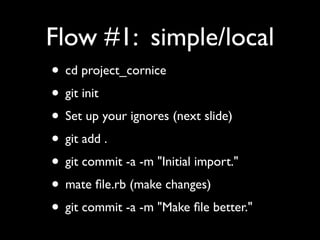
Flow #1: simple/local
• cd project_cornice
• git init
• Set up your ignores (next slide)
• git add .
• git commit -a -m "Initial import."
• mate file.rb (make changes)
• git commit -a -m "Make file better."
Flow #1: simple/local
• More on .gitignore files
 • Like SVN’s `svn propset ignore`
 • For example, in project root,
    add .gitignore containing:
   • log/*.log
   • tmp/**/*
Flow #2: local with
            branches
(master)$ git branch test_branch
(master)$ git checkout test_branch
Switched to branch "test_branch"
(test_branch)$ mate README
(test_branch)$ git commit -a -m "Improved file significantly."
[test_branch 6bba901] Improved file significantly.
 1 files changed, 1 insertions(+), 0 deletions(-)
(test_branch)$ git checkout master
Switched to branch "master"
(master)$ git merge test_branch
Updating 197ab8c..6bba901
Fast forward
 README | 1 +
 1 files changed, 1 insertions(+), 0 deletions(-)
Flow #3: remotes

•   git clone git@github.com:rangsikitpho/cornice.git

•   cd cornice

•   mate new_file.rb

•   git add new_file.rb

•   git commit -a -m “Did something amazing.”

•   git push [origin] [master]
Flow #4: full cycle
 •   git clone git@github.com:rangsikitpho/cornice.git

 •   cd cornice

 •   git checkout -b feature_branch

 •   mate new_file.rb

 •   git add new_file.rb

 •   git commit -a -m “Did something amazing.”

 •   git checkout master

 •   git merge feature_branch

 •   git push [origin] [master]

 •   git pull [origin] [master]
Flow #4: full cycle
            •   git clone git@github.com:rangsikitpho/cornice.git

            •   cd cornice

            •   git checkout -b feature_branch

            •   mate new_file.rb

Virtuous    •   git add new_file.rb
 Cycle
            •   git commit -a -m “Did something amazing.”

            •   git checkout master

            •   git merge feature_branch

            •   git push [origin] [master]

            •   git pull [origin] [master]
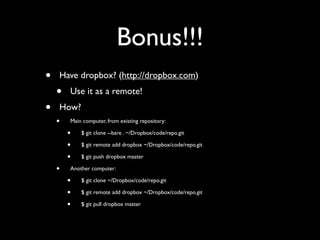
Bonus!!!
•   Have dropbox? (http://dropbox.com)
    •   Use it as a remote!
•   How?
    •   Main computer, from existing repository:

        •   $ git clone --bare . ~/Dropbox/code/repo.git

        •   $ git remote add dropbox ~/Dropbox/code/repo.git

        •   $ git push dropbox master

    •   Another computer:

        •   $ git clone ~/Dropbox/code/repo.git

        •   $ git remote add dropbox ~/Dropbox/code/repo.git

        •   $ git pull dropbox master
Refs
•   git-osx-installer:

    •    http://code.google.com/p/git-osx-installer/

•   git branch info on command prompt

    •    e.g. [bob:~/code/cornice(master)]$

    •    http://gist.github.com/283341

•   OSX GUI

    •    gitnub: http://wiki.github.com/Caged/gitnub/

    •    gitx: http://gitx.frim.nl/

•   git textmate bundle

    •    http://github.com/jcf/git-tmbundle

•   git tutorial

    •    http://www.kernel.org/pub/software/scm/git/docs/gittutorial.html

    •    http://progit.org/book/ch3-6.html (In depth explanation of ‘git rebase’)

Git Tech Talk

  • 1.
  • 2.
  • 4.
  • 5.
    git? • Version controlsystem • Designed and developed by Linus Torvalds for Linux kernel development
  • 6.
    git? • Version controlsystem • Designed and developed by Linus Torvalds for Linux kernel development • Like Subversion, but better...
  • 7.
    git? • Version controlsystem • Designed and developed by Linus Torvalds for Linux kernel development • Like Subversion, but better... • How???
  • 8.
  • 9.
  • 10.
    git > svn •Distributed • Every git repository is self-contained and includes a complete history of commits. (i.e. `git clone ...` vs `svn checkout ...`)
  • 11.
    git > svn •Distributed • Every git repository is self-contained and includes a complete history of commits. (i.e. `git clone ...` vs `svn checkout ...`) • You can commit/branch/merge locally. Read: Fast & offline.
  • 12.
    git > svn •Distributed • Every git repository is self-contained and includes a complete history of commits. (i.e. `git clone ...` vs `svn checkout ...`) • You can commit/branch/merge locally. Read: Fast & offline. • No single point of failure.
  • 13.
    git > svn •Distributed • Every git repository is self-contained and includes a complete history of commits. (i.e. `git clone ...` vs `svn checkout ...`) • You can commit/branch/merge locally. Read: Fast & offline. • No single point of failure. • No “latest revision”: unique revision ID
  • 14.
    git > svn •Lightweight Branching • Branch and merge often (per feature?)
  • 15.
    git > svn •Lightweight Branching • Branch and merge often (per feature?) • Intelligent 3-way merging = rarely manual
  • 16.
    git > svn •Lightweight Branching • Branch and merge often (per feature?) • Intelligent 3-way merging = rarely manual
  • 17.
    git > svn •Small Space Requirements • Ex: Mozilla: SVN:12GB => git:420MB
  • 18.
    git > svn •git submodules vs svn externals • Not covered in this presentation
  • 19.
    A couple newconcepts • “Remote” or “upstream”: A remotely accessible repository. • Push to a remote • Pull from a remote
  • 20.
    A couple newconcepts • “Staging area” or “index”: What will go into your next commit. • Example: • mate new_file.rb <= not staged • git add new_file.rb <= staged • git commit -a -m “Added a new file.” • Staging area is now empty.
  • 21.
  • 22.
  • 23.
  • 24.
    Get Git Started •Yes, I know it’s getting gitting old
  • 25.
    Get Git Started • Install on OSX • git-osx-installer - Recommended. • OR • sudo port install git-core +svn +doc +bash_completion +gitweb
  • 26.
    Get Git Started •Configure your user • git config --global user.name "Bobby SV" • git config --global user.email "bob@sv.com"
  • 27.
    git commands: basics git init Initialize a git repository. git add Add files to a repository. git diff Generate a diff. git status Show uncommitted changes to the current project. git rm Remove a file from a repository. git mv Moves a file within a repository. git commit Commits staged changes. Use ‘-a’ to automatically stage every file that is already tracked before doing the commit. git log View a log of commits. git blame Show what revision and author last modified each line of a file. git show View the contents of a file, the listing of a directory or a commit.
  • 28.
    git commands: branches git tag -a name Add a tag with the indicated name. git tag -l List tags. git push --tags Push tags to remote. git branch name Create a branch with the indicated name. git checkout name Switches to the branch ‘name’. git branch -a List branches (current branch indicated with ‘*’). git merge name Merge changes from branch name into the current branch. git cherry-pick rev Apply the changes in revision rev and commit to the current branch. git branch -d name Deletes the named branch.
  • 29.
    git commands: remote git clone url Clone a repository. Sets up master branch w/ origin remote. git fetch Fetch updates from a remote repository. git pull git fetch + git merge - Use this more often than either alone. git remote List remotes. git push remote local_branch Push changes to remote. (remote & local_branch are optional) git remote add url Add a remote branch to the repository at url. git remote show remote Shows the branches in the remote repository.
  • 30.
    git commands: advanced gitcheckout --track -b branch origin/ Create a corresponding local branch which will "track" the remote branch branch git stash Store uncommitted changes and reverts to HEAD. git rebase Provides fine-grained control of commits. Allows you to take all the changes that were committed on one branch and replay them on another one. git revert Undo a previous commit. Very different from `svn revert file` (which would be done with `git checkout file`or `git reset --hard HEAD`) git format-patch Prepare a patch for other developers. git fsck Check for errors. git gc --prune Cleanup repository. git grep “foo()” Search working directory for foo(). git merge --squash branch Represent many commits as one commit. git whatchanged Show the differences between commits. git show HEAD~4 HEAD~4 is short for HEAD^^^^. Each ‘^’ represents a parent revision.
  • 31.
  • 32.
  • 33.
    Flow #1: simple/local •cd project_cornice • git init • Set up your ignores (next slide) • git add . • git commit -a -m "Initial import." • mate file.rb (make changes) • git commit -a -m "Make file better."
  • 34.
    Flow #1: simple/local •More on .gitignore files • Like SVN’s `svn propset ignore` • For example, in project root, add .gitignore containing: • log/*.log • tmp/**/*
  • 35.
    Flow #2: localwith branches (master)$ git branch test_branch (master)$ git checkout test_branch Switched to branch "test_branch" (test_branch)$ mate README (test_branch)$ git commit -a -m "Improved file significantly." [test_branch 6bba901] Improved file significantly. 1 files changed, 1 insertions(+), 0 deletions(-) (test_branch)$ git checkout master Switched to branch "master" (master)$ git merge test_branch Updating 197ab8c..6bba901 Fast forward README | 1 + 1 files changed, 1 insertions(+), 0 deletions(-)
  • 36.
    Flow #3: remotes • git clone git@github.com:rangsikitpho/cornice.git • cd cornice • mate new_file.rb • git add new_file.rb • git commit -a -m “Did something amazing.” • git push [origin] [master]
  • 37.
    Flow #4: fullcycle • git clone git@github.com:rangsikitpho/cornice.git • cd cornice • git checkout -b feature_branch • mate new_file.rb • git add new_file.rb • git commit -a -m “Did something amazing.” • git checkout master • git merge feature_branch • git push [origin] [master] • git pull [origin] [master]
  • 38.
    Flow #4: fullcycle • git clone git@github.com:rangsikitpho/cornice.git • cd cornice • git checkout -b feature_branch • mate new_file.rb Virtuous • git add new_file.rb Cycle • git commit -a -m “Did something amazing.” • git checkout master • git merge feature_branch • git push [origin] [master] • git pull [origin] [master]
  • 40.
    Bonus!!! • Have dropbox? (http://dropbox.com) • Use it as a remote! • How? • Main computer, from existing repository: • $ git clone --bare . ~/Dropbox/code/repo.git • $ git remote add dropbox ~/Dropbox/code/repo.git • $ git push dropbox master • Another computer: • $ git clone ~/Dropbox/code/repo.git • $ git remote add dropbox ~/Dropbox/code/repo.git • $ git pull dropbox master
  • 42.
    Refs • git-osx-installer: • http://code.google.com/p/git-osx-installer/ • git branch info on command prompt • e.g. [bob:~/code/cornice(master)]$ • http://gist.github.com/283341 • OSX GUI • gitnub: http://wiki.github.com/Caged/gitnub/ • gitx: http://gitx.frim.nl/ • git textmate bundle • http://github.com/jcf/git-tmbundle • git tutorial • http://www.kernel.org/pub/software/scm/git/docs/gittutorial.html • http://progit.org/book/ch3-6.html (In depth explanation of ‘git rebase’)