HTML
Hyper Text MarkUp Language
What is HTML?
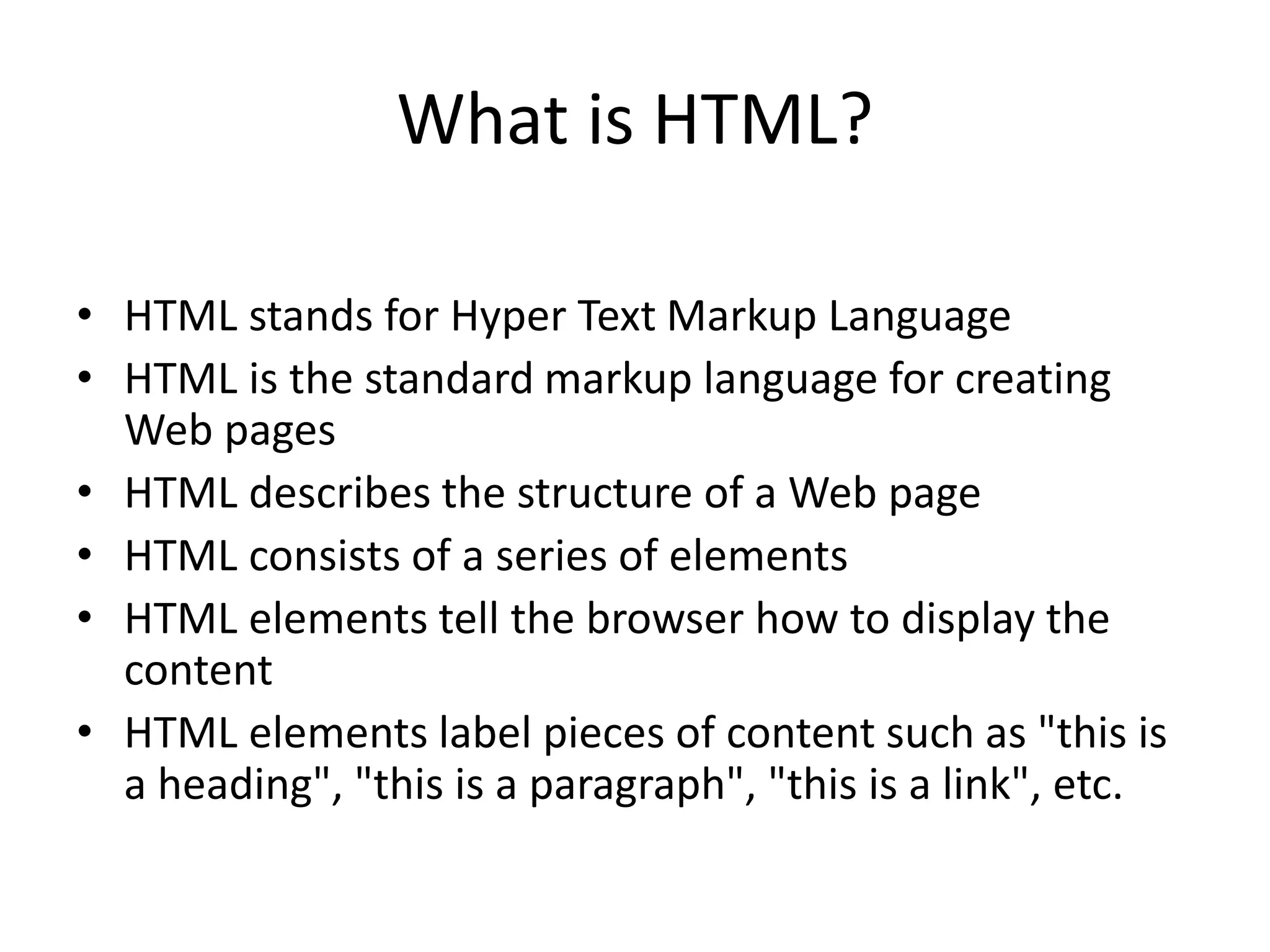
• HTML stands for Hyper Text Markup Language
• HTML is the standard markup language for creating
Web pages
• HTML describes the structure of a Web page
• HTML consists of a series of elements
• HTML elements tell the browser how to display the
content
• HTML elements label pieces of content such as "this is
a heading", "this is a paragraph", "this is a link", etc.
Simple HTML Document Example
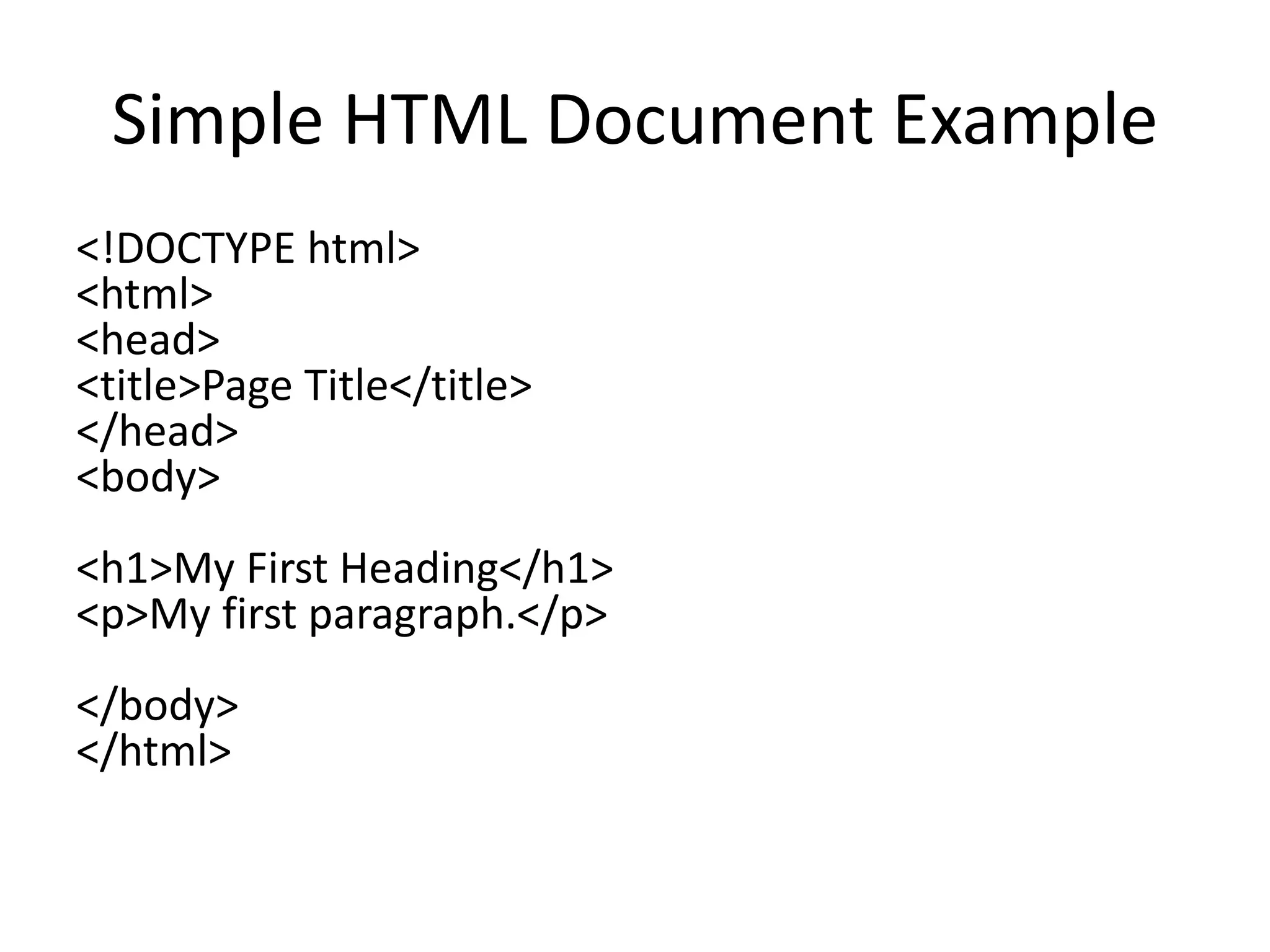
<!DOCTYPE html>
<html>
<head>
<title>Page Title</title>
</head>
<body>
<h1>My First Heading</h1>
<p>My first paragraph.</p>
</body>
</html>
Simple HTML page
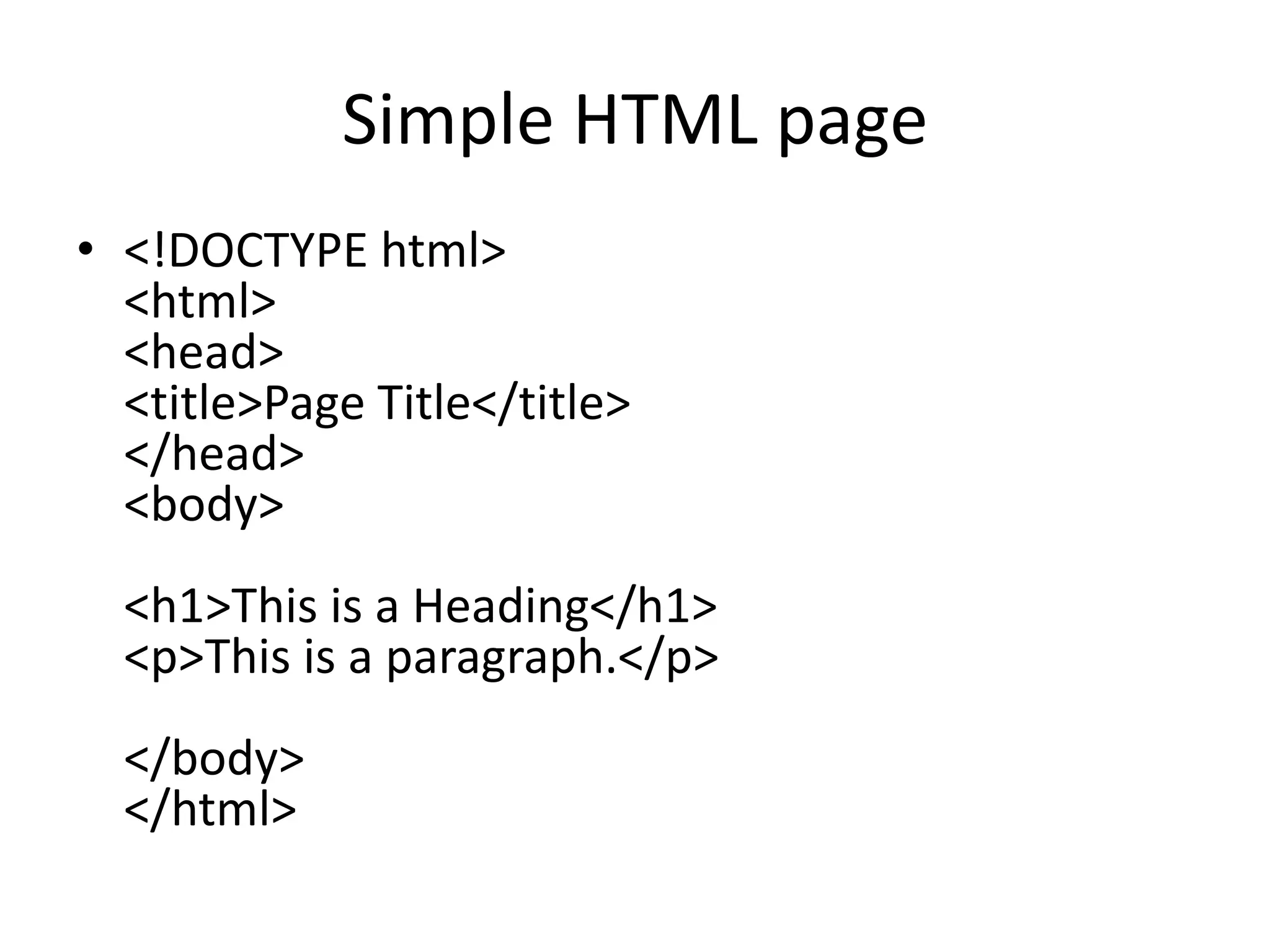
• <!DOCTYPE html>
<html>
<head>
<title>Page Title</title>
</head>
<body>
<h1>This is a Heading</h1>
<p>This is a paragraph.</p>
</body>
</html>
Example Explained
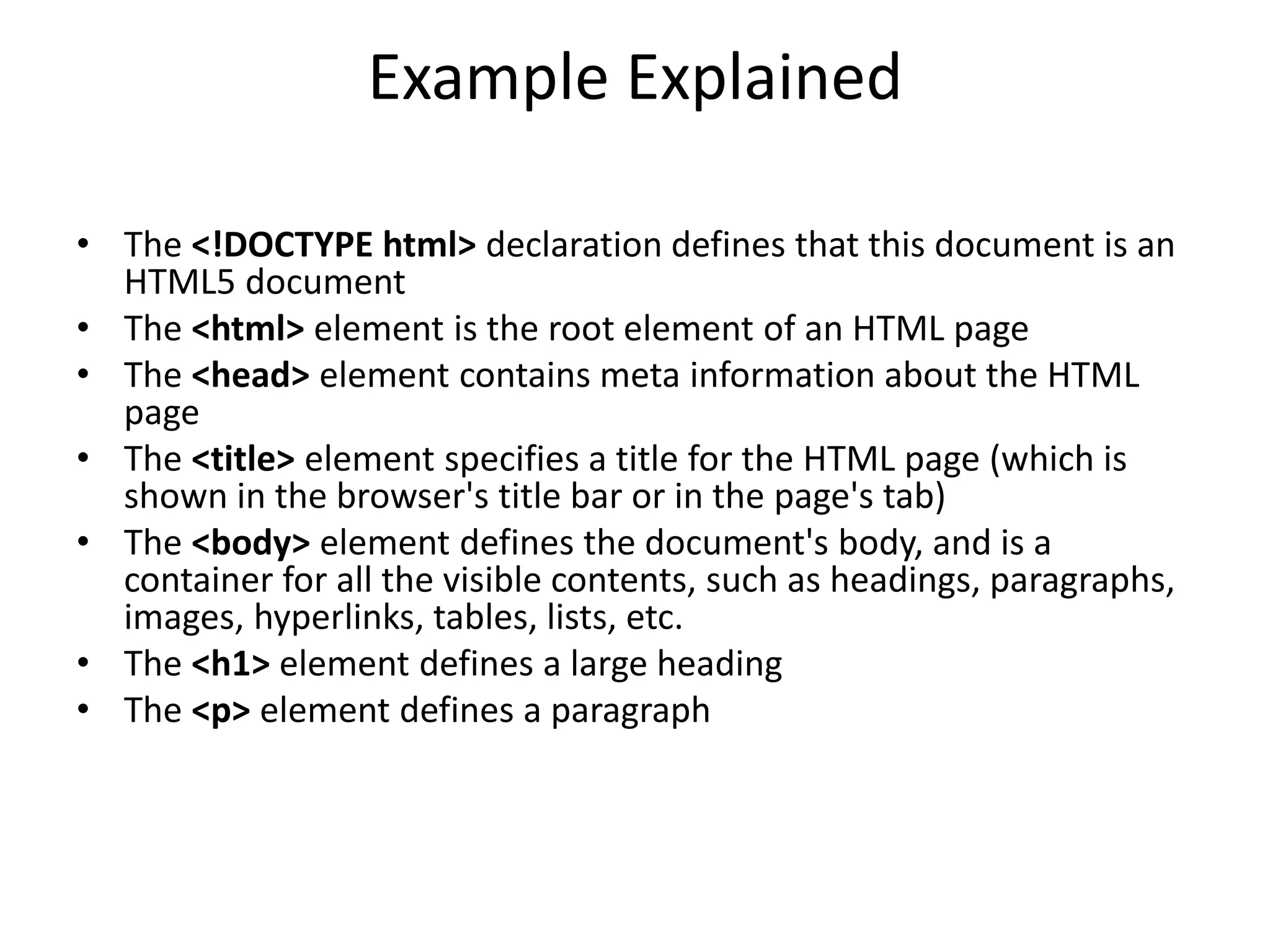
• The <!DOCTYPE html> declaration defines that this document is an
HTML5 document
• The <html> element is the root element of an HTML page
• The <head> element contains meta information about the HTML
page
• The <title> element specifies a title for the HTML page (which is
shown in the browser's title bar or in the page's tab)
• The <body> element defines the document's body, and is a
container for all the visible contents, such as headings, paragraphs,
images, hyperlinks, tables, lists, etc.
• The <h1> element defines a large heading
• The <p> element defines a paragraph
Example Explained
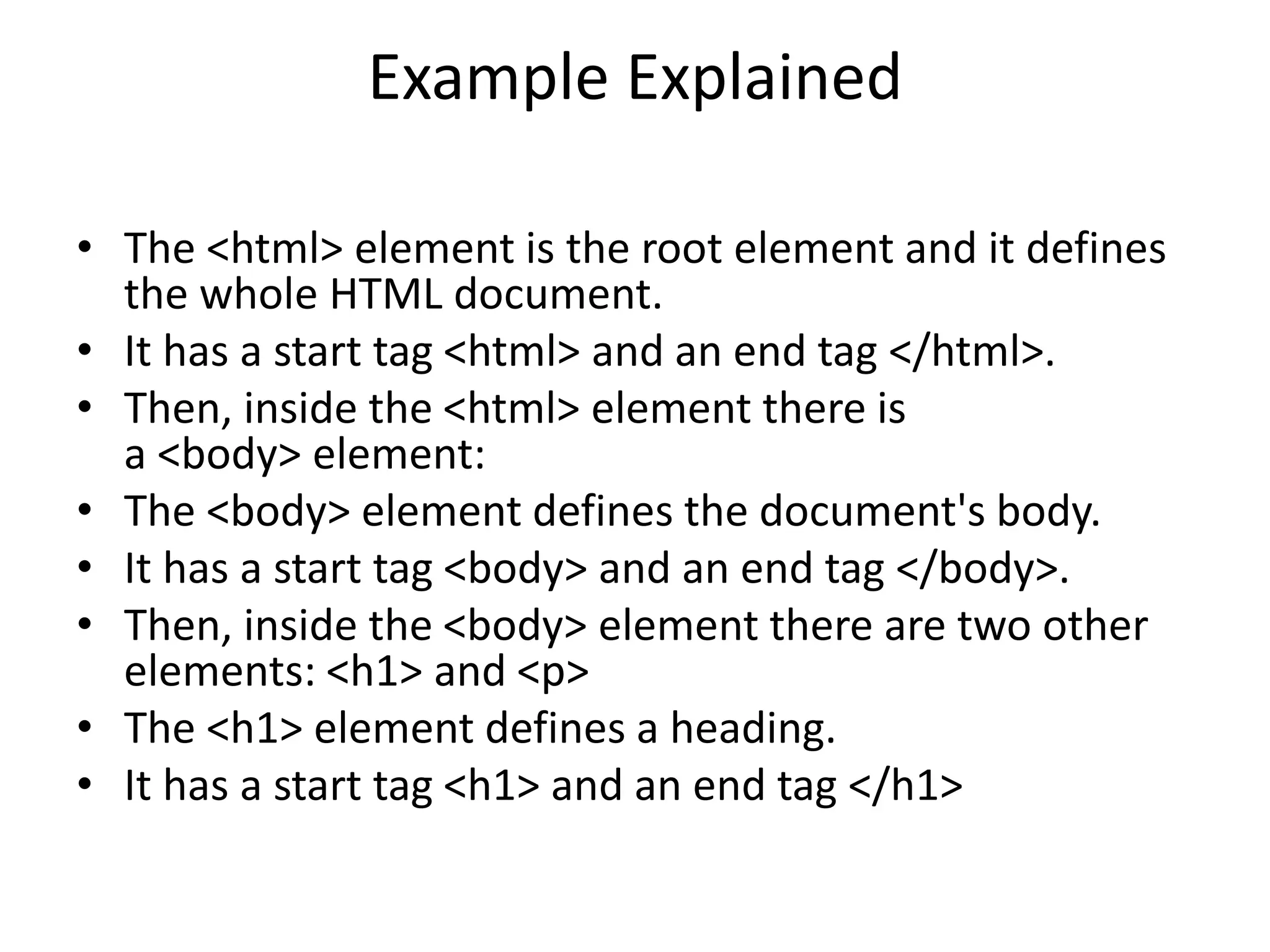
• The <html> element is the root element and it defines
the whole HTML document.
• It has a start tag <html> and an end tag </html>.
• Then, inside the <html> element there is
a <body> element:
• The <body> element defines the document's body.
• It has a start tag <body> and an end tag </body>.
• Then, inside the <body> element there are two other
elements: <h1> and <p>
• The <h1> element defines a heading.
• It has a start tag <h1> and an end tag </h1>
Example Explained
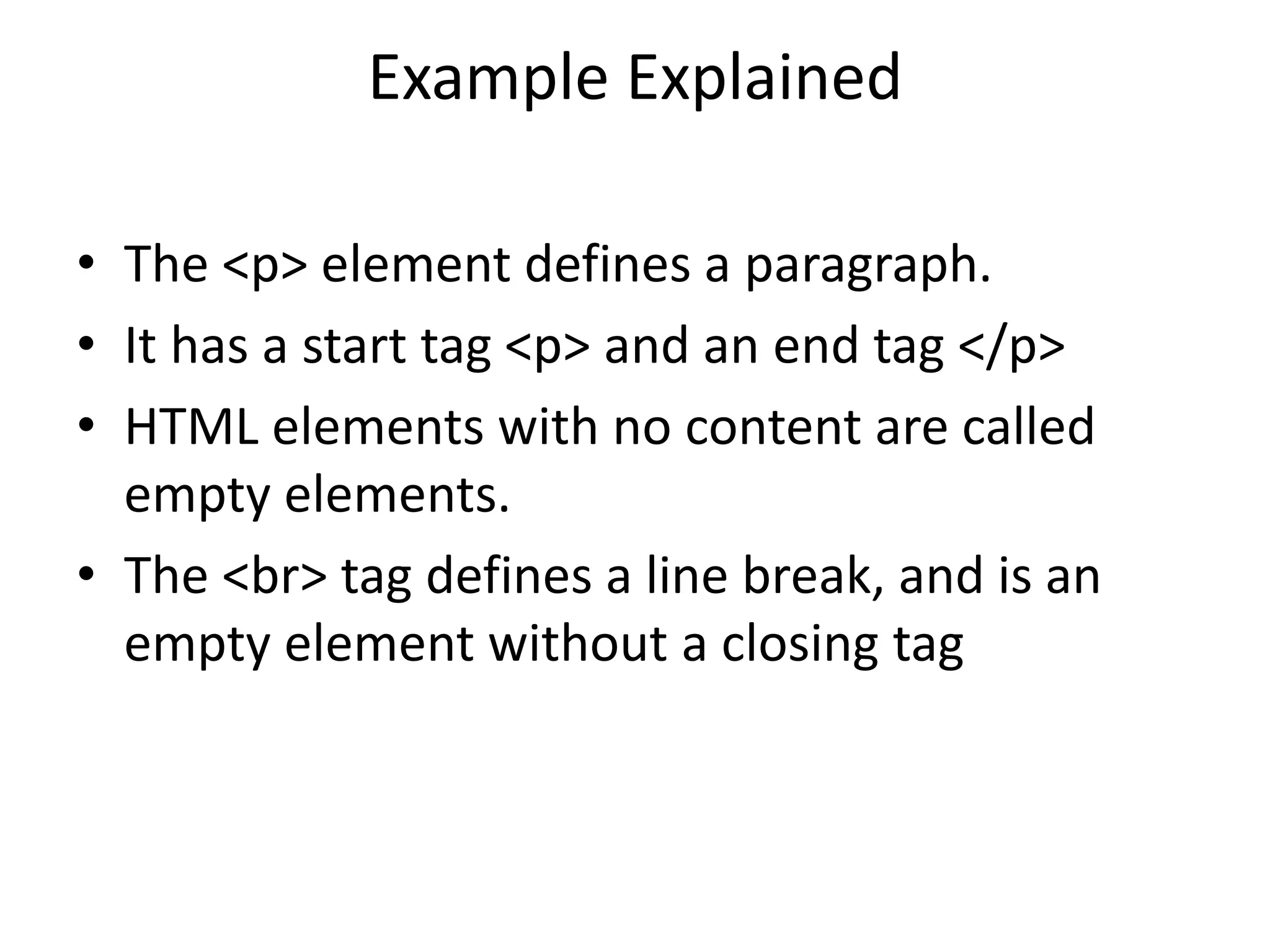
• The <p> element defines a paragraph.
• It has a start tag <p> and an end tag </p>
• HTML elements with no content are called
empty elements.
• The <br> tag defines a line break, and is an
empty element without a closing tag
HTML is Not Case Sensitive
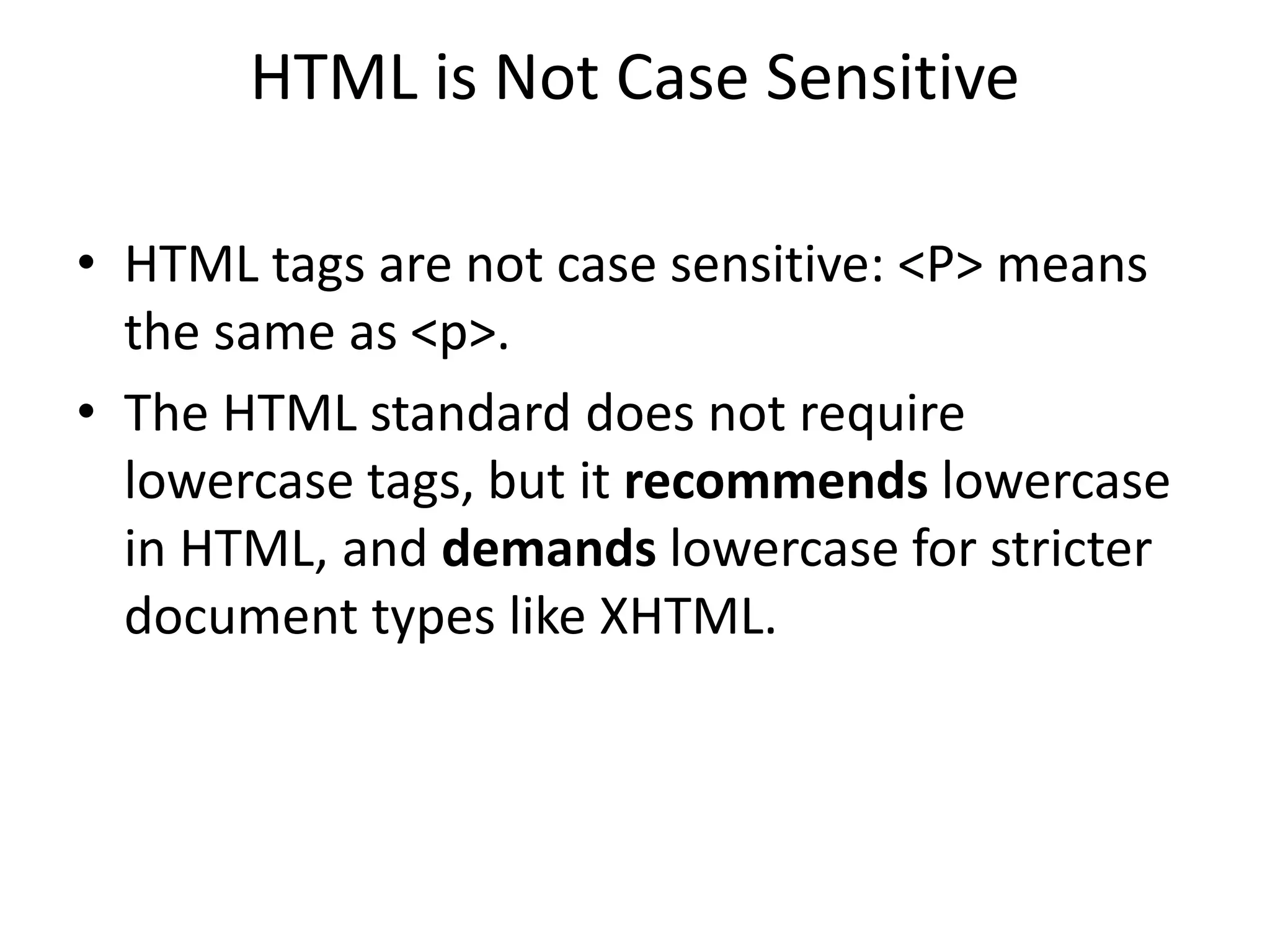
• HTML tags are not case sensitive: <P> means
the same as <p>.
• The HTML standard does not require
lowercase tags, but it recommends lowercase
in HTML, and demands lowercase for stricter
document types like XHTML.
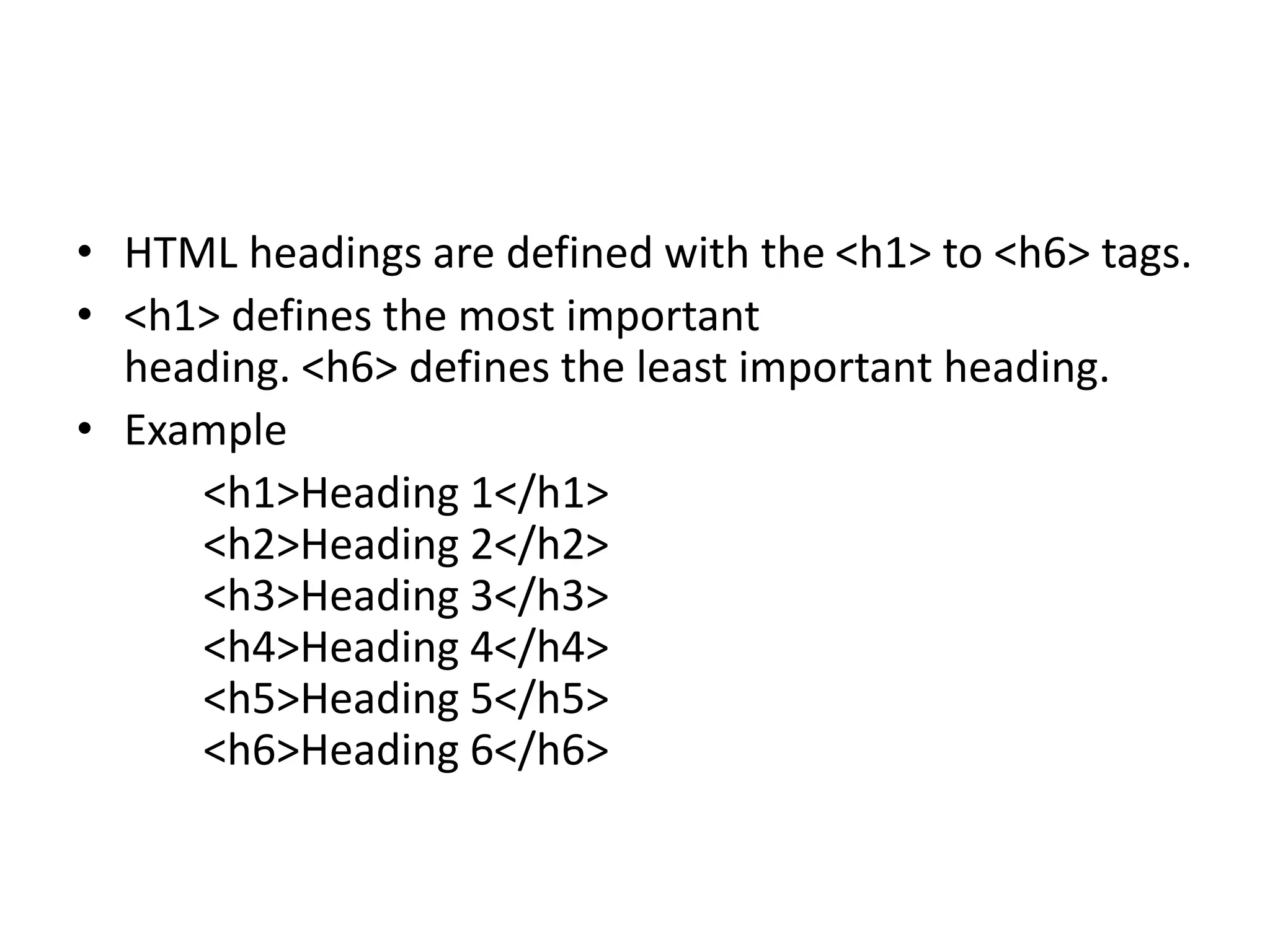
• HTML headings are defined with the <h1> to <h6> tags.
• <h1> defines the most important
heading. <h6> defines the least important heading.
• Example
<h1>Heading 1</h1>
<h2>Heading 2</h2>
<h3>Heading 3</h3>
<h4>Heading 4</h4>
<h5>Heading 5</h5>
<h6>Heading 6</h6>
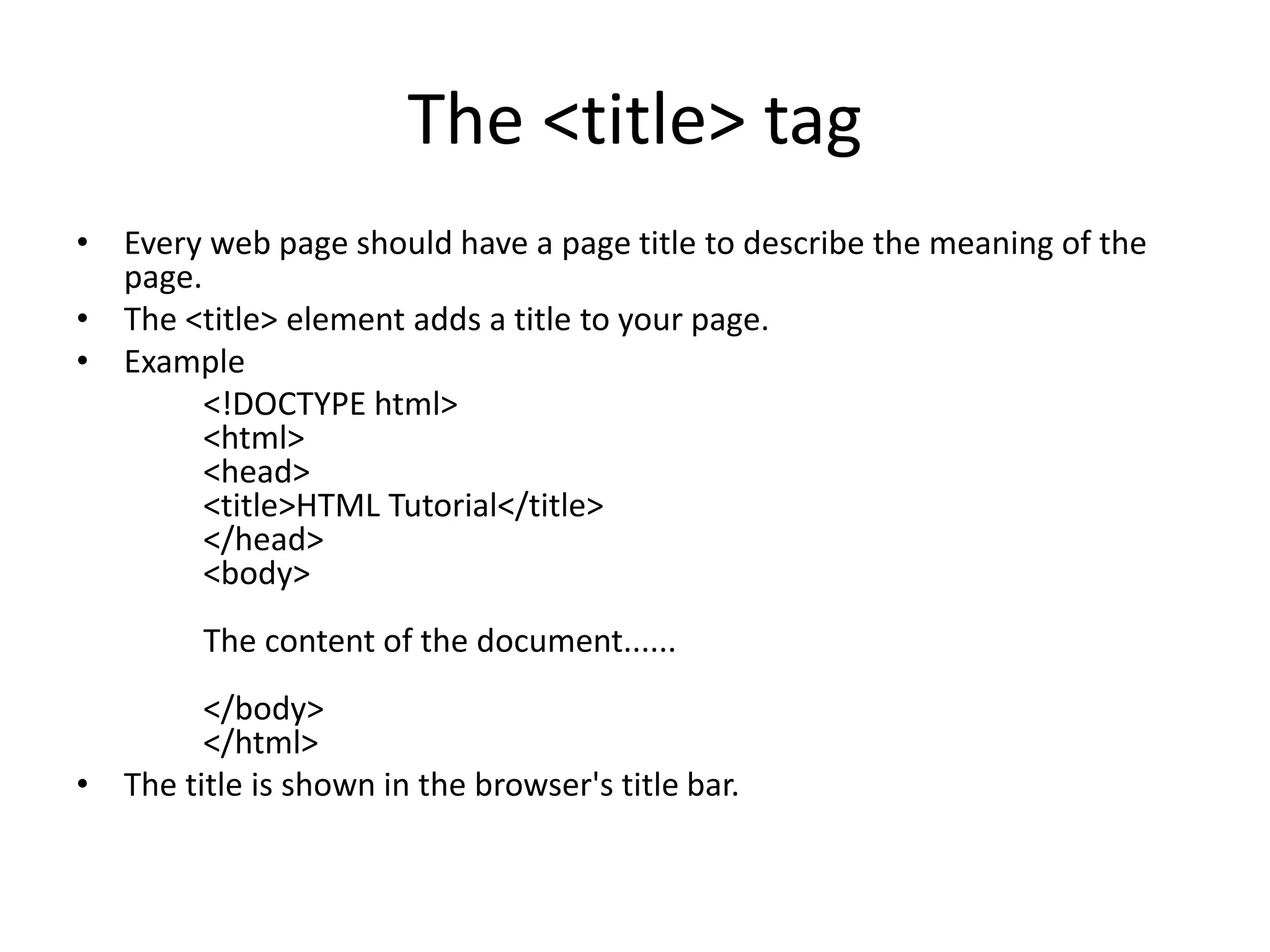
The <title> tag
• Every web page should have a page title to describe the meaning of the
page.
• The <title> element adds a title to your page.
• Example
<!DOCTYPE html>
<html>
<head>
<title>HTML Tutorial</title>
</head>
<body>
The content of the document......
</body>
</html>
• The title is shown in the browser's title bar.
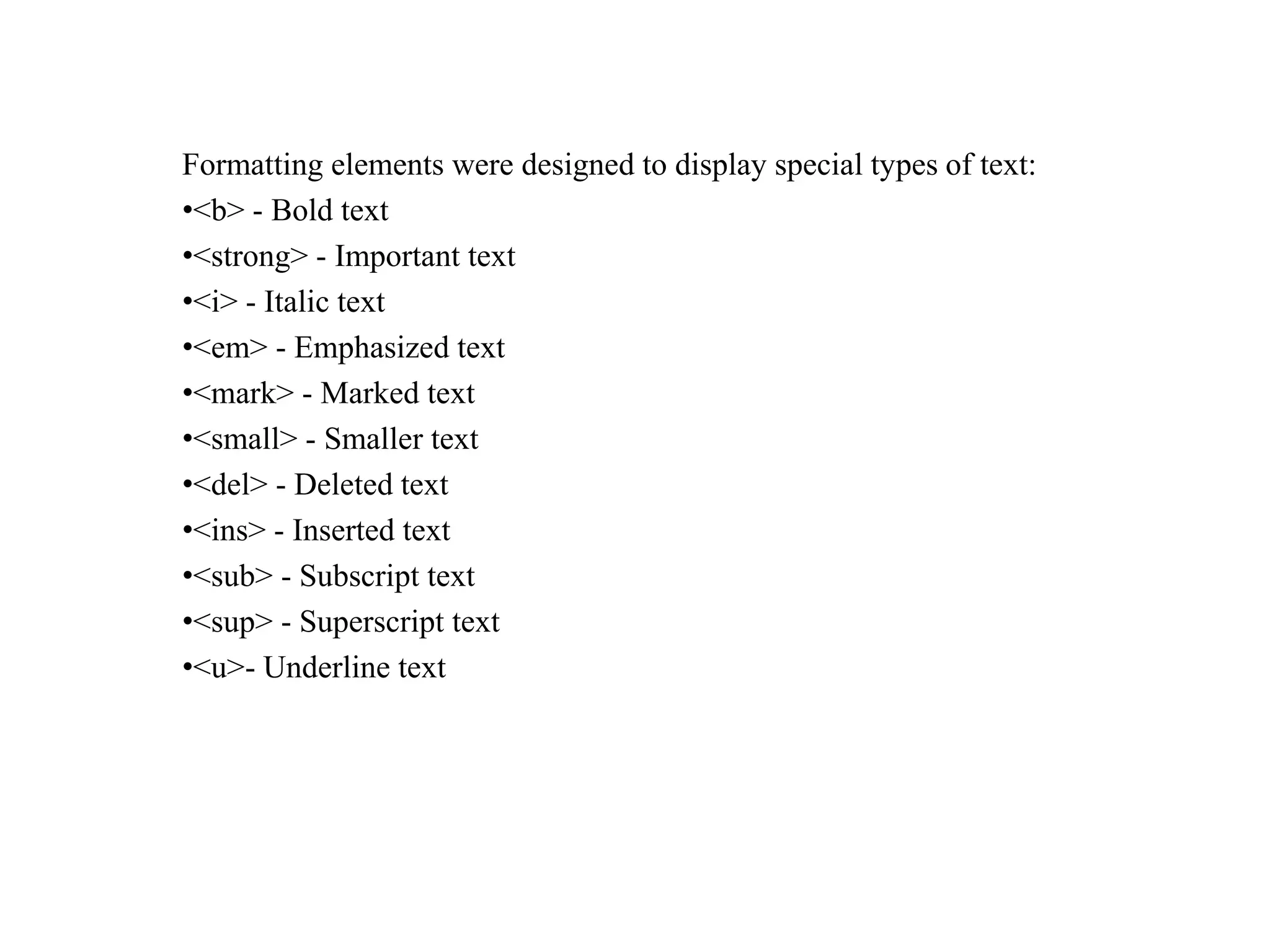
Formatting elements were designed to display special types of text:
•<b> - Bold text
•<strong> - Important text
•<i> - Italic text
•<em> - Emphasized text
•<mark> - Marked text
•<small> - Smaller text
•<del> - Deleted text
•<ins> - Inserted text
•<sub> - Subscript text
•<sup> - Superscript text
•<u>- Underline text
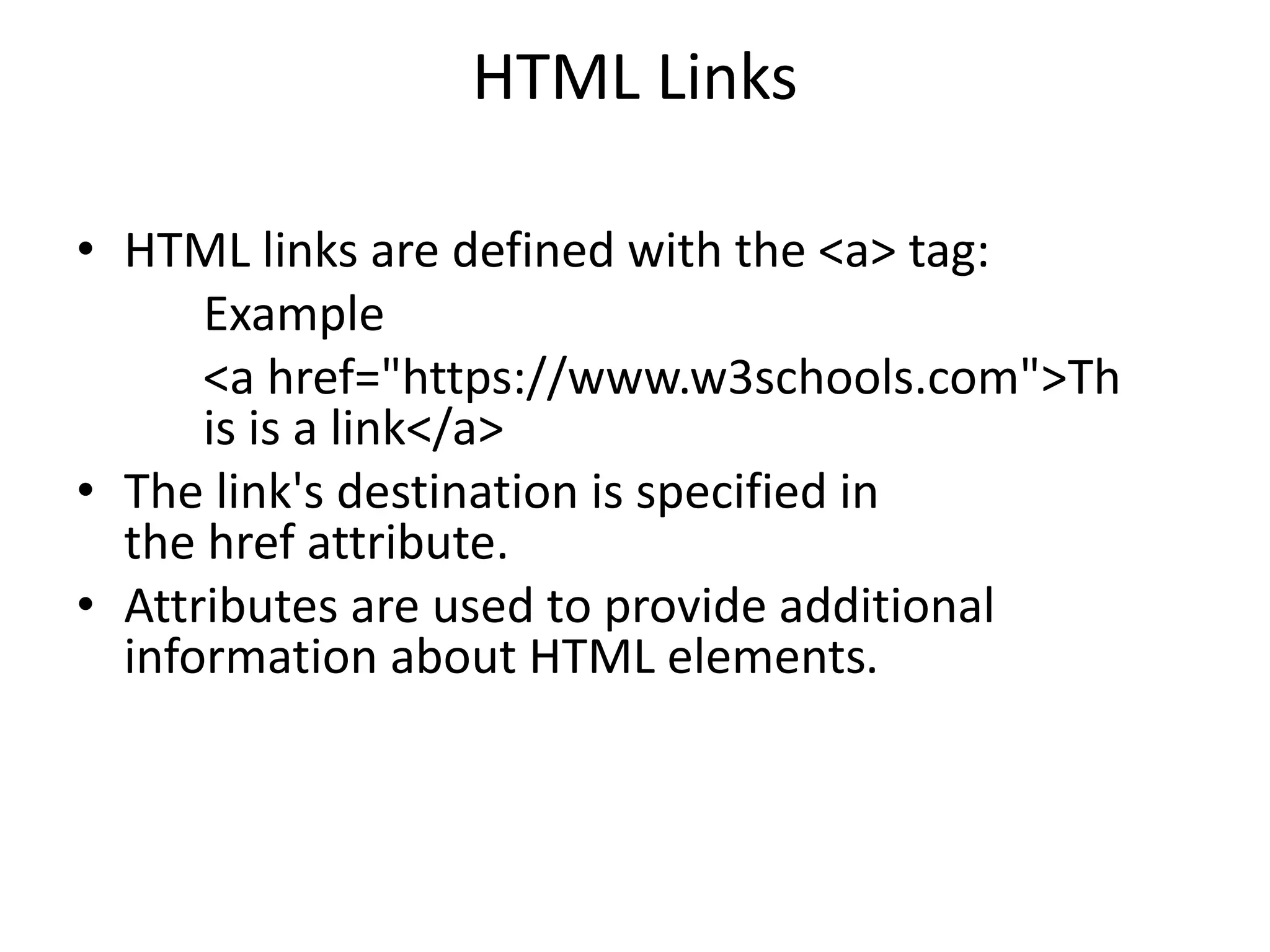
HTML Links
• HTML links are defined with the <a> tag:
Example
<a href="https://www.w3schools.com">Th
is is a link</a>
• The link's destination is specified in
the href attribute.
• Attributes are used to provide additional
information about HTML elements.
HTML Images
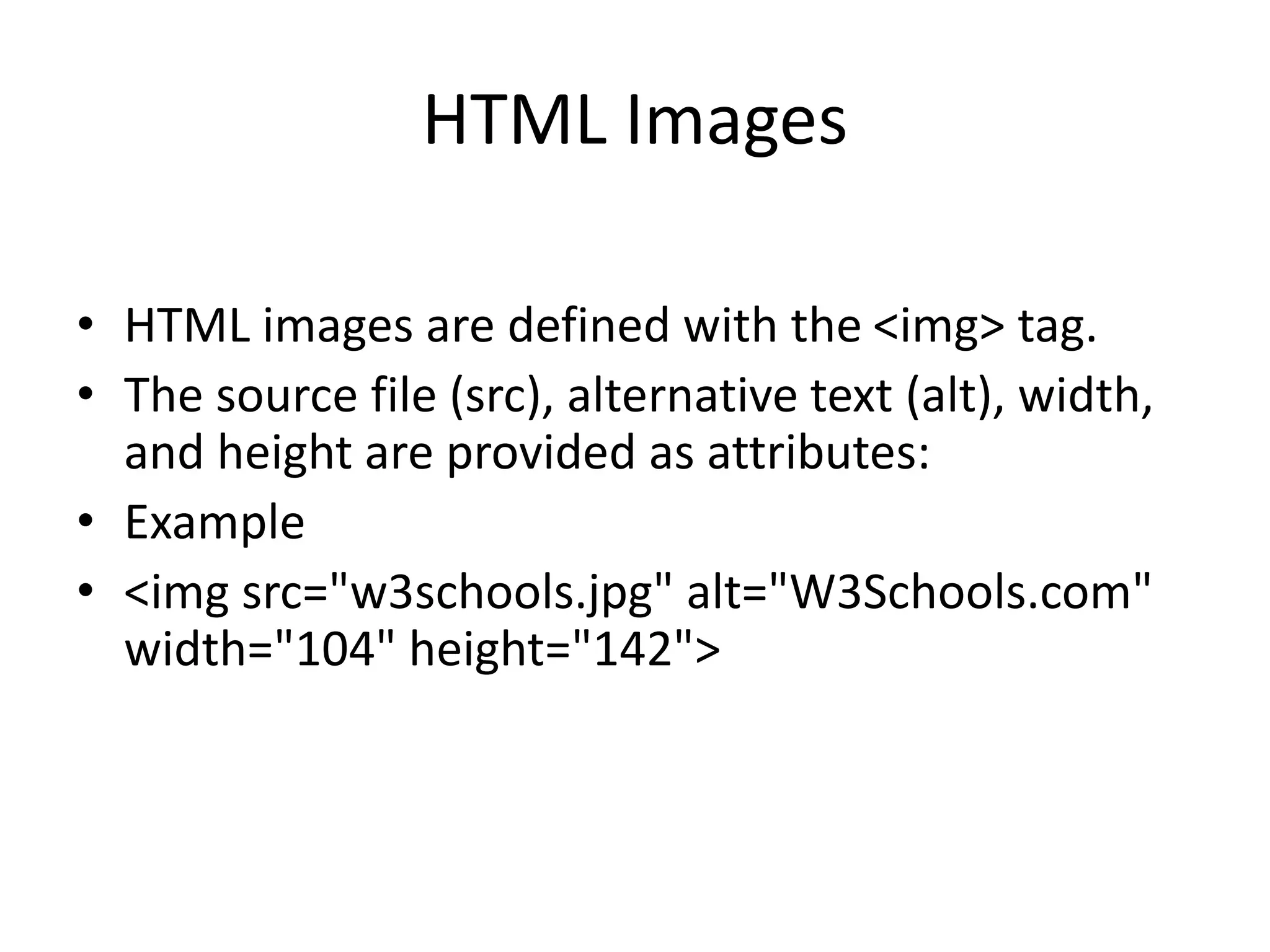
• HTML images are defined with the <img> tag.
• The source file (src), alternative text (alt), width,
and height are provided as attributes:
• Example
• <img src="w3schools.jpg" alt="W3Schools.com"
width="104" height="142">
How to View HTML Source
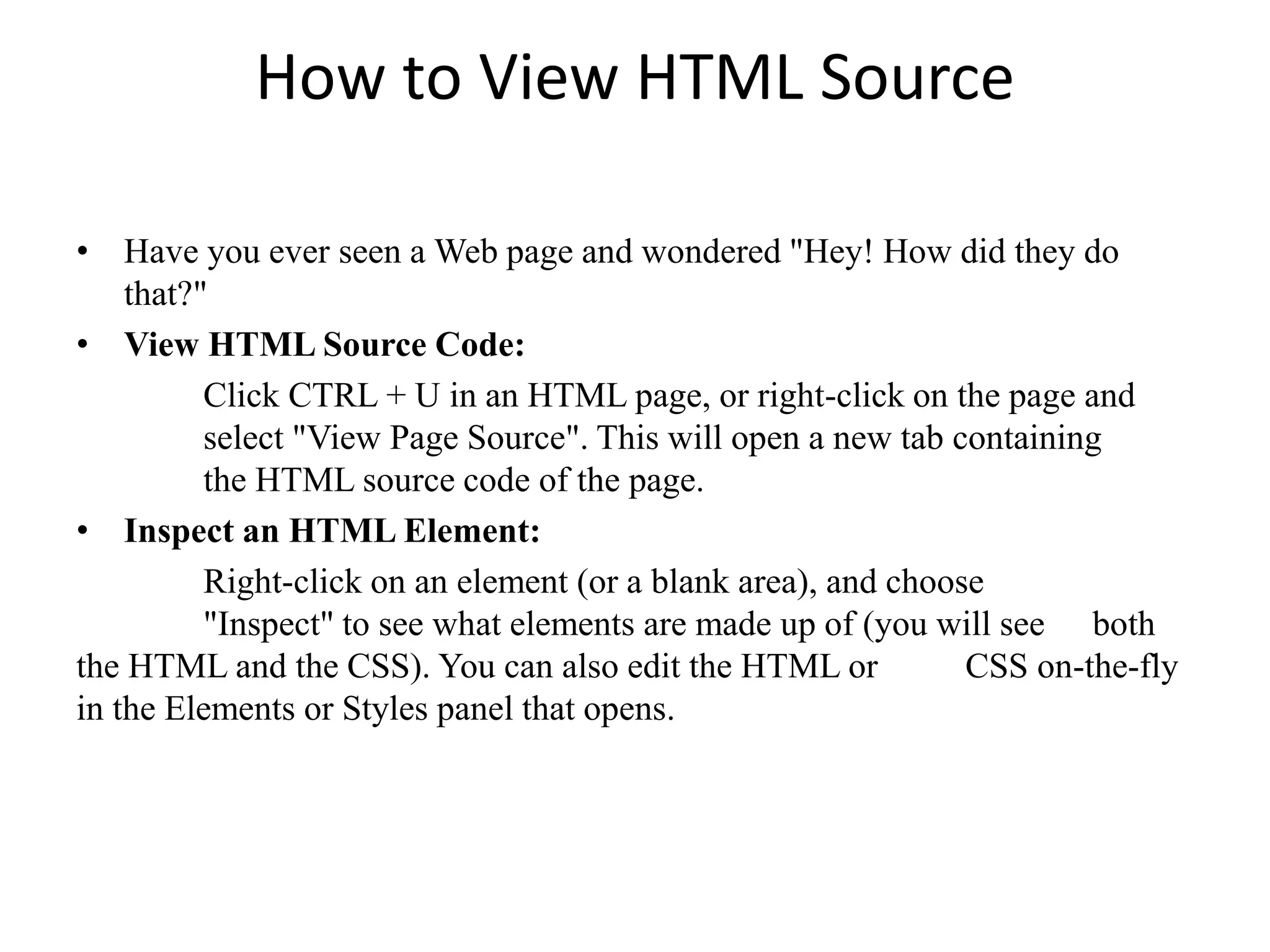
• Have you ever seen a Web page and wondered "Hey! How did they do
that?"
• View HTML Source Code:
Click CTRL + U in an HTML page, or right-click on the page and
select "View Page Source". This will open a new tab containing
the HTML source code of the page.
• Inspect an HTML Element:
Right-click on an element (or a blank area), and choose
"Inspect" to see what elements are made up of (you will see both
the HTML and the CSS). You can also edit the HTML or CSS on-the-fly
in the Elements or Styles panel that opens.

FEWDD Lec 1 web development presentation

  • 1.
  • 2.
    What is HTML? •HTML stands for Hyper Text Markup Language • HTML is the standard markup language for creating Web pages • HTML describes the structure of a Web page • HTML consists of a series of elements • HTML elements tell the browser how to display the content • HTML elements label pieces of content such as "this is a heading", "this is a paragraph", "this is a link", etc.
  • 3.
    Simple HTML DocumentExample <!DOCTYPE html> <html> <head> <title>Page Title</title> </head> <body> <h1>My First Heading</h1> <p>My first paragraph.</p> </body> </html>
  • 4.
    Simple HTML page •<!DOCTYPE html> <html> <head> <title>Page Title</title> </head> <body> <h1>This is a Heading</h1> <p>This is a paragraph.</p> </body> </html>
  • 5.
    Example Explained • The<!DOCTYPE html> declaration defines that this document is an HTML5 document • The <html> element is the root element of an HTML page • The <head> element contains meta information about the HTML page • The <title> element specifies a title for the HTML page (which is shown in the browser's title bar or in the page's tab) • The <body> element defines the document's body, and is a container for all the visible contents, such as headings, paragraphs, images, hyperlinks, tables, lists, etc. • The <h1> element defines a large heading • The <p> element defines a paragraph
  • 6.
    Example Explained • The<html> element is the root element and it defines the whole HTML document. • It has a start tag <html> and an end tag </html>. • Then, inside the <html> element there is a <body> element: • The <body> element defines the document's body. • It has a start tag <body> and an end tag </body>. • Then, inside the <body> element there are two other elements: <h1> and <p> • The <h1> element defines a heading. • It has a start tag <h1> and an end tag </h1>
  • 7.
    Example Explained • The<p> element defines a paragraph. • It has a start tag <p> and an end tag </p> • HTML elements with no content are called empty elements. • The <br> tag defines a line break, and is an empty element without a closing tag
  • 8.
    HTML is NotCase Sensitive • HTML tags are not case sensitive: <P> means the same as <p>. • The HTML standard does not require lowercase tags, but it recommends lowercase in HTML, and demands lowercase for stricter document types like XHTML.
  • 9.
    • HTML headingsare defined with the <h1> to <h6> tags. • <h1> defines the most important heading. <h6> defines the least important heading. • Example <h1>Heading 1</h1> <h2>Heading 2</h2> <h3>Heading 3</h3> <h4>Heading 4</h4> <h5>Heading 5</h5> <h6>Heading 6</h6>
  • 10.
    The <title> tag •Every web page should have a page title to describe the meaning of the page. • The <title> element adds a title to your page. • Example <!DOCTYPE html> <html> <head> <title>HTML Tutorial</title> </head> <body> The content of the document...... </body> </html> • The title is shown in the browser's title bar.
  • 11.
    Formatting elements weredesigned to display special types of text: •<b> - Bold text •<strong> - Important text •<i> - Italic text •<em> - Emphasized text •<mark> - Marked text •<small> - Smaller text •<del> - Deleted text •<ins> - Inserted text •<sub> - Subscript text •<sup> - Superscript text •<u>- Underline text
  • 12.
    HTML Links • HTMLlinks are defined with the <a> tag: Example <a href="https://www.w3schools.com">Th is is a link</a> • The link's destination is specified in the href attribute. • Attributes are used to provide additional information about HTML elements.
  • 13.
    HTML Images • HTMLimages are defined with the <img> tag. • The source file (src), alternative text (alt), width, and height are provided as attributes: • Example • <img src="w3schools.jpg" alt="W3Schools.com" width="104" height="142">
  • 14.
    How to ViewHTML Source • Have you ever seen a Web page and wondered "Hey! How did they do that?" • View HTML Source Code: Click CTRL + U in an HTML page, or right-click on the page and select "View Page Source". This will open a new tab containing the HTML source code of the page. • Inspect an HTML Element: Right-click on an element (or a blank area), and choose "Inspect" to see what elements are made up of (you will see both the HTML and the CSS). You can also edit the HTML or CSS on-the-fly in the Elements or Styles panel that opens.